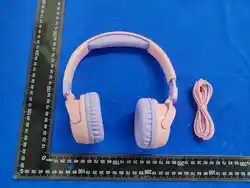
Kids Wireless Headphones
KWH11
Safety Instructions and Warning
1. General Safety
USER MANUAL
Age Restriction: This headset is a child's product designed for and
limited to children aged 3 years and older. It is not suitable for children
under 3 years due to small parts that pose a choking hazard.
Adult Supervision Required: A responsible adult must supervise the
child's use of this product, including initial setup, Bluetooth pairing,
volume adjustment, charging, and storage.
Intended Use: Use only as described in this manual for listening to audio.
Any other use is improper and may be dangerous.
Modification Prohibition: Do not modify, disassemble, or attempt to
repair the headset. Tampering voids the warranty and creates safety
risks.
IMPORTANT: This product contains small parts and is INTENDED FOR USE
BY CHILDREN AGED 3 YEARS AND OLDER ONLY. Setup, operation, and
charging must be performed by an adult. Keep this manual for future
reference.
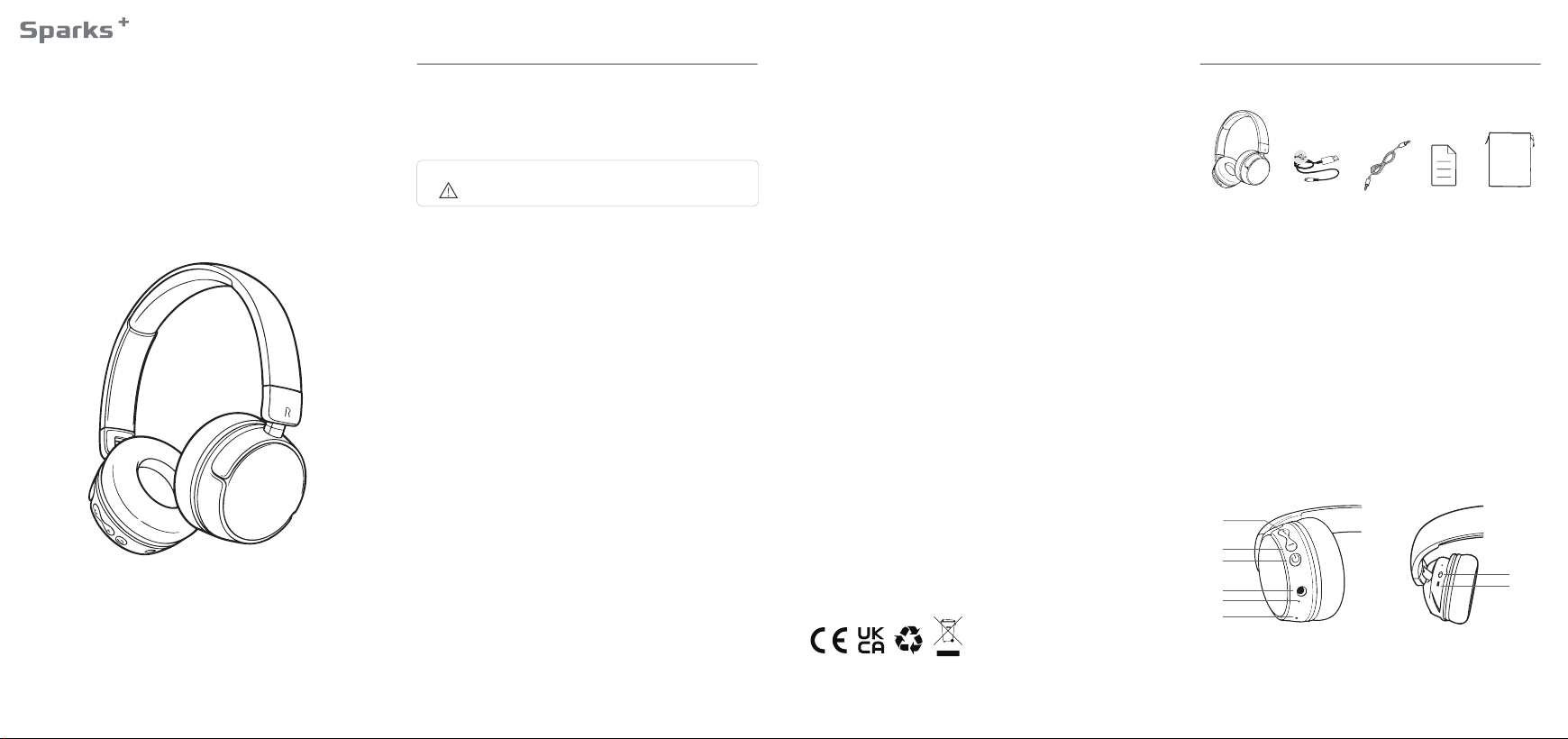
① Headphones
② Type-C Charging Cable
③ 3.5mm to 3.5mm Aux Cable
④ User Guide
⑤ Carrying Bag
WARNING: To prevent the risk of fire, electric shock, injury, or hearing
damage, please read all safety information and instructions
carefully before use.
User Guide
•
•
•
•
4. Battery & Charging Safety (If Applicable)
Charging Supervision: Charging must be performed by or under the
direct supervision of an adult. Unplug the charger once the device is fully
charged. Charge only on a dry, stable surface away from flammable
materials.
Use Correct Cable: Use only the provided or manufacturer-specified
USB charging cable and a standard USB power adapter (not included).
Damaged Components: If the headset, cable, or battery is damaged,
deformed, leaking, emits odor, or overheats, discontinue use immediately
and contact customer service. Do not use a damaged product.
Battery Handling: Do not puncture, crush, short-circuit, or dispose of in
fire. The internal battery is not user-replaceable.
•
•
•
•
Fully charge the headphones before first use.
The headphones will not function if the charging cable is still connected.
The LED indicator will glow red during charging and will turn off when fully
charged.
When the battery is low, the red LED will flash accompanied by a voice
prompt.
For optimal hygiene and safety, clean only with a dry, soft cloth. Do not
use liquids or submerge. Keep away from extreme heat and moisture.
•
•
•
•
•
5. Radio Frequency (Bluetooth) Note
1. What’s in the box:
2. Important Notes Before Use
3. Product Overview & Controls:
This device complies with Part 15 of the FCC Rules. Operation is subject
to the condition that it does not cause harmful interference.
Disclaimer: The manufacturer is not liable for damage or injury arising from
non-compliance with these instructions, unauthorized modification, misuse, or
use with incompatible accessories. Specifications subject to change.
•
2. Hearing Safety
Volume Limitation: This headset incorporates a permanent volume
limiter. Do not attempt to modify or bypass this critical safety feature.
Safe Listening Practices: Supervise and encourage children to listen at
moderate volumes. Even with a volume limiter, prolonged exposure can
contribute to hearing fatigue.
Listening Breaks: Ensure your child takes regular breaks. We
recommend limiting continuous listening sessions to 45-60 minutes.
Situational Awareness: Instruct your child NOT to use the headset in
situations where full environmental awareness is essential for safety,
such as while walking near traffic, cycling, or during active play where the
cord may snag.
•
•
•
•
3. Usage & Environmental Warnings
Choking Hazard: Small parts, including detachable ear pads (if
applicable), may present a choking hazard. Regularly inspect the headset
for loose parts. Keep away from children under 3 years.
•
Strangulation Hazard: The headband and charging cable are not toys.
Never allow the product or its cable near a crib, bed, or playpen. Do not
let a child sleep while wearing the headset.
Fit and Physical Activity: Adjust the headband for a comfortable, secure
fit. Avoid overly tight adjustments. Discourage rough play or running while
wearing the headset to prevent tripping, snagging, or impact injuries.
Heat & Fire: Do not expose the headset, battery, or charger to extreme
heat, direct sunlight, open flames, or other sources of high temperature.
Moisture: This product is not waterproof. Protect it from liquids, rain, and
excessive humidity. Do not use with wet hands.
Cleaning: Disconnect from power before cleaning. Wipe surfaces only
with a soft, dry cloth. Do not use liquid or chemical cleaners.
•
•
•
•
•
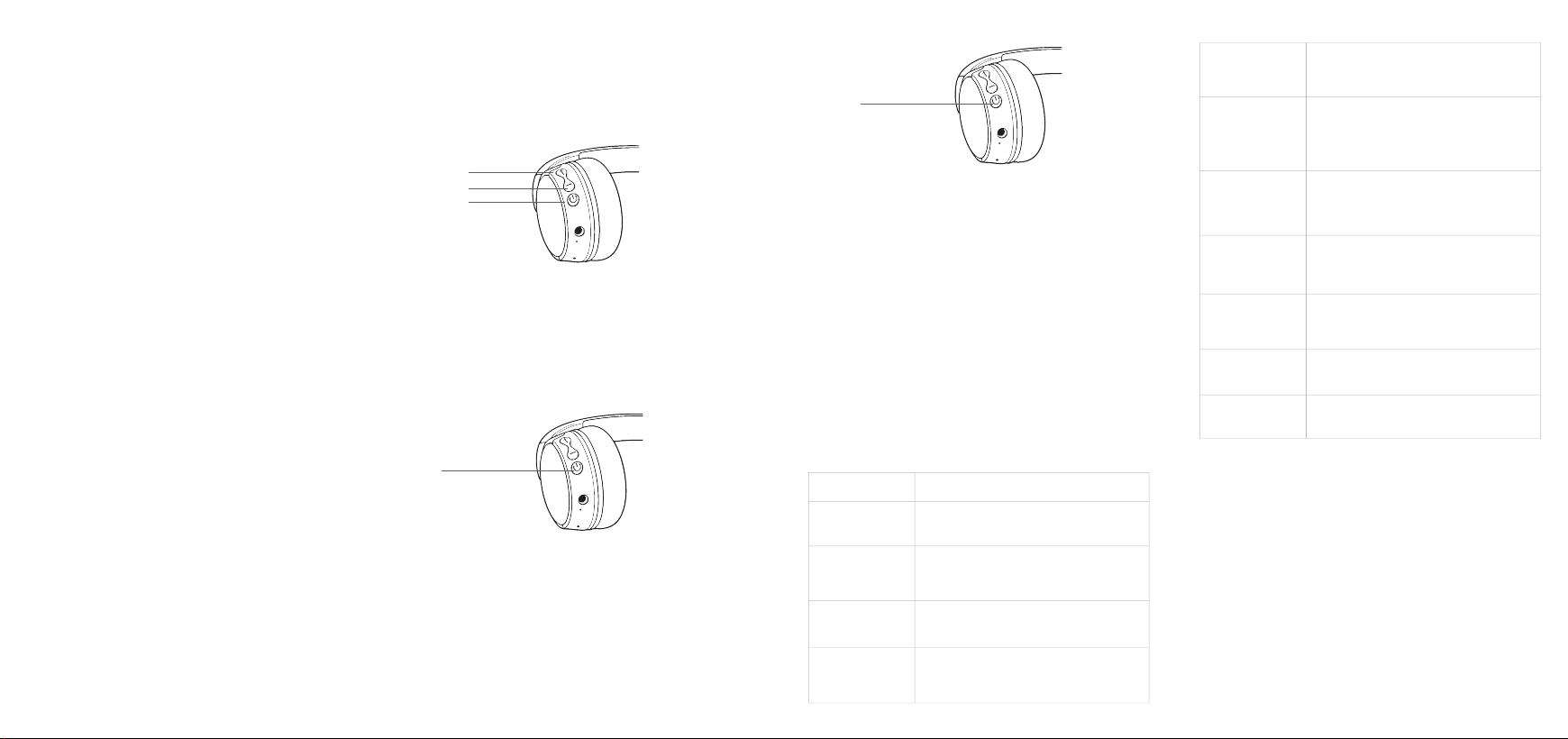
① Volume up/ Track forward
② Volume down / Track backward
③ Power on/off button
④ AUX cable in
⑤ LED indicator
⑥ Microphone
⑦Type-C charging port
⑧Volume control switch
①
①
⑦
⑧
②
②
③
③
④
④
⑤
⑤
⑥
Note: Music playback will automatically pause when a call comes in. To
resume playback after ending the call, simply press the power button once.
How to Reset: With the headphones powered on, press and hold the power button for
15 seconds. Release the button when the red LED flashes three times. The
headphones will reset to factory defaults and power off automatically.
Important: If problems persist after trying the above steps, perform a factory reset.
9. Voice assistant
Press and hold the power button for 3 seconds to activate your device’s
voice assistant (e.g., Google Assistant on Android or Siri on iOS).
•
If you experience any issues with the headphones, please refer to the
solutions below before contacting customer support.
Ensure the headphones are fully charged. Connect the
charging cable firmly to the port and a working USB power
source. The red LED should light up during charging.
Headphones will not turn
on.
Perform a full charge cycle (approximately 40 minutes to 1
hour). If unused for extended periods, store with at least 50%
charge. Long-term storage in a fully discharged state may
damage the battery.
Battery drains quickly or
does not hold a charge.
•
•
10. Using the AUX Cable (Wired Mode)
11. Troubleshooting
Sparks Plus warrants this product against defects in materials and
workmanship under normal use for a period of 12 months from the original
date of purchase. This warranty is valid only for the original purchaser and
is not transferable. You may be guided through basic troubleshooting
steps to resolve common issues. If the troubleshooting steps do not
resolve your issue, please contact our support team at the following email
address.
12. Warranty
4. Charging
The device shall be charged using the included charging cable connected
to a standard 5-15W USB power adapter (adapter not included). The LED
indicator will glow red during charging and will turn off when fully charged.
To use the headphones wirelessly, you must first pair them with your
Bluetooth-enabled device.
To connect to a different paired device:
(1)
(2)
(3)
(4)
On your smartphone, tablet, or other device, enable Bluetooth via
Settings > Bluetooth.
Turn on the headphones by pressing and holding the power button
until the LED indicator flashes red and blue. This means the
headphones are in pairing mode and are ready to be discovered.
On your device's Bluetooth list, select “SparksPlus KWH11” to pair.
A steady blue light on the headphones confirms a successful pairing.
CAUTION: This device is not waterproof. It must never be exposed to
moisture or liquids during the charging process.
•
5. Power on/ Power off
Power On & Pairing Mode
Press and hold the power button for 1.5 seconds to power on the
headphones. Once on, the red and blue LED lights will flash alternately to
indicate Pairing Mode. The device will appear as "SparksPlus KWH11" in
your Bluetooth list.
•
Power Off
To turn off the headphones, press and hold the power button for 5
seconds. You will see the LED show a red light before the device powers
off completely.
•
6. Pairing
Initial Pairing
•
Press and hold the power button for 1.5 seconds.
Reject an Incoming Call:
•
Press the power button once to answer or end a phone call.
Answer / End Call
•
•
•
•
Press the power button once to play or pause audio.
Play/Pause:
Press the “+” or “–” button repeatedly to adjust volume.
Volume Up/Down:
Press and hold “+” (Next) or “–” (Previous) for 1.5 seconds.
Skip Track:
Connection:
•
Press the power button twice in quick succession to redial the last number
called.
Redial Last Call
•
(1) Ensure the headphones are powered off.
Switching Between Devices
•
Once paired, your headphones will automatically reconnect to that device
whenever both are powered on and within range. If multiple paired
devices are nearby, they will typically connect to the last device used.
Automatic Reconnection
•
7. Music control
8. Call control
(2)
(3)
On your current connected device, disconnect “SparksPlus KWH11”
from its Bluetooth menu or turn that device's Bluetooth off.
Turn the headphones back on. They will automatically attempt to
connect to the next available paired device. To connect to a new
(unpaired) device, repeat the steps under Initial Pairing.
(1)
(2)
Use the included AUX cable (3.5mm).
Plug one end into your audio source (e.g., smartphone, tablet, laptop)
and the other end into the headphone's AUX input port. (Refer to the
device overview diagram for the port location.)
Important Note:
•
When connected via AUX cable, the headphones operate in wired mode.
In this mode, Bluetooth and its associated controls will be disabled.
Try a different USB cable and/or USB power adapter (e.g., a
computer USB port or a standard phone charger). Ensure
the charging port is clean and free of debris.
Red LED does not light
up when charging.
Ensure the headphones are in Pairing Mode (LED flashes
red and blue). If not, turn them off, then press and hold the
power button until the red/blue flashing begins. Also, verify
Bluetooth is enabled on your source device.
Headphones cannot be
found on my device's
Bluetooth list.
On your source device, go to Bluetooth settings, find
"SparksPlus KWH11" and select "Forget" or "Unpair." Then,
restart both the headphones and your device, and attempt
pairing again.
Headphones will not
connect to a previously
paired device.
Ensure you are within the 10-meter operational range
without major obstructions. Reduce interference by moving
away from other wireless devices (like Wi-Fi routers or
microwaves). Keep the source device (phone/tablet) closer
to the headphones.
Audio cuts out or
connection is unstable.
First, check the volume level on both the headphones and
your source device. Ensure the headphones are not
connected to the AUX cable. Verify they are paired and
connected to the correct audio source.
No sound or very low
volume.
Try playing audio from a different app or device to isolate the
issue. If using the AUX cable, ensure it is fully inserted into
both the headphone jack and the audio source. Test with the
included AUX cable only.
Sound is distorted,
crackles, or only comes
from one side.
Confirm the headphones are selected as the audio input
device on your phone or computer during the call. Ensure
you are speaking into the correct microphone location on the
headphones.
Microphone is not
working during calls.
Power the headphones off and back on. Ensure they are
charged. Review the user manual for correct button press
duration and method.
Buttons are
unresponsive.
Do not force the mechanism. Check for any small objects
obstructing the hinges or sliders. Adjust slowly and within the
designed range of motion.
Headphones do not fold
or adjust smoothly.
Problem Solution
Power on/off button
Power on/off button
-
+
Power on/off button

This device complies with part 15 of the FCC Rules. Operation is subject to the
following two conditions: (1) This device may not cause harmful interference, and (2)
this device must accept any interference received, including interference that may cause
undesired operation.
Any Changes or modifications not expressly approved by the party responsible for
compliance could void the user's authority to operate the equipment.
Note: This equipment has been tested and found to comply with the limits for a Class B
digital device, pursuant to part 15 of the FCC Rules. These limits are designed to
provide reasonable protection against harmful interference in a residential installation.
This equipment generates uses and can radiate radio frequency energy and, if not
installed and used in accordance with the instructions, may cause harmful interference
to radio communications. However, there is no guarantee that interference will not
occur in a particular installation. If this equipment does cause harmful interference to
radio or television reception, which can be determined by turning the equipment off and
on, the user is encouraged to try to correct the interference by one or more of the
following measures:
-Reorient or relocate the receiving antenna.
-Increase the separation between the equipment and receiver.
-Connect the equipment into an outlet on a circuit different from that to which the
receiver is connected.
-Consult the dealer or an experienced radio/TV technician for help.
FCC Radiation Exposure statement
The device has been evaluatec to meel general RF exposure requirement. The device
can be used in portable exposure condition without restriction.