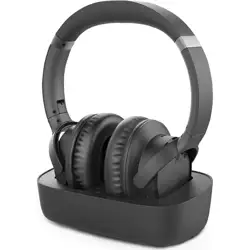
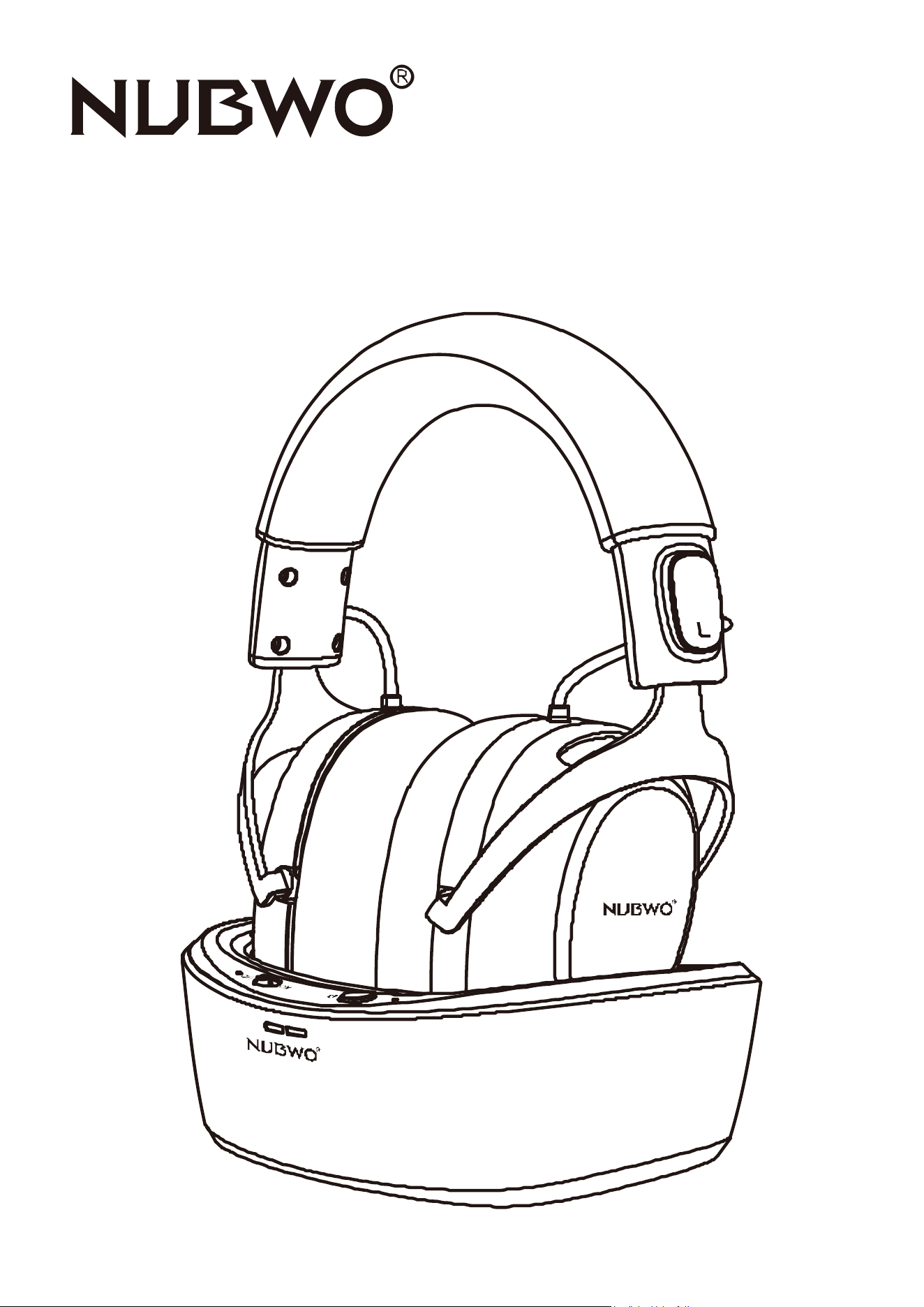
TV HEADPHONES
Model: HT02
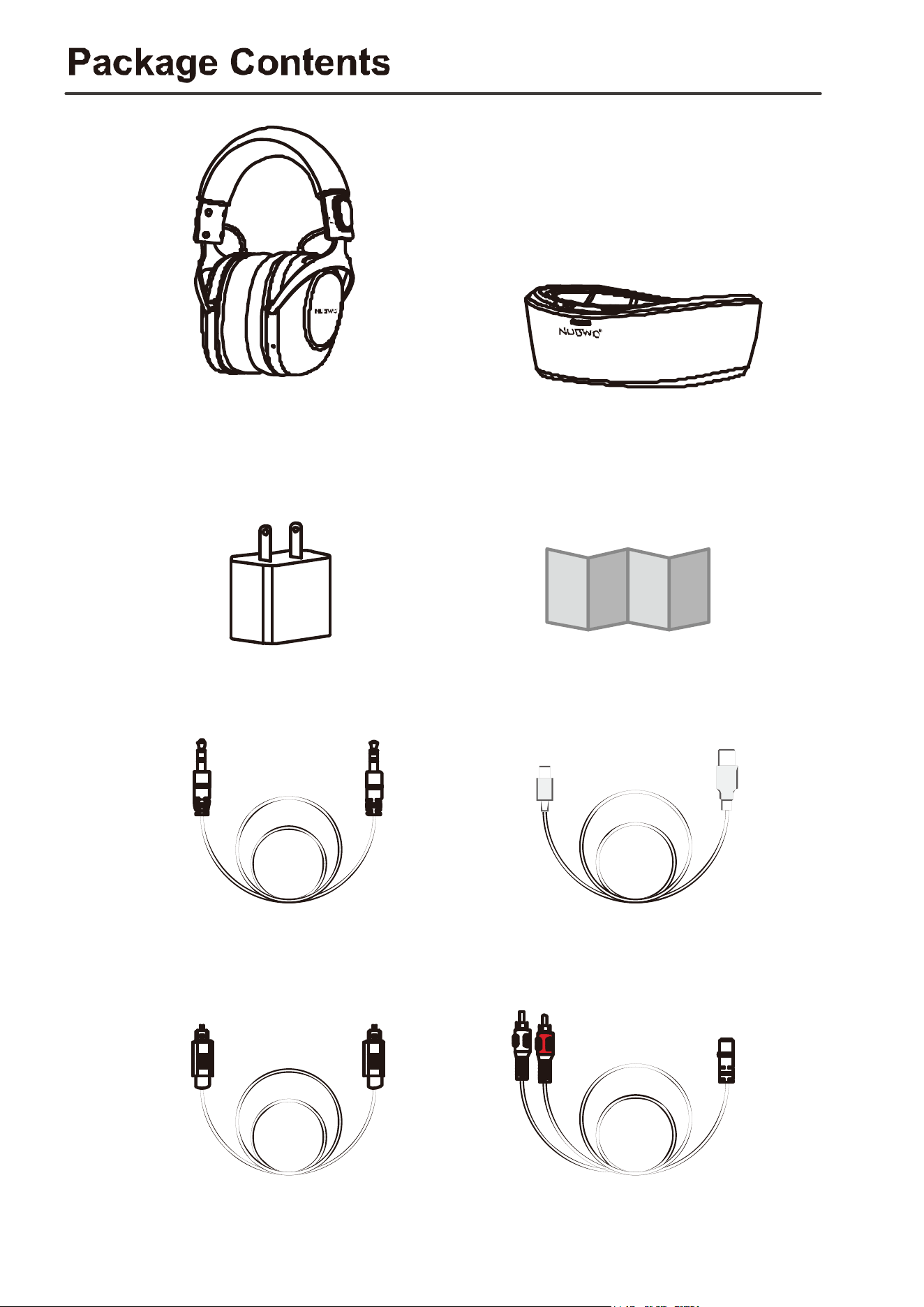
2in1 2.4GHz & Charging Donk
User M anualCharging Plug
NUBWO Wireless
TV Headphones
3.5mm Audio Cable USB Type-C Charging Cable
Fiber Optic Cable 3.5mm to RCA Cable
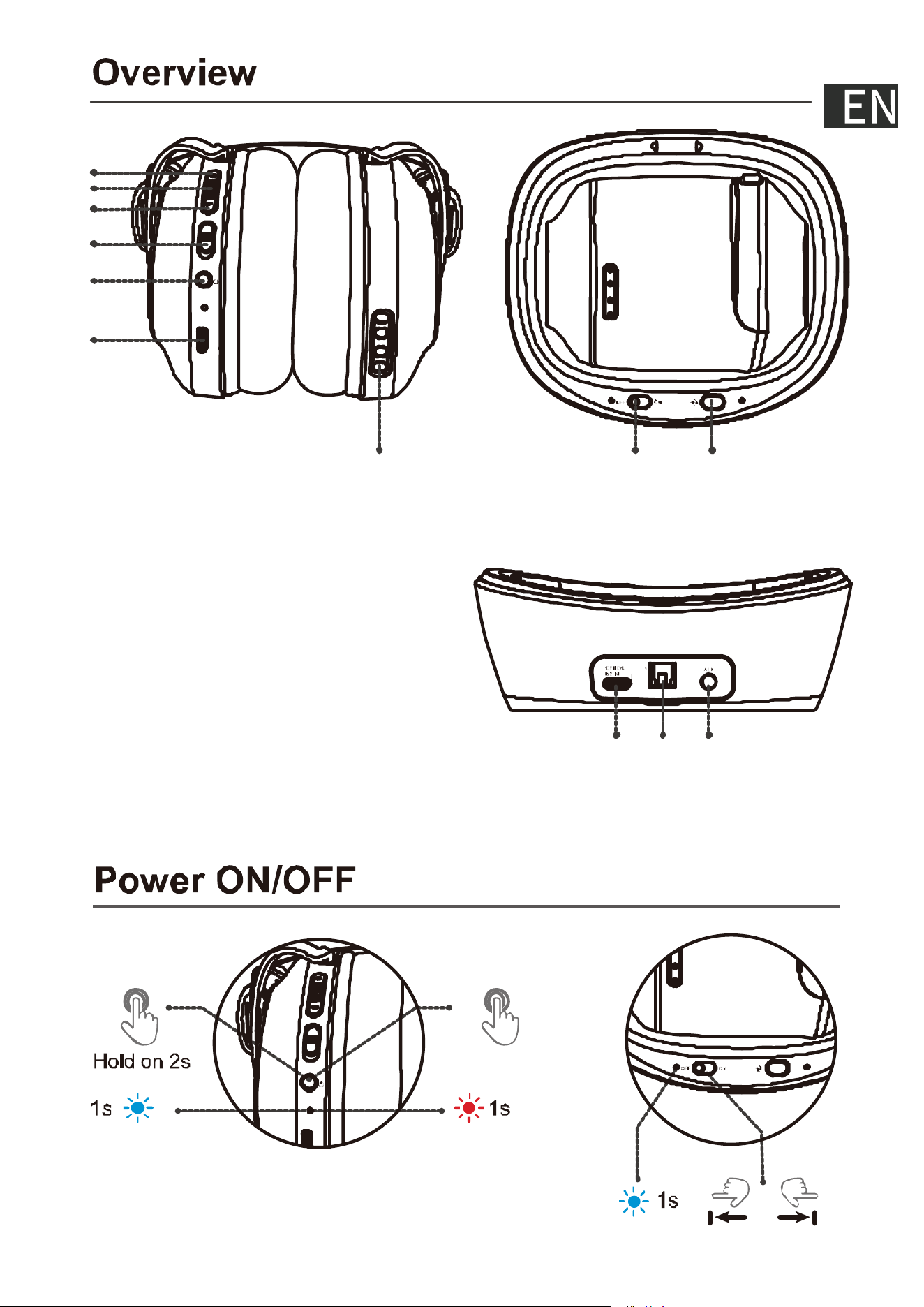
1. Volume but tons
2. Multifunction button
3. Mode switch
4. Power button
5. Type-C charging port
6. Dock charging contacts
7. Dock power switch
8. Dock mode switch
9. Dock charging port
10. Optical audio port
11. 3.5mm audio jack
Power ONPower OFF
Power ON Power OFF
Hold on 3s
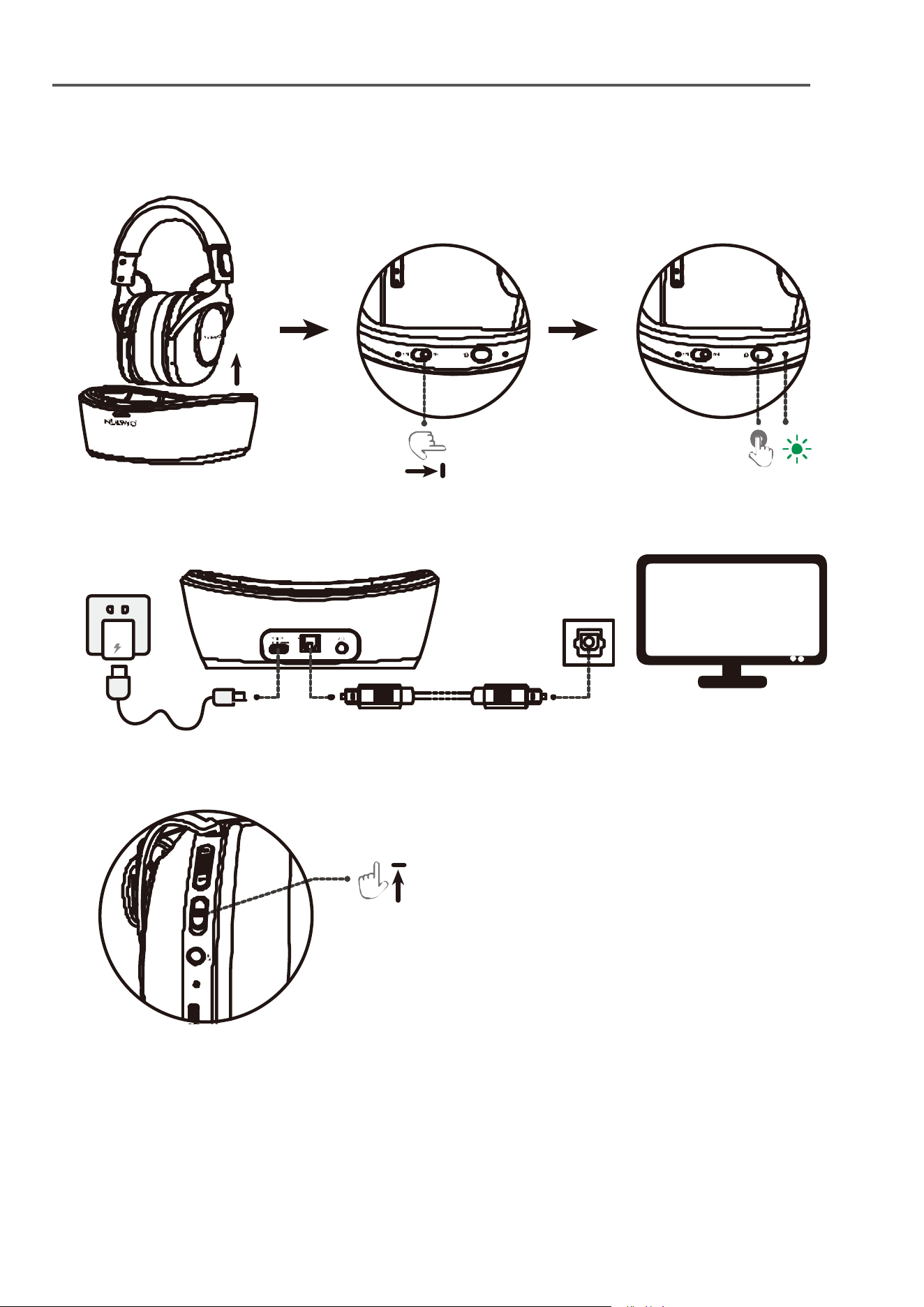
Connection Methods
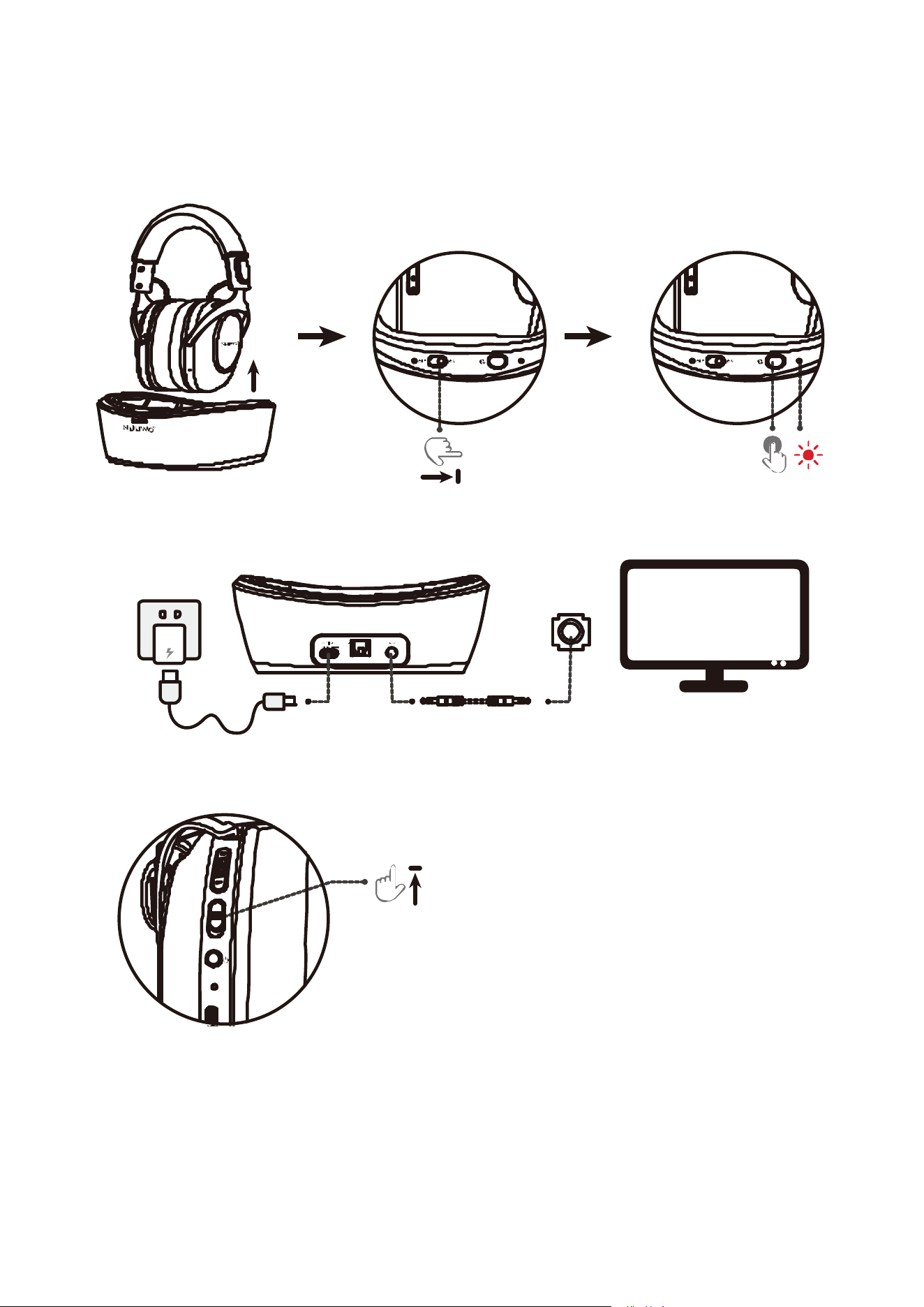
1. Pick up the headset.
2. Plug in the base station to turn it on.
3. Connect the appropriate optical cable to
the device you want to connect.
4. Set the headset to 2.4 GHz mode.
(The headset will turn on automatically
when you pick it up.)
Go to TV settings: Settings > Sound > SPDIF Audio Output, then select “Headphones” Go to TV settings: Settings > Sound > SPDIF Audio Output, then select “Headphones” Go to TV settings: Settings > Sound > SPDIF Audio Output, then s elect “Headphones”
x1
Optic al Outp ut
Go to T V settings: Settings > Sound > SPDIF Audio Output, then select “Headphones” Go to TV settings: Settings > Sound > SPDIF Audio Output, then select “Headphones” Go to TV settings: Settings > Sound > SPDIF Audio O utput, then s elect “Headphones”
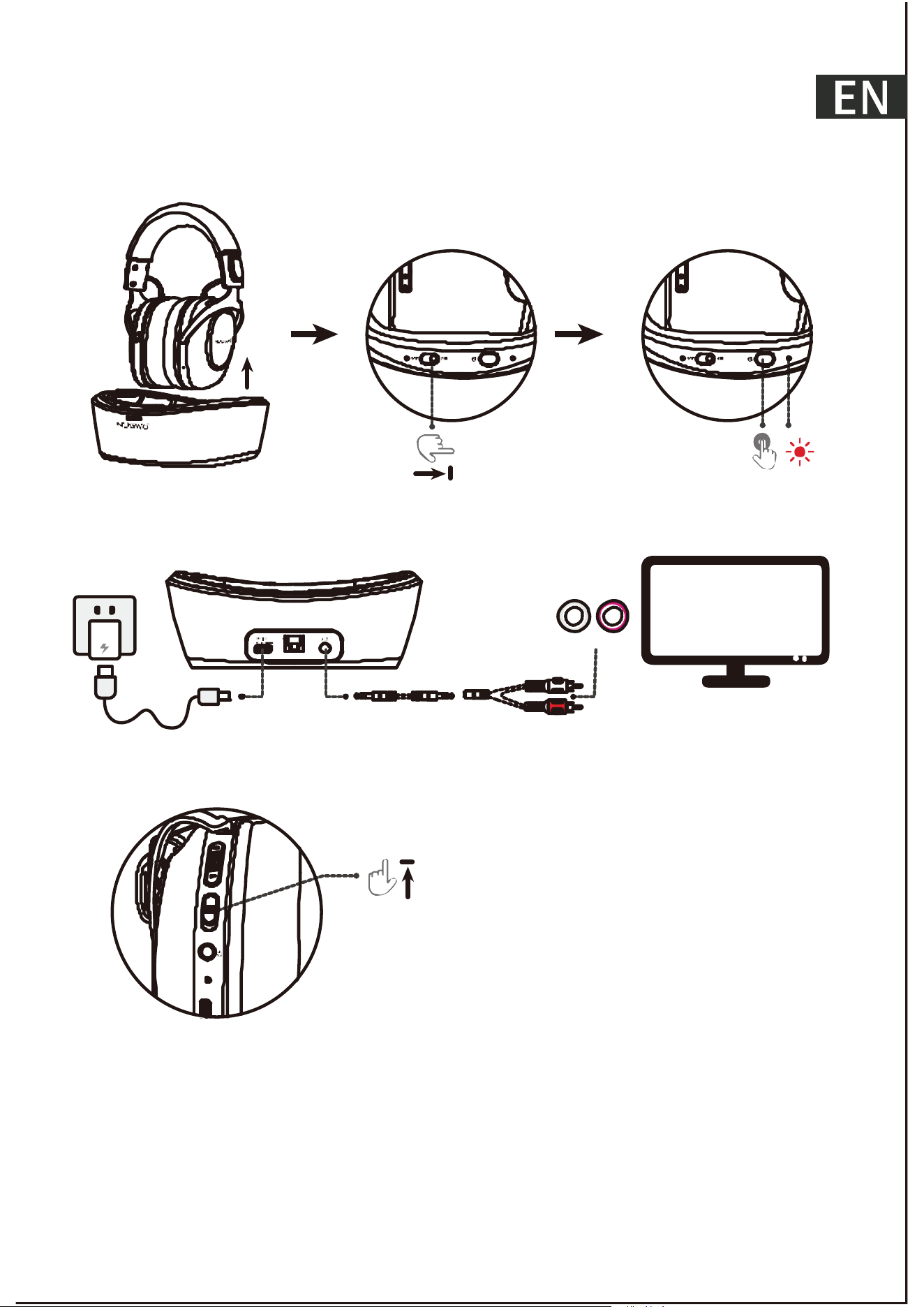
1. Pick up the headset
2. Plug in the base station to t urn it on
3. Connect the 3.5mm audio adapter cable
4. Plug the corresponding RCA cable into the
device you want to connect to
5. Set the headset to 2.4G mode
(The headset will turn on automatically
when you pick it up)
x1
RCA Cabl e
So und Ou tput
Go to TV settings: Settings > Sound > SPDIF Audio Output, then select “Headphones” Go to TV settings: Settings > Sound > SPDIF Audio Output, then select “Headphones” Go to TV settings: Settings > Sound > SPDIF Audio O utput, then s elect “Headphones”
1. Pick up t he headset
2. Plug in the base s tation to turn it on
3. Plug the corresponding 3.5mm audio
cable into the device you want to connect to
4. Set the headset to 2.4G mode
(The headset will turn on aut omatically
when you pick it up)
x1
3.5 mm Audio
Sound Ou tput
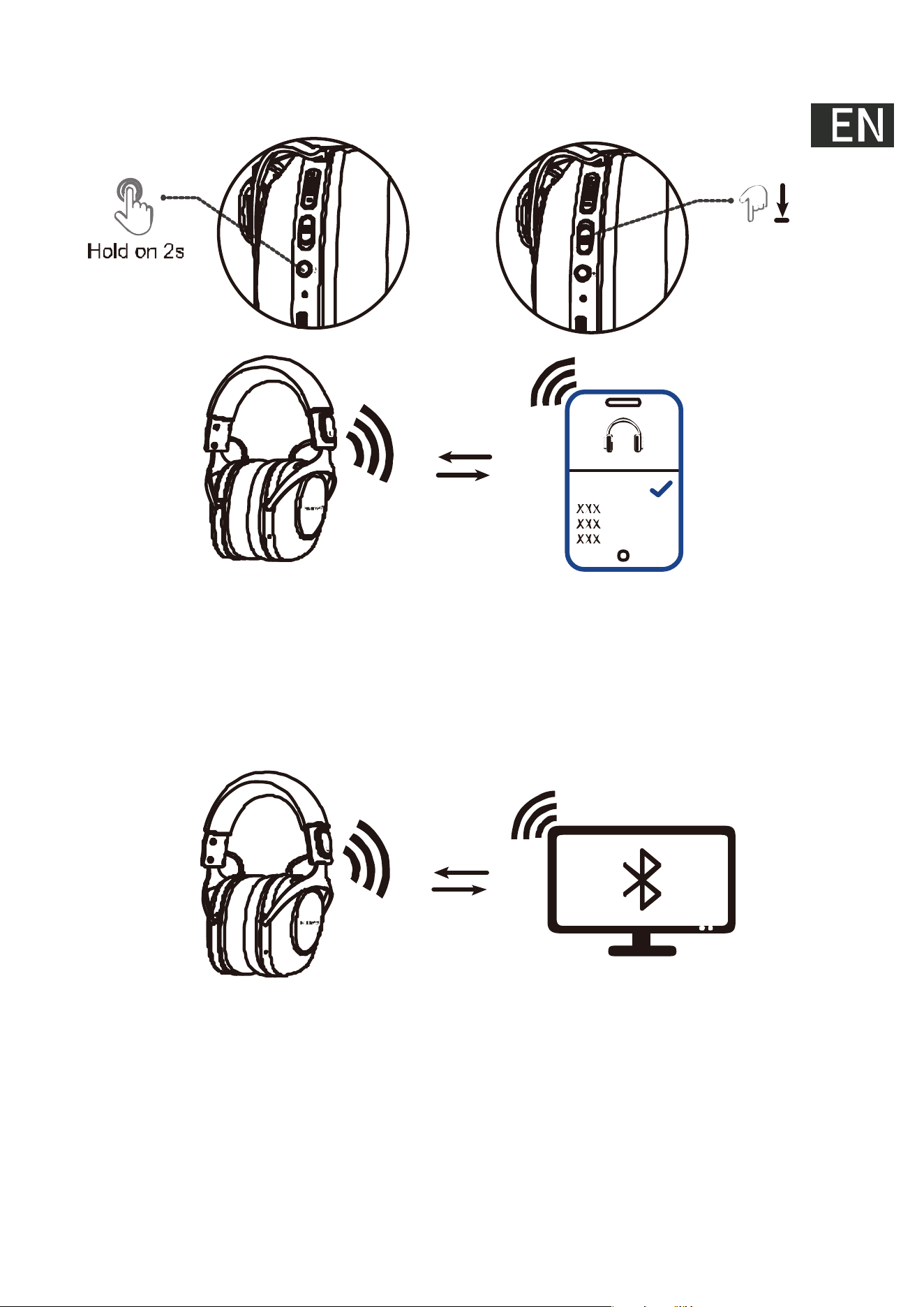
1. Access the TV’s Bluetooth settings
Go to TV Settings: Settings > Sound > Audio Out put;
Select “Bluetooth Speaker List” to enter the Bluetooth device s earch screen.
2. Turn on the headphones and switch them to Bluetooth mode. When using t he
headphones for t he fi rst time, they will automatically enter pairing mode upon startup;
the red and blue lights will flash.
If the headphones hav e been connected to other Bluetooth devices, you must disc onnect
them bef ore they can enter pairing mode.
3. Select HT02 from the TV’s “Bluetoot h Speaker List” and wait until the screen
displays “Connected.”
Connecting Headphones to a TV via Bluetooth: Instructions
Power ON
1. Turn on the headphones.
2. Switch the headphones to BT mode.
3. On the device you want to connect to, find “HT02” and select it to connect.
Note: Frequent switching of modes will cause the heads et connection to slow down.
H T02
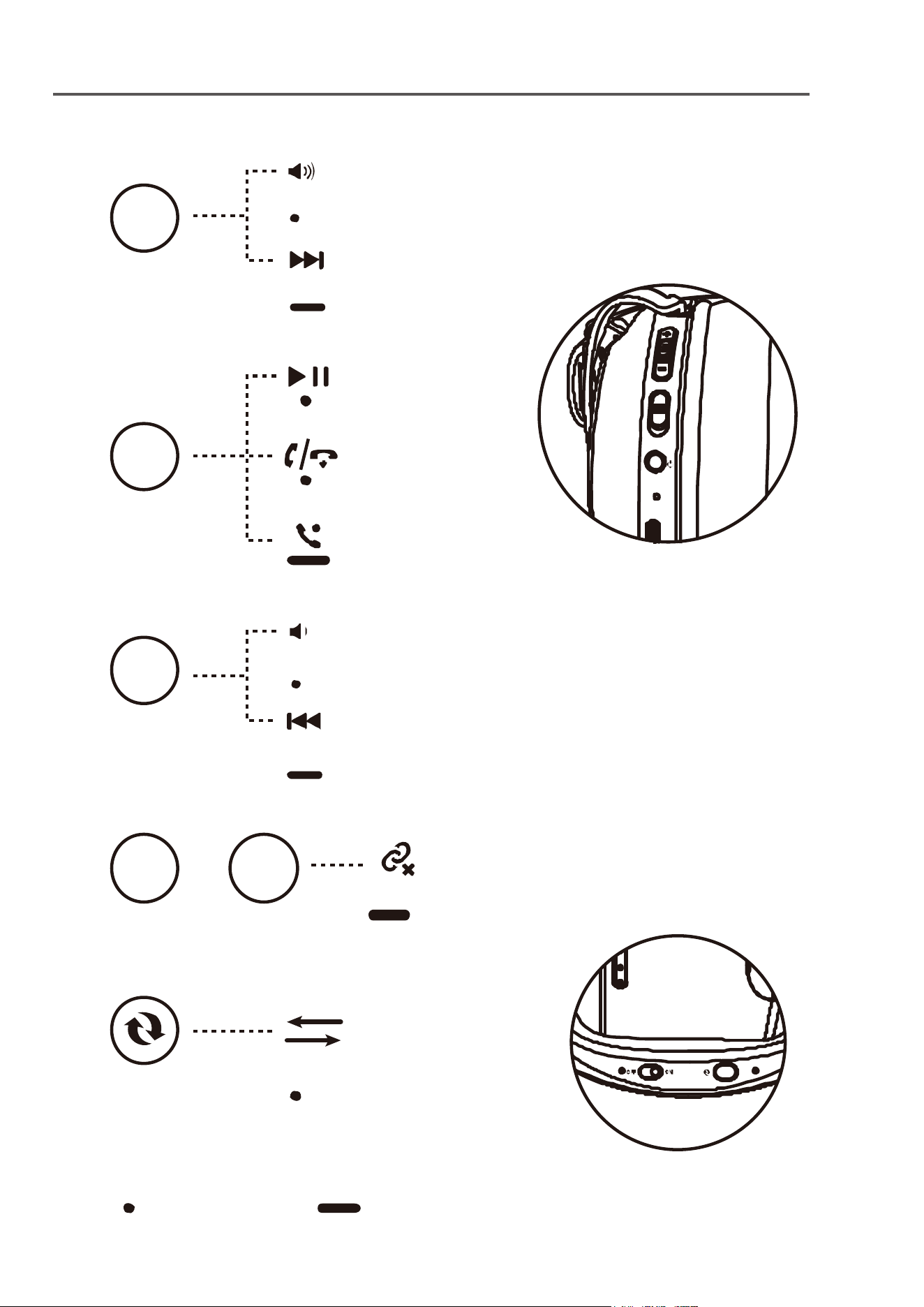
Button Controls FCC Caution:
Press x 1
+
Hold (>1s)
Hold 3s
MFB
MFB
—
+
+
Next Track
Volume Up
Volume Down
Previous Track
Switch Connection Mode
Clear Pairing History
Play/Pause
In Bluetooth Mode
Answer/End
Reject Call
Button Controls FCC Caution:
1A
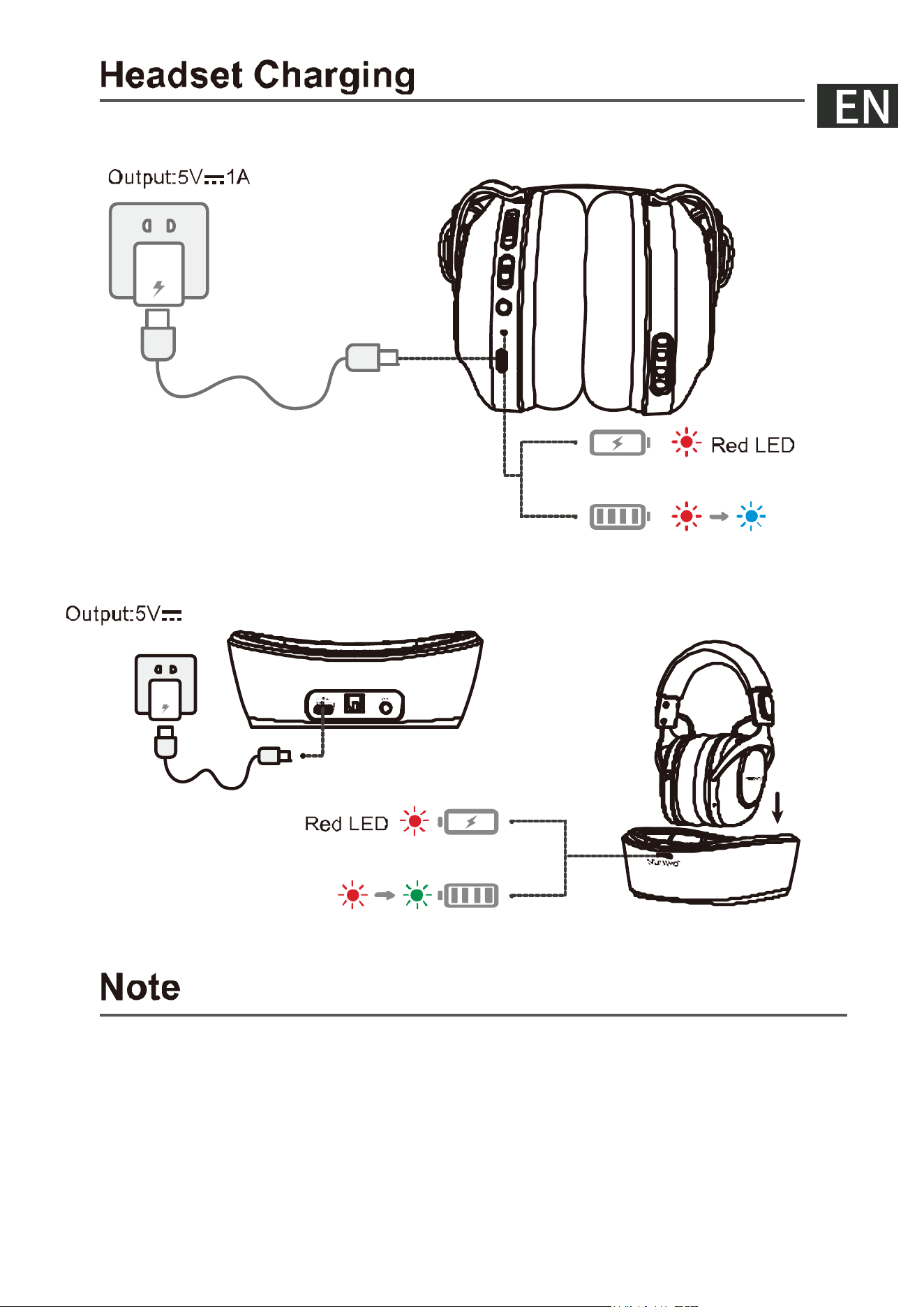
Low Battery Reminder: When the battery level drops below 2%, you will hear
a low battery reminder, and th e in dicator light next to the po wer button will
flash red.

Button Controls FCC Caution:
This device complies with part 15 of the FCC Rules. Operation is subject to the
following two conditions: (1) This device may not cause har mful interference,
and (2) this device must accept any interference received, including interference
tha t may cause undesired ope ration.
Any changes or modifications not expressly approved by the party responsible
for compliance could void the user's authority to operate the equipment.
NOTE: This equipment has been tested an d found to comply with the limits for
a Class B digital device, pursuant to Pa rt 15 of the FCC Rules. These limits are
designed to provide reasonable protection against harmful inte rference in a
residential installation. This equipment genera tes, uses and can radiate radio
frequency energy and, if not installed and used in accordance with the
instructions, may cause harmful interference to radio communications. However,
the re is no guarantee that interference will not occur in a particular installation.
If this equipment does cause harmful interference to radio or television reception,
which can be determined by t urning the equipment off and on, the user is
encouraged to try to correct the interference by one or more of the
following measu res:
-- Reorient or relocate the receiving antenna.
-- Increase the se paration between t he equipment and r ece iver.
-- Connect the equipment into an outlet on a circuit different
from that to which the r eceiver is conne cted.
-- Consult the dealer or an experienced radio/TV technician for he lp.
The device has been evaluated to meet general RF exp osure requirement.
The device can be used in portable e xposure condition without restriction.
For Dock Th is equipment complies with FCC radiation exposure limits set forth
for an uncontrolled environment. This e quipment should be installed and operated
with minimum distance 20cm between the radiator & your body.
NUBWO HT02 TV Headphones
HT02
60
2.5
1. Connect using an optical cable: Plug in the base station and turn it on, then
use an optical cable to connect the base station to your device. Set both the base
station and the headphones to the corresponding mode.
2. Connect using an RCA adapter cable: Plug in the base station and turn it on,
then use an RCA adapter cable to connect the base station. Set both the base
station and the headphones to the corresponding mode.
3. Connecting via a 3.5mm audio cable: Power on the base station, then use a
3.5mm audio cable to connect the base station to your device. Set both the base
station and the headphones to the corresponding mode.
4. Bluetooth connection: After turning on the headphones, set them to BT mode,
then search for and connect to your device.
105±3dB@1KHz
-38±2dB@1KHz(Cardioid)
kH z
1A
1.5
There are four ways to connect the headphones
When using these headphones for the first time, please allow some time for
automatic pairing. Plug the charging dock into a power source, switch it to the
appropriate mode, turn on the headphones, and wait 1 to 3 minutes for the
headphones to automatically pair with the dock.
No sound when connecting the TV
Just check these 2 points for a quick fix:
1. Are the headphones successful ly connected to the base?
· Blue light steady = Connected; flashing light =
2. Is the TV’s audio signal working properly?
· Check that all cables are securely plugged in and not loose
· For optical connections only: Make sure the TV’s audio format is set to PCM
· For more troubleshooting solutions and frequently asked questions, please
refer to the offi cial external link guide
Bluetooth unable to reconnect
1. Before reconnecting, make sure the transmitter is still turned off.
2. Once the headphones are turned on, they will automatically connect to the
last paired Bluetooth device.
3. If they do not connect automatically: Check that the mode switch is set to
Bluetooth mode, and verify that they are not already connected to another
device, such as a smartphone.
4. If you still cannot connect: Select “HT02” again from the TV's Bluetooth list to pair.
HT02
Troubleshooting
10
Note: If you wish to speed up the pairing process, or if you have replaced the
charging base adapter, turn off the earbuds, then press and hold the power
button for 5 seconds to put them into pairing mode and reconnect.
When the power indicator light on the charging base changes from flashing to
steady, it indicates that the earbuds have successfully connected.

Some models support this by default without requiring additional setup.
Models requiring manual setup:
A: Samsung TV manufactured before 2024
1: Go to Settings > “Sound”
2: Set TV Output to “TV Speakers”
3: Open Expert Settings
4: Change the Digital Output Format to PCM
This will allow audio to play simultaneously through both the TV speakers and
the optical output.
Do not select “Receiver (Optical)” as the audio output, otherwise the TV
speakers will be muted.
B: Some LG TV
Enable synchronized audio output; set the output to:
Optical output device + TV speakers: Audio can be heard simultaneously
through the built-in TV speakers and an external audio device connected to
the optical digital audio output
port.
Bluetooth Device + TV Speakers: Sound can be output simultaneously through
the TV speakers and Bluetooth speakers.
C: Sony TV:
Look for “Dual Audio Output” in the sound settings to enable simultaneous playback
Synchronizing Headphone and TV
Speaker Audio
HT02
@nubwo_tech
1. Conexión mediante cable de fibra óptica: encienda la base, conecte la base
al dispositivo mediante el cable de fibra óptica y ajuste la base y los auriculares
al modo correspondiente.
2. Conexión mediante cable adaptador RCA: encienda la base, conecte la
base mediante el cable adaptador RCA y ajuste la base y los auriculares al
modo correspondiente.
3. Conexión mediante cable de audio de 3,5 mm: encienda la base, conecte
la base al dispositivo con el cable de audio de 3,5 mm y ajuste la base y los
auriculares al modo correspondiente.
4. Conexión Bluetooth: después de encender los auriculares, ajústelos al
modo BT y busque el dispositivo para conectarse.
Auriculares para televisión NUBWO HT02
HT02
60
2.5
105
-38±2
kH z
1A
Los auriculares disponen d e cuatro métodos de conexión
La primera vez que utilice estos auri culares, reserve un tiempo para el
emparejamiento automático. Enchufe la base a la corriente, conecte el cable,
seleccione el modo correspondiente, encienda los auriculares y espere entre
1 y 3 minutos para que se emparejen automáticamente con la base.
Nota: Si desea acelerar el proceso de emparejamiento, o si ha cambiado el
adaptador de la base, deberá apagar los auriculares y mantener pulsado el
botón de encendido durante 5 segundos para que entren en modo de
emparejamiento y se vuelvan a conectar.
Cuando el indicador de alimentación de la base pase de parpadear a permanecer
encendido, significará que los auriculares se han conectado correctamente.
10
1.5

Algunos modelos lo admiten de forma predeterminada, sin necesidad de
configuraciones adicionales
Modelos que requieren configuración manual:
A: Televisores Samsung anteriores a 2024
1: Ve a “Configuración” > “Sonido”
2: Configura la salida del televisor en “Altavoces del televisor”
3: Abre la configuración avanzada
4: Cambia el formato de salida digital a PCM
De esta forma, el sonido se reproducirá simultáneamente a través de los
altavoces del televisor y la salida óptica.
No seleccione “Receptor (óptico)” como salida de sonido, ya que de lo contrario
se silenciarán los altavoces del televisor.
No se oye nada al conectar el televisor
Solo hay que comprobar dos cosas para resolverlo rápi damente:
1. ¿Están conectados correctamente los auriculares a la base?
los pasos de emparej amiento
2. ¿Es normal la señal de audio del televisor?
· Comprueba que todos los cables estén bien enchufados y no haya conexiones
sueltas
· Solo para conexiones por fibra óptica: confirma que el formato de audio del
televisor esté configurado en PCM
· Para más soluciones de resolución de problemas y preguntas frecuentes,
consulta la guía en el enlace externo oficial
El Bluetooth no puede volver a conectarse
1. Antes de volver a conectar, asegúrate de que el transmisor siga apagado.
2. Una vez encendidos los auriculares, se conectarán automáticamente al último
dispositivo Bluetooth emparejado.
3. Si no se conectan automáticamente: comprueba que el interruptor de modo
esté en la posición de Bluetooth y que no estén conectados a otro dispositivo,
como un teléfono móvil.
4. Si sigue sin conectarse: vuelve a seleccionar “HT02” en la lista de
dispositivos Bluetooth del televisor para emparejarlo.
Solución de problemas
Sincronización del sonido entre los
auriculares y los altavoces del televisor

B: Algunos televisores LG
Active la salida de sonido sincronizada; configure la salida de la siguiente manera:
Dispositivo de salida ópti ca + altavoces del televi sor: el sonido se puede escuchar
simultáneamente a través de los altavoces integrados del televisor y de un
dispositivo de audio externo conectado al puerto de salida de audio digital óptica.
Dispositivo Bluetooth + altavoces del televisor: los altavoces del televisor y
los altavoces Bluetooth pueden emitir sonido simultáneamente.
C: Televisores Sony:
Busque “Salida de audio dual” en los ajustes de sonido para activar la
reproducción sincronizada
HT02
@nubwo_tech