
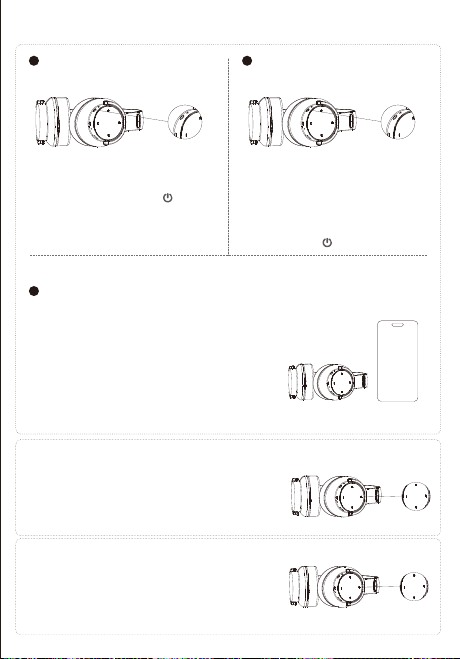
Basic Operation of BT Earphones
Volume Adjustment
Power On
BT Connection Mode
Power Off
Song Selection
1
3
2
Press and hold the power button for 3
seconds to turn off the headphones.
After that, the red light stays on for 2
seconds and then goes off.
After pressing the power button for 3
seconds, the blue light on the
headphones stays on continuously for
2 seconds, then the device powers on.
After powering on, it automatically
enters pairing mode, and the BT
indicator light alternates between red
and blue flashes.
After turning on the earphones, the indicator light
alternates between red and blue. Turn on the BT
function on your device, search for the BT device
name of the earphones: "Picun B8" and click on
"Picun B8" to connect. Once successfully connected,
the blue light will stay on constantly, and while
playing music, the blue light will flash slowly.
Short press/Long press the plus button for 1 second
to increase the volume.
Short press/Long press the minus button for 1
second to decrease the volume.
Short press/long press to skip to the previous track.
Short press/long press to skip to the next track.
Playback/pause/answer call/end call
Short press the touch button during music playback to
pause the music.
Short press the touch button when the music is paused to
resume playback.
Short press the touch button to answer a call when there is
an incoming call.
During a call, short press the touch button to end the
current call.
Long press the touch button to reject a call when there is
an incoming call.
Automatic Shutdown and Out-of-Range Reconnection
When the headphones exceed the effective range, they will disconnect. If the
headphones return to the BT range within 5 minutes, they will automatically reconnect. If
they do not return within 5 minutes, they will shut down automatically.
Voice Assistant
Triple press the touch button to activate the voice assistant, and triple press again to
deactivate the voice assistant.
Enable/disable low latency mode
With low latency mode disabled, press the power button three times to activate it (default
to start in normal mode). Pressing the power button three times again will deactivate the
low latency mode.
Switch between 3 EQ modes.
(Double-click the power button): Cycle through the 3 EQ modes (The last turned off mode
is saved as default after turning off):
(1) Pop music mode, slow flashing in blue (interval 2S, blue light flashes 0.5S, 1 time).
(2) Bass boost mode, slow flashing in blue (interval 2S, blue light flashes 0.5S, 2 times).
(3) Rock mode, slow flashing in blue (interval 2S, blue light flashes 0.5S, 3 times).
Battery Status
When connected to an iOS device, the current headphone battery status will be displayed
in the top right corner of the iOS device screen.
Headphone Charging
When the battery is low, charge the headphones for about 2 hours using a USB charging
cable. The headphones will automatically shut down during charging.
During charging, the red indicator light will stay on, and it will turn off when fully
charged.
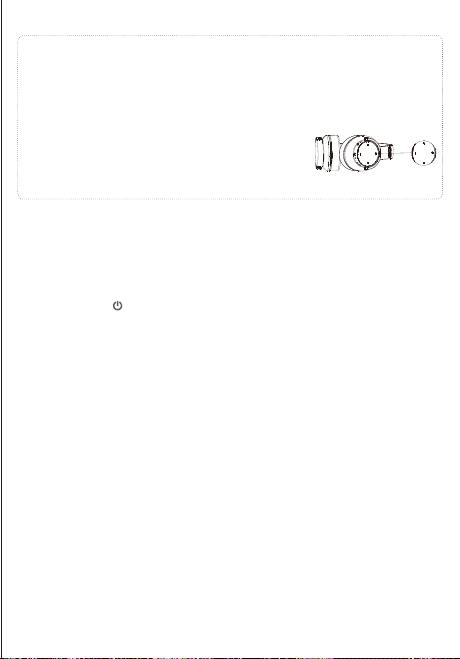
Clear pairing information
Press and hold the volume down button and the next track button for more than 4
seconds in any state to enter the pairing information clearing mode. All information will
be cleared: the volume will return to default, and the BT pairing list will be cleared.
One-to-two connection method
1. In the power-off state, press the power button for 3 seconds to put the headset into
pairing mode, then connect to the first phone.
2. Turn off the BT function of the first connected mobile phone, put the headphones
into pairing mode, and then connect the second mobile phone.
3. The first mobile phone turns on BT and manually connects to the headphones.
Line-in mode
When an audio cable is inserted, the headphones will automatically power off.
Note: When using a wired connection, BT cannot be started normally. You need to
unplug the audio cable to start the headphones normally.
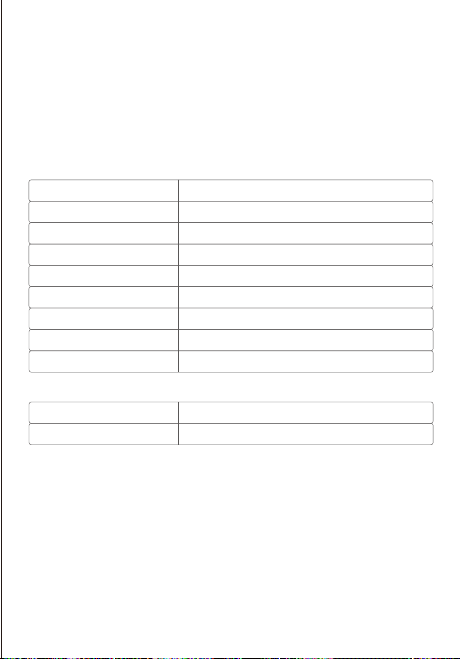
Product Parameters
Packaging Accessories
BT Protocol
Reception Distance
Speaker Size
Frequency Response Range
Speaker Sensitivity
Speaker Impedance
Microphone Sensitivity
Operating Current
Charging Voltage
A2DP/AVRCP/HFP/HSP
10m
40mm
20HZ-20kHZ
118±3dB
32Ω±15%
-42dB±3dB
9-30mA
5V
1. BT Headphones
2. Charging Cable
3. Audio Cable
4. User Manual
LED Indicator Instructions
Power on
After the blue light stays on continuously
it enters pairing mode.
Red/blue lights flash alternately.
Pairing status
The red light flashes 3 times every 10 seconds.Low battery level
While charging, the red light is on;
when fully charged, the red light goes off.
Charging mode
The blue light stays on continuously.Standby mode
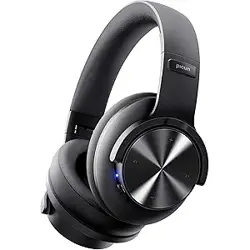
Wireless Over-Ear Music Headphones
B8
User Manual
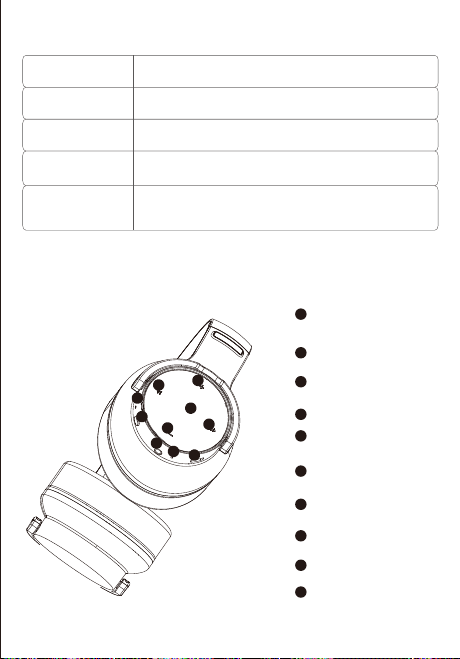
Indicator light
position
Previous track
Volume up
Volume down
Next track
(Touch input) Pause
/play/answer call/
end call: Position
Power on/off/low
latency on, off/EQ switch
3.5mm audio input
MIC input
USB-C charging
1
2
3
4
5
6
7
8
9
10
1
2
3
4
5
6
7
8
9
10
Outline Diagram and Functional Overview of Headphones
B8 User Manual
Basic Operation of BT Earphones
Volume Adjustment
Power On
BT Connection Mode
Power Off
Song Selection
1
3
2
Press and hold the power button for 3
seconds to turn off the headphones.
After that, the red light stays on for 2
seconds and then goes off.
After pressing the power button for 3
seconds, the blue light on the
headphones stays on continuously for
2 seconds, then the device powers on.
After powering on, it automatically
enters pairing mode, and the BT
indicator light alternates between red
and blue flashes.
After turning on the earphones, the indicator light
alternates between red and blue. Turn on the BT
function on your device, search for the BT device
name of the earphones: "Picun B8" and click on
"Picun B8" to connect. Once successfully connected,
the blue light will stay on constantly, and while
playing music, the blue light will flash slowly.
Short press/Long press the plus button for 1 second
to increase the volume.
Short press/Long press the minus button for 1
second to decrease the volume.
Short press/long press to skip to the previous track.
Short press/long press to skip to the next track.
Playback/pause/answer call/end call
Short press the touch button during music playback to
pause the music.
Short press the touch button when the music is paused to
resume playback.
Short press the touch button to answer a call when there is
an incoming call.
During a call, short press the touch button to end the
current call.
Long press the touch button to reject a call when there is
an incoming call.
Automatic Shutdown and Out-of-Range Reconnection
When the headphones exceed the effective range, they will disconnect. If the
headphones return to the BT range within 5 minutes, they will automatically reconnect. If
they do not return within 5 minutes, they will shut down automatically.
Voice Assistant
Triple press the touch button to activate the voice assistant, and triple press again to
deactivate the voice assistant.
Enable/disable low latency mode
With low latency mode disabled, press the power button three times to activate it (default
to start in normal mode). Pressing the power button three times again will deactivate the
low latency mode.
Switch between 3 EQ modes.
(Double-click the power button): Cycle through the 3 EQ modes (The last turned off mode
is saved as default after turning off):
(1) Pop music mode, slow flashing in blue (interval 2S, blue light flashes 0.5S, 1 time).
(2) Bass boost mode, slow flashing in blue (interval 2S, blue light flashes 0.5S, 2 times).
(3) Rock mode, slow flashing in blue (interval 2S, blue light flashes 0.5S, 3 times).
Battery Status
When connected to an iOS device, the current headphone battery status will be displayed
in the top right corner of the iOS device screen.
Headphone Charging
When the battery is low, charge the headphones for about 2 hours using a USB charging
cable. The headphones will automatically shut down during charging.
During charging, the red indicator light will stay on, and it will turn off when fully
charged.
Clear pairing information
Press and hold the volume down button and the next track button for more than 4
seconds in any state to enter the pairing information clearing mode. All information will
be cleared: the volume will return to default, and the BT pairing list will be cleared.
One-to-two connection method
1. In the power-off state, press the power button for 3 seconds to put the headset into
pairing mode, then connect to the first phone.
2. Turn off the BT function of the first connected mobile phone, put the headphones
into pairing mode, and then connect the second mobile phone.
3. The first mobile phone turns on BT and manually connects to the headphones.
Line-in mode
When an audio cable is inserted, the headphones will automatically power off.
Note: When using a wired connection, BT cannot be started normally. You need to
unplug the audio cable to start the headphones normally.
Product Parameters
Packaging Accessories
BT Protocol
Reception Distance
Speaker Size
Frequency Response Range
Speaker Sensitivity
Speaker Impedance
Microphone Sensitivity
Operating Current
Charging Voltage
A2DP/AVRCP/HFP/HSP
10m
40mm
20HZ-20kHZ
118±3dB
32Ω±15%
-42dB±3dB
9-30mA
5V
1. BT Headphones
2. Charging Cable
3. Audio Cable
4. User Manual
LED Indicator Instructions
Power on
After the blue light stays on continuously
it enters pairing mode.
Red/blue lights flash alternately.
Pairing status
The red light flashes 3 times every 10 seconds.Low battery level
While charging, the red light is on;
when fully charged, the red light goes off.
Charging mode
The blue light stays on continuously.Standby mode
Wireless Over-Ear Music Headphones
B8
User Manual
Indicator light
position
Previous track
Volume up
Volume down
Next track
(Touch input) Pause
/play/answer call/
end call: Position
Power on/off/low
latency on, off/EQ switch
3.5mm audio input
MIC input
USB-C charging
1
2
3
4
5
6
7
8
9
10
1
2
3
4
5
6
7
8
9
10
Outline Diagram and Functional Overview of Headphones
B8 User Manual
Basic Operation of BT Earphones
Volume Adjustment
Power On
BT Connection Mode
Power Off
Song Selection
1
3
2
Press and hold the power button for 3
seconds to turn off the headphones.
After that, the red light stays on for 2
seconds and then goes off.
After pressing the power button for 3
seconds, the blue light on the
headphones stays on continuously for
2 seconds, then the device powers on.
After powering on, it automatically
enters pairing mode, and the BT
indicator light alternates between red
and blue flashes.
After turning on the earphones, the indicator light
alternates between red and blue. Turn on the BT
function on your device, search for the BT device
name of the earphones: "Picun B8" and click on
"Picun B8" to connect. Once successfully connected,
the blue light will stay on constantly, and while
playing music, the blue light will flash slowly.
Short press/Long press the plus button for 1 second
to increase the volume.
Short press/Long press the minus button for 1
second to decrease the volume.
Short press/long press to skip to the previous track.
Short press/long press to skip to the next track.
Playback/pause/answer call/end call
Short press the touch button during music playback to
pause the music.
Short press the touch button when the music is paused to
resume playback.
Short press the touch button to answer a call when there is
an incoming call.
During a call, short press the touch button to end the
current call.
Long press the touch button to reject a call when there is
an incoming call.
Automatic Shutdown and Out-of-Range Reconnection
When the headphones exceed the effective range, they will disconnect. If the
headphones return to the BT range within 5 minutes, they will automatically reconnect. If
they do not return within 5 minutes, they will shut down automatically.
Voice Assistant
Triple press the touch button to activate the voice assistant, and triple press again to
deactivate the voice assistant.
Enable/disable low latency mode
With low latency mode disabled, press the power button three times to activate it (default
to start in normal mode). Pressing the power button three times again will deactivate the
low latency mode.
Switch between 3 EQ modes.
(Double-click the power button): Cycle through the 3 EQ modes (The last turned off mode
is saved as default after turning off):
(1) Pop music mode, slow flashing in blue (interval 2S, blue light flashes 0.5S, 1 time).
(2) Bass boost mode, slow flashing in blue (interval 2S, blue light flashes 0.5S, 2 times).
(3) Rock mode, slow flashing in blue (interval 2S, blue light flashes 0.5S, 3 times).
Battery Status
When connected to an iOS device, the current headphone battery status will be displayed
in the top right corner of the iOS device screen.
Headphone Charging
When the battery is low, charge the headphones for about 2 hours using a USB charging
cable. The headphones will automatically shut down during charging.
During charging, the red indicator light will stay on, and it will turn off when fully
charged.
Clear pairing information
Press and hold the volume down button and the next track button for more than 4
seconds in any state to enter the pairing information clearing mode. All information will
be cleared: the volume will return to default, and the BT pairing list will be cleared.
One-to-two connection method
1. In the power-off state, press the power button for 3 seconds to put the headset into
pairing mode, then connect to the first phone.
2. Turn off the BT function of the first connected mobile phone, put the headphones
into pairing mode, and then connect the second mobile phone.
3. The first mobile phone turns on BT and manually connects to the headphones.
Line-in mode
When an audio cable is inserted, the headphones will automatically power off.
Note: When using a wired connection, BT cannot be started normally. You need to
unplug the audio cable to start the headphones normally.
Product Parameters
Packaging Accessories
BT Protocol
Reception Distance
Speaker Size
Frequency Response Range
Speaker Sensitivity
Speaker Impedance
Microphone Sensitivity
Operating Current
Charging Voltage
A2DP/AVRCP/HFP/HSP
10m
40mm
20HZ-20kHZ
118±3dB
32Ω±15%
-42dB±3dB
9-30mA
5V
1. BT Headphones
2. Charging Cable
3. Audio Cable
4. User Manual
LED Indicator Instructions
Power on
After the blue light stays on continuously
it enters pairing mode.
Red/blue lights flash alternately.
Pairing status
The red light flashes 3 times every 10 seconds.Low battery level
While charging, the red light is on;
when fully charged, the red light goes off.
Charging mode
The blue light stays on continuously.Standby mode
Wireless Over-Ear Music Headphones
B8
User Manual
Indicator light
position
Previous track
Volume up
Volume down
Next track
(Touch input) Pause
/play/answer call/
end call: Position
Power on/off/low
latency on, off/EQ switch
3.5mm audio input
MIC input
USB-C charging
1
2
3
4
5
6
7
8
9
10
1
2
3
4
5
6
7
8
9
10
Outline Diagram and Functional Overview of Headphones
B8 User Manual
Basic Operation of BT Earphones
Volume Adjustment
Power On
BT Connection Mode
Power Off
Song Selection
1
3
2
Press and hold the power button for 3
seconds to turn off the headphones.
After that, the red light stays on for 2
seconds and then goes off.
After pressing the power button for 3
seconds, the blue light on the
headphones stays on continuously for
2 seconds, then the device powers on.
After powering on, it automatically
enters pairing mode, and the BT
indicator light alternates between red
and blue flashes.
After turning on the earphones, the indicator light
alternates between red and blue. Turn on the BT
function on your device, search for the BT device
name of the earphones: "Picun B8" and click on
"Picun B8" to connect. Once successfully connected,
the blue light will stay on constantly, and while
playing music, the blue light will flash slowly.
Short press/Long press the plus button for 1 second
to increase the volume.
Short press/Long press the minus button for 1
second to decrease the volume.
Short press/long press to skip to the previous track.
Short press/long press to skip to the next track.
Playback/pause/answer call/end call
Short press the touch button during music playback to
pause the music.
Short press the touch button when the music is paused to
resume playback.
Short press the touch button to answer a call when there is
an incoming call.
During a call, short press the touch button to end the
current call.
Long press the touch button to reject a call when there is
an incoming call.
Automatic Shutdown and Out-of-Range Reconnection
When the headphones exceed the effective range, they will disconnect. If the
headphones return to the BT range within 5 minutes, they will automatically reconnect. If
they do not return within 5 minutes, they will shut down automatically.
Voice Assistant
Triple press the touch button to activate the voice assistant, and triple press again to
deactivate the voice assistant.
Enable/disable low latency mode
With low latency mode disabled, press the power button three times to activate it (default
to start in normal mode). Pressing the power button three times again will deactivate the
low latency mode.
Switch between 3 EQ modes.
(Double-click the power button): Cycle through the 3 EQ modes (The last turned off mode
is saved as default after turning off):
(1) Pop music mode, slow flashing in blue (interval 2S, blue light flashes 0.5S, 1 time).
(2) Bass boost mode, slow flashing in blue (interval 2S, blue light flashes 0.5S, 2 times).
(3) Rock mode, slow flashing in blue (interval 2S, blue light flashes 0.5S, 3 times).
Battery Status
When connected to an iOS device, the current headphone battery status will be displayed
in the top right corner of the iOS device screen.
Headphone Charging
When the battery is low, charge the headphones for about 2 hours using a USB charging
cable. The headphones will automatically shut down during charging.
During charging, the red indicator light will stay on, and it will turn off when fully
charged.
Clear pairing information
Press and hold the volume down button and the next track button for more than 4
seconds in any state to enter the pairing information clearing mode. All information will
be cleared: the volume will return to default, and the BT pairing list will be cleared.
One-to-two connection method
1. In the power-off state, press the power button for 3 seconds to put the headset into
pairing mode, then connect to the first phone.
2. Turn off the BT function of the first connected mobile phone, put the headphones
into pairing mode, and then connect the second mobile phone.
3. The first mobile phone turns on BT and manually connects to the headphones.
Line-in mode
When an audio cable is inserted, the headphones will automatically power off.
Note: When using a wired connection, BT cannot be started normally. You need to
unplug the audio cable to start the headphones normally.
Product Parameters
Packaging Accessories
BT Protocol
Reception Distance
Speaker Size
Frequency Response Range
Speaker Sensitivity
Speaker Impedance
Microphone Sensitivity
Operating Current
Charging Voltage
A2DP/AVRCP/HFP/HSP
10m
40mm
20HZ-20kHZ
118±3dB
32Ω±15%
-42dB±3dB
9-30mA
5V
1. BT Headphones
2. Charging Cable
3. Audio Cable
4. User Manual
LED Indicator Instructions
Power on
After the blue light stays on continuously
it enters pairing mode.
Red/blue lights flash alternately.
Pairing status
The red light flashes 3 times every 10 seconds.Low battery level
While charging, the red light is on;
when fully charged, the red light goes off.
Charging mode
The blue light stays on continuously.Standby mode
Wireless Over-Ear Music Headphones
B8
User Manual
Indicator light
position
Previous track
Volume up
Volume down
Next track
(Touch input) Pause
/play/answer call/
end call: Position
Power on/off/low
latency on, off/EQ switch
3.5mm audio input
MIC input
USB-C charging
1
2
3
4
5
6
7
8
9
10
1
2
3
4
5
6
7
8
9
10
Outline Diagram and Functional Overview of Headphones
B8 User Manual
Basic Operation of BT Earphones
Volume Adjustment
Power On
BT Connection Mode
Power Off
Song Selection
1
3
2
Press and hold the power button for 3
seconds to turn off the headphones.
After that, the red light stays on for 2
seconds and then goes off.
After pressing the power button for 3
seconds, the blue light on the
headphones stays on continuously for
2 seconds, then the device powers on.
After powering on, it automatically
enters pairing mode, and the BT
indicator light alternates between red
and blue flashes.
After turning on the earphones, the indicator light
alternates between red and blue. Turn on the BT
function on your device, search for the BT device
name of the earphones: "Picun B8" and click on
"Picun B8" to connect. Once successfully connected,
the blue light will stay on constantly, and while
playing music, the blue light will flash slowly.
Short press/Long press the plus button for 1 second
to increase the volume.
Short press/Long press the minus button for 1
second to decrease the volume.
Short press/long press to skip to the previous track.
Short press/long press to skip to the next track.
Playback/pause/answer call/end call
Short press the touch button during music playback to
pause the music.
Short press the touch button when the music is paused to
resume playback.
Short press the touch button to answer a call when there is
an incoming call.
During a call, short press the touch button to end the
current call.
Long press the touch button to reject a call when there is
an incoming call.
Automatic Shutdown and Out-of-Range Reconnection
When the headphones exceed the effective range, they will disconnect. If the
headphones return to the BT range within 5 minutes, they will automatically reconnect. If
they do not return within 5 minutes, they will shut down automatically.
Voice Assistant
Triple press the touch button to activate the voice assistant, and triple press again to
deactivate the voice assistant.
Enable/disable low latency mode
With low latency mode disabled, press the power button three times to activate it (default
to start in normal mode). Pressing the power button three times again will deactivate the
low latency mode.
Switch between 3 EQ modes.
(Double-click the power button): Cycle through the 3 EQ modes (The last turned off mode
is saved as default after turning off):
(1) Pop music mode, slow flashing in blue (interval 2S, blue light flashes 0.5S, 1 time).
(2) Bass boost mode, slow flashing in blue (interval 2S, blue light flashes 0.5S, 2 times).
(3) Rock mode, slow flashing in blue (interval 2S, blue light flashes 0.5S, 3 times).
Battery Status
When connected to an iOS device, the current headphone battery status will be displayed
in the top right corner of the iOS device screen.
Headphone Charging
When the battery is low, charge the headphones for about 2 hours using a USB charging
cable. The headphones will automatically shut down during charging.
During charging, the red indicator light will stay on, and it will turn off when fully
charged.
Clear pairing information
Press and hold the volume down button and the next track button for more than 4
seconds in any state to enter the pairing information clearing mode. All information will
be cleared: the volume will return to default, and the BT pairing list will be cleared.
One-to-two connection method
1. In the power-off state, press the power button for 3 seconds to put the headset into
pairing mode, then connect to the first phone.
2. Turn off the BT function of the first connected mobile phone, put the headphones
into pairing mode, and then connect the second mobile phone.
3. The first mobile phone turns on BT and manually connects to the headphones.
Line-in mode
When an audio cable is inserted, the headphones will automatically power off.
Note: When using a wired connection, BT cannot be started normally. You need to
unplug the audio cable to start the headphones normally.
Product Parameters
Packaging Accessories
BT Protocol
Reception Distance
Speaker Size
Frequency Response Range
Speaker Sensitivity
Speaker Impedance
Microphone Sensitivity
Operating Current
Charging Voltage
A2DP/AVRCP/HFP/HSP
10m
40mm
20HZ-20kHZ
118±3dB
32Ω±15%
-42dB±3dB
9-30mA
5V
1. BT Headphones
2. Charging Cable
3. Audio Cable
4. User Manual
LED Indicator Instructions
Power on
After the blue light stays on continuously
it enters pairing mode.
Red/blue lights flash alternately.
Pairing status
The red light flashes 3 times every 10 seconds.Low battery level
While charging, the red light is on;
when fully charged, the red light goes off.
Charging mode
The blue light stays on continuously.Standby mode
Wireless Over-Ear Music Headphones
B8
User Manual
Indicator light
position
Previous track
Volume up
Volume down
Next track
(Touch input) Pause
/play/answer call/
end call: Position
Power on/off/low
latency on, off/EQ switch
3.5mm audio input
MIC input
USB-C charging
1
2
3
4
5
6
7
8
9
10
1
2
3
4
5
6
7
8
9
10
Outline Diagram and Functional Overview of Headphones
B8 User Manual