APP
soundcore
Apple and the Apple logo are trademarks of
Apple Inc.
Google Play and the Google Play
logo are
trademarks of Google Inc.
Download the soundcore app to adjust EQ settings, experience Gaming Mode, customize touch
controls, update firmware, and explore more features.
If your earbuds cannot connect with the soundcore app, try re-installing the app or updating it to the
latest version available in your mobile app store.
Download the app via http://dl-soundcore.soundcore.com/qcdl?flow=soundcore
OVERVIEW
1
4
6 7
5
3
2
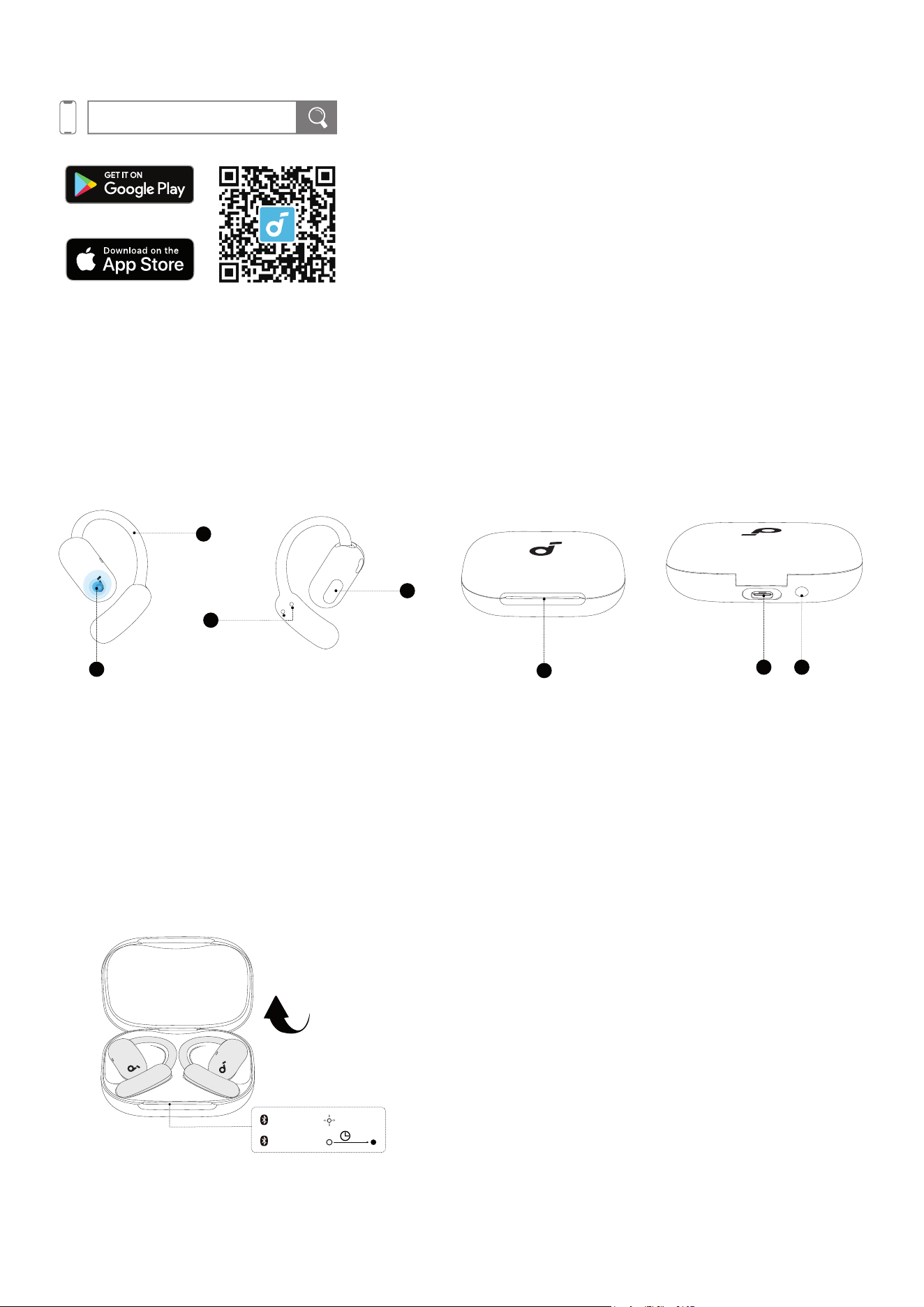
1. Adjustable Ear Hook
2. Touch Area
3. Charging Contactors
4. Sound Outlet
5. LED Light Strip
6. USB-C Charging Port
7. Charging Case Button
POWERING ON & PAIRING
1
2
soundcore
AeroFit 2
1s
PAIRING
CONNECTED
1. Open the charging case. The earbuds will automatically power on and enter Bluetooth pairing mode.
1
2
3s
The Second Device
L R
3s
AeroFit 2 AI
Assistant
2. Select "AeroFit 2 AI Assistant" on your device's Bluetooth list to connect. During pairing, the LED light
strip on the charging case will start flashing. Once the pairing is successful, the LED light strip will stay
on for 1 second before turning o.
Once connected, the earbuds will automatically reconnect to your device every time you open the
charging case, as long as you haven't deleted the pairing history from your device.
DUAL CONNECTIONS
To connect your earbuds with two Bluetooth devices at the same time, there are two methods:
1
2
3s
The Second Device
L R
3s
AeroFit 2 AI
Assistant
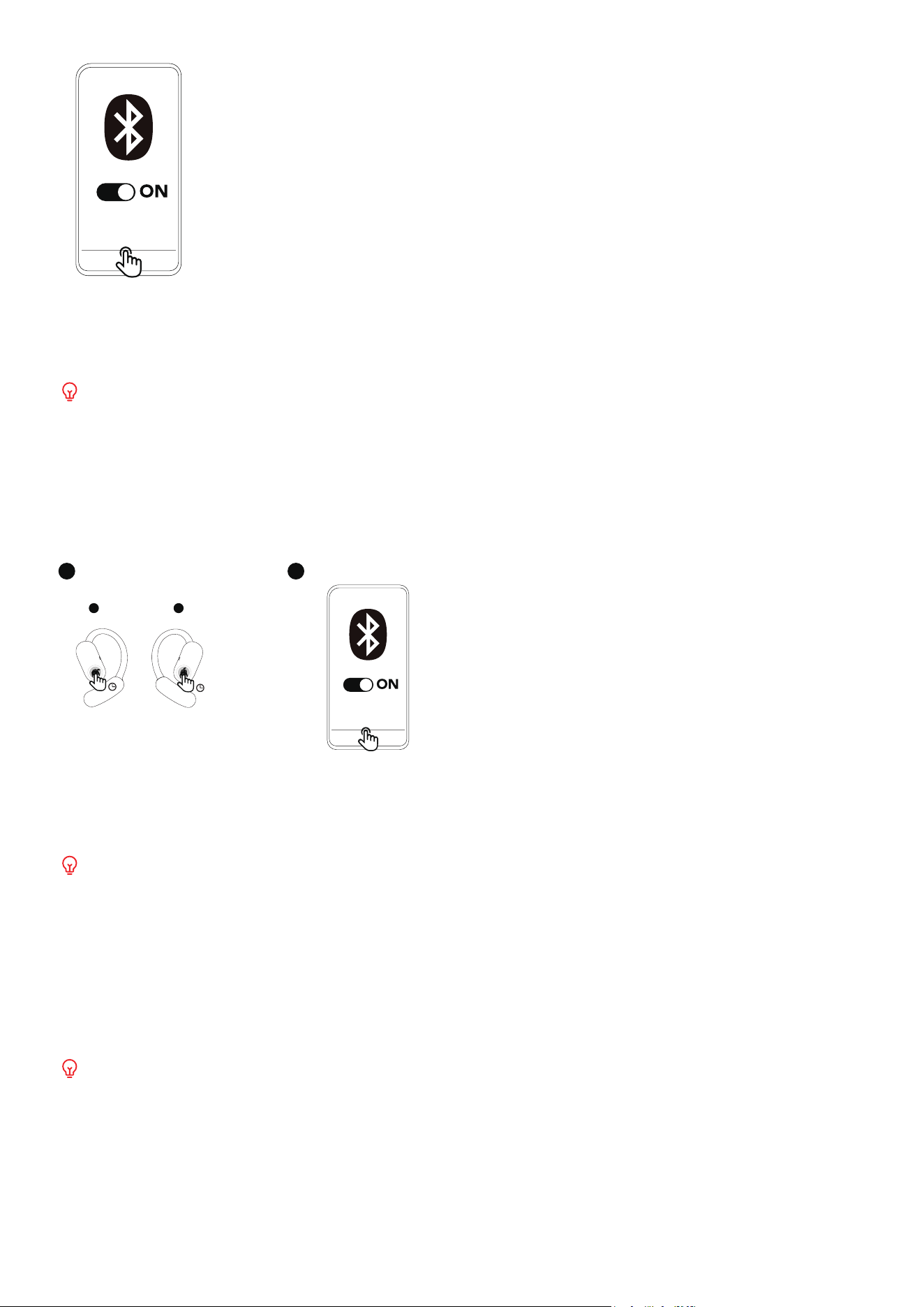
Method 1: Manually Pair with the Second Device
While wearing the earbuds, press and hold the touch control areas on both earbuds for 3 seconds until
you hear a sound prompt for pairing mode. You can then proceed to pair with the second device.
If your earbuds have been connected to two devices, remove at least one before pairing with a new
device.
Method 2: Use the soundcore App
In the soundcore app, tap Dual Connections on the main inteace, then proceed to Connect New
Device.
Dual Connections feature is enabled by default.
MANUAL PAIRING
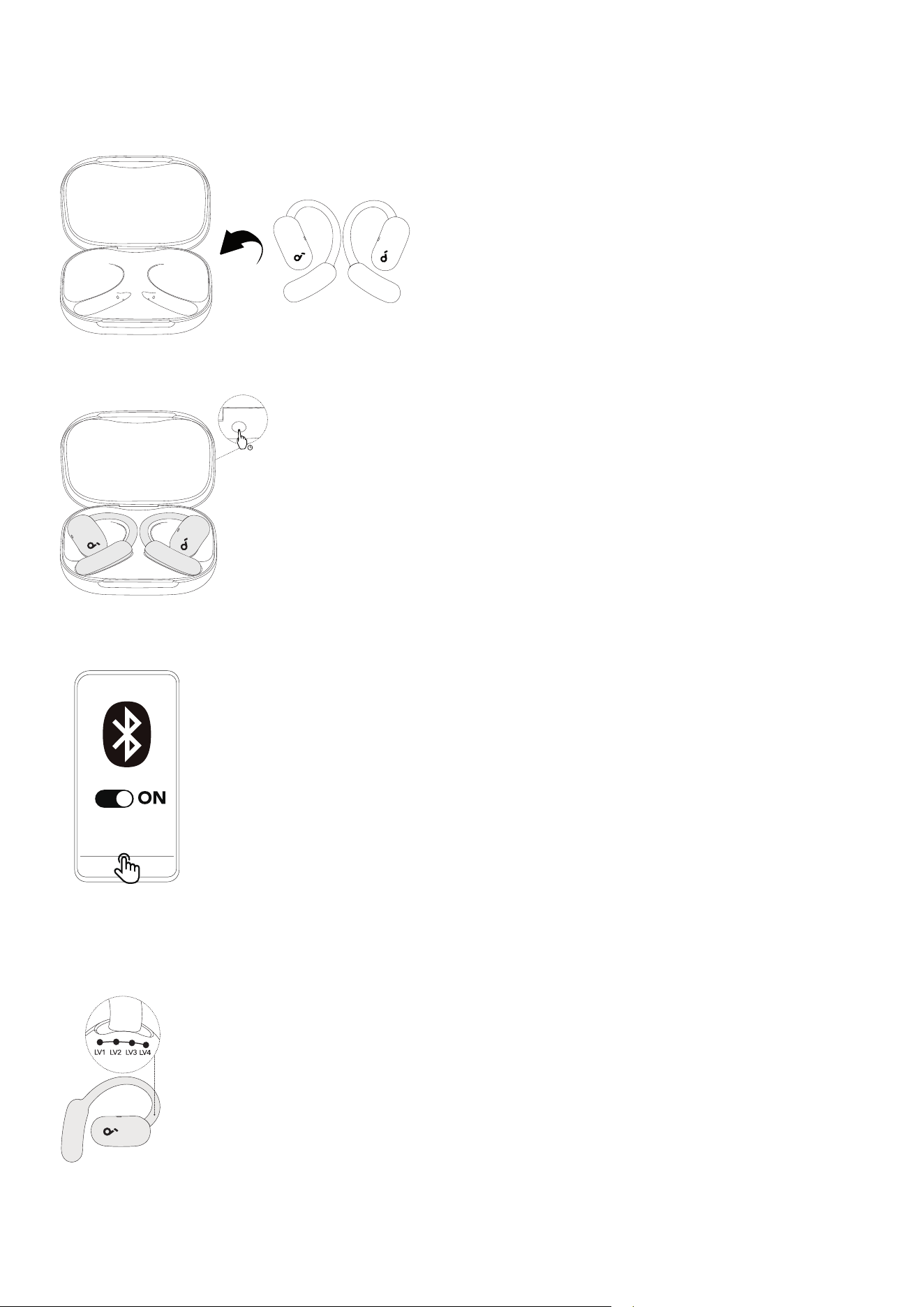
To manually enter Bluetooth pairing mode:
soundcore
AeroFit 2
3s
1. Return the earbuds to the charging case.
soundcore
AeroFit 2
3s
2. Leave the case open, then press and hold the charging case button for 3 seconds.
1
2
1s
PAIRING
CONNECTED
AeroFit 2 AI
Assistant
3. The earbuds will enter pairing mode. Proceed to pair with your device.
WEARING
4
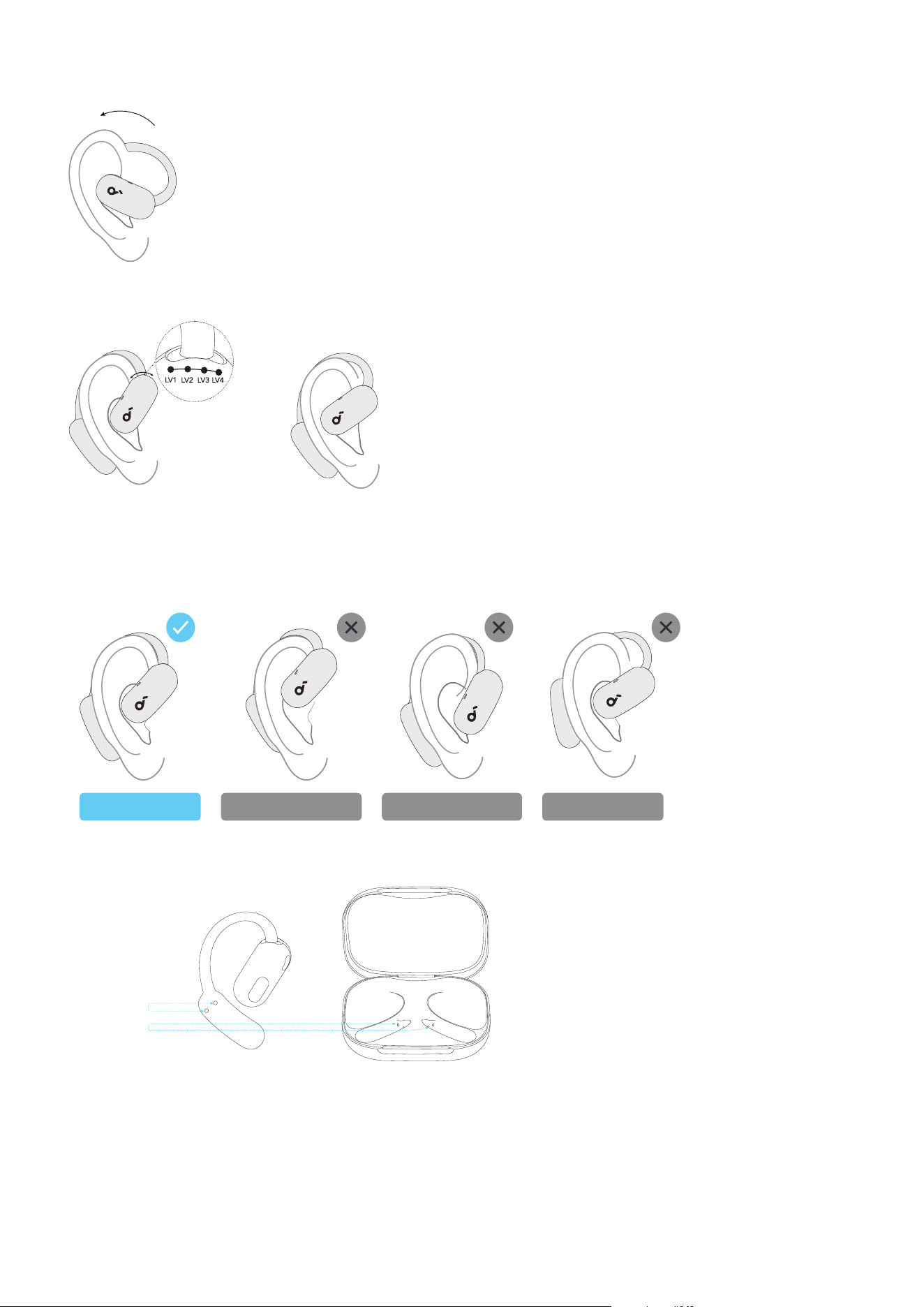
1. Pick up the earbuds and slide the ear hooks all the way to the LV4 position, which oers the largest fit.
4
2. Rotate the ear hooks along your outer ear for proper positioning.
4
3. Aer putting on the earbuds, you can slide the ear hooks back and forth between four levels until you
find the most comfortable and secure fit.
Ear Hook Position Guide
✓
✓ ✓ ✓
Proper Fit
Level Too Small Level Too Large Unstable Fit
How to Clean
Charging
Contacts
Aer each use, wipe the earbuds with a so, dry cloth and clean the charging contacts with a cotton
swab to prevent charging and power-o issues caused by sweat accumulation.
AI ASSISTANT
Before Use:
• The images provided are for illustration purposes only. Please refer to the actual product for accurate
usage.
• Uninstall the soundcore app on your device and download the latest version.
• The AI assistant prioritizes your privacy and data security.
• The AI assistant cannot open or control third-party apps (e.g., Contacts, Phone, Messages, Music,
Video).
• To use the AI assistant, download the soundcore app and keep it connected to your earbuds. For
• Android, adjust your system settings to ensure the app runs in the background.
• AI-generated response is for reference only and may contain inaccurate information, especially on
political or other sensitive topics. Please use your discretion and judgment.
What Anka Can Do for You
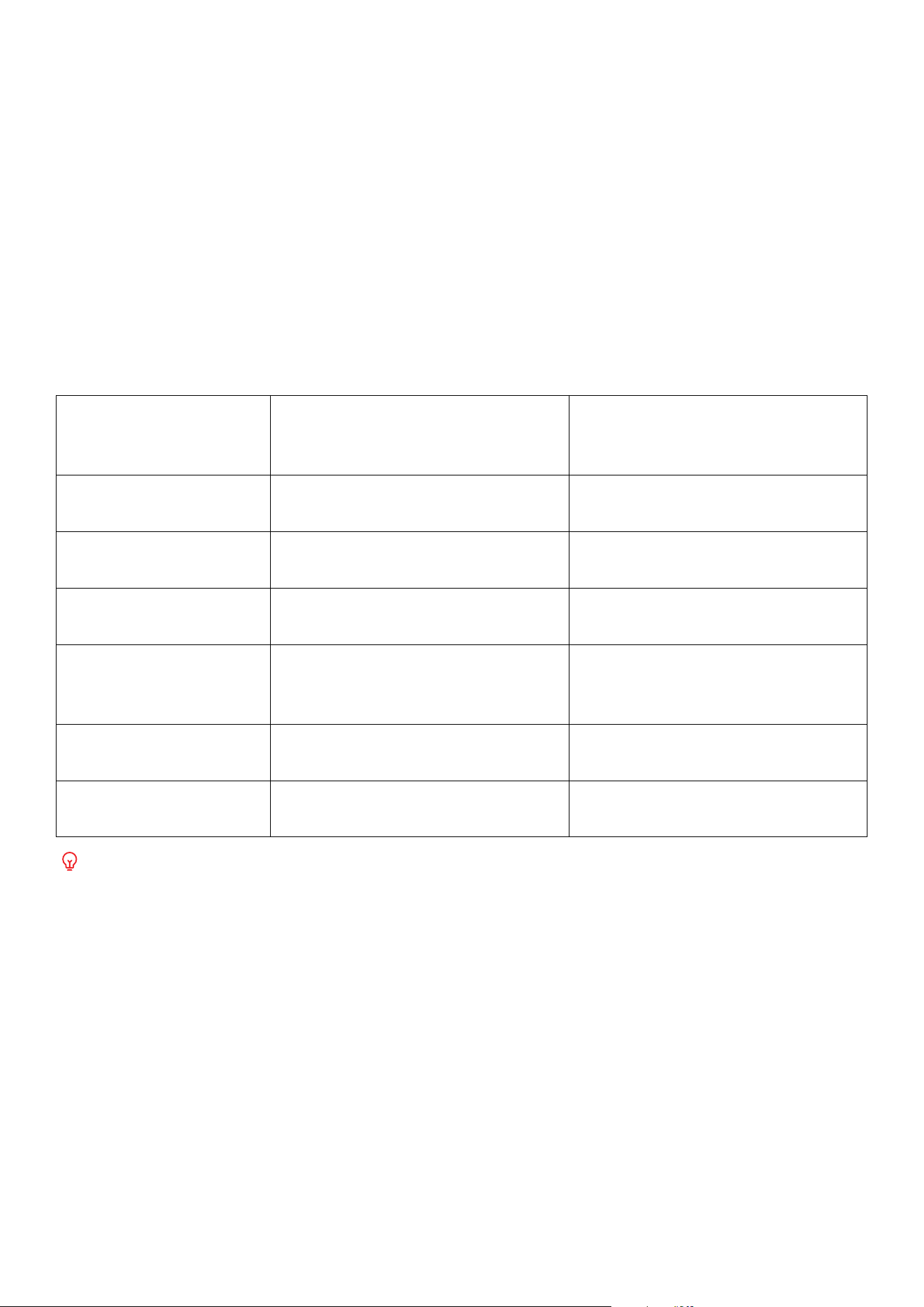
Function What It Does
Example Command (Say the
following to Anka aer activating
with "Hey Anka")
Answering Questions
Your portable encyclopedia—ask
any question anytime.
"Why do giraes have such long
necks."
Casual Conversation
Chat with you like a friend and help
you relax.
"Tell me a joke."
Information Aggregation
Provides you with daily news and
updates.
"Tell me some tech news for today."
Information Lookup
Check the weather, check the latest
match scores, and more.
"What's the weather like in
Shenzhen today? Will I need an
umbrella when going out?"
Activate AI Real-time
Translation
Starts real-time translation using
voice control.
"Start real-time translation."
Music Control
Control music playback, pause,
volume, etc., by voice.
"Set the volume to 60%."
Some voice commands may not work due to app limitations.
How to Access the Feature
There are three ways to access Anka AI Assistant:
Method 1: Say "Hey Anka" to activate the AI assistant without unlocking your phone. Anka requires the
app to remain active in the background on non-iOS devices due to system settings.
Note: The "Hey Anka" command cannot be customized.
≥2s
Touch Control Area
Method 2: If you prefer not to use "Hey Anka," simply hold the touch-control area on either earbud for
two seconds. When you hear the prompt, you can speak to Anka.
Method 3: In the soundcore app, go to Anka page, then tap Anka AI Assistant. Make sure your earbuds
are connected to the app.
AI TRANSLATION
Before Use:
• Make sure your phone is connected to the app when using AI translation.
• Disable Dual Connections.
Real-Time Translation
There are two ways to access Real-Time Translation:
Method 1: Say "Hey Anka" without unlocking your phone, wait for the prompt, and then say "Start
translation" to begin. Anka requires the app to remain active in the background on non-iOS devices due
to system settings.
Method 2: In the soundcore app, go to Anka page, then tap Real-Time Translation. Make sure your
earbuds are connected to the app.
Real-Time Translation
Click to start speaking English
Search
Their Language
My Language
English
Japanese
French
Italian
German
Spanish
Chinese
Done
English Chinese
soundcore
soundcore
搜索
对方语言
我的语言
中文
日语
法语
意大利语
德语
西班牙语
英语
常用语言
完成
中文 英语
英语(美
国)
日语(日
本)
英语中文
点击开始说话
英语中文
英语中文
soundcore
Suchen
Sprache meines Gegenübers
Meine Sprache
Chinesisch
Japanisch
Deutsch
Spanisch
Französisch
English
Fertig
English Deutsch
Gängige Sprachen
Klicken, um Englisch (USA) zu
sprechen zu beginnen
Deutsch Deutsch
soundcore
Mit Anka chatten
Hallo, ich bin Anka
Übersetzung in
Echtzeit
Kontextbezogenes
Lernen
Demnächst
Face-to-Face-
Übersetzung
soundcore
你好,我是Anka
实时翻译 面对面翻译
情景学习
敬请期待
快来与Anka聊天吧
soundcore
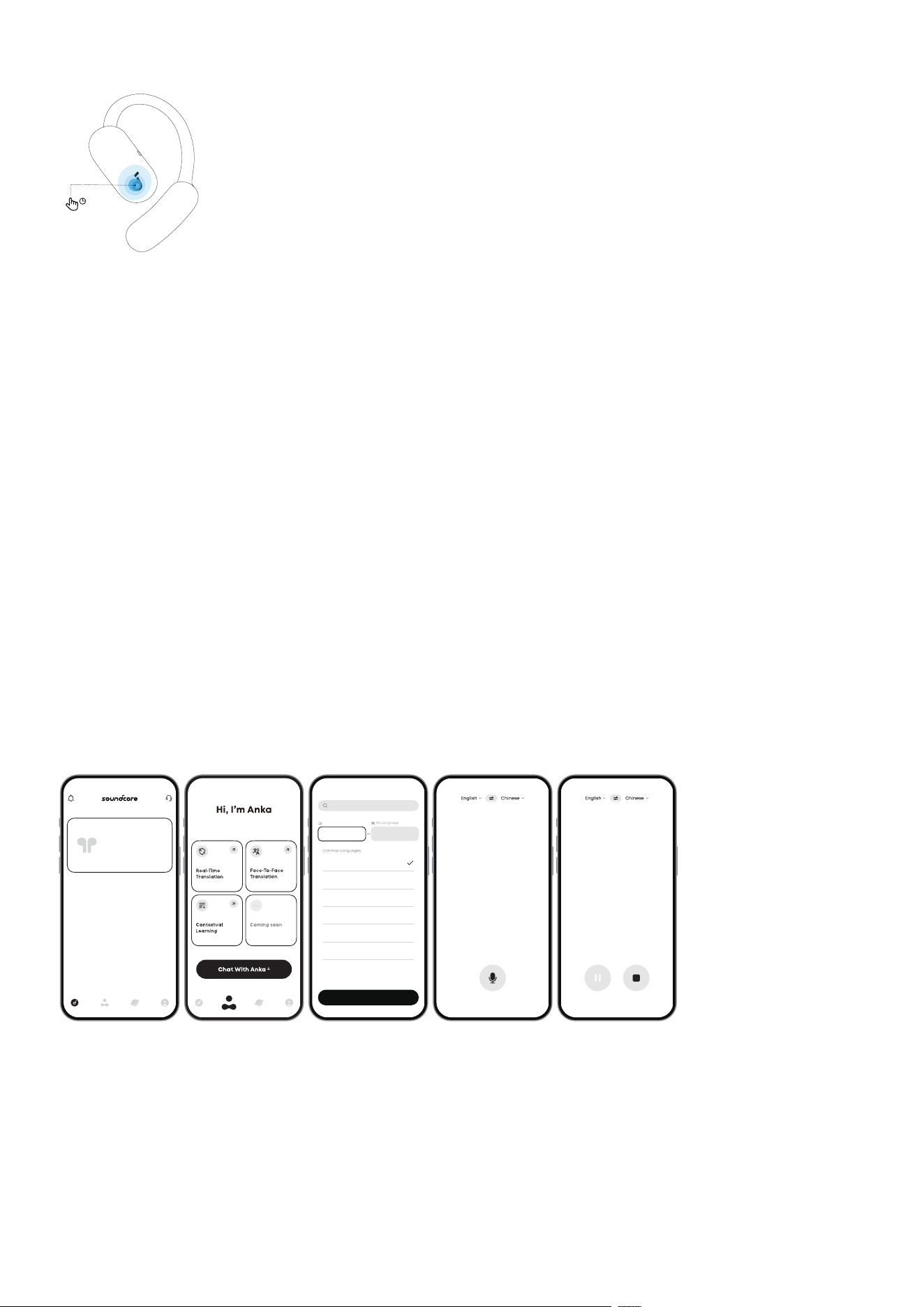
The translation is displayed in real time in the app.
1. Tap Real-Time Translation.
2. Tap the language section at the top of the page, then select Their Language and My Language.
3. Tap the microphone button to start recording. Tap the le button to pause, and the right button to
exit Real-Time Translation.
Face-to-Face Translation
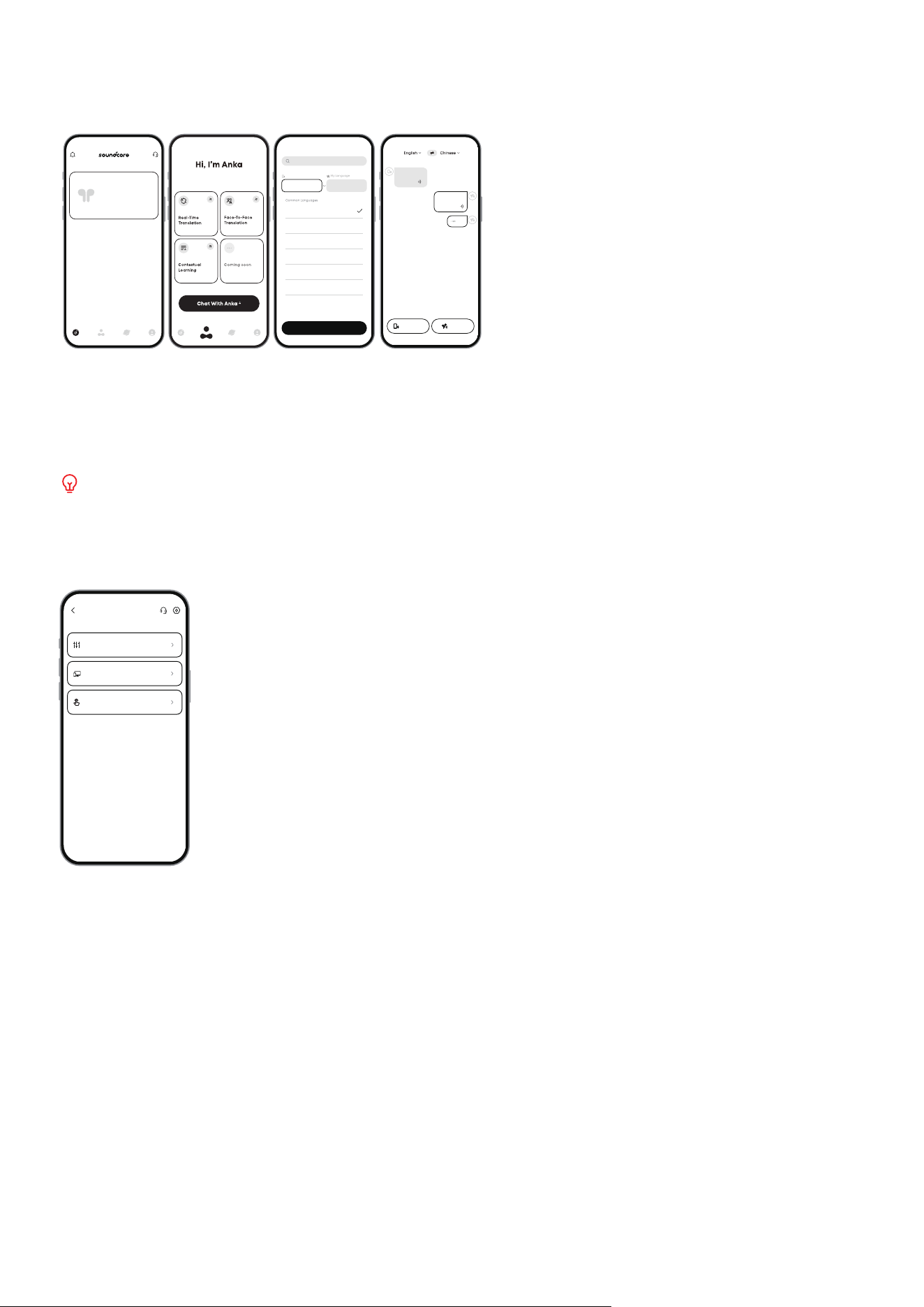
In the soundcore app, go to Anka page, then tap Face-to-Face Translation. Make sure your earbuds are
connected to the app.
soundcore
soundcore
Search
Their Language
My Language
English
Japanese
French
Italian
German
Spanish
Chinese
Done
English Chinese
点击说话
hello, hello.
你好,你好。
你好吗
How are you?
Press to Talk
Face-to-Face Translation
soundcore
搜索
对方语言
我的语言
中文
日语
法语
意大利语
德语
西班牙语
英语
常用语言
完成
中文 英语
hello,hello.
你好,你好。
你好吗
How are you?
点击说话
英语中文
Press to Talk
soundcore
Hallo.
Hello.
Hello.
Hallo.
Press to Talk
Zum Sprechen
drücken
Deutsch
Suchen
Sprache meines Gegenübers
Meine Sprache
Chinesisch
Japanisch
Deutsch
Spanisch
Französisch
English
Fertig
English Deutsch
Gängige Sprachen
你好,我是Anka
实时翻译 面对面翻译
情景学习
敬请期待
快来与Anka聊天吧
soundcore
Mit Anka chatten
Hallo, ich bin Anka
Übersetzung in
Echtzeit
Kontextbezogenes
Lernen
Demnächst
Face-to-Face-
Übersetzung
soundcore
1. Tap the language section at the top of the page, then select Their Language and My Language.
2. Tap the bottom-right button and speak into your earbuds. The translation will play through your
phone.
3. Tap the bottom-le button and speak into your phone. The translation will play through your earbuds.
Supports real-time translation for conversations in 100 languages.
SOUND EFFECTS
Sound Eects
Dual Connections
Controls
Dual Connections & Sound Eects
Neues Gerät verbinden
Duale Verbindungen
Duale Verbindungen
iPhone
Die Kopfhörer mit zwei Geräten gleichzeitig
verbinden
Aktuell
John‘s iPhone 14
Verlauf
Klangmodus
Duale Verbindungen
Steuerung
声阔音效
双设备连接
控制
连接新设备
双设备连接
你可以将耳机同时连接至两台设备。
双设备连接
In the soundcore app, the default sound eect is "soundcore Signature," a special preset recommended
by the soundcore team. You can also choose from 22 EQ presets to match your scenarios and
preferences.
Additionally, you can create your own sound profile by adjusting the eight sliders in Custom EQ.
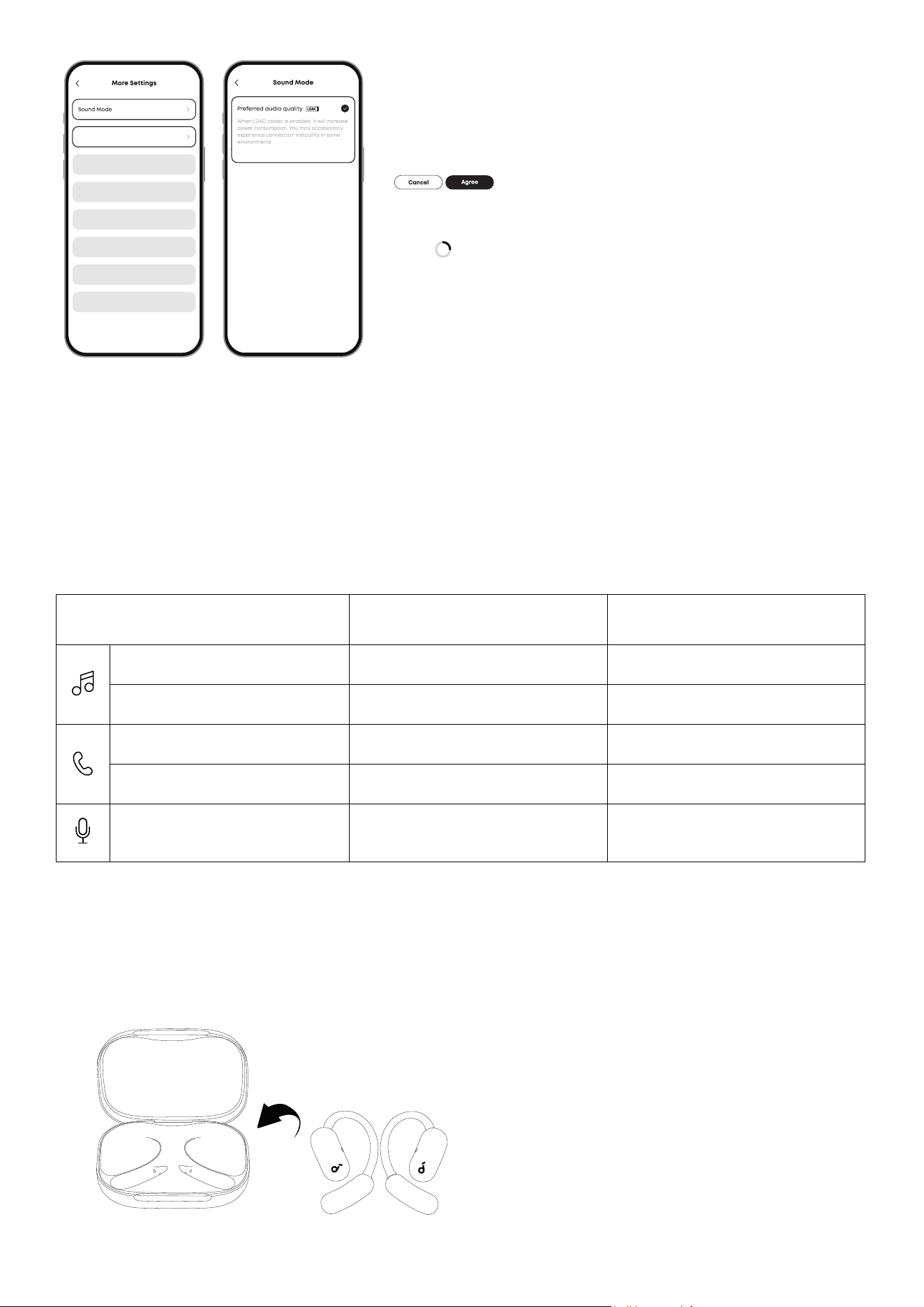
LDAC
To use the LDAC codec, use devices running Android 8.0 or later.
LDAC oers higher sound quality but uses more power, which may reduce battery life.
For a stable Bluetooth connection, enable LDAC in low-inteerence environments.
Note: UI images are for illustrative purposes only; actual display may vary by soware version.
Fit Test
Test der Passform
Klangmodus
Weitere Einstellungen
佩戴贴合度测试
声音模式
更多设置
Upgrade your earphones’ soware
to use LDAC codec. Do you want to
upgrade now?
Switching modes, please wait
for about 10 seconds.
音质优先
畅享高品质音质,但会增加耗电量,
部分场景下会出现卡顿现象。
声音模式
LDAC
Klangmodus
Bevorzugte Audioqualität
Wenn der LDAC-Codec aktiviert ist, erhöht
dies den Stromverbrauch. In einigen
Umgebungen kann es gelegentlich zu
Verbindungsinstabilitäten kommen.
Modus wird umgeschaltet, bitte ca.
10 Sekunden warten
Aktualisiere die Soware der
Kopfhörer, um den LDAC-Codec zu
verwenden. Möchtest du jetzt
aktualisieren?
Abbrechen Zustimmen
升级您的耳机软件以使用 LDAC 编解码
器。是否要立即升级?
取消
同意
正在切换,大约需要10秒。
In the soundcore app:
1. Select Sound Mode.
2. Tap Preferred audio quality.
3. Tap Agree to proceed.
4. Switching audio codecs takes about 10 seconds. You may be prompted to update the firmware if a
new version is available.
CONTROLS
The table below shows the default touch control settings.
Using Dual Earbuds Using Single Earbud
Play / Pause Audio Double tap (R) Double tap
Play the Next Track Double tap (L)
\
Answer a Call Double Tap (L/R) Double tap
Reject a Call / End a Call Hold for Two Seconds (L/R) Hold for Two Seconds
Activate AI Assistant Hold for Two Seconds (L/R) Hold for Two Seconds
Customize Touch Controls via the soundcore App
Access Controls on the home page to customize touch control options. You can adjust the volume, skip
songs, play or pause audio, and activate the voice assistant with touch controls.
CHARGING
1
2
1.7 hrs
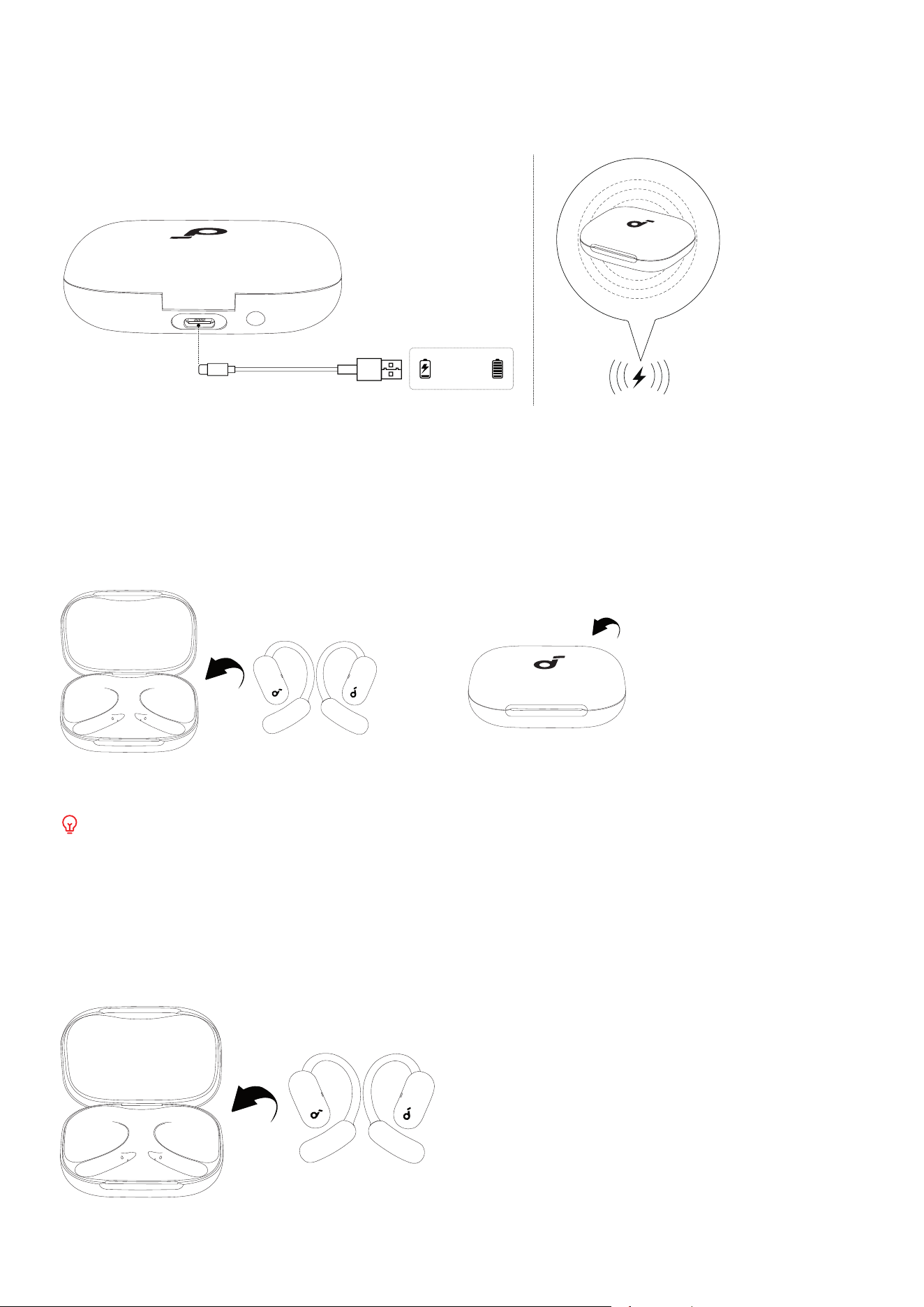
1. Place the earbuds in the charging case and close it.
• Ensure the earbuds and the USB-C charging port are fully dry before charging.
1 2
1.7 hrs
2. Connect the charging case to a power supply using the provided USB-C charging cable. Alternatively,
for wireless charging, place the charging box at the center of your wireless charger.
• Recharging the charging case takes 1.7 hours via cable and 2.6 hours via wireless charging.
POWERING OFF
To power o, return both earbuds to the charging case and close the case.
The earbuds will automatically power o aer 30 minutes if they are not connected. The duration can
be customized in the soundcore app.
RESET
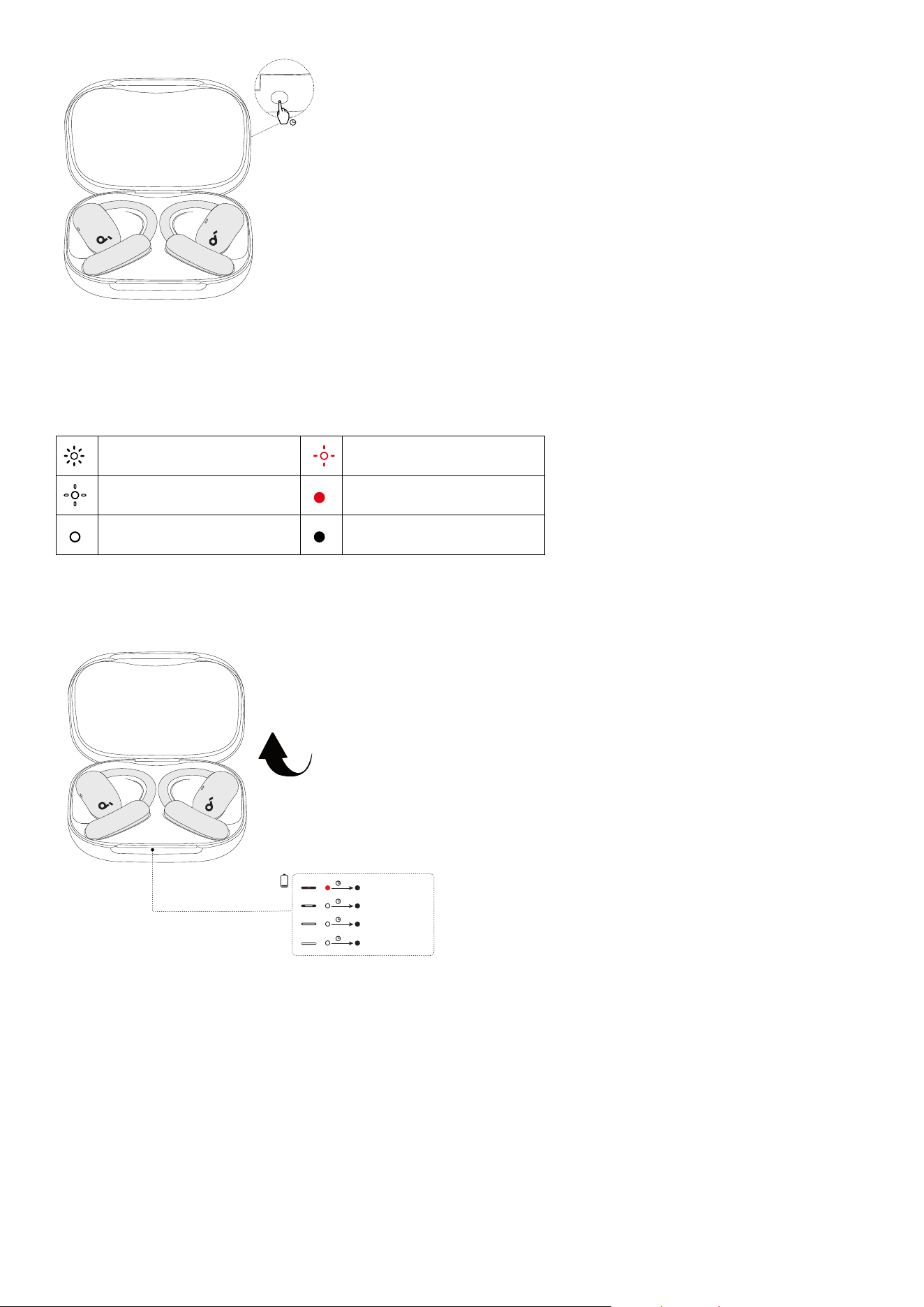
Reset the earbuds if they have issues pairing with each other or with other devices.
10s
1. Return the earbuds to the charging case and leave the case open.
10s
2. Press and hold the charging case button for 10 seconds until the LED light strip flashes white quickly
three times, ndicating a successful reset.
LED LIGHT GUIDE
Flashing white rapidly Flashing red slowly
Flashing white slowly Steady red
Steady white Light o
Checking the Battery Level
When you open the charging case, the LED light strip will indicate the remaining battery level of the
case.
1
< 20%
20% - 50%
75% - 100%
50% - 75%
5s
5s
5s
5s
1
0% - 20%
20% - 50%
50% - 75%
75% - 100%
10s
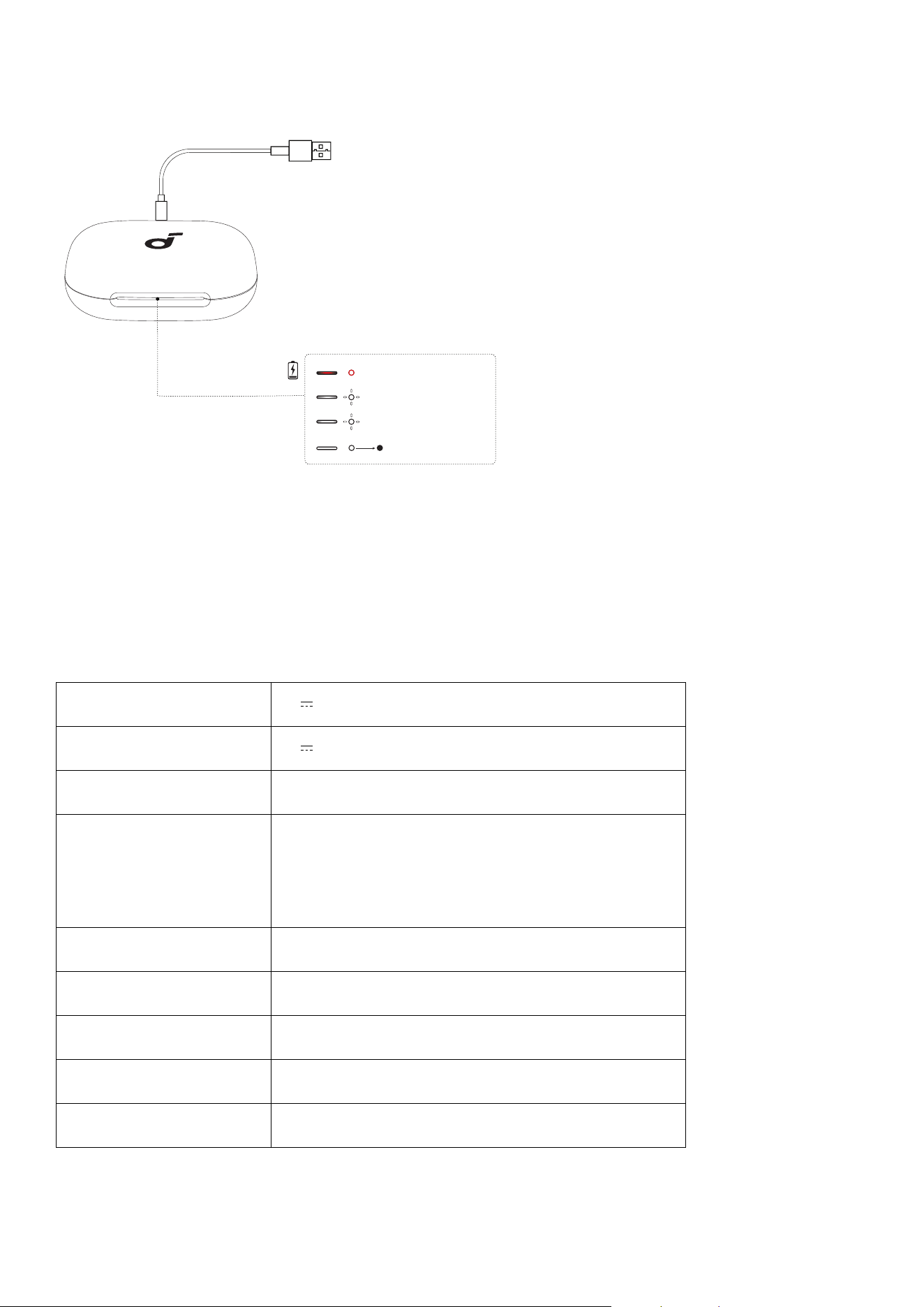
Checking the Charging Status
When you connect the charging case to a power source, the LED light strip will display the charging
status:
1
< 20%
20% - 50%
75% - 100%
50% - 75%
5s
5s
5s
5s
1
0% - 20%
20% - 50%
50% - 75%
75% - 100%
10s
FIRMWARE UPDATE
When the earbuds are connected to the app, you will be notified of available firmware updates. Keep
the earbuds in the charging case with the case open until the update is complete. Avoid using earbuds
during the process.
SPECS
Specifications are subject to change without notice.
Input 5V 1.2A
Output 5V 0.42A (0.21A per port)
Battery capacity 750mAh
Charging time
Earbuds: 1 Hour
Charging Case:
Wired Charging: 1.7 Hours (Case), 2.2 Hours (Case
and Earbuds)
Wireless Charging: 2.6 Hours (Case and Earbuds)
Driver unit 20*11.5mm
Frequency response 20~20kHz (20~40kHz in LDAC Mode)
Impedance 16Ω
Waterproof rating
(earbuds)
IP55
Bluetooth version 5.4
Customer Service
service@soundcore.com
support.mea@soundcore.com (For Middle East and Africa Only)
support@anker.com (
日本
)
+1 (800) 988 7973 (US/Canada)
+44 (0) 1604 936200 (UK)
+49 (0) 69 9579 7960 (DE)
03 4455 7823 (
日本
)
+86 400 0550 036 (
中国
)
+82 1666-8470 (
한국
)
+971 8000320817 (UAE)
+966 8008500030 (KSA)
+965 22069086 (Kuwait)
+20 8000000826 (Egypt)
+61 3 8331 4800 (Australia)
+90 (850) 460 14 14 (Türkiye)
+8 (800) 511-86-23 (Russia)
000-8000-504-414 (India)
Note: The 'x' of SN Code: xxxxxxxxxxxxxxxx is a variable, see below table.
Variable 'x' Range of variable Content
Eighth 8,9,A,B,C...
Denotes the year, 8 means 2018, 9 means 2019, A means 2020, B
means 2021, C means 2022, and so on.
Ninth and tenth 01,02,03...
Denotes weeks, 01 means the first week in this year, 02 means the
secondary week in this year, and so on.
Eleventh 1-7
Denotes date, 1 means Monday, 2 means Tuesday..., 7 means
Sunday and so on.
The last five 00001-99999 Denotes serial No.
Hereby, Anker Innovations Limited declares that this device is in compliance with The Product Security
and Telecommunications Infrastructure (Security Requirements for Relevant Connectable Products)
Regulations 2023. For the Statement of Compliance, visit the website: https://uk.soundcore.com/pages/
psti-related.