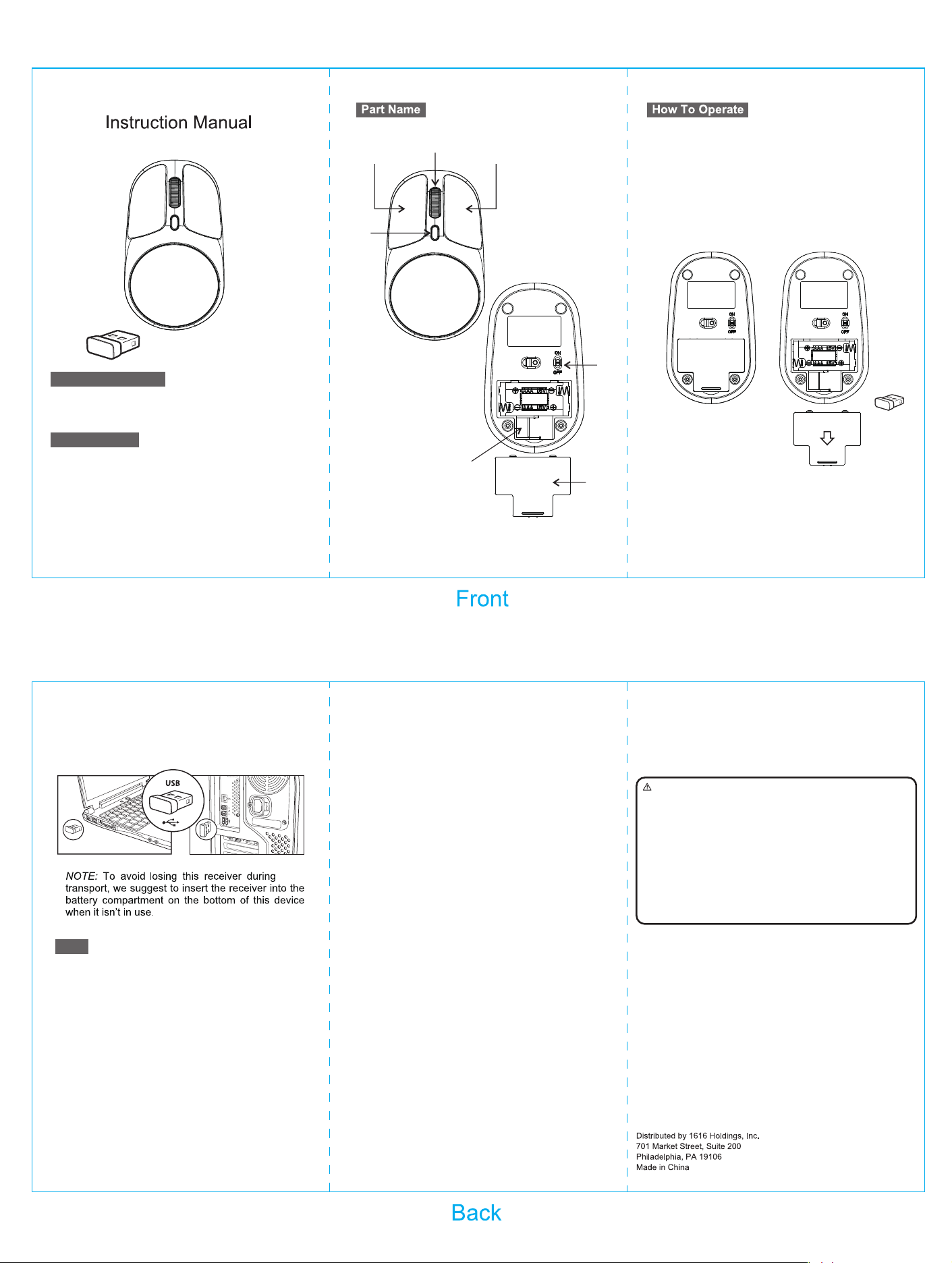
① Left Key
② Right Key
③ Scroll Wheel
④ DPI Button
⑤ USB Receiver
⑥ Battery Cover
⑦ On/Off Switch
1.Open the battery cover ⑥ on the battery compart-
ment, insert 2 x “AAA” batteries (not included, need
to purchase additionally), and remember to check for
the correct polarity(+/-).
2. Take out the USB receiver and secure the battery
cover ⑥ to the battery compartment.
3. Set the mouse switch ⑦ to the ON position.
4. Turn on your computer and connect the USB receiver
to the USB port of your computer, wait a minute until the
device has been automatically detected and installed
(Plug and Play). When installation is complete, you can
use the device.
④
⑦
⑥
⑤
1 (One) Gel Mouse With Charm
1 (One) Instruction Manual
1 (One) 2.4GHz USB Receiver
·
Connection: Wireless 2.4GHz
·DPI: 800/1200 (Default) /1600
·
Number of Keys: 4 Keys
·
Operating temperature: -5°C ~ 40°C
·
Requires: 2 (Two) x 1.5V AAA Alkaline Batteries
(Not Included)
·
Mouse FCC ID: 2AYB6-MU21036
·
USB Receiver FCC ID: 2AYB6-M3
GEL MOUSE WITH CHARM
Item Number: MU21036
Contents Included:
Specifications:
①
②
③
This device complies with Part 15 of the FCC Rules.
Operation is subject to the following two conditions:
(1) This device may not cause harmful interference,
and (2) this device must accept any interference
received, including interference that may cause
undesired operation.
CAUTION: Any changes or modifications not expressly
approved by the party responsible for compliance could
void the user's authority to operate the equipment.
NOTE: This equipment has been tested and found to
comply with the limits for a Class B digital device,
pursuant to Part 15 of the FCC Rules. These limits are
designed to provide reasonable protection against
harmful interference in a residential installation.
FCC Radiation Exposure Statement:
This equipment complies with FCC radiation exposure limits
set forth for an uncontrolled environment.
This equipment generates, uses and can radiate radio
frequency energy, and, if not installed and used in
accordance with the instructions, may cause harmful
interference to radio communications. However, there is no
guarantee that interference will not occur in a particular
installation. If this equipment does cause harmful
interference to radio or television reception, which can be
determined by turning the equipment off and on, the user is
encouraged to try to correct the interference by one or
more of the following measures:
• Reorient or relocate the receiving antenna.
• Increase the separation between the equipment and
receiver.
• Connect the equipment into an outlet on a circuit different
from that to which the receiver is connected.
• Consult the dealer or an experienced radio/TV technician
for help.
1) The batteries used with this product are small parts and should be kept
away from small children who still put things in their mouths. If they are
swallowed, promptly see a doctor and have the doctor phone American
Association of Poison Control Centers (1-800-222-1222).
2) Always purchase the correct size and grade of battery most suitable for
intended use.
3) Do not mix old and new batteries, alkaline, standard (Carbon - Zinc) or
rechargeable (Nickel-cadmium) batteries.
4) Clean the battery contacts and those of the device prior to battery installation.
5) Ensure the batteries are installed correctly with the regard to polarity (+ and -).
6) Always remove batteries if consumed or if product is to be left unused for a
long time.
WARNING: TO AVOID BATTERY LEAKAGE
Size: 210x120mm
Q&A
1. Mouse fails to respond
· Is the mouse sensor lit?
No Light: Check battery power, confirm correct
(+/-)polarity and verify the power switch is set to ON.
· Is the USB receiver detected normally?
Detection failure: Try a different USB port or restart
your computer.
2. Cursor skipping / jittering
· Is your desktop surface smooth?
Use a flat, smooth mouse pad if the surface is uneven.
· Is the battery power low?
Replace with new batteries when power is insufficient.