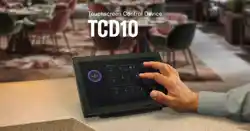

Touchscreen control device
EN
TCD Launcher Operation Guide

TCD Launcher Operation Guide
2
Contents
Introduction ________________________________________ 4
About TCD Launcher ............................................................................................. 4
About this manual ................................................................................................ 4
Privacy notice ...................................................................................................... 4
Related documentation .......................................................................................... 4
Related software .................................................................................................. 5
Updating software ................................................................................................ 5
Connection diagram .............................................................................................. 5
Starting TCD Launcher ________________________________ 6
TCD Launcher screen _________________________________ 7
Quick menu ......................................................................................................... 7
GO TO ................................................................................................................ 8
Open Bookmarks .................................................................................................. 9
Add Bookmark ..................................................................................................... 10
TCD Launcher settings ________________________________ 11
Accessing the settings screen ................................................................................. 11
Closing the settings screen .................................................................................... 11
Tab menu ............................................................................................................ 12
General ............................................................................................................... 12
Language Settings ............................................................................................ 12
Time Settings .................................................................................................. 12
IP Settings ...................................................................................................... 13
Display ............................................................................................................... 14
Quick Menu Display Settings .............................................................................. 14
Screen Display Settings ..................................................................................... 15
Home ................................................................................................................. 16
Home Settings ................................................................................................. 16
Bookmarks .......................................................................................................... 17
Bookmark Settings ........................................................................................... 17
Edit Folder ................................................................................................... 17
Edit Bookmarks ............................................................................................ 18
Log ..................................................................................................................... 19
Log categories ................................................................................................. 19
Admin ................................................................................................................. 20
Password Settings ............................................................................................ 20
Scheduled Reboot Settings ................................................................................ 20
Device Control ................................................................................................. 21
Reset Defaults ................................................................................................. 21

TCD Launcher Operation Guide
3
Panel Remote Management Permissions............................................................... 22
About ................................................................................................................. 23
Device Information ........................................................................................... 23
Troubleshooting _____________________________________ 24
Keyboard hides input fields and buttons ................................................................... 24
List of log alerts ................................................................................................... 25
Introduction
TCD Launcher Operation Guide
4
Introduction
The TCD10 is a control device equipped with a touchscreen. It allows you to control components of a
sound system comprising the network-connected Yamaha signal processor DME5 or DME3.
This Operation Guide provides details on using the TCD Launcher application to operate the TCD10.
In order to take full advantage of the various functions of the TCD10, refer to this Operation Guide
as necessary.
About TCD Launcher
This is an application that displays the operation screen in the TCD10, based on the controller file
from the network-connected signal processor DME5 or DME3. The devices in the network are
controlled by the signal processor. Turning on the TCD10 starts this application.
About this manual
This software and Operation Guide are the exclusive copyrights of Yamaha Corporation (“Yamaha”).
Copying of the software or reproduction of this Operation Guide in whole or in part by any means
is expressly forbidden without the written consent of the manufacturer.
Yamaha Corporation assumes no responsibility whatsoever for results or effects arising from the
use of this software or Operation Guide.
For the purpose of improvement, this software and Operation Guide are subject to change
without notice.
The illustrations and screens in this Operation Guide are for instructional purposes only.
The company names and product names in this Operation Guide are trademarks or registered
trademarks of their respective companies.
The explanations in this Operation Guide are based on the latest specifications at the time of
publication.
Privacy notice
The TCD10 runs on the Android OS.
Depending on the services provided by Google LLC or the function settings specified from the
software keyboard, some input information may be sent to Google.
For details, review the Google Privacy Policy.
Settings related to the transmission of information can be viewed and changed in the settings screen
(available from the software keyboard).
Software keyboard Gear icon [Advanced]
Related documentation
The latest manuals can be downloaded from the Products page.
Yamaha Pro Audio global website
https://www.yamahaproaudio.com/
TCD10 Read This First
This provides precautions for handling and using the TCD10 safely.
TCD10 User Guide
This provides the specifications and installation procedures for
the TCD10.
TCD Manager Operation Guide
This provides details on using TCD Manager.
Introduction
TCD Launcher Operation Guide
5
Related software
TCD Manager
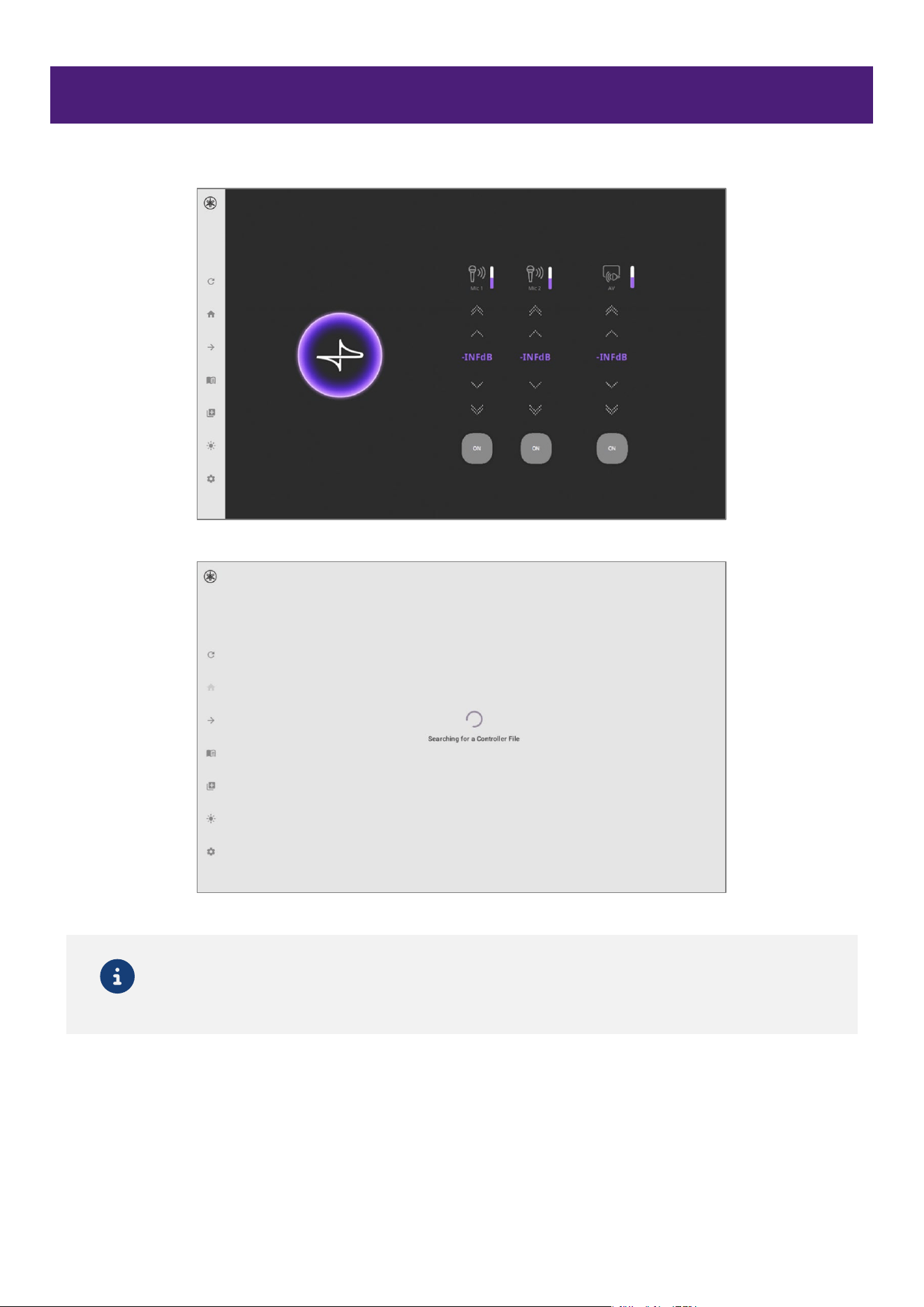
This is a Windows application for managing the TCD10. It can detect the TCD10 on the network and
manage software updates, settings, bookmarks and log files.
For details, refer to the TCD Manager Operation Guide.
Updating software
Use the Windows application TCD Manager to update TCD Launcher. For details, refer to the TCD
Manager Operation Guide.
Connection diagram
Starting TCD Launcher
TCD Launcher Operation Guide
6
Starting TCD Launcher
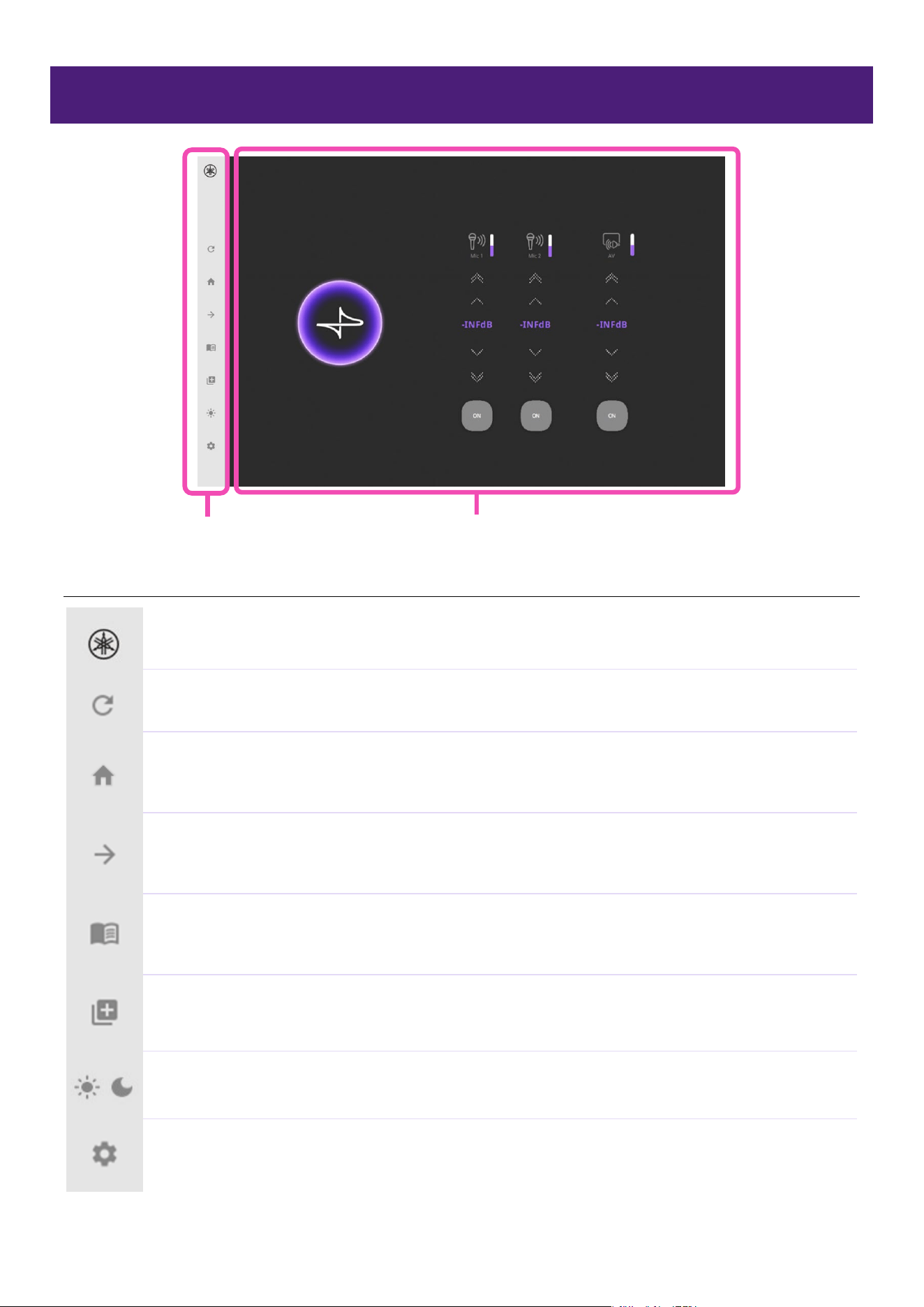
Connecting a PoE-powered Ethernet cable to it turns on the TCD10. TCD Launcher then starts, and
the operation screen (controller file) is displayed.
While a controller file is being searched for, the following screen appears.
Note
If no controller file can be found on the network, no operation screen will appear.
If multiple DME5 or DME3 signal processors are connected to the same network, or if there
is a signal processor connected to a different network, use the GO TO or Home function to
display the operation screen for the desired signal processor.
TCD Launcher screen
TCD Launcher Operation Guide
7
TCD Launcher screen
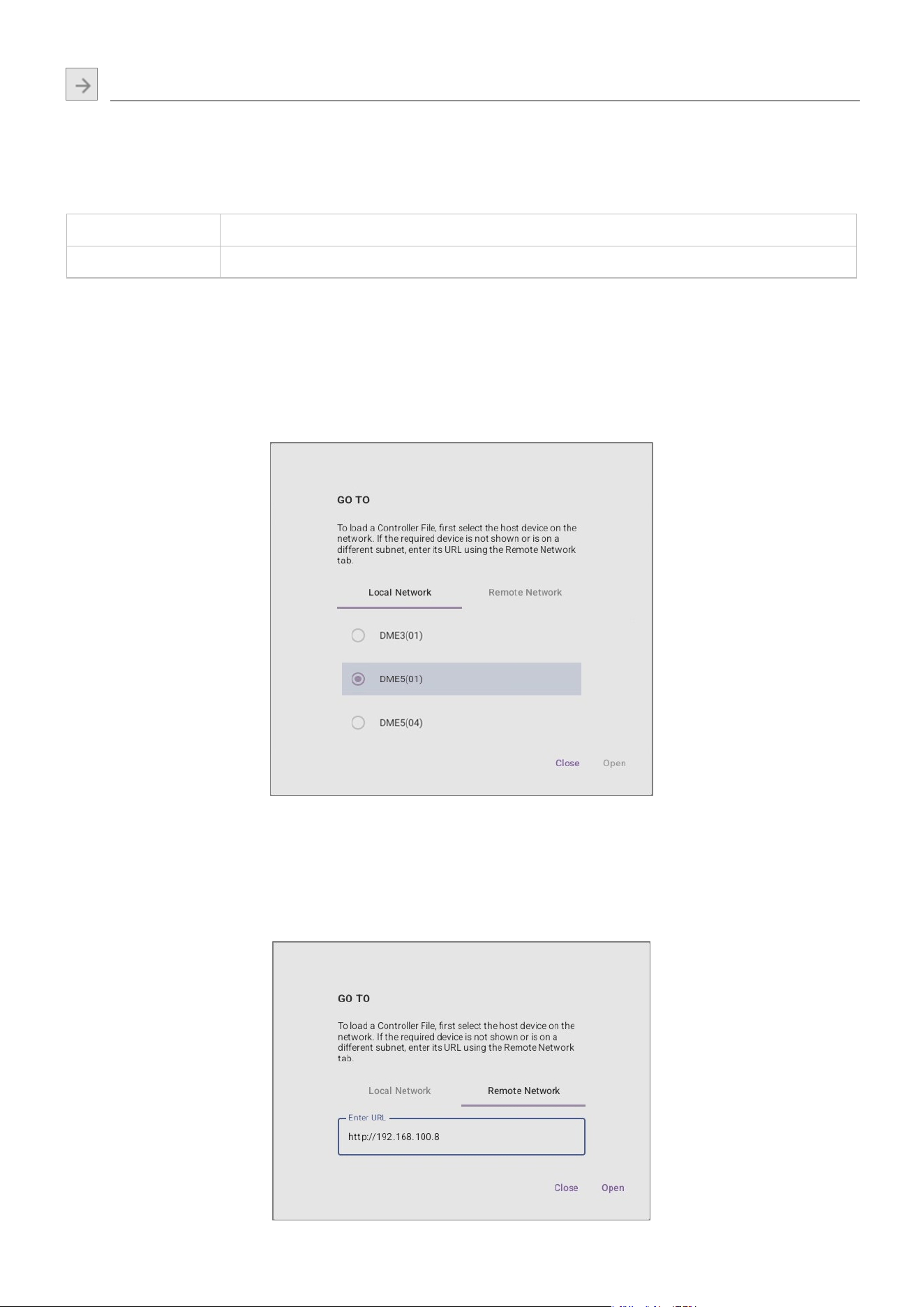
Quick menu
Yamaha Icon
This displays device and software information.
Reload
This reloads the currently displayed operation screen (controller file).
Home
This displays the signal processor operation screen (controller file) set as the home
screen.
GO TO
This allows you to select a signal processor on a network in order to display its
operation screen (controller file). page 8
Open Bookmarks
This displays a list of the operation screens (controller files) that have been
bookmarked. page 9
Add Bookmark
This adds a bookmark for the currently displayed operation screen (controller file).
page 10
Toggle Brightness
This allows you to adjust the screen brightness for bright and dark environments.
Settings
This opens the settings screen of TCD Launcher. page 11
Quick menu Main area
TCD Launcher screen
TCD Launcher Operation Guide
8
GO TO
This allows you to select a signal processor on a network in order to display its operation screen
(controller file).
There are two ways to make a selection. Make the selection based on which network the signal
processor is connected to.
Local Network When the signal processor is connected to the same network as the TCD10
Remote Network When the signal processor is connected to a different network than the TCD10
Local Network
Displayed by tapping [Local Network].
The device names and unit IDs of signal processors connected to the same network as the TCD10
are displayed. Select the signal processor whose operation screen (controller file) you wish to
display, and then tap [Open].
Remote Network
Displayed by tapping [Remote Network].
For a signal processor connected to a different network than the TCD10, specify the URL to display
that processor’s operation screen (controller file). Type in the URL, and then tap [Open].
TCD Launcher screen
TCD Launcher Operation Guide
9
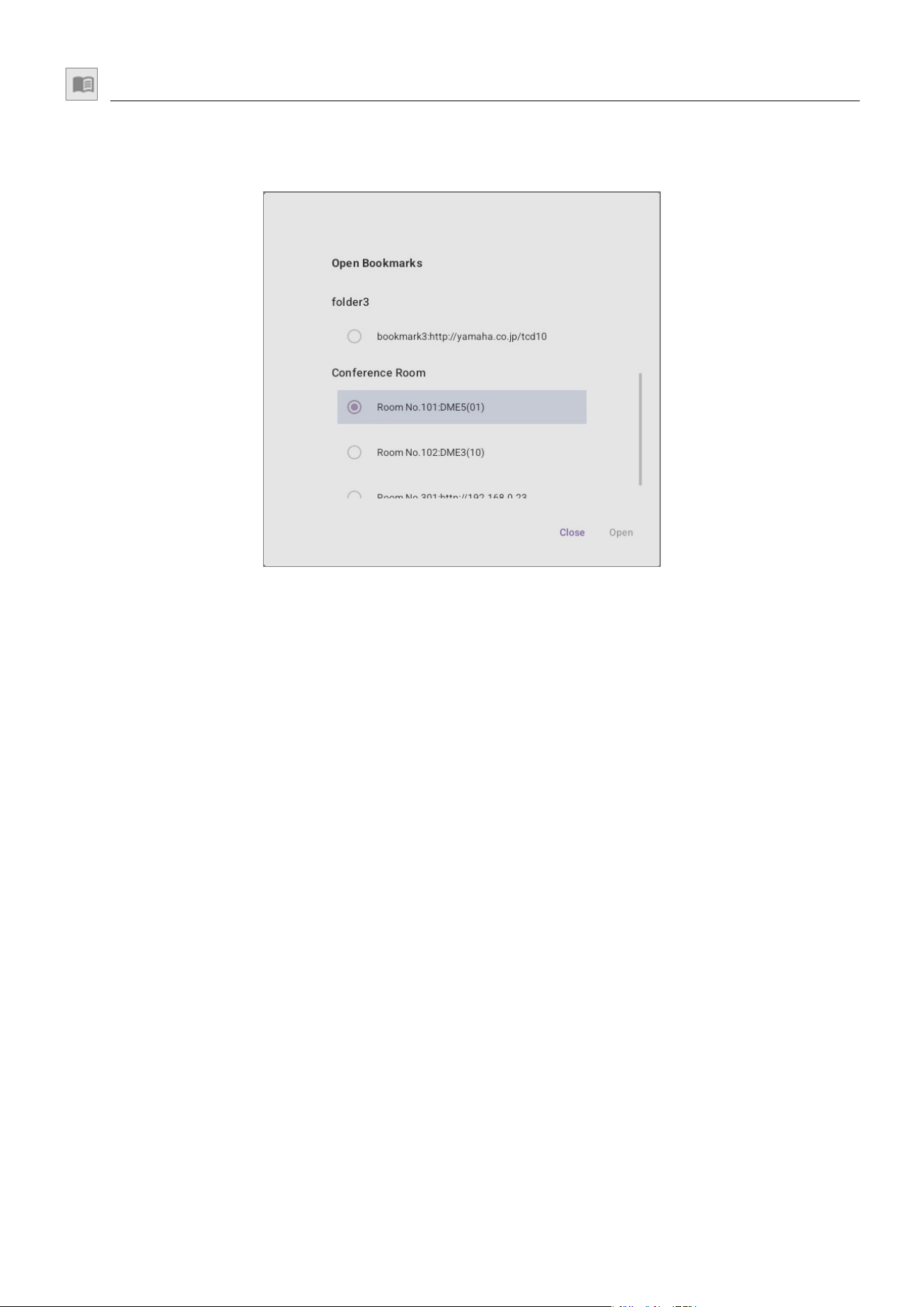
Open Bookmarks
This displays a list of the operation screens (controller files) that have been registered as
bookmarks. Bookmarks are categorized into folders. To display a screen, select it from the list, and
then tap [Open].
TCD Launcher screen
TCD Launcher Operation Guide
10
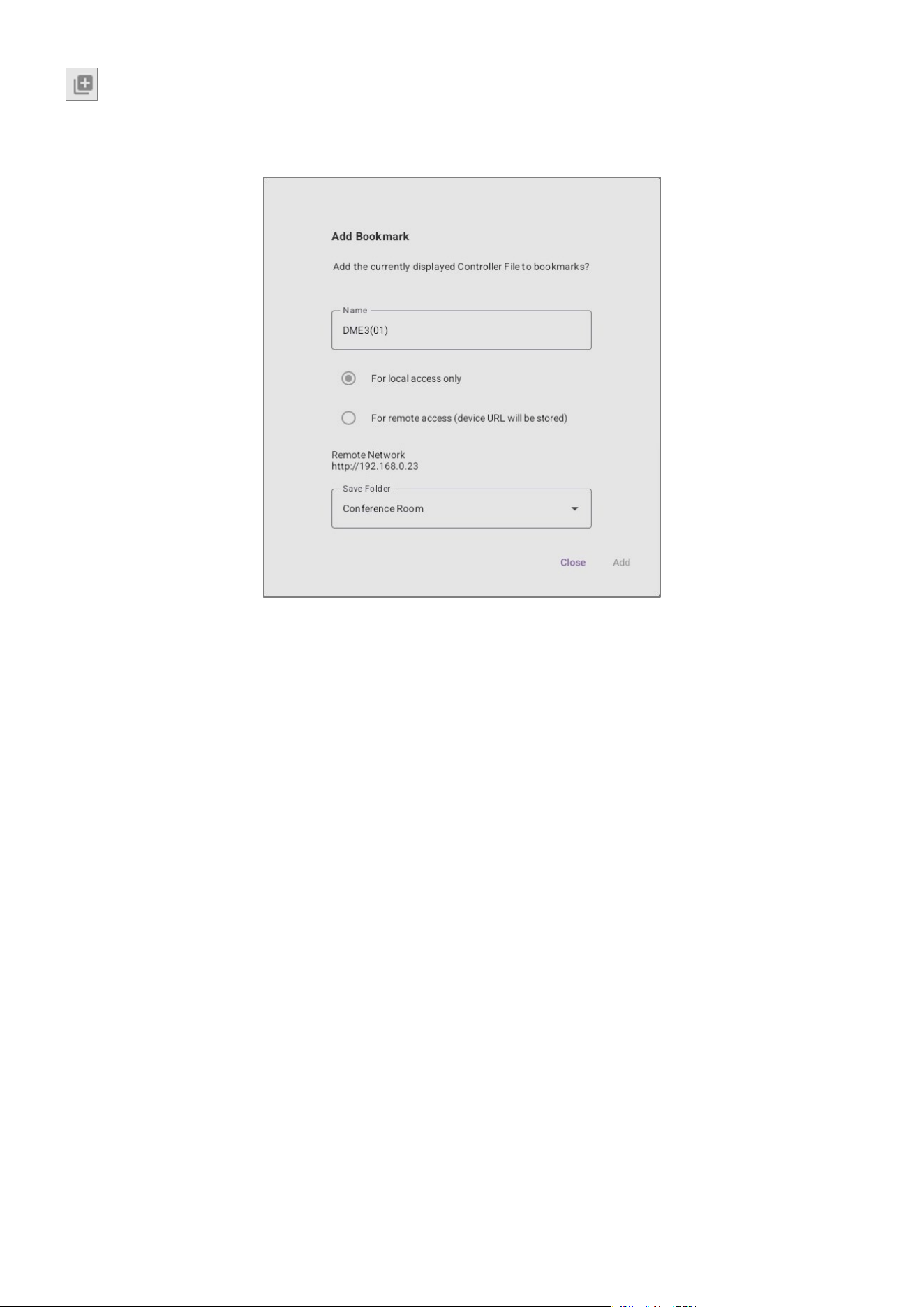
Add Bookmark
This allows you to register the currently displayed operation screen (controller file) as a bookmark
so that it can later be recalled.
Item
Details
Name
Specify the name of the bookmark to be added.
If the currently displayed operation screen (controller file) is on the local
network, that processor’s device name and unit ID appear as the initial value.
○ For local access only
○
For remote access
(device URL will be
stored)
When adding a bookmark, choose whether it is for local or remote access. If the
currently displayed operation screen (controller file) is on a remote network, only
“For remote access” is available.
With “For local access only”, the device name and unit ID of the signal
processor are saved, allowing the connection to be maintained, even if the IP
address changes.
With “For remote access”, the settings are saved as a URL, allowing an
operation screen on a different network to be accessed.
Save Folder
From the list of registered folder names, select the folder where you wish to add
the bookmark.
Alternatively, create a new folder by selecting [+ Add New Folder] at the bottom
of the list.
TCD Launcher settings
TCD Launcher Operation Guide
11
TCD Launcher settings
The TCD Launcher settings allow you to customize various aspects of the TCD10 device, including its
communication environment, screen display and application management.
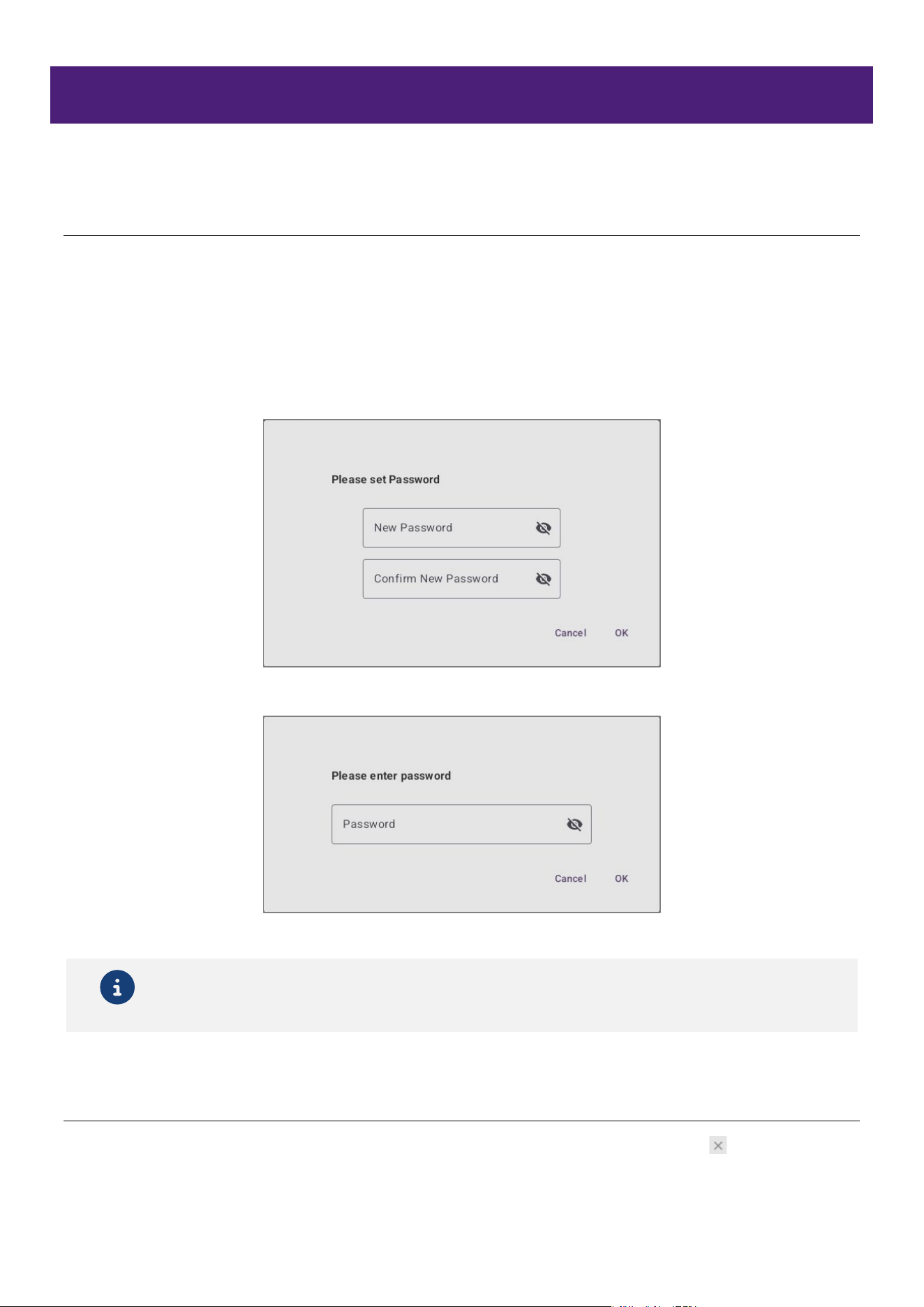
Accessing the settings screen
A password must be set the first time the device is used or anytime a password has not yet been
set.
Type in the same password for both [New Password] and [Confirm New Password].
Passwords must be between 4 and 64 characters long.
Passwords can contain single-byte alphanumeric characters and the following symbols.
!@#$%^&*()-_=+[]{};:,.<>?/
From then on, log in by entering the password that was set.
Note
For security reasons, you will be unable to enter your password for 10 minutes after an
incorrect password has been entered five times in a row.
Closing the settings screen
To close the settings screen and display the operation screen (controller file), tap in the lower left
of the screen.
TCD Launcher settings
TCD Launcher Operation Guide
12
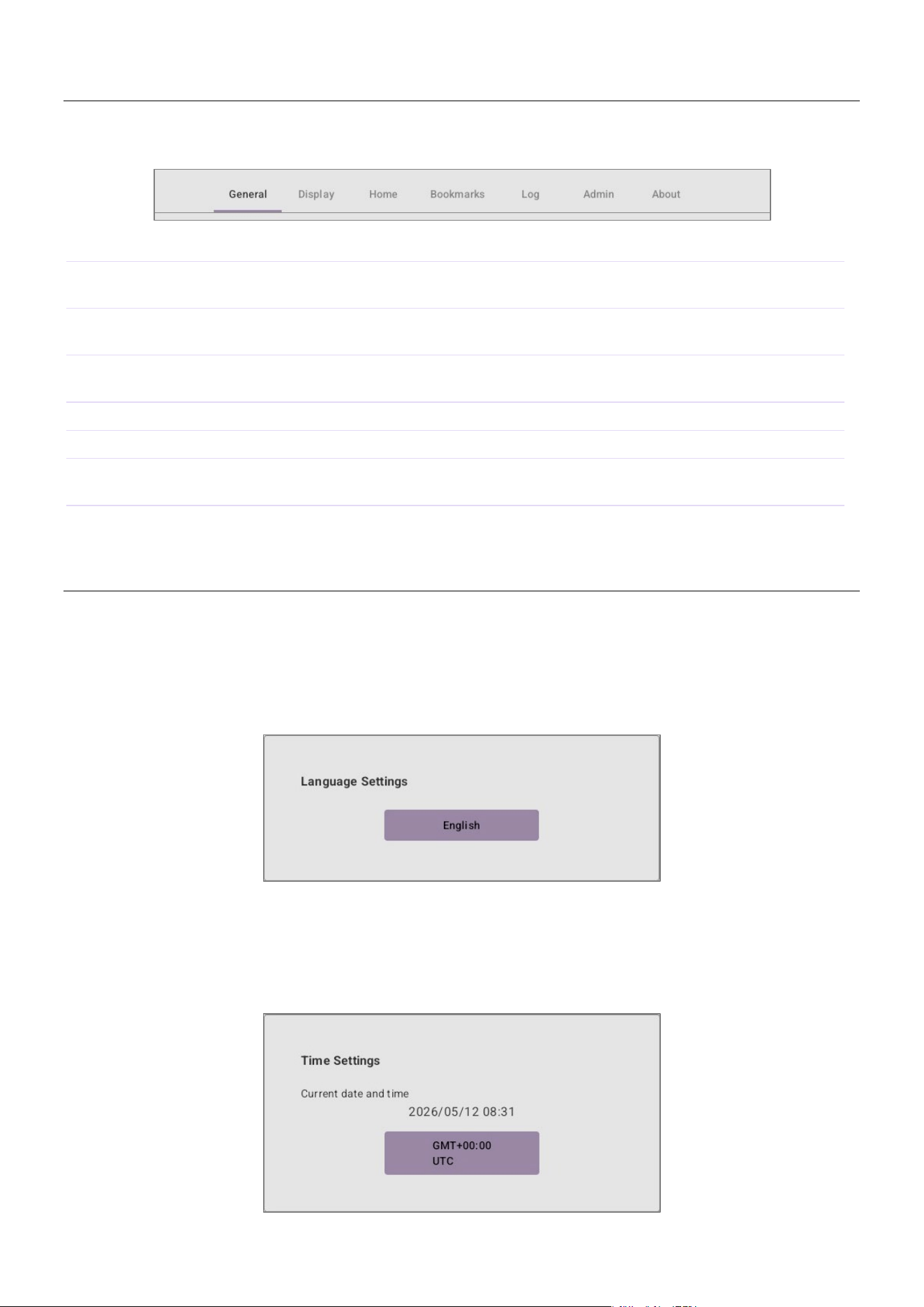
Tab menu
This menu is displayed at the top of the settings screen. Access the desired settings by switching
between the various tabs.
Tab
Details
General
Specifying settings for basic information such as the language, time, time zone and
IP address
Display
Displaying/hiding the quick menu, and adjusting the screen brightness, rotation
angle, etc.
Home
Specifying the operation screen (controller file) displayed when the application is
started or displayed as the home screen
Bookmarks
Editing registered bookmarks and bookmark folders
Log
Viewing the system, network and user operation histories
Admin
Specifying settings for the application password, restart schedule, factory reset and
remote management permissions
About
Viewing the device serial number and application version information
General
Language Settings
Select the display language for TCD Launcher.
A button shows the currently selected language.
Tap the button to display the available languages.
Time Settings
Review the current date and time, and specify the time zone for the region where this device is used.
Tap the button to display a list of available time zones.
TCD Launcher settings
TCD Launcher Operation Guide
13
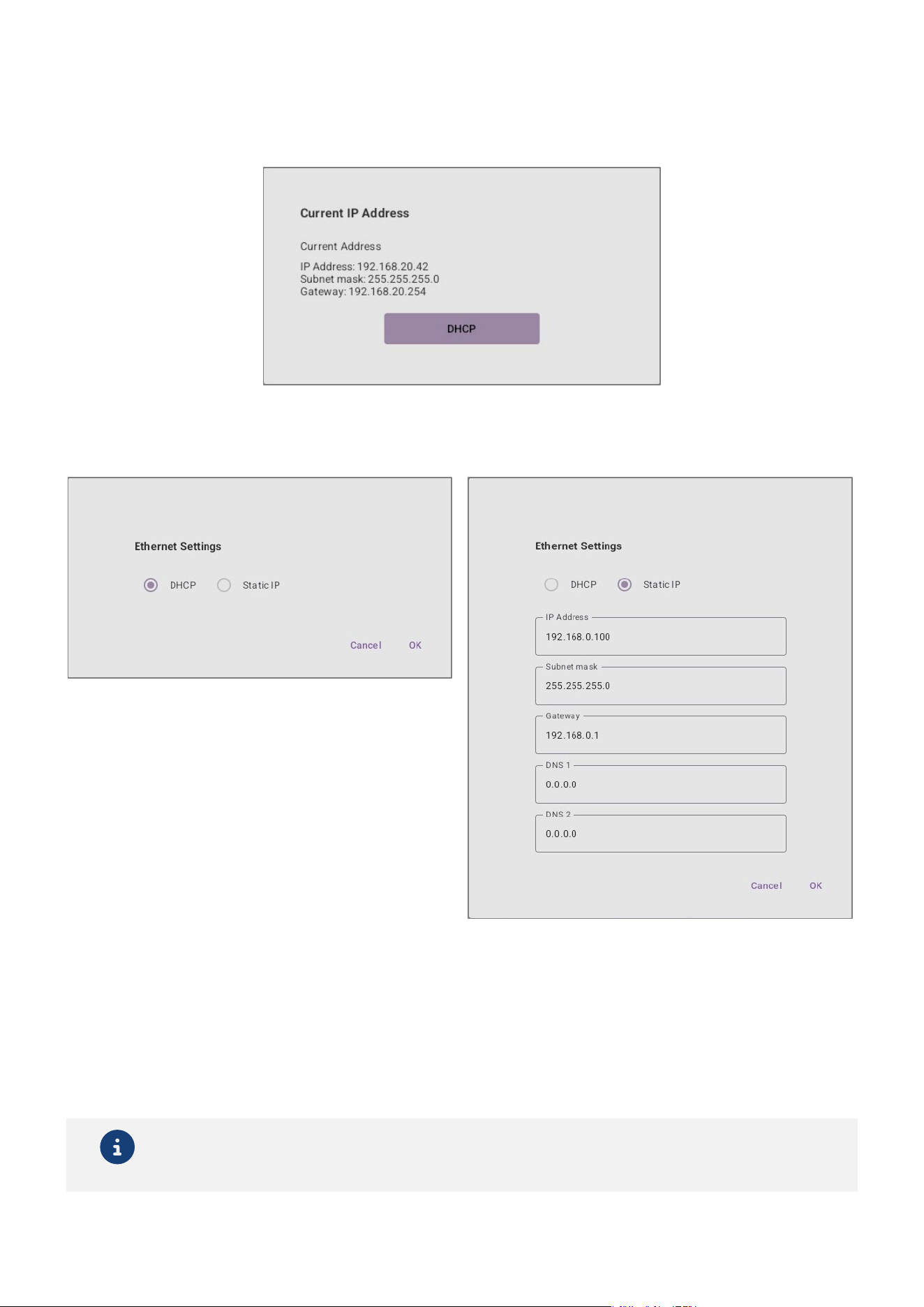
IP Settings
Review and edit the network information assigned to this device.
A button shows the currently specified method for obtaining the IP address.
Tap the button to open a dialog box where the method for obtaining the IP address can be changed.
DHCP Static IP
When “DHCP” is selected
When there is a DHCP
server
:
The IP address is automatically obtained from the DHCP server.
When there is no DHCP
server
:
The AutoIP function assigns a link-local address
(169.254.xxx.xxx).
Note
If the keyboard is hiding what you are typing, switch the keyboard to “Floating Mode”. (page
24)
TCD Launcher settings
TCD Launcher Operation Guide
14
Display
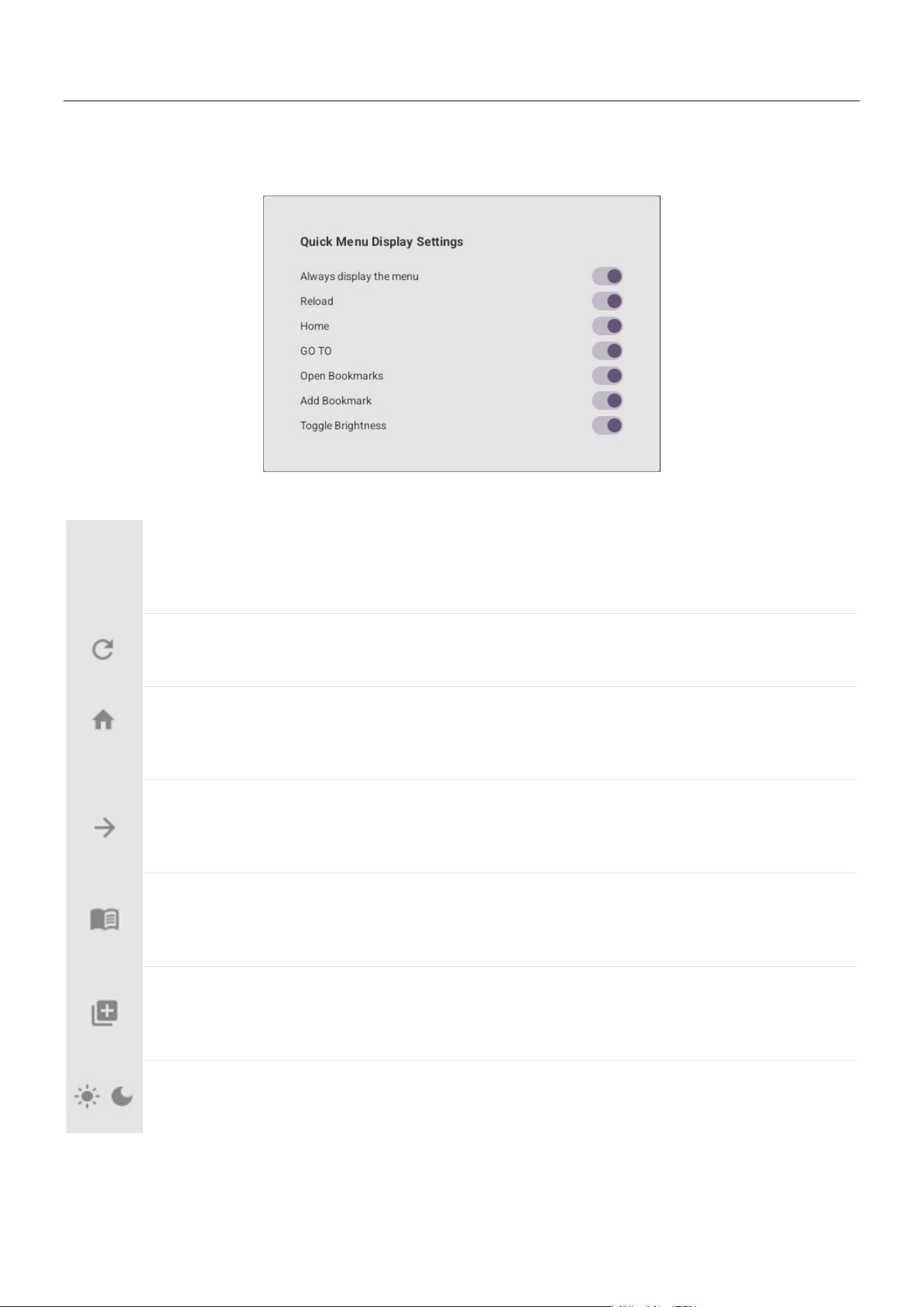
Quick Menu Display Settings
Select the behavior of the quick menu (on the left side of the screen) and which icons are displayed.
Always display the menu
If this is switched off, the menu can be displayed by swiping toward the center from
the left edge of the screen.
Reload
This reloads the currently displayed operation screen (controller file).
Home
This displays the signal processor operation screen (controller file) set as the home
screen.
GO TO
This allows you to select a signal processor on a network in order to display its
operation screen (controller file). page 8
Open Bookmarks
This displays a list of the operation screens (controller files) that have been
bookmarked. page 9
Add Bookmark
This adds a bookmark for the currently displayed operation screen (controller file).
page 10
Toggle Brightness
This allows you to adjust the screen brightness for bright and dark environments.
TCD Launcher settings
TCD Launcher Operation Guide
15
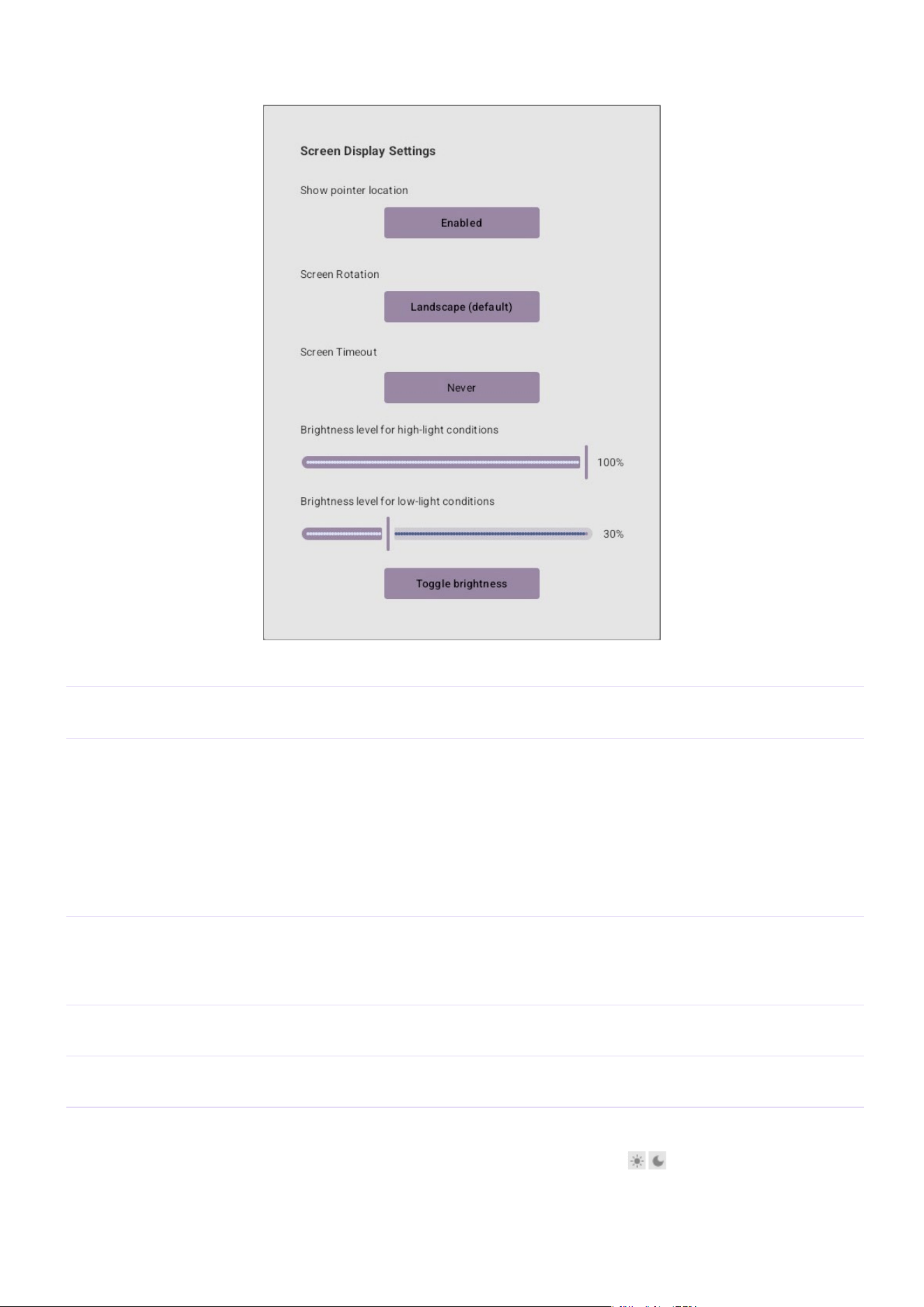
Screen Display Settings
Item
Details
Show pointer location
For better visualization, a pointer appears at the touched location.
A button shows the current setting.
Screen Rotation
Change the screen orientation according to the installation environment.
A button shows the currently selected screen orientation.
Tap the button to display the following settings.
Landscape (default)
Portrait
Landscape (flipped)
Portrait (flipped)
The setting will be applied after the device is restarted.
Screen Timeout
Specify the length of time that no operation is performed before the screen goes off.
A button shows the current setting.
Tap the button to display a list of available intervals. If set to [Never], the screen
will remain on at all times.
Brightness level for
high-light conditions
Use the slider to specify the screen brightness for bright environments.
Brightness level for
low-light conditions
Use the slider to specify the screen brightness for dark environments.
[Toggle brightness]
Tap the button to switch between the settings for bright and dark environments in
order to view the difference.
The / icon in the quick menu indicates the currently selected setting.
TCD Launcher settings
TCD Launcher Operation Guide
16
Home
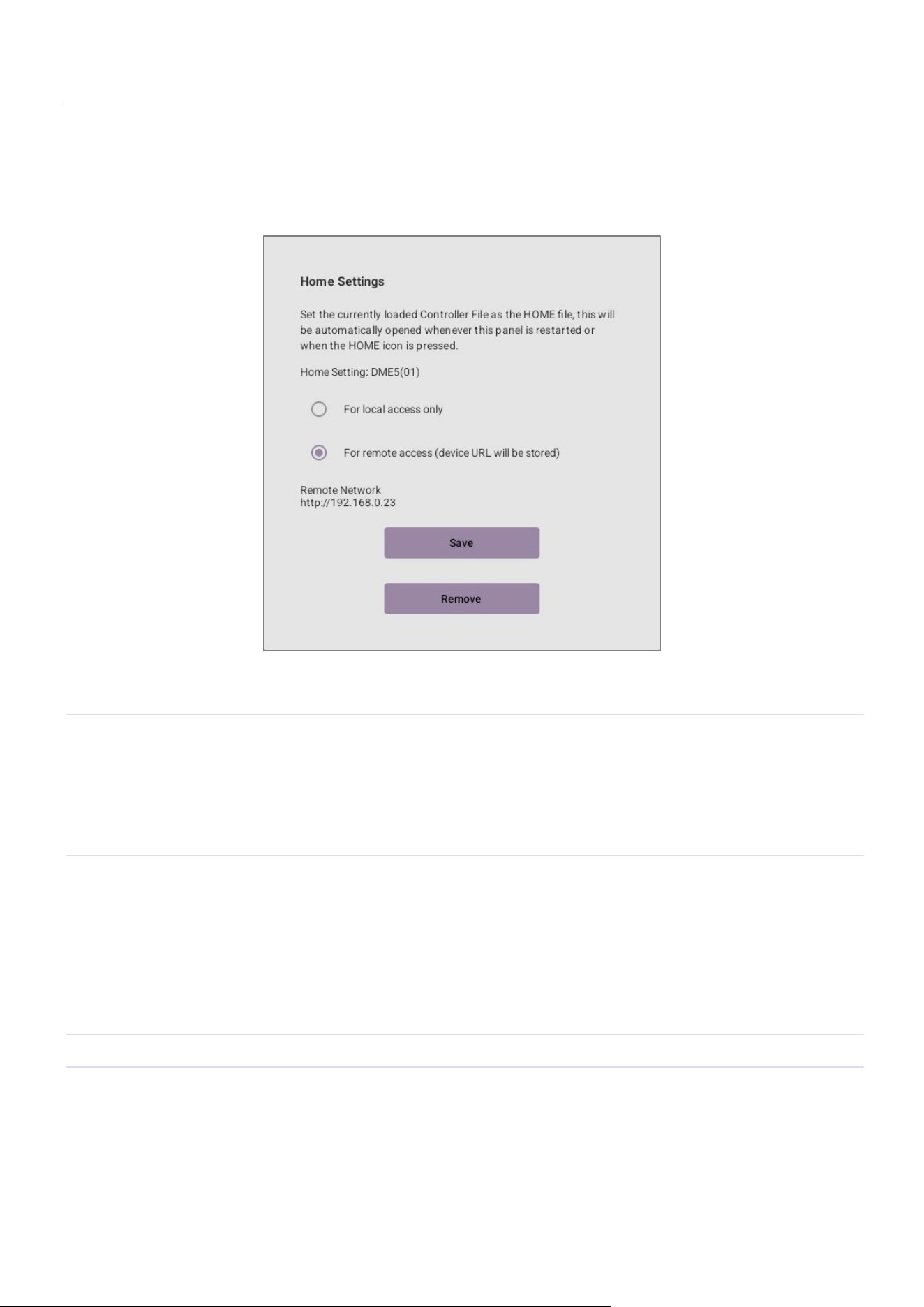
Home Settings
This allows you to set the currently displayed operation screen (controller file) as the home screen.
The operation screen set as the home screen is displayed when the application is started or after the
home icon in the quick menu has been tapped.
Item
Details
Home Setting:
This indicates the current home screen.
If no setting has been specified, “(not set)” is indicated.
If the operation screen for a processor on the local network has been set, the
device name and unit ID for that processor is indicated.
If the operation screen for a processor on a remote network has been set, a
URL is indicated.
○ For local access only
○ For remote access
(device URL will be
stored)
When saving an operation screen as a home screen, select whether it will be for
local access or remote access. If the currently displayed operation screen is on a
remote network, only “For remote access” is available.
With “For local access only”, the device name and unit ID of the signal
processor are saved, allowing the connection to be maintained, even if the IP
address changes.
With “For remote access”, the settings are saved as a URL, allowing an
operation screen on a different network to be accessed.
[Save]
This sets the currently displayed operation screen as the home screen.
[Remove]
This deletes the current Home Setting and resets it to “(not set)”.
TCD Launcher settings
TCD Launcher Operation Guide
17
Bookmarks
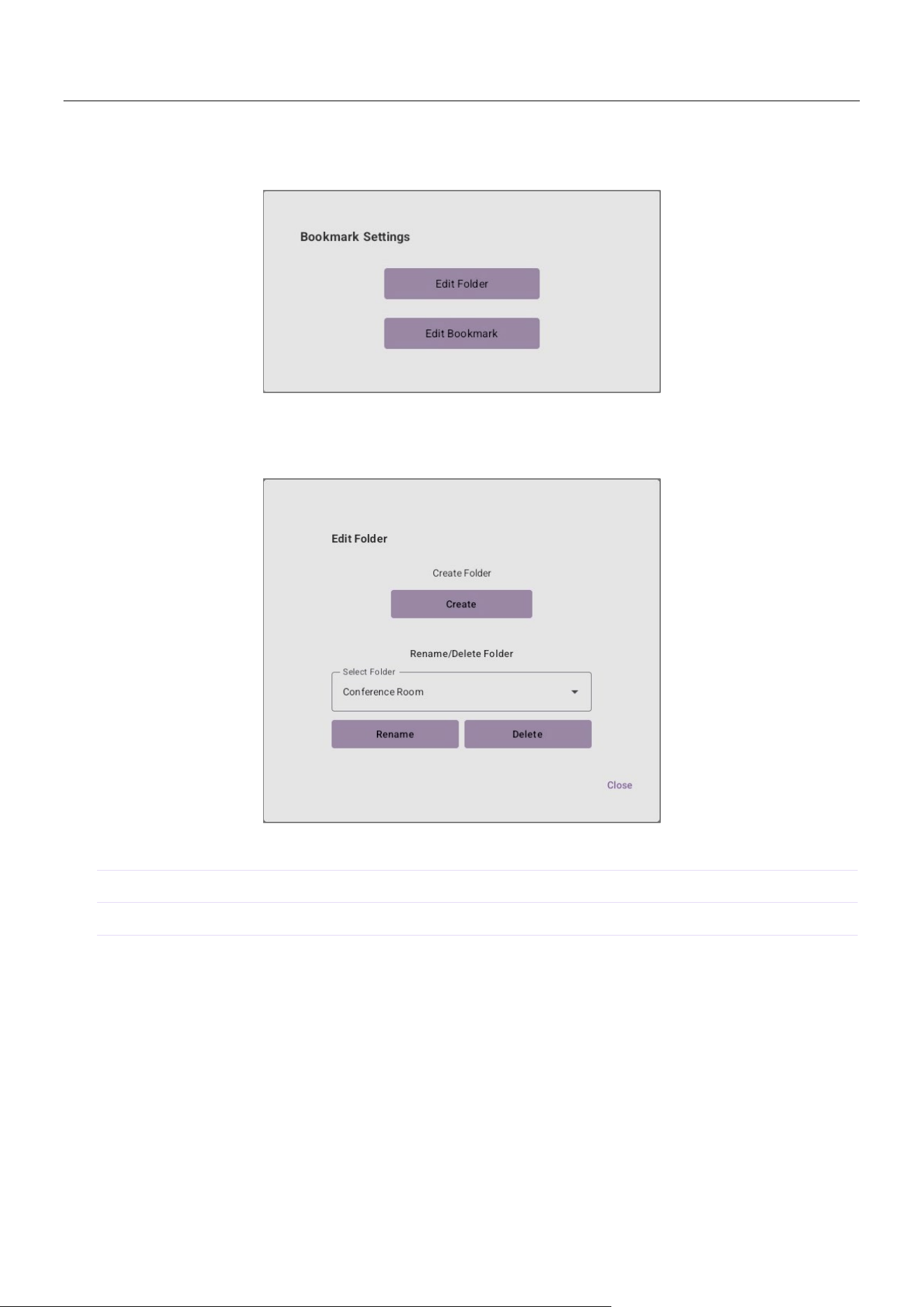
Bookmark Settings
Edit and organize folders and registered bookmarks to make them easier to use.
Edit Folder
Edit the folders used to categorize and manage bookmarks.
Item
Details
[Create]
This creates a new folder.
[Rename]
This changes the name of the folder selected under [Select Folder].
[Delete]
This deletes the folder selected under [Select Folder]. Bookmarks in the folder
will also be deleted.
TCD Launcher settings
TCD Launcher Operation Guide
18
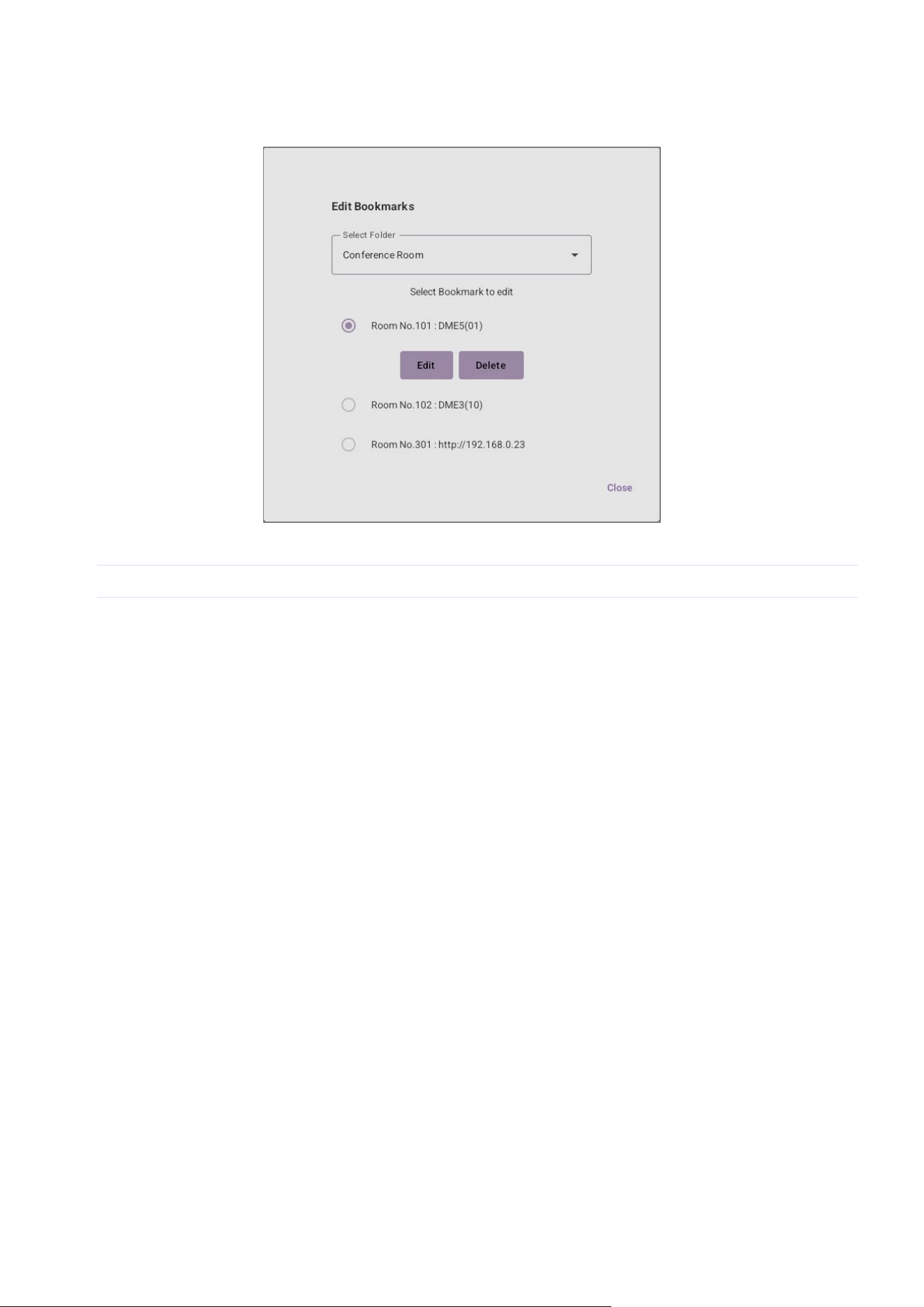
Edit Bookmarks
This allows you to edit the information of a registered bookmark. From the [Select Folder] list,
first select the folder containing the bookmark to be edited. Then, select the bookmark.
Item
Details
[Edit]
This allows you to change the name and folder of the selected bookmark.
[Delete]
This deletes the selected bookmark.
TCD Launcher settings
TCD Launcher Operation Guide
19
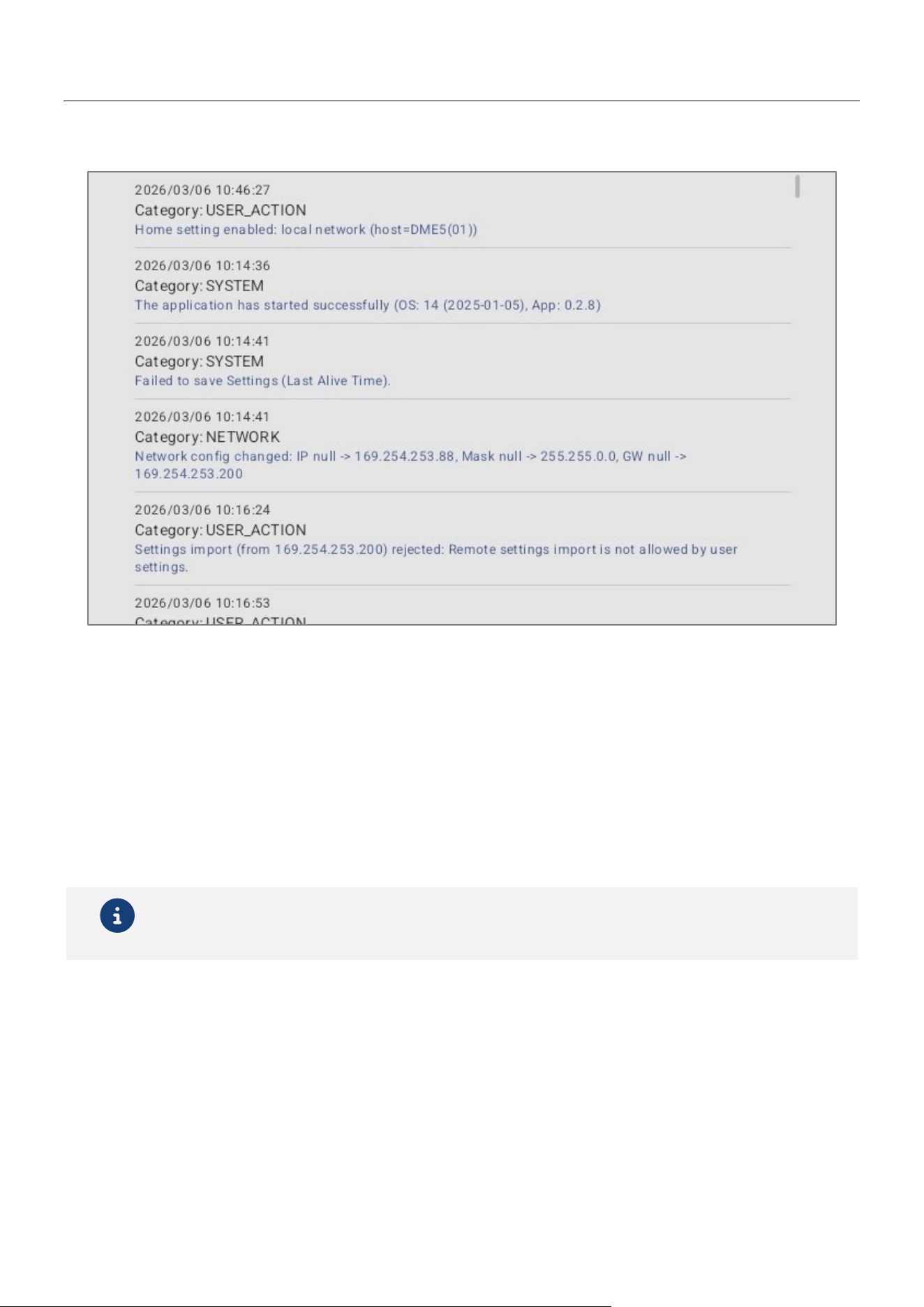
Log
This allows you to view a log of the system operating status, network connection history and user
activity, for example.
Log categories
DEVICE: Device-related
NETWORK: Network-related
SYSTEM: System-related
UPDATE: Update-related
USER_ACTION: User-operation-related
AUTH: Authentication-related
Note
Using TCD Manager, log files can be output to a computer.
For details on the main log alert messages, refer to “List of log alerts” (page 25).
TCD Launcher settings
TCD Launcher Operation Guide
20
Admin
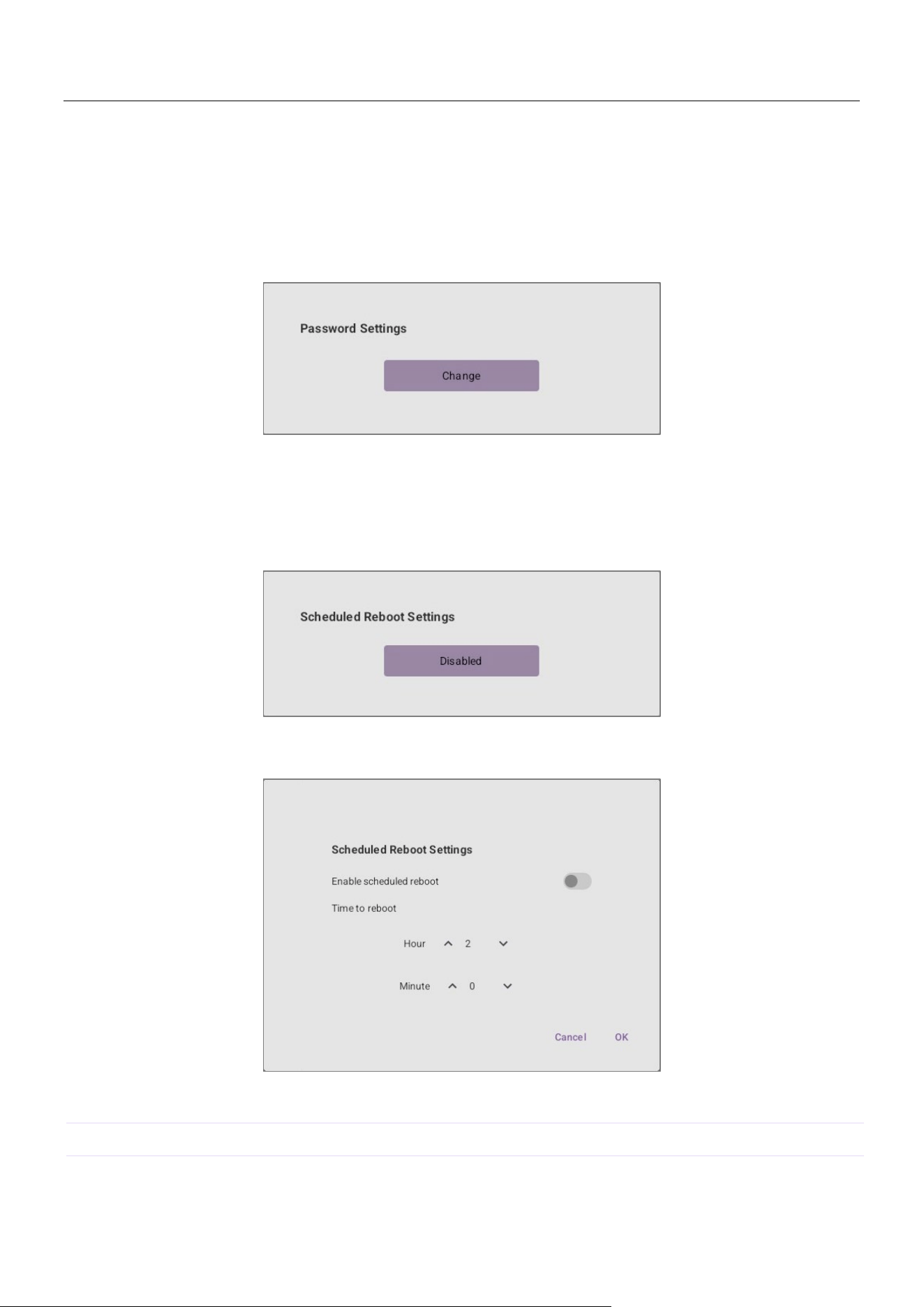
Password Settings
Change the password to restrict access to the settings screen.
Passwords must be between 4 and 64 characters long.
Passwords can contain single-byte alphanumeric characters and the following symbols.
!@#$%^&*()-_=+[]{};:,.<>?/
Scheduled Reboot Settings
Set a schedule to perform automatic daily restarts at a specific time.
A button shows the current setting.
Tap the button to open a settings dialog box.
Item
Details
Enable scheduled reboot
Switch on or off scheduled automatic restarts.
Time to reboot
Tap the up and down buttons to select the restart time.
TCD Launcher settings
TCD Launcher Operation Guide
21
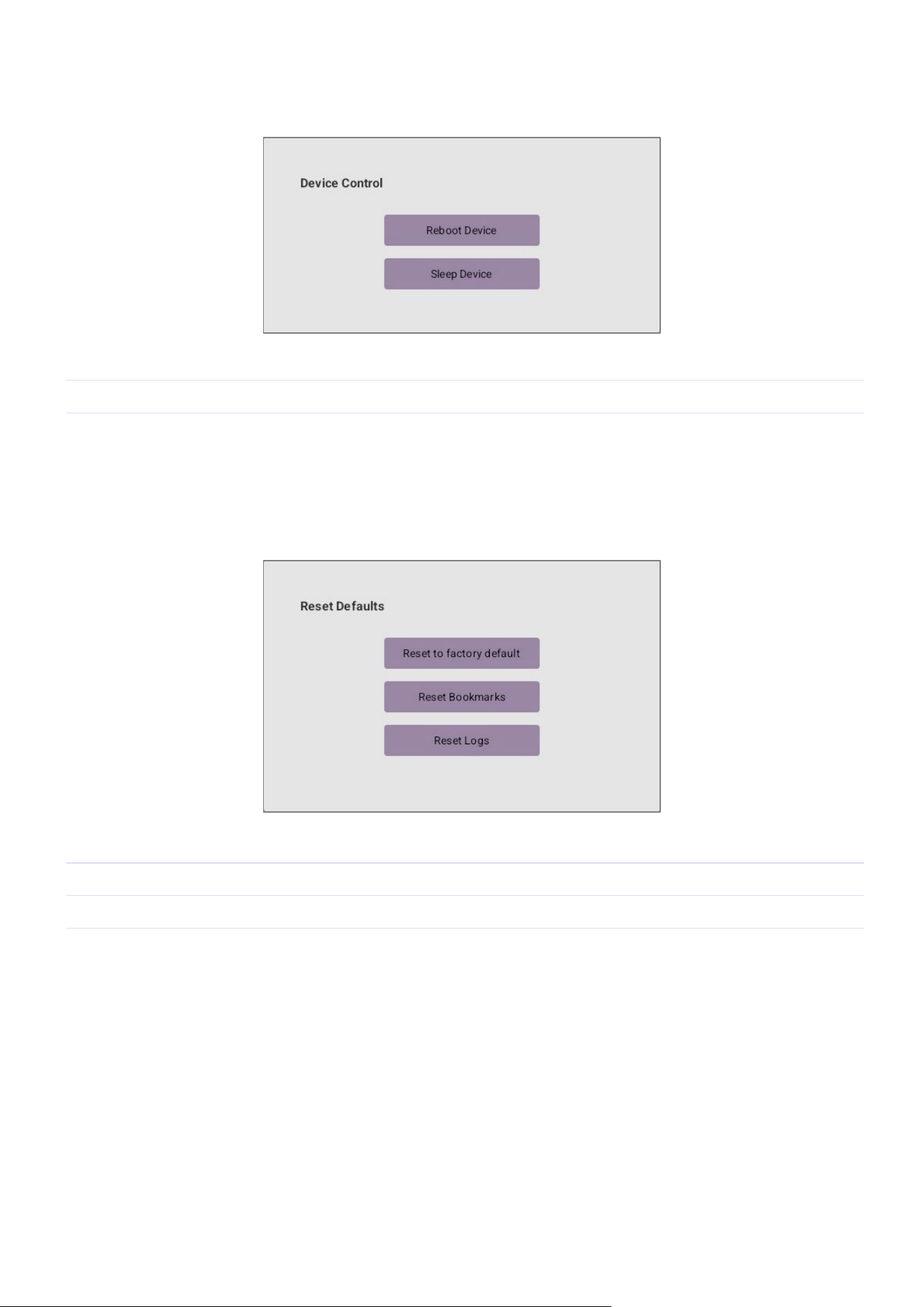
Device Control
This allows you to control the power status of the TCD10 device.
Item
Details
[Reboot Device]
This restarts the device.
[Sleep Device]
This puts the device into sleep mode. To wake the device from sleep mode, tap the
screen.
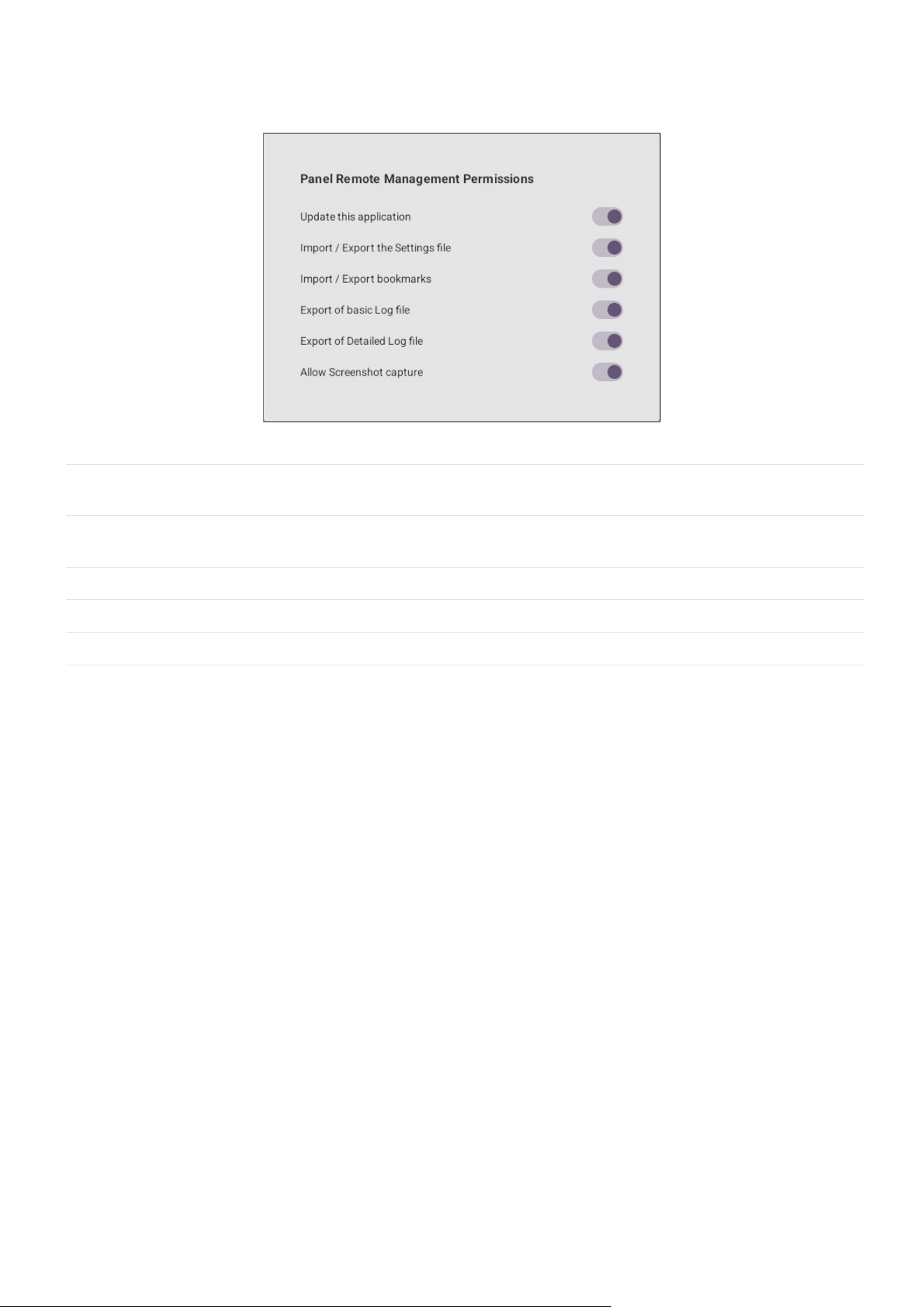
Reset Defaults
This allows you to reset the application settings to their factory defaults.
Item
Details
[Reset to factory default]
This resets all settings, including bookmarks and the log.
[Reset Bookmarks]
This resets the bookmarks.
[Reset Logs]
This resets the log.
TCD Launcher settings
TCD Launcher Operation Guide
22
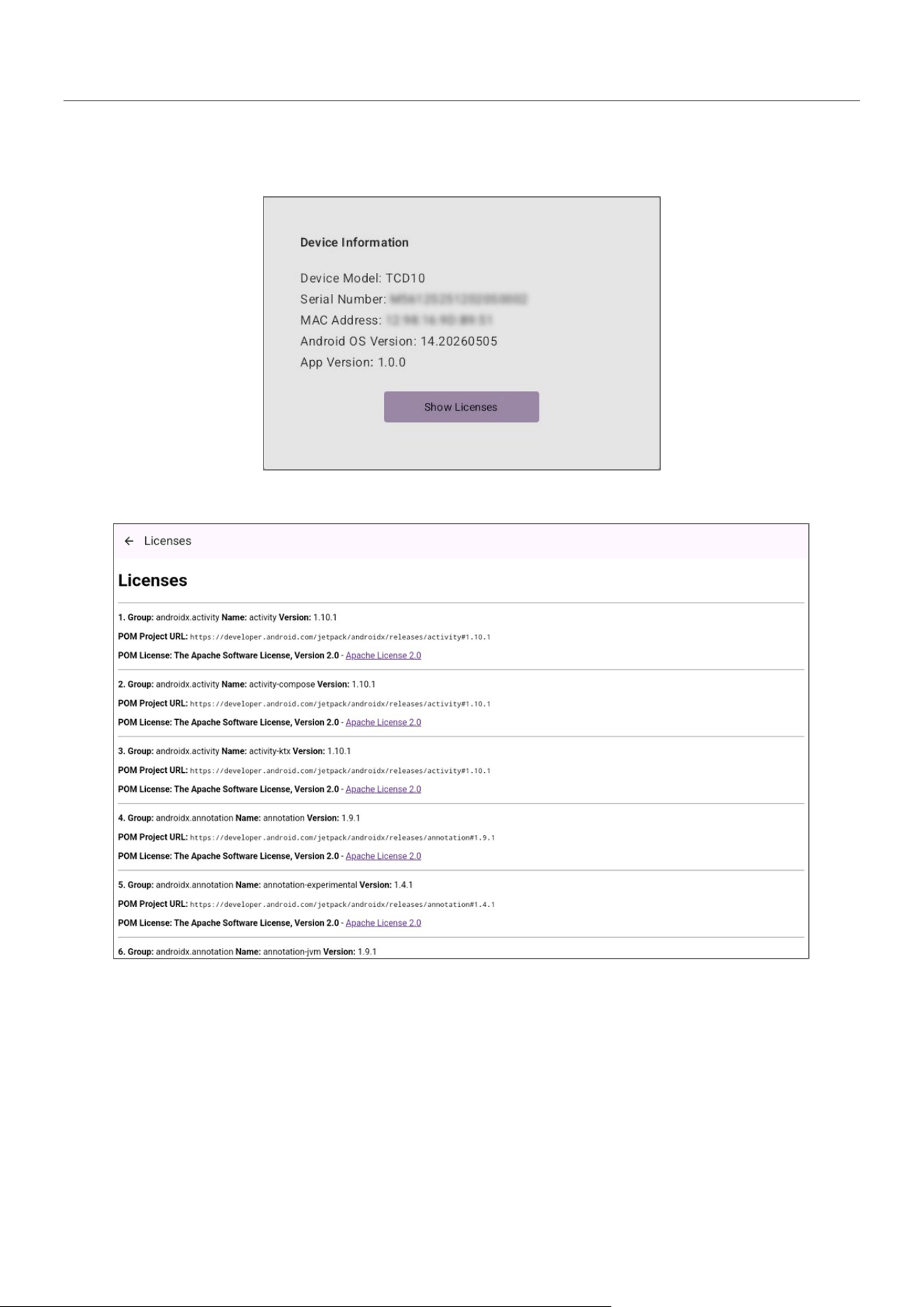
Panel Remote Management Permissions
This allows you to select the individual TCD Manager operations to be permitted.
Item
Details
Update this application
This permits TCD Manager to update TCD Launcher as well as the operating
system of the device.
Import / Export the
Settings file
This permits TCD Manager to import and export settings files.
Import / Export bookmarks
This permits TCD Manager to import and export bookmarks.
Export of basic Log file
This permits TCD Manager to retrieve TCD Launcher log files.
Export of Detailed Log file
This permits TCD Manager to retrieve operating system log files.
Allow Screenshot capture
This permits TCD Manager to take a screenshot of the TCD10 screen.
TCD Launcher settings
TCD Launcher Operation Guide
23
About
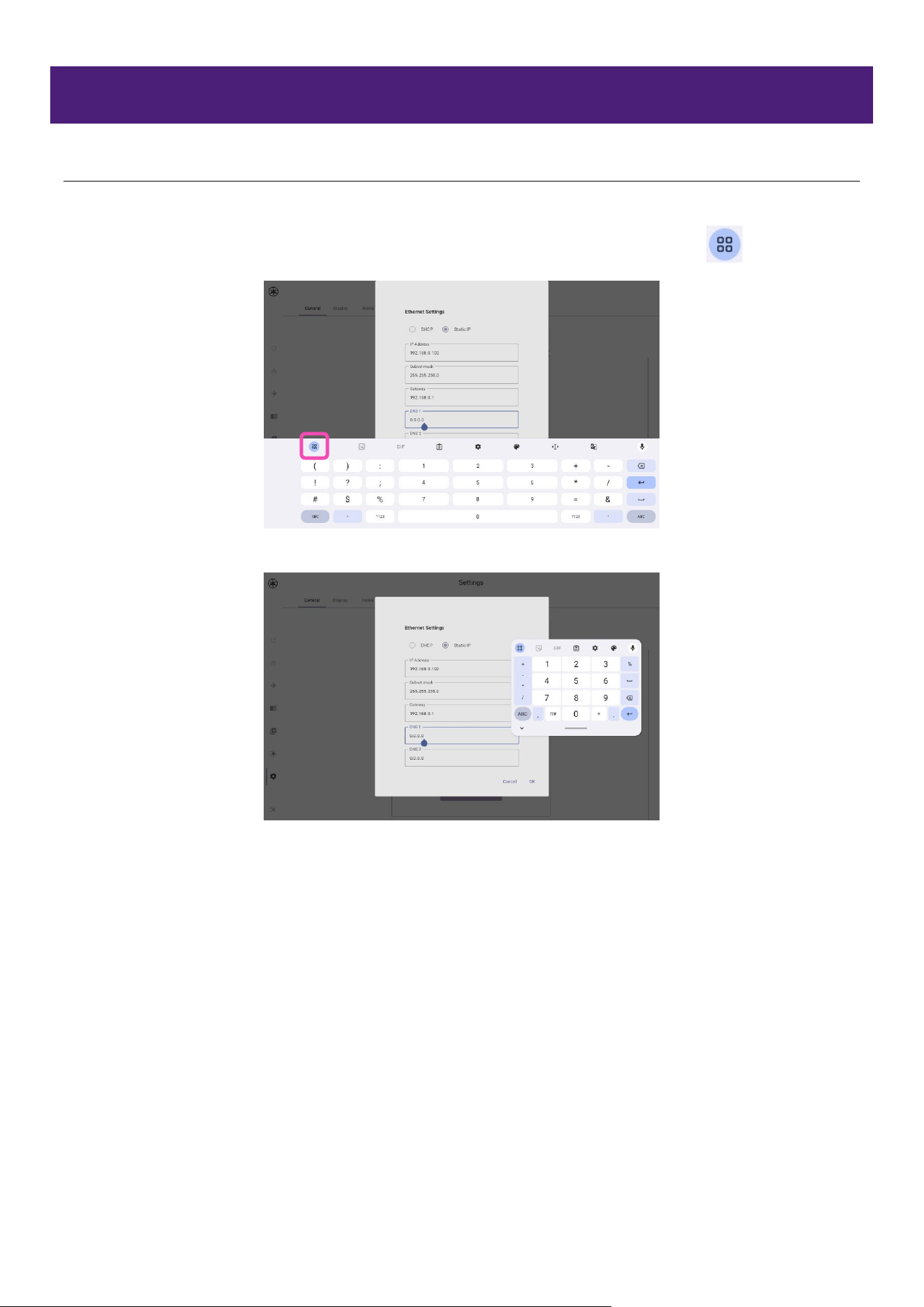
Device Information
This displays device and software information.
Tap the [Show Licenses] button to display the licenses used by TCD Launcher.
Troubleshooting
TCD Launcher Operation Guide
24
Troubleshooting
Keyboard hides input fields and buttons
If the keyboard is hiding what you are typing, switch the keyboard to “Floating Mode”.
On the keyboard, such as in the example below, select “Floating Mode” from the icon in the
toolbar.
Floating mode
Troubleshooting
TCD Launcher Operation Guide
25
List of log alerts
This provides details on the main alert messages that may appear in the log. The log can be viewed
via [Settings] [Log].
Message
Details
Remedy
Authentication log data became
corrupt and has been cleared.
The authentication log data is
corrupted. The log data was cleared.
If the problem continues to occur,
please contact the Yamaha Support
Center.
Bookmark data became corrupt and
has been cleared.
The bookmarks are corrupted. The
bookmarks were reset.
Please create the Bookmark again. If
the problem persists, please contact
the Yamaha Support Center.
Bookmark import(from clientIp) failed:
<reason>
Importing the bookmarks has failed.
(
source IP address
) <
reason for
failure
>
Please check the contents of the
Bookmark file and import it again.
Failed to export settings to file -
requested from${clientIp}:
${e.message}
Exporting the settings data has failed.
If the issue occurs repeatedly, the
internal storage may be faulty. In this
case, please contact the Yamaha
Support Center.
Failed to export bookmarks to file -
requested from clientIp: ${e.message}
Exporting the bookmarks has failed.
Failed to load Settings ($itemName),
reset to default.
Loading the settings data (
item name
)
has failed. This item has been reset to
its default.
Failed to save bookmark data
The bookmarks are corrupted. Writing
to the file has failed.
Failed to save home settings
The home settings data is corrupted.
Writing to the file has failed.
Failed to save Settings ($itemName).
The settings data (
item name
) is
corrupted. Writing to the file has
failed.
General Settings data became corrupt
and has been cleared.
The settings data is corrupted. The
settings were reset.
Please check the settings and make
sure they are configured correctly. If
the problem persists, please contact
the Yamaha Support Center.
Home Settings data became corrupt
and has been cleared.
The home settings data is corrupted.
The settings were reset.
Launcher stopped unexpectedly
(<information>)
TCD Launcher (
operating
system/Launcher version
)
unexpectedly stopped. (
call stack
)
Please contact the Yamaha Support
Center.
Opening Controller File Failed
(${error?.errorCode},
${error?.description}, ${request.url})
Displaying the operation screen
(controller file) has failed. (
error code,
URL
)
Please check the TCD10 settings,
including the network settings and the
reference address for the controller
file.
Troubleshooting
TCD Launcher Operation Guide
26
Opening Controller File Failed (HTTP
Error, ${errorResponse?.statusCode},
${request.url})
Displaying the operation screen
(controller file) has failed. (
error code,
URL
)
Please reload the controller file. If it is
still not displayed correctly, please
check the controller file imported to
DME by ProVisionaire Control
PLUS/Kiosk.
Screenshot capture (by <clientIp>)
Failed: ${e.message}
Capturing a screenshot has failed. Please execute again.
Settings import (from clientIp) failed:
<reason>
Importing the settings data has failed.
(
source IP address
)
Please check the contents of the
Settings file and import it again.
System log data became corrupt and
has been cleared.
The log data is corrupted. The log was
cleared.
If the problem continues to occur,
please contact the Yamaha Support
Center.
Timeout when recording Detailed Log
Writing to the detailed log has timed
out.
The detailed log was not output
correctly. If the problem persists,
please contact the Yamaha Support
Center.

©2026 Yamaha Corporation
Published 06/2026
YJ-A0