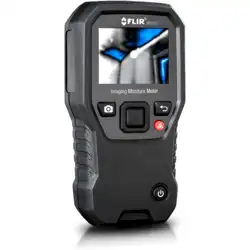
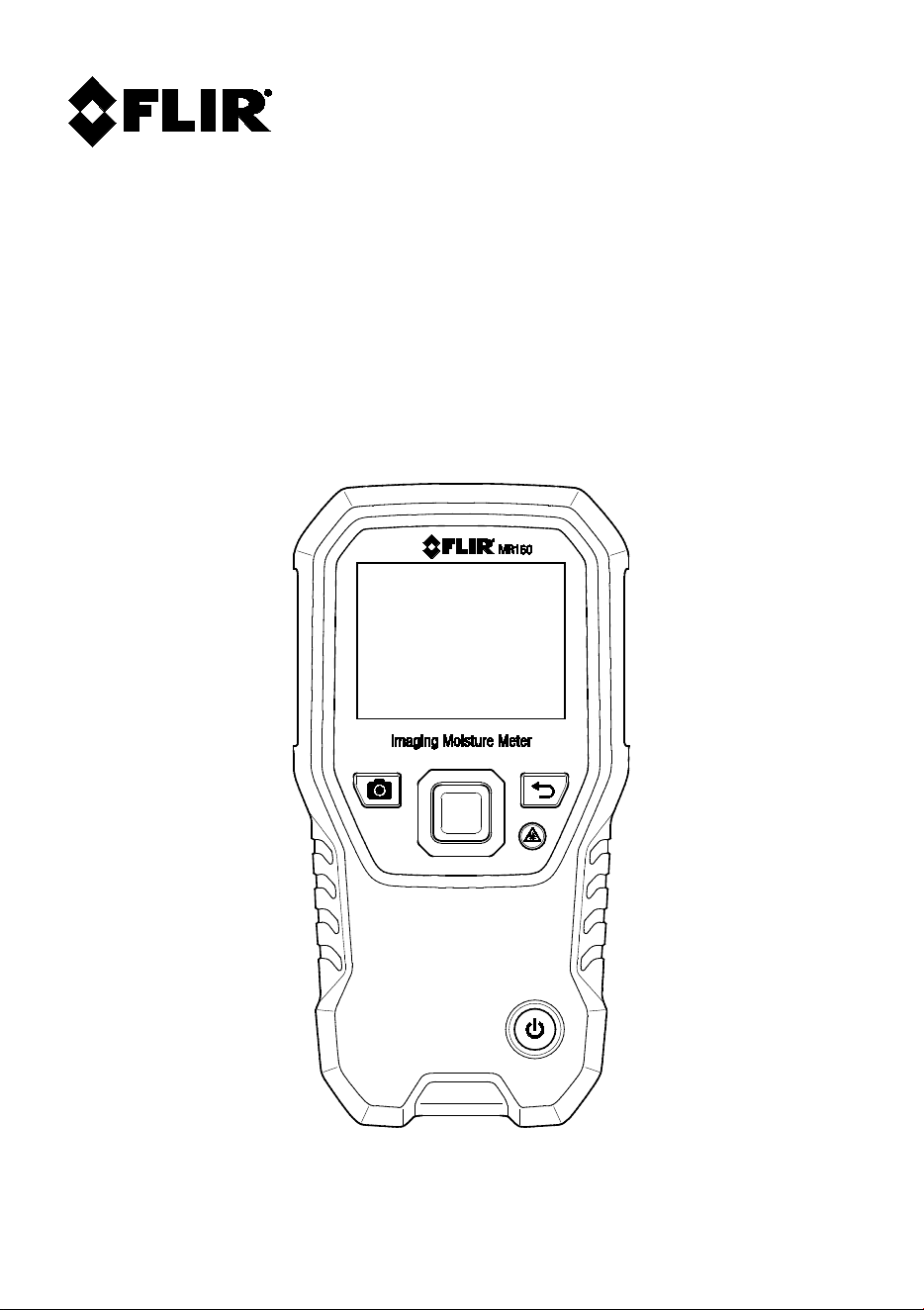
USER MANUAL
FLIR MODEL MR160
IMAGING MOISTURE METER with IGM™
FLIR MR160 USER MANUAL Document Identifier: MR160-en-US_AG
2
Table of Contents
1. ADVISORIES 4
1.1 Copyright 4
1.2 Quality Assurance 4
1.3 Documentation 4
1.4 Disposal of Electronic Waste 4
2. SAFETY 5
2.1 Safety Notes 5
2.2 Laser Safety 5
3. INTRODUCTION 6
3.1 Key Features 6
4. METER AND MENU ICON DESCRIPTIONS 7
4.1 Meter Parts 7
4.2 Control Buttons 8
4.3 Menu Map and Overview 9
5. OPERATION 10
5.1 Powering the Meter 10
5.1.1 Auto Power OFF (APO) 10
5.2 Moisture Measurements 10
5.2.1 Moisture Measurement Overview 10
5.2.2 Moisture Displays Overview 11
5.2.3 IMAGE Modes 12
5.2.4 MOISTURE Modes 13
5.2.5 Internal Moisture Sensor Measurements (Pinless) 13
5.2.6 External Pin Probe Moisture Measurements 14
5.2.7 Reference Mode Moisture Measurements 15
5.3 Thermal Imager (IR) 15
FLIR MR160 USER MANUAL Document Identifier: MR160-en-US_AG
3
5.4 Lock/Unlock Palette Auto-Scale Mode 17
5.5 Screen Capture and Hold 17
5.6 ‘Combination’ Feature: Save Thermal Image with Pinless Moisture Reading 18
5.7 High Moisture Alarm 20
5.8 SETTINGS Menu 21
6. MAINTENANCE 22
6.1 Cleaning 22
6.2 Battery Charging 22
6.2.1 Disposal of Electronic Waste 22
6.3 Updating the MR160 firmware 23
7. SPECIFICATIONS 24
8. CUSTOMER SUPPORT 26
9. MATERIAL GROUPS 27
9.1 Common Names of Timbers (BS888/589:1973) with MR160 Group Nos. 27
9.2 Botanical names of timbers with MR160 program group numbers 29
9.3 %WME Table (% Wood Moisture Equivalent) 31
10. WARRANTY 32

FLIR MR160 USER MANUAL Document Identifier: MR160-en-US_AG
4
1. Advisories
1.1 Copyright
© 2023 FLIR Systems, Inc. All rights reserved worldwide. No parts of the software including source
code may be reproduced, transmitted, transcribed, or translated into any language or computer
language in any form or by any means, electronic, magnetic, optical, manual, or otherwise, without
the prior written permission of FLIR Systems.
The documentation must not, in whole or part, be copied, photocopied, reproduced, translated, or
transmitted to any electronic medium or machine-readable form without prior consent, in writing,
from FLIR Systems.
Names and marks appearing on the products herein are either registered trademarks or
trademarks of FLIR Systems and/or its subsidiaries. All other trademarks, trade names or company
names referenced herein are used for identification only and are the property of their respective
owners.
1.2 Quality Assurance
The Quality Management System under which these products are developed and manufactured
has been certified in accordance with the ISO 9001 standard.
FLIR Systems is committed to a policy of continuous development; therefore, we reserve the right
to make changes and improvements on any of the products without prior notice.
1.3 Documentation
To access the user manuals, warranty registration, firmware updates, and notifications go to the
Download tab at: https://support.flir.com. In the download area you will also find the latest
releases of manuals for our other products, as well as manuals for our historical and obsolete
products.
1.4 Disposal of Electronic Waste
As with most electronic products, this equipment must be disposed of in an
environmentally friendly way, and in accordance with existing regulations for
electronic waste.
Please contact your FLIR Systems representative for more details.
FLIR MR160 USER MANUAL Document Identifier: MR160-en-US_AG
5
2. Safety
2.1 Safety Notes
• Before operating the device, you must read, understand, and follow all instructions, dangers,
warnings, cautions, and notes.
• FLIR Systems reserves the right to discontinue models, parts or accessories, and other items,
or to change specifications at any time without prior notice.
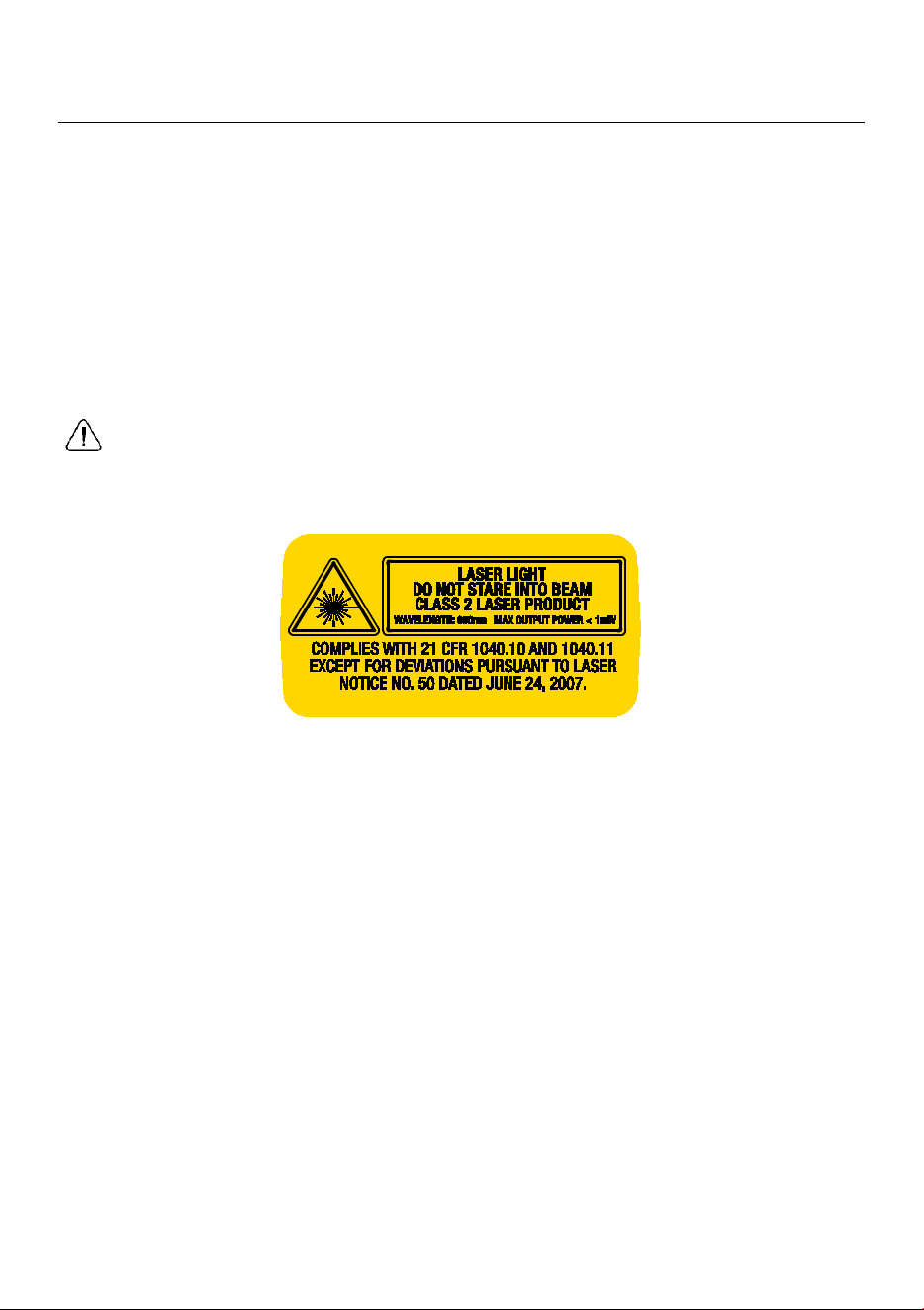
2.2 Laser Safety
Warning Statement
• Do not look directly into the laser beam. The laser beam can cause eye irritation.

FLIR MR160 USER MANUAL Document Identifier: MR160-en-US_AG
6
3. Introduction
Thank you for selecting the FLIR MR160 Imaging Moisture Meter. The MR160 integrates high
quality thermal imaging technology with the best-in-class moisture detection and measurement.
The MR160 includes an integrated non-invasive pinless moisture sensor, and an external pin
moisture probe (MR02).
Featuring Infrared Guided Measurement (IGM
TM
) technology, the MR160 helps to quickly scan and
target moisture issues; visually guiding the user to the spot where measurements can be
confidently made and where readings can be easily analyzed. The MR160 can save measurements
and images and share them using the free FLIR Tools
TM
app.
This device is shipped fully tested and calibrated and, with proper use, will provide years of reliable
service.
3.1 Key Features
• FLIR Lepton® microbolometer Focal Plane Array (FPA) with integrated shutter delivers best-in-
class thermal imaging
• Quickly scan for moisture using the integrated non-invasive pinless moisture sensor
• External pin probe (included) for resistive moisture content measurements
• IGM Moisture mode displays both the thermal image and moisture readings on one screen
• Moisture mode shows Pin or Pinless moisture readings with large digits and color bar graph
• Scale Lock adds precision to thermal image scanning
• Capture, view, & delete thermal images and measurements
• Nine (9) material group selections for pin-based readings
• Programmable high moisture alarm with audible and color visual alerts
• Laser pointer and display crosshairs for targeting of anomalies found on thermal image
• Easy to read, color display with intuitive graphical interface and tool tips in local languages
• Internal rechargeable battery with USB based international charger
FLIR MR160 USER MANUAL Document Identifier: MR160-en-US_AG
7
4. Meter and Menu Icon Descriptions
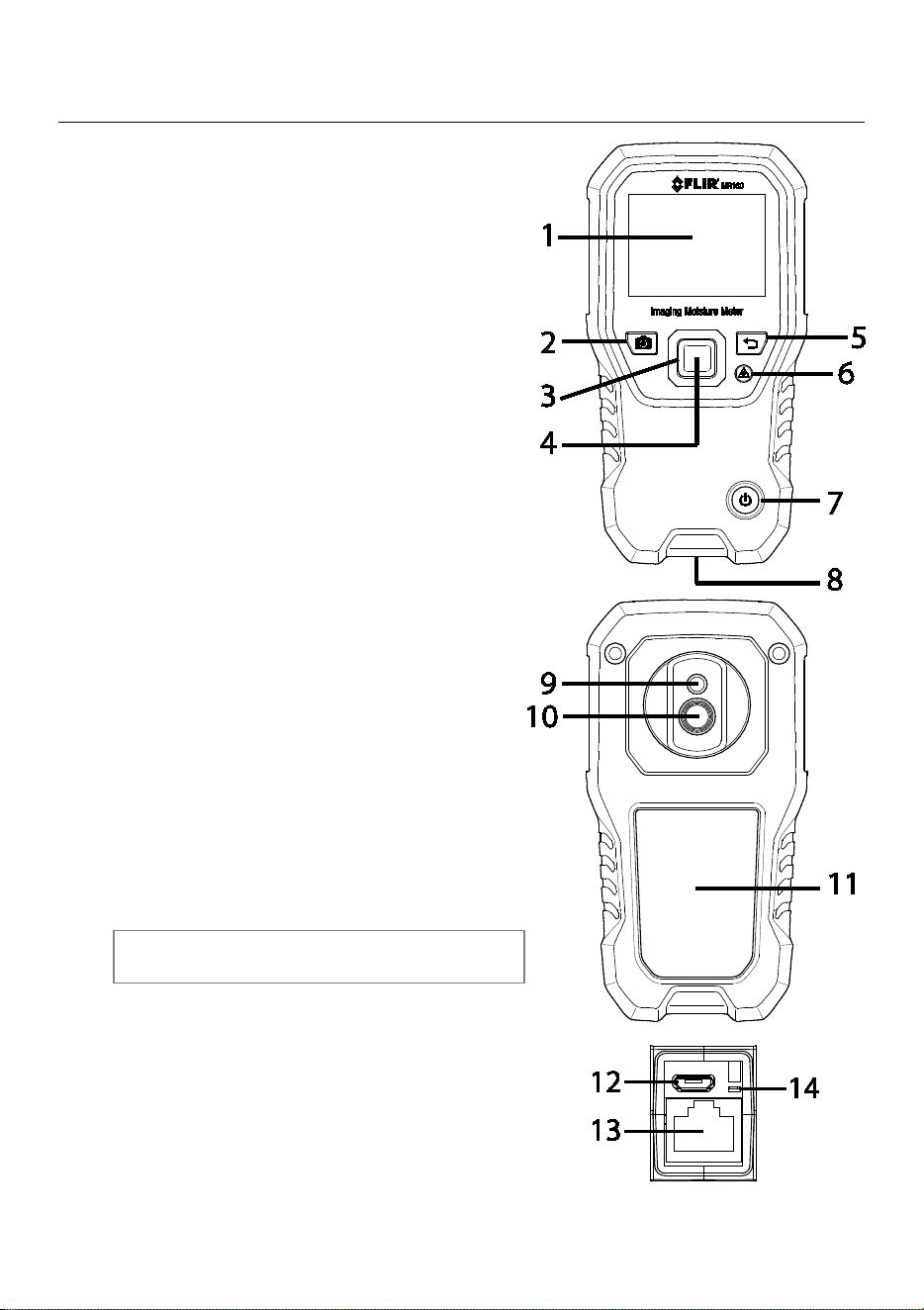
4.1 Meter Parts
1. Color Graphical Display
2. Screen Capture button
3. Four (4) Navigation buttons (ring)
4. Select button (center)
5. Back button
6. Laser Pointer / Crosshairs button
7. Power button
8. USB, External Probe jack, and charge LED
9. Laser pointer lens (back)
10. Thermal imaging lens (back)
11. Internal Pinless Moisture sensor (back)
12. Micro USB Port (bottom)
13. External Probe Jack (bottom)
14. Battery Charging LED status lamp (bottom)
Fig. 4-1 Meter Description
FLIR MR160 USER MANUAL Document Identifier: MR160-en-US_AG
8
4.2 Control Buttons
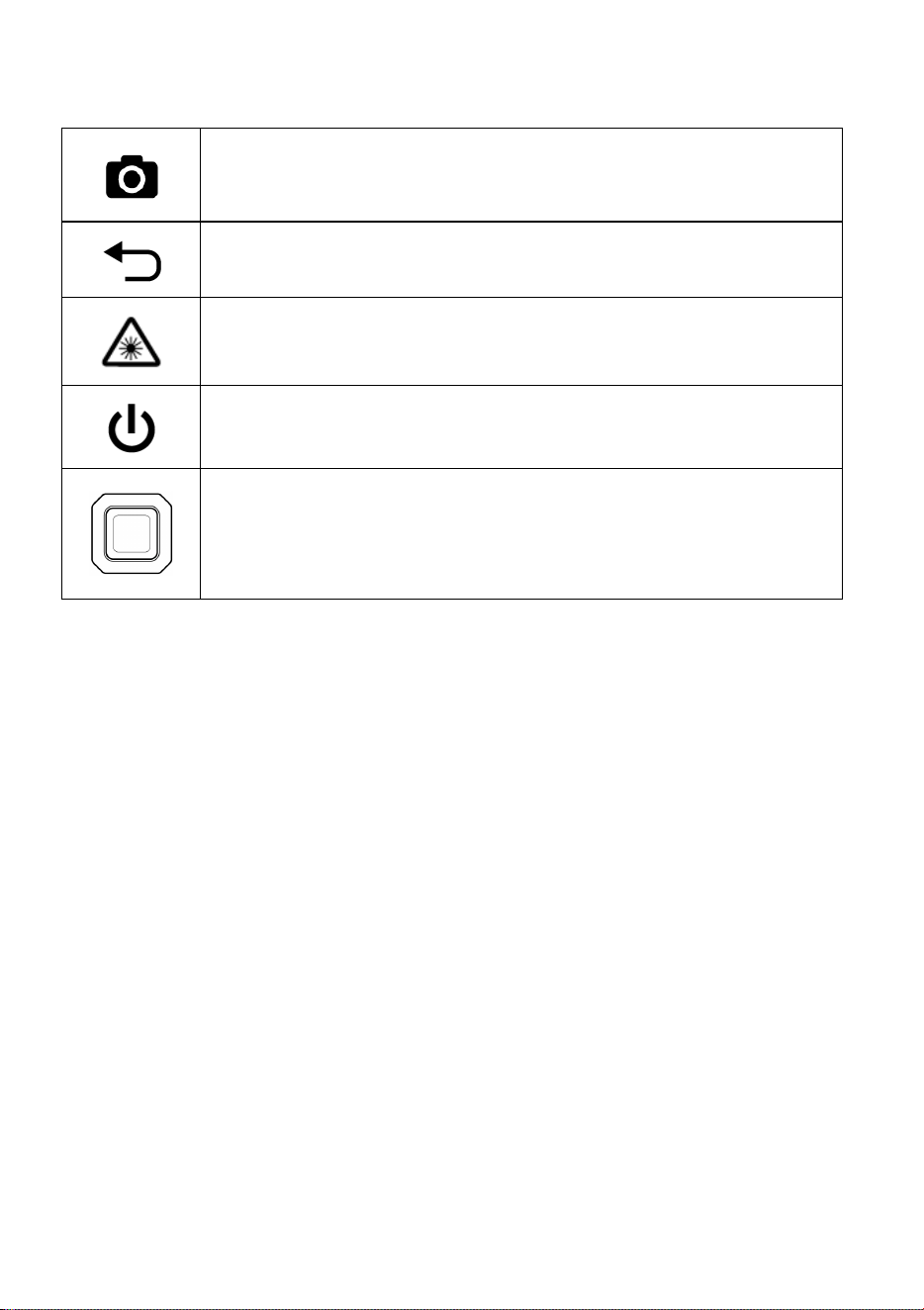
Image Capture button: Press to save a ‘screen-shot’. Refer to
section 5.5 Screen Capture and Hold for full details.
Back button. Press to back up or return from a menu screen.
Press to activate laser pointer/crosshairs in thermal imaging
modes.
Press to power the meter ON. Press and hold to power the meter
OFF.
Press the Select button (center) to access the Main Menu. Use this
button to select items from within the menu structure.
Use the four outer navigation (rim) buttons to move up-down-left-
right.
FLIR MR160 USER MANUAL Document Identifier: MR160-en-US_AG
9
4.3 Menu Map and Overview
The Menu structure is outlined below and covered thoroughly in subsequent sections of this
User Manual. The center Select button and the four (4) Navigation buttons are used to access
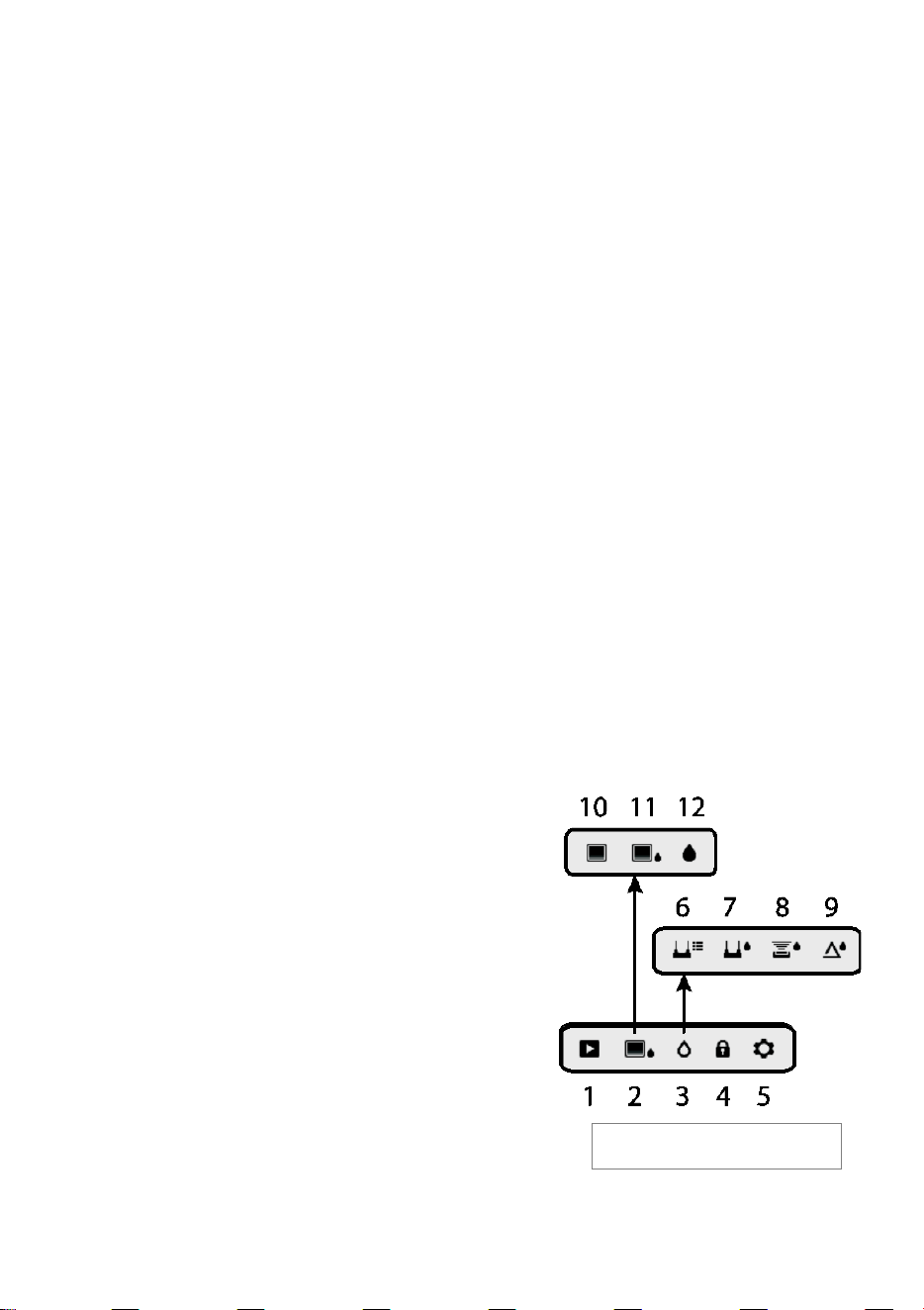
and program the modes of operation available from the menus. Refer to Fig. 4-2.
Icons 1 through 5 in Fig. 4-2 make up the Main Menu. Press the Select button to open the Main
Menu:
1. Image Review: view and delete IR Thermal Images
2. Image modes (items 10 to 14): IR, IR + IGM Moisture, Moisture only
3. Moisture modes: Material Groups, Pin Mode, Pinless Mode, Set Reference
4. Lock/Unlock Palette Auto-Scale: Select Lock to adjust the color palette range to suit a
given application (see Section 5.4 Lock/Unlock Palette Auto-Scale Mode for more detail).
Unlock for normal auto-scaling operation.
5. Settings utility: Language, Palette, High Alarm, Auto Power OFF, Date & Time, Help
contact screen, and Meter Information screen.
Icons 6 through 9 in Fig. 4-2 are available in the Moisture Mode Menu. Press icon 3 to view
these Moisture modes. A blue dot is shown to the left of the pin icon (7) or the pinless icon (8),
depending on which is selected.
6. Material Group: Select the material under test (Groups 1 to 9); For Pin Mode only. See
Section 9 for Wood and Material Group listings.
7. Pin mode: Select this mode when using external pin moisture probe.
8. Pinless mode: Select this mode when using the internal (rear) moisture sensor.
9. Set Reference: Select this mode to store the current reading as a reference value. For
pinless mode only.
Icons 10 through 12 in Fig. 4-2 are available in the Image Mode Menu. Press icon 2 to view the
Image Mode menu.
10. IR (View Thermal Image only)
11. IR + IGM Moisture (View Thermal Image +
Moisture readings)
12. Moisture only
Fig. 4-2 Menu Icons
FLIR MR160 USER MANUAL Document Identifier: MR160-en-US_AG
10
5. Operation
Important Note: Please charge the meter’s battery before first use. Instructions for battery
charging are provided in Section 6.2.
5.1 Powering the Meter
1. Press the Power button momentarily to switch the meter ON.
2. Press and hold the Power button for > 1 second to switch the meter OFF.
3. If the battery status indicator shows that the battery voltage is low, or if the meter does not
power on, charge the battery. See section 6.2 Battery Charging. The battery status indicator
is visible in the Main Menu (press the center Select button to access the Main Menu).
4. Please fully charge the battery before use.
5.1.1 Auto Power OFF (APO)
The meter switches OFF automatically after a programmed period of inactivity. Press any
button to reset the APO timer. To disable APO, or to change the APO time-out value, use the
Settings mode, accessible from the Main Menu. The default time-out is 20 minutes.
5.2 Moisture Measurements
5.2.1 Moisture Measurement Overview
Moisture measurements can be performed using either the internal pinless moisture sensor
(rear) or by connecting an external probe. A standard external pin probe is included which
connects to the MR160 via the jack at the bottom of the meter. Other external probes are
available; please visit www.flir.com/test for details.
NOTE: Objects near the internal pinless moisture sensor (located on the rear of the unit) will
affect the reading on the display; Keep hands and fingers clear of the sensor when taking
measurements.
The internal moisture sensor detects moisture to a depth of approximately 19 mm (0.75 in.).
The actual depth will vary depending upon the amount of moisture, the material under test,
surface roughness, and other factors.
Moisture readings are shown on the display (digitally and with bar graph) in the Moisture-only
mode or in small digits (upper left-hand corner) in the IR + IGM Moisture mode. See Fig. 5-1.
Pinless measurement readings are ‘relative’ scaled (0 to 100). Pin-based readings are
represented in terms of %MC (moisture content) for wood and %WME (wood moisture
equivalent) for non-wood materials; additional information is provided in Section 5.2.6 External
Pin Probe Moisture Measurements and in the specifications.
Moisture measurements are covered in detail in the following sections. Be sure to select Pin
Mode or Pinless Mode in the Moisture Menu to match the measurement type.
FLIR MR160 USER MANUAL Document Identifier: MR160-en-US_AG
11
Fig. 5-1(a) IR + IGM Image Mode
5.2.2 Moisture Displays Overview
There are two modes where moisture readings are displayed; refer to Figs. 5-1 (a) and (b).
To access the modes, press the Select button after navigating to the Image Mode icon in
the Main Menu. Then use the navigation buttons to scroll to the desired mode; press Select
again to confirm.
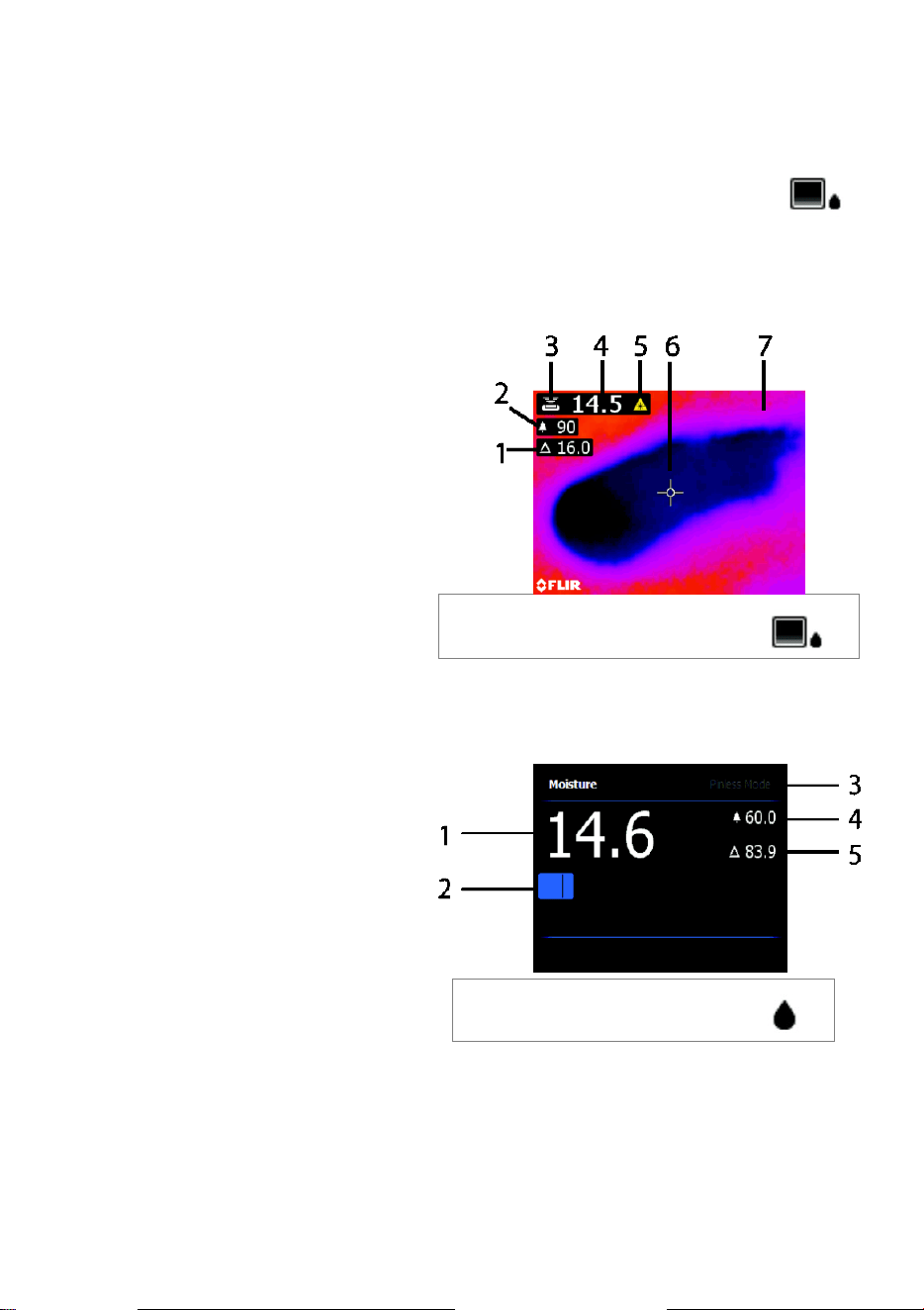
Fig. 5-1 (a) IR + IGM Moisture Image Mode
1. Relative icon and reference value
2. Alarm icon and Alarm Threshold value
3. Mode icon (pinless mode selected)
4. Moisture reading
5. Laser pointer icon
6. Crosshairs
7. Thermal image
Fig. 5-1 (b) Moisture-only Mode
1. Moisture reading (digital)
2. Moisture reading (bargraph); Bars
are blue when in non-alarm state
and red when in an alarm state.
3. Selected Mode
4. High Moisture Alarm threshold (see
Section 5.7)
5. Set Reference value (see Set
Reference mode in Sections 5.2.3 and 5.2.6); pinless mode only. Note that in Pin mode this
display area will show the selected Material/Wood Group. Access the Moisture Mode to
select the Material/Wood Group.
Fig. 5-1(b) Moisture-only Mode
FLIR MR160 USER MANUAL Document Identifier: MR160-en-US_AG
12
5.2.3 IMAGE Modes
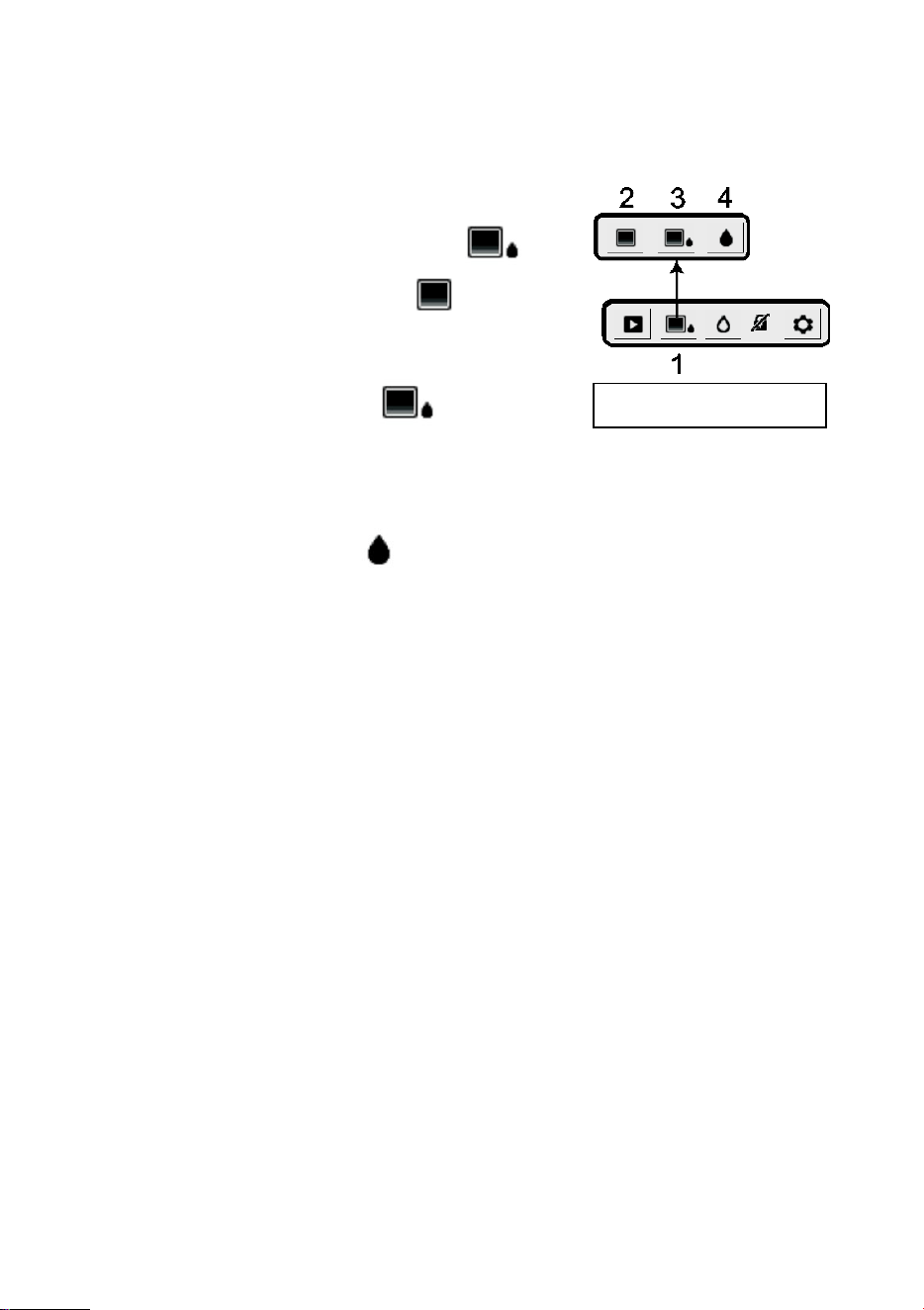
Press the Select button to access the Main Menu and then select the IMAGE mode icon (1).
Refer to Fig. 5-2. Choose Thermal IR Image-only mode (2), IR + IGM Moisture mode (3), or
Moisture-only mode (4). Each mode is described below.
1. Image mode icon in the Main Menu
2. IR Thermal Image mode only
In the IR mode the meter displays only the IR
Thermal Camera image. See Fig. 5-6
3. IR + IGM Moisture mode
In the IR + IGM Moisture mode the meter
displays the IR Thermal Camera Image and the moisture reading text (upper left hand
corner) and the pin or pinless mode icon (depending on which is currently selected).
See Fig. 5-1(a).
4. Moisture reading only
In the Moisture only mode the IR Thermal Camera Image is off and the meter shows
only the moisture reading in digits and in bargraph formats, see Fig. 5-1(b).
Fig. 5-2 Image menu
FLIR MR160 USER MANUAL Document Identifier: MR160-en-US_AG
13
5.2.4 MOISTURE Modes
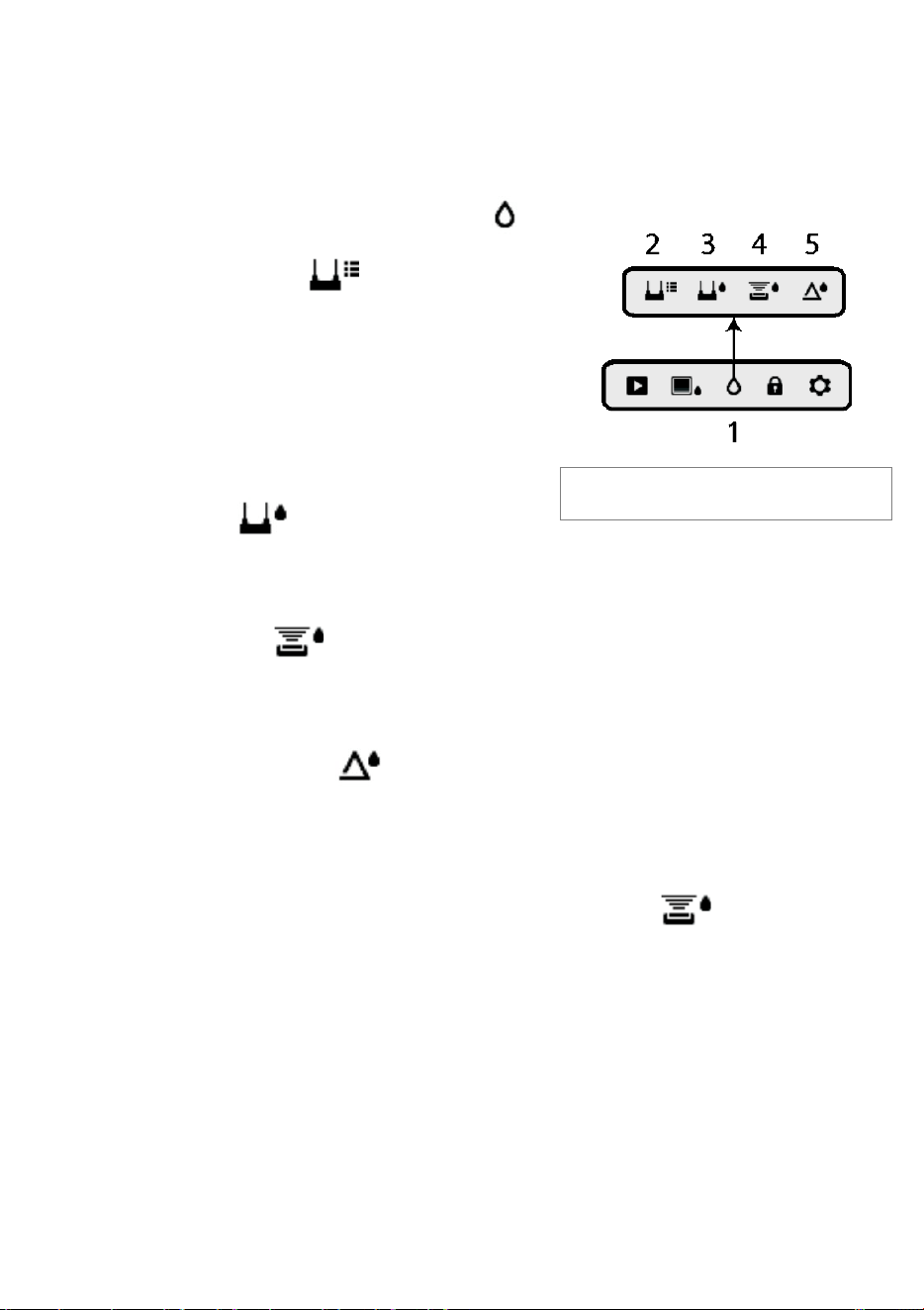
From the Main Menu select the MOISTURE mode icon (1). Refer to Fig. 5-3. Then choose
from the four Moisture mode options (items 2, 3, 4, and 5) as described below.
1. Moisture Mode Icon from the Main Menu
2. MATERIAL GROUPS
Select a Material wood group that best matches
the material under test. This applies only for
external pin-based probe use; Use the navigation
buttons to scroll through the group list and use
the Select button to choose the group. The
selected group will show a blue dot. See the
Material Wood Group List Appendix in Section 9.
3. PIN MODE
PIN mode must be selected when the external pin-based probe is used. Note the pin icon
(3) on the upper left of the main display when selected.
4. PINLESS MODE
PINLESS mode must be selected when using the internal sensor. Note the pinless icon (4)
on the upper left of the main display when selected.
5. SET REFERENCE MODE
SET REFERENCE is used to compare the displayed readings against a stored reference
measurement (see Section 5.2.7 Reference Mode). This mode applies only to readings
taken with the pinless internal sensor.
5.2.5 Internal Moisture Sensor Measurements (Pinless)
1. Follow the steps in Section 5.2.1 through 5.2.4 and select the Pinless mode.
2. Place the internal moisture sensor (back) on the surface of the material to be tested.
Apply light pressure to ensure that the internal sensor is completely flat against the
surface of the material under test.
3. The relative moisture reading is displayed on the main display in the upper left-hand
corner (IR + IGM Moisture mode) or as bar graph with accompanying digits (Moisture-
only mode). Refer to example screens shown in Fig. 5-1.
4. Keep hands, surfaces, and objects away from the rear internal moisture sensor area
when taking measurements.
5. For best results, lift the meter off the surface under test between measurement points;
Fig. 5-3 Moisture mode icons

FLIR MR160 USER MANUAL Document Identifier: MR160-en-US_AG
14
do not drag the meter over surfaces.
5.2.6 External Pin Probe Moisture Measurements
1. Follow the steps in Section 5.2.1 through 5.2.4 and select Pin mode from the MOISTURE
mode options.
2. Connect the external pin probe to the meter’s EXT jack on the bottom of the meter
(under the protective flap). Refer to the FLIR website for information on available
external pin moisture probe types.
3. Select the appropriate Material Group as described in Section 5.2.4 (see Section 9 for the
Material Group Appendices). Note: Use Group 9 for building materials.
4. Press the pins into the material under test.
5. The moisture reading is displayed on the main display (%) in the upper left-hand corner
(IR + IGM Moisture mode) or as a bar graph with accompanying digits (Moisture-only
mode). Refer to example screens shown in Fig. 5-1.
Notes on External Pin Probe Moisture measurements
The MR160 will display accurate external pin probe readings in the 7% to 30% range,
depending on the tested material. Moisture Content readings below 6% will display as 0% for
all materials and the maximum specified range is dependent on the fiber saturation point for
specific species. Above the fiber saturation point, the reading can only be used as a relative
reference value.
For more information on fiber saturation please refer to ASTM D7438. For additional
information on Pin moisture measurement accuracy please see ASTM D4444, section 6.

FLIR MR160 USER MANUAL Document Identifier: MR160-en-US_AG
15
5.2.7 Reference Mode Moisture Measurements
1. Follow the steps in Section 5.2.1 through 5.2.4 and select SET REFERENCE from the
MOISTURE mode options. This mode is only available for pinless measurements (internal
sensor).
2. When the SET REFERENCE mode is selected the displays are affected in the following
ways:
• IR + IGM Moisture image mode: A new display line will appear preceded by a delta
(triangle) symbol. The digits next to the delta symbol indicate the reference value
(the measurement recorded when the SET REFERENCE mode is selected).
• Moisture-only mode: The Reference value and delta symbol are shown on the right
side of the display, refer to example screen in Fig. 5-1(b).
3. All measurements taken subsequently will be relative to the reference value. For
example, if the reference value is ‘10’ (representing the driest area of the material under
test) and a measurement of ‘50’ is taken (in an area with higher moisture content), the
measurement line will show ‘40’ (50 – 10 = 40). As implied, this mode is useful for
comparing wet areas to a dry area reference.
4. To remove the reference value and exit the mode: Remove the meter sensor from the
area under test, so that the sensor is no longer touching a surface and is clear of any
objects (keep hands away from the sensor also), and then press the Set Reference icon
again. The reference value will no longer be visible on the meter display.
5.3 Thermal Imager (IR)
The full screen IR Thermal Imager is active in the IR -only mode and the IR + IGM
Moisture mode (selectable from the IMAGE mode icon in the Main Menu).
The Thermal Imager lens is located on the back of the meter. Face the lens toward the area of
interest and view the image on the meter display.
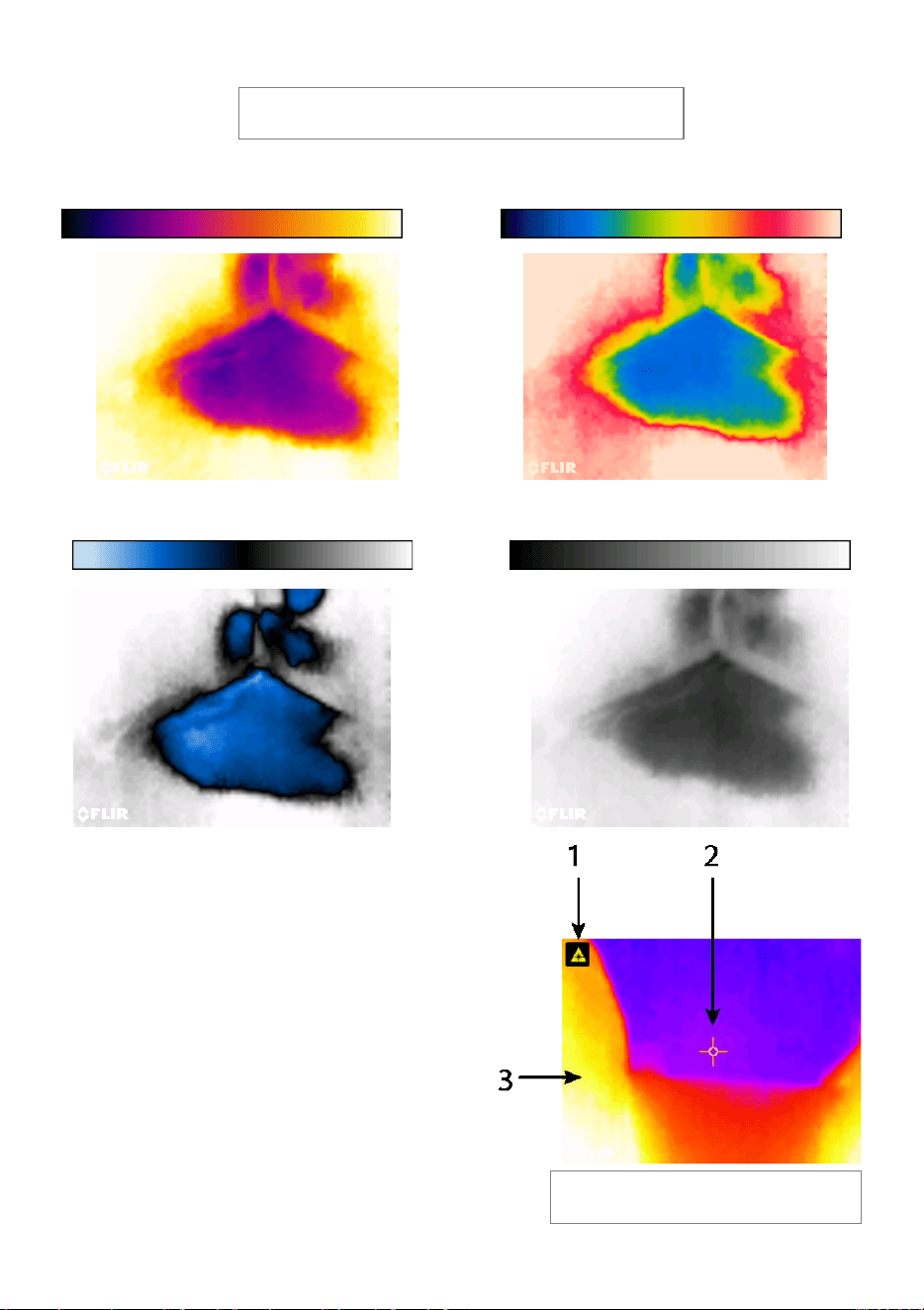
Select the IR thermal image display color palette from the Settings menu. Select IRON,
RAINBOW, ICE, or GREYSCALE; see examples in Fig. 5-4.
For example: the ICE palette hot to cold temperatures, for images, are represented by this color
palette progression: white>grey>black>blue>white. See the color palette example below in
figure 5-5(c). For the ICE palette, the right side of the scale shows the hotter pixels in the frame,
and the left side of the scale shows the coldest pixels.
FLIR MR160 USER MANUAL Document Identifier: MR160-en-US_AG
16
Fig. 5-4(a) - IRON PALETTE Fig. 5-4(b) - RAINBOW PALETTE
Fig. 5-4(c) - ICE PALETTE Fig. 5-4(d) - GREY PALETTE
When the Laser Pointer button is pressed, and
held to activate the laser pointer, the display
crosshairs also switch on, for additional targeting
flexibility. Refer to Fig. 5-5.
Note that the laser is carefully aimed to align
with the crosshairs for easier identifying and
targeting of objects and surfaces.
1. Laser icon (Press and hold Laser button to
activate)
2. Crosshairs (Press and hold Laser button to
activate)
3. IR Thermal Image
Fig. 5-5 Thermal IR Image
Fig. 5-4 Thermal IR Image Color Palettes
FLIR MR160 USER MANUAL Document Identifier: MR160-en-US_AG
17
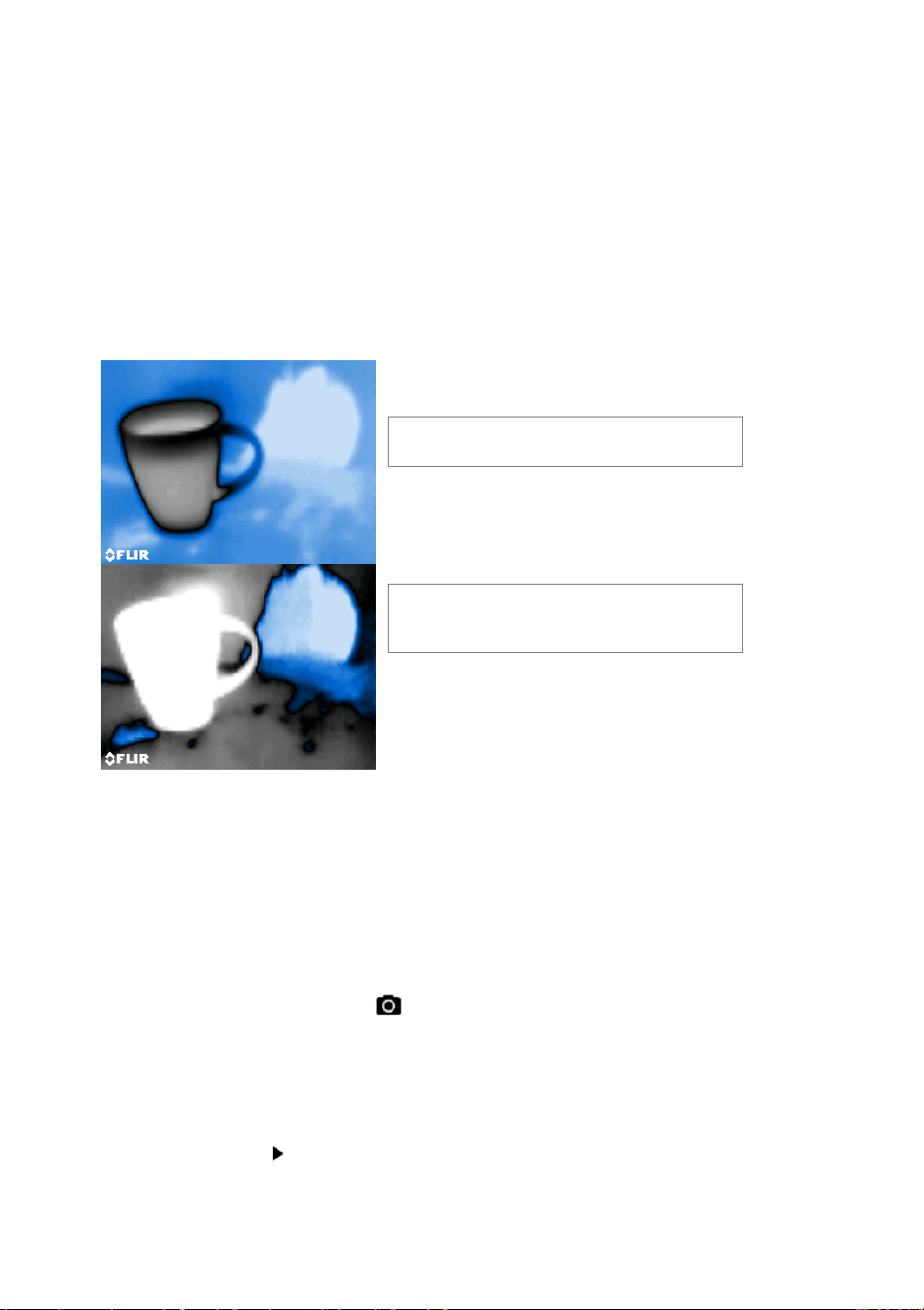
5.4 Lock/Unlock Palette Auto-Scale Mode
Note: For best results, allow a warm-up period of 3-5 minutes before using this feature.
The Lock/Unlock Palette Auto-Scale option allows the color palette range to be adjusted to
suit a given application. For example, when viewing both cold and hot objects in the same
frame, the palette auto-scaling will cause the palette to be ‘stretched’ to fit the whole range
of temperatures. However, this can cause smaller temperature variations to disappear, as the
difference between two colors might increase from 1° to 10°. In this case, the user may
choose to lock the scale with only the cold or medium-temperature object in the frame. This
would cause the hot object to saturate but will provide more detail to the colder objects of
interest.
If the user wishes to narrow the range of color and limit it to colors near the cold temperature
image, Lock/Unlock can be set to ‘Lock’ with no hot objects in the frame. To lock the scale,
press the Select button to access the Main Menu, scroll to the Lock icon, and press Select
again to toggle unlock/lock. Some experimentation and fine-tuning may be required to get the
best possible contrast for the application.
5.5 Screen Capture and Hold
Pressing the Image Capture button captures the current MR160 screen. The screen will
hold (freeze) for seven (7) seconds, until an image filename appears indicating that the image
has been saved. During the seven second ‘hold’ period, the user can simply examine the image
and press the Back button to discard or press Select/Capture to save the image.
Images are saved in bitmap (.bmp) format. Images can be accessed on the MR160 screen using
the Image Review icon
available in the Main Menu. Then scroll the images using the Left and
Right navigation buttons.
Fig. 5-6(a)
Palette auto-scale unlocked
Fig. 5-6(b)
Palette auto-scale locked
away from hot object
FLIR MR160 USER MANUAL Document Identifier: MR160-en-US_AG
18
Images can be deleted one by one by pressing the Select button while viewing the image. A
prompt will appear asking to ‘Delete’ or ‘Cancel’. Choose ‘Delete’ to permanently discard the
image; choose ‘Cancel’ to keep the image.
Images can also be transferred to computer or other compatible device using the MR160 USB
port (bottom of meter, under flap) and supplied USB cable.
5.6 ‘Combination’ Feature: Save Thermal Image with Pinless Moisture Reading
The Combination feature allows the user to ‘freeze’ a thermal image and take a pinless moisture
reading, saving both the thermal image and the moisture reading on a single image. The ‘held’
thermal image, with continuous moisture reading shown on the same screen, can then be
captured as explained in Section 5.5 above.
1. Enter the IR + Moisture Image mode (refer to Section 5.2.3 Image Mode).
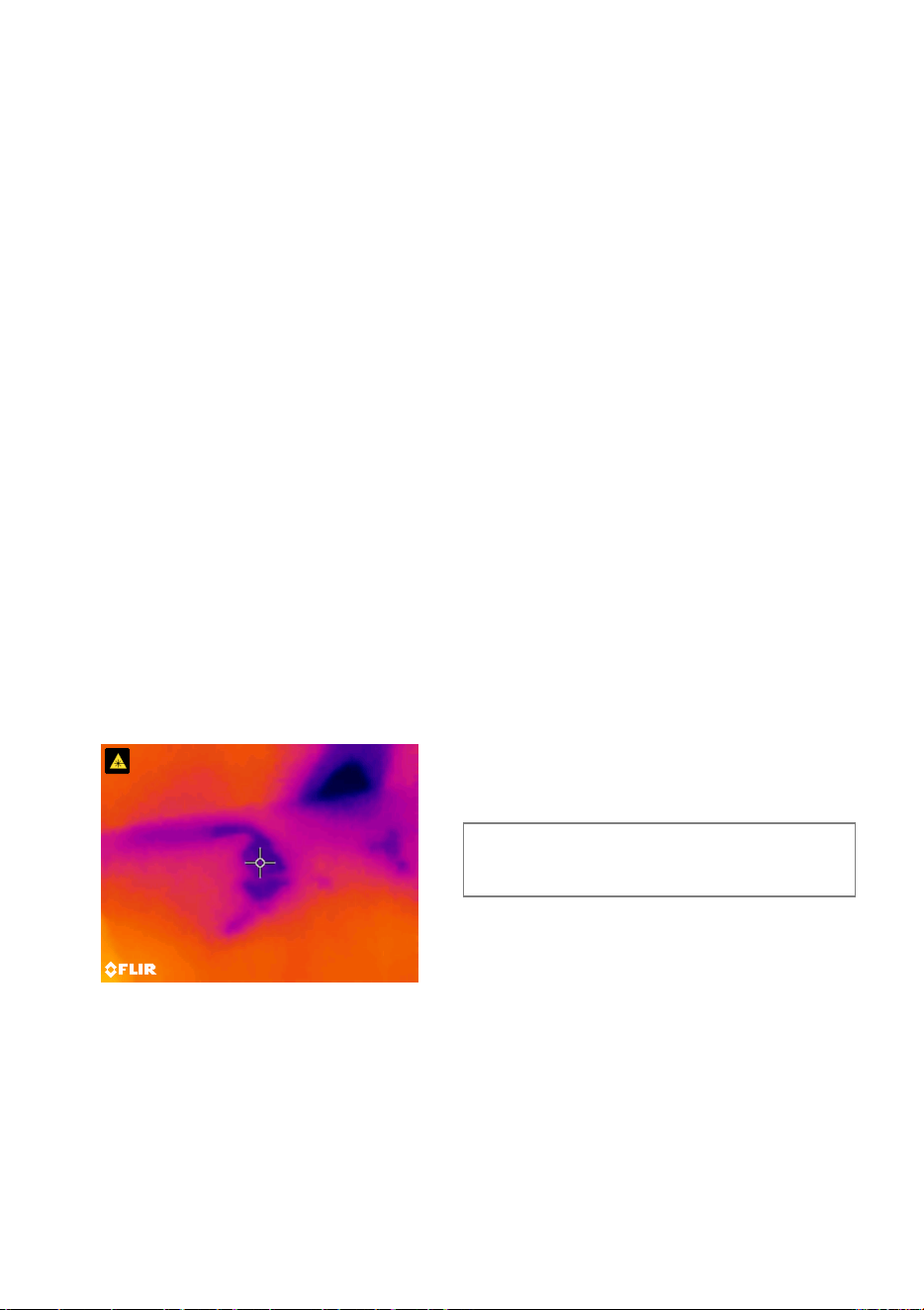
2. Hold the Image Capture button until crosshairs appear, and the laser is visible (Fig. 5-
7(a)).
3. While continuing to hold the Capture button, aim the laser at the measurement spot.
4. Release the Capture button. The image will freeze but the moisture reading will flash and
continue to update as it waits for a measurement.
5. Place the pinless measurement sensor pad of the MR160 against the item targeted by
the laser pointer to make the moisture measurement. Press the Select button to capture
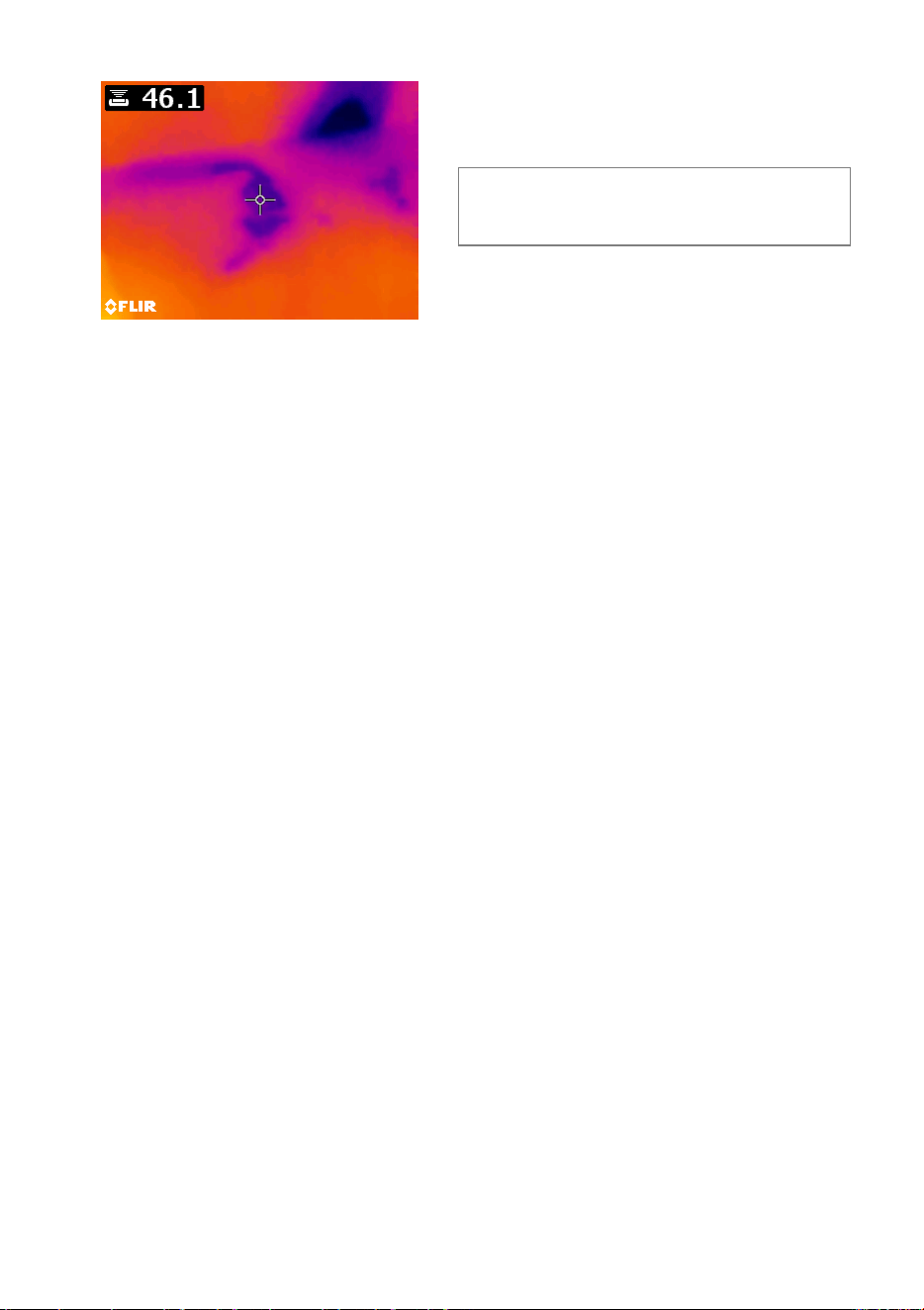
(save) the image; note that the image will include the moisture reading; see Fig. 5-7(b).
6. After a seven second hold period, an image filename will appear on the screen
(FLIRxxxx.bmp), indicating that the image has been saved. During this time-out period,
the user can press Back to cancel the image capture or Select/Capture to save the image.
Fig. 5-7(a) Laser and Crosshairs visible;
Aim the Laser at the test surface
FLIR MR160 USER MANUAL Document Identifier: MR160-en-US_AG
19
Fig. 5-7(b) Saved image with Target
area and Moisture reading

FLIR MR160 USER MANUAL Document Identifier: MR160-en-US_AG
20
5.7 High Moisture Alarm
The MR160 offers a High Moisture Alarm where an audible and visual alert activates when the
moisture reading exceeds the programmed high limit.
1. Press the Select button to access the Main Menu
2. Select the SETTINGS mode
from the Main Menu
3. Scroll to ALARM and press the Select button to open the Alarm programmer
4. Use the Navigation and Select buttons to switch the alarm ON or OFF and to set the
threshold from 0 to 100%
5. Press the Select button to return to the SETTINGS mode and save the value or press the
back button to cancel and to return to the normal operating mode
6. When the High Alarm is set ON, the main display will show the alarm bell icon (shown in
header above) and the High Alarm threshold value. Refer to example screens shown in
Fig. 5-1.
7. When the measurement exceeds the threshold, the text for the measurement reading
will appear red in color and will flash. Note that in the Moisture-only mode, the bar graph
turns red when the Alarm threshold is exceeded. Refer to the example in Fig. 5-1(b).
8. To switch the alarm OFF when the meter is alarming, press the Select button and then
select SETTINGS from the Main Menu

FLIR MR160 USER MANUAL Document Identifier: MR160-en-US_AG
21
5.8 SETTINGS Menu
Access the SETTINGS menu by pressing the Select button and choosing the Settings icon .
The Settings menu options are described below:
1. LANGUAGE. Choose the desired language for text displays. From the Settings menu,
scroll to Language and press the Select button. The selected language will show a blue
dot to its right. Use the four Navigation buttons to scroll to the desired language and
then press the Select button to confirm. When the Select button is pressed to confirm,
the meter will return to the Settings menu and will display the newly selected language.
Press the back button
at any time to cancel the language selection and return to the
Settings menu.
The 14 available languages are: English, Czech, German, Spanish, French, Italian,
Japanese, Korean, Dutch, Polish, Portuguese, Russian, Chinese, and Finnish.
2. PALETTE. Select the desired color scheme for the IR Thermal images. From the Settings
menu scroll to the Palette selection and use the Select button to step through the IRON,
RAINBOW, ICE, and GREY selections. Refer to Fig. 5-4 for example palette screens.
Navigate to another Settings option or press the back button
to exit the Settings menu.
3. ALARM. Set a high alarm threshold. From the Settings menu, scroll to Alarm and press
the Select button. Use the up/down navigation buttons to arm/disarm the alarm
(ON/OFF). Use the left/right navigation buttons to select an alarm threshold digit; use the
up/down navigation buttons to set the high alarm threshold. Refer to Section 5.7 for
Alarm details. The Alarm can be used in pin or pinless mode of operation. Press the
Select button to save the value and return to the SETTINGS menu or press the back
button
to cancel and return to the Settings menu.
4. AUTO POWER OFF. From the SETTINGS menu, scroll to Auto Power OFF and then use the
Select button to step through the available options (1, 5, 20 minutes, or OFF). Navigate to
another Settings option or press the back button
to exit the Settings menu.
5. DATE & TIME. From the SETTINGS menu, scroll to Date & Time and press the Select
button. Use the left/right navigation buttons to select YYYY, MM, DD, HH : MM (from left
to right) and use the up/down navigation buttons to change the digits. Press the Select
button to save the value and return to Settings menu or press the back button
to cancel
and return to the normal operating mode.
The next items are located on the 2
nd
page of the Settings menu; use the navigation buttons
to scroll down:
6. HELP SCREEN. Scroll to HELP and press the Select button to view the company contact
information. Press the back button to return to the Settings menu.
7. METER INFORMATION. From the SETTINGS menu, scroll to Meter Information and press
the Select button to view the Model, Software Version, and Last Calibration Date
information. Press the back button to return to the Settings menu.

FLIR MR160 USER MANUAL Document Identifier: MR160-en-US_AG
22
6. Maintenance
6.1 Cleaning
Clean the meter with a damp cloth and mild detergent; do not use abrasives or solvents.
6.2 Battery Charging
1. The internal battery is not user serviceable.
2.
Please charge the battery before first use.
3.
Connect the meter to an AC source or a computer USB port using the supplied USB
charger cable. The USB port is located on the bottom of the meter, under the protective
flap, next to the EXT Probe jack.
4.
While the meter is charging, a blue LED (bottom of meter under protective flap) indicates
that charging is successfully taking place.
5.
View the battery status icon on the upper left-hand corner of the meter’s display when a
program menu is active.
6.2.1 Disposal of Electronic Waste
As with most electronic products, this equipment must be disposed of in an environmentally
friendly way, and in accordance with existing regulations for electronic waste.
Please contact your local FLIR Systems representative for more details.

FLIR MR160 USER MANUAL Document Identifier: MR160-en-US_AG
23
6.3 Updating the MR160 firmware
The MR160 firmware can be updated in the field by the user. If assistance is required, contact FLIR
support (see Section 8). Firmware updates provide performance enhancements and new features
and functions.
To update the firmware, the following is required:
• Access to the website where the update file(s) are located: https://support.flir.com
• The MR160 to be updated
• The update files
Follow the steps below:
1. Visit support.flir.com.
2. Select the ‘Downloads’ tab.
3. Select ‘Software and Firmware’
4. Log into your account or create a new account.
5. In the Search box type ‘MR160’.
6. A ZIP file, that includes the update file and instructions for completing the update, will
appear.
7. Download the ZIP file and carefully follow the update instructions. Contact FLIR support if
you need assistance.

FLIR MR160 USER MANUAL Document Identifier: MR160-en-US_AG
24
7. Specifications
7.1 General Specifications
Display QVGA (320 x 240 pixel) 2.3 in. 64K color TFT graphical display
Internal memory 4GB; Storage capacity is 9999 images
Stored image format Bitmap (.bmp) with measurement values overlaid
Power supply 3.7V, 2600mAh battery; rechargeable via USB
Battery life 10 hours continuous run-time, typical
Auto Power OFF Programmable: OFF, 1, 5, or 20 minutes
Low battery indicator is displayed in the Main Menu screen
Operating temperature 32 to 122 °F (0 to 50 °C)
Storage temperature 14 to 140°F (-10 to 60°C)
Operating humidity ≤ 90%, 32 to 86°F (0 to 30°C)
≤ 75%, 86 to 104°F (30 to 40°C)
≤ 45%, 104 to 122°F (40 to 50°C)
Storage humidity 90% RH
Dimensions (H x W x D) 6.9 × 2.9 × 1.7 in. (17.5 × 7.2 × 4.2 cm)
Product Weight 11.4 oz. (323 g)
Drop test 9.8 ft. (3 m)
Ingress rating IP54
Certification standards EN61326 (EMC), EN60825-1 Class 2 (Laser)
Agency approvals CE, FCC Class B, RCM
Included accessories MR02 Standard Pin Probe, Quick Start Guide, International USB
charger, and USB cable
Language options Meter display text can be shown in any of fourteen (14) languages
7.2 Imaging Specifications
Thermal imaging camera FLIR Lepton module, microbolometer FPA (focal plane array)
Image calibration Automatic (with manual lock scale option)
Thermal image resolution 80 (W) x 60 (H) pixels (4800 pixels)
Spectral response 8 to 14µm
Field of view 51° horizontal x 38° vertical
Thermal Sensitivity < 150mK
Detection Limit Wet area detection @ 32 ft. (10 m): 19.7 in
2
(49 cm
2
)
Thermal frame update rate 9 Hz
Thermal image palettes Selectable: Iron, Rainbow, Ice, Gray scale
Minimum focus distance 4 in. (10 cm)
Laser pointer Visible light Class II, centered on thermal image; 1.0mW (max. power)
Wavelength: 650 ±20nm

FLIR MR160 USER MANUAL Document Identifier: MR160-en-US_AG
25
7.3 Moisture Meter Specifications
Internal Pinless Sensor Measurements 0 to 100 (relative readings)
External Pin-based Measurements 7 to 30%* (±1.5% MC*)
30 to 100%* (reference only)
Measurement Resolution 0.1
Pinless Measurement Depth 0.75 in. (1.9 cm) maximum
Pin Moisture Groups Nine (9) material groups
Response time Pinless mode: 100 ms
Pin mode: 750 ms
Notes:
* Maximum specified range is dependent on the fiber saturation point for specific species. Beyond this point, the
reading can only be used as a relative reference value. For more information on fiber saturation please refer to
ASTM D7438. Accuracy specification is based on the analysis in J. Fernández-Golfín et al. Actual real-world
accuracy depends on a variety of factors; For more information, refer to ASTM D4444, section 6.
**Accuracy spec. applies to pin probe moisture measurements taken on wood whose temperature is 68°F
(20°C). Add 0.1% to the accuracy spec. for each °C below 20°C or subtract 0.1% for each °C above 20°C.

FLIR MR160 USER MANUAL Document Identifier: MR160-en-US_AG
27
9. Material Groups
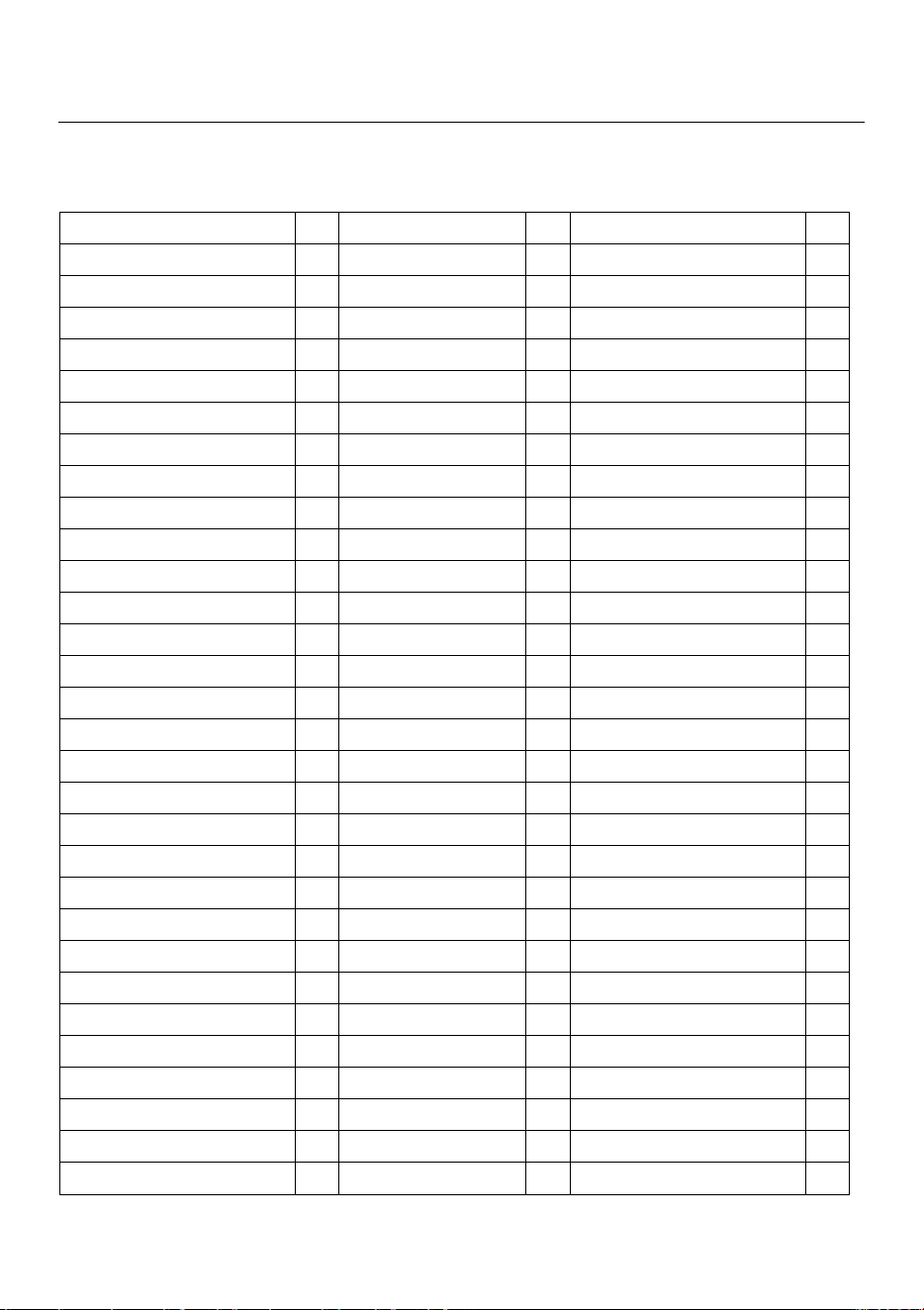
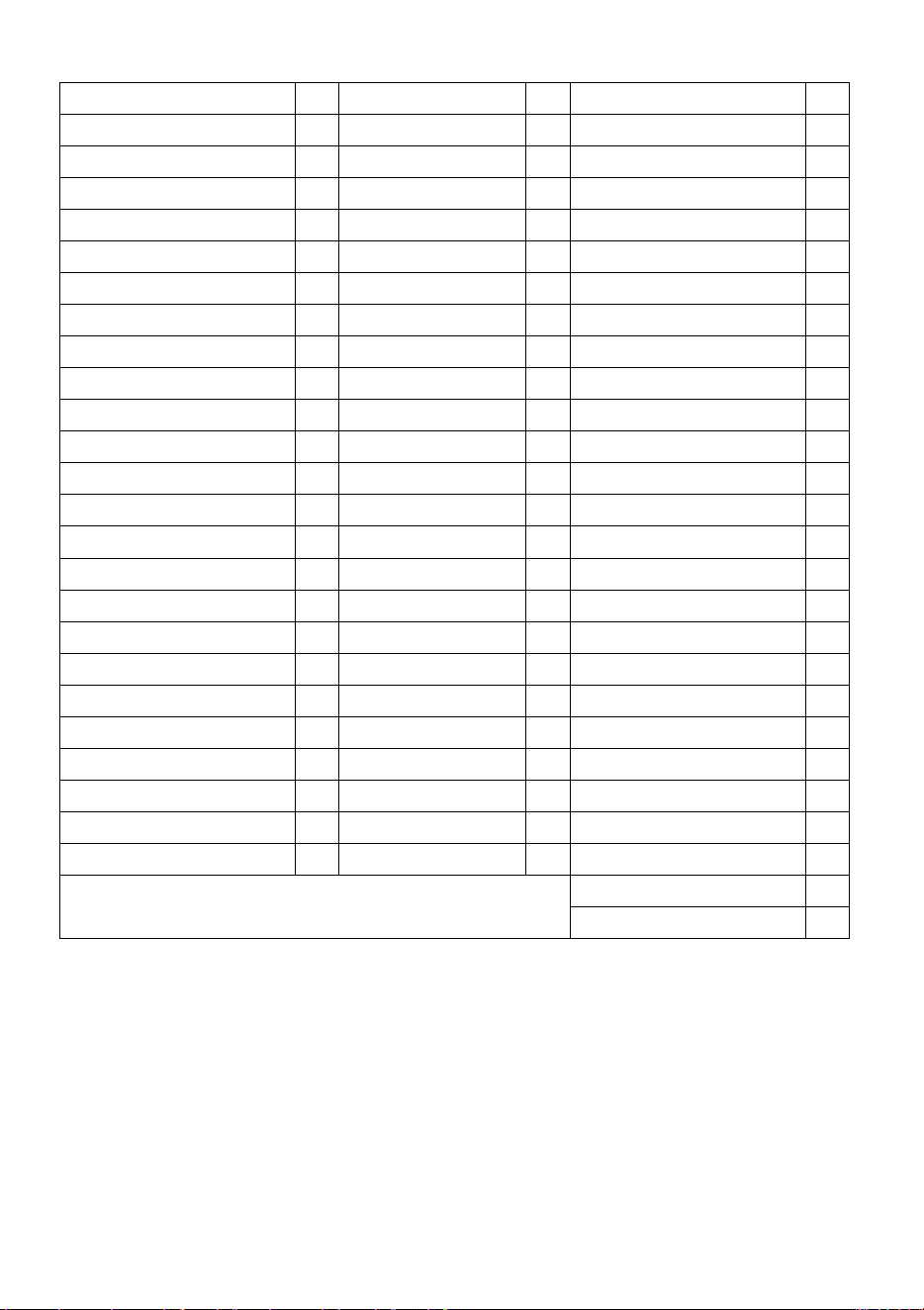
9.1 Common Names of Timbers (BS888/589:1973) with MR160 Group Nos.
Note: GROUP 9 is for Building materials: Plywood, Drywall, Oriented Strand Board (OSB), etc.
Abura 4 Gurjun 1 Pine, American Long Leaf 3
Afara 1 Hemlock, Western 3 Pine, American Pitch 3
Aformosa 6 Hiba 8 Pine, Bunya 2
Afzelia 4 Hickory 5 Pine, Caribbean Pitch 3
Agba 8 Hyedunani 2 Pine, Corsican 3
Amboyna 6 Iroko 5 Pine, Hoop 3
Ash, American 2 Ironbank 2 Pine, Huon 2
Ash, European 1 Jarrah 3 Pine, Japanese Black 2
Ash, Japanese 1 Jelutong 3 Pine, Kauri 4
Ayan 3 Kapur 1 Pine, Lodgepole 1
Baguacu, Brazilian 5 Karri 1 Pine, Maritime 2
Balsa 1 Kauri, New Zealand 4 Pine, New Zealand White 2
Banga Wanga 1 Kauri, Queensland 8 Pine, Nicaraguan Pitch 3
Basswood 6 Keruing 5 Pine, Parana 2
Beech, European 3 Kuroka 1 Pine, Ponderosa 3
Berlina 2 Larch, European 3 Pine, Radiata 3
Binvang 4 Larch, Japanese 3 Pine, Red 2
Birch, European 8 Larch, Western 5 Pine, Scots 1
Birch, Yellow 1 Lime 4 Pine, Sugar 3
Bisselon 4 Loliondo 3 Pine, Yellow 1
Bitterwood 5 Mahogany, African 8 Poplar, Black 1
Blackbutt 3 Mahogany, West Indian 2 Pterygota, African 1
Bosquiea 1 Makore 2 Pyinkado 4
Boxwood, Maracaibo 1 Mansonia 2 Queensland Kauri 8
Camphorwood, E African 3 Maple, Pacific 1 Queensland Walnut 3
Canarium, African 2 Maple, Queensland 2 Ramin 6
Cedar, Japanese 2 Maple, Rock 1 Redwood, Baltic (European) 1
Cedar, West Indian 8 Maple, Sugar 1 Redwood, Californian 2
Cedar, Western Red 3 Matai 4 Rosewood, Indian 1
Cherry, European 8 Meranti, Red (dark/light) 2 Rubberwood 7
Chestnut 3 Meranti, White 2 Santa Maria 7
FLIR MR160 USER MANUAL Document Identifier: MR160-en-US_AG
28
Coachwood 6 Merbau 2 Sapele 3
Cordia, American Light 5 Missanda 3 Sen 1
Cypress, E African 1 Muhuhi 8 Seraya, Red 3
Cypress, Japanese (18-28%mc) 3 Muninga 6 Silky Oak, African 3
Cypress, Japanese (8-18%mc) 8 Musine 8 Silky Oak, Australian 3
Dahoma 1 Musizi 8 Spruce, Japanese (18-28%mc) 3
Danta 3 Myrtle, Tasmanian 1 Spruce, Japanese (8-18%mc) 8
Douglas Fir 2 Naingon 3 Spruce, Norway (European) 3
Elm, English 4 Oak, American Red 1 Spruce, Sitka 3
Elm, Japanese Grey Bark 2 Oak, American White 1 Sterculia, Brown 1
Elm, Rock 4 Oak, European 1 Stringybark, Messmate 3
Elm, White 4 Oak, Japanese 1 Stringybark, Yellow 3
Empress Tree 8 Oak, Tasmanian 3 Sycamore 5
Erimado 5 Oak, Turkey 4 Tallowwood 1
Fir, Douglas 2 Obeche 6 Teak 5
Fir, Grand 1 Odoko 4 Totara 4
Fir, Noble 8 Okwen 2 Turpentine 3
Gegu, Nohor 7 Olive, E African 2 Utile 8
Greenheart 3 Olivillo 6 Walnut, African 8
Guarea, Black 8 Opepe 7 Walnut, American 1
Guarea, White 7 Padang 1 Walnut, European 3
Gum, American Red 1 Padauk, African 5 Walnut, New Guinea 2
Gum, Saligna 2 Panga Panga 1 Walnut, Queensland 3
Gum, Southern 2 Persimmon 6 Wandoo 8
Gum, Spotted 1 Pillarwood 5 Wawa 6
Whitewood 3
Yew 3
FLIR MR160 USER MANUAL Document Identifier: MR160-en-US_AG
29
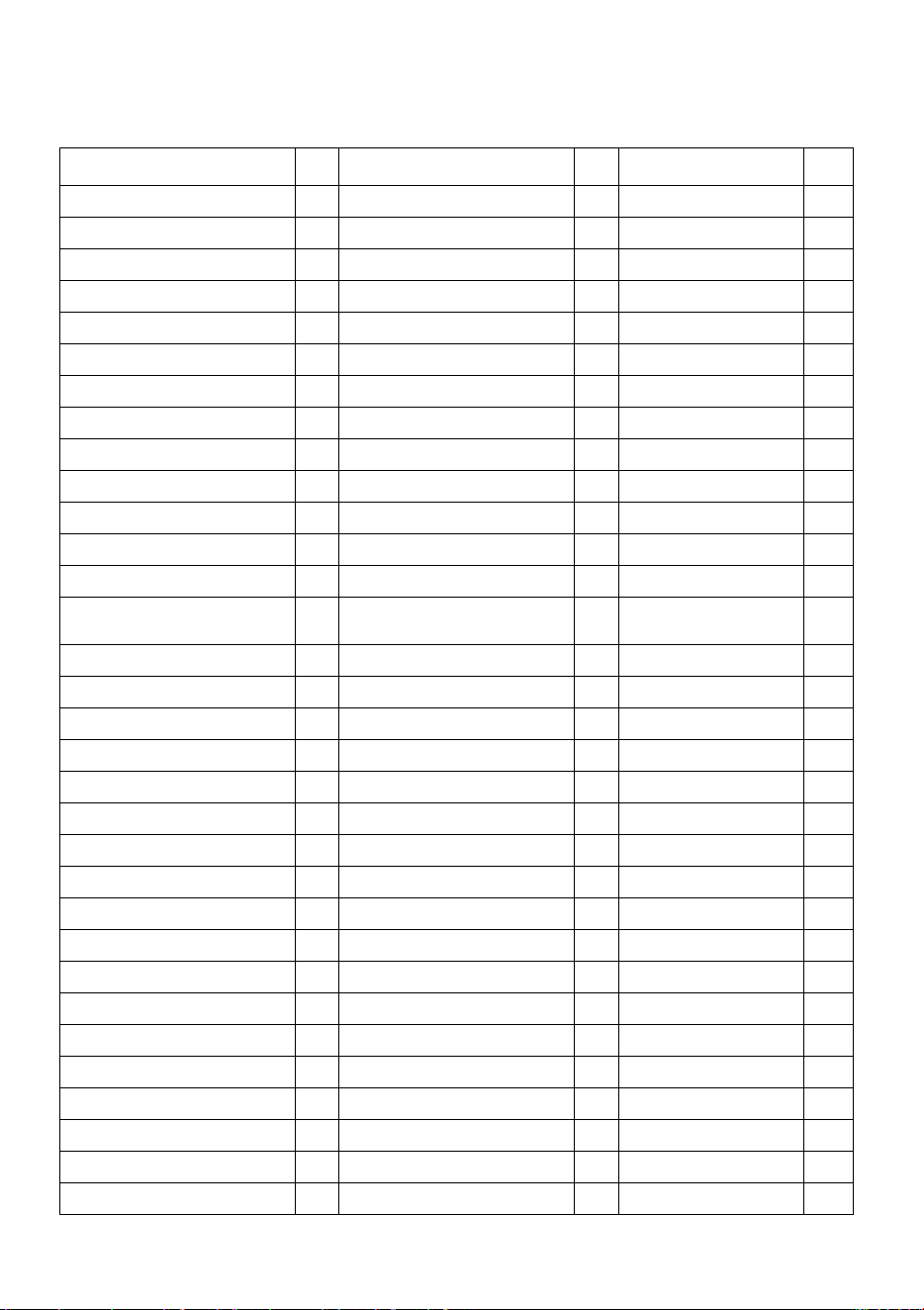
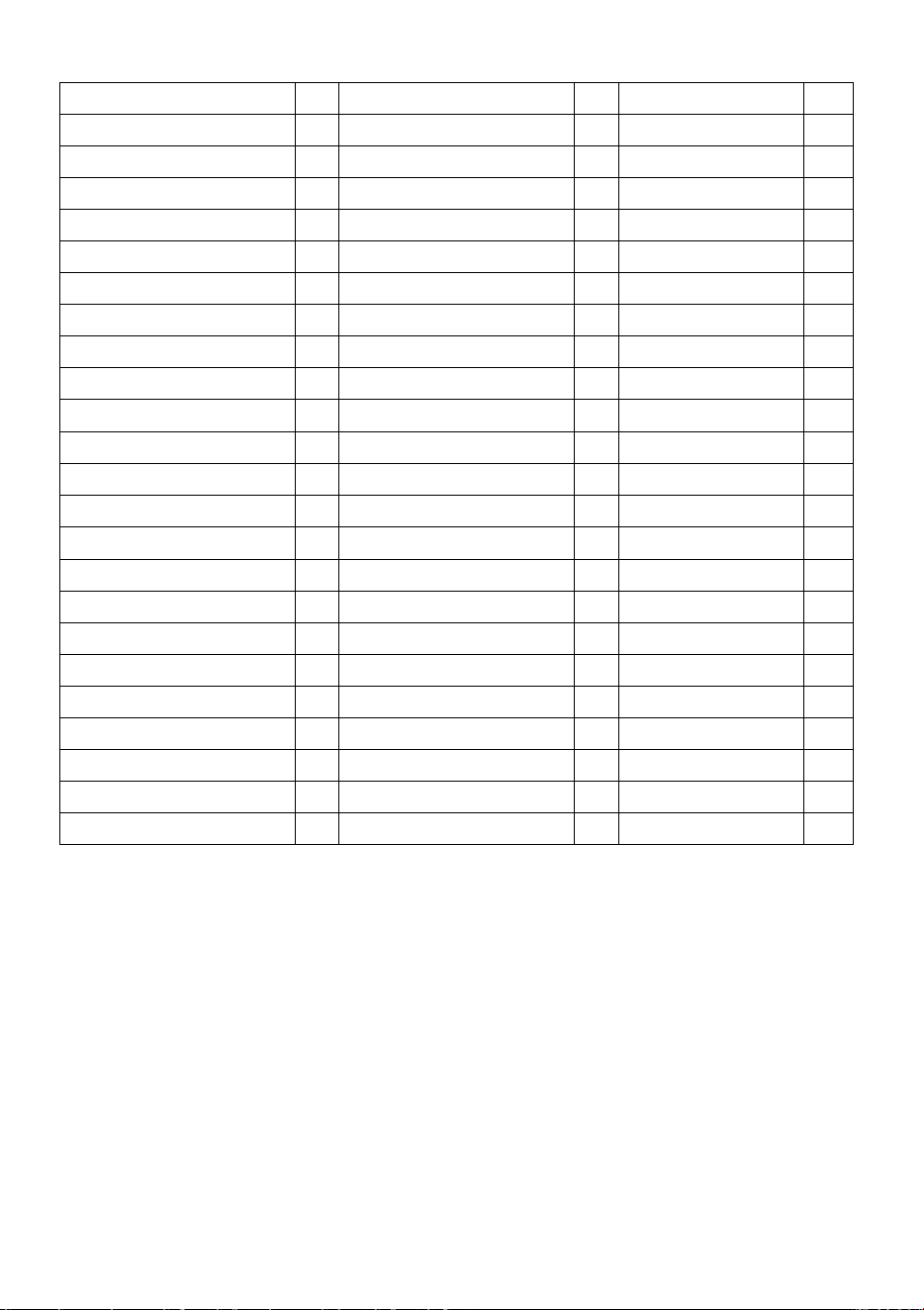
9.2 Botanical names of timbers with MR160 program group numbers
Abies alba 1 Eucalyptus acmenicides 3
Picea jezoensis (8-
18%mc)
8
Abies grandis 1 Eucalyptus crebra 2 Picea sitchensis 3
Abies procera 8 Eucalyptus diversicolor 1 Pinus caribaea 3
Acanthopanex ricinifolius 1 Eucalyptus globulus 2 Pinus contorta 1
Acer macrophyllum 1 Eucalyptus maculate 1 Pinus lampertiana 3
Acer pseudoplatanus 5 Eucalyptus marginata 3 Pinus nigra 3
Acer saccharum 1 Eucalyptus microcorys 1 Pinus palustris 3
Aetoxicon punctatum 6 Eucalyptus obliqua 3 Pinus pinaster 2
Aformosia elata 6 Eucalyptus pilularis 3 Pinus ponderosa 3
Afzelia spp 4 Eucalyptus saligna 2 Pinus radiate 3
Agathis australis 4 Eucalyptus wandoo 8 Pinus spp 2
Agathis palmerstoni 8 Fagus sylvatica 3 Pinus strobus 1
Agathis robusta 8 Flindersia brayleyana 2 Pinus sylvestris 1
Amblygonocarpus andogensis 1 Fraxinus Americana 2 Pinus thunbergii 2
Amblygonocarpus obtusungulis 1 Fraxinus excelsior 1
Pipadeniastrum
africanum
1
Araucaria angustifolia 2 Fraxinus japonicus 1 Piptadenia africana 1
Araucaria bidwilli 2 Fraxinus mardshurica 1 Podocarpus dacrydiodes 2
Araucaria cunninghamii 3 Gonystylus macrophyllum 6 Podocarpus spicatus 3
Berlinia grandiflora 2 Gossweilodendron balsamiferum 8 Podocarpus totara 4
Berlinia spp 2 Gossypiospermum proerox 1 Populus spp 1
Betula alba 8 Grevillea robusta 3 Prunus avium 8
Betula alleghaniensis 8 Guarea cedrata 7 Pseudotsuga menzesii 2
Betula pendula 8 Guarea thomsonii 8 Pterocarpus angolensis 6
Betula spp 8 Guibortia ehie 2 Pterocarpus indicus 6
Bosquiera phoberos 1 Hevea brasilensis 7 Pterocarpus soyauxii 5
Brachylaena hutchinsii 8 Intsia bijuga 2 Pterygota bequaertii 1
Brachystegia spp 2 Juglans nigra 1 Quercus cerris 4
Calophyllum brasiliense 7 Juglans regia 3 Quercus delegatensis 3
Canarium schweinfurthii 2 Khaya ivorensis 8 Quercus gigantean 3
Cardwellia sublimes 3 Khaya senegalensis 4 Quercus robur 1
Carya glabra 5 Larix decidua 3 Quercus spp 1
Cassipourea elliotii 5 Larix kaempferi 3 Ricinodendron heudelotti 5
Cassipourea melanosana 5 Larix leptolepis 3 Sarcocephalus diderrichii 7
FLIR MR160 USER MANUAL Document Identifier: MR160-en-US_AG
30
Castanea sutiva 3 Larix occidentalis 5 Scottellia coriacea 4
Cedrela odorata 8 Liquidamper styraciflua 1 Sequoia sempervirens 2
Ceratopetalum apetala 6 Lovoa klaineana 8 Shorea spp 2
Chamaecyparis spp (18-28%mc) 3 Lovoa trichiloides 8 Sterculia rhinopetala 1
Chamaecyparis spp (8-18%mc) 8 Maesopsis eminii 8 Swietenia candollei 1
Chlorophora excelsa 5 Mansonia altissima 2 Swietenia mahogani 2
Cordia alliodora 5 Millettia stuhimannii 1 Syncarpia glomulifera 3
Croton megalocarpus 8 Mimusops heckelii 2 Syncarpia laurifolia 3
Cryptomelia japonica 2 Mitragyna ciliata 4 Tarrietia utilis 3
Cupressus spp 1 Nauclea diderrichii 7 Taxus baccata 3
Dacryium franklinii 2 Nesogordonia papaverifera 3 Tectona grandis 5
Dalbergia latifolia 1 Nothofagus cunninghamii 1 Terminalia superba 1
Diospyros virginiana 6 Ochroma pyramidalis 1 Thuja plicata 3
Dipterocarpus (Keruing) 5 Ocotea rodiaei 3 Thujopsis dolabrat 8
Dipterocarpus zeylanicus 1 Ocotea usambarensis 3 Tieghamella heckelii 2
Distemonanthus benthamianus 3 Octomeles sumatrana 4 Tilia americana 6
Dracontomelium mangiferum 2 Olea hochstetteri 2 Tilia vulgaris 4
Dryobanalops spp 1 Olea welwitschii 3 Triploehiton scleroxylon 6
Dyera costulata 3 Palaquium spp 1 Tsuga heterophylia 3
Endiandra palmerstoni 3 Paulownia tomentosa 8 Ulmus americana 4
Entandrophragma angolense 7 Pericopsis elata 6 Ulmus procera 4
Entandrophragma cylindricum 3 Picaenia excelsa 3 Ulmus thomasii 4
Entandrophragma utile 8 Picea abies 3 Xylia dolabriformis 4
Erythrophleum spp 3 Picea jezoensis (18-28%mc) 3 Zelkova serrata 2

FLIR MR160 USER MANUAL Document Identifier: MR160-en-US_AG
31
9.3 %WME Table (% Wood Moisture Equivalent)
Material Wood Group Nos.
1
2
3
4
5
6
7
8
9
%WME (percent wood moisture equivalent)
7
8.2
9
8
7.1
7
11
10.5
-
8
10
10.5
9.3
7.5
7.4
11.5
11
-
9
10.8
10.9
9.7
7.9
8.1
12.1
11.6
8.5
10
11.7
11.5
10.4
8.6
8.8
12.7
12.2
9.4
11
12.7
12.6
11.3
9.5
9.7
13.4
13.4
10.5
12
13.6
13.7
12.1
10.5
10.5
14
14.3
11.5
13
14.5
14.5
12.7
11.2
11.2
14.5
15.1
12.5
14
15.3
15.5
13.4
11.8
11.8
15
16
13.5
15
16.3
16.7
14.1
12.5
12.6
15.6
17
14.4
16
16.9
17.5
14.8
13
13.2
16
17.7
14.9
17
17.7
18.8
15.7
14.3
13.9
16.6
18.5
15.3
18
18.2
19.7
16.3
15
14.5
17
19.1
16.1
19
19
21
16.9
15.9
15.2
17.6
20
16.7
20
20
22.6
17.8
16.9
16.1
18.4
21.3
17.2
21
20.8
23.5
18.5
17.6
16.8
19.1
22.3
18.3
22
21.5
24.5
19.3
18.3
17.4
19.7
23.2
19.1
23
22.9
26.4
20.2
19.8
18.6
21.2
25.3
19.9
24
23.5
27.4
20.8
20.4
19
22
25.8
20.5
25
24.2
27.8
21.2
21
19.4
22.7
26.3
≈23
26
25.3
29
22.4
22.3
20.1
23.9
27.3
-
27
26.5
-
23.3
23.4
20.8
24.7
28.1
-
28
28
-
24.4
24.8
21.7
25.9
-
-
29
29.6
-
25.6
26.3
22.9
27.1
-
-

FLIR MR160 USER MANUAL Document Identifier: MR160-en-US_AG
32
10. Warranty
10.1 FLIR Limited 10-Year Warranty
This product is protected by FLIR’s Limited 10-Year Warranty. Visit www.flir.com/testwarranty to
read the Limited 10-Year Warranty document.

FLIR MR160 USER MANUAL Document Identifier: MR160-en-US_AG
33
Customer Support
https://support.flir.com
Firmware Updates
To check for MR160 firmware updates please visit the technical support website (above)
for complete installation instructions.
Publication Identification No.: MR160
Release Version: AG
Release Date: May 2023
Language: en-US