
1. Before You Start
Next
< Back Menu
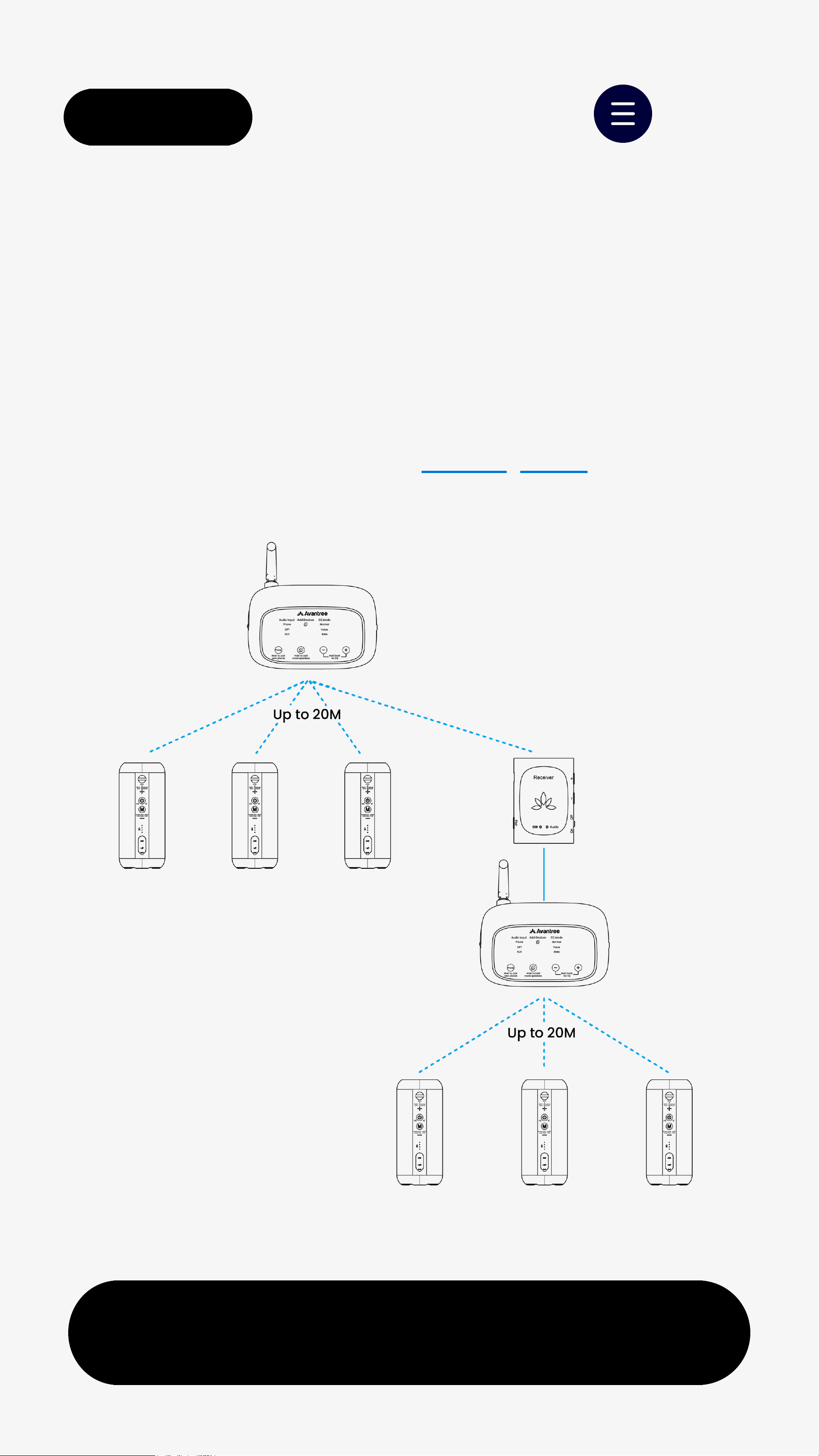
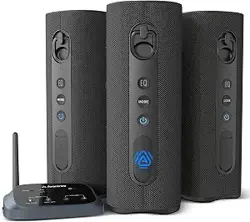
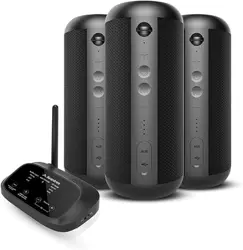
Multi-Room Audio:
Stream one source to multiple
synced speakers.
Easy Setup:
Power on, audio plays automatically.
Stay in Range:
Phone-to-transmitter
≤
3m (10ft)
Speaker-to-transmitter
≤
20m (65ft),
line of sight.
Speaker Limit:
No Auracast support, not compatible
with Harmony A series;
OnlyHarmony 2 speakerssupported.
< Back Menu
Next
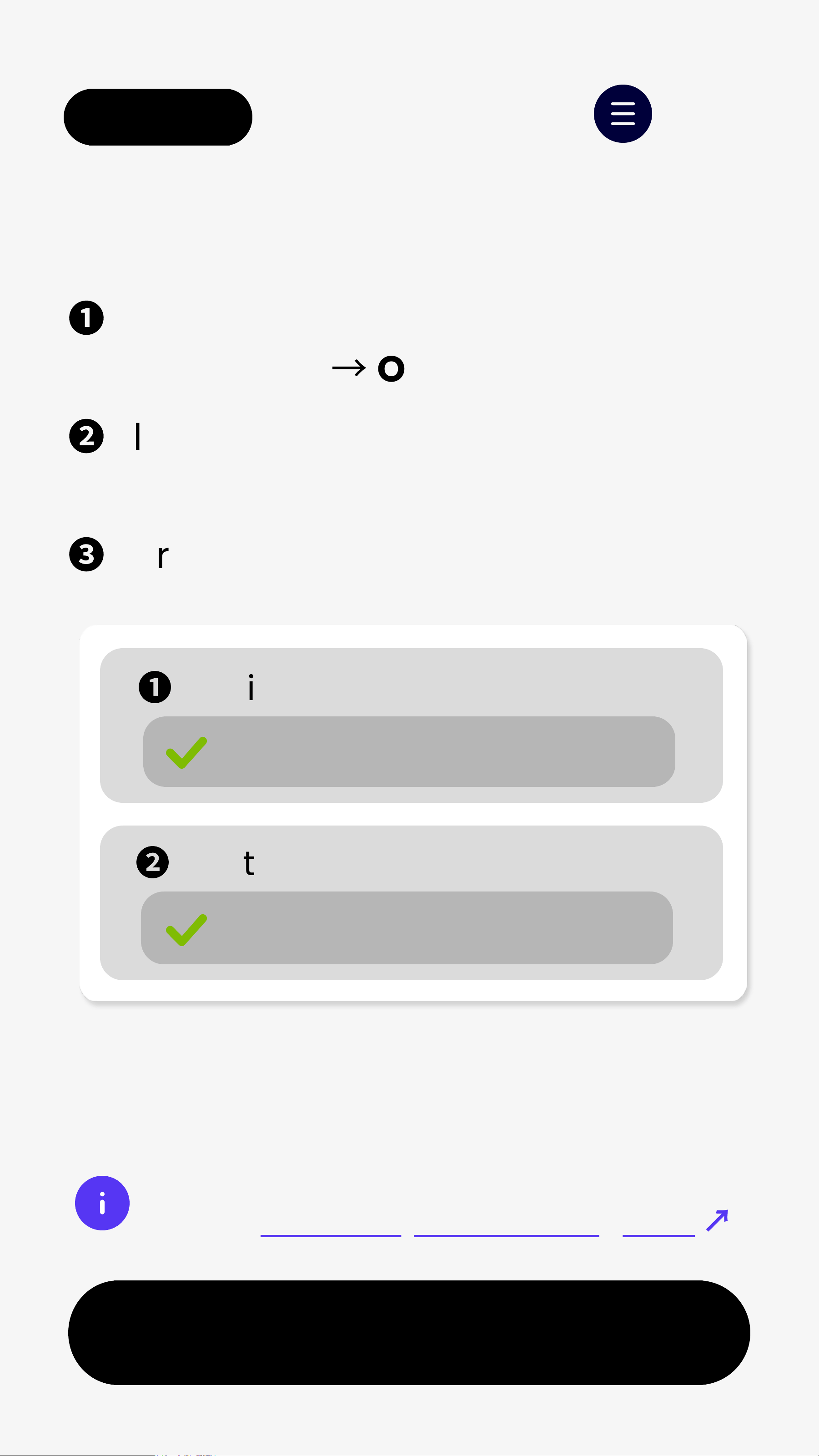
TV /Media Device
❶
Slide the Transmitter "Audio Input"
toOPT/AUX
→
OPT LEDblinks white
❷
Plug Optical cableinto the
transmitter and source device.
❸
For Optical connection users
If set toPCM, you're all set.
❶
Audio Output
Optical
❷
Digital Audio Output
PCM (Required)
Not sure how to set PCM?
Checkbrand-by-brand TV guide
↗
< Back Menu
Next
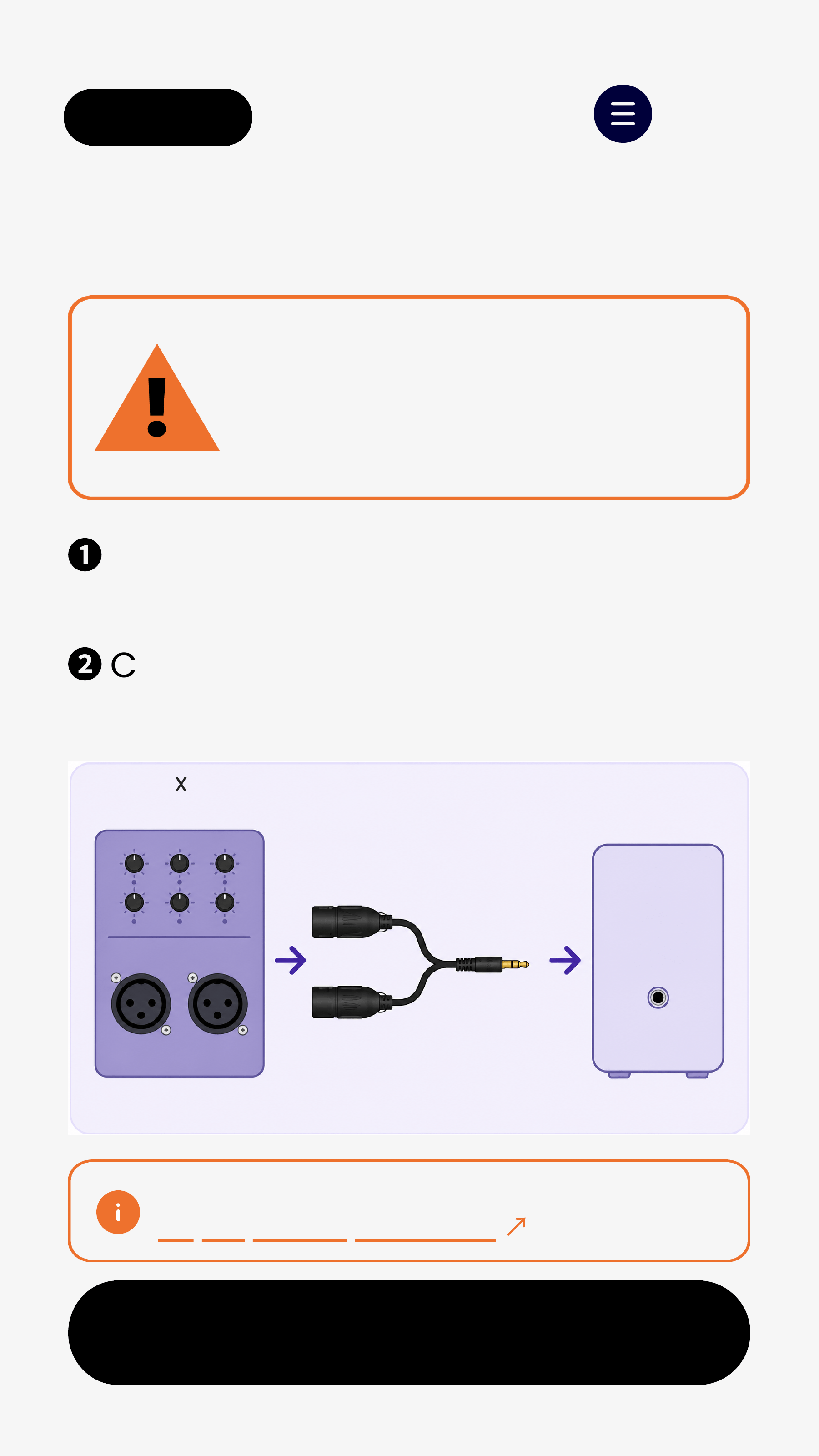
❶
Use a dual XLR female to
unbalanced3.5mm TRS cable.
❷
Connect mixer OUTPUT L / R to
Harmony 2 transmitter AUX IN.
Dual XLR Output
Wrong XLR cable may cause
low volume, missing vocals,
or poor sound quality.
IMPORTANT
XLR cable not included.
Buy separately if needed
↗
Mixer
OUTPUT L/R
Dual XLR Female
to 3.5mm TRS Cable
Harmony 2
AUX IN
OUTPUT
HARMONY 2
AUX IN
L R
Stereo mixer output recommended
< Back Menu
Next
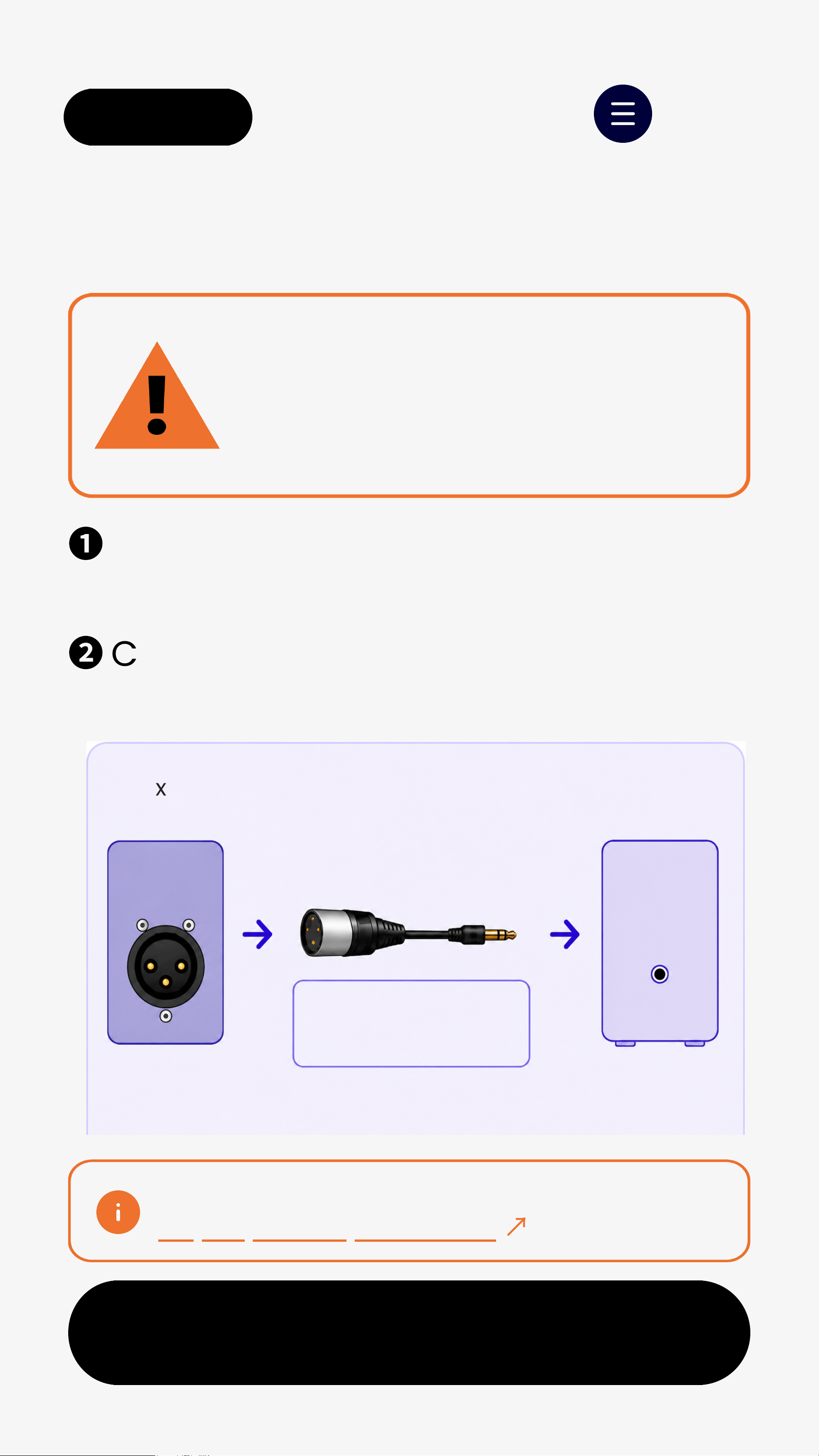
❶
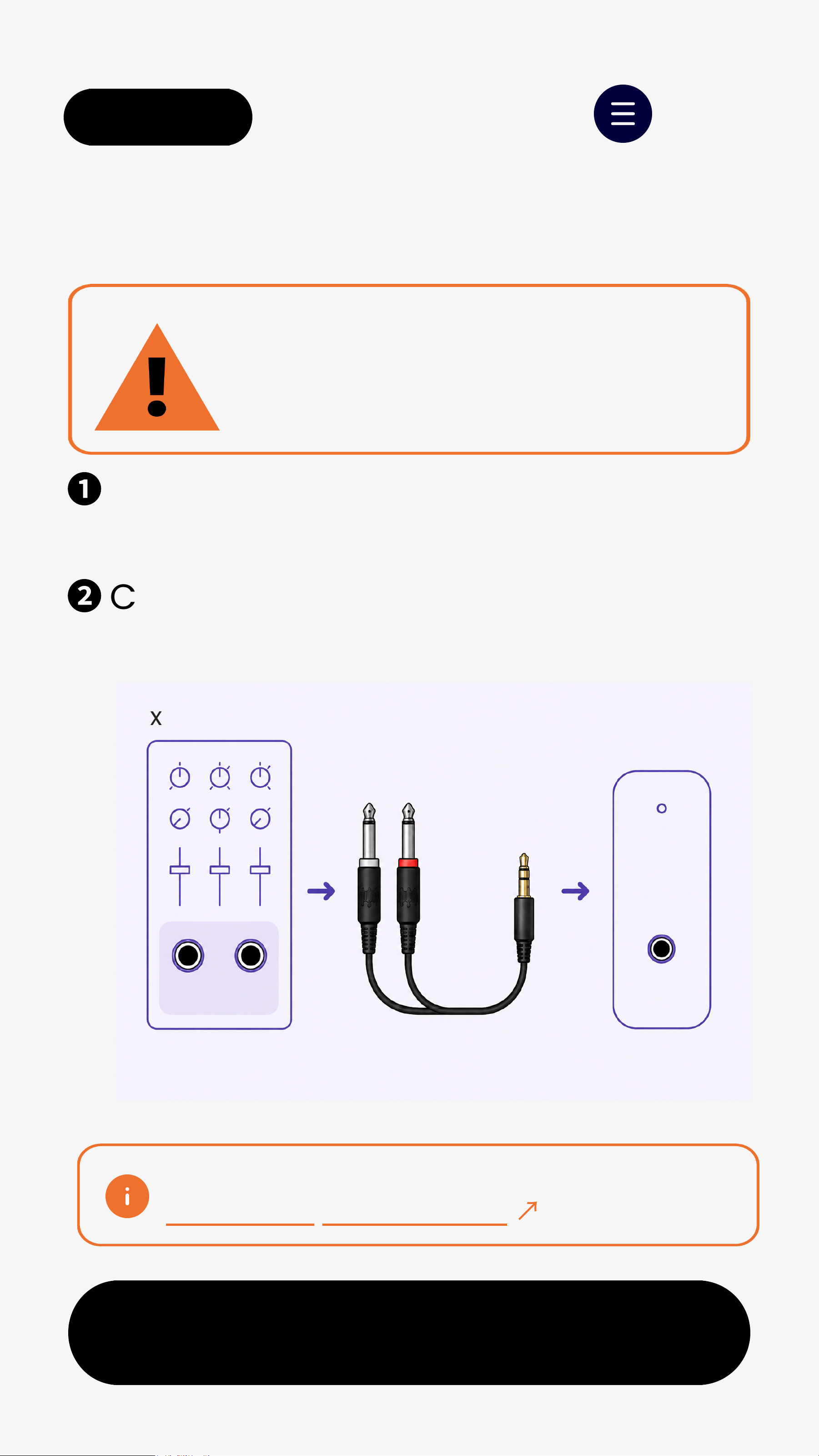
Use a single XLR female to
unbalanced3.5mm TRS cable.
❷
Connect mixer OUTPUT to
Harmony 2 transmitter AUX IN.
Single XLR Output
Single XLRoutputis MONOonly.
Wrong XLR cable may cause low
volume or poor sound quality.
IMPORTANT
XLR cable not included.
Buy separately if needed
↗
Mixer/DSP
Single XLR Output
Single XLR Female
to 3.5mm TRS Cable
Harmony2
AUX IN
OUTPUT
HARMONY 2
AUX IN
Mono output only
Pin 2 = Signal
Pin 1+ Pin 3 = GND/Shield
< Back Menu
Next
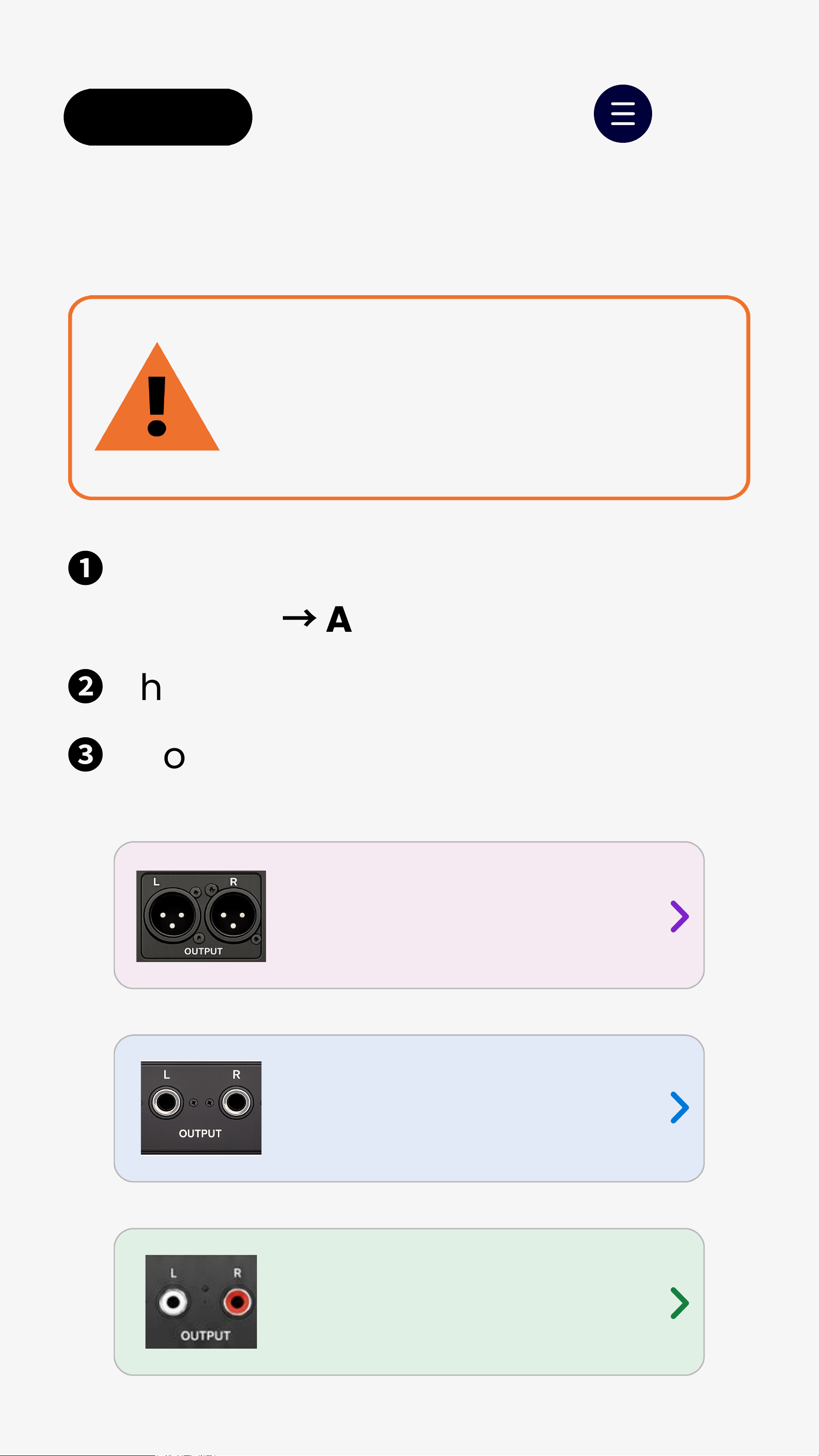
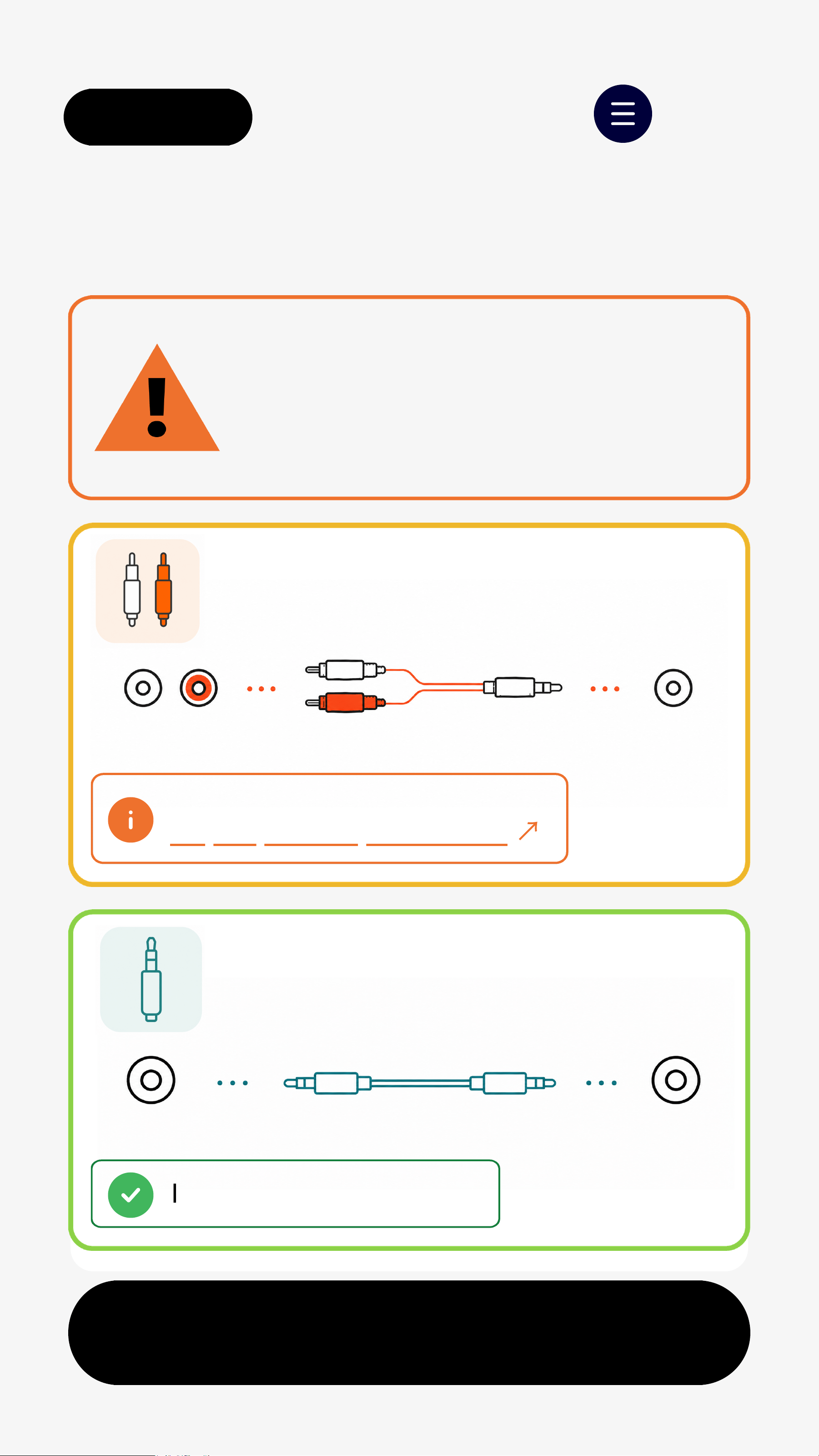
6.35mm Output
❶
Use the included dual 6.35mm to
3.5mm cable.
❷
Connect L and R outputs to
Harmony 2 transmitter AUX IN.
Using the wrong cable may
cause poor sound quality.
CHECK CABLE TYPE
This cable is not included in the box.
Contact suport if needed
↗
Mixer/AV System
Dual 6.35mm
to 3.5mm Cable
HARMONY 2
AUX IN
6.35mm Outputs
AUX IN
Bestoption for many mixers
L R
< Back Menu
Next
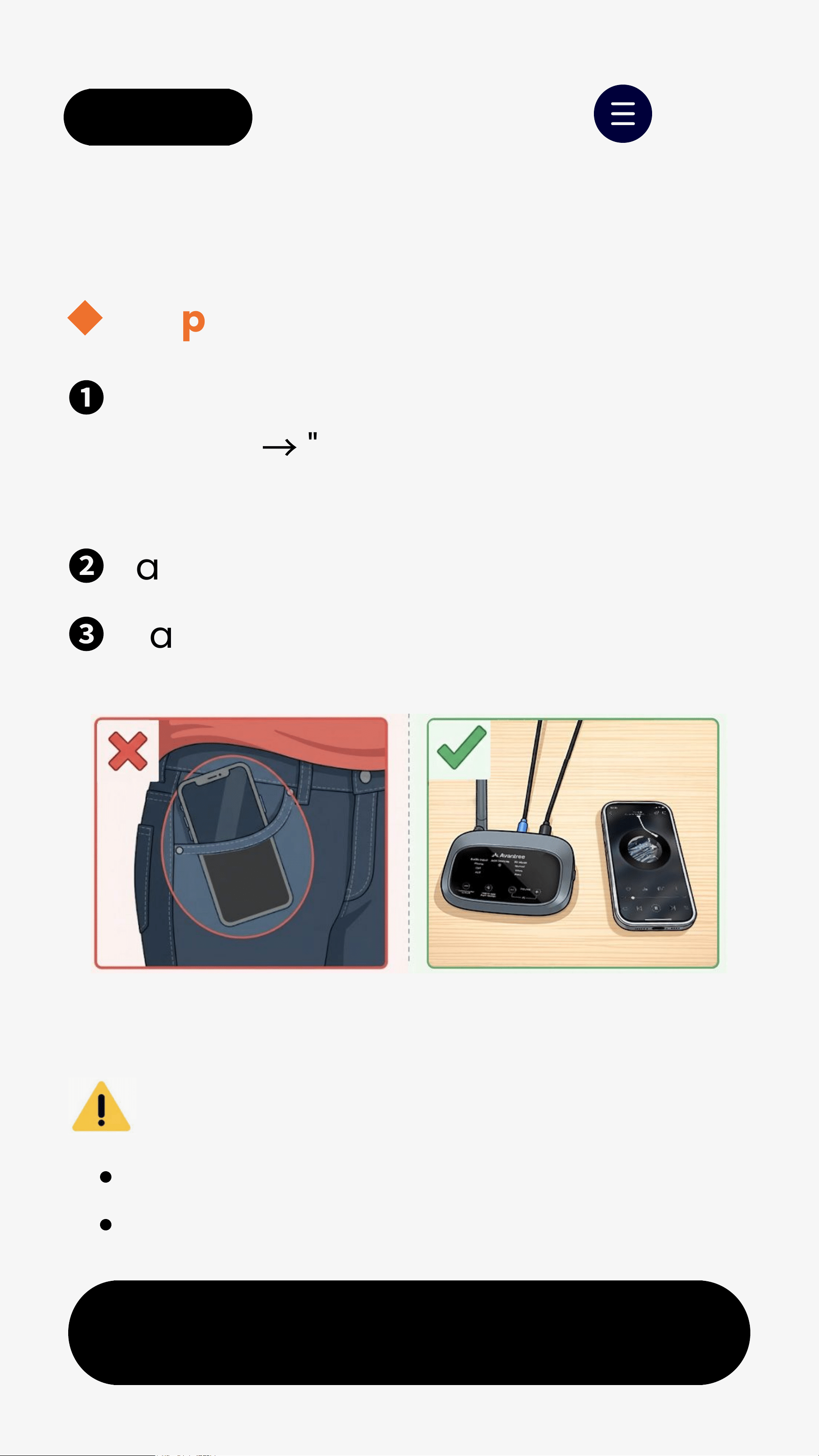
RCA / 3.5mm Output
Choose the correct output and
cable. Wrong cable may cause
poor sound quality.
IMPORTANT
3.5mm OUT
Use the included 3.5mm to
3.5mm cable.
3.5mm OUT HARMONY 2
AUX IN
RCAOUT
Use an RCA to 3.5mm cable.
RCA L/R
HARMONY 2
AUX IN
RCAcable not included.
Buy separately if needed
↗
Included in the box.
< Back Menu
Next
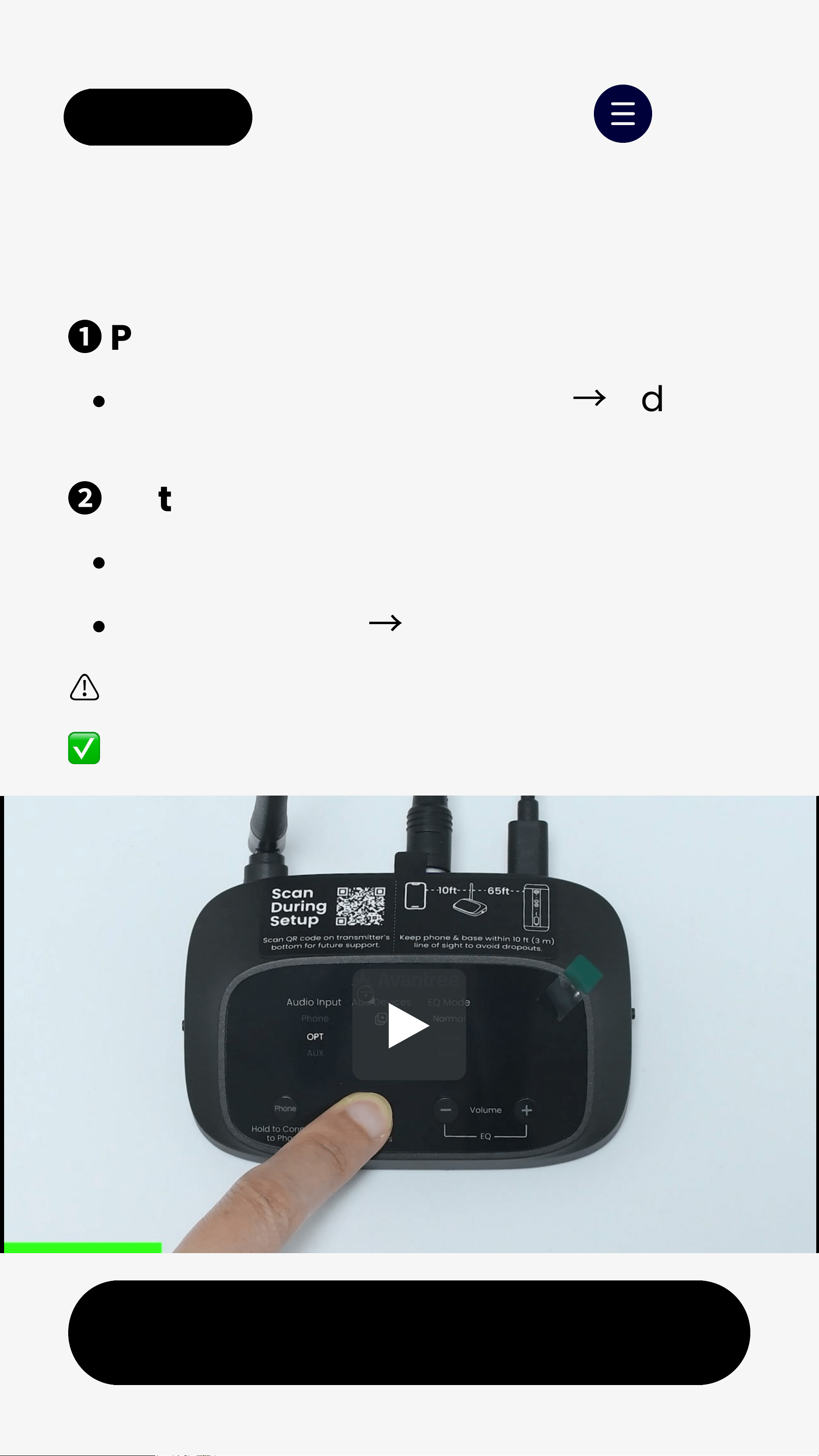
Connect Using Bluetooth
❶
Slide Transmitter "Audio Input" to
"Phone"
→
"Phone" LED blinks.
❷
Pair with your phone.
❸
Start playing audio.
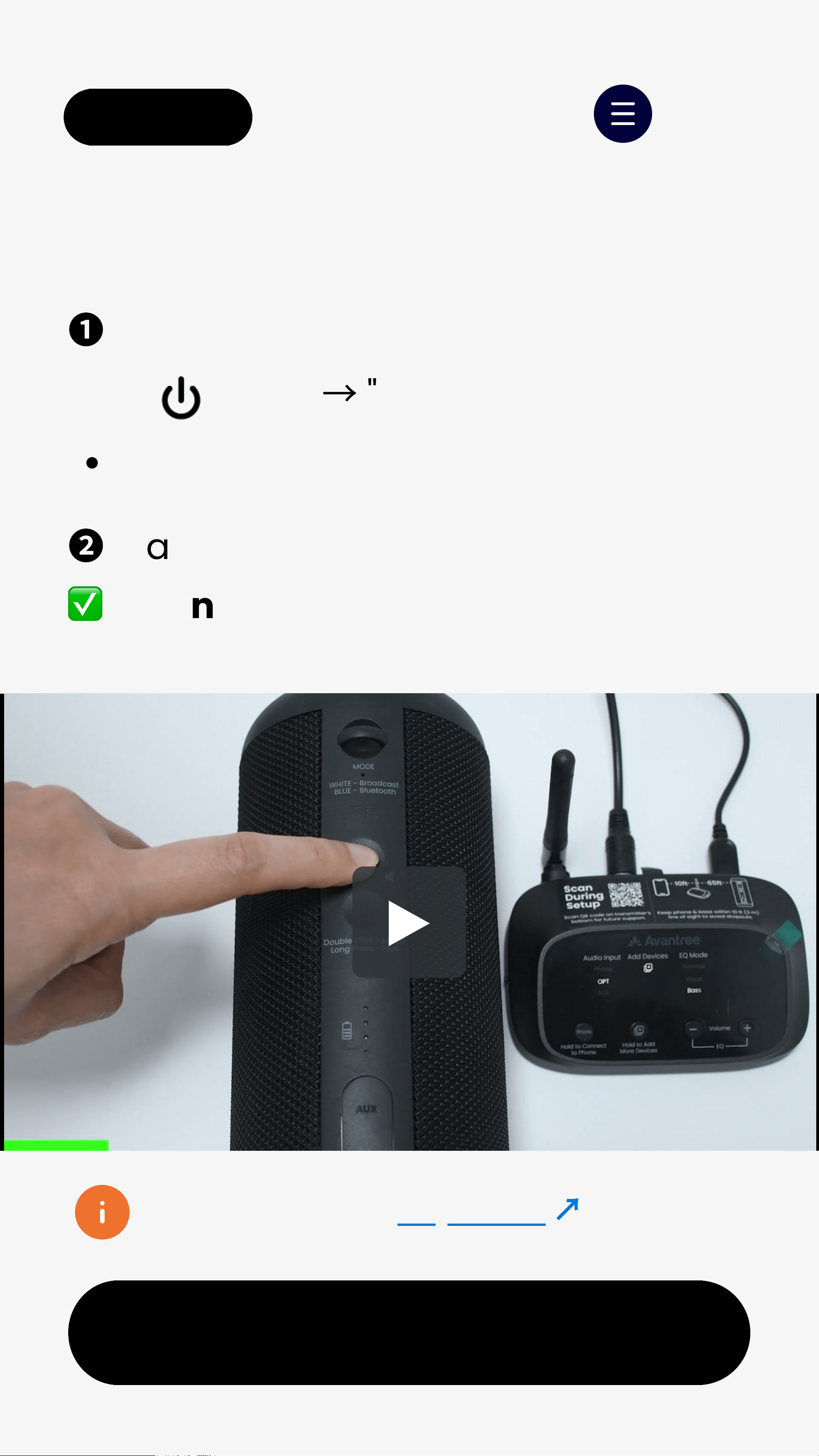
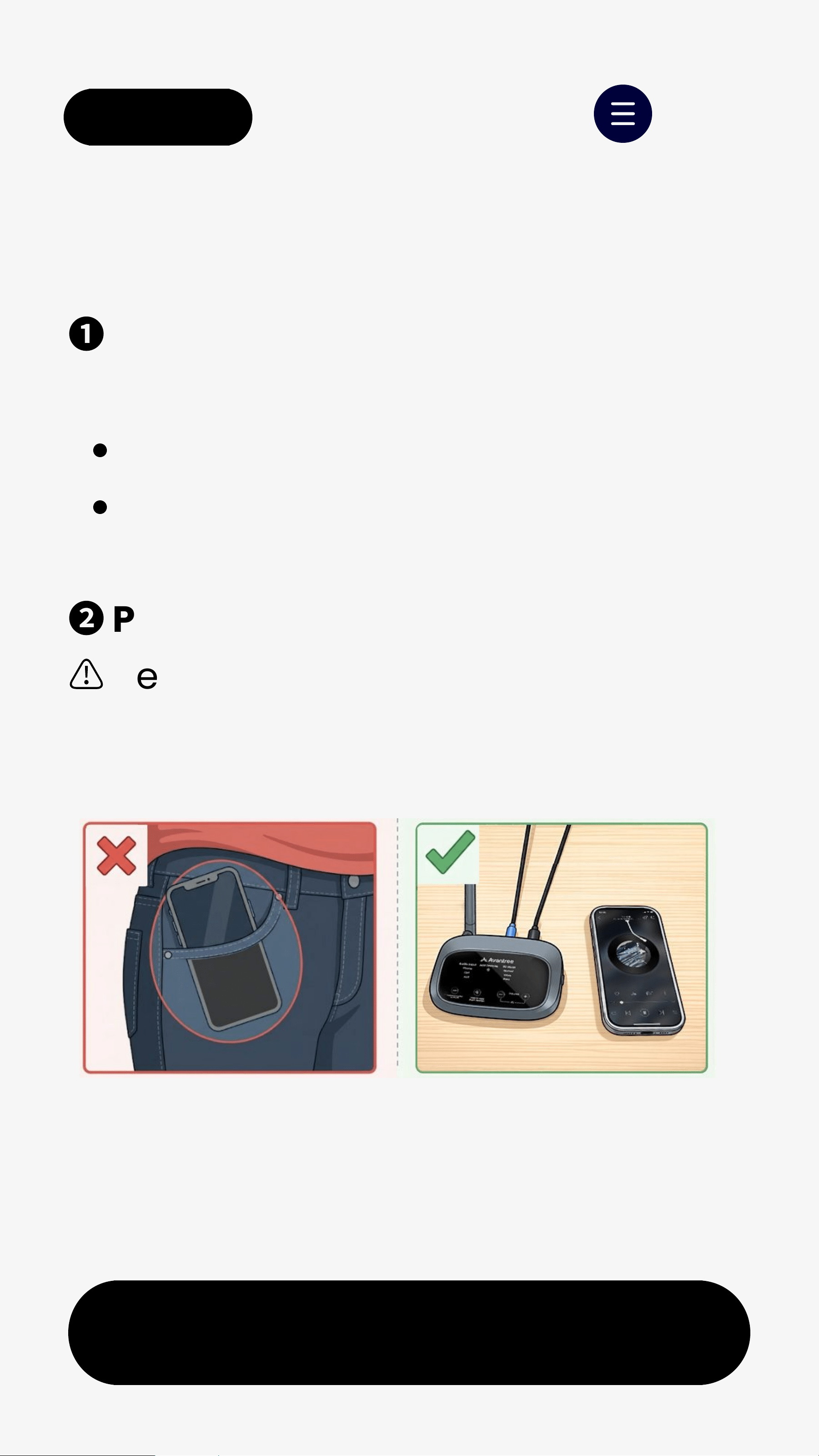
Use wired audio input for best stability
Bluetooth range: 1-3 m (3-10 ft)
Better Experience
◆
Keep phone close to transmitter
If not,hold "Phone" button for 3s to pair.
< Back Menu
Next
Connected: LED stays solid white
Speakers won’t connect?
Re-pair the transmitter and speakers.
⚠
Bluetooth mode will NOT connect
❶
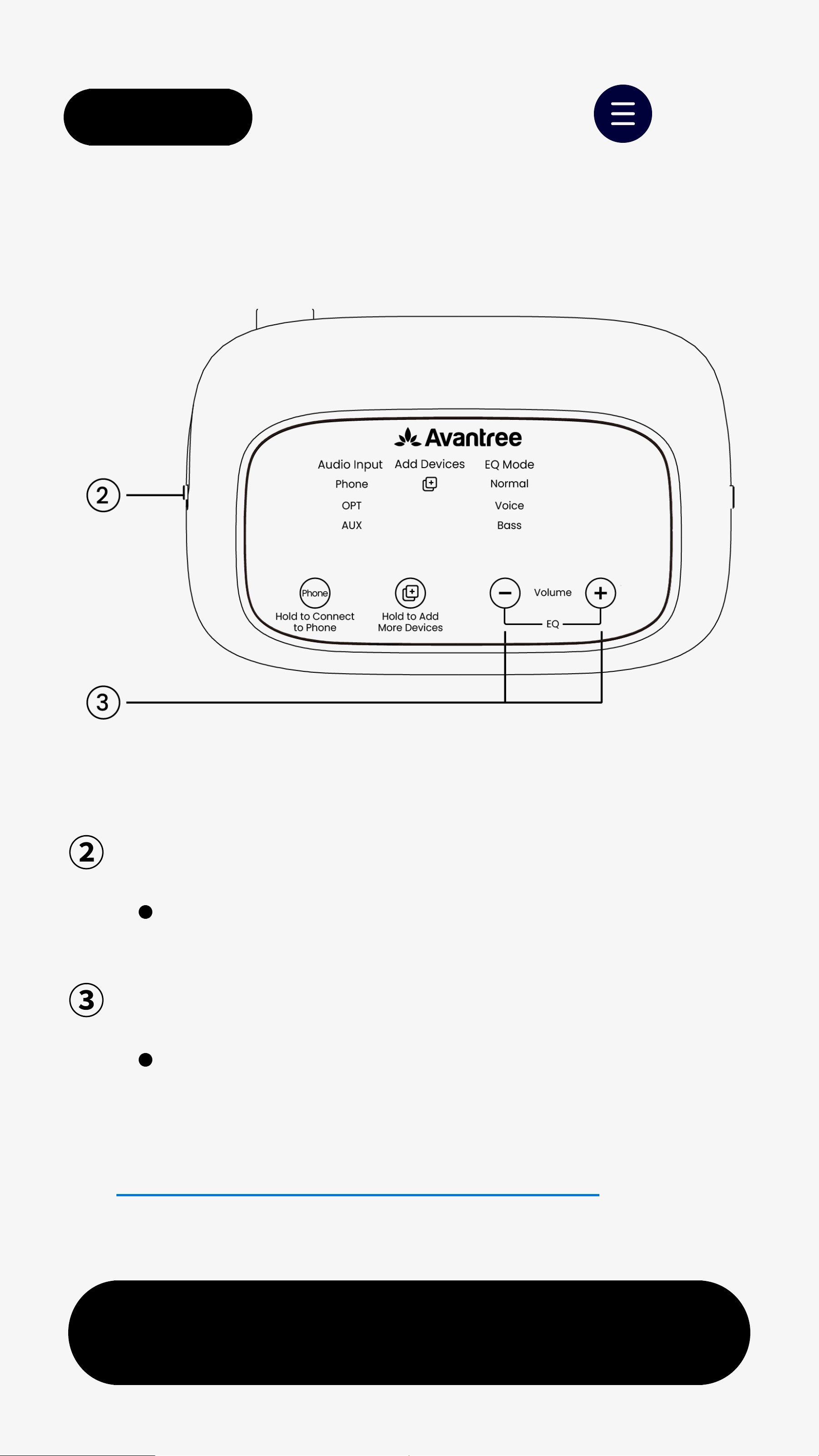
Puttransmitter into pairing
Hold "Add Devices" for 2s
→
Add
Devices LED blinks white
❷
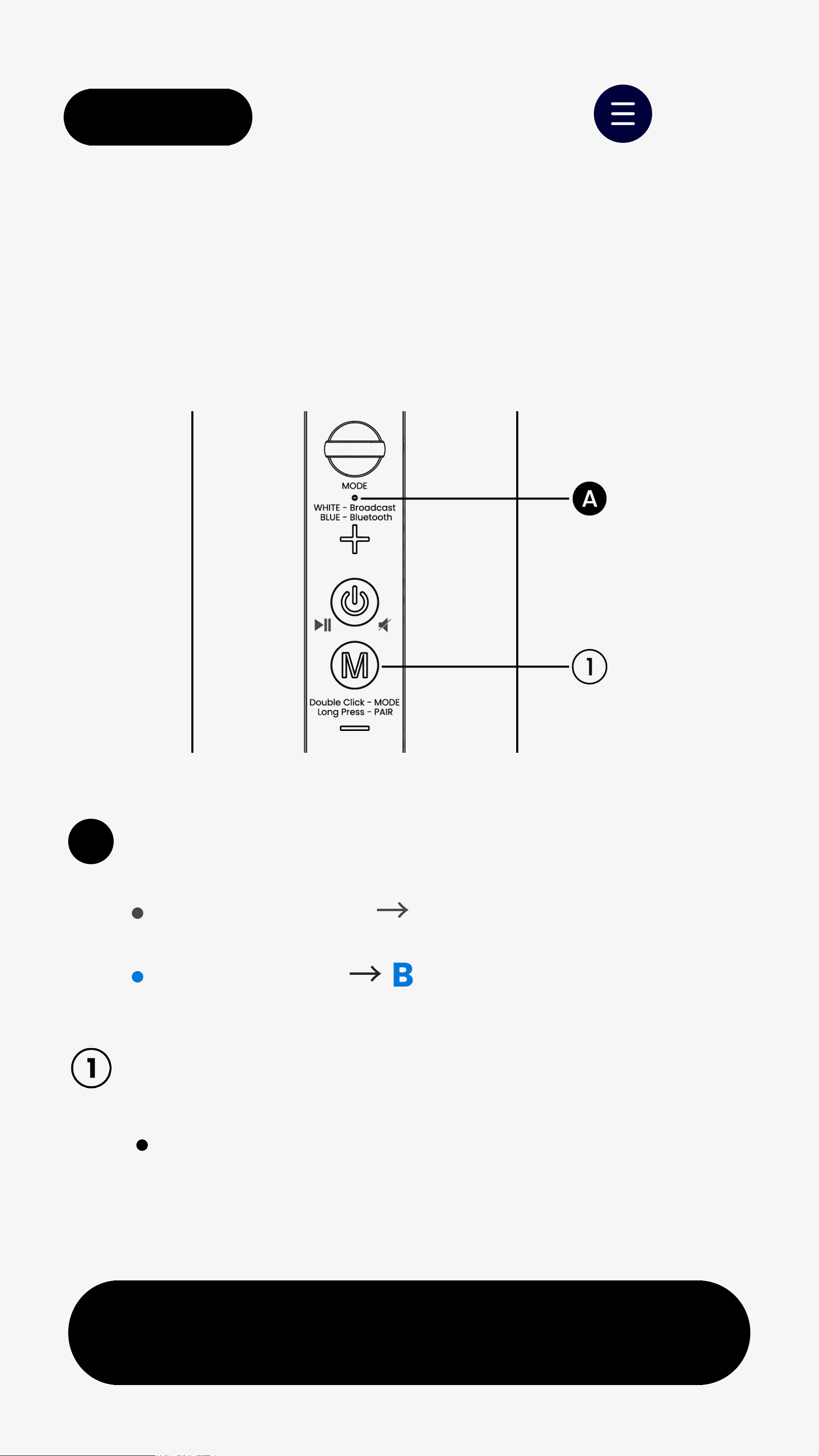
Putspeakers into pairing
Ensure they're in Broadcasting mode
Hold M for 5s
→
LED blinks white
< Back Menu
Next
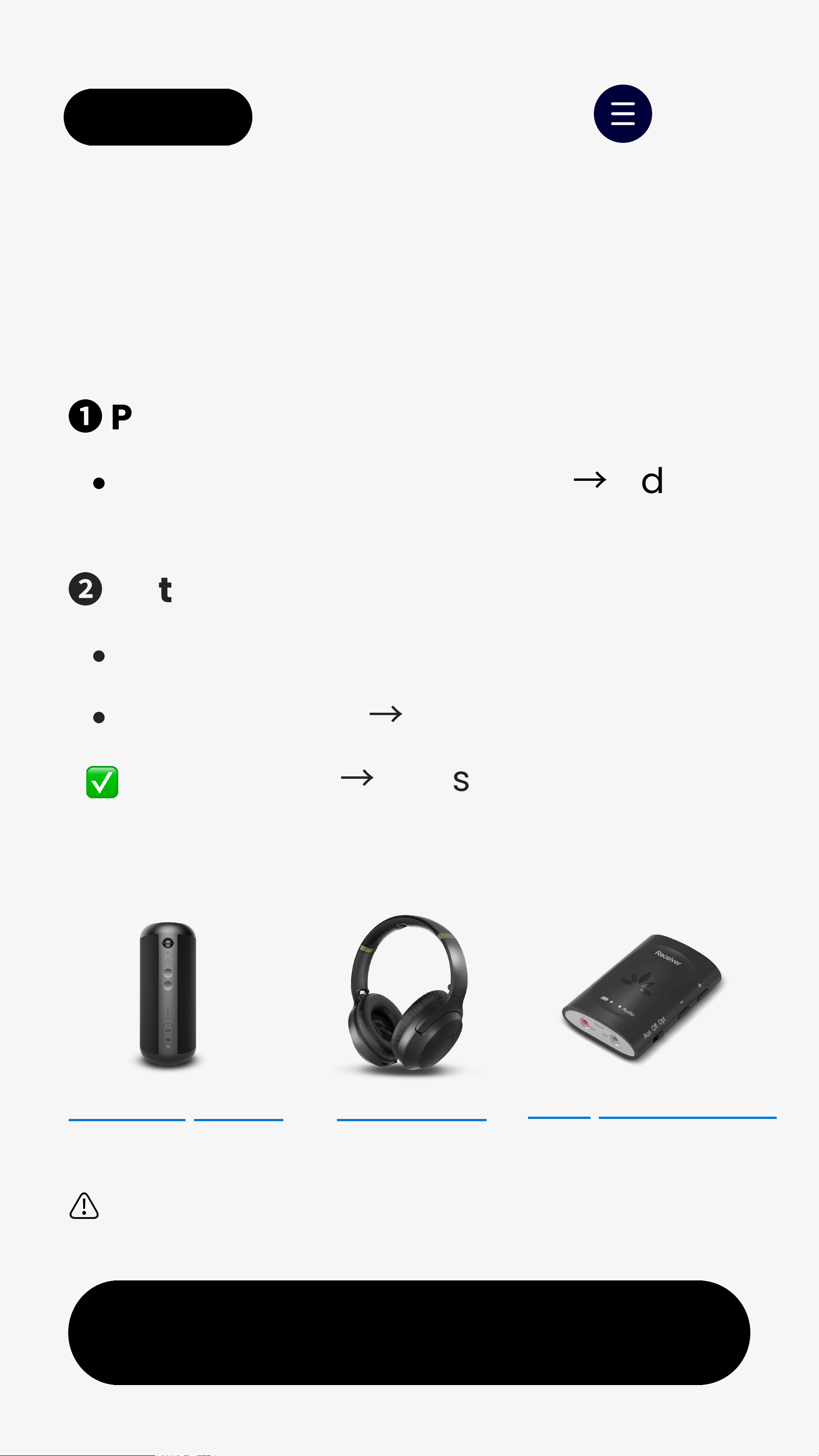
Harmony-Extra Duet-Extra
Supported Avantree Devices:
5. Advanced (Optional)
5.1 Add Speakers
Audiplex Receiver
⚠
Harmony A Series are NOT supported.
❶
Puttransmitter into pairing
Hold "Add Devices" for 2s
→
Add
Devices LED blinks white
❷
Putspeakers into pairing
Ensure they're in Broadcasting mode
Hold M for 5s
→
LED blinks white
Connected
→
LED solidwhite
Next
< Back Menu
Bluetooth = single speaker only
5.2 Use as Bluetooth Speaker
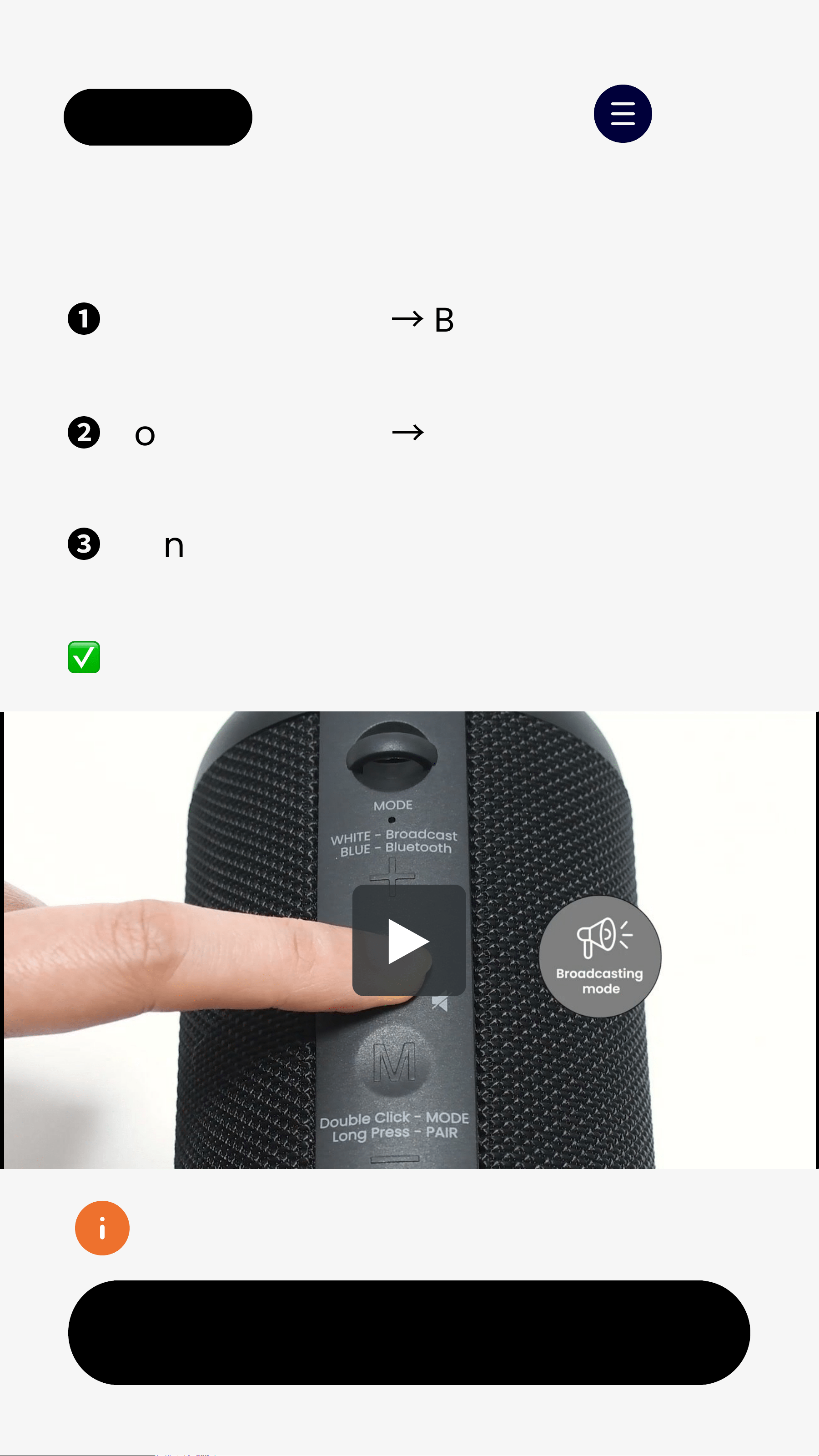
❶
Turn on speaker
→
Broadcasting mode
LED blinks white.
❷
Double-press M
→
to switch Bluetooth
mode LED blinks red &blue (pairing)
❸
Turn on Bluetooth on phone, and select
"Avantree Harmony2".
LED stays solidblue = Connected
Next
< Back Menu
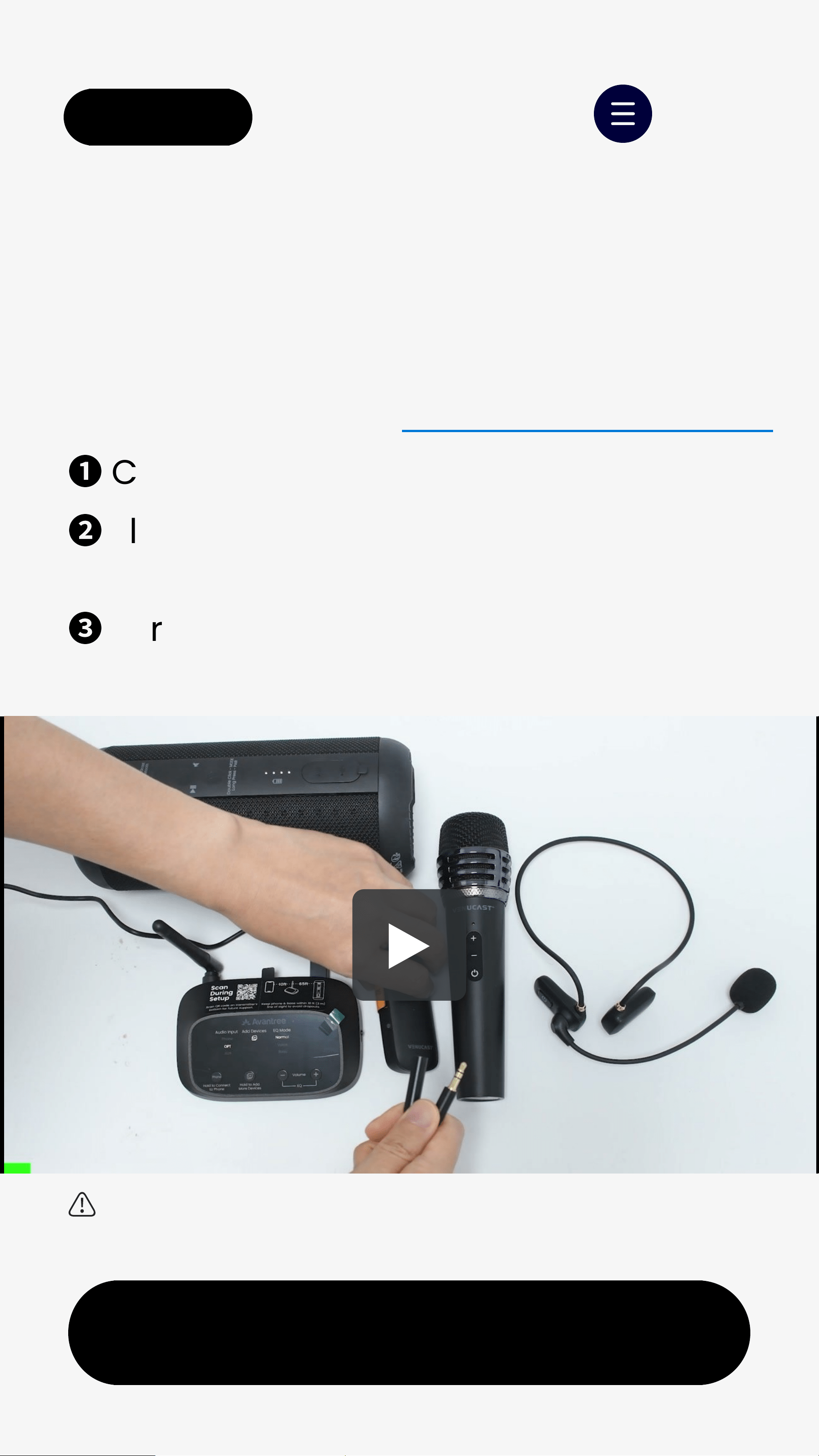
5.3 Use with Wireless Microphone
⚠
Music playback and microphone audio
cannot be used simultaneously.
Use a wireless microphone to broadcast
your voice to all Harmony 2 speakers.
Recommended: 🎤 Avantree FreeMic Duo
❶
Connect 3.5mm cable to mic receiver.
❷
Plug receiver’s AUX OUTinto
transmitter’s AUX IN.
❸
Turn on the mic & mic receiver, and
start speaking.