nuwapen.com
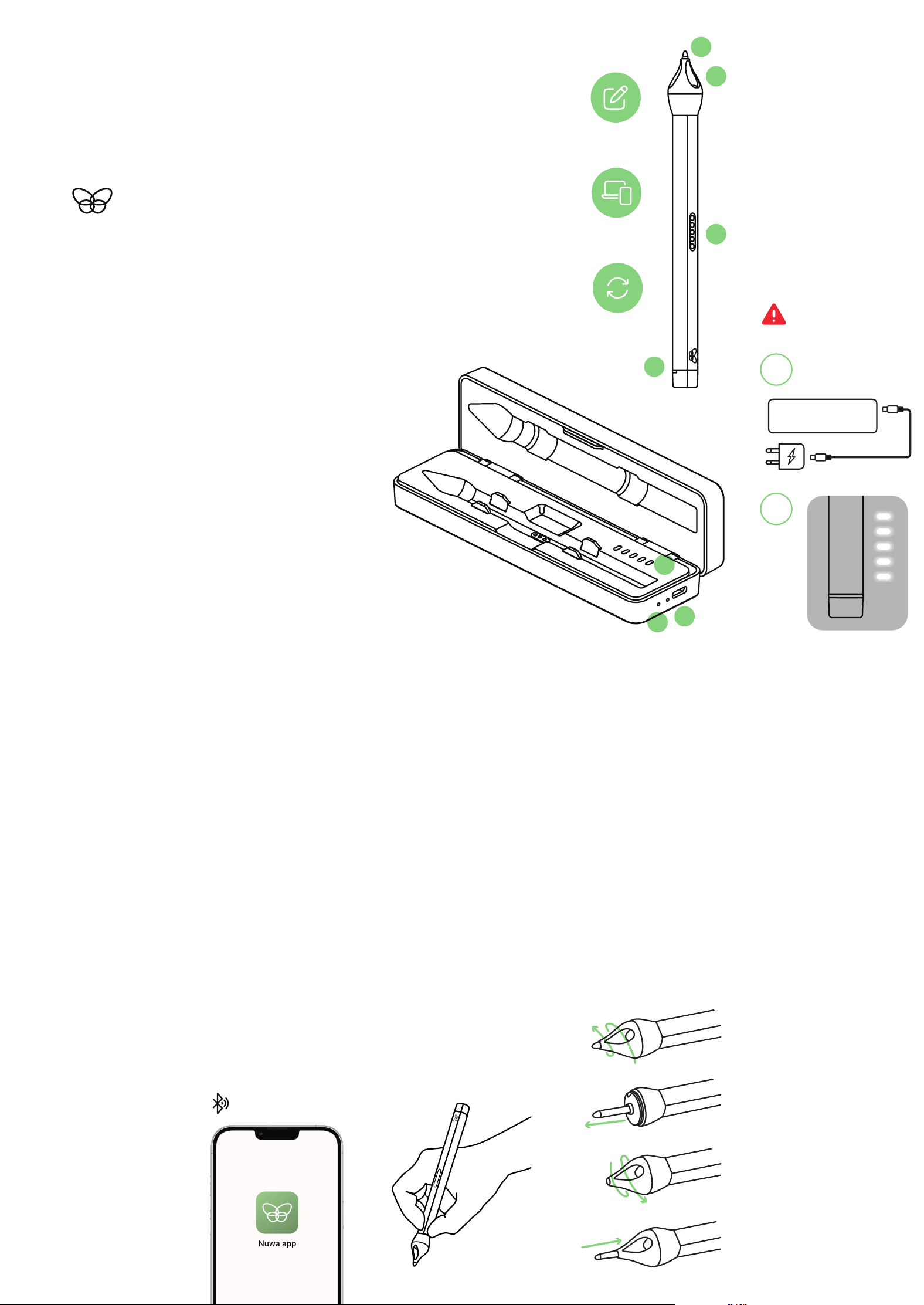
2. BEFORE USING
NUWA PEN
Connect the Case with the
Nuwa Pen inside via the
USB-C cable until fully
charged (refer to image A).
While charging, the LEDs on
the case slowly pulse with a
white light. Once fully
charged, the light will turn
solid white. (See image B).
Support your pen by
calibrating it via the app;
follow the instructions here:
www.nuwapen.com/calibrate
-nuwapen.
8. NUWA SUPPORT
9. REQUEST THIS
GUIDE IN YOUR
LANGUAGE
For support, information, and
the latest software downloads,
visit www.nuwapen.com or
contact our customer service
7. PROPER USE OF
NUWA PEN
For guidance on how to
properly use Nuwa Pen, please
refer to the Safety Instructions
attached with your product and
the User Manual found on the
Nuwa website at
www.nuwapen.com/user-
manual.
We value your
understanding. Nuwa is
happy to provide you with a
physical copy of this guide in
your native language free of
charge. Please contact
[email protected] to make
the request.
Do not use a different
charging cable other
than the one attached!
1. TECHNICAL DETAILS
1. Cartridge
2. Cameras
3. Charging points
4. LED Light
5. LED Light front - indicates
charges on the inside
6. LED Light side - indicates
case charging status
7. Reset pinhole
A
321
3. HOW TO PAIR
YOUR NUWA PEN
WITH YOUR
SMARTPHONE
Your Nuwa Pen works with
Android and iOS devices.
Download and open Nuwa
App from the Apple Store™
or Google Play™ Store.
You are ready to launch the
Nuwa App!
For more information on
how to manage the account
registration setting,
language transcription and
features, settings, login, and
subscriptions, Nuwa Pen
App status information,
troubleshooting, pairing and
more. Please check out the
Nuwa App section on our
website:
www.nuwapen.com/user-m
anual.
4
7
4. SOFTWARE UPDATE
5. HOW TO HOLD
YOUR NUWA PEN
Update the software before
using the pen to ensure you
are running the most recent
version.
You will receive a notification
on your Nuwa App reminding
you to update. Updates will
take a few minutes. Once
your Nuwa Pen has been
updated with the latest
firmware, a notification will
appear on the app and your
pen is ready to be used.
Keep the LED light pointing
downwards, and do not cover
the cameras with your
fingers. Place your fingers
after the wider part of the
pen to avoid covering the
cameras. The cameras are
behind the 3 openings on the
tip.
5
Here we will give you a brief
introduction about Nuwapen.
Please read and follow the
instructions below before using
the device to ensure optimum
performance and to avoid
potentially dangerous
behaviors.
For more information, please
refer to our website
www.nuwapen.com/
user-manual.
Your understanding is very
important to us, that is why all
the information on the Nuwa
website can be found in your
native language.
TECHNICAL & SAFETY
INFORMATION.
BY NUWA SPATIAL B.V
USER
MANUAL
THE SMARTEST PEN
IN THE WORLD.
WRITE
DIGITIZE
SYNC
1
6
7
2
3
4
5
6. INSERTING A NEW
INK CARTRIDGE
To remove the ink cartridge,
unscrew the tip of the pen.
Then remove the cartridge by
pulling it out. In order to not
scratch the lens inside the pen
please screw the tip back on
before inserting the new
cartridge. To insert a new one
push it through the opening of
the tip, then, press gently until
it firmly sits in the assembly.
The pen is ready for use!
Please use black D1 ink refills
in a metal housing only,
identical to the ones provided
in the pen and packaging. For
an improved experience get a
Nuwa Pen D1 cartridge at
www.nuwapen.com/products.
6
NUWA
NUWA
NUWA
NUWA
B

FCC Caution
This device complies with part 15 of the FCC Rules. Operation is subject to the following two conditions:
(1) This device may not cause harmful interference, and
(2) this device must accept any interference received, including interference that may cause undesired operation.
Any Changes or modifications not expressly approved by the party responsible for compliance could void the
user's authority to operate the equipment.
Note: This equipment has been tested and found to comply with the limits for a Class B digital device, pursuant
to part 15 of the FCC Rules. These limits are designed to provide reasonable protection against harmful
interference in a residential installation. This equipment generates uses and can radiate radio frequency energy
and, if not installed and used in accordance with the instructions, may cause harmful interference to radio
communications. However, there is no guarantee that interference will not occur in a particular installation. If
this equipment does cause harmful interference to radio or television reception, which can be determined by
turning the equipment off and on, the user is encouraged to try to correct the interference by one or more of
the following measures:
-Reorient or relocate the receiving antenna.
-Increase the separation between the equipment and receiver.
-Connect the equipment into an outlet on a circuit different from that to which the receiver is connected.
-Consult the dealer or an experienced radio/TV technician for help.
The device has been evaluated to meet general RF exposure requirement. The device can be used in portable
exposure condition without restriction.