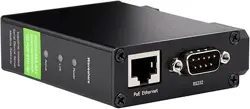

ETH(B)
Ethernet, RS232/485/422
POE ETH(B)
RS232/485/422 TO POE ETH (B)
Overview
Introduction
This is an RS232/485/422 device data acquisitor/IoT gateway
designed for an industrial environment. It combines multi functions
in one, including serial server, Modbus gateway, MQTT gateway,
RS232/485/422 to JSON, etc. Adopting RS232/485/422 and Ethernet
interface with PoE function, it can be connected with screw terminals
for power input by the power port (outer diameter: 5.5mm, inner
diameter: 2.1mm). The rail-type case design, is small in size, easy to
install, and cost-effective. It is very suitable for collecting the data of
RS232/485/422 and sensors in the industrial field, including local
network collection or uploading to the data that the cloud server
autonomously collects and sends.
Parameter
Model RS232/485/422 TO POE ETH (B)
Product type Serial server, Modbus gateway, MQTT gateway
Primary function
Realize the bidirectional transparent transmission function of RS232/485/422
to Ethernet
Communication
interface
RS232/485/422 × 1, Ethernet port × 1
Power supply Screw terminal DC 6~36V or PoE network port
Isolation protection Power isolation, signal isolation protection
Communication interface
Ethernet
PoE Ethernet port, support IEEE 802.3af standard
10 / 100M self-adaptive RJ45 interface, 2KV surge protection
Serial port Isolated RS232/485/422
Serial parameters
Baud rate 300 ~ 115200 bps
Parity bit none, odd parity, even parity, mark, space
Data bits 5 ~ 9 bits
Flow Control no flow control
Software
Protocol ETHERNET, IP, TCP, UDP, HTTP, ARP, ICMP, DHCP, DNS
Configuration
method
PC configuration, WEB browser, device management function library
Communication
method
TCP/IP direct communication, virtual serial port mode
Operating mode TCP server, TCP client (TCP server also coexist), UDP, UDP multicast
Other
Operating
temperature
-40
℃
~ 85
℃
Humidity range 5% ~ 95% relative humidity
Dimensions L × W × H: 88.7 × 64.5 × 24.2 mm
Note: Only the model with the word "POE" supports the POE function.
Hardware Description
Software Feature
Support TCP server, TCP client, UDP mode, and UDP multicast. When used as a TCP client, it
also supports TCP server functions. It supports 30 TCP connections as a TCP server and 7
destination IPs as a TCP client.
The baud rate supports 1200~115200bps, the data bit supports 5~9 bits, and the parity bit
can be in five ways: no parity, odd parity, even parity, mark, and space.
Supports the function of sending MAC address on device connection, which is convenient for
cloud management of devices.
Provides a secondary development kit DLL development library for searching and configuring
devices on the computer side.
Support Web browser configuration, support DHCP to obtain IP dynamically, and DNS protocol
to connect domain name server address.
Support cloud remote search for devices, configure device parameters, and upgrade device
programs.
Support viewing the TCP connection status, and the data sending and receiving of the serial
port. The virtual serial port also supports the monitoring function.
Advanced Software Function
Support Modbus gateway function, support Modbus RTU to Modbus TCP. It can support
storage-type Modbus, which can automatically collect and store device data; it also supports
non-storage-mode Modbus gateways.
Support multi-host function: In the query mode of one question and one answer, it supports
the network port to allow multiple computers to access the same serial port device at the same
time.
Support MQTT gateway function.
Support JSON to Modbus RTU and 645-meter protocol, support upload data in HTTP POST,
HTTP GET format.
Support NTP protocol to obtain network time, which is used for serial port output, and the
latter is used for protocol content upload.
Supports custom heartbeat package and registration package functions: it can facilitate
communication with the cloud and device identification.
Supports the function that TCP requires password authentication to establish a connection to
ensure connection security.
Support the data transmission and delivery function with http, and the cloud can directly use
the GET command of http to communicate with the serial port of the device.
Application
For connecting the device and the cloud terminal as the IoT gateway.
Electricity, smart instruments, and energy consumption monitor.
Remote monitoring and program download for various automation PLCs.
Various configuration software and equipment communication interface.
Networking of equipment in the field of access control and security.
Fast Test
Hardware Connection
Generally, the serial server only needs to be connected to the power, serial port, and Ethernet
cable. The power supply can adopt the 2-wire power supply, and can directly connect to the
positive and negative terminals of the power supply. The serial port must be connected
according to the user's serial devices. The Ethernet port can be connected to the normal
Ethernet cable, can directly be connected to the computer, or connected to the network by a
switch. RS232 can be directly connected by DB9 cable, RS485 must be connected by the
positive pole to the TA, the negative pole to the TB, and then you can connect the TA and TB
to the RA and RB of the device, the RA and RB of RS422 must be connected to the TA and TB
of the device.
RS232 pinout:
Software Installation
Vircom can be used to configure the parameters such as the device IP and create the virtual
serial port. If there is no serial port function, you can download the non-installation config
software.
VirCom en.rar
Virtual-serial-port-control3.5.rar
Driver installation needs to be decompressed, double-click the software to install, if the virtual
serial port in Vircom is not displayed, restart and check again.
Examples
TCP Communication
Software Preparation
Vircom
Sscom5.13.1.zip
Steps
After the installation of Vircom and the hardware connection of the device is c
ompleted, run the software as shown in the figure, and then click "Device Manag
ement" as shown in the figure. It is very convenient to use Vircom to search an
d configure device parameters in different network segments, as long as the dev
ice and the computer running Vircom are under the same switch. The following te
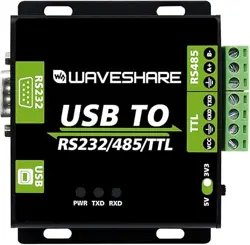
sts also require USB TO RS232/485/422 devices.
The serial port of the serial server to the Ethernet port, the Ethernet port to the serial port
transparent transmission function. If the COM port of the PC (USB TO RS232/485/422) connects
to the serial port of the serial server. You should open the SSCOM and the corresponding COM
port, as shown below:
In addition, you need to open another serial assistant window as the TCP client. Enter the target
IP as the IP of the serial server (192.168.1.200), the target port 4196, and click "Open". As
shown below:
Enter "TCPClient: Waveshare Test" in the SSCOM2 set as TCPClient and click send, then the data
will be transferred to the RS232/485/422 interface through the network port of the serial port
server, and then sent to the USB TO RS232/485/422. Then it will be displayed in the serial port
debugging assistant SSCOM1; conversely, input "USB TO RS232/485/422: Waveshare Test" in
SSCOM1, and click Send to also send to SSCOM2, and it will be displayed.
Virtual Serial Port Test
SSCOM2 in the figure communicates directly with the serial port server through TCP. In order to
enable the user's already developed serial port software to communicate with the serial port
server, a virtual serial port needs to be added between the user program and the serial port
server. As shown in the figure, Vircom and user programs run on one computer, and Vircom
virtualizes a COM port, making this COM port correspond to the serial port server. When the user
program opens the COM communication, it can be sent to the user's serial device through the
Vircom serial server. The following demonstrates this operation step:
Click the "UART management" in the Vircom interface, click "add", and then choose COM2.
Among them, COM5 is the COM port that did not exist in the computer.
Then enter the device management, and double-click the device that needs to be bound to
COM2. As shown in the figure, select COM2 in the "Virtual Serial Port" list in the upper left corner.
Then click "Modify Settings", click "Restart Device" and return to the main interface of Vircom. It
can be seen that COM2 has been connected to the device whose IP is 192.168.1.200. In this
case, COM2 can be used instead of SSCOM2 for communication.
Open SSCOM to simulate the user's serial port program, open COM2 (the virtual serial port
above), open another SSCOM to simulate a serial port device, and open COM3 (hardware serial
port). At this time, the data link sent by COM2 is as follows: COM2 —>Vircom —>the network
port of the serial server—>the serial port of the serial server—>COM3.
Conversely, COM3 to COM2 can also transmit data: COM3 -> the serial port of the serial server->
the network port of the serial server-> Vircom -> COM2. As shown in the figure below, both
parties send and receive data. If COM4 is replaced with the user serial device, then COM5 can
realize the communication with the user device.
MODBUS TCP Test
By default, the data between the serial port and network port is transparently transmitted. If you
need to convert Modbus TCP to RTU, you need to select the conversion protocol as "Modbus
TCP<-->RTU" in the device settings dialog box, as shown in the figure below. At this time, the
device port automatically changes to 502. At this time, the user's Modbus TCP tool is connected
to the IP port 502 of the serial server and the sent Modbus TCP command will be converted into
an RTU command and output from the serial port. For example, if the serial port server network
port receives the Modbus TCP command of 00 00 00 00 00 0601 03 00 00 0a, the serial port
outputs the command of 01 03 00 00 00 0a c5 cd. Note: The serial port may send multiple 01 03
00 00 00 0a c5 cd commands because the default Modbus adopts the storage mode, which will
automatically train the query commands. How to switch to non-storage mode will be explained
later.
If the user's Modbus TCP software is used as a slave station (Slave), it is necessary to select the
conversion protocol, then change the working mode to the client, the destination IP to the IP of
the computer where the Modbus TCP software is located, and the destination port to 502, as
shown in the figure below show.
WEB Configuration
Using Vircom, you can search and configure device parameters in different network segments. For
Web configuration, you must first ensure that the computer and the serial server are in the same
IP segment, and you need to know the IP address of the serial server in advance. But web
configuration can be done on any computer without Vircom.
1. Enter the IP address of the serial server in the browser, such as
http://192.168.1.200
2. Enter a password in Password: There is no login password set by default in the factory, you can
enter a password at will, and click the Login button to log in. After setting the password to log in,
the settings at "Modify webpage login password" will take effect:
3. The serial server parameters can be modified on the web page that appears. For the relevant
parameters, please refer to Table 4 for the meaning of the parameters.
4. After modifying the parameters, click the "Submit Modification" button.
Resource
Document
Waveshare MQTT and JSON Manual
Software
Vircom
virtual serial port control
SSCOM
TCPIP/UDP debug tool
Modbus Slave
Related Application
RS485 TO ETH (B) Connect Alibaba Cloud And EMQX
Certificate
CE EMC
FAQ
Question:What should I do if the RS232/485/422 TO ETH (B)LINK is yellow and
cannot access the network?
Answer:
Set a static IP, for example:
RS232/485/422TO ETH (B) is set to 192.168.1.200 port number 1111;
The computer is set to 192.168.1.199, port number 1111;
Tested with the TCP server shared by the Internet community: 120.79.100.197 port number
10002
If it still doesn't work, do a factory reset.
Question:How to restore factory settings for RS232/485/422 TO ETH (B)?
Answer:
1) Press the reset pin for 5 seconds.
2) Get the default parameter and modify the setting.
Question:What should I do if the web configuration interface cannot be opened?
Answer:
Other firmware such as configuration download MQTT and Jetson Modbus covers the configuration
interface webpage file, and it is necessary to re-download the
2043 configuration interface webpage
file to RS485 TO ETH (B):
Support
Technical Support
If you need technical support or have any feedback/review, please
click the
Submit Now button to submit a ticket, Our support team
will check and reply to you within 1 to 2 working days. Please be
patient as we make every effort to help you to resolve the issue.
Working Time: 9 AM - 6 AM GMT+8 (Monday to Friday)
Submit Now
To Top
Overview
Introduction
Parameter
Hardware Description
Software Feature
Advanced Software Function
Application
Fast Test
Hardware Connection
Software Installation
Examples
TCP Communication
Software Preparation
Steps
Virtual Serial Port Test
MODBUS TCP Test
WEB Configuration
Resource
Document
Software
Related Application
Certificate
FAQ
Support
Login / Create Account