WiiM Amp Ultra User Manual Version 1.0.1 10/9/2025
WiiM Amp Ultra
Stereo Streaming Amplifier
The Power Hub for Your Music
Model Name: WiiM Amp Ultra
Model Number: AMP003

WiiM Amp Ultra User Manual Version 1.0.1 10/9/2025
1
Table of Contents
1. Introduction ................................................................................................................ 3
Typical Use Cases .................................................................................................. 4
Other Devices Needed to Use the WiiM Amp Ultra ................................................ 5
Audio Devices Work with the WiiM Amp Ultra ........................................................ 6
2. What's in the Box ....................................................................................................... 7
3. Technical Specifications ........................................................................................... 8
4. WiiM Amp Ultra Controls, Interfaces, and Lights ................................................. 11
Front Panel Controls and Lights............................................................................ 11
Back Panel Interfaces ........................................................................................... 12
WiiM Voice Remote 2 ............................................................................................ 14
LED Status Lights .................................................................................................. 16
5. How to Get Started ................................................................................................... 17
Connect the WiiM Amp Ultra's Audio Output ........................................................ 18
Connect the WiiM Amp Ultra's Audio Input ........................................................... 22
Power On the WiiM Amp Ultra .............................................................................. 27
Download and Install the WiiM Home App............................................................ 28
Set Up the WiiM Amp Ultra ................................................................................... 29
Configure the WiiM Amp Ultra in the WiiM Home App ......................................... 34
Fill Your Home with Sound .................................................................................... 35
6. WiiM Amp Ultra Configuration ................................................................................ 36
Select Audio Input Source and Configure Audio Input ......................................... 36
Select Audio Output Interface ............................................................................... 37
Adjust Audio Output Settings ................................................................................ 39
Adjust Subwoofer Settings .................................................................................... 40
Room Correction ................................................................................................... 41
Equalizer (EQ) ....................................................................................................... 42
7. Audio Output/Input via Bluetooth .......................................................................... 43
Audio Input via Bluetooth ...................................................................................... 43
Audio Output via Bluetooth ................................................................................... 44
8. USB Media Library ................................................................................................... 46
9. Voice Control ............................................................................................................ 47
10. Direct Control via Your Favorite App ..................................................................... 48
Spotify Connect ..................................................................................................... 48
TIDAL Connect ...................................................................................................... 49

WiiM Amp Ultra User Manual Version 1.0.1 10/9/2025
2
Qobuz Connect ..................................................................................................... 50
Alexa Cast ............................................................................................................. 51
Google Cast Audio ................................................................................................ 52
DLNA ..................................................................................................................... 53
11. All Music in One App ............................................................................................... 54
12. Multi-room Audio and Stereo Pairing .................................................................... 55
WiiM Multi-room Audio/Stereo Pairing .................................................................. 55
Alexa Multi-room Audio ......................................................................................... 57
Google Cast Multi-room Audio .............................................................................. 58
13. Advanced Features .................................................................................................. 59
Firmware Updates ................................................................................................. 59
Use Ethernet Instead of Wi-Fi ............................................................................... 59
14. FAQ and Support...................................................................................................... 60
FAQ ....................................................................................................................... 60
Support .................................................................................................................. 62
15. Public Network Interfaces and Services ................................................................ 63
LAN Interface......................................................................................................... 63
Wi-Fi Interface ....................................................................................................... 64
Bluetooth Interface ................................................................................................ 65
16. Important Safety Instructions ................................................................................. 66
17. CE/FCC/IC/TELEC Statements ................................................................................ 68

WiiM Amp Ultra User Manual Version 1.0.1 10/9/2025
3
1. Introduction
At WiiM, our goal is to offer you the simplest and most affordable Hi-Fi, lossless audio
systems. Every product we create showcases top-tier design and an intuitive user interface.
With our patented audio streaming solution integrated into all our premium products and
user-friendly mobile apps, you can effortlessly enjoy music throughout your entire home.
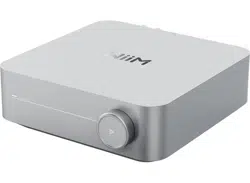
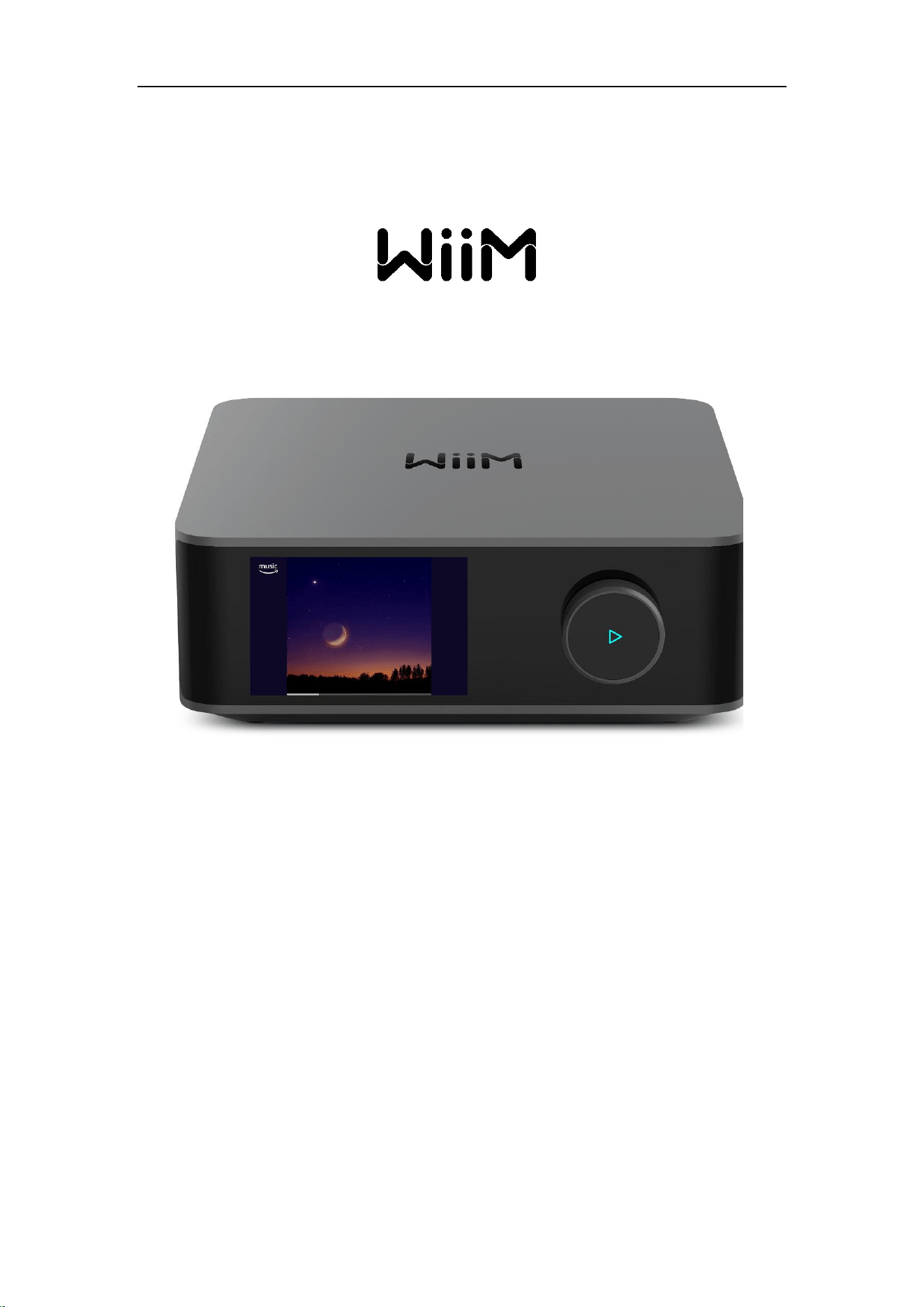
Introducing the WiiM Amp Ultra, the heart of your high-performance home audio system.
Crafted for audiophiles and home theater enthusiasts, this streaming amplifier combines
power, precision, and versatility. Its sleek, unibody aluminum design and vibrant 3.5” glass
touchscreen provide an intuitive interface for effortless control, while delivering exceptional
sound quality.
Powered by the premium ESS 9039Q2M DAC, dual TI TPA3255 Class-D amp chips, and
six TI OPA1612 op-amps, the WiiM Amp Ultra delivers powerful amplification with 100W
per channel at 8Ω or 200W at 4Ω. This enables the amplifier to easily drive up to four
passive speakers, delivering stunning clarity, dynamics, and precision in any setup.
Achieving -105 dB THD+N and 120 dB SNR at 5W, it ensures high-fidelity playback across
all genres and setups. The Class-D design offers efficient power amplification, delivering
clean, dynamic sound with minimal heat and energy consumption. In addition, PFFB (Post
Filter Feedback) technology ensures stable, load-independent performance across all
speaker types, providing precise and distortion-free audio even at high volumes.
Simply add your passive speaker to the WiiM Amp Ultra, and control it using the user-
friendly WiiM Home app, popular platforms like Spotify, TIDAL, or any Google Cast-
enabled apps. Voice control is also a breeze through compatible Echo and Google Home
devices, as well as the included WiiM Voice Remote 2.
Create synchronized groups with Echoes, Google Home, Alexa-compatible devices, or
additional WiiM devices, and play the same music throughout your home or different songs
in separate rooms.
Elevate your passive speaker with the smart and amplification capabilities of the WiiM Amp
Ultra, delivering high-fidelity, gapless music and enhanced TV audio, all encapsulated
within the exceptional innovation of WiiM.

WiiM Amp Ultra User Manual Version 1.0.1 10/9/2025
4
Typical Use Cases
The WiiM Amp Ultra is designed to simply add your speaker and bring it the wireless
streaming capabilities and smart features. Here are a few common use cases for the WiiM
Amp Ultra:
⚫ Connect and Power your Favorite Passive Speakers: Connect and power your
traditional wired speakers, including bookshelf, floor-standing, in-wall, in-ceiling
or outdoor speakers, integrating them into the wireless streaming system for an
elevated audio experience.
⚫ Streaming Music and Music Libraries: Stream music using Google Cast, Alexa
Cast, Spotify Connect or WiiM streaming platform, allowing you to access
hundreds streaming services such as Spotify, or TIDAL. Plus, stream your
personal music library stored on a computer or network-attached storage device
for seamless playback.
⚫ Podcasts and Internet Radio: In addition to streaming music, the WiiM Amp
Ultra provides access to a wide range of podcasts and internet radio stations. You
can browse through different genres, podcasts, or specific radio stations to enjoy
on your existing audio system.
⚫ High-Quality Audio: It supports bit-perfect, high-resolution audio up to 192k/24-
bit and delivers rich, clear, and undistorted sound at higher volumes.
⚫ Multi-room Audio: The WiiM Amp Ultra is compatible with other 3
rd
party popular
smart speakers and components, or another WiiM device, allowing you to create
a whole-home audio system with synchronized music playback in multiple rooms.
⚫ Smart Home Integration: The WiiM Amp Ultra supports voice control through
platforms like Alexa or Google Assistant, allowing you to control your music
hands-free and integrate with other smart home devices.
⚫ Vinyl or CD Integration: If you have a turntable or CD player that you want to
incorporate into your WiiM system, the WiiM Amp Ultra can connect to the analog
or digital outputs of these devices. This enables wireless audio streaming to other
speakers via another WiiM compatible device, allowing you to relish the sound
throughout your entire home, all in sync.
⚫ Home Theater Integration: Elevate your entertainment experience effortlessly
with the WiiM Amp Ultra's HDMI ARC port. Plug in your TV and immerse yourself
in rich stereo sound for shows, movies, and video games. Craving that extra
oomph? Simply add a powered subwoofer to take your audio to cinematic levels.
With minimal setup required, the WiiM Amp Ultra offers a seamlessly integrated
AV system that turns your living room into a home theater paradise.

WiiM Amp Ultra User Manual Version 1.0.1 10/9/2025
5
Other Devices Needed to Use the WiiM Amp Ultra
To use the WiiM Amp Ultra, you will need a few essential devices and components. Here's
a list of what you'll need:
⚫ Passive Speakers: The WiiM Amp Ultra is designed to connect to your passive
speakers such as bookshelf, floor-standing, in-wall, in-ceiling or outdoor speakers.
Make sure you have the appropriate speakers in place.
⚫ Wi-Fi Network: The WiiM Amp Ultra requires a stable Wi-Fi network connection
to function. Ensure that you have a reliable Wi-Fi network available in the area
where you plan to set up the WiiM Amp Ultra. You'll need the Wi-Fi network
credentials during the setup process.
⚫ Smartphone or Tablet: You'll need a compatible smartphone or tablet (iOS or
Android) with the WiiM Home app installed. The WiiM Home app is used for initial
setup, configuration, and control of the WiiM Amp Ultra.
⚫ Power Source: The WiiM Amp Ultra needs to be connected to a power source
using the included power cable. Ensure that you have an electrical outlet nearby
to power the device.
⚫ Ethernet Cable (optional): While the WiiM Amp Ultra primarily connects to your
Wi-Fi network, it also has an Ethernet port. If you prefer a wired connection for
added stability, you can use an Ethernet cable to connect the WiiM Amp Ultra
directly to your router or network switch.
These are the core components required to use the WiiM Amp Ultra. It's important to have
a pair of speakers that you want to integrate with the WiiM Amp Ultra, a stable Wi-Fi
network, and a compatible device with the WiiM Home app for setup and control.
WiiM Amp Ultra User Manual Version 1.0.1 10/9/2025
6
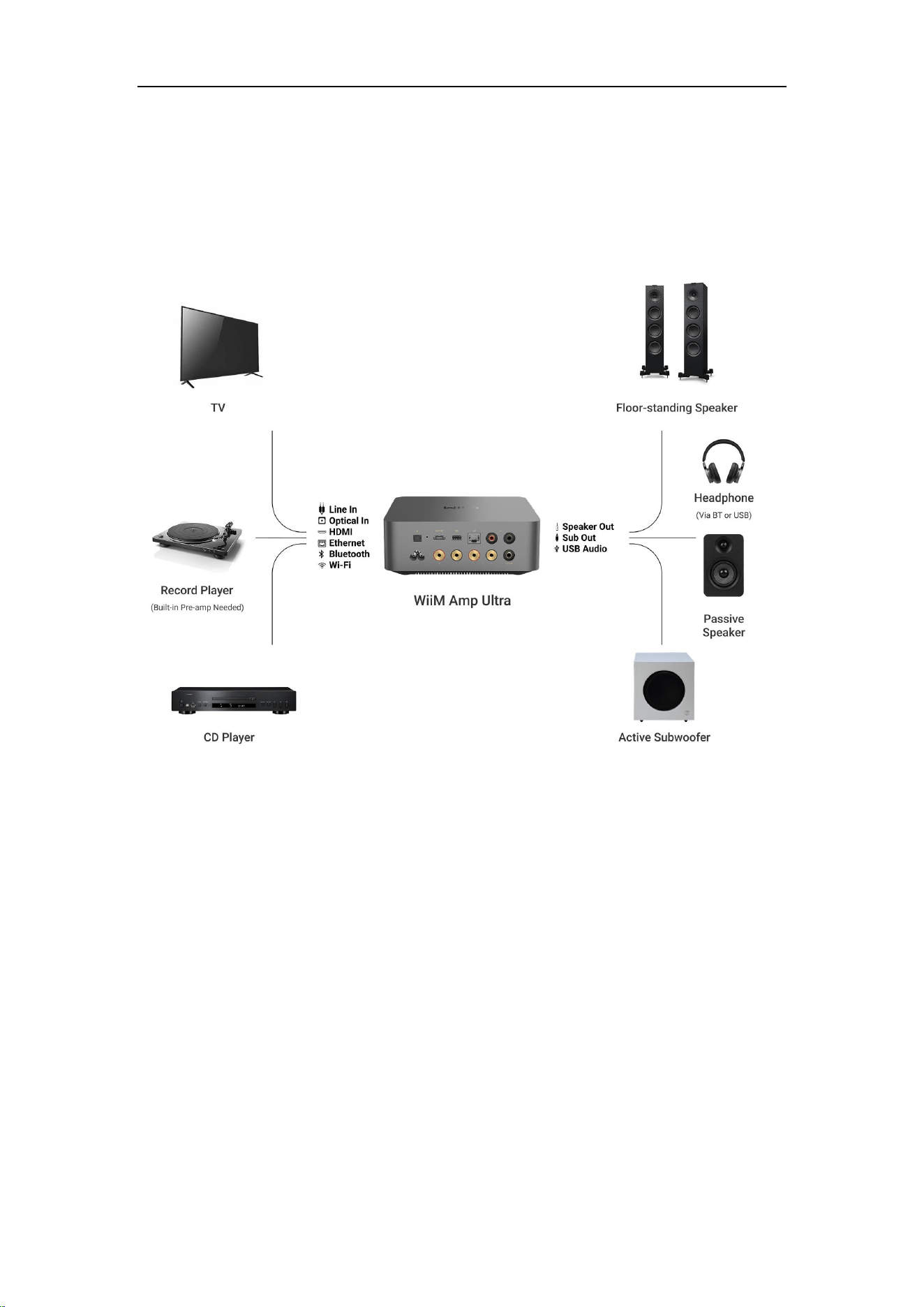
Audio Devices Work with the WiiM Amp Ultra
The WiiM Amp Ultra can work with your passive speakers, including bookshelf, floor-
standing, in-wall, in-ceiling or outdoor speakers. Besides the network and Bluetooth
streaming music, it can play audio from TV, record player and MP3 player.
WiiM Amp Ultra User Manual Version 1.0.1 10/9/2025
7
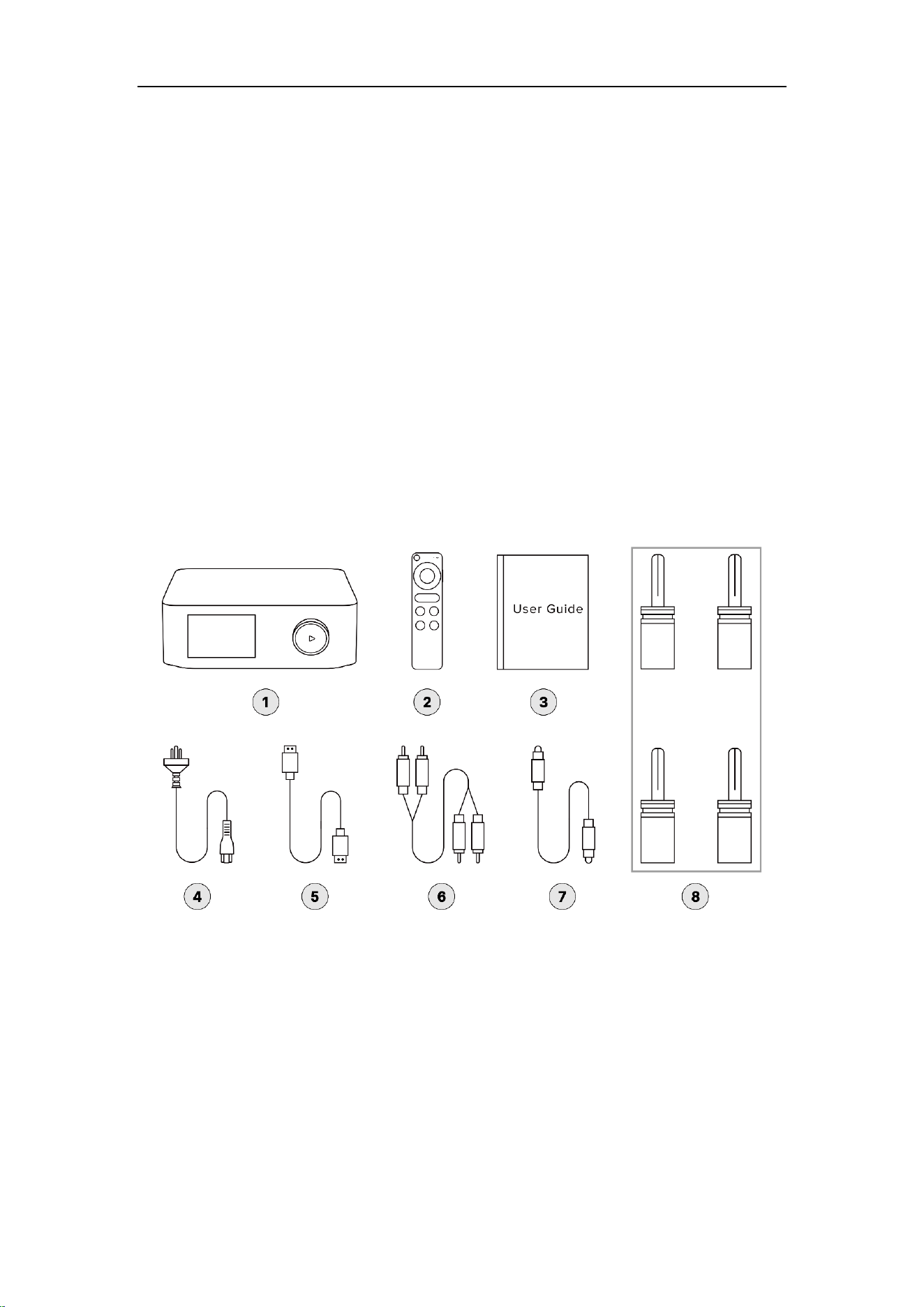
2. What's in the Box
1.
WiiM Amp Ultra
x 1
2.
WiiM Voice Remote 2
x 1
3.
Quick start guide
x 1
4.
100~240V AC power cable
x 1
5.
HDMI cable
x 1
6.
RCA audio cable
x 1
7.
Optical audio cable
x 1
8.
Speaker banana plugs
x 4
WiiM Amp Ultra User Manual Version 1.0.1 10/9/2025
8
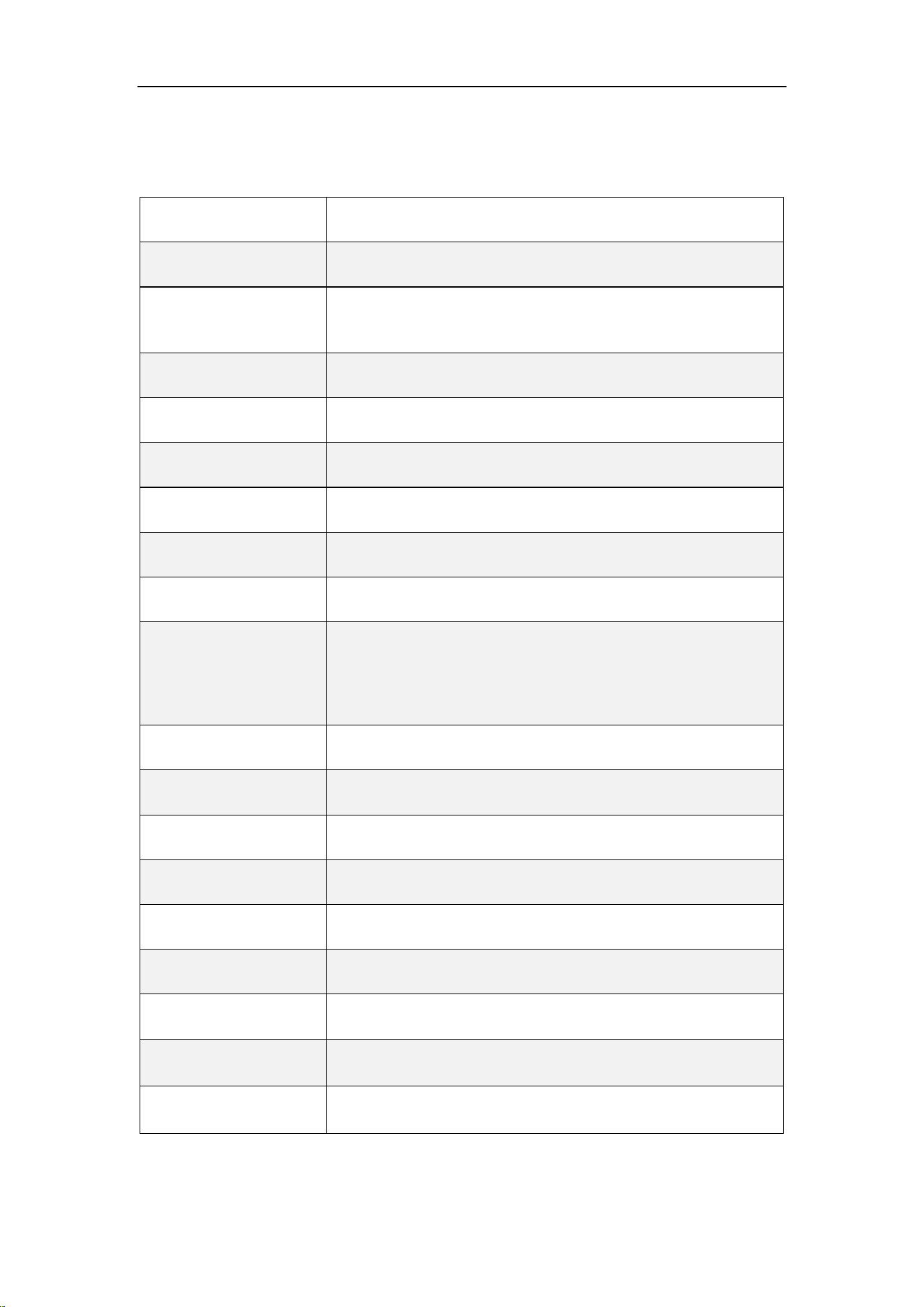
3. Technical Specifications
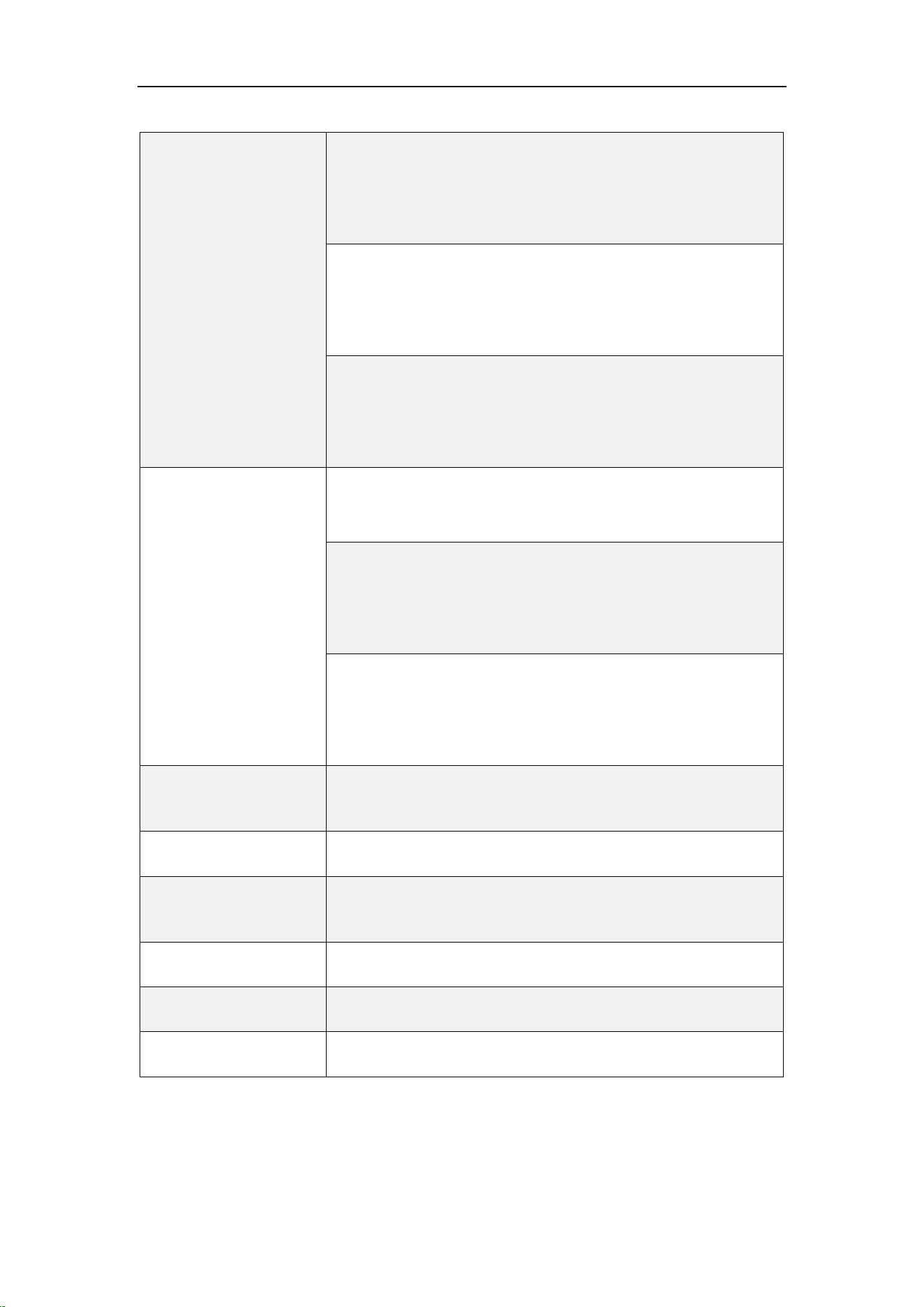
Category
Specification
Main Purpose
Connected to passive speaker for streaming
Power Output (THD =
0.08%, two channels
driven)
100 W per channel @ 8Ω
200 W per channel @ 4Ω
Amplifier Technology
Class-D with PFFB (Post-Filter Feedback) technology
THD+N
≤ 0.005%, -106 dB (A-weighted)
SNR
≥120 dB
Damping Factor
94
Frequency Response
20Hz – 20kHz ± 0.5dB
Impedance Range
2 – 8Ω
Audio Components
ESS ES9039Q2M high-performance DAC
Dual TI TPA3255 Amps
Six TI OPA1612 op-amps
Analog Input (ADC)
Up to 192k, 24 bit
Bit-Perfect Playback
Supports up to 192kHz/24-bit audio
Dynamic Range
≥120dB for high-resolution sound
Wireless Connectivity
Wi-Fi 6E
Bluetooth
BT 5.3
Ethernet
Yes
Google Cast Audio
Yes
Group with Nest
Speakers and Display
Yes
Group with Echo
Speakers and Display
Yes
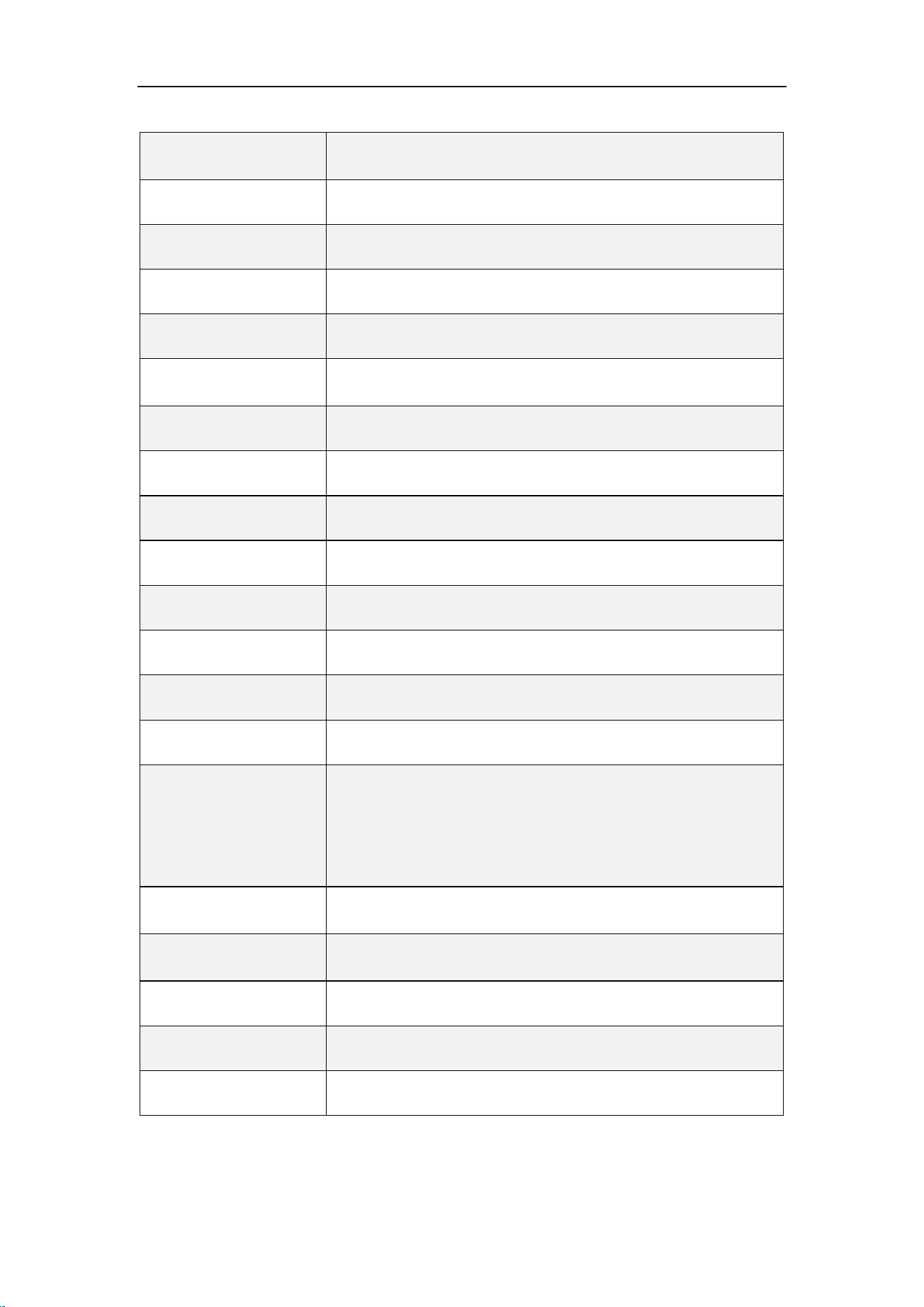
WiiM Amp Ultra User Manual Version 1.0.1 10/9/2025
9
Alexa Multi-room with
UHD
Yes
Group with HomePods
No
Work with Alexa
Yes
Work with Google
Yes
Work with Siri
No
Group with WiiM
Devices
Yes
AirPlay 2
No
2-Way Bluetooth
Yes
Roon Ready
Yes
DLNA
Yes
Spotify Connect
Yes
TIDAL Connect
Yes
Qobuz Connect
Yes
Gapless Playback
Yes
EQ
Input-specific EQ (independent settings for Wi-Fi, HDMI ARC,
Optical In, Bluetooth, Line In)
10-band graphic and parametric EQ
24 preset EQ profiles
RoomFit™ Room
Correction
Yes
WiiM Music Streaming
Platform
Yes
CPU
Quad Core A53
DRAM
512 MB
Flash
512 MB
WiiM Amp Ultra User Manual Version 1.0.1 10/9/2025
10
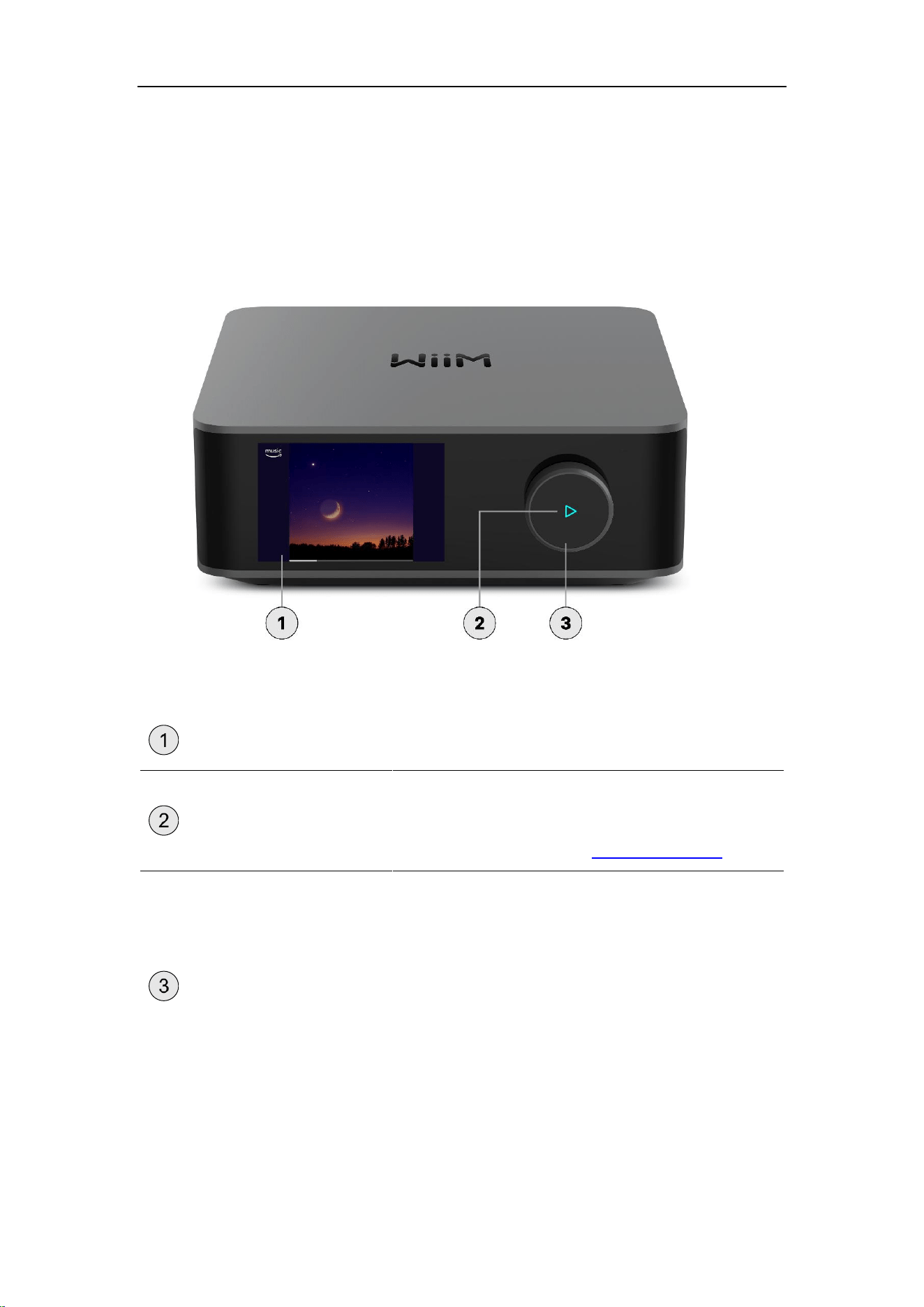
Audio Input Port
HDMI ARC:
⚫ Up to 192kHz/24-bit.
⚫ Supports Stereo PCM and Dolby Digital 5.1, but not
DTS.
Optical In:
⚫ Up to 192kHz/24-bit.
⚫ Supports Stereo PCM and Dolby Digital 5.1, but not
DTS.
Line In:
⚫ 2 Vrms
⚫ Analog signal, converted to digital via ADC (up to
192kHz/24-bit)
Audio Output Port
Speaker Out:
⚫ Four gold-plated binding posts (supports banana
plugs or bare wire connections)
USB Out:
⚫ Supports up to 8-channel 192kHz/24-bit
⚫ UAC 2.0
⚫ DC 5V/1.5A power output
Sub Out:
⚫ Dedicated output for powered subwoofers (RCA
Mono)
⚫ 2.0 Vrms
External USB Storage
Access personal media library and use it as a media server
for other WiiM and DLNA devices. Support FAT32, NTFS, and
EXT4 file systems.
LED
Four-color status LED - Red, Green, Blue, and White
Control
3.5" touchscreen (playback control, input switch, and more)
Multifunctional rotary knob (volume/play/pause/setup/ reset)
Weight
5.4 lbs (2.45 kg)
Dimension
7.87 x 8.3 x 3 inches (200 x 211 x 76.2 mm)
Power Input
100-240V, 50/60Hz AC Power
WiiM Amp Ultra User Manual Version 1.0.1 10/9/2025
11
4. WiiM Amp Ultra Controls, Interfaces, and Lights
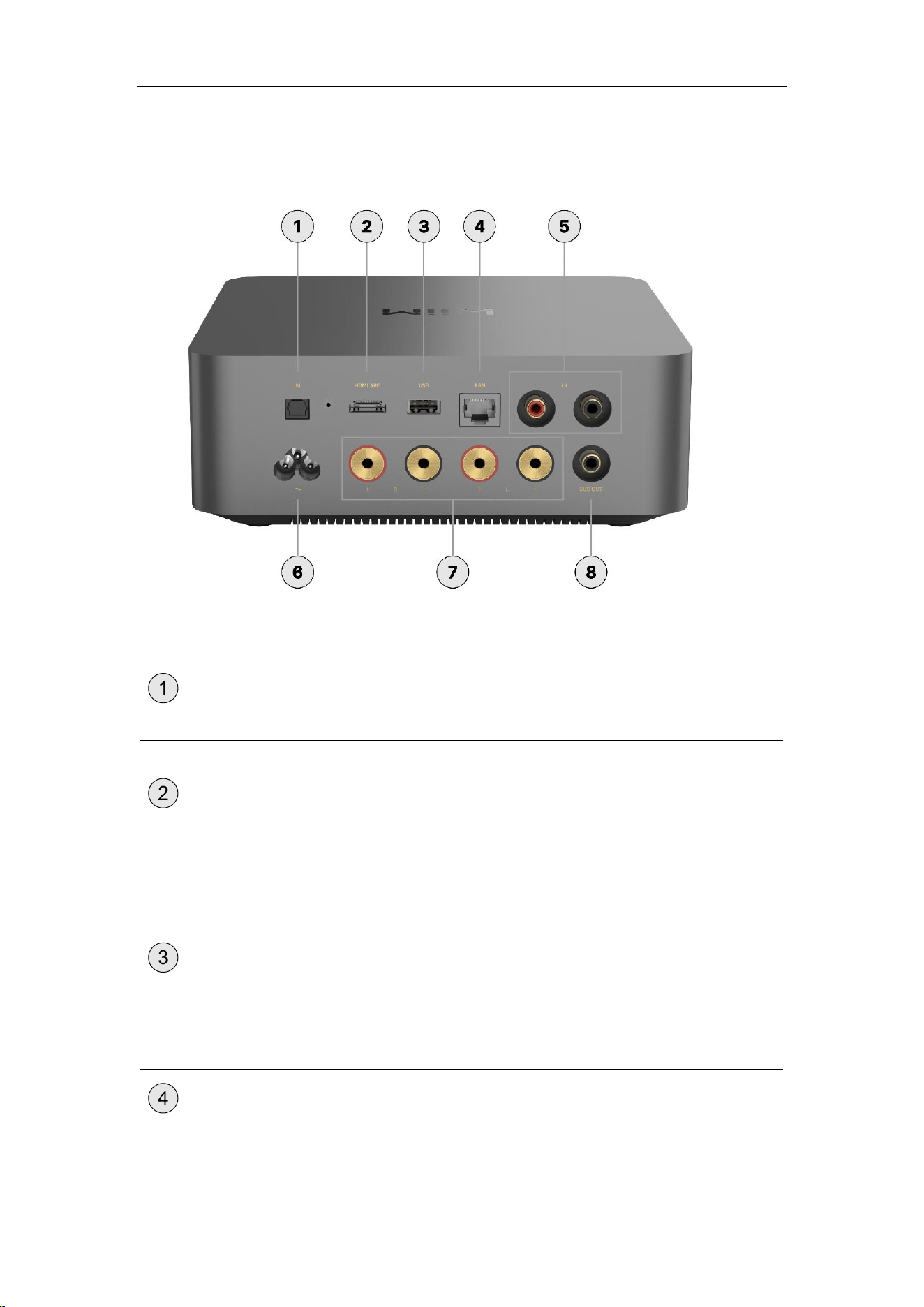
Front Panel Controls and Lights
Each numbered control or light on the front panel is explained below:
LCD Display
A 3.5-inch touchscreen provides playback status
and enables direct control of the WiiM Amp Ultra.
LED Indicator
A four-color LED (RGBW) indicator to display the
operational status of the WiiM Amp Ultra.
For more information, see LED Status Lights.
Volume Knob
Push:
⚫ Play/Pause
⚫ Wi-Fi setup (push and hold for 3 seconds)
⚫ Restore to the factory setting (push and
hold for 10 seconds)
Turn clockwise: Increase volume
Turn anti-clockwise: Decrease volume
WiiM Amp Ultra User Manual Version 1.0.1 10/9/2025
12
Back Panel Interfaces
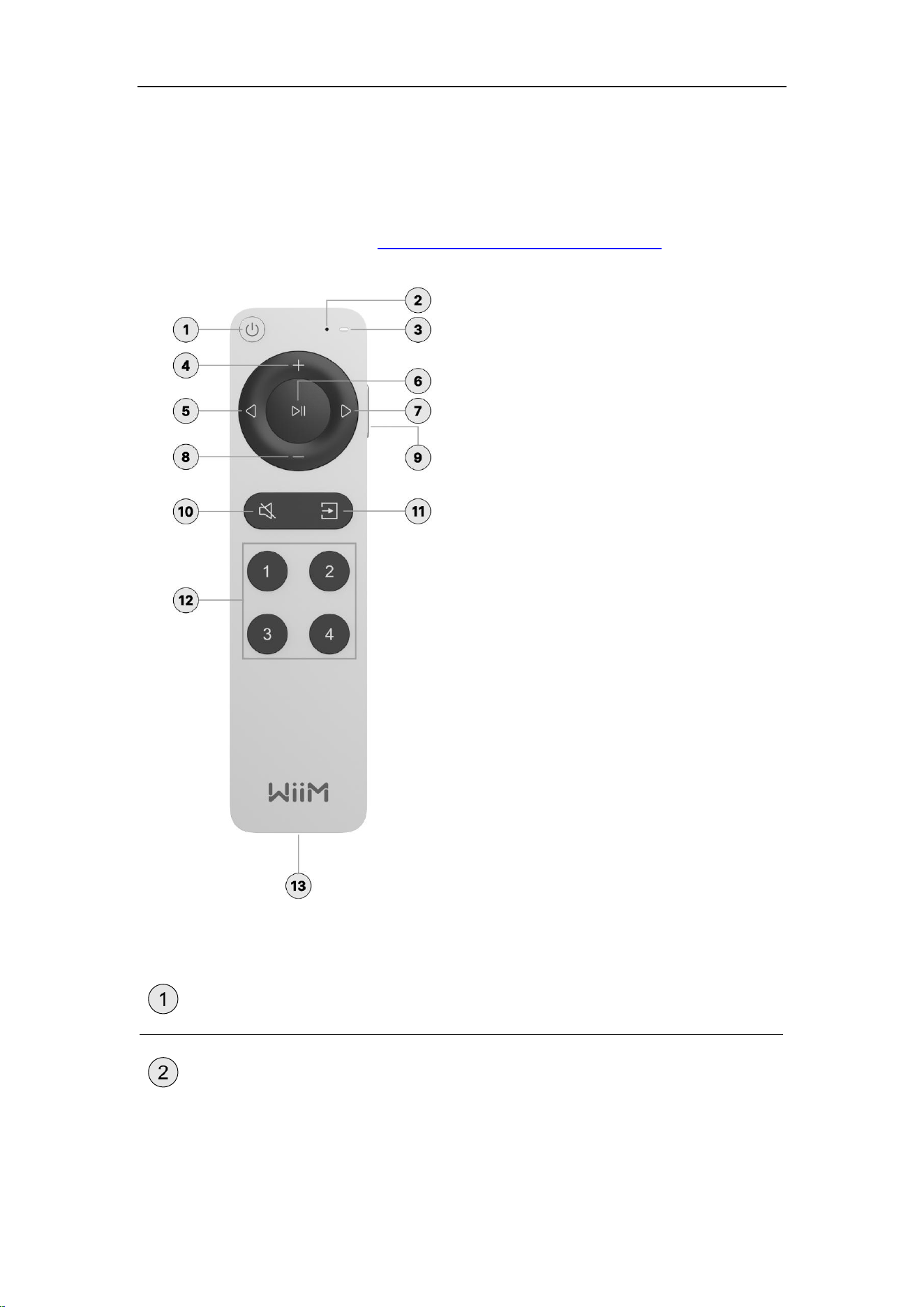
Each numbered interface on the back panel is explained below:
OPTICAL IN
Connects to external audio sources, such as a TV or
PC, for digital audio input.
It supports audio input of up to 192 kHz/24-bit.
HDMI ARC
Connects to a TV for audio input.
It supports Stereo PCM, Dolby Digital (DTS is not
supported).
USB
USB IN: Allows connection to USB storage devices
for playing audio files directly.
Note: USB audio input is not supported.
USB OUT: Outputs high quality audio to an external
DAC or other audio device with a USB audio input.
Note: Use a USB hub to connect both USB IN and
USB OUT simultaneously.
LAN
10/100Mbps Ethernet port

WiiM Amp Ultra User Manual Version 1.0.1 10/9/2025
13
LINE IN
Connects to external audio sources such as CD
players, audio players, and TVs for analog audio
input.
Power Input
100-240V AC input, 50/60 Hz
Speaker Out
Connects to passive speakers using bare wire,
spade connectors, or banana plugs (L, R).
SUB OUT
Connects to a powered subwoofer and outputs a
signal at 2.0 Vrms.
WiiM Amp Ultra User Manual Version 1.0.1 10/9/2025
14
WiiM Voice Remote 2
You can use the included WiiM Voice Remote 2 to effortlessly control the WiiM Amp Ultra.
For detailed instructions, refer to How to Use Your WiiM Voice Remote 2.
Each numbered control on the WiiM Voice Remote 2 is explained below:
Standby
Press to put the WiiM Amp Ultra into standby mode.
Microphone
Capture voice commands.
WiiM Amp Ultra User Manual Version 1.0.1 10/9/2025
15
LED Indicator
Flash with each button press, signaling the remote is
active and transmitting your command.
Note: When the LED starts flashing red, it indicates
the battery is low.
Volume Up
Press to increase the speaker volume.
Previous
Press to return to the previous playback or restart the
current playback.
Play/Pause
Press to start or pause the current playback.
Next
Press to skip to the next playback.
Volume Down
Press to decrease the speaker volume.
Voice Control
Located on the right-hand side of the remote; press
and hold to give voice commands.
Mute/Unmute
Press to mute or unmute the speakers.
Source Switch
Press to change the input source.
Preset Shortcuts
Press buttons 1~4 to play the corresponding
presets. These buttons correspond to the presets 1
to 4 in the WiiM Home app.
USB-C Charging
Port
Connect a USB-C cable to this port to charge the
remote.
WiiM Amp Ultra User Manual Version 1.0.1 10/9/2025
16
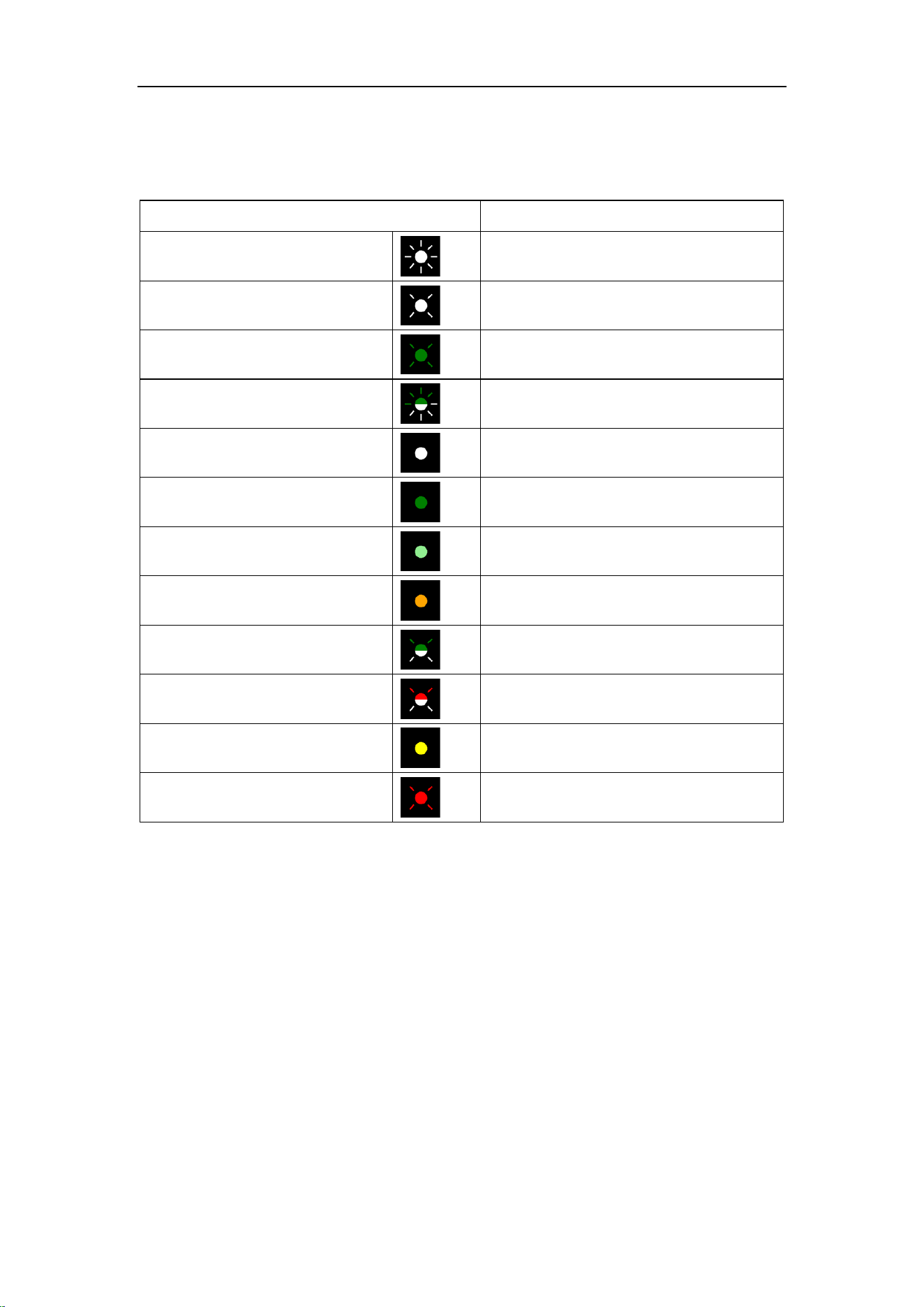
LED Status Lights
LED Color/Pattern
State
Fast Flashing White
Boot-up
Slow Flashing White
OOBE/Ready to setup
Slow Flashing Green
Bluetooth ready to pair
Fast Flashing White and Green
Connecting to Wi-Fi
Solid White
Connected to Wi-Fi
Solid Green
Bluetooth mode, paired
Solid Light Green
Line-in mode
Solid Orange
Optical-in mode/TV mode
Slow Flashing White and Green
OTA update
Slow Flashing White and Red
Restore to factory settings
Solid Yellow
No network
Slow Flashing Red
Faulty error

WiiM Amp Ultra User Manual Version 1.0.1 10/9/2025
17
5. How to Get Started
Before using your WiiM Amp Ultra, follow these main steps to set it up:
1. Connect the WiiM Amp Ultra to your audio device.
2. Power on the WiiM Amp Ultra.
3. Download and install the WiiM Home app on your mobile device.
4. Use the WiiM Home app to connect the WiiM Amp Ultra to your network.
5. Configure the WiiM Amp Ultra in the WiiM Home app to suit your preferences.
By completing these steps, your WiiM Amp Ultra will be ready for use. The following sub-
chapters will provide detailed instructions for each step.

WiiM Amp Ultra User Manual Version 1.0.1 10/9/2025
18
Connect the WiiM Amp Ultra's Audio Output
The WiiM Amp Ultra features three distinct audio output interfaces:
⚫ Speaker Out
⚫ Sub Out
⚫ USB Out
Primarily, the WiiM Amp Ultra is used to connect to passive speakers via the Speaker Out
interface and to a powered subwoofer through the Sub Out interface.
Additionally, if you want to connect a USB DAC or an amplifier with USB Audio Input, the
WiiM Amp Ultra can function as a preamp using the USB Out interface
Besides audio output via the above physical interfaces, the WiiM Amp Ultra can also output
audio via Bluetooth. For detailed instructions, see Audio Output via Bluetooth.
Notes:
⚫ The WiiM Amp Ultra outputs audio to only one of these interfaces at a time, aside
from the optional Sub Out.
⚫ Selecting the appropriate audio output port is crucial to ensure sound output.
Incorrect selection may result in no audio.
⚫ For bit-perfect audio output, opt for the digital audio output and activate Fixed
Volume Output, disable EQ and mono audio in the WiiM Home app's device
settings.
⚫ You have two ways to control the volume of your system:
o Control the volume directly from your AV receiver or amplifier when Fixed
Volume Output is set on the WiiM Amp Ultra.
o Control the volume through the WiiM Home app, but make sure to disable
Fixed Volume Output. (Recommended Method)
WiiM Amp Ultra User Manual Version 1.0.1 10/9/2025
19
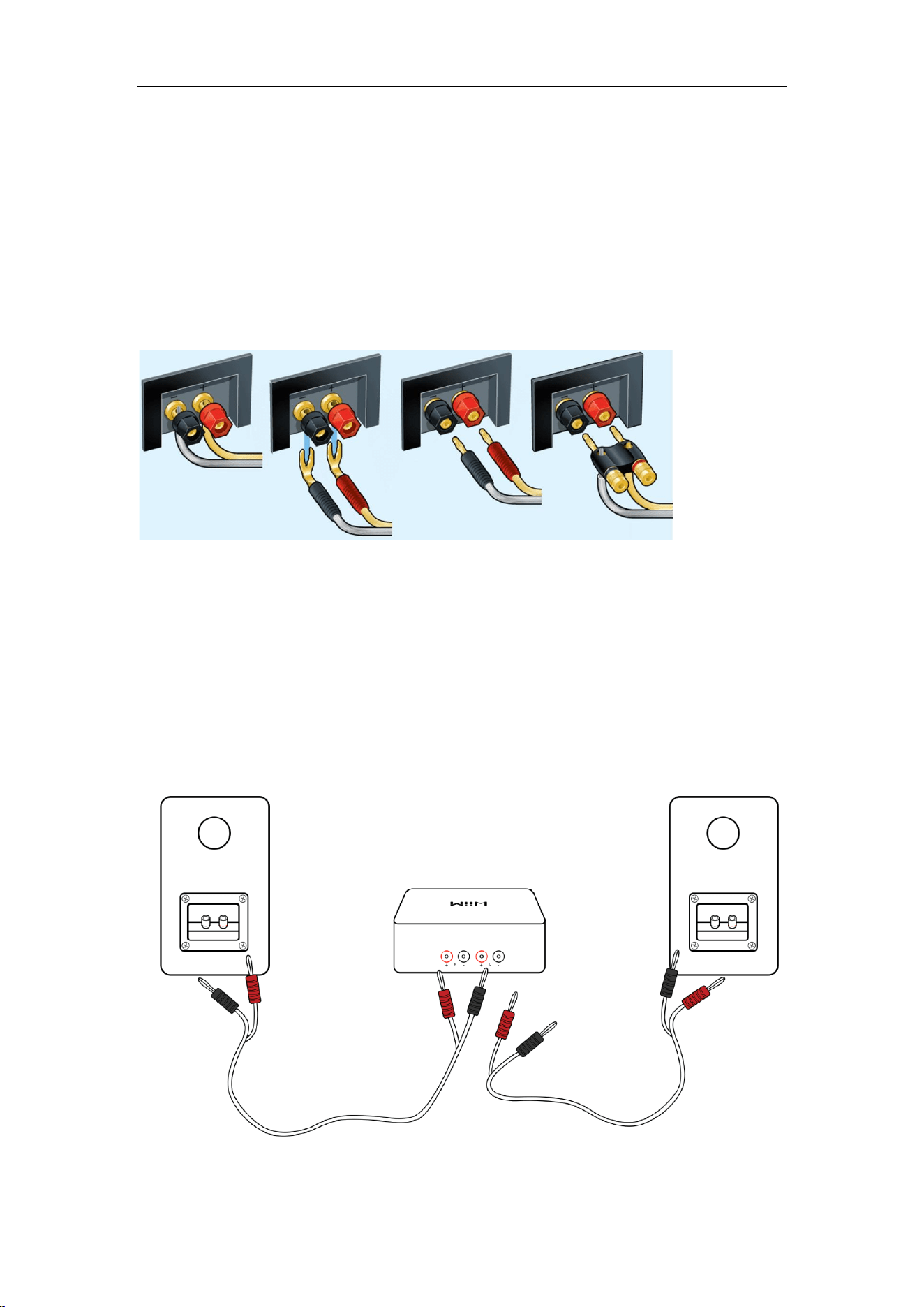
Scenario 1: Speaker Out (Passive Speakers)
The Speaker Out port on the WiiM Amp Ultra connects to the passive speakers.
Cable Requirement: Use two speaker cables.
There are multiple ways to connect speaker cables from your passive speakers to the WiiM
Amp Ultra, i.e., bare wire, spade connectors, or banana plugs. Here are some connector
examples (credit: Crutchfield).
Note: Banana plugs are recommended for the best sound and more reliable performance.
Cable Connection Steps:
1. Use one speaker cable to connect the left passive speaker to the left (L) terminals
on the WiiM Amp Ultra.
2. Use the other speaker cable to connect the right passive speaker to right (R)
terminals on the WiiM Amp Ultra.
Note: Ensure that the connector colors (red and black) match the corresponding terminals
on the WiiM Amp Ultra and the speakers.
WiiM Amp Ultra User Manual Version 1.0.1 10/9/2025
20
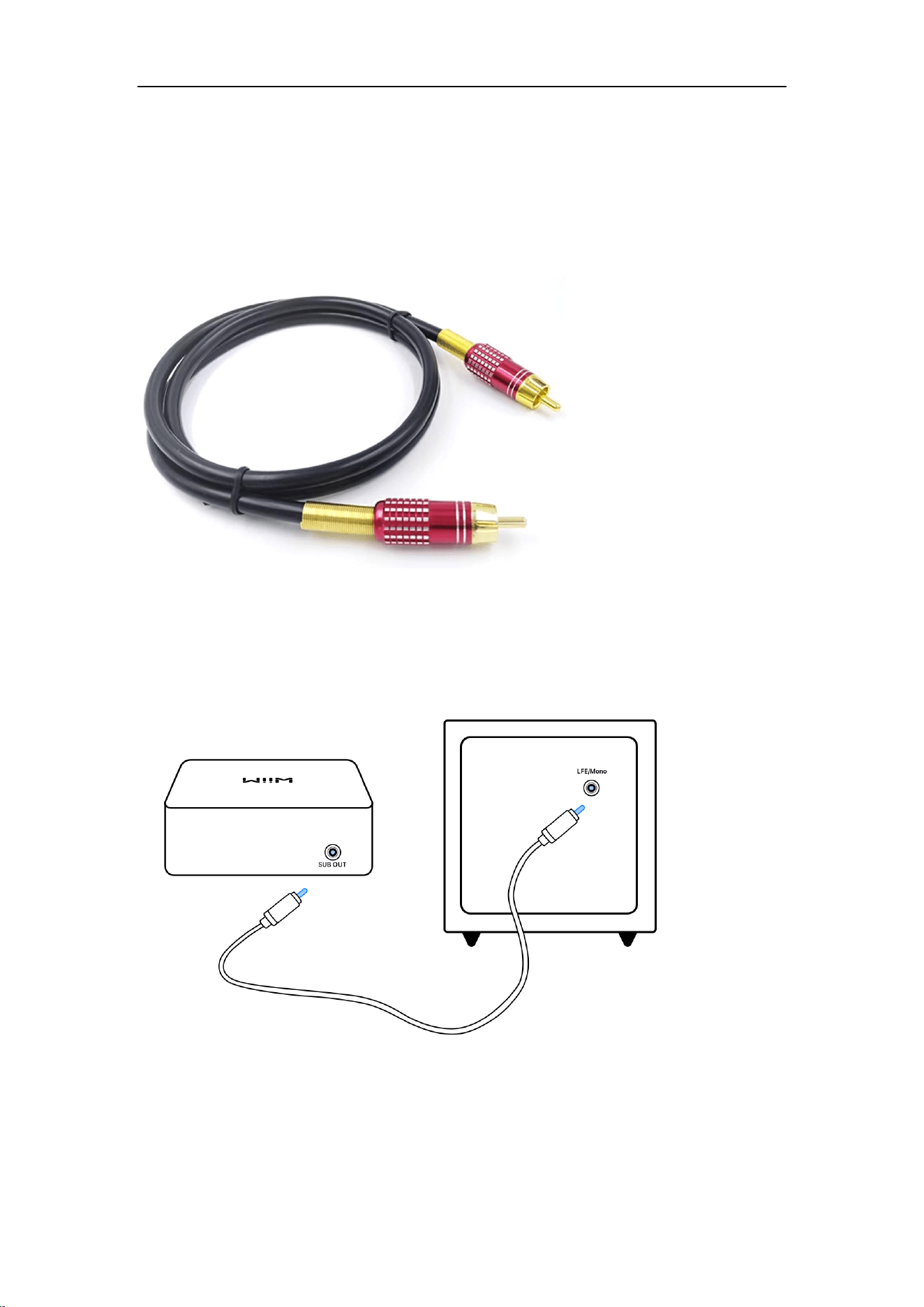
Scenario 2: Sub Out (Powered Subwoofer)
The Sub Out interface on the WiiM Amp Ultra connects to a powered subwoofer for
enhanced bass.
Cable Requirement: Use an RCA mono cable with 75-ohm impedance:
Cable Connection Steps:
1. Connect one end of an RCA cable to the Sub Out port on the WiiM Amp Ultra.
2. Connect the other end of the RCA cable to the input on your powered subwoofer.
If your subwoofer has two RCA inputs, opt for the one marked LFE or Mono.
WiiM Amp Ultra User Manual Version 1.0.1 10/9/2025
21
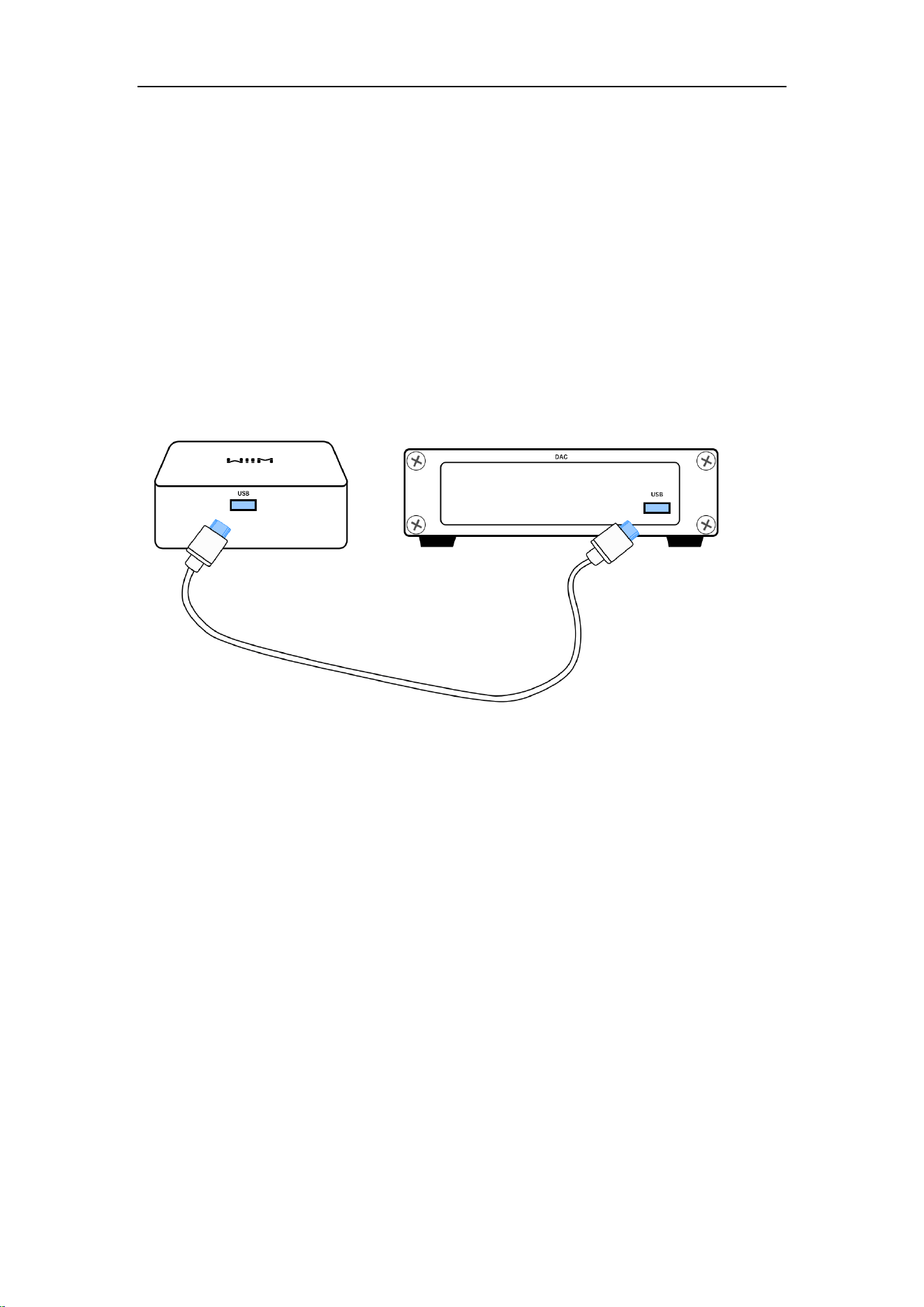
Scenario 3: USB Out (DACs or Amplifiers)
The USB Out port on the WiiM Amp Ultra typically connects to the external device, e.g.,
DACs or amplifiers that support USB audio input.
Cable Requirement: Use a USB cable
Cable Connection Steps:
1. Plug one end of the USB cable into the USB port on the WiiM Amp Ultra.
2. Plug the other end of the cable into the USB input port of the DAC or amplifier.

WiiM Amp Ultra User Manual Version 1.0.1 10/9/2025
22
Connect the WiiM Amp Ultra's Audio Input
The WiiM Amp Ultra features three distinct audio input interfaces:
⚫ Analog Line In
⚫ Digital Optical In (TOSLINK)
⚫ HDMI ARC
The WiiM Amp Ultra functions as both an amplifier and a network audio transmitter through
Wi-Fi or Ethernet. You have the capability to stream analog audio input from sources such
as CD players, vinyl players, TVs, or computers to other WiiM devices, either individually
or in multiple combinations.
In addition to physical input interfaces mentioned above, you can also stream audio from
an external device (e.g., smartphones or tablets) to the WiiM Amp Ultra via Bluetooth. For
detailed instructions, see Audio Input via Bluetooth.
Notes:
⚫ The Optical In and HDMI ARC interfaces on the WiiM Amp Ultra only support
PCM and Dolby Digital 5.1 audio formats. Please ensure that the audio source
device connected to the WiiM Amp Ultra is set to output audio in PCM or Dolby
Digital 5.1 format. Otherwise, you may not hear sound.
⚫ To connect your TV to the WiiM Amp Ultra using an HDMI cable, select HDMI port
on your TV labeled HDMI ARC. Please note that connecting to other HDMI ports
will not transmit sound to the WiiM Amp Ultra.
⚫ You can also enable the Auto-sensing feature on the WiiM Amp Ultra to
automatically play your Line In, Optical In, or HDMI ARC source when the WiiM
Amp Ultra detects a signal. You can enable this feature from the WiiM Home app.
⚫ The WiiM Amp Ultra has a built-in EQ to process the audio input based on your
taste. You can also control the audio volume using the WiiM Home app remotely
without altering the input source volume.
⚫ Some source devices may require a preamp. For example, some turntables do not
have a built-in preamp, so you will need to connect your turntable to an external
preamp first, and then connect the preamp to the WiiM Amp Ultra.
WiiM Amp Ultra User Manual Version 1.0.1 10/9/2025
23
Scenario 1: Analog Line In Audio Source Input (CD Player, Turntable with
a Built-in Preamp, or PC)
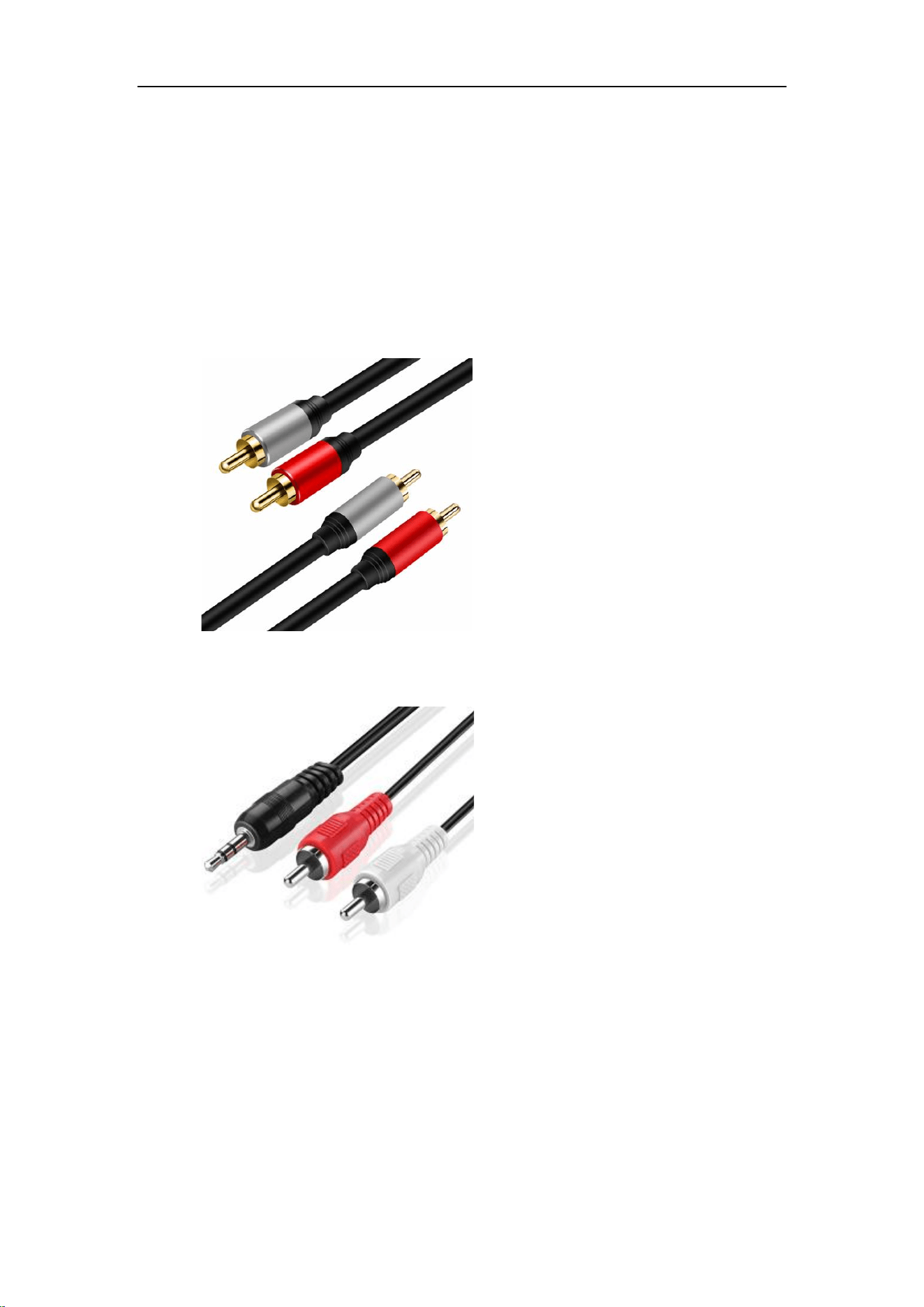
The Line In interface on the WiiM Amp Ultra is typically used to connect to a CD Player,
Turntable with a built-in preamp, or PC to receive analog audio input.
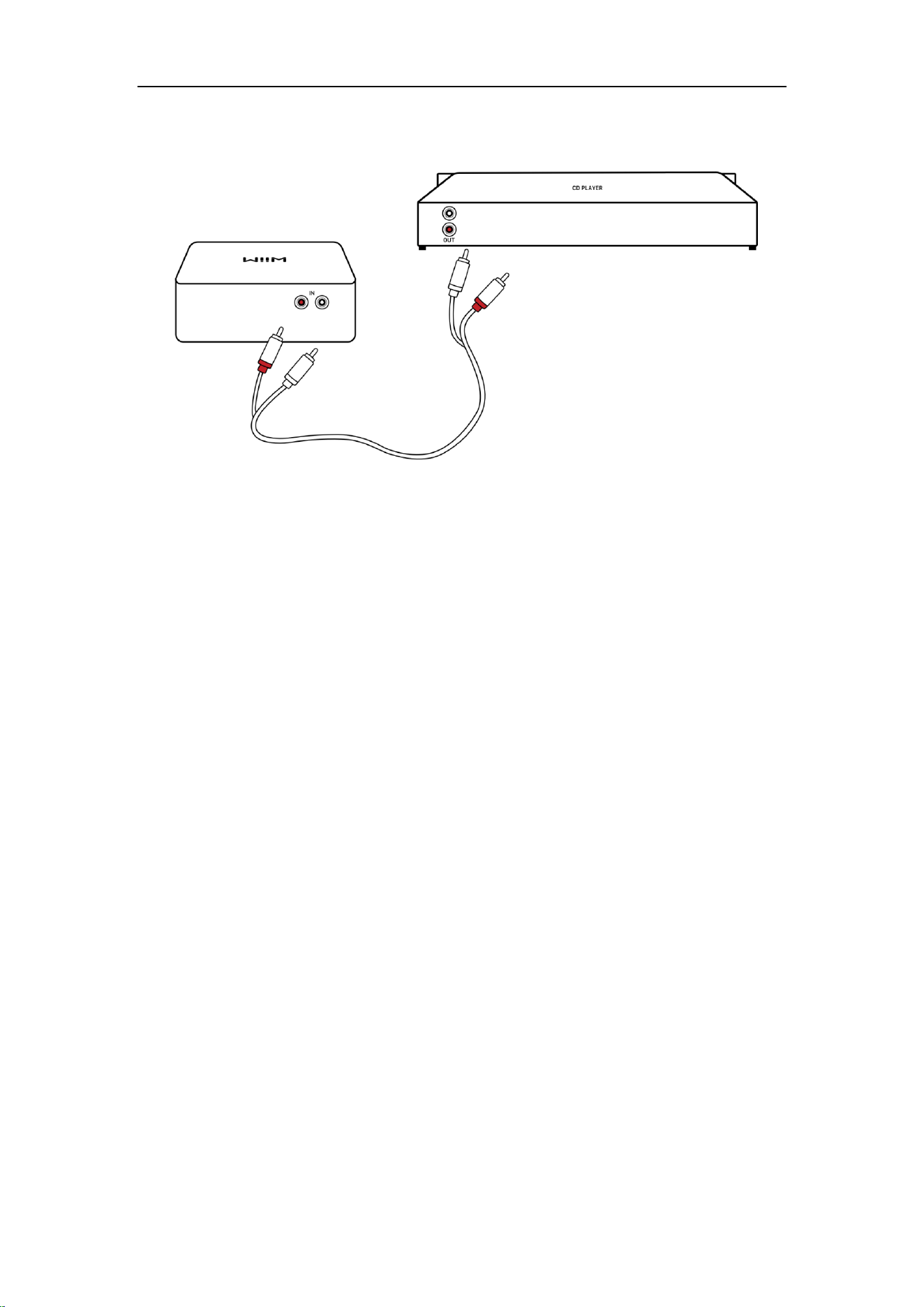
Cable Requirement: One of the following two types of cables might be used.
⚫ An RCA-to-RCA cable as below:
⚫ An Aux-to-RCA cable as below:
Cable Connection Steps:
1. Plug RCA connectors on one end of the cable into the Line In port on the WiiM
Amp Ultra.
2. Plug the other end of the cable into the AUX or Line Out port on your audio
source (CD player, turntable, TV, or PC).
WiiM Amp Ultra User Manual Version 1.0.1 10/9/2025
24
WiiM Amp Ultra User Manual Version 1.0.1 10/9/2025
25
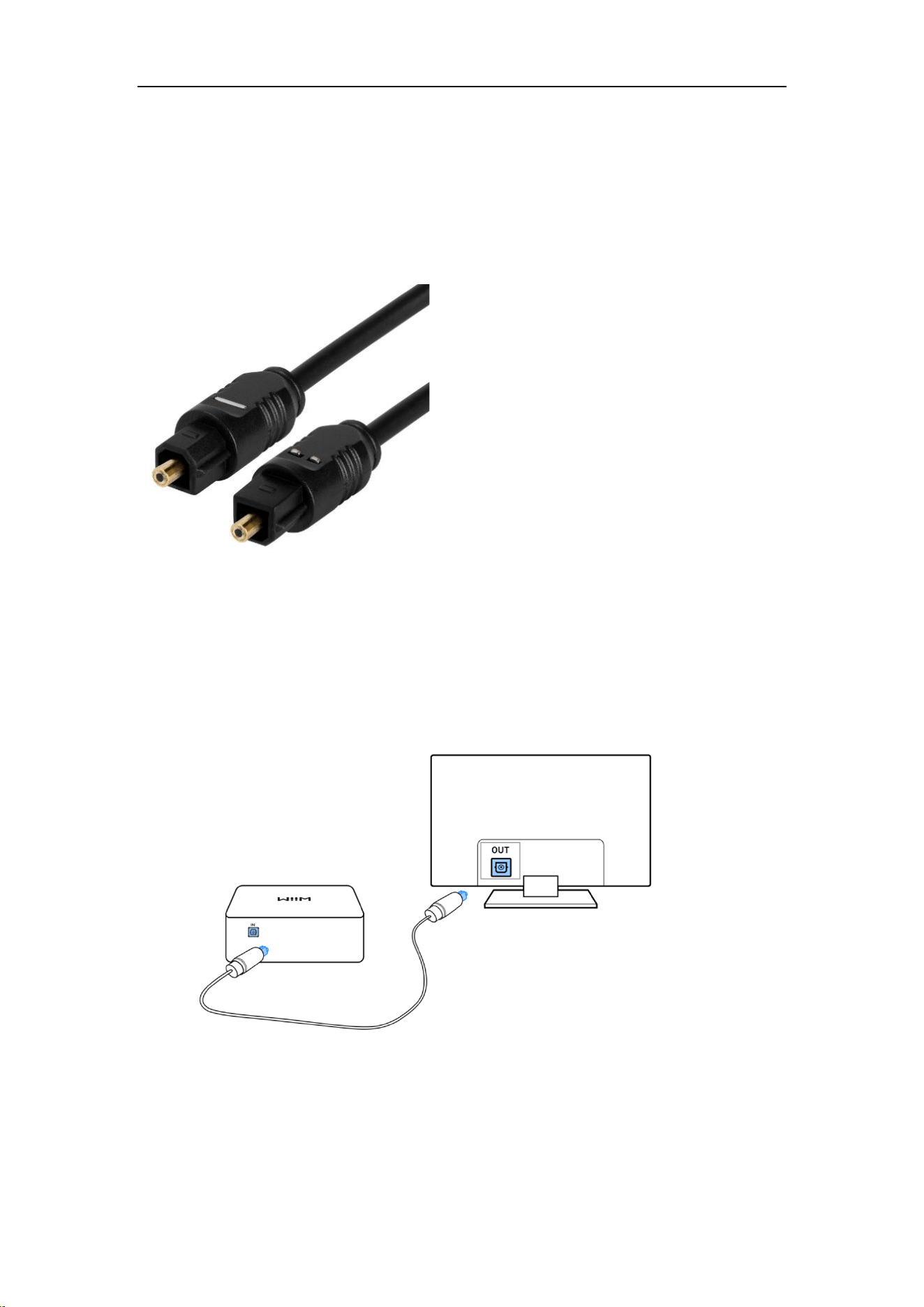
Scenario 2: Optical In Audio Source Input (TV or PC)
The Optical In interface on the WiiM Amp Ultra is typically used to connect to a TV or PC
to receive audio input.
Cable Requirement: use a TOSLINK optical cable as below:
Cable Connection Steps
1. Plug one end of the optical cable into the Optical In port on the WiiM Amp Ultra.
Note: Please ensure the insertion direction of the optical cable matches the
port. Incorrect insertion may damage the optical door.
2. Plug the other end of the cable into the Optical Out port on the TV or PC.
Note: The Optical In interface on the WiiM Amp Ultra only supports PCM and Dolby
Digital 5.1 audio formats. Please ensure that the audio source device connected to the
WiiM Amp Ultra is set to output audio in PCM or Dolby Digital 5.1 format. Otherwise, you
may not hear sound.
WiiM Amp Ultra User Manual Version 1.0.1 10/9/2025
26
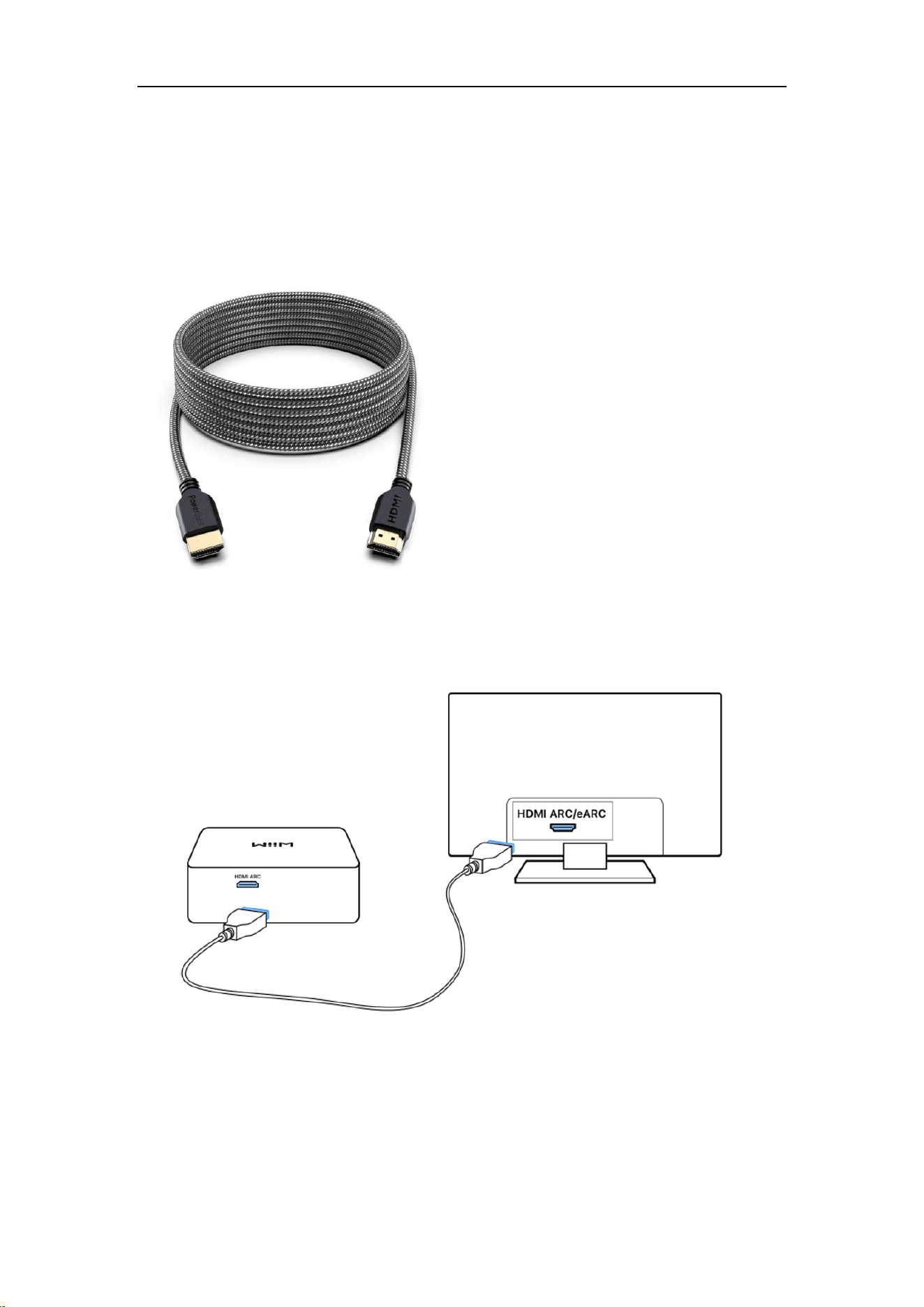
Scenario 3: HDMI ARC Audio Source Input (TV)
The HDMI ARC interface on the WiiM Amp Ultra is typically used to connect to a TV to
receive audio input.
Cable Requirement: use an HDMI cable as below:
Cable Connection Steps
1. Plug one end of the HDMI cable to the HDMI ARC port on the WiiM Amp Ultra.
2. Plug the other end of the cable to the HDMI ARC/eARC port on the TV.
Note: The HDMI ARC interface on the WiiM Amp Ultra only supports PCM and Dolby
Digital 5.1 audio formats. Please ensure that the audio source device connected to the
WiiM Amp Ultra is set to output audio in PCM or Dolby Digital 5.1 format. Otherwise, you
may not hear sound.

WiiM Amp Ultra User Manual Version 1.0.1 10/9/2025
27
Power On the WiiM Amp Ultra
Important Safety Warning: Before connecting the power to the WiiM Amp Ultra, it is
crucial to first connect your speakers and any other audio ports. This sequence is important
to safeguard both your equipment and the quality of your audio experience. By following
this procedure, you ensure a safe and efficient setup process for the WiiM Amp Ultra.
For optimal performance of the WiiM Amp Ultra, please ensure to use the AC power cable
that is included with your device. This cable is specifically designed to support a wide range
of voltages, accommodating 100-240V AC. This flexibility ensures that the WiiM Amp Ultra
can be safely and effectively powered in various locations.
After powering on the WiiM Amp Ultra, wait 30 seconds for it to fully boot up before starting
the setup process.
WiiM Amp Ultra User Manual Version 1.0.1 10/9/2025
29
Set Up the WiiM Amp Ultra
You can set up the WiiM Amp Ultra via Wi-Fi or Ethernet using the WiiM Home app. If you
choose to connect via Wi-Fi, make sure you have the network password ready. This will
ensure a smooth and efficient setup process.
WiiM Amp Ultra Setup via Wi-Fi Using WiiM Home App
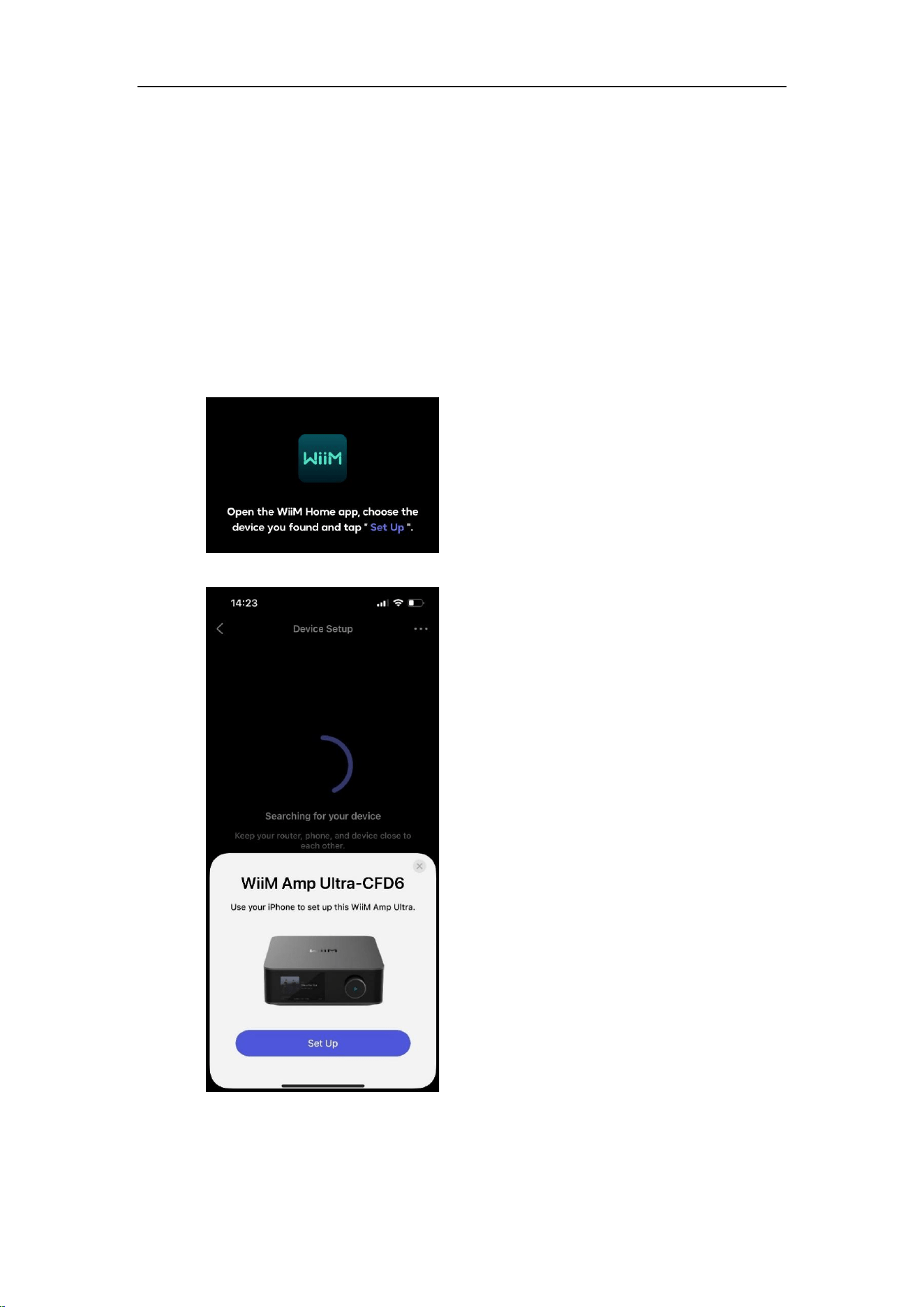
1. When the Set Up prompt appears on the WiiM Amp Ultra’s screen, open the WiiM
Home app on your smartphone or tablet.
2. When the Set Up pop-up appears in the app, tap it to start the setup.
You will see the following prompt on the WiiM Amp Ultra’s screen.
WiiM Amp Ultra User Manual Version 1.0.1 10/9/2025
30
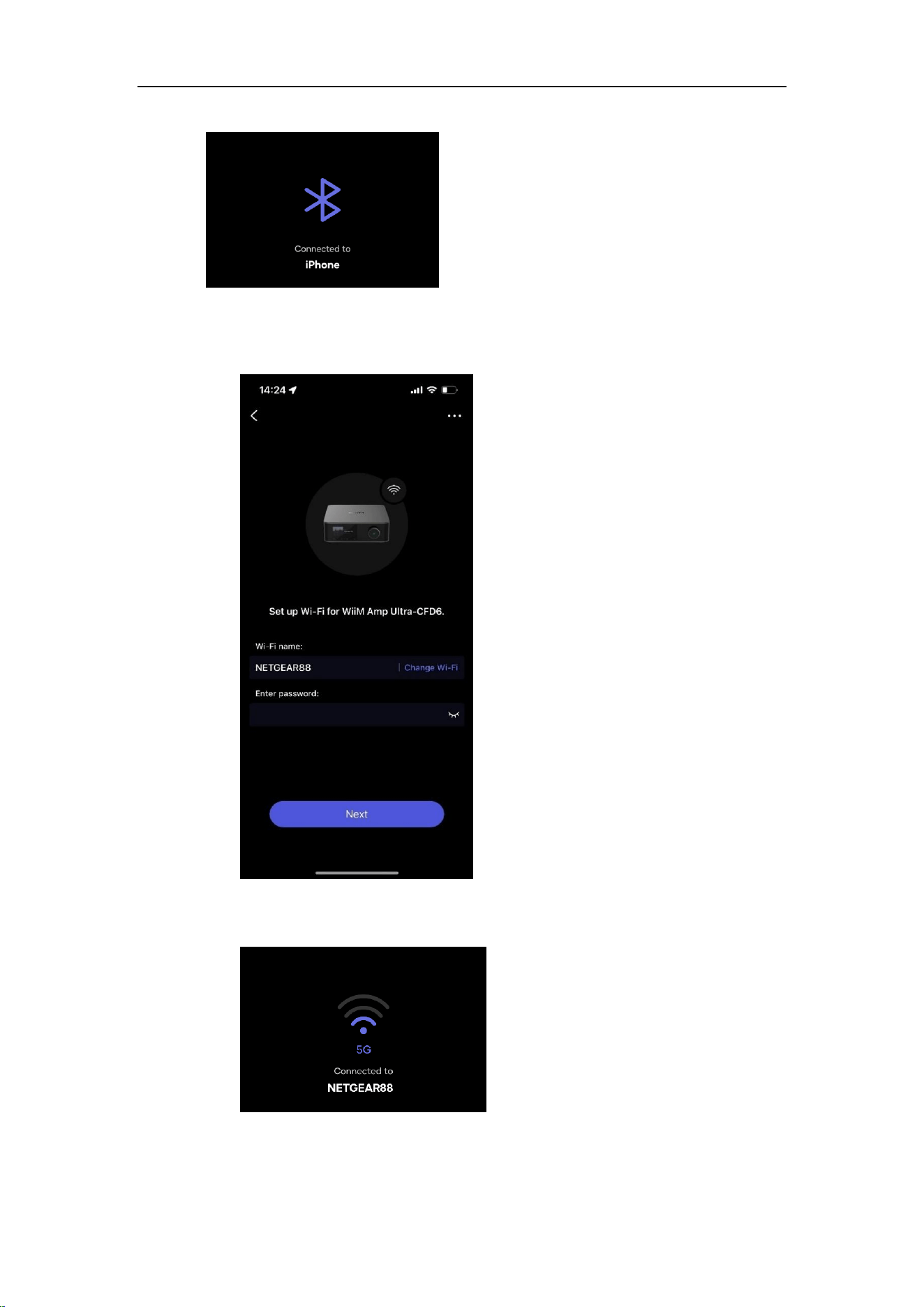
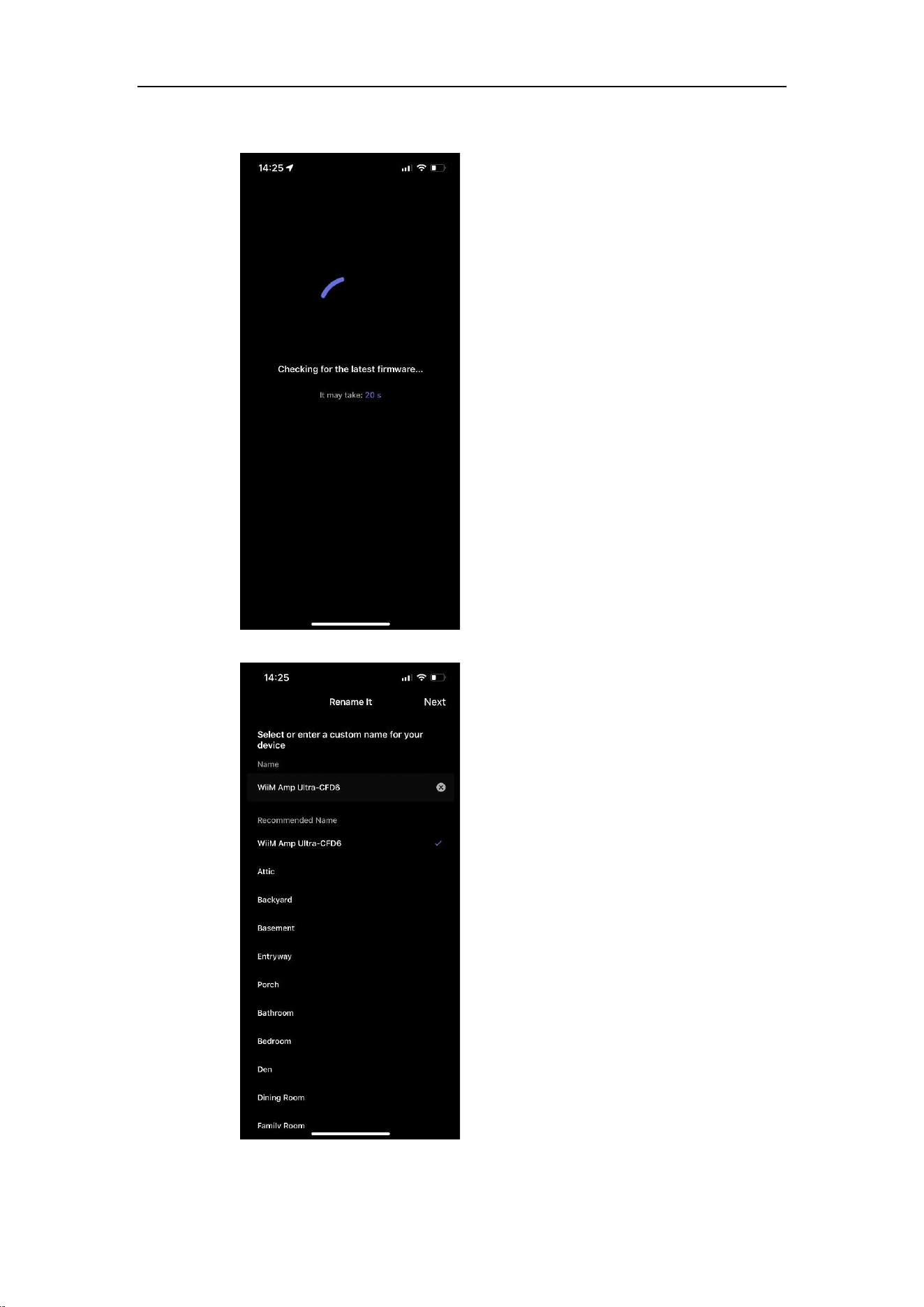
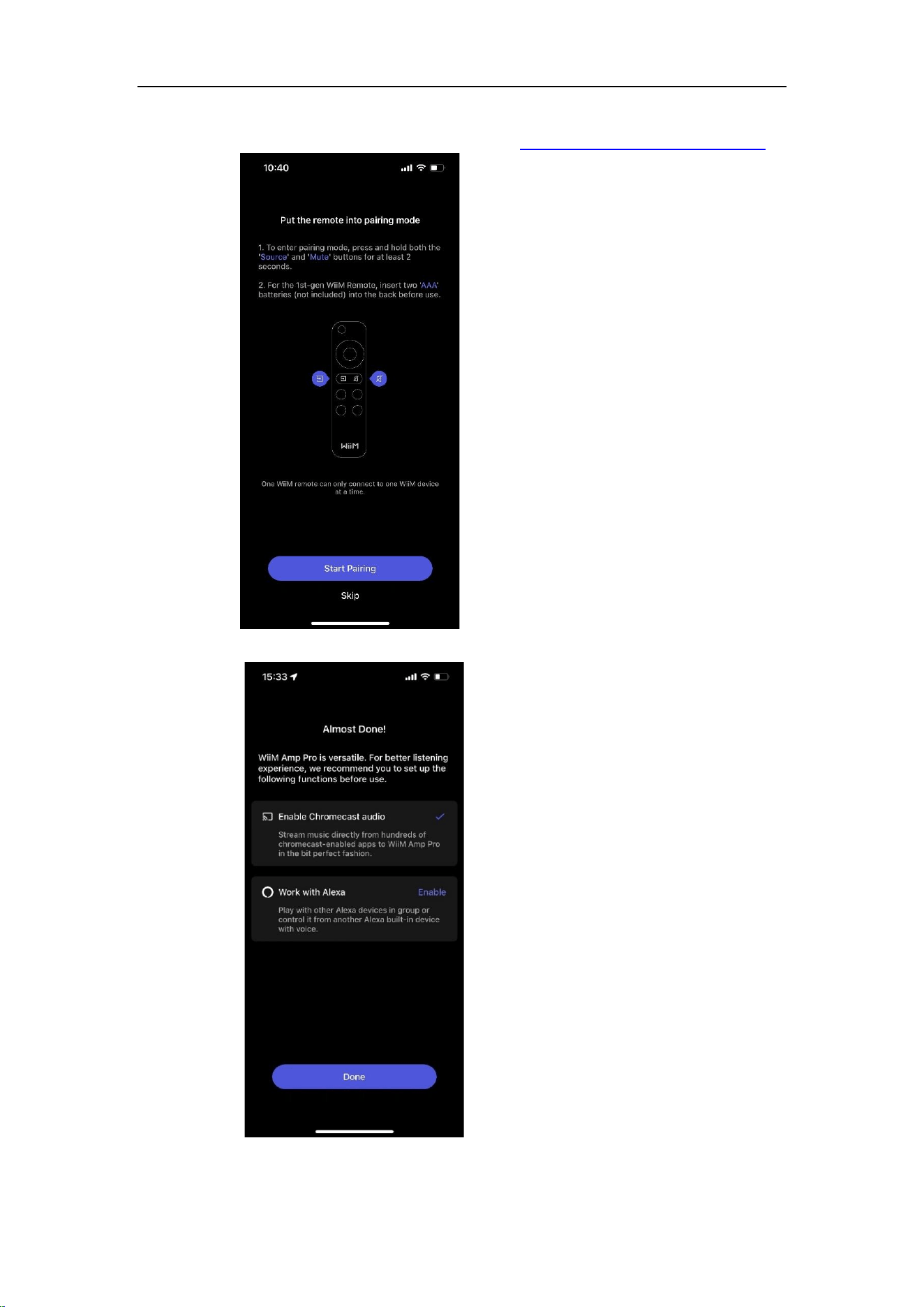
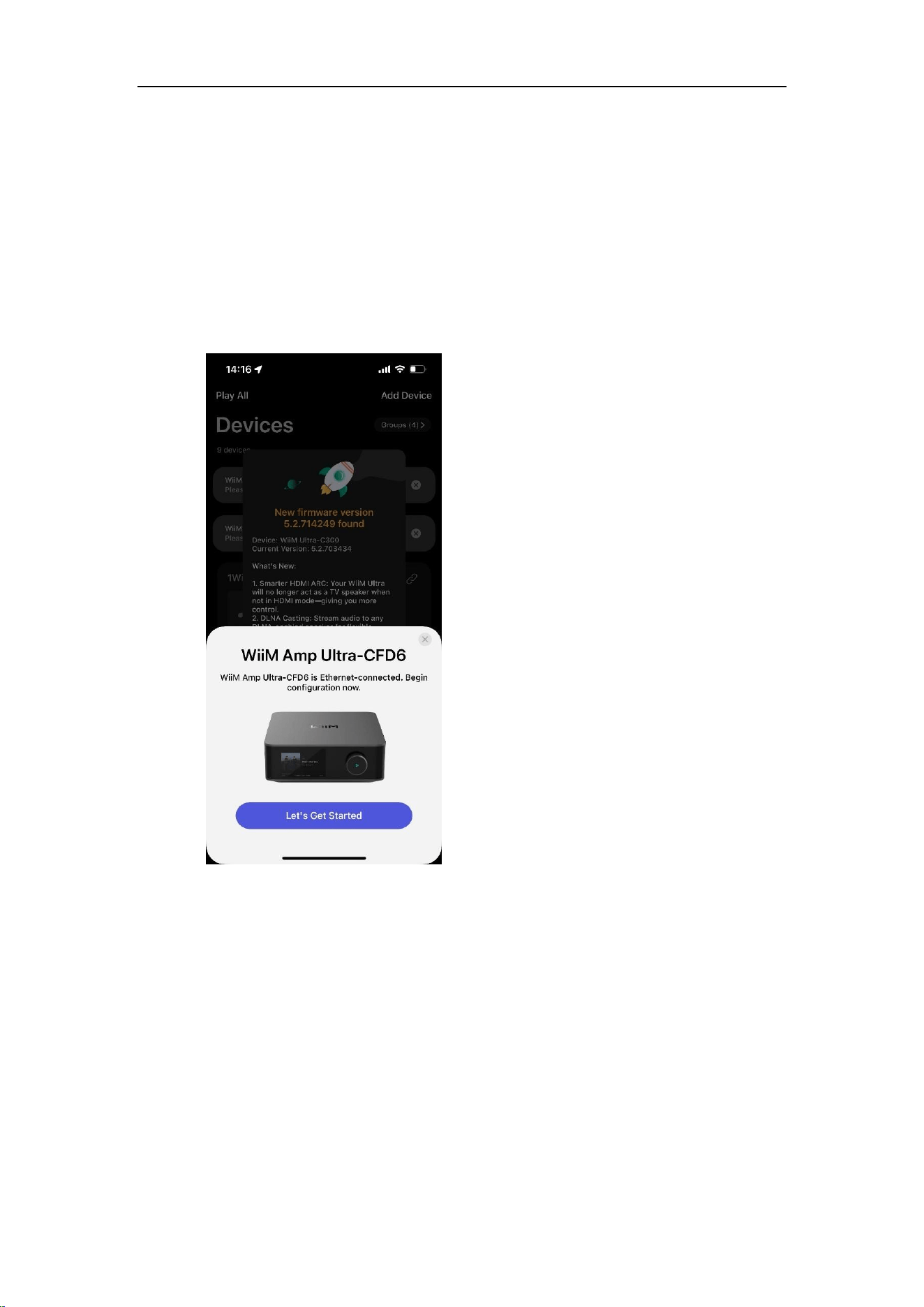
3. Follow the on-screen instructions to complete the setup:
a) Connect WiiM Amp Ultra to the same Wi-Fi network as WiiM Home app.
When the WiiM Amp Ultra is successfully connected to the Wi-Fi network,
you will see the following prompt on the WiiM Amp Ultra’s screen.
WiiM Amp Ultra User Manual Version 1.0.1 10/9/2025
31
b) Check and update the firmware.
c) Rename the WiiM Amp Ultra.
WiiM Amp Ultra User Manual Version 1.0.1 10/9/2025
33
WiiM Amp Ultra Setup via Ethernet Using WiiM Home App
1. Connect an Ethernet cable to the WiiM Amp Ultra.
2. Open the WiiM Home app on your smartphone or tablet.
3. When the Let’s Get Started pop-up appears in the app, tap it to start the setup.
Note: If the Let’s Get Started pop-up does not appear, tap Add Device in the
top-right corner to trigger it.
4. Follow the on-screen instructions to complete the setup.

WiiM Amp Ultra User Manual Version 1.0.1 10/9/2025
34
Configure the WiiM Amp Ultra in the WiiM Home App
Once the WiiM Amp Ultra is set up, configure it in the WiiM Home app, including settings
for audio input, audio output, subwoofer, room correction, and EQ adjustments.
For detailed instructions, see WiiM Amp Ultra Configuration.

WiiM Amp Ultra User Manual Version 1.0.1 10/9/2025
35
Fill Your Home with Sound
Now, play music from your favorite audio sources, including a TV, amplified turntable, CD
player, or MP3 player. Alternatively, enjoy seamless streaming of your favorite music and
radio stations over Wi-Fi or Bluetooth.
The WiiM Amp Ultra can be grouped with other WiiM devices to create a synchronized
music experience across your home. You can further expand your listening experience by
grouping the WiiM Amp Ultra with Alexa-enabled or Google Cast-enabled devices,
enabling a seamless multi-room audio system. For more information, see Multi-room Audio
and Stereo Pairing.
WiiM Amp Ultra User Manual Version 1.0.1 10/9/2025
36
6. WiiM Amp Ultra Configuration
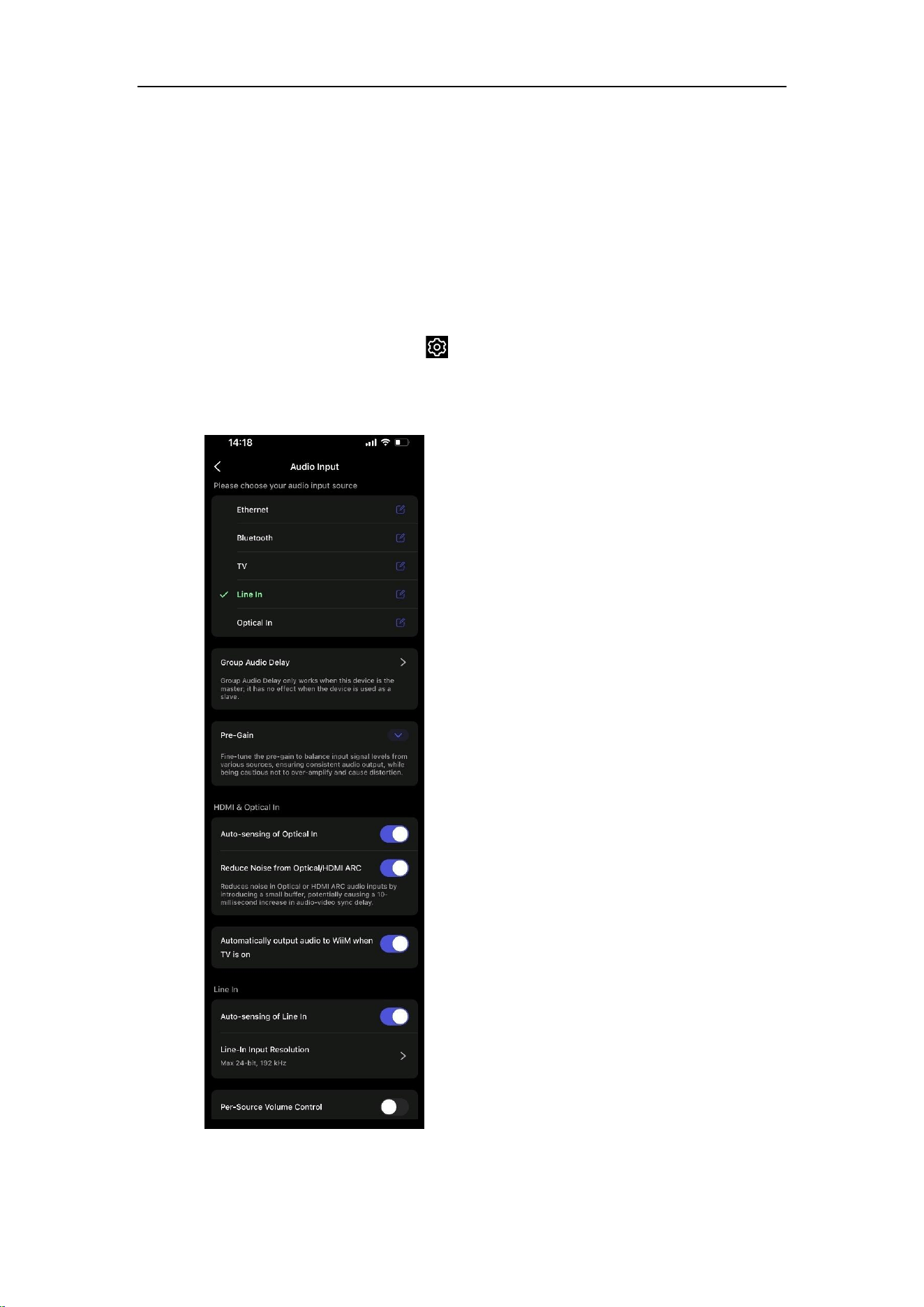
Select Audio Input Source and Configure Audio Input
1. Open the WiiM Home app.
2. Navigate to the Devices tab.
3. Tap the Device Settings icon of the WiiM Amp Ultra.
4. Under the Sound section, select Audio Input.
5. Select the audio input source and adjust related settings.
WiiM Amp Ultra User Manual Version 1.0.1 10/9/2025
37
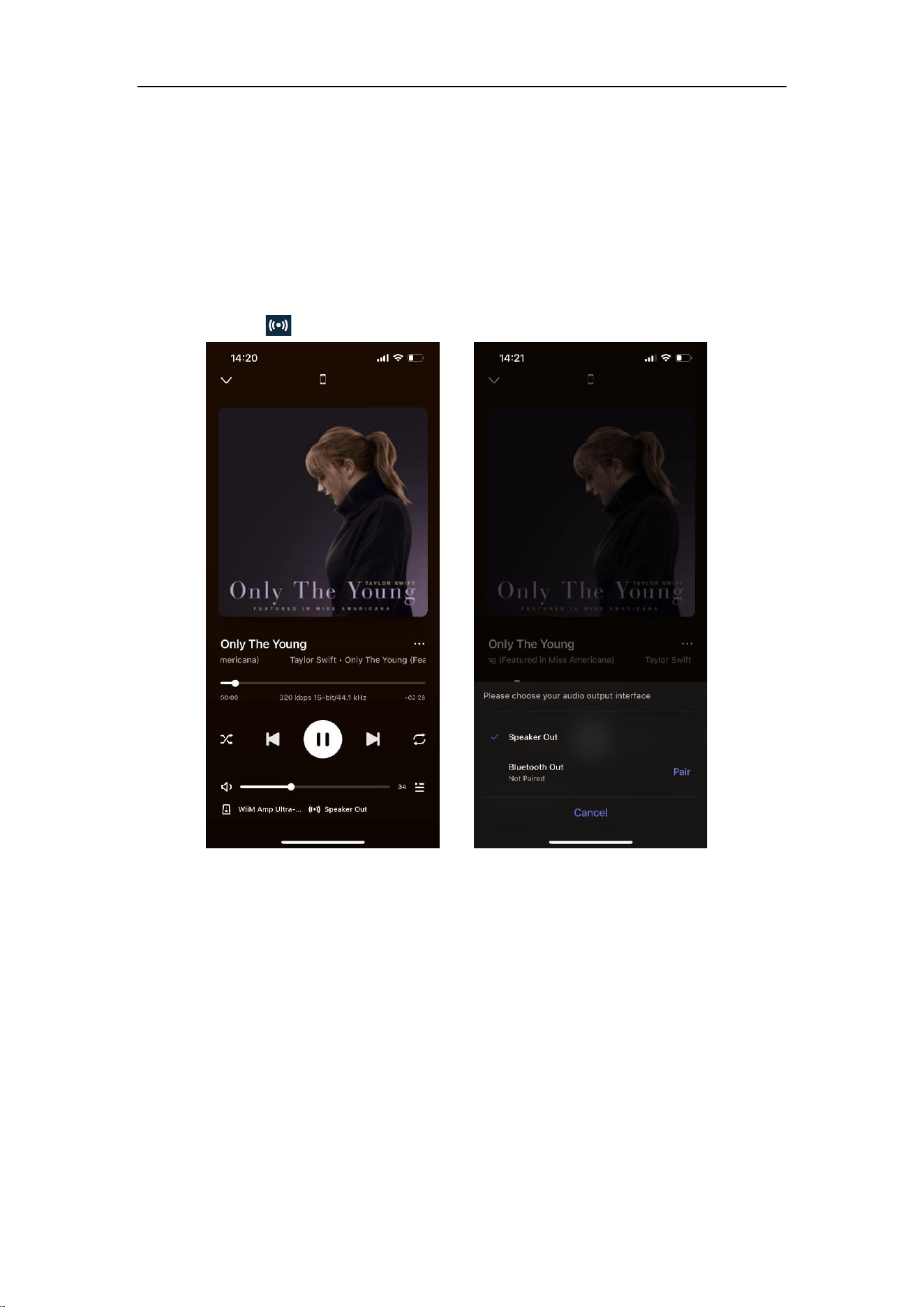
Select Audio Output Interface
Option 1: Select Audio Output Interface from Now Playing
1. Open the WiiM Home app.
2. Go to the Now Playing page.
3. Tap the icon at the bottom and select the output interface.
WiiM Amp Ultra User Manual Version 1.0.1 10/9/2025
38
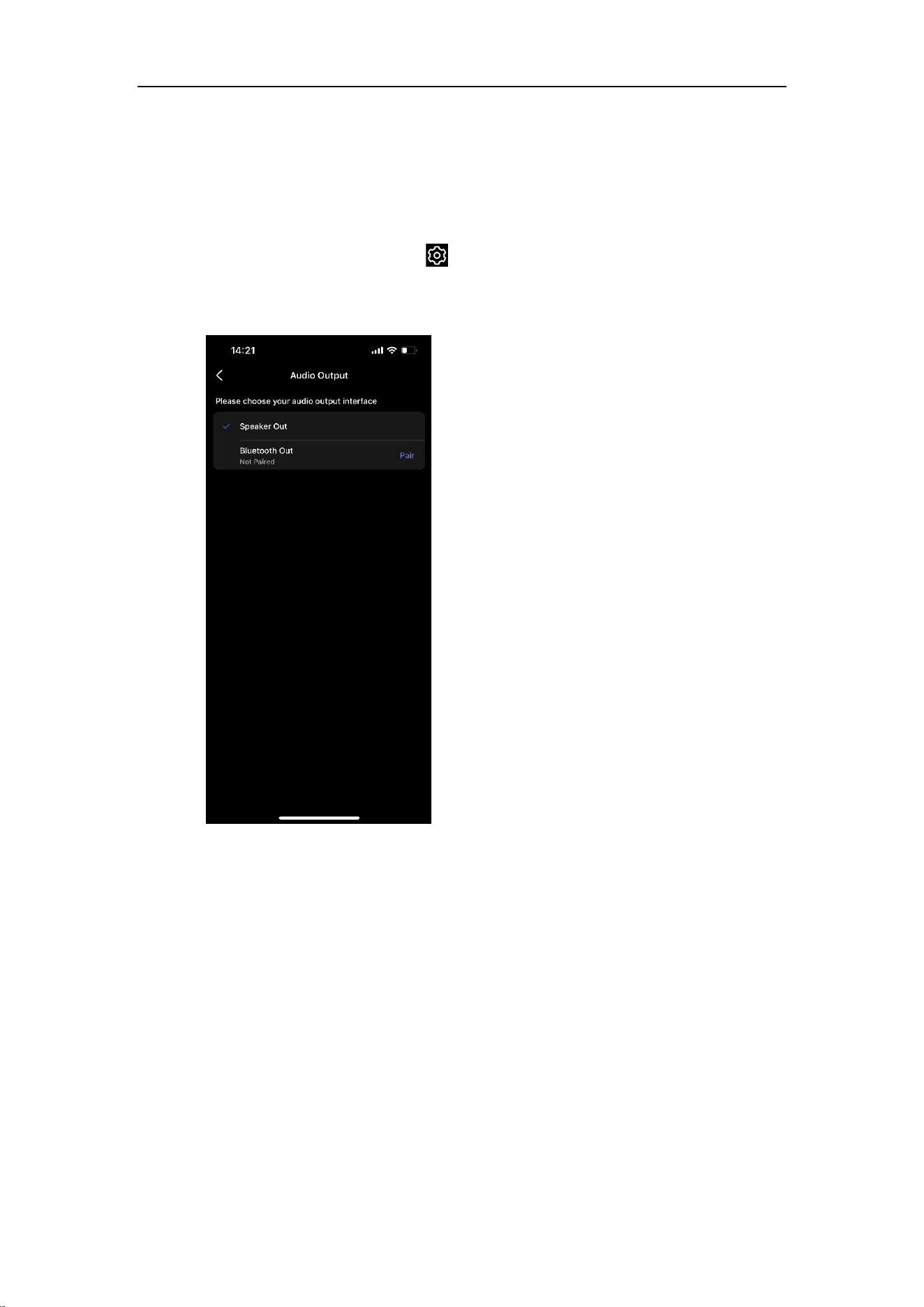
Option 2: Select Audio Output Interface from Device Settings
1. Open the WiiM Home app.
2. Navigate to the Devices tab.
3. Tap the Device Settings icon of the WiiM Amp Ultra.
4. Under the Sound section, tap Audio Output.
5. Select the output interface.
WiiM Amp Ultra User Manual Version 1.0.1 10/9/2025
39
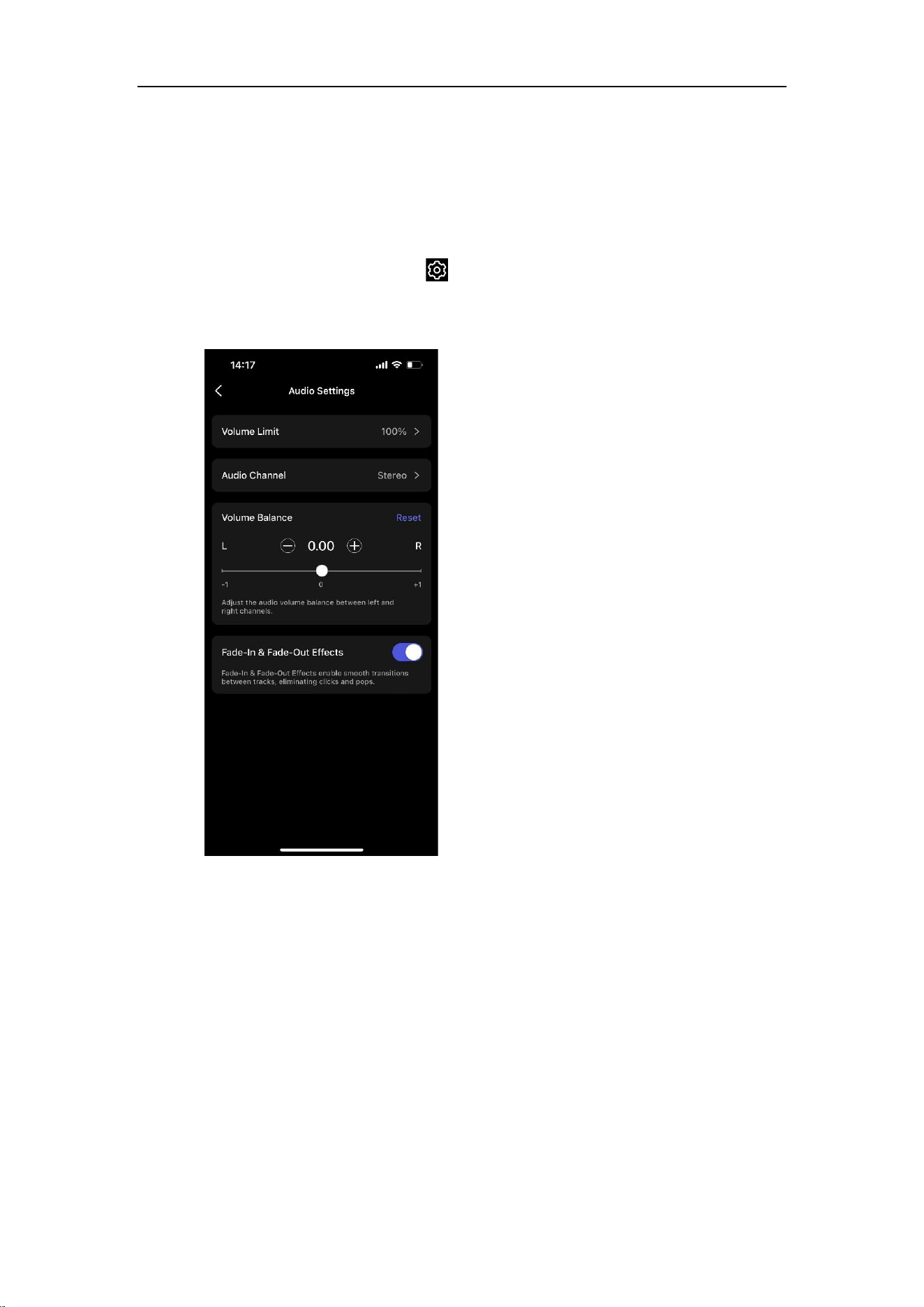
Adjust Audio Output Settings
1. Open the WiiM Home app.
2. Navigate to the Devices tab.
3. Tap the Device Settings icon of the WiiM Amp Ultra.
4. Under the Sound section, select Audio Settings.
5. Adjust audio output settings depending on your preference and output interface:

WiiM Amp Ultra User Manual Version 1.0.1 10/9/2025
40
Adjust Subwoofer Settings
If you connect a subwoofer to the WiiM Amp Ultra, go to Device Settings > Subwoofer in
the WiiM Home app to enable and adjust the subwoofer settings. This will ensure the
subwoofer operates seamlessly with your audio system for optimal sound quality.
For detailed instructions, refer to Tutorial: Tuning Subwoofer Settings on WiiM Devices for
Optimal Sound Quality.

WiiM Amp Ultra User Manual Version 1.0.1 10/9/2025
41
Room Correction
You can use the Room Correction feature in the WiiM Home app to enhance audio quality
by adapting to your room's unique acoustic properties. This feature minimizes unwanted
audio issues such as echoes, reflections, and standing waves, delivering a more balanced
and accurate listening experience.
For detailed instructions, see Room Correction Guide.

WiiM Amp Ultra User Manual Version 1.0.1 10/9/2025
42
Equalizer (EQ)
You can enhance your audio experience with the Per-Source EQ feature in the WiiM Home
app.
Choose from 24 preset EQ settings for quick adjustments, utilize the 10-band Graphic EQ
(GEQ) for intuitive control, or fine-tune your sound with the 10-band Parametric EQ (PEQ)
for precise and detailed customization.
For detailed instructions, see EQ Guide.

WiiM Amp Ultra User Manual Version 1.0.1 10/9/2025
43
7. Audio Output/Input via Bluetooth
Audio Input via Bluetooth
With Bluetooth, you can stream tunes from various devices like smartphones, tablets, TVs,
and laptops. To start streaming, first pair your device with the WiiM Amp Ultra.
You can select any of the following options to pair your device with the WiiM Amp Ultra:
⚫ Option 1: Bluetooth Pairing Using WiiM Voice Remote 2
Press and hold the Play button on the WiiM Voice Remote 2 for 3 seconds or more
to initiate pairing mode.
⚫ Option 2: Bluetooth Pairing Using WiiM Amp Ultra’s On-Screen Menu
Tap Input and then select Bluetooth on the WiiM Amp Ultra’s screen to initiate
pairing mode.
⚫ Option 3: Bluetooth Pairing Using WiiM Home App
If the WiiM Amp Ultra is connected to your network, you can initiate Bluetooth
pairing mode in the WiiM Home app by selecting Bluetooth as source input in
the Browse tab.
In this case, if there’s no device connected to the WiiM Amp Ultra, the app will
initiate pairing mode for the WiiM Amp Ultra automatically.
Note: The Bluetooth feature is compatible with A2DP and AVRCP profiles, and supports
both SBC and AAC codecs.
WiiM Amp Ultra User Manual Version 1.0.1 10/9/2025
44
Audio Output via Bluetooth
You can use the WiiM Amp Ultra as a Bluetooth source device, enabling seamless pairing
with your Bluetooth speaker, headphone, or earphone.
Before you begin, ensure your Bluetooth device is in pairing mode so it can be discovered
by the WiiM Amp Ultra.
Then, choose one of the following methods to enable Bluetooth audio output from the WiiM
Amp Ultra to your Bluetooth device:
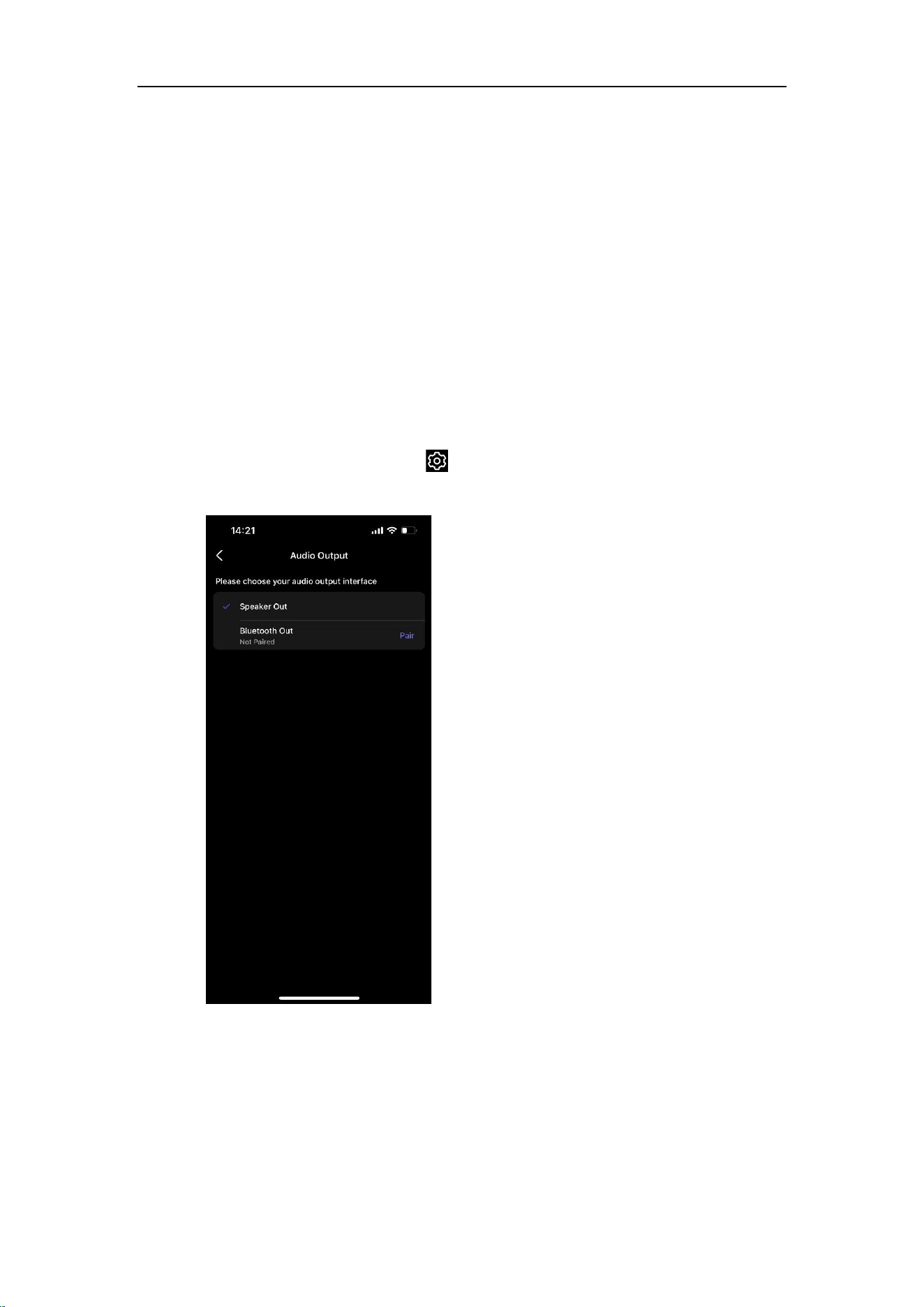
Option 1: From Device Settings in the WiiM Home App
1. Open the WiiM Home app on your iOS or Android device.
2. Select the Devices tab.
3. Tap the Device Settings icon of the WiiM Amp Ultra.
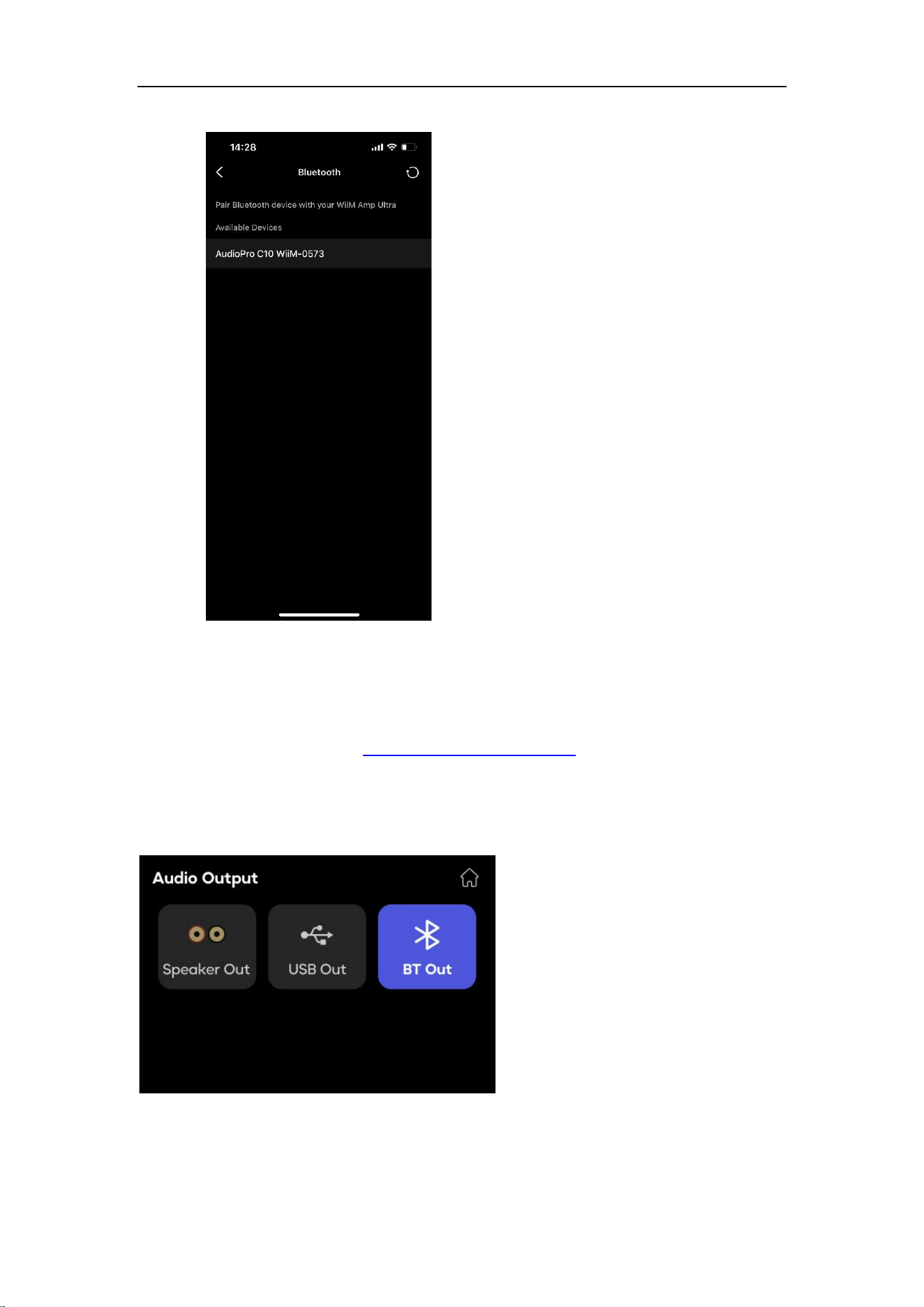
4. Select Audio Output, then tap Pair next to Bluetooth Out to initiate pairing.
5. Select the desired external Bluetooth device (e.g., a speaker) to pair.
WiiM Amp Ultra User Manual Version 1.0.1 10/9/2025
45
Option 2: From Now Playing in the WiiM Home App
You can also complete this procedure by selecting the Bluetooth output from the Now
Playing page. For details, see Select Audio Output Interface.
Option 3: From WiiM Amp Ultra’s On-Screen Menu
Tap Output and then select BT Out on the WiiM Amp Ultra’s screen menu.

WiiM Amp Ultra User Manual Version 1.0.1 10/9/2025
46
8. USB Media Library
The USB port on the WiiM Amp Ultra allows you to play music directly from a connected
USB drive or HDD, enabling convenient access to your stored music library.
For more details, refer to Building and Managing Your Advanced USB Media Library.

WiiM Amp Ultra User Manual Version 1.0.1 10/9/2025
47
9. Voice Control
Navigate and control the WiiM Amp Ultra with voice commands to search, play, stop, or
skip music and more.
The WiiM Amp Ultra supports the following voice control services:
⚫ Alexa
Refer to How to Use Alexa with Your WiiM Device for instructions.
⚫ Google Voice Assistant
Refer to How to Control WiiM Device via Google Assistant for instructions.

WiiM Amp Ultra User Manual Version 1.0.1 10/9/2025
48
10. Direct Control via Your Favorite App
You can stream from your favorite apps directly to your WiiM Amp Ultra with the following
approaches.
Spotify Connect
Spotify Connect is a way of playing Spotify through your wireless-compatible device over
Wi-Fi or Ethernet. That means you can play your favorite tunes anywhere in the house
without the need for convoluted Bluetooth pairing between devices whenever you want to
listen to music.
Spotify Connect works from smart phone, tablet or PC that functions as a remote control
for Spotify. Both free and premium account are supported. For details, visit Spotify Connect.
Using Spotify Connect ensures the best audio quality and streaming experience on the
WiiM Amp Ultra.
How to Use Spotify Connect
1. Launch the Spotify app on your mobile device.
2. Play a song and go to the Now Playing screen.
3. Tap the Speaker icon in the bottom-left corner.
4. Select your WiiM device from the list.
For detailed instructions, see How to Stream Music via Spotify Connect.
Multi-room and Stereo Pairing
To use Spotify Connect for multi-room or stereo pairing, follow these instructions:
1. Group multiple WiiM devices in the WiiM Home app. For instructions, see WiiM
Multi-room Audio/Stereo Pairing.
2. Stream Spotify music to the grouped WiiM devices. The group name will match
the group lead device.
License Information
The Spotify Software is subject to third-party licenses found here:
https://www.spotify.com/connect/third-party-licenses

WiiM Amp Ultra User Manual Version 1.0.1 10/9/2025
49
TIDAL Connect
TIDAL is a global music streaming platform bringing fans closer to artists through unique
experiences and the highest sound quality. Stream your favorite music seamlessly from
the TIDAL app straight to your devices in the highest possible quality.
TIDAL Connect allows you to stream music from the TIDAL app to compatible devices. It's
similar to Spotify Connect in that it lets users stream music to connected devices from
within the app. This means you can use your smartphone or computer as a controller to
play music on the WiiM Amp Ultra.
How to Use TIDAL Connect
5. Launch the TIDAL app on your mobile device.
6. Play a song and go to the Now Playing screen.
7. Tap the Speaker icon in the top-right corner.
8. Select your WiiM device from the list.
For detailed instructions, see How to Stream Music via TIDAL Connect.
Multi-room and Stereo Pairing
To use TIDAL Connect for multi-room or stereo pairing, follow these instructions:
1. Group multiple WiiM devices in the WiiM Home app. For instructions, see WiiM
Multi-room Audio/Stereo Pairing.
2. Stream TIDAL music to the grouped WiiM devices. The group name will match
the group lead device.

WiiM Amp Ultra User Manual Version 1.0.1 10/9/2025
50
Qobuz Connect
Qobuz is a premium music streaming service that offers a vast library of songs, albums,
and playlists—including high-resolution audio content. Similar to Spotify Connect, Qobuz
Connect allows you to easily stream music directly from the Qobuz app to compatible
devices and control playback seamlessly within the app.
How to Use Qobuz Connect
1. Launch the Qobuz app on your mobile device.
2. Play a song and go to the Now Playing screen.
3. Tap the Device icon in the bottom-left corner.
4. Select your WiiM device from the list.
For detailed instructions, see How to Stream Music via Qobuz Connect.
Multi-room and Stereo Pairing
To use Qobuz Connect for multi-room or stereo pairing, follow these instructions:
1. Group multiple WiiM devices in the WiiM Home app. For instructions, see WiiM
Multi-room Audio/Stereo Pairing.
2. Stream Qobuz music to the grouped WiiM devices. The group name will match
the group lead device.

WiiM Amp Ultra User Manual Version 1.0.1 10/9/2025
51
Alexa Cast
Alexa Cast is a feature that allows you to play and control music on any of your Alexa
devices from your Alexa Music iOS or Android app. You can discover all your Alexa devices
from your music app. Your devices do not need to be on the same Wi-Fi network as your
mobile device. You can target any device from anywhere. Once you pick a target device,
the music you selected on your app will start playing on the chosen device. You can now
follow along on your app. When you tap skip on your app, your device skips to the next
track. Your app becomes a remote control for the device.
WiiM Amp Ultra and Alexa Cast
The WiiM Amp Ultra is one of the devices that support Alexa Cast with bit-perfect output
up to 192 kHz/24-bit. You can stream Ultra HD music directly from the native Alexa Music
app to the WiiM Amp Ultra, delivering the highest possible audio quality.
How to Use Alexa Cast
1. Log In: Ensure you are logged into your Alexa account for Alexa on the WiiM
Home app.
2. Update: Have the latest version of the Alexa Music app.
3. Cast Music: On the Now Playing screen, tap the Casting icon in the top right.
4. Select Device: Choose the WiiM Amp Ultra from the list.
Control Options
⚫ Voice Control: Use voice commands to control music on the device.
⚫ App Control: Switch between voice and app control for convenience.
⚫ Stop Casting: To stop casting and resume playing on your phone, open the
device list and tap the Disconnect button.
Alexa Multi-room Audio
Alexa can also be used for multi-room audio, allowing you to play music in sync on multiple
speakers from compatible brands and the WiiM Amp Ultra using the Alexa app.
For detailed instructions, see Alexa Multi-room Audio.

WiiM Amp Ultra User Manual Version 1.0.1 10/9/2025
52
Google Cast Audio
Google Cast audio allows you to instantly stream your favorite music, radio, or podcasts
from Google Cast-enabled apps on your mobile device to your speakers over Wi-Fi or
Ethernet.
Setting Up Google Cast
1. Enable Google Cast:
⚫ Once you have set up the WiiM Amp Ultra, enable Google Cast from the
WiiM Home app.
2. Stream Music:
⚫ Open a compatible app (e.g., Spotify, Apple Music, TIDAL, YouTube Music,
Deezer) on your mobile device and tap the Cast button.
⚫ Select the WiiM Amp Ultra and start streaming audio.
3. Use Chrome Browser:
⚫ Cast any audio from your Chrome browser by selecting the Cast option in
the menu.
Google Cast Multi-room Audio
Google Cast can also be used for multi-room audio, allowing you to play music in sync on
multiple speakers from compatible brands and WiiM Amp Ultra using the Google Home
app.
For detailed instructions, see Google Cast Multi-room Audio.

WiiM Amp Ultra User Manual Version 1.0.1 10/9/2025
53
DLNA
DLNA (Digital Living Network Alliance) sets standards for home networking devices to
communicate and share media files seamlessly. The WiiM Amp Ultra is a DLNA-compatible
digital media renderer (DMR). When a USB drive is plugged to the WiiM Amp Ultra, it also
functions as a Digital Media Server (DMS), allowing any DLNA-enabled client to access
the music stored on the drive.
How It Works
When connected to the same network as your other DLNA devices or apps, the WiiM Amp
Ultra automatically appears in the menus of these networked components. Your computer
and other media devices will discover and recognize the WiiM Amp Ultra without any
additional setup.
Controlling and Streaming
You can control the WiiM Amp Ultra from other DLNA digital media players or controllers.
Additionally, you can stream content from DLNA digital media servers directly to the WiiM
Amp Ultra, with no extra configuration required.

WiiM Amp Ultra User Manual Version 1.0.1 10/9/2025
54
11. All Music in One App
With the free WiiM Home app, you can control your content and WiiM devices from one
place. The app supports many popular music streaming services such as Spotify,
iHeartRadio, TIDAL, SoundCloud, Qobuz, Pandora, Deezer, TuneIn, and more.
The WiiM Home app offers the follow features:
⚫ Stream from Any Source: Enjoy seamless playback from streaming services,
NAS, or other connected storage.
⚫ All-in-One Control: Manage your music services and devices effortlessly in a
single app for complete, centralized control.
⚫ Customized Listening Experience: Tailor your listening experience with
adjustable EQ settings, sleep timers, and scheduled music alarms.
⚫ Effortless Discovery: Instantly find and save your favorite tracks using WiiM’s
universal search, scanning through all your music sources.
⚫ Whole Home Music: Enjoy multi-room music by grouping devices for
synchronized playback or play different music on each speaker.
⚫ Built-in Support Center Access: Quickly access our Support Center directly
within the app, giving you instant assistance whenever you need it.
For more information, refer to WiiM Home App User Manual.

WiiM Amp Ultra User Manual Version 1.0.1 10/9/2025
55
12. Multi-room Audio and Stereo Pairing
With the WiiM Amp Ultra, it’s easy to build your wireless multi-room sound system with
other Echo (or Alexa built-in devices) or Google Home. You can create an even more
flexible multi-room sound system with multiple WiiM devices and your existing audio
devices.
Notes:
⚫ Alexa and Google Cast multi-room must be set up using the Alexa app and Google
Home app, respectively.
⚫ Alexa and Google Cast multi-room features support network-based music services
only.
⚫ To enable multi-room audio for other input sources, such as Line In, Optical In,
HDMI, or Bluetooth, the multi-room group must consist exclusively of WiiM
devices.
WiiM Multi-room Audio/Stereo Pairing
With our proprietary multi-room technology, the WiiM Amp Ultra supports all types of audio
inputs—Wi-Fi/Ethernet, Bluetooth, analog Line In, digital SPDIF In, and HDMI ARC—as
sources for your multi-room system.
WiiM Multi-room Setup
For example, to set up a multi-room system with the Line In source input, follow the steps
below:
1. Insert the line-in cable into the Line In port on the WiiM Amp Ultra.
2. Connect the other end of the cable to the Line Out port on your source device,
e.g. a record player.
3. Open the WiiM Home app.
4. Go to the Browse tab, then under the Source Input section, select Line In as
the audio source.
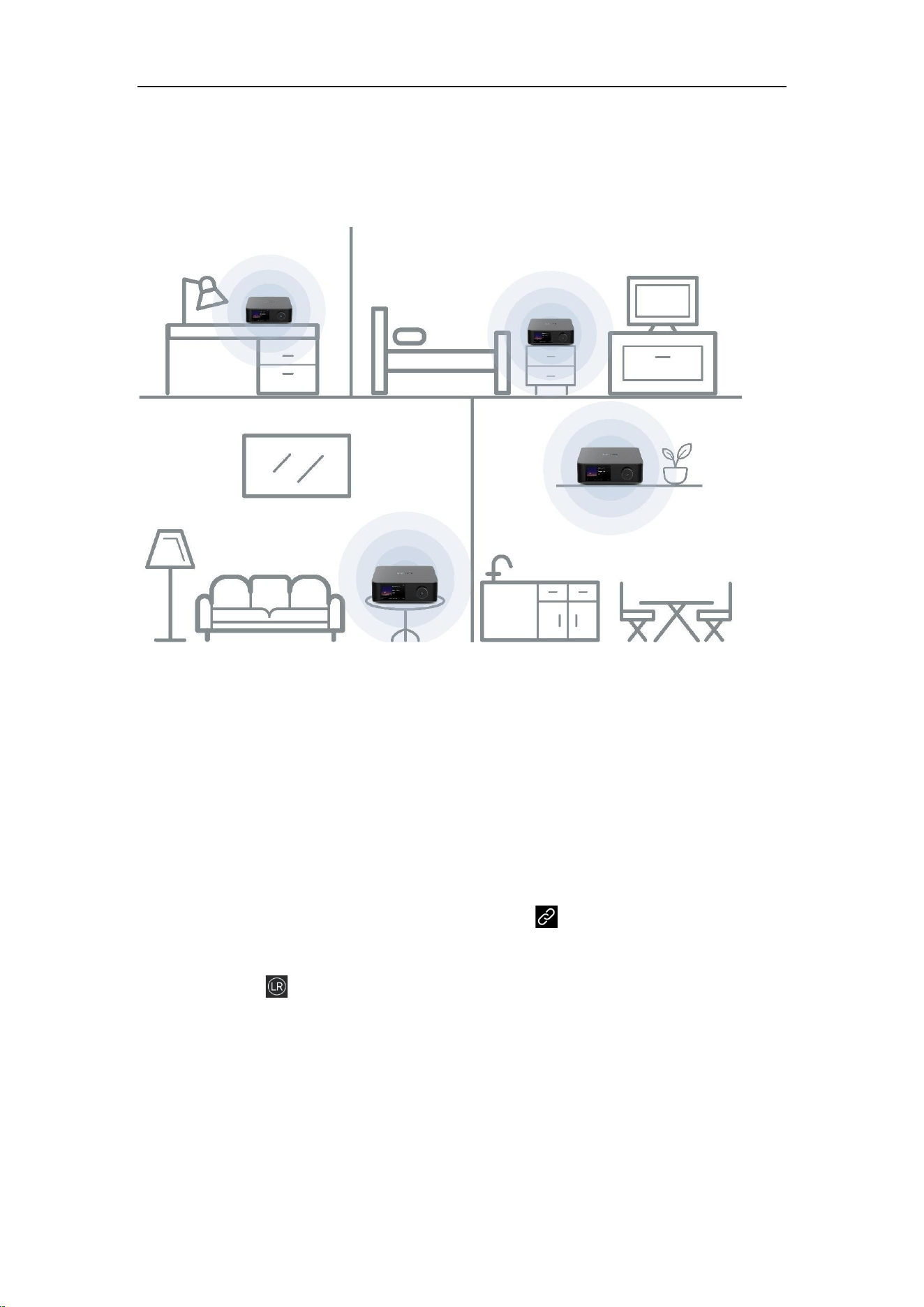
5. Set up a multi-room music group with the WiiM Amp Ultra:
a) Go to the Devices tab and select the WiiM Amp Ultra connected to your
source device.
b) Tap the Group icon in the upper right corner of the device box.
c) Choose other desired WiiM devices to include in the multi-room audio group.
Now, the music from the connected device will play across your multi-room music group.
WiiM Amp Ultra User Manual Version 1.0.1 10/9/2025
56
You can follow the same procedure to set up a WiiM multi-room system with any other
source input supported by your source device.
WiiM Stereo Pairing
In addition, you can group two speakers connected to two WiiM devices as a stereo pair
for a wider, more immersive sound stage. This feature supports all input options, ensuring
compatibility with virtually every music listening preference.
To use stereo pairing, follow the steps below:
1. Set up two WiiM devices.
2. Open the WiiM Home app.
3. Select a WiiM device and tap the Group icon in the upper right corner.
4. Select the other WiiM device, then tap Done.
5. Tap the icon and set the two WiiM devices to L and R, respectively.
6. Go to the Browse tab, then select your music to play.

WiiM Amp Ultra User Manual Version 1.0.1 10/9/2025
57
Alexa Multi-room Audio
1. Open the Alexa app on your smartphone or tablet.
2. Tap Devices at the bottom of the screen.
3. Tap the + icon in the top right corner of the screen.
4. In the menu that appears, choose Combine speakers, then select Multi-room
music.
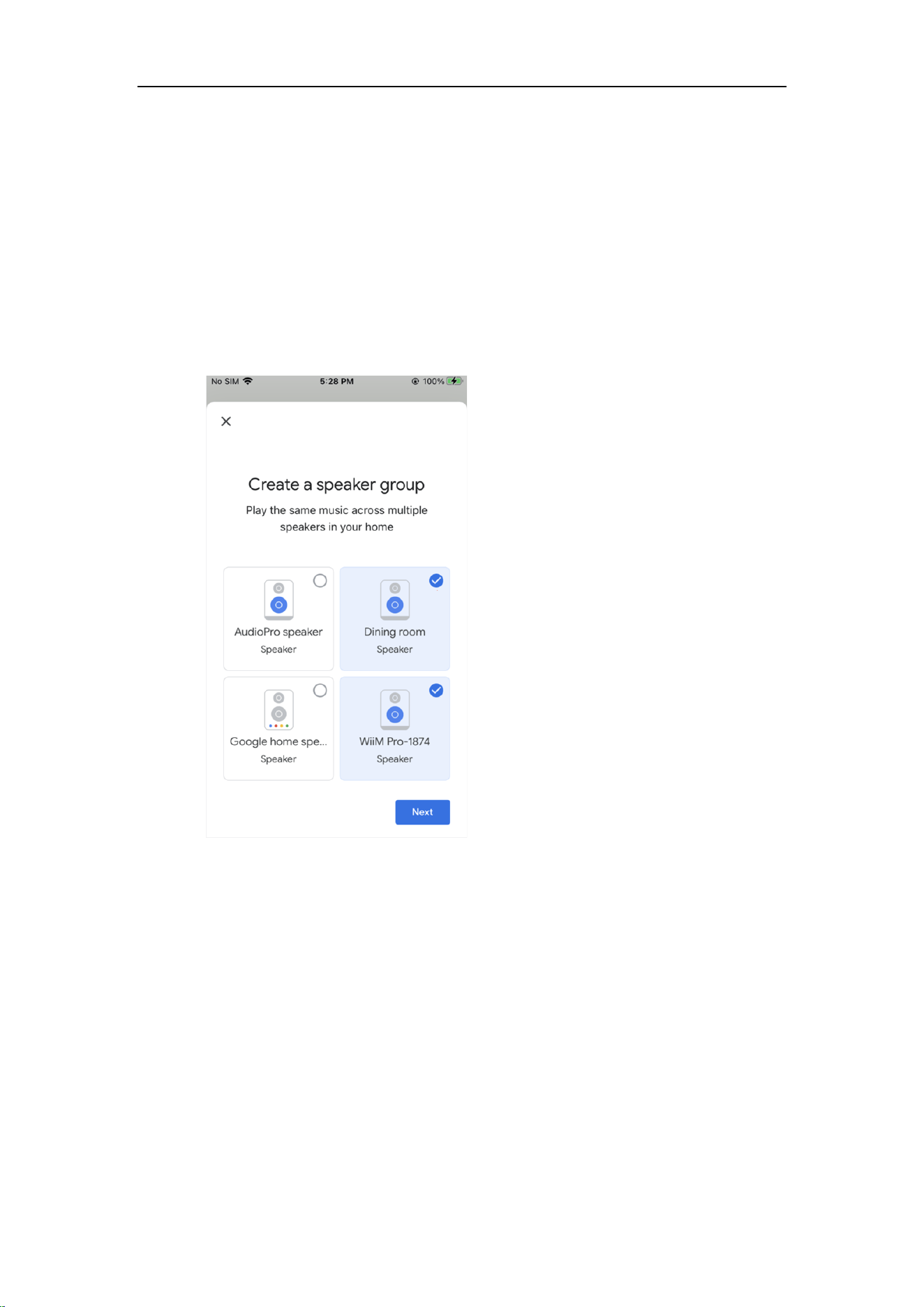
5. Select the Echo and WiiM devices you want to include in your multi-room music
setup, then tap Next.
6. Assign a group name for the multi-room music setup (e.g., "Bedroom").
7. Follow the on-screen prompts to complete the setup.
Note: When used with Echo or other devices, the WiiM Amp Ultra functions as an audio
receiver and cannot transmit its physical audio inputs (e.g., Line In or Optical In) to these
devices over Wi-Fi.
WiiM Amp Ultra User Manual Version 1.0.1 10/9/2025
58
Google Cast Multi-room Audio
You can group the WiiM Amp Ultra with other Google Home or Google Cast enabled
devices to play the same music on all devices via the Google Home app.
1. Open the Google Home app.
2. Tap the + icon in the top left corner.
3. Tap Create speaker group to create a speaker group.
4. Select the devices that are in the same network.
5. Assign a name to your group (e.g., "Living Room").
6. Stream music to the group.
Note: When using with Google Cast audio devices, the WiiM Amp Ultra functions as an
audio receiver and cannot transmit its physical audio inputs (e.g., Line In or Optical In) to
these Google Cast audio devices.

WiiM Amp Ultra User Manual Version 1.0.1 10/9/2025
59
13. Advanced Features
Firmware Updates
⚫ The WiiM Amp Ultra updates automatically when connected to your network
⚫ Updates occur silently between 2:00 a.m. and 5:00 a.m. local time, with no sound
or notifications during the process. Upon opening the app after the upgrade, you’ll
see the latest updates applied to the WiiM Amp Ultra.
Use Ethernet Instead of Wi-Fi
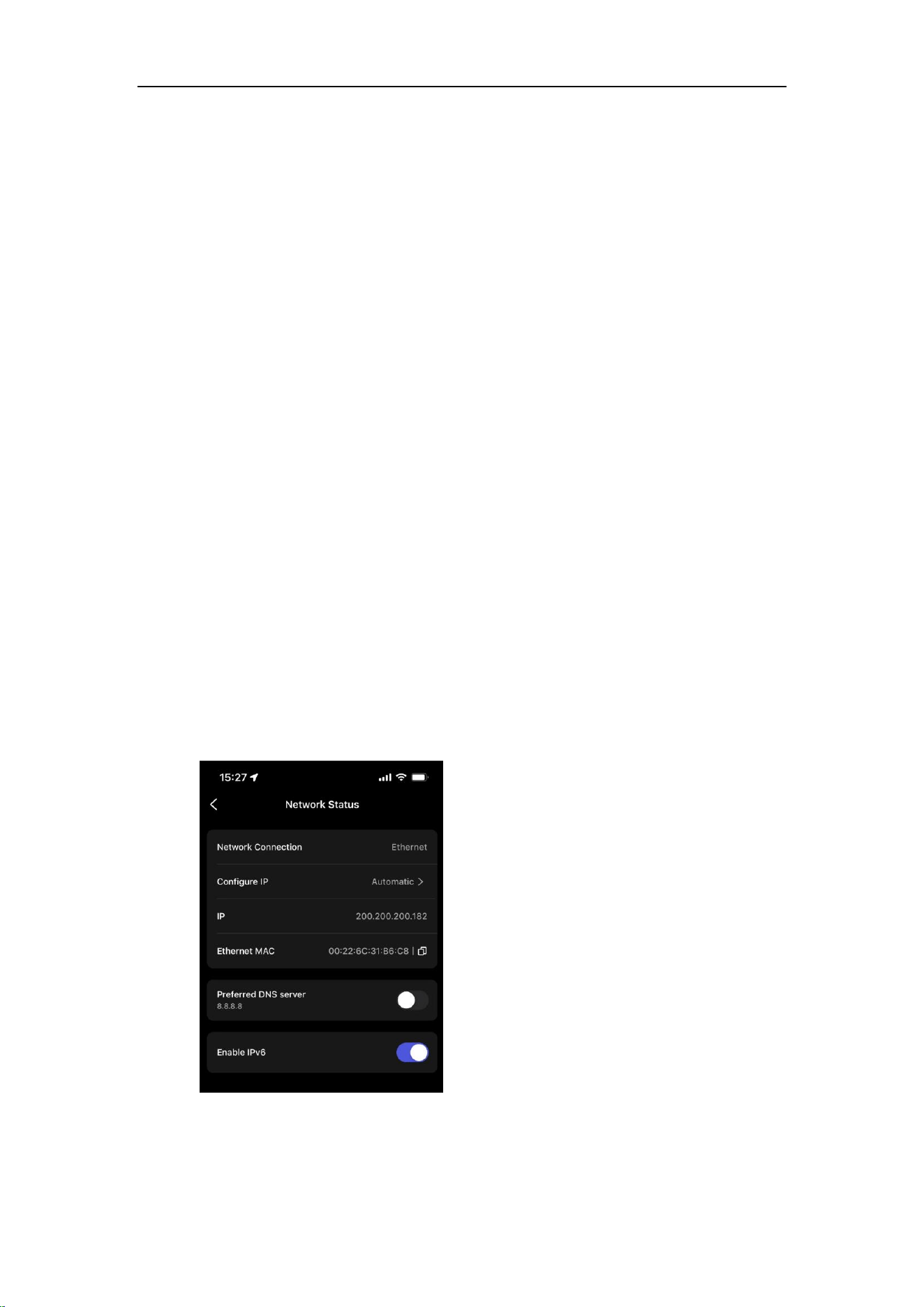
When an Ethernet cable is connected, the WiiM Amp Ultra will automatically switch off Wi-
Fi to use the Ethernet network.
To confirm the active connection:
1. Open the WiiM Home app.
2. Go to the Devices tab and tap the Device Settings icon of the WiiM Amp
Ultra.
3. Select Network Status to view the current network connection.

WiiM Amp Ultra User Manual Version 1.0.1 10/9/2025
60
14. FAQ and Support
FAQ
If you experience problems with the audio streamer, try these solutions first:
⚫ What can I do if my device has Wi-Fi connection issues during setup?
Please see Troubleshooting: How to Resolve Wi-Fi Connection Issues During WiiM Setup
for step-by-step solutions.
⚫ What can I do if my WiiM Home app can’t find the device?
o Make sure your network is available and the device is powered on properly.
o Check the LED on the device is solid white and check for any prompt on WiiM
Amp Ultra’s screen.
o Make sure your smartphone/tablet and WiiM Amp Ultra are connected to the
same Wi-Fi network.
o Make sure you have the latest version of the WiiM Home app on your device.
o Try restarting your smartphone/tablet, WiiM Amp Ultra, and router.
o If still can’t find, reconfigure the device to the network.
For details, see Troubleshooting: WiiM Device Not Found in WiiM Home App for step-by-
step solutions.
⚫ What can I do if my device has no sound?
If you are not getting any sound from your WiiM Amp Ultra, make sure you have
checked the following things:
o Volume Levels: Ensure that the volume is turned up both in the WiiM Home
app and on your external device (e.g., AV receiver) connected to the WiiM
Amp Ultra.
o Input Source: Make sure the correct input source is selected on your receiver
or device that corresponds to the output of the WiiM Amp Ultra.
o Audio Output Selection: Confirm that the correct audio output is selected in
the WiiM Home app.
o Physical Connections: Verify that all physical connections between the WiiM
Amp Ultra and your receiver or device are plugged in correctly and securely.

WiiM Amp Ultra User Manual Version 1.0.1 10/9/2025
61
⚫ How can I reset my device?
o Press and hold the volume knob for 10 seconds until you will hear the voice
prompts of “Restore to factory setting” and see the light flashing red and white.
The WiiM Amp Ultra's screen will also display "Restore to factory setting".
o Factory reset clears all source, volume, and network settings for the WiiM Amp
Ultra and returns it back to the original factory settings.
⚫ What can I do if my device cannot power on normally?
o Check the device LED status and ensure it’s on.
o Ensure the original power cable is used.

WiiM Amp Ultra User Manual Version 1.0.1 10/9/2025
62
Support
If you are unable to resolve your issue, please follow one of the methods below to reach
out to us for assistance:
⚫ WiiM Home app: Go to More > Feedback or More > FAQ to submit a ticket. You
will receive email response from WiiM Support in the next 24 hours.
⚫ FAQ Website: Find more FAQ at https://faq.wiimhome.com/en/support/solutions.
⚫ Email: Send an email to support@wiimhome.com for assistance.
WiiM Amp Ultra User Manual Version 1.0.1 10/9/2025
63
15. Public Network Interfaces and Services
This chapter describes the public network interfaces (LAN, Wi-Fi, and Bluetooth) on the
WiiM Amp Ultra and the services they support.
LAN Interface
The LAN interface allows the device to connect to a wired network via an Ethernet cable,
providing a stable and high-speed connection for reliable streaming and control.
Note: When connected via Ethernet, the WiiM Amp Ultra will automatically disable the Wi-
Fi connection to prioritize the wired network. If the Ethernet cable is disconnected, the
device will automatically reconnect to the Wi-Fi network.
⚫ Physical Port: An RJ-45 Ethernet port (10/100 Mbps).
⚫ Supported Protocols/Services:
o DHCP: By default, when connecting the WiiM Amp Ultra to the LAN using an
Ethernet cable, the device will automatically configure the network
connection via DHCP (Dynamic Host Configuration Protocol) to obtain an IP
address.
o mDNS: Allows the WiiM Amp Ultra to be discovered within the local network.
o UPnP/DLNA: Enables media sharing and control with compatible devices.
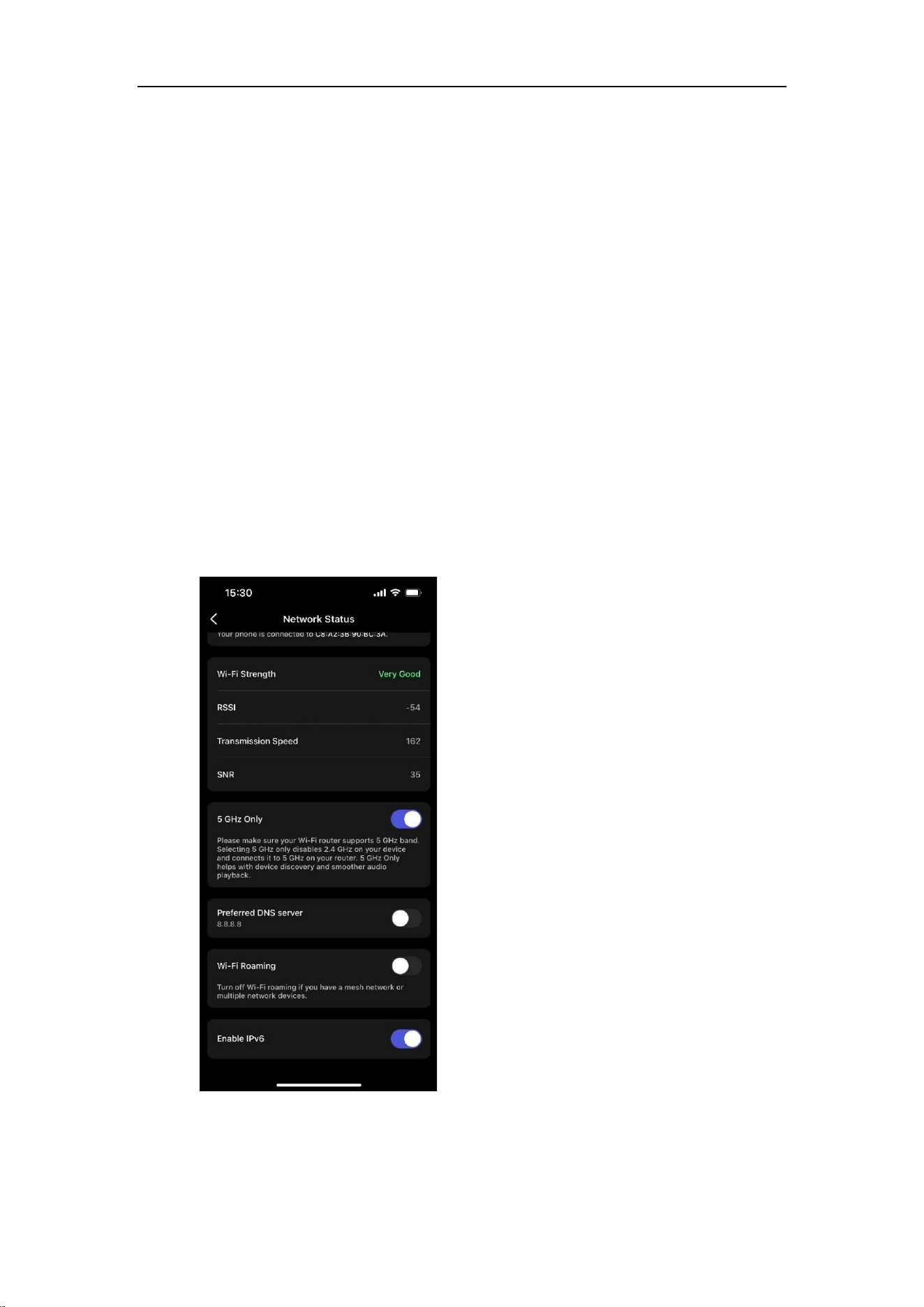
⚫ Configuration: Once connected, you can view the connection status and adjust
network settings using the WiiM Home app.
WiiM Amp Ultra User Manual Version 1.0.1 10/9/2025
64
Wi-Fi Interface
The Wi-Fi interface allows the device to connect to a wireless network, providing flexible
setup and streaming options without the need for a wired connection.
⚫ Supported Standards: IEEE 802.11a/b/g/n/ac/ax (2.4GHz, 5GHz, and 6GHz
bands)
⚫ Supported Protocols/Services:
o Wi-Fi Client Mode: By default, the WiiM Amp Ultra is set to Wi-Fi Client
Mode, automatically connecting to a known Wi-Fi network.
o AP Mode: Allows the WiiM Amp Ultra to be set up via Wi-Fi. The AP mode
is automatically enabled when the WiiM Amp Ultra enters setup mode.
o mDNS: Allows the WiiM Amp Ultra to be discovered within the local network.
o UPnP/DLNA: Enables media sharing and control with compatible devices.
⚫ Configuration: Once connected via Wi-Fi, check connection status and modify
Wi-Fi settings using the WiiM Home app.

WiiM Amp Ultra User Manual Version 1.0.1 10/9/2025
65
Bluetooth Interface
The Bluetooth interface is used for both Wi-Fi setup and audio streaming.
⚫ Supported Protocols/Services: Bluetooth 5.3 LE (A2DP Sink and A2DP Source)
o BLE Broadcasting: BLE broadcasting is automatically enabled during Wi-Fi
setup, allowing the WiiM Home app to discover the device and connect it to
the Wi-Fi network. For details, see WiiM Amp Ultra Setup via Wi-Fi.
o A2DP Sink: Supports receiving audio streams from mobile devices, tablets,
etc., for audio playback via Bluetooth.
o A2DP Source: Output audio to Bluetooth speakers or headphones for
wireless audio streaming.
⚫ Configuration: Bluetooth pairing is required for audio streaming. For details, see
Audio Output/Input via Bluetooth.

WiiM Amp Ultra User Manual Version 1.0.1 10/9/2025
66
16. Important Safety Instructions
IMPORTANT: RETAIN FOR FUTURE REFERENCE, READ CAREFULLY
1. Read these instructions. Keep these instructions. Heed all warnings. Follow all
instructions.
2. Do not use this apparatus near water.
3. Clean only with a dry cloth.
4. Do not block any ventilation openings. Install in accordance with the
manufacturer’s instructions.
5. Protect the power cord from being walked on or pinched particularly at plugs,
convenience receptacles, and the point where they exit from the apparatus.
6. Only use attachments/accessories specified by the manufacturer.
7. Unplug this apparatus during lightning storms or when unused for long periods of
time
8. Refer all servicing to qualified personnel. Servicing is required when the
apparatus has been damaged in any way, such as external power supply, power-
supply cord or plug is damaged, liquid has been spilled or objects have fallen into
the apparatus, the apparatus has been exposed to rain or moisture, does not
operate normally, or has been dropped.
9. To reduce the risk of fire or electrical shock, do NOT expose this product to rain,
liquids or moisture.
10. Do NOT expose this product to dripping or splashing, and do not place objects
filled with liquids, such as vases, on or near the product.
11. Keep the product away from fire and heat sources. Do NOT place naked flame
sources, such as lighted candles, on or near the product.
12. Do NOT make unauthorized alterations to this product.
13. Do NOT use in vehicles or boats.
14. Use this product only with the power supply provided.
15. Where the mains plug or an appliance coupler is used as the disconnect device,
the disconnect device shall remain readily operable.
16. Due to ventilation requirements, does not recommend placing the product in a
confined space such as in a wall cavity or in an enclosed cabinet.
17. Contains small parts which may be a choking hazard. Not suitable for children
under age 3.
18. This product contains magnetic material. Consult your physician on whether this
might affect your implantable medical device.

WiiM Amp Ultra User Manual Version 1.0.1 10/9/2025
67
19. Do not place or install the bracket or product near any heat sources, such as
fireplaces, radiators, heat registers, or other apparatus (including amplifiers) that
produce heat.
20. By means of a power cord connected to a socket-outlet with earthing connection.

WiiM Amp Ultra User Manual Version 1.0.1 10/9/2025
68
17. CE/FCC/IC/TELEC Statements
FCC/IC Statement
RF Exposure Information: The equipment complies with FCC/IC RSS-102 radiation
exposure limits set forth for an uncontrolled environment. The equipment should be
installed and operated with minimum distance 20cm between the radiator & your body.
This device complies with Part 15 of the FCC Rules and contains license-exempt
transmitter(s)/receiver(s) that comply with Innovation, Science and Economic Development
Canada’s licence-exempt RSS standard(s). Operation is subject to the following two
conditions:
(1) this device may not cause harmful interference, and
(2) this device must accept any interference received, including interference that may
cause undesired operation.
NOTE: The manufacturer is not responsible for any radio or TV interference caused by
unauthorized modifications or changes to this equipment. Such modifications or changes
could void the user’s authority to operate the equipment.
NOTE: This equipment has been tested and found to comply with the limits for a Class B
digital device, pursuant to part 15 of the FCC Rules. These limits are designed to provide
reasonable protection against harmful interference in a residential installation. This
equipment generates uses and can radiate radio frequency energy and, if not installed and
used in accordance with the instructions, may cause harmful interference to radio
communications. However, there is no guarantee that interference will not occur in a
particular installation. If this equipment does cause harmful interference to radio or
television reception, which can be determined by turning the equipment off and on, the
user is encouraged to try to correct the interference by one or more of the following
measures:
‐ Reorient or relocate the receiving antenna.
‐ Increase the separation between the equipment and receiver.
‐Connect the equipment into an outlet on a circuit different from that to which the receiver
is connected.
‐Consult the dealer or an experienced radio/TV technician for help.
For radio equipment operates in 5150-5850MHz
High power radars are allocated as primary users of the 5.25 to 5.35 GHz and 5.65 to 5.85
GHz bands. These radar stations can cause interference with and/or damage to LE LAN
(Licence-Exempt Local Area Network) devices. No configuration controls are provided for
this wireless equipment allowing any change in the frequency of operations outside the
FCC grant of authorization for US operation according to Part 15.407 of the FCC rules.
The device for operation in the band 5150-5250 MHz is only for indoor use to reduce the
potential for harmful interference to co-channel mobile satellite systems; for devices with
detachable antenna(s), the maximum antenna gain permitted for devices in the bands
5250-5350 MHz and 5470-5725 MHz shall be such that the equipment still complies with
the e.i.r.p. limit; for devices with detachable antenna(s), the maximum antenna gain

WiiM Amp Ultra User Manual Version 1.0.1 10/9/2025
69
permitted for devices in the band 5725-5850 MHz shall be such that the equipment still
complies with the e.i.r.p. limits specified for point-to-point and non-point-to-point operation
as appropriate.
Transmitters in the 5.925-7.125 GHz band are prohibited from operating to control or
communicate with unmanned aircraft systems.
Énoncé d’exposition aux rayonnements FCC/IC
L’équipement est conforme aux limites d’exposition aux rayonnements FCC/IC RSS-102
établies pour un environnement non contrôlé. L’équipement doit être installé et utilisé avec
une distance minimale de 20cm entre le radiateur et votre corps.
L’émetteur/récepteur exempt de licence contenu dans le présent appareil est conforme
aux CNR d’Innovation, Sciences et Développement économique Canada applicables aux
appareils radio exempts de licence.
L'exploitation est autorisée aux deux conditions suivantes:
(1) l'appareil ne doit pas produire de brouillage, et
(2) l'appareil doit accepter tout brouillage radioélectrique subi, même si le brouillage est
susceptible d'en compromettre le fonctionnement.
Les radars de puissance élevée sont attribués comme utilisateurs principaux des
fréquences de 5,25 à 5,35 GHz et Bandes de 5,65 à 5,85 GHz. Ces stations radar peuvent
causer des interférences avec Et/ou dommages aux périphériques LE LAN (réseau Local
exempté de licence). Non non Des contrôles de configuration sont fournis pour cet
équipement sans fil permettant toute Modification de la fréquence des opérations en
dehors du FCC octroi d’autorisation Pour les opérations américaines conformément à la
partie 15.407 des règles de la FCC.
Les dispositifs fonctionnant dans la bande 5150-5250 MHz sont réservés uniquement pour
une utilisation à l’intérieur afin de réduire les risques de brouillage préjudiciable aux
systèmes de satellites mobiles utilisant les mêmes canaux; le gain maximal d’antenne
permis pour les dispositifs utilisant les bandes 5250-5350 MHz et 5470-5725 MHz doit se
conformer à la limite de p.i.r.e.; le gain maximal d’antenne permis (pour les dispositifs
utilisant la bande 5725-5850 MHz) doit se conformer à la limite de p.i.r.e. spécifiée pour
l’exploitation point à point et non point à point, selon le cas.
Il est interdit d’utiliser les émetteurs de la bande de 5,925 à 7,125 GHz pour contrôler les
systèmes d’aéronef sans pilote ou communiquer avec eux.
CAN ICES(B)/NMB(B)
IC:30828-AMP003
FCCID:2BABF-AMP003
CE Statement
RF exposure information: The Maximum Permissible Exposure (MPE) level has been
calculated based on a distance of d=20 cm between the device and the human body. To
maintain compliance with RF exposure requirement, use product that maintain a 20cm
WiiM Amp Ultra User Manual Version 1.0.1 10/9/2025
70
distance between the device and the human body.
Do not use the device in the environment at too high or too low temperature,
never expose the device under strong sunshine or too wet environment.
Operating ambient temperature: 0 - 40°C.
Operating frequency range and maximum transmit power
Bluetooth: 2402MHz ~ 2480MHz, <9.11 dBm EIRP
WLAN 2.4GHz: 2412MHz ~ 2472MHz, <20 dBm EIRP
WLAN 5GHz: 5150MHz ~ 5725MHz, <20 dBm EIRP
5745MHz ~ 5825MHz, <13.98 dBm EIRP
WLAN 6GHz: 5955MHz ~ 6415MHz, <20 dBm EIRP
This product can be used across EU member states
The device for operation in the band 5150-5350 MHz and 5955-6415MHz is only for indoor
use to reduce the potential for harmful interference to co-channel mobile satellite systems.
EU Regulatory Conformance
Hereby, Linkplay Technology Inc. Corporation declares that this device is in compliance
with the essential requirements and other relevant provisions of Directive 2014/53/EU.
For the declaration of conformity, see wiimhome.com/wiimAmpUltra/Doc_RED.

WiiM Amp Ultra User Manual Version 1.0.1 10/9/2025
71
TELEC Statements
According to radio law, the 5.2/5.3/6GHz band is limited to indoor use.
電波法により 5.2/5.3/6 GHz 帯は屋内使用に限ります.
WARNING (For Remote)
- Replacement of a battery with an incorrect type may defeat a safeguard;
- Disposal of a battery into fire or a hot oven, or mechanically crushing or cutting of a
battery, may result in an explosion;
- Leaving a battery in an extremely high temperature surrounding environment, such as
sunshine, fire, or hot surface may result in an explosion or the leakage of flammable
liquid or gas;
- A battery subjected to extremely low air pressure may result in an explosion or the leakage
of flammable liquid or gas.
CAUTION
Risk of fire or explosion if the battery is replaced by an incorrect type!
Grounding Instructions
‐ In Denmark: Apparatets stikprop skal tilsluttes en stikkontakt med jord som giver
forbindelse til stikproppens jord.
‐ In Finland: Laite on liitettävä suojakoskettimilla varustettuun pistorasiaan.
‐ In Norway: Apparatet må tilkoples jordet stikkontakt.
‐ In Sweden: Apparaten skall anslutas till jordat uttag.
Declaration of Compliance
The manufacturer declares that the product is compliant with:
• The deemed security requirements specified in Schedule 1 of The Product Security and
Telecommunications Infrastructure (Security Requirements for Relevant Connectable
Products) Regulations 2023 ("Security Requirements").
Visit the web site: PSTI Statement of Compliance.

WiiM Amp Ultra User Manual Version 1.0.1 10/9/2025
72
KC Certification
SU04015-2006E
SU01015-4001C
전자파적합등록번호: R-R-L8P-AMP003
제품명칭: WiiM Amp Ultra Stereo Streaming Amplifier
모델명: AMP003
정격입력: 100-240V AC, 50/60Hz, 500W
제조업체: Linkplay Technology Inc. 중국
제조년월: 별도표시