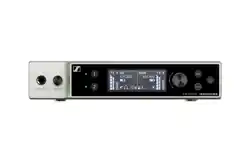
Evolution Wireless Digital
Security Configuration Guide for EW-DX Devices
Sennheiser electronic SE & Co. KG
Am Labor 1, 30900 Wedemark, Germany, www.sennheiser.com
v1.1

v1.1 | 2/15
Security Features
for EW-DX devices
Contents
Introduction ............................................................................................................................ 3
Enhanced Security Features with EW-DX ............................................................................ 3
Key product security features ............................................................................................... 3
Bluetooth® and Security .........................................................................................................3
Bluetooth® Pairing ..................................................................................................................3
How to enable and use the security features ................................................................................... 4
Device control encryption and authentication .....................................................................4
Benefits of device claiming ................................................................................................................. 4
Secure 3rd party access .........................................................................................................5
Sennheiser Sound Control Protocol v2 (SSCv2) ............................................................................... 5
Sennheiser Sound Control Protocol v1 (SSCv1) ................................................................................ 5
How to enable the security features ..................................................................................... 5
Enabling Link Encryption (AES-256) ..................................................................................... 5
Enabling Link Encryption on EW-DX device ..................................................................................... 5
Enabling Link Encryption in Control Cockpit .................................................................................... 6
Device control encryption and authentication .....................................................................6
Claiming single device (Control Cockpit) .......................................................................................... 6
Claiming multiple devices (Control Cockpit) .....................................................................................7
Claiming single device (Wireless System Manager) ........................................................................ 8
Claiming multiple devices (Wireless System Manager) .................................................................. 9
Authentication during operation (Wireless System Manager) ....................................................... 9
Claiming device (SoundBase) ............................................................................................................10
Resetting the device password (EW-DX device) ..............................................................................11
Resetting the device password (Control Cockpit) ............................................................................11
Resetting the device password (Wireless Systems Manager)) ......................................................11
Secure 3rd party Access .......................................................................................................12
Enabling 3rd party access in Control Cockpit: ................................................................................ 12
Enabling 3rd party access in WSM: .................................................................................................. 12
Dante® encryption ...............................................................................................................................13
Resetting the configuration parameters of the Dante Controller .................................................13
Summary ................................................................................................................................14
Ports, protocols and services ...............................................................................................15
Dante® network .......................................................................................................................15
Sennheiser Control Cockpit ..................................................................................................15
Wireless System Manager ....................................................................................................15
SoundBase ..............................................................................................................................15

v1.1 | 3/15
Security Features
for EW-DX devices
Introduction
In today’s digital environments, safeguarding wireless audio systems is critical. Sennheiser EW-DX
receivers offer multiple layers of protection to secure communication, data transfer, and device
access.
This guide outlines how to enable and manage the security features of EW-DX devices (EM 2,
EM 2 Dante, EM 4 Dante), using both device interfaces and software tools such as Sennheiser Control
Cockpit, Wireless System Manager (WSM) or SoundBase.
Enhanced Security Features with EW-DX
Sennheiser applies the following principles to ensure device security:
• Security by design
• Compliance with international standards, e.g.:
• ETSI EN 303 645
• EU RED
• California SB 327
• Encrypted communication:
• AES-256 for audio
• HTTPS for control
• Device authentication and claiming
• Secure 3rd party API access
Key product security features
EW-DX devices (EM 2, EM 2 Dante, and EM 4 Dante) support enhanced security measures, ensuring
both a secure connection between devices via radio and secure data transfer over Bluetooth® and on
the network.
We offer the following security features, which can be activated or deactivated as needed:
• AES-256 Link Encryption:
The AES-256 Link Encryption protects audio and control communication between devices.
• Device Claiming & Authentication:
The Device Claiming & Authentication feature ensures authorized control access using pass-
words.
• SSCv2 API Encryption:
The SSCv2 protocol secures 3rd party integration via HTTPS.
• Dante® Media Encryption:
The Dante® Media Encryption is an optional channel encryption for Dante networks.
Bluetooth® and Security
Bluetooth® is a wireless technology standard that enables data exchange between devices over short
distances using radio waves in the 2.4 GHz band.
Bluetooth® data is encrypted using various encryption protocols to protect against eavesdropping and
other malicious attacks. This includes pairing encryption, which secures the initial pairing process
between devices, and link encryption, which protects data as it is transmitted between devices.
Bluetooth® Pairing
The Sennheiser EW-DX devices utilize Bluetooth® Low Energy (BLE) for communication between the
receiver module (EM) and the Smart Assist App and to synchronize a transmitter and receiver (see
chapter “Connecting to the EW-DX EM receivers / synchronizing the EW-DX”.
BLE ensures an energy-efficient connection and simplifies device configuration.

v1.1 | 4/15
Security Features
for EW-DX devices
How to enable and use the security features
Connection to the Smart Assist APP
The security of the connection is ensured by the Numeric Compare procedure, which uses a unique,
secret key to authenticate and encrypt the connection between the devices.
Synchronization between transmitter and receiver
There are two scenarios for the connection, depending on whether link encryption is activated or not:
1. Link Encryption enabled
When Link Encryption is enabled, the “Just Works” pairing procedure is used. This procedure is
particularly user-friendly as it does not require a numeric compare. Instead, automatic encryption
is established between the EM and other devices (SK, SKM, TS) to ensure a secure connection.
2. Link Encryption disabled
If Link Encryption is disabled, a standard connection is established without encryption. This can
be useful in situations where security is not a primary concern, and a faster or simpler connection
is preferred.
Overall, the BLE functionality of the Sennheiser EW-DX devices provides a flexible and secure
way to connect and control the devices via the Smart Assist app.
Bluetooth® encryption (Link Encryption) is deactivated by default. For more details on
how to activate the encryption, see chapter „Enabling Link Encryption (AES-256)“.
Link encryption
You can secure the radio link between the transmitter and receiver by enabling AES-256 encryption.
Once activated, all communication between the devices will be protected with AES-256, a top-tier
encryption standard designed to safeguard sensitive data (see „Enabling Link Encryption (AES-256)“).
Enabling Link Encryption includes the following interfaces:
• The connection between the transmitter and receiver for audio transmission.
• The connection between the transmitter and receiver for device setting synchronization.
• The connection between the device and the Smart Assist App for smart setup and remote control
via iOS and Android devices.
Device control encryption and authentication
As of firmware version 4.0.0, all control communication over the network for EW-DX receiver devices
(EM 2, EM 2 Dante, and EM 4 Dante) is encrypted and authenticated. The devices are password
protected and must be claimed in the control software before use (see „Claiming single device (Control
Cockpit)“, „Claiming single device (Wireless System Manager)“ or „Claiming device (SoundBase)“).
In order not to compromise the security of the device and to follow best security practices, the
firmware version can no longer be downgraded.
Benefits of device claiming
Device claiming is a feature of the Sennheiser Control Cockpit Software, Wireless System Manager
and SoundBase that allows the user to claim ownership of their Sennheiser devices, providing an
extra layer of security and control. It allows to assign a device to one or more remote installations on
which prevents any unauthenticated device control within the network.
As part of the initial configuration, users claim a device by configuring a mandatory device password.
Within an installation, multiple Software applications can be used simultaneously with this device
password for optimal usability. Once a device is claimed, its settings can only be viewed and modified
via an encrypted connection which requires entry of the configuration password.
With Control Cockpit 9.0 and later versions, Wireless System Manager 4.9.0 and later versions and
SoundBase 2.0.23 and later versions it is possible to select multiple devices and claim them in a
single step.
v1.1 | 5/15
Security Features
for EW-DX devices
Secure 3rd party access
Sennheiser offers two different protocols that can be used to connect 3rd party systems to Sennheiser
devices and control them (see „Secure 3rd party access“). Depending on the functional scope of the
implemented device firmware and the supplied software, the following protocols can be used:
Secure API: Sennheiser Sound Control Protocol v2 (SSCv2):
• New protocol with a high security standard for Sennheiser devices that are delivered
with a password.
Legacy API: SSCv1:
• Unsecure legacy protocol based on UDP/TCP.
Note: after updating to the latest EW-DX firmware, all 3rd party APIs will be switched
off by default.
Sennheiser Sound Control Protocol v2 (SSCv2)
The latest Sennheiser 3rd party API protocol enables configuration and monitoring of devices via
encrypted REST API calls, allowing the user to control the device via HTTPS commands and integrate
the products into any IT environment. It offers end-to-end security, utilizing HTTPS (TLS 1.3).
In addition to encryption, SSCv2 also provides an authentication scheme. By using HTTP basic
authentication, a compatible and well-established mechanism of username and password is employed to
ensure that no unauthorized changes are made to the device’s settings and that no data is read from it.
Sennheiser Sound Control Protocol v1 (SSCv1)
The legacy protocol (Sennheiser Sound Control protocol v1) can still be utilized by the user, and is
provided for interoperability reasons.
We strongly recommend that you switch to the new and secure protocol, which is
supported in the latest 3rd party modules provided by Sennheiser. Nevertheless, to
ensure that your room is fully functional at all times, you can use the unencrypted
protocol.
How to enable the security features
The following section explains how you can activate the various security features both via the device
itself and via supported software applications.
Enabling Link Encryption (AES-256)
You can secure the radio link between the transmitter and receiver using AES 256 encryption.
Enabling Link Encryption on EW-DX device
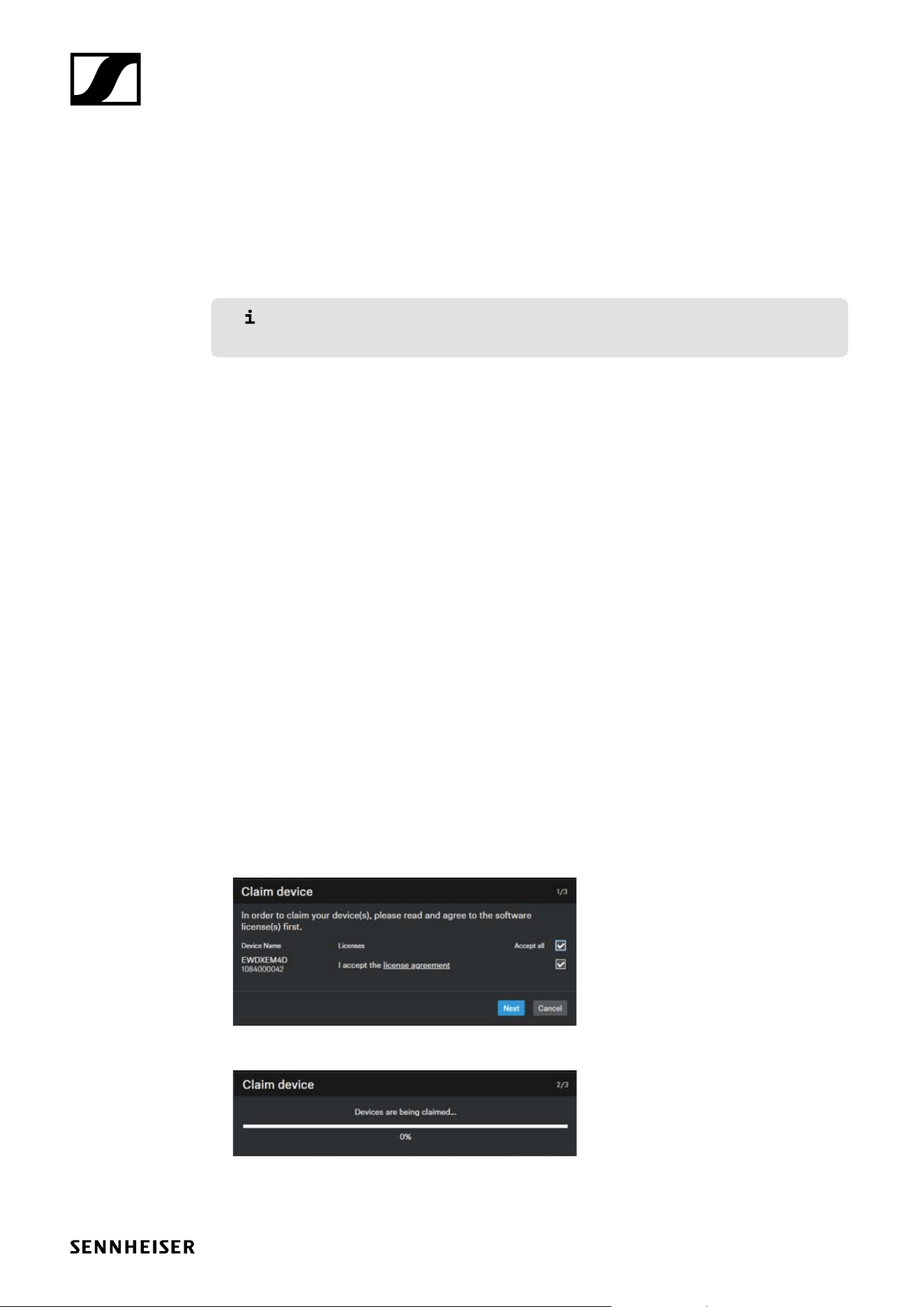
To enable audio encryption on the device:
f In the System menu, navigate to the menu item Link Encryption.
f Press the jog dial to open the menu.
The following view is displayed:
f Turn the jog dial to choose between the On and Off options.
f Press the jog dial to save your setting.
Audio encryption has been activated.
After enabling AES 256 encryption, the connected transmitter must be resynchronized
with the receiver to enable encryption on the transmitter as well.
v1.1 | 6/15
Security Features
for EW-DX devices
Enabling Link Encryption in Control Cockpit
To enable audio encryption in the Control Cockpit software:
f Navigate to Devices > your device > RF Settings > Audio Encryption.
f Switch the button on On.
Audio encryption has been activated.
After enabling AES 256 encryption, the connected transmitter must be resynchronized
with the receiver to enable encryption on the transmitter as well.
Device control encryption and authentication
As of firmware version 4.0.0, all control communication over the network for EW-DX receiver devices
(EM 2, EM 2 Dante, and EM 4 Dante) is encrypted and authenticated. The devices are password
protected and must be claimed in the control software before use.
Claiming single device (Control Cockpit)
When you connect your device to a Sennheiser Control Cockpit instance for the first time, the new
device is automatically detected and displayed as an unclaimed device (“Claim device”):
• If the device is in a factory default state and the original password is still assigned, it will be
automatically detected and applied.
• If the device was previously claimed by another Control Cockpit instance, the previously set
password must be entered. If you cannot remember the previously set password, please perform
a hardware reset of the device (see „Resetting the configuration parameters of the Dante
Controller“). After the reset, the default password for EW-DX (“sennheiser”) will be automatically
applied by the software.
You can claim either a single device or several devices simultaneously for your Control Cockpit
instance.
To claim a single device for your Control Cockpit instance:
f Connect the device’s control network port to the network.
f Open Control Cockpit and click on the Device list view.
The new device is automatically detected and displayed as “Not claimed.” If the device does not
appear in the device list, add the device manually by entering an IP address.
f Click on Claim device.
f Read and agree to the software licenses and click on Next.
f Enter the password of the device if it was previously set.
v1.1 | 7/15
Security Features
for EW-DX devices
If the device was previously claimed by another Control Cockpit instance, enter the
previously set password. If you do not remember the previously set password, please
perform a hardware reset of the device (see „Resetting the device password (EW-DX
device)“) and try again. The default password for EW-DX will be automatically applied
by the software.
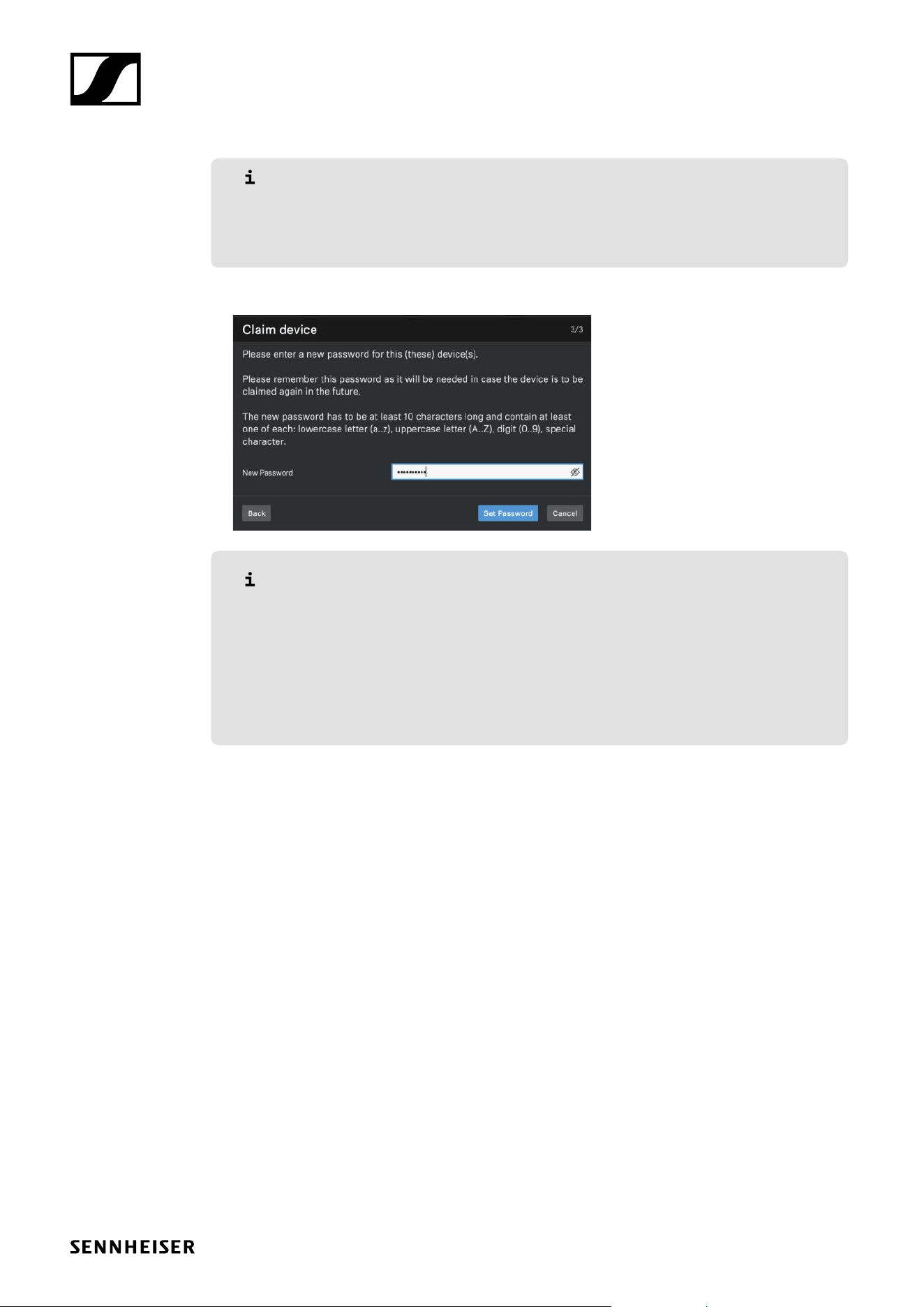
f Next to ensure secure access to the device, you will be asked to enter a new password.
Please note that the new password must meet the following requirements:
• At least ten characters
• At least one lowercase letter
• At least one uppercase letter
• At least one number
• At least one special character: !#$%&()*+,-./:;<=>?@[]^_{|}~
• Maximum length: 64 characters
f Enter the new password for your device and click Set password.
The device has now been claimed by your Control Cockpit instance. You can now use all available
functions.
You can view and change the device password on the Access tab on the device page. In case you
wish to configure the device with a second Control Cockpit instance, simply claim the device by
entering the set device password.
Claiming multiple devices (Control Cockpit)
To claim multiple devices for your Control Cockpit instance at once:
f Connect the devices’ control network ports to the network.
f Open Control Cockpit and click on the Device List view.
The new device is automatically detected and displayed as “Not claimed.” If the device does not
appear in the device list, add the device manually by entering an IP address.
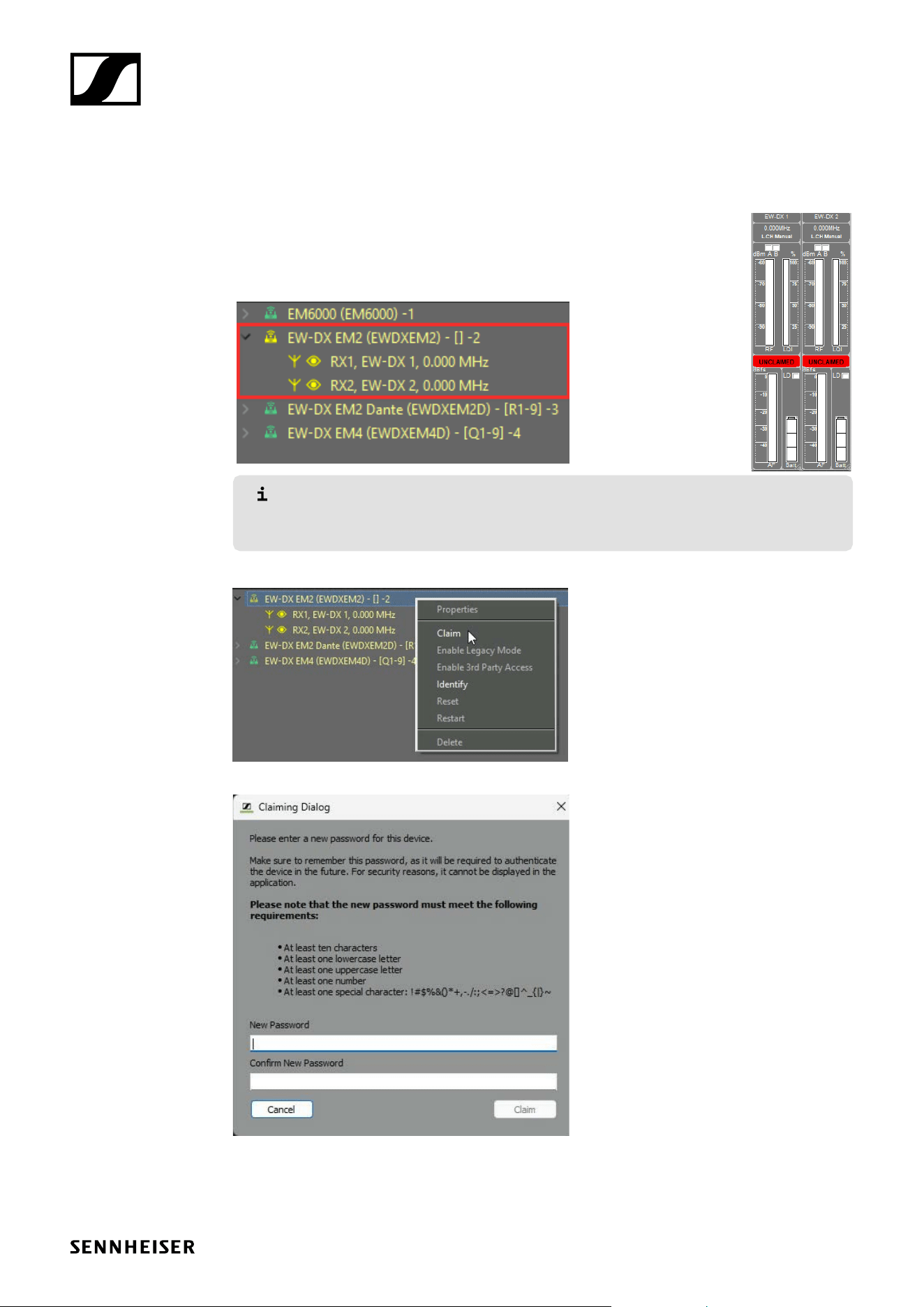
f Select the desired devices from the list and then click on Claim devices at the top right of the
Device List.
You will then be guided through the claim process in the multiple selection.
The devices have now been claimed by your Control Cockpit instance. You can now use all avail-
able functions.
v1.1 | 8/15
Security Features
for EW-DX devices
Claiming single device (Wireless System Manager)
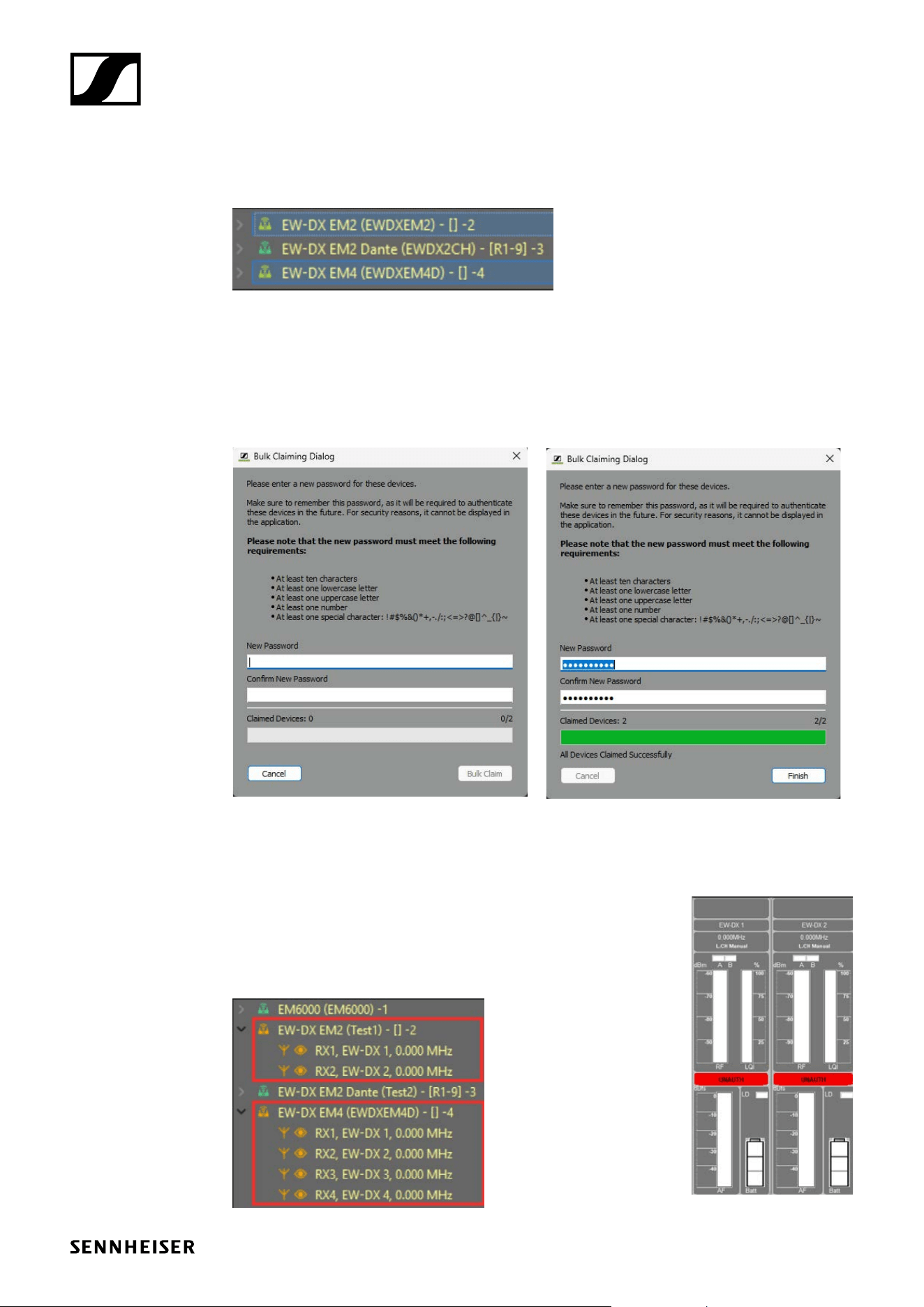
The channels of unclaimed devices are marked as “unclaimed” in the channel view. Unclaimed
devices are also shown in the device list in yellow.
To claim a single device for your WSM instance:
f Connect the device’s control network port to the network.
f Open Wireless System Manager.
In order to use the device with another client you need to know the password.
With a right mouse click you can authenticate on an already claimed device (see
„Authentication during operation (Wireless System Manager)“).
f Right-click on the displayed device and select Claim.
A modal appears where you can set a password for the device.
f Set a new password.
The device has been claimed to WSM.
v1.1 | 9/15
Security Features
for EW-DX devices
Claiming multiple devices (Wireless System Manager)
It is also possible to claim several devices at the same time.
To claim multiple devices at once:
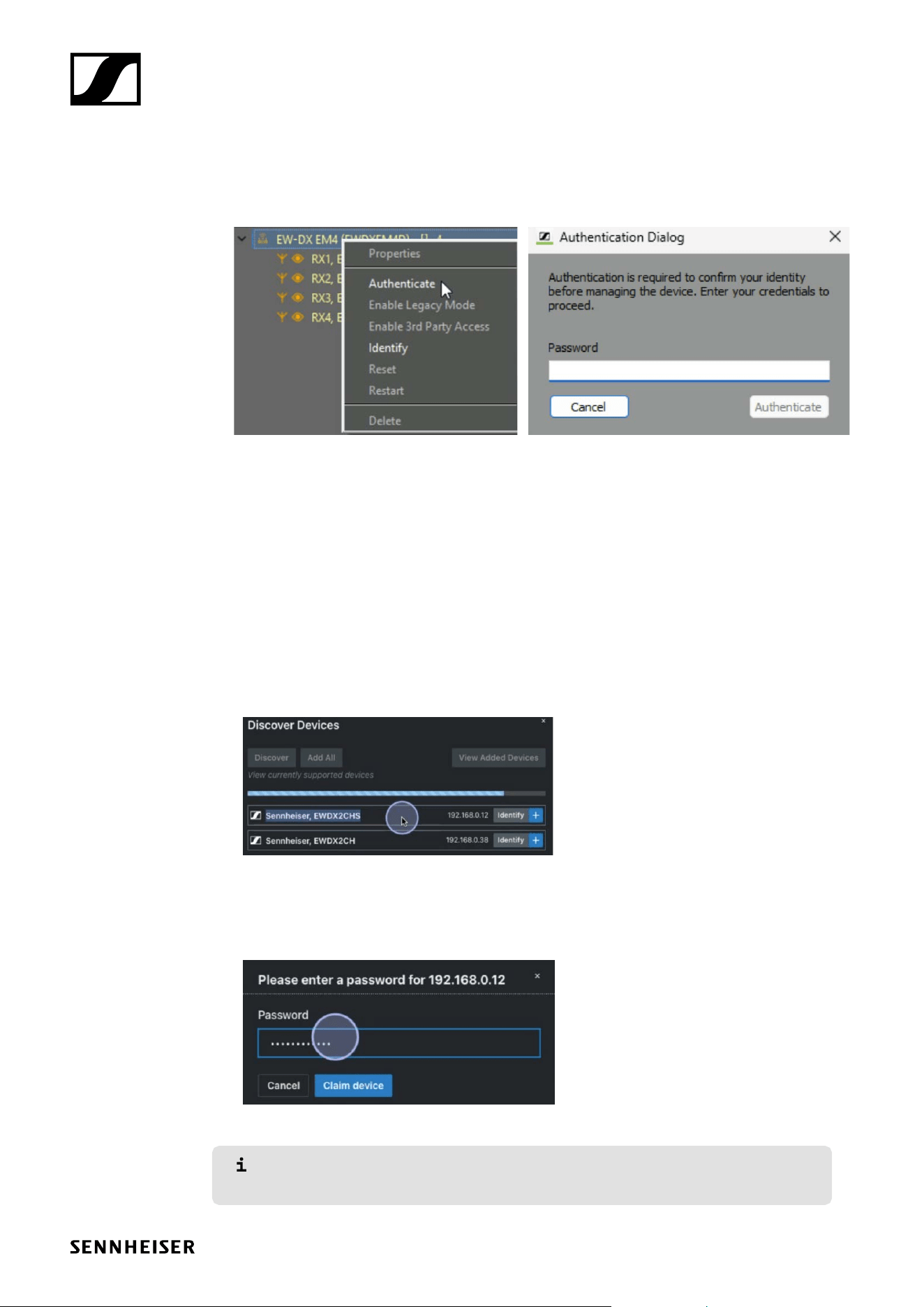
In your WSM, select the devices you want to claim.
f Right-click on the devices to be claimed.
The Bulk Claiming option appears.
f Enter the new passwords and click on Bulk Claim.
The progress will be displayed in the progress bar.
f Click on Finish to complete the process.
The devices have been claimed to WSM.
Authentication during operation (Wireless System Manager)
Authentication is required to use the device with another client or re-
assign it to a different device. This typically occurs if the device was
previously used by another client.
In such cases, the device’s channels will be marked as unauthenticated,
and the device will appear in orange in the device list.
v1.1 | 10/15
Security Features
for EW-DX devices
To authenticate the device during operation:
f Right-click on the unauthenticated device and select Authenticate.
A new password window appears.
f Enter the set password of the device.
f Click on Authenticate.
The device is ready for use.
Claiming device (SoundBase)
Devices can be discovered using either the SSCv1 or the newer SSCv2 protocols. Both methods are
fully supported, allowing for compatibility with older firmware versions in mixed environments, such
as situations where an update cannot be deployed on-site.
To claim a single device for your SoundBase instance:
f Connect the device’s control network port to the network.
f Open SoundBase.
f In the Coordination Area, click on Devices and then on Discover.
f Click on the
+
to add discovered devices.
You will be prompted to set a new password. This is a one-time entry – the password is stored in
the project file.
f Enter the new password for your device and click Claim device.
The device has now been claimed.
You can also select and add multiple devices at once, making it easy to integrate
multichannel systems.
v1.1 | 11/15
Security Features
for EW-DX devices
Resetting the device password (EW-DX device)
The device’s configuration password can only be reset through a factory reset (either performed
directly on the device or remotely via the Control Cockpit software and Wireless Systems Manager)
or through a network reset (directly on the device):
• Factory reset:
• Resets the receiver to factory settings.
• All settings and all active connections will be lost.
• This option is accessible at the device and remotely.
• Network reset:
• Resets the network settings to their factory settings.
• Resets also the claiming password.
To reset the receiver to its factory settings on the device:
f Press the SET to enter the menu.
f Rotate the jog dial and navigate to This Device.
f Press SET.
f Rotate the jog dial and navigate to Reset.
f Press the SET.
f Rotate the jog dial and select Factory.
The receiver is reset to its factory settings.
To reset the network settings to their factory settings on the device:
f Press the SET to enter the menu.
f Rotate the jog dial and navigate to This Device.
f Press SET.
f Rotate the jog dial and navigate to Reset.
f Press the SET.
f Rotate the jog dial and select Network.
The receiver is reset to its factory settings.
Resetting the device password (Control Cockpit)
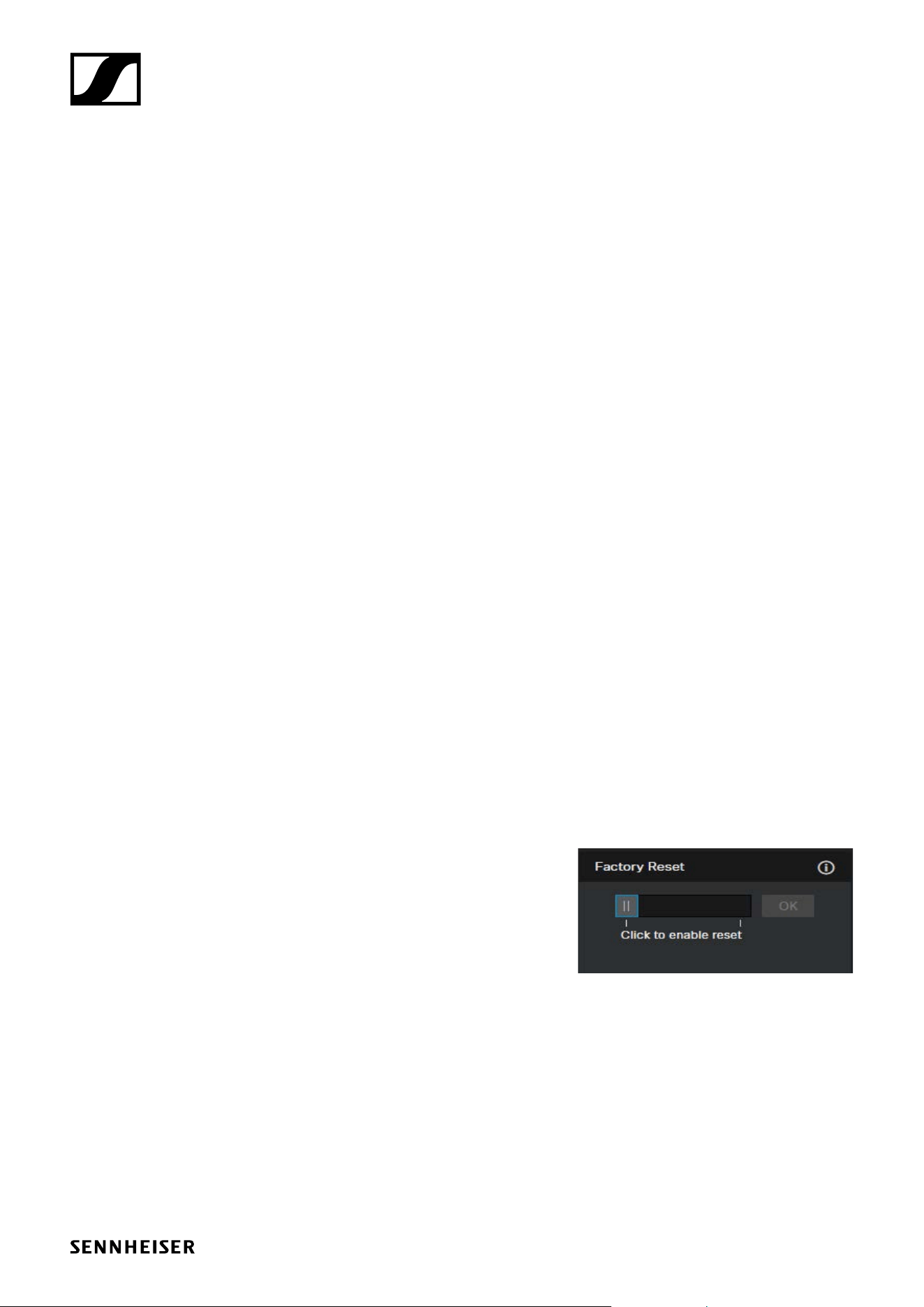
To reset the receiver via Control Cockpit Software:
f Navigate to Devices > your EW-DX device > Device.
f Under Factory Reset, toggle the slider to enable it
and click OK to reset the device.
The device will begin the reset process, and all set-
tings will be restored to their default values.
Resetting the device password (Wireless Systems Manager)
To reset the receiver via Wireless Systems Manager:
f In your WSM, right-click on your EW-DX device.
f Select Reset.
The device will begin the reset process, and all settings will be restored to their default values.
v1.1 | 12/15
Security Features
for EW-DX devices
Secure 3rd party Access
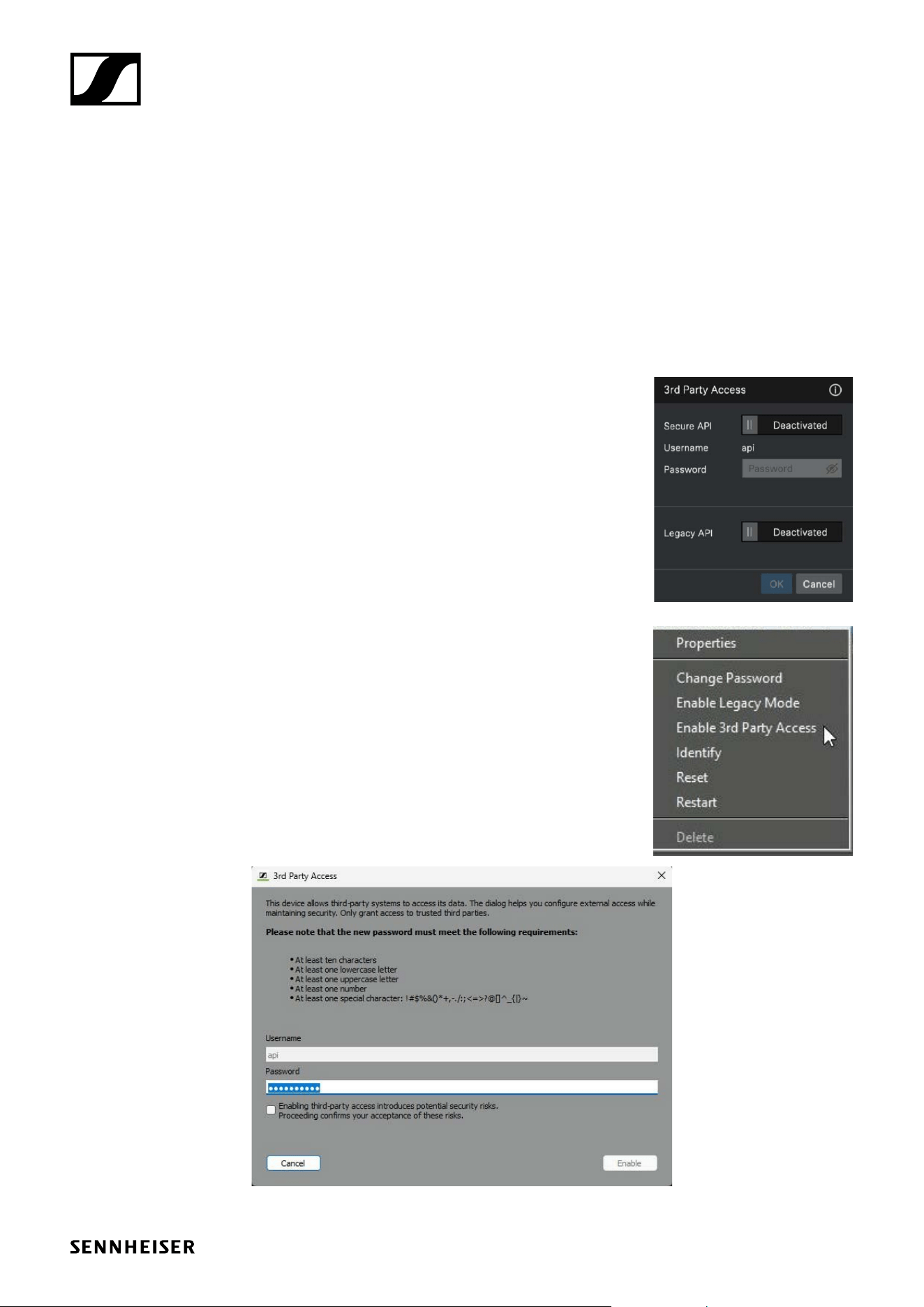
With firmware version 4.0.0 and higher the 3rd party access is deactivated by default. You can enable
it via Control Cockpit or Wireless Systems Manager.
You have the option to enable or disable each of the two API protocols separately. They can also be
used in parallel:
• Secure API: encrypted protocol „Sennheiser Sound Control Protocol v2 (SSCv2)“ using a username
and password (recommended).
• Legacy API: unsecured control protocol „Sennheiser Sound Control Protocol v1 (SSCv1)“ without
password protection and use at your own risk (not recommended).
Enabling 3rd party access in Control Cockpit
To enable the 3rd party access:
f Update your device firmware (≥4.0.0).
f In the control software, navigate to Devices > your device >
Access > 3rd Party Access.
f Click on Edit and activate Secure (recommended) for an
encrypted device connection via „Sennheiser Sound Control
Protocol v2 (SSCv2)“.
f Alternatively, you can choose Legacy for unsecured commu-
nication at your own risk (not recommended). In this case the
„Sennheiser Sound Control Protocol v1 (SSCv1)“ will be applied.
Enabling 3rd party access in WSM
To enable the 3rd party access:
f Update your device firmware (≥4.0.0).
f Right-click on the displayed device and select:
• Enable 3rd Party Access (recommended) to enable an
encrypted device connection via „Sennheiser Sound Control
Protocol v2 (SSCv2)“ or
• Enable Legacy Mode to enable an unsecured communication
at your own risk (not recommended). In this case the
„Sennheiser Sound Control Protocol v1 (SSCv1)“ will be
applied.
v1.1 | 13/15
Security Features
for EW-DX devices
Dante® encryption
Dante media encryption extends the security benefits of using Dante on your network by concealing
the media content during transmission between devices. Dante utilises the Advanced Encryption
Standard (AES) with a 256-bit key to provide industry-leading media protection. Concealing the
contents of media packets prevents malicious or unauthorised users eavesdropping or interfering
with Dante media traffic.
Please refer to the Audinate documentation for detailed information and current
updates on Dante® encryption at Audinate/Media-Encryption.
Resetting the configuration parameters of the Dante Controller
All parameters configured in the Dante Controller can be reset to default settings. This includes the
parameters:
• User-defined device (Dante) name
• User-defined channel names
• Clock configuration (clock leader / external clock leader setting)
• Sample rate setting (including pull-up/down)
• Latency setting
• Any existing audio routes
After resetting, the network configurations (e.g. IP settings, mode, etc.) are retained
and the device is not restarted.
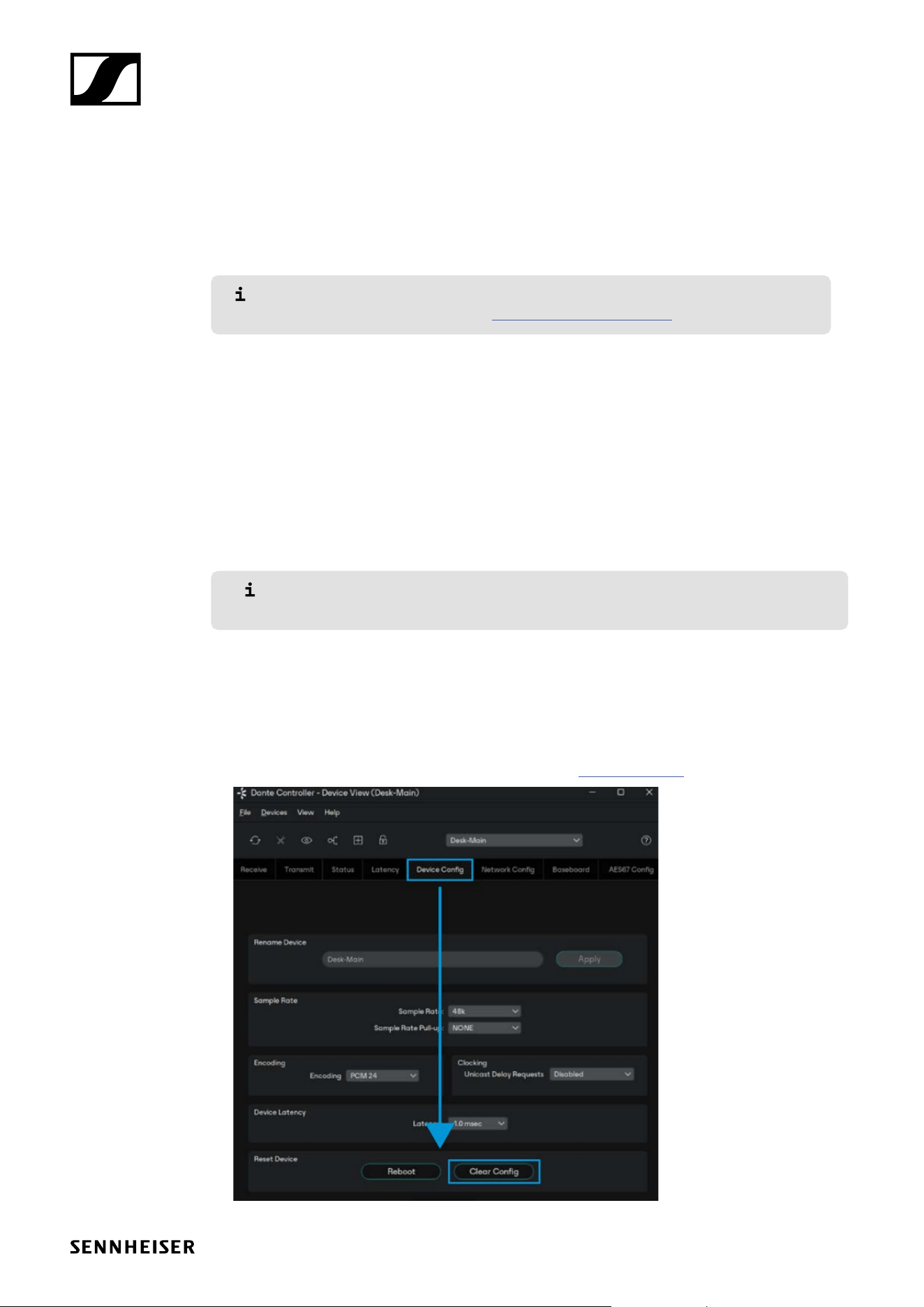
To reset the configuration parameters of the Dante Controller:
f In Dante Controller, navigate to the Tab Device Config.
f At the bottom, click on Clear Config.
f The parameters have been reset to default settings.
Further support information can be found on the website Dante Controller.

v1.1 | 14/15
Security Features
for EW-DX devices
Summary
Implementing the above security features helps ensure that your Sennheiser EW-DX devices remain
protected in any professional environment. Regular firmware updates, strong password management,
and proper configuration of encryption features and network access are vital to maintaining a secure
audio network.
For further assistance or firmware downloads, please visit the website Product Security.

v1.1 | 15/15
Security Features
for EW-DX devices
Ports, protocols and services
In order to communicate between software and EW-DX devices, certain ports must be enabled
(especially for the organization/enterprise firewall). If necessary, please contact the local administrator
to configure the required ports.
Port requirements
Dante® network
Port Protocol Service Description
319, 320 PTP
4440, 4444,
4455
UDP Audio Control
4321 ATP Multicast Audio
5004 AES67 Multicast Audio (RTP / AVP port)
5353 mDNS (Multicast 224.0.0.251) Discovery mDNS
8002 UDP Dante Lock Server
8700-8708 Multicast Control and Monitoring
8800 UDP Control & Monitoring
9875 SAP (AES67 discovery)
14336-14591 UDP Unicast Audio
8753 TCP mDNS clients
8001 UDP Dante Millau Device Proxy
8900
Sennheiser Control Cockpit
Port Protocol Service Description
6969 Auto setup
22 SCP/SSH SCP Firmware update (firmware version <4.0.0.)
45 | 6970 UDP | TCP SSC Sound Control Protocol v1 SSCv1 (firmware version <4.0.0.)
443 TCP SSC Sound Control Protocol v2 SSCv2 and update (firmware version ≥4.0.0.)
5353 UDP mDNS (Multicast 224.0.0.251) Discovery mDNS (inbound & outbound)
Wireless Systems Manager
Port Protocol Service Description
2012 TCP Microsoft WCF for WSM WSM.server.exe
6970 TCP Internal EM6000/L6000 protocol WSM.server.exe
8008 TCP Metering data WSM.server.exe (Formerly 8005)
8006 TCP Device properties WSM.server.exe
8007 TCP Device warnings WSM.server.exe
5353 UDP mDNS (Multicast 224.0.0.251) Discovery mDNS (inbound & outbound)
SoundBase
Port Protocol Service
443 HTTPS Web UI / Update service
8427 UDP Data Management
2202 UDP Data Management
5353 UDP mDNS (Multicast 224.0.0.251) Discovery mDNS (inbound & outbound)