Medusa Series
1
2
3
4
5
66
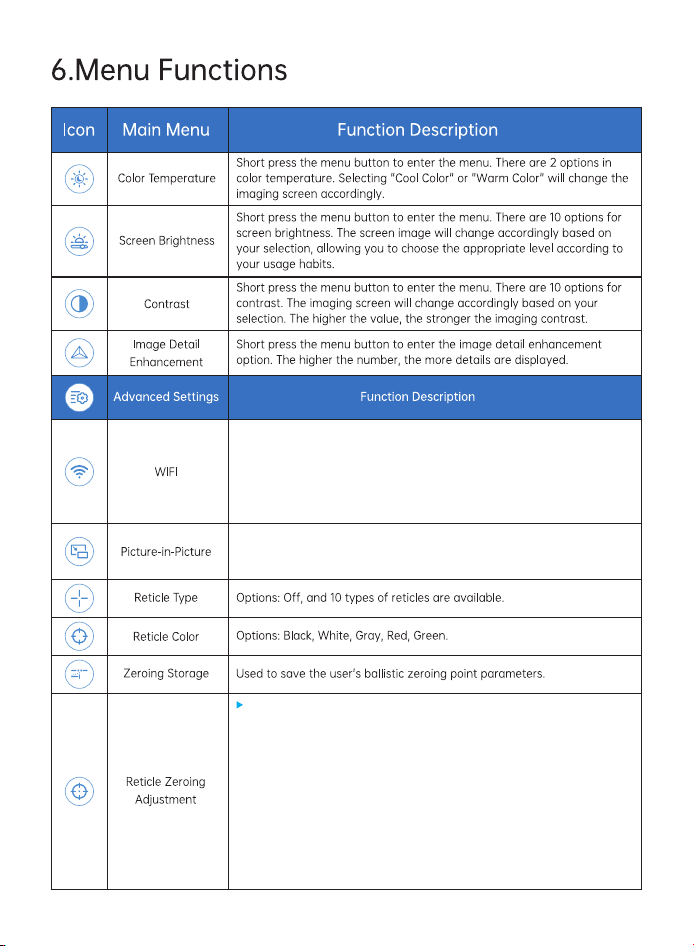
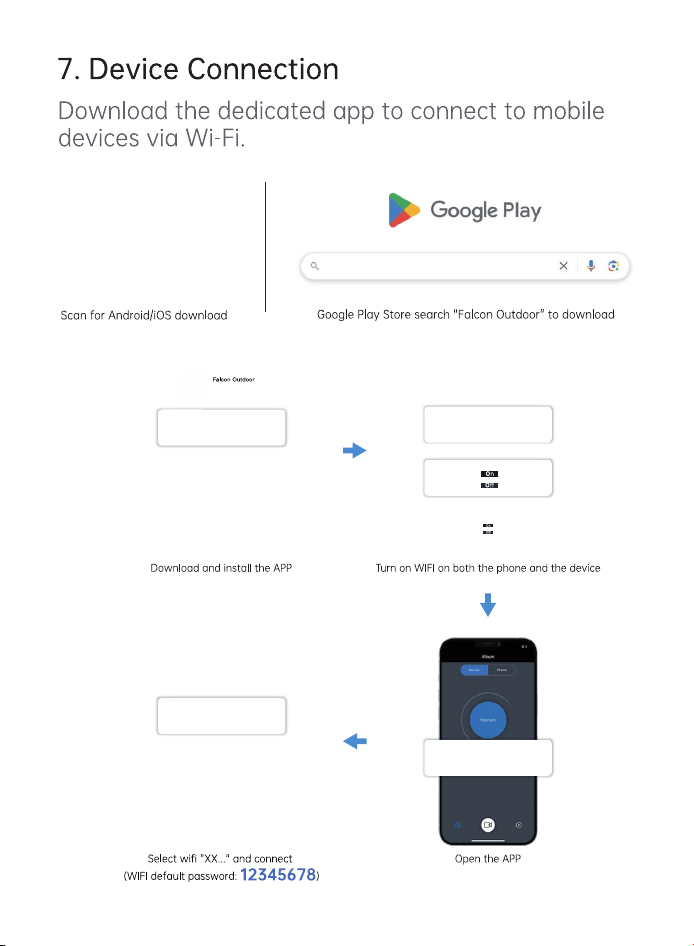
1. Turn on WiFi in the device menu, then enable WiFi on your phone and
open the Falcon Outdoor app. Find the MAC address name
"APPshow-XX-XXXXX" on the phone's WiFi list and enter the password
"12345678" to connect the device.
2. After the device is connected to the phone via WiFi, real-time captured
images can be observed.
Short press the Menu button to enter the reticle zeroing calibration interface.
Press the Video button to switch between function options, and use the
Up/Down buttons to adjust values.
Image Freeze: Short press the Menu button to enable or disable screen
freeze.
Press the Video button to select the X and Y axis values, then use the
Up/Down buttons to adjust the reticle position until it aligns with the point of
impact. Press the Video button again to move to other options. After
adjustment, select Save and short press the Menu button to save and exit, or
long press the Menu button to exit without saving.
The selected distance is used as the zeroing distance for smart ballistics and
is saved to the zeroing memory.
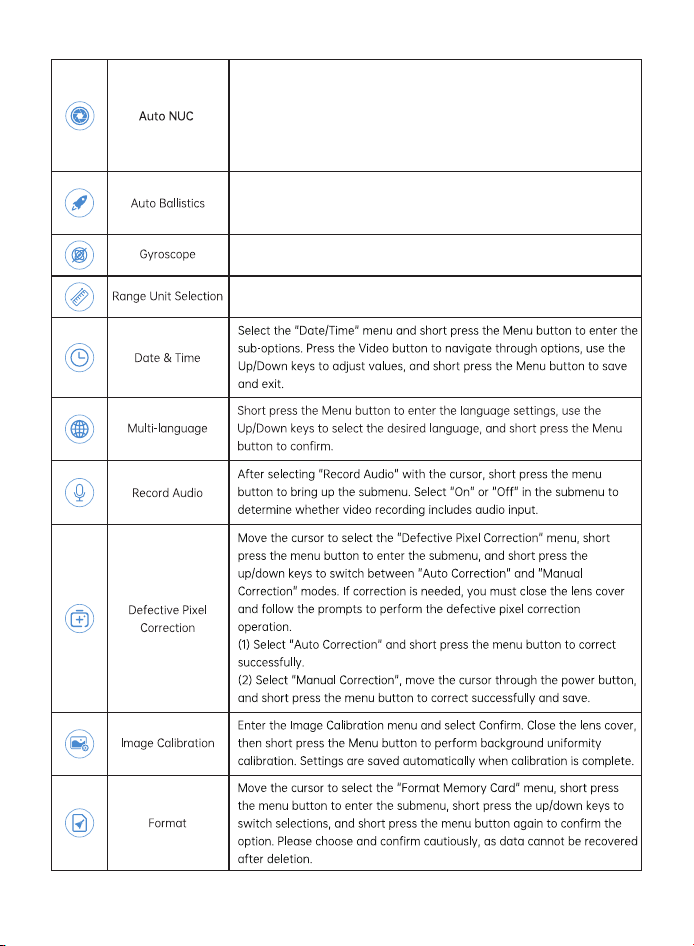
Short press the Menu button to enter the submenu, then select On or Off.
Short press the Menu button again to confirm and return to the main
menu.
7
Short press the Menu button to enter the submenu, then select On or Off
to enable or disable the gyroscope.
There are three modes for auto ballistics: Off disables the feature, On
enables automatic ballistic calculation, and Settings allows you to
manually adjust the ballistic parameters.
There are two options for range unit selection: Meter / Yard.
When enabled, the shutter speed will automatically adjust based on
time and temperature to optimize image quality; when disabled, the
shutter speed will not adjust based on time and temperature, and you
will need to manually adjust the shutter speed to correct image
quality. Please use this feature with caution;
8
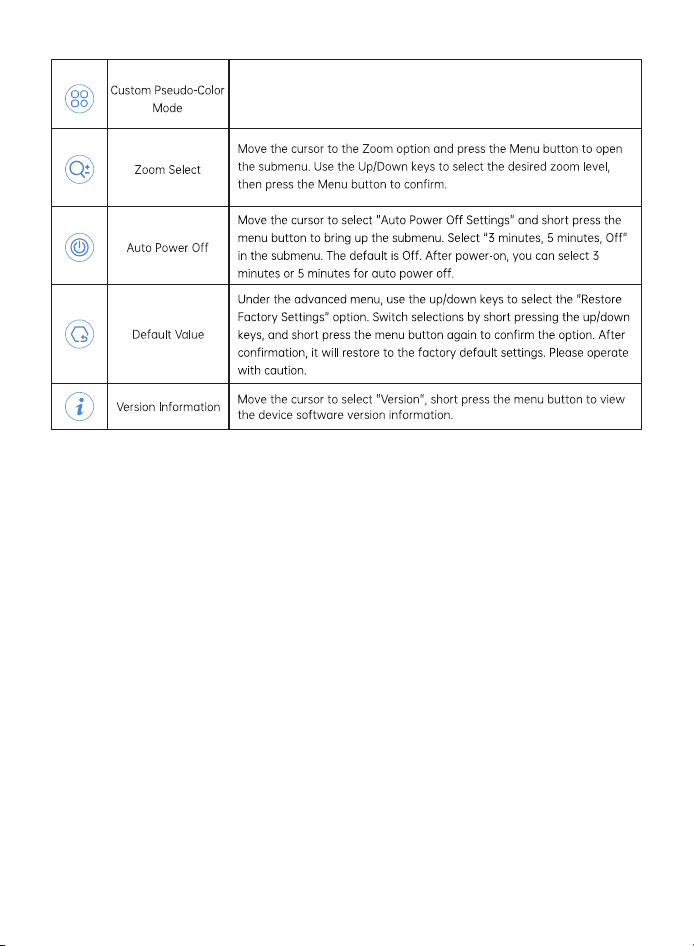
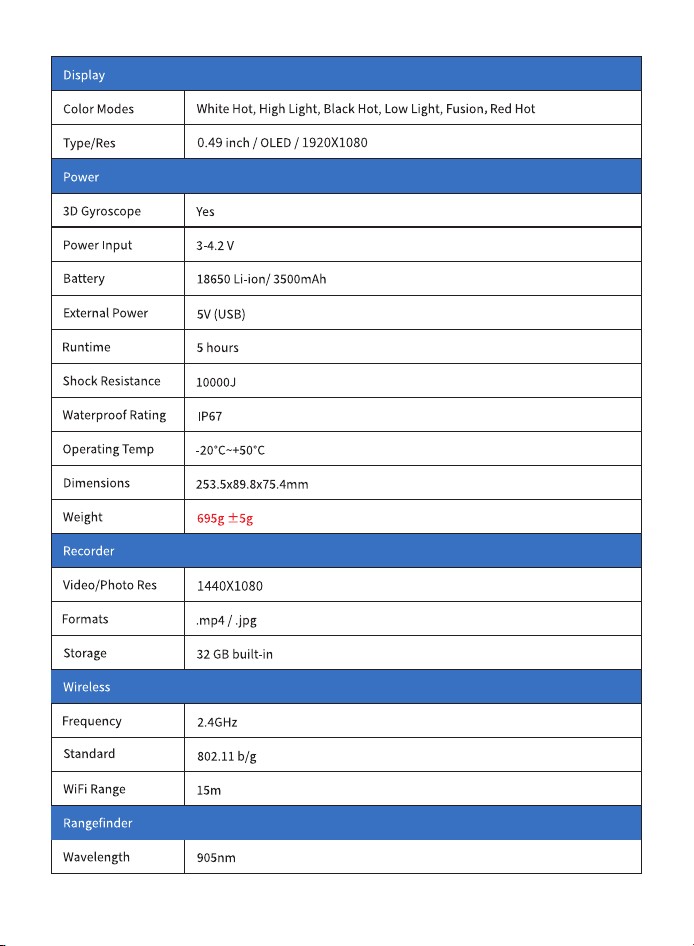
Available modes: White Hot, Black Hot, High Brightness, Low Light,
Pseudocolor and Red Hot. Select the appropriate mode based on your
needs, or cycle through them using the Up/Down buttons.
9
XX-XX-XXX
XX-XX-XXX
WLAN
Falcon Outdoor
10
11
12