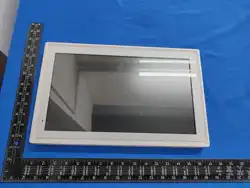
Electronic Calendar
Frequently Asked Questions and Solutions
I. Solutions for inability to connect to WiFi networks:
1. The WiFi password may have been entered incorrectly. Please enter the
correct password.
2. Turn the WiFi switch o and then on again.
3. Restore facto settings.
II. USB cable connected to computer but no response Solution:
1. First, check whether the connection cable between the device and the computer
is connected.
2. Check whether the USB debugging switch is turned on.
III. Solutions for freezing or crashing during operation or staup:
1. Turn o the power and resta.
2. Contact the manufacturer or dealer.。
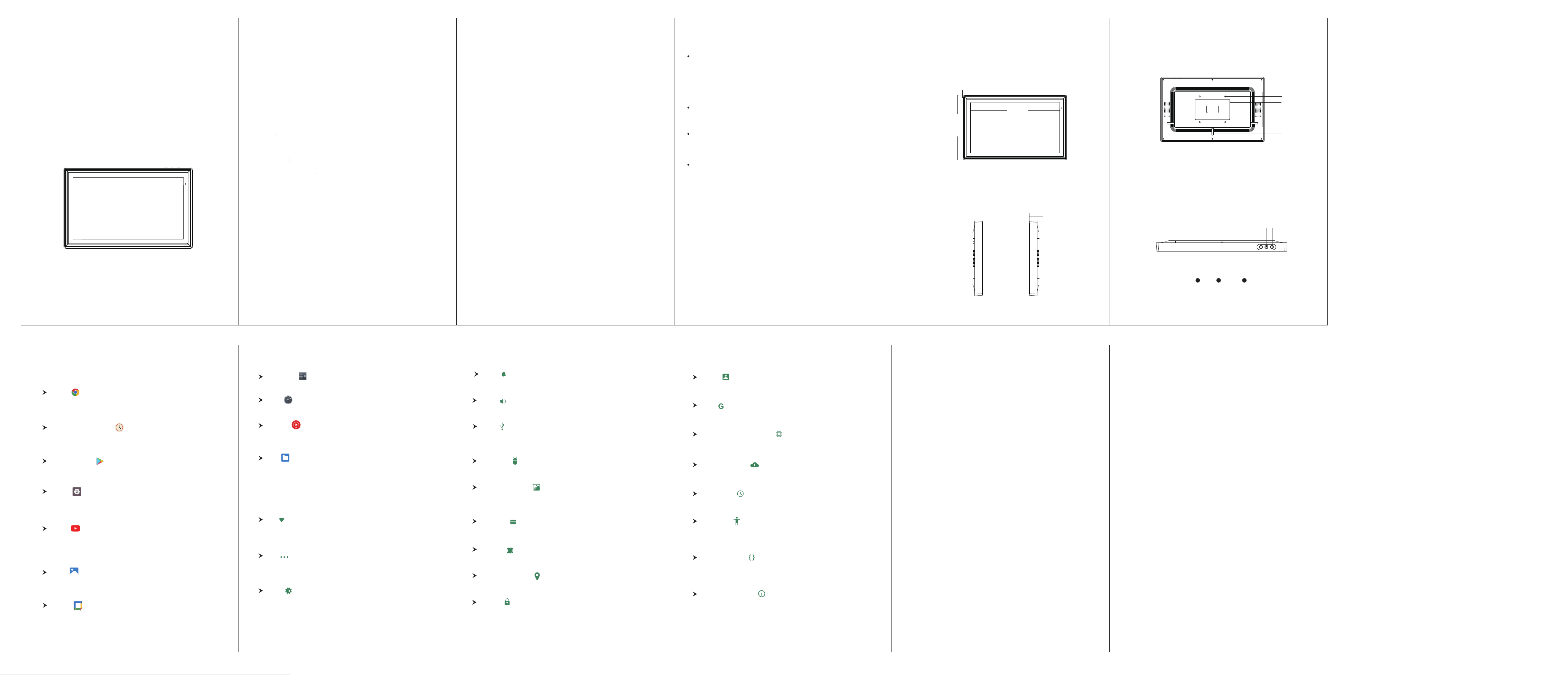
User manual
Contents
Preface ..............................................................................
Warning................................................................................
Features ...............................................................................
Packing list ............................................................................
Product Description
(RK3326/ RK3562).............................................
Menu icon function ..................................................................
Basic settings ........................................................................
Frequently asked questions and solutions ......................................
Preface
Warning
Menu icon function
Settings
Custom function settings, basic settings, network settings
Galle
View photos, videos, local videos, and slideshows.
YT Music
Oers online streaming and download features for songs, albums, playlists,
and music videos.
Google Play Store
Download games and apps.
Scheduled power on/o
You can set the staup and shutdown times for this device.
Introduction to Basic Settings
Features
YouTube
Video sharing, uploading, watching, enteainment, education, music,
and more, with live streaming suppo.
Files
Read les, images, and videos from USB drives
Sound
Set media volume, alarm volume, ringtone volume, select ringtone or mute.
Application
View installed apps
Screenshot settings
Set screenshot delay, screenshot storage location, and display on status bar
(must be selected).
Storage
You can check the local storage status and remaining space.
Memo
You can view the memo usage of each application.
Location information
Used for network positioning.
Safety
Set the screen lock screen password and unknown source
(need to be opened when installing the APP).
Account
Set up or log in to your account.
Google
Google, seices, location information, and security settings.
Language and input method
Set the system language, keyboard, and input method.
Backup and reset
Back up data, accounts, and restore facto settings.
Date and time
Set the date and time, and select the count time zone.
Barrier-free
Subtitles, zoom gestures, font size, display size; can be selected in the status
bar.
Developer options
USB debugging (must be selected; a connection prompt will appear in the
upper left corner when the data cable is connected).
About the equipment
You can view the device model, system version number, and status information.
Type-C
Check the box for PC, connect OTG, and uncheck the box for reading USB
ash drives.
2
2
3
3
4
6
7
10
1
6 7 8 9 10
2 3 4 5
1. Main unit
2. Power adapter
3. Instruction manual
System:
Network:
Inteace:
Peripheral device
:
Packing list
Check the product packaging box for the following items.
Thank you for choosing our Electronic calendar!
Before turning on the machine, please read this manual carefully to understand
how to use the machine and precautions.
Only use the power adapter, power cord, and other accessories provided by the
manufacturer.
Do not block or cover the ventilation and heat dissipation holes on the machine.
Do not use or store this machine in dusty, humid, or high-temperature environ-
ments.
If the machine malfunctions, do not attempt to disassemble or repair it yourself.
Contact the manufacturer or dealer for assistance.
Avoid stepping on the power cord or power adapter to prevent damage that could
lead to electrical hazards. If the power adapter's wires are damaged, do not continue
using it, as this may pose a safety risk.
During thunderstorms or when the machine is not in use for an extended period,
unplug the power cord.
When in use, do not place the machine on the edge of a table or in areas accessible
to children to prevent the machine from falling or causing inju to children.
Avoid bumping or dropping the display screen during transpoation or use. Do not
apply excessive force to the display screen or strike it with sharp or hard objects to
prevent damage.
Use a clean, soft cloth or a soft cloth with a small amount of mild cleaner to gently
wipe the Electronic calendar device. Do not use any corrosive solvents such as
alcohol, ammonia, or hydrogen peroxide, as this may damage the suace protective
coating.
★
★
★
★
★
★
★
★
★
Type-C and power pos
RK3326 RockChip Quad-core Coex-A35, 1.5GHz clock speed
Android 8.1ystem
RK3562 RockChip Quad-core 64-bit processor, up to 2.0GHz clock speed
Android 13 system
built-in 2x3W speakers
Suppos 802.11.ax WiFi
Browser
When connected to the Internet, simply enter the URL to search for the
content you need.
WIFI
Click on the WiFi option, turn on WiFi, select a WiFi network, and enter the
correct password to connect.
More
Contents include ight mode, network sharing and poable hotspot, VPN,
reset network settings, Ethernet, and WiFi priority settings.
Calculator
For easy calculation。
Check the time, set alarms, stopwatches, and countdown timers.
Clock
Notice
Set to turn o or turn on all app notications.
Display
Set brightness, wallpaper, sleep time, screen saver, and font size.
Calendar
Check the date, add a memo.
Product description
402.18mm
344.16mm
193.59mm
251.61mm
Front view :
Left and right views :
32.05mm
Rear view:
Top view :
4
1 2
3
VOL+VOL- ON/OFF
②① ③
VESA
Power
Type-C
Cable tray
hole
31
X156

This device complies with part 15 of the FCC Rules. Operation is subject to the
following two conditions: (1) This device may not cause harmful interference, and (2)
this device must accept any interference received, including interference that may cause
undesired operation.
Any Changes or modifications not expressly approved by the party responsible for
compliance could void the user's authority to operate the equipment.
Note: This equipment has been tested and found to comply with the limits for a Class B
digital device, pursuant to part 15 of the FCC Rules. These limits are designed to
provide reasonable protection against harmful interference in a residential installation.
This equipment generates uses and can radiate radio frequency energy and, if not
installed and used in accordance with the instructions, may cause harmful interference
to radio communications. However, there is no guarantee that interference will not
occur in a particular installation. If this equipment does cause harmful interference to
radio or television reception, which can be determined by turning the equipment off and
on, the user is encouraged to try to correct the interference by one or more of the
following measures:
-Reorient or relocate the receiving antenna.
-Increase the separation between the equipment and receiver.
-Connect the equipment into an outlet on a circuit different from that to which the
receiver is connected.
-Consult the dealer or an experienced radio/TV technician for help.
-This equipment complies with FCC radiation exposure limits set forth for an
uncontrolled environment. This equipment should be installed and operated with
minimum distance 20cm between the radiator & your body.

