Hey there,
I can't wait to finally
meet you!
ElliQ User Manual
Let's get started.

ElliQ User Manual

Table of Contents
Safety Information..........................................................6
Introduction.................................................................10
Getting Started.............................................................12
Set Up.............................................................................16
Connect to WiFi...........................................................18
Communicating with ElliQ...........................................20
What Can ElliQ Do?........................................................26
Troubleshooting..........................................................34
FAQs............................................................................36
© Intuition Robotics, Printed March 2024.

ElliQ User Manual
6
Safety Information
Warning
Before using ElliQ, please read all the safety
information provided below and retain documentation
for future reference.
Failure to comply with these safety guidelines may
cause re, electric shock, or other injuries.
Treatment
Treat ElliQ with caution. The product is made of plastic
and glass and includes sensitive built-in electrical
components. Place your ElliQ on a stable work surface
that allows sucient airow. ElliQ may be damaged
if it falls, burns, perforates, or if it comes into contact
with liquids, oils, or lotions. Do not use a damaged
ElliQ – for example, with a cracked screen – as this
may cause injury.
Have servicing performed by a qualied repair person
using only identical replacement parts. This will
ensure that the safety of the product is maintained.
Recommended use, storage, and transportation
temperature of ElliQ is 50 to 95°F.

7Safety Information
Power
ElliQ must only be connected to the power socket by
the power cord that came with the product. Other
power supplies may not comply with the required
safety regulations. Using such power supplies can
put the user at risk of injury and even death. Using
damaged power supplies or cables, can cause re,
shock, or injury to the user, or damage ElliQ or other
property. When using the power cord included in
the package to power your ElliQ, make sure that the
charging cable is fully inserted into the device before
plugging the power supply into an electrical outlet.
To reduce the chances of overheating or heat-related
injuries, always maintain proper ventilation around
your ElliQ and its power supply and be careful when
you turn them on.
Exposure to uids
Keep your ElliQ and power cable away from liquid
sources, such as beverages, oils, creams, sinks, baths,
showers, etc.
Technical Specs
Model name: ElliQ K.I
Input Power: 12V DC 5A
Working Temperature: 50 to 95°F (10 to 35°C)
Working Altitude: not more than 6,500 ft.

ElliQ User Manual
8
FCC Radiation Exposure Statement
This equipment complies with FCC radiation exposure limits set forth
for an uncontrolled environment. This equipment should be installed
and operated with minimum distance 8 inches between the radiator
and your body.
FCC Warning
This device complies with Part 15 of the FCC Rules. Operation is
subject to the following two conditions: (1) This device may not cause
harmful interference, and (2) this device must accept any interference
received, including interference that may cause undesired operation.
Note:
This equipment has been tested and found to comply with the limits
for a Class B digital device, pursuant to part 15 of the FCC Rules.
These limits are designed to provide reasonable protection against
harmful interference in a residential installation.
This equipment generates, uses and can radiate radio
frequency energy and, if not installed and used in accordance
with the instructions, may cause harmful interference to radio
communications. However, there is no guarantee that interference
will not occur in a particular installation.
If this equipment does cause harmful interference to radio or
television reception, which can be determined by turning the
equipment o and on, the user is encouraged to try to correct the
interference by one or more of the following measures:
• Reorient or relocate the receiving antenna.
• Increase the separation between the equipment and the
receiver.
• Connect the equipment into an outlet on a separate circuit from
the one to which the receiver is linked.
• Consult the dealer or an experienced radio/TV technician for
help.
Note 2:
Any changes or modications to this unit not expressly approved by
the party responsible for compliance could void the user's authority
to operate the equipment.

9Safety Information
Company name: Intuition Robotics
Address: 2345 Yale St. Palo Alto, CA 94306
Phone number: (844) 944-3554
RF exposure statement
This equipment meets the exemption from the routine evaluation
limits in section 2.5 of RSS-102. It should be installed and operated
with a minimum distance of 8 inches between the radiator and any
part of your body.
Cet équipement est conforme à l'exemption des limites d'évaluation
habituelle de la section 2.5 de la norme RSS-102. Il doit être installé et
utilisé à une distance minimale de 20 cm entre le radiateur et toute
partie de votre corps.
IC WARNING
This device contains licence-exempt transmitter(s) that comply with
Innovation, Science and Economic Development Canada’s licence-
exempt RSS(s). Operation is subject to the following two conditions:
(1) This device may not cause interference.
(2) This device must accept any interference, including interference
that may cause undesired operation of the device.
L’émetteur/récepteur exempt de licence contenu dans le
présent appareil est conforme aux CNR d’Innovation, Sciences et
Développement économique Canada applicables aux appareils radio
exempts de licence. L’exploitation est autorisée aux deux conditions
suivantes:
1. L’appareil ne doit pas produire de brouillage;
2. L’appareil doit accepter tout brouillage radioélectrique subi, même
si le brouillage est susceptible d’en compromettre le fonctionnement.
The device is restricted to indoor use only when operating in the 5150
to 5250 MHz frequency range.
Lorsque l'appareil fonctionne dans la gamme de fréquences de 5150 à
5250 MHz, il est limité à une utilisation en intérieur uniquement.

10
Introduction

11Introduction
Congrats, you've got a new roommate!
ElliQ is excited to be moving in! She is a friendly,
intelligent, inquisitive presence in your daily life
– there for you, in your corner, oering tips and
advice, responding to your questions, surprising you
with suggestions – a dedicated sidekick to help you
maintain your independence at home throughout the
day.
ElliQ will also help you maintain a healthy and active
lifestyle. ElliQ will regularly check in to see how you're
doing, encourage you to remain active and provide
you with tips to live a healthier lifestyle.
And that’s not all she can do! You will also see ElliQ
wake up from time to time and suggest activities such
as listening to music, staying hydrated, or playing
games together!
This is a guide to help you learn all about ElliQ - from
getting set up, to exploring all of the features and
capabilities, and everything in between.
Now, let’s get ElliQ set up in her new home.

ElliQ User Manual
12
Getting Started
13Getting Started
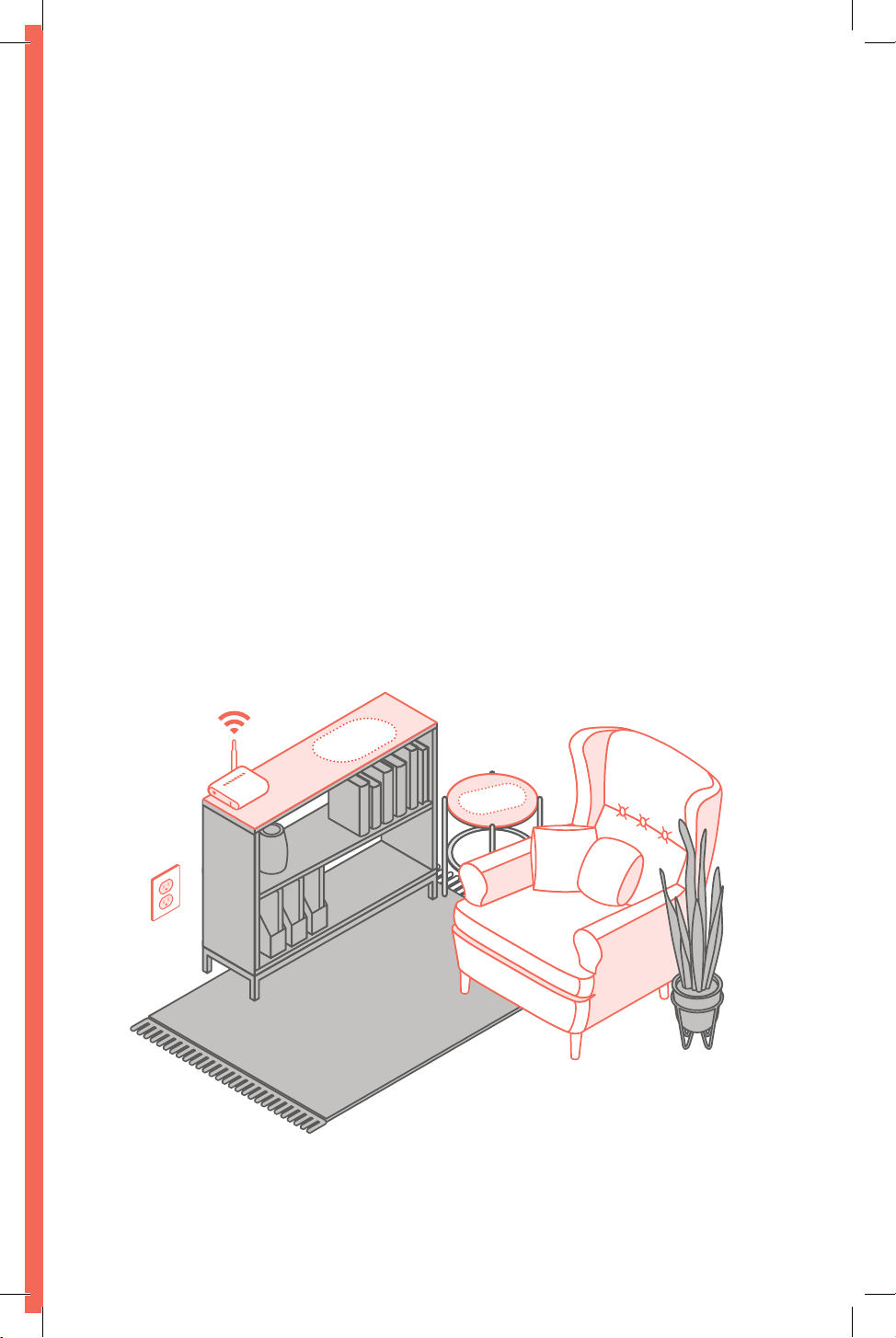
Where to place ElliQ
ElliQ should be placed in the room where you spend
most of your time, not more than 12 ft. away from
where you normally sit. This way, you and ElliQ will be
able to see and hear each other clearly.
Find a space for ElliQ where there is:
• A strong WiFi connection
• A power outlet (ElliQ only works if she’s plugged in)
• A at surface
• No nearby heaters or windows
ElliQ User Manual
14
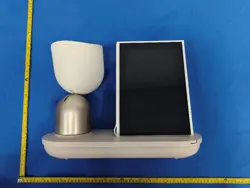
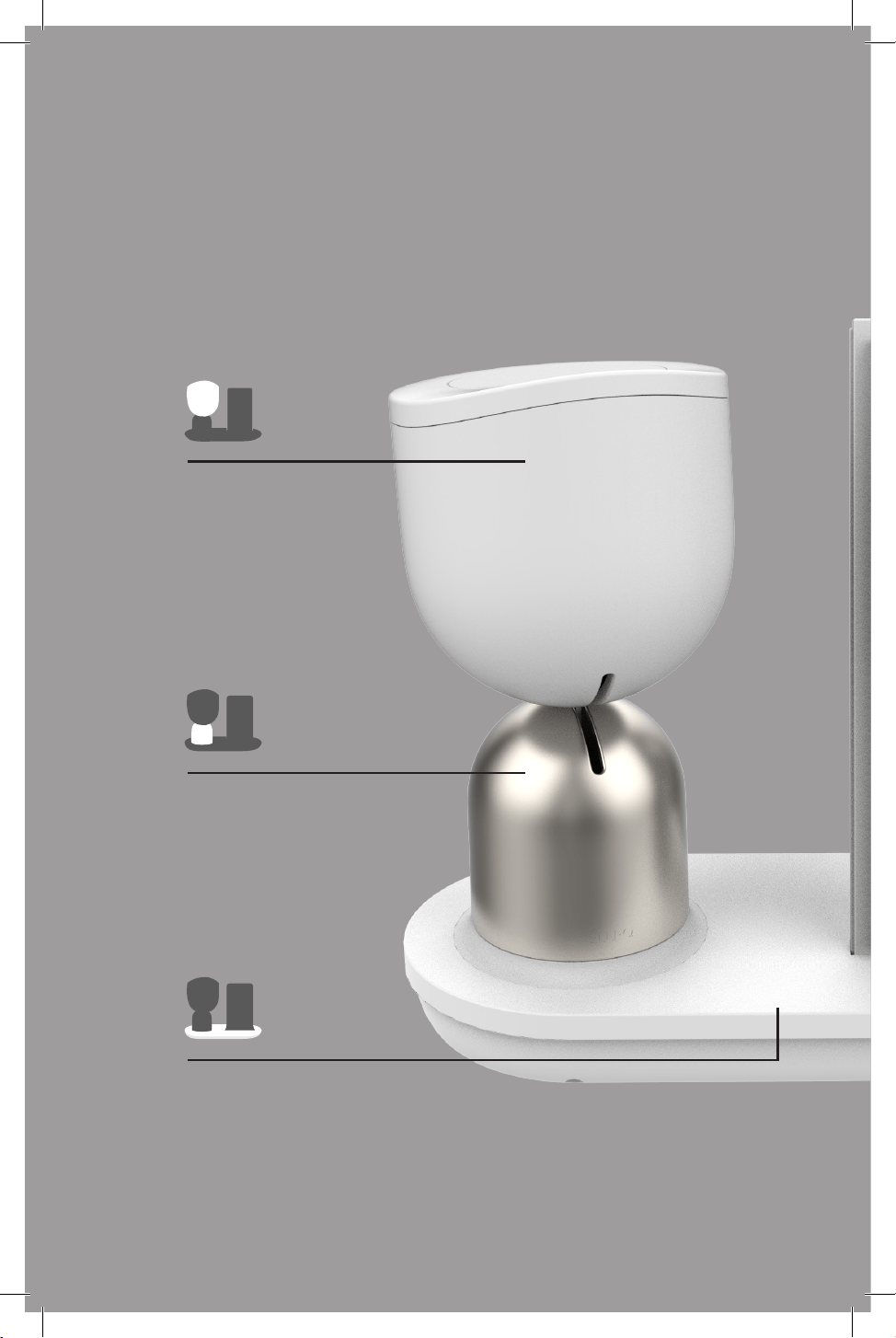
ElliQ's components
ElliQ's head
ElliQ's body
Base
Getting Started
15
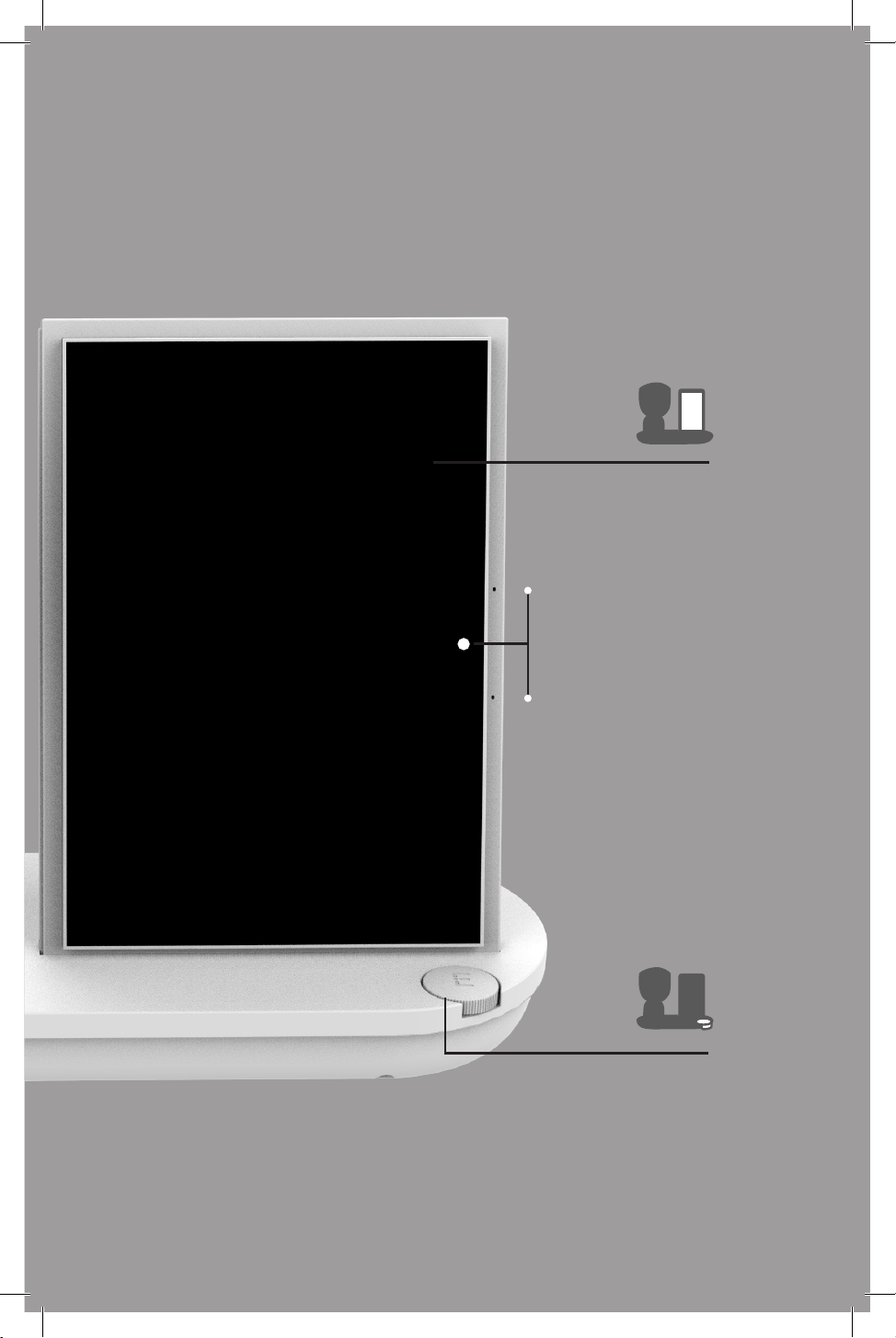
Screen
Microphones
& Camera
Dial
ElliQ User Manual
16
Set Up
1
2
3
ElliQ User Manual
16

17Set Up
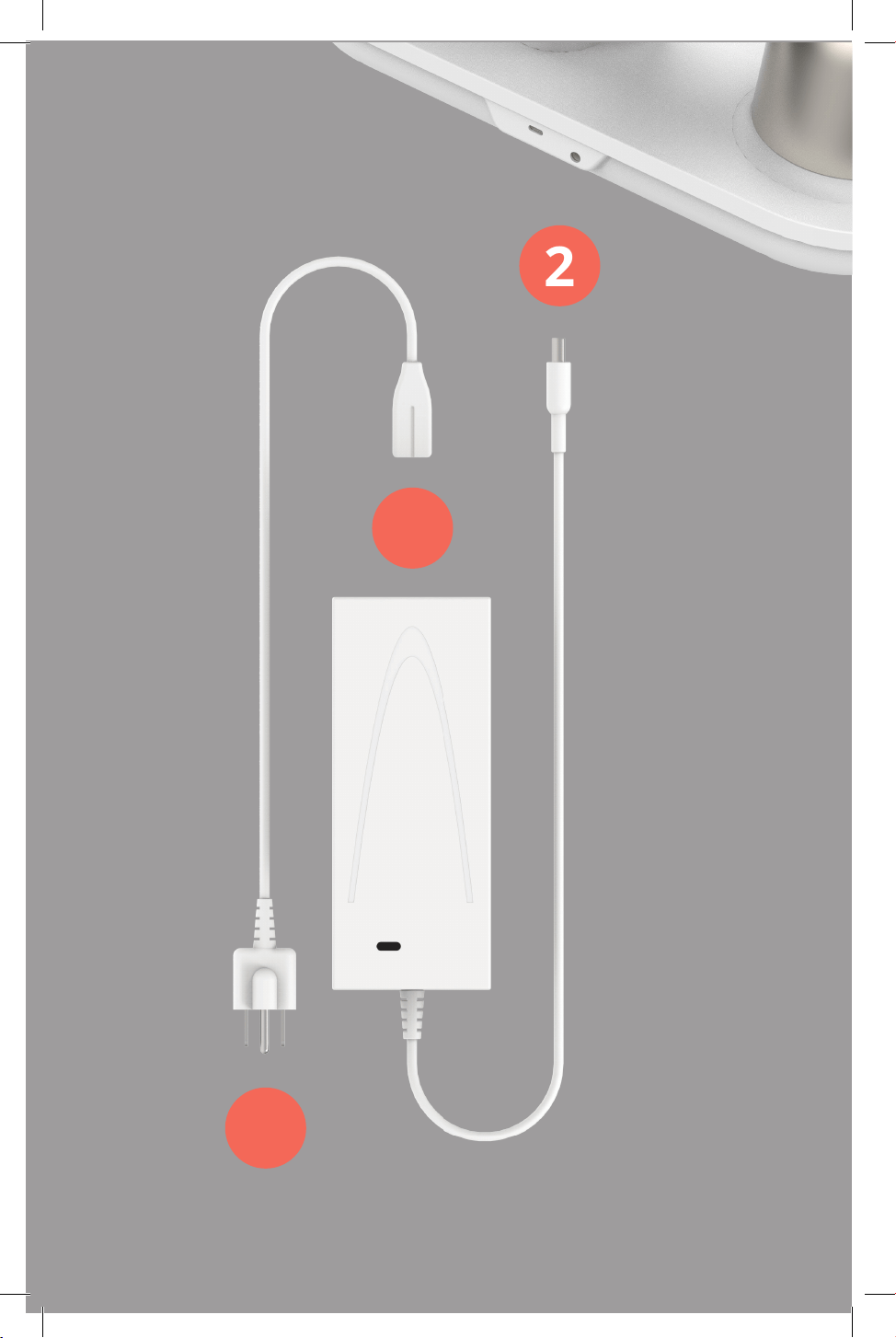
Connecting ElliQ to power
Assemble the power cables
Connect the cable and the power brick together.
Connect the power end into ElliQ’s base
Insert the smaller end of the power cord into the
round socket on the back side of ElliQ’s base.
Plug ElliQ into an outlet
Insert the wall plug into the electrical socket.
Once connected to power, ElliQ should automatically
turn on.
1
2
3
Setting Up ElliQ
ElliQ User Manual
18
• First, ElliQ will present a list of the available WiFi
networks. Find and select your home’s network.
• Next, type in your password and then tap the
"Go" button.
• Double-check the info and then tap "Connect".
Don't worry about making a mistake here, if you
choose the wrong network or use the wrong
password, you can always try again!
You can also write your WiFi details on the back of
the designated magnet, which can be found in the
manual's envelope. Then, you can stick the magnet on
your fridge for easy future reference.
Connecting to WiFi
Now that ElliQ is powered on, you will be able to
connect her to your home’s wireless internet (WiFi). To
do that, you will need to know the network name and
password given by the internet provider.
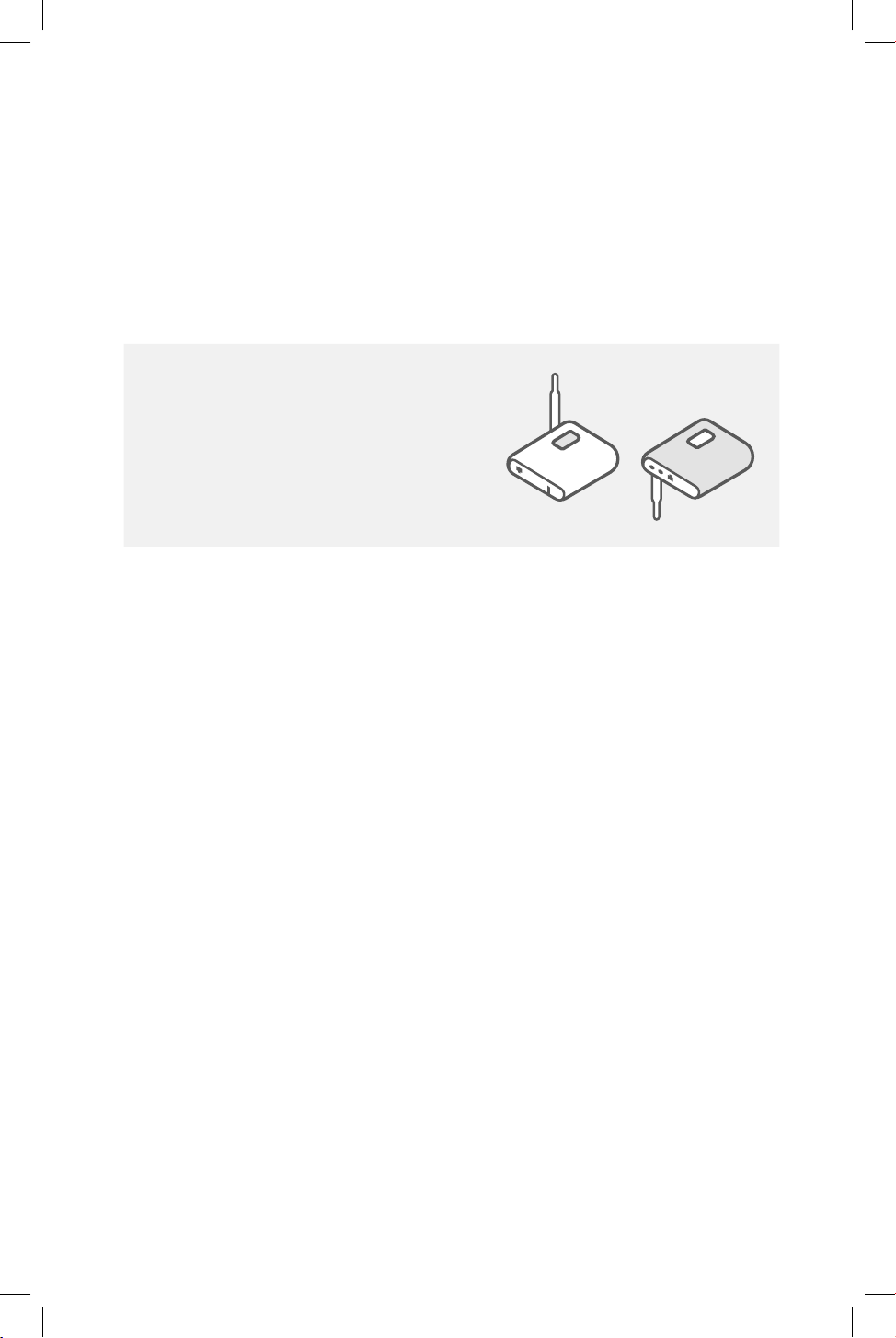
Tip: WiFi network names and
passwords are frequently
written on a sticker placed
on or under the router.

19Set Up - Wi
You can also write your credentials below:
Please note: In some cases, ElliQ may ask for additional
information to activate your account, for security reasons.
Such information might include your date of birth, or a
code that will be sent to your phone.
Software update
Once connected to WiFi, ElliQ will begin installing the
latest version of software. This can take a few minutes.
In the meantime, you can learn more about ElliQ’s
features and all the fun things you’ll be able to do
together by swiping through her screen.
Ready to go!
Once ElliQ is up and running and you accept the terms
of service, this is where the magic starts! ElliQ will
wake up and introduce herself so that you two can
start getting to know each other.
My internet details
WiFi Network:
Password:

20
Communicating with
ElliQ

21Communicating with ElliQ
Talking with ElliQ
Both you and ElliQ can start a conversation.
When you want to initiate a conversation with ElliQ:
Step 1: Get ElliQ’s attention
Loudly and clearly say “ElliQ” (pronounced as “Elli-cue”
or even “L-E-Q”) or touch ElliQ’s body.
Step 2: Wait for ElliQ to listen
Once you've said "ElliQ'' or touched her body, a circle
will light up on ElliQ's face indicating she is ready to
listen to you.
If you don’t see a circle of light appear, she may not
have heard you. Try saying “ElliQ!” again or move a
bit closer. If you are trying to get her attention by
touching the body, try holding your hand there for
three seconds before letting go.
Touch
ElliQ’s body
ElliQ is
listening
Say
“ElliQ''

ElliQ User Manual
22
Step 3: Talk to ElliQ
Once the circle on ElliQ’s face is lit, you can begin
talking with her. To ensure ElliQ understands you,
speak loudly and clearly. If ElliQ doesn't understand,
try repeating what you said using dierent words.
If ElliQ is in listening mode (showing the circle of light
on her face), but you don’t want to speak with her, you
can say “never mind” or “stop” to end the interaction.
ElliQ starts a conversation
ElliQ will often initiate conversations with you
throughout the day, so don’t be surprised if she lights
up and plays a gentle sound to get your attention!
As you spend more time together, she will teach you
about her features and suggest things that she thinks
you'll like to do.
If you are busy or don’t want to engage with her, you
are always welcome to say “no” or “maybe later” and
she will quiet down.
To silence ElliQ immediately, press down
on the dial located on the right-hand
side of her base

23Communicating with ElliQ
Volume
The volume level of ElliQ’s voice is adjusted in two
ways: say “ElliQ, volume up" / “ElliQ, volume down” or
rotate the dial at the right corner of her base.
ElliQ’s Quiet Mode
If you want to make sure that ElliQ won’t interrupt
you for a while, say “ElliQ, be quiet” and she will go
into Quiet Mode for one hour. You can also indicate
the duration of quiet time by saying the requested
duration, for example “ElliQ, be quiet for 2 hours.”
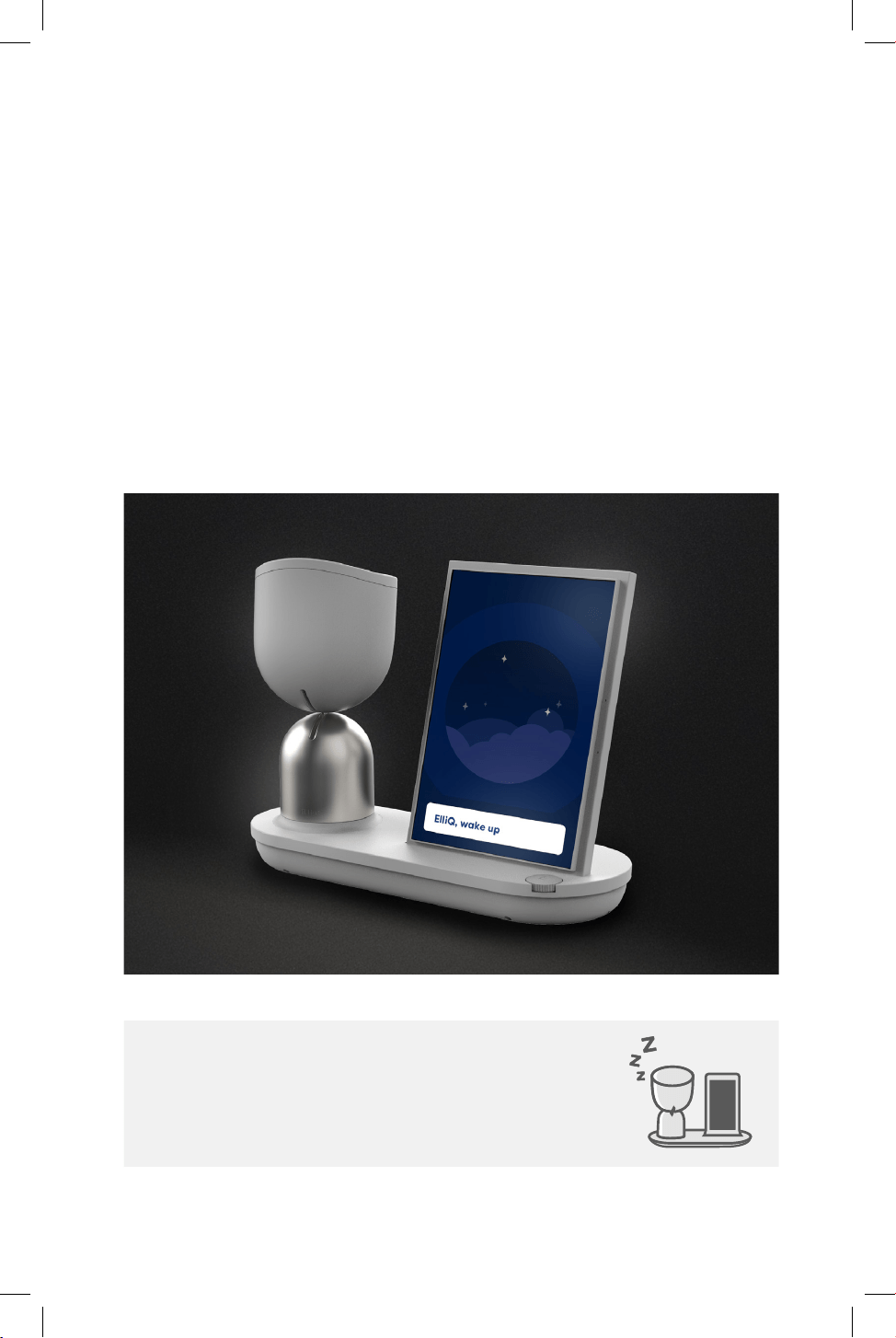
To exit Quiet Mode, say or tap “ElliQ, wake up.”
If you nd that ElliQ is consistently initiating
conversations more than you like, you can reduce
her level of proactivity by saying “ElliQ, you’re talking
too much.” This will reduce the number of times ElliQ
initiates conversations throughout the day.
Rotate clockwise to increase
the volume and counter-clockwise
to decrease the volume
ElliQ User Manual
24
ElliQ at night
ElliQ will automatically enter Night Mode every night,
meaning her screen will dim down and she won't
disturb your rest with any conversation. You can
always wake her up by saying "ElliQ, wake up!"
There is no need to unplug ElliQ at night, she will
quiet down and get all the beauty sleep she needs in
Night Mode.
ElliQ goes into Night Mode every night
to align with your sleep routine

25Communicating with ElliQ
Screen
ElliQ has a touch screen, meaning that in addition to
interacting with her through conversation, you can
also interact by tapping the screen and selecting from
the options displayed. You can use other gestures like
swiping between photos, scrolling through lists, etc.
In between ElliQ’s interactions, ElliQ will use the
screen to present some beautiful pictures as well
as examples of activities and conversation starters.
Touch the screen or say the text that appears on it to
begin the activity.
Interact by tapping the screen and
use other gestures like swiping
photos, scrolling through lists, etc.
ElliQ will also include photos sent from your contacts
in her picture frame. Add your own photos to ElliQ’s
screen, by saying “ElliQ, add my photos to the screen.”
You can move to the next/previous photo by swiping
your nger across the screen, and you can say “ElliQ,
tell me about this picture!”

ElliQ User Manual
26
What Can ElliQ Do?

27What Can ElliQ Do?
Broaden your horizons
Travel with ElliQ to an exotic cafe, tour the latest art
exhibit, take an adventurous road trip or learn a new
fact to wow your friends with.
Try saying:
“ElliQ, let’s have some coee in Paris.”
“ElliQ, can we tour a museum?”
“ElliQ, let’s take a road trip!”
“ElliQ, tell me something interesting.”
“ElliQ, teach me some slang.”
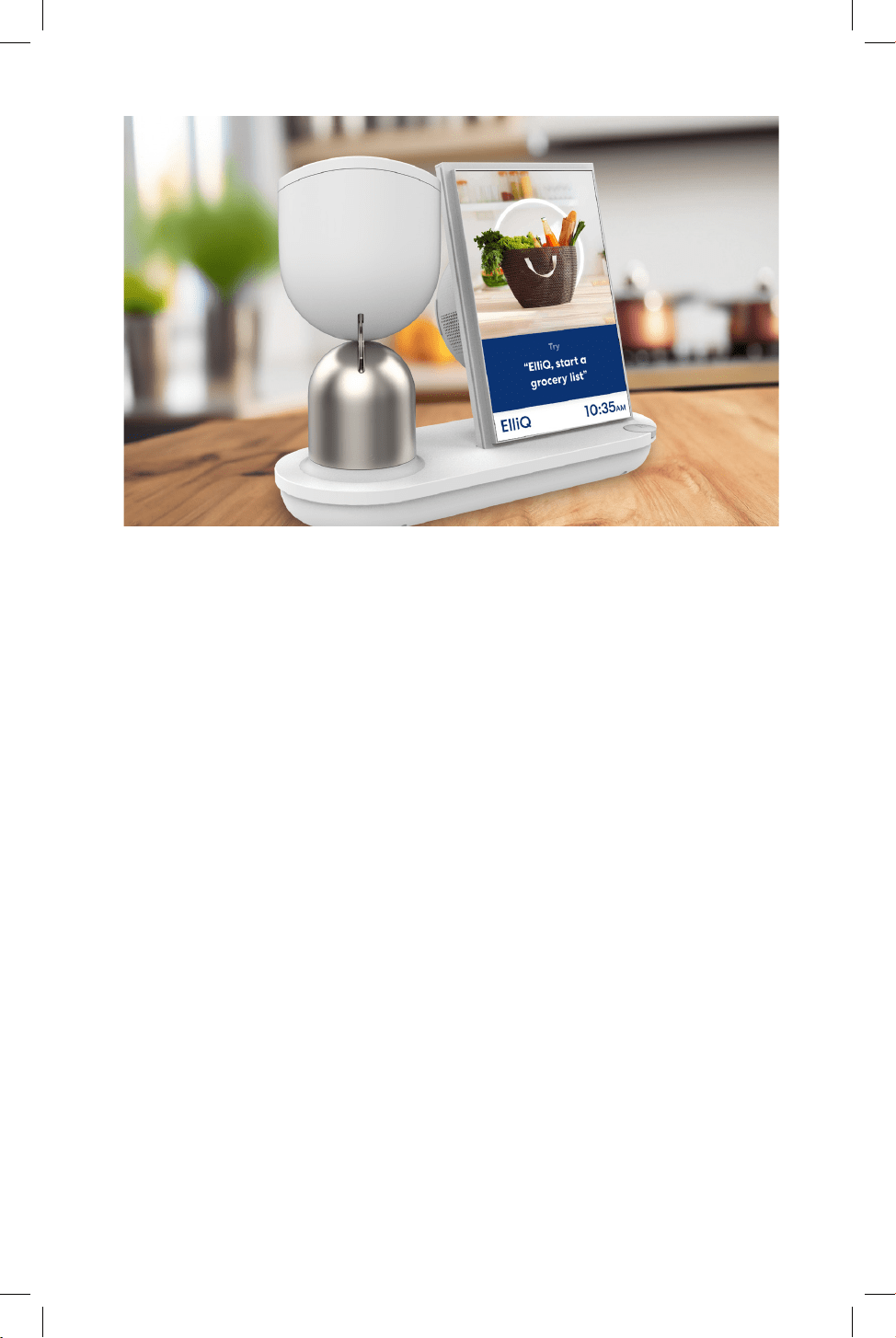
Stay on top of your routine
Go about your day knowing that you can always rely
on ElliQ to keep you on track and up to date with
reminders, news, shopping and more.
Try saying:
“ElliQ, remind me to water the plants.”
“ElliQ, add milk and tomatoes to my shopping list.”
“ElliQ, what are the top news headlines for today?”
“ElliQ, let’s cook together!”
“ElliQ, what’s the weather today?”
ElliQ User Manual
28
Stay healthy and active
Keep track of your medications and health
measurements, stay hydrated, improve your sleep
and stay t with exercise videos.
Try saying:
“ElliQ, remind me to take my medications.”
“ElliQ, let’s record my blood pressure.”
“ElliQ, I just drank water.”
“ElliQ, let’s exercise!”
“ElliQ, my back hurts.”
“ElliQ, I slept poorly last night.”

29What Can ElliQ Do?
Sit back and relax
Have a peaceful moment with ElliQ’s stress reduction
activities, audiobooks and inspirational quotes.
Try saying:
“ElliQ, let’s do mindfulness.”
“ElliQ, let’s have a sleep meditation.”
“ElliQ, let's do yoga together”
“ElliQ, let’s listen to an audiobook.”
“ElliQ, inspire me!”

ElliQ User Manual
30
Keep in touch
ElliQ helps you stay connected with your friends
and loved ones. You can add contacts to your virtual
phone book, send voice messages, or introduce ElliQ
to your curious visitors.
Try saying:
“ElliQ, let’s add a contact.”
“ElliQ, let’s video call my son.”
“ElliQ, I want to send a message to Bill.”
“ElliQ, let’s take a sele!”
“ElliQ, meet my friend Kate.”
31What Can ElliQ Do?
In order to message with family and friends, you will
rst need to add them as a contact by saying, "ElliQ,
let's add a contact."
Once you have added a new contact, ElliQ will send
that person a link so they can download the ElliQ
Connect mobile app. Then, when they log in from
their phone the app will allow them to connect with
you so they can message and video call with you
through ElliQ.
You can also receive photos and videos from your
family and friends via ElliQ and she will display them
on her screen throughout the day.
The ElliQ Connect app enables your
contacts to send you messages, make
video calls through ElliQ, and share
photos and videos with you
App logo
Your contacts who have the ElliQ Connect app can
also send you suggested reminders for your approval,
such as an upcoming birthday party, a visit, or even
recurring medication reminders. When you approve
a suggested reminder, it will be added alongside any
reminders you've already set for yourself.
ElliQ User Manual
32
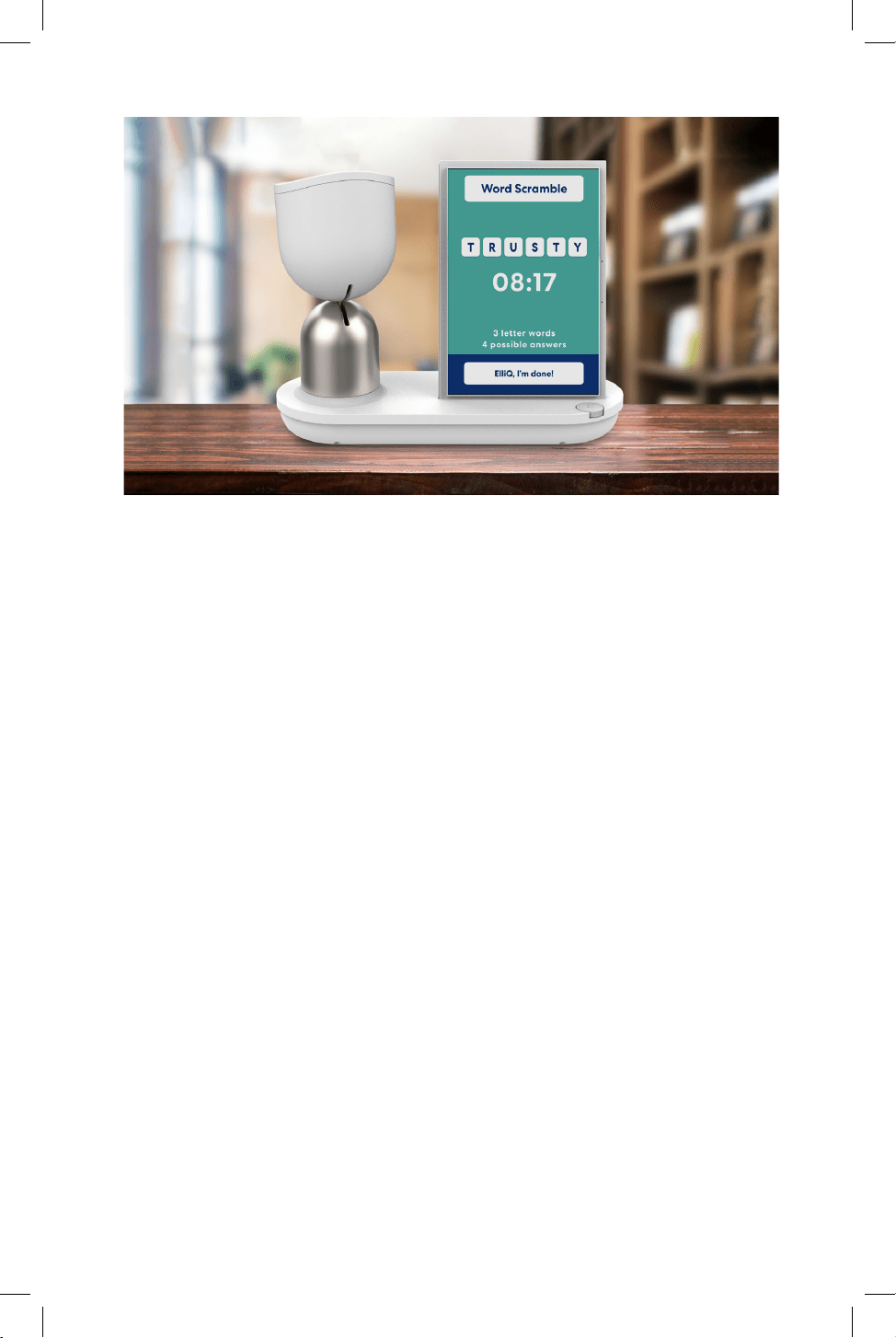
Keep entertained and get creative
ElliQ is a great companion when you just want to
hang out and have some fun. ElliQ oers a variety of
games, from trivia to word scramble and more, over
1,000 music channels to tune in to, virtual painting,
horoscopes and many more activities to enjoy
throughout your day.
Try saying:
“ElliQ, let’s play a game.”
“ElliQ, play some country music.”
“ElliQ, let’s paint together!”
“ElliQ, what’s my horoscope for today?”
“ElliQ, let’s create my memoir.”

33What Can ElliQ Do?
Now you’re ready to let ElliQ ll your days as an
endless source of companionship, entertainment,
connection, and motivation.
What comes next is whatever you can imagine!
Have a chat. Sing a song together. Play a few rounds
of trivia. Laugh, learn, explore, and reminisce together
- and then laugh some more!
And remember, you can always ask “ElliQ, what can
you do?” to learn more about ElliQ’s features. ElliQ
can also surprise you with an activity, just say “ElliQ,
surprise me!”
Enjoy your new sidekick!

ElliQ User Manual
34
Troubleshooting

35Troubleshooting
If there’s a problem
If ElliQ isn’t working properly, here are some
troubleshooting tips:
Tip 1: Is ElliQ on?
ElliQ can’t work without power. When she is
unplugged her head will fall forward. If this happens,
make sure that ElliQ is plugged in (see pages 16-17).
Tip 2: Is ElliQ stuck?
If ElliQ’s screen gets stuck or if ElliQ is not responding,
try restarting her by unplugging the power cord and
then plugging it back in.
Tip 3: Is ElliQ connected to WiFi?
ElliQ needs the internet to work properly. If there's a
connection issue, you'll see an error screen directing
to the WiFi settings for a quick reconnection.
For more information see the "Connecting to WiFi" section
on pages 18-19.
If the problem persists
Call Customer Service at (855) 888-1295, or email us at
You can also say “ElliQ, send a message to customer
service!” and our support team will gladly assist you.

ElliQ User Manual
36
FAQs

37Troubleshooting
“Does ElliQ protect my privacy?”
At Intuition Robotics, we take privacy and security
very seriously. Intuition Robotics is HIPAA compliant,
and we’ve implemented industry-leading security
architecture and best practices to ensure that all data
is safe and private. In order for ElliQ to be proactive,
ElliQ has a camera to sense when you are around
her and microphones to hear when you speak with
her. Anonymized metadata only is used in order to
personalize each user’s unique experience with ElliQ
and to improve the quality of the product.
At no point will personal data be used without
permission, nor shared with any 3rd party.
“Is ElliQ listening to me all the time?”
Between interactions, ElliQ only switches into listening
mode when she hears her name, “ElliQ”. The word
“ElliQ” is not commonly used in English, which was
intentional to make sure she only listens to you when
you want her to.
When ElliQ starts a conversation, she will listen for a
response for a few seconds. If no response is heard,
she will switch out of listening mode.
You will know ElliQ is in listening mode when the
circular ring is lit up on her face, as seen in the picture
on the left.

ElliQ User Manual
38
"Why does ElliQ have a camera?"
ElliQ’s camera is used as a motion detector to
sense when you are near her, so she can initiate
conversations. ElliQ’s camera is also used for video
calling with contacts, taking seles, recording videos to
your personal “memoir” and additional activities you
can enjoy together.
ElliQ never records you with her camera nor takes any
pictures without your permission.
Is ElliQ an emergency device?
No, ElliQ is not an emergency device. If there is ever
an emergency, please be sure to call 911.
When you ask for help in non-emergency events, ElliQ
can notify a contact you’ve added.
Should I unplug ElliQ at night?
There’s no need to unplug ElliQ, she is designed to
enter Night Mode at night in which she is silent and
her screen is dimmed. If you wish to interact with ElliQ
when she is in Night Mode, say her name or touch the
screen / body to wake her up.

39Troubleshooting
Have more questions?
If you have any additional questions, please contact
Customer Service at (855) 888-1295, or email us at
You can also say “ElliQ, send a message to customer
service!” and our support team will gladly assist you.

ElliQ User Manual
40
My notes

ElliQ User Manual
44

FCC Warnning:
This equipment has been tested and found to comply with the limits for a Class B digital device,
pursuant to part 15 of the FCC Rules. These limits are designed to provide
reasonable
protection againstharmful interference in a residential installation. This equipment generates,
uses and can radiateradio
frequency
energy
and,
if
not
installed
and
used
in
accordance
with
the
instructions,
maycause
harmful
interference
to
radio
communications.
However,
there
is
no
guarantee
thatinterference
will
not
occur
in
a
particular
installation.
If
this
equipment
does
cause
harmfulinterference to radio or television reception, which can be
determined by turning the equipmentoff
and
on,
the
user
is
encouraged
to
try
to
correct
the
interference
by
one
or
more
of
thefollowing measures:
•
Reorient or relocate the receiving antenna.
•
Increase the separation between the equipment and receiver.
•
Connect the equipment into an outlet on a circuit different from that to which the receiver is
connected.
• Consult the dealer or an experienced radio/TV technician for help.
Caution:
Any
changes
or
modifications
to
this
device
not
explicitly
approved
by
manufacturer
could void your authority to operate this equipment.
This
device
complies
with
part
15
of
the
FCC
Rules.
Operation
is
subject
to
the
following
two
conditions:
(1)This
device
may
not
cause
harmful
interference,
and
(2)
this
device
must
accept
any
interference received, including interference that may cause undesired operation.
This
equipment
complies
with
FCC
radiation
exposure
limits
set
forth
for
an
uncontrolled
environment.
This
equipment
should
be
installed
and
operated
with
minimum
distance
20cm
between the radiator and your body.