Paper
Compartment
Release Buon
Enter your email address and create a password to
set up your account.
Using the App
STEP1—
Accessories List
Oicial Stickers Type-C
Charging Cable
User Manual
Manual
Magic Box
Ognee
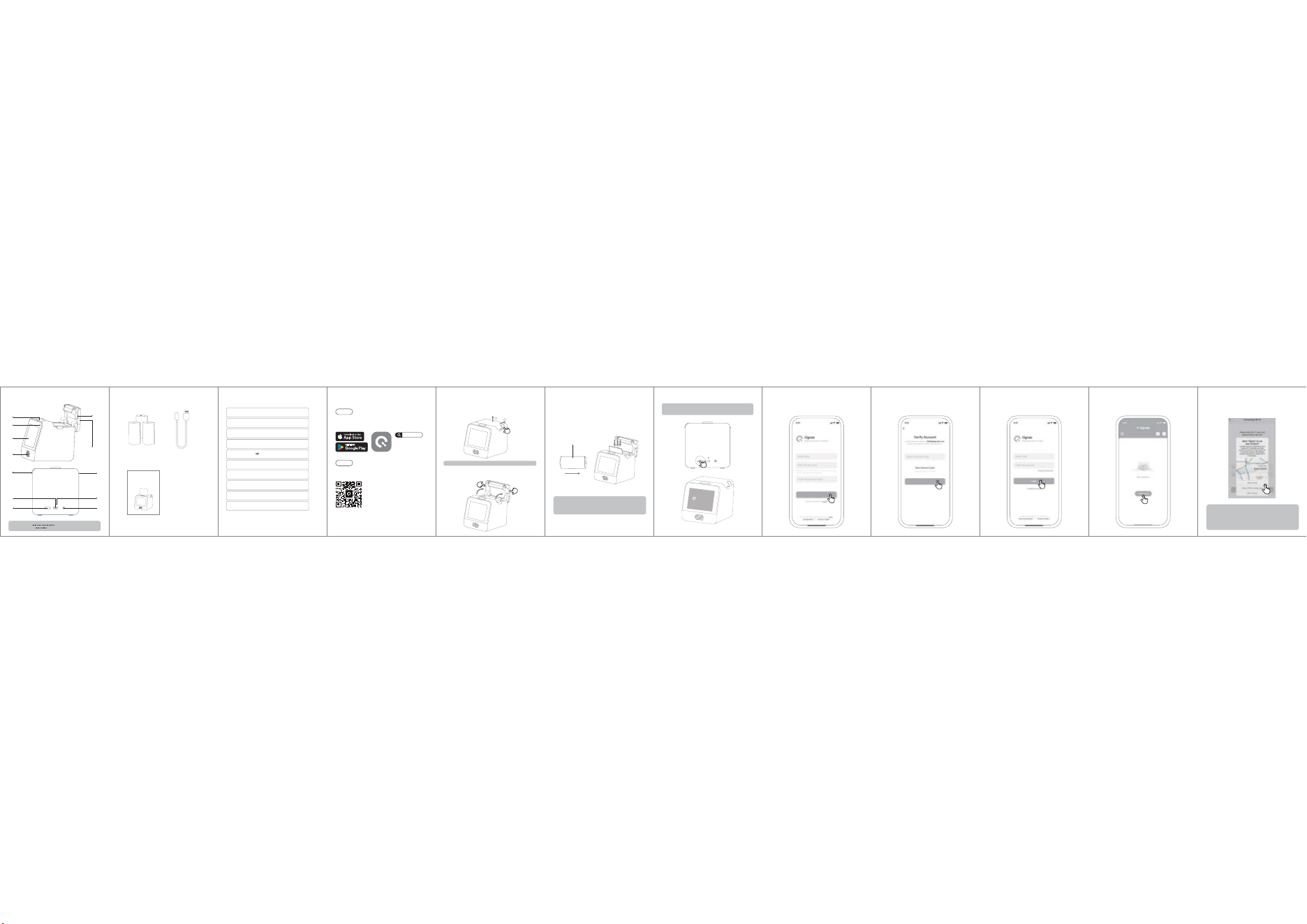
Product Overview
Type-C Port
Charging
Indicator
Power Buon
Latch
Latch
Speaker
Intercom Buon
Microphone
Screen
Paper
Compartment
Release Buon
Paper
Compartment
Release Buon
Reset Buon
Charging Indicator
Reset Buon To reset
Red: Charging / Green: Fully Charged
Press and hold the Reset Buon for 10 seconds
Product Information
Product Name: Ognee Magic Box
Model Number: SC-AI19
Resolution: 300dpi
FCC ID: 2A8WY-SC-AI19
Port: Type-C
Baery Capacity: 1500mAh
Weight: 0.84 pound
Dimensions: 3.9*3.5*3.5inch
Network Support: 2.4 GHz Wi-Fi
Power:5V 1A
STEP2—
STEP1—
Installing the Paper Roll
Slide the release buon backward to unlock the paper
compartment cover.
Hold the small protrusions on both sides of the paper
compartment with two fingers and pull firmly upwards
to open the cover.
1
2
Note: Do not lift upward with excessive force.
Downloading the App
Method 1
Method 2
Search for the app Ognee on the App Store or Google Play
to download and install.
Scan the QR code using your phone’s camera, your browser’s
built-in QR scanner, or a dedicated QR scanning app.
Ognee
Tap "Add Device" and make sure Bluetooth is ena-
bled on your phone.
STEP4—Enter the verification code to verify your account.STEP2—
Verfy Account
Return to the home screen, enter your email add-
ress and password, then tap Log In.
STEP3—
Tap "Connect Device" and allow Ognee to access
your Wi-Fi name, password, and location. Enter
your Wi-Fi name and password, then tap Next.
Tip:
If you are using the Magic Box in a place without Wi-Fi, such as
outdoors, you will need two phones: one to turn on a hotspot and
another to connect to that hotspot. If the connection fails, go to
"Seings" > "Personal Hotspot" and turn on "Maximize Compatibility".
This helps the device connect to the required 2.4 GHz band instead of
the 5 GHz band.)
STEP5—
STEP3— Place the sticker roll into the compartment with the
sticker side facing forward, pull out a small portion of
the paper, close the cover, and ensure both sides are
securely latched. This completes the installation of
the sticker roll.
Note: Make sure the white thermal printing side faces up when
loading the paper
(the blue side is the backing layer and
should face down)
. If the paper is loaded incorrectly, the printout
will be blank.
Instructions for Use
Power On: Press and hold the Power Buon for 3 seconds
to turn on. The screen will light up, indicating it is on.
Ognee
Create Account
White side of
thermal paper
ManualMagic Box
Ognee
Please read the manual carefully before using the product.
Please make sure the printer is turned o before performing
any cleaning or maintenance.
·If you encounter issues such as blank lines, blurry print, or
missing characters, it may be
caused by dirt on the Print Head. Please follow these steps:
1. If you have just finished printing, wait for at least 30
minutes for the PrintHead to cool down completely.
2.Use a coon swab dipped in alcohol or a print head
cleaning pen to gently wipe the surface of the Print Head
about 5 times to remove any dust and stains.
3.Wait 5-10 minutes for the alcohol to evaporate completely.
Thus, the cleaning is done, and you can continue using the
printer.
Warning: The print head is a HOT component!
Touching it when hot can cause burns. Please wait
for at least 30 minutes after turning o the power
Cleaning and Maintenance
Thermal print head(Please clean this area.)
Helpful Tips
Thermal printing uses a chemical reaction to create images
and is not permanent.
1. Do not expose the printed material to direct sunlight or high
temperatures (e.g., inside a car in summer) for extended
periods.
2. Do not use standard transparent tape directly on the
printed surface.
3. For permanent storage, it is recommended to take a photo
for digital backup or scan the print for archiving.
1. Do not charge or use the printer in places with high
temperatures, sub-zero temperatures, high humidity, or
excessive dust.
2. After printing is complete, do not touch the print head
directly to avoid burns from overheating.
3. The paper tear-o blade is sharp. Please be careful not to
touch it to prevent cuts.
4. Please insert or unplug the charging cable gently to avoid
damaging the port with excessive force.
5. When charging is complete, it is recommended to unplug
the charging cable. Improper charging may cause damage
to the print head.
6. Do not touch the print head with hard objects.
7. Regularly clean the print head with an alcohol swab to
prevent carbon buildup, which can lead to poor print quality.
Safety and PrecautionsWarranty & Return Policy
Ognee provides a 12-month warranty from the delivery date
against defects in material or workmanship under normal use.
Defective products will be repaired/replaced free of charge if
the issue arises from manufacturing flaws.
· Damage from misuse, improper installation, unauthorized
repairs/modifications.third-party components, or force majeure
events.
· Consumables (e.g., baeries) unless defective.
· Products without valid proof of purchase, serial numbers, or
purchased from unauthorized sellers.
· Non-Ognee branded accessories, samples, or"AS IS"items.
· Consequential damages (e.g., data loss).
· Transferred ownership.
· Contact Ognee Support ([email protected]) or authorized
centers for trouble shooting.
· If unresolved, return the product to the provided address.
· Ognee inspects the product; non-covered issues require paid
repair.
Eligible returns within 30 days of receipt.
· Product mus t be unused, in original packaging with all accessories,
and include proof of purchase/serial number.
· Customer covers return shipping; no restocking fees.
· Refunds processed to original payment method after inspection
(shipping fees non-refundable).
Exclusions
Claim Process
Returns & Refunds
Warning
Caution!
The paper tear-o blade has sharp edges. Please be careful
not to touch it to prevent cuts.
Caution! Hot components!
After printing is complete, do not touch the print head directly
to avoid burns from overheating. Wait for half an hour after
turning o the power before touching the print head.
There is a risk of explosion if the baery is replaced with an
incorrect type. Be sure to dispose of used baeries according
to the instructions.
Children can be strangled by cords. Keep this charging cable
out of reach of children (more than 3 ft / 0.9 m away).
Warning! Strangulation hazard!
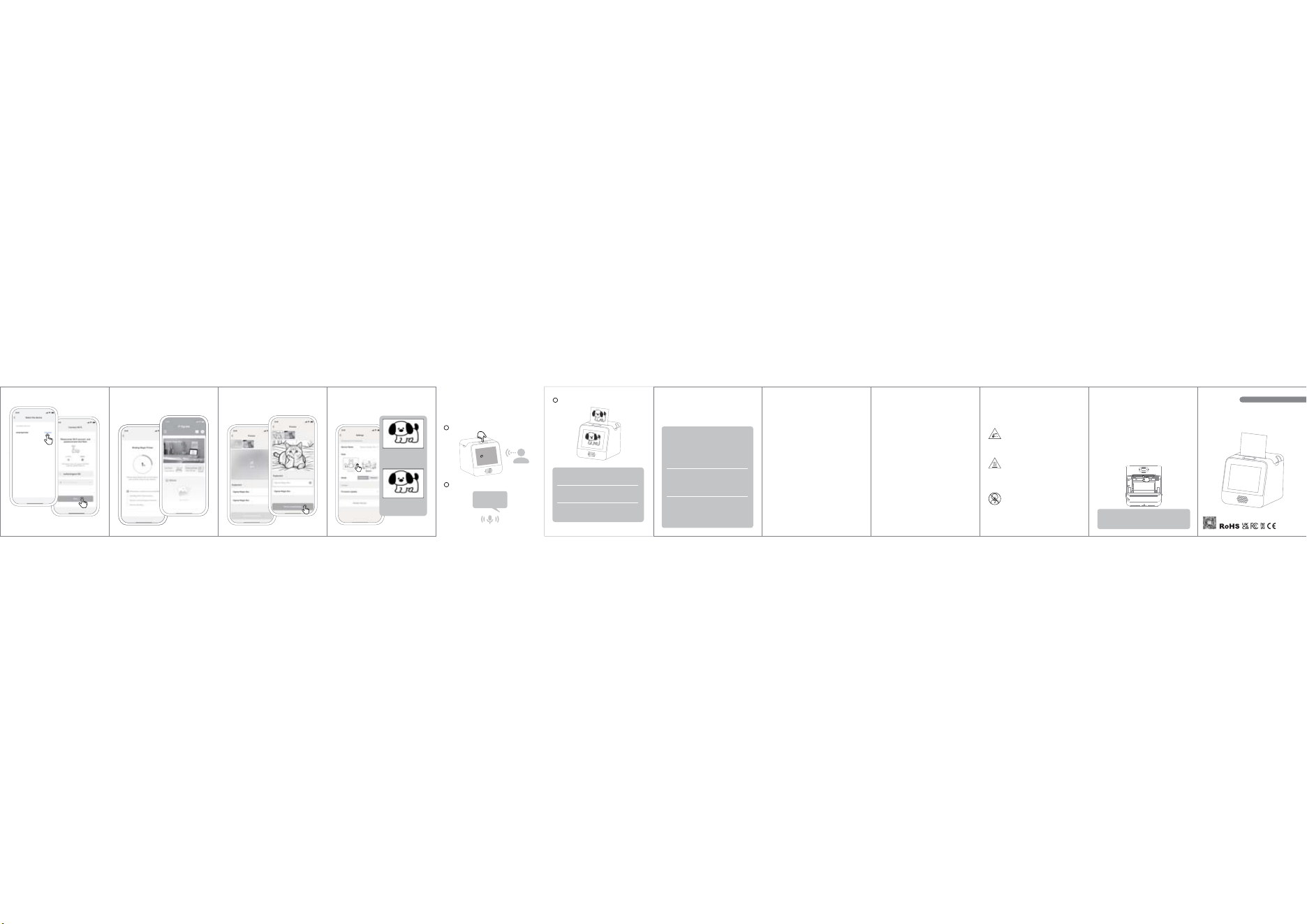
Press and hold the top buon, say your prompt (for example,
"Generate a photo of a puppy"), then release the buon.
AI Voice-to-Image
Choose AI voice-to-image style : Tap "Parameters
style Seings" and select your preferred style.
STEP8—
3
1
2
“Generate a
picture of a puppy”
7<77@
7<77@
Only one English word can appear at the boom of the generated
image.
For more complex prompts, image generation may take about 1
minute. Please wait patiently.
Some human images may not be generated due to copyright or
technical limitations. Thank you for your understanding.
Image generation time
Human image limitations
Boom text rule
Once connected, your Magic Box is ready to use.STEP6— Print a photo: Tap "Print Photo," choose a photo, crop
it, select either "Cartoon" or "Original" style, then
print.
STEP7—
7\WW`
Flashcard
Image Only
Photo Only: No text appears at
the boom of the generated
image
Text appears at the boom of
the generated image.
Press to speak
Speak your desired Paern
AI draws & prints
Ognee
Service Email
www.ognee.com
FCC Statement:
This device complies with part 15 of the FCC Rules. Operation is subject to the following
two conditions:
(1) This device may not cause harmful interference, and
(2) this device must accept any interference received, including interference that may cause
undesired operation.
This equipment has been tested and found to comply with the limits for a Class B digital
device, pursuant to part 15 of the FCC Rules. These limits are designed to provide
reasonable protection against harmful interference in a residential installation. This
equipment generates, uses and can radiate radio frequency energy and, if not installed and
used in accordance with the instructions, may cause harmful interference to radio
communications. However, there is no guarant ee that interference will not occur in a
particular installation. If this equipment does cause harmful interference to radio or
television reception, which can be determined by turning the equipment off and on, the
user is encouraged to try to correct the interference by one or more of the following
measures:
—Reorient or relocate the receiving antenna.
—Increase the separation between the equipment and receiver.
—Connect the equipment into an outlet on a circuit different from that to which the
receiver is connected.
—Consult the dealer or an experienced radio/TV technician for help.
Caution: Any changes or modifications not expressly approved by the party responsible
for compliance could void the user's authority to operate the equipment.
This equipment complies with FCC radiation exposure limits set forth for an uncontrolled
environm ent. This transmitter must not be co‐located or operating in conjunction with
any other antenna or transmitter.
RF exposure warning:
This equipment complies with radiation exposure limits set forth for an
uncontrolled environment. This equipment should be installed and operated
with Minimum distance 20cm between the radiator and your body.
8. Place the product on a stable surface when in use. Do not hold it
in your hand.