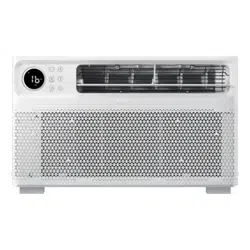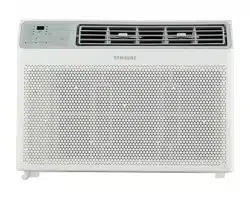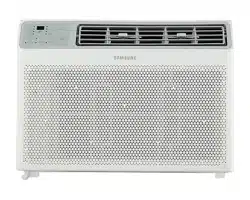
Air conditioner
User manual
AR70H**CA***
• Thank you for purchasing this Samsung air conditioner.
• Before operating this unit, please read this manual carefully and retain it for future reference.
2
English
Contents
Safety Information 4
Safety Information 4
At a Glance 12
Indoor Unit Overview 12
Display 13
Remote Control Overview 14
Charging the remote control 14
Remote Control Operation 15
Initial Settings 15
Selecting an operation mode 16
To set the temperature • To adjust the fan speed 17
To adjust the airflow direction 18
Smart Features 20
Power Smart Features 20
WindFree Cooling function 20
Dry Comfort function 21
AI Motion Wind function 22
AI Auto mode 23
AI Energy mode 24
Cool mode 25
Dry mode • Fan mode 26
Heat mode • Automatic defrost 27
Variety Smart Features 28
Eco function 28
Quiet function 29
Motion Detection function 30
Beep function 33
Auto Clean function 34
Freeze Wash function 36
Display lighting function • Wi-Fi function (SmartThings app) 37
Time scheduling 38
Timed on/ Timed off function 38
Good Sleep function 40
3
English
Cleaning and Maintenance 41
Schedule 41
Cleaning 42
Appendix 47
Troubleshooting 47
SmartThings app 49
Correct Disposal of This Product
(Waste Electrical & Electronic Equipment)
(Applicable in countries with separate collection systems)
This marking on the product, accessories or literature indicates that the product and its electronic
accessories (e.g. charger, headset, USB cable) should not be disposed of with other household waste
at the end of their working life. To prevent possible harm to the environment or human health from
uncontrolled waste disposal, please separate these items from other types of waste and recycle
them responsibly to promote the sustainable reuse of material resources.
Household users should contact either the retailer where they purchased this product, or their local
government office, for details of where and how they can take these items for environmentally safe
recycling.
Business users should contact their supplier and check the terms and conditions of the purchase
contract. This product and its electronic accessories should not be mixed with other commercial
wastes for disposal.
Correct disposal of batteries in this product
This marking on the battery, manual or packaging indicates that the batteries in this product should
not be disposed of with other household waste at the end of their working life. Where marked, the
chemical symbols Hg, Cd or Pb indicate that the battery contains mercury, cadmium or lead above
the reference levels in EC Directive 2006/66.
4
English
Safety Information
WARNING: Read This Manual
Read and follow all safety information and instructions before installation, use, or maintenance of this
appliance. Incorrect installation, use, or maintenance of this appliance can result in death, serious injury, or
property damage. Keep these instructions with this appliance. This manual is subject to change. For the latest
version, visit www.samsung.com.
Because the instructions in this manual cover various models, the characteristics of your air conditioner may
differ slightly from those described. If you have any questions, please contact your service provider or visit
www.samsung.com.
Notices and notes
To make you aware of safety messages and highlighted information, we use the following notices and notes
throughout this manual:
WARNING
Hazards or unsafe practices that may result in severe personal injury or death.
CAUTION
Hazards or unsafe practices that may result in minor personal injury or property damage.
IMPORTANT
Information of special interest
NOTE
Supplementary information that may be useful
Safety Information
Safety Information
5
English
Safety Information
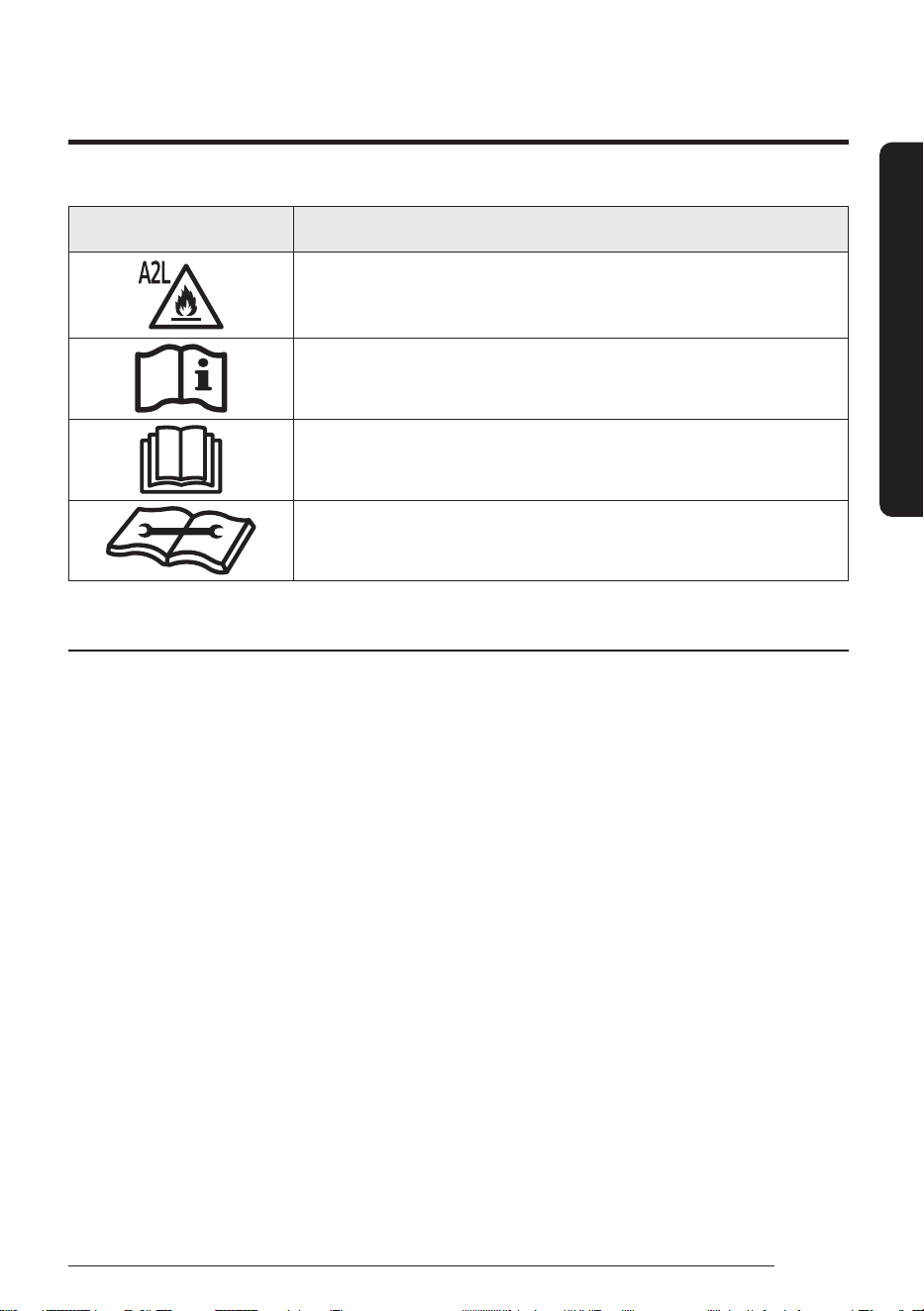
Symbol Meaning
WARNING: Low burning velocity material
(This appliance is filled with R-32.)
Refer to operating manual
Read operating manual
Read installation and service manual
FOR GENERAL
This appliance is not intended for use by persons (including children) with reduced physical, sensory
or mental capabilities, or lack of experience and knowledge, without supervision or instruction
concerning use of the appliance by a person responsible for their safety. Children should be supervised
to ensure that they do not play with the appliance.
Safety Information
6
English
Safety Information
FOR INSTALLATION
WARNING
Use a power cord with this product's power specifications or higher and use the power cord for this
appliance only. In addition, do not use an extension cord.
• Extending the power cord may result in electric shock or fire.
• Do not use an electric transformer. This may result in electric shock or fire.
• If the voltage/frequency/rated current condition is different, it may cause fire.
The installation of this appliance must be performed by a qualified technician or service company.
• Failing to do so may result in electric shock, fire, explosion, problems with the product, or injury and
may also void warranty on the installed product.
Install an Isolation Switch next to the Air Conditioner (but not on the panels of the Air Conditioner) and
circuit breaker dedicated to the air conditioner.
• Failing to do so may result in electric shock or fire.
Fix the outdoor unit firmly so that the electric part of the outdoor unit is not exposed.
• Failing to do so may result in electric shock, fire, explosion, or problems with the product.
Do not install this appliance near a heater, or flammable material. Do not install this appliance in a
humid, oily or dusty location, in a location exposed to direct sunlight and water (or rain). Do not install
this appliance in a location where gas may leak.
• This may result in electric shock or fire.
Never install the outdoor unit in a location such as on a high external wall where it could fall.
• If the outdoor unit falls, it may result in injury, death or property damage.
This appliance must be properly grounded. Do not ground the appliance to a gas pipe, plastic, water
pipe, or telephone line.
• Failing to do so may result in electric shock, fire, and explosion.
• Make sure to use a socket-outlet with ground.
7
English
Safety Information
CAUTION
Install your appliance on a level and hard floor that can support its weight.
• Failing to do so may result in abnormal vibrations, noise, or problems with the product.
Install the drain hose properly so that water drains correctly.
• Failing to do so may result in water overflowing and property damage. Avoid adding drain to waste
pipes as odours may arise in the future.
When installing the outdoor unit, make sure to connect the drain hose so that draining is performed
correctly.
• The water generated during heating by the outdoor unit may overflow and result in property damage.
In particular, in winter, if a block of ice falls, it may result in injury, death or property damage.
Do not install the product in a place where thermo-hygrostat is needed (such as server room,
machinery room, computer room, etc.)
• Those places do not provide guaranteed operation condition of the product therefore performance
can be poor in these places.
FOR POWER SUPPLY
WARNING
When the circuit breaker is damaged, contact your nearest service centre.
Do not pull or excessively bend the power line. Do not twist or tie the power line. Do not hook the power
line over a metal object, place a heavy object on the power line, insert the power line between objects,
or push the power line into the space behind the appliance.
• This may result in electric shock or fire.
If the supply cord is damaged, it must be replaced by the manufacturer, its service agent or similarly
qualified persons in order to avoid a hazard.
CAUTION
When not using the air conditioner for a long period of time or during a thunder/lightning storm, cut
the power at the circuit breaker.
• Failing to do so may result in electric shock or fire.
Safety Information
8
English
Safety Information
FOR USING
WARNING
If the appliance is flooded, please contact your nearest service centre.
• Failing to do so may result in electric shock or fire.
If the appliance generates a strange noise, a burning smell or smoke, cut off the power supply
immediately and contact the nearest service centre.
• Failing to do so may result in electric shock or fire.
In the event of a gas leak (such as propane gas, LP gas, etc.), ventilate immediately without touching
the power line. Do not touch the appliance or power line.
• Do not use a ventilating fan.
• A spark may result in an explosion or fire.
To reinstall the air conditioner, please contact your nearest service centre.
• Failing to do so may result in problems with the product, water leakage, electric shock, or fire.
• Delivery service for the product is not provided. If you reinstall the product in another location,
additional construction expenses and an installation fee will be charged.
• Especially, when you wish to install the product in an unusual location such as in an industrial area or
near the seaside where it is exposed to salt in the air, please contact your nearest service centre.
Do not touch the circuit breaker with wet hands.
• This may result in electric shock.
Do not turn the air conditioner off with the circuit breaker while it is operating.
• Turning the air conditioner off and then on again with the circuit breaker may cause a spark and
result in electric shock or fire.
After unpacking the air conditioner, keep all packaging materials well out of the reach of children, as
packaging materials can be dangerous to children.
• If a child places a bag over its head, it may result in suffocation.
Do not touch the air-flow blade with your hands or fingers during heating.
• This may result in electric shock or burns.
Do not insert your fingers or foreign substances into the air inlet/outlet of the air conditioner.
• Take special care that children do not injure themselves by inserting their fingers into the product.
Do not strike or pull the air conditioner with excessive force.
• This may result in fire, injury, or problems with the product.
Do not place an object near the outdoor unit that allows children to climb onto the machine.
• This may result in children seriously injuring themselves.
9
English
Safety Information
Do not use this air conditioner for long periods of time in badly ventilated locations or near infirm
people.
• Since this may be dangerous due to a lack of oxygen, open a window at least once an hour.
If any foreign substance such as water has entered the appliance, cut off the power supply and contact
the nearest service centre.
• Failing to do so may result in electric shock or fire.
Do not attempt to repair, disassemble, or modify the appliance yourself.
• Do not use any fuse (such as copper, steel wire, etc.) other than the standard fuse.
• Failing to do so may result in electric shock, fire, problems with the product, or injury.
CAUTION
Do not place objects or devices under the indoor unit.
• Water dripping from the indoor unit may result in fire or property damage.
Check that the installation frame of the outdoor unit is not broken at least once a year.
• Failing to do so may result in injury, death or property damage.
To prevent personal injury, make sure that you change the directions of the horizontal air flow blades
after stopping the movements of the vertical air flow blade. (In case of adjusting the horizontal air-flow
manually)
Do not install the product in a ship or a vehicle (such as a campervan).
• Salt, vibration or other environmental factor may cause the product malfunction, electric shock or fire.
Do not stand on top of the appliance or place objects (such as laundry, lighted candles, lighted
cigarettes, dishes, chemicals, metal objects, etc.) on the appliance.
• This may result in electric shock, fire, problems with the product, or injury.
Do not operate the appliance with wet hands.
• This may result in electric shock.
Do not spray volatile material such as insecticide onto the surface of the appliance.
• As well as being harmful to humans, it may also result in electric shock, fire or problems with the
product.
Do not drink the water from the air conditioner.
• The water may be harmful to humans.
Do not hit, shake, drop, or attempt to disassemble the remote control.
When replacing the remote control batteries, keep them out of the reach of infants.
• If an infant eats batteries, contact a doctor immediately.
When replacing the remote control batteries, be careful not to get the battery fluid on your skin.
• Battery fluid is harmful to humans.
Do not touch the pipes connected with the product.
• This may result in burns or injury.
Safety Information
10
English
Safety Information
Do not use this air conditioner to preserve precision equipment, food, animals, plants or cosmetics, or
for any other unusual purposes.
• This may result in property damage.
Avoid directly exposing humans, animals or plants to the air flow from the air conditioner for long
periods of time.
• This may result in harm to humans, animals or plants.
FOR CLEANING
WARNING
Do not clean the appliance by spraying water directly onto it. Do not use benzene, thinner or alcohol to
clean the appliance.
• This may result in discolouration, deformation, damage, electric shock or fire.
Before cleaning or performing maintenance, cut off the power supply and wait until the fan stops.
• Failing to do so may result in electric shock or fire.
CAUTION
Take care when cleaning the surface of the heat exchanger of the outdoor unit since it has sharp edges.
• This should be done by a qualified technician. Please contact your installer or service centre.
Do not clean the inside of the air conditioner by yourself.
• For cleaning inside the appliance, contact your nearest service centre.
• When cleaning the filter, refer to the descriptions in the 'Cleaning' section.
• Failing to do so may result in damage, electric shock or fire.
• Make sure to prevent any injury from sharp edges of the surface when handling the heat exchanger.
11
English
Safety Information
FOR R-32 REFRIGERANT
WARNING
In case of a malfunction, immediately stop operation of the air conditioner and disconnect the entire
power system. Then consult the authorized service personnel.
Do not use means to accelerate the defrost operation or to clean, other than those recommended by
Samsung.
Do not pierce or burn.
Be aware that refrigerants may not contain an odour.
CAUTION
The product shall be stored in a room with no ignition sources (e.g. open flames, gas appliance, electric
heater, etc.).
• Note that the refrigerant has no odour.
When the air conditioner does not operate properly for cooling or heating, there is a possibility
of refrigerant leakage. If any leakage, stop operation, ventilate the room, and consult your dealer
immediately for recharging refrigerant.
The refrigerant is not harmful. However, if it comes in contact with fire, it may generate harmful gases
and there is risk of fire.
During transportation of the indoor unit, the pipe lines shall be covered with brackets for protection.
Do not move the product with holding the pipe lines.
• It may cause gas leakage.
Do not cut or burn the refrigerant container or pipings.
Do not point the air direction to the fireplace or heater.
12
English
At a Glance
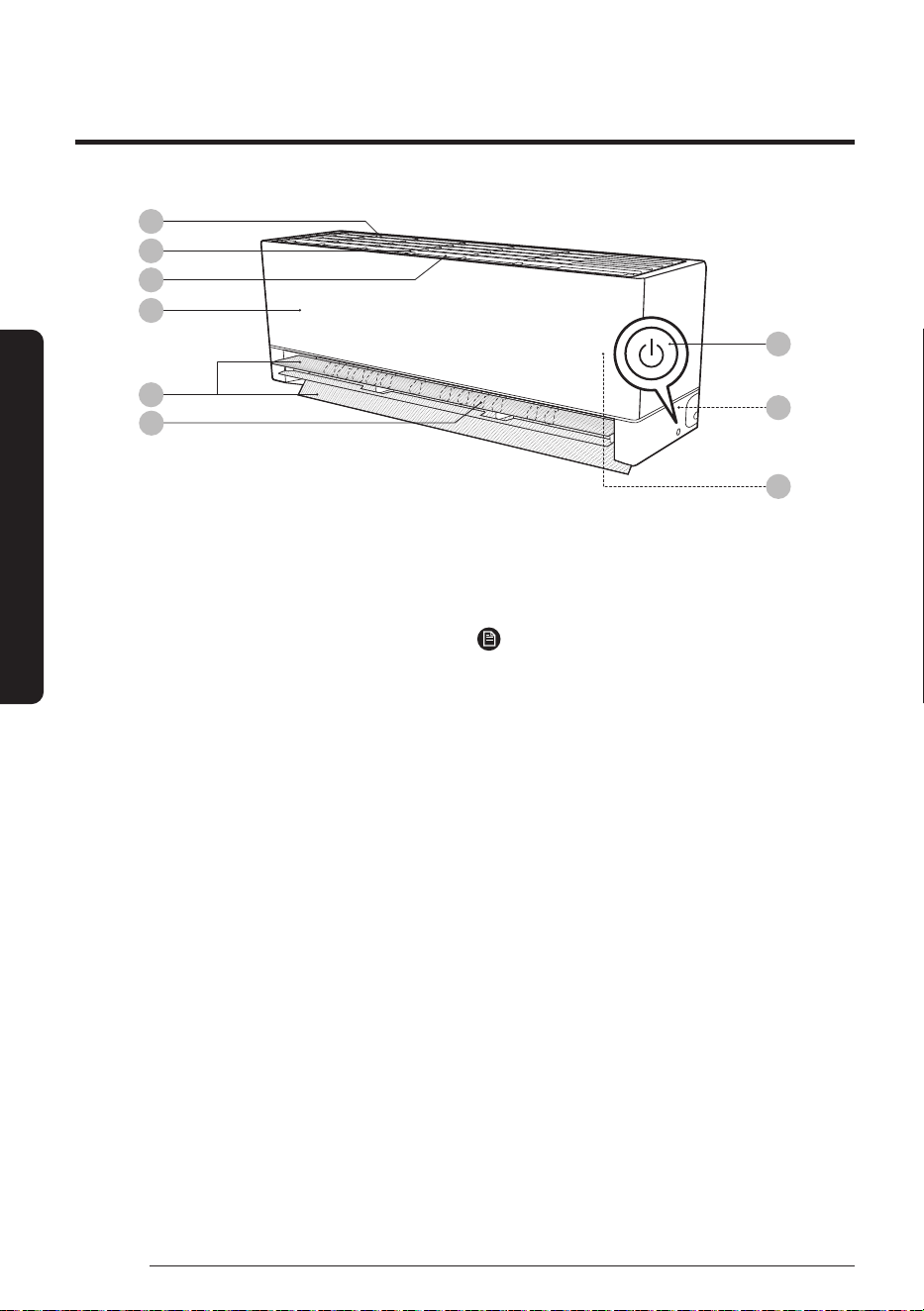
The appearance of the actual product may differ slightly from the image below.
01
02
03
04
09
05
06
08
07
Indoor Unit Overview
At a Glance
01 Air intake
02 Air filter
03 4-in-1 Care filter
04 Front panel
05 Airflow blades (up and down)
06 Airflow blades (left and right)
07 Power button
08 Room temperature sensor
09 Display/Remote control receiver
NOTE
• The product ships with two 4-in-1 Care filters and
the manual included.
13
English
At a Glance
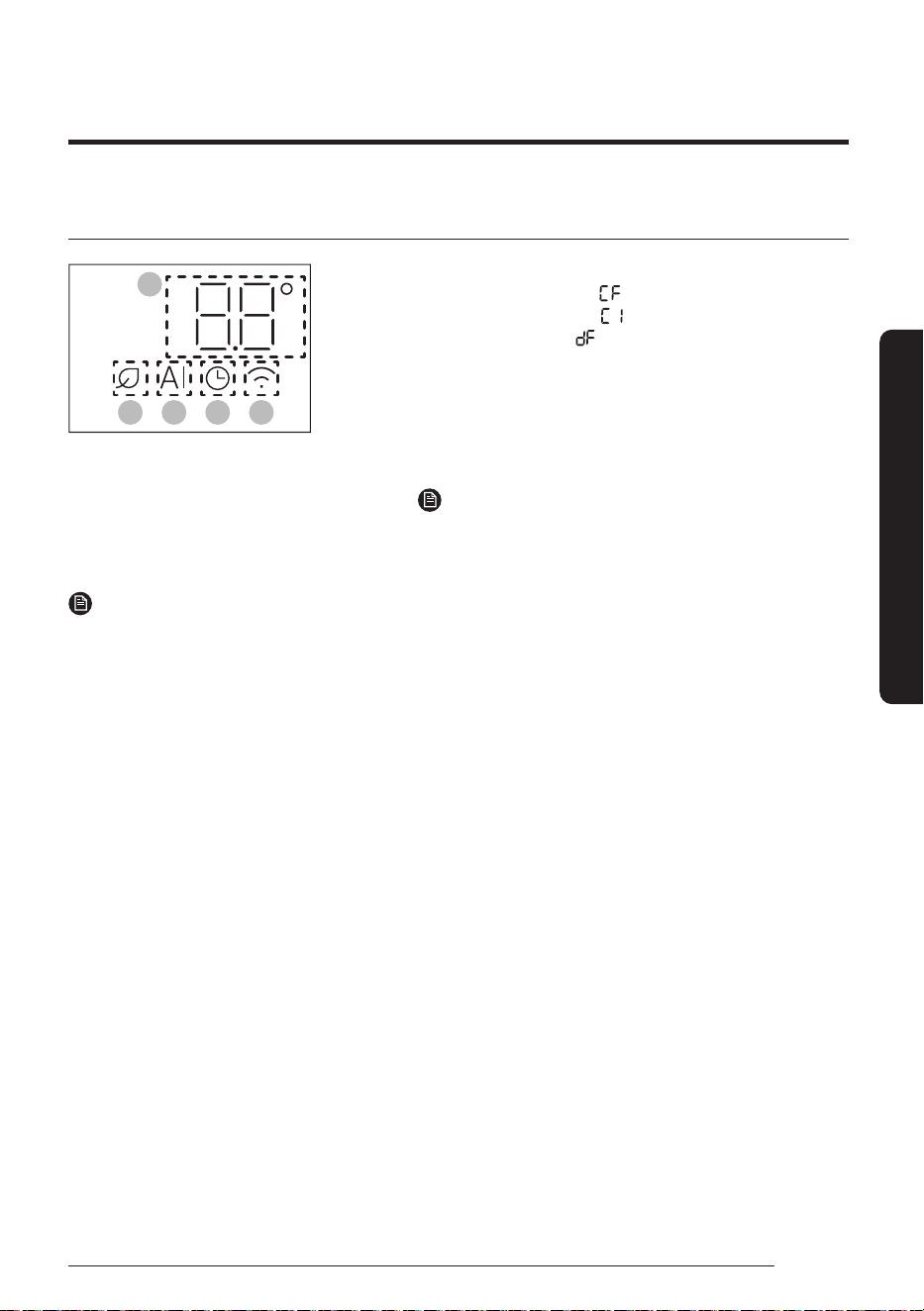
Display
01
03 04
05
02
01 Temperature indicator (numeric) /
Filter reset indicator ( ) /
Auto Clean indicator ( ) /
Defrost indicator ( )
02 AI Energy indicator
03 AI Auto indicator
04 Timer indicator /
Good Sleep indicator
05 Wi-Fi indicator
NOTE
• When the Wi-Fi is turned on, the indicator blinks three
times and then turns on.
NOTE
• If the Wi-Fi indicator blinks for 10 seconds when operation starts, it means that the air conditioner is not
connected to Wi-Fi. See "SmartThings app" on page 49 and connect the air conditioner to Wi-Fi.
• When connected to Wi-Fi, the air conditioner can gather and learn your user patterns so that it can run in
AI Auto mode.
14
English
At a Glance
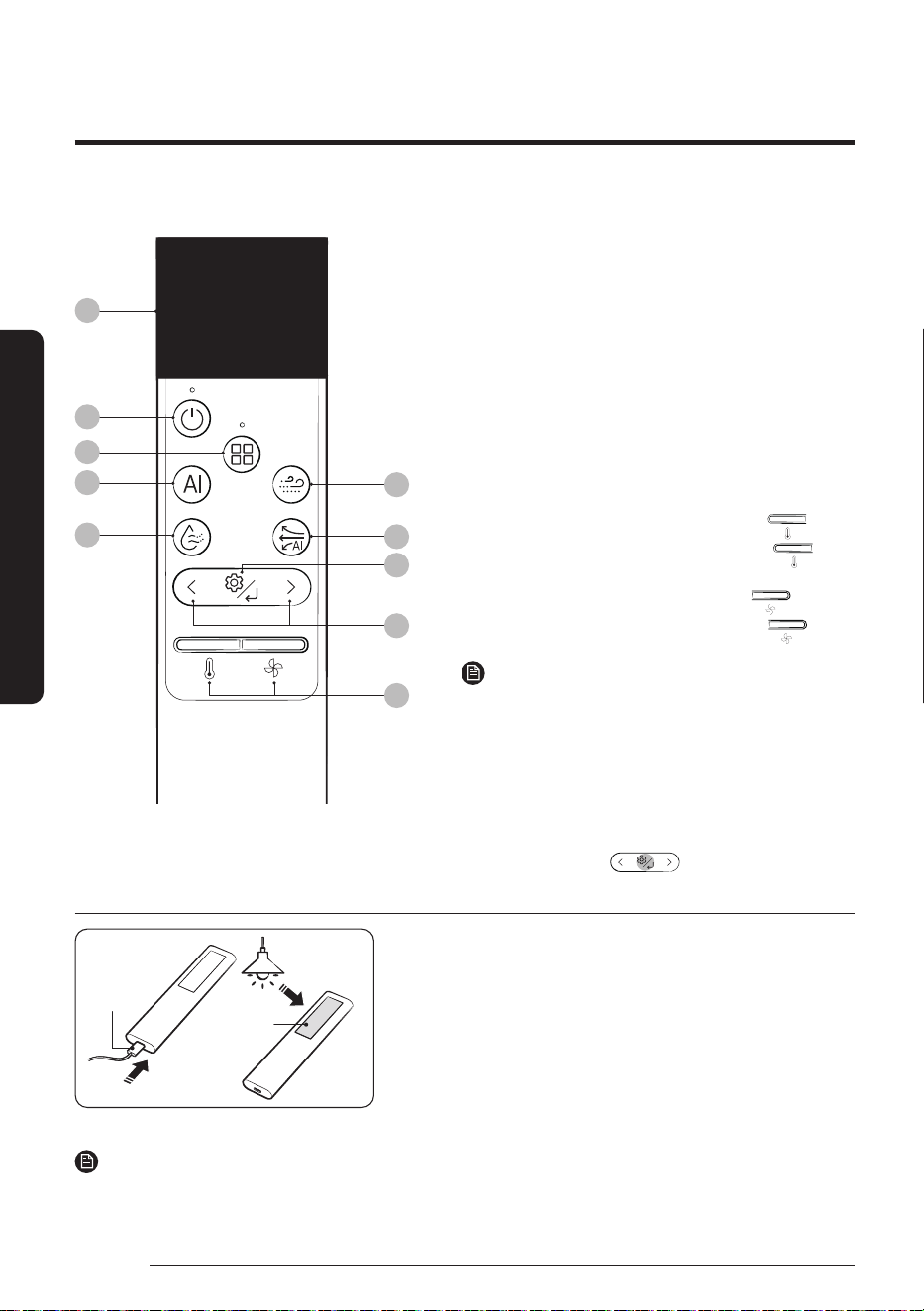
01
02
04
05
03
06
07
08
09
10
01 Display
02 Power button
03 Mode button
04 AI Auto button
05 Dry Comfort button
06 WindFree button
07 AI Motion Wind button
08 Options/Set/Auto Clean button
• Press and hold the button for 3 seconds to turn on or off the Auto
Clean function.
09 Direction button
10 Temperature/Fan speed button
• P
ush the button up or down to adjust the temperature or fan speed.
• To set the horizontal airflow blade angle, press the button.
• T
o turn on horizontal swing mode, press and hold the button
for more than 3 seconds.
• To set the vertical airflow blade angle, press the button.
• To turn on vertical swing mode, press and hold the button
for more than 3 seconds.
NOTE
• Press any button to wake up the display.
• T
he display switches off if no remote control button is pressed for 5 seconds.
• Low Ambient mode does not work on air conditioners, even if it is
enabled under the Heating Range.
• Manual Fan mode does not work on air conditioners, even if it is
enabled under the Auto Mode.
• The grey circles on the remote control buttons shown in the
user manual indicate the regions that should be pressed for the
buttons to work.
E.g.
Charging the remote control
Charging
port
Solar cell
• Fully charge the remote control before use.
• If "Low battery" appears on the remote control display, charge the remote
control by using the USB port (C-Type) at the bottom of the remote control.
If you keep the remote control facing down, it is charged via the solar cell,
allowing the battery to last longer.
• While the remote control is being charged, 'Charging' is displayed on
the display. After charging is complete, 'Complete' appears and then the
display turns off. Then, remove the charging cable.
• If the remote control will not be used for an extended period of time, make
sure to charge the remote control by using the USB port before storage.
NOTE
• The product does not come with a remote control charging cable or charger.
Most operating instructions in this manual require using the remote control.
Remote Control Overview
15
English
At a Glance
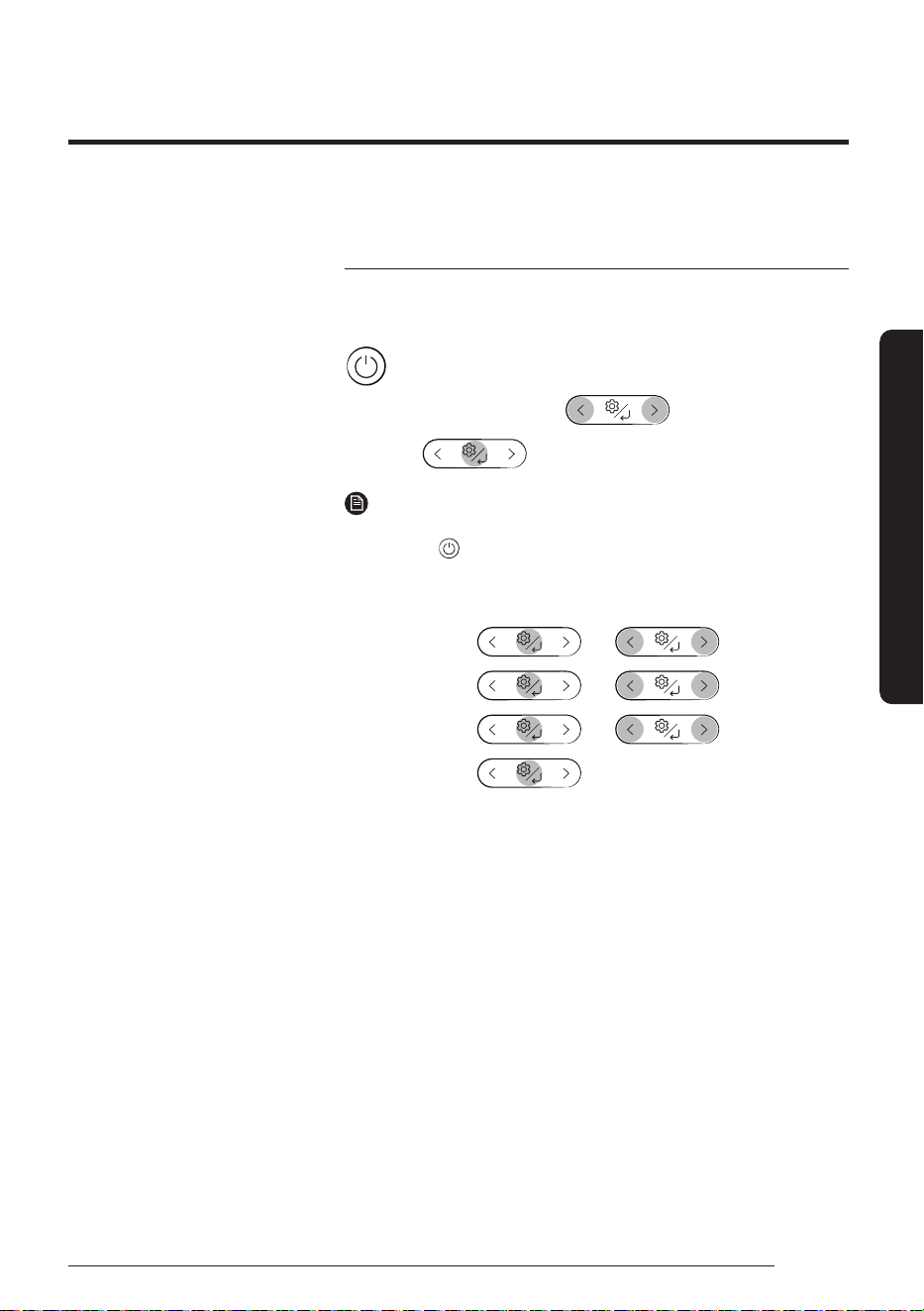
Initial Settings
Before using the remote control for the first time, you should set the
temperature unit to Celsius or Fahrenheit.
▶ Initial Settings ▶ Press any key ▶ Temp. Unit
▶ Press any key ▶
▶
Select
℃/℉.
▶
NOTE
• After the temperature unit is set, the remote control turns off.
Press the button to turn it on.
• The temperature indications on the indoor unit are not switched.
• To change the temperature unit, change the setting as follows:
In
operation
▶
▶ ▶
Select
Settings.
▶
▶ ▶
Select
Temp. Unit.
▶
▶ ▶ Select ℃/℉.
▶
You can use the air conditioner easily by selecting a mode and then by controlling the temperature, fan speed,
and air direction.
Remote Control Operation
Remote Control Operation
16
English
At a Glance
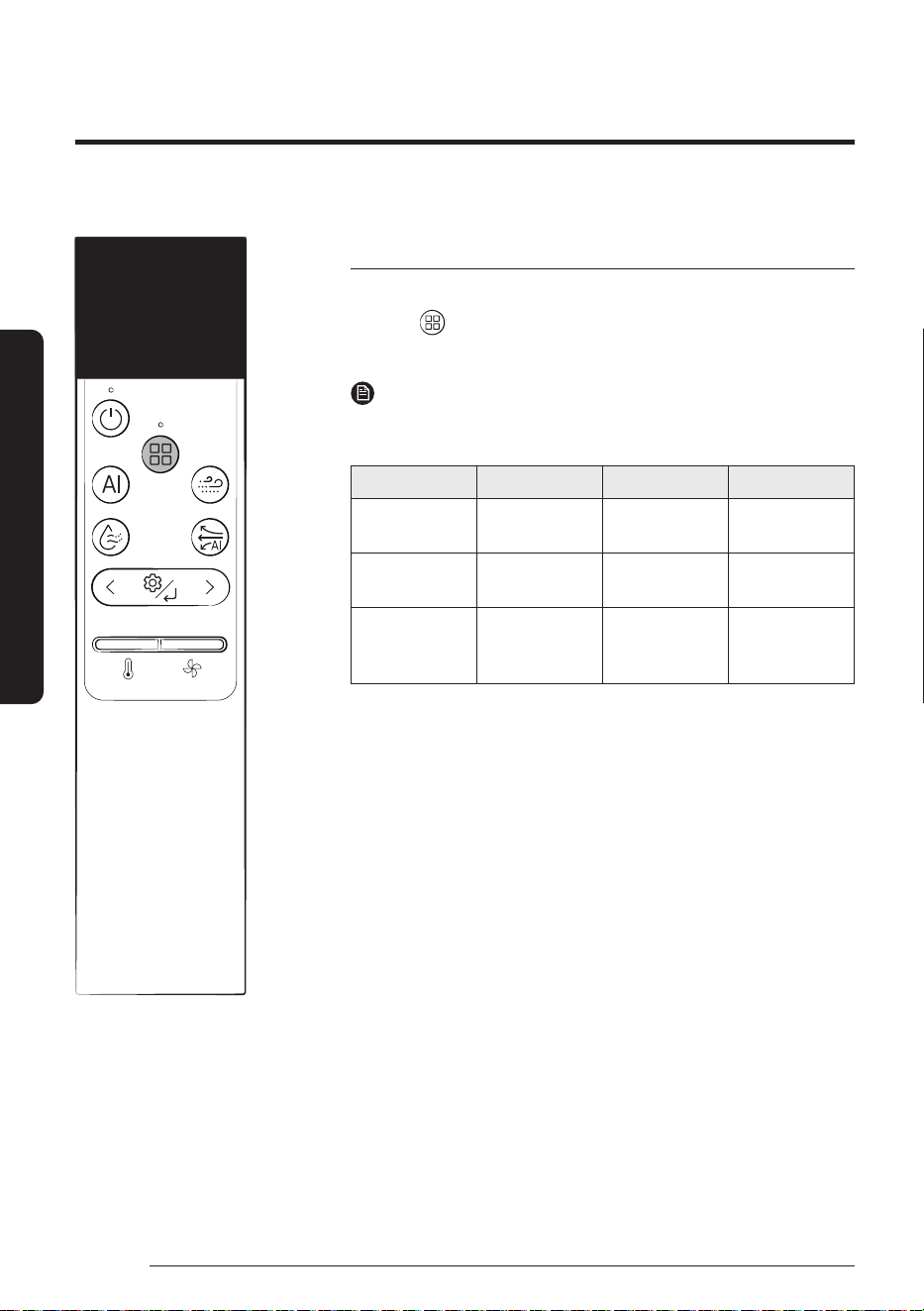
Selecting an operation mode
To change the current mode between AI Auto, Cool, Dry, Fan, and Heat,
press the (Mode) button.
You can use AI Auto mode after Wi-Fi is connected.
NOTE
• You can use the Cool, Dry, and Heat modes in the following
operation range.
Mode Cool Dry Heat
Indoor
temperature
16°C to 32°C 18°C to 32°C 27°C or less
Outdoor
temperature
-10°C to 46°C -10°C to 46°C −15℃ to 24℃
1)
Indoor humidity
Relative
humidity of
80% or less
2)
- -
1)
If the outdoor temperature drops to −15℃, the heating capacity may
decrease by as much as 60-70 %.
2)
If the air conditioner operates in Cool mode in a high-humidity
environment for an extended period of time, condensation may occur.
23
Cool
°
17
English
At a Glance
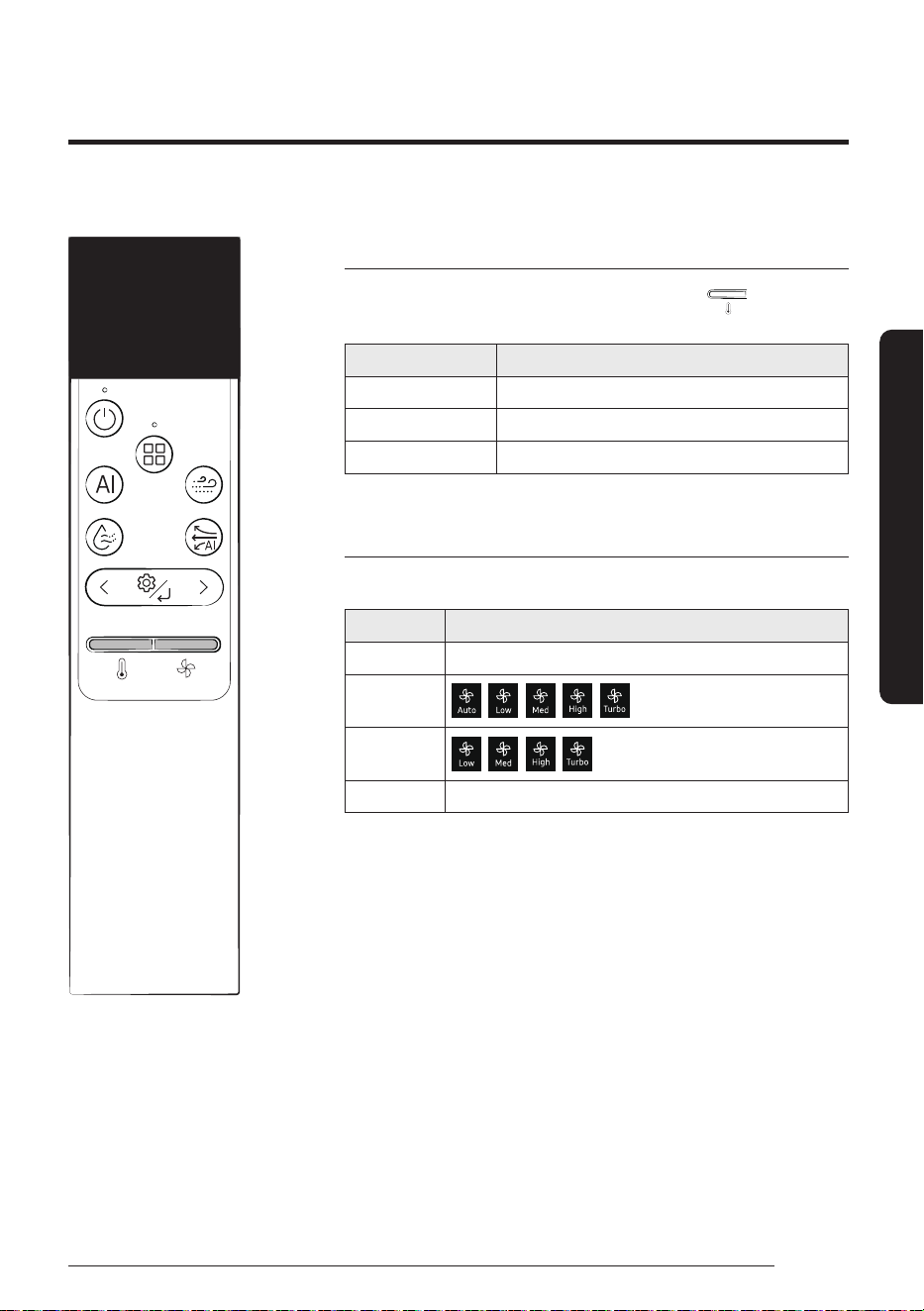
To set the temperature
To control the temperature in each mode, Push the button up or
down:
Mode Temperature control
AI Auto/Cool/Heat Adjust by 1℃ from 16℃ to 30℃.
Dry Adjust by 1℃ from 18℃ to 30℃.
Fan No temperature control.
To adjust the fan speed
Select from the following fan speeds in each mode:
Mode Available fan speeds
AI Auto No fan speed control.
Cool/Heat
Fan
Dry No fan speed control.
23
Cool
°
Remote Control Operation
18
English
At a Glance
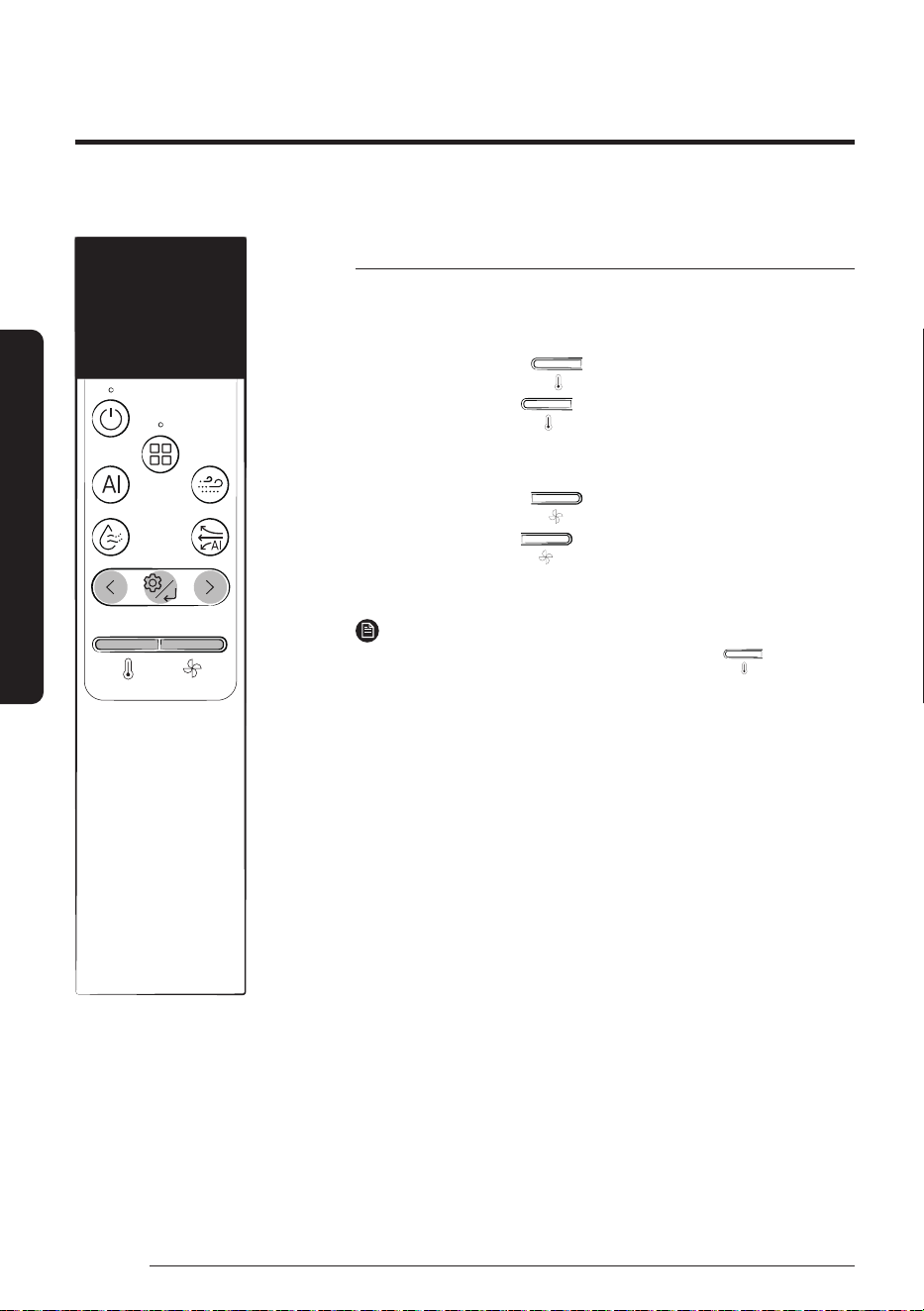
To adjust the airflow direction
Fix the horizontal or vertical airflow blades at the desired angle, or
select the horizontal or vertical swing.
In operation ▶
Press
button
▶
Select the desired horizontal
airflow blade angle.
In operation ▶
Press button for
more than 3 seconds.
▶
Select the desired horizontal
swing mode
or
In operation ▶
Press
button
▶
Select the desired vertical
airflow blade angle.
In operation ▶
Press button for
more than 3 seconds.
▶
Select the vertical
swing mode
NOTE
• After turning on horizontal swing mode, press the button until
the desired airflow direction is achieved.
23
Cool
°
19
English
At a Glance
NOTE
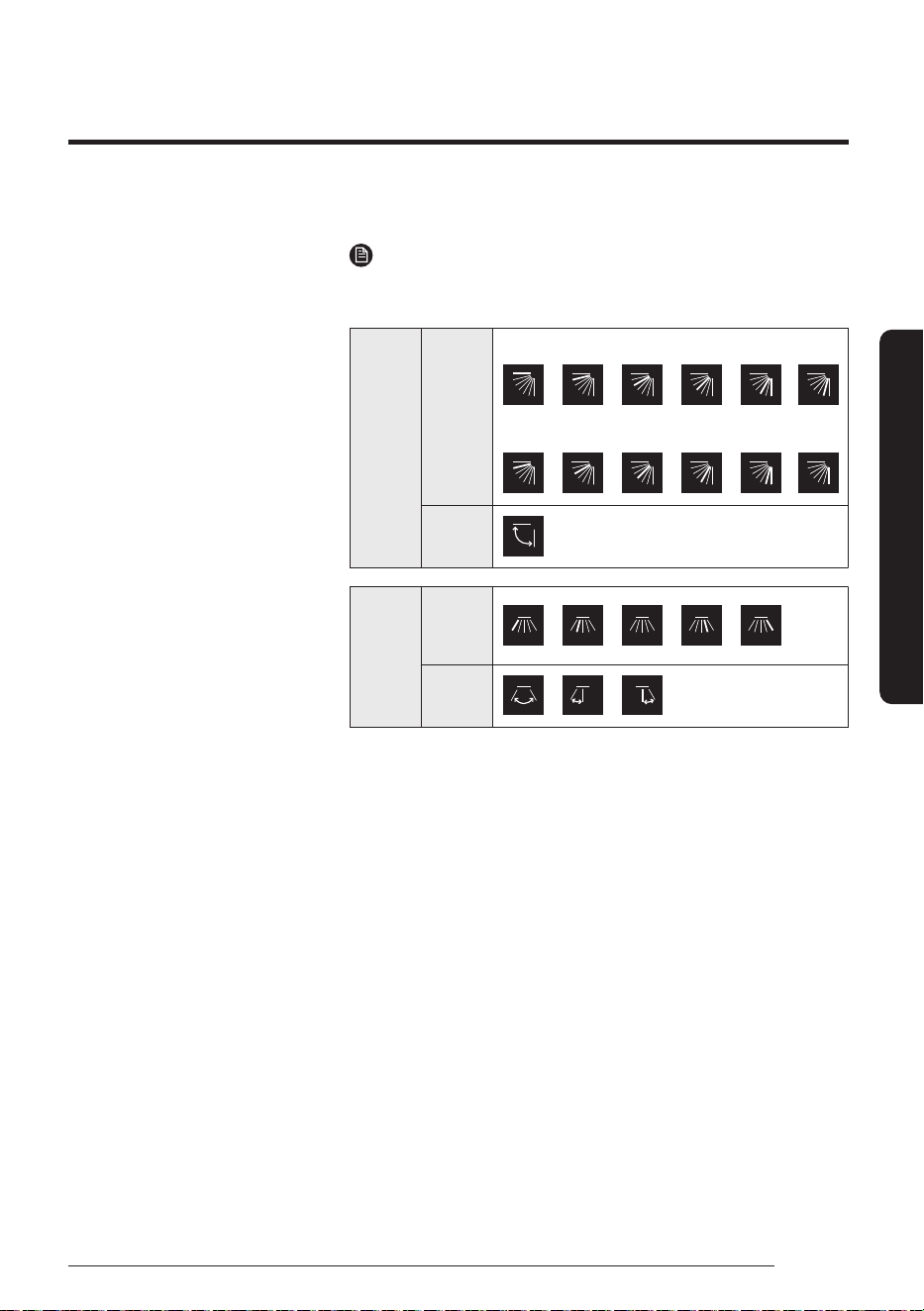
• Airflow direction switches in the order shown below; airflow direction
change is indicated in real time on the remote control display.
In AI Auto/Cool/Dry/Fan mode
In Heat mode
Vertical
airflow
Airflow
blade
angle
Swing
Swing
Airflow
blade
angle
Horizontal
airflow
• If you adjust the vertical airflow blades manually, they may not
close completely when you turn off the air conditioner.
• Always use the remote control to adjust the airflow blades. Do not
move the blades by hand. They may not operate normally.
• You cannot control the vertical airflow direction in Cool mode
when the Good Sleep function is on.
20
English
Smart Features
WindFree Cooling function
Use the WindFree Cooling function to enjoy a mild breeze coming
through fine holes in the vertical airflow blades.
In Cool/Dry/Fan mode ▶
NOTE
• To cancel this function, press the (WindFree) button again.
• When the WindFree Cooling function is on, the air conditioner
automatically controls the fan speed to keep your room mild and
comfortable.
• When the WindFree Cooling function is canceled, the air
conditioner returns to the original fan speed and air comes out of
the airflow blades.
• In Cool mode, the recommended set temperature during the
WindFree Cooling operation is 24℃ to 26℃.
• You can use the WindFree Cooling function in Cool, Dry, or Fan
mode.
• You cannot select the Quiet function during the WindFree Cooling
operation.
• Selecting the WindFree Cooling function cancels the Dry Comfort,
Eco, and airflow direction adjustment functions.
Power Smart Features
Smart Features
21
English
Smart Features
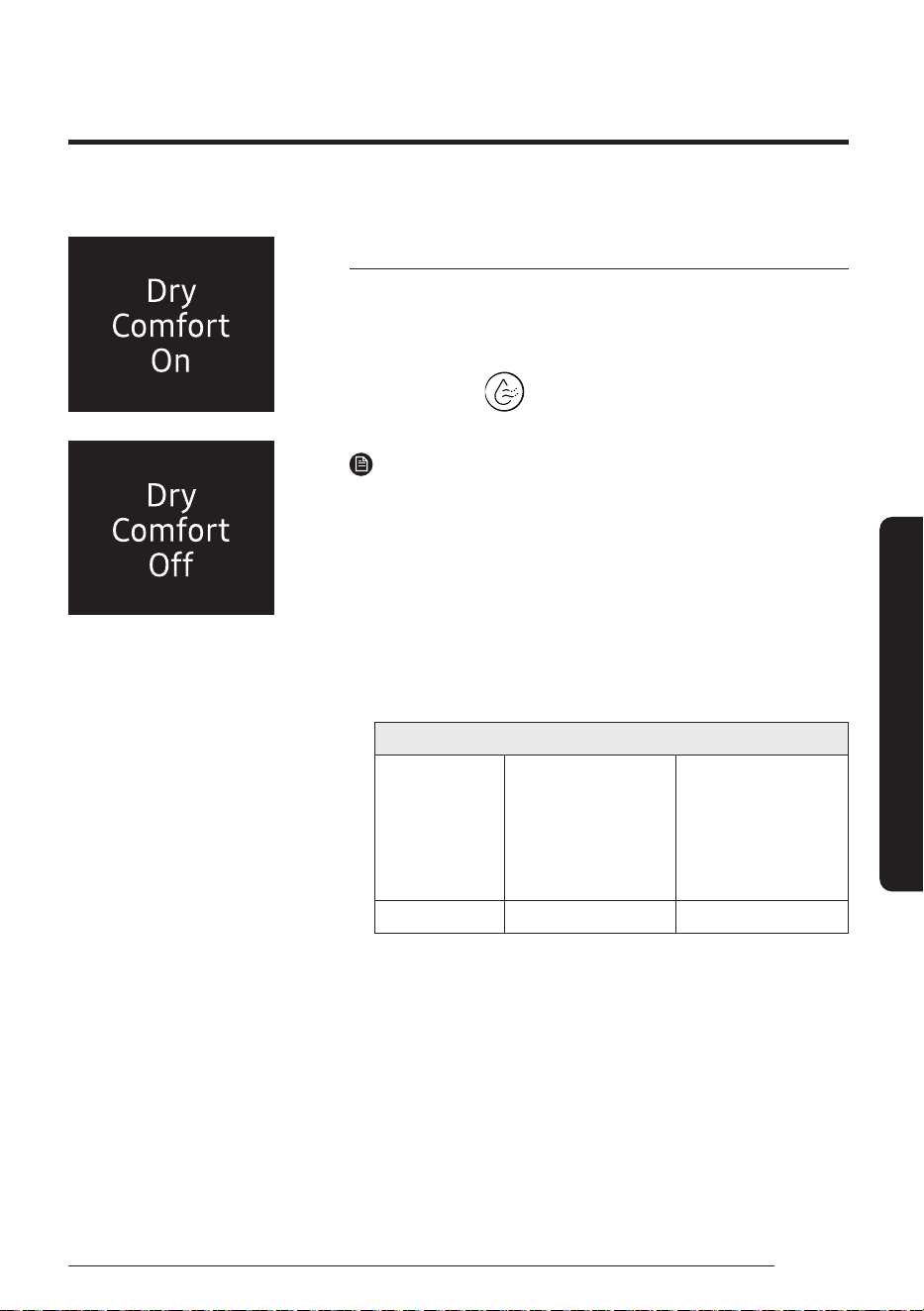
Dry Comfort function
This dehumidification feature maintains comfortable humidity
levels and saves energy by adjusting humidity according to the set
temperature.
In operation ▶
NOTE
• The set temperature can be adjusted by 1 ℃ within the range of
18 ℃ to 30 ℃.
• The fan speed is automatically adjusted.
• The airflow direction is automatically adjusted.
If the Dry Comfort feature is in use and you select Horizontal or
Vertical, the feature turns off.
• If the Dry Comfort function is in use and the indoor temperature
and humidity are high, the airflow blades open to adjust the
temperature and humidity. The airflow blades automatically close
when comfortable temperature and humidity levels are reached.
Changes in airflow blade status depending on temperature and humidity
Indoor
temperature and
humidity
If temperature and
humidity is low
• The airflow blades
close and air
blows through the
WindFree hole.
If temperature and
humidity is high
• The airflow blades
open and air blows.
Airflow blades Closed Open
Power Smart Features
22
English
Smart Features
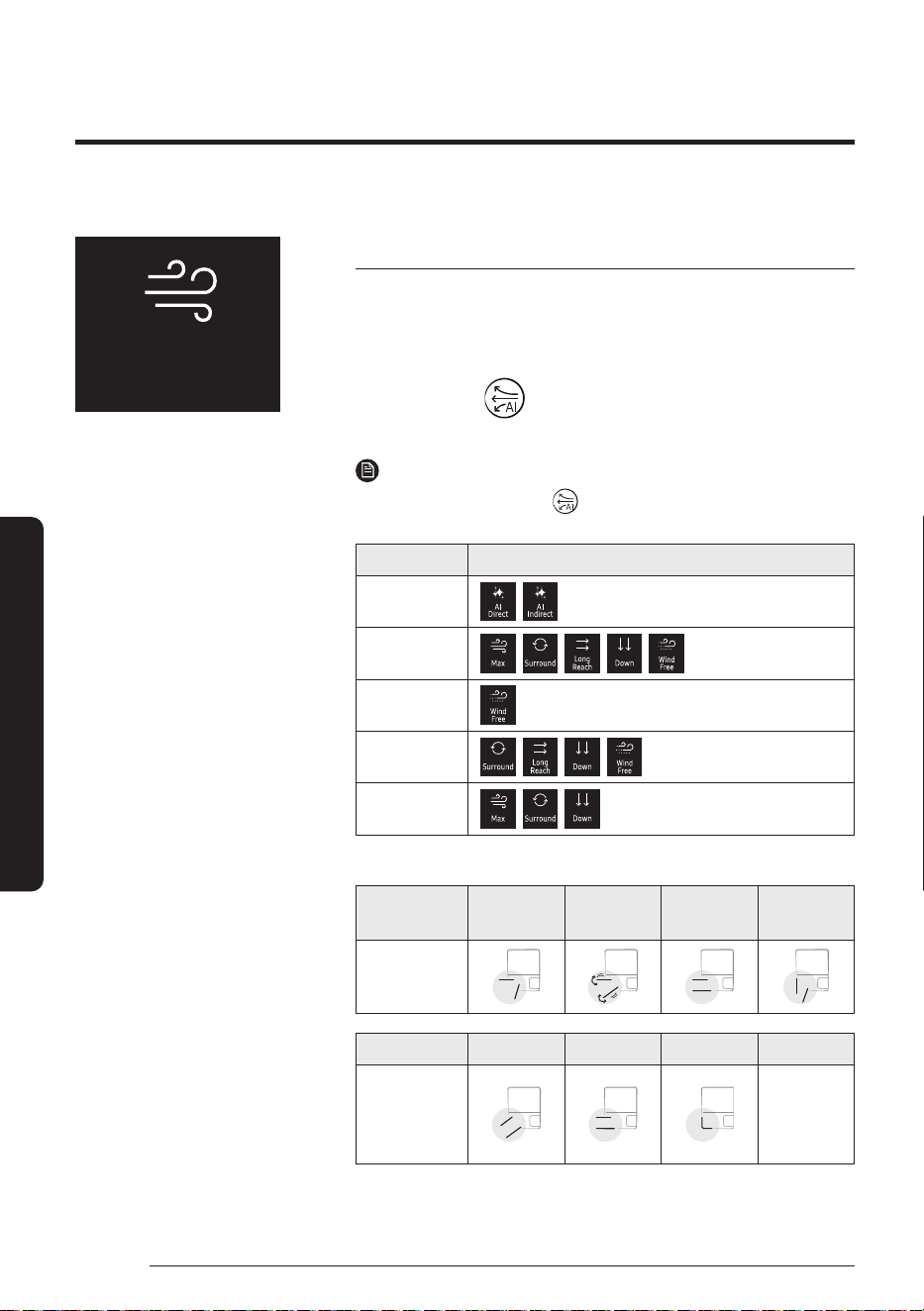
AI Motion Wind function
This feature allows users to achieve desired airflow by choosing a Fan
mode from among seven modes.
It also learns user patterns to provide personalised cooling.
In operation ▶
▶
Select the desired Fan mode
NOTE
• Each time you press the button, you can select the Fan mode
you want.
Mode Available Fan modes
AI Auto
,
Cool
, , , ,
Dry
Fan
, , ,
Heat
, ,
• The airflow blade angle for each mode is shown below:
Fan mode Max Surround
Long
Reach
Down
Airflow blade
angle
Fan mode AI Direct AI Indirect WindFree Off
Airflow blade
angle
Returns to
the state
before
selection
• Learned user patterns are used in AI Direct or AI Indirect mode only.
Max
23
English
Smart Features
AI Auto mode
Use AI Auto mode to automatically operate any of Cool, Dry, Heat, and
WindFree Cooling modes depending on the learned user patterns
gathered from an external server via Wi-Fi module. The favourite
temperature and operation mode are also set based on the current
temperatures (indoor/outdoor) and the gathered user patterns.
or
▶ ▶ Select AI Auto.
NOTE
• You can use this mode after Wi-Fi is connected.
• In AI Auto mode, the (AI Auto) and (Wi-Fi) indicators
appears on the display of the indoor unit.
• If the gathered user patterns are not sufficient, the set
temperature is set based on the user's activity time and indoor/
outdoor temperatures.
• The set temperature is controlled within the range of 22℃ to
28℃ (Cool) / 20℃ to 28℃ (Heat) in AI Auto mode. You can also
change it manually.
• An automatically changed set temperature is shown on the indoor
unit display, which switches to the current temperature after 4 to
5 seconds.
• When you press (Mode) in AI Auto mode, the mode is cancelled.
• If you change the set temperature in AI Auto mode, the air
conditioner operates with the changed set temperature.
Power Smart Features
24
English
Smart Features
If not connected to Wi-Fi
• The air conditioner automatically switches to Cool, Dry, or Heat
mode, depending on the temperature and humidity of the room.
Optimum mode, appropriate for the current air quality of the room,
operates automatically to quickly provide pleasant air.
• Fan speed is automatically adjusted, depending on the
temperature and humidity of the room.
AI Energy mode
• Use AI Energy mode to save electricity consumed by the operating
air conditioner. This mode can be turned on or off from the
SmartThings app only.
• The amount of saved electricity is calculated while in AI Auto mode
only.
• AI Energy indicator ( ) lights up on the display of the indoor unit.
• The amount of saved electricity is calculated from the moment
when the air conditioner is turned on.
• The amount of saved electricity will vary, depending on the
ambient environment (e.g., indoor/outdoor temperature and
humidity), set temperature, and operation mode.
• Note that the amount of saved electricity also may differ even
under the same operating environment conditions, depending on
how it was measured.
• To have powerful cooling or heating, turn off AI Energy mode in the
SmartThings app.
25
English
Smart Features
Cool mode
Use Cool mode to stay cool in hot weather.
▶ ▶ Select Cool.
NOTE
• After selecting Cool mode, select the desired function,
temperature, and fan speed.
– To cool more quickly, select a lower temperature and a faster
fan speed.
– To save energy, select a higher temperature and a slower fan
speed.
– As the room temperature nears the set temperature, the
compressor motor will slow down to save energy.
°
Power Smart Features
26
English
Smart Features
Dry mode
Use Dry mode in rainy or humid weather.
▶ ▶ Select Dry.
NOTE
• The proper set temperature range for dehumidifying operation is
24 to 26℃. If you feel that the current humidity seems high, use a
lower set temperature.
• You cannot use Dry mode for heating. Dry mode is designed to
produce a cooling side-effect.
Fan mode
Use Fan mode to run the air conditioner like a floor fan, providing a
breeze without heating or cooling.
▶ ▶ Select Fan.
NOTE
• If the air conditioner will not be used for an extended period
of time, run it in Fan mode for 3 to 4 hours to dry the internal
components.
• The outdoor unit does not operate in Fan mode. This is normal and
not a fault with the air conditioner.
°
27
English
Smart Features
Heat mode
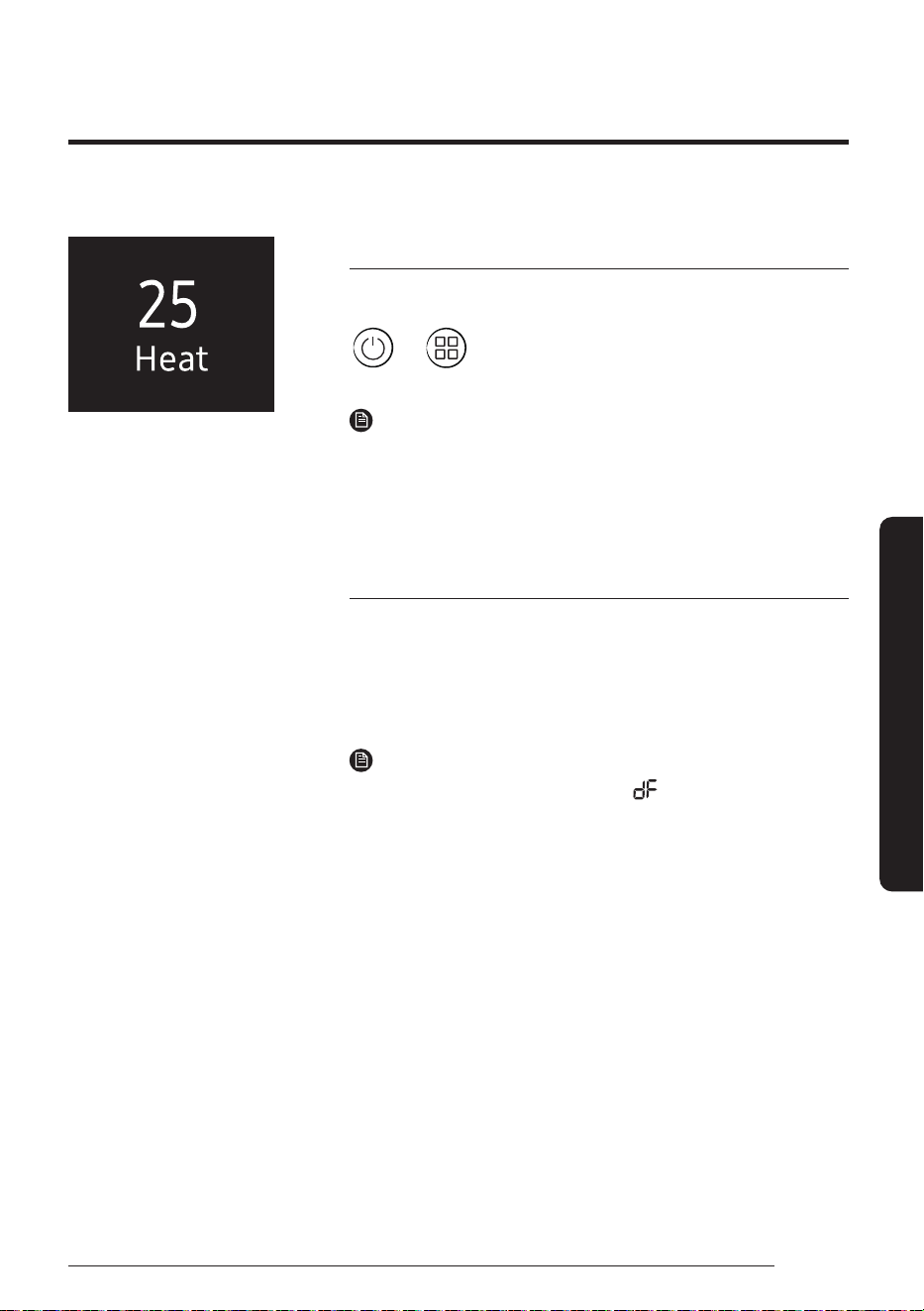
Use Heat mode to stay warm.
▶ ▶ Select Heat.
NOTE
• While the air conditioner warms up, the fan may not operate for
about 3 to 5 minutes at the beginning to prevent cold draft.
• If the air conditioner heats insufficiently, use an additional heating
appliance in combination with the air conditioner.
Automatic defrost
When the outdoor temperature is low and the humidity is high, frost
may develop on the outdoor heat exchanger, which may decrease
heating efficiency. When these conditions are met while Heat mode is
on, the air conditioner runs the Defrost function for 5 to 12 minutes to
remove frost from the outdoor heat exchanger.
NOTE
• When the Defrost function is on, the (Defrost) indicator
appears on the indoor unit display, steam is produced on the
outdoor unit, the airflow blades do not move.
• You cannot select other functions with the remote control until the
Defrost function is finished.
°
28
English
Smart Features
Eco function
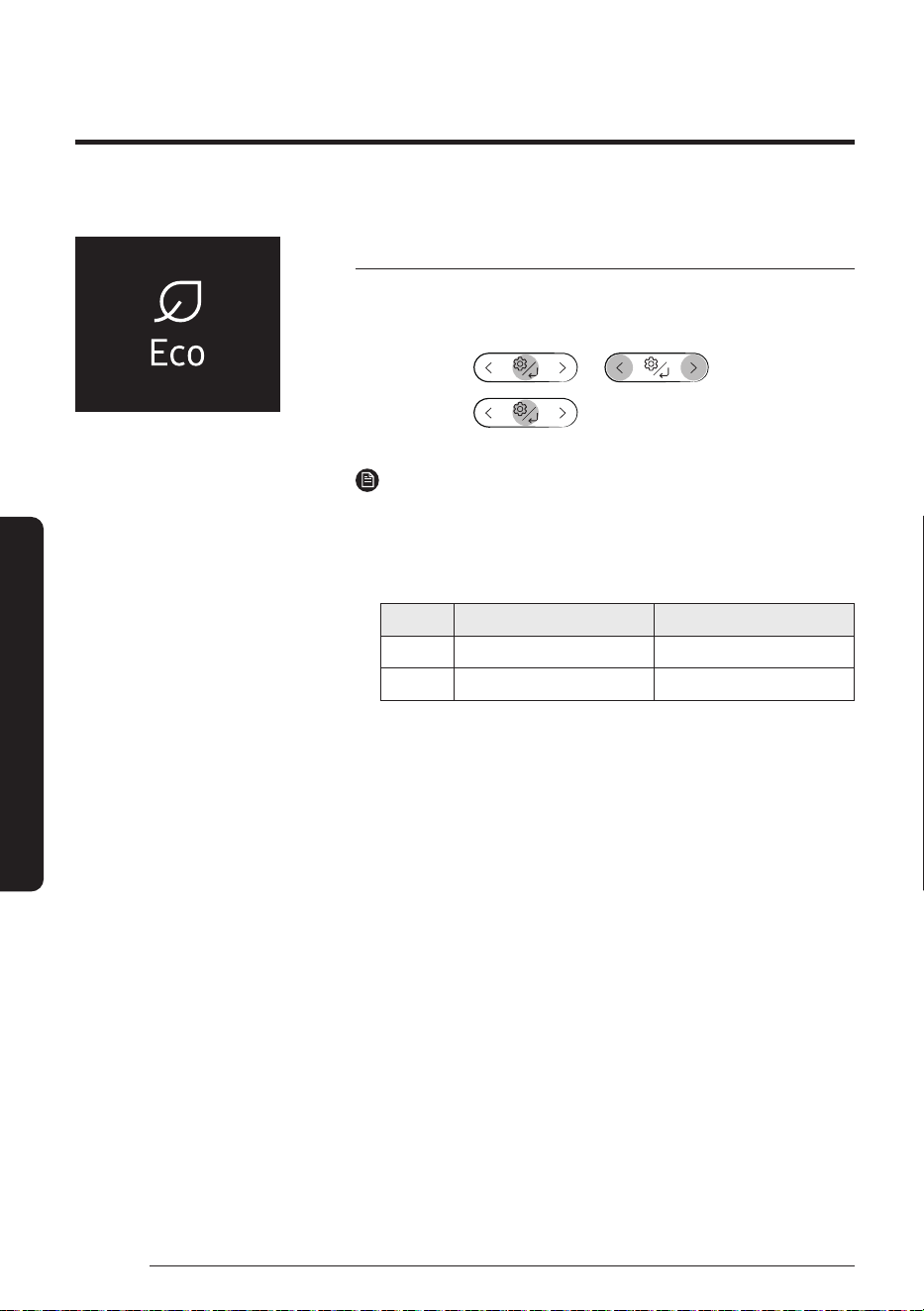
Use the Eco function to reduce electricity consumption while staying
cool or warm. You can select this function in Cool or Heat mode.
In Cool or
Heat mode
▶
▶ ▶
Select Eco. ▶
NOTE
• When the Eco function starts, the vertical air swing begins.
• You can change the set temperature, airflow direction, and fan
speed.
• The allowed set temperatures while the Eco function is on are:
Mode Minimum set temperature Maximum set temperature
Cool 24 ℃ 30 ℃
Heat 16 ℃ 30 ℃
• If you change the set temperature to be outside the allowed range
for the current mode, the set temperature is automatically reset to
be within the range.
• When you turn off the Eco function, the air swing continues. Use
the airflow direction adjustment function to turn it off.
• Selecting the Eco function cancels the Dry Comfort, WindFree
Cooling, Good Sleep, and Quiet functions.
Variety Smart Features
29
English
Smart Features
Quiet function
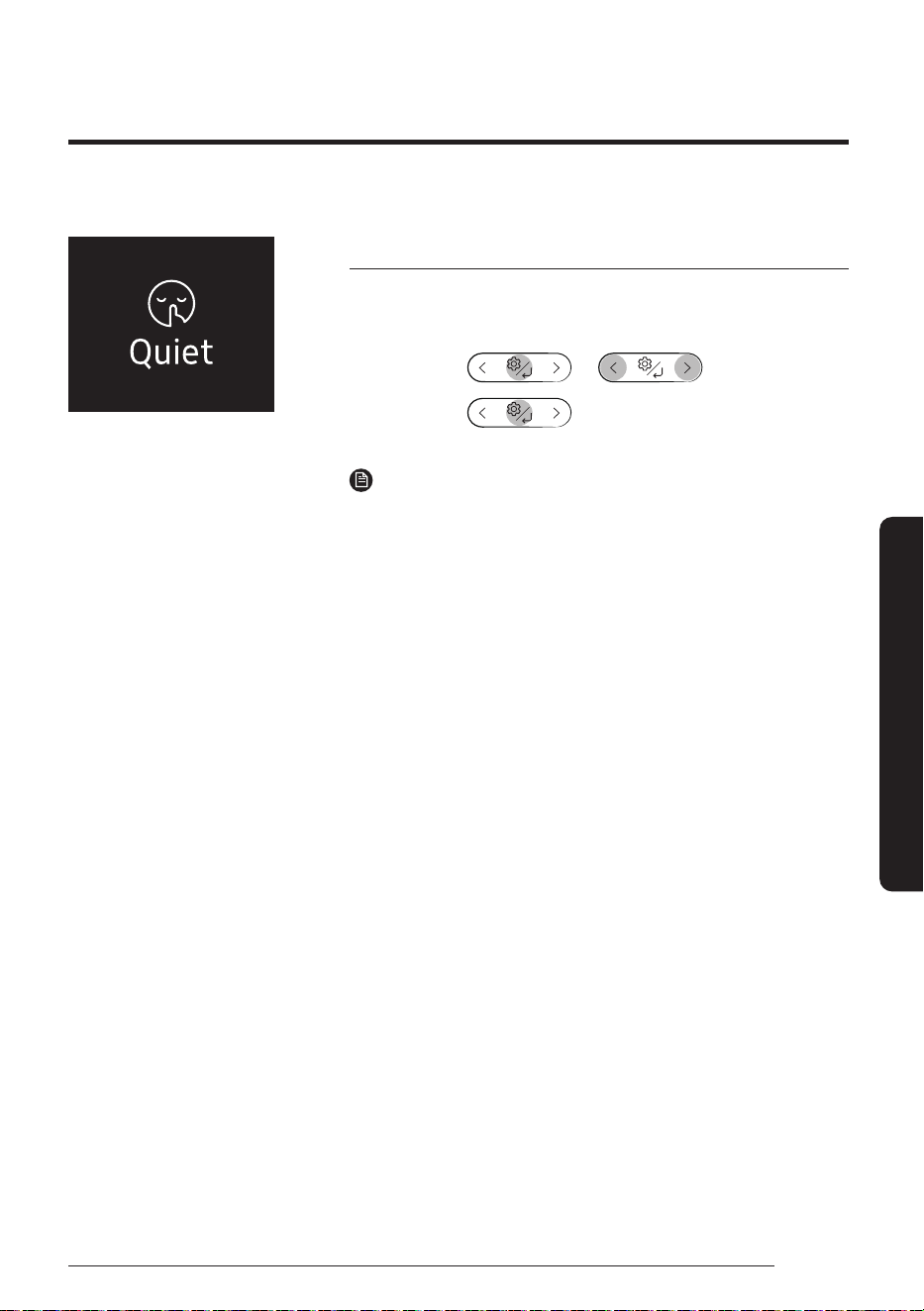
Use the Quiet function to reduce the unit’s operating noise. You can
select this function in Cool or Heat mode.
In Cool or
Heat mode
▶
▶ ▶
Select Quiet. ▶
NOTE
• You can change the set temperature and the airflow direction, but
you cannot change the fan speed.
• Selecting the Quiet function cancels the Dry Comfort, WindFree
Cooling, Eco and Good Sleep functions.
Variety Smart Features
30
English
Smart Features
Motion Detection function
Air direction
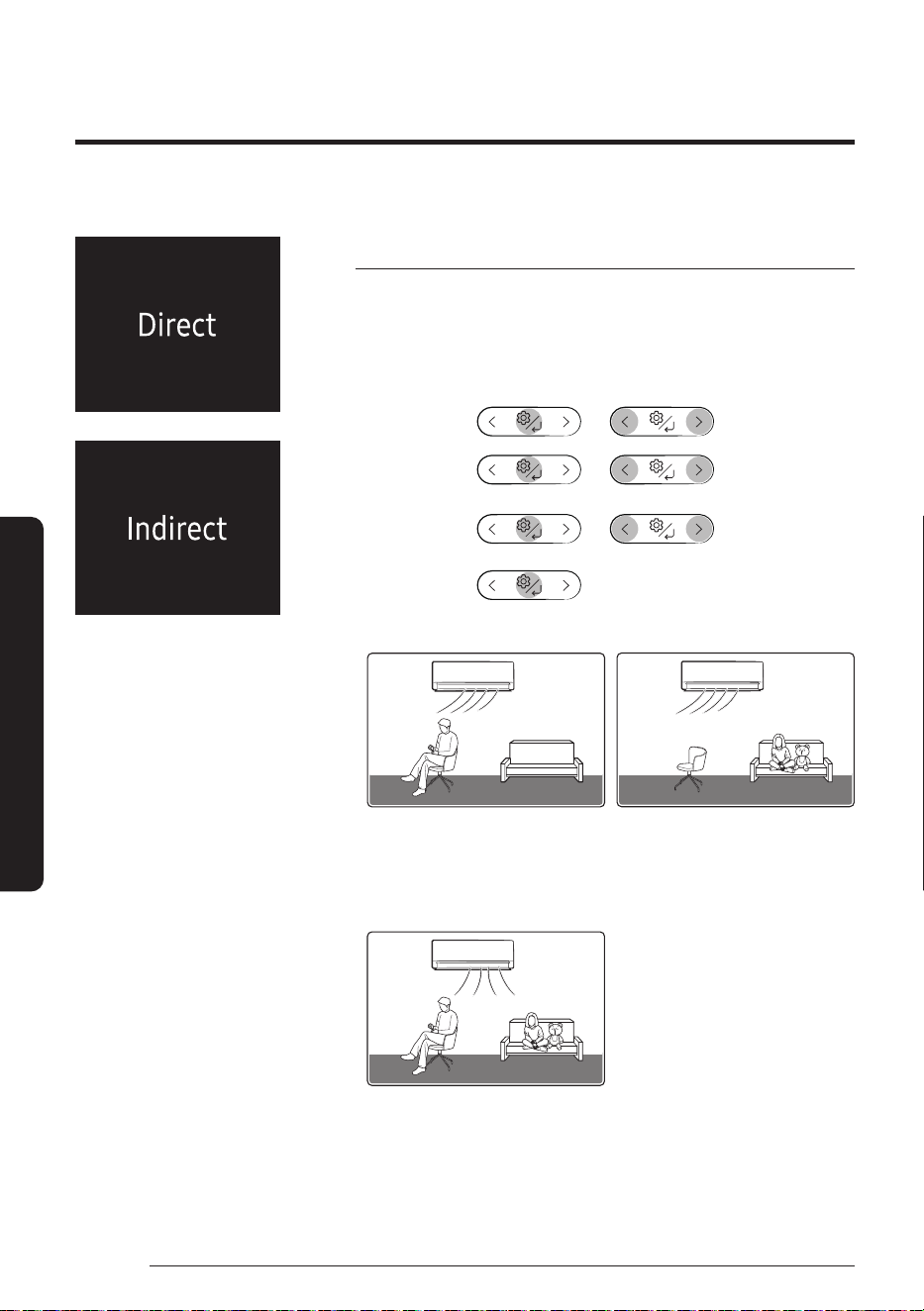
Use the Motion Detection function to make the air conditioner detect
human motions and blow air directly or indirectly.
In operation ▶
▶ ▶
Select
Motion Detection.
▶ ▶ ▶
Select
Air Direction.
▶
▶ ▶
Select
Direct or
Indirect.
▶
• When Direct wind is selected
– Wind is sent in the detected
direction.
• When Indirect wind is selected
– Wind is sent in the opposite
direction of detection.
• When human motions are
detected everywhere
– In case of Direct wind, the air
conditioner blows left and right
swing airflow. In the case of
Indirect wind, center airflow.
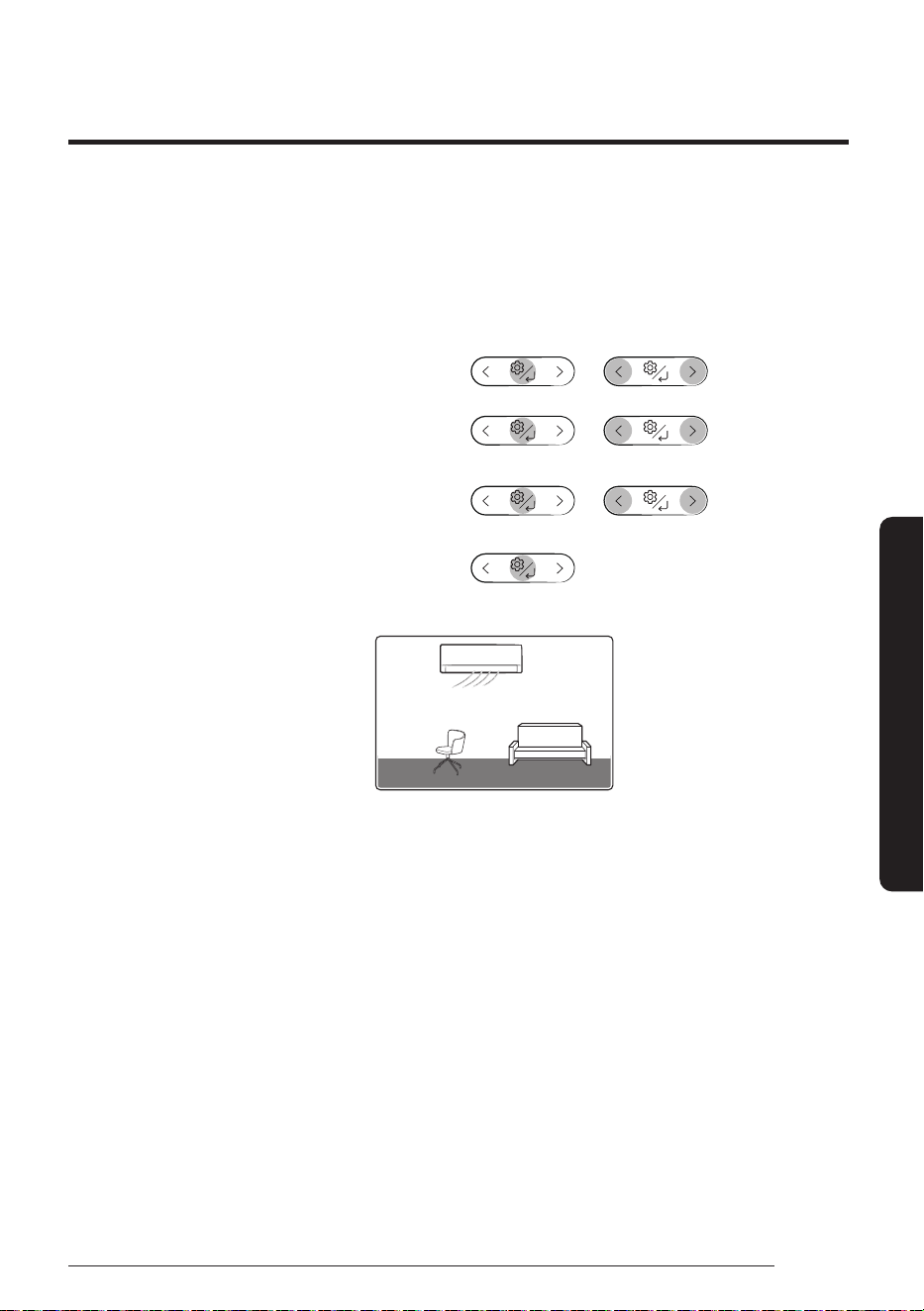
31
English
Smart Features
Power Saving
With no detection, the Power Saving mode is operated.
You can enable or disable Power Saving mode.
In operation ▶
▶ ▶
Select
Motion
Detection.
▶
▶ ▶
Select
Power Saving.
▶
▶ ▶
Select
Power Saving
On or Power
Saving Off.
▶
• When human motions are not detected
– When no human motion is detected for a certain period of time,
Power Saving mode starts and the set temperature can change
to up to 28 ℃.
– When human motions are detected in Power Saving mode, the
previous operation restarts.
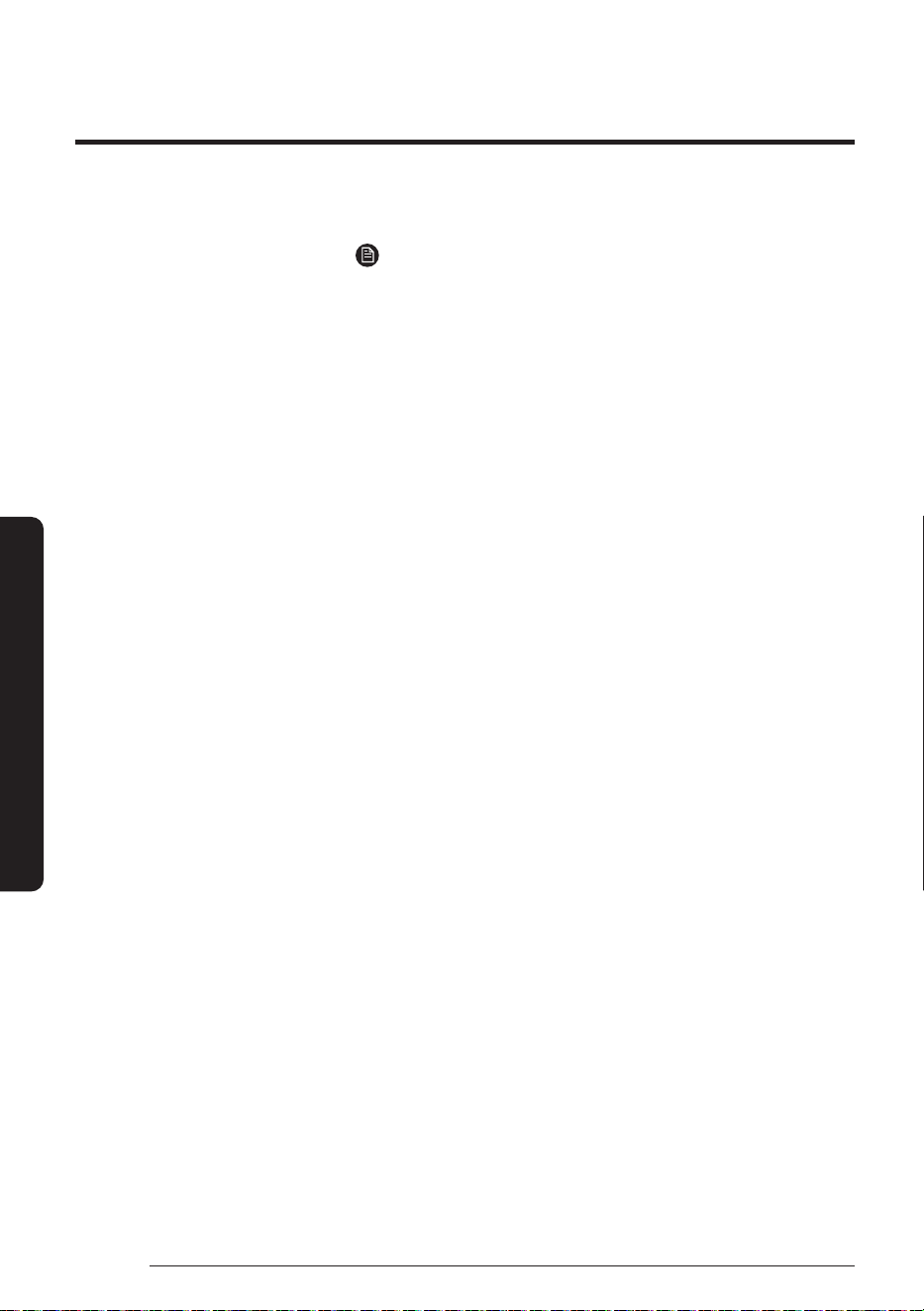
Variety Smart Features
32
English
Smart Features
NOTE
• The motion detect sensor can detect human motions within 6 m. It
may not detect human motions outside the range.
• If any obstacle exists in front of the sensor or the site is subject to
direct sunlight or wind, the sensor may not operate properly.
• The motions of a pet, swinging heater, ceiling fan, or robot cleaner
can be recognized as human motions.
• When a person stops movement within the detectable range, it
may not be detected.
• If a person takes body motions in the same place or there is no
movement for a long time, it is recognized as an absence.
• If there are little motions such as in cases of infants and patients,
or if little motions continue such as in cases of sleeping and movie
watching, it can be recognized as an absence.
• Do not place a large object, heating appliance, or humidifier near
the product.
33
English
Smart Features
Beep function
Use the Beep function to turn on or off the beep that sounds when you
press a button on the remote control.
In operation ▶
▶ ▶
Select Settings. ▶ ▶ ▶
Select Beep. ▶
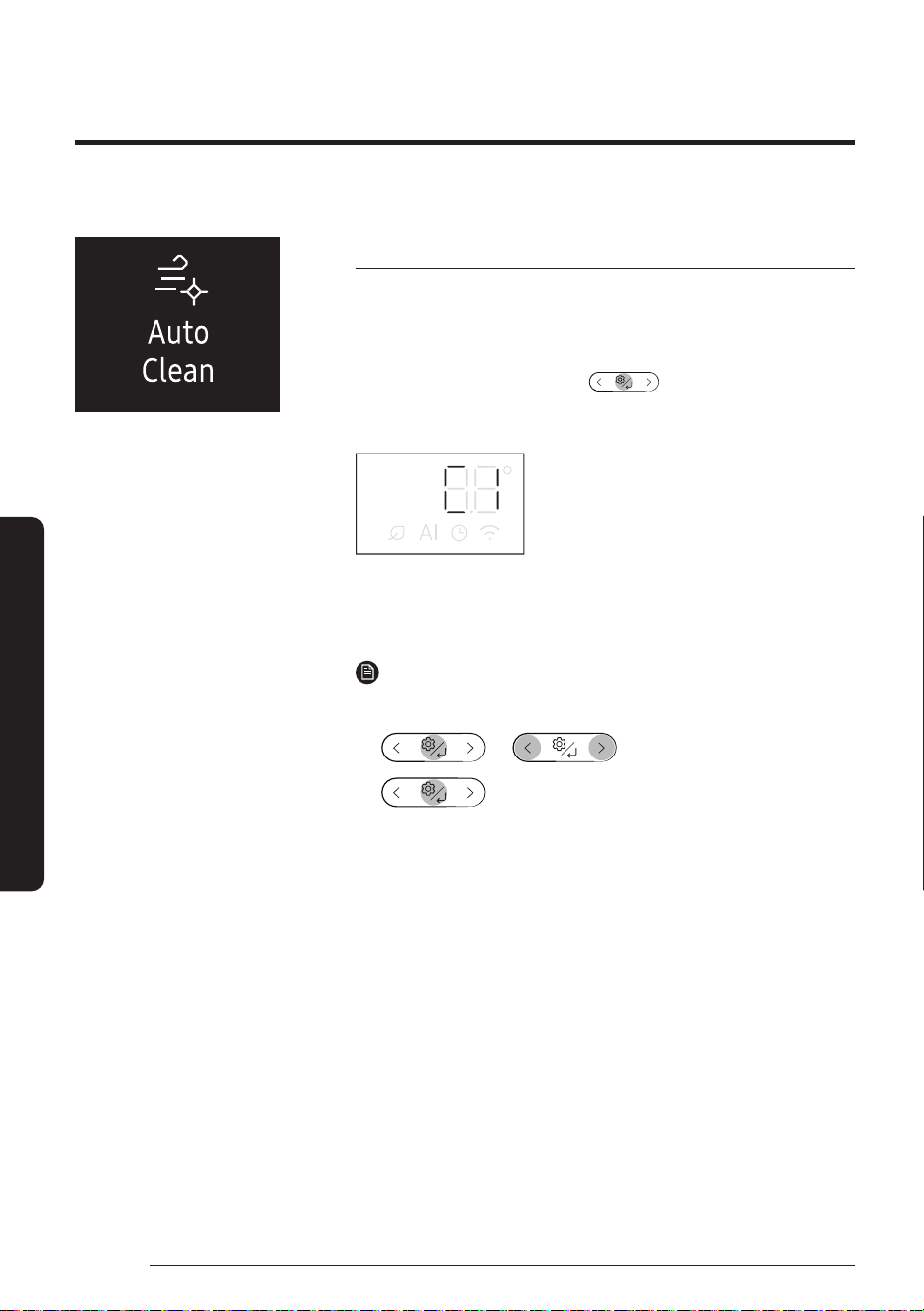
Variety Smart Features
34
English
Smart Features
Auto Clean function
Use the Auto Clean function if the indoor unit produces odors.
Activating Auto Clean
To activate Auto Clean, press the (Options) button for at
least 3seconds.
The indoor unit display shows:
If the air conditioner is off, Auto Clean starts immediately. If the air
conditioner is running, Auto Clean starts as soon as the air conditioner
turns off.
NOTE
• You can also activate Auto Clean from the Options menu:
▶ ▶ Select Auto Clean. ▶
• Once Auto Clean is selected, it is always activated whenever the air
conditioner turns off.
• Auto Clean runs for 10 to up to 30 minutes depending on internal
dry conditions. The indoor unit display shows the cleaning progress
from 1 to 99.
• If you start another function while Auto Clean is progressing, Auto
Clean pauses and will resume when the other function stops.
• When Auto Clean completes, the air conditioner turns off.
• Auto Clean does run after Timed off and Good Sleep function
operation, but Auto Clean does not run after Heat or Fan mode.
35
English
Smart Features
Canceling Auto Clean
To cancel Auto Clean while it is running, follow the procedure below:
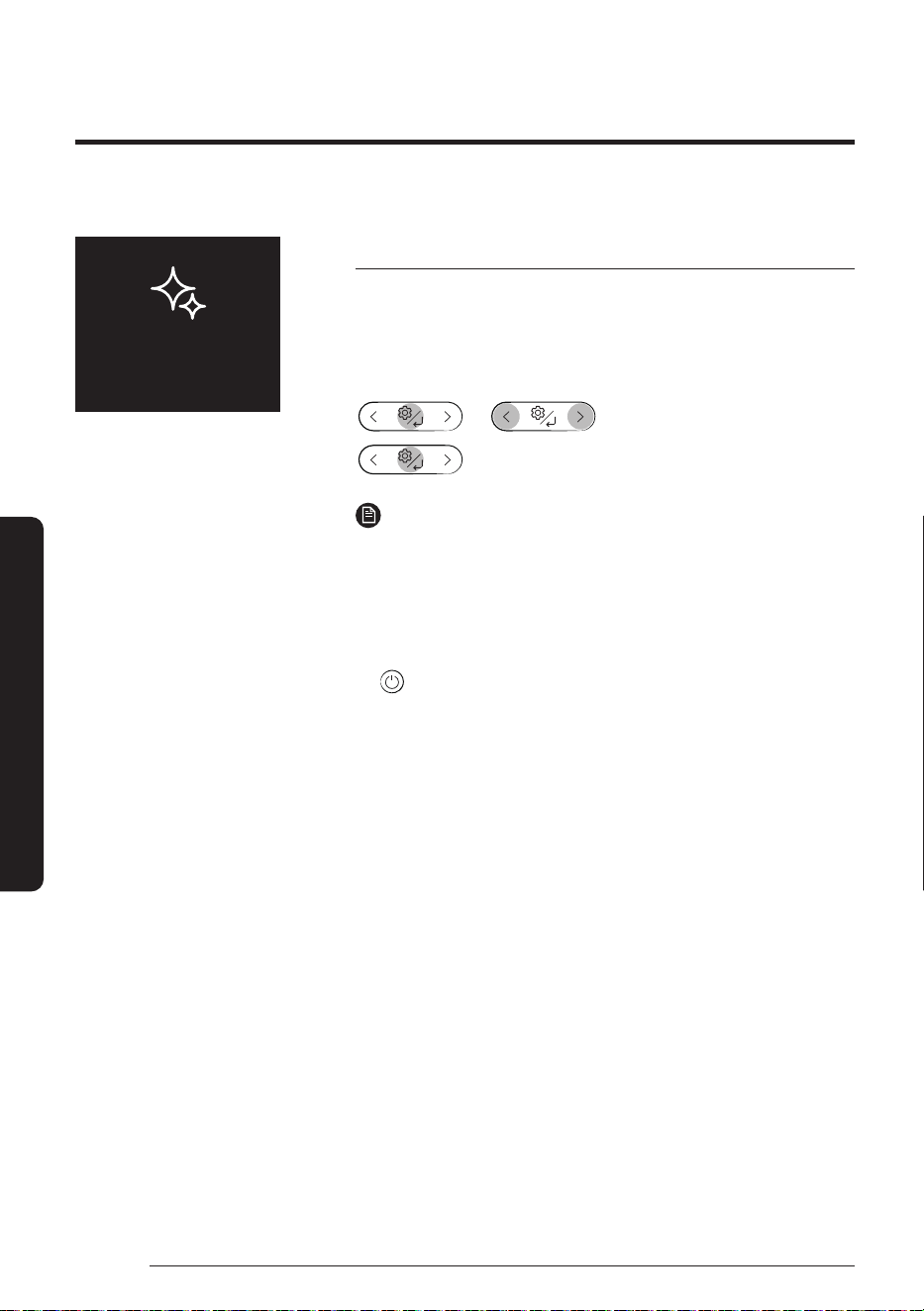
▶ Press and hold for 3 or more seconds.
or
▶ ▶ Select Auto Clean. ▶
NOTE
• Canceling Auto Clean does not deactivate it.
Deactivating Auto Clean
To deactivate Auto Clean, follow the procedure below while the air
conditioner is in operation:
▶ Press and hold for 3 or more seconds.
or
▶ ▶ Select Auto Clean. ▶
Variety Smart Features
36
English
Smart Features
Freeze Wash function
Use the Freeze Wash function to wash away airborne contaminants
or dust on the surface of the indoor heat exchanger by freezing and
thawing operation.
In operation stop condition,
▶ ▶ Select Freeze Wash. ▶
NOTE
• The Freeze Wash function runs from 30 to 80 minutes (the outdoor
unit will operate) depending on either temperature or humidity
in the room, through the following cycle: freezing → defrosting →
drying of the indoor unit heat exchanger.
• The indoor unit display shows the cleaning progress (1-99).
• To use another function while in Freeze Wash operation, press the
(Power) button on the remote control to stop the operation.
• When the room temperature is low or its humidity is high, the
Freeze Wash function may not work.
• Before the Freeze Wash function is finished, the airflow blades
close and the drying operation starts.
• During the Freeze Wash cycle, creaking noises might be heard
from the indoor unit. This is normal and will stop at the end of the
Freeze Wash cycle.
• The area around the indoor unit may appear blurred or
condensation may form while the Freeze Wash function is in
operation.
• You may see frost or water on the surface of the outdoor unit's
valve while the Freeze Wash function is in operation.
• It is recommended to use the Freeze Wash function once every
2 weeks. Otherwise, dust or dirt that is difficult to remove may
accumulate in the heat exchanger.
Freeze
Wash
37
English
Smart Features
Display lighting function
Use the Display lighting function to turn on or off the lighting of the
indoor unit display.
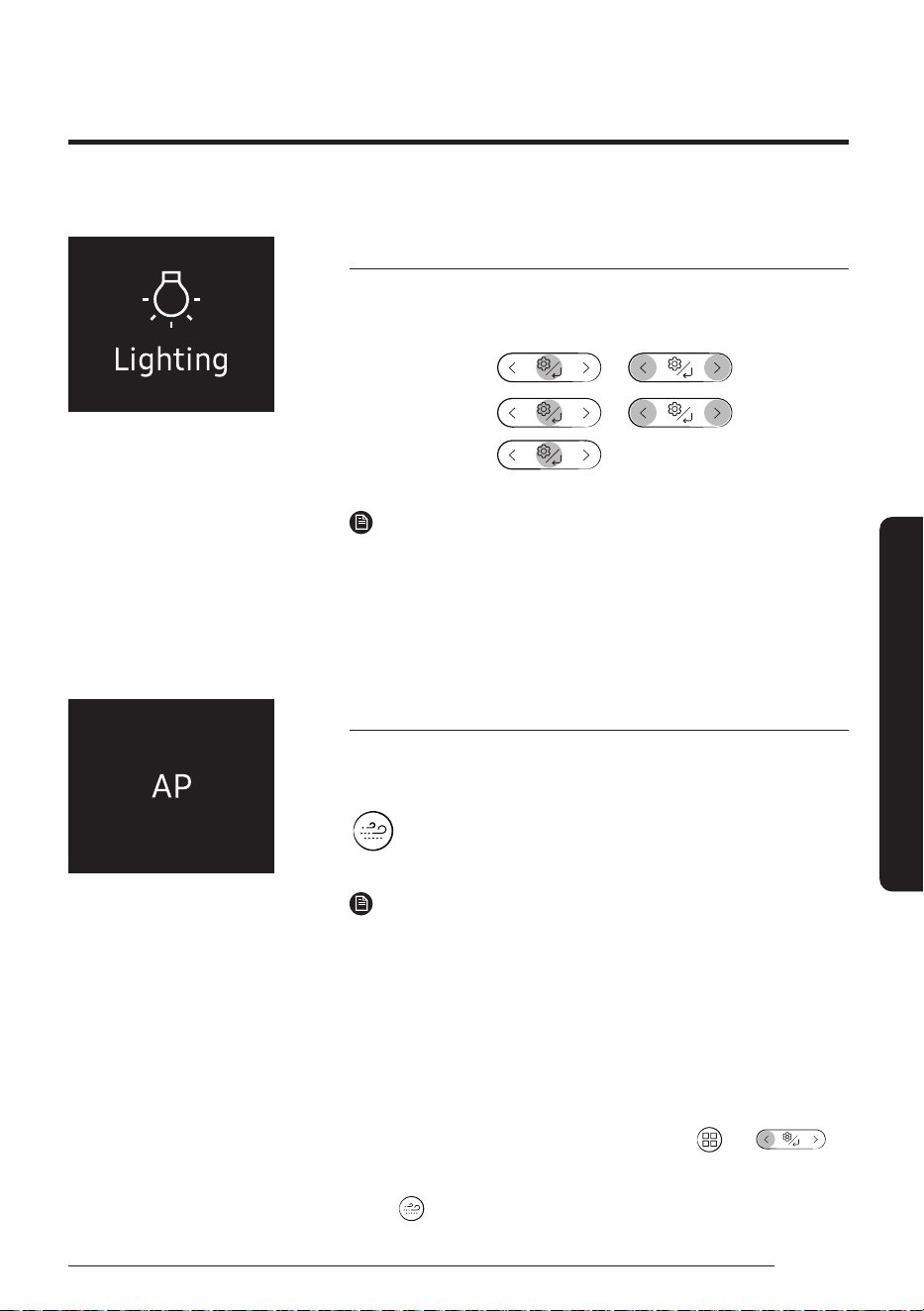
In operation ▶
▶ ▶
Select Settings. ▶ ▶ ▶
Select Lighting. ▶
NOTE
• If you change the current mode or function when the Display
lighting function is on, the display lighting turns on for 5 seconds
and then turns off again.
• To turn off the Display lighting function, run the method above
again or turn the product off and on.
Wi-Fi function (SmartThings app)
Turn on the Wi-Fi function to pair your smartphone with the air
conditioner.
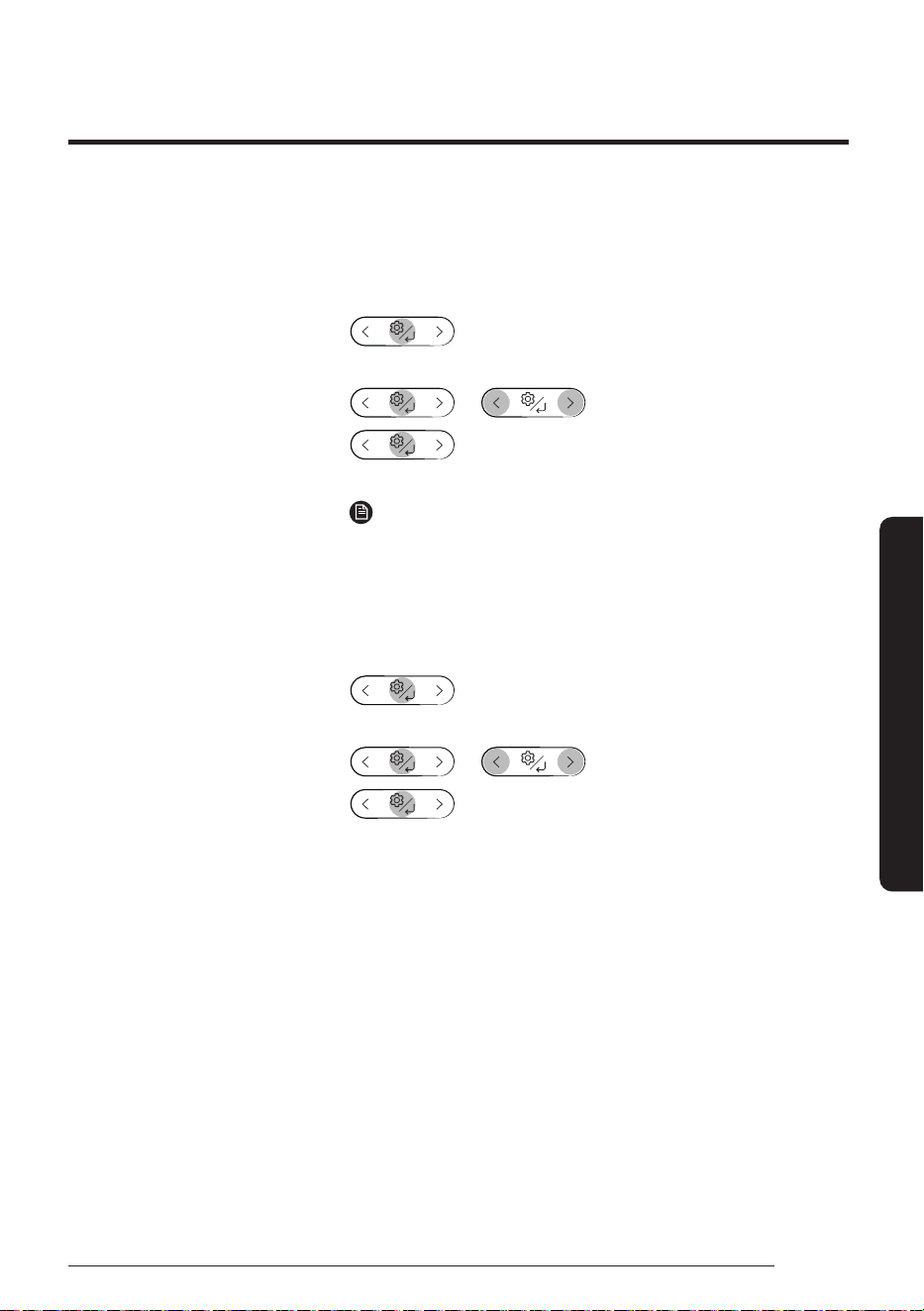
▶ Press and hold for 5 or more seconds.
NOTE
• When you turn on the Wi-Fi function, your smartphone pairs with
the air conditioner, AP appears on the remote control display for a
few seconds.
• Once your smartphone is connected with the air conditioner, you
can control it via the wireless Internet using the SmartThings app
installed on your smartphone.
• For more information about how to prepare your smartphone
for connection and how to control the air conditioner using the
SmartThings app, see "SmartThings app" on page 49.
• To turn on or off the Wi-Fi, press and hold the and
buttons for 5 seconds.
– In order to launch the SmartThings app, press and hold the
button for 5 seconds, which enables to connect the air
conditioner.
38
English
Smart Features
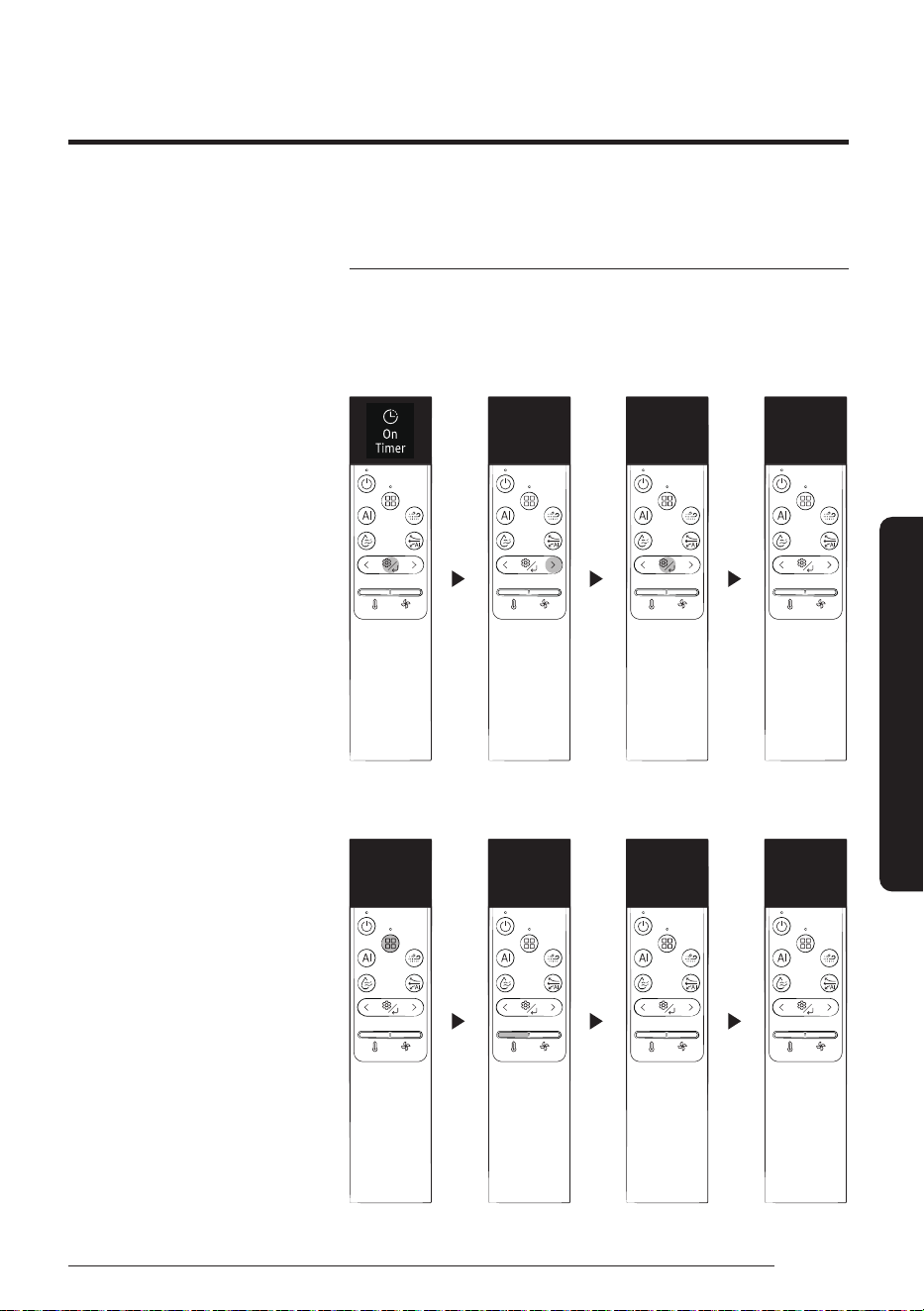
Timed on/ Timed off function
Use the Timed on/off function to turn the air conditioner on or off after
a duration. Scheduling durations before the air conditioner turns on or
off helps use the air conditioner economically.
Turning
on
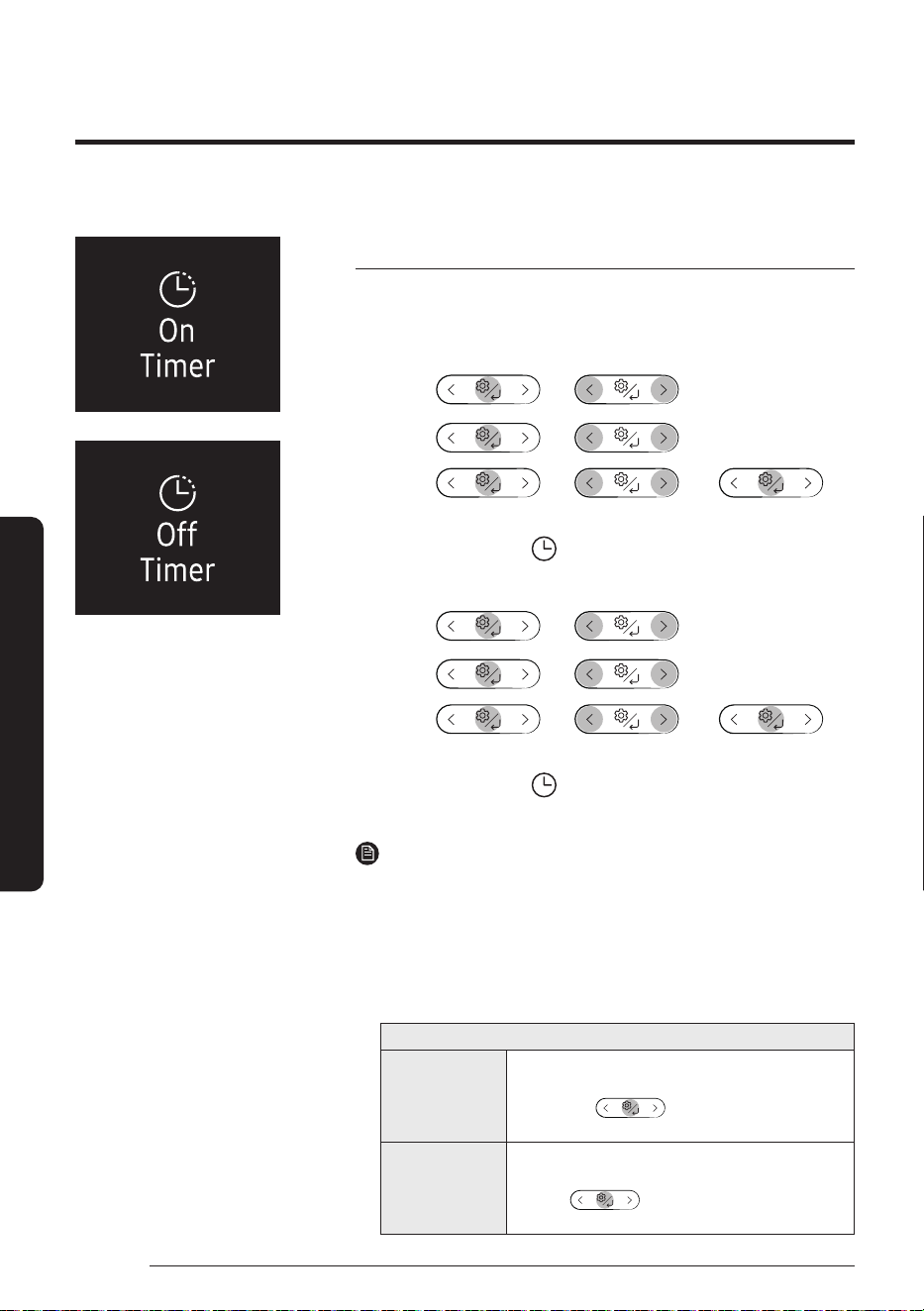
▶ ▶
Select Timer/
Good Sleep.
▶
▶ ▶
Select On Timer
or Off Timer.
▶
▶ ▶ ▶
(Set the duration.)
Confirm that
on the indoor unit
display is turned on.
Turning
off
▶ ▶
Select Timer/
Good Sleep.
▶
▶ ▶
Select On Timer
or Off Timer.
▶
▶ ▶ ▶
(Set the duration.)
Confirm that
on the indoor unit
display is turned off.
NOTE
• To cancel the Timed on/off function, set the duration to 00 m.
• If the remote control is off and you select Timer/Good Sleep,
[On Timer] appears on the remote control display. If the remote control is on
and you select Timer/Good Sleep, [Off Timer] appears.
• You can set the duration to from 30 minutes to 24 hours.
• You cannot set the same duration for both Timed on and Timed off functions.
Combining Timed on and Timed off
When the air
conditioner
is off
Example: Timed on 3 hours, Timed off 5 hours
The air conditioner turns on 3 hours after the last time
you press the button to start the Timed on/
off function, remains on for 2 hours, then turns off again.
When the air
conditioner
is on
Example: Timed on 3 hours, Timed off 1 hour
The air conditioner turns off 1 hour after the last time you
press the button to start the Timed on/off
function, remains off for 2 hours, then turns on again.
Time scheduling
39
English
Smart Features
Timed on/ Timed off function
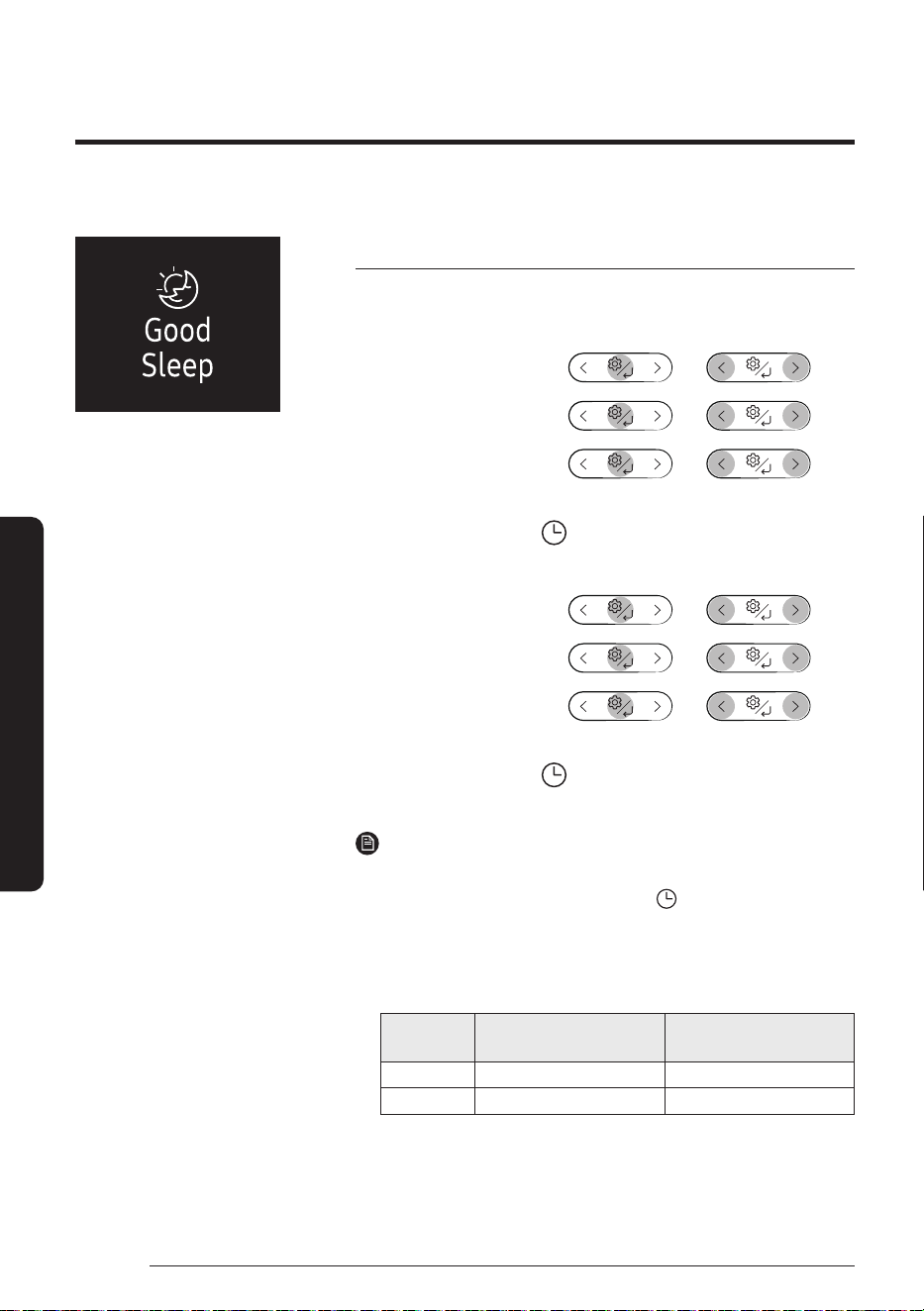
If you set the Timed on function, you can change the mode or
temperature while the remote control is off.
Basic selection
30
m
1
hr
00
m
01:00
Turn On
in
Additional selection
Dry
°
01:00
Turn On
in
18
°
Time scheduling
40
English
Smart Features
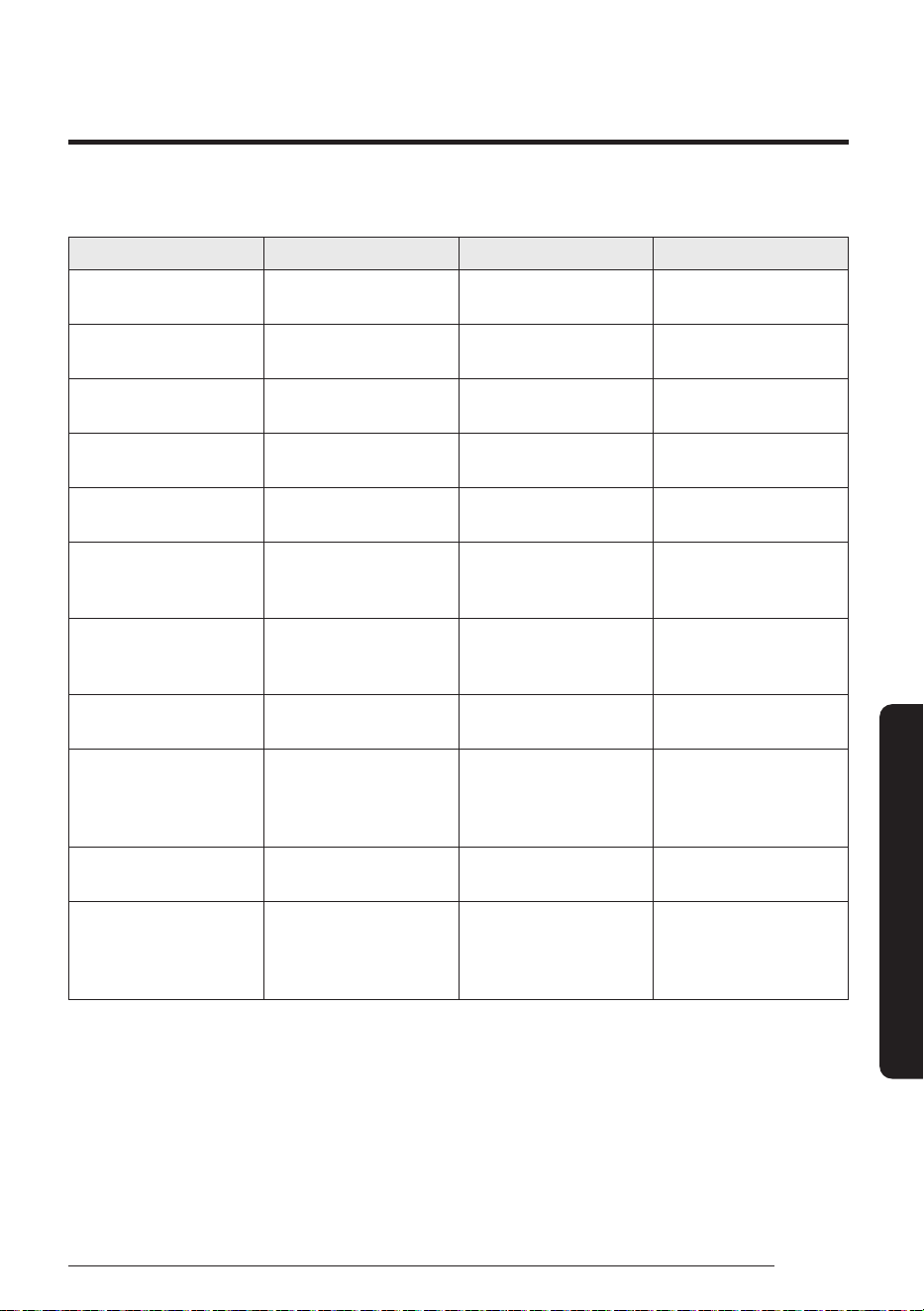
Good Sleep function
Use the Good Sleep function to save energy while you are sleeping.
You can select this function in Cool or Heat mode.
Turning
on
In Cool or
Heat mode
▶
▶ ▶
Select Timer/
Good Sleep.
▶ ▶ ▶
Select
Good Sleep.
▶ ▶ ▶
(Set the duration.)
Confirm that on the indoor
unit display is turned on.
Turning
off
In Cool or
Heat mode
▶
▶ ▶
Select Timer/
Good Sleep.
▶ ▶ ▶
Select
Good Sleep.
▶ ▶ ▶
(Set the duration.)
Confirm that on the indoor
unit display is turned off.
NOTE
• To cancel the Good Sleep function, set the duration to 00 m.
• When you start the Good Sleep function, the (Timer) indicator appears on
the indoor unit display.
• You can set the duration to from 30 minutes to 12 hours.
• The recommended set temperatures while the Good Sleep function is on
are:
Mode
Recommended set
temperature
Optimal set
temperature
Cool 25 ℃ to 27 ℃ 26 ℃
Heat 21 ℃ to 23 ℃ 22 ℃
• The Good Sleep function can operate while the WindFree Cooling function
is on.
• Selecting the Good Sleep function cancels Dry Comfort, Eco, and Quiet
functions.
41
English
Cleaning and Maintenance
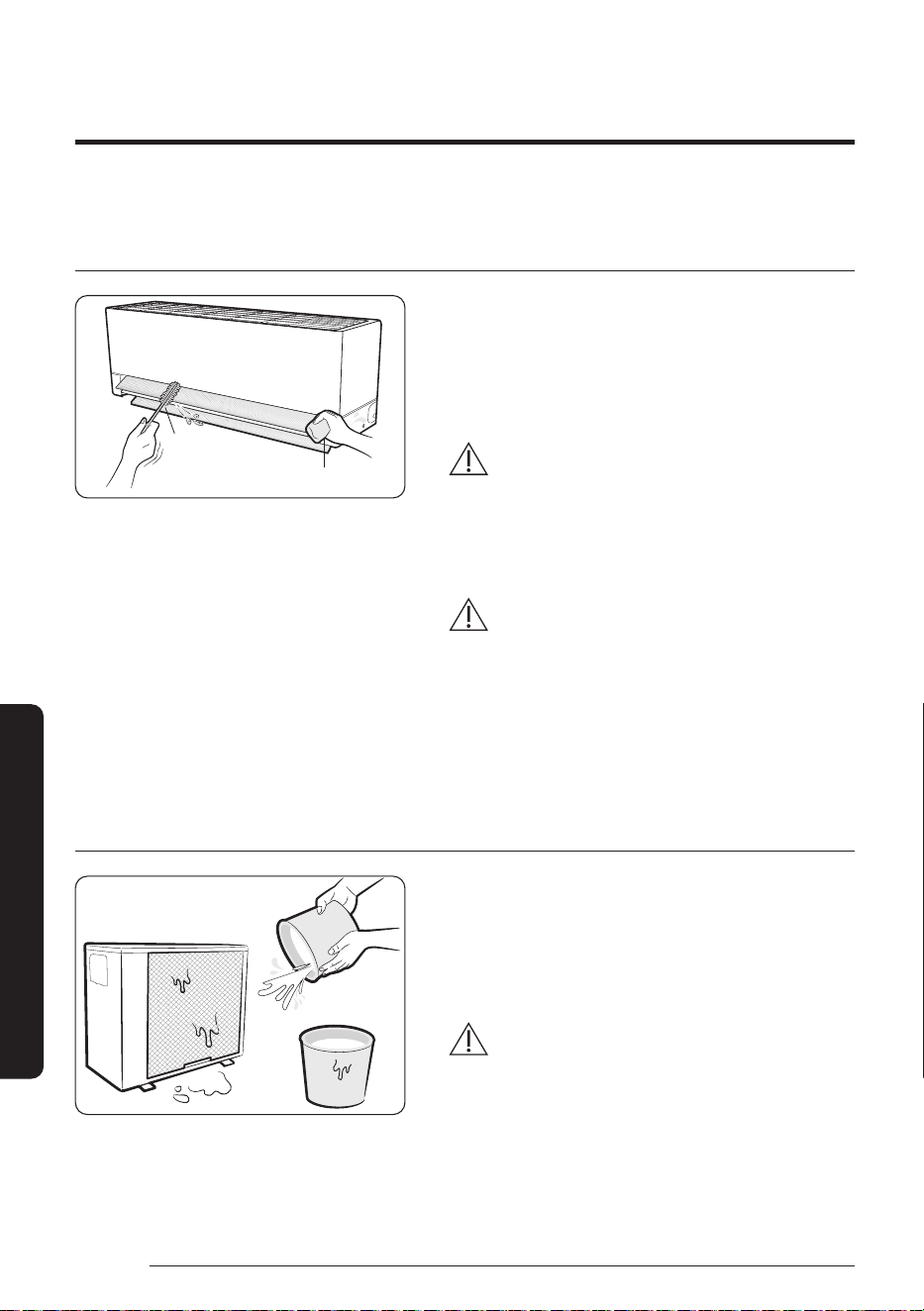
Task How often By whom Instruction
Run the Auto Clean
function.
As needed Owner
"Auto Clean function" on
page 34.
Run the Freeze Wash
function.
Once every two weeks Owner
"Freeze Wash function" on
page 36.
Clean the filter. Once every two weeks Owner
"Cleaning the filter" on
page 43.
Replace the 4-in-1 Care
filter.
Once every 3 years Owner
"Replacing the 4-in-1 Care
filter" on page 44.
Clean the Airflow blades At least once a month Owner
"Cleaning the airflow
blades" on page 45.
Clean the exterior of the
indoor unit.
As needed Owner
"Cleaning the outside of
the indoor unit" on page
42.
Clean the exterior of the
outdoor unit.
At least once a year Owner
"Cleaning the heat
exchanger on the outdoor
unit" on page 42.
Charge the remote control As needed Owner
"Charging the remote
control" on page 14.
Apply corrosion inhibitor
on outdoor unit. (Only if
installed near salt water
such as an ocean)
At least once a year Qualified technician
Contact your service
provider.
Clean inside the indoor or
outdoor unit.
Once a year Qualified technician
Contact your service
provider.
Inspect the units,
electrical connections,
refrigerant pipes, and
protections.
Once a year Qualified technician
Contact your service
provider.
Schedule
Cleaning and Maintenance
42
English
Cleaning and Maintenance
Cleaning the outside of the indoor unit
1 Turn off the air conditioner and wait until the fan
stops.
2 Disconnect the power supply.
3 Use a soft brush or lukewarm damp cloth to clean the
exterior.
WARNING
• Do not clean the appliance by spraying water directly
onto it. Water entering the unit may result in electric
shock or fire that could cause death, serious injury, or
property damage:
CAUTION
• Do not use an alkaline detergent to clean the indoor
unit display.
• Do not use sulphuric acid, hydrochloric acid, or
organic solvents such as paint thinner, kerosene,
acetone, benzene, or alcohol to clean the unit
surfaces.
Cleaning the heat exchanger on the outdoor unit
1 Turn off the air conditioner and wait until the fan
stops.
2 Disconnect the power supply.
3 Spray water on the heat exchanger to remove dust
and other debris.
CAUTION
• Do not use sulphuric acid, hydrochloric acid, or
organic solvents such as paint thinner, kerosene,
acetone, benzene, or alcohol to clean the unit
surfaces.
• If you need to inspect or clean the inside of the heat
exchanger on the outdoor unit, contact a local service
centre for help.
Soft brush
lukewarm damp cloth
Cleaning
When cleaning or maintaining the product, wear clean gloves to prevent product damage and injury.
43
English
Cleaning and Maintenance
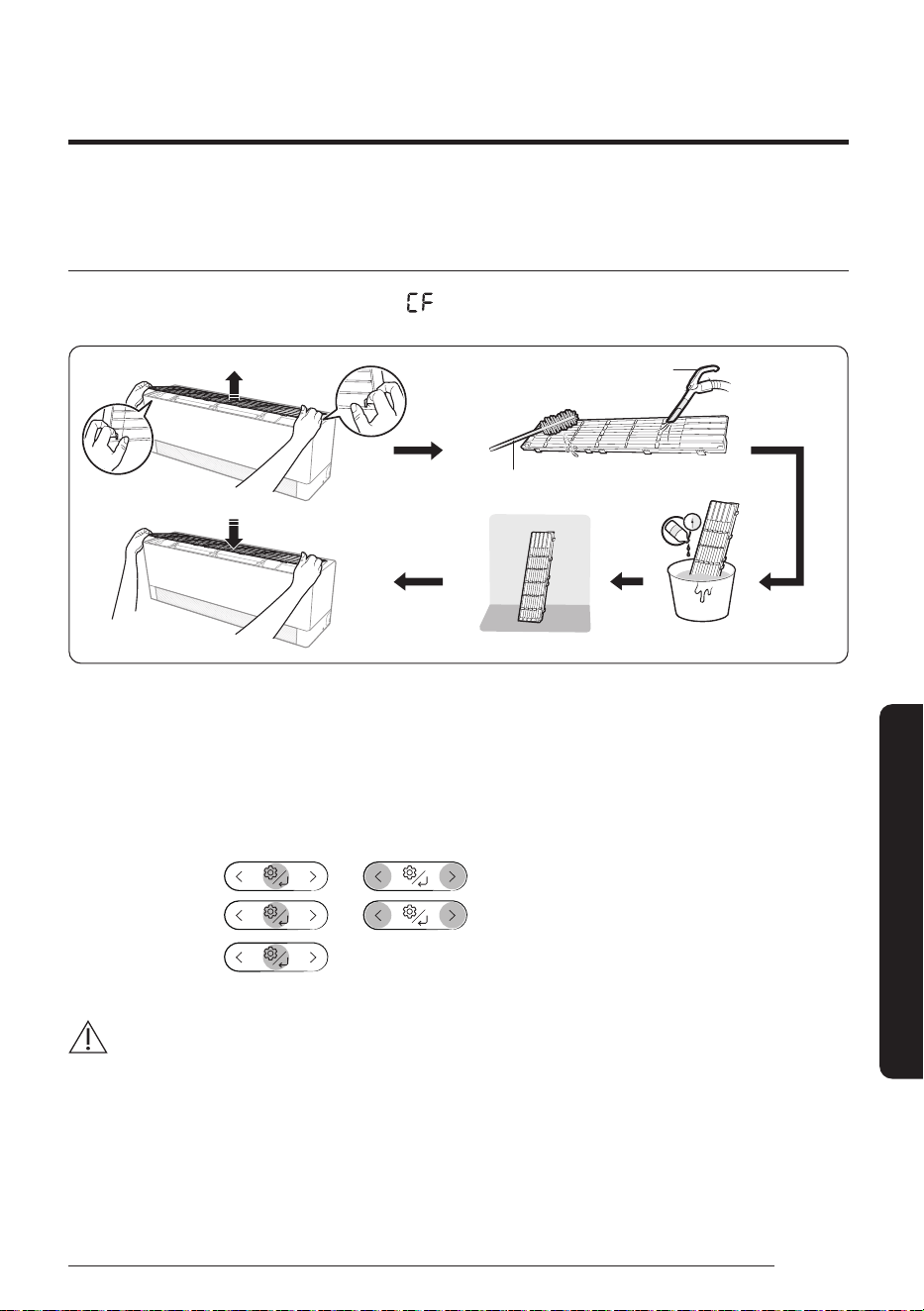
Cleaning the filter
Clean the air filter every two weeks or when the (filter-cleaning reminder) appears on the indoor unit
display. The time between cleanings may vary, depending on the usage and environmental conditions.
Vacuum cleaner
Soft brush
30 minutes
Mild detergent
1 Slide the filter off of the unit.
2 Use a soft brush or vacuum cleaner to remove any dust or debris on the filter.
3 Soak the filter in a solution of water and mild detergent for 30 minutes.
4 Rinse the filter and let it air dry in a well-ventilated area that is out of direct sunlight.
5 Reinstall the filter.
6 Reset the filter-cleaning reminder:
In operation ▶
▶ ▶ Select Settings.
▶
▶ ▶
Select
Filter reset.
▶
CAUTION
• Take care not to damage the filter during cleaning.
• Do not scrub the air filter with a hard-bristle brush or another cleaning utensil.
• Do not expose the air filter to direct sunlight when drying it.
Cleaning
44
English
Cleaning and Maintenance
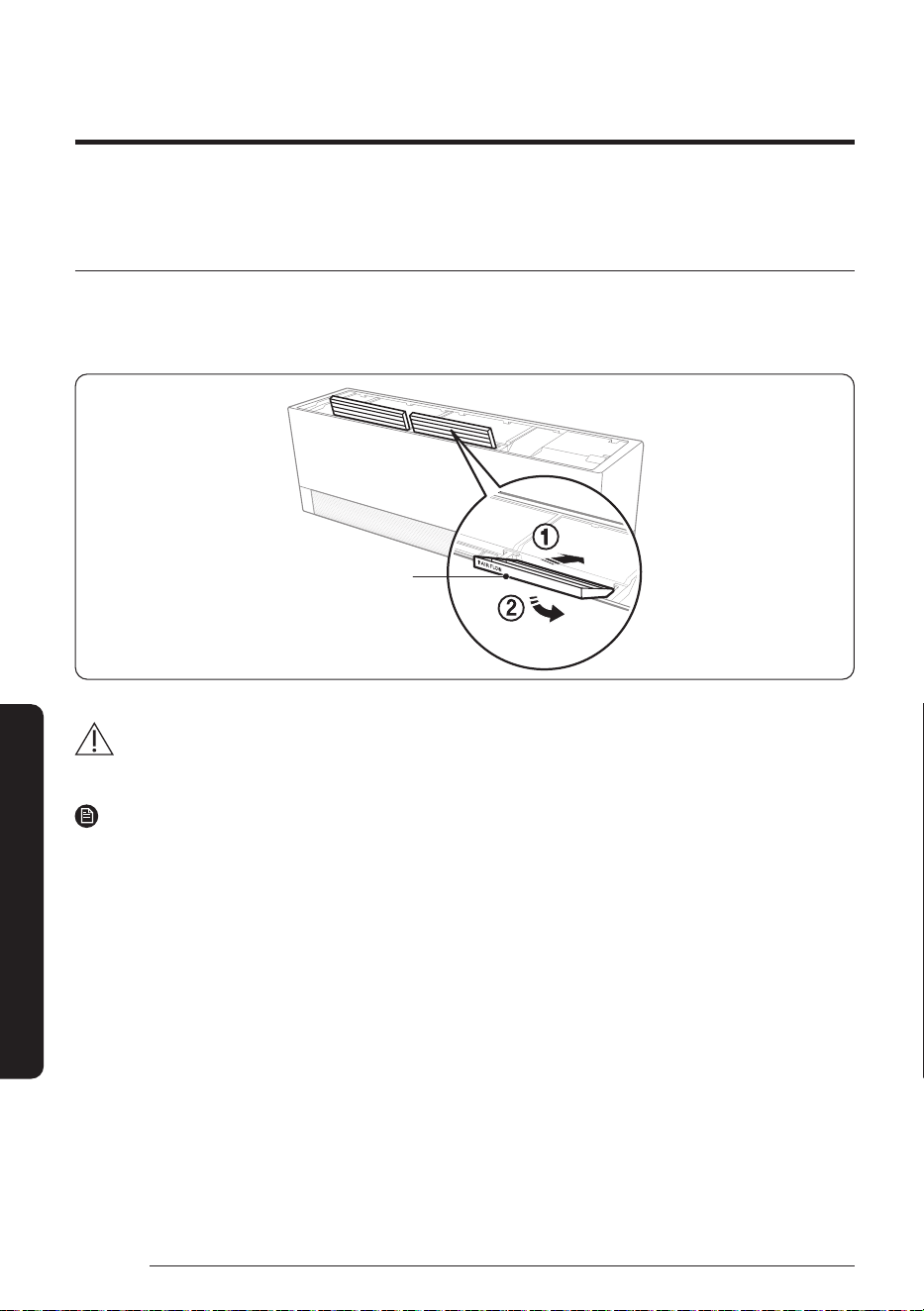
Replacing the 4-in-1 Care filter
Slide a new 4-in-1 Care filter in the direction of arrow 2.
Replace 4-in-1 Care filters once every three years. Replacement cycle may differ depending on the
environment and usage time.
4-in-1 Care filter
CAUTION
• Do not clean the 4-in-1 Care filter with water. Failing to do so may result in damage to the filter.
NOTE
• To replace a 4-in-1 Care filter, purchase a new one at a service centre.
• To use the 4-in-1 Care filter for a long time in an environment where fish cooking and smoking cause odour,
ventilate the place by opening a window.
45
English
Cleaning and Maintenance
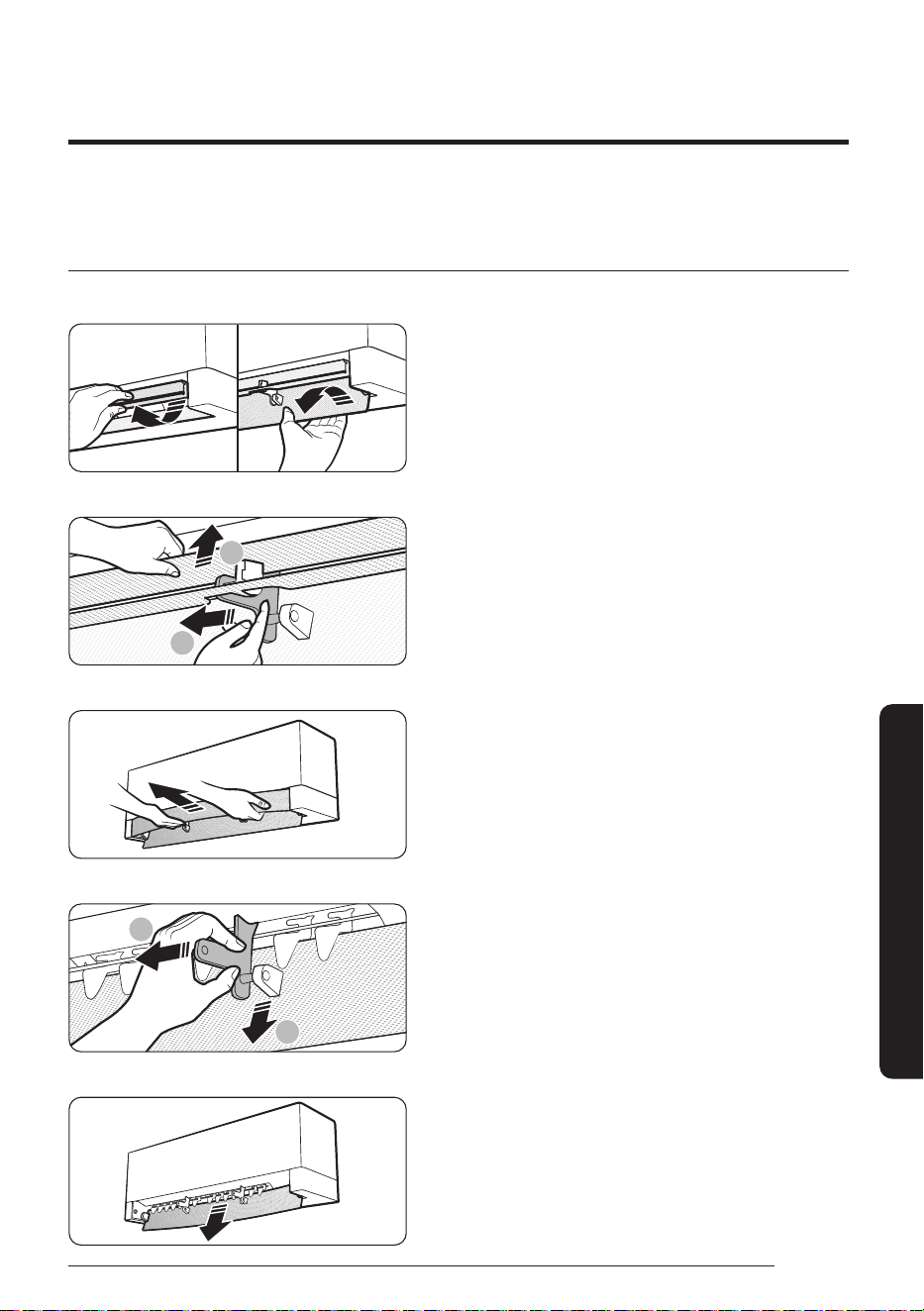
Cleaning the airflow blades
Clean the airflow blades at least once a month.
1 Open the upper and lower airflow blades upwards and
downwards, respectively.
2
1
2 Push the hinges in the middle of the upper airflow blade
and then remove the airflow blade from the hinges.
There are two or three hinges, depending on the product.
3 Lift the upper airflow blade up to remove it from the
product.
2
1
4 Push the hinges in the middle of the lower airflow blade
and then remove the airflow blade from the hinges.
There are two or three hinges, depending on the product.
5 Pull the lower airflow blade down to remove it from the
product.
Cleaning
46
English
Cleaning and Maintenance
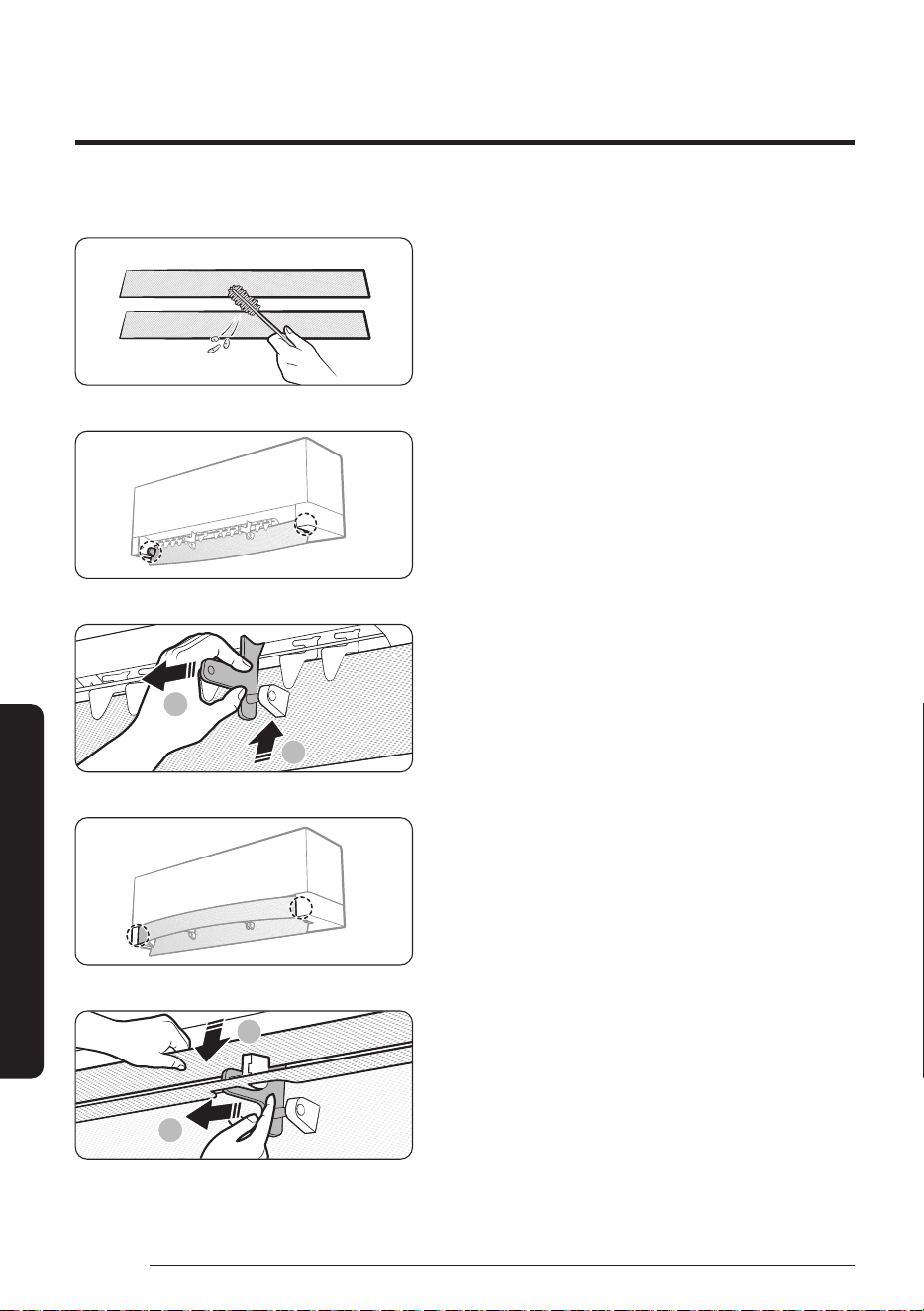
6 Use a soft brush or vacuum cleaner to remove any dust.
7 Insert the lower airflow blade into the hinges on both
sides of the product.
2
1
8 Push each hinge and insert the lower airflow blade into it.
There are two or three hinges, depending on the product.
9 Insert the upper airflow blade into the hinges on both
sides of the product.
1
2
10 Push each hinge and insert the upper airflow blade into it.
There are two or three hinges, depending on the product.
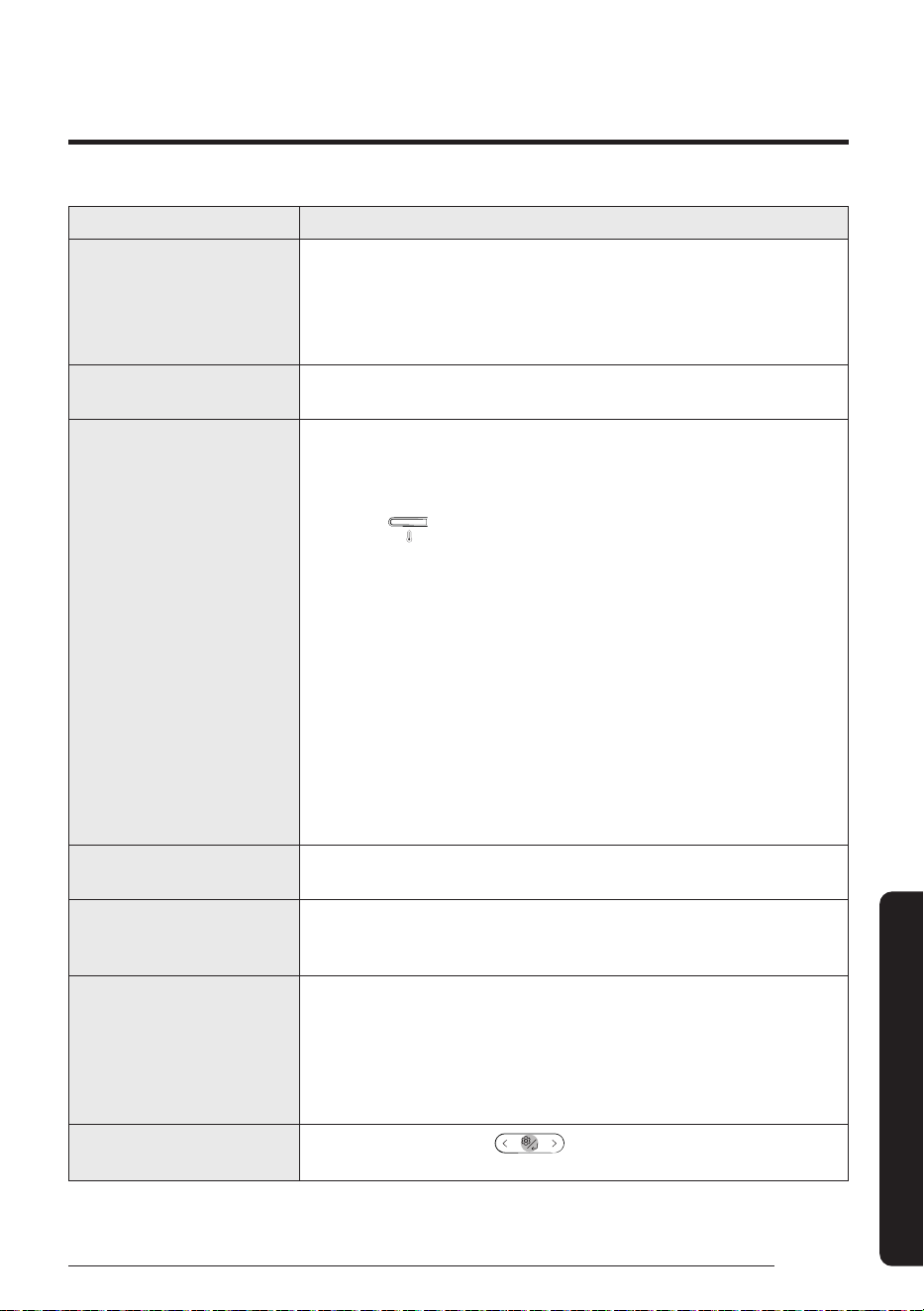
47
English
Appendix
Problem Solution
The air conditioner stops
working.
• Make sure the unit is receiving power.
• Check the circuit breaker. If it is flipped off, flip it on again and restart
the unit. If the problem persists, contact your service provider.
• The Timed off function may have turned off the unit. Turn on the unit
again.
Cannot change the
temperature.
• Check if the unit is in Fan mode. If so, you cannot change the set
temperature; the unit automatically controls the set temperature.
Improper airflow
temperature.
• Check the set temperature. In Cool mode, cooling occurs only when the
set temperature is lower than the current temperature. In Heat mode,
heating occurs only when the set temperature is higher than the current
temperature.
• Use the button on the remote control to change the set
temperature.
• Check if the air filter is blocked with dirt or debris. If the air filter is
blocked, the cooling and heating performance may decrease. Clean the
air filter regularly (page 43).
• Check if the outdoor unit is covered or is installed near obstacles.
Remove the coverings and obstacles.
• Check if the Defrost function is on (page 27). During defrost, the fan
stops and warm air does not come out.
• Check if doors or windows are open. This may cause poor circulation or
performance. Close all doors and windows.
• Check if the pipe length between the units exceeds the maximum pipe
length (see “Typical installation” in the Installation manual). If so, the
cooling and heating performance may decrease.
Cannot change the airflow
direction.
• Check if the Good Sleep function is on in Cool mode. If so, you cannot
control the airflow direction.
Cannot change the fan speed.
• Check if the unit is in AI Auto, or Dry mode or the Good Sleep function is
on in Cool mode. In these conditions, you cannot control the fan speed;
the unit automatically controls the fan speed.
The remote control does not
work.
• Charge the remote control, using the USB port (type C) on the bottom of
the remote control.
• Make sure the remote control can send an unobstructed signal to the
unit.
• Keep bright lights away from the unit. Light from fluorescent bulbs or
neon signs may interrupt the signal from the remote control.
The Timed on/off function
does not work.
• Make sure to press the button on the remote control when
setting the timer.
If the air conditioner is not operating normally, refer to the troubleshooting guide below.
Troubleshooting
Appendix
Troubleshooting
48
English
Appendix
Problem Solution
The indicator on the
indoor unit display blinks
continuously.
• Press the (Power) button to turn off the unit, or disconnect the
power plug.
• If the indicator light on the indoor unit display continues blinking,
contact your service provider.
Odors are coming from the
unit during regular operation.
• If the unit is operating in a smoky area, ventilate the room or operate the
unit in Fan mode for 3 to 4 hours. There are no components in the unit
that produce a strong odor.
• Check if the drain pipes are clean. Clean them regularly.
The indoor unit display shows
an error message.
• If the indoor unit indicator blinks, write down the error code. Contact
your service provider and provide them with the error code.
The unit is generating noise.
• It is normal for the unit to generate some noise while operating.
If the pipe length between the units is less than 3 m and no coil was
used (see “Typical installation” in the Installation manual), additional
noise may be transmitted from the outdoor unit to the indoor unit via
the piping.
Smoke is coming from the
outdoor unit.
• In winter, most likely this is steam coming from the outdoor heat
exchanger while the Defrost function is on.
Water drips from the pipe
connections on the outdoor
unit.
• Condensation may develop when the ambient temperature or humidity
changes significantly. This is normal.
Condensation forms on the
surface of the indoor unit.
• If the humidity is higher in the room in Cool mode, or the difference
between the desired temperature and indoor temperature is great,
condensation may form on the surface of the indoor unit.
49
English
Appendix
Step 1. Checking the requirements
for connection
Before connecting your smartphone with the
air conditioner, make sure that the following
requirements are met:
• Wi-Fi access point: 2.4 GHz Wi-Fi access point only
• The air conditioner and your smartphone must be
within the coverage of the same Wi-Fi access point
and connected to it. After the connection, you can
control the air conditioner from any place via various
wireless networks such as Wi-Fi, 3G, LTE and 5G.
• The supporting software version of the SmartThings
app is subject to change according to the OS
supporting policy the manufacturer provides.
In addition, as for the SmartThings app or the
functions that the app supports, the new application
update policy on the existing OS version can be
suspended due to usability or security reasons.
• The SmartThings app is subject to change without
notice to improve usability or performance. As the
mobile phone OS version is updated every year, the
SmartThings is also updated continually according
to the latest OS.
• If you have enquiries regarding the items mentioned
above, please contact us on st.service@samsung.
com.
Step 2. Connecting your
smartphone to the Wi-Fi network
1 Turn on the Wi-Fi access point.
2 Tap Settings → Wi-Fi on your smartphone.
3 Tap the Wi-Fi switch to activate it, and then select
the 2.4 GHz Wi-Fi access point to connect to.
4 If needed, enter the password for the access
point.
5 Tap Advanced.
6 Tap the Switch to mobile data switch to
deactivate it.
Step3. Installing the SmartThings
app
If the SmartThings app is not installed on your
smartphone, follow the procedure below. If installed,
skip to "Step 4. Configuring the SmartThings app" on
page 49.
1 Launch Play Store or App Store.
2 Tap the search field, and then search for
"SmartThings".
3 Tap INSTALL for the found SmartThings app item.
4 Select Agree.
Step 4. Configuring the
SmartThings app
After the SmartThings app is installed, follow the
procedure below to configure it. If already configured,
skip to "Step 5. Connecting your smartphone to the
air conditioner" on page 50.
1 Launch the SmartThings app.
2 When you see pop-up windows asking for
location, Wi-Fi, Bluetooth permissions, tap Start.
3 Tap Sign In.
4 Sign in to your Samsung account.
• If you have no Samsung account, create your
Samsung account.
5 Consent to TERMS AND CONDITIONS.
6 When you see a pop-up window asking for access
permission to location information, tap ALLOW.
Use the SmartThings app on your smartphone to control the air conditioner via the wireless Internet.
To remotely control the air conditioner, you need to connect your smartphone to the air conditioner. If already
connected, skip to "Step 6. Controlling the air conditioner with your smartphone" on page 50.
SmartThings app
SmartThings app
50
English
Appendix
Step 5. Connecting your
smartphone to the air conditioner
1 Plug in the power cord of the air conditioner, and
then turn on the power.
2 Launch the SmartThings app.
3 Tap Add device on the home screen of the
SmartThings app.
4 Tap Samsung Air conditioner > Room air
conditioner.
5 Press the button on the remote control for at
least 4 seconds.
To notify that registration of the selected air
conditioner to your Samsung account is in progress,
the AP appears on the remote control display. When
the connection is finished, the AP disappears. A new
device card for the selected air conditioner is added
to the home screen of the SmartThings app.
Step 6. Controlling the air
conditioner with your smartphone
1 Launch the SmartThings app.
2 On the home screen of the SmartThings app,
tap the device card for the air conditioner,
which was added when you proceeded with
"Step 5. Connecting your smartphone to the air
conditioner" on page 50.
WARNING
• RF exposure warning statement – for keeping
20cm distance when installing this module.
• Warning that this module should not be installed
and operating simultaneously with other radio
without additional evaluation or FCC filing.
• Your device uses non-harmonised frequency
and is intended for use in all European countries.
The WLAN can be operated in the EU without
restriction indoors, but cannot be operated
outdoors in France.
Specifications
Wi-Fi
Frequency Range Transmitter Power (Max)
2412 - 2472 MHz 20 dBm
Open Source Announcement
The software included in this product contains open
source software. You may obtain the complete
corresponding source code for a period of three years
after the last shipment of this product by contacting
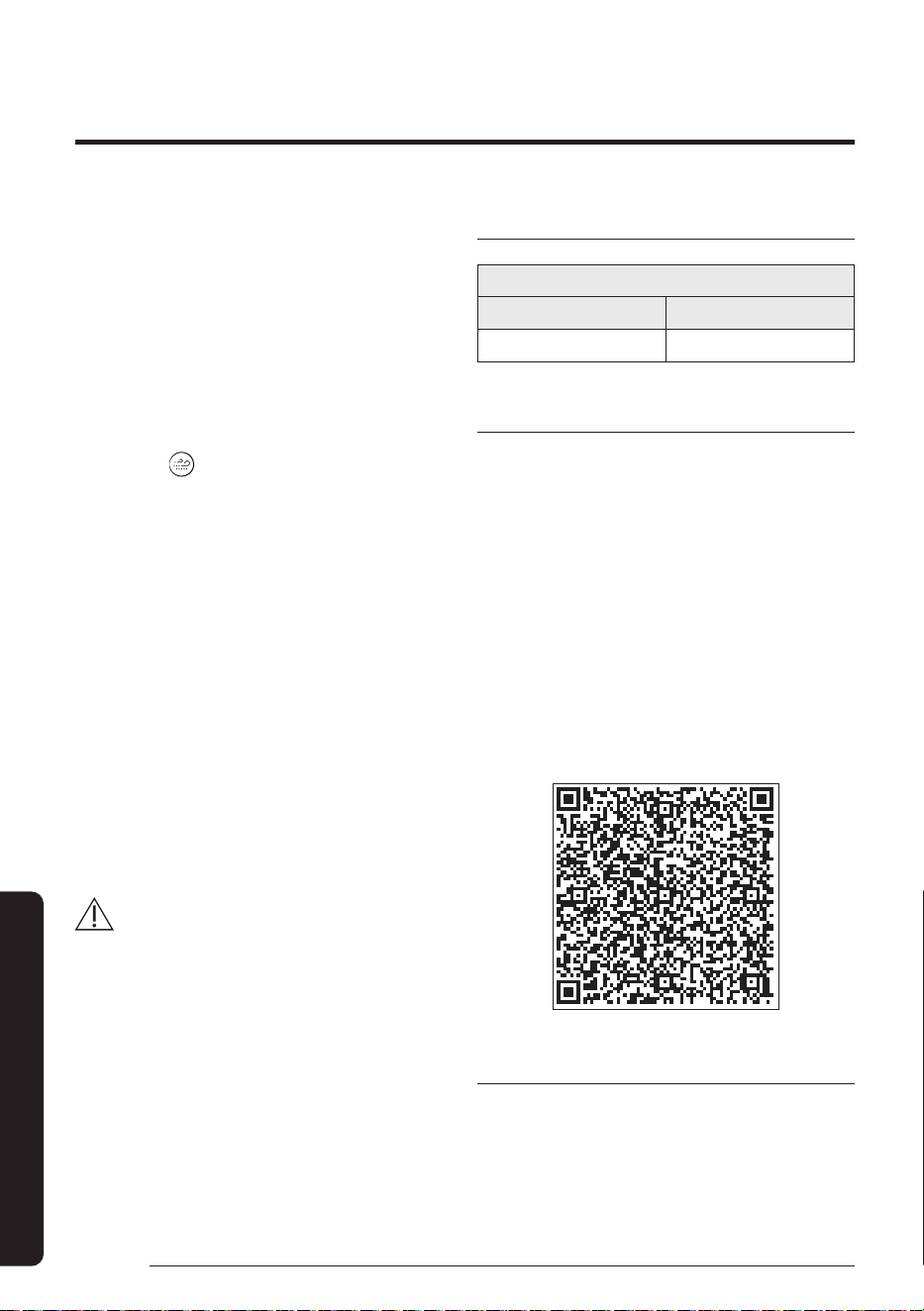
our support team via http://opensource.samsung.com
(Please use the “Inquiry” menu.)
It is also possible to obtain the complete
corresponding source code in a physical medium such
as a CD-ROM; a minimal charge will be required.
The following URL http://opensource.samsung.com/
opensource/SMART_AT_051/seq/0 leads to the
open source license information as related to this
product. This offer is valid to anyone in receipt of this
information.
Security updates information
Security updates are provided to strengthen the
security of your device and protect your personal
information. For more information on security
updates, visit https://security.samsungda.com.
* The website supports only some languages.
51
English
Memo
Appendix
QUESTIONS OR COMMENTS?
COUNTRY CALL OR VISIT US ONLINE AT
AUSTRALIA 1300 362 603 www.samsung.com/au/support