Multi-Mode Gateway 2.0 Operation
Manual (Bridge Version Without
Remote Control) V1.0.0
Revision History
Date
Description
Version
Author
2025/6/18
Initial version
V0.0.1
TAOYULING
2025/6/20
Revised pairing
process between
gateway, T-remote,
and system;
updated MATTER
module status;
added voice
function and Home
App instructions
V0.0.2
TAOYULING
2025/7/4
Added MATTER
compatible
platforms; updated
smart voice
command list
V0.0.3
TAOYULING
2025/9/17
Revised pairing
code display
instructions
V0.0.4
TAOYULING
2025/9/25
Revised remote
learning display
instructions; added
cross-platform
connection
V0.0.5
TAOYULING
2026/1/12
Revised display
instructions and
pairing process
between gateway,
T-remote, and
system
V0.0.6
TAOYULING
2026/1/27
Optimized button
functions, smart
voice response
time, voice pairing
operation
V0.0.7
TAOYULING
2026/3/23
Removed T-remote
bridge function;
adopted device ID
control version
V1.0.0
TAOYULING
Gateway & Blinds System Pairing & Control
Two methods are available; choose one based on actual needs.
Method 1: Pairing with T-Remote Bridge
For scenarios requiring T-remote control.
1. Remote & Receiver Pairing: Start from channel 1 of T-remote, pair with blinds
receivers one by one. 1 channel = 1 receiver, max 15 receivers.
2. Factory Reset: Reset all devices after pairing for accuracy.
3. Learn Remote: Gateway learns T-remote signals and auto‑ creates device ID list.
4. Gateway & Apple Home Pairing: Complete system access.
Method 2: Direct Connection Without T-Remote
For direct gateway control.
1. Factory Reset: Reset all devices first.
2. Gateway & Receiver Pairing: Use smart voice pairing from channel 1. 1 channel = 1
receiver, max 5 receivers.
3. Create Device List: Gateway auto‑ creates list after pairing.
4. Gateway & Apple Home Pairing: Complete system access.
1. Button Function List
Pairing Mode
Function
Operation
Method 1
Learn Remote (First Pair)
1. Place gateway, T-
remote, and receiver close
together. Short‑ press
button; beeper beeps
once, red light on. Select
max channel on target
remote, press P2 three
times.
2. Green light flashes;
auto‑ creates device ID
list. Beeps once per ID
received.
3. Green light stops
flashing → pairing
success.
Retry: Press P2 once.
Timeout: No operation
within 10s.
Cancel: Short‑ press
button.
Method 2
Create Blinds List
1. Place gateway and
receiver close together.
Long‑ press button 3–5s;
red light flashes quickly,
release, red light stays on;
short‑ press button.
2. Green light flashes;
auto‑ creates device ID
list. Beeps once per ID
received.
3. Green light stops
flashing → list created.
Timeout: No operation
within 10s.
Cancel: Wait timeout.
Method 1/2
Factory Reset
1. Long‑ press button 7–
10s; green light flashes
quickly, release, green
light stays on; short‑ press
button → reset success.
System reboots, red light
flashes 15min (ready to
pair).
Timeout: No operation
within 10s.
Cancel: Wait timeout.
Clears remote info, blinds
info, Matter network info.
2. Matter Compatible Platforms
Apple, Google, Amazon, Samsung, OPPO, vivo
3. Matter Status Description
• Matter devices can be networked only once. Re‑ networking requires factory reset.
• Unpaired: Auto‑ enable Bluetooth broadcast 15min after power‑ on (red light flashes
15min).
• Re‑ open pairing window: Beeper 100ms beep, red light flashes 15min.
• Connected session (app control available) / Paired / Online: Beeper 3×100ms beeps,
green light on 3s.
• Offline / Pairing closed / Disconnected: Beeper 500ms long beep, red light on 3s.
4. Apple Home & Apple Speaker Pairing
Prerequisites:
• iPhone/iPad iOS 16.3+, Apple ID signed in (2FA enabled)
• iPhone connected to 2.4GHz Wi‑ Fi, Bluetooth on
• “Home” app installed
First‑Time Pairing Steps
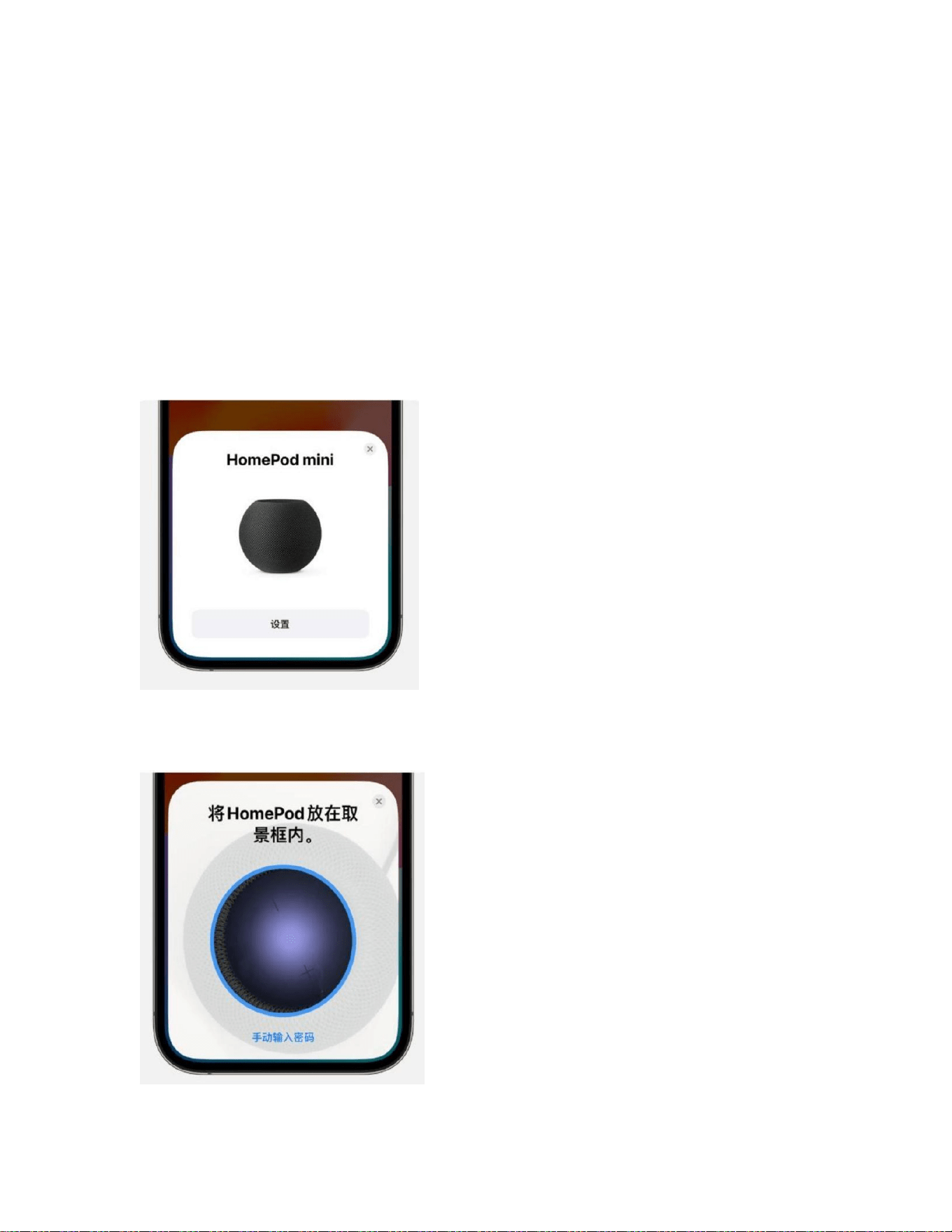
1. Plug in power; wait for prompt and white light flashing on HomePod mini/HomePod.
2. Unlock iPhone/iPad and bring close; tap “Setup” when HomePod appears.
3. Center HomePod in camera view; or tap “Enter Password Manually” and input 4‑ digit
code from Siri.
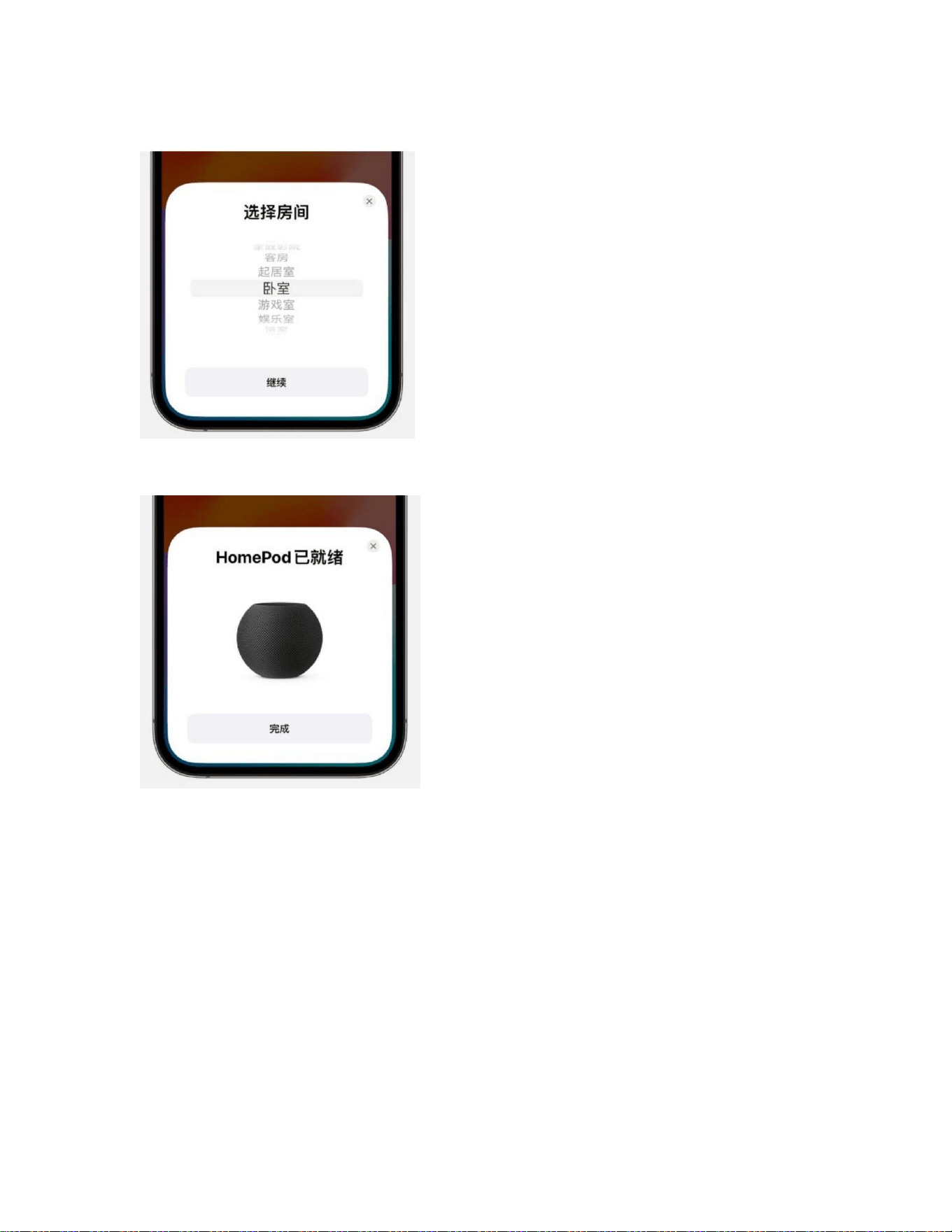
4. Customize settings as prompted.
5. Wait setup completion; tap “Done”.
5. Apple Home & Gateway Pairing
Prerequisites:
• All devices on same 2.4GHz Wi‑ Fi, Bluetooth on
• “Home” app installed
• Gateway powered on and ready to pair (red light flashes 15min)
Add New Device
1. Open Home app → tap + → “Add Accessory”
2. Scan Matter QR code
3. Tap “Add Accessory to Network”
4. Customize settings as prompted
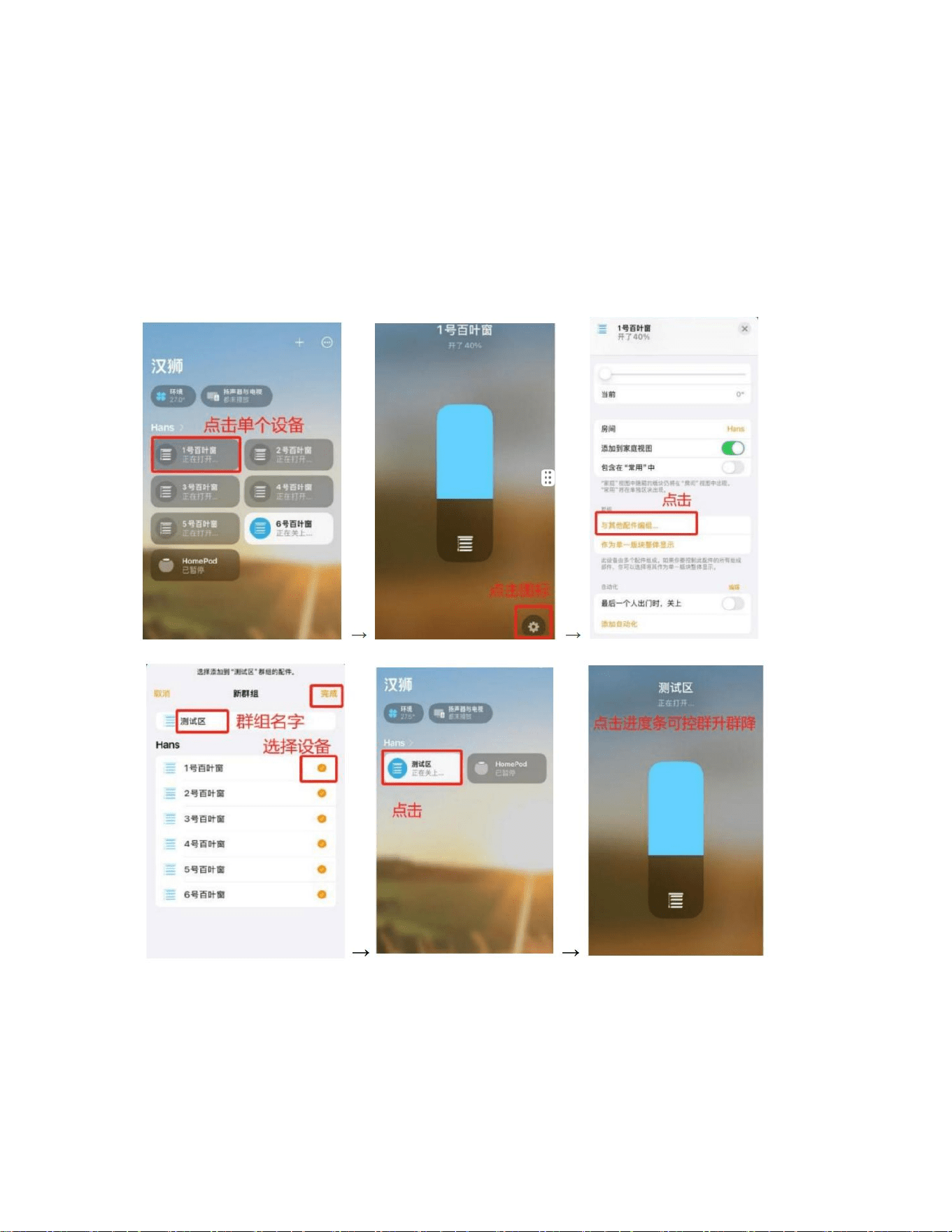
6. Apple Home App Interface
• Group multiple devices for group up/down
Slider: 0%–49% = group down; 50%–100% = group up
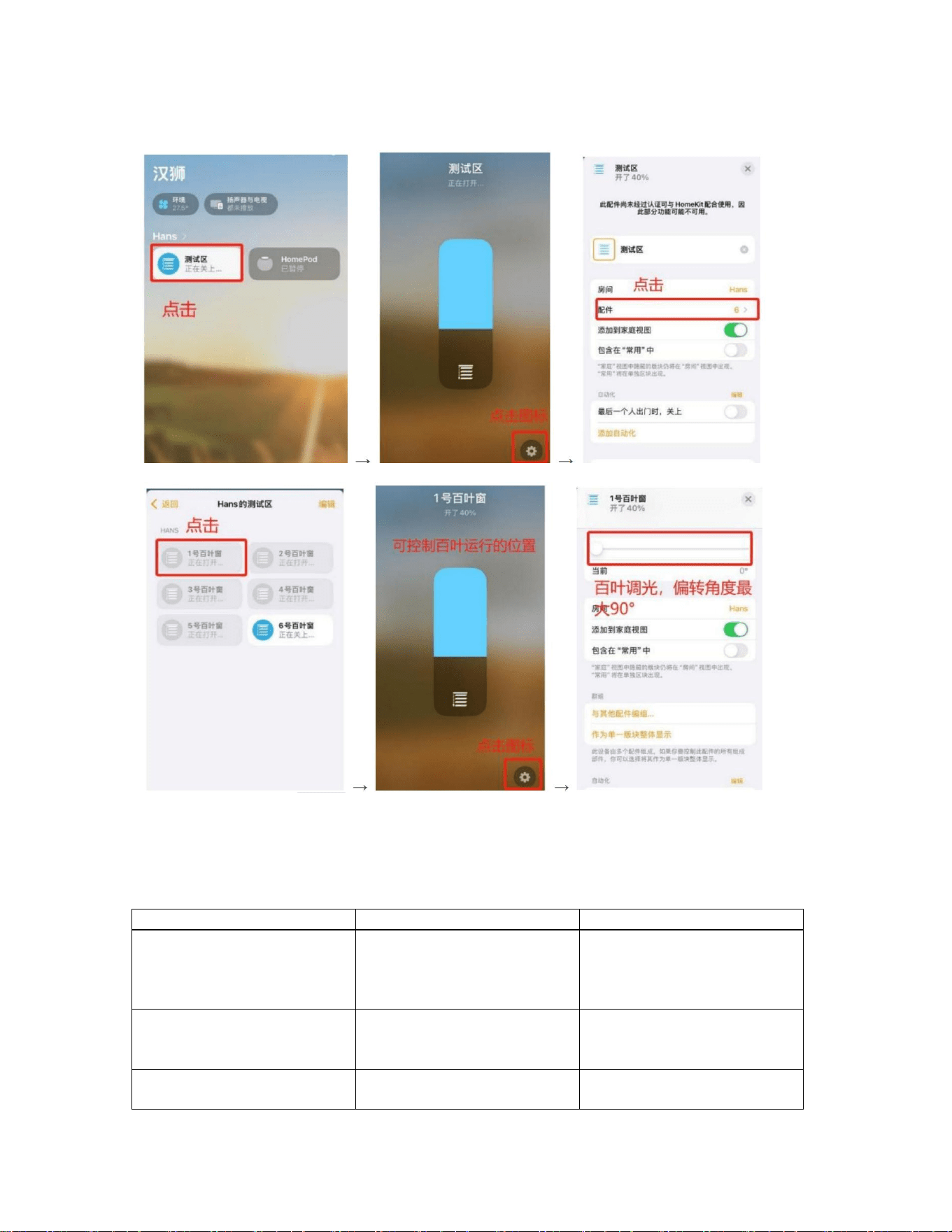
• Single device control (when grouped)
7. Smart Voice
Function List
Mode
Function
Operation
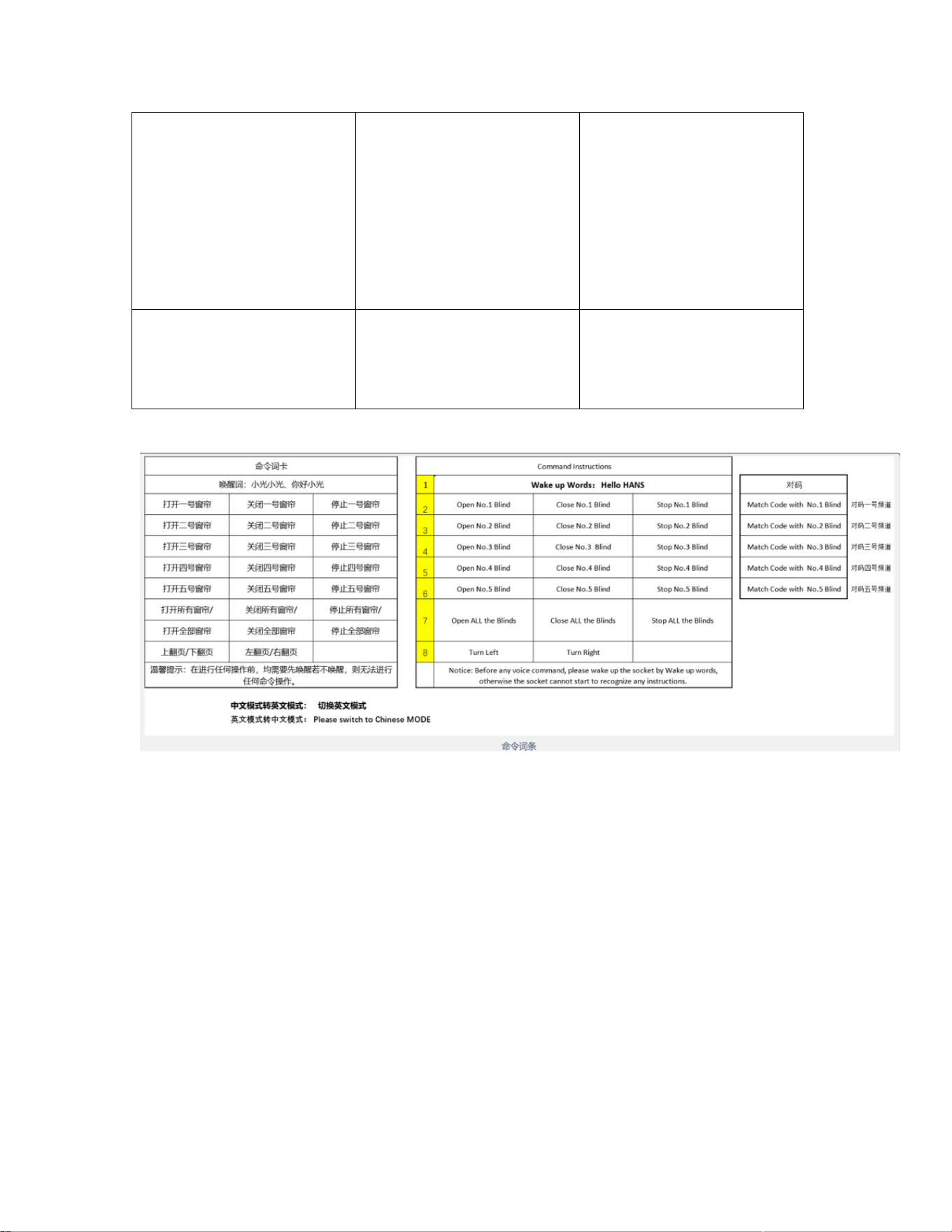
Method 1/2
Voice Wakeup
CN: “Hello Xiaoguang”,
“Xiaoguang Xiaoguang”
EN: “Hello HANS”
Beeper 1s.
Method 1/2
Sleep
Sleep after 15s no
operation; beeper
2×100ms beeps.
Method 1/2
Voice Control
Executes valid command;
beeper 1s.
Method 1
Learn Remote
CN: “Learn remote control”
EN: “Learn the remote
control”
Beeper 1s. Select channel
on remote, press P2 three
times → success (3
beeps). Matter re‑ opens
pairing window (red flash
15min). Already paired?
Must factory reset first.
Method 2
Pairing Code
CN: “Pair channel 1”
EN: “Match code with No.1
blind”
Beeper 1s; done → 3
beeps.
Smart voice command table:
8. Cross‑Platform Connection (Apple Home → Tuya Example)
Prerequisites:
• Gateway already paired in Apple Home
• Tuya App v6.10.0+ (supports Matter)
Add to Tuya App
1. Open Apple Home → enter pairing mode → copy setup code
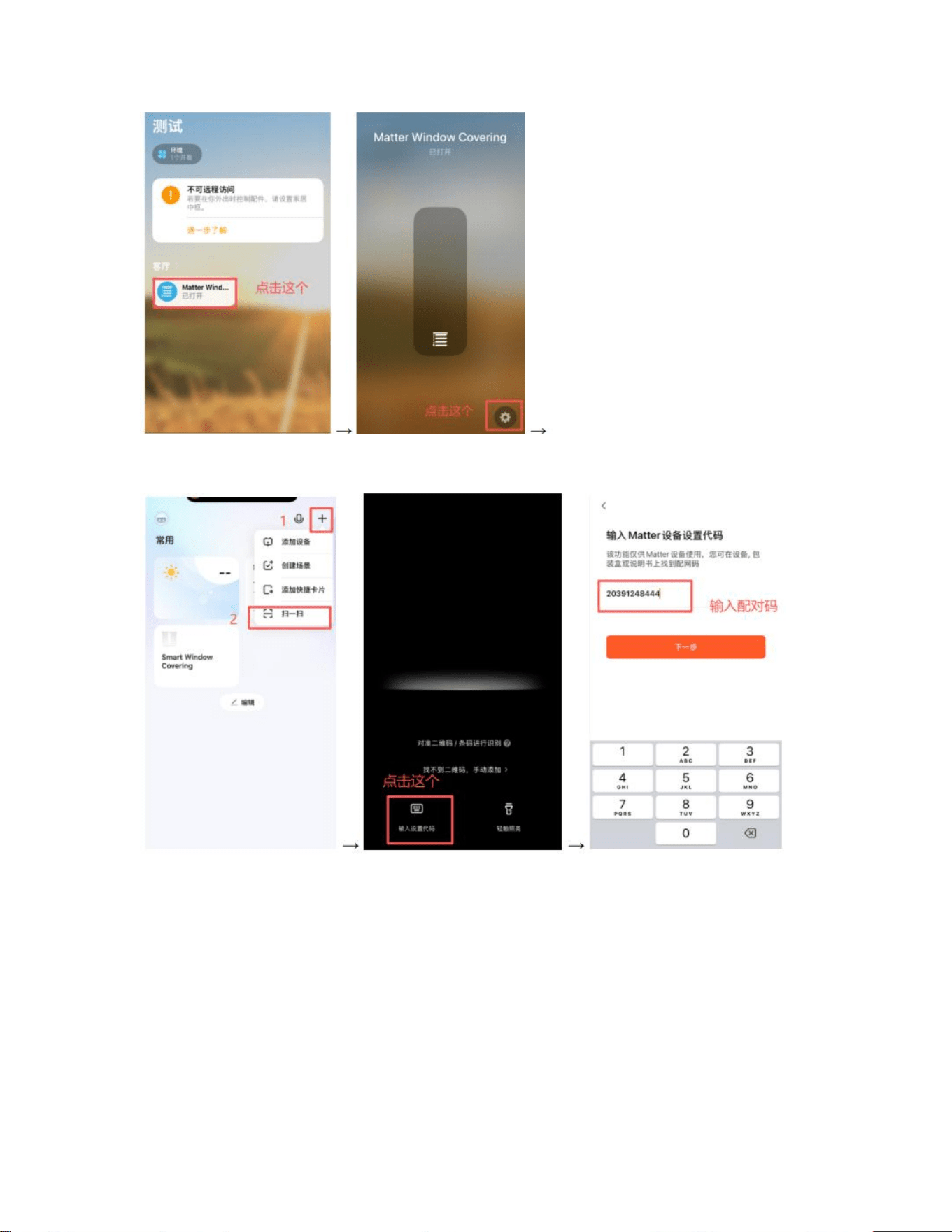
2. Open Tuya → tap + → “Scan” → “Enter Setup Code” → paste code
3. Follow prompts; device appears in Tuya list

FCC Warning
This device complies with part 15 of the FCC rules. Operation is subject to the following two
conditions: (1) this device may not cause harmful interference, and (2) this device must accept any
inte rference received, including interference that may cause undesired operation.
Changes or modifications not expressly approved by the party responsible for compliance could void
the user's authority to operate the equipment.
NOTE: This equipment has been tested and found to comply with the limits for a Class B digital device,
pursuant to part 15 of the FCC Rules. These limits are designed to provide reasonable protection
against harmful interference in a residential installation. This equipment generates uses and can
radiate radio frequency energy and, if not installed and used in accordance with the instructions, may
cause harmful interference to radio communications. However, there is no guarantee that
interference will not occur in a particular installation. If this equipment does cause harmful
interferenceto radio or television reception, which can be determined by turning the equipment off
and on, the user is encouraged to try to correct the interference by one or more of the following
measures:
-Reorient or relocate the receiving antenna.
•Increase the separation between the equipment and receiver.
•Connect the equipment into an outlet on a circuit different from that to which the receiver is
connected.
•Consult the dealer or an experienced radio/TV technician for help.
Radiation Exposure Statement
This equipment complies with FCC radiation exposure limits set forth for an uncontrolled
environment. This equipment should be installed and operated with minimum distance 20cm
between the radiator and your body.