DigiFold PRO
10 Digit Scientific Calculator with E-Writer
Smart Calculations with Effortless Writing
DESCRIPTION
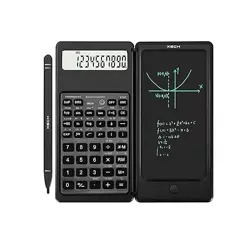
XECH DigiFold PRO is a one of a kind scientific calculator
with an LCD notepad. This allows you to calculate & note
down complex calculations without the need for paper.
DigiFold PRO has been designed to especially improve
learning and improve work efficiency thanks to its
simplified operation. DigiFold PRO comes with dual
replaceable batteries & a convenient foldable design
making it practical and stylish, making it ideal for students
or professionals.
10 DIGIT SCIENTIFIC CALCULATOR
The scientific calculator comes loaded with 56 functions
that allow you to calculate Trigonometrical, Logarithmic,
Permutation, Combination, Hyperbolic, Statistical and
many other Mathematical & Arithmetic functions.
LCD E-WRITER
The 5.5 inch LCD E-Writer comes with a large writing
surface that allows you to note down calculations
eliminating the need to waste paper for rough calculations.
It comes with an erase button to clear the screen. It comes
with a stylus pen for effortless writing & a dedicated stylus
slot to safely store the pen.
PRODUCT SPECIFICATIONS
- Calculator Battery: CR1120
- E-Writer Battery: CR1220
- Material: ABS + Silicone + LCD Panel
- E-Writer Screen: 5.5 inches
- Dimensions: Folded: 16cm x 8cm x 1.3cm
Unfolded: 16cm x 15.6cm x 0.6cm
- Weight: 120 grams
PRODUCT FEATURES
- Scientific Calculator with
E-Writer
- Foldable Design
- Dual Batteries
- Automatic Shut Down
CALCULATOR FEATURES
- 10 Digit Calculator
- Scientific Application
- Soft Silicone Keys
- 42 Keys
CALCULATOR FUNCTIONS
- Statistical Calculations
- Trigonometric Calculations
- Logarithm Calculation
- Hexadecimal Calculations
- Summation
- Time Series
- Factorials
- Tabulations
LCD E-WRITER FEATURES
- Large Writing Surface
- Dedicated Stylus Slot
- Erase Button
- Bright Display
PRODUCT FEATURES
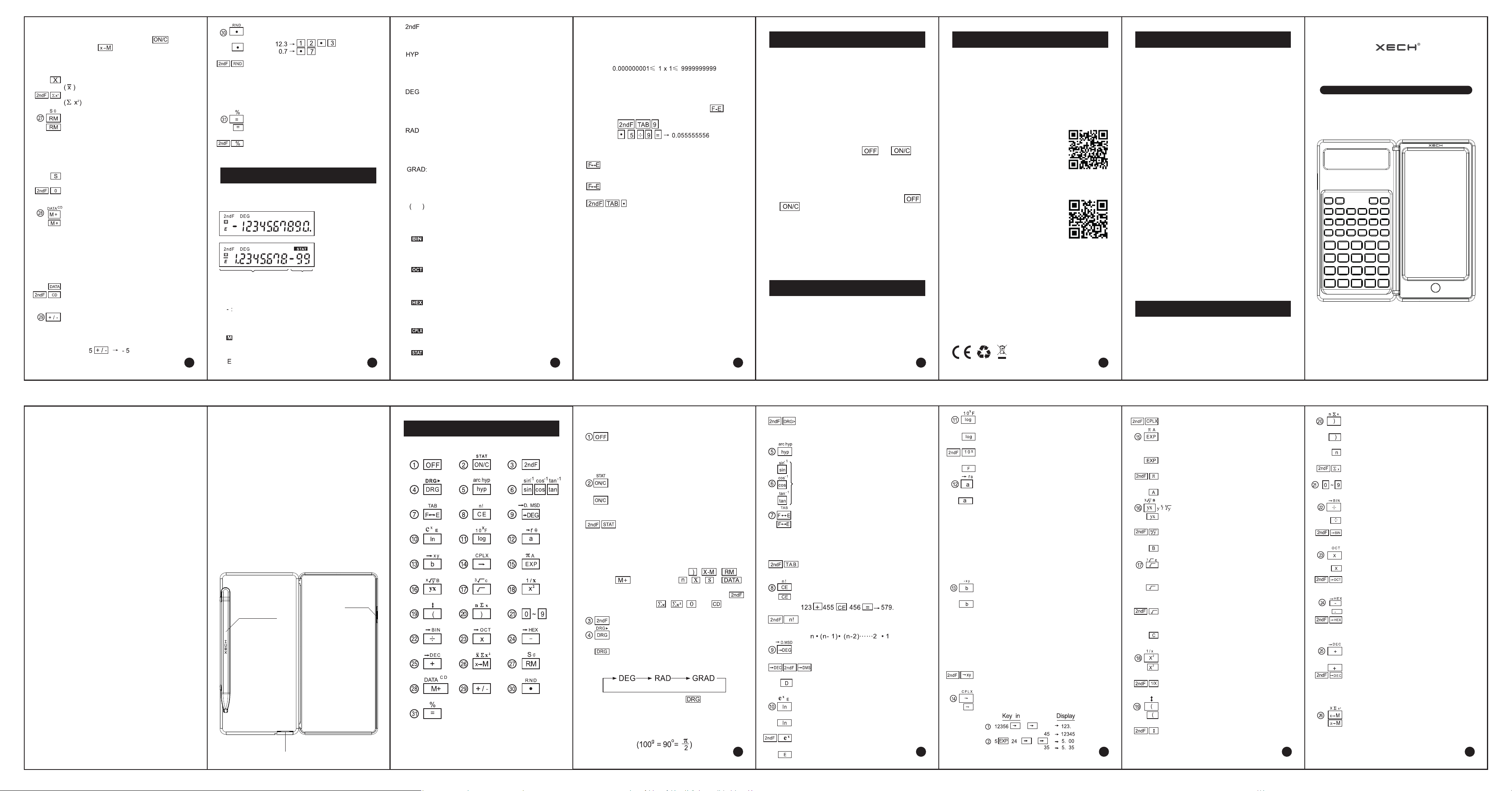
Press this key to turn the calculator off.
Automatic Power-Off Function (A. P. O.) This
calculator is automatically turned off approximately
8 minutes after the last key operation to save the
batteries.
Power on and clear/statistical calculation mode
key =
Push this key to turn the calculator on. It is ready
for operation. When pushed during operation it
clears the calculator except for the memory.
Statistical program will be activated. When
the calculator is set to the statistical calculation
mode through these keys the symbol 'START'
appears, and at the same time the numerical
values and calculation commands, except for
memory contents are cleared. Meanwhile in the
statistical calculation mode the , ,
and keys work as the , , &
keys, respectively.
And pushing these keys immediately after the
key th/ work as the and keys.
2nd function designation key
Degree/Radian/Grad selector/angular unit
conversion key
Used for calculation of trigonometric, inverse
trigonometric and coordinate conversion. The DRG
key changes the angular mode.
DEG— RADA GRAD 7 ( )
Ex. DEG —GRAD: Depress the key “DRG” twice.
'DEG" mode - Entries and answers are in decimal degrees.
‘RAD" mode - Entries and answers are in radians
*GRAD"mode - Entries and answers are in grads.
1
: It has the function of the DRG key as well as
converting the displayed number into a number of
the specified angular mode.
Hyperbolic/arc hyperbolic Key
Trigonometric/inverse trigonometric function
key
Display format exchange/Tabulation key
:When a calculation result is displayed in the
floating decimal point system, pushing the key
displays the result in the scientific notation system
Pushing the key once more displays the result in
the floating decimal point system again
: To specify the number of decimal digits in
the calculation result.
Clear entry/Factorial key
: Used to clear an incorrectly entered number.._
: Calculates the factorial of the displayed
number. Factorial of
Degree/minute/second—Decimal degrees
conversion/hexadecimal number key
To convert degree/minute/ second to
decimal degree and vice versa.
: Hexadecimal number "D” key.
(effective only in hexadecimal number model -
HEX mode)
Natural logarithm antilogarithm and
hexadecimal number key
: Used to obtain the logarithm base a
(a = 2.718281828).
: Calculates the antilogarithm base e of the
displayed number.
HEX mode Hexadecimal number "E" key.
2
Common logarithm/antilogarithm and
hexadecimal number key
: Used to obtain the logarithm with the base
of 10.
: Calculates the antilogarithm with the base
of 10.
HEX mode Hexadecimal number "F" key.
Real number enter/coordinate conversion
key
: • This is used when the real parts of complex
numbers are to be Inputted and when calling
the real parts of calculation results.
• This is used during coordinate conversions when the
X coordinate of the Rectangular
Coordinates (X, Y) is input or when the r of the
polar coordinates (r, 0 ) is input. It is also used
for calling the calculated values of X or r.
: Converts rectangular coordinate into polar
coordinate.
Imaginary number enter/coordinate
conversion key
: • This is used when the imaginary parts of
complex numbers are to be input and when
calling the imaginary parts of the calculation
results.
• This is used during coordinate conversions when the
Y coordinate of the Rectangular coordinates (x,
Y) is input or when the e of the polar
coordinates (r, u ) is input. It is also used for
calling the calculated values of Y or 0 .
Converts polar coordinate into rectangular
coordinate.
Right shift/complex number mode key 1-1:
Example
3
: Used to set the complex number mode.
Enter exponent/Pi and hexadecimal
number key
To enter number in scientific notation.
The constant x (x = 3.141592654) is entered.
: HEX mode Hexadecimal number 'A' key.
and hexadecimal number key
: Raises a number to a power.
Calculates the Xth root of Y.
HEX mode Hexadecimal number ‘B" key.
Lf.s. = Square root/cube root and
hexadecimal number key :
Calculates the square root of the number
displayed.
Calculates the cube root of the number
displayed.
HEX mode
Hexadecimal number "C' key.
Square/reciprocal key:
: Calculates a square of the number
displayed.
: Calculates the reciprocal of the number
displayed.
Open parenthesis/exchange key :
Used to open parenthesis.
Used to exchange the number being
displayed with the number stored in the
working register. (x—y)
4
THE KEYBOARD
Close parenthesis/statistical calculation key
: Used to close parenthesis.
When the statistical mode is set.
: Displays the number of samples :
entered.(n)
MIEI: Used to obtain the sum of the date
Number keys
Used to enter numbers.
Division/binary number mode key
: Depressed for division
: Used to set the binary system mode.
: Converts the number displayed Into a
number in base 2
Multiplication/octal number mode key :
: Depressed for multiplication.
: Used to set the octal system mode.
: Converts the number displayed into a
number in base 8.
Minus/hexadecimal number mode key =I:
: Depressed for subtraction.
: Used to set the hexadecimal system mode.
Converts the number displayed Into a
number in base 16.
Plus/decimal number mode key
: Depressed for addition.
: Used to set the decimal system mode
(normal mode).
Converts the number displayed Into a number
in base 10.
® Memory-in/statistical calculation key
Clears the number in the memory and then
store the number being displayed
5
in the memory.
To clear the memory depress the key
followed by the key.
• When the statistical mode is set
: Used to obtain the mean value of the data.
Used to obtain the sum of squares of data.
Recall memory/statistical calculation key
: Displays the contents of the memory.
The contents of the memory remain
unchanged after this key operation.
• When the statistical mode is set.
:Used to obtain the standard deviation of the
sample of data.
: Used to obtain the standard deviation of the
population of data.
Memory plus/DATA CD key
• Used to add the number being displayed or
a calculated result to the contents of the
memory. When subtracting a number from the
memory, depress the +/- 1 and M+ keys in this
order.
• When the statistical mode is set.
: Used to enter the data (numbers).
: Used to correct the mis-entry. (delete
function).
+/- Change sign key
Changes the sign of the number displayed
from a positive to a negative or vice versa.
Example
6
Decimal point/random number Key
: Example:
: These keys are used to generate uniform
random numbers from 0.000 to 0.999.
Note: Random number generation is not possible
when binary/octal /hexadecimal system mode is
set.
Equals/percent key
: Completes four arithmetic calculations (+, x,
+), xFi, Yx, and complex number calculations.
: Used for the percentage calculation and
add-on/discount calculation.
7 9 10
Example:
(The 10th decimal place is rounded.)
5.5555555-02 (The 10th decimal
place of the mantissa is rounded.)
0.055555556
0.055555555 This is determined by
the calculator in the form of
5.55555555556 x 10' Rounding the
11th digit of the mantissa results in
5.555555556 x 10².
When changed to the floating
decimal display, the rounded parts
may not be displayed as in this
example.
8
(1) Display format
(Floating decimal
system, normal
display)
(Scientific notion
system)
(2) Symbols
: Minus symbol Indicates that the number
in the display following the "-" is a
negative.
: Memory symbol Appears when a number
is stored in the memory.
: Error symbol Appears when an overflow
or an error is detected.
Mantissa
Exponent
DISPLAY
(3) Display system
This machine displays a calculation result (x), if it is
within the following range, in the floating decimal
point system.
And otherwise the machine displays x in the scientific
notation system. However a calculation result within
the above range is also capable of being displayed in
the scientific notation system by pressing the key.
: 2nd function designation symbol Appears
when the 2nd function is designated
: Hyperbolic function designation symbol
Appears when hyperbolic function is
designated.
: Degree mode symbol Appears when the
degree mode is designated or shows that
the angular mode of the converted result
is in degree.
: Radian mode symbol Appears when the
radian mode is designated or shows that
the angular mode of the converted result
is in radian.
GRAD: Grad mode symbol Appears when
the grad mode is designated or shows that
the angular mode of the converted result
is in grad.
: Parenthesis symbol Appears when a
calculation with parenthesis is performed
by depressing the ( key.
BIN: Appears when the binary system
mode is set or shows the displayed
number is a binary number.
OCT: Appears when the octal system mode
is set or shows the displayed number is an
octal number.
HEX • Appears when the hexadecimal
system mode is set or shows the displayed
number is a hexadecimal number.
CPLX: Appears when the complex number
mode is set.
STAT: Appears when the statistical
calculation mode is set.
Exponent
11
If the display becomes dark or dim, replace the
batteries with new ones according to the following
procedure.
Battery: and calculator
CR 1220 x 1 for LCD writing tablet
1. Turn off the calculator.
2. Remove the battery cover.
3. Replaces the batteries (+ side must be up)
4. Push in the battery cover.
5. After the replacement, press the and
keys in this order to clear the calculator.
When the batteries are correctly installed "DEG 0."will
be displayed. (If the display shows nothing or a
meaningless symbol, or the keys become inoperative,
remove the batteries and install them again. Press
and keys in this order and check the display
again.)
Note: - wipe off the surface of the new batteries with
dry cloth and then install the batteries. Always replace
both of the batteries at the same time.
Note: - when function or calculation error, press
RESET.
- Do not use a sharp object on the screen
- Do not expose the product to high temperatures
- Do not throw or put excess weight on the product
- Wipe gently with a dry cloth while cleaning
- Contains small parts, not suitable for children below
3 years.
BATTERY REPLACEMENT CUSTOMER CARE DETAILS
CAUTION
DigiFold PRO
10 Digit Scientific Calculator with E-Writer
Battery cover
LCD E-Writer Battery Slot
Stylus with
storage slot
Battery cover
Calculator
Battery Slot
User Manual
THE KEYBOARD
XECH warrants that the product will be
free from any manufacturing defects &
takes responsibility in case the device fails
to function for a period of one year from
the date of the original invoice.
The warranty period validity is also subject to the
following conditions:
• The customer has to register the warranty for the
product on https://xech.com/pages/warranty within
15 days from the date of purchase.
• The product is not given to some external repair
personnel.
• It is only valid in the Indian Subcontinent.
• If the device is not immersed in water. It also does
not cover natural wear & tear or rough usage.
• If the instruction manual is not followed & the
device is not used in an improper manner.
• If the device is not used for its stated functionality.
• If the device is not used by children below 3 years or
someone incapable or using the device.
• The customer can claim warranty by visiting our
website www.xech.com or contacting our customer
support team by writing to us at
Purchasing Date :
Invoice No:
Dealer Information:
PRODUCT WARRANTY
WARRANTY
Front
Back
This product should not be put / thrown away with regular
trash at the end of its useful life. It must be disposed at a central
point for recycling of electric and electronic domestic appliances.
This symbol on the appliance, instruction manual and packaging
is meant to warn you. The materials used in this appliance can be
recycled.
Scan the alongside QR code to register
for warranty. If you face any issues in
registering the warranty, please get in
touch with our customer support team
by writing to us at support@xech.com
and we will gladly assist you.
Customer Care Address: The Customer Care Manager,
Theo Solutions Pvt Ltd. 43, Sarvodaya Industrial Estate,
Near Paper Box, Off Mahakali Caves Road, Andheri (E),
Mumbai – 400 093. Maharashtra, India.
Customer Care Email: support@xech.com
WhatsApp Customer Support: +91 93249 57452
Scan the QR code &
follow us on Instagram
Website: www.xech.com