
PD200W Desktop User Guide
Product Overview
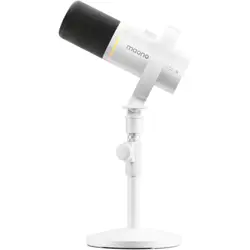
The PD200W wireless microphone is Maono's next-generation desktop wireless microphone, compatible with the T1 Plus wireless lavalier
microphone for collaborative use. Designed to adapt to diverse environments, it supports seamless switching between outdoor and indoor
settings.
Application Scenes
Configuration 1:
Using two PD200W microphones together is ideal for dual-host podcasts or streaming. Two content creators can each use one PD200W, sharing
a single receiver. The audio from both microphones feeds directly into your live-streaming platform, without the need for a sound card, greatly
simplifying your setup. You can adjust individual microphone volumes directly on the mic itself. For specific needs, you can even copy settings
from one PD200W to the other with a single button press, dramatically streamlining your audio tuning.
Configuration 2:
Pair the PD200W microphones with a T1 Plus wireless lavalier microphone. Use the lavalier microphone for recording during outdoor
livestreaming or video recording, then seamlessly switch back to the PD200W upon returning to your studio. The wireless lavalier microphone
offers superior convenience outdoors, while the desktop mic delivers high-quality audio in your studio.
Learning Maono Link Software
Maono Link software provides DSP controls for microphone adjustment. You can configure any connected microphone through its interface. The
adjustment panel offers controls in three sections: Basic, Scene, and Light. The Basic section contains the most common settings. The Scene
section allows you to choose different microphone effects. The Light section controls the mic's ambient RGB lighting. When you need to
configure a different microphone, simply select its corresponding tab at the top of the control page. The target microphone will flash its lights to
help you identify it.
Product Functions
1. Basic
The basic section includes the most commonly used functions by users, such as gain, headphone volume, noise cancellation, and monitor
output. These can be adjusted quickly and intuitively.
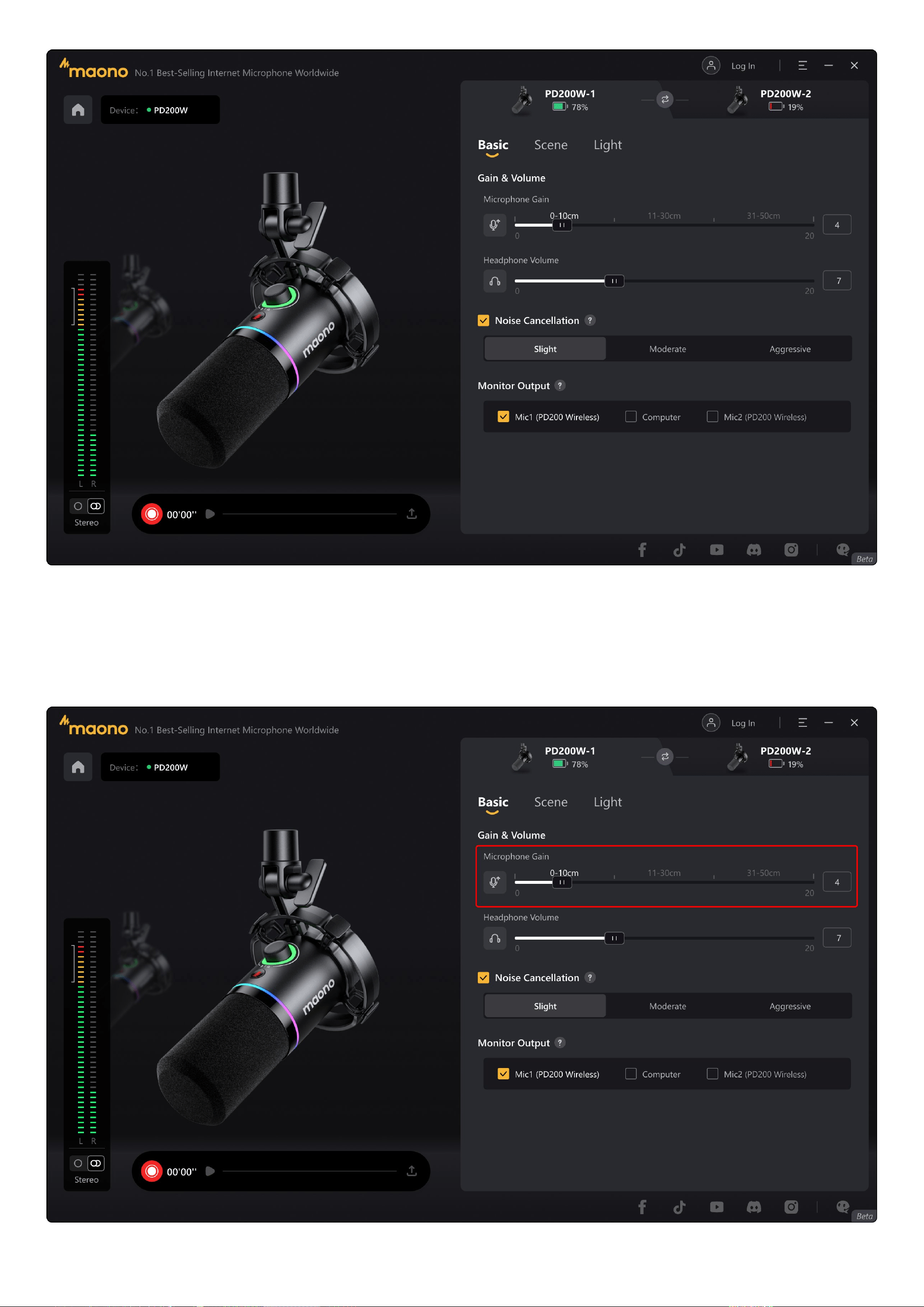
Microphone Gain
Gain Control allows users to adjust microphone sensitivity across 20 levels (0-20). We provide recommended gain ranges for optimal
performance. Typically, the farther you are from the mic, the higher the gain setting needed to maintain volume. When positioned closer to the
source, lower gain settings can achieve optimal volume levels with enhanced clarity.
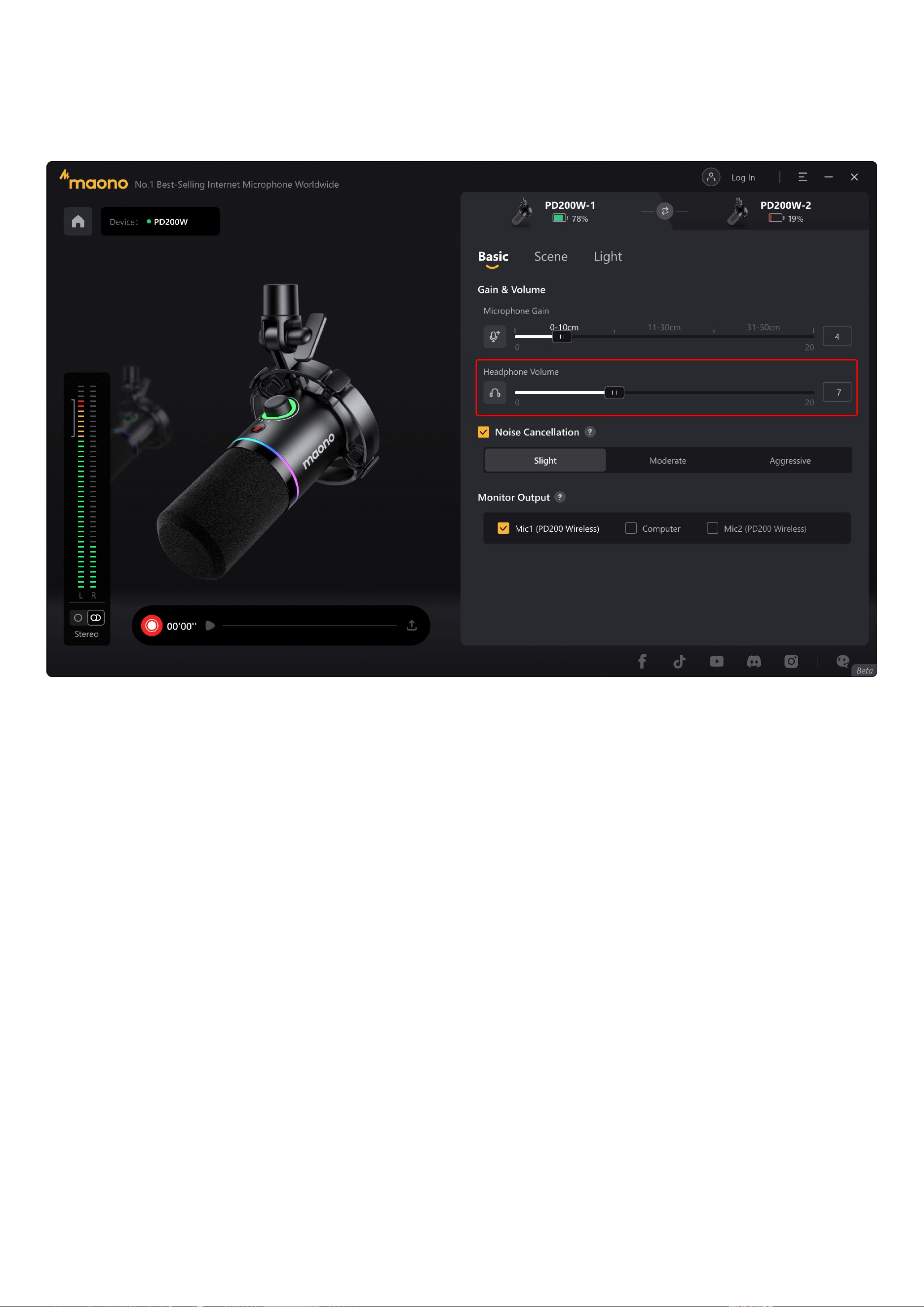
Headphone Volume
The headphone output volume can be adjusted using the knob of the microphone body or via the "Headphone Volume" option in the "Basics"
section of Maono Link software.
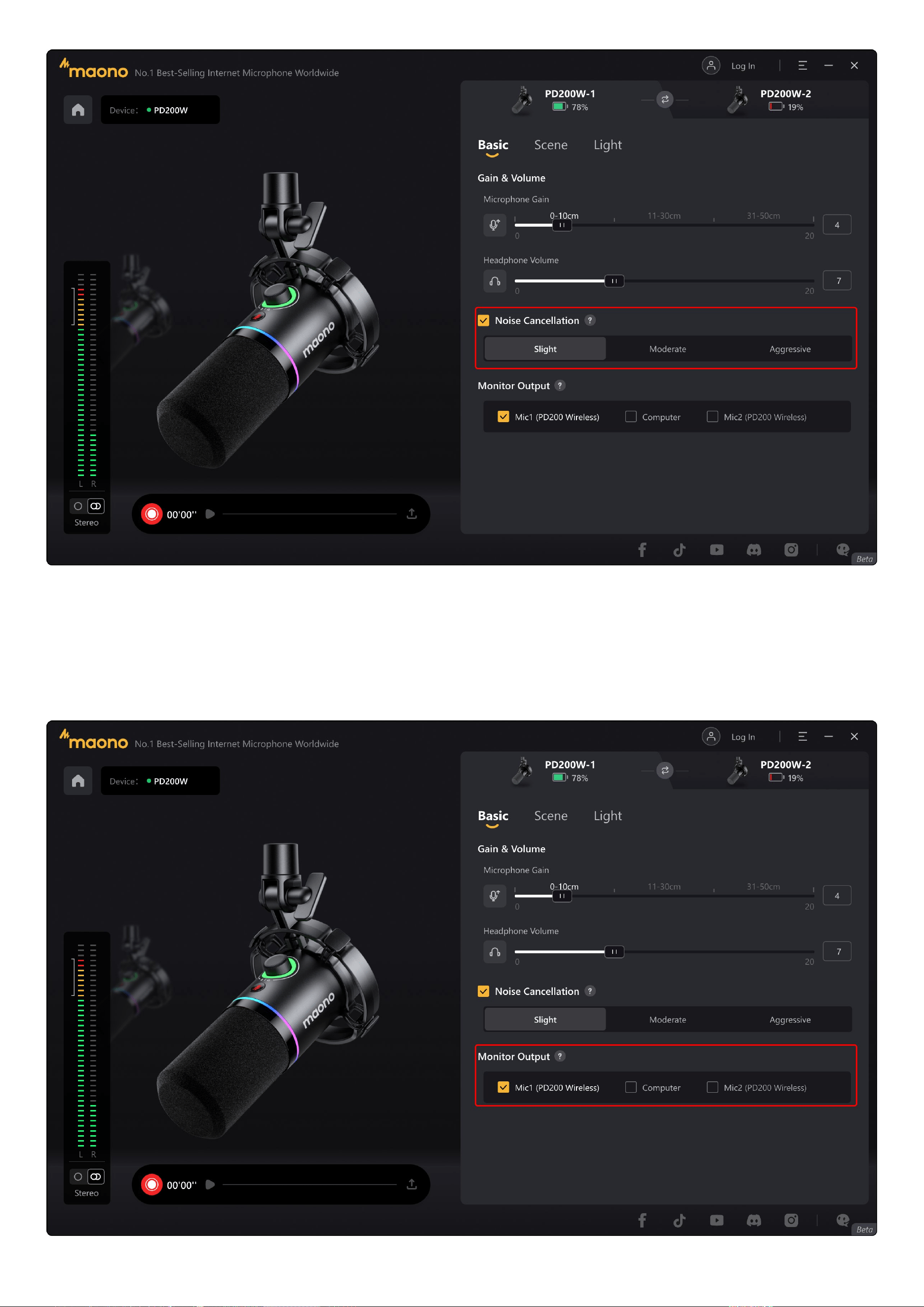
Noise Cancellation
The noise cancellation function offers three modes: Slight, Moderate, and Aggressive. Adjust the setting based on your
ambient noise level for optimal audio immersion.
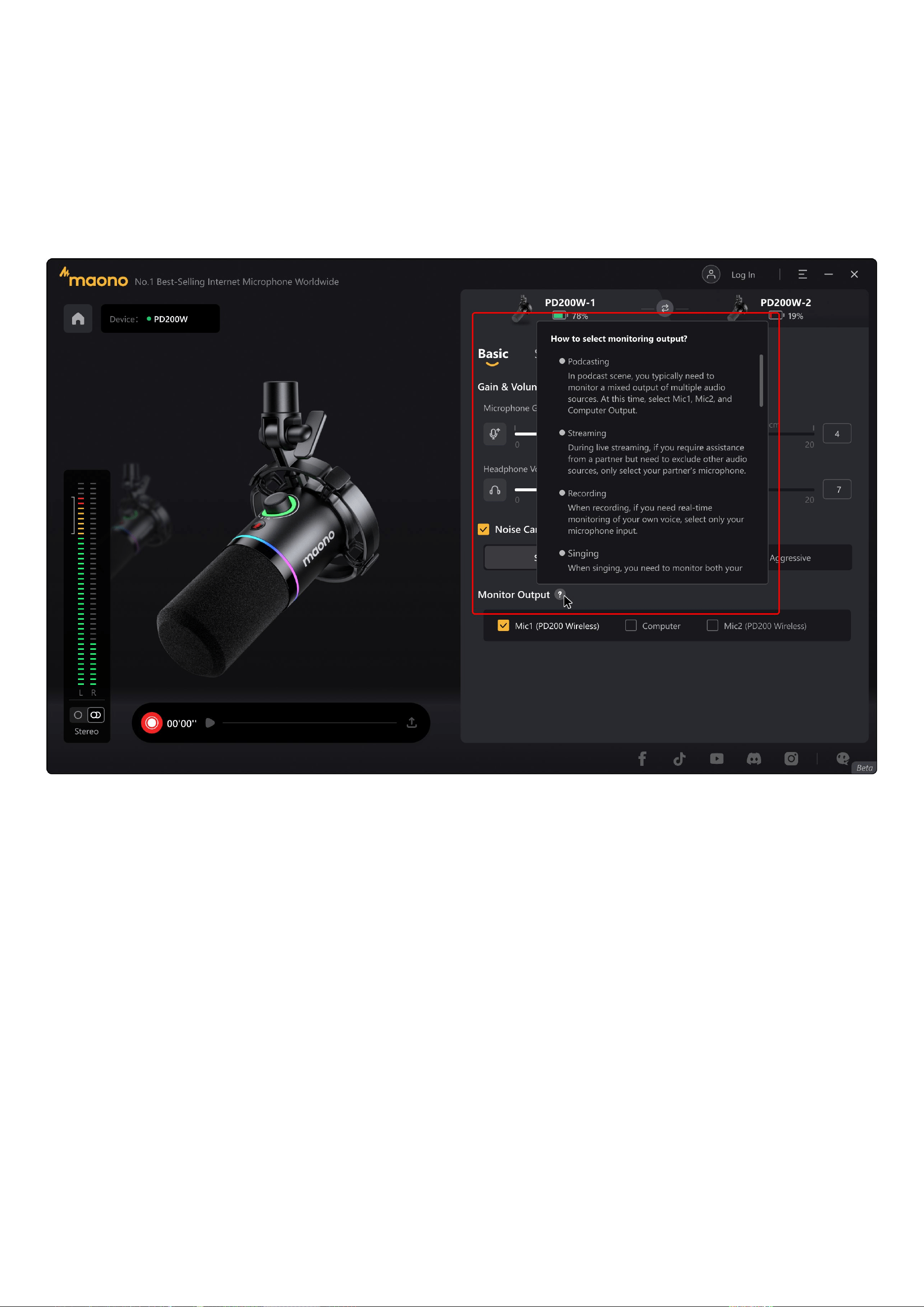
Monitor Output
By default, the headphone monitor outputs a blend of computer audio and microphone input. In different creative scenes, adjust your
monitoring settings accordingly. Check/Uncheck devices to control which audio sources are routed to your headphones. For guidance, click the
"?" icon beside "Monitor Output" for tips.
How to Set Up Monitor Output
Adjust your monitoring mix per scene by checking/unchecking sources:
Using a Wireless Desktop Microphone Kit:
Mic1: Audio from the currently active microphone.
Computer: Output from the computer connected to your receiver (e.g., media playback/notifications).
Mic2: Audio from a secondary paired microphone
Using a Wireless Lavalier Microphone Kit:
Self Monitoring: Hear your own microphone input.
Computer: Listen to computer output (e.g., livestreams, music). (Disabled during speaker playback,long-press RX button to switch to internal
monitoring.)
Remote Monitoring: Listen to the other party's microphone.
The selected audio sources above determine what you can hear during microphone monitoring.
*Notice:
Checked = Audible in headphone monitoring. Unchecked = Audio isolation.
2. Scene
We offer preset scenes for Original, Podcast, Game, and Sing. Each scene includes optimized audio presets
tailored to specific use cases. Select the scene that matches your activity to automatically configure the ideal audio profile.
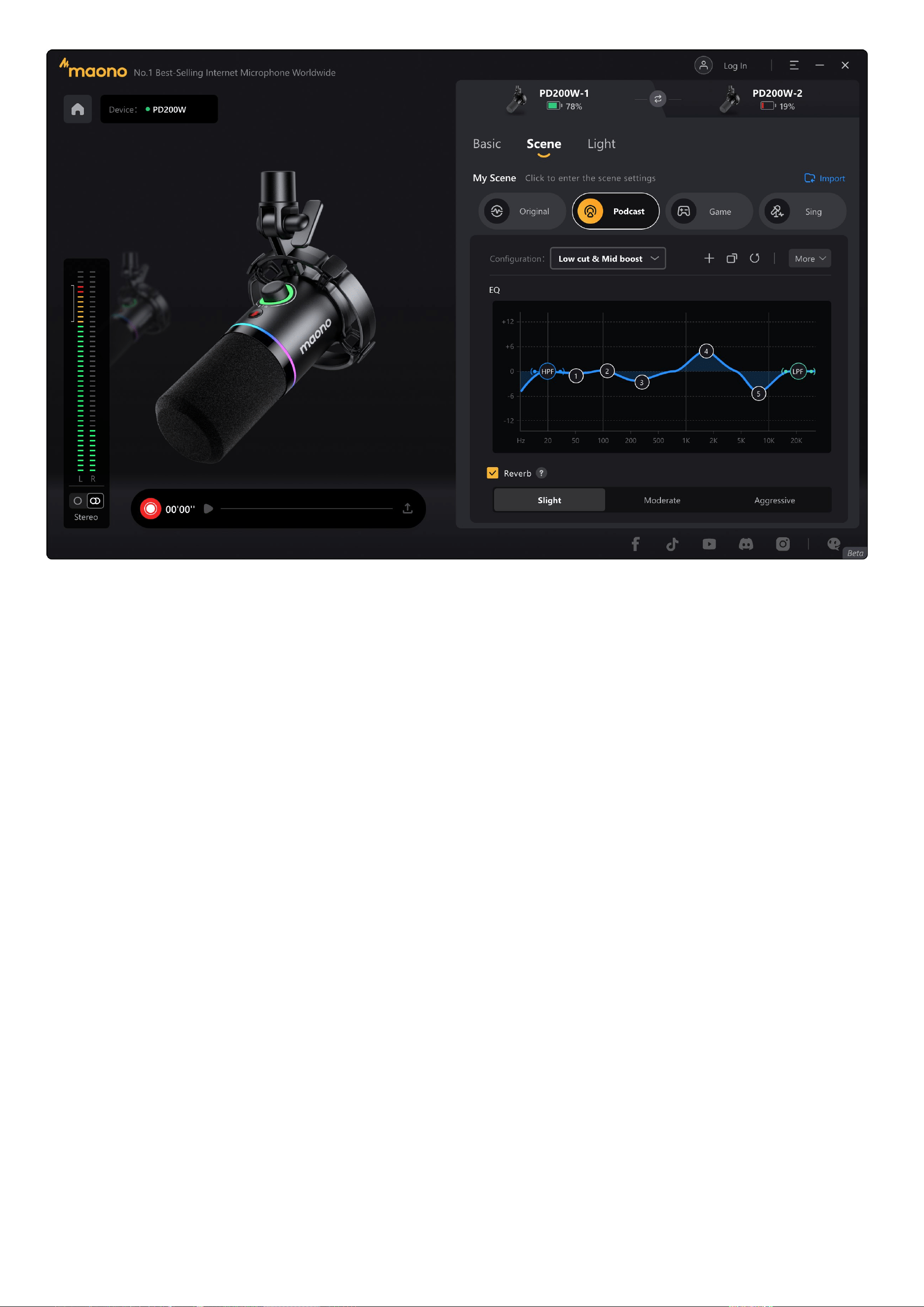
Sound Configurations
For each scene, we provide a graphical PEQ interface along with preset sound effect configurations. Please note that these preset configurations
cannot be modified.
If the effects do not meet your expectations, click the "Copy" button to create a complete copy of the current configuration. This new copy can
then be tuned on-site. Under each scene, you can create multiple custom sound configurations. These custom configurations can be exported
and shared with others. Similarly, you may import sound profiles (via files) compatible with the PD200W microphone.
In the future, we will offer downloadable profiles on our official website for more scenario-based sound effects. Simply download and import
these files for immediate use.
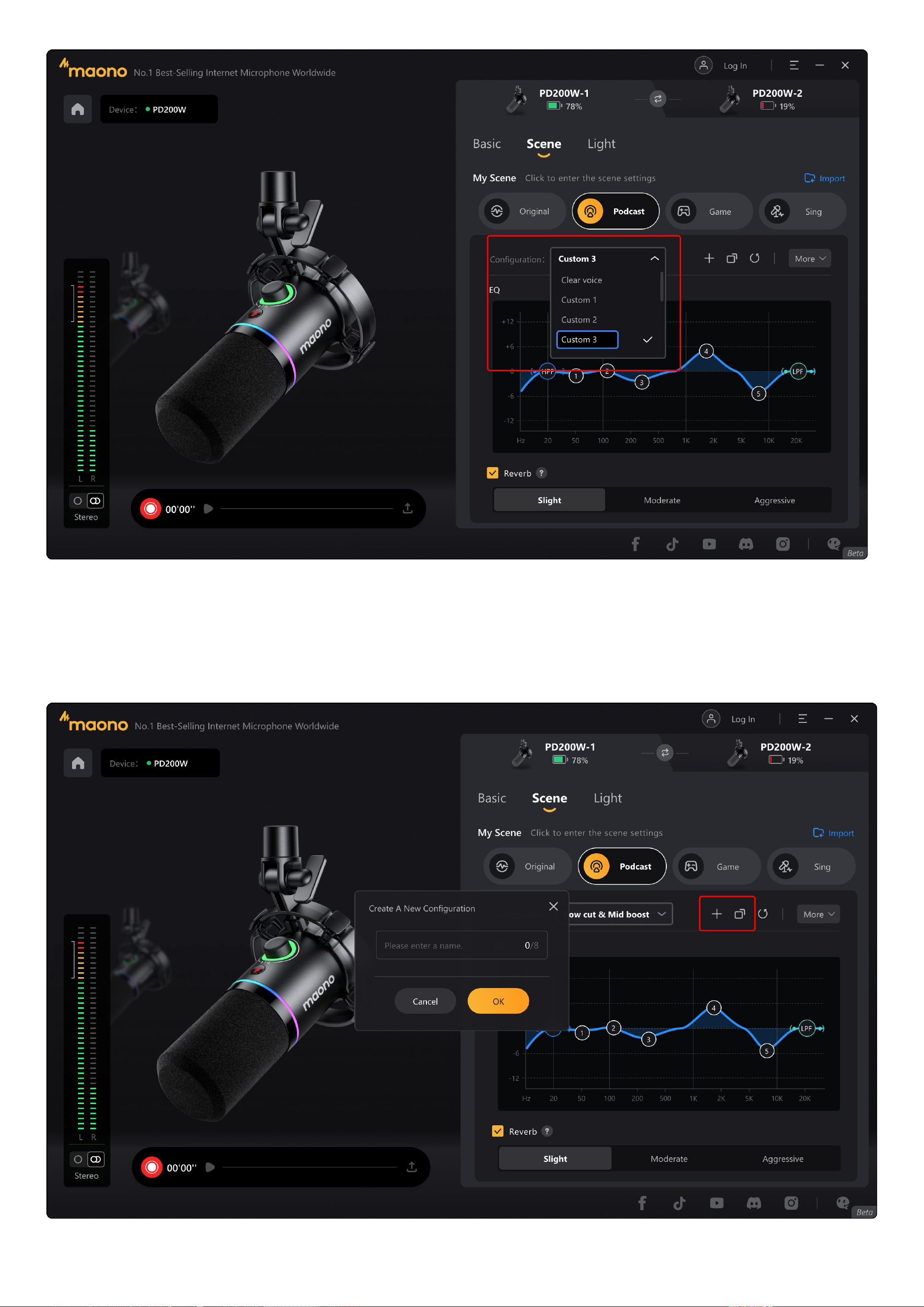
Copy & Create New
Within a scene, select "Copy" or "+" from the menu bar to create a custom sound configuration. When using "+", you will be prompted to name
the configuration.
When using "Copy", an exact copy of the current configuration will be created instantly. You can rename any configuration via the dropdown list.
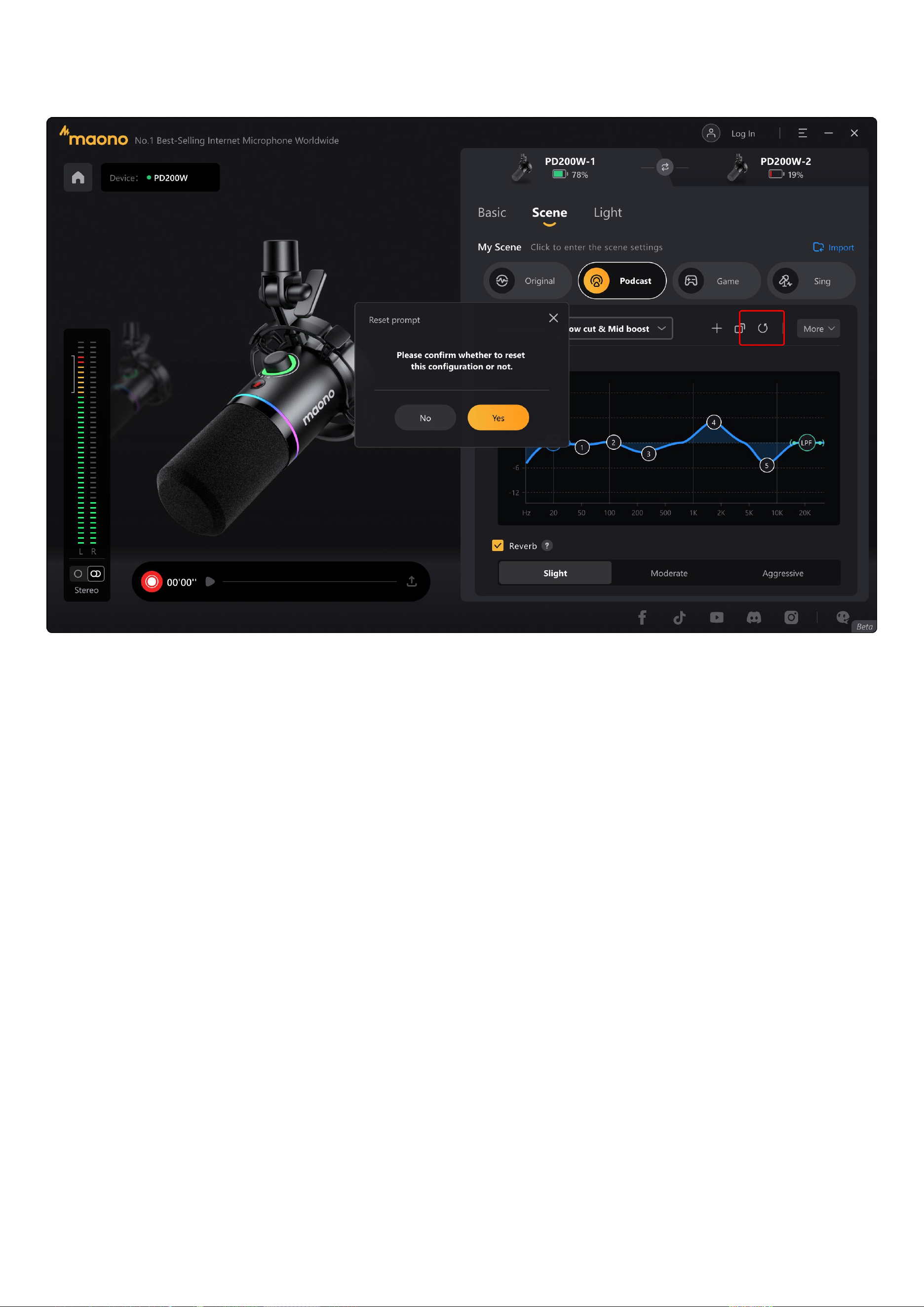
Reset
The sound menu bar includes a Reset button. Use this to restore any custom sound configuration to its original parameter settings.
Export & Delete
Under the More menu, you will find options to:
Export: Saves the current sound configuration data to your desired location.
Delete: Removes user-created configurations permanently.
Sharing
Share your tuned sound files with friends who own the same microphone model. Recipients can import these files via the import function to add
them directly to their own scene lists.
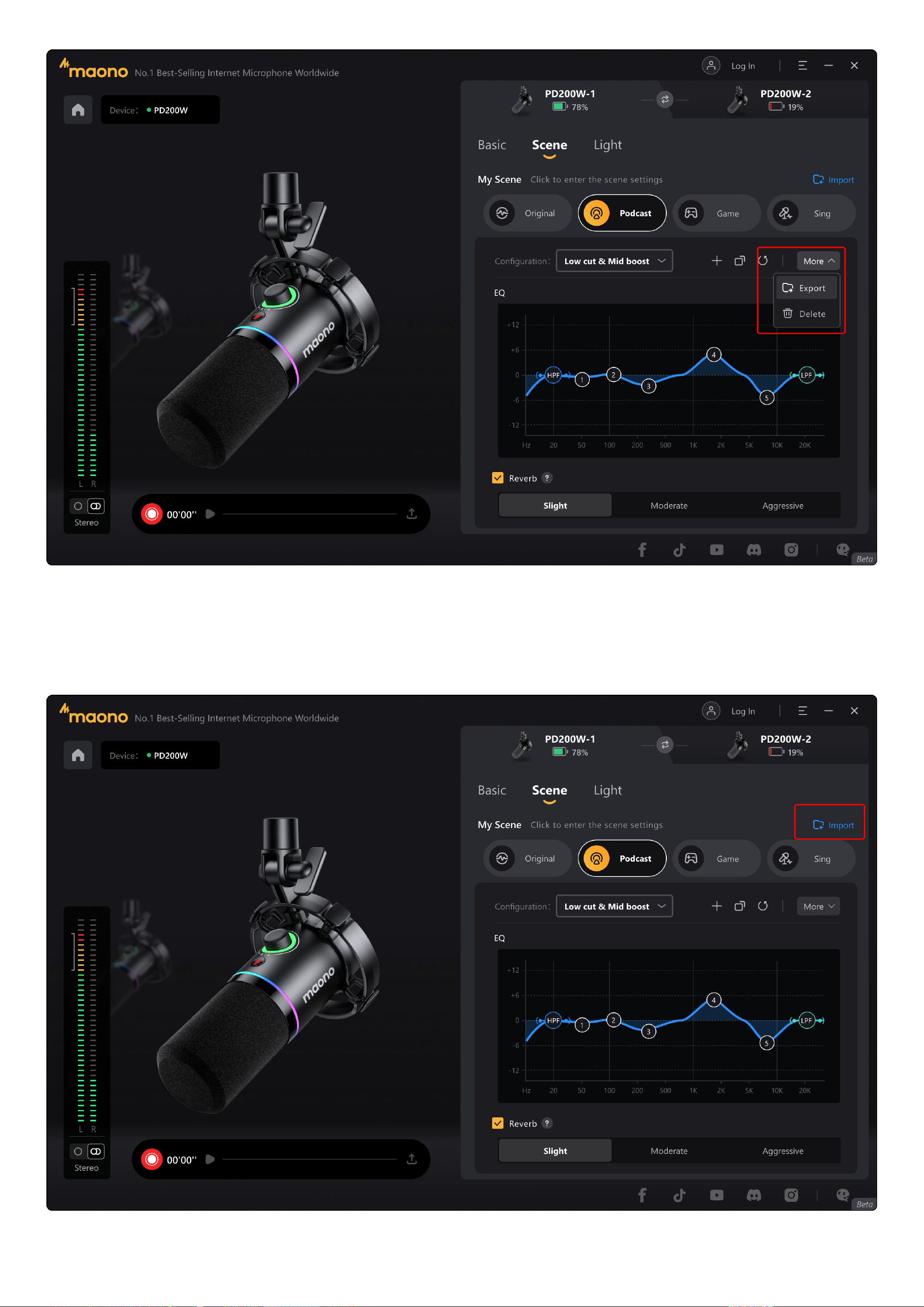
Import
To import configurations, locate the "Import" button on the right side of the "My Scene" title bar. Here, you can select and import sound files
shared by others. Imported configurations will be added to the corresponding scene's sound profile list. Apply any imported profile to
experience the same tuning effects as the creator.
EQ Adjustment
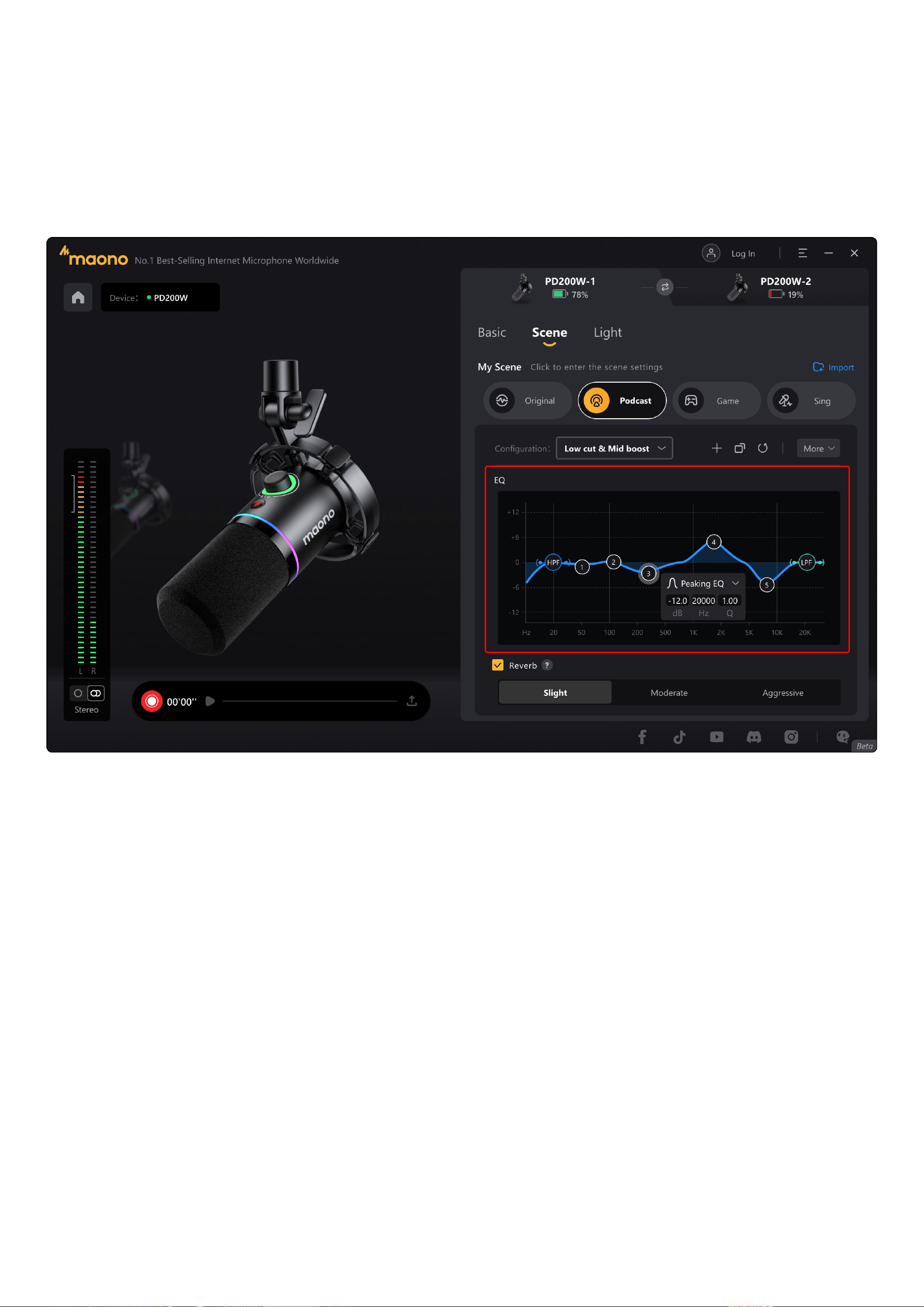
Each sound configuration includes a graphical EQ interface. Presets feature: HPF (High-Pass Filter), LPF (Low-Pass Filter) and 5 adjustable
bands.
Drag any Band to boost or attenuate gain at specific frequencies, tailoring your microphone's sound effects. Each band uses a Peaking filter type
with pre-set Q values.
If you need to adjust it yourself, you can open the Band Properties window to modify filter parameters manually. Additional tuning parameters
will be added in subsequent releases.
Reverb
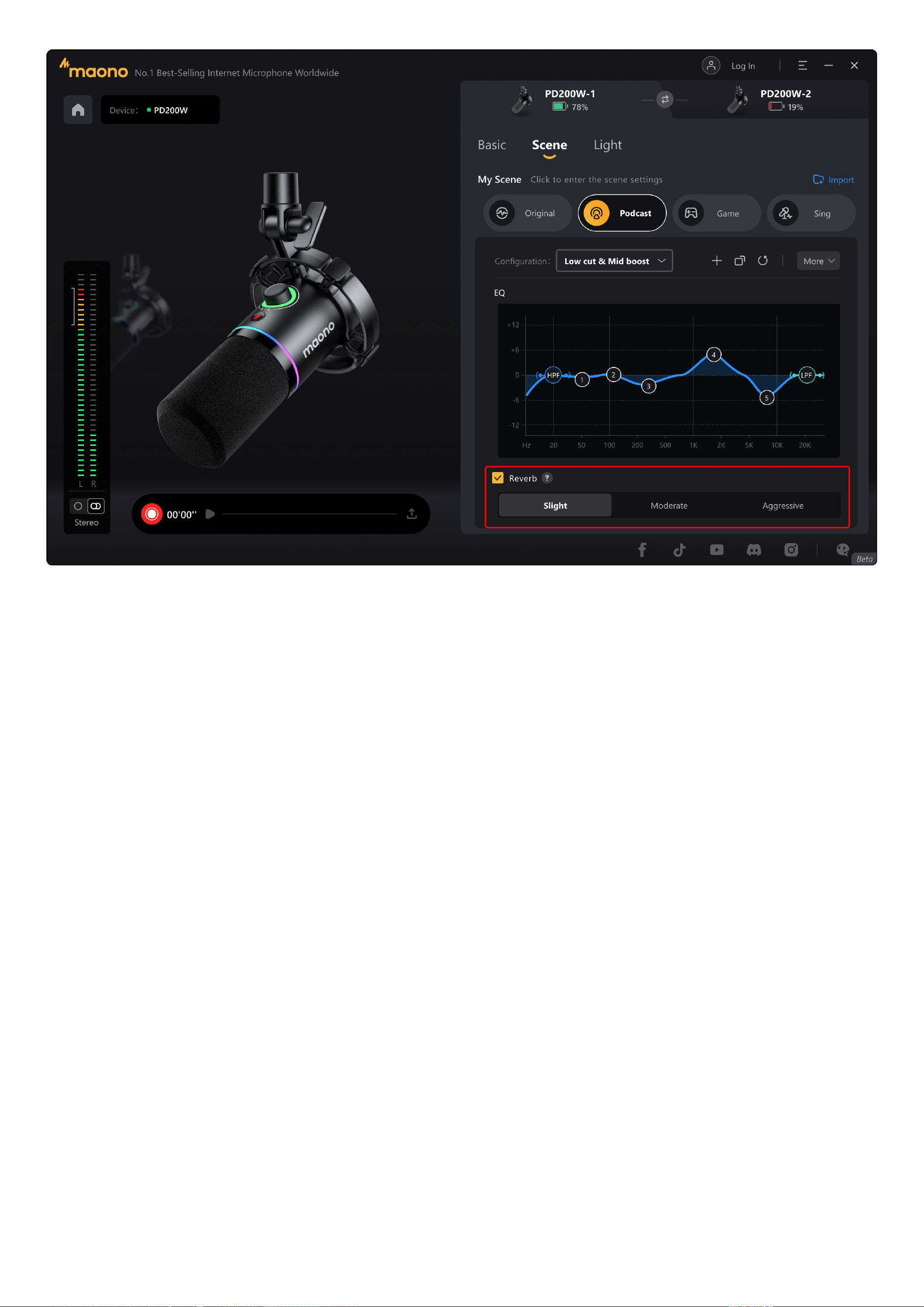
Three preset reverb levels are available for adjustment based on your vocal context. To disable reverb in specific configurations, deselect the
checkbox.
Note:
Reverb functionality is unavailable in the Original scene.
3. Lighting
The PD200W Wireless microphone features RGB lighting controls. On the Lighting page, you can:
● Modify display modes
● Change lighting colors
● Adjust brightness levels
Modes
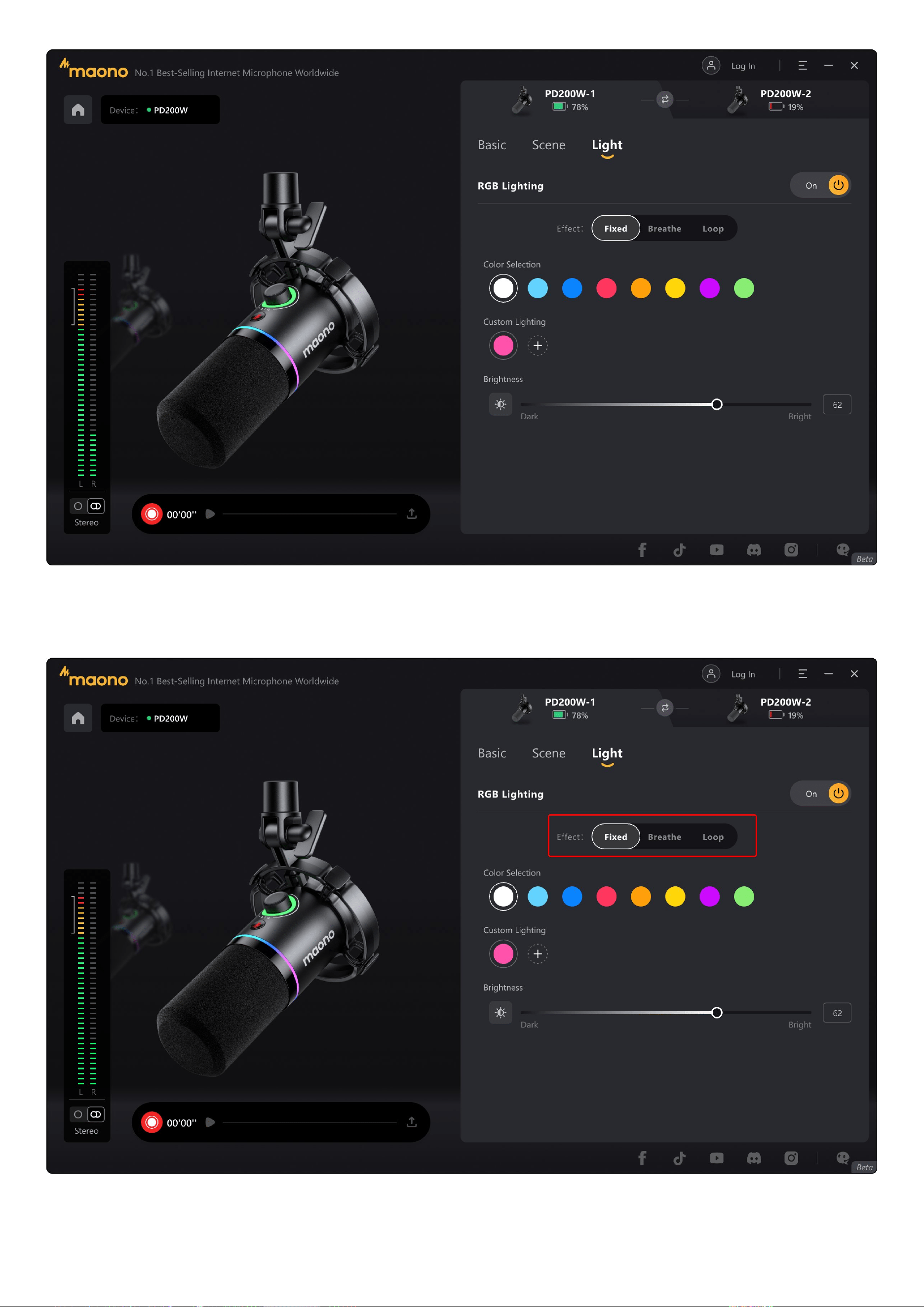
Three display modes are available: Fixed,Breathe and Loop. You can change the lighting mode in this section.
Colors
We provided eight curated preset colors . Select any color to instantly apply it, allowing seamless ambiance coordination.
Custom Lighting
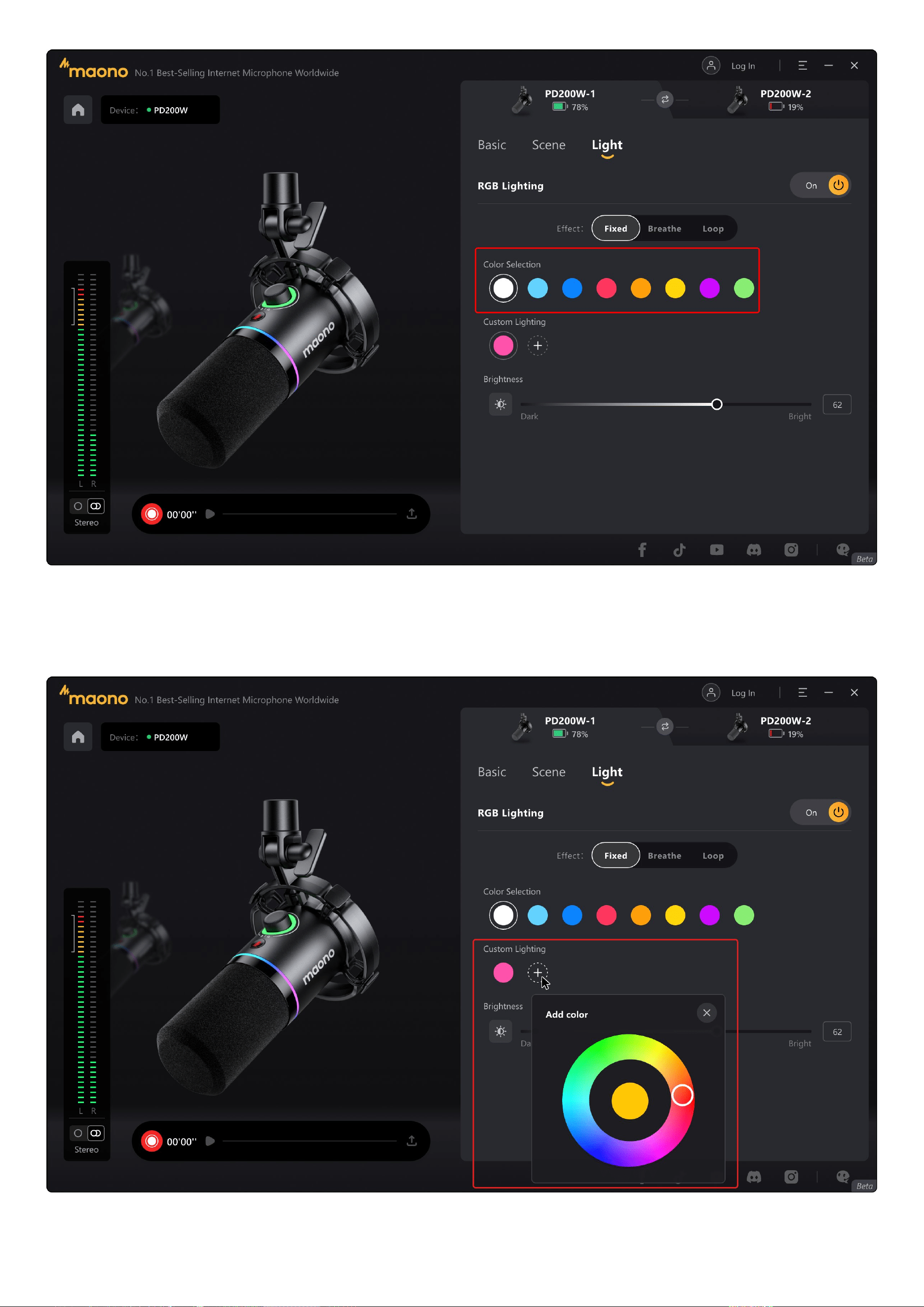
Additionally, we offer custom color creation. Select the "+" button to access the color palette, choose your desired color value, and save it as a
reusable preset.
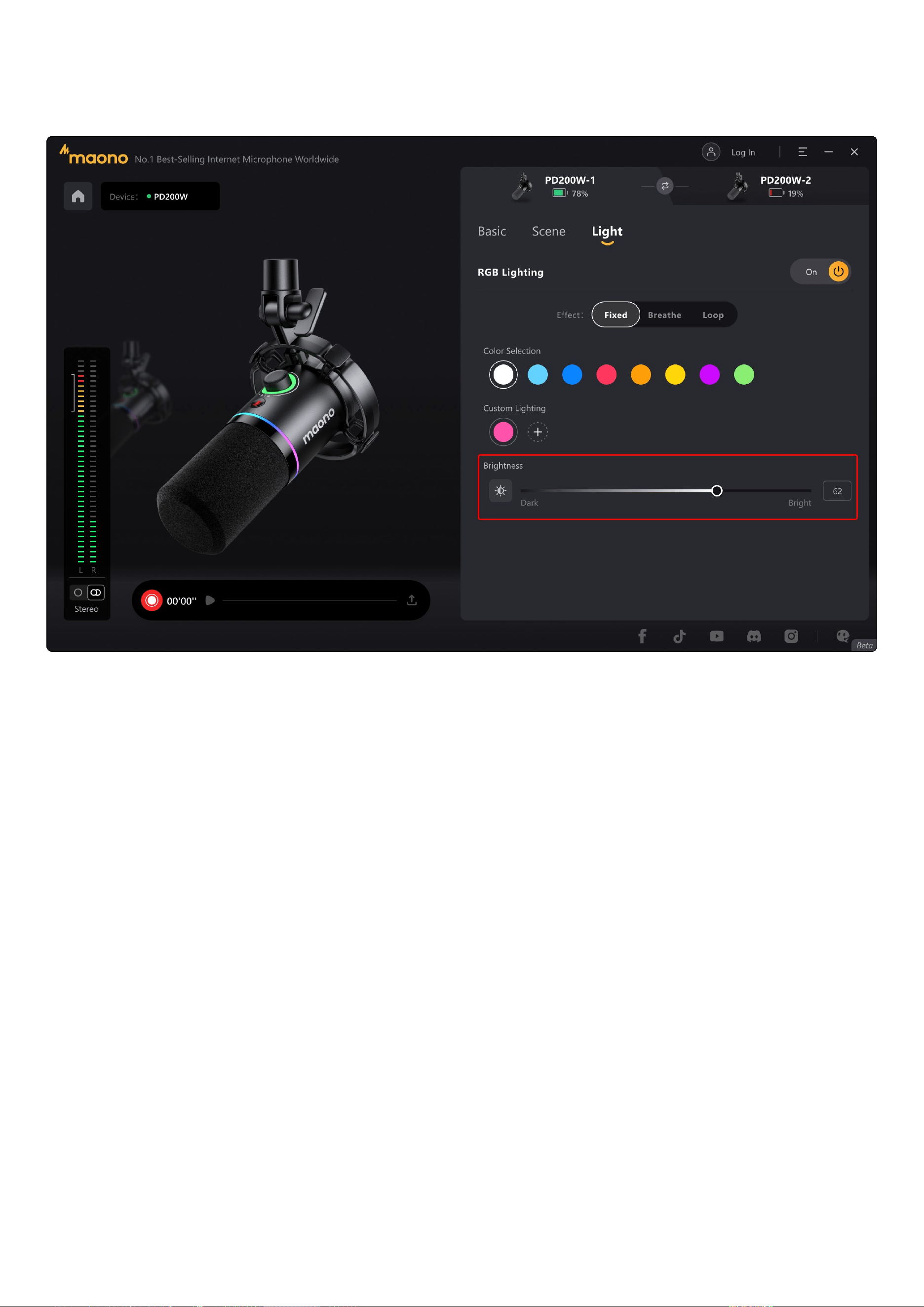
Brightness
Adjust RGB brightness directly in the Lighting interface. Note that higher brightness levels directly impact the microphone battery runtime. For
extended usage, moderately reduce brightness.
4. General
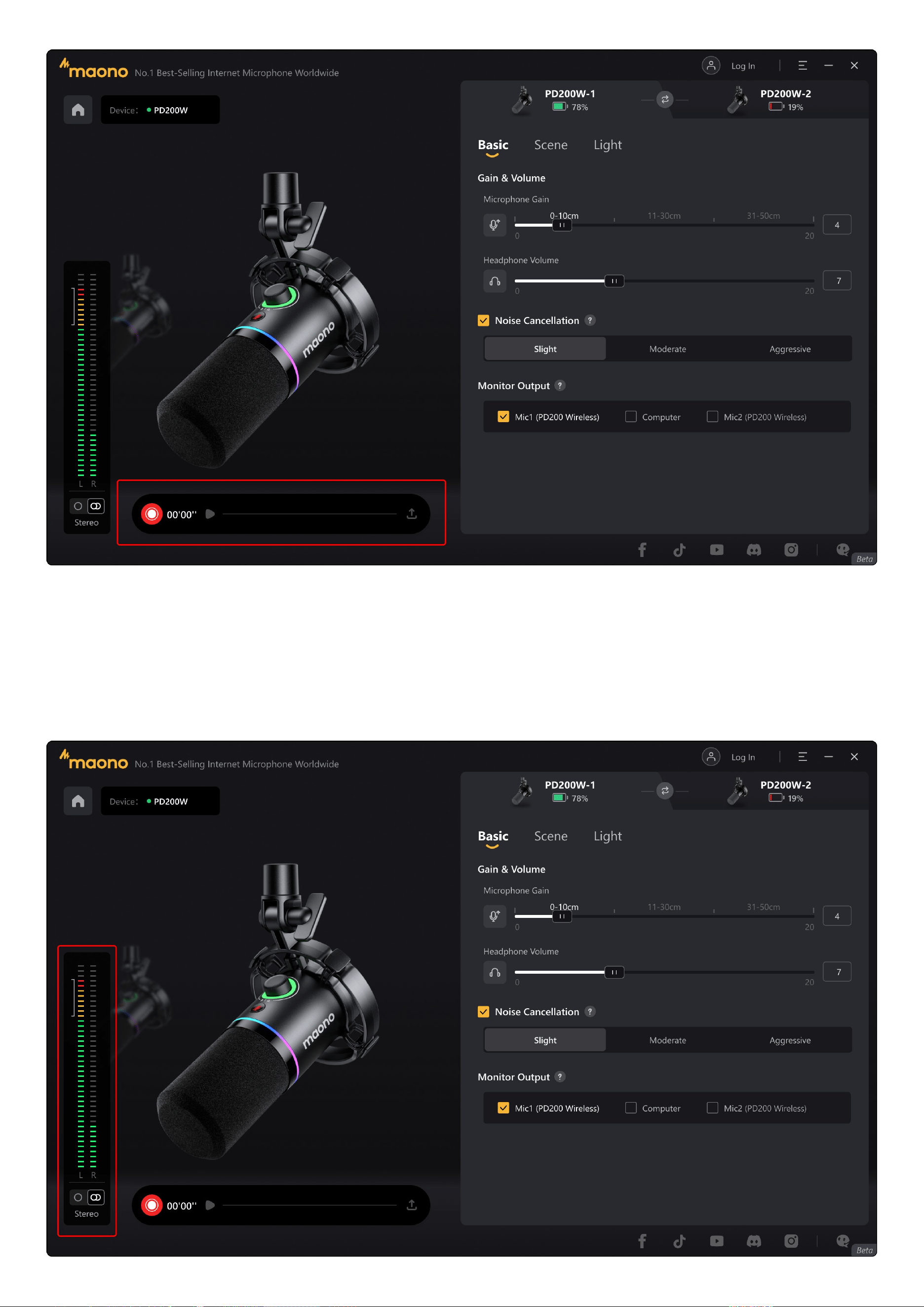
Recorder
The default recording format is 48kHz/24bit, PCM format audio. Recorded audio can be exported to your destination folder.
In the case of combined use, you can select between two modes:
Stereo Mode: Records audio in stereo, allowing for track-by-track editing during post-production.
Mono Mode: Mixes audio inputs from both microphones into a single mono output.
Mono/Stereo
The left panel of Maono Link software displays dual level meters when both microphones are active. At the bottom of the meters, locate the
Mono/Stereo toggle switch.
In Stereo mode, the level meters operate independently, visually reflecting the distinct input levels of each microphone.
In Mono mode, the audio from both microphones is mixed into a single signal, and the left and right channel levels are displayed synchronously.
Settings Synchronization
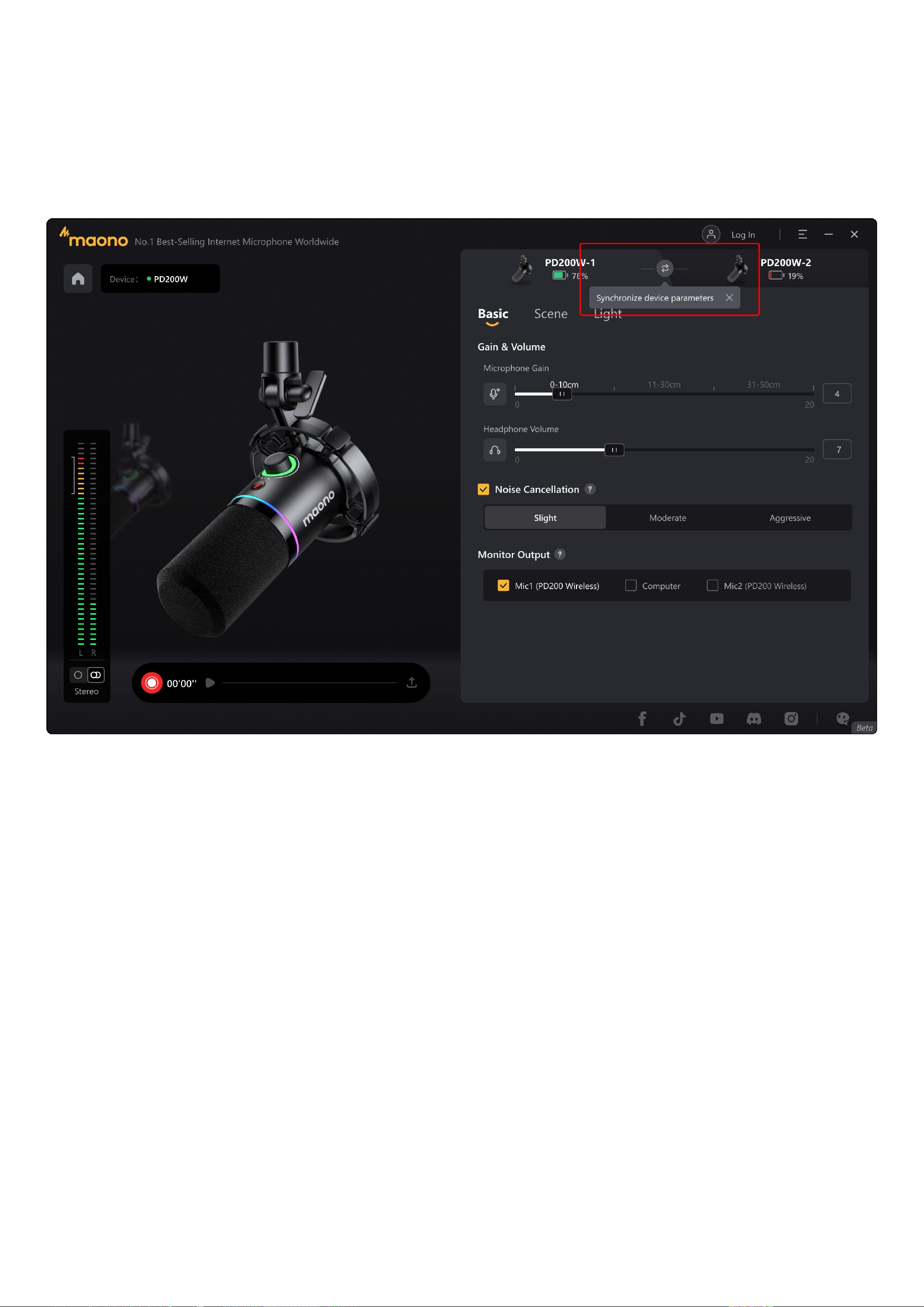
When using two PD100W microphones together, click the "Sync" icon to transfer all configured parameters to the secondary microphone. You
don't need to adjust the effect of another microphone separately in the same usage scene, which greatly simplifies your preparation work.
The synchronized parameters include: base configurations and scene settings.
If you require modifications to the synchronization scope, contact our support team. We welcome your input to enhance the PD200W Wireless
ecosystem – your insights directly shape future product refinements.
Microphone Identification
When using dual-microphone kits, distinguishing between microphones can be challenging. The software interface provides dedicated "PD200W
- 1" and "PD200W - 2" tabs. When you click on a specific tab, the corresponding wireless microphone will automatically blink to remind you.
5. Connect and Pairing
To begin, connect the receiver to your computer. The microphone and receiver are pre-paired at the factory. If the microphone is not powered
on, Maono Link software will prompt you to wait for the microphone to connect. Simply press and hold the power button until the microphone
lights up. The microphone will then automatically complete the connection with the receiver. If the pairing information is cleared for some
reason, you need to manually re-pair the microphone and the receiver.
Pairing
Step 1: Connect the receiver to a USB port on your computer or smartphone. The receiver's LED blinks slowly (awaiting connection).
Step 2: Turn off the microphone, then press and hold the power button until the indicator light below the knob flashes rapidly.
Step 3: Wait for automatic pairing. The receiver's indicator will stop flashing when connected successfully.
Note: The receiver can simultaneously connect to up to two wireless microphones. Depending on your purchased kit (PD200W or
T1 Plus wireless microphone), follow the pairing instructions to activate pairing mode. The receiver will then automatically detect and
connect to microphones in pairing mode (factory-matched with the receiver).
6. Firmware Updates
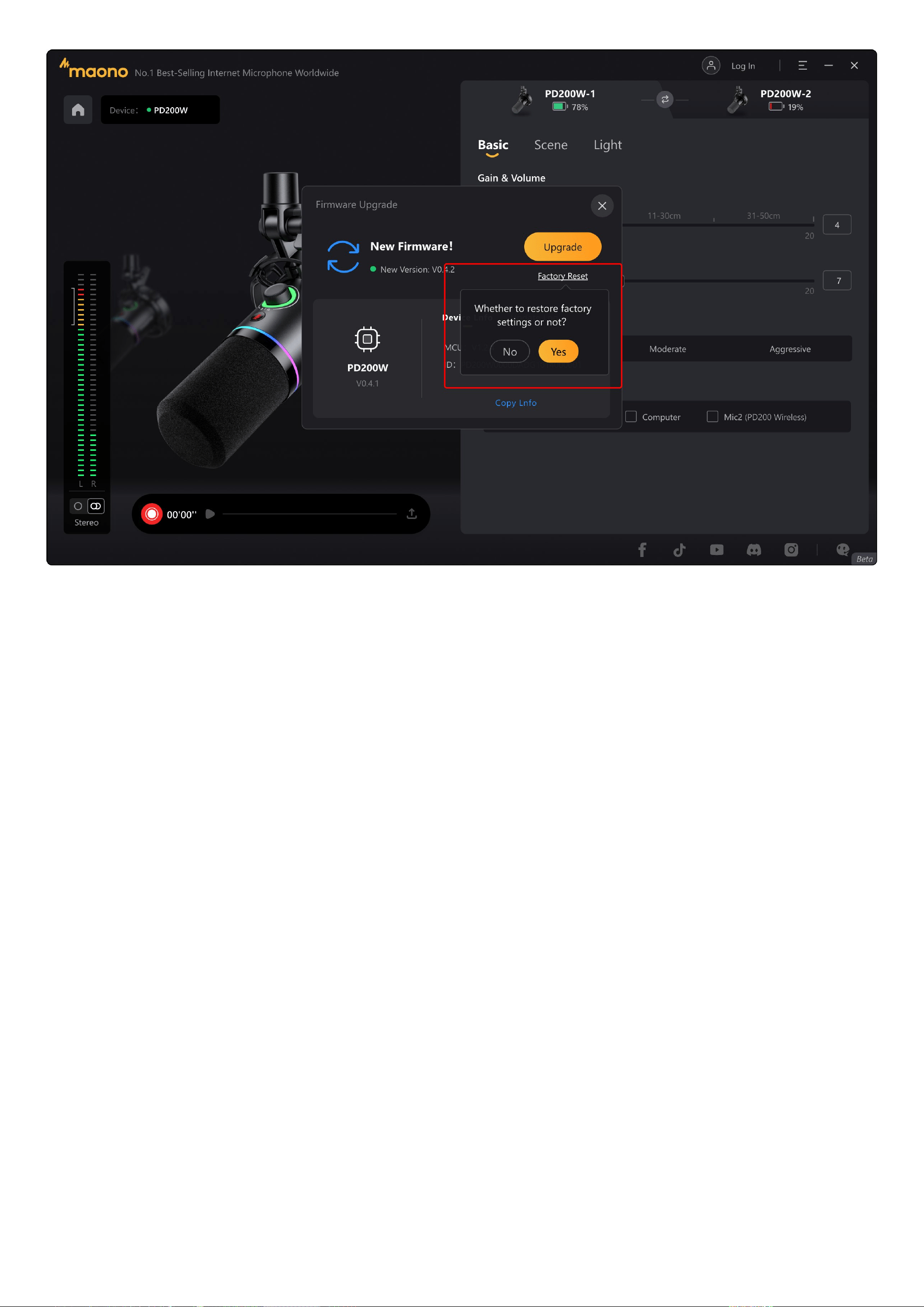
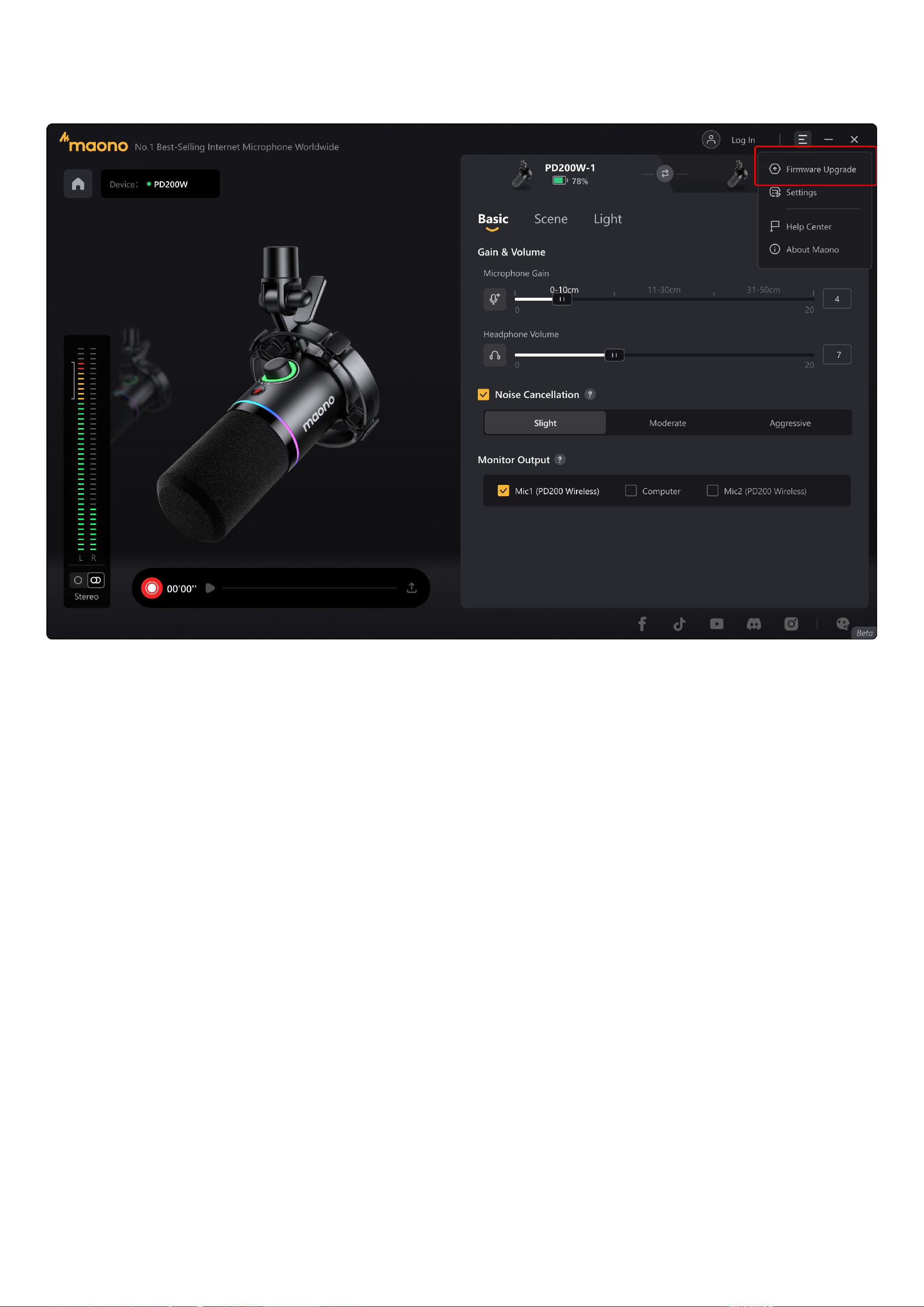
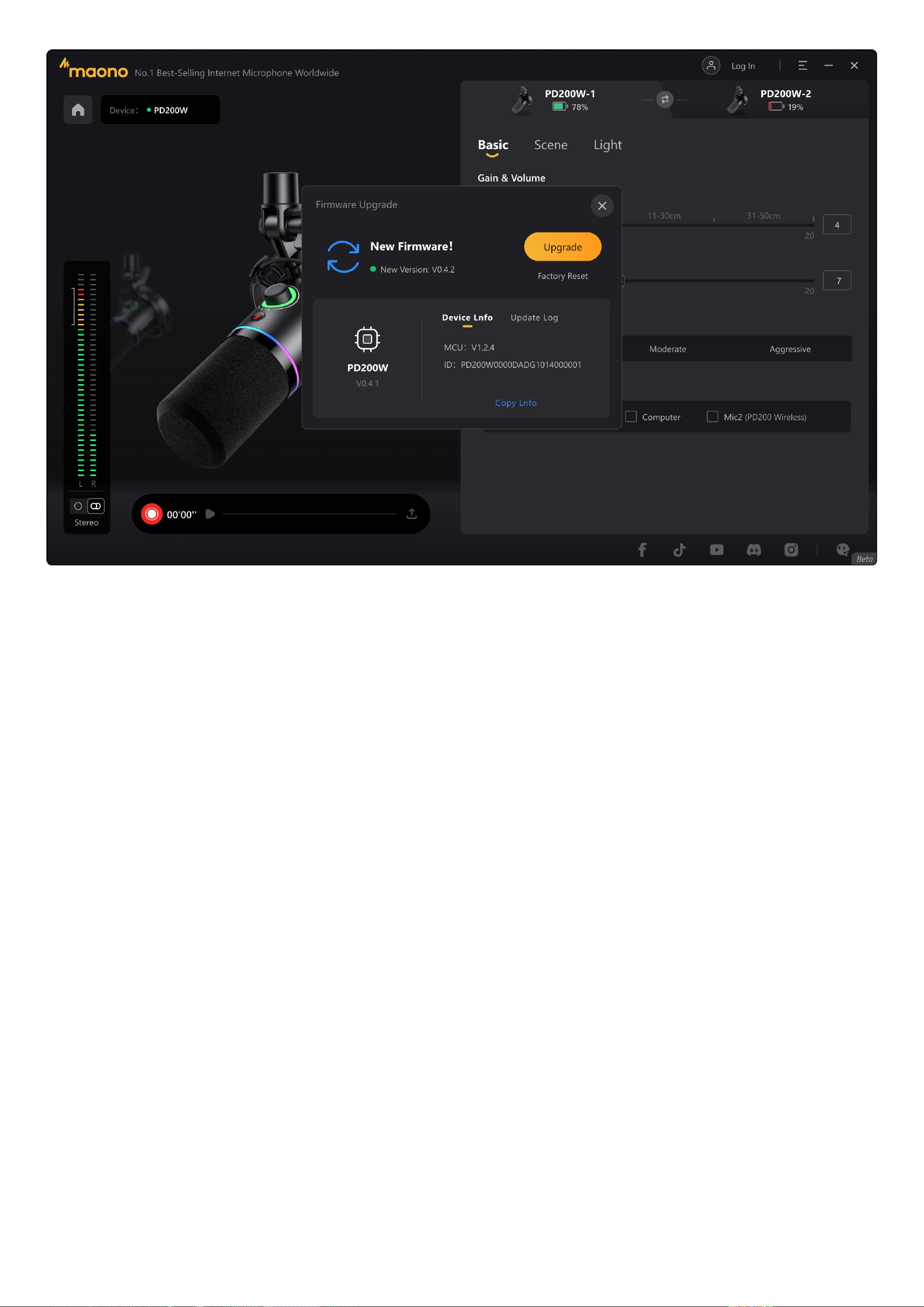
Select the options icon in the top-right corner to open the menu. Tap "Firmware Update" here to check for new firmware versions.
Firmware Update
When a new update is available, the target version will be displayed. Tap "Firmware Update" to install it. After completion,
reconnect the microphone to activate the new firmware.
Note:
Ensure sufficient battery level before firmware update. Do not disconnect the USB cable or perform shutdown operations
during the process. Any abnormal disconnection may cause update failure.
If update fails, click "Retry". For unresolved issues, contact customer support via the official hotline.
Restore Factory Settings
On the Firmware Update page, we provide the Restore Factory Settings function. This is typically used during abnormal debugging to
revert all parameters to their factory-default state.