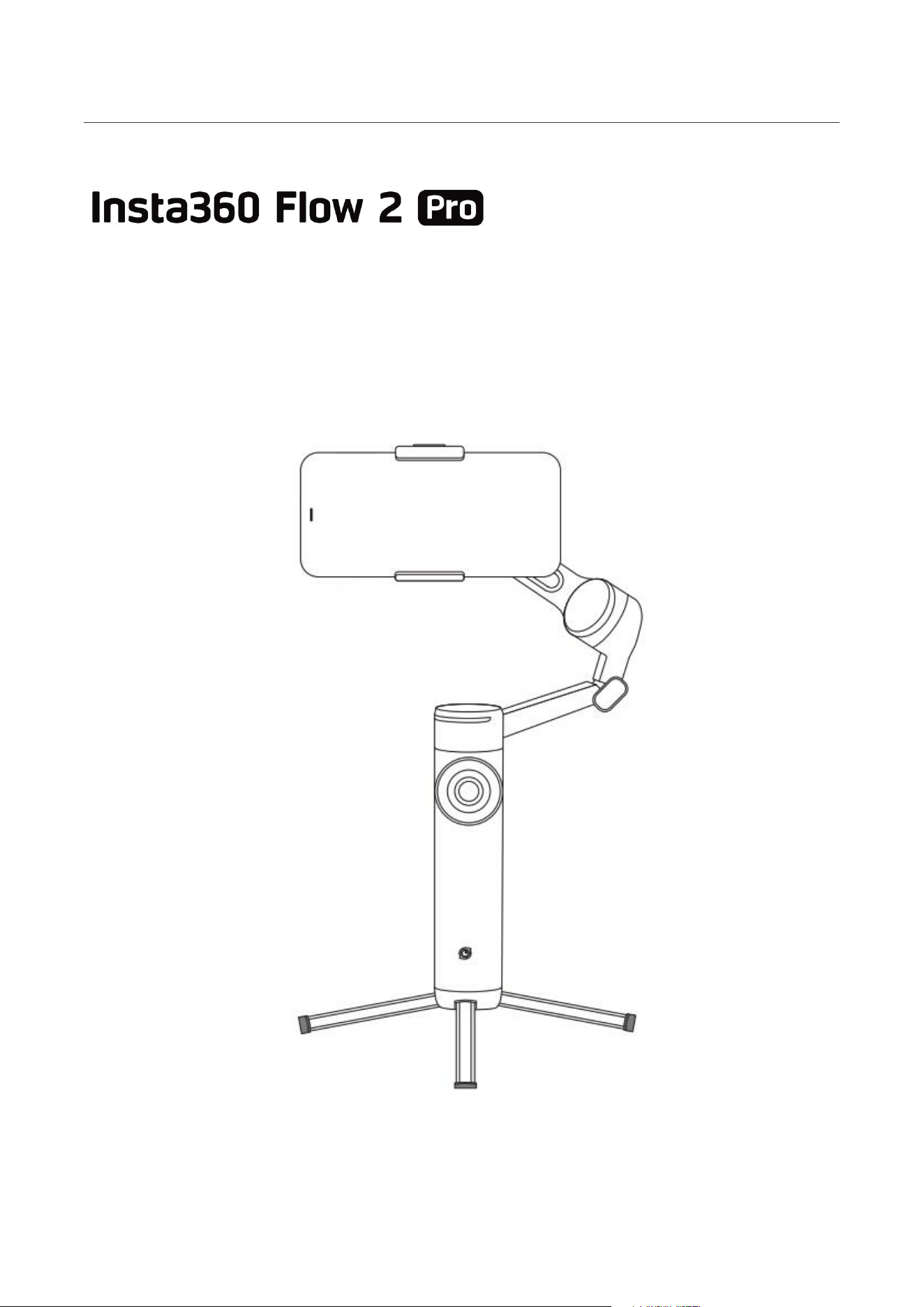
Flow 2 Pro User Manual
User Manual

Flow 2 Pro User Manual
Content
Product Introduction ....................................................................................................... 1
Flow 2 Pro Introduction ............................................................................................. 1
First Use ........................................................................................................................... 2
Charging ..................................................................................................................... 2
Unfolding and Folding ............................................................................................... 3
Finding Your Serial Number ...................................................................................... 7
Activation................................................................................................................... 8
One-Tap Pairing Via NFC and Tracking (iOS)...........................................................9
One-Tap Pairing Via NFC and Tracking (Android) ................................................. 12
Basic Use ....................................................................................................................... 14
Button Instructions .................................................................................................. 14
Interfaces ................................................................................................................. 22
Gimbal Modes ..........................................................................................................24
Gimbal Grips ............................................................................................................ 25
Manual Rotation ...................................................................................................... 28
Indicator Lights ........................................................................................................29
Insta360 App ................................................................................................................. 31
Connect to the Insta360 app ...................................................................................31
Shooting Interface ................................................................................................... 32
Apple Watch Control ......................................................................................................37
Firmware Update ........................................................................................................... 39
Flow 2 Pro User Manual
1
Product Introduction
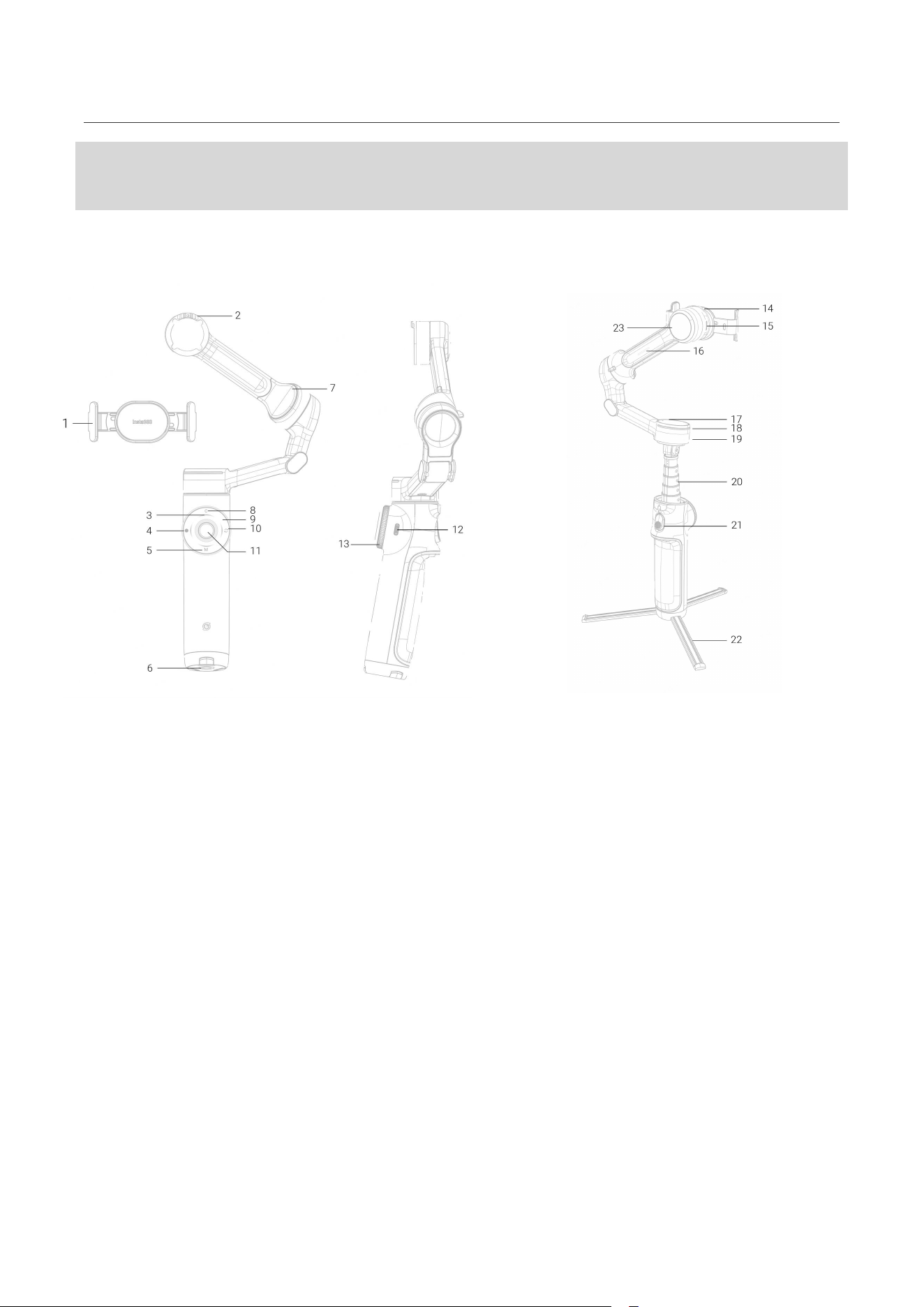
Flow 2 Pro Introduction
1. Magnetic Phone Clamp
2. Magnetic Alignment
3. Battery Level/Gimbal Mode Indicator Lights
4. Shutter Button
5. Power Button (M Button)
6. 1/4" Mounting Point
7. Tilt Axis Motor
8. C Button
9. Touch Panel
10. Switch Button
11. Joystick
12. Power Input Port (Type-C)
13. Zoom Wheel
14. Roll Axis Motor
15. Power Output Port (Type-C)
16. Tilt Axis Indicator Light
17. NFC Pairing LED
18. Tracking Ring Light
19. Pan Axis Motor
20. Built-In Selfie Stick
21. Trigger Button
22. Built-In Tripod
23. Selfie Mirror
Flow 2 Pro User Manual
2
Charging
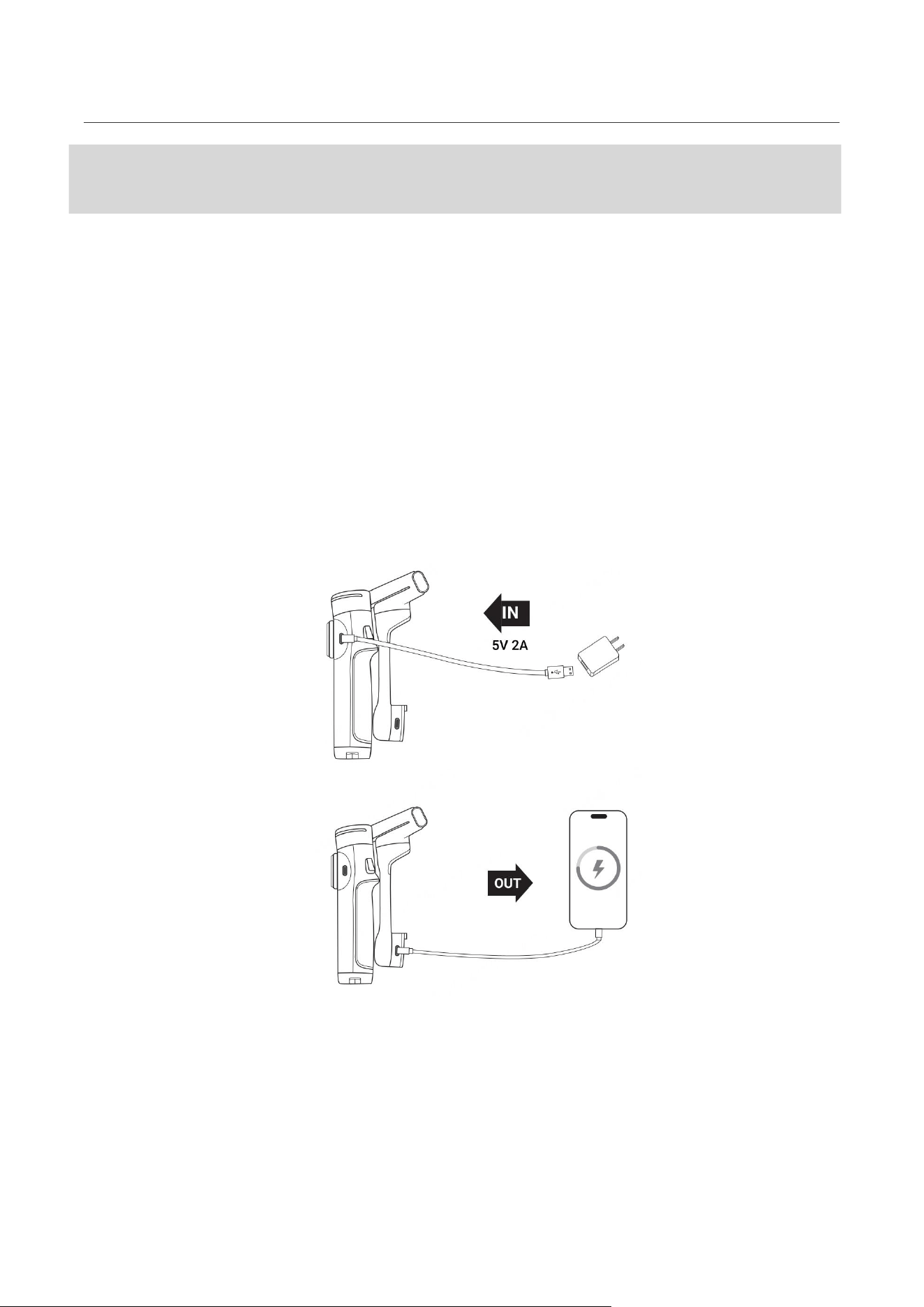
Use the included Type-C Cable to connect the "IN" Port on the handle to the charger. The battery
level indicator lights will change during charging according to the remaining power level. A solid
indicator light means charging is complete.
Flow 2 Pro features two Type-C ports. The "IN" Port on the handle is the charging port, which is used
to charge the gimbal. The "OUT" Port located on the arm is the power output port. To use the gimbal
as a power bank, connect your phone and when the gimbal is powered off, press the Power/M
Button to charge your phone. If the gimbal is already on, it will start charging automatically.
Flow 2 Pro Charging Time
:
• 0–80% in 55 minutes
• 0–100% in 80 minutes
*Measured at 77ºF (25℃) using a 10W charger.
First Use
Flow 2 Pro User Manual
3
Unfolding and Folding
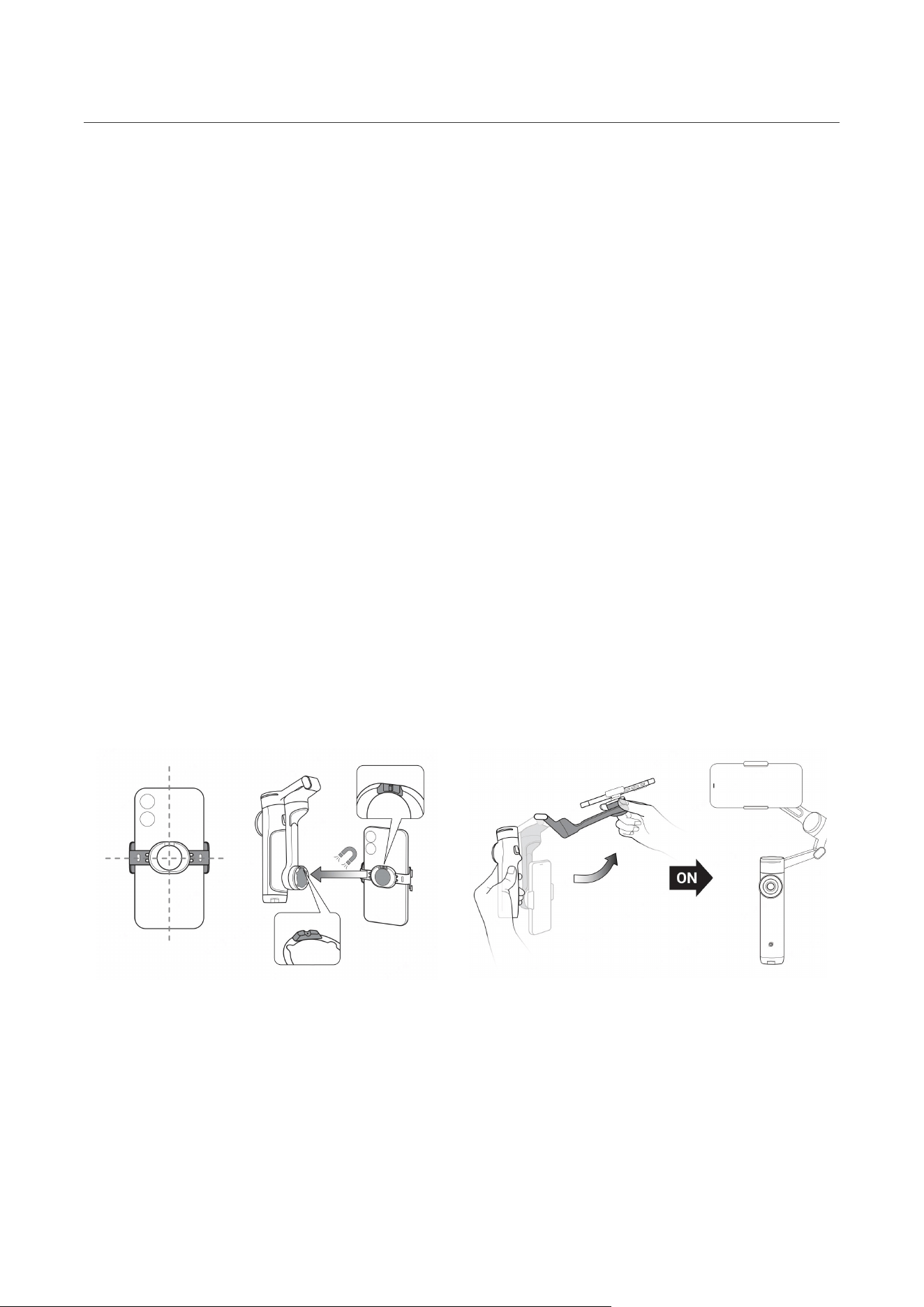
Mounting a Phone
Attach the Phone to the Magnetic Clamp
• Extend the Magnetic Phone Clamp around the middle of your phone, following the icon on the
clamp's right side.
• Ensure the phone's camera faces the direction marked on the Magnetic Phone Clamp.
Attach the Clamp to the Gimbal
• Align the magnetic notch on the back of the clamp with the raised bump on the gimbal's
magnetic surface.
• Match the magnetic groove on the clamp with the red dot (Magnetic Alignment) on the gimbal.
Securely attach the clamp.
Unfold and Power On
• Hold the handle with one hand and pull the arm outward with the other to unfold the gimbal.
• The gimbal powers on automatically. Wait for the indicator light to turn on, signaling it's ready
for use.
Note:
• Ensure the Magnetic Phone Clamp is centered on your phone for an even, secure fit. Attach the
clamp to the phone first before mounting it on the gimbal.
• The phone's camera should match the direction marked on the clamp for proper alignment.
• If the light is solid red and the gimbal isn't functioning, double-check the Magnetic Phone

Flow 2 Pro User Manual
4
Clamp's attachment.
• Use the Magnetic Phone Clamp in handheld scenarios. Avoid high-intensity motion or
environments with strong vibrations to prevent accidental detachment.
• When unfolding, adjusting, or folding the gimbal, always hold the handle or arm to prevent
detachment. Avoid handling the phone or clamp directly during these actions.
• The gimbal will detect if a phone is mounted within 30 seconds of powering on. If no phone is
detected, it automatically enters Standby Mode.
Flow 2 Pro User Manual
5
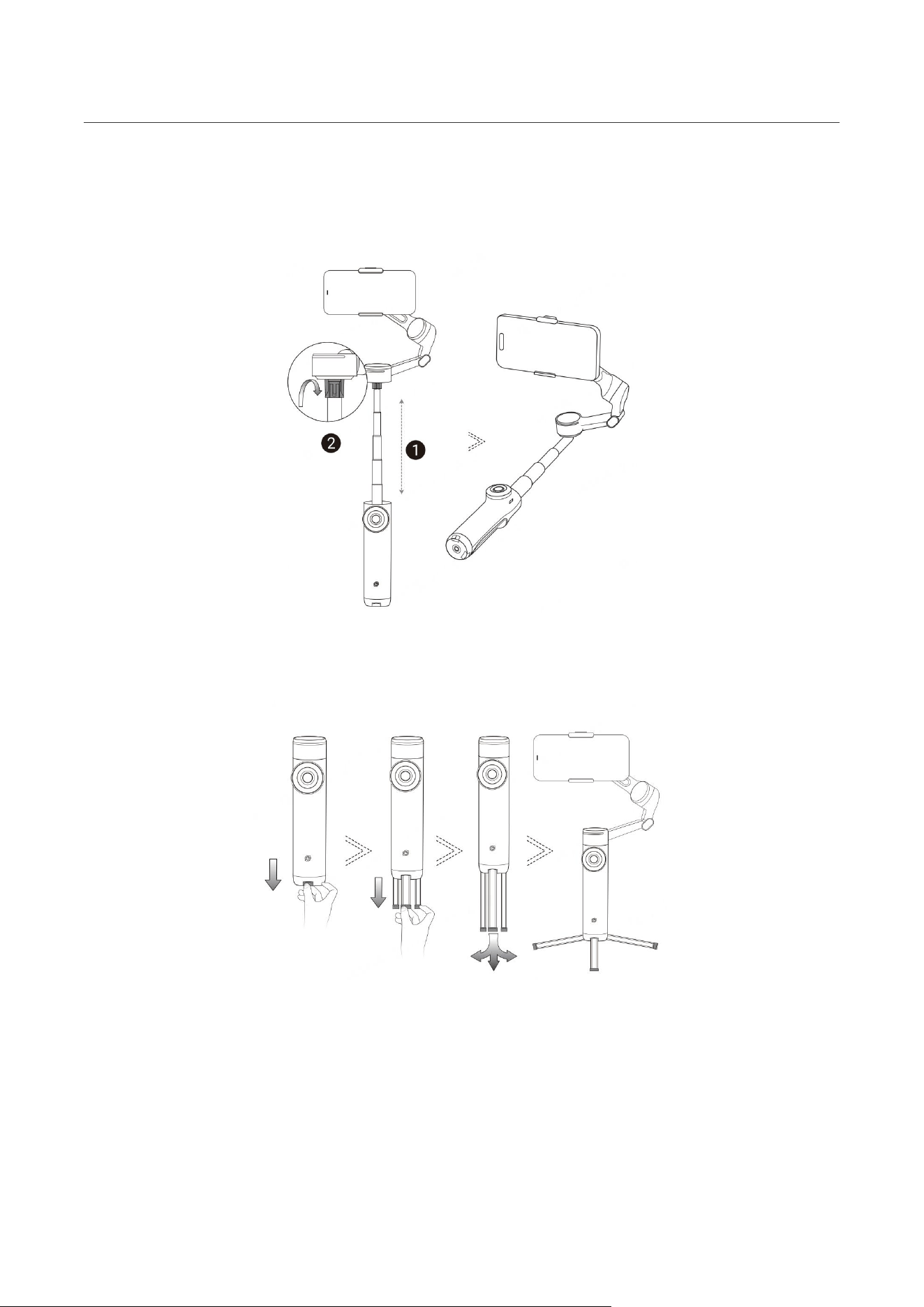
Built-In Selfie Stick and Tripod
Flow 2 Pro comes with a built-in selfie stick and tripod. The selfie stick has five sections and
extends to a maximum length of 210mm (8.3in). The angle adjustment range is 0-90°.
Once fully extended and unfolded, use the built-in tripod for hands-free shooting. Avoid windy, unstable
environments, including sand.
Notes:
• When pulling out the tripod, pull out all legs together, not individually.
• When storing the tripod, fold the legs first, then slowly push them back in with the palm of your
hand.
• If you have the selfie stick extended for a long time, it's recommended to attach an external
tripod through the 1/4" screw hole at the bottom of Flow 2 Pro's handle for more support and use in
a wider range of scenarios.
Flow 2 Pro User Manual
6
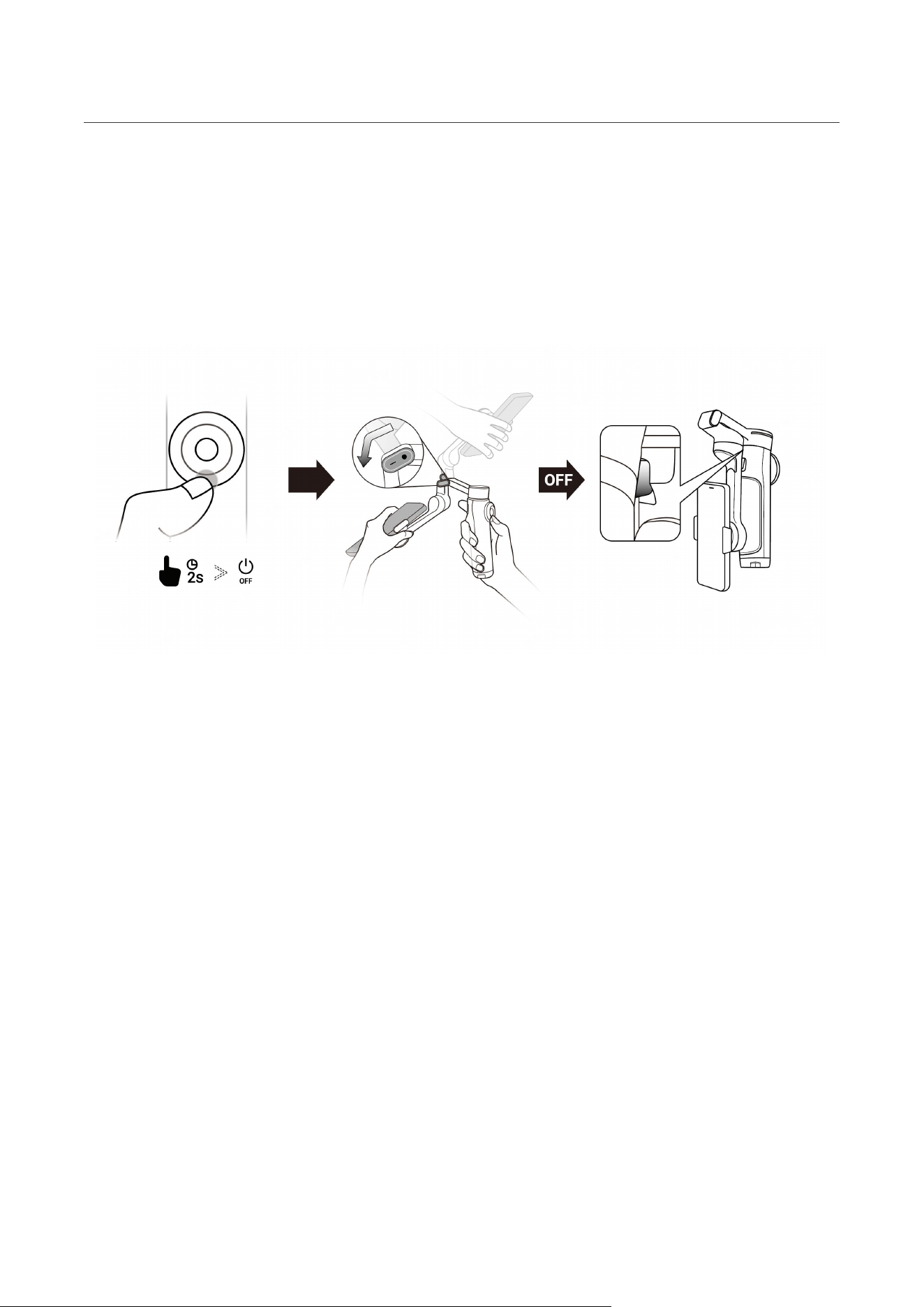
Folding and Powering Off
1. Long press the Power Button to power off Flow 2 Pro.
2. Follow the direction of the gimbal arm after powering off, hold the phone and fold the arm
downward to collapse the gimbal.
3. Detach the phone and the Magnetic Phone Clamp.
Flow 2 Pro User Manual
7
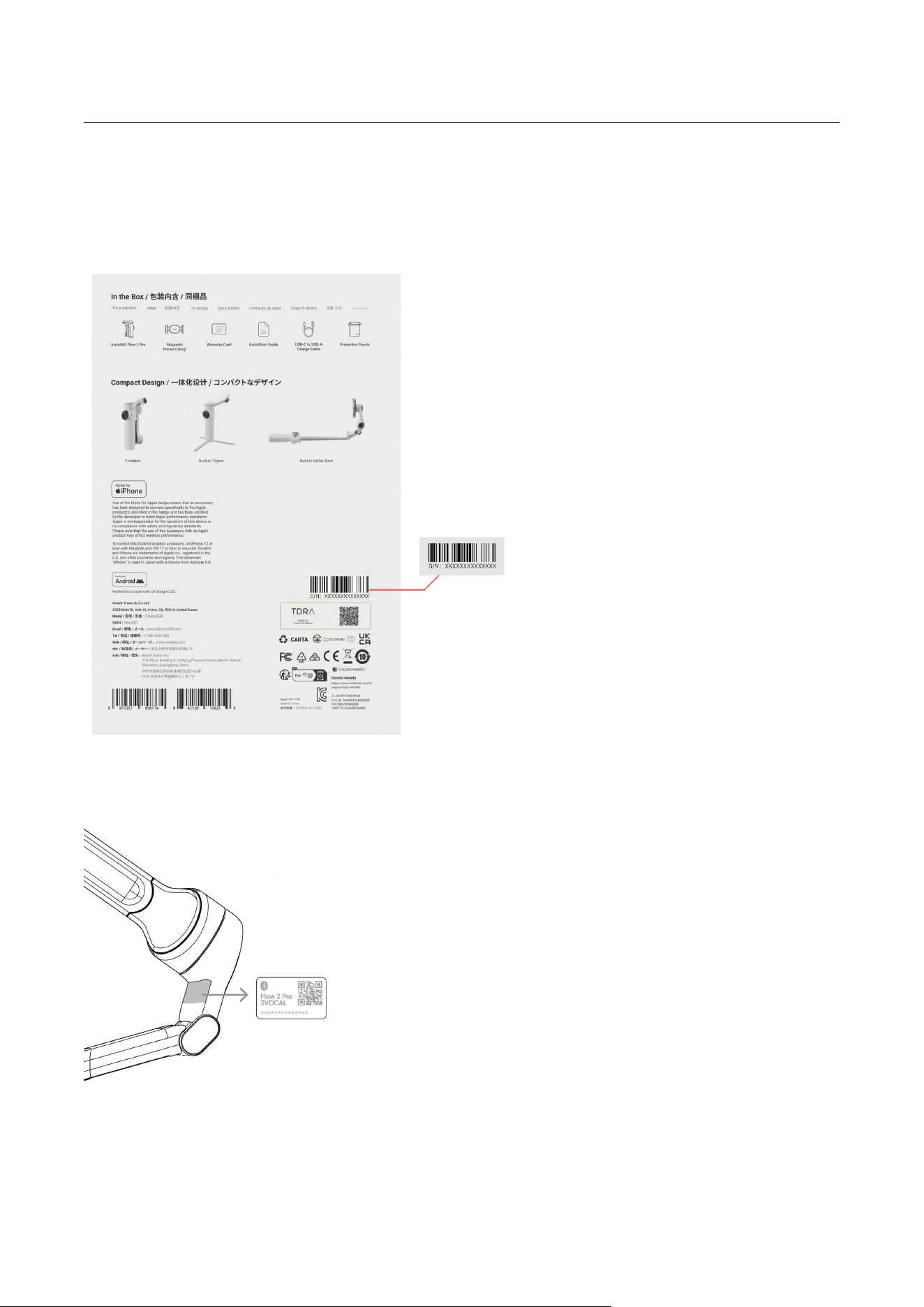
Finding Your Serial Number
1. Product Box
The serial number is located on the back of the original product box.
2. Flow 2 Pro Body
You will also find the serial number as shown on the gimbal itself, just below the Tilt Axis Motor.
3. Insta360 App
After connecting the gimbal to the Insta360 app, you can view the serial number in the general
settings on the shooting page.

Flow 2 Pro User Manual
8
Activation
You will need to activate Flow 2 Pro in the Insta360 app before using it for the first time.
Steps:
1. Download the Insta360 app. Alternatively, search "Insta360" in any major app store or scan the
QR code on the box.
2. Enable Wi-Fi and Bluetooth on your phone.
3. Open the Insta360 app. The pop-up window should automatically display "Discover New
Devices". Select your device (the name is "Flow 2 Pro ******" by default, where ****** is the last six
digits of the serial number, which can be found on the product box or the app), and then follow the
on-screen instructions to connect and activate your gimbal.
4. The app will prompt you to update the firmware if a new version is available. Please follow the
on-screen prompts to update Flow 2 Pro's firmware. Do not power off Flow 2 Pro or exit the
Insta360 app during the update.
5. After successful activation, you'll be able to shoot both in the Insta360 app (a pop-up will
appear automatically to prompt you to do this) or in your phone's native camera or third-party apps
depending on compatibilty.
Flow 2 Pro User Manual
9
One-Tap Pairing Via NFC and Tracking (iOS)
One-Tap Pairing Via NFC
:
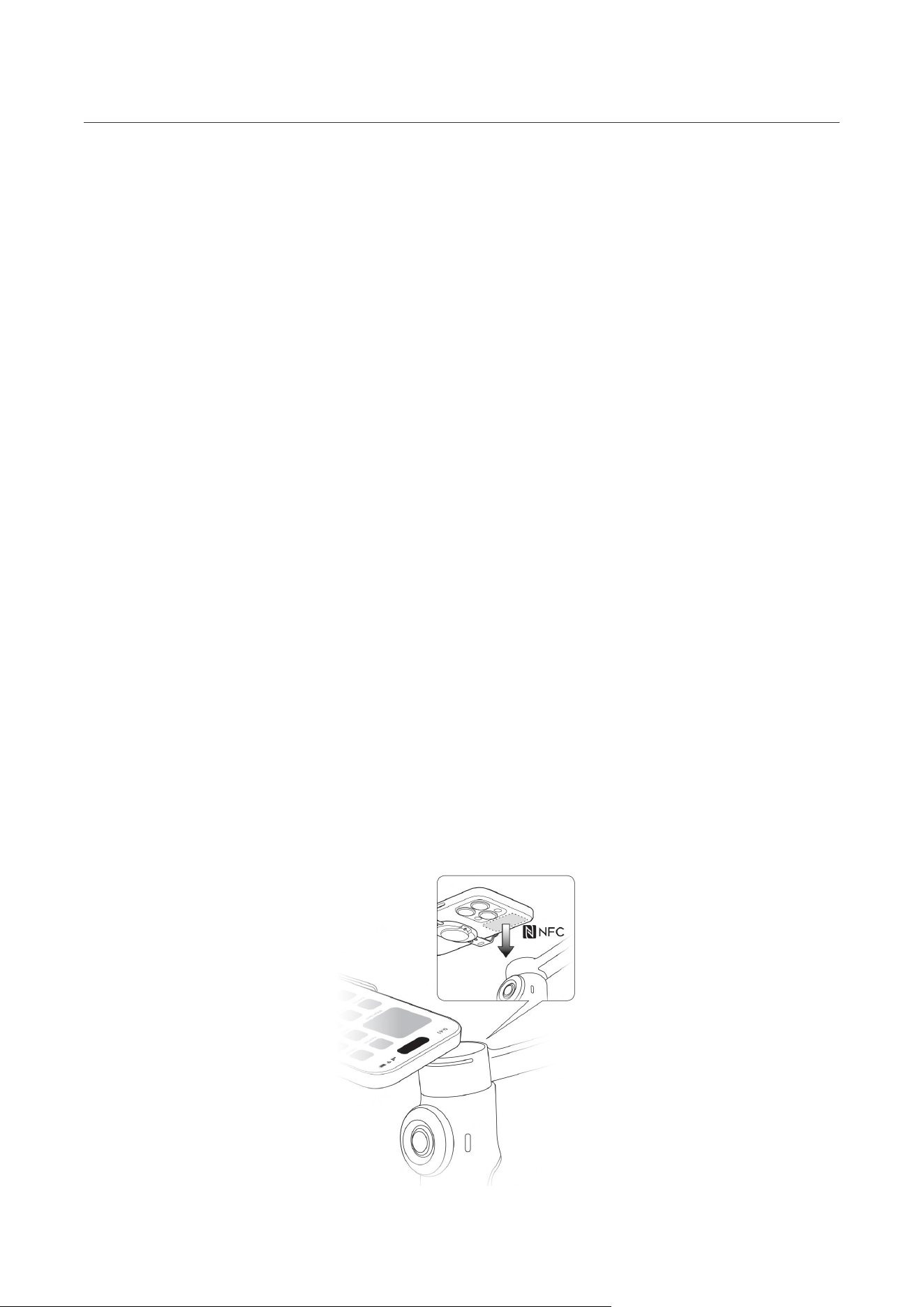
Flow 2 Pro supports NFC pairing with NFC-enabled phones to quickly connect and start tracking
with DockKit.
Notes:
1. To use DockKit tracking, you'll need an Apple device compatible with DockKit, specifically an
iPhone 12 or later model, running iOS 17 or higher (we recommend iOS 18 or higher for
enhanced features). Ensure NFC is enabled.
2. After the initial pairing, there's no need to re-align the phone with the NFC area. Simply turn on
the gimbal, check the phone's Bluetooth is on, mount the phone on the gimbal, and it will
automatically reconnect.
Steps
:
1. Power on Flow 2 Pro.
2. Turn on Wi-Fi and Bluetooth, keep your phone idling on its home screen.
3. Touch your phone's NFC area to the gimbal, wait for the pop-up window, then tap Connect.
4. Attach your phone to Flow 2 Pro and wait until the gimbal nods to indicate a successful
connection. Do not remove the phone from the gimbal during the pop-up pairing process, as
this will result in a pairing failure.

Flow 2 Pro User Manual
10
If you cannot connect via NFC, please check the following:
1. Ensure the NFC area on your phone is close to the NFC mark on Flow 2 Pro. If there is no
response, move the phone a few millimeters away, wait for around 10 seconds, then try again.
2. Ensure your phone has NFC enabled.
3. Remove any metal objects in close proximity to Flow 2 Pro's NFC area.
4. Ensure only one phone is in contact with Flow 2 Pro at a time.
5. Close any other NFC-enabled applications running on your phone.
Native Camera and Third- Party App Tracking
Once connected, you can control the phone's native camera or use it with a number of third-party
apps, or connect to the Insta360 app for enhanced functionality.
1. Apple DockKit Native Tracking (iPhone's native camera & third-party apps)
• To use Apple DockKit native camera tracking, open the iPhone's Camera app, position your
subject in frame, press the Trigger Button, and tracking will turn begin automatically. Note, this does
not work in Pano and Time-lapse Modes.
• When Flow 2 Pro is tracking, the Tracking Ring Light will be lit green and flash slowly. To stop
tracking, press the Trigger Button again. The Tracking Ring Light will then turn off.
• Third-party apps like TikTok and FaceTime are supported, allowing for easier content creation
and video calls.
• You can switch tracking between Apple devices as well, so you can use your iPhone as your
webcam for your Macbook or Apple TV and track people during video calls or online meetings.
2. Insta360 App Tracking (Deep Track 4.0 & Live Mode)
After connecting to the Insta360 app, you can use Deep Track 4.0 for tracking in third-party apps
such as live streaming apps and video calling apps through the Live Mode in the Insta360 app. Head
to the shooting page once Flow 2 Pro connects to the Insta360 app.
Notes:
1. To use DockKit tracking, you will need an Apple device compatible with DockKit, specifically an
iPhone 12 or later model, running iOS 17 or higher (we recommend iOS 18 or higher for

Flow 2 Pro User Manual
11
enhanced features). Ensure NFC is enabled.
2. Use Deep Track 4.0 in the Insta360 app for greater tracking accuracy and subject recovery in
more complicated scenarios.
3. Some button functions are unavailable when using the phone's native camera or third-party
apps. For full details, please refer to the phone compatibility list on the official Insta360 website.
4. Flow 2 Pro is designed to be used with DockKit-compatible apps, such as iPhone's Camera app
and FaceTime, please refer to the tested compatible applications on the official Insta360
website.

Flow 2 Pro User Manual
12
One-Tap Pairing Via NFC and Tracking (Android)
One-Tap Pairing Via NFC:
Flow 2 Pro supports NFC pairing with NFC-enabled phones to quickly connect the gimbal. It also
automatically launches the Insta360 app for faster shooting.
Notes:
1. Ensure that the Insta360 app is downloaded on your phone.
2. After the initial pairing, there's no need to re-align the phone with the NFC area. Simply power on
the gimbal and your phone's Bluetooth, mount the phone on the gimbal, and it will automatically
reconnect and launch the Insta360 app.
Steps:
1. NFC pairing can be done with the gimbal either folded or unfolded.
2. Turn on NFC, Wi-Fi and Bluetooth, and keep your phone idling on its home screen.
3. Place your phone's NFC area close to the gimbal's pairing area. A pop-up will appear on the
phone. Tap it, and the Insta360 app will automatically open.
a. Note: The pop-up interface may vary across different phone models. For some models, the
app will open automatically without needing to click the pop-up. Please follow the actual
display.
4. Once the app is opened, attach your phone to the gimbal. After the gimbal is unfolded, the app
will automatically open the shooting page, where you can use the tracking functionality within
the app.
5. After connecting, you can control the native camera for shooting or use the Insta360 app for
shooting and tracking. Android phones support the following two tracking modes:
a. Deep Track 4.0: Allows tracking of one or more persons within the Insta360 app.
b. Live Mode: Tracking in third-party apps such as live streaming apps and video calling apps
through Live Mode.
Notes:
1. Some button functions are unavailable when controlling or tracking with the phone's native
camera or third-party apps. For full details, please refer to the phone compatibility list on the
official Insta360 website.
2. Native camera control cannot be achieved through NFC pairing, it requires system Bluetooth to
connect the device.

Flow 2 Pro User Manual
13
If you cannot connect via NFC, please check the following:
1. Ensure the NFC area on your phone is close to the NFC mark on Flow 2 Pro. If there is no
response, move the phone a few millimeters away, wait for around 10 seconds, then try again.
2. Ensure your phone has NFC enabled.
3. Remove any metal objects in close proximity to Flow 2 Pro's NFC area.
4. Ensure only one phone is in contact with Flow 2 Pro at a time.
5. Turn off any other NFC-enabled applications running on your phone.
Flow 2 Pro User Manual
14
Basic Use
Button Instructions
*When tracking with the iPhone native camera and third-party iOS apps, some button operations
may be temporarily unavailable, with full button functionality available through the Insta360 app.
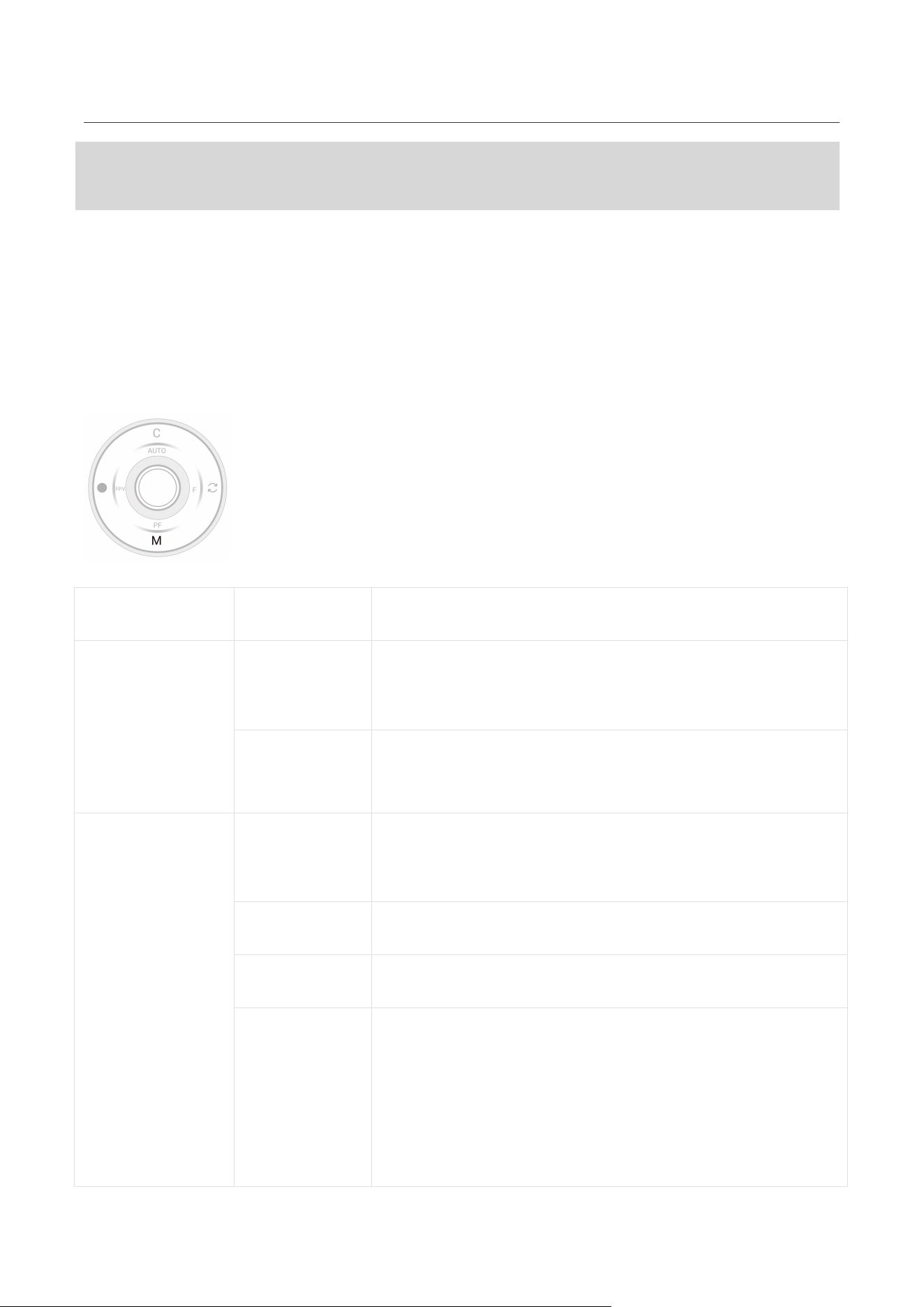
Power Button/M Button
Gimbal Status
Operation
Description
Powered off
Long Press
• 0.7 seconds: Power on.
(Does not work when the gimbal is folded.)
Single Press
• Check battery level or charge phone connected via
Type-C cable.
Powered on
Long Press
• 0.7 seconds: Power off.
• 5 seconds: Force shutdown.
Single Press
• Switch to next gimbal mode
Double Press
• Switch to previous gimbal mode
Triple Press
• Enter Standby Mode.
(To exit, press the Power Button, Switch Button, Shutter
Button or Trigger Button.)

Flow 2 Pro User Manual
15
Single Press
Power Button
and Trigger
Button
• Check current battery level.
Viewing footage in
preview page
(Insta360 app)
Single Press
• Return to shooting interface
Switch Button
Gimbal Status
Operation
Description
Powered on
Double Press
• Switch phone's orientation between
horizontal and vertical.
Single Press in
Standby Mode
• Wake up gimbal
Shooting (in the Insta360
app)
Single Press
• Switch between front and rear cameras.
Double Press
• Switch phone's orientation between
horizontal and vertical.
Triple Press
• Switch between video and photo mode.
Long Press
• Switch to preview page.
Viewing footage in
preview page (Insta360
app)
Single Press
• View previous file.
Flow 2 Pro User Manual
16
Apple DockKit Native
Tracking
Single Press
• Switch between front and rear cameras.
*Requires an iPhone 12 or later model, running
iOS 18 or higher
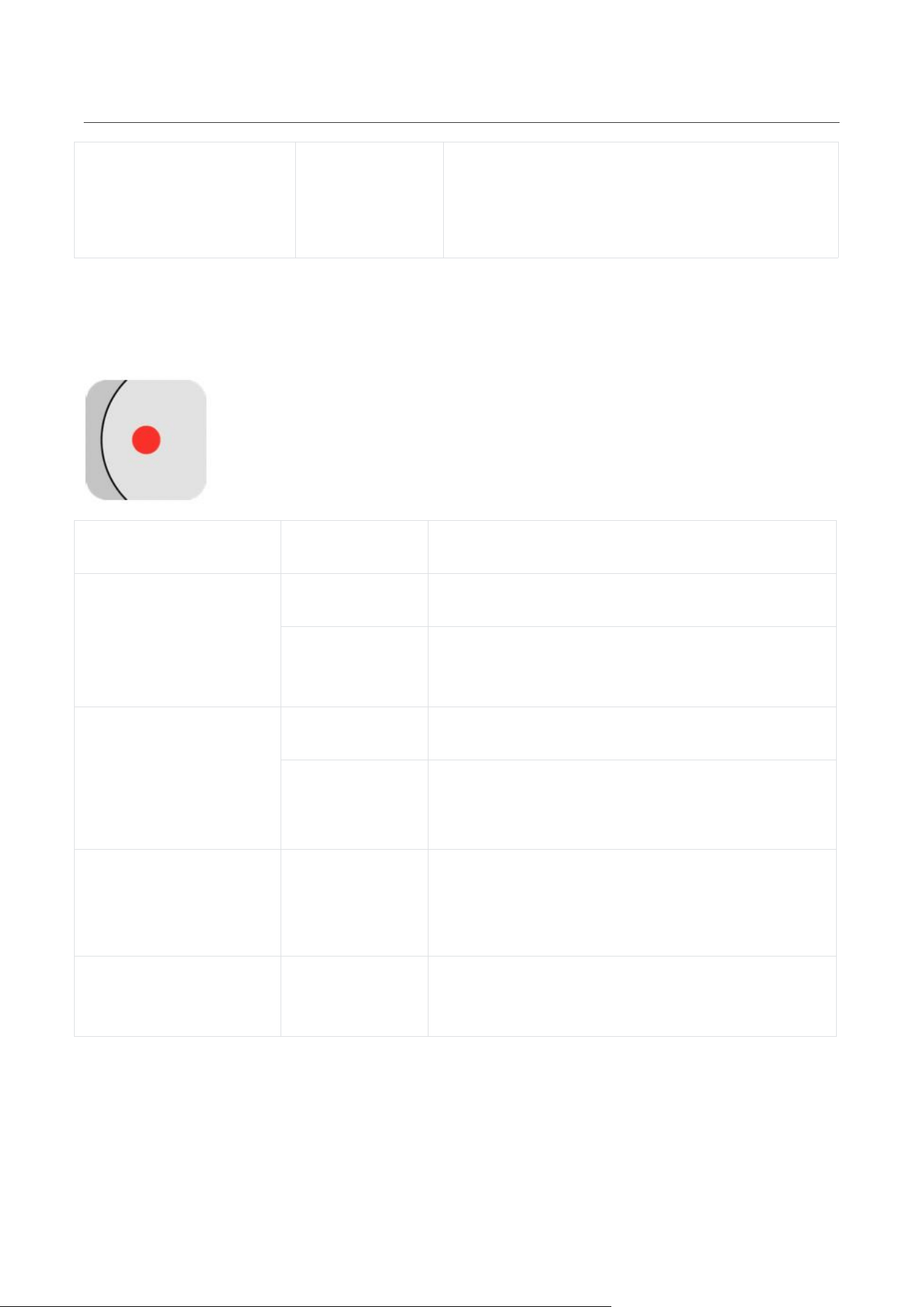
Shutter Button
Gimbal Status
Operation
Description
Powered on
Single Press
• Take photo or start recording video.
Single Press in
Standby Mode
• Wake up gimbal
Shooting (in the
Insta360 app)
Single Press
• Take photo or start recording video.
Long Press
• Start shooting in Burst Mode.
Viewing footage in
preview page (Insta360
app)
Single Press
• Switch to next file.
Apple DockKit Native
Tracking
Single Press
• Take photo or start recording video.

Flow 2 Pro User Manual
17
C Button
Gimbal Status
Description
Description
Insta360 app open
on the shooting
page
Single Press
• Activate One-click 360° Capture
Double Press
• Switch to 360° Photo Mode
Long Press
• Activate Barrell Roll
Apple DockKit
Native Tracking
Single Press
• Activate One-click 360° Capture
Flow 2 Pro User Manual
18
Joystick
Gimbal Status
Description
Powered on
• Push left or right to change direction of pan axis. Push up and down to
change tilt axis direction.
Insta360 app open
on the preview page
After zooming in on a clip, you can adjust the screen position:
• iOS: Adjust the position of photos and videos
• Android: Adjust the position of photos
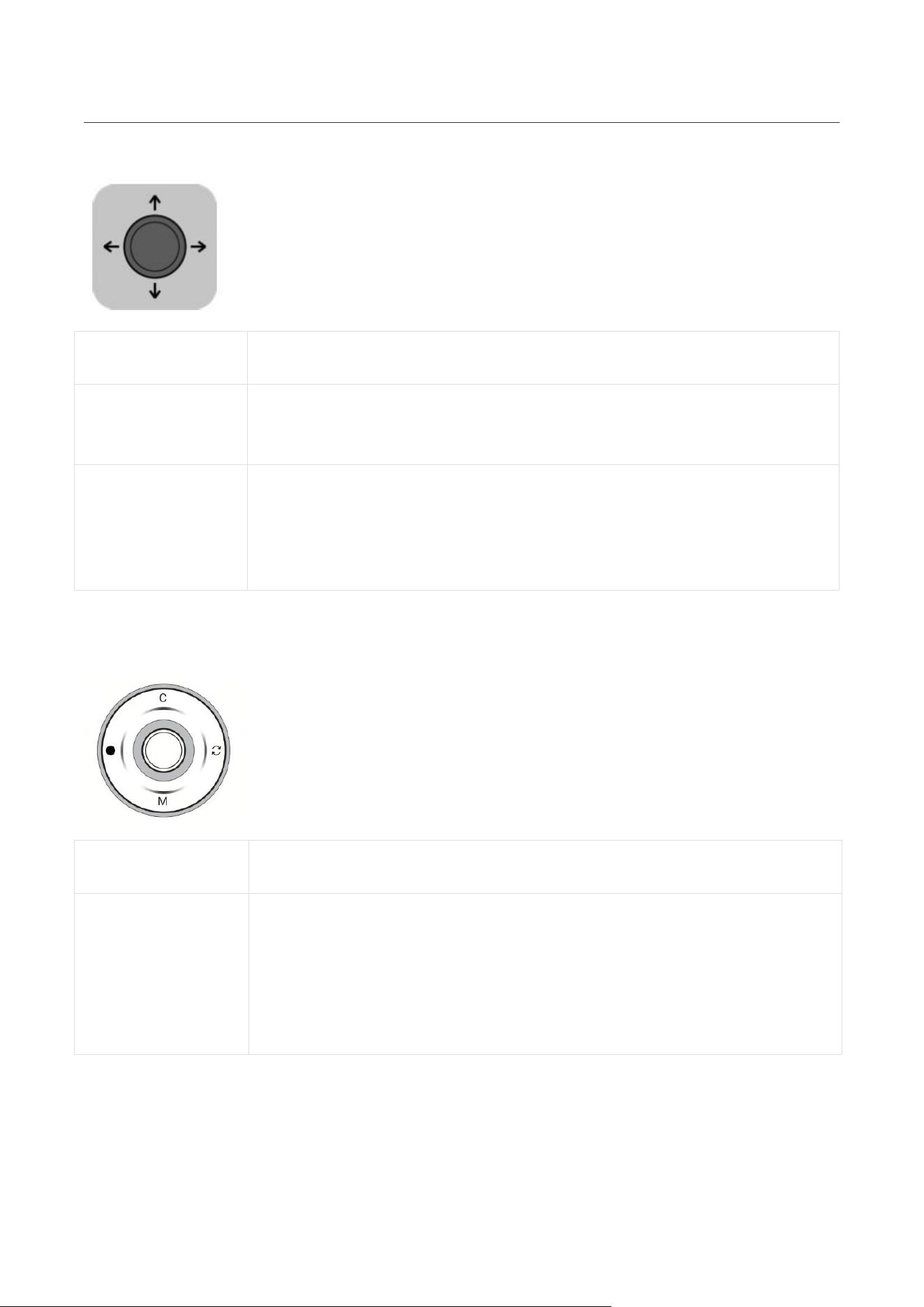
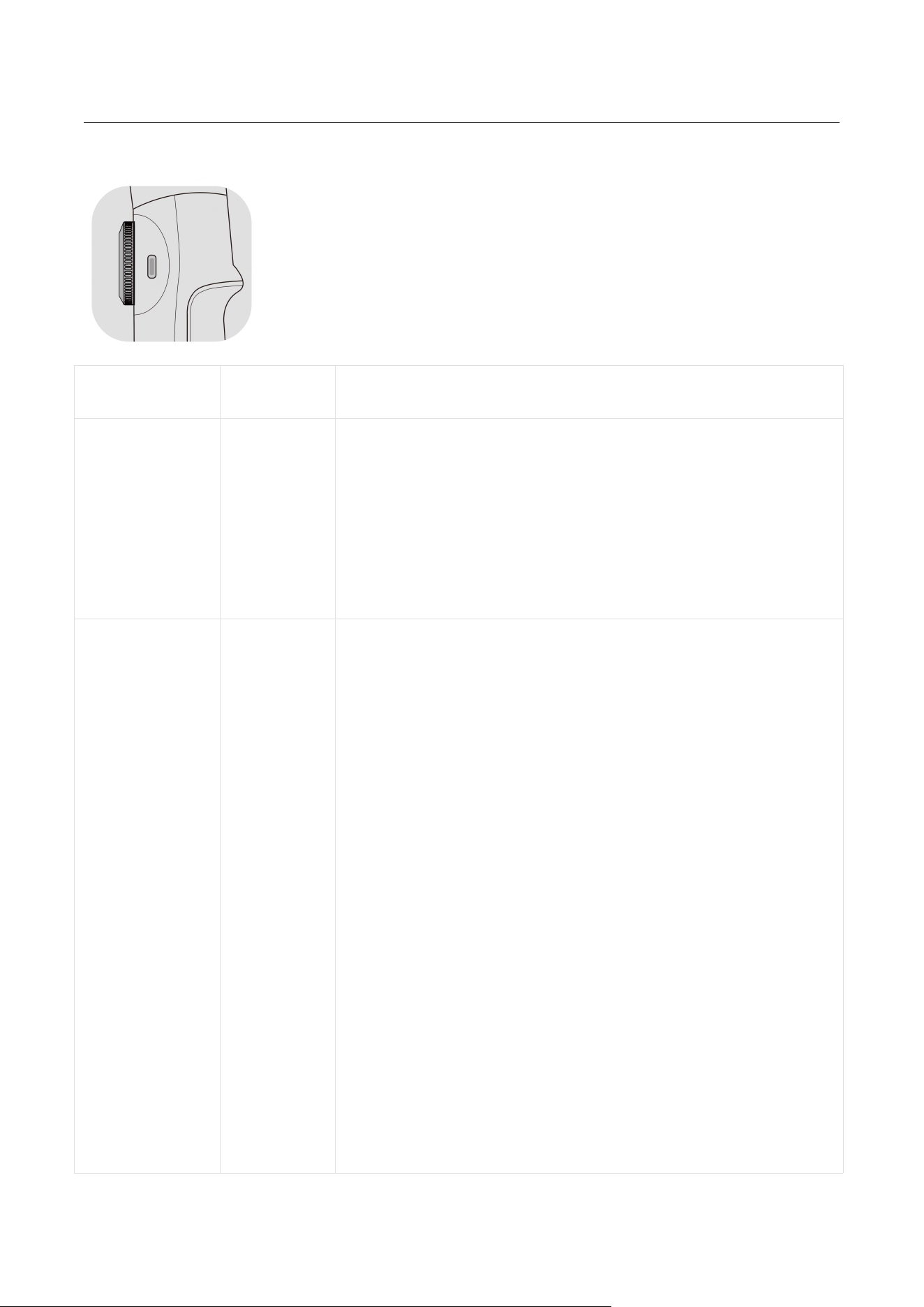
Touch Panel
Gimbal Status
Descriptions
Connected to
Insta360 app
• Swipe clockwise halfway: Switch to next shooting mode.
• Swipe counterclockwise halfway: Switch to previous shooting mode.
• Swipe clockwise on the playback page: Fast forward video.
• Swipe counterclockwise on the playback page: Rewind video.
Flow 2 Pro User Manual
19
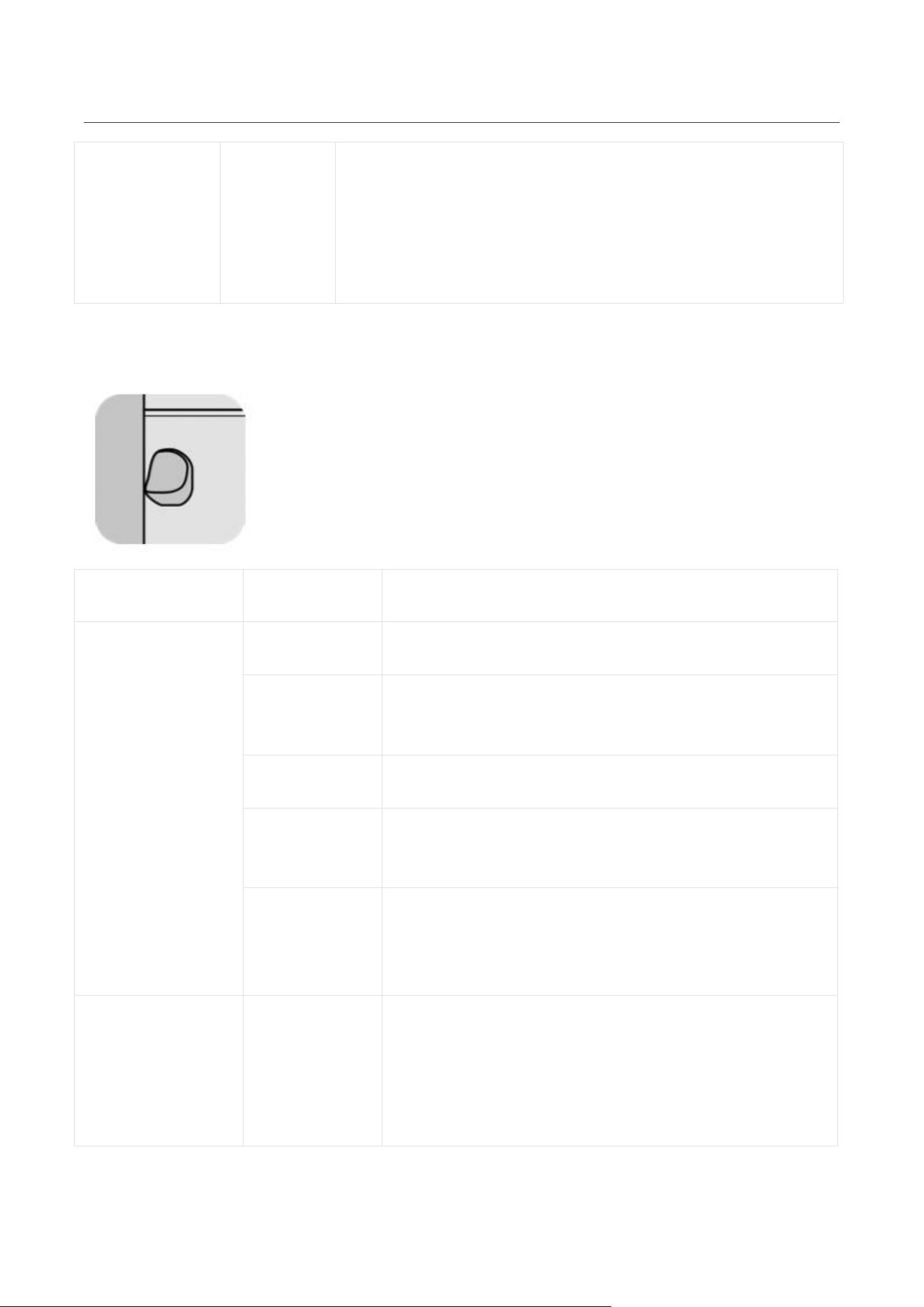
Zoom Wheel
Gimbal Status
Operation
Description
FPV Mode
Turn
• Turn clockwise: Rotate roll axis clockwise.
• Turn counterclockwise: Rotate roll axis counterclockwise.
Notes:
1. The greater the wheel rotation, the faster the speed.
2. Zoom is not available in FPV Mode.
Connected to
Insta360 app in
Auto, F, and PF
Mode
Turn
Zoom:
• Turn clockwise to the end and hold: Camera zooms in.
• Turn counterclockwise to the end and hold: Camera zooms
out.
*You can also turn on the "Manual Focus" function in "Settings -
Zoom Wheel" on the shooting page.
Switch Lens:
• Turn clockwise to the end and release: Switch camera lens.
• Twist counterclockwise to the end and release: Switch to
previous lens.
Preview Page:
• Turn clockwise: Zoom in on photos/videos.
• Turn counterclockwise: Zoom out on photos/videos.
*iOS supports use during photo or video playback; Android only
supports use during photo playback
Flow 2 Pro User Manual
20
Apple DockKit
Native Tracking
Turn
Zoom:
○ Turn clockwise to the end and hold: Camera zooms in.
○ Turn counterclockwise to the end and hold: Camera
zooms out.
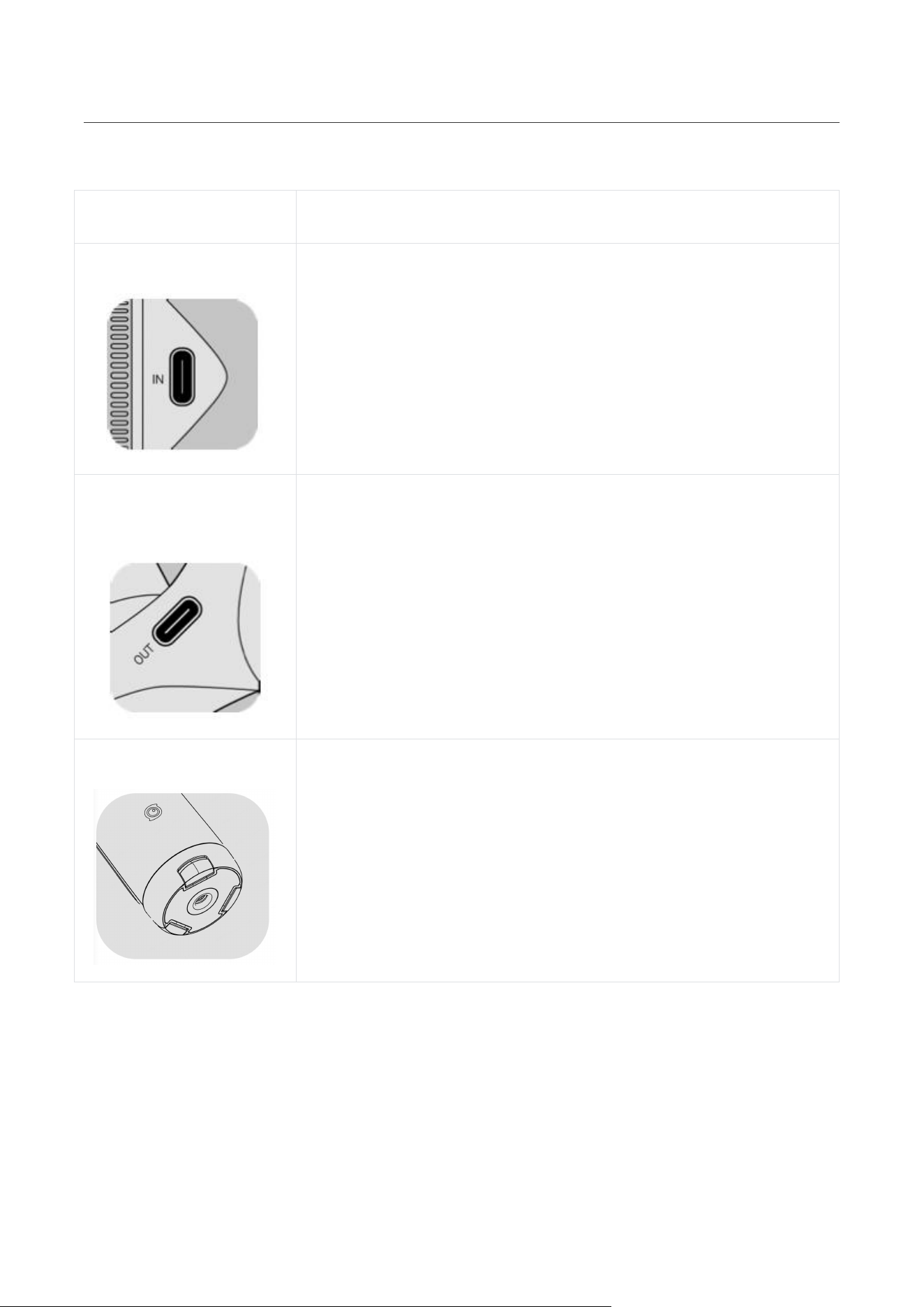
Trigger Button
Gimbal Status
Operation
Description
Powered on
Double Press
Recenter the gimbal.
Triple Press
Change phone between forward-facing and backward-
facing.
Long Press
Enter Lock Mode (release to exit).
Single Press in
standby mode
Wake up gimbal.
Single Press
then Long
Press
Enter Active+ Mode (release to exit).
Connected to
Insta360 app
Single Press on
the Shooting
Page
Start/stop tracking.
*Supports iOS/Android phones with Deep Track 4.0 in the
Insta360 app or Live Mode in third-party apps.

Flow 2 Pro User Manual
21
Single Press
on the Preview
Page
Play/pause a video.
Single Press on
the Home Page
Enter shooting interface.
Apple DockKit
Native Tracking
(iOS)
Single Press
Start/stop tracking.
*Supported when tracking with iPhone native camera app
and third-party iOS apps.
Combination Reset: To reset Bluetooth, press and hold the Trigger and Shutter Buttons for 3
seconds simultaneously.
Flow 2 Pro User Manual
22
Interfaces
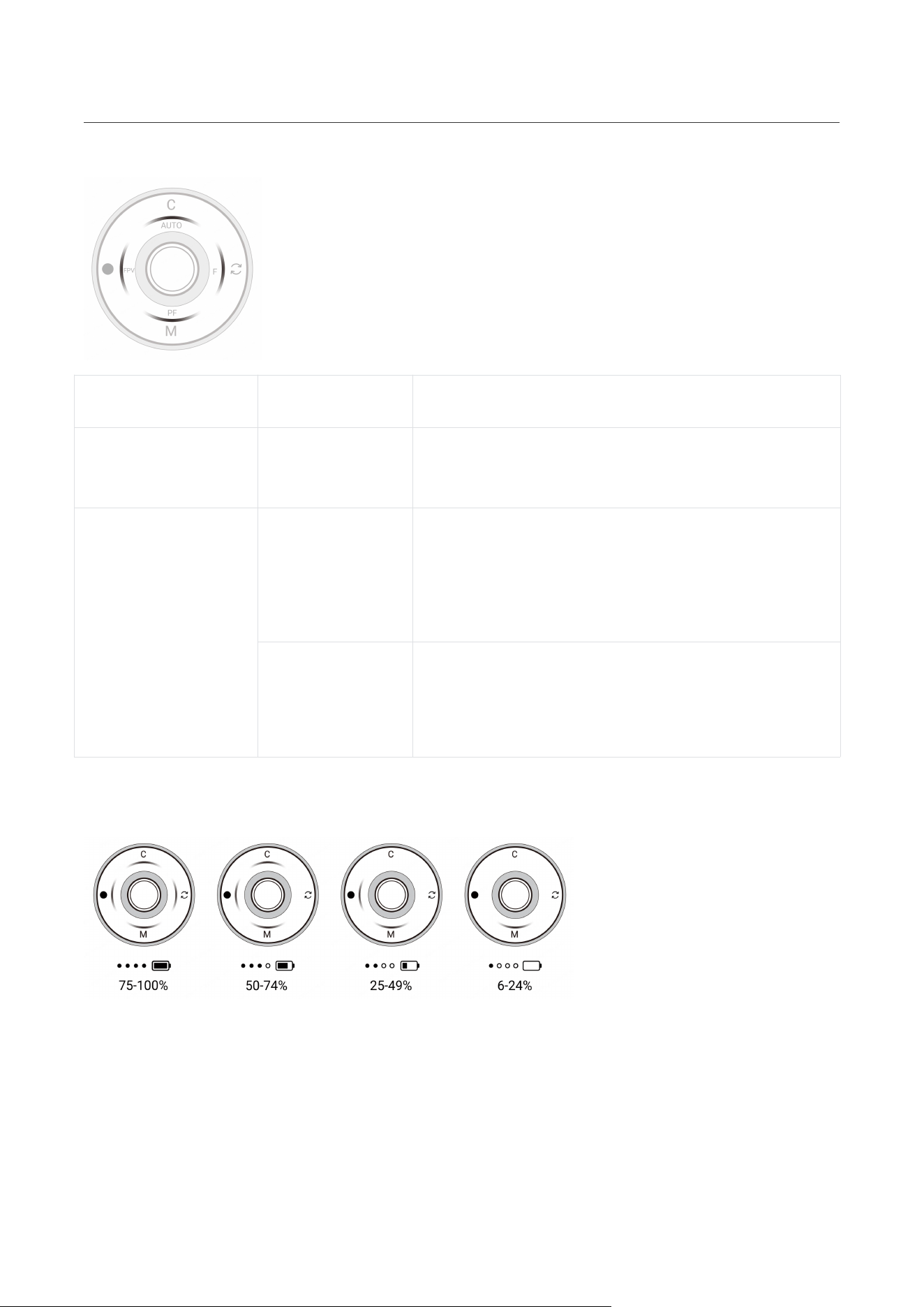
Interface Type
Function
Power Input Port (Type-C)
Connect the charging cable to charge Flow 2 Pro. Flow 2 Pro can be
used while charging.
Power Output Port (Type-
C)
Use Flow 2 Pro as a power bank. Connect the cable to a phone or
other device and press the Power/M Button to charge.
1/4" Mounting Point
Connect to other accessories, such as a tripod.
Flow 2 Pro User Manual
23
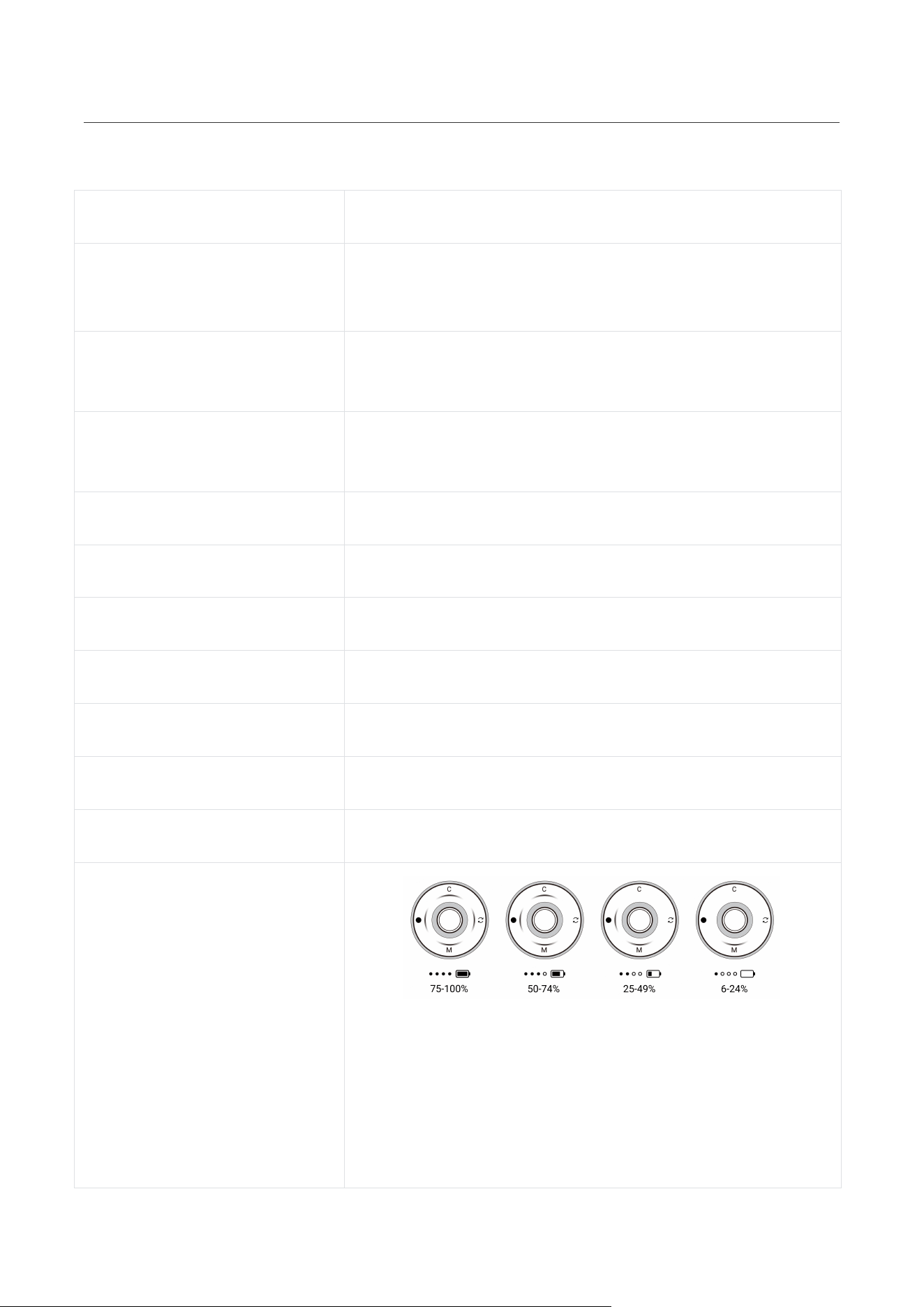
Battery Level/Gimbal Mode Indicators
Gimbal Status
Operation
Descriptions
Powered off
Single Press
Power Button
• Check current battery level.
Powered on
Single Press
Power Button and
the Trigger
Button
• Check current battery level.
/
• Shows current gimbal mode: AUTO = Auto, F =
Follow, PF = Pan Follow, FPV = FPV.
LED Indicator Lights Status
All four LEDs blink slowly when Flow 2 Pro is in Standby Mode.
All four LEDs blink quickly when an error has occurred. The two most common reasons are:
• Flow 2 Pro is physically prevented from moving or is experiencing a technical error. Remove
any obstacles, then press any button.
• The phone is not centered or secure in the phone clamp. This may lead to abnormal motor
heating and trigger Flow 2 Pro's overheating protection. Please recenter and secure the phone.

Flow 2 Pro User Manual
24
Gimbal Modes
When Flow 2 Pro is turned on, you can choose from five gimbal modes: Auto (on by default), Follow,
Pan Follow, FPV and Lock Mode.
• Auto Mode (AUTO):
Beginner-friendly mode that automatically adjusts tilt and pan axis settings based on your
movements (e.g., running vs stationary), making it easier to shoot stable videos.
• Follow Mode (F):
The tilt and pan axes follow the movement of the handle, and tracking is more sensitive than Auto
Mode. Suitable for vertical movements from a view to a subject and tilt and pan movements.
• Pan Follow Mode (PF):
The pan axis follows the movement of the handle while the tilt and roll axes are locked. Suitable for
shooting horizontally or around a subject with a locked horizon.
• FPV Mode (FPV):
The gimbal can rotate freely to follow the movements of the handle in any direction, making it
suitable for a wider range of creative shots. Turn the Zoom Wheel to control the roll axis and spin
the phone.
• Lock Mode (L):
Press and hold the Trigger Button to lock all three axes, great for follow shots and hyperlapses.
Release the Trigger Button to exit Lock Mode. The phone screen does not follow the rotation of the
gimbal handle and is locked. It is suitable for follow shots, long-distance movements or shots that
need to keep a subject centered for a long time.
In this mode, the three-axis motors are locked, and the mobile phone remains unchanged in its
movement.
Switch on Active+ Mode for fast-moving scenes. It provides a faster response speed in any of the
four gimbal modes on the Touch Panel.
Press the Trigger Button once, then immediately press it again and hold to enable Active+. The
indicator lights blink in the current gimbal mode. Release the Trigger Button again to exit.
Flow 2 Pro User Manual
25
Gimbal Grips
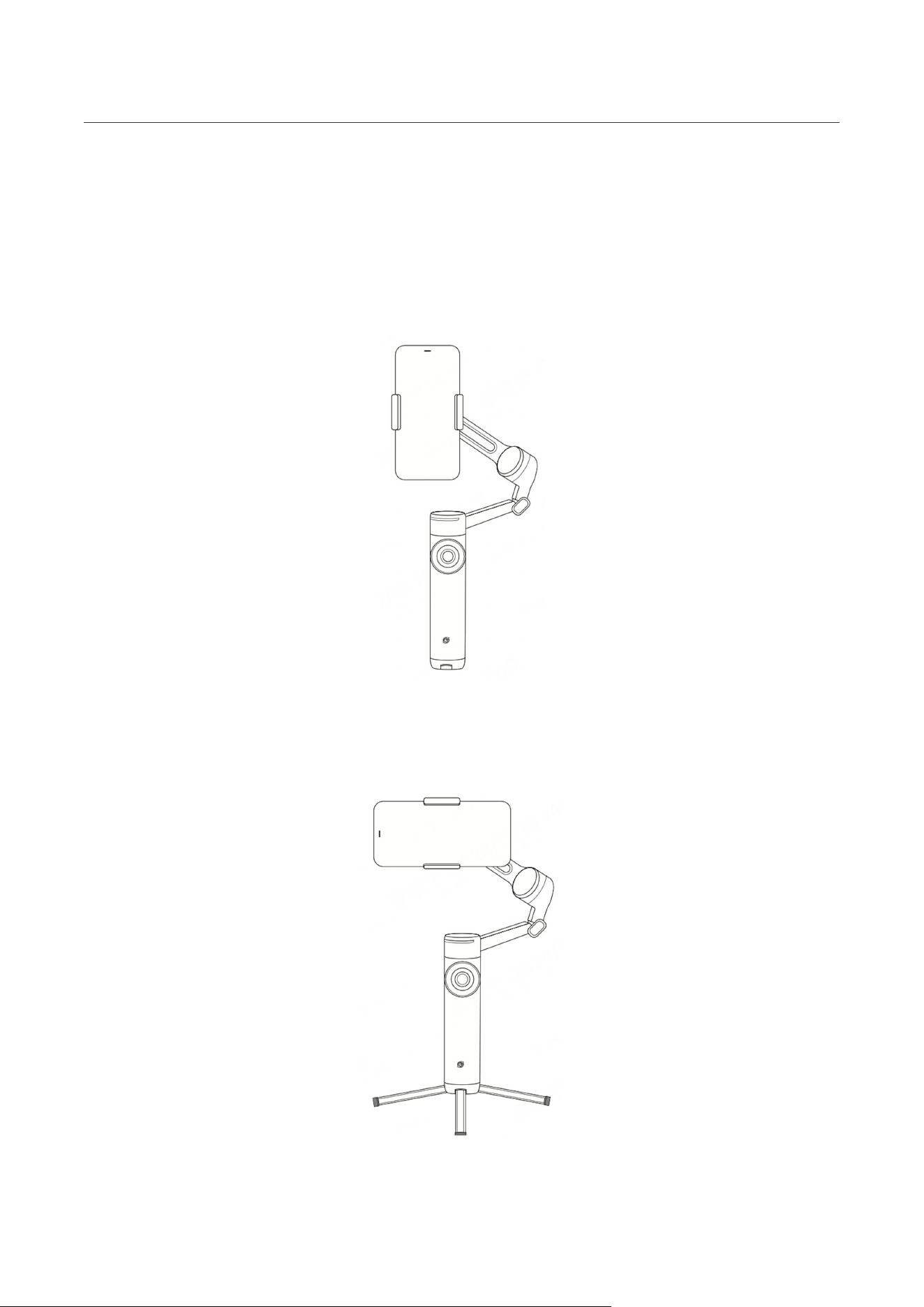
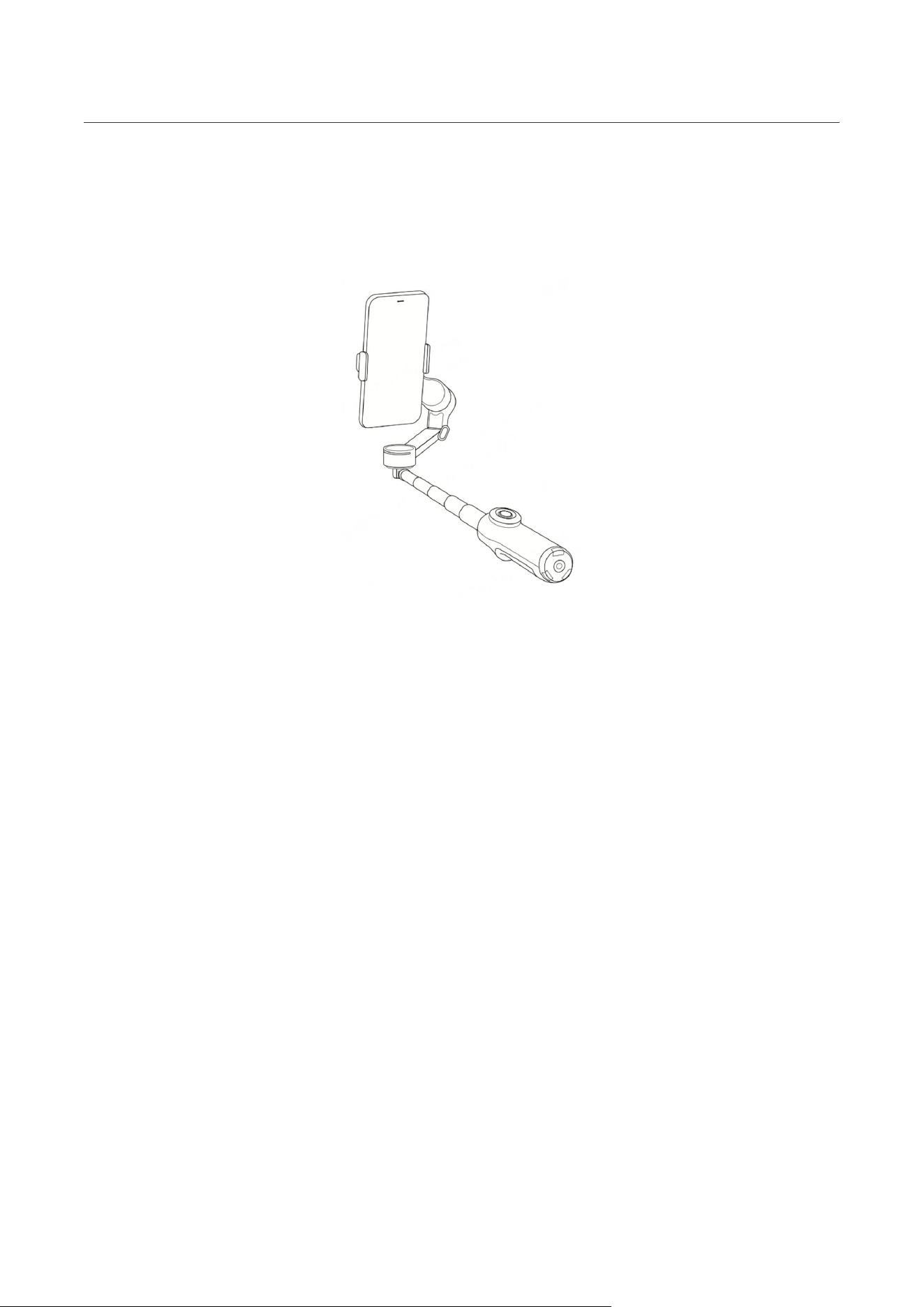
Flow 2 Pro has the following five grip positions:
• Quick Grip: Unfold the gimbal in one motion for quick, on-the-go shooting.
Do not extend the tripod or selfie stick.
• Tripod Fixed Mode: Ideal for shooting static scenes and using Deep Track 4.0.
Pull out the tripod legs from the bottom of the gimbal, place it in a steady spot, and use it for fixed-
position shooting.
Flow 2 Pro User Manual
26
• Low Grip: Provides a more comfortable grip. Suitable for push-through and low-angle shots.
1. Pull out the selfie stick.
2. Bend the selfie stick connection toward the touch panel to achieve a low-angle shooting
position.
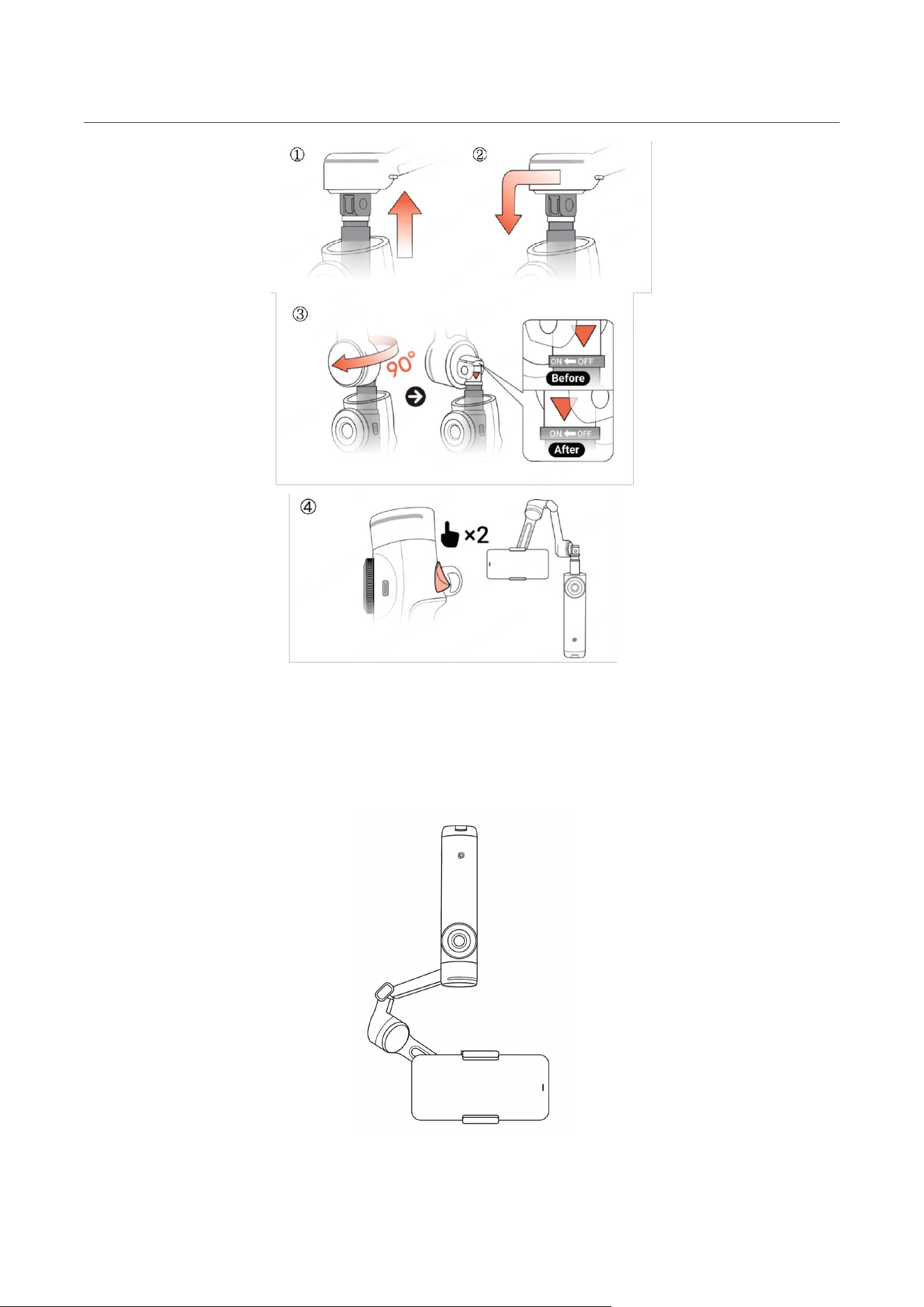
• Free Tilt Mode: Break the tilt axis limitation for 360° shooting, supporting versatile movements
like elevating, orbiting, dolly shots, and low-angle transitions.
1. With the gimbal powered on, extend the built-in selfie stick.
2. Bend the selfie stick at the connection point 90° toward the touch panel.
3. Check the triangle indicator on the back of the bent joint and rotate from "OFF" to "ON".
4. Double-tap the Trigger Button to activate Free Tilt Mode.
Flow 2 Pro User Manual
27
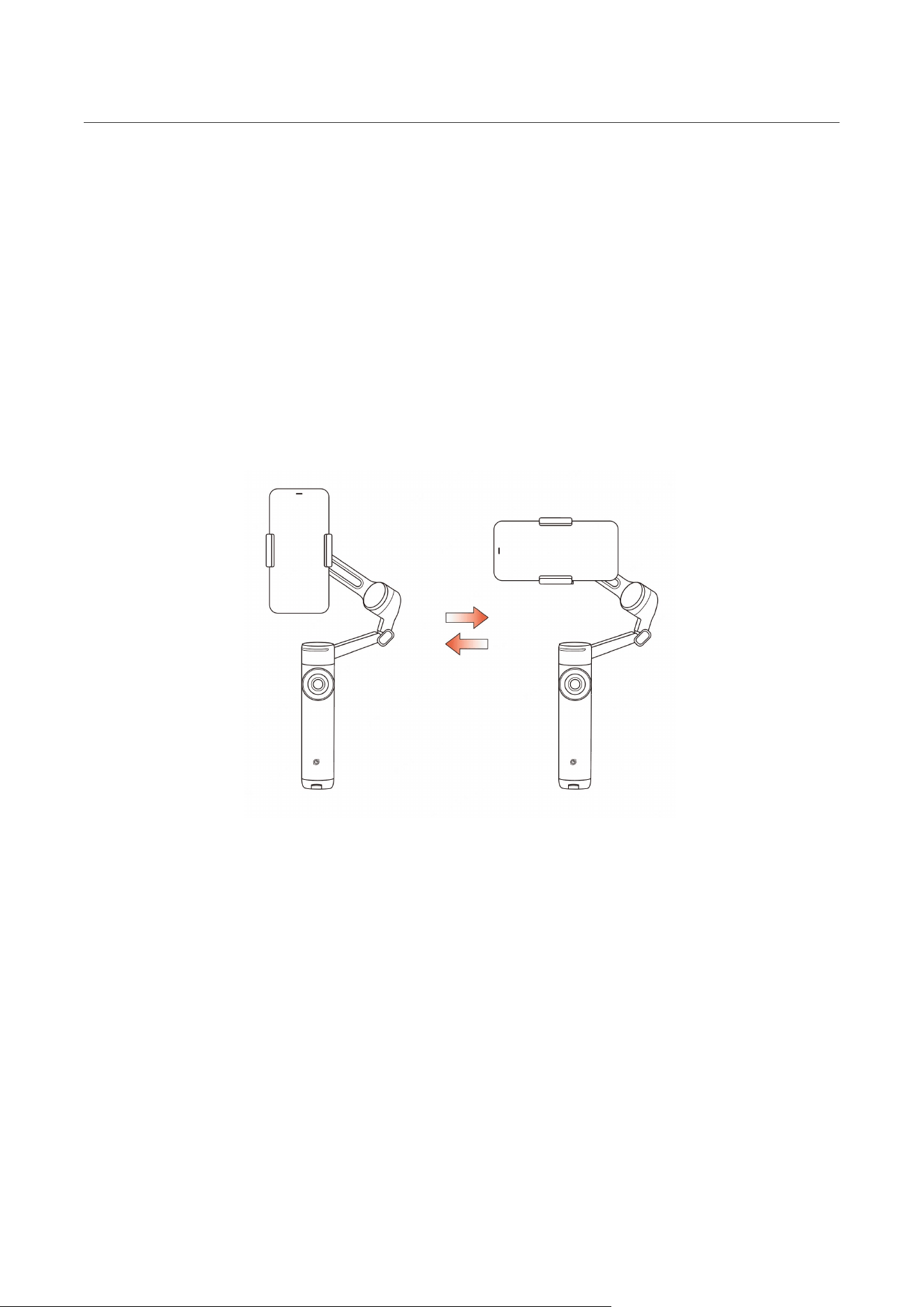
• Underslung Grip: Provides a more comfortable grip. Shoot close to the ground for low-angle
shots.
1. Turn Flow 2 Pro upside down 180°.
Flow 2 Pro User Manual
28
Manual Rotation
a. You can manually adjust the direction of the roll axis by moving the gimbal. When the
angle of the mobile phone clamp is less than 30º, the gimbal will rotate to the position where it
is swung.
b. The gimbal can be rotated horizontally or vertically by turning it. When the angle of the
mobile phone clamp to the gimbal exceeds 30°, the gimbal will automatically rotate to the next
90° position according to the current rotation direction.
Note: The gimbal cannot rotate in four directions. It can only rotate horizontally or vertically in a
fixed direction. If forced to move, the motor might stall and consume more power.
Flow 2 Pro User Manual
29
Indicator Lights
Status
Indicator Light Status
Power on
The four indicator lights light up one by one clockwise.
Power off
After all four indicator lights are on, they turn off one by one in
a counterclockwise direction.
Alignment error (Magnetic
Phone Clamp)
Gimbal Mode Indicator Lights: Top light solid red.
Pairing
NFC Pairing LED: Slow flashing
Pairing success
NFC Pairing LED: Solid
Pairing failure
NFC Pairing LED: Slow flashing, returns to pairing status.
Tracking started
Tracking Ring Light: Solid
Tracking stopped
Tracking Ring Light: No light
Tracking
Tracking Ring Light: Slow flashing
Tracking failed
Tracking Ring Light: Solid
Charging
• The Gimbal Mode Indicator Lights will display the
charging status light. If you switch the shooting mode, the
lights will display the selected mode for 3 seconds and then
return to indicate charging.
• The Gimbal Mode Indicator Lights display the charging
status light when the gimbal is charging. You can press the

Flow 2 Pro User Manual
30
Power Button to check the battery level, which will be displayed
for 3 seconds, and then the indicator lights will return to
indicate charging.
Firmware update
• Gimbal Mode Indicator Lights light up one by one, with a
0.2-second interval.
• Once the update is complete, all four will light up at the
same time, then turn off. Flow 2 Pro will restart after 1 second.
Low battery
Gimbal Mode Indicator Lights: The indicator light at the bottom
blinks rapidly when the battery level falls below 6%.
Gimbal abnormality
Gimbal Mode Indicator Lights: All 4 lights rapidly flashing at the
same time.
During photo/video recording
Tilt Axis Indicator Light:
• Photo: Flashing white once
• Video recording: Slow flashing white

Flow 2 Pro User Manual
31
Insta360 App
Connect to the Insta360 app
1. Power on Flow 2 Pro.
2. Turn on your phone's Bluetooth and Wi-Fi.
3. Open the Insta360 app and tap the camera icon at the bottom of the page. Follow the on-
screen instructions to activate your gimbal.
4. The first time you connect to the Insta360 app, you need to authorize the connection and
provide information. This requires an internet connection.
5. After successful activation, open the Insta360 app to start shooting.
Can't connect to the Insta360 app?
1. Ensure the Insta360 app is updated to the latest version, restart Flow 2 Pro and the app and
reconnect.
2. If you still can't connect, cancel Bluetooth pairing, turn off your phone's Bluetooth, and try again.
3. If connection fails, press the Trigger Button and the Shutter Button at the same time and hold
for 3 seconds to reset Bluetooth. Once successful, you will hear three beeps. Then, try to connect to
the app again.
Flow 2 Pro User Manual
32
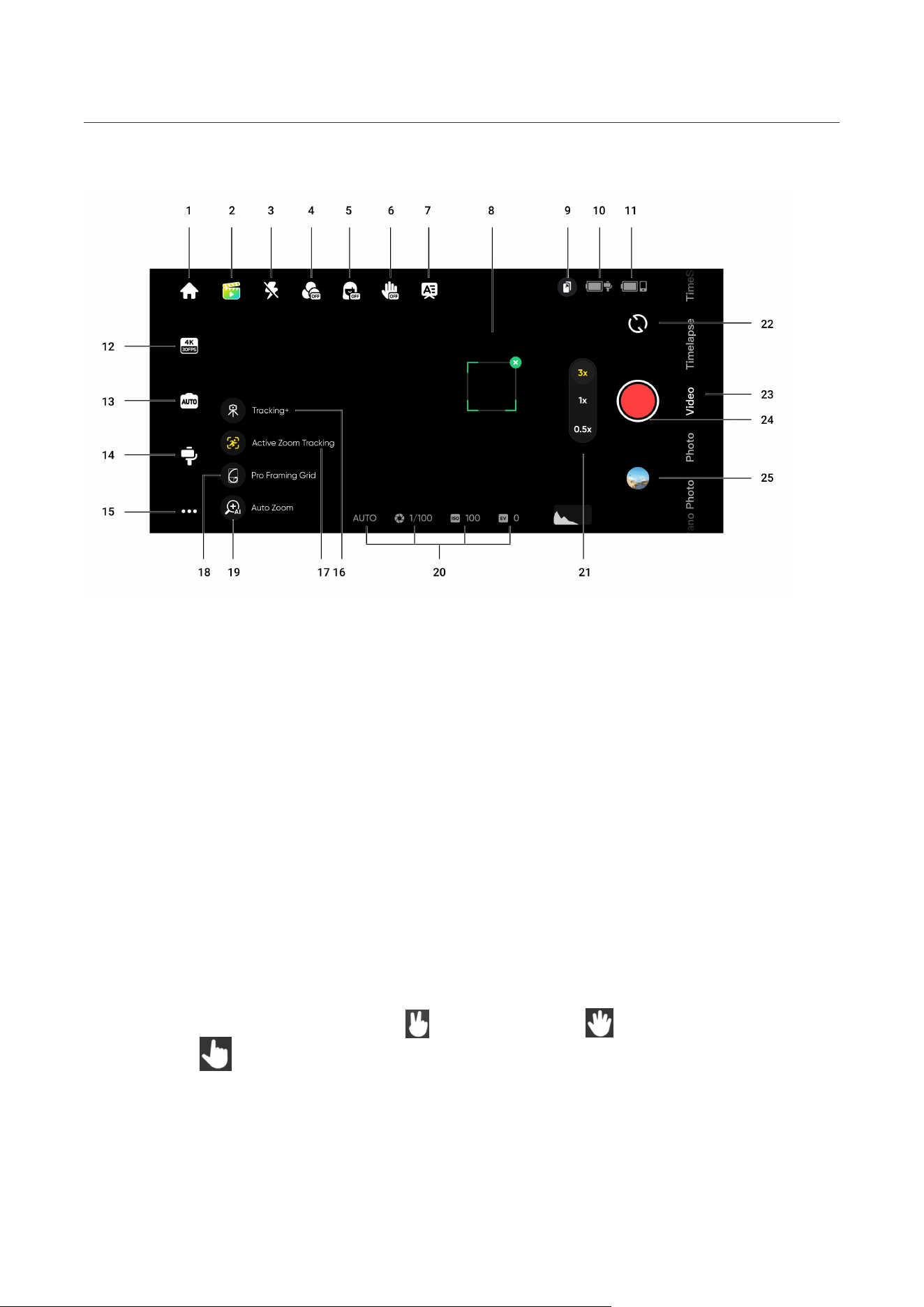
Shooting Interface
1. Home: Return to the home page.
2. Shot Lab: Provides AI shooting tutorials and ideas tailored to the environment. There are two
ways to access templates:
○ Scene Recognition: Enable or disable in General Settings. AI will analyze the current scene
in Video Mode and match it to a shooting scenario.
○ Voice Control: Enabled by default. Tap the icon and it will provide shooting suggestions
based on the keywords you provide. Enable or disable in General Settings.
3. Flash: Adjust the flash.
4. Filter: Select a photo or video filter.
5. Face Filter: Turn the Face Filter function on or off.
6. Gesture Control: Display Gesture Control settings and select from Capture, Single-Person
Tracking, Multi-Person Tracking. When Gesture Control is enabled, face the camera with your full
face visible and use gestures to interact:
triggers shooting,
activates single-person
tracking, and
activates multi-person tracking. To stop recording, repeat the gesture.
Note: Gesture Control works up to 13.1ft (4m) away from Flow 2 Pro. This feature consumes more
power and may cause the gimbal to heat up.
7. Teleprompter: Before recording, you can pre-enter text that will automatically scroll during the
recording. Use the gimbal's SmartWheel to adjust the scroll direction up or down.

Flow 2 Pro User Manual
33
8. Tracking Box: Supports manually selecting a single person or group. Flow 2 Pro can
automatically track selected targets so they stay in a frame within the tracking box. The default
position is in the center of the screen, but it can be adjusted manually using the Joystick while
tracking. In multi-person tracking, the subject outlined in green is the primary tracking target, while
other targets are outlined in white. You can switch the primary target by tapping or using the
SmartWheel.
9. Smartphone Remote Control: Scan the QR code with another phone to preview in real-time or
remotely control the gimbal for shooting. Ensure both phones are connected to the internet using
one of these methods:
○ Both phones use 4G networks: Recommended when both phones have a good signal.
○ Connect the secondary phone to the main phone's hotspot: Recommended when there's
poor phone signal.
○ Connect both phones to the same Wi-Fi network.
Note: No additional app is required for secondary screen control. Android and iOS devices are
cross-compatible for remote control. This feature currently does not support 4K60fps. Before
using the secondary phone in landscape, you will need to lock the secondary phone's screen
orientation.
10. Flow 2 Pro Battery Level: Displays Flow 2 Pro's current battery level.
11. Phone Battery Level: Displays the phone's current battery level.
12. Resolution and Frame Rate: Set resolution and video frame rate.
13. Phone Camera Settings: Adjust settings such as shutter speed, ISO, EV, and WB.
14. Flow 2 Pro Settings: Tap to display the gimbal mode and related settings.
○ Gimbal Mode: Select from Auto, F, PF and FPV.
○ Zoom Wheel: Select from Zoom Control, Manual Focus Control.
○ Motor Strength: Select from High, Medium, or Low.
○ Follow Speed: Controls how fast the gimbal reacts to movement. Set to fast, medium or
slow.
○ Joystick Speed: Set to fast, medium or slow.
○ Barrel Roll Speed: Long press the C Button to initiate a rotating shot, with options to
configure the speed. Set to fast, medium or slow.
○ Barrel Roll Direction: Select clockwise or counterclockwise.

Flow 2 Pro User Manual
34
○ Zoom Speed: Set to linear, fast, medium or slow.
○ Horse Tracking: Turn on/off. Once turned on, press the Trigger Button or manually draw a
box around the horse you wish to track.
○ Front Cam Auto Tracking: When turned on, Flow 2 Pro will track subjects using the front
camera instead of the rear camera.
○ Always-On Tracking: When turned on, Flow 2 Pro keeps tracking the subject (people only)
until they reappear in the shot.
○ Reverse Joystick Horizontally: Turn on to reverse the direction of pan axis movement
when using the joystick.
○ Reverse Joystick Vertically: Turn on to reverse the direction of tilt axis movement when
using the joystick.
○ Flow 2 Pro Sound and Vibration: Turn Flow 2 Pro's sound and vibration on or off
(Bluetooth reset tone cannot be turned off).
○ Auto Calibration: If phone alignment seems off and you've attached your phone correctly,
try auto calibration to correct the position. Follow the on-screen prompts to complete the
process. Do not touch Flow 2 Pro during calibration.
○ Adjust Horizontal Axis: Another option to fix incorrect alignment. Unfold the tripod and
place Flow 2 Pro on a flat surface. Attach your phone, then start the adjustment process. The
axis can be tuned in units of 0.1° and the maximum adjustable angle is 10°. Do not manually
twist the gimbal axis during calibration.
○ Camera Quick Start (Android only): Off by default. After connecting a phone to Flow 2 Pro
via Bluetooth for the first time, in future, the phone's native camera will automatically open
when you power on the gimbal (Bluetooth must be enabled).
Note: Some phone models, including Samsung, Pixel, and Nothing, do not currently support this
feature. Please refer to the actual display for confirmation.
○ Tracking Ring Light: Turn on/off. When it is turned on, adjust the brightness to low,
medium or high.
15. General Settings: Adjust settings such as the Grid, Histogram, Dolby Vision (iOS only), Apple
ProRes (iOS only), Scene Recognition and Voice Control, show tutorials and the Button Guide,
access product information, and more. *Apple ProRes Compatibility: Requires iPhone 13–16 Pro
Max/Pro models with iOS 15.1 or later.
16. Tracking+ (iOS only): Recommended only for stationary shooting using the built-in tripod. Once
enabled, it significantly improves tracking performance. *
This feature cannot be toggled during

Flow 2 Pro User Manual
35
recording.
17. Active Zoom Tracking (iOS only): Before shooting, select the tracking target and turn on Active
Zoom Tracking. It enhances tracking for fast-moving subjects during telephoto shots, keeping the
subject centered. *
This feature cannot be toggled during recording.
18. Pro Framing Grid: 9 composition points are available to customize the subject's position in the
frame. To use, select the tracking target first, then choose a composition point. The subject will stay
in the selected position, rather than being kept in the center.
19. Auto Zoom: Automatically adjusts the focal length based on the real-time distance of the
tracked target (works only for people, not animals or objects).
20. Shooting Parameters: Displays the current exposure, WB, shutter speed, ISO and EV settings.
21. Zoom: Displays the current zoom. Long press the icon to show the zoom dial. Zoom can also
be adjusted by placing two fingers on the screen and moving them apart or together.
22. Switch Front and Rear Cameras: Switch between the front and rear cameras. After switching to
the front camera, Flow 2 Pro automatically tracks the subject visible from that camera. This option
can be disabled in settings.
23. Shooting Modes: Scroll to select a shooting mode:
○ Pano Photo: Tap to take a 3x3, 180°, 240°, or 360° panorama photo. Flow 2 Pro
automatically takes multiple photos and edits them into one panorama photo.
○ Photo: Supports regular photos and photos with a countdown. Long press the Shutter
Button to start shooting in Burst Mode.
○ Video: Shoot a normal video.
○ Timelapse: Shoot a stationary or motion timelapse. Choose from Fixed Angle, Left to
Right, Right to Left, and Custom Track modes. Tap the icon to set the interval duration and
length.
○ TimeShift: Record a hyperlapse (sped up) video while moving.
○ Slow Motion: Shoot a slow motion video at 120fps or 240fps.
○ Dolly Zoom: The app automatically zooms in or out of the background to keep the subject
the same size in the frame throughout, recreating the classic Hollywood effect.
○ Widescreen Mode: The phone automatically adjusts to a horizontal position and starts
recording in a 2.35:1 widescreen ratio. Filters are turned on by default.
○ Live Mode: Use Flow 2 Pro's tracking capabilities in third-party apps with video streams,
such as instant messaging apps, camera apps, video conferencing apps, and live streaming

Flow 2 Pro User Manual
36
apps. Follow the on-screen instructions for correct use. During this mode, only people can be
tracked.
○ Hoop Mode: Set Flow 2 Pro down to record a full-court or half-court basketball game. The
AI automatically recognizes your best baskets and saves the highlights as individual clips for
easy editing.
24. Shutter Button: Take a photo or start/stop shooting a video.
25. Album: View your previous photos and videos in the album.
Notes
:
• Features may vary depending on the shooting mode. Please refer to actual display conditions.
• Flow 2 Pro and the Insta360 app are updated regularly with new features. Please refer to the
interface in the latest version of the Insta360 app.
• Settings and supported functions vary depending on the phone model and system. For full
details, please refer to the phone compatibility list.

Flow 2 Pro User Manual
37
Apple Watch Control
Both the Insta360 app and iOS native camera support real-time preview, remote control of the
gimbal, and composition adjustment with Apple Watch.
Notes:
1. Currently only Apple Watches are supported.
2. iOS phones need to be paired with the gimbal via NFC before using this function.
3. If you use your watch to remotely control the native camera, your Apple Watch must be
updated to watchOS 11 or later. If you use your watch to remotely control the Insta360 app, your
Apple Watch must be updated to watchOS 8 or later.
4. During remote control, avoid exiting the app and ensure both devices are within Bluetooth
range.
5. Interface features may vary depending on the shooting mode. Please refer to the actual display
for accuracy.
Native Camera Remote Control
Steps:
1. Install the Insta360 app on your Apple Watch.
2. Enable Bluetooth on both the watch and phone, and ensure they are paired.
3. Mount your phone to Flow 2 Pro, ensuring the gimbal is awake.
4. Open the native camera app on both the phone and watch. You can then remotely preview or
control the gimbal and camera functions from the watch. Key features include:
○ Real-Time Preview: View the camera feed remotely via the watch.
○ Gimbal/Camera Control: Control shooting, gimbal centering, switch between front and
rear cameras, enable flash, and trigger live photos (in photo mode).
Note: Mode switching must
be done on the phone. In photo mode, you can enable/disable a 3-second countdown.
○ Adjust Shooting Angle: After pressing the Trigger Button and the Tracking Ring Light is
on, you can use the arrows in the preview to adjust the gimbal angle remotely. Activate "Quick
Rotation" by double-tapping the left or right arrow to rotate the gimbal 180°.

Flow 2 Pro User Manual
38
Insta360 App Remote Control
Steps:
1. Install the Insta360 app on your Apple Watch.
2. Enable Bluetooth on both the watch and phone, and ensure they are paired.
3. Mount your phone on Flow 2 Pro, ensuring the gimbal is awake.
4. Open the Insta360 app on your phone, then launch the app on your watch and select your
device. You can now remotely preview or control the gimbal and camera functions. Key features
include:
○ Real-Time Preview: View the camera feed remotely via the watch.
○ Gimbal Control: Control shooting, gimbal centering, switch between portrait and
landscape modes, switch between video/photo modes, and activate countdown shooting.
○ Adjust Shooting Angle: Drag the preview area to adjust the gimbal angle remotely.

Flow 2 Pro User Manual
39
Firmware Update
Firmware updates will be regularly available for Flow 2 Pro to ensure it runs efficiently. Please
update to the latest version for optimal results.
1. Connect Flow 2 Pro to the Insta360 app. The app will prompt you to update the firmware if a
new version is available. Please follow the on-screen prompts to update Flow 2 Pro's firmware.
2. If the app does not send a prompt, open the Insta360 app, go to Settings, "Firmware Version,"
and check for a new version.
3. Once the update is complete, Flow 2 Pro will automatically reconnect to the app. You can
check if the firmware version is correct by opening the Insta360 app, going to the shooting page and
tapping General Settings to view Flow 2 Pro's current firmware version, or going to Settings and
checking it in "Firmware Version".

Flow 2 Pro User Manual
40
Arashi Vision Inc.
ADD: 11th Floor, Building 2, Jinlitong Financial Center, Bao'an District, Shenzhen, Guangdong, China
WEB: www.insta360.com
TEL: 400-833-4360 +1 800 6920 360
EMAIL: [email protected]
V1.0