X5 User Manual
User Manual

X5 User Manual
Content
Product Introduction 4
X5 Introduction 4
First Use 5
Insert the MicroSD Card 5
Charging 6
Activation 7
Basic Use 8
Button Instructions 8
Using the Touchscreen 10
Shooting Interface 12
Shooting Mode 13
Shortcut Menu 15
Shooting Specification Settings 17
Shooting Parameter Settings 19
Album Page 22
Indicator Lights 23
File Storage 24
Format MicroSD Card 25
Attach External Devices 26

X5 User Manual
Product Introduction
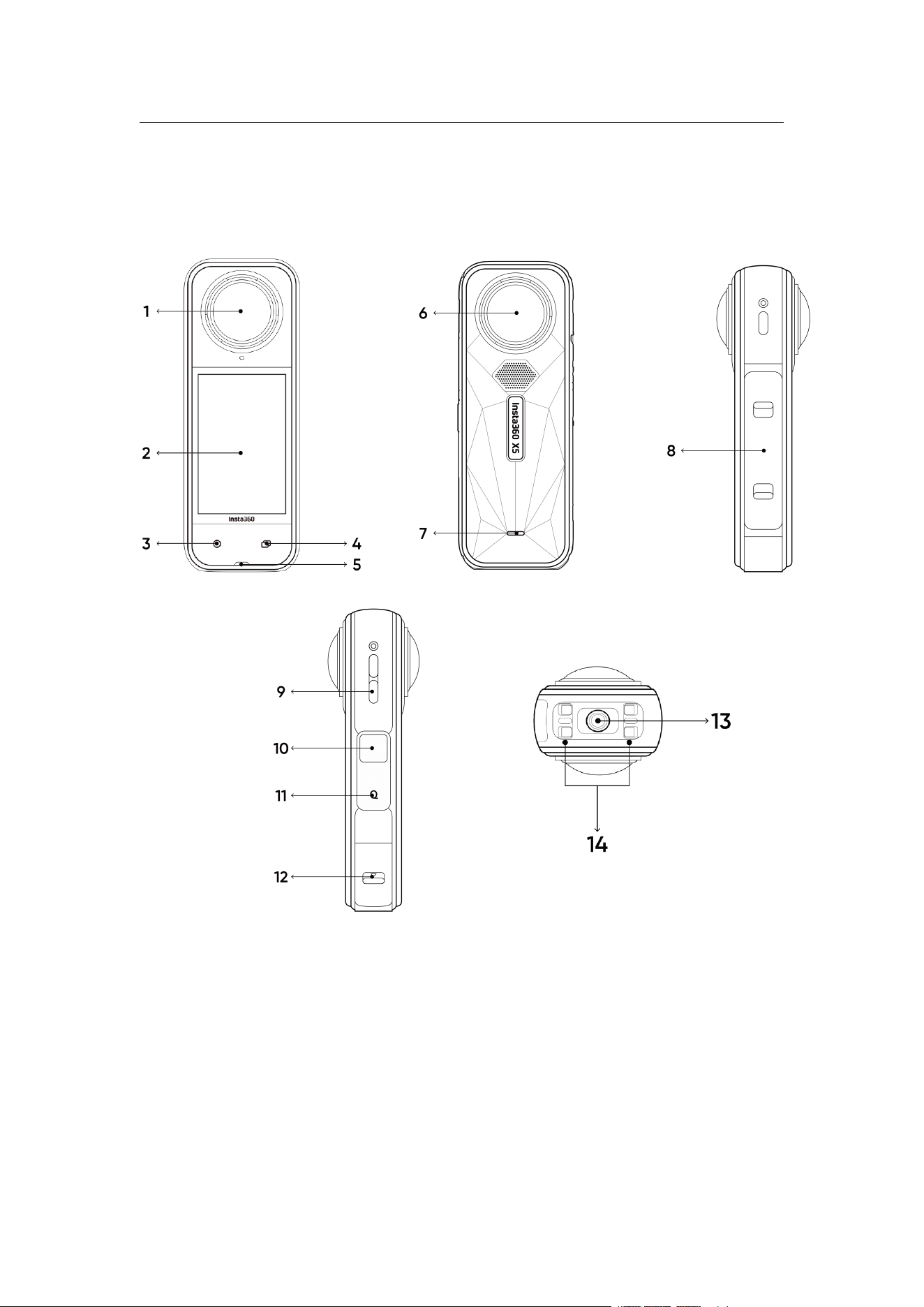
X5 Introduction
1. Front Lens
2. Touchscreen
3. Shutter Button
4. Menu Button
5. Indicator Light
6. Rear Lens
7. Indicator Light
8. Battery
9. Speaker
10. Power Button
11. Quick Button
12. USB Type-C Port
13. 1/4" Mounting Point
14. Quick Release Mounting Point
X5 User Manual
First Use
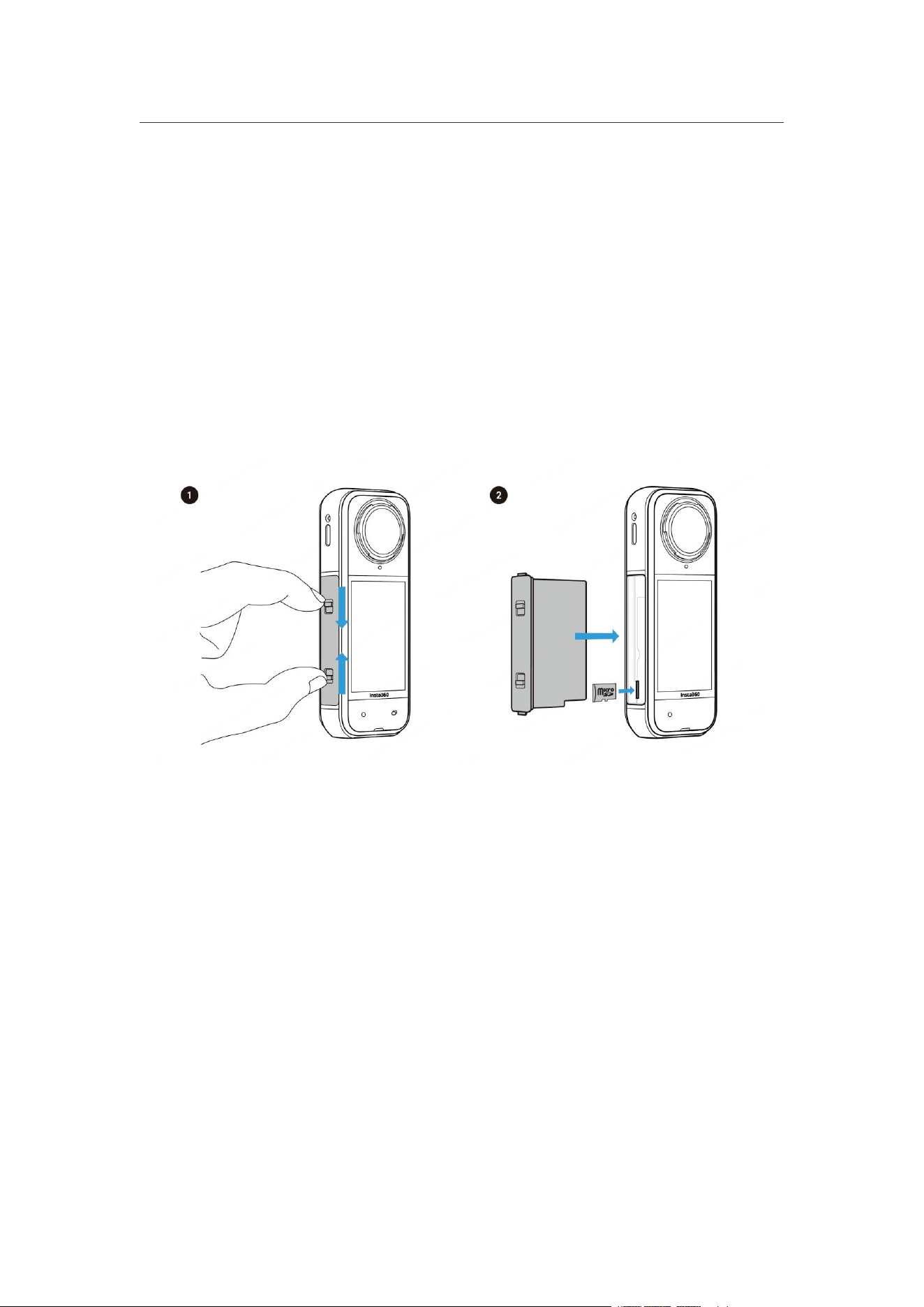
Insert the MicroSD Card
1. First, remove the battery by pinching the latches on the cover towards each other.
2. Insert the memory card into the slot in the direction indicated.
3. Reinsert the battery and make sure the battery cover is locked. The orange
indication marks should be covered by the latch to ensure waterproofing is not
affected.
X5 User Manual
Charging
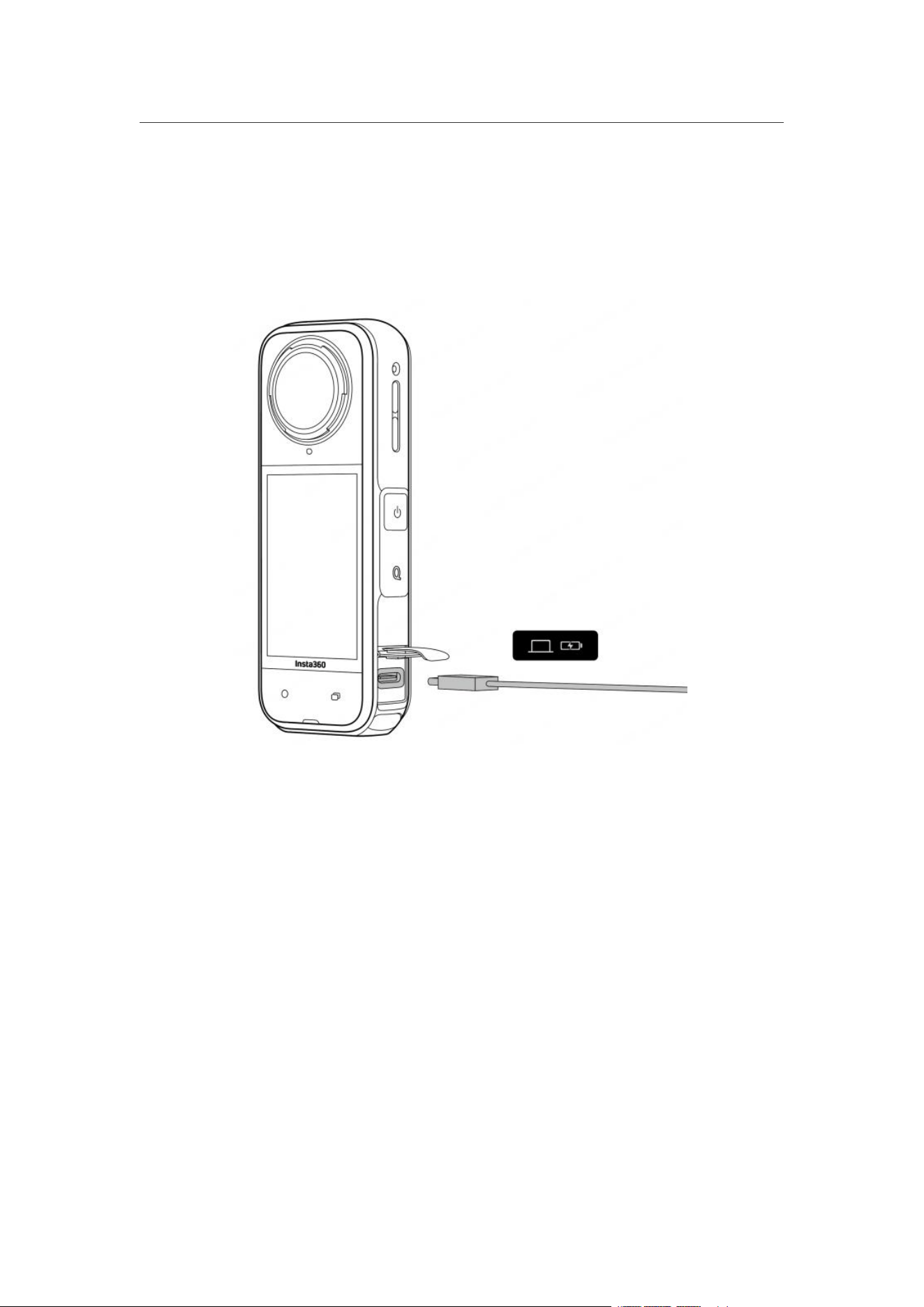
1. Open the USB Port Cover.
2. Use the included USB-C Cable to charge X5.
X5 supports PD fast charging with the X5 Utility Fast Charge Hub and with 9V/3A
adapters.
X5 Charging Time: (9V/3A Adapter)
• 0–80%: 20 mins
• 0–100%: 35 mins

X5 User Manual
Activation
You need to activate X5 in the Insta360 app before using it for the first time.
Steps:
1. Download the Insta360 app. Just search "Insta360" in any major app store or
scan the QR code on the box.
2. Press the Power Button to turn on X5.
3. Enable Wi-Fi and Bluetooth on your smartphone.
4. Open the Insta360 app and tap the camera icon at the bottom of the page. Select
the device you want to connect to in the pop-up window, then follow the on-screen
instructions to complete the connection. The name of your camera is "X5**" by
default, where ** is the last six digits of the serial number on the box your X5 came in.
The first time you connect to X5, you will need to confirm the connection on the
touchscreen.
5. After successfully connecting the camera, follow the on-screen instructions to
activate your camera. The app will prompt you to update the firmware if a new
version is available. Please follow the on-screen prompts to update X5's firmware.

X5 User Manual
Basic Use
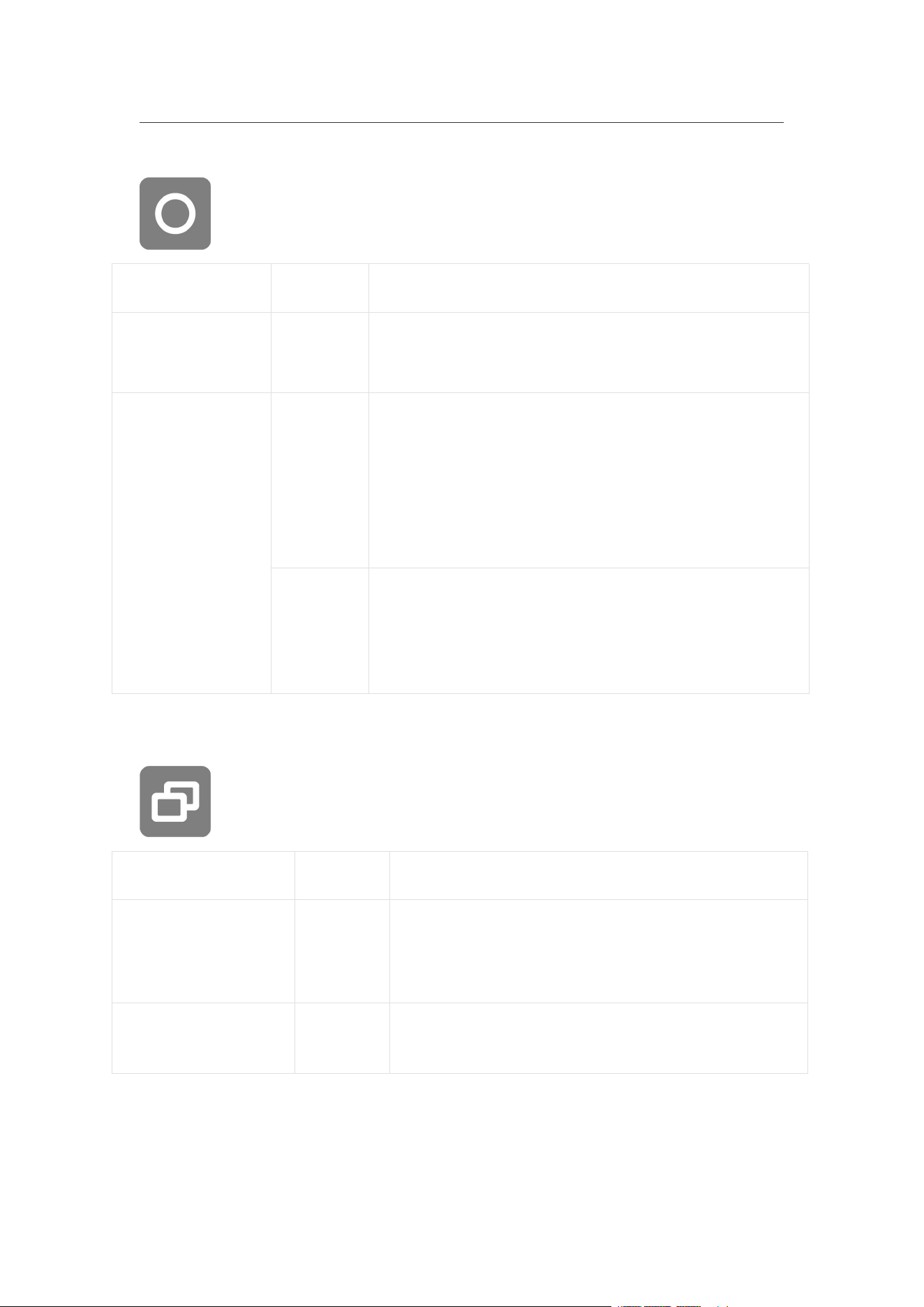
Button Instructions
Power Button
Camera
Status
Operation
Descriptions
Powered off
Press once
• Power on camera.
Powered on
Press once
• Turn touchscreen on/off.
Long press
• 2 seconds: Power off.
• 8 seconds: Force shutdown.
Quick Button
Camera Status
Operation
Descriptions
Powered on
Press
once
• Quickly access preset shooting modes and
parameters. Press again to switch between
different presets.
• Cycle through to the last icon to add or
customize presets.
Charging
(power off)
Press
once
Check charging status
X5 User Manual
Shutter Button
Camera Status
Operation
Descriptions
Powered off
Press
once
• Start shooting with QuickCapture.
*Must be enabled on the camera first.
Powered on
Press
once
• During Preview:
- Take a photo or start recording a video.
- Stop recording.
• In other pages:
• - Return to the preview page.
Long
press
• While recording, long press to quickly cancel and
delete the recording.
*Enable "Long press Shutter Button to cancel
recording" in Settings first.
Menu Button
Camera Status
Operation
Descriptions
Powered on
Press
once
• Quickly switch between Video and Photo
modes.
Charging (power off)
Press
once
Check charging status
You can also customize the Menu Button and Quick Button to start recording, switch
shooting modes and more. Go to: Settings > Customize Button.
X5 User Manual
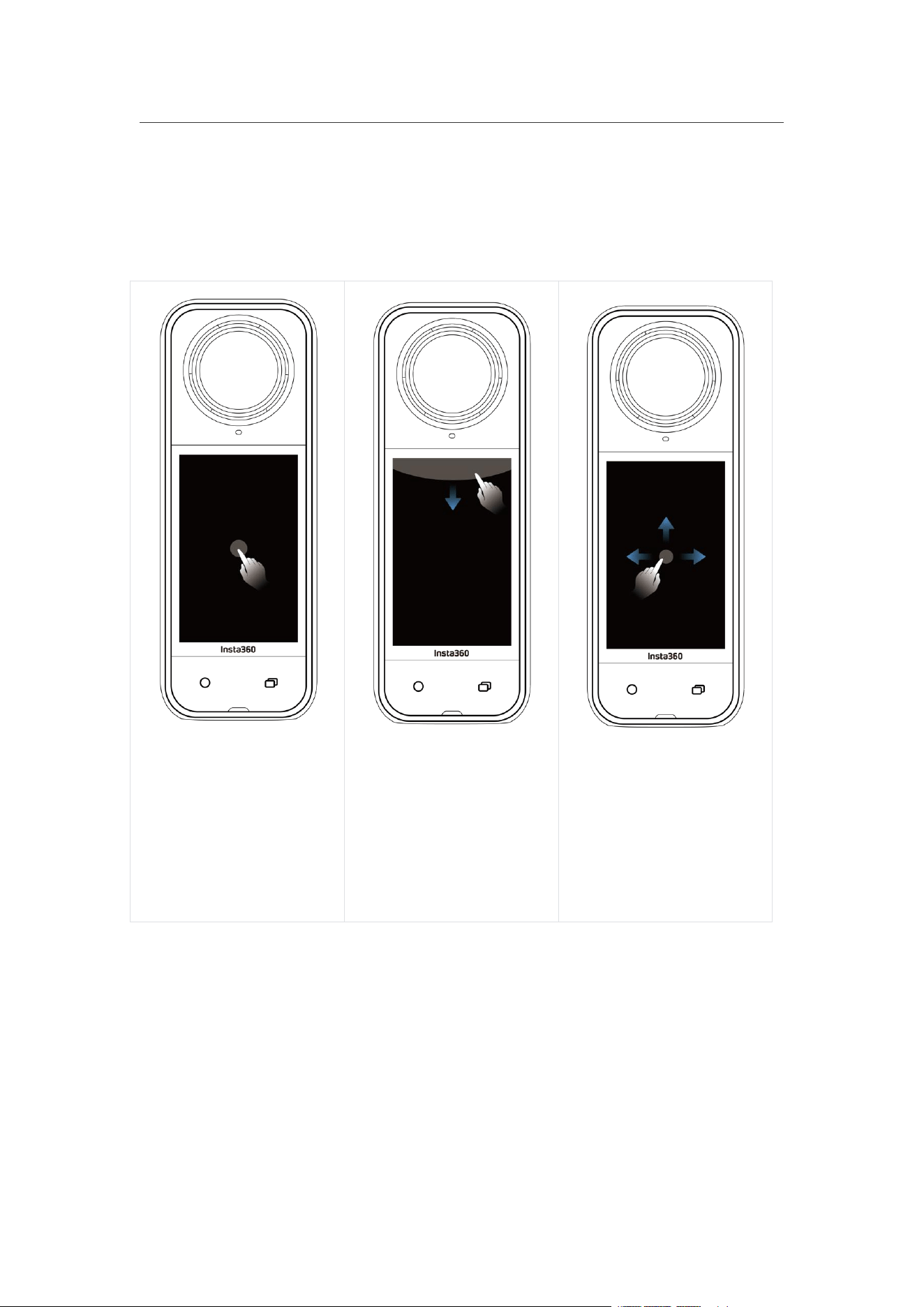
Using the Touchscreen
When the camera is powered on, the touchscreen displays the camera's home page
and information about the shooting mode, battery level, and storage capacity. By
swiping or tapping the screen, you can achieve the following:
Tap the screen
Hide/show information
on the touchscreen.
Swipe down from the top
View Shortcut Menu.
Swipe left to right or up
and down from the
center
Adjust the shooting angle
in 360° Mode.
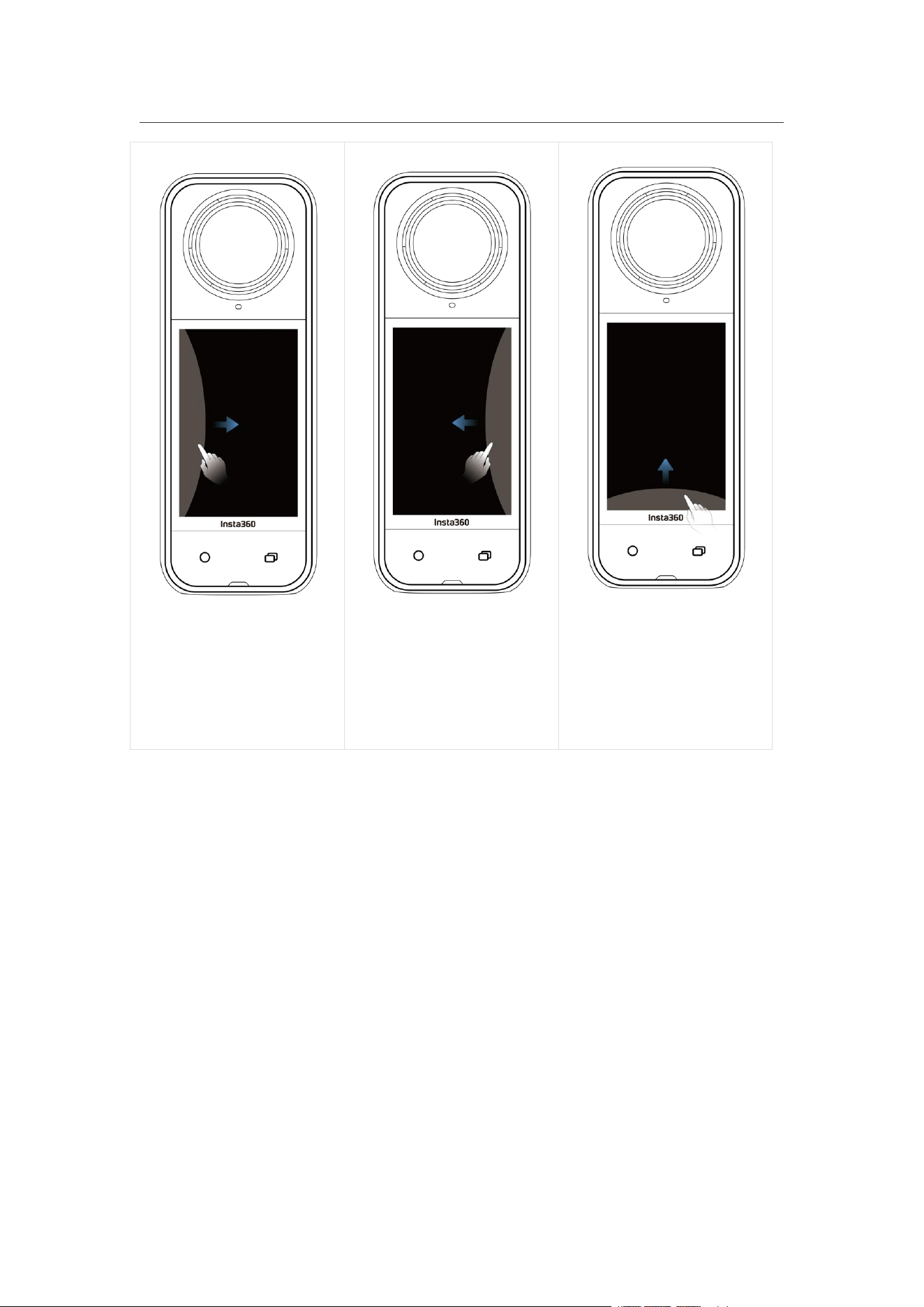
X5 User Manual
Swipe from the left
Enter the album page.
Swipe from the right
Enter shooting parameter
settings.
Swipe up from the
bottom
More shooting parameter
settings.
X5 User Manual
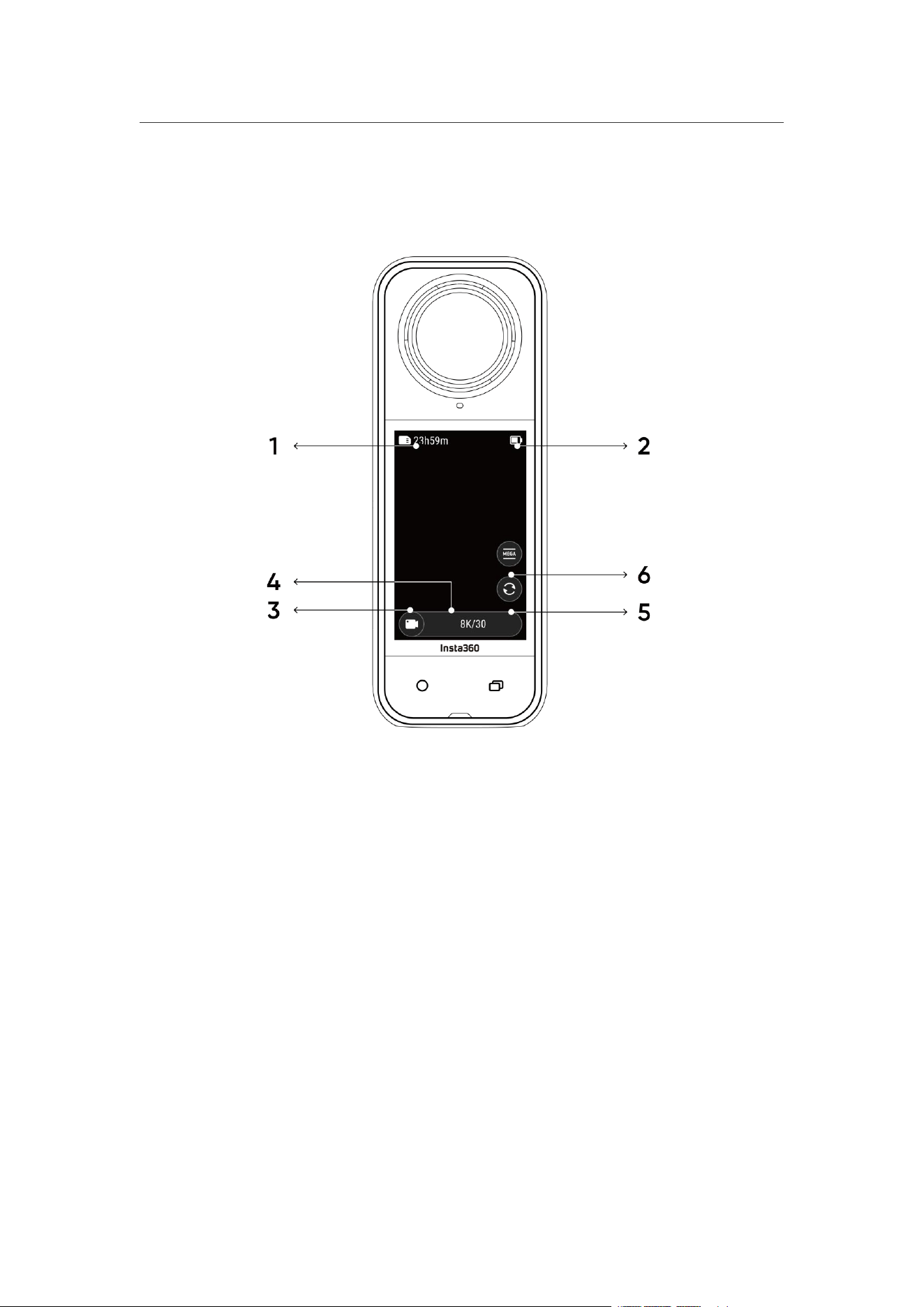
Shooting Interface
1. Storage: Shows the remaining number of photos or the length of video footage
that can be stored on the microSD card.
2. Battery Status: Current battery level.
3. Shooting Mode: Click the icon and swipe to select a different shooting mode.
4. Shooting Specifications: See the current shooting mode settings.
5. Switch Lens: Tap to switch between forward and selfie view. In 360° Mode, you
can also use it to return to the original recording position.
6. Field of View: Change the field of view (Single-Lens Mode only).

X5 User Manual
Shooting Mode
Tap the shooting mode icon and swipe left or right from the center of the screen to
cycle through the shooting modes.
• In 360° Mode:
360° Shooting Tips
X5 captures 360° video by stitching together footage from its two fisheye lenses. For
best results, make sure one of the lenses is facing you when shooting, and avoid
standing too close to the side of the camera.
Shooting Mode
Description
Video
Record 360° videos in up to 8K30fps.
PureVideo
PureVideo improves image quality in low light environments.
InstaFrame
Simultaneously capture an auto-framed flat video and a 360°
video. Note, Gesture Control is not supported in this mode.
Timelapse
Suitable for shooting static timelapse videos.
TimeShift
Take a hyperlapse (sped-up) video while moving.
Bullet Time
Slow-motion video with 360º overhead rotation.
Loop Recording
Record continuously and save only the last fixed-length
segment.
Road Mode
Loop recording within a certain storage space, overwriting the
earliest recording when the space is full.
Starlapse
Shoot and store multiple photos and automatically combine
Starlapse effects.
Burst Photos
Take multiple photos in a short space of time.

X5 User Manual
Interval
The camera automatically takes continuous photos at a
specific time interval.
Photo
Take a single photo.
• In Single-Lens Mode:
Shooting Mode
Description
Video
Record wide-angle videos from one lens up to 4K60fps.
FreeFrame
Video
Apply FlowState Stabilization and Horizon Lock with
adjustable aspect ratio in post via the app or Studio.
Me Mode
Record wide-angle videos with the Invisible Selfie Stick effect,
keeping you in the center without any reframing.
Loop Recording
Record continuously and save only the last fixed-length
segment.
Photo
Take a single photo.
Is it normal for the camera to get warm while shooting?
When shooting in 8K resolution, the camera uses a lot processing power, so it's
normal for the body to warm up. You can try the following to reduce power
consumption, extend battery life, and improve your shooting experience:
• Enable or disable high-performance features as needed, such as turning off the
AI Highlights Assistant.
• Adjust the screen timeout. In the Shortcut Menu, go to: Settings > Screen Auto
Sleep, and set a shorter timeout duration.
X5 User Manual
Shortcut Menu
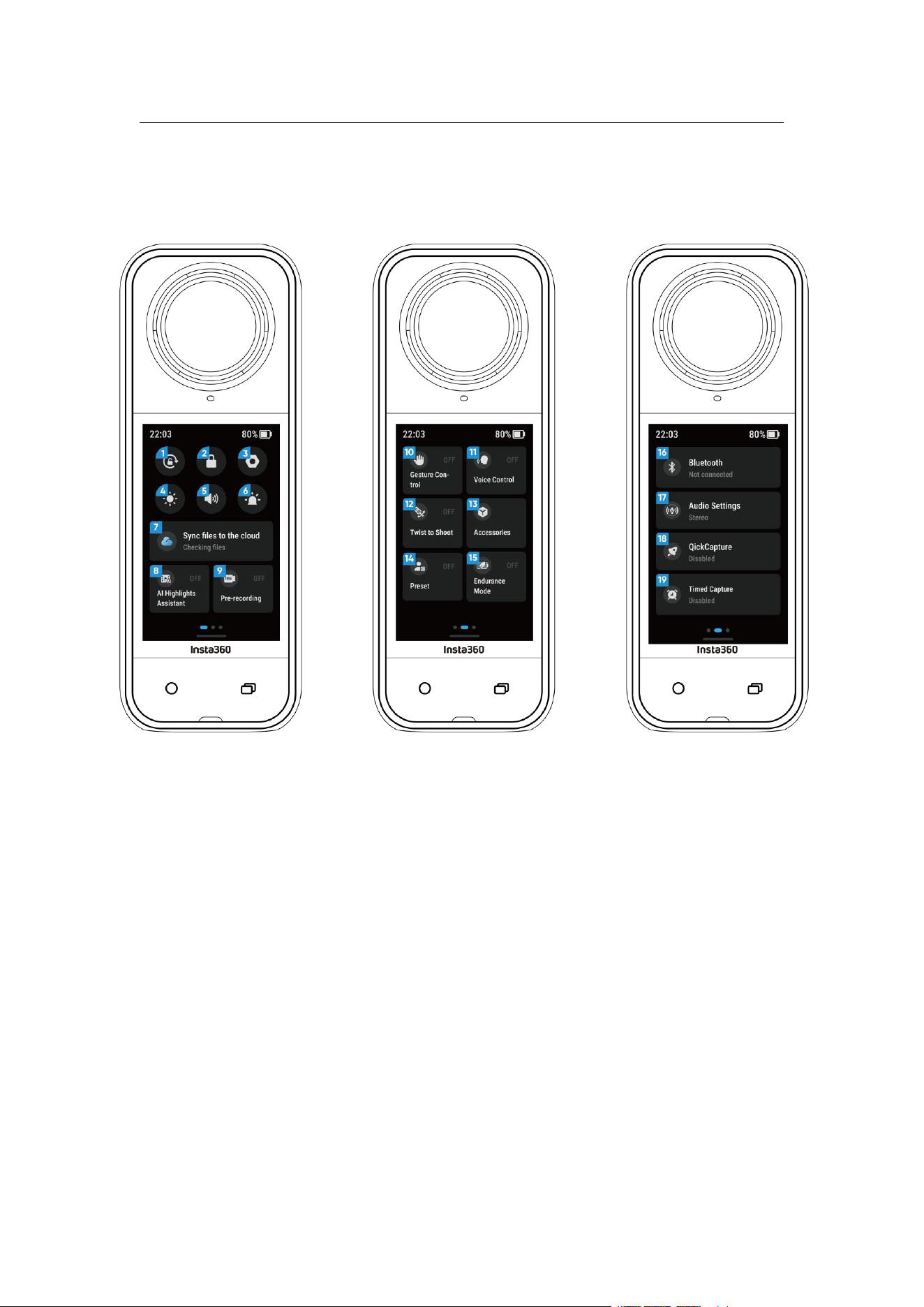
Swipe down on the touchscreen to view the Shortcut Menu.
1. Rotation Lock: Turn on/off.
2. Lock Screen: Tap to lock screen. Swipe up on the touchscreen to unlock.
3. Settings: See camera settings.
4. Adjust Brightness: Slide the bar to adjust the screen brightness.
5. Prompt Sound: Set the camera speaker volume. There are five options: Adaptive,
High, Medium, Low, and Mute.
6. Indicator Light: Turn on/off.
7. Sync files to the cloud: Subscribe to Insta360+ for automatic file backup, online
playback, easy sharing, on-the-go editing and convenient cloud export.
8. AI Highlights Assistant: Turn on/off. The camera finds the best moments from a
single video and shows you the highlights to review. Merge them into one video or
save each of them as new files. View them on the Album page.

X5 User Manual
9. Pre-Recording: Turn on/off. The footage from a certain duration before pressing
the shutter button can be saved. (duration varies in different shooting modes).
10. Gesture Control: Turn on/off.
11. Voice Control: Turn on/off.
12. Twist to Shoot: When the camera is powered on, twist the selfie stick back and
forth twice to shoot or take a photo.
13. Accessories: You need to adjust the settings for certain accessories before
using them with X5, including the Invisible Dive Case, POV Chest Mount, and Thermo
Grip Cover.
14. Preset: Switch between, add and modify preset shooting modes and parameters.
15. Endurance Mode: Enabling will limit some features to extend run time.
16. Bluetooth: Search for and connect a Bluetooth remote or Bluetooth
headset/microphone.
17. Audio Settings: Switch audio mode.
18. Quick Capture: Turn on/off. Once enabled, press the Shutter Button when the
camera is powered off to turn it on and start recording.
19. Timed Capture: When turned on, the camera will shoot according to the time
specified.
X5 User Manual
Shooting Specification Settings
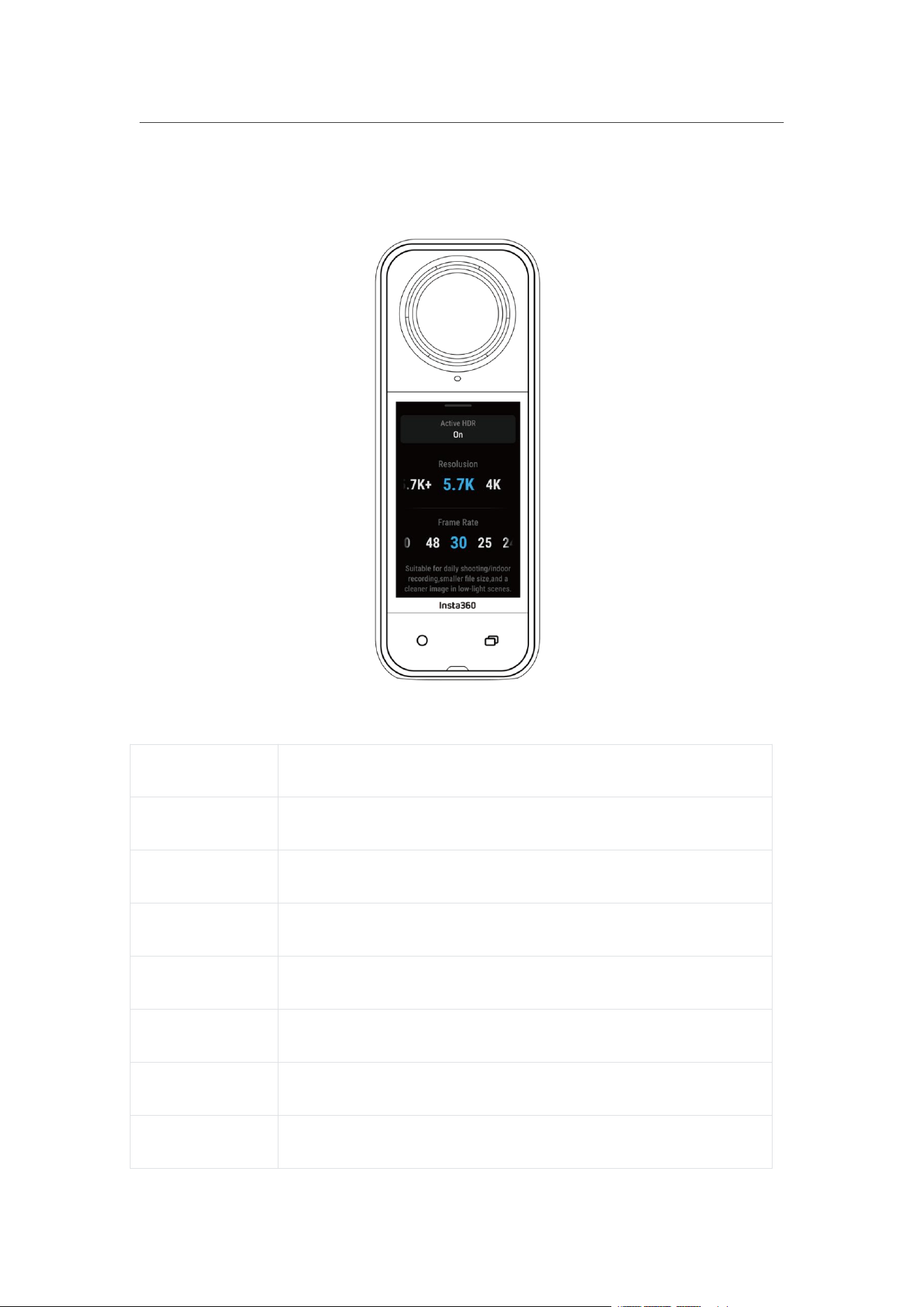
Swipe up from the bottom of the touchscreen to view shooting specification settings.
• In 360°Mode:
Shooting Mode
Parameters
Video
Active HDR, Resolution, Frame Rate
PureVideo
Resolution, Frame Rate
InstaFrame
Flat Video Resolution, Ratio, 360° Resolution, Frame Rate
Timelapse
Resolution, Frame Rate, Interval
TimeShift
Resolution, Frame Rate, Speed
Bullet Time
Resolution, Frame Rate
Loop Recording
Resolution, Frame Rate, Loop Duration

X5 User Manual
Road Mode
Loop Space, Power-off Charging, Resolution, Frame Rate
Starlapse
Type, Resolution, Duration, Timer
Burst
Timer, Format, Resolution, Burst number/duration
Interval
Resolution, Duration, Interval, Format
Photo
HDR Photo, Format, Resolution, Timer
• In Single-Lens Mode:
Shooting Mode
Parameters
Video
Ratio, Resolution, Frame Rate
FreeFrame
Video
Ratio, Resolution, Frame Rate, Horizon Lock
Me Mode
Ratio, Resolution, Frame Rate
Loop Recording
Ratio, Resolution, Frame Rate, Loop Duration
Photo
Ratio, Resolution, Timer, Format
X5 User Manual
Shooting Parameter Settings
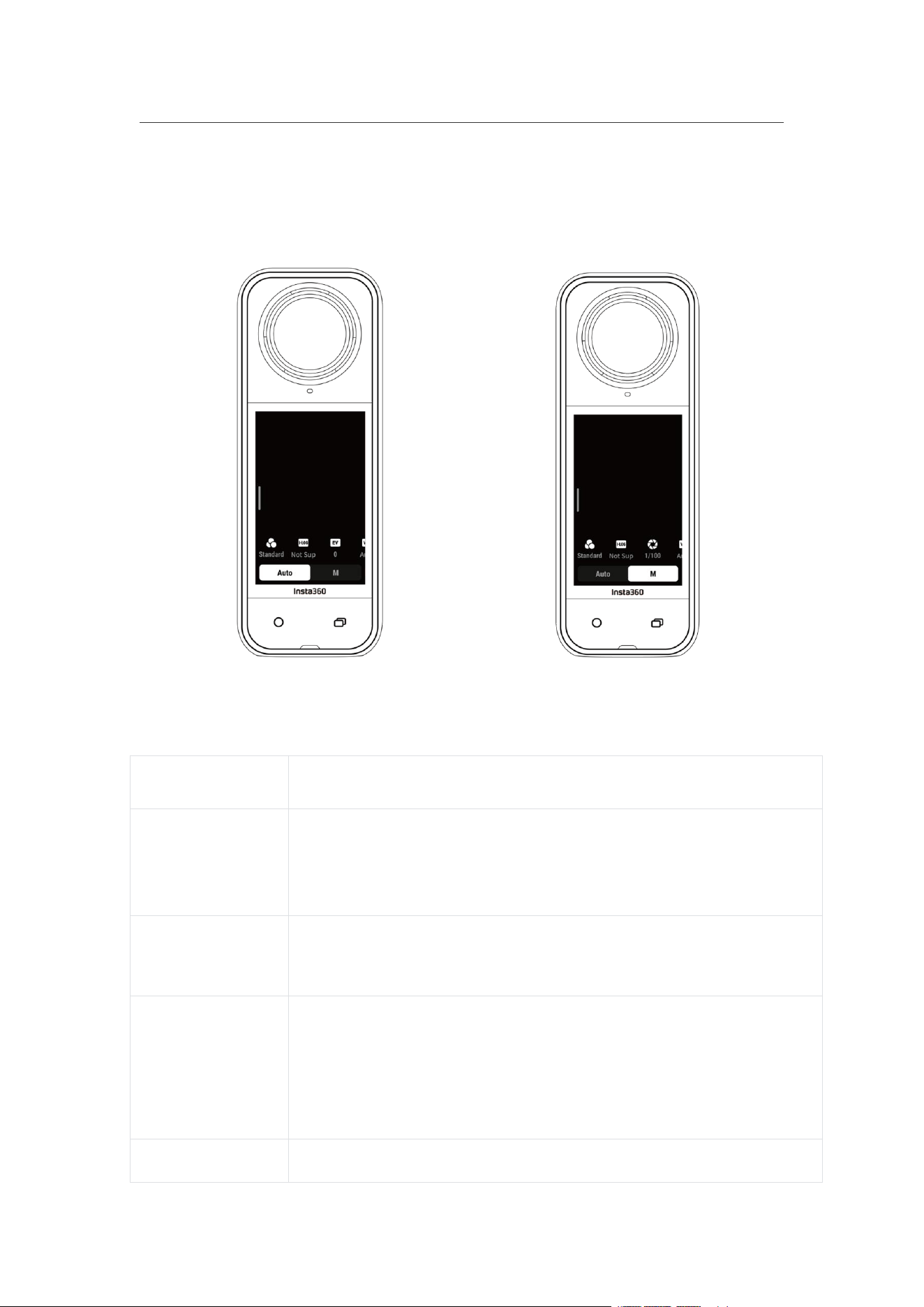
Swipe left from the right edge of the touchscreen to see the shooting parameter
settings.
360° Mode and Single-Lens Mode support different parameters in different shooting
modes.
Shooting Mode
Parameters
Shutter Speed
Controls the time it takes for light to enter the camera. The faster
the shutter speed, the clearer the image. Make this higher for
dynamic shots and lower for low light conditions.
Sensitivity (ISO)
Reflects how sensitive the sensor is to light. A higher sensitivity
means the camera can capture more light for a brighter image.
Exposure
Compensation
Value (EV)
In Auto Mode, you can adjust the EV to help with overexposure or
underexposure.
White Balance
Removes unrealistic colors and tones so colors are accurately

X5 User Manual
(WB)
captured in the image. A higher white balance produces warmer
tones, lower results in cooler tones.
Jitter Blur
Reduction
Improves motion blur and stabilization in low light environments. In
extreme environments, the image will be darker and may have some
flickering.
Filters
Add different color tones and effects.
Balanced
Exposure
The screen will automatically equalize the exposure according to
the environment.
I-Log
Professional color profile, captures more detail and provides more
scope for color grading in post-production.
Metering Mode
Face Priority prioritizes the face for brightness. Matrix ensures
accurate exposure of the whole image.
Low Light
Enhancement
Allows clearer and more stable footage up to 5.7K30fps. In bright
environments, turn this off for better battery life.
• 360° Mode:
Shooting
Mode
Parameters
Auto
Manual
Video
Filters, I-Log, EV, Jitter Blur Reduction,
WB, Balanced Exposure
Filters, I-Log, Shutter, ISO, WB
PureVideo
Filters, EV, WB,, Balanced Exposure
InstaFrame
Low Light Enhancement, Filters, EV, WB, Jitter Blur Reduction
Timelapse
Filters, EV, WB, Jitter Blur Reduction,
Balanced Exposure
Filters, Shutter, ISO, WB
TimeShift
Filters, EV, WB, Jitter Blur Reduction,
Balanced Exposure
Filters, Shutter, ISO, WB

X5 User Manual
Bullet Time
Filters, EV, WB
Loop
Recording
Low Light Enhancement, Filters, I-Log,
EV, Jitter Blur Reduction, Balanced
Exposure
Filters, I-Log, Shutter, ISO, WB
Road Mode
Low Light Enhancement, Filters, I-Log,
EV, Jitter Blur Reduction, Balanced
Exposure
Filters, I-Log,
Starlapse
EV, WB
Shutter, ISO, WB
Burst Photos
EV, WB
Shutter, ISO, WB
Interval
EV, WB
Shutter, ISO, WB
Photo
EV, WB
Shutter, ISO, WB
• Single-Lens Mode:
Shooting
Mode
Parameters
Auto
Manual
Video
Filters, EV, WB, Metering Mode, Jitter
Blur Reduction
Filters, Shutter, ISO, WB
FreeFrame
Video
Filters, EV, WB, Metering Mode, Jitter
Blur Reduction
Filters, Shutter, ISO, WB
Me Mode
Filters, EV, WB, Jitter Blur Reduction
Filters, Shutter, ISO, WB
Loop
Recording
Filters, EV, WB, Metering Mode, Jitter
Blur Reduction
Filters, Shutter, ISO, WB
Photo
EV, WB, Metering Mode
Shutter, ISO, WB
X5 User Manual
Album Page
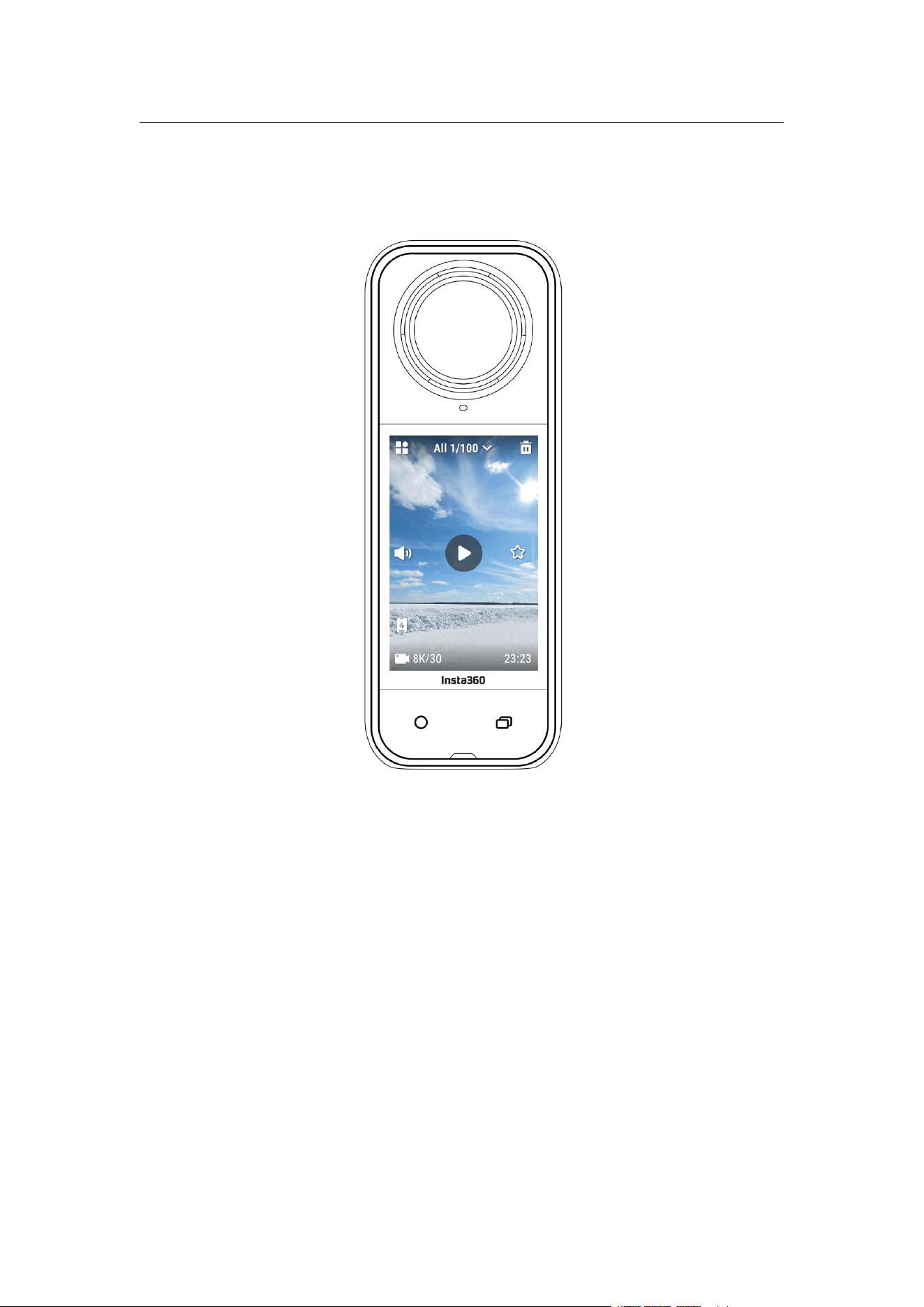
Swipe right from the left of the touchscreen to enter the Album page.

X5 User Manual
Indicator Lights
Camera Status
Indicator Light Status
Powered on/Standby/Standby (charging)
Pre-recording/USB Mode
Solid cyan
Start shooting with QuickCapture
Flashing cyan three times
Power off
Flashing cyan five times
Charging (powered off)
Solid orange
Recording a video
Flashing red
InstaFrame (Selfie View)
Recording
Flashing green
InstaFrame (Selfie View)
360° spin/barrel roll (Standby or recording)
Flashing green rapidly
InstaFrame (Custom View)
360° spin/barrel roll (Recording)
Flashing red
InstaFrame (Custom View)
360° spin/barrel roll (Standby)
Flashing cyan rapidly
Updating firmware
Flashing blue
Insufficient storage/File error/USB error
Solid yellow
Low Battery/Charging Error
Temperature too high/too low
Flashing yellow three times
Reverse charging
Flashing green

X5 User Manual
File Storage
Please use exFAT format microSD cards of speed classes UHS-I and V30 or above to
ensure normal recording. The maximum supported storage space is 1TB.
We recommend using the official memory card available on the Insta360 Store. If you
use another memory card, the following have also been tested to be compatible with
X5:
Micro SD Cards
Model Number
Capacity
Speed Class
Insta360 microSD V30 A1
64G
64G
U3
,
A1
,
V30
128G
128G
U3
,
A1
,
V30
SanDisk Extreme V30 A1
SDSQXVF-032G-GN6MA
128G
V30
SanDisk Extreme Pro V30 A1
SDSQXCG-064G-GN6MA
64G
V30
SanDisk Extreme V30 A2
SDSQXAH-064G-GN6GN
64G
U3,A2,V30
SDSQXAA-128G-GN6GN
128G
U3,A2,V30
SDSQXAV-256G-GN6GN
256G
U3,A2,V30
SDSQXA1-512G-ZN6MA
512G
U3,A2,V30
SDSQXA1-1T00-ZN6MA
1TB
U3,A2,V30
SanDisk Extreme Pro V30 A2
SDSQXCU-064G-GN6MA
64G
U3,A2,V30
SDSQXCY-128G-ZN6MA
128G
U3,A2,V30
SDSQXCD-256G-GN6MA
256G
U3
,
A2
,
V30
SDSQXCZ-512G-ZN6MA
512G
U3
,
A2
,
V30
SDSQXCD-1T00-GN6MA
1TB
U3,A2,V30

X5 User Manual
Lexar 1066x microSD UHS-I
SILVER Series
LMS1066064G-BN
64G
V30
LMS1066128G-BN
128G
V30
LMS1066256G-BN
256G
V30
LMS1066512G-BN
512G
V30
Format MicroSD Card
It is recommended to regularly transfer camera files to a phone or computer for
backup and format the microSD card via the camera or Insta360 app to avoid any
storage issues.
• Format via X5:
1. Insert the microSD card into X5.
2. Power on X5.
3. Swipe down on the touchscreen to enter the Shortcut Menu > Settings > SD
Card > Format.
• Format via Insta360 app:
1. Connect X5 to your phone via the Insta360 app.
2. Enter app Settings > Device Settings > Camera Storage > Format.
Note: When formatting the card by computer, it needs to be in exFAT format, and the
allocation unit size should be left as the default setting.
X5 User Manual
Attach External Devices
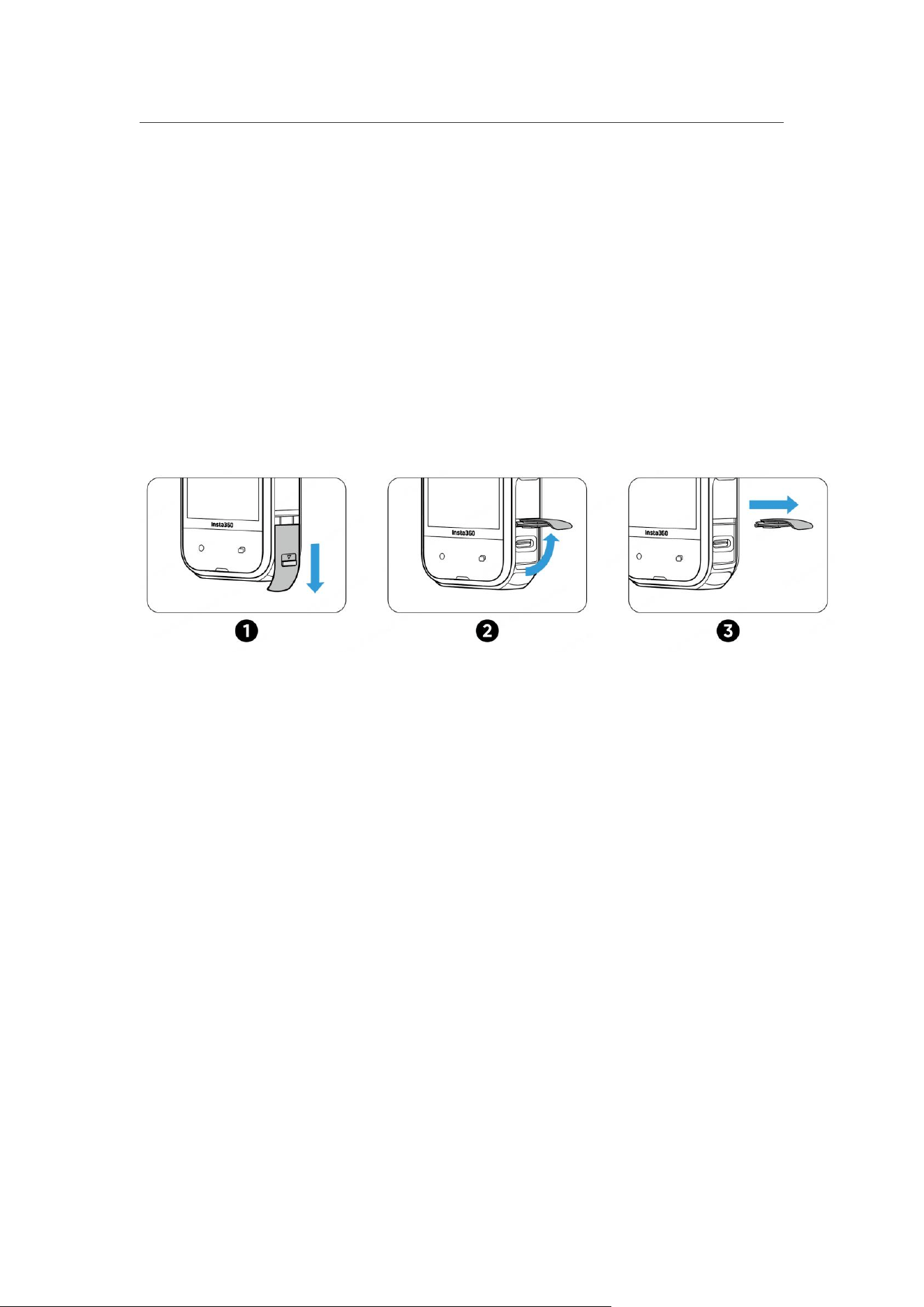
You can remove the USB Port Cover to attach external devices.
1. Open the USB Port Cover and pull it off.
2. Once removed, you can install external mics, the X5 Quick Reader, and other
accessories.
3. When you're finished, reattach the USB Port Cover by hooking it onto the metal
bar and closing it. Make sure it is tightly closed to ensure waterproofing is not
affected.

X5 User Manual
Transfer and Edit with the Insta360 App
Connect to the Insta360 App
1. Download the Insta360 app. Alternatively, search "Insta360" in the App Store or
Google Play Store to download the Insta360 app.
2. Press the Power Button to turn on X5.
3. Enable Wi-Fi and Bluetooth on your smartphone.
4. Open the Insta360 app and click the camera icon at the bottom of the page.
Follow the on-screen instructions to activate your camera.
5. If you connect to the Insta360 app for the first time, you need to authorize the
connection on the touchscreen.
If you are unable to connect to the app, go to your smartphone's Wi-Fi settings, find
your X5, enter the password and return to the app.
Note: You can change the camera's Wi-Fi password on the app settings page.
Still can't connect to the Insta360 app?
1. Check if the Insta360 app has permission for the following: network permission,
Bluetooth permission, or local network permission.
2. Check if Wi-Fi is enabled on your camera.
3. Make sure X5 is close enough to the phone.

X5 User Manual
File Transfer
You can download camera files to your phone or PC, then use the Insta360 app or
Insta360 Studio to edit and export.
File transfer from camera to phone
Wireless Connection (iOS/Android)
1. Connect the camera to the Insta360 app.
2. Open the app's album page.
3. Tap the top right icon to select the files you want to transfer.
1. Tap the export icon to save it to your phone's album. Do not exit the app or lock
your phone while exporting.
2. Tap the download icon to download the footage to the app's gallery.
If your camera can't connect to the Insta360 app, try the following:
1. Update the camera and app to the latest version.
2. Check your phone's Wi-Fi settings to see if it's connected. If not, enter the Wi-Fi
password and restart your camera and phone before trying again. If it's still not
connecting, forget the camera's Wi-Fi network in your phone settings and attempt to
reconnect.
3. Make sure the Insta360 app has GPS and Bluetooth permissions enabled. On
Android devices, disable WLAN+ or auto-switch Wi-Fi (if available). On iOS devices,
go to system settings, select Insta360, and turn on "Local Network."
File transfer from camera to computer
(Mac/Windows)
1. Use the official USB-C cable to connect the camera to your computer.
2. Power on the camera and select File Transfer. Wait for the computer to
recognize the camera drive.
3. Open DCIM > Camera01 folder and copy photos/videos from this folder to your
computer.

X5 User Manual
If your camera can't connect, try the following:
1. Ensure the camera's firmware is up to date.
2. Use the official USB-C cable for transfer, as non-official cables may have
compatibility issues.
3. Make sure the camera is powered on.
File transfer from Insta360 app to Mac
• iPhone
1. Connect your iPhone to your Mac.
2. In the Finder window on your Mac, select your iPhone.
3. At the top of the Finder window, click Files, then do one of the following:
-Transfer from Mac to iPhone: Create a new folder and name it IMPORT on your
desktop. Drag your files to the IMPORT folder and then into the Insta360 app
folder on your device.
-Transfer from iPhone to Mac: Click the small triangle beside the Insta360 app to
see the DCIM folder, then drag the desired files to a folder on your Mac.
Notes:
a. The folder must be named IMPORT with capital letters.
b. You may not be able to see the transfer progress. Please wait for it to finish.
c. After transferring, restart the Insta360 app on your phone to see the files.
• Android
1. Install Android File Transfer on your Mac.
2. Connect your phone to the Mac and open Android File Transfer.
3. Find "data > com.arashivision.insta360akiko > files > Insta360OneR >
galleryOriginal".
4. Browse the files and folders on your Android device, then copy and paste or drag
them to a folder on your Mac.

X5 User Manual
File transfer from Insta360 app to Windows PC
• iPhone
1. Install iTunes on your Windows PC. Connect your iPhone to your PC, open iTunes,
then complete the authorization process according to the instructions.
2. After successful authorization, click the iPhone icon in the top left corner, and
the iPhone's files will appear.
3. Click "File Sharing" and choose "Insta360" from the list. Then do one of the
following:
- Transfer from iPhone to Windows PC: Find the DCIM folder, then click Save.
Choose your desired path and click Save.
- Transfer from Windows PC to iPhone: Create a new folder and name it IMPORT,
then copy the photos/videos to the IMPORT folder. Replace the IMPORT folder in
the Insta360 app.
Notes:
1. The folder must be named IMPORT with capital letters.
2. After transferring, restart the Insta360 app on your phone to see the files.
• Android
1. Connect your Android phone to your PC. Choose "Manage Files" under "USB
Connected" on the phone if required.
2. Click "My Computer/This Computer", find your phone model, and click "Internal
Storage".
3. Find "data > com.arashivision.insta360akiko > files > Insta360OneR >
galleryOriginal", then do one of the following:
-Transfer from Android to Windows PC: Copy the folder or files to your PC.
- Transfer from Windows PC to Android: Copy files to this folder from your PC

X5 User Manual
Editing
You can view and edit your 360º and flat footage in the Insta360 app or Insta360
Studio.
• Insta360 App
Album Page
1. Connect X5 to the Insta360 app.
2. Enter the Album page to view all your clips.
3. Open your flat or 360º footage and edit them in the player.
Edit Page
1. Connect your X5 to the Insta360 app.
2. Head to the Edit page. You can open and edit your footage in "Create a Video", or
use AI to automatically edit your clips with "Auto Edit". Try out the AI templates,
themes and effects with FlashCut and Shot Lab for viral videos in seconds.
• Insta360 Studio
1. Download and open Insta360 Studio on your computer from the Insta360
website.
2. Connect your camera or SD card to your PC and import your media.
3. Edit with Studio's extensive tools and library, or use its Abobe Premiere plugin for
even more options.
X5 User Manual
Maintenance
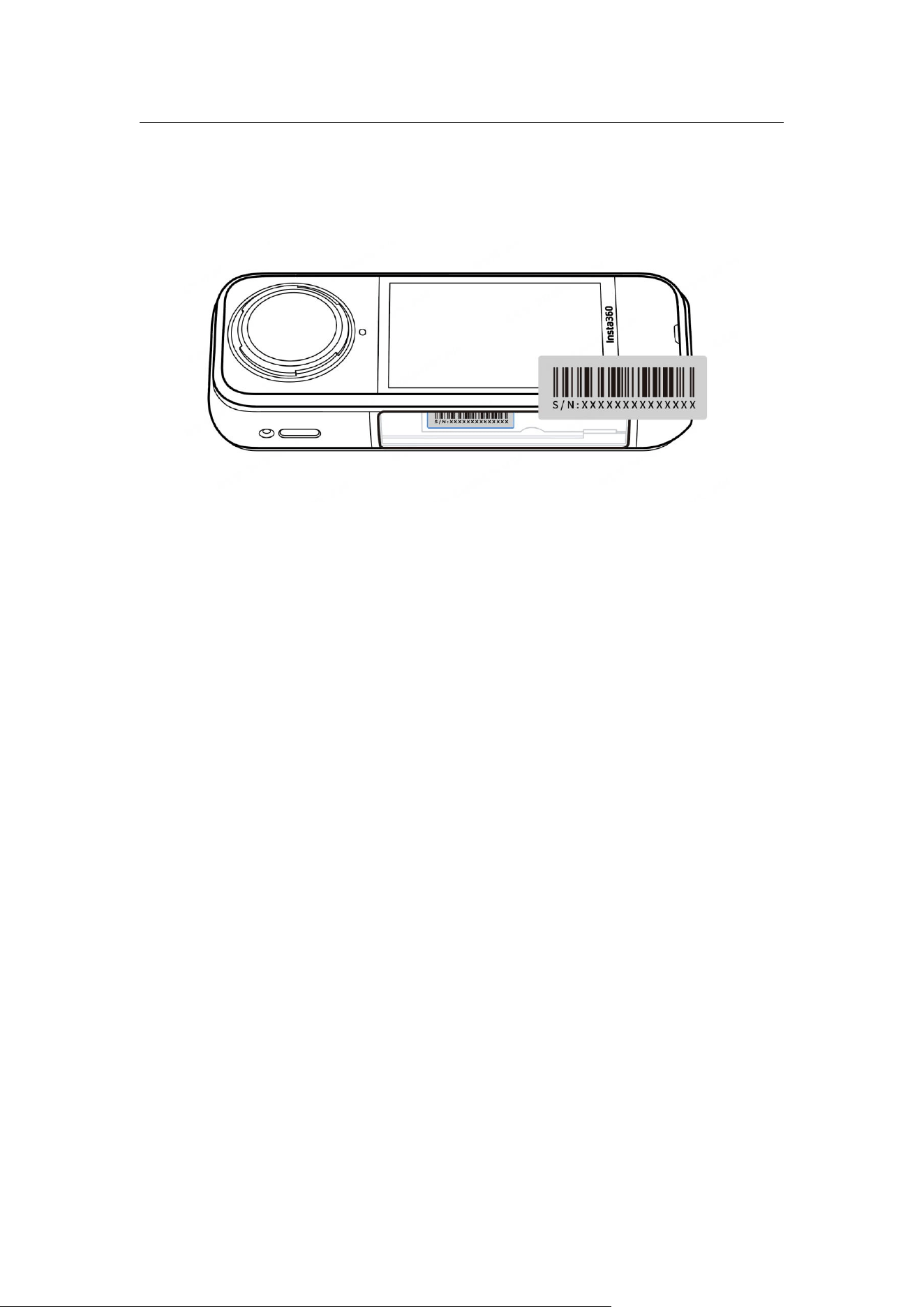
Find Your Serial Number
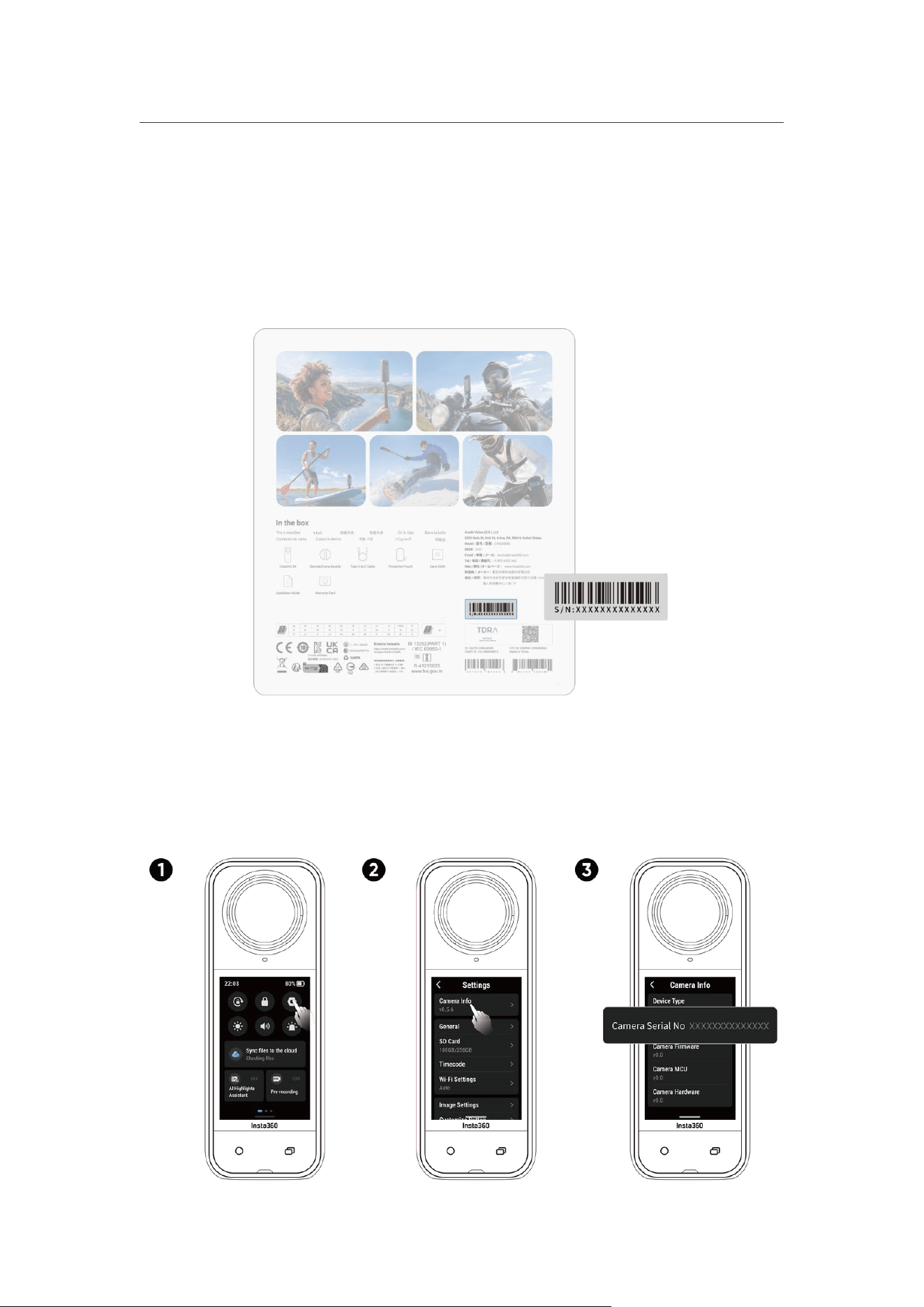
1. Product Box
The camera's serial number is on the back of the original product box.
2. Camera Settings
(1)Power on your camera.
(
2
)
wipe down on the touchscreen to access the Shortcut Menu, then go to
Settings > Camera Info to view the serial number.
X5 User Manual
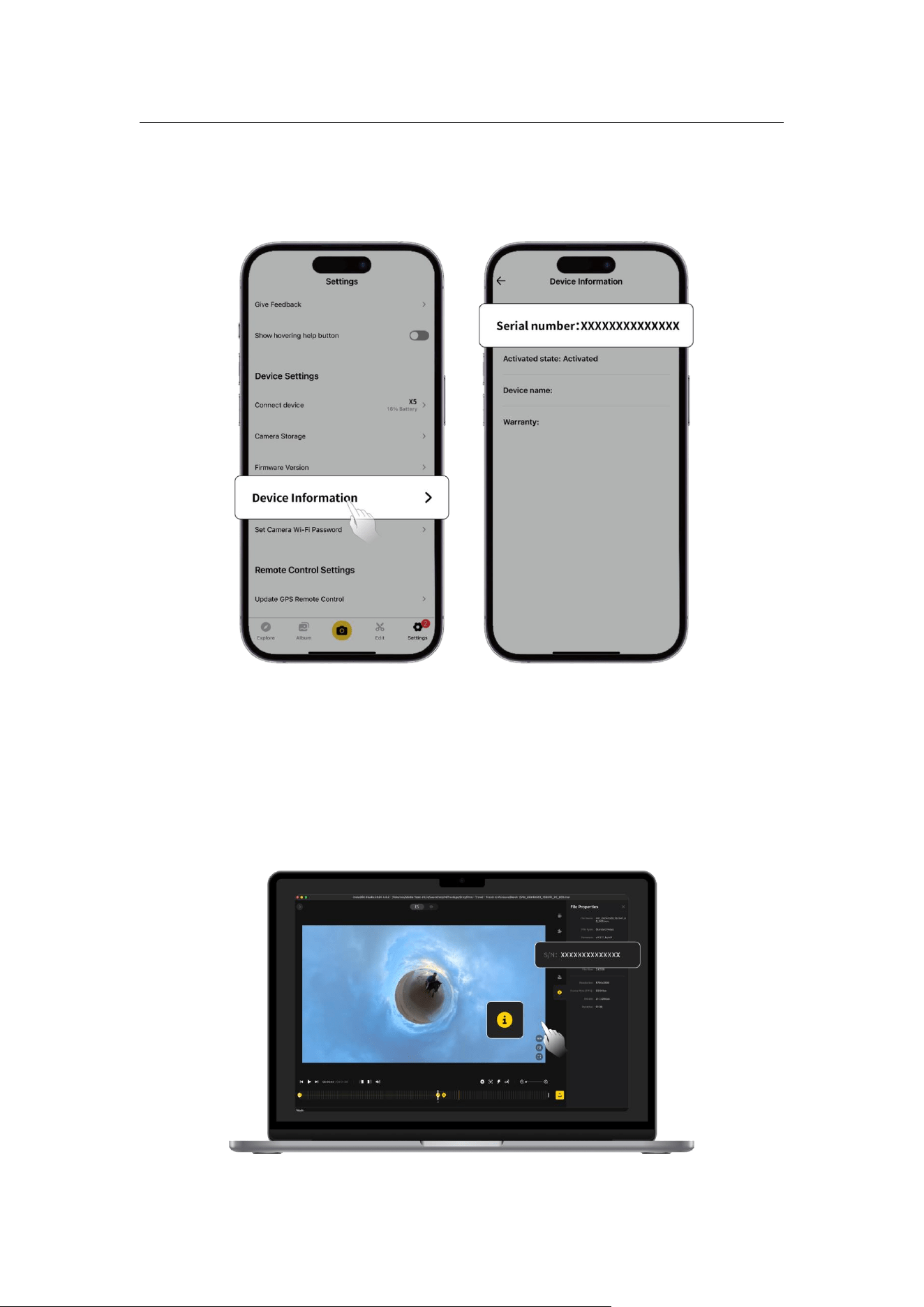
3. Insta360 App
(1)Connect your camera to the Insta360 app.
(2)Enter app Settings > Device Information to view the serial number.
4. Insta360 Studio
(
1
)
Launch Insta360 Studio on your computer and import any footage recorded by
the camera.
(2)Select the footage and click the info icon on the right side of your screen to
access File Properties and view the serial number.
X5 User Manual
5. Battery Compartment Label
After removing the battery, you can find the camera's serial number below the
barcode on the label.

X5 User Manual
Firmware Update
Firmware updates will be regularly available for X5 to ensure it runs efficiently.
Please update to the latest version for optimal results.
Before updating the firmware, ensure X5 has at least 20% battery remaining.
• Update via Insta360 app:
Connect X5 to the Insta360 app. The app will notify you if a new firmware update is
available. Follow the on-screen instructions to update the firmware.
If the camera firmware update fails, check the following and try the update again:
1. Ensure the camera is close to your phone.
2. Keep the Insta360 app running, and do not exit or minimize it.
3. Ensure your phone has a strong and stable network connection.
Once the above conditions are confirmed, restart the camera and try the firmware
update again. If it still fails, try to update the firmware via a computer.
• Update via Computer
1. Make sure X5 is powered on.
2. Connect the camera to the computer using the USB-C cable and select File
Transfer in USB Mode.
3. Download the latest firmware version from the official Insta360 website on your
computer.
4. Once the computer has recognized X5, copy the "Insta360X5FW.bin" file to X5's
root directory. Do not change the file name.
5. Disconnect X5 from the computer. X5 will automatically power off. The Indicator
Lights will slowly flash blue.
6. X5 will automatically restart once the update is complete.

X5 User Manual
Lens Guards
1. Before use, please clean the area around the lens and the surface of the lens to
ensure everything is clean and dry before installation. Any foreign objects on the
lens or lens guard may affect the camera's shooting results.
2. After installing the lens guard, check if the camera has successfully recognized
and displayed the "Lens Guard Mode" icon. After removing the lens guard, check
that the icon disappears.
3. Keep the lens guard clean as dirt or scratches on the surface may affect image
quality.
4. The lens guard is not a sealed structure. Please avoid using it in water-related
activities such as surfing or on rainy days.
5. For underwater shooting, please use a dedicated dive case or relevant
accessories for the camera. When using a dive case, remove the lens guard
before use.
6. Keep the lens guard and surrounding area completely dry. If exposed to snow,
water, or fog, use a soft cloth to wipe it dry before using. Otherwise, fogging may
appear on the inside of the lens guard.
7. When removing the lens guard, be careful not to scratch the camera lens.

X5 User Manual
Waterproofing
1. X5 has a waterproof depth rating of up to 15 meters (49 feet). Remember to
remove the lens guards before use in/around water.
2. Due to the difference in the refractive indices of water and air, shooting with X5
underwater in 360° Mode may have stitching issues. To ensure optimal stitching, it is
recommended to use the Invisible Dive Case for underwater shooting.
3. Before use, please check and ensure that the camera's battery compartment
waterproof seal and the USB Port Cover seal are:
a. Intact and free from dirt or debris.
b. Tightly closed with the orange indicator fully hidden.
Failure to do so may affect waterproofing. If necessary, clean with a lint-free
cloth.
4. After using X5 in seawater, please follow these precautions:
a. Rinse the camera with fresh water.
b. Soak the camera in fresh water for 5–10 minutes.
c. Finally, wipe it dry with a soft cloth and place it in a well-ventilated area to air
dry. Only when the camera surface is dry should you proceed with removing the
battery or other operations.
To maintain X5's waterproofing:
1. Do not use a hair dryer to dry the camera as it may affect the microphone and
speaker and/or damage the internal waterproofing.
2. Avoid operating the camera for extended periods (>1 hour) outside the
recommended temperature range (-4°F to 104°F/-20℃ to 40℃) or in humid
environments.
3. When using the camera, avoid sudden changes in temperature or humidity, as
this may cause condensation on the camera's surface or inside, affecting the
shooting quality.
4. Avoid entering water at high speeds, as excessive water impact and pressure
may damage the device.
5. Ensure the camera's Battery Cover and USB Port Cover are installed and securely
closed.

X5 User Manual
Cleaning
1. If there are foreign objects, such as dirt or hair, on the lenses or lens guards,
clean it with a lens pen, air blower or cloth.
2. Ensure the Battery and Battery Cover are free of dirt and foreign objects like sand
or hair. Clean it with a soft, dry cloth or paper if necessary.
3. Ensure the MicroSD Card slot is free of dust, dirt, and sand, so the camera works
properly.
Battery Precautions
1. Only use batteries provided by Insta360 designed for X5. Insta360 is not
responsible for any accidents or failures that occur due to using unofficial batteries.
If you need to replace the battery, please purchase it from the Insta360 official store.
2. Avoid using the battery outside the recommended temperature range (-4°F to
104°F/-20℃ to 40℃). Temperatures outside of this may cause the battery to expand,
catch fire or even explode. Before using the camera in a low-temperature
environment, fully charge the battery in a regular-temperature environment first to
extend the battery life.
3. If the battery is not used for a long time, its performance will be affected.
4. Recharge and discharge the battery every three months to maintain optimal
working conditions.

X5 User Manual
Arashi Vision Inc.
ADD: 11th Floor, Building 2, Jinlitong Financial Center, Bao'an District, Shenzhen,
Guangdong, China
WEB: www.insta360.com
TEL: 400-833-4360 +1 800 6920 360
EMAIL: [email protected]
V1.0