
1.3 Product operation instructions
1.1 Summary
1.6.3 Can the product be paired with more than one iphone?
A: Yes, if you want to change the iphone, you need to turn off the Bluetooth and
WIFI function switch of the used iphone.
1.6.4 Can't it reconnect automatically?
A: The product can only connect to the last paired device, and you can't turn
off the WIFI and Bluetooth switch.
1.6.5 No sound when you call?
A: You can select the sound output mode as Carplay mode in the iphone
call page, some cars need to set it manually.
1.6.6 Sound delay, navigation delay?
A: Playing music and navigation use iphone traffic, if the iphone signal is not
stable, the above problems will occur.
1.6.7 Why is the connection suddenly disconnected?
A: The product data line has a limiting function, the disconnection is caused
by the loosening of the car data port and the data line.
1.6.8 Why can't Carplay start or the device is incompatible/unrecognized USB?
A: a. Re-unplug the device and restart the multimedia.
b. Replace the data cable.
1.4 Product Update System
Thank you for purchasing our product. For optimal performance
and safety, please read these instructions carefully before operating
your product.
The wireless carplay adapter converts wired carplay to wireless carplay,
realizing the interconnection between iphone and car. You can easily enjoy
music, navigation and other functions wirelessly, plug and play, and keep
the original car operation. This interconnection provides drivers with more
driving pleasure and reduces the frequency of iphone use.
We are committed to providing our customers with a safer driving
experience.
1.3.1 Connect the product with the multimedia data port of the car with the
data cable respectively.
1.3.2 Turn on the iphone WIFI, Bluetooth, Carplay function.
1.3.3 Turn on the iphone Bluetooth search page, search for Bluetooth
display name ”smartbox - ***“, click on the pairing and connect
successfully.
1.3.4. After successful pairing, you will be able to use the driving pleasure
brought by wireless Carplay.
1.3.5. After the wireless carplay adapter connected to the in-vehicle
device for the first time, it will be connected automatically the next
time.
1.4.1. Turn on the Wi-Fi on your iphone, find the corresponding display name,
enter the password “88888888”, then click “Connect”.
1.4.2.Enter the IP address 192.168.1.101 in Safari browser, then click “meto
upgrade”; wait a few minutes for the upgrade.
1.4.3.After the upgrade is completed, plug and unplug the box again, ignore the
previous Bluetooth, and reconnect the Bluetooth for use.
1.5.1. Iphone model and version requirements: iphone6 and above, iOS 10 and
above.
1.5.2 Make sure your car with the factory wired Carplay,more than 800 models
to choose from,specific model query,https://www.apple.com/ios/carplay
/available-models/
1.6.1. Why doesn't the indicator light of the product turn off automatically when
the car is turned off?
A. This product does not have a battery,the exact time the lights go out is
determined by the Multimedia USB data port, the lights out time is different
for each car.
1.6.2. Why can't I always connect?
A: a. Turn on the WIFI, Bluetooth and Carplay switches at the same time.
b. The car multimedia must support wired Carplay function;
c. Whether the product indicator light is on;
d. Whether the product is connected to the multimedia data interface.
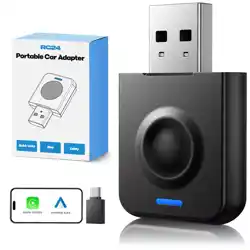
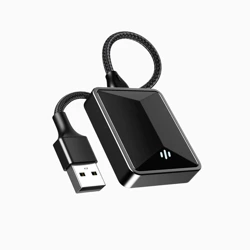
1.2 Product Accessories
1.5 Notes
1.6 Frequently Asked Questions
Table of Contents
Summary...........................................................................................................................1.1
Product Accessories...................................................................................................1.2
Product Operating Instructions..............................................................................1.3
Product Update System.............................................................................................1.4
Precautions......................................................................................................................1.5
Frequently Asked Questions....................................................................................1.6
1
2 3
4
5
6
User Manual
For Carplay Wireless Adapter
1.6.3. Can the product be paired with more than one cell phone?
A: Yes, if you want to change the cell phone, you need to turn off the
Bluetooth and WIFI function switch of the used cell phone.
1.6.4. Can't it reconnect automatically?
A: The product can only connect to the last paired device. And you can't
turn off the WIFI and Bluetooth switch.
1.6.5. I can't hear when I make a call?
A: In the call page, you need to select the sound output as AndroidAuto
mode. Some cars need to connect the cell phone to the Bluetooth of
the car.
1.6.6. Sound delay, navigation delay?
A: Playing music and navigation use cell phone traffic, if the cell phone
signal is not stable, the above problems will occur.
1.6.7. Why is the connection suddenly disconnected?
A: The product data line has a limiting function, the disconnection is
caused by the loosening of the car data port and the data line.
1.6.8. Why can't AndroidAuto start or the device is incompatible
/unrecognized USB?
A: a. Re-unplug the device and restart the multimedia.
b. Replace the data cable.
1.3 Product operation instructions
1.4 Product Update System
Thank you for purchasing our product. For optimal performance
and safety, please read these instructions carefully before
operating your product.
Wireless Smart Car Adapter converts wired Android Auto to wireless
Android Auto realizing the interconnection between phones and car.
You can easily enjoy music, navigation and other functions wirelessly,
plug and play, and keep the original car operation. This interconnection
provides drivers with more driving pleasure and reduces the requency
of phones use. We are committed to providing our customers with a safer
driving experience.
1.3.1 Connect the product with the multimedia data port of the car with
the data cable respectively.
1.3.2 Open the cell phone WIFI, Bluetooth function switch.
1.3.3 Open the cell phone Bluetooth search page, search for Bluetooth
display name “smartbox - ****”, click on the pairing and connect
successfully.
1.3.4. After successful pairing, You will be able to use the driving pleasure
brought by wireless AndroidAuto.
1.3.5. After the Smart Box is connected to the in-vehicle device for the first
time, it will be connected automatically the next time.
1.4.1 Connect the Android Smartbox to the vehicle, turn off the Bluetooth
and WiFi switch of the mobile phone, then turn on the WiFi switch,
find the WIFI name, enter the password “88888888”, open Google
Chrome, enter the IP address 192.168.1.101 in the address bar.
click Switch P2P. Toggle P2P, the prompt P2P toggle OK appears!!!
1.4.2 Open the mobile phone's WIFI - Wi-Fi Direct - choose the display
name of the box and connect. Open Google Chrome, enter the IP
address 192.168.1.101 in the address bar, and click Update to start the
update. Unplug the device and successfully re-pair it so that you
can use it normally.
1.5.1 Mobile phone model and version requirements: Overseas version
of Android phone, Google phone Android 11 and above version.
1.5.2 The original car must support wired AndroidAuto function.
1.6.1. Why doesn’t the indicator light of the product turn off automatically
when the car is turned off?
A. This product does not have a battery,the exact time the lights go out
is determined by the Multimedia USB data port, the lights out time is
different for each car.
1.6.2. Why can’t I always connect?
A: a. Turn on the WIFI, Bluetooth switches at the same time.
b. In-car multimedia must support wired AndroidAuto function;
c. Whether the product indicator light is on;
d. Whether the product is connected to the multimedia data interface.
1.2 Product Accessories
1.1 Summary
1.5 Notes
1.6 Frequently Asked Questions
Table of Contents
Summary...........................................................................................................................1.1
Product Accessories...................................................................................................1.2
Product Operating Instructions..............................................................................1.3
Product Update System.............................................................................................1.4
Precautions......................................................................................................................1.5
Frequently Asked Questions....................................................................................1.6
7
8
9
9
10 11
User Manual
For Android Auto Wireless Adapter
USB
TYPE-C
USB
TYPE-C
(Pictures are for reference only, subject to the real thing)
(Pictures are for reference only, subject to the real thing)
(Pictures are for reference only, subject to the real thing)
(Pictures are for reference only, subject to the real thing)
(Pictures are for reference only, subject to the real thing)
(Pictures are for reference only, subject to the real thing)