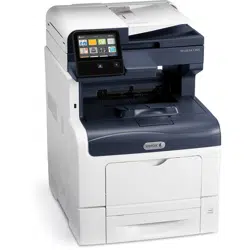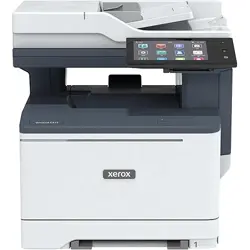

VERSION 2.2
JULY 2025
702P09385
Xerox
®
VersaLink
®
C415
Color Multifunction
Printer
User Guide

© 2025 Xerox Corporation. All rights reserved.
Xerox
®
, VersaLink
®
, Global Print Driver
®
, MeterAssistant
®
, Scan to PC Desktop
®
, Supplies Assistant
®
, Xerox Extensible
Interface Platform
®
, and Xerox Secure Access Unified ID System
®
are trademarks of Xerox Corporation in the
United States and/or other countries.
Adobe, Adobe PDF logo, Acrobat, and PostScript are either registered trademarks or trademarks of Adobe in the
United States and/or other countries.
Android
™
, Google Play
™
, and Google Drive
™
are trademarks of Google LLC.
Apple, App Store
®
, AirPrint, Bonjour, iBeacon, iPad, iPhone, iPod, iPod touch, Mac, Macintosh, macOS, and OS X are
trademarks of Apple, Inc., registered in the U.S. and other countries and regions.
The Bluetooth
®
word mark is a registered trademark owned by the Bluetooth SIG, Inc. and any use of such marks
by Xerox is under license.
DROPBOX and the Dropbox Logo are trademarks of Dropbox, Inc.
Debian is a registered trademark of Software in the Public Interest, Inc.
ENERGY STAR
®
and ENERGY STAR mark are registered trademarks owned by the U.S. Environmental Protection
Agency.
HP
®
and PCL
®
are trademarks of the Hewlett-Packard Company.
IBM
®
, AIX
®
, and PowerPC
®
are trademarks or registered trademarks of International Business Machines Corporation
registered in many jurisdictions worldwide.
IOS is a registered trademark or trademark of Cisco Systems, Inc. and/or its affiliates in the United States and
certain other countries.
Itanium is a trademark of Intel Corporation or its subsidiaries.
Kerberos is a trademark of the Massachusetts Institute of Technology (MIT).
Linux
®
is the registered trademark of Linus Torvalds in the U.S. and other countries.
Microsoft Entra ID (formerly know as Azure AD), Excel, Microsoft Exchange Server, Microsoft 365, Office 365,
OneDrive, Windows, Windows Server, Windows Vista are trademarks of the Microsoft group of companies.
Mopria is a trademark of Mopria Alliance, Inc.
NetWare and NDS are registered trademarks or service marks of Novell, Inc. in the United States and other
countries.
SPARC is a registered trademark of SPARC International, Inc. in the United States and other countries.
Sun and Solaris are registered trademarks of Oracle and/or its affiliates.
ThinPrint is a registered trademark of Cortado AG in the United States and other countries.

Trellix, ePolicy Orchestrator, and ePO are trademarks Musarubra US LLC.
UNIX
®
is a registered trademark of The Open Group.
Wi-Fi
®
and Wi-Fi Direct
®
are registered trademarks of Wi-Fi Alliance
®
.
BR41373

4 Xerox
®
VersaLink
®
C415 Color Multifunction Printer User Guide

Xerox
®
VersaLink
®
C415 Color Multifunction Printer User Guide 5
Contents
Safety . . . . . . . . . . . . . . . . . . . . . . . . . . . . . . . . . . . . . . . . . . . . . . . . . . . . . . . . . . . . . . . . . . . . . . . . . . . . . . . . . . . . . . . . . . . . . . . . . . . . . . . . . . . . . . . . . . . . . . . . . . . . . . . . . . . . . . . . . . . . . . . . 13
Notices and Safety . . . . . . . . . . . . . . . . . . . . . . . . . . . . . . . . . . . . . . . . . . . . . . . . . . . . . . . . . . . . . . . . . . . . . . . . . . . . . . . . . . . . . . . . . . . . . . . . . . . . . . . . . . . . . . . . . . . . . . . . 14
Conventions . . . . . . . . . . . . . . . . . . . . . . . . . . . . . . . . . . . . . . . . . . . . . . . . . . . . . . . . . . . . . . . . . . . . . . . . . . . . . . . . . . . . . . . . . . . . . . . . . . . . . . . . . . . . . . . . . . . . . . . . . . . . . . . . . 15
Product Statements . . . . . . . . . . . . . . . . . . . . . . . . . . . . . . . . . . . . . . . . . . . . . . . . . . . . . . . . . . . . . . . . . . . . . . . . . . . . . . . . . . . . . . . . . . . . . . . . . . . . . . . . . . . . . . . . 15
Electrical Safety . . . . . . . . . . . . . . . . . . . . . . . . . . . . . . . . . . . . . . . . . . . . . . . . . . . . . . . . . . . . . . . . . . . . . . . . . . . . . . . . . . . . . . . . . . . . . . . . . . . . . . . . . . . . . . . . . . . . . . . . . . . . 19
General Guidelines. . . . . . . . . . . . . . . . . . . . . . . . . . . . . . . . . . . . . . . . . . . . . . . . . . . . . . . . . . . . . . . . . . . . . . . . . . . . . . . . . . . . . . . . . . . . . . . . . . . . . . . . . . . . . . . . . . 19
Power Cord. . . . . . . . . . . . . . . . . . . . . . . . . . . . . . . . . . . . . . . . . . . . . . . . . . . . . . . . . . . . . . . . . . . . . . . . . . . . . . . . . . . . . . . . . . . . . . . . . . . . . . . . . . . . . . . . . . . . . . . . . . . . 19
Emergency Power Off. . . . . . . . . . . . . . . . . . . . . . . . . . . . . . . . . . . . . . . . . . . . . . . . . . . . . . . . . . . . . . . . . . . . . . . . . . . . . . . . . . . . . . . . . . . . . . . . . . . . . . . . . . . . . . 20
Battery Safety. . . . . . . . . . . . . . . . . . . . . . . . . . . . . . . . . . . . . . . . . . . . . . . . . . . . . . . . . . . . . . . . . . . . . . . . . . . . . . . . . . . . . . . . . . . . . . . . . . . . . . . . . . . . . . . . . . . . . . . . 20
Telephone Line Cord. . . . . . . . . . . . . . . . . . . . . . . . . . . . . . . . . . . . . . . . . . . . . . . . . . . . . . . . . . . . . . . . . . . . . . . . . . . . . . . . . . . . . . . . . . . . . . . . . . . . . . . . . . . . . . . . 20
Operational Safety . . . . . . . . . . . . . . . . . . . . . . . . . . . . . . . . . . . . . . . . . . . . . . . . . . . . . . . . . . . . . . . . . . . . . . . . . . . . . . . . . . . . . . . . . . . . . . . . . . . . . . . . . . . . . . . . . . . . . . . . 21
Operational Guidelines . . . . . . . . . . . . . . . . . . . . . . . . . . . . . . . . . . . . . . . . . . . . . . . . . . . . . . . . . . . . . . . . . . . . . . . . . . . . . . . . . . . . . . . . . . . . . . . . . . . . . . . . . . . . 21
Printer Location . . . . . . . . . . . . . . . . . . . . . . . . . . . . . . . . . . . . . . . . . . . . . . . . . . . . . . . . . . . . . . . . . . . . . . . . . . . . . . . . . . . . . . . . . . . . . . . . . . . . . . . . . . . . . . . . . . . . . . 21
Printer Supplies . . . . . . . . . . . . . . . . . . . . . . . . . . . . . . . . . . . . . . . . . . . . . . . . . . . . . . . . . . . . . . . . . . . . . . . . . . . . . . . . . . . . . . . . . . . . . . . . . . . . . . . . . . . . . . . . . . . . . . 22
Consumable Information . . . . . . . . . . . . . . . . . . . . . . . . . . . . . . . . . . . . . . . . . . . . . . . . . . . . . . . . . . . . . . . . . . . . . . . . . . . . . . . . . . . . . . . . . . . . . . . . . . . . . . . . . 22
Maintenance Safety . . . . . . . . . . . . . . . . . . . . . . . . . . . . . . . . . . . . . . . . . . . . . . . . . . . . . . . . . . . . . . . . . . . . . . . . . . . . . . . . . . . . . . . . . . . . . . . . . . . . . . . . . . . . . . . . . . . . . . 23
Environmental, Health and Safety Contact Information. . . . . . . . . . . . . . . . . . . . . . . . . . . . . . . . . . . . . . . . . . . . . . . . . . . . . . . . . . . . . . . . . . . . . . . . 24
Product Symbols . . . . . . . . . . . . . . . . . . . . . . . . . . . . . . . . . . . . . . . . . . . . . . . . . . . . . . . . . . . . . . . . . . . . . . . . . . . . . . . . . . . . . . . . . . . . . . . . . . . . . . . . . . . . . . . . . . . . . . . . . . . 25
Getting Started. . . . . . . . . . . . . . . . . . . . . . . . . . . . . . . . . . . . . . . . . . . . . . . . . . . . . . . . . . . . . . . . . . . . . . . . . . . . . . . . . . . . . . . . . . . . . . . . . . . . . . . . . . . . . . . . . . . . . . . . . . . . . . . . . . . . 29
Parts of the Printer. . . . . . . . . . . . . . . . . . . . . . . . . . . . . . . . . . . . . . . . . . . . . . . . . . . . . . . . . . . . . . . . . . . . . . . . . . . . . . . . . . . . . . . . . . . . . . . . . . . . . . . . . . . . . . . . . . . . . . . . . 30
Front View. . . . . . . . . . . . . . . . . . . . . . . . . . . . . . . . . . . . . . . . . . . . . . . . . . . . . . . . . . . . . . . . . . . . . . . . . . . . . . . . . . . . . . . . . . . . . . . . . . . . . . . . . . . . . . . . . . . . . . . . . . . . . 30
Duplex Automatic Document Feeder. . . . . . . . . . . . . . . . . . . . . . . . . . . . . . . . . . . . . . . . . . . . . . . . . . . . . . . . . . . . . . . . . . . . . . . . . . . . . . . . . . . . . . . . . . 31
Internal Parts . . . . . . . . . . . . . . . . . . . . . . . . . . . . . . . . . . . . . . . . . . . . . . . . . . . . . . . . . . . . . . . . . . . . . . . . . . . . . . . . . . . . . . . . . . . . . . . . . . . . . . . . . . . . . . . . . . . . . . . . . 33
Rear View. . . . . . . . . . . . . . . . . . . . . . . . . . . . . . . . . . . . . . . . . . . . . . . . . . . . . . . . . . . . . . . . . . . . . . . . . . . . . . . . . . . . . . . . . . . . . . . . . . . . . . . . . . . . . . . . . . . . . . . . . . . . . . 34
Control Panel . . . . . . . . . . . . . . . . . . . . . . . . . . . . . . . . . . . . . . . . . . . . . . . . . . . . . . . . . . . . . . . . . . . . . . . . . . . . . . . . . . . . . . . . . . . . . . . . . . . . . . . . . . . . . . . . . . . . . . . . . 35
Additional Configurations and Options . . . . . . . . . . . . . . . . . . . . . . . . . . . . . . . . . . . . . . . . . . . . . . . . . . . . . . . . . . . . . . . . . . . . . . . . . . . . . . . . . . . . . . . 37
Paper Tray Options. . . . . . . . . . . . . . . . . . . . . . . . . . . . . . . . . . . . . . . . . . . . . . . . . . . . . . . . . . . . . . . . . . . . . . . . . . . . . . . . . . . . . . . . . . . . . . . . . . . . . . . . . . . . . . . . . . 37
Power Options . . . . . . . . . . . . . . . . . . . . . . . . . . . . . . . . . . . . . . . . . . . . . . . . . . . . . . . . . . . . . . . . . . . . . . . . . . . . . . . . . . . . . . . . . . . . . . . . . . . . . . . . . . . . . . . . . . . . . . . . . . . . . . 39
Power Saver. . . . . . . . . . . . . . . . . . . . . . . . . . . . . . . . . . . . . . . . . . . . . . . . . . . . . . . . . . . . . . . . . . . . . . . . . . . . . . . . . . . . . . . . . . . . . . . . . . . . . . . . . . . . . . . . . . . . . . . . . . . 39
Powering On the Printer or Exiting Sleep Mode. . . . . . . . . . . . . . . . . . . . . . . . . . . . . . . . . . . . . . . . . . . . . . . . . . . . . . . . . . . . . . . . . . . . . . . . . . . . . 39
Restarting, Placing in Sleep Mode, or Powering Off the Printer. . . . . . . . . . . . . . . . . . . . . . . . . . . . . . . . . . . . . . . . . . . . . . . . . . . . . . . . . 40
Accessing the Printer. . . . . . . . . . . . . . . . . . . . . . . . . . . . . . . . . . . . . . . . . . . . . . . . . . . . . . . . . . . . . . . . . . . . . . . . . . . . . . . . . . . . . . . . . . . . . . . . . . . . . . . . . . . . . . . . . . . . . . 41
Authentication . . . . . . . . . . . . . . . . . . . . . . . . . . . . . . . . . . . . . . . . . . . . . . . . . . . . . . . . . . . . . . . . . . . . . . . . . . . . . . . . . . . . . . . . . . . . . . . . . . . . . . . . . . . . . . . . . . . . . . . 41
Feature Installation. . . . . . . . . . . . . . . . . . . . . . . . . . . . . . . . . . . . . . . . . . . . . . . . . . . . . . . . . . . . . . . . . . . . . . . . . . . . . . . . . . . . . . . . . . . . . . . . . . . . . . . . . . . . . . . . . 42
Authorization. . . . . . . . . . . . . . . . . . . . . . . . . . . . . . . . . . . . . . . . . . . . . . . . . . . . . . . . . . . . . . . . . . . . . . . . . . . . . . . . . . . . . . . . . . . . . . . . . . . . . . . . . . . . . . . . . . . . . . . . . 43
Personalization. . . . . . . . . . . . . . . . . . . . . . . . . . . . . . . . . . . . . . . . . . . . . . . . . . . . . . . . . . . . . . . . . . . . . . . . . . . . . . . . . . . . . . . . . . . . . . . . . . . . . . . . . . . . . . . . . . . . . . . 43
Accounting. . . . . . . . . . . . . . . . . . . . . . . . . . . . . . . . . . . . . . . . . . . . . . . . . . . . . . . . . . . . . . . . . . . . . . . . . . . . . . . . . . . . . . . . . . . . . . . . . . . . . . . . . . . . . . . . . . . . . . . . . . . . 44
Logging In. . . . . . . . . . . . . . . . . . . . . . . . . . . . . . . . . . . . . . . . . . . . . . . . . . . . . . . . . . . . . . . . . . . . . . . . . . . . . . . . . . . . . . . . . . . . . . . . . . . . . . . . . . . . . . . . . . . . . . . . . . . . . 44
Apps, Features, and Functions. . . . . . . . . . . . . . . . . . . . . . . . . . . . . . . . . . . . . . . . . . . . . . . . . . . . . . . . . . . . . . . . . . . . . . . . . . . . . . . . . . . . . . . . . . . . . . . . . . . . . . . . . . 46
Introduction to Apps . . . . . . . . . . . . . . . . . . . . . . . . . . . . . . . . . . . . . . . . . . . . . . . . . . . . . . . . . . . . . . . . . . . . . . . . . . . . . . . . . . . . . . . . . . . . . . . . . . . . . . . . . . . . . . . 46
Touchless Workflows. . . . . . . . . . . . . . . . . . . . . . . . . . . . . . . . . . . . . . . . . . . . . . . . . . . . . . . . . . . . . . . . . . . . . . . . . . . . . . . . . . . . . . . . . . . . . . . . . . . . . . . . . . . . . . . . 46
Adaptive Learning. . . . . . . . . . . . . . . . . . . . . . . . . . . . . . . . . . . . . . . . . . . . . . . . . . . . . . . . . . . . . . . . . . . . . . . . . . . . . . . . . . . . . . . . . . . . . . . . . . . . . . . . . . . . . . . . . . . 46
Quick Access . . . . . . . . . . . . . . . . . . . . . . . . . . . . . . . . . . . . . . . . . . . . . . . . . . . . . . . . . . . . . . . . . . . . . . . . . . . . . . . . . . . . . . . . . . . . . . . . . . . . . . . . . . . . . . . . . . . . . . . . . . 47

6 Xerox
®
VersaLink
®
C415 Color Multifunction Printer User Guide
Information Pages. . . . . . . . . . . . . . . . . . . . . . . . . . . . . . . . . . . . . . . . . . . . . . . . . . . . . . . . . . . . . . . . . . . . . . . . . . . . . . . . . . . . . . . . . . . . . . . . . . . . . . . . . . . . . . . . . . . . . . . . . 48
Printing Information Pages. . . . . . . . . . . . . . . . . . . . . . . . . . . . . . . . . . . . . . . . . . . . . . . . . . . . . . . . . . . . . . . . . . . . . . . . . . . . . . . . . . . . . . . . . . . . . . . . . . . . . . . 48
Configuration Reports. . . . . . . . . . . . . . . . . . . . . . . . . . . . . . . . . . . . . . . . . . . . . . . . . . . . . . . . . . . . . . . . . . . . . . . . . . . . . . . . . . . . . . . . . . . . . . . . . . . . . . . . . . . . . . 49
The Embedded Web Server . . . . . . . . . . . . . . . . . . . . . . . . . . . . . . . . . . . . . . . . . . . . . . . . . . . . . . . . . . . . . . . . . . . . . . . . . . . . . . . . . . . . . . . . . . . . . . . . . . . . . . . . . . . . . 50
Finding the IP Address of Your Printer . . . . . . . . . . . . . . . . . . . . . . . . . . . . . . . . . . . . . . . . . . . . . . . . . . . . . . . . . . . . . . . . . . . . . . . . . . . . . . . . . . . . . . . . . 50
Accessing the Embedded Web Server . . . . . . . . . . . . . . . . . . . . . . . . . . . . . . . . . . . . . . . . . . . . . . . . . . . . . . . . . . . . . . . . . . . . . . . . . . . . . . . . . . . . . . . . . 51
Logging In Using the Embedded Web Server . . . . . . . . . . . . . . . . . . . . . . . . . . . . . . . . . . . . . . . . . . . . . . . . . . . . . . . . . . . . . . . . . . . . . . . . . . . . . . . 51
Certificates for the Embedded Web Server. . . . . . . . . . . . . . . . . . . . . . . . . . . . . . . . . . . . . . . . . . . . . . . . . . . . . . . . . . . . . . . . . . . . . . . . . . . . . . . . . . . 52
Downloading the Configuration Report from the Embedded Web Server. . . . . . . . . . . . . . . . . . . . . . . . . . . . . . . . . . . . . . . . . . . 52
Using the Remote Control Panel Feature . . . . . . . . . . . . . . . . . . . . . . . . . . . . . . . . . . . . . . . . . . . . . . . . . . . . . . . . . . . . . . . . . . . . . . . . . . . . . . . . . . . . . 53
Downloading the Print and Scan Drivers from the Embedded Web Server . . . . . . . . . . . . . . . . . . . . . . . . . . . . . . . . . . . . . . . . . 54
Using Xerox
®
Workplace Cloud to Manage your Device . . . . . . . . . . . . . . . . . . . . . . . . . . . . . . . . . . . . . . . . . . . . . . . . . . . . . . . . . . . . . . . . . 54
Ordering Supplies From the Embedded Web Server. . . . . . . . . . . . . . . . . . . . . . . . . . . . . . . . . . . . . . . . . . . . . . . . . . . . . . . . . . . . . . . . . . . . . . . 54
Installation and Setup. . . . . . . . . . . . . . . . . . . . . . . . . . . . . . . . . . . . . . . . . . . . . . . . . . . . . . . . . . . . . . . . . . . . . . . . . . . . . . . . . . . . . . . . . . . . . . . . . . . . . . . . . . . . . . . . . . . . 56
Installation and Setup Overview . . . . . . . . . . . . . . . . . . . . . . . . . . . . . . . . . . . . . . . . . . . . . . . . . . . . . . . . . . . . . . . . . . . . . . . . . . . . . . . . . . . . . . . . . . . . . . . . 56
Selecting a Location for the Printer. . . . . . . . . . . . . . . . . . . . . . . . . . . . . . . . . . . . . . . . . . . . . . . . . . . . . . . . . . . . . . . . . . . . . . . . . . . . . . . . . . . . . . . . . . . . . 56
Updating the Printer System Software. . . . . . . . . . . . . . . . . . . . . . . . . . . . . . . . . . . . . . . . . . . . . . . . . . . . . . . . . . . . . . . . . . . . . . . . . . . . . . . . . . . . . . . . 56
Removing the Internal Packing Materials . . . . . . . . . . . . . . . . . . . . . . . . . . . . . . . . . . . . . . . . . . . . . . . . . . . . . . . . . . . . . . . . . . . . . . . . . . . . . . . . . . . . 57
Connecting the Printer . . . . . . . . . . . . . . . . . . . . . . . . . . . . . . . . . . . . . . . . . . . . . . . . . . . . . . . . . . . . . . . . . . . . . . . . . . . . . . . . . . . . . . . . . . . . . . . . . . . . . . . . . . . . . . . . . . . 59
Selecting a Connection Method. . . . . . . . . . . . . . . . . . . . . . . . . . . . . . . . . . . . . . . . . . . . . . . . . . . . . . . . . . . . . . . . . . . . . . . . . . . . . . . . . . . . . . . . . . . . . . . . . 59
Connecting to a Computer Using a USB Cable . . . . . . . . . . . . . . . . . . . . . . . . . . . . . . . . . . . . . . . . . . . . . . . . . . . . . . . . . . . . . . . . . . . . . . . . . . . . . 59
Connecting to a Wired Network. . . . . . . . . . . . . . . . . . . . . . . . . . . . . . . . . . . . . . . . . . . . . . . . . . . . . . . . . . . . . . . . . . . . . . . . . . . . . . . . . . . . . . . . . . . . . . . . . 60
Wireless Network Adapter . . . . . . . . . . . . . . . . . . . . . . . . . . . . . . . . . . . . . . . . . . . . . . . . . . . . . . . . . . . . . . . . . . . . . . . . . . . . . . . . . . . . . . . . . . . . . . . . . . . . . . . . 60
Connecting with Wi-Fi Direct. . . . . . . . . . . . . . . . . . . . . . . . . . . . . . . . . . . . . . . . . . . . . . . . . . . . . . . . . . . . . . . . . . . . . . . . . . . . . . . . . . . . . . . . . . . . . . . . . . . . . 61
Connecting with Near Field Communication (NFC) . . . . . . . . . . . . . . . . . . . . . . . . . . . . . . . . . . . . . . . . . . . . . . . . . . . . . . . . . . . . . . . . . . . . . . . 62
Configuring AirPrint. . . . . . . . . . . . . . . . . . . . . . . . . . . . . . . . . . . . . . . . . . . . . . . . . . . . . . . . . . . . . . . . . . . . . . . . . . . . . . . . . . . . . . . . . . . . . . . . . . . . . . . . . . . . . . . . . 64
Configuring a Device for Universal Print . . . . . . . . . . . . . . . . . . . . . . . . . . . . . . . . . . . . . . . . . . . . . . . . . . . . . . . . . . . . . . . . . . . . . . . . . . . . . . . . . . . . . . 64
Connecting to a Telephone Line . . . . . . . . . . . . . . . . . . . . . . . . . . . . . . . . . . . . . . . . . . . . . . . . . . . . . . . . . . . . . . . . . . . . . . . . . . . . . . . . . . . . . . . . . . . . . . . . 65
Initial Printer Setup. . . . . . . . . . . . . . . . . . . . . . . . . . . . . . . . . . . . . . . . . . . . . . . . . . . . . . . . . . . . . . . . . . . . . . . . . . . . . . . . . . . . . . . . . . . . . . . . . . . . . . . . . . . . . . . . . . . . . . . . 66
Security Template . . . . . . . . . . . . . . . . . . . . . . . . . . . . . . . . . . . . . . . . . . . . . . . . . . . . . . . . . . . . . . . . . . . . . . . . . . . . . . . . . . . . . . . . . . . . . . . . . . . . . . . . . . . . . . . . . . . 66
Configuration Watchdog. . . . . . . . . . . . . . . . . . . . . . . . . . . . . . . . . . . . . . . . . . . . . . . . . . . . . . . . . . . . . . . . . . . . . . . . . . . . . . . . . . . . . . . . . . . . . . . . . . . . . . . . . . 66
Fleet Orchestrator . . . . . . . . . . . . . . . . . . . . . . . . . . . . . . . . . . . . . . . . . . . . . . . . . . . . . . . . . . . . . . . . . . . . . . . . . . . . . . . . . . . . . . . . . . . . . . . . . . . . . . . . . . . . . . . . . . . 67
Xerox
®
Easy Assist Application. . . . . . . . . . . . . . . . . . . . . . . . . . . . . . . . . . . . . . . . . . . . . . . . . . . . . . . . . . . . . . . . . . . . . . . . . . . . . . . . . . . . . . . . . . . . . . . . . . . 67
Installing the Print Driver Software . . . . . . . . . . . . . . . . . . . . . . . . . . . . . . . . . . . . . . . . . . . . . . . . . . . . . . . . . . . . . . . . . . . . . . . . . . . . . . . . . . . . . . . . . . . . . . . . . . . 68
Operating System Requirements. . . . . . . . . . . . . . . . . . . . . . . . . . . . . . . . . . . . . . . . . . . . . . . . . . . . . . . . . . . . . . . . . . . . . . . . . . . . . . . . . . . . . . . . . . . . . . . . 68
Installing the Print Drivers for a Windows Network Printer. . . . . . . . . . . . . . . . . . . . . . . . . . . . . . . . . . . . . . . . . . . . . . . . . . . . . . . . . . . . . . . 68
Installing the Windows Print Driver .zip File. . . . . . . . . . . . . . . . . . . . . . . . . . . . . . . . . . . . . . . . . . . . . . . . . . . . . . . . . . . . . . . . . . . . . . . . . . . . . . . . . . 69
Installing the Print Drivers for a Windows USB Printer . . . . . . . . . . . . . . . . . . . . . . . . . . . . . . . . . . . . . . . . . . . . . . . . . . . . . . . . . . . . . . . . . . . . 69
Installing the Printer as a Web Service on Devices. . . . . . . . . . . . . . . . . . . . . . . . . . . . . . . . . . . . . . . . . . . . . . . . . . . . . . . . . . . . . . . . . . . . . . . . . 70
Installing the Drivers and Utilities for Macintosh OS (MacOS) . . . . . . . . . . . . . . . . . . . . . . . . . . . . . . . . . . . . . . . . . . . . . . . . . . . . . . . . . 70
Installing Print Drivers and Utilities for UNIX and Linux Printing. . . . . . . . . . . . . . . . . . . . . . . . . . . . . . . . . . . . . . . . . . . . . . . . . . . . . . . 72
More Information. . . . . . . . . . . . . . . . . . . . . . . . . . . . . . . . . . . . . . . . . . . . . . . . . . . . . . . . . . . . . . . . . . . . . . . . . . . . . . . . . . . . . . . . . . . . . . . . . . . . . . . . . . . . . . . . . . . . . . . . . . 73
Locating the Serial Number . . . . . . . . . . . . . . . . . . . . . . . . . . . . . . . . . . . . . . . . . . . . . . . . . . . . . . . . . . . . . . . . . . . . . . . . . . . . . . . . . . . . . . . . . . . . . . . . . . . . . . 73
Accessibility . . . . . . . . . . . . . . . . . . . . . . . . . . . . . . . . . . . . . . . . . . . . . . . . . . . . . . . . . . . . . . . . . . . . . . . . . . . . . . . . . . . . . . . . . . . . . . . . . . . . . . . . . . . . . . . . . . . . . . . . . . . . . . . . . . . . . . . . 75
Invert Display Color . . . . . . . . . . . . . . . . . . . . . . . . . . . . . . . . . . . . . . . . . . . . . . . . . . . . . . . . . . . . . . . . . . . . . . . . . . . . . . . . . . . . . . . . . . . . . . . . . . . . . . . . . . . . . . . . . . . . . . . 76
Zoom. . . . . . . . . . . . . . . . . . . . . . . . . . . . . . . . . . . . . . . . . . . . . . . . . . . . . . . . . . . . . . . . . . . . . . . . . . . . . . . . . . . . . . . . . . . . . . . . . . . . . . . . . . . . . . . . . . . . . . . . . . . . . . . . . . . . . . . . . . 77
Contents

Xerox
®
VersaLink
®
C415 Color Multifunction Printer User Guide 7
Using the Keyboard . . . . . . . . . . . . . . . . . . . . . . . . . . . . . . . . . . . . . . . . . . . . . . . . . . . . . . . . . . . . . . . . . . . . . . . . . . . . . . . . . . . . . . . . . . . . . . . . . . . . . . . . . . . . . . . . . . . . . . . 78
Navigating the Screen Using the Keyboard. . . . . . . . . . . . . . . . . . . . . . . . . . . . . . . . . . . . . . . . . . . . . . . . . . . . . . . . . . . . . . . . . . . . . . . . . . . . . . . . . . 78
Speech Output. . . . . . . . . . . . . . . . . . . . . . . . . . . . . . . . . . . . . . . . . . . . . . . . . . . . . . . . . . . . . . . . . . . . . . . . . . . . . . . . . . . . . . . . . . . . . . . . . . . . . . . . . . . . . . . . . . . . . . . . . . . . . . 79
Keyboard Shortcuts for Speech Output . . . . . . . . . . . . . . . . . . . . . . . . . . . . . . . . . . . . . . . . . . . . . . . . . . . . . . . . . . . . . . . . . . . . . . . . . . . . . . . . . . . . . . . 80
Enabling Speech Output for the Remote Control Panel . . . . . . . . . . . . . . . . . . . . . . . . . . . . . . . . . . . . . . . . . . . . . . . . . . . . . . . . . . . . . . . . . . 80
Personalize. . . . . . . . . . . . . . . . . . . . . . . . . . . . . . . . . . . . . . . . . . . . . . . . . . . . . . . . . . . . . . . . . . . . . . . . . . . . . . . . . . . . . . . . . . . . . . . . . . . . . . . . . . . . . . . . . . . . . . . . . . . . . . . . . . . . . . . . . . 81
Personalize Overview. . . . . . . . . . . . . . . . . . . . . . . . . . . . . . . . . . . . . . . . . . . . . . . . . . . . . . . . . . . . . . . . . . . . . . . . . . . . . . . . . . . . . . . . . . . . . . . . . . . . . . . . . . . . . . . . . . . . . . 82
Personalization by the User . . . . . . . . . . . . . . . . . . . . . . . . . . . . . . . . . . . . . . . . . . . . . . . . . . . . . . . . . . . . . . . . . . . . . . . . . . . . . . . . . . . . . . . . . . . . . . . . . . . . . . . . . . . . . 83
Personalizing the Home Screen . . . . . . . . . . . . . . . . . . . . . . . . . . . . . . . . . . . . . . . . . . . . . . . . . . . . . . . . . . . . . . . . . . . . . . . . . . . . . . . . . . . . . . . . . . . . . . . . . 83
Personalizing Entry Screen Defaults . . . . . . . . . . . . . . . . . . . . . . . . . . . . . . . . . . . . . . . . . . . . . . . . . . . . . . . . . . . . . . . . . . . . . . . . . . . . . . . . . . . . . . . . . . . . 84
Personalizing the Apps. . . . . . . . . . . . . . . . . . . . . . . . . . . . . . . . . . . . . . . . . . . . . . . . . . . . . . . . . . . . . . . . . . . . . . . . . . . . . . . . . . . . . . . . . . . . . . . . . . . . . . . . . . . . . 85
Personalizing the Language . . . . . . . . . . . . . . . . . . . . . . . . . . . . . . . . . . . . . . . . . . . . . . . . . . . . . . . . . . . . . . . . . . . . . . . . . . . . . . . . . . . . . . . . . . . . . . . . . . . . . . 88
Personalization from Adaptive Learning. . . . . . . . . . . . . . . . . . . . . . . . . . . . . . . . . . . . . . . . . . . . . . . . . . . . . . . . . . . . . . . . . . . . . . . . . . . . . . . . . . . . . . . . . . . . . 89
1-Touch App Suggestions . . . . . . . . . . . . . . . . . . . . . . . . . . . . . . . . . . . . . . . . . . . . . . . . . . . . . . . . . . . . . . . . . . . . . . . . . . . . . . . . . . . . . . . . . . . . . . . . . . . . . . . . . 89
Feature List Order Suggestions . . . . . . . . . . . . . . . . . . . . . . . . . . . . . . . . . . . . . . . . . . . . . . . . . . . . . . . . . . . . . . . . . . . . . . . . . . . . . . . . . . . . . . . . . . . . . . . . . . 90
Personalized Language Suggestions . . . . . . . . . . . . . . . . . . . . . . . . . . . . . . . . . . . . . . . . . . . . . . . . . . . . . . . . . . . . . . . . . . . . . . . . . . . . . . . . . . . . . . . . . . . 90
Managing your Personalization Suggestions . . . . . . . . . . . . . . . . . . . . . . . . . . . . . . . . . . . . . . . . . . . . . . . . . . . . . . . . . . . . . . . . . . . . . . . . . . . . . . . . 91
1-Touch Apps. . . . . . . . . . . . . . . . . . . . . . . . . . . . . . . . . . . . . . . . . . . . . . . . . . . . . . . . . . . . . . . . . . . . . . . . . . . . . . . . . . . . . . . . . . . . . . . . . . . . . . . . . . . . . . . . . . . . . . . . . . . . . . . . 92
Creating a Private 1-Touch App . . . . . . . . . . . . . . . . . . . . . . . . . . . . . . . . . . . . . . . . . . . . . . . . . . . . . . . . . . . . . . . . . . . . . . . . . . . . . . . . . . . . . . . . . . . . . . . . . 92
Creating a Private 1-Touch App from a Public 1-Touch App. . . . . . . . . . . . . . . . . . . . . . . . . . . . . . . . . . . . . . . . . . . . . . . . . . . . . . . . . . . . . 93
Editing a 1-Touch App . . . . . . . . . . . . . . . . . . . . . . . . . . . . . . . . . . . . . . . . . . . . . . . . . . . . . . . . . . . . . . . . . . . . . . . . . . . . . . . . . . . . . . . . . . . . . . . . . . . . . . . . . . . . . 93
Deleting or Hiding a 1-Touch App . . . . . . . . . . . . . . . . . . . . . . . . . . . . . . . . . . . . . . . . . . . . . . . . . . . . . . . . . . . . . . . . . . . . . . . . . . . . . . . . . . . . . . . . . . . . . . 94
Using and Editing a 1-Touch App. . . . . . . . . . . . . . . . . . . . . . . . . . . . . . . . . . . . . . . . . . . . . . . . . . . . . . . . . . . . . . . . . . . . . . . . . . . . . . . . . . . . . . . . . . . . . . . 94
Creating Personalized Touchless Workflows . . . . . . . . . . . . . . . . . . . . . . . . . . . . . . . . . . . . . . . . . . . . . . . . . . . . . . . . . . . . . . . . . . . . . . . . . . . . . . . . . . . . . . . . 95
Removing All Personalizations. . . . . . . . . . . . . . . . . . . . . . . . . . . . . . . . . . . . . . . . . . . . . . . . . . . . . . . . . . . . . . . . . . . . . . . . . . . . . . . . . . . . . . . . . . . . . . . . . . . . . . . . . . 96
Xerox
®
Apps. . . . . . . . . . . . . . . . . . . . . . . . . . . . . . . . . . . . . . . . . . . . . . . . . . . . . . . . . . . . . . . . . . . . . . . . . . . . . . . . . . . . . . . . . . . . . . . . . . . . . . . . . . . . . . . . . . . . . . . . . . . . . . . . . . . . . . . . 97
Xerox
®
App Gallery . . . . . . . . . . . . . . . . . . . . . . . . . . . . . . . . . . . . . . . . . . . . . . . . . . . . . . . . . . . . . . . . . . . . . . . . . . . . . . . . . . . . . . . . . . . . . . . . . . . . . . . . . . . . . . . . . . . . . . . . 98
Xerox
®
App Gallery Overview . . . . . . . . . . . . . . . . . . . . . . . . . . . . . . . . . . . . . . . . . . . . . . . . . . . . . . . . . . . . . . . . . . . . . . . . . . . . . . . . . . . . . . . . . . . . . . . . . . . . 98
Creating a Xerox
®
App Gallery Account. . . . . . . . . . . . . . . . . . . . . . . . . . . . . . . . . . . . . . . . . . . . . . . . . . . . . . . . . . . . . . . . . . . . . . . . . . . . . . . . . . . . . . . 98
Logging in to your Xerox
®
App Gallery Account . . . . . . . . . . . . . . . . . . . . . . . . . . . . . . . . . . . . . . . . . . . . . . . . . . . . . . . . . . . . . . . . . . . . . . . . . . . . 99
Installing or Updating an App from the Xerox
®
App Gallery. . . . . . . . . . . . . . . . . . . . . . . . . . . . . . . . . . . . . . . . . . . . . . . . . . . . . . . . . . . . 99
Device. . . . . . . . . . . . . . . . . . . . . . . . . . . . . . . . . . . . . . . . . . . . . . . . . . . . . . . . . . . . . . . . . . . . . . . . . . . . . . . . . . . . . . . . . . . . . . . . . . . . . . . . . . . . . . . . . . . . . . . . . . . . . . . . . . . . . . . 101
Device Overview . . . . . . . . . . . . . . . . . . . . . . . . . . . . . . . . . . . . . . . . . . . . . . . . . . . . . . . . . . . . . . . . . . . . . . . . . . . . . . . . . . . . . . . . . . . . . . . . . . . . . . . . . . . . . . . . . . . 101
About. . . . . . . . . . . . . . . . . . . . . . . . . . . . . . . . . . . . . . . . . . . . . . . . . . . . . . . . . . . . . . . . . . . . . . . . . . . . . . . . . . . . . . . . . . . . . . . . . . . . . . . . . . . . . . . . . . . . . . . . . . . . . . . . . 102
Information Pages . . . . . . . . . . . . . . . . . . . . . . . . . . . . . . . . . . . . . . . . . . . . . . . . . . . . . . . . . . . . . . . . . . . . . . . . . . . . . . . . . . . . . . . . . . . . . . . . . . . . . . . . . . . . . . . . 102
Supply Status. . . . . . . . . . . . . . . . . . . . . . . . . . . . . . . . . . . . . . . . . . . . . . . . . . . . . . . . . . . . . . . . . . . . . . . . . . . . . . . . . . . . . . . . . . . . . . . . . . . . . . . . . . . . . . . . . . . . . . . 103
Billing and Usage Counters. . . . . . . . . . . . . . . . . . . . . . . . . . . . . . . . . . . . . . . . . . . . . . . . . . . . . . . . . . . . . . . . . . . . . . . . . . . . . . . . . . . . . . . . . . . . . . . . . . . . . 104
Remote Services . . . . . . . . . . . . . . . . . . . . . . . . . . . . . . . . . . . . . . . . . . . . . . . . . . . . . . . . . . . . . . . . . . . . . . . . . . . . . . . . . . . . . . . . . . . . . . . . . . . . . . . . . . . . . . . . . . . 105
Xerox
®
Easy Assist (XEA) App . . . . . . . . . . . . . . . . . . . . . . . . . . . . . . . . . . . . . . . . . . . . . . . . . . . . . . . . . . . . . . . . . . . . . . . . . . . . . . . . . . . . . . . . . . . . . . . . . . 105
Jobs. . . . . . . . . . . . . . . . . . . . . . . . . . . . . . . . . . . . . . . . . . . . . . . . . . . . . . . . . . . . . . . . . . . . . . . . . . . . . . . . . . . . . . . . . . . . . . . . . . . . . . . . . . . . . . . . . . . . . . . . . . . . . . . . . . . . . . . . . . 113
Jobs Overview . . . . . . . . . . . . . . . . . . . . . . . . . . . . . . . . . . . . . . . . . . . . . . . . . . . . . . . . . . . . . . . . . . . . . . . . . . . . . . . . . . . . . . . . . . . . . . . . . . . . . . . . . . . . . . . . . . . . . . 113
Job Options . . . . . . . . . . . . . . . . . . . . . . . . . . . . . . . . . . . . . . . . . . . . . . . . . . . . . . . . . . . . . . . . . . . . . . . . . . . . . . . . . . . . . . . . . . . . . . . . . . . . . . . . . . . . . . . . . . . . . . . . . 113
Managing Jobs . . . . . . . . . . . . . . . . . . . . . . . . . . . . . . . . . . . . . . . . . . . . . . . . . . . . . . . . . . . . . . . . . . . . . . . . . . . . . . . . . . . . . . . . . . . . . . . . . . . . . . . . . . . . . . . . . . . . 113
Managing Special Job Types. . . . . . . . . . . . . . . . . . . . . . . . . . . . . . . . . . . . . . . . . . . . . . . . . . . . . . . . . . . . . . . . . . . . . . . . . . . . . . . . . . . . . . . . . . . . . . . . . . . 115
Contents

8 Xerox
®
VersaLink
®
C415 Color Multifunction Printer User Guide
Managing Jobs using the Embedded Web Server. . . . . . . . . . . . . . . . . . . . . . . . . . . . . . . . . . . . . . . . . . . . . . . . . . . . . . . . . . . . . . . . . . . . . . . . 118
Copy. . . . . . . . . . . . . . . . . . . . . . . . . . . . . . . . . . . . . . . . . . . . . . . . . . . . . . . . . . . . . . . . . . . . . . . . . . . . . . . . . . . . . . . . . . . . . . . . . . . . . . . . . . . . . . . . . . . . . . . . . . . . . . . . . . . . . . . . . 120
Copy Overview . . . . . . . . . . . . . . . . . . . . . . . . . . . . . . . . . . . . . . . . . . . . . . . . . . . . . . . . . . . . . . . . . . . . . . . . . . . . . . . . . . . . . . . . . . . . . . . . . . . . . . . . . . . . . . . . . . . . . 120
Making a Copy. . . . . . . . . . . . . . . . . . . . . . . . . . . . . . . . . . . . . . . . . . . . . . . . . . . . . . . . . . . . . . . . . . . . . . . . . . . . . . . . . . . . . . . . . . . . . . . . . . . . . . . . . . . . . . . . . . . . . 120
Copy Workflows . . . . . . . . . . . . . . . . . . . . . . . . . . . . . . . . . . . . . . . . . . . . . . . . . . . . . . . . . . . . . . . . . . . . . . . . . . . . . . . . . . . . . . . . . . . . . . . . . . . . . . . . . . . . . . . . . . . 122
ID Card Copy. . . . . . . . . . . . . . . . . . . . . . . . . . . . . . . . . . . . . . . . . . . . . . . . . . . . . . . . . . . . . . . . . . . . . . . . . . . . . . . . . . . . . . . . . . . . . . . . . . . . . . . . . . . . . . . . . . . . . . . . . . . . . . 132
ID Card Copy Overview. . . . . . . . . . . . . . . . . . . . . . . . . . . . . . . . . . . . . . . . . . . . . . . . . . . . . . . . . . . . . . . . . . . . . . . . . . . . . . . . . . . . . . . . . . . . . . . . . . . . . . . . . . 132
Copying an ID Card . . . . . . . . . . . . . . . . . . . . . . . . . . . . . . . . . . . . . . . . . . . . . . . . . . . . . . . . . . . . . . . . . . . . . . . . . . . . . . . . . . . . . . . . . . . . . . . . . . . . . . . . . . . . . . 132
Email . . . . . . . . . . . . . . . . . . . . . . . . . . . . . . . . . . . . . . . . . . . . . . . . . . . . . . . . . . . . . . . . . . . . . . . . . . . . . . . . . . . . . . . . . . . . . . . . . . . . . . . . . . . . . . . . . . . . . . . . . . . . . . . . . . . . . . . . 133
Email Overview. . . . . . . . . . . . . . . . . . . . . . . . . . . . . . . . . . . . . . . . . . . . . . . . . . . . . . . . . . . . . . . . . . . . . . . . . . . . . . . . . . . . . . . . . . . . . . . . . . . . . . . . . . . . . . . . . . . . . 133
Sending a Scanned Image in an Email . . . . . . . . . . . . . . . . . . . . . . . . . . . . . . . . . . . . . . . . . . . . . . . . . . . . . . . . . . . . . . . . . . . . . . . . . . . . . . . . . . . . . 133
Adding or Editing Contacts in the Device Address Book from the Control Panel . . . . . . . . . . . . . . . . . . . . . . . . . . . . . . . . 136
Workflow Scanning . . . . . . . . . . . . . . . . . . . . . . . . . . . . . . . . . . . . . . . . . . . . . . . . . . . . . . . . . . . . . . . . . . . . . . . . . . . . . . . . . . . . . . . . . . . . . . . . . . . . . . . . . . . . . . . . . . . . . . 137
Workflow Scanning Overview . . . . . . . . . . . . . . . . . . . . . . . . . . . . . . . . . . . . . . . . . . . . . . . . . . . . . . . . . . . . . . . . . . . . . . . . . . . . . . . . . . . . . . . . . . . . . . . . . . 137
Using Workflow Scanning. . . . . . . . . . . . . . . . . . . . . . . . . . . . . . . . . . . . . . . . . . . . . . . . . . . . . . . . . . . . . . . . . . . . . . . . . . . . . . . . . . . . . . . . . . . . . . . . . . . . . . . 137
Scan To . . . . . . . . . . . . . . . . . . . . . . . . . . . . . . . . . . . . . . . . . . . . . . . . . . . . . . . . . . . . . . . . . . . . . . . . . . . . . . . . . . . . . . . . . . . . . . . . . . . . . . . . . . . . . . . . . . . . . . . . . . . . . . . . . . . . . 149
Scan To Overview. . . . . . . . . . . . . . . . . . . . . . . . . . . . . . . . . . . . . . . . . . . . . . . . . . . . . . . . . . . . . . . . . . . . . . . . . . . . . . . . . . . . . . . . . . . . . . . . . . . . . . . . . . . . . . . . . . 149
Scanning to an Email Address . . . . . . . . . . . . . . . . . . . . . . . . . . . . . . . . . . . . . . . . . . . . . . . . . . . . . . . . . . . . . . . . . . . . . . . . . . . . . . . . . . . . . . . . . . . . . . . . . 149
Scanning to a USB Flash Drive . . . . . . . . . . . . . . . . . . . . . . . . . . . . . . . . . . . . . . . . . . . . . . . . . . . . . . . . . . . . . . . . . . . . . . . . . . . . . . . . . . . . . . . . . . . . . . . . 151
Scanning to the Logged-In User . . . . . . . . . . . . . . . . . . . . . . . . . . . . . . . . . . . . . . . . . . . . . . . . . . . . . . . . . . . . . . . . . . . . . . . . . . . . . . . . . . . . . . . . . . . . . . 152
Metadata. . . . . . . . . . . . . . . . . . . . . . . . . . . . . . . . . . . . . . . . . . . . . . . . . . . . . . . . . . . . . . . . . . . . . . . . . . . . . . . . . . . . . . . . . . . . . . . . . . . . . . . . . . . . . . . . . . . . . . . . . . . . 153
Print Scanned Document . . . . . . . . . . . . . . . . . . . . . . . . . . . . . . . . . . . . . . . . . . . . . . . . . . . . . . . . . . . . . . . . . . . . . . . . . . . . . . . . . . . . . . . . . . . . . . . . . . . . . . . 154
Scanning to Remote Destinations . . . . . . . . . . . . . . . . . . . . . . . . . . . . . . . . . . . . . . . . . . . . . . . . . . . . . . . . . . . . . . . . . . . . . . . . . . . . . . . . . . . . . . . . . . . . 154
Adding a Scan To Destination to an Address Book Entry . . . . . . . . . . . . . . . . . . . . . . . . . . . . . . . . . . . . . . . . . . . . . . . . . . . . . . . . . . . . . . 157
Fax . . . . . . . . . . . . . . . . . . . . . . . . . . . . . . . . . . . . . . . . . . . . . . . . . . . . . . . . . . . . . . . . . . . . . . . . . . . . . . . . . . . . . . . . . . . . . . . . . . . . . . . . . . . . . . . . . . . . . . . . . . . . . . . . . . . . . . . . . . . 159
Fax Overview . . . . . . . . . . . . . . . . . . . . . . . . . . . . . . . . . . . . . . . . . . . . . . . . . . . . . . . . . . . . . . . . . . . . . . . . . . . . . . . . . . . . . . . . . . . . . . . . . . . . . . . . . . . . . . . . . . . . . . . 159
Sending a Fax . . . . . . . . . . . . . . . . . . . . . . . . . . . . . . . . . . . . . . . . . . . . . . . . . . . . . . . . . . . . . . . . . . . . . . . . . . . . . . . . . . . . . . . . . . . . . . . . . . . . . . . . . . . . . . . . . . . . . . 159
Fax Workflows. . . . . . . . . . . . . . . . . . . . . . . . . . . . . . . . . . . . . . . . . . . . . . . . . . . . . . . . . . . . . . . . . . . . . . . . . . . . . . . . . . . . . . . . . . . . . . . . . . . . . . . . . . . . . . . . . . . . . . 161
Server Fax . . . . . . . . . . . . . . . . . . . . . . . . . . . . . . . . . . . . . . . . . . . . . . . . . . . . . . . . . . . . . . . . . . . . . . . . . . . . . . . . . . . . . . . . . . . . . . . . . . . . . . . . . . . . . . . . . . . . . . . . . . . . . . . . . . 166
Server Fax Overview . . . . . . . . . . . . . . . . . . . . . . . . . . . . . . . . . . . . . . . . . . . . . . . . . . . . . . . . . . . . . . . . . . . . . . . . . . . . . . . . . . . . . . . . . . . . . . . . . . . . . . . . . . . . . . 166
Sending a Server Fax . . . . . . . . . . . . . . . . . . . . . . . . . . . . . . . . . . . . . . . . . . . . . . . . . . . . . . . . . . . . . . . . . . . . . . . . . . . . . . . . . . . . . . . . . . . . . . . . . . . . . . . . . . . . . 166
Sending a Delayed Server Fax . . . . . . . . . . . . . . . . . . . . . . . . . . . . . . . . . . . . . . . . . . . . . . . . . . . . . . . . . . . . . . . . . . . . . . . . . . . . . . . . . . . . . . . . . . . . . . . . . 168
Print From. . . . . . . . . . . . . . . . . . . . . . . . . . . . . . . . . . . . . . . . . . . . . . . . . . . . . . . . . . . . . . . . . . . . . . . . . . . . . . . . . . . . . . . . . . . . . . . . . . . . . . . . . . . . . . . . . . . . . . . . . . . . . . . . . . 170
Print From Overview . . . . . . . . . . . . . . . . . . . . . . . . . . . . . . . . . . . . . . . . . . . . . . . . . . . . . . . . . . . . . . . . . . . . . . . . . . . . . . . . . . . . . . . . . . . . . . . . . . . . . . . . . . . . . . 170
Printing From a USB Flash Drive . . . . . . . . . . . . . . . . . . . . . . . . . . . . . . . . . . . . . . . . . . . . . . . . . . . . . . . . . . . . . . . . . . . . . . . . . . . . . . . . . . . . . . . . . . . . . . 170
Printing from Saved Jobs. . . . . . . . . . . . . . . . . . . . . . . . . . . . . . . . . . . . . . . . . . . . . . . . . . . . . . . . . . . . . . . . . . . . . . . . . . . . . . . . . . . . . . . . . . . . . . . . . . . . . . . . 171
Printing from a Mailbox . . . . . . . . . . . . . . . . . . . . . . . . . . . . . . . . . . . . . . . . . . . . . . . . . . . . . . . . . . . . . . . . . . . . . . . . . . . . . . . . . . . . . . . . . . . . . . . . . . . . . . . . . 172
@PrintByXerox . . . . . . . . . . . . . . . . . . . . . . . . . . . . . . . . . . . . . . . . . . . . . . . . . . . . . . . . . . . . . . . . . . . . . . . . . . . . . . . . . . . . . . . . . . . . . . . . . . . . . . . . . . . . . . . . . . . . . . . . . . . . 173
@PrintByXerox Overview . . . . . . . . . . . . . . . . . . . . . . . . . . . . . . . . . . . . . . . . . . . . . . . . . . . . . . . . . . . . . . . . . . . . . . . . . . . . . . . . . . . . . . . . . . . . . . . . . . . . . . . . 173
Printing with the @PrintByXerox App . . . . . . . . . . . . . . . . . . . . . . . . . . . . . . . . . . . . . . . . . . . . . . . . . . . . . . . . . . . . . . . . . . . . . . . . . . . . . . . . . . . . . . . . 173
Xerox
®
Connect for XMPie. . . . . . . . . . . . . . . . . . . . . . . . . . . . . . . . . . . . . . . . . . . . . . . . . . . . . . . . . . . . . . . . . . . . . . . . . . . . . . . . . . . . . . . . . . . . . . . . . . . . . . . . . . . . . 174
Xerox
®
Connect for XMPie App Overview. . . . . . . . . . . . . . . . . . . . . . . . . . . . . . . . . . . . . . . . . . . . . . . . . . . . . . . . . . . . . . . . . . . . . . . . . . . . . . . . . . . 174
Printing . . . . . . . . . . . . . . . . . . . . . . . . . . . . . . . . . . . . . . . . . . . . . . . . . . . . . . . . . . . . . . . . . . . . . . . . . . . . . . . . . . . . . . . . . . . . . . . . . . . . . . . . . . . . . . . . . . . . . . . . . . . . . . . . . . . . . . . . . . . . 175
Printing Overview . . . . . . . . . . . . . . . . . . . . . . . . . . . . . . . . . . . . . . . . . . . . . . . . . . . . . . . . . . . . . . . . . . . . . . . . . . . . . . . . . . . . . . . . . . . . . . . . . . . . . . . . . . . . . . . . . . . . . . . . 176
Selecting Printing Options . . . . . . . . . . . . . . . . . . . . . . . . . . . . . . . . . . . . . . . . . . . . . . . . . . . . . . . . . . . . . . . . . . . . . . . . . . . . . . . . . . . . . . . . . . . . . . . . . . . . . . . . . . . . . 177
Contents

Xerox
®
VersaLink
®
C415 Color Multifunction Printer User Guide 9
Print Driver Help . . . . . . . . . . . . . . . . . . . . . . . . . . . . . . . . . . . . . . . . . . . . . . . . . . . . . . . . . . . . . . . . . . . . . . . . . . . . . . . . . . . . . . . . . . . . . . . . . . . . . . . . . . . . . . . . . . . 177
Windows Printing Options . . . . . . . . . . . . . . . . . . . . . . . . . . . . . . . . . . . . . . . . . . . . . . . . . . . . . . . . . . . . . . . . . . . . . . . . . . . . . . . . . . . . . . . . . . . . . . . . . . . . . . 177
Macintosh Printing Options . . . . . . . . . . . . . . . . . . . . . . . . . . . . . . . . . . . . . . . . . . . . . . . . . . . . . . . . . . . . . . . . . . . . . . . . . . . . . . . . . . . . . . . . . . . . . . . . . . . . 179
UNIX, Linux, and AS/400 Printing . . . . . . . . . . . . . . . . . . . . . . . . . . . . . . . . . . . . . . . . . . . . . . . . . . . . . . . . . . . . . . . . . . . . . . . . . . . . . . . . . . . . . . . . . . . . 180
Mobile Printing Options . . . . . . . . . . . . . . . . . . . . . . . . . . . . . . . . . . . . . . . . . . . . . . . . . . . . . . . . . . . . . . . . . . . . . . . . . . . . . . . . . . . . . . . . . . . . . . . . . . . . . . . . . 183
Print Jobs . . . . . . . . . . . . . . . . . . . . . . . . . . . . . . . . . . . . . . . . . . . . . . . . . . . . . . . . . . . . . . . . . . . . . . . . . . . . . . . . . . . . . . . . . . . . . . . . . . . . . . . . . . . . . . . . . . . . . . . . . . . . . . . . . . . 186
Managing Jobs . . . . . . . . . . . . . . . . . . . . . . . . . . . . . . . . . . . . . . . . . . . . . . . . . . . . . . . . . . . . . . . . . . . . . . . . . . . . . . . . . . . . . . . . . . . . . . . . . . . . . . . . . . . . . . . . . . . . 186
Printing Special Job Types . . . . . . . . . . . . . . . . . . . . . . . . . . . . . . . . . . . . . . . . . . . . . . . . . . . . . . . . . . . . . . . . . . . . . . . . . . . . . . . . . . . . . . . . . . . . . . . . . . . . . . 187
Printing Features . . . . . . . . . . . . . . . . . . . . . . . . . . . . . . . . . . . . . . . . . . . . . . . . . . . . . . . . . . . . . . . . . . . . . . . . . . . . . . . . . . . . . . . . . . . . . . . . . . . . . . . . . . . . . . . . . . . . . . . . . 191
Selecting Paper Options for Printing . . . . . . . . . . . . . . . . . . . . . . . . . . . . . . . . . . . . . . . . . . . . . . . . . . . . . . . . . . . . . . . . . . . . . . . . . . . . . . . . . . . . . . . . . 191
Printing on Both Sides of the Paper. . . . . . . . . . . . . . . . . . . . . . . . . . . . . . . . . . . . . . . . . . . . . . . . . . . . . . . . . . . . . . . . . . . . . . . . . . . . . . . . . . . . . . . . . . 192
Xerox Black and White. . . . . . . . . . . . . . . . . . . . . . . . . . . . . . . . . . . . . . . . . . . . . . . . . . . . . . . . . . . . . . . . . . . . . . . . . . . . . . . . . . . . . . . . . . . . . . . . . . . . . . . . . . . 192
Print Quality . . . . . . . . . . . . . . . . . . . . . . . . . . . . . . . . . . . . . . . . . . . . . . . . . . . . . . . . . . . . . . . . . . . . . . . . . . . . . . . . . . . . . . . . . . . . . . . . . . . . . . . . . . . . . . . . . . . . . . . . 193
Image Options. . . . . . . . . . . . . . . . . . . . . . . . . . . . . . . . . . . . . . . . . . . . . . . . . . . . . . . . . . . . . . . . . . . . . . . . . . . . . . . . . . . . . . . . . . . . . . . . . . . . . . . . . . . . . . . . . . . . . 193
Printing Multiple Pages to a Single Sheet. . . . . . . . . . . . . . . . . . . . . . . . . . . . . . . . . . . . . . . . . . . . . . . . . . . . . . . . . . . . . . . . . . . . . . . . . . . . . . . . . . . 194
Printing Booklet Layout. . . . . . . . . . . . . . . . . . . . . . . . . . . . . . . . . . . . . . . . . . . . . . . . . . . . . . . . . . . . . . . . . . . . . . . . . . . . . . . . . . . . . . . . . . . . . . . . . . . . . . . . . . 194
Using Special Pages . . . . . . . . . . . . . . . . . . . . . . . . . . . . . . . . . . . . . . . . . . . . . . . . . . . . . . . . . . . . . . . . . . . . . . . . . . . . . . . . . . . . . . . . . . . . . . . . . . . . . . . . . . . . . . 195
Printing Annotations for Windows. . . . . . . . . . . . . . . . . . . . . . . . . . . . . . . . . . . . . . . . . . . . . . . . . . . . . . . . . . . . . . . . . . . . . . . . . . . . . . . . . . . . . . . . . . . . 197
Printing Watermarks for Windows . . . . . . . . . . . . . . . . . . . . . . . . . . . . . . . . . . . . . . . . . . . . . . . . . . . . . . . . . . . . . . . . . . . . . . . . . . . . . . . . . . . . . . . . . . . . 198
Orientation. . . . . . . . . . . . . . . . . . . . . . . . . . . . . . . . . . . . . . . . . . . . . . . . . . . . . . . . . . . . . . . . . . . . . . . . . . . . . . . . . . . . . . . . . . . . . . . . . . . . . . . . . . . . . . . . . . . . . . . . . . 199
Advanced Printing Options . . . . . . . . . . . . . . . . . . . . . . . . . . . . . . . . . . . . . . . . . . . . . . . . . . . . . . . . . . . . . . . . . . . . . . . . . . . . . . . . . . . . . . . . . . . . . . . . . . . . . 199
Using Custom Paper Sizes . . . . . . . . . . . . . . . . . . . . . . . . . . . . . . . . . . . . . . . . . . . . . . . . . . . . . . . . . . . . . . . . . . . . . . . . . . . . . . . . . . . . . . . . . . . . . . . . . . . . . . . . . . . . . 202
Defining Custom Paper Sizes. . . . . . . . . . . . . . . . . . . . . . . . . . . . . . . . . . . . . . . . . . . . . . . . . . . . . . . . . . . . . . . . . . . . . . . . . . . . . . . . . . . . . . . . . . . . . . . . . . . 202
Printing on Custom-Size Paper. . . . . . . . . . . . . . . . . . . . . . . . . . . . . . . . . . . . . . . . . . . . . . . . . . . . . . . . . . . . . . . . . . . . . . . . . . . . . . . . . . . . . . . . . . . . . . . . . 203
Print From. . . . . . . . . . . . . . . . . . . . . . . . . . . . . . . . . . . . . . . . . . . . . . . . . . . . . . . . . . . . . . . . . . . . . . . . . . . . . . . . . . . . . . . . . . . . . . . . . . . . . . . . . . . . . . . . . . . . . . . . . . . . . . . . . . 205
Printing From a USB Flash Drive . . . . . . . . . . . . . . . . . . . . . . . . . . . . . . . . . . . . . . . . . . . . . . . . . . . . . . . . . . . . . . . . . . . . . . . . . . . . . . . . . . . . . . . . . . . . . . 205
Printing from Saved Jobs. . . . . . . . . . . . . . . . . . . . . . . . . . . . . . . . . . . . . . . . . . . . . . . . . . . . . . . . . . . . . . . . . . . . . . . . . . . . . . . . . . . . . . . . . . . . . . . . . . . . . . . . 206
Printing from a Mailbox . . . . . . . . . . . . . . . . . . . . . . . . . . . . . . . . . . . . . . . . . . . . . . . . . . . . . . . . . . . . . . . . . . . . . . . . . . . . . . . . . . . . . . . . . . . . . . . . . . . . . . . . . 206
Printing from the Embedded Web Server. . . . . . . . . . . . . . . . . . . . . . . . . . . . . . . . . . . . . . . . . . . . . . . . . . . . . . . . . . . . . . . . . . . . . . . . . . . . . . . . . . . 207
Paper and Media . . . . . . . . . . . . . . . . . . . . . . . . . . . . . . . . . . . . . . . . . . . . . . . . . . . . . . . . . . . . . . . . . . . . . . . . . . . . . . . . . . . . . . . . . . . . . . . . . . . . . . . . . . . . . . . . . . . . . . . . . . . . . . . 209
Paper and Media Overview. . . . . . . . . . . . . . . . . . . . . . . . . . . . . . . . . . . . . . . . . . . . . . . . . . . . . . . . . . . . . . . . . . . . . . . . . . . . . . . . . . . . . . . . . . . . . . . . . . . . . . . . . . . . 210
Supported Paper . . . . . . . . . . . . . . . . . . . . . . . . . . . . . . . . . . . . . . . . . . . . . . . . . . . . . . . . . . . . . . . . . . . . . . . . . . . . . . . . . . . . . . . . . . . . . . . . . . . . . . . . . . . . . . . . . . . . . . . . . 211
Recommended Media . . . . . . . . . . . . . . . . . . . . . . . . . . . . . . . . . . . . . . . . . . . . . . . . . . . . . . . . . . . . . . . . . . . . . . . . . . . . . . . . . . . . . . . . . . . . . . . . . . . . . . . . . . . 211
Ordering Paper. . . . . . . . . . . . . . . . . . . . . . . . . . . . . . . . . . . . . . . . . . . . . . . . . . . . . . . . . . . . . . . . . . . . . . . . . . . . . . . . . . . . . . . . . . . . . . . . . . . . . . . . . . . . . . . . . . . . . 211
General Paper Loading Guidelines. . . . . . . . . . . . . . . . . . . . . . . . . . . . . . . . . . . . . . . . . . . . . . . . . . . . . . . . . . . . . . . . . . . . . . . . . . . . . . . . . . . . . . . . . . . . 211
Paper That Can Damage Your Printer . . . . . . . . . . . . . . . . . . . . . . . . . . . . . . . . . . . . . . . . . . . . . . . . . . . . . . . . . . . . . . . . . . . . . . . . . . . . . . . . . . . . . . . 211
Paper Storage Guidelines . . . . . . . . . . . . . . . . . . . . . . . . . . . . . . . . . . . . . . . . . . . . . . . . . . . . . . . . . . . . . . . . . . . . . . . . . . . . . . . . . . . . . . . . . . . . . . . . . . . . . . . 212
Paper Characteristics . . . . . . . . . . . . . . . . . . . . . . . . . . . . . . . . . . . . . . . . . . . . . . . . . . . . . . . . . . . . . . . . . . . . . . . . . . . . . . . . . . . . . . . . . . . . . . . . . . . . . . . . . . . . . 212
Supported Paper Types and Weights . . . . . . . . . . . . . . . . . . . . . . . . . . . . . . . . . . . . . . . . . . . . . . . . . . . . . . . . . . . . . . . . . . . . . . . . . . . . . . . . . . . . . . . . 213
Supported Standard and Custom Paper Sizes. . . . . . . . . . . . . . . . . . . . . . . . . . . . . . . . . . . . . . . . . . . . . . . . . . . . . . . . . . . . . . . . . . . . . . . . . . . . . 215
Configuring Paper Tray Settings . . . . . . . . . . . . . . . . . . . . . . . . . . . . . . . . . . . . . . . . . . . . . . . . . . . . . . . . . . . . . . . . . . . . . . . . . . . . . . . . . . . . . . . . . . . . . . . . . . . . . 219
Configuring Dedicated Paper Trays . . . . . . . . . . . . . . . . . . . . . . . . . . . . . . . . . . . . . . . . . . . . . . . . . . . . . . . . . . . . . . . . . . . . . . . . . . . . . . . . . . . . . . . . . . 219
Changing Paper Size, Type, and Color . . . . . . . . . . . . . . . . . . . . . . . . . . . . . . . . . . . . . . . . . . . . . . . . . . . . . . . . . . . . . . . . . . . . . . . . . . . . . . . . . . . . . . . 219
Loading Paper . . . . . . . . . . . . . . . . . . . . . . . . . . . . . . . . . . . . . . . . . . . . . . . . . . . . . . . . . . . . . . . . . . . . . . . . . . . . . . . . . . . . . . . . . . . . . . . . . . . . . . . . . . . . . . . . . . . . . . . . . . . . 220
Loading Paper in Manual Feeder. . . . . . . . . . . . . . . . . . . . . . . . . . . . . . . . . . . . . . . . . . . . . . . . . . . . . . . . . . . . . . . . . . . . . . . . . . . . . . . . . . . . . . . . . . . . . . 220
Loading Paper in Trays 1–4. . . . . . . . . . . . . . . . . . . . . . . . . . . . . . . . . . . . . . . . . . . . . . . . . . . . . . . . . . . . . . . . . . . . . . . . . . . . . . . . . . . . . . . . . . . . . . . . . . . . . 221
Contents

10 Xerox
®
VersaLink
®
C415 Color Multifunction Printer User Guide
Loading Paper in the Bypass Tray. . . . . . . . . . . . . . . . . . . . . . . . . . . . . . . . . . . . . . . . . . . . . . . . . . . . . . . . . . . . . . . . . . . . . . . . . . . . . . . . . . . . . . . . . . . . . 223
Printing on Special Paper . . . . . . . . . . . . . . . . . . . . . . . . . . . . . . . . . . . . . . . . . . . . . . . . . . . . . . . . . . . . . . . . . . . . . . . . . . . . . . . . . . . . . . . . . . . . . . . . . . . . . . . . . . . . . . 228
Letterhead, Pre-Printed, and Hole-Punched Media. . . . . . . . . . . . . . . . . . . . . . . . . . . . . . . . . . . . . . . . . . . . . . . . . . . . . . . . . . . . . . . . . . . . . . . 228
Envelopes. . . . . . . . . . . . . . . . . . . . . . . . . . . . . . . . . . . . . . . . . . . . . . . . . . . . . . . . . . . . . . . . . . . . . . . . . . . . . . . . . . . . . . . . . . . . . . . . . . . . . . . . . . . . . . . . . . . . . . . . . . . . 230
Labels. . . . . . . . . . . . . . . . . . . . . . . . . . . . . . . . . . . . . . . . . . . . . . . . . . . . . . . . . . . . . . . . . . . . . . . . . . . . . . . . . . . . . . . . . . . . . . . . . . . . . . . . . . . . . . . . . . . . . . . . . . . . . . . . . 234
Glossy Media . . . . . . . . . . . . . . . . . . . . . . . . . . . . . . . . . . . . . . . . . . . . . . . . . . . . . . . . . . . . . . . . . . . . . . . . . . . . . . . . . . . . . . . . . . . . . . . . . . . . . . . . . . . . . . . . . . . . . . . 237
Maintenance. . . . . . . . . . . . . . . . . . . . . . . . . . . . . . . . . . . . . . . . . . . . . . . . . . . . . . . . . . . . . . . . . . . . . . . . . . . . . . . . . . . . . . . . . . . . . . . . . . . . . . . . . . . . . . . . . . . . . . . . . . . . . . . . . . . . . 239
General Precautions. . . . . . . . . . . . . . . . . . . . . . . . . . . . . . . . . . . . . . . . . . . . . . . . . . . . . . . . . . . . . . . . . . . . . . . . . . . . . . . . . . . . . . . . . . . . . . . . . . . . . . . . . . . . . . . . . . . . . 240
Cleaning the Printer . . . . . . . . . . . . . . . . . . . . . . . . . . . . . . . . . . . . . . . . . . . . . . . . . . . . . . . . . . . . . . . . . . . . . . . . . . . . . . . . . . . . . . . . . . . . . . . . . . . . . . . . . . . . . . . . . . . . . 241
Cleaning the Printer Exterior . . . . . . . . . . . . . . . . . . . . . . . . . . . . . . . . . . . . . . . . . . . . . . . . . . . . . . . . . . . . . . . . . . . . . . . . . . . . . . . . . . . . . . . . . . . . . . . . . . . 241
Supplies. . . . . . . . . . . . . . . . . . . . . . . . . . . . . . . . . . . . . . . . . . . . . . . . . . . . . . . . . . . . . . . . . . . . . . . . . . . . . . . . . . . . . . . . . . . . . . . . . . . . . . . . . . . . . . . . . . . . . . . . . . . . . . . . . . . . . 246
Consumables . . . . . . . . . . . . . . . . . . . . . . . . . . . . . . . . . . . . . . . . . . . . . . . . . . . . . . . . . . . . . . . . . . . . . . . . . . . . . . . . . . . . . . . . . . . . . . . . . . . . . . . . . . . . . . . . . . . . . . . 246
Routine Maintenance Items . . . . . . . . . . . . . . . . . . . . . . . . . . . . . . . . . . . . . . . . . . . . . . . . . . . . . . . . . . . . . . . . . . . . . . . . . . . . . . . . . . . . . . . . . . . . . . . . . . . 246
Ordering Supplies . . . . . . . . . . . . . . . . . . . . . . . . . . . . . . . . . . . . . . . . . . . . . . . . . . . . . . . . . . . . . . . . . . . . . . . . . . . . . . . . . . . . . . . . . . . . . . . . . . . . . . . . . . . . . . . . . 246
Toner Cartridges . . . . . . . . . . . . . . . . . . . . . . . . . . . . . . . . . . . . . . . . . . . . . . . . . . . . . . . . . . . . . . . . . . . . . . . . . . . . . . . . . . . . . . . . . . . . . . . . . . . . . . . . . . . . . . . . . . . 247
Waste Toner Container . . . . . . . . . . . . . . . . . . . . . . . . . . . . . . . . . . . . . . . . . . . . . . . . . . . . . . . . . . . . . . . . . . . . . . . . . . . . . . . . . . . . . . . . . . . . . . . . . . . . . . . . . . 249
Imaging Kit . . . . . . . . . . . . . . . . . . . . . . . . . . . . . . . . . . . . . . . . . . . . . . . . . . . . . . . . . . . . . . . . . . . . . . . . . . . . . . . . . . . . . . . . . . . . . . . . . . . . . . . . . . . . . . . . . . . . . . . . . 251
Paper Tray Feed Roller Assembly . . . . . . . . . . . . . . . . . . . . . . . . . . . . . . . . . . . . . . . . . . . . . . . . . . . . . . . . . . . . . . . . . . . . . . . . . . . . . . . . . . . . . . . . . . . . . . 255
Duplex Automatic Document Feeder (DADF) Roller Assembly . . . . . . . . . . . . . . . . . . . . . . . . . . . . . . . . . . . . . . . . . . . . . . . . . . . . . . . 257
Recycling Supplies. . . . . . . . . . . . . . . . . . . . . . . . . . . . . . . . . . . . . . . . . . . . . . . . . . . . . . . . . . . . . . . . . . . . . . . . . . . . . . . . . . . . . . . . . . . . . . . . . . . . . . . . . . . . . . . . . 260
Resetting Supply Life Counters . . . . . . . . . . . . . . . . . . . . . . . . . . . . . . . . . . . . . . . . . . . . . . . . . . . . . . . . . . . . . . . . . . . . . . . . . . . . . . . . . . . . . . . . . . . . . . . . 260
Managing the Printer . . . . . . . . . . . . . . . . . . . . . . . . . . . . . . . . . . . . . . . . . . . . . . . . . . . . . . . . . . . . . . . . . . . . . . . . . . . . . . . . . . . . . . . . . . . . . . . . . . . . . . . . . . . . . . . . . . . 261
Viewing the Meter Reading . . . . . . . . . . . . . . . . . . . . . . . . . . . . . . . . . . . . . . . . . . . . . . . . . . . . . . . . . . . . . . . . . . . . . . . . . . . . . . . . . . . . . . . . . . . . . . . . . . . . 261
Printing the Billing Summary Report . . . . . . . . . . . . . . . . . . . . . . . . . . . . . . . . . . . . . . . . . . . . . . . . . . . . . . . . . . . . . . . . . . . . . . . . . . . . . . . . . . . . . . . . . 261
Moving the Printer. . . . . . . . . . . . . . . . . . . . . . . . . . . . . . . . . . . . . . . . . . . . . . . . . . . . . . . . . . . . . . . . . . . . . . . . . . . . . . . . . . . . . . . . . . . . . . . . . . . . . . . . . . . . . . . . . . . . . . . 262
Troubleshooting. . . . . . . . . . . . . . . . . . . . . . . . . . . . . . . . . . . . . . . . . . . . . . . . . . . . . . . . . . . . . . . . . . . . . . . . . . . . . . . . . . . . . . . . . . . . . . . . . . . . . . . . . . . . . . . . . . . . . . . . . . . . . . . . . 263
General Troubleshooting. . . . . . . . . . . . . . . . . . . . . . . . . . . . . . . . . . . . . . . . . . . . . . . . . . . . . . . . . . . . . . . . . . . . . . . . . . . . . . . . . . . . . . . . . . . . . . . . . . . . . . . . . . . . . . . 264
Restarting the Printer. . . . . . . . . . . . . . . . . . . . . . . . . . . . . . . . . . . . . . . . . . . . . . . . . . . . . . . . . . . . . . . . . . . . . . . . . . . . . . . . . . . . . . . . . . . . . . . . . . . . . . . . . . . . . 264
Printer Does Not Power On . . . . . . . . . . . . . . . . . . . . . . . . . . . . . . . . . . . . . . . . . . . . . . . . . . . . . . . . . . . . . . . . . . . . . . . . . . . . . . . . . . . . . . . . . . . . . . . . . . . . . 264
Printer Resets or Powers Off Frequently. . . . . . . . . . . . . . . . . . . . . . . . . . . . . . . . . . . . . . . . . . . . . . . . . . . . . . . . . . . . . . . . . . . . . . . . . . . . . . . . . . . . . 265
Printer Does Not Print . . . . . . . . . . . . . . . . . . . . . . . . . . . . . . . . . . . . . . . . . . . . . . . . . . . . . . . . . . . . . . . . . . . . . . . . . . . . . . . . . . . . . . . . . . . . . . . . . . . . . . . . . . . . 265
Printing Takes Too Long . . . . . . . . . . . . . . . . . . . . . . . . . . . . . . . . . . . . . . . . . . . . . . . . . . . . . . . . . . . . . . . . . . . . . . . . . . . . . . . . . . . . . . . . . . . . . . . . . . . . . . . . . 266
Document Fails to Print. . . . . . . . . . . . . . . . . . . . . . . . . . . . . . . . . . . . . . . . . . . . . . . . . . . . . . . . . . . . . . . . . . . . . . . . . . . . . . . . . . . . . . . . . . . . . . . . . . . . . . . . . . 268
Document Prints from Wrong Tray. . . . . . . . . . . . . . . . . . . . . . . . . . . . . . . . . . . . . . . . . . . . . . . . . . . . . . . . . . . . . . . . . . . . . . . . . . . . . . . . . . . . . . . . . . . 269
Empty or Partially Printed Document . . . . . . . . . . . . . . . . . . . . . . . . . . . . . . . . . . . . . . . . . . . . . . . . . . . . . . . . . . . . . . . . . . . . . . . . . . . . . . . . . . . . . . . . 269
Printer is Making Unusual Noises . . . . . . . . . . . . . . . . . . . . . . . . . . . . . . . . . . . . . . . . . . . . . . . . . . . . . . . . . . . . . . . . . . . . . . . . . . . . . . . . . . . . . . . . . . . . . 269
Automatic 2-Sided Printing Problems. . . . . . . . . . . . . . . . . . . . . . . . . . . . . . . . . . . . . . . . . . . . . . . . . . . . . . . . . . . . . . . . . . . . . . . . . . . . . . . . . . . . . . . . 270
Date and Time Are Incorrect . . . . . . . . . . . . . . . . . . . . . . . . . . . . . . . . . . . . . . . . . . . . . . . . . . . . . . . . . . . . . . . . . . . . . . . . . . . . . . . . . . . . . . . . . . . . . . . . . . 270
Scanner Errors. . . . . . . . . . . . . . . . . . . . . . . . . . . . . . . . . . . . . . . . . . . . . . . . . . . . . . . . . . . . . . . . . . . . . . . . . . . . . . . . . . . . . . . . . . . . . . . . . . . . . . . . . . . . . . . . . . . . . . 270
Wireless Network Adapter Problems . . . . . . . . . . . . . . . . . . . . . . . . . . . . . . . . . . . . . . . . . . . . . . . . . . . . . . . . . . . . . . . . . . . . . . . . . . . . . . . . . . . . . . . . . 271
Paper Jams . . . . . . . . . . . . . . . . . . . . . . . . . . . . . . . . . . . . . . . . . . . . . . . . . . . . . . . . . . . . . . . . . . . . . . . . . . . . . . . . . . . . . . . . . . . . . . . . . . . . . . . . . . . . . . . . . . . . . . . . . . . . . . . . 272
Locating Paper Jams . . . . . . . . . . . . . . . . . . . . . . . . . . . . . . . . . . . . . . . . . . . . . . . . . . . . . . . . . . . . . . . . . . . . . . . . . . . . . . . . . . . . . . . . . . . . . . . . . . . . . . . . . . . . . 272
Minimizing Paper Jams . . . . . . . . . . . . . . . . . . . . . . . . . . . . . . . . . . . . . . . . . . . . . . . . . . . . . . . . . . . . . . . . . . . . . . . . . . . . . . . . . . . . . . . . . . . . . . . . . . . . . . . . . . 273
Clearing Paper Jams. . . . . . . . . . . . . . . . . . . . . . . . . . . . . . . . . . . . . . . . . . . . . . . . . . . . . . . . . . . . . . . . . . . . . . . . . . . . . . . . . . . . . . . . . . . . . . . . . . . . . . . . . . . . . . 274
Troubleshooting Paper Jams . . . . . . . . . . . . . . . . . . . . . . . . . . . . . . . . . . . . . . . . . . . . . . . . . . . . . . . . . . . . . . . . . . . . . . . . . . . . . . . . . . . . . . . . . . . . . . . . . . . 281
Contents

Xerox
®
VersaLink
®
C415 Color Multifunction Printer User Guide 11
Print, Copy, and Scan Problems . . . . . . . . . . . . . . . . . . . . . . . . . . . . . . . . . . . . . . . . . . . . . . . . . . . . . . . . . . . . . . . . . . . . . . . . . . . . . . . . . . . . . . . . . . . . . . . . . . . . . . 285
Identifying Print, Copy, and Scan Problems. . . . . . . . . . . . . . . . . . . . . . . . . . . . . . . . . . . . . . . . . . . . . . . . . . . . . . . . . . . . . . . . . . . . . . . . . . . . . . . . 285
Print-Quality Problems . . . . . . . . . . . . . . . . . . . . . . . . . . . . . . . . . . . . . . . . . . . . . . . . . . . . . . . . . . . . . . . . . . . . . . . . . . . . . . . . . . . . . . . . . . . . . . . . . . . . . . . . . . . 285
Copy and Scan Problems. . . . . . . . . . . . . . . . . . . . . . . . . . . . . . . . . . . . . . . . . . . . . . . . . . . . . . . . . . . . . . . . . . . . . . . . . . . . . . . . . . . . . . . . . . . . . . . . . . . . . . . . 291
Fax Problems . . . . . . . . . . . . . . . . . . . . . . . . . . . . . . . . . . . . . . . . . . . . . . . . . . . . . . . . . . . . . . . . . . . . . . . . . . . . . . . . . . . . . . . . . . . . . . . . . . . . . . . . . . . . . . . . . . . . . . . . . . . . . . 294
Problems Sending Faxes. . . . . . . . . . . . . . . . . . . . . . . . . . . . . . . . . . . . . . . . . . . . . . . . . . . . . . . . . . . . . . . . . . . . . . . . . . . . . . . . . . . . . . . . . . . . . . . . . . . . . . . . . 294
Problems Receiving Faxes . . . . . . . . . . . . . . . . . . . . . . . . . . . . . . . . . . . . . . . . . . . . . . . . . . . . . . . . . . . . . . . . . . . . . . . . . . . . . . . . . . . . . . . . . . . . . . . . . . . . . . . 295
Printing Fax Reports . . . . . . . . . . . . . . . . . . . . . . . . . . . . . . . . . . . . . . . . . . . . . . . . . . . . . . . . . . . . . . . . . . . . . . . . . . . . . . . . . . . . . . . . . . . . . . . . . . . . . . . . . . . . . . 296
Getting Help. . . . . . . . . . . . . . . . . . . . . . . . . . . . . . . . . . . . . . . . . . . . . . . . . . . . . . . . . . . . . . . . . . . . . . . . . . . . . . . . . . . . . . . . . . . . . . . . . . . . . . . . . . . . . . . . . . . . . . . . . . . . . . . 297
Viewing Error and Alert Messages on the Control Panel. . . . . . . . . . . . . . . . . . . . . . . . . . . . . . . . . . . . . . . . . . . . . . . . . . . . . . . . . . . . . . . . 297
Viewing the Error History on the Control Panel . . . . . . . . . . . . . . . . . . . . . . . . . . . . . . . . . . . . . . . . . . . . . . . . . . . . . . . . . . . . . . . . . . . . . . . . . . . 297
Support Logs. . . . . . . . . . . . . . . . . . . . . . . . . . . . . . . . . . . . . . . . . . . . . . . . . . . . . . . . . . . . . . . . . . . . . . . . . . . . . . . . . . . . . . . . . . . . . . . . . . . . . . . . . . . . . . . . . . . . . . . . 297
The Embedded Web Server . . . . . . . . . . . . . . . . . . . . . . . . . . . . . . . . . . . . . . . . . . . . . . . . . . . . . . . . . . . . . . . . . . . . . . . . . . . . . . . . . . . . . . . . . . . . . . . . . . . . 298
Online Support Assistant . . . . . . . . . . . . . . . . . . . . . . . . . . . . . . . . . . . . . . . . . . . . . . . . . . . . . . . . . . . . . . . . . . . . . . . . . . . . . . . . . . . . . . . . . . . . . . . . . . . . . . . . 298
Information Pages . . . . . . . . . . . . . . . . . . . . . . . . . . . . . . . . . . . . . . . . . . . . . . . . . . . . . . . . . . . . . . . . . . . . . . . . . . . . . . . . . . . . . . . . . . . . . . . . . . . . . . . . . . . . . . . . 298
More Information . . . . . . . . . . . . . . . . . . . . . . . . . . . . . . . . . . . . . . . . . . . . . . . . . . . . . . . . . . . . . . . . . . . . . . . . . . . . . . . . . . . . . . . . . . . . . . . . . . . . . . . . . . . . . . . . . 299
Specifications. . . . . . . . . . . . . . . . . . . . . . . . . . . . . . . . . . . . . . . . . . . . . . . . . . . . . . . . . . . . . . . . . . . . . . . . . . . . . . . . . . . . . . . . . . . . . . . . . . . . . . . . . . . . . . . . . . . . . . . . . . . . . . . . . . . . 301
Printer Configurations and Options . . . . . . . . . . . . . . . . . . . . . . . . . . . . . . . . . . . . . . . . . . . . . . . . . . . . . . . . . . . . . . . . . . . . . . . . . . . . . . . . . . . . . . . . . . . . . . . . . 302
Standard Features. . . . . . . . . . . . . . . . . . . . . . . . . . . . . . . . . . . . . . . . . . . . . . . . . . . . . . . . . . . . . . . . . . . . . . . . . . . . . . . . . . . . . . . . . . . . . . . . . . . . . . . . . . . . . . . . . 302
Options and Upgrades. . . . . . . . . . . . . . . . . . . . . . . . . . . . . . . . . . . . . . . . . . . . . . . . . . . . . . . . . . . . . . . . . . . . . . . . . . . . . . . . . . . . . . . . . . . . . . . . . . . . . . . . . . . 303
Finishing Options. . . . . . . . . . . . . . . . . . . . . . . . . . . . . . . . . . . . . . . . . . . . . . . . . . . . . . . . . . . . . . . . . . . . . . . . . . . . . . . . . . . . . . . . . . . . . . . . . . . . . . . . . . . . . . . . . . 304
Physical Specifications. . . . . . . . . . . . . . . . . . . . . . . . . . . . . . . . . . . . . . . . . . . . . . . . . . . . . . . . . . . . . . . . . . . . . . . . . . . . . . . . . . . . . . . . . . . . . . . . . . . . . . . . . . . . . . . . . . 305
Base Configuration . . . . . . . . . . . . . . . . . . . . . . . . . . . . . . . . . . . . . . . . . . . . . . . . . . . . . . . . . . . . . . . . . . . . . . . . . . . . . . . . . . . . . . . . . . . . . . . . . . . . . . . . . . . . . . . 305
Base Configuration with 3-Optional Tray Modules. . . . . . . . . . . . . . . . . . . . . . . . . . . . . . . . . . . . . . . . . . . . . . . . . . . . . . . . . . . . . . . . . . . . . . . 305
Base Configuration with Printer Stand . . . . . . . . . . . . . . . . . . . . . . . . . . . . . . . . . . . . . . . . . . . . . . . . . . . . . . . . . . . . . . . . . . . . . . . . . . . . . . . . . . . . . . 306
Configuration with Optional Trays and Printer Stand . . . . . . . . . . . . . . . . . . . . . . . . . . . . . . . . . . . . . . . . . . . . . . . . . . . . . . . . . . . . . . . . . . . 307
Clearance Requirements . . . . . . . . . . . . . . . . . . . . . . . . . . . . . . . . . . . . . . . . . . . . . . . . . . . . . . . . . . . . . . . . . . . . . . . . . . . . . . . . . . . . . . . . . . . . . . . . . . . . . . . . . . . . . . . 308
Base Configuration . . . . . . . . . . . . . . . . . . . . . . . . . . . . . . . . . . . . . . . . . . . . . . . . . . . . . . . . . . . . . . . . . . . . . . . . . . . . . . . . . . . . . . . . . . . . . . . . . . . . . . . . . . . . . . . 308
Base Configuration with 3-Optional Tray Modules. . . . . . . . . . . . . . . . . . . . . . . . . . . . . . . . . . . . . . . . . . . . . . . . . . . . . . . . . . . . . . . . . . . . . . . 309
Configuration with Optional Trays and Printer Stand . . . . . . . . . . . . . . . . . . . . . . . . . . . . . . . . . . . . . . . . . . . . . . . . . . . . . . . . . . . . . . . . . . . 310
Environmental Specifications. . . . . . . . . . . . . . . . . . . . . . . . . . . . . . . . . . . . . . . . . . . . . . . . . . . . . . . . . . . . . . . . . . . . . . . . . . . . . . . . . . . . . . . . . . . . . . . . . . . . . . . . . 311
Temperature . . . . . . . . . . . . . . . . . . . . . . . . . . . . . . . . . . . . . . . . . . . . . . . . . . . . . . . . . . . . . . . . . . . . . . . . . . . . . . . . . . . . . . . . . . . . . . . . . . . . . . . . . . . . . . . . . . . . . . . . 311
Relative Humidity . . . . . . . . . . . . . . . . . . . . . . . . . . . . . . . . . . . . . . . . . . . . . . . . . . . . . . . . . . . . . . . . . . . . . . . . . . . . . . . . . . . . . . . . . . . . . . . . . . . . . . . . . . . . . . . . . 311
Elevation. . . . . . . . . . . . . . . . . . . . . . . . . . . . . . . . . . . . . . . . . . . . . . . . . . . . . . . . . . . . . . . . . . . . . . . . . . . . . . . . . . . . . . . . . . . . . . . . . . . . . . . . . . . . . . . . . . . . . . . . . . . . . 311
Electrical Specifications . . . . . . . . . . . . . . . . . . . . . . . . . . . . . . . . . . . . . . . . . . . . . . . . . . . . . . . . . . . . . . . . . . . . . . . . . . . . . . . . . . . . . . . . . . . . . . . . . . . . . . . . . . . . . . . . 312
. . . . . . . . . . . . . . . . . . . . . . . . . . . . . . . . . . . . . . . . . . . . . . . . . . . . . . . . . . . . . . . . . . . . . . . . . . . . . . . . . . . . . . . . . . . . . . . . . . . . . . . . . . . . . . . . . . . . . . . . . . . . . . . . . . . . . . . . . 312
Performance Specifications . . . . . . . . . . . . . . . . . . . . . . . . . . . . . . . . . . . . . . . . . . . . . . . . . . . . . . . . . . . . . . . . . . . . . . . . . . . . . . . . . . . . . . . . . . . . . . . . . . . . . . . . . . . 313
Printing Resolution. . . . . . . . . . . . . . . . . . . . . . . . . . . . . . . . . . . . . . . . . . . . . . . . . . . . . . . . . . . . . . . . . . . . . . . . . . . . . . . . . . . . . . . . . . . . . . . . . . . . . . . . . . . . . . . . 313
Print Speed. . . . . . . . . . . . . . . . . . . . . . . . . . . . . . . . . . . . . . . . . . . . . . . . . . . . . . . . . . . . . . . . . . . . . . . . . . . . . . . . . . . . . . . . . . . . . . . . . . . . . . . . . . . . . . . . . . . . . . . . . . 313
Environmental, Health and Safety Contact Information. . . . . . . . . . . . . . . . . . . . . . . . . . . . . . . . . . . . . . . . . . . . . . . . . . . . . . . . . . . . . . . . . . . . . . 314
Regulatory Information. . . . . . . . . . . . . . . . . . . . . . . . . . . . . . . . . . . . . . . . . . . . . . . . . . . . . . . . . . . . . . . . . . . . . . . . . . . . . . . . . . . . . . . . . . . . . . . . . . . . . . . . . . . . . . . . . . . . . . . 315
Basic Regulations . . . . . . . . . . . . . . . . . . . . . . . . . . . . . . . . . . . . . . . . . . . . . . . . . . . . . . . . . . . . . . . . . . . . . . . . . . . . . . . . . . . . . . . . . . . . . . . . . . . . . . . . . . . . . . . . . . . . . . . . 316
United States FCC Regulations. . . . . . . . . . . . . . . . . . . . . . . . . . . . . . . . . . . . . . . . . . . . . . . . . . . . . . . . . . . . . . . . . . . . . . . . . . . . . . . . . . . . . . . . . . . . . . . . 316
Regulatory Information for 2.4-GHz and 5-GHz Wireless Network Adapters . . . . . . . . . . . . . . . . . . . . . . . . . . . . . . . . . . . . . 316
Contents

12 Xerox
®
VersaLink
®
C415 Color Multifunction Printer User Guide
Laser Notice . . . . . . . . . . . . . . . . . . . . . . . . . . . . . . . . . . . . . . . . . . . . . . . . . . . . . . . . . . . . . . . . . . . . . . . . . . . . . . . . . . . . . . . . . . . . . . . . . . . . . . . . . . . . . . . . . . . . . . . . 317
Canada. . . . . . . . . . . . . . . . . . . . . . . . . . . . . . . . . . . . . . . . . . . . . . . . . . . . . . . . . . . . . . . . . . . . . . . . . . . . . . . . . . . . . . . . . . . . . . . . . . . . . . . . . . . . . . . . . . . . . . . . . . . . . . . 317
European Union and European Economic Area Compliance. . . . . . . . . . . . . . . . . . . . . . . . . . . . . . . . . . . . . . . . . . . . . . . . . . . . . . . . . . 318
ENERGY STAR . . . . . . . . . . . . . . . . . . . . . . . . . . . . . . . . . . . . . . . . . . . . . . . . . . . . . . . . . . . . . . . . . . . . . . . . . . . . . . . . . . . . . . . . . . . . . . . . . . . . . . . . . . . . . . . . . . . . . . 319
Eurasian Economic Community Certification. . . . . . . . . . . . . . . . . . . . . . . . . . . . . . . . . . . . . . . . . . . . . . . . . . . . . . . . . . . . . . . . . . . . . . . . . . . . . . 321
Germany. . . . . . . . . . . . . . . . . . . . . . . . . . . . . . . . . . . . . . . . . . . . . . . . . . . . . . . . . . . . . . . . . . . . . . . . . . . . . . . . . . . . . . . . . . . . . . . . . . . . . . . . . . . . . . . . . . . . . . . . . . . . . 321
Turkey RoHS Regulation . . . . . . . . . . . . . . . . . . . . . . . . . . . . . . . . . . . . . . . . . . . . . . . . . . . . . . . . . . . . . . . . . . . . . . . . . . . . . . . . . . . . . . . . . . . . . . . . . . . . . . . . . 322
Ukraine RoHS Compliance. . . . . . . . . . . . . . . . . . . . . . . . . . . . . . . . . . . . . . . . . . . . . . . . . . . . . . . . . . . . . . . . . . . . . . . . . . . . . . . . . . . . . . . . . . . . . . . . . . . . . . 322
Copy Regulations . . . . . . . . . . . . . . . . . . . . . . . . . . . . . . . . . . . . . . . . . . . . . . . . . . . . . . . . . . . . . . . . . . . . . . . . . . . . . . . . . . . . . . . . . . . . . . . . . . . . . . . . . . . . . . . . . . . . . . . . 323
United States. . . . . . . . . . . . . . . . . . . . . . . . . . . . . . . . . . . . . . . . . . . . . . . . . . . . . . . . . . . . . . . . . . . . . . . . . . . . . . . . . . . . . . . . . . . . . . . . . . . . . . . . . . . . . . . . . . . . . . . 323
Canada. . . . . . . . . . . . . . . . . . . . . . . . . . . . . . . . . . . . . . . . . . . . . . . . . . . . . . . . . . . . . . . . . . . . . . . . . . . . . . . . . . . . . . . . . . . . . . . . . . . . . . . . . . . . . . . . . . . . . . . . . . . . . . . 324
Other Countries . . . . . . . . . . . . . . . . . . . . . . . . . . . . . . . . . . . . . . . . . . . . . . . . . . . . . . . . . . . . . . . . . . . . . . . . . . . . . . . . . . . . . . . . . . . . . . . . . . . . . . . . . . . . . . . . . . . . 325
Fax Regulations. . . . . . . . . . . . . . . . . . . . . . . . . . . . . . . . . . . . . . . . . . . . . . . . . . . . . . . . . . . . . . . . . . . . . . . . . . . . . . . . . . . . . . . . . . . . . . . . . . . . . . . . . . . . . . . . . . . . . . . . . . . 326
United States. . . . . . . . . . . . . . . . . . . . . . . . . . . . . . . . . . . . . . . . . . . . . . . . . . . . . . . . . . . . . . . . . . . . . . . . . . . . . . . . . . . . . . . . . . . . . . . . . . . . . . . . . . . . . . . . . . . . . . . 326
Canada. . . . . . . . . . . . . . . . . . . . . . . . . . . . . . . . . . . . . . . . . . . . . . . . . . . . . . . . . . . . . . . . . . . . . . . . . . . . . . . . . . . . . . . . . . . . . . . . . . . . . . . . . . . . . . . . . . . . . . . . . . . . . . . 327
European Union . . . . . . . . . . . . . . . . . . . . . . . . . . . . . . . . . . . . . . . . . . . . . . . . . . . . . . . . . . . . . . . . . . . . . . . . . . . . . . . . . . . . . . . . . . . . . . . . . . . . . . . . . . . . . . . . . . . 328
South Africa. . . . . . . . . . . . . . . . . . . . . . . . . . . . . . . . . . . . . . . . . . . . . . . . . . . . . . . . . . . . . . . . . . . . . . . . . . . . . . . . . . . . . . . . . . . . . . . . . . . . . . . . . . . . . . . . . . . . . . . . . 328
Safety Certification. . . . . . . . . . . . . . . . . . . . . . . . . . . . . . . . . . . . . . . . . . . . . . . . . . . . . . . . . . . . . . . . . . . . . . . . . . . . . . . . . . . . . . . . . . . . . . . . . . . . . . . . . . . . . . . . . . . . . . 329
Material Safety Data Sheets. . . . . . . . . . . . . . . . . . . . . . . . . . . . . . . . . . . . . . . . . . . . . . . . . . . . . . . . . . . . . . . . . . . . . . . . . . . . . . . . . . . . . . . . . . . . . . . . . . . . . . . . . . 330
Recycling and Disposal. . . . . . . . . . . . . . . . . . . . . . . . . . . . . . . . . . . . . . . . . . . . . . . . . . . . . . . . . . . . . . . . . . . . . . . . . . . . . . . . . . . . . . . . . . . . . . . . . . . . . . . . . . . . . . . . . . . . . . . . 331
All Countries. . . . . . . . . . . . . . . . . . . . . . . . . . . . . . . . . . . . . . . . . . . . . . . . . . . . . . . . . . . . . . . . . . . . . . . . . . . . . . . . . . . . . . . . . . . . . . . . . . . . . . . . . . . . . . . . . . . . . . . . . . . . . . . 332
Battery Removal. . . . . . . . . . . . . . . . . . . . . . . . . . . . . . . . . . . . . . . . . . . . . . . . . . . . . . . . . . . . . . . . . . . . . . . . . . . . . . . . . . . . . . . . . . . . . . . . . . . . . . . . . . . . . . . . . . . 332
North America . . . . . . . . . . . . . . . . . . . . . . . . . . . . . . . . . . . . . . . . . . . . . . . . . . . . . . . . . . . . . . . . . . . . . . . . . . . . . . . . . . . . . . . . . . . . . . . . . . . . . . . . . . . . . . . . . . . . . . . . . . . . 333
European Union. . . . . . . . . . . . . . . . . . . . . . . . . . . . . . . . . . . . . . . . . . . . . . . . . . . . . . . . . . . . . . . . . . . . . . . . . . . . . . . . . . . . . . . . . . . . . . . . . . . . . . . . . . . . . . . . . . . . . . . . . . 334
Disposal Outside of the European Union. . . . . . . . . . . . . . . . . . . . . . . . . . . . . . . . . . . . . . . . . . . . . . . . . . . . . . . . . . . . . . . . . . . . . . . . . . . . . . . . . . . 334
Other Countries. . . . . . . . . . . . . . . . . . . . . . . . . . . . . . . . . . . . . . . . . . . . . . . . . . . . . . . . . . . . . . . . . . . . . . . . . . . . . . . . . . . . . . . . . . . . . . . . . . . . . . . . . . . . . . . . . . . . . . . . . . . 335
Apps Features. . . . . . . . . . . . . . . . . . . . . . . . . . . . . . . . . . . . . . . . . . . . . . . . . . . . . . . . . . . . . . . . . . . . . . . . . . . . . . . . . . . . . . . . . . . . . . . . . . . . . . . . . . . . . . . . . . . . . . . . . . . . . . . . . . . . 337
Apps Features. . . . . . . . . . . . . . . . . . . . . . . . . . . . . . . . . . . . . . . . . . . . . . . . . . . . . . . . . . . . . . . . . . . . . . . . . . . . . . . . . . . . . . . . . . . . . . . . . . . . . . . . . . . . . . . . . . . . . . . . . . . . . 338
Contents

Xerox
®
VersaLink
®
C415 Color Multifunction Printer User Guide 13
Safety
This chapter contains:
Notices and Safety. . . . . . . . . . . . . . . . . . . . . . . . . . . . . . . . . . . . . . . . . . . . . . . . . . . . . . . . . . . . . . . . . . . . . . . . . . . . . . . . . . . . . . . . . . . . . . . . . . . . . . . . . . . . . . . . . . . . . . . . . . . . . . . 14
Conventions. . . . . . . . . . . . . . . . . . . . . . . . . . . . . . . . . . . . . . . . . . . . . . . . . . . . . . . . . . . . . . . . . . . . . . . . . . . . . . . . . . . . . . . . . . . . . . . . . . . . . . . . . . . . . . . . . . . . . . . . . . . . . . . . . . . . . . . . 15
Electrical Safety . . . . . . . . . . . . . . . . . . . . . . . . . . . . . . . . . . . . . . . . . . . . . . . . . . . . . . . . . . . . . . . . . . . . . . . . . . . . . . . . . . . . . . . . . . . . . . . . . . . . . . . . . . . . . . . . . . . . . . . . . . . . . . . . . . . 19
Operational Safety . . . . . . . . . . . . . . . . . . . . . . . . . . . . . . . . . . . . . . . . . . . . . . . . . . . . . . . . . . . . . . . . . . . . . . . . . . . . . . . . . . . . . . . . . . . . . . . . . . . . . . . . . . . . . . . . . . . . . . . . . . . . . . . 21
Maintenance Safety . . . . . . . . . . . . . . . . . . . . . . . . . . . . . . . . . . . . . . . . . . . . . . . . . . . . . . . . . . . . . . . . . . . . . . . . . . . . . . . . . . . . . . . . . . . . . . . . . . . . . . . . . . . . . . . . . . . . . . . . . . . . . 23
Environmental, Health and Safety Contact Information . . . . . . . . . . . . . . . . . . . . . . . . . . . . . . . . . . . . . . . . . . . . . . . . . . . . . . . . . . . . . . . . . . . . . . . . . . . . . . 24
Product Symbols . . . . . . . . . . . . . . . . . . . . . . . . . . . . . . . . . . . . . . . . . . . . . . . . . . . . . . . . . . . . . . . . . . . . . . . . . . . . . . . . . . . . . . . . . . . . . . . . . . . . . . . . . . . . . . . . . . . . . . . . . . . . . . . . . . 25
Your printer and the recommended supplies have been designed and tested to meet strict safety requirements.
Attention to the following information ensures the continued safe operation of your Xerox printer.

Notices and Safety
Read the following instructions carefully before operating your printer. Refer to these instructions to ensure the
continued safe operation of your printer.
Your Xerox
®
printer and supplies are designed and tested to meet strict safety requirements. These include safety
agency evaluation and certification, and compliance with electromagnetic regulations and established
environmental standards.
The safety and environment testing and performance of this product have been verified using Xerox
®
materials
only.
Note: Unauthorized alterations, which can include the addition of new functions or connection of external
devices, can affect the product certification. For more information, contact your Xerox representative.
14
Xerox
®
VersaLink
®
C415 Color Multifunction Printer User Guide
Safety
Conventions
Note: A note identifies information that could help you.
WWaarrnniinngg:: A warning identifies something that could damage the product hardware or software.
CCaauuttiioonn:: A caution indicates a potentially hazardous situation that could injure you.
Different types of statements include:
CCAAUUTTIIOONN——PPOOTTEENNTTIIAALL IINNJJUURRYY:: Indicates a risk of injury.
CCAAUUTTIIOONN——SSHHOOCCKK HHAAZZAARRDD:: Indicates a risk of electrical shock.
CCAAUUTTIIOONN——HHOOTT SSUURRFFAACCEE:: Indicates a risk of burn if touched.
CCAAUUTTIIOONN——TTIIPPPPIINNGG HHAAZZAARRDD:: Indicates a crush hazard.
CCAAUUTTIIOONN——PPIINNCCHH HHAAZZAARRDD:: Indicates a risk of being caught between moving parts.
CCAAUUTTIIOONN——MMOOVVIINNGG PPAARRTTSS:: Indicates a risk of laceration or abrasion injuries from rotating parts.
PRODUCT STATEMENTS
CCAAUUTTIIOONN——PPOOTTEENNTTIIAALL IINNJJUURRYY:: To avoid the risk of fire or electrical shock, connect the power cord
to an appropriately rated and properly grounded electrical outlet that is near the product and easily
accessible.
CCAAUUTTIIOONN——PPOOTTEENNTTIIAALL IINNJJUURRYY:: To avoid the risk of fire or electrical shock, use only the power cord
provided with this product or the authorized replacement from the manufacturer.
CCAAUUTTIIOONN——PPOOTTEENNTTIIAALL IINNJJUURRYY:: Do not use this product with extension cords, multioutlet power
strips, multioutlet extenders, or UPS devices. The power capacity of these types of accessories can be
easily overloaded by a laser printer and may result in a risk of fire, property damage, or poor printer
performance.
CCAAUUTTIIOONN——PPOOTTEENNTTIIAALL IINNJJUURRYY:: Do not use this product with an inline surge protector. The use of a
surge protection device may result in a risk of fire, property damage, or poor printer performance.
Xerox
®
VersaLink
®
C415 Color Multifunction Printer User Guide 15
Safety
CCAAUUTTIIOONN——PPOOTTEENNTTIIAALL IINNJJUURRYY:: To reduce the risk of fire, use only a 26 AWG or larger
telecommunications (RJ-11) cord when connecting this product to the public switched telephone network.
For users in Australia, the cord must be approved by the Australian Communications and Media Authority.
CCAAUUTTIIOONN——SSHHOOCCKK HHAAZZAARRDD:: To avoid the risk of electrical shock, do not place or use this product
near water or wet locations.
CCAAUUTTIIOONN——SSHHOOCCKK HHAAZZAARRDD:: To avoid the risk of electrical shock, do not set up this product or make
any electrical or cabling connections, such as the power cord, fax feature, or telephone, during a lightning
storm.
CCAAUUTTIIOONN——PPOOTTEENNTTIIAALL IINNJJUURRYY:: Do not cut, twist, bind, crush, or place heavy objects on the power
cord. Do not subject the power cord to abrasion or stress. Do not pinch the power cord between objects
such as furniture and walls. If any of these things happen, a risk of fire or electrical shock results. Inspect
the power cord regularly for signs of such problems. Remove the power cord from the electrical outlet
before inspecting it.
CCAAUUTTIIOONN——SSHHOOCCKK HHAAZZAARRDD:: To avoid the risk of electrical shock, ensure that all external
connections, such as Ethernet and telephone system connections, are properly installed in their marked
plug-in ports.
CCAAUUTTIIOONN——SSHHOOCCKK HHAAZZAARRDD:: To avoid the risk of electrical shock, if you are accessing the controller
board or installing optional hardware or memory devices sometime after setting up the printer, then turn
the printer off, and unplug the power cord from the electrical outlet before continuing. If you have any
other devices attached to the printer, then turn them off as well, and unplug any cables going into the
printer.
CCAAUUTTIIOONN——SSHHOOCCKK HHAAZZAARRDD:: To avoid the risk of electrical shock when cleaning the exterior of the
printer, unplug the power cord from the electrical outlet and disconnect all cables from the printer before
proceeding.
CCAAUUTTIIOONN——SSHHOOCCKK HHAAZZAARRDD:: To avoid the risk of electrical shock, do not use the fax feature during a
lightning storm.
CCAAUUTTIIOONN——PPOOTTEENNTTIIAALL IINNJJUURRYY:: If the printer weight is greater than 20 kg (44 lb), then it may
require two or more people to lift it safely.
16
Xerox
®
VersaLink
®
C415 Color Multifunction Printer User Guide
Safety
CCAAUUTTIIOONN——PPOOTTEENNTTIIAALL IINNJJUURRYY:: When moving the printer, follow these guidelines to avoid personal
injury or printer damage:
• Ensure that all doors and trays are closed.
• Turn off the printer, then unplug the power cord from the electrical outlet.
• Disconnect all cords and cables from the printer.
• If the printer has separate floor-standing optional trays or output options attached to it, then
disconnect them before moving the printer.
• If the printer has a caster base, then carefully roll it to the new location. Use caution when passing
over thresholds and breaks in flooring.
• If the printer does not have a caster base but is configured with optional trays or output options, then
remove the output options and lift the printer off the trays. Do not try to lift the printer and any
options at the same time.
• Always use the handholds on the printer to lift it.
• Any cart used to move the printer must have a surface able to support the full footprint of the printer.
• Any cart used to move the hardware options must have a surface able to support the dimensions of
the options.
• Keep the printer in an upright position.
• Avoid severe jarring movements.
• Ensure that your fingers are not under the printer when you set it down.
• Ensure that there is adequate clearance around the printer.
CCAAUUTTIIOONN——TTIIPPPPIINNGG HHAAZZAARRDD:: Installing one or more options on your printer or MFP may require a
caster base, furniture, or other feature to prevent instability causing possible injury. For more information
on supported configurations, contact the place where you purchased the printer.
CCAAUUTTIIOONN——TTIIPPPPIINNGG HHAAZZAARRDD:: To reduce the risk of equipment instability, load each tray separately.
Keep all other trays closed until needed.
CCAAUUTTIIOONN——HHOOTT SSUURRFFAACCEE:: The inside of the printer might be hot. To reduce the risk of injury from a
hot component, allow the surface to cool before touching it.
CCAAUUTTIIOONN——PPIINNCCHH HHAAZZAARRDD:: To avoid the risk of a pinch injury, use caution in areas marked with this
label. Pinch injuries may occur around moving parts, such as gears, doors, trays, and covers.
CCAAUUTTIIOONN——PPOOTTEENNTTIIAALL IINNJJUURRYY:: This product uses a laser. Use of controls or adjustments or
performance of procedures other than those specified in the User Guide can result in hazardous radiation
exposure.
Xerox
®
VersaLink
®
C415 Color Multifunction Printer User Guide 17
Safety

CCAAUUTTIIOONN——PPOOTTEENNTTIIAALL IINNJJUURRYY:: The lithium battery in this product is not intended to be replaced.
There is a danger of explosion if a lithium battery is incorrectly replaced. Do not recharge, disassemble, or
incinerate a lithium battery. Discard used lithium batteries according to the manufacturer instructions and
local regulations.
This product is designed, tested, and approved to meet strict global safety standards with the use of specific
manufacturer components. The safety features of some parts may not always be obvious. The manufacturer is not
responsible for the use of other replacement parts.
Refer service or repairs, other than those described in the user documentation, to a service representative.
OOzzoonnee aanndd VVeennttiillaattiioonn IInnffoorrmmaattiioonn
Refer to Facts about ozone and Facts about ventilation at Health and Safety of Our Work Environment - Xerox.
SSAAVVEE TTHHEESSEE IINNSSTTRRUUCCTTIIOONNSS..
18
Xerox
®
VersaLink
®
C415 Color Multifunction Printer User Guide
Safety
Electrical Safety
GENERAL GUIDELINES
CCaauuttiioonn::
• Do not push objects into slots or openings on the printer. Touching a voltage point or shorting out a
part could result in fire or electric shock.
• Do not remove the covers or guards that are fastened with screws unless you are installing optional
equipment and are instructed to do so. Power off the printer when performing these installations.
Disconnect the power cord when removing covers and guards for installing optional equipment. Except
for user-installable options, there are no parts that you can maintain or service behind these covers.
The following are hazards to your safety:
• The power cord is damaged or frayed.
• Liquid is spilled into the printer.
• The printer is exposed to water.
• The printer emits smoke, or the surface is unusually hot.
• The printer emits unusual noise or odors.
• The printer causes a circuit breaker, fuse, or other safety device to activate.
If any of these conditions occur, do the following:
1. Power off the printer immediately.
2. Disconnect the power cord from the electrical outlet.
3. Call an authorized service representative.
POWER CORD
Use the power cord supplied with your printer.
CCaauuttiioonn:: To avoid risk of fire or electrical shock, do not use extension cords, power strips, or power plugs.
• Plug the power cord directly into a properly grounded electrical outlet. Ensure that each end of the cord is
connected securely. If you do not know if an outlet is grounded, ask an electrician to check the outlet.
• Do not use a ground adapter plug to connect the printer to an electrical outlet that does not have a ground
connection terminal.
• Verify that the printer is plugged into an outlet that is providing the correct voltage and power. Review the
electrical specification of the printer with an electrician if necessary.
• Do not place the printer in an area where people can step on the power cord.
• Do not place objects on the power cord.
• Do not plug or unplug the power cord while the power switch is in the On position.
Xerox
®
VersaLink
®
C415 Color Multifunction Printer User Guide 19
Safety
• If the power cord becomes frayed or worn, replace it.
• To avoid electrical shock and damage to the cord, grasp the plug when unplugging the power cord.
The power cord is attached to the printer as a plug-in device on the back of the printer. If it is necessary to
disconnect all electrical power from the printer, disconnect the power cord from the electrical outlet.
EMERGENCY POWER OFF
If any of the following conditions occur, power off the printer immediately and disconnect the power cord from the
electrical outlet. Contact an authorized Xerox service representative to correct the problem if:
• The equipment emits unusual odors or makes unusual noises.
• The power cable is damaged or frayed.
• A wall panel circuit breaker, fuse, or other safety device has been tripped.
• Liquid is spilled into the printer.
• The printer is exposed to water.
• Any part of the printer is damaged.
BATTERY SAFETY
One or more circuit boards in this printer contain a lithium battery. Do not attempt to repair or replace the lithium
battery. If there is a problem with the battery, contact an authorized service representative to correct the problem.
CCaauuttiioonn:: If the battery on a circuit board is installed incorrectly, there is a risk of explosion.
The lithium battery in this printer contains Perchlorate Material. For information about the special handling
procedures associated with Perchlorate Material, refer to https://dtsc.ca.gov/perchlorate/.
TELEPHONE LINE CORD
CCaauuttiioonn:: To reduce the risk of fire, use only No. 26 American Wire Gauge (AWG) or larger
telecommunication line cord.
20
Xerox
®
VersaLink
®
C415 Color Multifunction Printer User Guide
Safety
Operational Safety
Your printer and supplies were designed and tested to meet strict safety requirements. These include safety agency
examination, approval, and compliance with established environmental standards.
Your attention to the following safety guidelines helps to ensure the continued, safe operation of your printer.
OPERATIONAL GUIDELINES
• Do not remove any trays when the printer is printing.
• Do not open the doors when the printer is printing.
• Do not move the printer when it is printing.
• Keep hands, hair, neckties, and so on, away from the exit and feed rollers.
• Covers, which require tools for removal, protect the hazard areas within the printer. Do not remove the
protective covers.
• Do not override any electrical or mechanical interlock devices.
• Do not attempt to remove paper that is jammed deeply inside the printer. Switch off the printer promptly and
contact your local Xerox representative.
CCaauuttiioonn::
• The metallic surfaces in the fuser area are hot. Always use caution when removing paper jams from
this area and avoid touching any metallic surfaces.
• To avoid a tip hazard, do not push or move the device with all the paper trays extended.
PRINTER LOCATION
• Place the printer on a level, solid, non-vibrating surface with adequate strength to hold its weight. To find the
weight for your printer configuration, refer to Physical Specifications section of the User Guide.
• Do not block or cover the slots or openings on the printer. These openings are provided for ventilation and to
prevent overheating of the printer.
• Place the printer in an area where there is adequate space for operation and servicing.
• When installing an office printer in a hallway or similar restricted area, additional space requirements can apply.
Ensure that you comply with all workspace safety regulations, building codes, and fire codes for your area.
• Place the printer in a dust-free area.
• Do not store or operate the printer in an extremely hot, cold, or humid environment.
• Do not place the printer near a heat source.
• Do not place the printer in direct sunlight to avoid exposure to light-sensitive components.
• Do not place the printer where it is directly exposed to the cold air flow from an air conditioning system.
• Do not place the printer in locations susceptible to vibrations.
Xerox
®
VersaLink
®
C415 Color Multifunction Printer User Guide 21
Safety
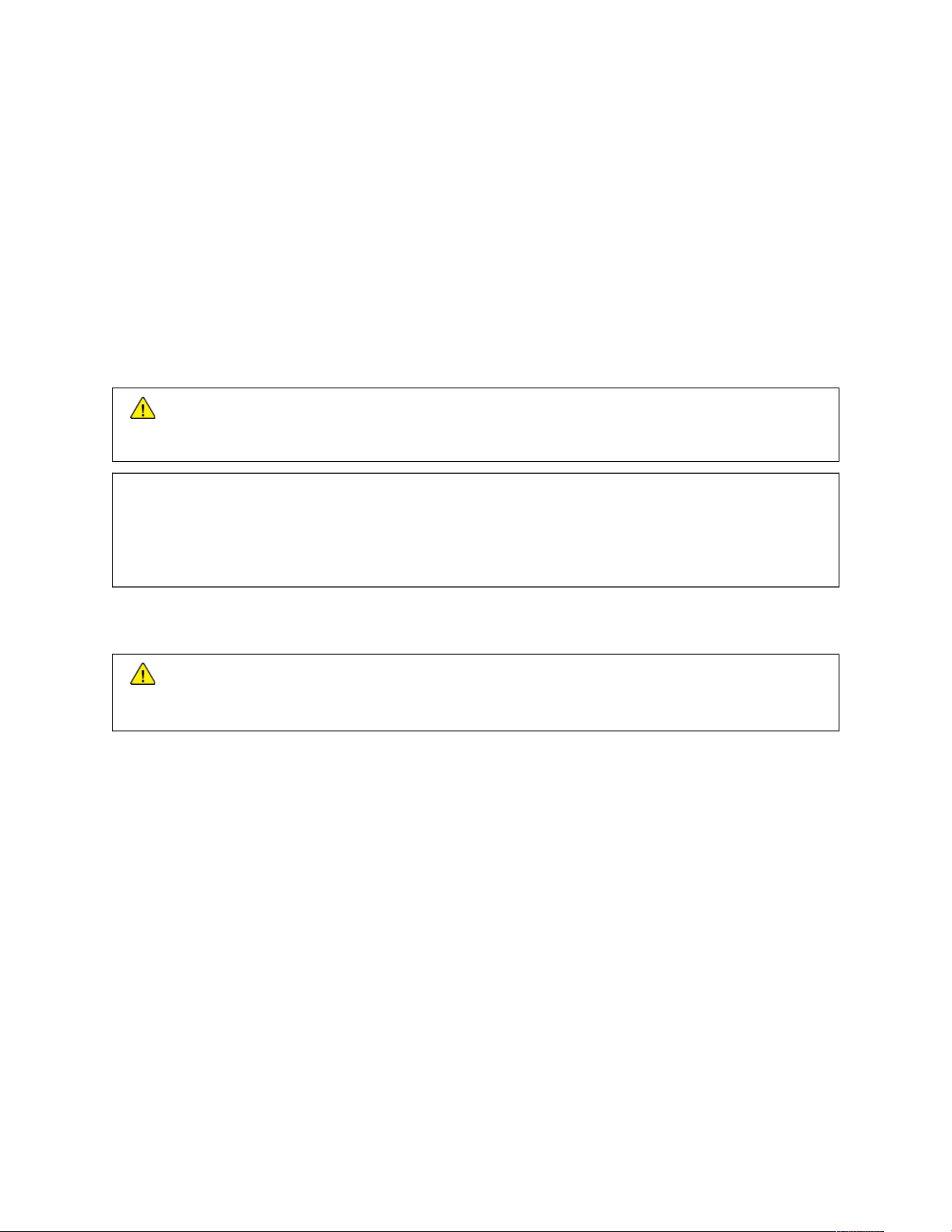
• For optimum performance, use the printer at the elevations specified in the Environmental Specifications section
of the User Guide.
PRINTER SUPPLIES
• Use the supplies designed for your printer. The use of unsuitable materials can cause poor performance and a
possible safety hazard.
• Follow all warnings and instructions marked on, or supplied with, the product, options, and supplies.
• Store all consumables in accordance with the instructions given on the package or container.
• Keep all consumables away from the reach of children.
• Never throw toner, toner cartridges, drum cartridges, or waste cartridges into an open flame.
CCaauuttiioonn:: When handling cartridges, for example toner and such, avoid skin or eye contact. Eye contact
can cause irritation and inflammation. Do not attempt to disassemble the cartridge, which can increase
the risk of skin or eye contact.
WWaarrnniinngg:: Use of non-Xerox supplies is not recommended. The Xerox Warranty, Service Agreement, and
Total Satisfaction Guarantee do not cover damage, malfunction, or degradation of performance caused by
use of non-Xerox supplies, or the use of Xerox supplies not specified for this printer. The Total Satisfaction
Guarantee is available in the United States and Canada. Coverage could vary outside these areas. For
details, contact your Xerox representative.
CONSUMABLE INFORMATION
CCaauuttiioonn:: When handling cartridges such as ink/toner or fuser, avoid skin or eye contact. Eye contact can
cause irritation and inflammation. Do not attempt to disassemble the cartridge. This can increase the risk
of skin or eye contact.
• Store all consumables in accordance with the instructions given on the package or container.
• Keep all consumables away from the reach of children.
• Never throw dry ink/toner, print cartridges, or dry ink/toner containers into an open flame.
For information on Xerox
®
supplies recycling programs, go to www.xerox.com/recycling.
22
Xerox
®
VersaLink
®
C415 Color Multifunction Printer User Guide
Safety
Maintenance Safety
Do not attempt any maintenance procedure that is not specifically described in the documentation supplied with
your printer.
• Clean with a dry lint-free cloth only.
• Use supplies and cleaning materials only as directed.
CCaauuttiioonn:: Do not use aerosol cleaners. Aerosol cleaners can cause explosions or fires when used on
electromechanical equipment.
• Do not remove the covers or guards that are fastened with screws. Customer service items are not located
behind these covers.
• In case of a Dry Ink or Toner Spill, use a broom or a wet cloth to wipe off spilled dry ink/toner. Sweep slowly to
minimize generation of dust during clean up. Avoid using a vacuum. If a vacuum must be used, the unit should
be designed for combustible dusts, with an explosion rated motor and non-conductive hose.
CCaauuttiioonn:: The metallic surfaces in the fuser area are hot. Use caution when removing paper jams
from this area and avoid touching any metallic surfaces.
• Do not burn any consumables or routine maintenance items. For information on Xerox
®
supplies recycling
programs, go to www.xerox.com/environment.
Xerox
®
VersaLink
®
C415 Color Multifunction Printer User Guide 23
Safety

Environmental, Health and Safety Contact Information
For more information on Environment, Health, and Safety in relation to this Xerox product and supplies, contact:
• United States and Canada, only: 1-800-ASK-XEROX (1-800-275-9376)
• Web address: Environmental Health & Sustainability - Xerox
• Email request (world-wide): [email protected]
For product safety information in the United States and Canada, go to www.xerox.com/environment.
24
Xerox
®
VersaLink
®
C415 Color Multifunction Printer User Guide
Safety
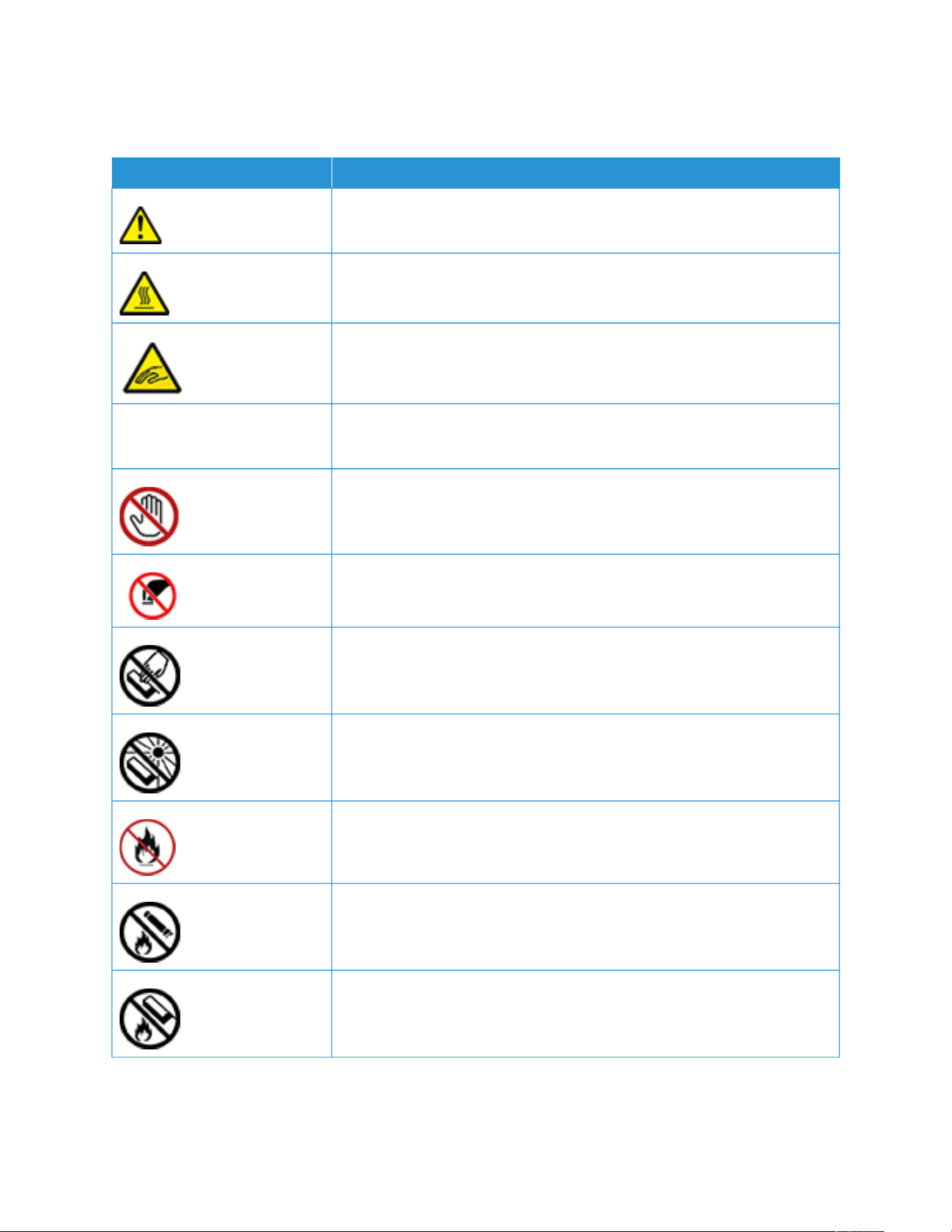
Product Symbols
SYMBOL DESCRIPTION
Caution:
Indicates a hazard that can result in serious injury or death if not avoided.
Hot Surface:
Hot surface on or in the printer. To avoid personal injury, use caution.
Warning:
Moving parts. To avoid personal injury, use caution.
[No symbol] Warning:
Indicates a mandatory action to take to avoid damage to the property.
Do not touch the part or area of the printer.
Do not touch this part of the printer.
Do not touch the part or area of the printer.
Do not expose the drum cartridges to direct sunlight.
Do not burn the item.
Do not burn the toner cartridges.
Do not burn the drum cartridges.
Xerox
®
VersaLink
®
C415 Color Multifunction Printer User Guide 25
Safety
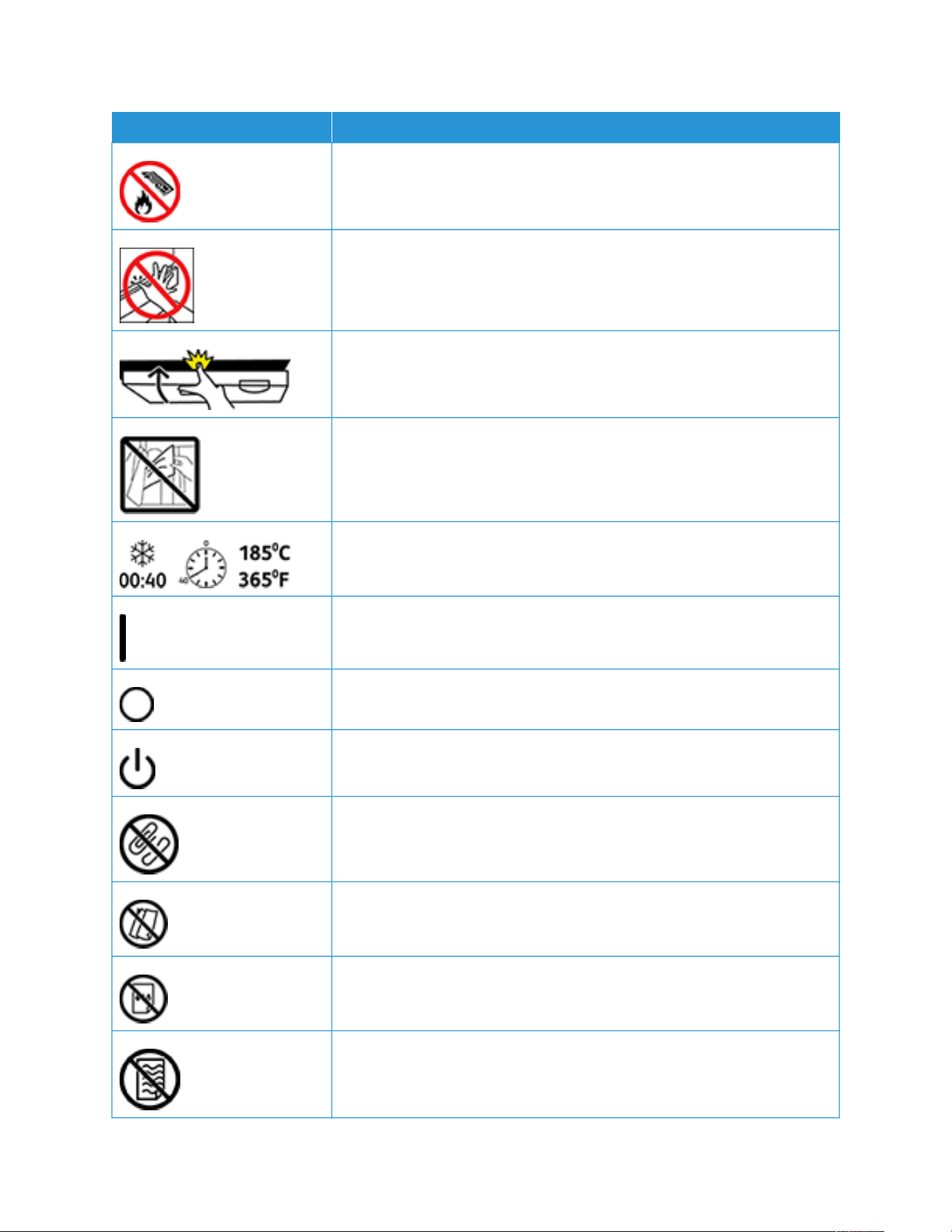
SYMBOL DESCRIPTION
Do not burn the toner waste cartridge.
Pinch Hazard:
To avoid personal injury, use caution in this area.
Pinch Hazard:
To avoid personal injury, use caution in this area.
Do not remove the paper forcefully.
Hot Surface:
Before handling, wait for the time indicated.
On
Off
Standby
Do not use paper attached with staples or any form of binding clip.
Do not use folded, creased, curled, or wrinkled paper.
Do not load or use inkjet paper.
Do not reload paper that is used or printed previously.
26
Xerox
®
VersaLink
®
C415 Color Multifunction Printer User Guide
Safety
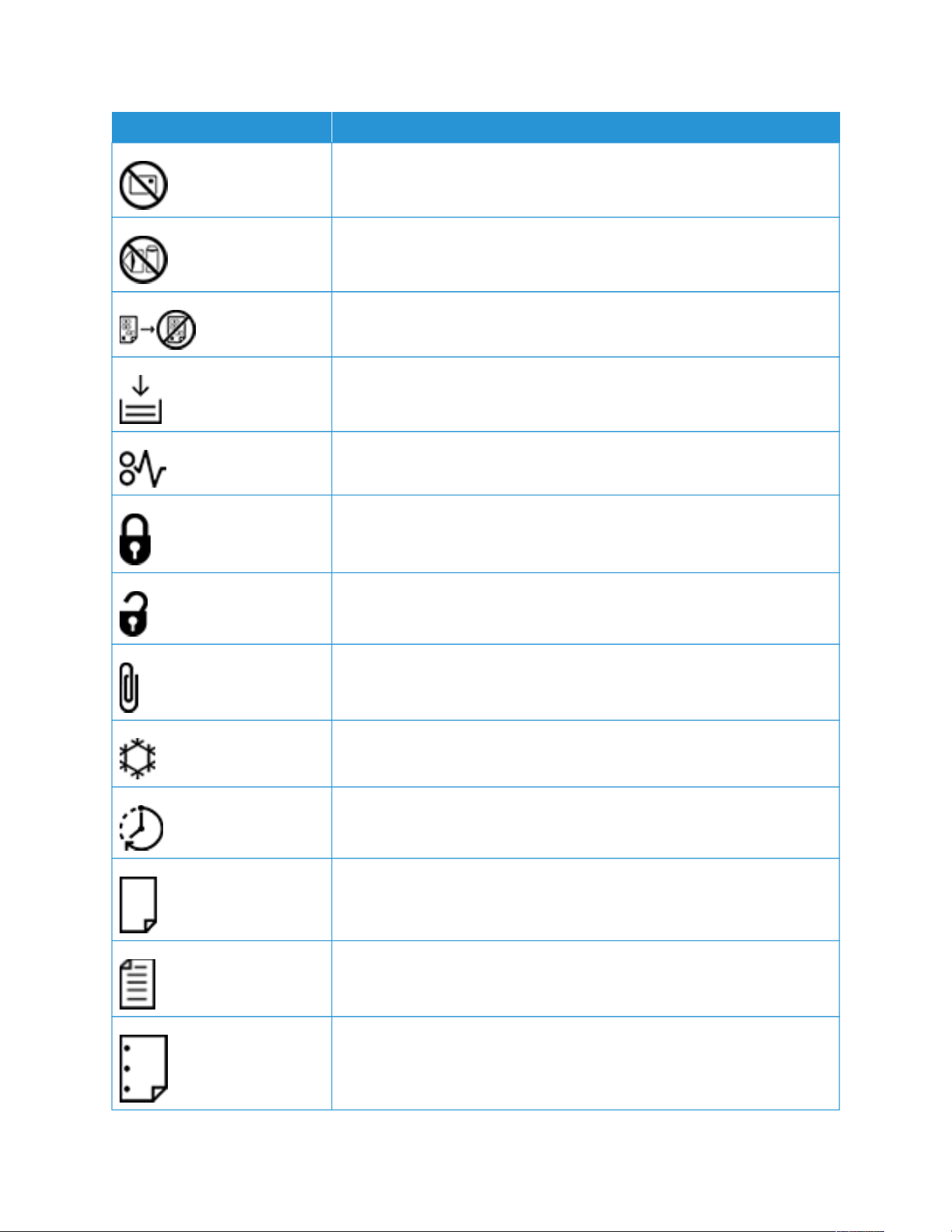
SYMBOL DESCRIPTION
Do not use postcards.
Do not use envelopes.
Do not copy money.
Add paper or media.
Paper jam
Lock
Unlock
Paper clip
Cooling
Elapsed time
Supply paper
1-Sided original document
Hole-punched paper
Xerox
®
VersaLink
®
C415 Color Multifunction Printer User Guide 27
Safety
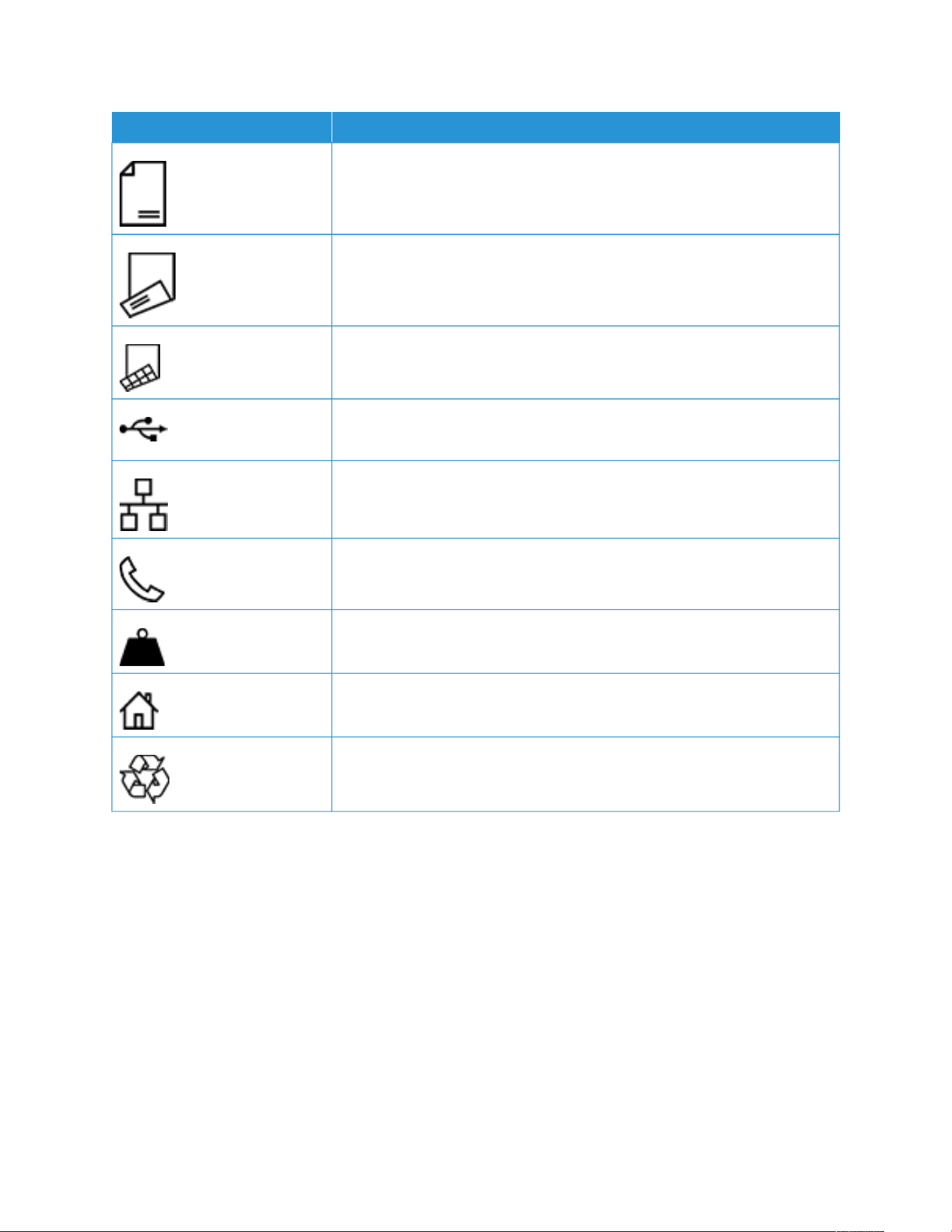
SYMBOL DESCRIPTION
Load letterhead face up.
Load letterhead face down.
Load labels face down.
USB:
Universal Serial Bus
LAN:
Local Area Network
Telephone Line
Weight
Services Home button
This item can be recycled.
28
Xerox
®
VersaLink
®
C415 Color Multifunction Printer User Guide
Safety

Xerox
®
VersaLink
®
C415 Color Multifunction Printer User Guide 29
Getting Started
This chapter contains:
Parts of the Printer . . . . . . . . . . . . . . . . . . . . . . . . . . . . . . . . . . . . . . . . . . . . . . . . . . . . . . . . . . . . . . . . . . . . . . . . . . . . . . . . . . . . . . . . . . . . . . . . . . . . . . . . . . . . . . . . . . . . . . . . . . . . . . . 30
Power Options . . . . . . . . . . . . . . . . . . . . . . . . . . . . . . . . . . . . . . . . . . . . . . . . . . . . . . . . . . . . . . . . . . . . . . . . . . . . . . . . . . . . . . . . . . . . . . . . . . . . . . . . . . . . . . . . . . . . . . . . . . . . . . . . . . . . . 39
Accessing the Printer . . . . . . . . . . . . . . . . . . . . . . . . . . . . . . . . . . . . . . . . . . . . . . . . . . . . . . . . . . . . . . . . . . . . . . . . . . . . . . . . . . . . . . . . . . . . . . . . . . . . . . . . . . . . . . . . . . . . . . . . . . . . 41
Apps, Features, and Functions . . . . . . . . . . . . . . . . . . . . . . . . . . . . . . . . . . . . . . . . . . . . . . . . . . . . . . . . . . . . . . . . . . . . . . . . . . . . . . . . . . . . . . . . . . . . . . . . . . . . . . . . . . . . . . . . 46
Information Pages . . . . . . . . . . . . . . . . . . . . . . . . . . . . . . . . . . . . . . . . . . . . . . . . . . . . . . . . . . . . . . . . . . . . . . . . . . . . . . . . . . . . . . . . . . . . . . . . . . . . . . . . . . . . . . . . . . . . . . . . . . . . . . . 48
The Embedded Web Server. . . . . . . . . . . . . . . . . . . . . . . . . . . . . . . . . . . . . . . . . . . . . . . . . . . . . . . . . . . . . . . . . . . . . . . . . . . . . . . . . . . . . . . . . . . . . . . . . . . . . . . . . . . . . . . . . . . . 50
Installation and Setup . . . . . . . . . . . . . . . . . . . . . . . . . . . . . . . . . . . . . . . . . . . . . . . . . . . . . . . . . . . . . . . . . . . . . . . . . . . . . . . . . . . . . . . . . . . . . . . . . . . . . . . . . . . . . . . . . . . . . . . . . . 56
Connecting the Printer . . . . . . . . . . . . . . . . . . . . . . . . . . . . . . . . . . . . . . . . . . . . . . . . . . . . . . . . . . . . . . . . . . . . . . . . . . . . . . . . . . . . . . . . . . . . . . . . . . . . . . . . . . . . . . . . . . . . . . . . . . 59
Initial Printer Setup . . . . . . . . . . . . . . . . . . . . . . . . . . . . . . . . . . . . . . . . . . . . . . . . . . . . . . . . . . . . . . . . . . . . . . . . . . . . . . . . . . . . . . . . . . . . . . . . . . . . . . . . . . . . . . . . . . . . . . . . . . . . . . 66
Installing the Print Driver Software . . . . . . . . . . . . . . . . . . . . . . . . . . . . . . . . . . . . . . . . . . . . . . . . . . . . . . . . . . . . . . . . . . . . . . . . . . . . . . . . . . . . . . . . . . . . . . . . . . . . . . . . . . 68
More Information . . . . . . . . . . . . . . . . . . . . . . . . . . . . . . . . . . . . . . . . . . . . . . . . . . . . . . . . . . . . . . . . . . . . . . . . . . . . . . . . . . . . . . . . . . . . . . . . . . . . . . . . . . . . . . . . . . . . . . . . . . . . . . . . 73
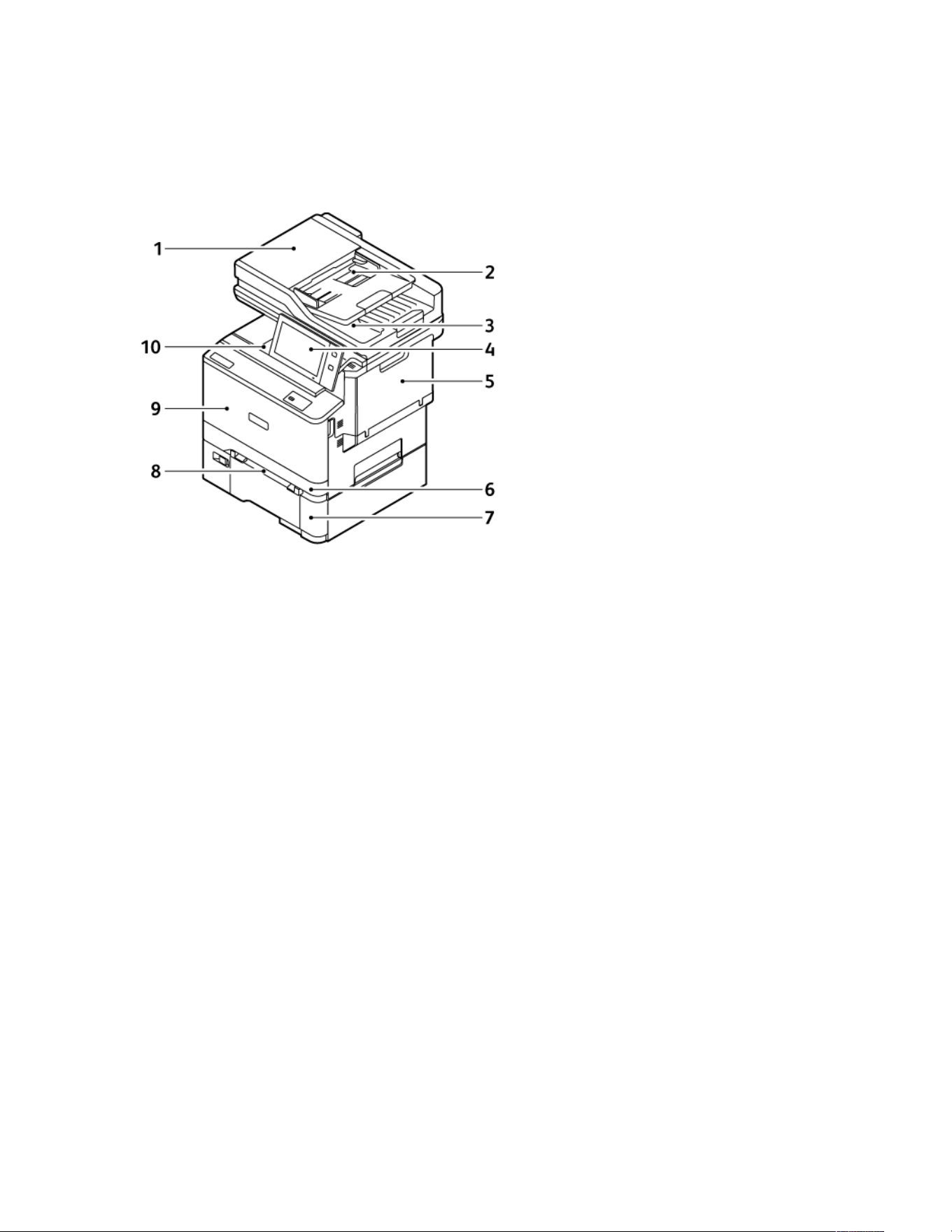
Parts of the Printer
FRONT VIEW
1. Document Cover/Duplex Automatic Document Feeder (DADF)
2. Document Feeder Tray
3. Document Feeder Output Tray
4. Control Panel or User Interface
5. Door B, Side Door
6. Tray 1, Standard 250-sheet Tray
7. Tray 2, Optional 550-sheet Tray with an integrated 100-sheet Bypass Tray or Optional 550-sheet Tray
8. Manual Feeder
9. Door A, Front Door
10. Center Output Tray
30
Xerox
®
VersaLink
®
C415 Color Multifunction Printer User Guide
Getting Started
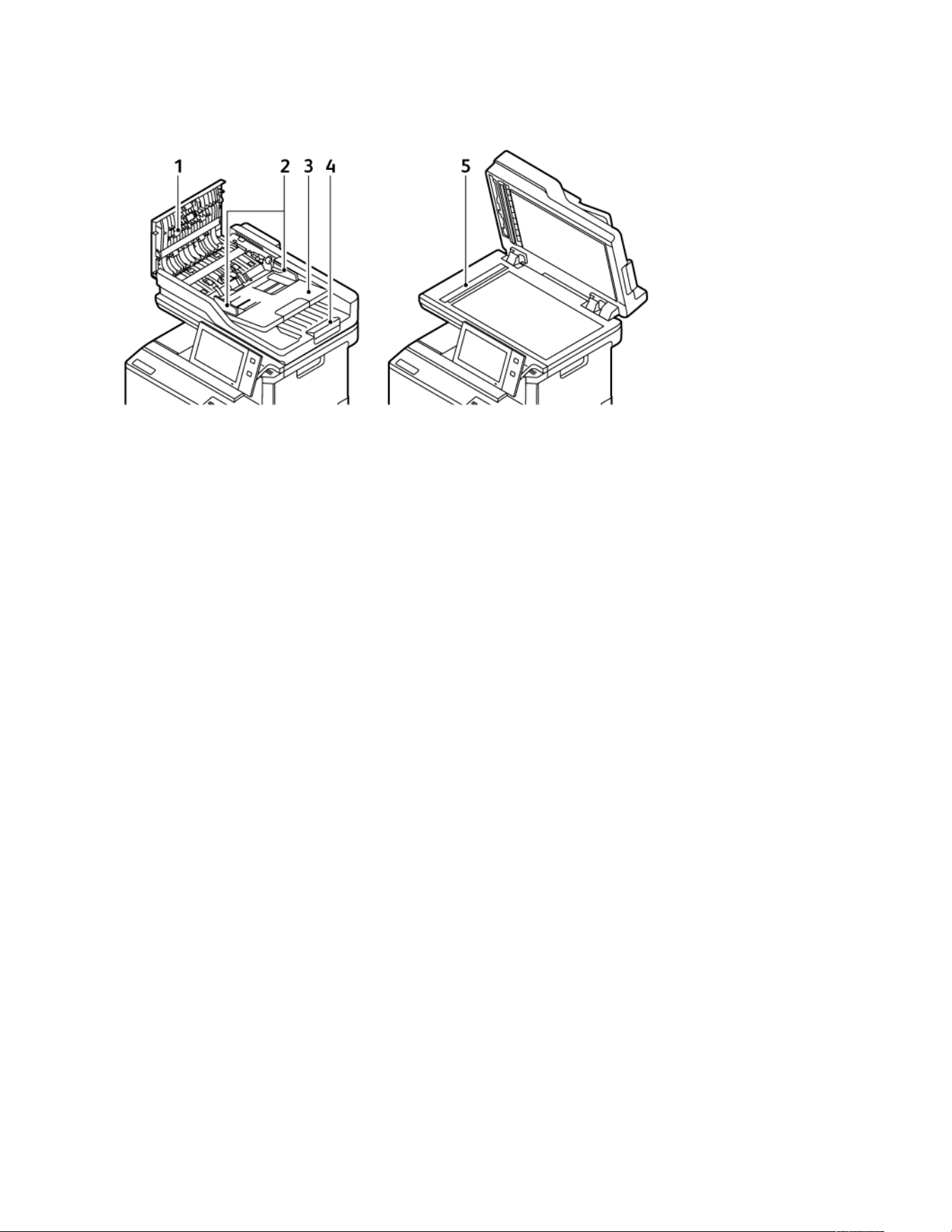
DUPLEX AUTOMATIC DOCUMENT FEEDER
1. Top Cover
2. Document Guides
3. Document Feeder Input Tray
4. Document Feeder Output Tray
5. Document Glass, Constant Velocity Transport (CVT) Glass
Xerox
®
VersaLink
®
C415 Color Multifunction Printer User Guide 31
Getting Started

Duplex Automatic Document Feeder Guidelines
The duplex automatic document feeder accommodates the following paper sizes and weights:
• Original document weights: 52–120 g/m
2
(14–32 lb. bond) paper
• Original standard document sizes and Custom document sizes:
– Minimum: A6, 105 x 148 mm (4.1 x 5.8 in.)
– Maximum: Legal, 216 x 356 mm (8.5 x 14 in.)
• Original document quantity: 100 sheets, 75 g/m
2
paper
Note: The duplex automatic document feeder does not support Coated paper.
Follow these guidelines when you load original documents into the duplex automatic document feeder:
• Load original documents face up so that the top of the document enters the feeder first.
• Place only loose sheets of undamaged paper in the duplex automatic document feeder.
• Adjust the paper guides so that they fit against the original documents.
• Insert paper in the duplex automatic document feeder only when ink on the paper is dry.
• Do not load original documents above the MAX fill line.
Document Glass Guidelines
Lift the document feeder cover and place the first page face down in the upper-left corner of the document glass.
Align the original documents to the matching paper size printed on the edge of the glass.
• The document glass accepts following paper sizes:
– Minimum: 25.4 x 25.4 mm (1 x 1 in.)
– Maximum: Legal, 215.9 x 355.6 mm (8.5 x 14 in.)
• Based on the Paper Size Preference setting, if the original document is A4 or shorter in size, the document glass
scans either AA44 (210 x 297 mm, 8.2 x 11.7 in.) or LLeetttteerr (215.9 x 279.4 mm, 8.5 x 11 in.).
• If the original document is longer than A4, the document glass scans according to Default Legal Size setting.
The available LLeeggaall sizes are 215.9 x 355.6 mm (8.5 x 14 in.), 215.9 x 330.2 mm (8.5 x 13 in.), 216 x 340 mm
(8.5 x 13.4 in.), and 215 x 315 mm (8.4 x 12.4 in.). The Default Legal setting is 215.9 x 355.6 mm (8.5 x 14 in.).
Note: When the original size is set to Auto in the control panel, the sizes described here are scanned on the
document glass. When you select the size for an original, then that chosen size is scanned by the printer. For
more information, refer to Specifying the Size of the Original.
Use the document glass rather than the duplex automatic document feeder to copy or scan the following types of
original documents:
• Paper with paper clips or staples attached
• Paper with wrinkles, curls, folds, tears, or notches
• Coated or carbonless paper or items other than paper, such as cloth or metal
• Envelopes and Books
32
Xerox
®
VersaLink
®
C415 Color Multifunction Printer User Guide
Getting Started
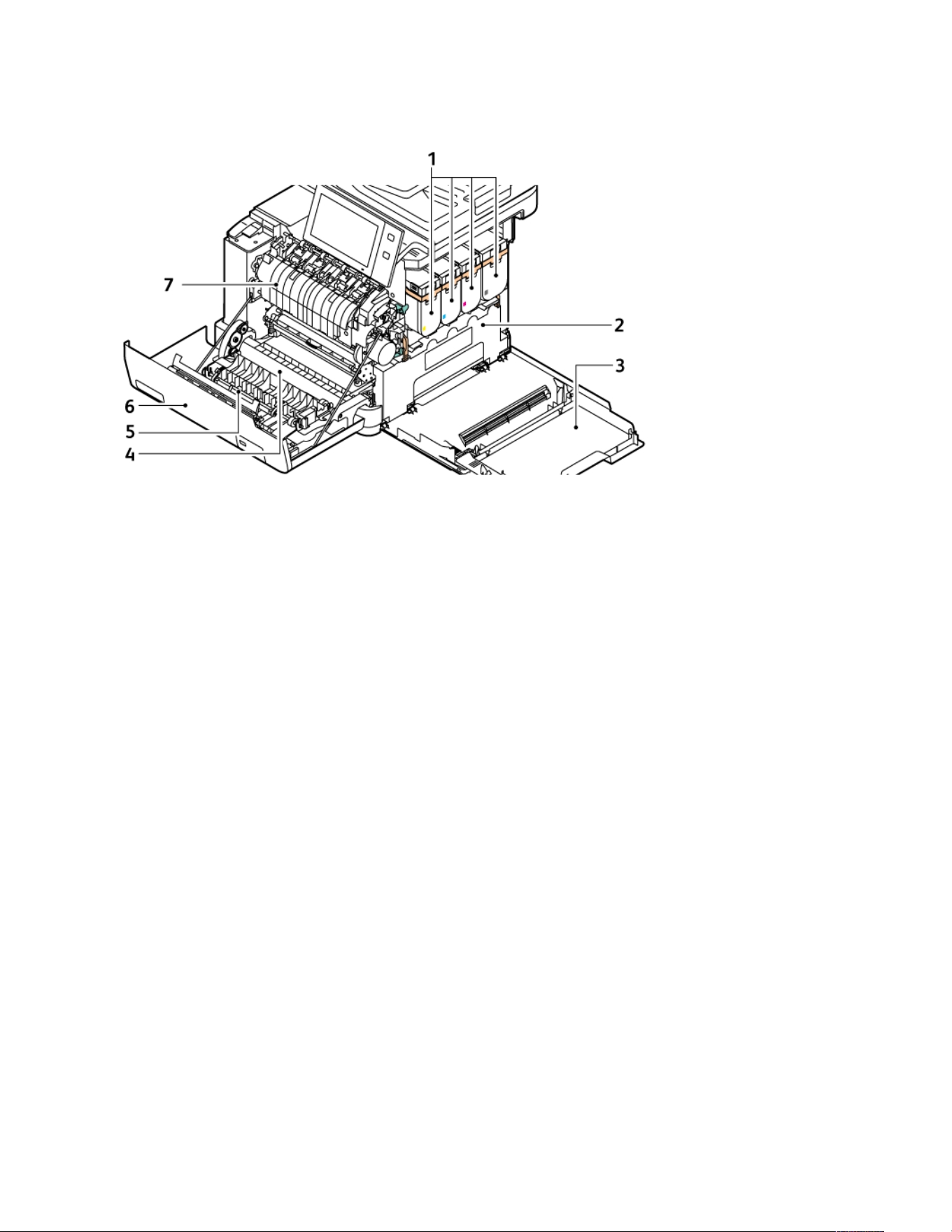
INTERNAL PARTS
1. Toner Cartridges and Imaging Unit
2. Waste Toner Bottle Assembly
3. Door B, Side Door
4. Transfer Module
5. Paper Guide
6. Door A, Front Door
7. Fuser Assembly
Xerox
®
VersaLink
®
C415 Color Multifunction Printer User Guide 33
Getting Started
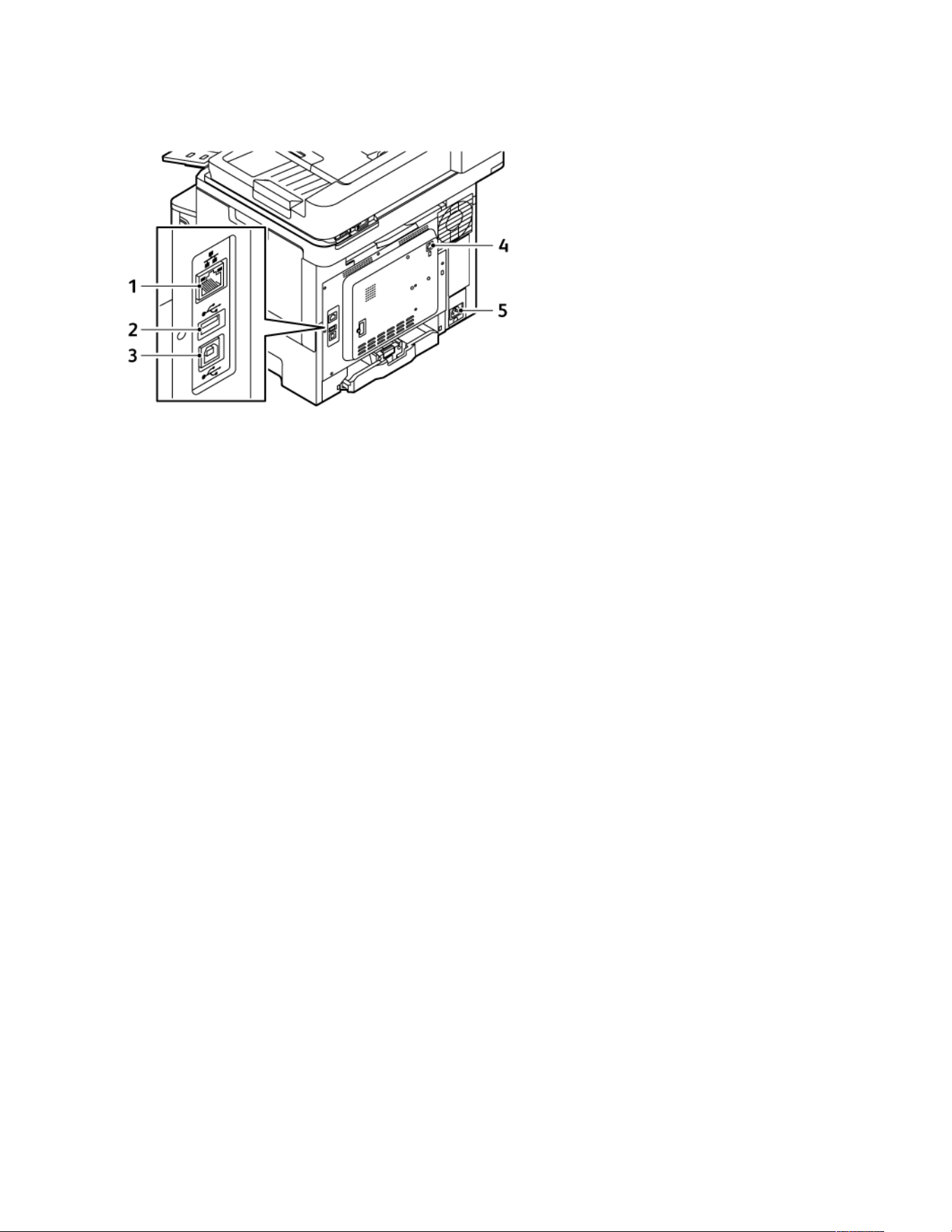
REAR VIEW
1. Ethernet Port
2. USB Port, Type A
3. USB Port, Type B
4. Fax Telephone Line Port
5. Main Power Outlet
34
Xerox
®
VersaLink
®
C415 Color Multifunction Printer User Guide
Getting Started
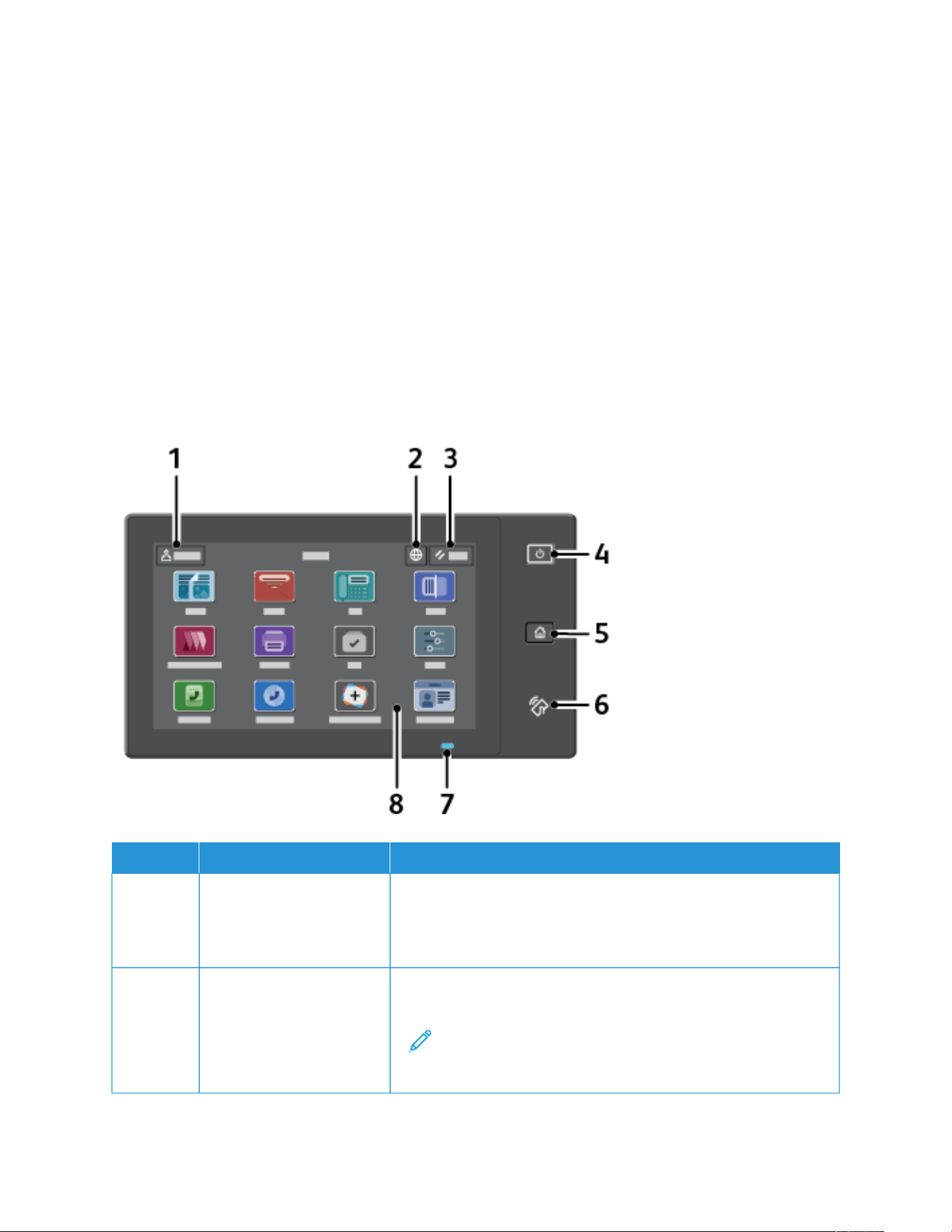
CONTROL PANEL
The control panel consists of a touch screen and buttons that you press to control the functions that are available
on the printer. The control panel has the following functions:
• Displays the current operating status of the printer.
• Provides access to print, copy, and scan features.
• Provides access to reference materials.
• Provides access to the Tools and Setup menus.
• Prompts you to load paper, replace supplies, and clear paper jams.
• Displays errors and warnings.
• Provides the Power/Wake button that is used to power on or off the printer. This button supports the power-
saver modes, and the button indicator pulses to indicate the power status of the printer.
ITEM NAME
DESCRIPTION
1 Log In Button Touching the Log In button on the control panel touch screen allows
you to log in and identify yourself to the printer. To access printer
features, log in with your user credentials. If you do not know your
user name or password, contact your system administrator.
2 Language Button Touching the Language button allows you to set the language that
appears on the control panel touch screen.
Note: Sometimes this option is hidden from view. For details,
refer to the System Administrator Guide at www.xerox.com/
office/VLC415docs.
Xerox
®
VersaLink
®
C415 Color Multifunction Printer User Guide 35
Getting Started

ITEM NAME
DESCRIPTION
3 Reset Button Use the Reset button to reset all the apps to the default settings.
4 Power/Wake Button This button serves several power-related functions:
• When the printer is powered off, pressing this button powers on
the printer.
• When the printer is powered on, pressing this button displays a
menu on the control panel. From this menu, you can choose to
enter Sleep Mode, restart the printer, or power off the printer.
• When the printer is powered on, but in Sleep Mode, pressing this
button wakes the printer.
The button indicator pulses to indicate the power status of the
printer:
• When the light pulses slowly, the printer is in Sleep Mode.
• When the light pulses rapidly, the printer is powering off or
waking up.
5 Home Button This button provides access to the Home menu for access to printer
features, such as copy, scan, and fax.
6 NFC Area Near Field Communication (NFC) is a technology that enables
devices to communicate when they are within the network range of
each other. Use the NFC area to obtain a network interface, to add
the printer to your mobile device, or to establish a TCP/IP connection
between your device and the printer.
7 Status Indicator This light pulses blue or amber to indicate the printer status.
Blue:
• Pulses blue once for access-card authentication when there is a
delay in response from a remote server.
Note: Some card readers are not compatible with this
feature.
• Pulses blue twice slowly to indicate that a job has completed.
• Pulses blue rapidly while the printer is powering on, or to signal
detection of an Identify Printer function from AirPrint, when
applicable.
Amber:
Pulses amber to indicate an error condition or warning that requires
your attention or the attention of your system administrator. For
example, this color can indicate an out-of-toner condition, a paper
jam, or that the printer is out of paper for the current job.
8 Touch Screen Display The screen displays information and provides access to the printer
functions and apps, such as copy, scan, and fax.
36
Xerox
®
VersaLink
®
C415 Color Multifunction Printer User Guide
Getting Started
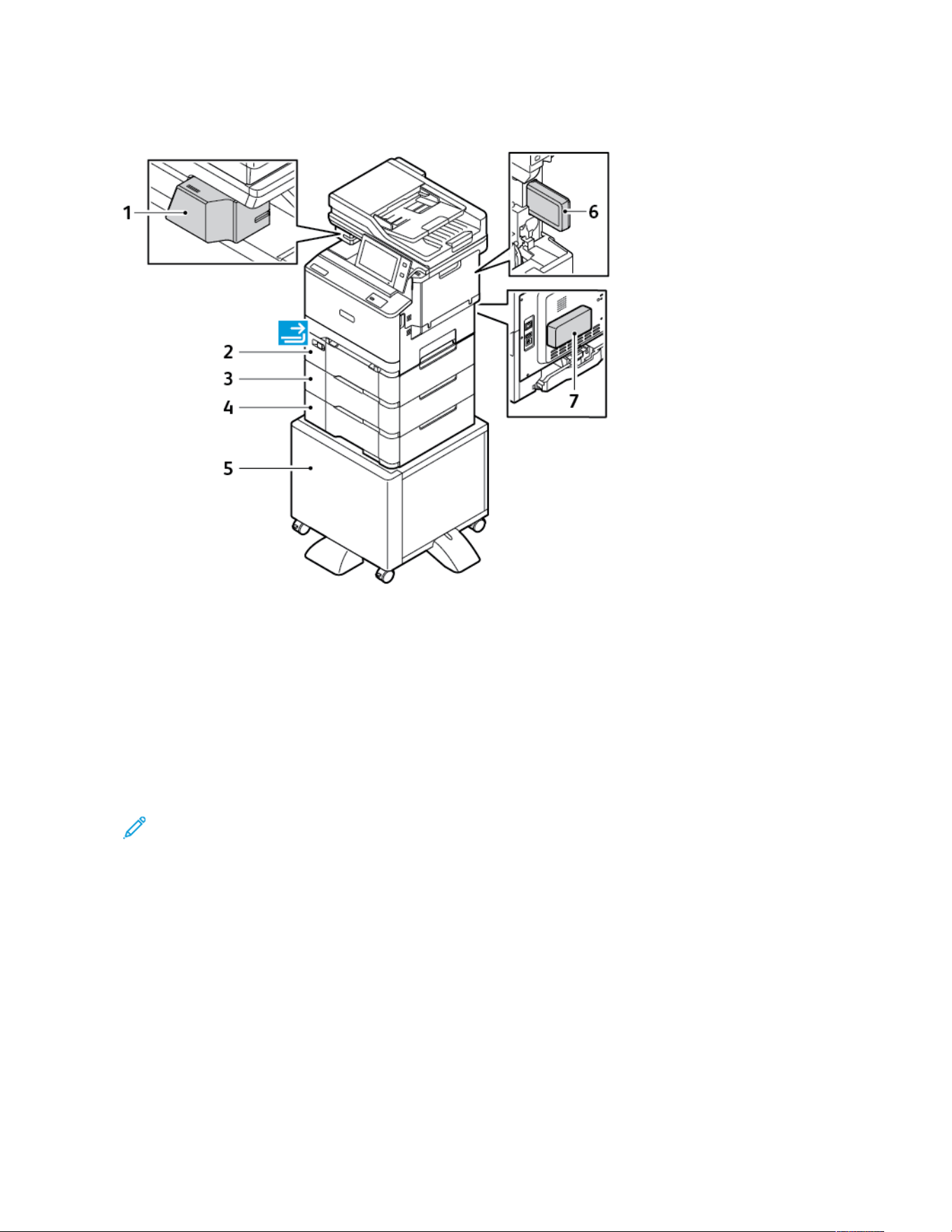
ADDITIONAL CONFIGURATIONS AND OPTIONS
1. Convenience Stapler
2. Tray 2, Optional 550-sheet Tray with an integrated 100-sheet Bypass Tray or Optional 550-sheet Tray
3. Tray 3, Optional 550-sheet Tray
4. Tray 4, Optional 550-sheet Tray
5. Printer Stand
6. Wireless Network Adapter
7. Productivity Kit (500+ GB Hard Disk Drive)
Note: To use the different Tray configurations and their capabilities efficiently, ensure that your printer is
updated to the latest software.
PAPER TRAY OPTIONS
The printer can have up to three 550-sheet paper trays:
• Tray 1: Standard 250-sheet Tray
• Tray 2: Optional 550-sheet Tray with an integrated 100-sheet Bypass Tray or Optional 550-sheet Tray
• Tray 3: Optional 550-sheet Tray
• Tray 4: Optional 550-sheet Tray
The printer also has a Manual Feeder attached to Tray 1.
Xerox
®
VersaLink
®
C415 Color Multifunction Printer User Guide 37
Getting Started

Note: To use the different Tray configurations and their capabilities efficiently, ensure that your printer is
updated to the latest software.
Configuring Dedicated Paper Trays
The system administrator can set trays to Fully Adjustable mode or Dedicated mode. When a paper tray is set to
Fully Adjustable mode, you can change paper settings each time you load the tray. When a paper tray is set to
Dedicated mode, the control panel prompts you to load a specific paper size, type, and color.
Your printer can have up to three optional standard paper trays that can be configured as Fully Adjustable or
Dedicated trays. The dedicated paper trays, Manual Feeder, and Bypass tray cannot be set as Dedicated.
Note: To configure tray settings, refer to the System Administrator Guide at www.xerox.com/office/
VLC415docs.
Paper Size Confirmation
The system administrator can configure the device response that appears on the control panel touch screen when
paper of the same size is loaded in a tray. For standard adjustable paper trays, select an option:
• Always Show: This option shows the paper confirmation prompt on the control panel touch screen until the
user dismisses it.
• Delayed Confirmation: This option shows the paper confirmation prompt for a specified time. At the end of
the specified time, the prompt closes, which confirms the paper that is loaded. While the prompt appears on the
control panel touch screen, you can confirm any change to the paper type, color, and size.
• Auto Confirmation: This option confirms the paper type, color, and size automatically without showing a
confirmation prompt on the control panel touch screen.
Note: Xerox
®
does not recommend using the Auto Confirmation option unless you always load the tray
with paper of the exact same type, color, and size. To configure the Automatic Tray Confirmation Prompt,
refer to Required Paper Policies in the System Administrator Guide at www.xerox.com/office/VLC415docs.
38
Xerox
®
VersaLink
®
C415 Color Multifunction Printer User Guide
Getting Started
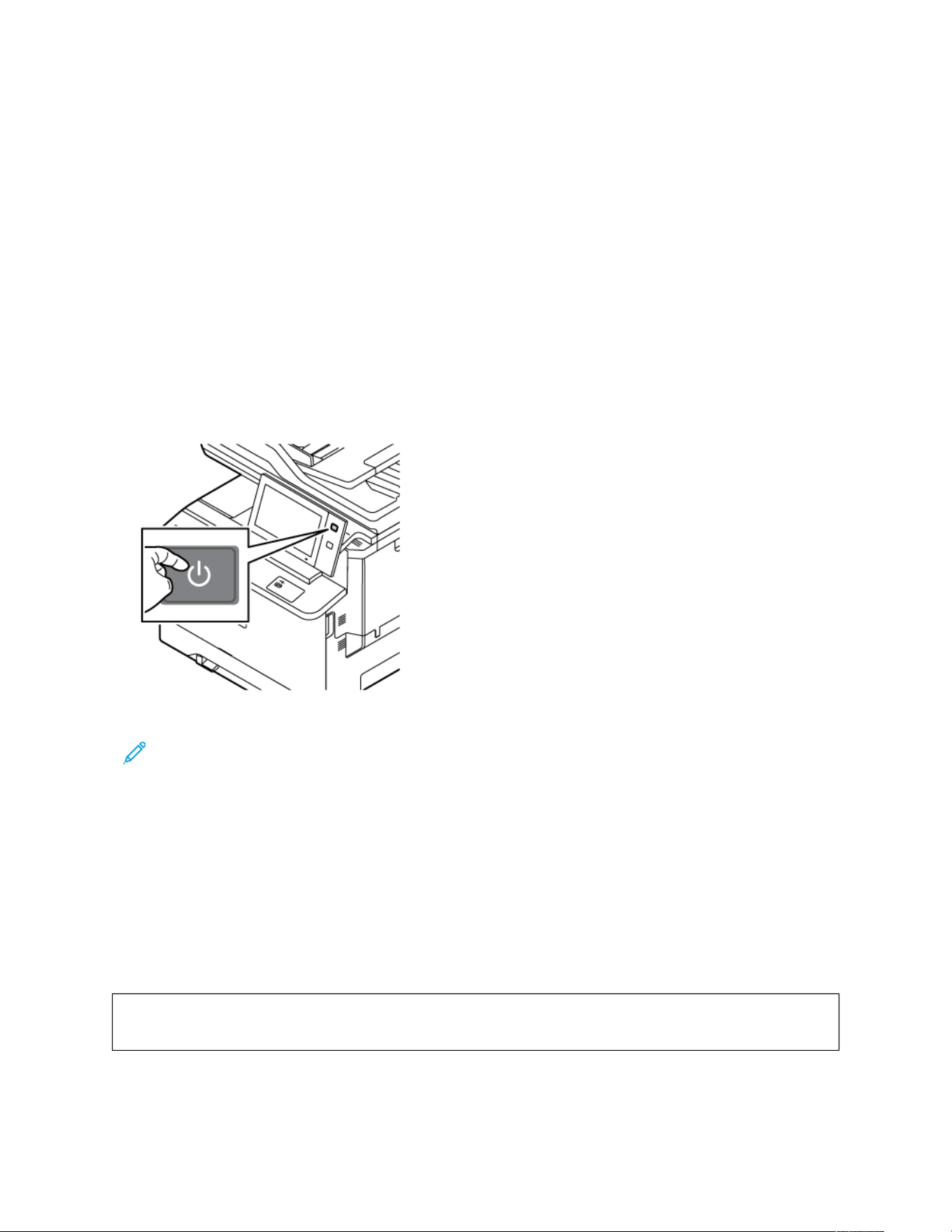
Power Options
POWER SAVER
To reduce standby power consumption, you can use Sleep Timeout to set the time that the printer spends idle in
Ready mode before the printer transitions to Sleep Mode.
POWERING ON THE PRINTER OR EXITING SLEEP MODE
The printer has one power switch. The power switch is the Power/Wake button on the control panel. The Power/
Wake button controls power to the printer electronic components, and when powering off, it initiates a software-
controlled shutdown procedure. The preferred method to power on and off the printer is to use the Power/Wake
button.
• To power on the printer, on the printer control panel, press the Power/Wake button.
• To enter or exit Sleep Mode, press the Power/Wake button.
Note:
• When the printer receives data from a connected device, the printer exits Sleep Mode automatically.
• When the printer receives data from a network print job, to reduce power consumption, only necessary
electronic components exit Sleep mode automatically. The control panel and the document scanner do
not exit Sleep Mode.
• When the printer is in Sleep Mode, the touch screen is powered off and unresponsive. To wake the printer
manually, press the Power/Wake button.
• If Auto Power Off is enabled, the printer powers off automatically after the specified conditions are met.
To enable Auto Power Off mode, contact your System Administrator. For details, refer to the System
Administrator Guide at www.xerox.com/office/VLC415docs.
WWaarrnniinngg:: The main power outlet is at the rear side of the printer. Do not plug or unplug the power cord
while the printer is powered on.
Xerox
®
VersaLink
®
C415 Color Multifunction Printer User Guide 39
Getting Started
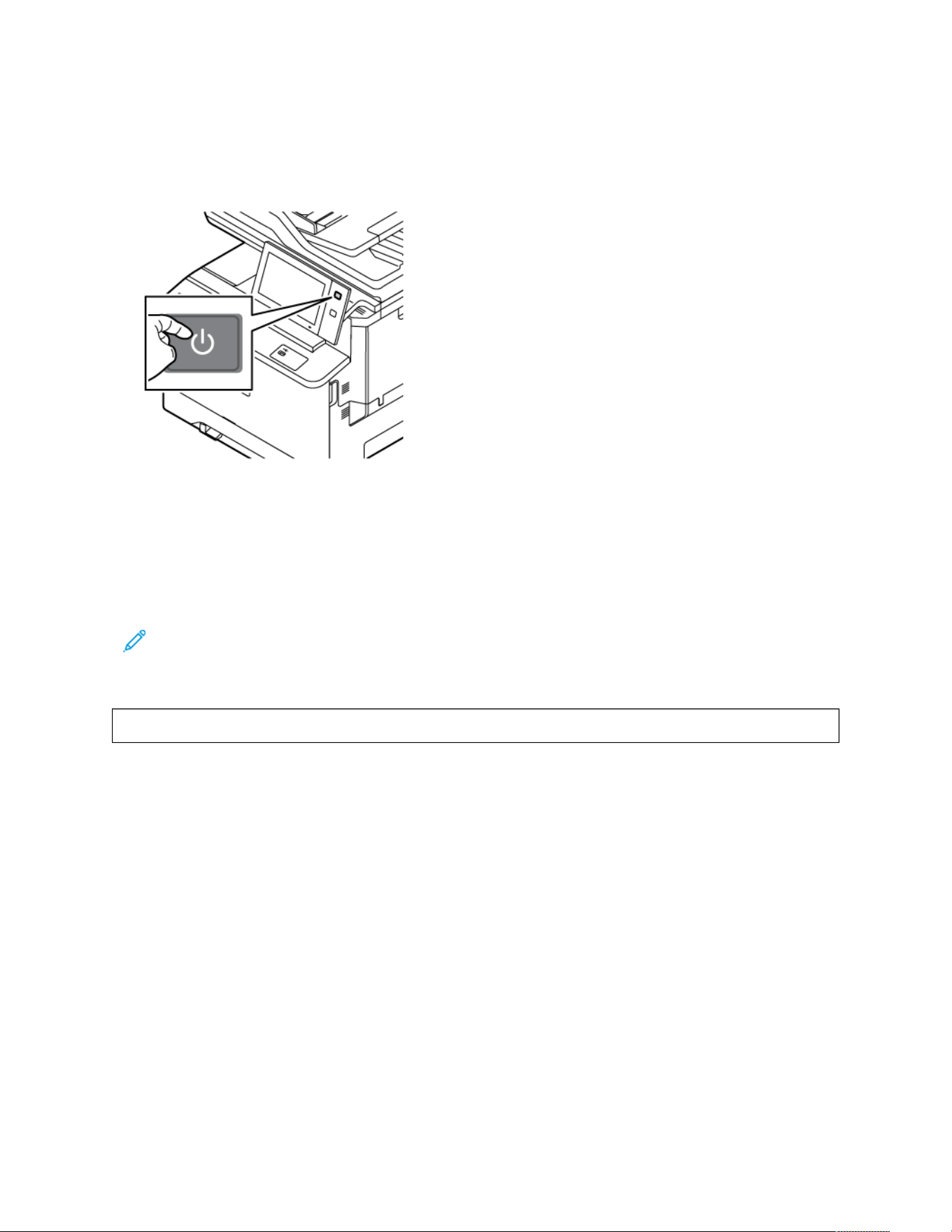
RESTARTING, PLACING IN SLEEP MODE, OR POWERING OFF THE PRINTER
To restart the printer, place the printer in Sleep Mode, or power off the printer:
1. At the printer control panel, press the Power/Wake button.
2. Select an option:
• To restart the printer, touch Restart.
• To place the printer in Sleep Mode, touch Sleep.
In Sleep Mode, the touch screen goes dark and the Power/Wake button pulses.
• To power off the printer, touch Power Off. A Please Wait message appears as the printer powers off.
Note: It is not recommended but if required, to power off the printer immediately, press and hold the
Power/Wake button for 5 seconds.
3. If you want to power off the printer for an extended period, disconnect the printer from the main power outlet.
WWaarrnniinngg:: Do not unplug the power cord while the printer powers down.
40
Xerox
®
VersaLink
®
C415 Color Multifunction Printer User Guide
Getting Started

Accessing the Printer
AUTHENTICATION
Authentication is the process of confirming your identity. When the system administrator enables authentication,
the printer compares the information that you provide to another source of information, such as an LDAP directory.
The information can be a user name and password, or the information stored on a magnetic, proximity, radio
frequency identification (RFID), or smart card. If the information is valid, you are considered an authenticated user.
There are several ways to authenticate a user:
• User Name/Password - Validate on the Device: This option enables local authentication. Users prove their
identity by typing a user name and password at the control panel or in the Embedded Web Server. The printer
compares the user credentials to the information stored in the user database. If there are a limited number of
users, or you do not have access to an authentication server, use this authentication method.
• User Name/Password - Validate on the Network: This option enables network authentication. Users prove
their identity by typing a user name and password at the control panel or in the Embedded Web Server. The
printer compares the user credentials to the information stored on an authentication server.
• Convenience Authentication: If this option is enabled, a card with a magnetic strip or RFID is used. A
convenience authentication card is different from a smart card, which uses an embedded chip and typically
requires a login and password. If the optional integrated RFID reader is installed, for authentication, users place
a pre-programmed card over the RFID reader at the control panel.
• Xerox Workplace Cloud: This option enables cloud-based authentication. The printer connects directly to the
Xerox
®
Workplace Cloud solution. This method provides multiple options for authentication. To prove their
identity, users can use mobile authentication methods such as NFC or QR Codes, use an identification card, or
type a user name and password.
• Xerox Secure Access - Unified ID System: This option enables authentication for the Xerox Secure Access
Unified ID System. Users present a pre-programmed identification card to a card reader at the control panel.
The printer compares the user credentials to the information stored on the Xerox
®
Secure Access server.
• Identity Provider (IdP) - Validate on Cloud: This option enables cloud-based authentication through an
identity provider (IdP). The device establishes a secure connection with the IdP, then passes the user credentials
to the IdP for authentication.
When you configure IdP authentication, users verify their identity by entering a username and selecting a sign-
in option allowed by the IdP, such as a password. The printer supports several modern authentication methods,
such as authenticator app, certificate-based authentication, and FIDO2 security keys. These modern
authentication technologies offer Single-Factor Authentication (SFA), Multi-Factor Authentication (MFA), and
password-less workflows to login to the control panel of the printer.
Smart Cards: This option enables authentication for a smart card reader. Users insert a pre-programmed
identification card in a card reader at the control panel.
Note: For IdP and Smart Cards login methods, the Xerox Mandatory Multiport USB Hub Kit is required to
log in with the USB Authentication Token. For more information, refer to www.xerox.com.
• Custom Authentication: To use this authentication method, a feature installation key is required. After
entering the feature installation key, the customized authentication methods provided by Xerox are available for
configuration. For more information about a software feature installation, refer to Feature Installation.
Xerox
®
VersaLink
®
C415 Color Multifunction Printer User Guide 41
Getting Started

Note: The system administrator can allow you to type your user name and password when Convenience
Authentication or Smart Cards is set as the primary authentication method. If the administrator configures
an alternative authentication method, and you misplace your card, you can still access the printer.
For information about configuring Authentication settings, refer to the System Administrator Guide at www.xerox.
com/office/VLC415docs.
FEATURE INSTALLATION
Feature Installation option allows you to install optional software features.
To install a software feature from the Embedded Web Server:
1. In your computer Web browser, open the Embedded Web Server by typing the IP address of the printer.
2. Click Home > Properties > General Setup > Feature Installation.
3. Under Features, click Enter Key, or under Action, next to the feature you want to install, click Install.
4. For Enter Installation Key, type the key, then click Apply.
Note: Contact the Xerox representative to get the Feature Installation Key.
There are two types of keys:
• Permanent Key: This key is 12-digits long. You can use dashes or spaces without affecting the entry of the
key. For example, 1234-5678-9011.
• Expiring Key: This key is 18-characters long. For example, abcj 1234 5678 r12# 7p.
You can install features on multiple printers by sending a formatted .csv file as a print job to the printers. A
Xerox representative creates this file and provides installation instructions.
To restrict users from installing features using the .csv file print method, under Allow Print File Updates, select
Disable.
The Features area lists the software features that are available. The list contains the following columns:
• Feature: This column shows the list of available software features.
• Type: This column shows the type of the feature. For example, optional, trial, or standard.
• State: This column shows the current status of the software feature.
• Date: This column shows the started and expiring time stamp.
• Configuration: This column provides a link to view more information about the feature.
• Action: This column allows you to install or uninstall the Feature Installation Key.
To install a software feature at the control panel:
1. At the printer control panel, press the Home button.
2. Touch Device > Tools > General > Feature Installation.
3. For Enter Installation Key, type the key, then touch OK.
Note: Contact the Xerox representative to get the Feature Installation Key.
You can uninstall a software feature from the Embedded Web Server (EWS). To uninstall a software feature, do the
42
Xerox
®
VersaLink
®
C415 Color Multifunction Printer User Guide
Getting Started

following:
1. Under Action, next to the feature you want to remove, click Uninstall.
2. Click OK.
3. Click Apply.
Note: The System Administrator can uninstall certain software features from the Embedded Web Server. You
can also uninstall certain features at the control panel or any other supported interface using an uninstall
Feature Installation Key. Follow the same steps you use to install a key.
AUTHORIZATION
Authorization is the function of specifying the features that users are allowed to access, and the process of
approving or disapproving access. You can configure the printer to allow users to access the printer, but restrict
access to certain features, tools, and apps. For example, you can allow users to access copying but restrict access to
scanning. You can also control access to features at specific times of the day. For example, you can restrict a group
of users from printing during peak business hours.
There are two types of authorization:
• LLooccaall AAuutthhoorriizzaattiioonn verifies user information on the printer to approve access.
• NNeettwwoorrkk AAuutthhoorriizzaattiioonn verifies user information stored externally in a network database, such as an LDAP
directory, to approve access.
For information about configuring Authorization settings, refer to the System Administrator Guide at www.xerox.
com/office/VLC415docs.
PERSONALIZATION
Personalization is the process of customizing and configuring the device information and settings for a logged-in
user. When a user logs in to the device, the device searches for the required configuration information for the user
account from an LDAP directory.
Personalization allows logged-in users to create a personalized user experience at the local user interface.
Personalization for logged-in users is enabled by default.
Personalization allows a logged-in user to configure the following settings:
• Personalized walk-up screen: When a user logs in, the device launches their preferred app instead of the default
walk-up screen.
• Personalized home screen: A user can select their preferred apps to display in a preferred order on the home
screen.
• Personalized default settings for the Copy, Email, Fax, Scan To, and ID Card Copy Apps.
• Personalized 1-Touch Apps.
• Personalized app to launch when originals are detected: At the home screen, when a logged-in user loads
original documents in the automatic document feeder, the device launches their preferred app.
• Personalized auto start settings for the Copy, Email, Fax, Scan To, and 1-Touch Apps.
Xerox
®
VersaLink
®
C415 Color Multifunction Printer User Guide 43
Getting Started

• Personalized Adaptive Learning suggestions: Adaptive Learning personalization offers workflow-automation
suggestions to help logged-in users streamline their workflow. Personalized app workflow suggestions include:
– Creation of personalized 1-Touch Apps for repetitive tasks
– Creation of personalized 1-Touch Apps for complex tasks
– Reordering of app feature settings according to frequency of use
– Language preference settings
For a logged-in user, all personalized settings override the device defaults.
Note: The options available are defined by the administrator. For example, if the administrator has chosen
to limit permissions for the use of an app, the individual user cannot override those permissions.
For more information about all the Personalization options, refer to Personalize.
Note: To allow the logged-in user to personalize their local user interface experience, the System
Administrator is required to configure the device personalization policy. For information on configuring the
device policy to enable user personalization, refer to the System Administrator Guide at www.xerox.com/
office/VLC415docs.
ACCOUNTING
Accounting is used to track and record the numbers of Copy, Print, Scanning, Server Fax, and Fax jobs that the
device produces for each user. The system administrator is required to create user accounts and enable the
accounting feature. After Accounting is enabled, provide Accounting IDs at the printer to access restricted apps. If
Authentication is enabled, you are required to log in first. Before you print documents from a computer, provide
your account details in the print driver.
The system administrator can set limits to restrict the total number of jobs by type that a user can send to the
printer. The administrator can generate reports that list usage data for individual users and groups.
For details, refer to the System Administrator Guide at www.xerox.com/office/VLC415docs.
LOGGING IN
Logging in is the process by which you identify yourself to the printer for authentication. If authentication is set, to
access printer features, you log in with your user credentials.
Logging In at the Control Panel
Note:
• Before logging in for the first time at the Xerox device control panel, log in to the Embedded Web Server,
then update your password. For details, refer to Logging In Using the Embedded Web Server.
• If you do not know your user name or password, contact your system administrator.
1. At the printer control panel, press the Home button.
2. Touch Log In.
3. For User Name, use the keypad and enter your name, then touch Next.
44
Xerox
®
VersaLink
®
C415 Color Multifunction Printer User Guide
Getting Started

4. If prompted, enter the password, then touch Done.
Note: To access each app that is password-protected, repeat steps 3 and 4.
Xerox
®
VersaLink
®
C415 Color Multifunction Printer User Guide 45
Getting Started

Apps, Features, and Functions
INTRODUCTION TO APPS
Xerox Apps are a gateway to the features and functions of your device. Standard Apps are installed already on the
device and appear on the Home screen. Some Apps are installed as standard, but are hidden the first time you use
the device.
When you log in, the Apps configured for your personal account appear on the control panel.
You can download more Apps for your device from the Xerox
®
App Gallery. For more information, refer to Xerox
®
App Gallery.
TOUCHLESS WORKFLOWS
There are two features that you can configure for the device to perform specific actions when originals are detected
in the automatic document feeder:
• Default Screen When Originals Are Detected: This feature sets the default app to launch when original
documents are loaded in the automatic document feeder. The setting applies when the device control panel
displays the Home screen only.
• Auto Start When Originals Are Detected: This option enables the Auto Start feature. The Auto Start feature
allows the device to start a job automatically within an app. For example, the device can be configured to
launch the Copy app automatically when media is detected in the automatic document feeder. The Auto Start
feature applies to Copy, Email, Fax, Scan To, and 1-Touch Apps. Auto Start can be enabled for individual apps, or
for all supported apps.
When both the Auto Start When Originals Are Detected feature and the Default Screen When Originals Are
Detected feature are enabled for an app, you can create touchless workflows. The following example describes this
scenario for a 1-Touch App, based on the Copy App. If the 1-Touch App is selected as the default app when
originals are detected, and Auto Start is enabled for the 1-Touch App. The control panel displays the Home screen.
When a user places original documents in the automatic document feeder, the device launches the 1-Touch App
automatically. The copy is initiated within 7 seconds, unless the user cancels the automatic operation.
When Personalization is enabled, a logged-in user can personalize their default app for when originals are detected.
The personalized setting for the default app when originals are detected applies to a logged-in user when the
control panel displays the Home screen. The preferred app opens when the user places documents in the automatic
document feeder.
For more information about creating and using 1-Touch Apps, refer to Personalize.
For detailed instructions on how to configure Entry Screen Defaults and the Auto Start feature, refer to the System
Administrator Guide at www.xerox.com/office/VLC415docs.
ADAPTIVE LEARNING
Adaptive Learning offers workflow-automation and suggestions to help users to streamline their workflows. When
Adaptive Learning is enabled, the following features are provided:
• Automatically Set Device Defaults: This feature is enabled by the administrator and provides customization of
default settings based on device usage by walk-up users. Options include the default walk-up screen, the default
46
Xerox
®
VersaLink
®
C415 Color Multifunction Printer User Guide
Getting Started

screen when original documents are detected, and default settings for the Email and Scan To Apps. This feature
is enabled by default, which collects usage data and makes changes to the device defaults only if it detects a
different usage pattern than the defaults.
To view the Adaptive Learning history at the control panel, touch Device > Notifications > Adaptive Learning
Updates.
Note: When Adaptive Learning makes changes to the device defaults, a notification banner appears.
You can temporarily dismiss the banner, but it reappears at each session during the 8-day notification
period to inform everyone using the device about the changes.
• Suggest Personalized App Workflows: This feature provides personalized workflow suggestions for a logged-in
user based on their use of certain applications. An individual user can choose the types of suggestions that they
receive. Personalized suggestions apply to the Copy, Email, and Scan To Apps only.
For more information about personalized workflow suggestions, refer to Personalize.
Note: The Adaptive Learning personalization feature is available to logged-in users only.
For detailed instructions on how to configure Adaptive Learning, refer to the System Administrator Guide at www.
xerox.com/office/VLC415docs.
QUICK ACCESS
The Quick Access provides easy access to the features on the control panel. It includes links to Supplies, Paper Trays,
Notifications, Accessibility, and About.
At the control panel, touch the circled-ellipsis icon, which represents Quick Access links to access the configured
features without leaving your current task.
Xerox
®
VersaLink
®
C415 Color Multifunction Printer User Guide 47
Getting Started

Information Pages
Your printer has a set of information pages that you can print. These pages include configuration and font
information, getting started pages, and more.
The following Information Pages are available:
NAME
DESCRIPTION
Basic Configuration Report The Basic Configuration Report provides printer
information, including the serial number, installed
options, network settings, port setup, tray information,
and more.
Detailed Configuration Report The Detailed Configuration Report provides
information about all of the printer settings, including
extensible services setup, security and authentication
server configuration, connectivity settings, and more.
Billing Summary The Billing Summary Report provides information
about the device and a detailed listing of the billing
meters and sheet counts.
Getting Started The Getting Started guide provides an overview of the
key features of the printer.
Troubleshooting Print Quality Page The Troubleshooting Print Quality Page provides a list
of common print-quality problems and tips to help
solve them.
Supplies Usage Page The Supplies Usage Page provides coverage
information and part numbers for reordering supplies.
Graphics Demo Page Print this page to check the quality of graphics.
PCL Font List The PCL Font List provides a printout of all PCL fonts
that are available on the printer.
PostScript Font List The PostScript Font List provides a printout of all
PostScript fonts that are available on the printer.
PRINTING INFORMATION PAGES
1. At the printer control panel, press the Home button.
2. Touch Device > Information Pages.
3. To print an information page, touch the needed page, then touch Print.
The printer prints the selected information page.
4. To return to the Home screen, press the Home button.
48
Xerox
®
VersaLink
®
C415 Color Multifunction Printer User Guide
Getting Started

CONFIGURATION REPORTS
There are two configuration reports available, a Basic Configuration Report, and a Detailed Configuration
Report. The configuration reports provide product information, including installed options, network settings, port
setup, tray information, and more.
Printing a Configuration Report
1. At the printer control panel, press the Home button.
2. Touch Device > Information Pages.
3. Touch Basic Configuration Report or Detailed Configuration Report, then touch Print.
The printer prints the chosen configuration report.
4. To return to the Home screen, press the Home button.
Xerox
®
VersaLink
®
C415 Color Multifunction Printer User Guide 49
Getting Started

The Embedded Web Server
The Embedded Web Server is the administration and configuration software that is installed in the printer. It allows
System Administrators to modify network and system settings on the printer remotely using a Web browser.
You can check the status of the printer, monitor paper and supply levels, and submit and track print jobs. All these
functions can be accessed from the convenience of your computer.
The Embedded Web Server requires:
• A TCP/IP connection between the printer and the network in Windows, Macintosh, UNIX, or Linux environments.
• TCP/IP and HTTP enabled in the printer.
• A network-connected computer with a Web browser that supports JavaScript.
FINDING THE IP ADDRESS OF YOUR PRINTER
You need the IP address of your printer to do the following:
• To install the print driver for a network-connected printer.
• To access the settings of your printer through the Embedded Web Server.
You can view the IP address of your printer on the control panel or on a configuration report.
Note: To view the TCP/IP address on the control panel, wait until the printer has been on for 2 minutes. If
the TCP/IP address is 0.0.0.0, or begins with 169, it indicates that there is a network connectivity issue.
Viewing the IP Printer Address on the Control Panel
To view the IP address of the printer on the control panel:
1. At the printer control panel, press the Home button.
2. Touch Device > About.
The IP address appears in the Network section of the About screen for Wired IPv4 Address or Wired IPv6
Address.
3. Record the IP address from the display.
4. To return to the Home screen, press the Home button.
Obtaining the Printer IP Address from a Configuration Report
To obtain the printer IP address from a configuration report:
1. At the printer control panel, press the Home button.
2. Touch Device > Information Pages.
3. Touch Basic Configuration Report or Detailed Configuration Report, then touch Print.
The printer prints the chosen configuration report. The IP address appears in the Common User Data section of
the configuration report.
4. To return to the Home screen, press the Home button.
50
Xerox
®
VersaLink
®
C415 Color Multifunction Printer User Guide
Getting Started

ACCESSING THE EMBEDDED WEB SERVER
At your computer, open a Web browser. In the address field, type the IP address of the printer, then press EEnntteerr or
RReettuurrnn.
To use the Embedded Web Server, click the page required:
• HHoommee: This page provides a description of the printer and current notifications, the status of the paper trays,
and supplies and billing information. There is a Quick Links area at the bottom of the page that provides direct
access to key functions and pages.
• JJoobbss: The Jobs page enables you to manage active jobs on the printer, view, print, and delete saved jobs, and
create and manage saved job folders.
• PPrriinntt: This page enables you to submit print-ready files to the printer for printing. You can select options for
print jobs using this page. Only print-ready files can be submitted, for example PDF, PS, and PCL file formats.
• SSccaann: The Scan page enables you to create distribution workflows and mailboxes for scanned documents.
• AAddddrreessss BBooookk: Use the Address Book page to create a Device Address Book containing contacts for use with
the fax, email, and scanning apps. You can configure the printer to use a Network Address book that looks up
addresses from an LDAP directory. The printer can also be configured to use a Network Address Book, which
looks up addresses from an LDAP directory. If both the Address Book and Device Address Book are configured,
users are presented with a choice when they use a compatible app.
• PPrrooppeerrttiieess: You can use the Properties tab to access and configure settings for your device. System
administrator login credentials are required to change most settings.
• SSuuppppoorrtt: This page provides access to general support information and telephone numbers. You can use the
Support page to access the Remote Control Panel and send diagnostic information to Xerox.
The Embedded Web Server has a Help option that provides information about all available device features and
functions. To access Help, click the HHeellpp link displayed at the bottom of each page. Navigate to the topic required,
or use the SSeeaarrcchh function to find specific information.
For detailed instructions on how to use the Embedded Web Server to configure printer settings, refer to the System
Administrator Guide at www.xerox.com/office/VLC415docs.
LOGGING IN USING THE EMBEDDED WEB SERVER
To access certain features, tools, and apps, log in to the Embedded Web Server for your device.
Note: Access to some restricted functions requires administrator rights. For more information, refer to the
System Administrator Guide at www.xerox.com/office/VLC415docs.
To log in to the Embedded Web Server:
1. At your computer, open a Web browser. In the address field, type the IP address of the printer, then press Enter
or Return.
2. In the top right area of the page, click Login.
3. Enter your User ID and password, then click Login.
4. If you are logging in for the first time, set up a password.
a. Type the old password.
Xerox
®
VersaLink
®
C415 Color Multifunction Printer User Guide 51
Getting Started

b. Type a new password. To verify the password, retype it.
Note: The new password must adhere to all minimum password requirements. For details, contact your
system administrator, or refer to the System Administrator Guide at www.xerox.com/office/VLC415docs.
c. Click Save. The new password is stored.
CERTIFICATES FOR THE EMBEDDED WEB SERVER
Your device includes an HTTPS certificate. The device generates the certificate automatically during device
installation. The HTTPS certificate is used to encrypt communications between your computer and the Xerox device.
Note:
• The Embedded Web Server page for your Xerox device can display an error message that the security
certificate is not trusted. This configuration does not lessen the security of the communications between
your computer and the Xerox device.
• To eliminate the connection warning in your Web browser, you can replace the certificate with a signed
certificate from a Certificate Authority. For information on obtaining a certificate from a Certificate
Authority, contact your Internet Service Provider.
• To eliminate the connection warning in your Web browser, you can download the Xerox Root CA
certificate from the device Embedded Web Server, then install the certificate on your client.
For information on obtaining, installing, and enabling certificates, refer to the System Administrator Guide at www.
xerox.com/office/VLC415docs.
DOWNLOADING THE CONFIGURATION REPORT FROM THE EMBEDDED WEB SERVER
From the Embedded Web Server, you can download and save a copy of the Configuration Report to your computer
hard drive. Use configuration reports from multiple devices to compare software versions, configurations, and
compliance information.
To download a copy of the Configuration Report from the Embedded Web Server:
1. At your computer, open a Web browser. In the address field, type the IP address of the printer, then press Enter
or Return.
Note: For details about obtaining the IP address of your printer, refer to Finding the IP Address of Your
Printer.
2. To download the Configuration Report, scroll to the bottom of the page. In the Quick Links section, click
Download Configuration Page.
Note: If the Download Configuration Page option does not appear, log in as a system administrator.
The document is saved automatically as an XML file in the default download location on your computer hard
drive. To open the Configuration Report, use an XML viewer.
52
Xerox
®
VersaLink
®
C415 Color Multifunction Printer User Guide
Getting Started

USING THE REMOTE CONTROL PANEL FEATURE
The Remote Control Panel feature in the Embedded Web Server allows you to access the printer control panel
remotely from a Web browser.
Note: To access the Remote Control Panel, first enable the feature. For details, contact your system
administrator or refer to the System Administrator Guide at www.xerox.com/office/VLC415docs.
To access the Remote Control Panel feature:
1. At your computer, open a Web browser. In the address field, type the IP address of the printer, then press Enter
or Return.
Note: For details about obtaining the IP address of your printer, refer to Finding the IP Address of Your
Printer.
2. In the Quick Links area, click Remote Control Panel.
Note: If the Remote Control Panel option is not displayed or fails to load, contact your system administrator.
3. To restrict other users from accessing the device control panel when you are connected remotely to the device,
click Block device control panel (local user can only observe).
Note: If a local user attempts to access the control panel while the device control panel is locked, the control
panel does not respond. A message appears on the control panel, confirming that the control panel is locked
and the device is being controlled remotely.
4. To launch the Remote Control Panel with speech output, select Use Speech Output. The device interactions
will only be heard through the screen reader if Use Speech Output option is enabled.
Note: Use Speech Output option is available to the user only if permitted by the Administrator.
Note: Operating the Remote Control Panel while using your screen reader may require switching the screen
reader mode (Browse/Focus Mode). Different screen readers have different ways to toggle the screen reader
mode. For example, use the Caps Lock + Space Bar or Insert + Space Bar to toggle between the screen
reader modes.
Note: Screen readers have their own shortcuts, behaviors, and announcements. For more information, refer
to the screen reader documentation provided by the respective vendor.
Note: Remote control panel speech output is independent from the speech output on the local user
interface. Accessibility controls on the Local Control Panel do not affect the Remote Control Panel. When you
start speech output on the Remote Control Panel while the speech output is active on the device, the
announcements on the local user interface will be stopped.
Xerox
®
VersaLink
®
C415 Color Multifunction Printer User Guide 53
Getting Started

5. To enable remote access to the device control panel, click Start Remote Session. The remote control panel
sends a request to the local control panel.
• If the local control panel is inactive, the remote control panel session is activated automatically.
• If a local user is active on the device, a Remote Session Request message appears on the local control
panel. The local user chooses to accept or deny the request. If the request is accepted, the remote control
panel session is activated. If the request is denied, a Request Denied message appears in the
Embedded Web Server.
Note: If the system administrator requests a remote session, if the request is denied, an option to override
the local session is displayed.
DOWNLOADING THE PRINT AND SCAN DRIVERS FROM THE EMBEDDED WEB SERVER
You can download the Print and Scan Drivers for your device from the Embedded Web Server.
1. In your computer Web browser, open the Embedded Web Server by typing the IP address of the printer.
2. Click Support > General.
3. To download the Print and Scan Drivers, at Assistance Links, click Install Print/Scan Drivers.
The Smart Start installer file is downloaded to your computer.
USING XEROX
®
WORKPLACE CLOUD TO MANAGE YOUR DEVICE
Xerox
®
Workplace Cloud is a cloud-based print solution that can remotely manage many aspects of your device.
Xerox
®
Workplace Cloud provides authentication, print management, cost control, and mobility workflows.
Features such as Pull Printing allow you to submit your jobs to a secure single queue from any computer or mobile
device. After you have authenticated with the networked device of your choice, you can view, modify, print, or
delete your job as needed.
Flexible authentication options enable you to release your pull print jobs securely, and access your printer apps.
Single Sign-on (SSO) authentication is provided allowing you to access all of your SSO-enabled apps without having
to perform any additional login steps.
Xerox
®
Workplace Cloud is easy to set up and use, and because it is hosted in the cloud, Xerox manage all updates
and patches.
For more information about enabling Xerox
®
Workplace Cloud for your device, contact your system administrator or
refer to the System Administrator Guide at www.xerox.com/office/VLC415docs.
ORDERING SUPPLIES FROM THE EMBEDDED WEB SERVER
To order supplies from the Embedded Web Server:
1. In your computer Web browser, open the Embedded Web Server by typing the IP address of the printer.
2. Go to Home > Supplies.
3. Click Details in the Supplies tab, then click Order Supplies.
54
Xerox
®
VersaLink
®
C415 Color Multifunction Printer User Guide
Getting Started

4. Click Order on the respective supplier under Buy From.
It shows the complete information of the supplier, such as Supplier Name, Phone Number, and Website URL.
5. To order supplies, click Buy.
It takes you to the web page of your supply provider. You can order your required supplies.
Xerox Retail Store is your default option to order supplies directly from Xerox. Also, in the Order Supplies page,
you can view the following information of your printer:
• Supplies Plan
• Supplies Log
6. In the Supplies Log, set the Last Ordered Date and add your Notes.
7. Click Save, then click Close.
For more information about setting up a supplier, refer to the System Administrator Guide at www.xerox.com/office/
VLC415docs.
Xerox
®
VersaLink
®
C415 Color Multifunction Printer User Guide 55
Getting Started
Installation and Setup
For reference:
• Installation Guide packaged with your printer
• Online Support Assistant at www.xerox.com/office/VLC415docs
INSTALLATION AND SETUP OVERVIEW
Before you print, ensure that your computer and the printer are plugged in, powered on, and connected. Configure
the initial settings of the printer, then install the print driver software and utilities on your computer.
You can connect to your printer directly from your computer using USB, or connect to a network using an Ethernet
cable or wireless connection. Hardware and cabling requirements vary for the different connection methods.
Routers, network hubs and switches, modems, Ethernet cables, and USB cables are not included with your printer
and must be purchased separately. Xerox recommends an Ethernet connection because it is typically faster than a
USB connection, and it provides access to the Embedded Web Server.
For more information, refer to the System Administrator Guide at www.xerox.com/office/VLC415docs.
SELECTING A LOCATION FOR THE PRINTER
CCaauuttiioonn:: To avoid personal injury and damage to the printer, professional installation of the printer is
required.
1. Select a dust-free area with temperatures from 10°–32° C (50°–90° F), and relative humidity of 15–85 percent.
Note: Sudden temperature fluctuations can affect print quality. Rapid heating of a cold room can cause
condensation inside the printer, which directly interferes with image transfer.
2. Place the printer on a level, solid, non-vibrating surface with adequate strength to hold the weight of the
printer. Ensure that the printer is horizontal and that all four feet are in solid contact with the surface.
To find the weight for your printer configuration, refer to Physical Specifications.
3. Select a location with adequate clearance to access supplies and to provide proper ventilation.
To find the clearance requirements for your printer, refer to Clearance Requirements.
4. After you position the printer, you are ready to connect it to the power source and computer or network.
UPDATING THE PRINTER SYSTEM SOFTWARE
Before installing print driver, verify that the printer has the latest version of system software loaded. When Xerox
releases a new version of printer system software or firmware, you can update your device. To ensure a successful
software update, follow the steps provided with the software files. Printer system software is downloaded from
www.xerox.com/office/VLC415support.
Before you download and install new software, determine the current software version installed on your device.
Print a configuration report to compare the system software version with the version available for download. For
56
Xerox
®
VersaLink
®
C415 Color Multifunction Printer User Guide
Getting Started
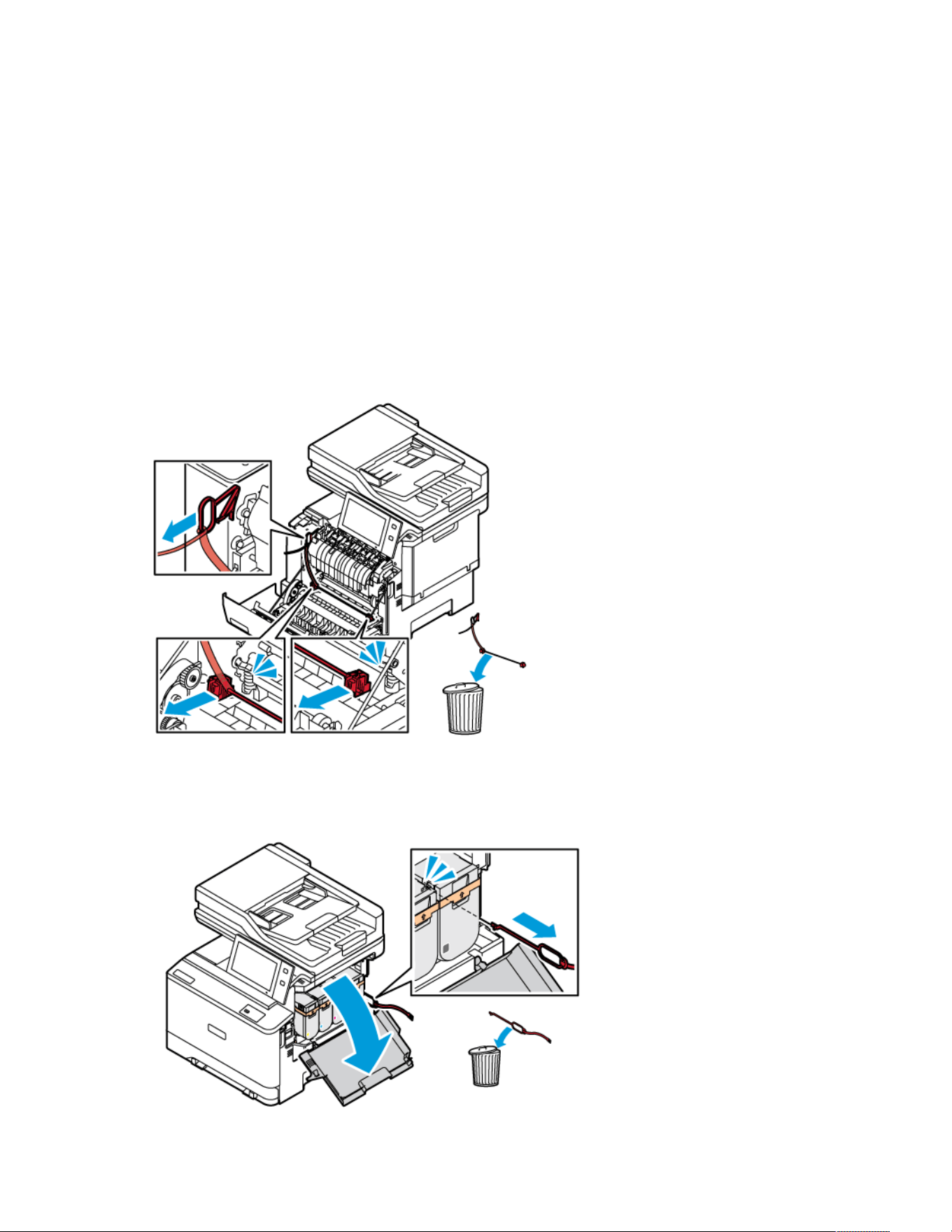
instructions about printing a configuration report, refer to Printing a Configuration Report.
Follow the instructions provided with the software to download the files and upgrade your device. You can configure
the device to connect routinely to an FTP directory on your network to update device software automatically. You
can also update the device software manually. For more information about updating system operating software,
refer to the System Administrator Guide at www.xerox.com/office/VLC415docs.
REMOVING THE INTERNAL PACKING MATERIALS
The printer comes with internal packing materials. Remove the packing materials and install the imaging unit and
the toner cartridge, correctly.
1. At the front of the printer, open Door A.
2. From behind the front door, remove the red packing materials, such as plastic loops and clips.
3. Close Door A.
4. At the right-side of the printer, open Door B.
5. Pull and remove the red plastic strip.
Xerox
®
VersaLink
®
C415 Color Multifunction Printer User Guide 57
Getting Started
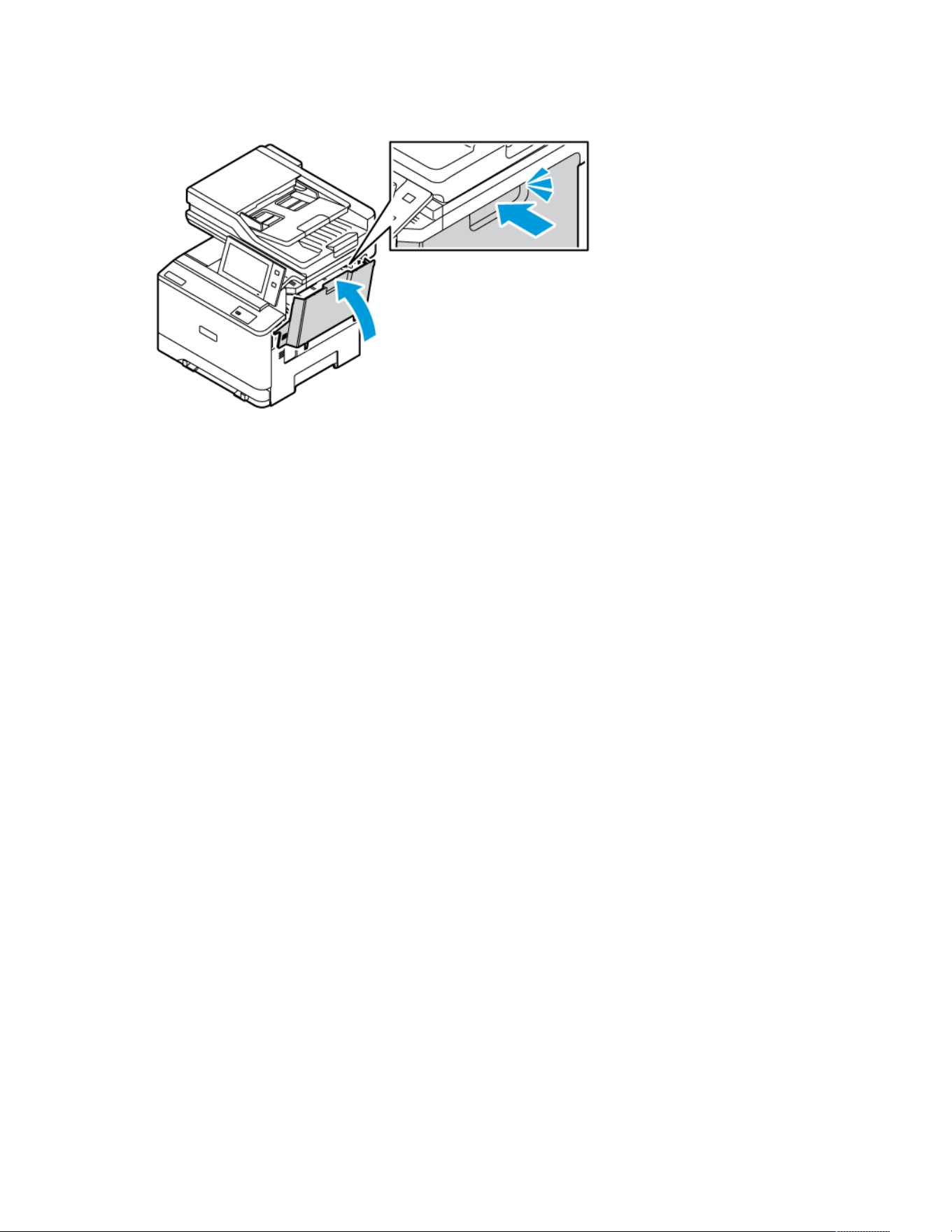
6. Close Door B.
Restart the printer after removing the packing materials. For more information, refer to the Installation Guide of the
printer.
58
Xerox
®
VersaLink
®
C415 Color Multifunction Printer User Guide
Getting Started

Connecting the Printer
SELECTING A CONNECTION METHOD
You can connect the printer to your computer using a USB cable, Ethernet cable, or wireless connection. The
method that you select depends on how your computer is connected to the network. A USB connection is a direct
connection and is the easiest to set up. An Ethernet connection is used to connect to a network. If you are using a
network connection, it is important to understand how your computer is connected to the network.
Note: Hardware and cabling requirements vary for the different connection methods. Routers, network hubs,
network switches, modems, Ethernet cables, and USB cables are not included with your printer and require a
separate purchase.
UUSSBB
If you connect the printer to one computer and do not have a network, use a USB connection. A USB
connection offers fast data speeds, but typically is not as fast as a network connection.
NNeettwwoorrkk
If your computer is connected to an office network or home network, use an Ethernet cable to connect the
printer to the network. You cannot connect the printer directly to the computer. A connection through a router
or network switch is required. An Ethernet network can be used for one or more computers and supports many
printers and systems simultaneously. An Ethernet connection is typically faster than USB and allows you direct
access to the settings of the printer using the Embedded Web Server.
Note: To access the Embedded Web Server, a network connection is required.
WWiirreelleessss NNeettwwoorrkk
If your environment includes a wireless router or wireless access point, you can connect the printer to the
network with a wireless connection. A wireless network connection provides the same access and services as a
wired connection. A wireless network connection is typically faster than USB and allows direct access to the
settings of the printer using the Embedded Web Server.
Note: For your printer, to connect to a Wireless Network, a Wireless Network Adapter is required.
CONNECTING TO A COMPUTER USING A USB CABLE
To connect the printer to a computer using a USB cable, you need one of these operating systems:
• Windows 10, Windows 11, Windows Server 2012, Windows Server 2016, Windows Server 2019, and Windows
Server 2022.
• Macintosh OS version 11 and later.
• UNIX and Linux: Your printer supports connection to various UNIX platforms through the network interface.
To connect the printer to a computer using a USB cable:
1. Connect the B end of a standard A/B USB 2.0 or USB 3.0 cable to the USB Port on the back of the printer.
Note: Ensure that the USB Type B Port is enabled.
Xerox
®
VersaLink
®
C415 Color Multifunction Printer User Guide 59
Getting Started

2. Connect the A end of the USB cable to the USB port on the computer.
3. If the Windows Found New Hardware Wizard appears, click Cancel.
4. Install the print driver.
For more information, refer to Installing the Print Driver Software.
CONNECTING TO A WIRED NETWORK
Use a Category 5 or better Ethernet cable to connect the printer to the network. An Ethernet network is used for
one or more computers and supports many printers and systems simultaneously. An Ethernet connection provides
direct access to printer settings using the Embedded Web Server.
To connect the printer:
1. Connect the power cord to the printer, then plug the cord into an electrical outlet.
2. Connect one end of a Category 5 or better Ethernet cable to the Ethernet port on the back of the printer.
Connect the other end of the cable to a correctly-configured network port.
3. Power on the printer.
For details on configuring connection settings, refer to the System Administrator Guide at www.xerox.com/office/
VLC415docs.
WIRELESS NETWORK ADAPTER
The Xerox
®
Wireless Network Adapter enables you to use the Wireless Wizard to connect to a wireless network. The
compatibility of the Wireless Network Adapter is dependent on the device model and software version.
The Xerox
®
Wireless Network Adapter supports the following:
• Wi-Fi Bands: Dual Band 2.4 GHz and 5 GHz
• Network Standards:
– 802.11ac
– 802.11n
– 802.11b/a/g
• Wi-Fi Direct
For more information on the Wireless Network Adapter, refer to the System Administrator Guide at www.xerox.com/
office/VLC415docs.
Connecting to a Wireless Network
If you have purchased the Xerox
®
Wireless Network Adapter, you can use the Wireless Wizard to connect the device
to a wireless network. If the device is connected to a wired network, you can configure wireless settings using the
Embedded Web Server or at the control panel touch screen using the Wireless Install Wizard.
60
Xerox
®
VersaLink
®
C415 Color Multifunction Printer User Guide
Getting Started

Note:
• Not all Xerox
®
Wireless Network Adapters are compatible with all Xerox
®
printers. Ensure that you
purchase the correct Xerox
®
Wireless Network Adapter kit for your device. For more information, contact
your Xerox representative.
• For more information about installing the wireless network adapter, refer to the Xerox
®
Wireless Network
Adapter Kit Hardware Install and Setup instructions that are included with the kit.
• The device uses either the wireless or the wired network connection. Activating one network connection
deactivates the other network connection.
• When you switch from a wired connection to a wireless connection, the IP address of the printer
changes. For more information on IP address or host name, refer to System Administrator Guide.
For details on configuring wireless network settings, refer to the System Administrator Guide at www.xerox.com/
office/VLC415docs.
CONNECTING WITH WI-FI DIRECT
You can connect to your printer from any Wi-Fi-enabled mobile device, such as a tablet, computer, or smart phone,
using Wi-Fi Direct or Soft AP features. The Wi-Fi Direct feature is disabled by default on the Xerox device.
Note: The Wi-Fi Direct feature is available only on printers with the optional Wireless Network Adapter
installed. After you install the Wireless Network Adapter, the Wi-Fi Direct feature is enabled by default.
Wi-Fi Direct Overview
The Wi-Fi Direct feature allows you to print from a mobile device to your printer, using one of the following
methods.
• WPS push button, for Wi-Fi Direct-enabled Android devices with the Mopria print plug-in installed.
• Soft Access Point (AP), for Apple iPhones and other mobile devices that do not support the Wi-Fi Direct function.
For information about using the Wi-Fi Direct feature on your mobile device, or connecting to the printer using the
Soft AP feature, refer the mobile device documentation from the manufacturer.
For information about configuring the Wi-Fi Direct feature on your printer, refer to the System Administrator Guide
at www.xerox.com/office/VLC415docs.
Using Wi-Fi Direct on Your Mobile Device
The Wi-Fi Direct WPS Push Button feature requires the Mopria Print Service App installed on your mobile device. The
printer does not require a wireless connection.
Installing Mopria Print Service
1. On your mobile device, go to the Google Play Store, then search for Mopria Print Service.
2. Install the Mopria Print Service App.
3. Go to Settings, then touch Printing.
4. Go to the notification area, then touch Mopria Print Service.
Xerox
®
VersaLink
®
C415 Color Multifunction Printer User Guide 61
Getting Started

5. To enable Mopria Print Service, touch On.
6. Exit Settings.
Your mobile device searches for Wi-Fi Direct-enabled printers that are in range of the mobile device.
Using Wi-Fi Direct on your Printer
Wi-Fi Direct is a direct wireless connection from your mobile device to the printer. The Wi-Fi Direct feature is
enabled by default when the Wi-Fi hardware is installed.
Using the Wi-Fi Direct feature does not require a wireless network connection to a printer. Contact your System
Administrator to connect your printer to a wired or wireless network.
Printing Using Wi-Fi Direct
To print a document from a Wi-Fi-enabled mobile device:
1. On the mobile device, open the document that you want to print.
2. In the device application, select the Print button.
3. If there is more than one printer in the area with Wi-Fi Direct enabled, select the required printer from the list.
4. Select the print settings required for the job.
5. Submit the job for printing.
A message appears on the mobile device.
6. Select Connect.
When the connection is made, a message appears on the printer.
7. At the printer control panel, touch OK.
The job prints.
CONNECTING WITH NEAR FIELD COMMUNICATION (NFC)
NFC Overview
Near field communication (NFC) is a technology that enables devices to communicate when
they are in close range. NFC allows you to add a printer to your Android mobile device easily.
After you add the printer, there is no need to use NFC on that printer. The NFC feature requires
installation of the Xerox Print Service app on the mobile device.
Printers can communicate using NFC when they are within your mobile device range.
Note: The range can vary depending on the device manufacturer. For information about the required
settings for individual mobile devices, refer the documentation supplied by the manufacturer of your mobile
device.
For details about configuring NFC on your printer, refer to the System Administrator Guide at www.xerox.com/
office/VLC415docs.
62
Xerox
®
VersaLink
®
C415 Color Multifunction Printer User Guide
Getting Started
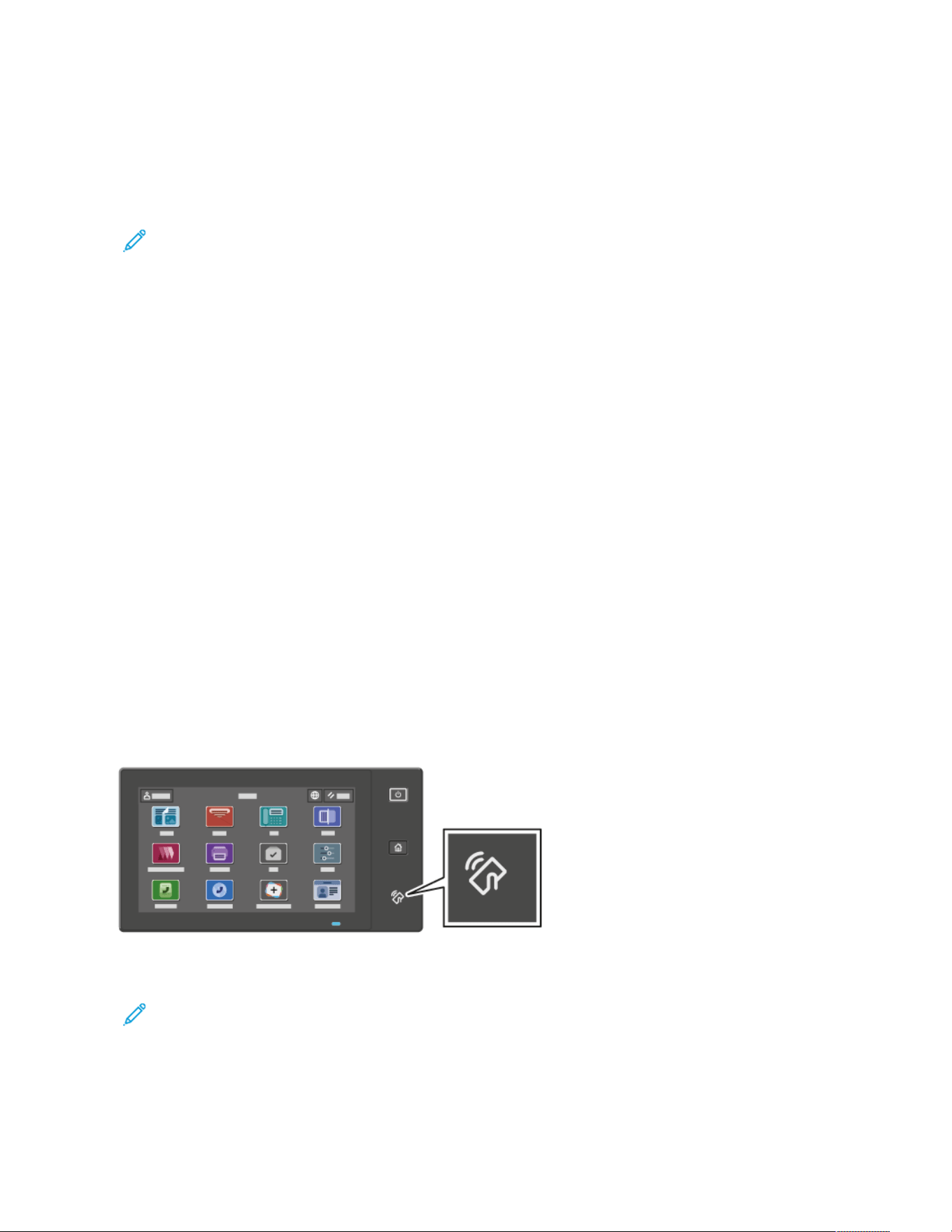
Using NFC on your Mobile Device
The NFC feature requires installation of the Xerox Print Service app on the mobile device.
Your mobile device must use the same Wi-Fi network environment as the printer. The printer does not need to have
a wireless connection.
Note: NFC supports Android 4.4 or greater devices.
Installing the Xerox Print Service Plugin
1. On your mobile device, go to the Google Play Store, then search for Xerox Print Service Plugin.
2. Install the Xerox Print Service Plugin app.
3. Go to Settings, then touch Printing.
4. Go to the notification pull-down bar, then touch Xerox Print Service.
5. To enable Xerox Print Service, touch On.
6. Exit Settings.
Enabling NFC on the Mobile Device
Most mobile devices have NFC disabled by default.
To enable NFC:
1. Go to Settings.
2. Go to the NFC setting, then touch On.
3. Exit Settings.
Using NFC on your Printer
The NFC chip is on the bottom right of the control panel. When NFC is enabled, you can use the NFC function.
Refer to your mobile device user documentation for the mobile device NFC chip location.
Note: The NFC function must be enabled before use. For NFC enable instructions, refer to the System
Administrator Guide at www.xerox.com/office/VLC415docs.
Mapping the Printer to your Mobile Device
1. Open the Xerox Print Service Plugin.
Xerox
®
VersaLink
®
C415 Color Multifunction Printer User Guide 63
Getting Started
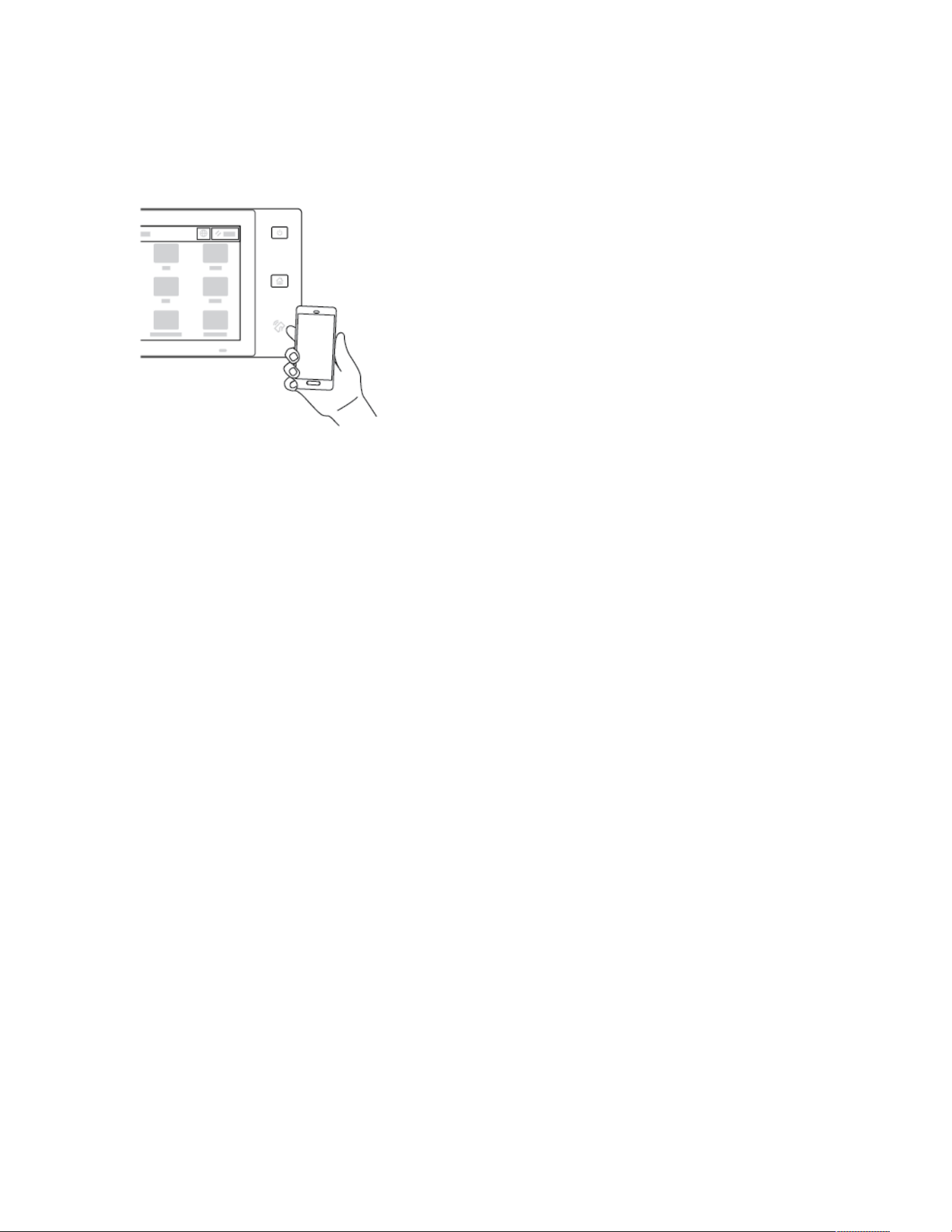
2. At the top right side of the screen, touch the selection button, then select Add Printer.
3. Touch the NFC option.
4. Hold the mobile device over the NFC icon on the control panel.
The mobile device and the printer communicate with each other. The mobile device searches the network for the
printer. When the printer is located, it is added to the list as a mapped printer.
You can submit print jobs from your mobile device to the printer.
Printing using Xerox
®
Print Services
1. Open the document that you want to print. For example, a PDF or Word document.
2. At the top of the screen, select the Print button.
3. If there is more than one printer mapped for use with NFC, select the printer required.
4. Select the print settings required for the job.
5. Submit the job for printing.
CONFIGURING AIRPRINT
AirPrint is a software feature that allows you to print documents from Apple iOS-based mobile devices and MacOS-
based devices without a print driver. AirPrint-enabled printers that use a wired or wireless connection allow you to
print or fax directly from a Mac, an iPhone, iPad, or iPod Touch. Additionally, you can use AirPrint to scan from a
wired or wireless printer to supported Apple devices.
For information about AirPrint configuration settings, refer to the System Administrator Guide at www.xerox.com/
office/VLC415docs. Alternatively, use a desktop computer to access the Embedded Web Server for your device, then
click the Help link that appears at the bottom of each page. For details, refer to Accessing the Embedded Web
Server.
CONFIGURING A DEVICE FOR UNIVERSAL PRINT
Universal Print is a cloud-based print protocol that provides a simple and secure print solution for Microsoft
®
365
users. Universal Print allows administrators to manage printers without the need for on-premises print servers.
Universal Print enables users to access cloud printers without the need for print drivers.
64
Xerox
®
VersaLink
®
C415 Color Multifunction Printer User Guide
Getting Started
• When Universal Print is enabled, the configuration settings appear. The Universal Print area displays the
registration status of your device.
• When Universal Print is disabled, the configuration settings are hidden. The Universal Print area shows the status
Off. This status is the default.
For information about configuring a device for Universal Print, refer to the System Administrator Guide at www.
xerox.com/office/VLC415docs.
CONNECTING TO A TELEPHONE LINE
A standard one-line fax is available with your printer.
CCaauuttiioonn:: To reduce the risk of fire, use only No. 26 American Wire Gauge (AWG) or larger
telecommunication line cord.
1. Ensure that the printer is powered off.
2. Connect a standard RJ11 cable, No. 26 American Wire Gauge (AWG) or larger to the Line port on the back of
the printer.
3. Connect the other end of the RJ11 cable to an operating telephone line.
4. Power on the printer.
5. Enable and configure the Fax functions.
Xerox
®
VersaLink
®
C415 Color Multifunction Printer User Guide 65
Getting Started

Initial Printer Setup
Before installing the printer software, verify that the printer is set up correctly. Setup includes enabling the optional
features and assigning an IP address for the Ethernet network connection. Printer settings can be configured at the
printer control panel or by using the Embedded Web Server. To configure settings at the printer control panel, the
Installation wizard starts the first time that you power on the printer. The wizard prompts you with a series of
questions to help configure basic printer settings.
The System Administrator can configure the following settings:
• Language
• Backup & Restore Settings
• Network Connection
• Proxy Server Setup
• Date and Time
• Measurements
• LDAP Settings
• Apps Setup
• Security Settings
For more information on configuring the printer settings at the control panel or using the Embedded Web Server,
refer to the System Administrator Guide at www.xerox.com/office/VLC415docs.
SECURITY TEMPLATE
Security Template is a feature that allows you to quickly configure the security settings through Install Wizard,
Tools in the control panel or from the Security Dashboard tab in the Embedded Web Server. You can choose one
of the three preset templates, which are Default, Elevated, and High, according to your requirement.
For detailed instructions on how to configure Security Template, refer to the System Administrator Guide at www.
xerox.com/office/VLC415docs.
CONFIGURATION WATCHDOG
Configuration Watchdog is a security feature that monitors feature settings to ensure that the device stays in the
appropriate configuration throughout day-to-day operations. The feature ensures that values remain compliant
without external device monitoring. When a watched setting changes, Configuration Watchdog detects the change
on the next manual or scheduled check. After a change is detected, Configuration Watchdog remediates the
feature to the required settings.
After remediation occurs, administrators can view the list of remediated items on the Configuration Watchdog
page.
For more information about Configuration Watchdog, contact your system administrator, or refer to the System
Administrator Guide at www.xerox.com/office/VLC415docs.
66
Xerox
®
VersaLink
®
C415 Color Multifunction Printer User Guide
Getting Started

FLEET ORCHESTRATOR
The Fleet Orchestrator feature allows you to configure many devices in similar ways, automatically. After you
configure one device, you can distribute any of the configuration settings to other devices, as needed. You can set
up schedules to share configuration settings regularly and automatically.
The Fleet Orchestrator feature enables you to share the following types of configuration files:
• Clone files
• Software upgrade files
• 1-Touch Add-On files
For more information about Fleet Orchestrator, contact your system administrator, or refer to the System
Administrator Guide at www.xerox.com/office/VLC415docs.
XEROX
®
EASY ASSIST APPLICATION
Xerox Easy Assist application can assist you with the initial setup procedure for a new printer. You can access and
configure the printer from your smartphone through the Xerox Easy Assist (XEA) app. To access the printer from
your smartphone, download and install the Xerox Easy Assist app on your mobile device. By installing the Xerox Easy
Assist app on your smartphone, you can setup your new printer easily, manage its configuration, view alerts
indicating supply requirements and order them, and get live troubleshooting support for your printer.
The Xerox Easy Assist App has instructions and video links that help you to unpack the printer from its shipping box.
To install the Xerox Easy Assist app on your smartphone, you need to scan a QR Code. You can find this QR Code on
the packaging box or the Installation Guide that comes with the printer. To install the Xerox Easy Assist app for the
first time, scan the QR Code with your smartphone camera.
For more information, refer to Xerox
®
Easy Assist (XEA) App.
Xerox
®
VersaLink
®
C415 Color Multifunction Printer User Guide 67
Getting Started

Installing the Print Driver Software
Before you install the print driver software, verify that the printer is plugged in, powered on, connected correctly,
and has a valid IP address. The IP address usually appears on the default Home screen of the control panel. If you
cannot find the IP address of your printer, refer to Finding the IP Address of Your Printer.
Note: If the Software and Documentation disc is not available, download the latest drivers from www.xerox.
com/office/VLC415drivers.
After you install the print driver software, you can configure printing preferences and default settings for the print
driver. For more information, refer to Printing.
Printing settings for the device, such as Page Description Language options, are configured using the Embedded
Web Server. To configure printing settings, contact your System Administrator or refer to the System Administrator
Guide at www.xerox.com/office/VLC415docs.
OPERATING SYSTEM REQUIREMENTS
• Windows 10, Windows 11, Windows Server 2012, Windows Server 2016, Windows Server 2019, and Windows
Server 2022.
• Macintosh OS version 11 and later.
• UNIX and Linux: Your printer supports connection to various UNIX platforms through the network interface.
INSTALLING THE PRINT DRIVERS FOR A WINDOWS NETWORK PRINTER
1. Insert the Software and Documentation disc into the appropriate drive on your computer. If the installer does
not start automatically, navigate to the drive, then double-click the Setup.exe installer file.
Note: If you do not have the Software and Documentation disc, download the Smart Start installer file from
www.xerox.com or the Embedded Web Server of your printer. For more information, refer to Downloading
the Print and Scan Drivers from the Embedded Web Server.
2. Click Xerox Smart Start — Driver Installer (Recommended).
3. At the License Agreement, click Agree.
4. From the list of discovered printers, select your printer.
Note: When you install print drivers for a network printer, if your printer does not appear in the list, click
Don’t See Your Printer? then enter the IP address for your printer. To install the recommended print driver,
click Continue, then select Install.
5. Click Quick Install.
A message appears that confirms that the installation is successful.
6. To complete the installation and close the Installer window, click Done.
68
Xerox
®
VersaLink
®
C415 Color Multifunction Printer User Guide
Getting Started

INSTALLING THE WINDOWS PRINT DRIVER .ZIP FILE
You can download print drivers from Xerox.com in a .zip file, then use the Windows Add Printer Wizard to install the
print drivers on your computer.
To install the print driver from the .zip file:
1. Download, then extract the required .zip file to a local directory on your computer.
2. At your computer, open the Control Panel, then select Devices and Printers > Add a Printer.
3. Click The printer that I want isn't listed, then click Add a local printer or network printer with manual
settings.
4. To use a previously established port, select Use an existing port, then from the list, select a Standard TCP/IP
Port.
5. To create a Standard TCP/IP port:
a. Select Create a New Port.
b. For Type of port, select Standard TCP/IP Port, then click Next.
c. In the Hostname or IP address field, type the printer IP address or host name.
d. To disable the feature, clear the check box for Query the printer and automatically select the driver to
use, then click Next.
6. Click Have Disk.
7. Click Browse. Browse to the extracted files in the local directory, then select the driver.inf file for your printer.
Click Open.
8. Select your printer model, then click Next.
9. If a prompt appears because the print driver was installed previously, click Use the driver that is currently
installed (recommended).
10. In the Printer name field, type a name for your printer.
11. To install the print driver, click Next.
12. If needed, set the printer as the default printer.
Note: Before you select Share Printer, contact your system administrator.
13. To send a test page to the printer, click Print a test page.
14. Click Finish.
INSTALLING THE PRINT DRIVERS FOR A WINDOWS USB PRINTER
1. Connect the B end of a standard A/B USB 2.0 or USB 3.0 cable to the USB Port on the back of the printer.
Note: Ensure that the USB Type B Port is enabled.
2. Connect the A end of the USB cable to the USB port on the computer.
3. If the Windows Found New Hardware Wizard appears, click Cancel.
Xerox
®
VersaLink
®
C415 Color Multifunction Printer User Guide 69
Getting Started

4. Insert the Software and Documentation disc into the appropriate drive on your computer. If the installer does
not start automatically, navigate to the drive, then double-click the Setup.exe installer file.
Note: If you do not have the Software and Documentation disc, download the Smart Start installer file from
www.xerox.com or the Embedded Web Server of your printer. For more information, refer to Downloading
the Print and Scan Drivers from the Embedded Web Server.
5. Click Xerox Smart Start — Driver Installer (Recommended).
6. At the License Agreement, click Agree.
7. For Windows PC, the print driver package is not always required to be installed to create the print queue. Refer
to the following options:
• Windows checks if the print driver package is installed in the PC already. If a compatible print driver is
available in the PC, it is used to create the USB print queue.
• Windows checks the Windows Update for a compatible print driver. If a compatible driver is present, then it
downloads the print driver and creates the USB print queue with it.
• If the print driver update is blocked from Windows Update and no compatible driver is available on the PC,
then Windows creates the USB print queue with the inbox Microsoft IPP Class Driver.
INSTALLING THE PRINTER AS A WEB SERVICE ON DEVICES
Web Services on Devices (WSD) allows a client to discover and access a remote device and its associated services
across a network. WSD supports device discovery, control, and use.
Installing a WSD Printer Using the Add Device Wizard
1. At your computer, click Start, then select Printers and Scanners.
2. To add the required printer, click Add a Printer or Scanner.
3. In the list of available devices, select the device that you want to use, then click Next.
Note: If the printer that you want to use does not appear in the list, click Cancel. To add the printer
manually, use the IP address of the printer. For details, refer to Installing the Windows Print Driver .zip File.
4. Click Close.
INSTALLING THE DRIVERS AND UTILITIES FOR MACINTOSH OS (MACOS)
1. Download the latest print driver from www.xerox.com/office/VLC415support.
2. Open the Xerox
®
Print Drivers 5.xx.x.dmg or .pkg as needed for your printer.
3. To run Xerox
®
Print Drivers 5.xx.x.dmg or .pkg, double-click the appropriate file name.
4. When prompted, click Continue.
5. To accept the license agreement, click I Agree.
6. To accept the current installation location, click Install, or select another location for the installation files, then
click Install.
7. If prompted, enter your password, then click OK.
70
Xerox
®
VersaLink
®
C415 Color Multifunction Printer User Guide
Getting Started

8. From the list of discovered printers, select your printer, then click Next.
9. If your printer does not appear in the list of discovered printers:
a. Click the Network Printer Icon.
b. Type the IP address of your printer, then click Continue.
c. Select your printer in the list of discovered printers, then click Continue.
10. If your printer was not detected, verify that the printer is powered on and that the Ethernet or USB cable is
connected properly.
11. To accept the print queue message, click OK.
12. Select or clear the Set Printer as Default and Print a Test Page check boxes.
13. Click Continue, then click Close.
Adding the Printer for MacOS
For networking, set up your printer using Bonjour
®
(mDNS), or for an LPD, LPR connection, connect using the IP
address of your printer. For a non-network printer, create a desktop USB connection.
For more information, go to the Online Support Assistant at: www.xerox.com/office/VLC415support.
Adding the Printer Using Bonjour
To add the printer using Bonjour
®
:
1. From the computer Applications folder or from the dock, open System Preferences.
2. Click Printers & Scanners.
The list of printers appears on the left of the window.
3. For the list of printers, click the Plus icon (+).
4. At the top of the window, click the Default icon.
5. Select your printer from the list, then click Add.
Note: If your printer is not detected, verify that the printer is powered on and that the Ethernet cable is
connected properly.
Adding the Printer by Specifying the IP Address
To add the printer by specifying the IP address:
1. From the computer Applications folder or from the dock, open System Preferences.
2. Click Printers & Scanners.
The list of printers appears on the left of the window.
3. In the list of printers, click the Plus (+) icon.
4. Click IP.
5. From the Protocol list, select the protocol.
6. In the Address field, enter the IP address of the printer.
Xerox
®
VersaLink
®
C415 Color Multifunction Printer User Guide 71
Getting Started

7. In the Name field, enter a name for the printer.
8. From the Use list, choose Select a driver to use.
9. From the printer software list, select the print driver for your printer model.
10. Click Add.
INSTALLING PRINT DRIVERS AND UTILITIES FOR UNIX AND LINUX PRINTING
To provide printer spooling and network print server functionality, UNIX-based printing uses LPD/LPR port 515 or lp
to port 9100. For information about UNIX-based printing, refer to UNIX, Linux, and AS/400 Printing.
For more information on installing print drivers and utilities for UNIX and Linux, refer to www.xerox.com/office/
VLC415drivers.
72
Xerox
®
VersaLink
®
C415 Color Multifunction Printer User Guide
Getting Started

More Information
You can obtain more information about your printer from these sources:
RESOURCE LOCATION
Installation Guide Packaged with the printer.
Getting Started guide Print from the control panel. For details, refer to
Information Pages.
Other documentation for your printer www.xerox.com/office/VLC415docs
Recommended Media List United States: www.xerox.com/rmlna
European Union: www.xerox.com/rmleu
Technical support information for your printer,
including online technical support, Online Support
Assistant, and print driver downloads.
www.xerox.com/office/VLC415support
Information Pages Print from the control panel. For details, refer to
Information Pages.
Embedded Web Server information In the Embedded Web Server, click HHeellpp.
Order supplies for your printer www.xerox.com/office/supplies
A resource for tools and information, including
interactive tutorials, printing templates, helpful tips,
and customized features to meet your individual needs.
www.xerox.com/office/businessresourcecenter
Local sales and Technical Customer Support www.xerox.com/office/worldcontacts
Printer registration www.xerox.com/register
Xerox
®
Direct online store www.direct.xerox.com/
LOCATING THE SERIAL NUMBER
When you order supplies or contact Xerox for assistance, you need the serial number of your device. You can obtain
the serial number in several ways. To locate the serial number, print a configuration report, or view the serial number
on the control panel or on the Embedded Web Server home page. The serial number is printed on a label that is
affixed to the printer. To view the label, open Door A.
For details on how to print a configuration report, refer to Information Pages.
To view the serial number on the control panel:
1. At the printer control panel, press the Home button.
2. Touch Device > About.
The model, serial number, and software version is displayed.
3. To return to the Home screen, press the Home button.
Xerox
®
VersaLink
®
C415 Color Multifunction Printer User Guide 73
Getting Started

74 Xerox
®
VersaLink
®
C415 Color Multifunction Printer User Guide
Getting Started

Xerox
®
VersaLink
®
C415 Color Multifunction Printer User Guide 75
Accessibility
This chapter contains:
Invert Display Color . . . . . . . . . . . . . . . . . . . . . . . . . . . . . . . . . . . . . . . . . . . . . . . . . . . . . . . . . . . . . . . . . . . . . . . . . . . . . . . . . . . . . . . . . . . . . . . . . . . . . . . . . . . . . . . . . . . . . . . . . . . . . . 76
Zoom. . . . . . . . . . . . . . . . . . . . . . . . . . . . . . . . . . . . . . . . . . . . . . . . . . . . . . . . . . . . . . . . . . . . . . . . . . . . . . . . . . . . . . . . . . . . . . . . . . . . . . . . . . . . . . . . . . . . . . . . . . . . . . . . . . . . . . . . . . . . . . . . . 77
Using the Keyboard. . . . . . . . . . . . . . . . . . . . . . . . . . . . . . . . . . . . . . . . . . . . . . . . . . . . . . . . . . . . . . . . . . . . . . . . . . . . . . . . . . . . . . . . . . . . . . . . . . . . . . . . . . . . . . . . . . . . . . . . . . . . . . 78
Speech Output . . . . . . . . . . . . . . . . . . . . . . . . . . . . . . . . . . . . . . . . . . . . . . . . . . . . . . . . . . . . . . . . . . . . . . . . . . . . . . . . . . . . . . . . . . . . . . . . . . . . . . . . . . . . . . . . . . . . . . . . . . . . . . . . . . . . 79

Invert Display Color
Invert Display Color allows you to invert the colors of the control panel display.
1. At the device control panel, press the Home button.
2. Touch Device > Accessibility.
A new window appears for Accessibility.
3. To invert the display color of the control panel screen, touch the Invert Display Color toggle button.
4. Touch OK.
The inversion of the display color only applies to individual users during their session. Inversion of the display color
gets cleared when:
• The user changes it back.
• The current session ends.
• User does a Reset All.
To change the default settings, refer to System Administrator Guide at www.xerox.com/office/VLC415docs.
76
Xerox
®
VersaLink
®
C415 Color Multifunction Printer User Guide
Accessibility

Zoom
Zoom allows you to zoom the control panel display up to 500% magnification. You can zoom the screen using the
following ways:
1. In the control panel screen, you can use gestures with your fingers to zoom in and out. Use the spread gesture
to zoom in (spreading two fingers) or the pinch gesture to zoom out the display.
2. Using keyboard, press Ctrl and + (plus) at the same time for zoom in and Ctrl and – (minus) at the same time
for zoom out.
You can pan to access the content by swiping in the required direction.
Note: When the session ends, the screen will automatically reset back to its original display size.
Xerox
®
VersaLink
®
C415 Color Multifunction Printer User Guide 77
Accessibility

Using the Keyboard
To enable keyboard navigation on the device, connect a supported USB keyboard into the USB port and press the
Tab key to initiate keyboard navigation.
Note: Ensure that at least one USB Type A Port is enabled.
Once you start navigating the user interface with the keyboard, a focus indicator will be displayed showing which
component is in focus.
Keyboard navigation ends and the focus indicator will be cleared when:
• The user changes it back.
• The current session ends.
• User does a Reset All.
Note:
• Only operable components will gain focus.
• Components that are not operable do not receive focus.
• Keyboard navigation is compatible with Speech Output.
• Keyboard operability is not supported for some screens and third-party apps.
NAVIGATING THE SCREEN USING THE KEYBOARD
KEY
FUNCTION
Tab Navigate to next operable component.
Shift + Tab Navigate to previous operable component.
Enter or Spacebar Activate focus button, feature rows, select an option or a collapse menu, or
activate slider.
Esc Collapse menu, close dialog, or dismiss notifications.
Arrows Navigate feature rows, options in a menu, table rows, items within a row, increase
or decrease slider value once activated.
Home
• Goes to Home screen.
• If a slider is in focus, moves the slider to its lowest value.
End If a slider is in focus, moves the slider to its highest value.
Note: To navigate the screen using the keyboard for speech output, refer to Keyboard Shortcuts for Speech
Output.
78
Xerox
®
VersaLink
®
C415 Color Multifunction Printer User Guide
Accessibility

Speech Output
Speech output reads the contents of operable components while navigating with a USB keyboard connected to the
device. You can use either the inbuilt speaker on the device or use a USB to 3.5 mm audio adapter to connect
headphones, or a USB headset for private listening.
Note: Be aware of your surroundings when using speech output, as all information except masked passwords
will be read aloud. For example, log in name, job names, the device’s IP address if it is displayed on the
Home screen, and so on.
Note: Speech output is not supported for some screens and/or apps.
Note: Speech output announces if you press Caps Lock or Num Lock.
There are two ways to turn Speech Output On or Off:
1. Press Ctrl and 5 at the same time to turn Speech Output On or Off.
2. At the device control panel, press the Home button. Touch Device > Accessibility. Turn Speech Output (Test
Drive) On or Off.
The user can adjust the volume of speech output, the pitch, and the speech rate in Device > Accessibility.
Speech output supports the following languages:
• English (US)
• English (International)
• French
• Italian
• Spanish
• German
Note: If a language is not supported, you cannot start speech in that language. If speech is already active,
unsupported languages will be grayed out.
Speech output only applies to individual users during their session. Speech output is turned off automatically when:
• The user changes it back.
• The current session ends.
• User does a Reset All.
Private listening is available if you connect headphones using a USB to 3.5 mm adapter or a USB headset. If an
audio adapter or USB headset is detected, you must choose whether to route the audio through the audio adapter
for private listening or the inbuilt speaker.
Xerox
®
VersaLink
®
C415 Color Multifunction Printer User Guide 79
Accessibility

KEYBOARD SHORTCUTS FOR SPEECH OUTPUT
KEY
FUNCTION
F1 Gives the list of commands you can use to navigate.
F2 Decreases the volume.
F3 Increases the volume.
CTRL Pause the speech.
Tab Continue the speech.
CTRL+3 Repeat the last spoken prompt.
ENABLING SPEECH OUTPUT FOR THE REMOTE CONTROL PANEL
To enable or disable speech output access through the Remote Control Panel, refer to Using the Remote Control
Panel Feature.
80
Xerox
®
VersaLink
®
C415 Color Multifunction Printer User Guide
Accessibility

Xerox
®
VersaLink
®
C415 Color Multifunction Printer User Guide 81
Personalize
This chapter contains:
Personalize Overview . . . . . . . . . . . . . . . . . . . . . . . . . . . . . . . . . . . . . . . . . . . . . . . . . . . . . . . . . . . . . . . . . . . . . . . . . . . . . . . . . . . . . . . . . . . . . . . . . . . . . . . . . . . . . . . . . . . . . . . . . . . . 82
Personalization by the User. . . . . . . . . . . . . . . . . . . . . . . . . . . . . . . . . . . . . . . . . . . . . . . . . . . . . . . . . . . . . . . . . . . . . . . . . . . . . . . . . . . . . . . . . . . . . . . . . . . . . . . . . . . . . . . . . . . . 83
Personalization from Adaptive Learning . . . . . . . . . . . . . . . . . . . . . . . . . . . . . . . . . . . . . . . . . . . . . . . . . . . . . . . . . . . . . . . . . . . . . . . . . . . . . . . . . . . . . . . . . . . . . . . . . . . 89
1-Touch Apps . . . . . . . . . . . . . . . . . . . . . . . . . . . . . . . . . . . . . . . . . . . . . . . . . . . . . . . . . . . . . . . . . . . . . . . . . . . . . . . . . . . . . . . . . . . . . . . . . . . . . . . . . . . . . . . . . . . . . . . . . . . . . . . . . . . . . . 92
Creating Personalized Touchless Workflows . . . . . . . . . . . . . . . . . . . . . . . . . . . . . . . . . . . . . . . . . . . . . . . . . . . . . . . . . . . . . . . . . . . . . . . . . . . . . . . . . . . . . . . . . . . . . . . 95
Removing All Personalizations. . . . . . . . . . . . . . . . . . . . . . . . . . . . . . . . . . . . . . . . . . . . . . . . . . . . . . . . . . . . . . . . . . . . . . . . . . . . . . . . . . . . . . . . . . . . . . . . . . . . . . . . . . . . . . . . . 96

Personalize Overview
This chapter provides information on how to personalize your device user interface to meet the specific demands of
your workflows.
Personalization enables individual logged-in users to work more productively, and ensures that the features and
functions displayed meet individual user needs. Personalization allows you to configure apps, and hide, show, and
rearrange apps on the Home screen to suit your job priorities.
The device uses the Adaptive Learning functionality to analyse the apps and features used when you are logged in
to the device. The device provides personalized workflow suggestions based on your activity. As an individual user,
you can choose the types of Adaptive Learning suggestions that you receive. You can enable or disable your
suggestion options at the device control panel.
You can create private 1-Touch Apps to save and simplify lengthy or frequent workflows. After you create your 1-
Touch Apps, they appear on the logged-in users Home screen. For each app, you can hide or show individual
features and personalize default settings to meet your needs, and save job settings for repeated use.
System administrators can use the Customization feature to configure settings for all users. Customization allows
the system administrator to do the following:
• Hide, show, and rearrange apps on the Home screen
• Create and edit 1-Touch Apps
• Hide or show app features
• Configure and save the default settings
For details, contact your system administrator, or refer to the System Administrator Guide at www.xerox.com/office/
VLC415docs.
Note: Personalization settings configured by individual users override any equivalent Customization settings
configured by the system administrator.
82
Xerox
®
VersaLink
®
C415 Color Multifunction Printer User Guide
Personalize

Personalization by the User
PERSONALIZING THE HOME SCREEN
Using the personalization options, you can show, hide, or change the display order of apps for the Home screen.
Displaying or Hiding an App on the Home screen
To display or hide an app on the Home screen for the logged-in user:
1. At the printer control panel, press the Home button.
2. Touch Log In. Type the User Name using the keypad, then touch Next. Type the Password using the keypad,
then touch Done.
3. Scroll to the bottom, then touch Personalize.
4. Touch Personalize Home.
5. To display an installed, but hidden app:
a. Touch the Plus (+) icon.
b. Touch the app that you want to appear on the control panel.
6. To hide an installed app:
a. For the required app, touch X.
b. Touch Hide.
7. Touch Done.
8. Verify that only the required apps appear on the Home screen.
Rearranging Apps on the Home screen
To rearrange apps on the Home screen for the logged-in user:
1. At the printer control panel, press the Home button.
2. Touch Log In. Type the User Name using the keypad, then touch Next. Type the Password using the keypad,
then touch Done.
3. Scroll to the bottom, then touch Personalize.
4. Touch Personalize Home.
5. Touch and hold the required app, then drag the app to the new location. Release the app.
6. Touch Done.
7. Verify that the apps appear in the correct location on the Home screen.
Deleting an App from the Home Screen
To delete an app from the Home screen for the logged-in user:
1. At the printer control panel, press the Home button.
Xerox
®
VersaLink
®
C415 Color Multifunction Printer User Guide 83
Personalize
2. Touch Log In. Type the User Name using the keypad, then touch Next. Type the Password using the keypad,
then touch Done.
3. Scroll to the bottom, then touch Personalize.
4. Touch Personalize Home.
5. To delete an installed app:
a. For the required app, touch X.
b. At the prompt, touch Delete.
6. Touch Done.
7. Verify that only the required apps appear on the Home screen.
Removing Personalization From the Home Screen
To remove personalization from the Home screen for the logged-in user:
1. At the printer control panel, press the Home button.
2. Touch Log In. Type the User Name using the keypad, then touch Next. Type the Password using the keypad,
then touch Done.
3. Scroll to the bottom, then touch Personalize.
4. Select an option:
• Remove Home Personalization: This option removes all personalization from the Home screen.
WWaarrnniinngg:: The Remove Home Personalization option removes personalization from the Home screen, and
other personalized device settings.
• Remove All Personalization: This option removes all personalization for the logged-in user, including
personalized 1-Touch apps.
Note: Any customizations configured by the system administrator, including 1-Touch, EIP, Single Touch, and
Weblet apps, are not affected.
5. At the prompt, touch Remove.
Apps appear in the default location on the Home screen.
6. Touch Done.
PERSONALIZING ENTRY SCREEN DEFAULTS
Use the Entry Screen Defaults option to set the screen defaults or actions when a user logs in to the device for the
first time. You can personalize the following options:
• Device Default App: The Device Default App is the initial app that appears to a logged-in user, or when the
device is reset to default settings.
• Originals Detected: This feature sets the default app to launch when original documents are loaded in the
automatic document feeder. The setting applies when the device control panel displays the Home screen only.
The setting does not apply when a different app is open at the control panel.
84
Xerox
®
VersaLink
®
C415 Color Multifunction Printer User Guide
Personalize

If a selected app is no longer available, a notification displays and the entry screen defaults return to the factory
default settings.
When both the Auto Start When Originals Are Detected feature and the Originals Detected feature are
enabled for an app, you can create touchless workflows. For more information, refer to Creating Personalized
Touchless Workflows.
Setting the Device Default App
To set the device default app for the logged-in user:
1. At the printer control panel, press the Home button.
2. Touch Log In. Type the user name using the keypad, then touch Next. Type the password using the keypad,
then touch Done.
3. Touch Personalize.
4. Touch Entry Screen Defaults.
5. Touch Device Default App.
6. Touch the required app or 1-Touch App.
7. Touch OK.
Setting the Originals Detected Option
To set the default screen when original documents are detected:
1. At the printer control panel, press the Home button.
2. Touch Log In. Type the user name using the keypad, then touch Next. Type the password using the keypad,
then touch Done.
3. Touch Personalize.
4. Touch Entry Screen Defaults.
5. Touch Originals Detected.
6. Touch the required app or 1-Touch App.
7. Touch OK.
PERSONALIZING THE APPS
The app personalization options enable you to modify the features available, save app default settings, or remove
personalized settings applied to an app.
You can personalize the Copy, ID Card Copy, Email, Fax, and Scan To apps for your device.
Personalizing the Feature List
Personalization of Features list is available for Email, Scan To, Embedded Fax, and Copy apps.
To personalize the Features list for an app for the logged-in user:
Xerox
®
VersaLink
®
C415 Color Multifunction Printer User Guide 85
Personalize

1. At the printer control panel, press the Home button.
2. Touch Log In. Type the User Name using the keypad, then touch Next. Type the Password using the keypad,
then touch Done.
3. Touch the app required.
4. Scroll to the bottom, then touch Personalize.
5. Touch Personalize Feature List.
6. Touch the required option:
• To hide a feature, for the required feature, touch the Eye icon. To signify that the feature is hidden, the Eye
icon appears with a line across it.
• To show a feature, for the required feature, touch the Eye icon. To signify that a feature is visible, the Eye
icon appears with no line across it.
7. To reorder the menu features, touch and drag the features into the appropriate order. If Adaptive Learning is
enabled for Personalization, to order the feature list according to feature usage, touch the Adaptive Learning
icon.
8. To save the current configuration, touch Done.
Showing all Features in the Features List
To show all the hidden features for an app:
1. At the printer control panel, press the Home button.
2. Touch the app required.
3. Select the job settings.
4. Scroll to the bottom, then touch Show Additional Features.
The hidden features list appears.
Saving App Default Settings
You can use this feature to save a particular combination of app settings as the default settings. This feature is
available for Email, Scan To, Embedded Fax, Copy, and ID Card Copy apps.
To save the current app settings as default settings for the logged-in user:
1. At the printer control panel, press the Home button.
2. Touch Log In. Type the user name using the keypad, then touch Next. Type the password using the keypad,
then touch Done.
3. Touch the app required.
4. Select the job settings that you want to save as the default settings.
5. Scroll to the bottom of the feature list, then touch Personalize.
6. Touch Save Settings as Default.
86
Xerox
®
VersaLink
®
C415 Color Multifunction Printer User Guide
Personalize

7. At the prompt, touch Save.
The new settings override the previous default settings.
Enabling the Auto Start Feature as an App Default Setting
The Auto Start When Originals Are Detected feature allows the device to start a job automatically within an app.
The feature applies when an app is open and Auto Start is enabled for that app. When the device detects original
documents in the automatic document feeder, the job starts automatically.
The Auto Start feature applies to Copy, Email, Fax, Scan To, and 1-Touch Apps.
When both the Auto Start When Originals Are Detected feature and the Originals Detected feature are enabled for
an app, you can create touchless workflows. For more information, refer to Creating Personalized Touchless
Workflows.
To enable the Auto Start feature for selected apps:
1. At the printer control panel, press the Home button.
2. Touch Log In. Type the user name using the keypad, then touch Next. Type the password using the keypad,
then touch Done.
3. Touch the app required.
4. Select the job settings that you want to save as the default settings.
5. To enable Auto Start, touch the Auto Start When Originals are Detected toggle button.
6. Scroll to the bottom of the feature list, then touch Personalize.
7. Touch Save Settings as Default.
8. At the prompt, touch Save.
When the logged-in user selects the app and loads original documents in the automatic document feeder, the
job starts automatically.
Removing App Personalization Using the Control Panel
To remove the current app personalization settings:
1. At the printer control panel, press the Home button.
2. Touch Log In. Type the user name using the keypad, then touch Next. Type the password using the keypad,
then touch Done.
3. Touch the app required.
4. Scroll to the bottom of the feature list, then touch Personalize.
5. Touch Remove App Personalization.
6. At the prompt, touch Remove.
Xerox
®
VersaLink
®
C415 Color Multifunction Printer User Guide 87
Personalize

PERSONALIZING THE LANGUAGE
A logged-in user can personalize the default language settings and the default keyboard layout.
Each time the user logs in to the device, the selected language and keyboard settings are activated.
To personalize the default language and keyboard layout:
1. At the printer control panel, press the Home button.
2. Touch Log In. Type the user name using the keypad, then touch Next. Type the password using the keypad,
then touch Done.
3. Touch Log In, then touch Personalize Language.
4. To change the language, touch the language required.
5. To change the keyboard layout, touch Keyboard Layout, then touch the option required.
6. Touch Done.
88
Xerox
®
VersaLink
®
C415 Color Multifunction Printer User Guide
Personalize

Personalization from Adaptive Learning
Adaptive Learning reacts to everyday usage of the device to streamline tasks for users and administrators. Adaptive
Learning provides personalized workflow suggestions for a logged-in user based on their use of certain applications.
An individual user can choose the types of suggestions that they receive. Individual users can enable and disable
their personalized suggestion options at the device control panel.
Adaptive Learning personalization offers workflow-automation suggestions to help logged-in users streamline their
workflow. Personalized app workflow suggestions include the following:
• Creation of 1-Touch Apps for repetitive tasks
• Creation of 1-Touch Apps for complex tasks
• Reordering of app feature settings according to frequency of use
• Language preference settings
Adaptive Learning personalization is enabled by default. When Adaptive Learning personalization is enabled, all
personalization suggestion options for logged-in users are enabled by default. When Adaptive Learning
personalization is enabled, logged-in users can manage their personalization suggestions at the control panel.
1-TOUCH APP SUGGESTIONS
When Adaptive Learning and Personalization are enabled, the device offers to create a 1-Touch App for repeated or
complex tasks.
If a logged-in user selects identical job programming repeatedly, after 7 days, a repetitive task is identified and the
device suggests creating a 1-Touch App.
If a logged-in user selects six or more features for a job, a complex task is identified, and the device suggests
creating a 1-Touch App for the repeated job.
The 1-Touch App suggestion is offered immediately after job submission. If the offer is accepted, a 1-Touch App is
created. If the offer is declined, the same 1-Touch App suggestion is not offered again for 14 days.
To create a repeated or complex job 1-Touch App from a suggestion screen:
1. After job submission, if a repeated or complex job is identified, the suggestion screen appears. From the
suggestion screen, touch Create 1-Touch App.
2. To enter a name, touch the Enter 1-Touch App Name entry field, then use the alphanumeric keypad. Touch
Next.
3. Do one of the following:
• To create the 1-Touch App with the default settings, touch Create 1-Touch App.
• To modify the 1-Touch App settings, touch Personalize Appearance, then do the following:
1. Touch a color scheme option for your 1-Touch App, then touch Next.
2. Touch an icon that best suits the 1-Touch App that you are creating, then touch Next.
3. To provide instructions that appear at the top of the app screen, touch the entry field, then use the
alphanumeric keypad to enter instructions for users. Touch Done.
The system saves the 1-Touch App, and the app appears on the Home screen for the logged-in user.
Xerox
®
VersaLink
®
C415 Color Multifunction Printer User Guide 89
Personalize

FEATURE LIST ORDER SUGGESTIONS
When Adaptive Learning and Personalization are enabled, the device offers to reorder the features listed in an app
based on the usage history of the logged-in user.
The device collects feature usage data for 30 days. After 10 job submissions during the 30 days, when a user logs in
to the device and selects an app, if the usage order does not match the current order, the device offers to reorder
the feature list.
If the suggestion is accepted, the most frequently used features are moved to the top of the list. Features that have
never been used are hidden and moved to the Show Additional Features area.
Whether the suggestion is accepted or declined, there are no additional offers to reorder the list for 14 days.
To reorder the feature list from a suggestion screen:
1. At the printer control panel, press the Home button.
2. Touch Log In. Type the user name using the keypad, then touch Next. Type the password using the keypad,
then touch Done.
3. Touch the app required. If the device has collected usage data for 30 days or more, a suggestion screen
appears.
4. To accept the offer to reorder features, touch Reorder Features. The features are reordered based on the
usage history of the logged-in user.
5. To modify the feature list manually, touch the required option, then do the following:
• To hide a feature, for the required feature, touch the Eye icon. To signify that the feature is hidden, the Eye
icon appears with a line across it.
• To show a feature, for the required feature, touch the Eye icon. To signify that a feature is visible, the Eye
icon appears with no line across it.
• To reorder the menu features, touch and drag the features into the appropriate order.
6. Touch Done.
PERSONALIZED LANGUAGE SUGGESTIONS
When Adaptive Learning and Personalization are enabled, if a logged-in user selects a different language, the
device offers to change the language immediately after the user changes the current language.
To personalize the language from a suggestion screen:
1. At the printer control panel, press the Home button.
2. Touch Log In. Type the user name using the keypad, then touch Next. Type the password using the keypad,
then touch Done.
3. If the logged-in user changed the language in the previous session, a suggestion screen appears. To accept the
offer to change your default language, touch Make Default.
The default language for the logged-in user is changed.
90
Xerox
®
VersaLink
®
C415 Color Multifunction Printer User Guide
Personalize

MANAGING YOUR PERSONALIZATION SUGGESTIONS
When Adaptive Learning and Personalization are enabled, the device provides suggestions for an improved user
experience at the device.
To manage your personalization suggestions:
1. At the printer control panel, press the Home button.
2. Touch Log In. Type the user name using the keypad, then touch Next. Type the password using the keypad,
then touch Done.
3. Touch Log In, then touch Manage Suggestions.
Alternatively, you can access the Manage Suggestions option from each suggestion screen.
4. Touch the options required:
• Repetitive 1-Touch App: Use this option to receive a suggestion to create a 1-Touch App for jobs that you
program repeatedly.
• Complex 1-Touch App: Use this option to receive a suggestion to create a 1-Touch App for jobs with six or
more feature selections.
• Feature Order: Use this option to receive a suggestion to update the feature list order, to list features that
you use more frequently at the top.
• Language: Use this option to receive a suggestion to change the language when a different language is
selected.
5. Touch OK.
Xerox
®
VersaLink
®
C415 Color Multifunction Printer User Guide 91
Personalize

1-Touch Apps
1-Touch Apps are individual apps which are created to allow completion of frequent jobs or tasks. You can create 1-
Touch Apps in Copy, Email, Fax, and Scan To apps.
The following types of 1-Touch Apps are available:
• Public 1-Touch Apps: Device administrators and users with customization privileges can create public 1-Touch
Apps, When you create a public 1-Touch App, you can configure the app to allow users to make temporary
changes to the app feature settings. When the app is reset, any temporary changes are discarded. The app can
also be configured to prevent users from viewing or changing the app feature settings. The public 1-Touch App
appears on the device Home screen. Device administrators and users with customization privileges can save an
existing public 1-Touch App as a new public 1-Touch App, then adjust the appearance and default settings for
the new app as needed. If Personalization is enabled, all logged-in users can save a public 1-Touch App as a new
private 1-Touch App, then adjust the appearance and default settings for the new app as needed.
• Private 1-Touch Apps: If Personalization is enabled, all logged-in users can create private 1-Touch Apps. Private
1-Touch Apps are available only for the user that created the app, and appear only on the Home screen for the
logged-in user. After you create a private 1-Touch App, you can save the app as a new private 1-Touch App,
then adjust the appearance and default settings for the new app as needed.
Note: All private 1-Touch Apps allow for temporary changes. When the app is reset, any temporary
changes are discarded.
For information about configuring public 1-Touch Apps, refer to the System Administrator Guide at www.xerox.com/
office/VLC415docs.
CREATING A PRIVATE 1-TOUCH APP
To create a private 1-Touch App for the logged-in user:
1. At the printer control panel, press the Home button.
2. Touch Log In. Type the user name using the keypad, then touch Next. Type the password using the keypad,
then touch Done.
3. Touch the app required.
4. Select the job settings for the 1-Touch App, as required.
5. Scroll to the bottom of the feature list, then touch Create 1-Touch App.
6. To enter a name, touch the Enter 1-Touch App Name entry field, then use the alphanumeric keypad. Touch
Next.
92
Xerox
®
VersaLink
®
C415 Color Multifunction Printer User Guide
Personalize

7. Do one of the following:
• To create the 1-Touch App with the default settings, touch Create 1-Touch App.
• To modify the 1-Touch App settings, touch Personalize Appearance, then do the following:
1. Touch a color scheme option for your 1-Touch App, then touch Next.
2. Touch an icon that best suits the 1-Touch App that you are creating, then touch Next.
3. To provide instructions that appear at the top of the app screen, touch the entry field, then use the
alphanumeric keypad to enter instructions for users. Touch Done.
The system saves the 1-Touch App, and the app appears on the Home screen for the logged-in user. The 1-
Touch App is hidden from all other users.
CREATING A PRIVATE 1-TOUCH APP FROM A PUBLIC 1-TOUCH APP
To create a private 1-Touch App from an existing public 1-Touch App:
1. At the printer control panel, press the Home button.
2. Touch Log In. Type the user name using the keypad, then touch Next. Type the password using the keypad,
then touch Done.
3. Touch the public 1-Touch App required.
4. Scroll to the bottom of the feature list, then touch Save As New 1-Touch App.
5. To enter a name, touch the Enter 1-Touch App Name entry field, then use the alphanumeric keypad. Touch
Next.
6. Do one of the following:
• To create the 1-Touch App with the default settings, touch Create 1-Touch App.
• To modify the 1-Touch App settings, touch Personalize Appearance, then do the following:
1. Touch a color scheme option for your 1-Touch App, then touch Next.
2. Touch an icon that best suits the 1-Touch App that you are creating, then touch Next.
3. To provide instructions that appear at the top of the app screen, touch the entry field, then use the
alphanumeric keypad to enter instructions for users. Touch Done.
The system saves the 1-Touch App, and the app appears on the Home screen for the logged-in user. The 1-
Touch App is hidden from all other users.
EDITING A 1-TOUCH APP
To delete or hide a 1-Touch App from the Home screen:
1. At the printer control panel, press the Home button.
2. Touch Log In. Type the user name using the keypad, then touch Next. Type the password using the keypad,
then touch Done.
3. Touch Personalize.
4. Touch Personalize Home.
Xerox
®
VersaLink
®
C415 Color Multifunction Printer User Guide 93
Personalize

5. For the required 1-Touch App, touch X, then touch an option.
• Delete: Use this option to delete the 1-Touch App from the printer permanently.
• Hide: Use this option to remove the 1-Touch App from the Home screen. The 1-Touch App is still available,
and you can add the app to the Home screen at any time.
6. Touch Done.
DELETING OR HIDING A 1-TOUCH APP
To delete or hide a 1-Touch App from the Home screen:
1. At the printer control panel, press the Home button.
2. Touch Log In. Type the User Name using the keypad, then touch Next. Type the Password using the keypad,
then touch Done.
3. Touch Personalize.
4. Touch Personalize Home.
5. For the required 1-Touch App, touch X, then touch an option.
• Delete: Use this option to delete the 1-Touch App from the printer permanently.
• Hide: Use this option to remove the 1-Touch App from the Home screen. The 1-Touch App is still available,
and you can add the app to the Home screen at any time.
6. Touch Done.
USING AND EDITING A 1-TOUCH APP
To use a 1-Touch App:
1. At the printer control panel, press the Home button.
2. If required, touch Log In. Type the user name using the keypad, then touch Next. Type the password using the
keypad, then touch Done.
3. Load the original documents in the automatic document feeder or on the document glass.
4. Touch the 1-Touch App required.
5. If editing is enabled, edit the feature settings as required. If editing is restricted, to create a new 1-Touch, select
Save As New 1-Touch, then edit the new 1-Touch App.
6. Touch Start.
7. To return to the Home screen, press the Home button.
94
Xerox
®
VersaLink
®
C415 Color Multifunction Printer User Guide
Personalize

Creating Personalized Touchless Workflows
When Personalization is enabled, a logged-in user can use the Entry Screen Defaults settings, with the Auto Start
When Originals Are Detected feature to create a touchless workflow.
Touchless workflows improve productivity by configuring the device to perform automatic operations when original
documents are placed in the automatic document feeder. Touchless workflows save time for repetitive or regular
activities performed on the device.
In this scenario, a user receives multiple sets of high-quality, hard-copy printed documents for scanning and
proofing every day. The user logs in to the device, and creates a private 1-Touch App based on the Scan To App.
The private 1-Touch App has the image quality and destination settings configured, and the Auto Start When
Originals Are Detected feature enabled. To personalize the Entry Screen Defaults, for Device Default App and
Originals Detected, the user chooses the private 1-Touch App. Each day, to run the job, the user logs in to the
device, and places the first set of original documents in the automatic document feeder. The private 1-Touch App
launches automatically, and the job initiates within 7 seconds. The first job completes, then the user continues to
load each set of documents into the automatic document feeder. Each job completes, and the scanned images are
sent to the preprogrammed destination, without any user interaction with the touch screen.
For information about creating and using 1-Touch Apps, refer to 1-Touch Apps.
For instructions on personalizing app default settings, refer to Personalizing the Apps.
For information about setting the Entry Screen Defaults, refer to Personalizing Entry Screen Defaults.
Xerox
®
VersaLink
®
C415 Color Multifunction Printer User Guide 95
Personalize

Removing All Personalizations
To remove all personalizations from the device:
1. At the printer control panel, press the Home button.
2. Touch Log In. Type the User Name using the keypad, then touch Next. Type the Password using the keypad,
then touch Done.
3. Scroll to the bottom, then touch Personalize.
4. Touch Remove All Personalizations.
WWaarrnniinngg:: The Remove Home Personalization option removes personalization from the Home screen, and
other personalized device settings.
5. At the prompt, touch Remove All.
96
Xerox
®
VersaLink
®
C415 Color Multifunction Printer User Guide
Personalize

Xerox
®
VersaLink
®
C415 Color Multifunction Printer User Guide 97
Xerox
®
Apps
This chapter contains:
Xerox
®
App Gallery. . . . . . . . . . . . . . . . . . . . . . . . . . . . . . . . . . . . . . . . . . . . . . . . . . . . . . . . . . . . . . . . . . . . . . . . . . . . . . . . . . . . . . . . . . . . . . . . . . . . . . . . . . . . . . . . . . . . . . . . . . . . . . . 98
Device . . . . . . . . . . . . . . . . . . . . . . . . . . . . . . . . . . . . . . . . . . . . . . . . . . . . . . . . . . . . . . . . . . . . . . . . . . . . . . . . . . . . . . . . . . . . . . . . . . . . . . . . . . . . . . . . . . . . . . . . . . . . . . . . . . . . . . . . . . . . . 101
Jobs . . . . . . . . . . . . . . . . . . . . . . . . . . . . . . . . . . . . . . . . . . . . . . . . . . . . . . . . . . . . . . . . . . . . . . . . . . . . . . . . . . . . . . . . . . . . . . . . . . . . . . . . . . . . . . . . . . . . . . . . . . . . . . . . . . . . . . . . . . . . . . . . 113
Copy. . . . . . . . . . . . . . . . . . . . . . . . . . . . . . . . . . . . . . . . . . . . . . . . . . . . . . . . . . . . . . . . . . . . . . . . . . . . . . . . . . . . . . . . . . . . . . . . . . . . . . . . . . . . . . . . . . . . . . . . . . . . . . . . . . . . . . . . . . . . . . . . 120
ID Card Copy . . . . . . . . . . . . . . . . . . . . . . . . . . . . . . . . . . . . . . . . . . . . . . . . . . . . . . . . . . . . . . . . . . . . . . . . . . . . . . . . . . . . . . . . . . . . . . . . . . . . . . . . . . . . . . . . . . . . . . . . . . . . . . . . . . . . 132
Email . . . . . . . . . . . . . . . . . . . . . . . . . . . . . . . . . . . . . . . . . . . . . . . . . . . . . . . . . . . . . . . . . . . . . . . . . . . . . . . . . . . . . . . . . . . . . . . . . . . . . . . . . . . . . . . . . . . . . . . . . . . . . . . . . . . . . . . . . . . . . . . 133
Workflow Scanning. . . . . . . . . . . . . . . . . . . . . . . . . . . . . . . . . . . . . . . . . . . . . . . . . . . . . . . . . . . . . . . . . . . . . . . . . . . . . . . . . . . . . . . . . . . . . . . . . . . . . . . . . . . . . . . . . . . . . . . . . . . . . 137
Scan To . . . . . . . . . . . . . . . . . . . . . . . . . . . . . . . . . . . . . . . . . . . . . . . . . . . . . . . . . . . . . . . . . . . . . . . . . . . . . . . . . . . . . . . . . . . . . . . . . . . . . . . . . . . . . . . . . . . . . . . . . . . . . . . . . . . . . . . . . . . . 149
Fax. . . . . . . . . . . . . . . . . . . . . . . . . . . . . . . . . . . . . . . . . . . . . . . . . . . . . . . . . . . . . . . . . . . . . . . . . . . . . . . . . . . . . . . . . . . . . . . . . . . . . . . . . . . . . . . . . . . . . . . . . . . . . . . . . . . . . . . . . . . . . . . . . . 159
Server Fax. . . . . . . . . . . . . . . . . . . . . . . . . . . . . . . . . . . . . . . . . . . . . . . . . . . . . . . . . . . . . . . . . . . . . . . . . . . . . . . . . . . . . . . . . . . . . . . . . . . . . . . . . . . . . . . . . . . . . . . . . . . . . . . . . . . . . . . . . 166
Print From. . . . . . . . . . . . . . . . . . . . . . . . . . . . . . . . . . . . . . . . . . . . . . . . . . . . . . . . . . . . . . . . . . . . . . . . . . . . . . . . . . . . . . . . . . . . . . . . . . . . . . . . . . . . . . . . . . . . . . . . . . . . . . . . . . . . . . . . . 170
@PrintByXerox. . . . . . . . . . . . . . . . . . . . . . . . . . . . . . . . . . . . . . . . . . . . . . . . . . . . . . . . . . . . . . . . . . . . . . . . . . . . . . . . . . . . . . . . . . . . . . . . . . . . . . . . . . . . . . . . . . . . . . . . . . . . . . . . . . . 173
Xerox
®
Connect for XMPie . . . . . . . . . . . . . . . . . . . . . . . . . . . . . . . . . . . . . . . . . . . . . . . . . . . . . . . . . . . . . . . . . . . . . . . . . . . . . . . . . . . . . . . . . . . . . . . . . . . . . . . . . . . . . . . . . . . 174
Xerox
®
Apps are a gateway to the features and functions of your device. There are standard Apps already installed
and displayed on the Home screen. Some Apps are installed as standard, but are hidden when you use your device
for the first time. You can show, hide, or reorder Apps on the Home screen using the settings available in the
Embedded Web Server.
For details about displaying, configuring, and customizing the Apps, refer to the System Administrator Guide at
www.xerox.com/office/VLC415docs.
A range of Apps is available for download and installation from the Xerox
®
App Gallery. These apps include Xerox
Extensible Interface Platform
®
(EIP) Apps. EIP Apps enable you to install secure, signed apps on compatible printers.
For more information about using the Xerox
®
App Gallery and downloading Apps, refer to Xerox
®
App Gallery.

Xerox
®
App Gallery
XEROX
®
APP GALLERY OVERVIEW
Use the Xerox
®
App Gallery to find apps that provide new features or capabilities for your
device. The Xerox
®
App Gallery provides direct access to apps that can improve your
productivity, simplify workflows, and enhance your user experience.
The Xerox
®
App Gallery enables you to browse and update apps easily. You can browse the
App Gallery without logging in. The moving banner provides an active display of apps, or you
can scroll the full list of apps. To get more details on an app, touch the app name in the list.
To use the Xerox
®
App Gallery App, ensure that your device uses either the wireless or the wired network connection.
Note: If your device is configured to access the Internet through a proxy, to allow the Xerox
®
App Gallery
App to access the Internet, ensure that the proxy is configured correctly.
For more information and instructions on using the Xerox
®
App Gallery, refer to the Xerox
®
App Gallery User Guide
available at www.xerox.com/XeroxAppGallery.
If authentication or accounting is enabled on your device, to access features, enter your login details. For details
about Personalization for logged-in users, refer to Personalize.
CREATING A XEROX
®
APP GALLERY ACCOUNT
With an App Gallery account, you have direct access to all the available Apps for your device. An App Gallery
account allows you to view and acquire Apps, install Apps on your device, and manage your Apps and licenses.
You can set up an App Gallery account using the control panel or the Xerox
®
App Gallery Web portal. For more
information about the Xerox
®
App Gallery Web portal, refer to www.xerox.com/XeroxAppGallery.
Note: If you have an existing Xerox App Gallery Account, refer to Logging in to your Xerox
®
App Gallery
Account.
To create an App Gallery account using the Control Panel:
1. At the printer control panel, press the Home button.
2. Touch Xerox App Gallery.
3. Touch Log In.
4. Touch Create Account.
98
Xerox
®
VersaLink
®
C415 Color Multifunction Printer User Guide
Xerox
®
Apps

5. Enter the information required into the appropriate fields:
• Email Address
• Confirm Email Address
• Password
• Confirm Password
• First and Last Name
• Company Name
• Country
• Payment Currency
6. Review and accept the Terms of Service and the Data Administration Terms of Service, then click OK.
7. After the account is created, a message appears that confirms that completion instructions will be sent to the
email address entered in step 5.
8. To complete the account creation process, verify your account:
a. Access the inbox for the email address provided in step 5, then open the Welcome to Xerox
®
App Gallery
email.
b. Click Verify Account.
A webpage opens.
c. To complete the verification process, enter the email address and password entered in step 5, then click
Log In.
A welcome message appears that confirms that the account verification process is complete.
LOGGING IN TO YOUR XEROX
®
APP GALLERY ACCOUNT
When you are logged in to the App Gallery, you can browse available Apps, and install and update Apps.
To log in to your App Gallery Account:
1. At the printer control panel, press the Home button.
2. Touch Xerox App Gallery, then select Log In.
3. To enter your email address, use the touch screen keypad.
4. To enter your password, use the touch screen keypad.
5. To log in, touch OK or Enter.
INSTALLING OR UPDATING AN APP FROM THE XEROX
®
APP GALLERY
Xerox
®
Apps add to, extend, or customize the functionality of your device. You can use the Xerox
®
App Gallery App
to browse and install Apps at your device control panel.
To install an App from the App Gallery:
1. At the printer control panel, press the Home button.
Xerox
®
VersaLink
®
C415 Color Multifunction Printer User Guide 99
Xerox
®
Apps

2. Touch Xerox App Gallery, then select Log In.
3. To enter your email address, use the touch screen keypad.
4. To enter your password, use the touch screen keypad.
5. Touch OK or Enter.
6. Touch the App required, then touch Install. The License Agreement screen appears.
Note: If the App was installed previously and a new version is available, the Install option changes to an
Update option.
7. Touch Agree. The installation process begins.
If the App does not successfully install, to attempt the installation process again, touch Install.
8. To exit the Xerox
®
App Gallery App, press the Home button.
Updating an App from the App Gallery
1. At the printer control panel, press the Home button.
2. Touch Xerox App Gallery, then select Log In.
3. To enter your email address, use the touch screen keypad.
4. To enter your password, use the touch screen keypad.
5. Touch OK or Enter.
6. Touch the App required, then touch Update. The License Agreement screen appears.
7. Touch Agree.
8. When the update is complete, the Update option changes to an Installed status.
9. To exit the Xerox
®
App Gallery App, press the Home button.
100
Xerox
®
VersaLink
®
C415 Color Multifunction Printer User Guide
Xerox
®
Apps
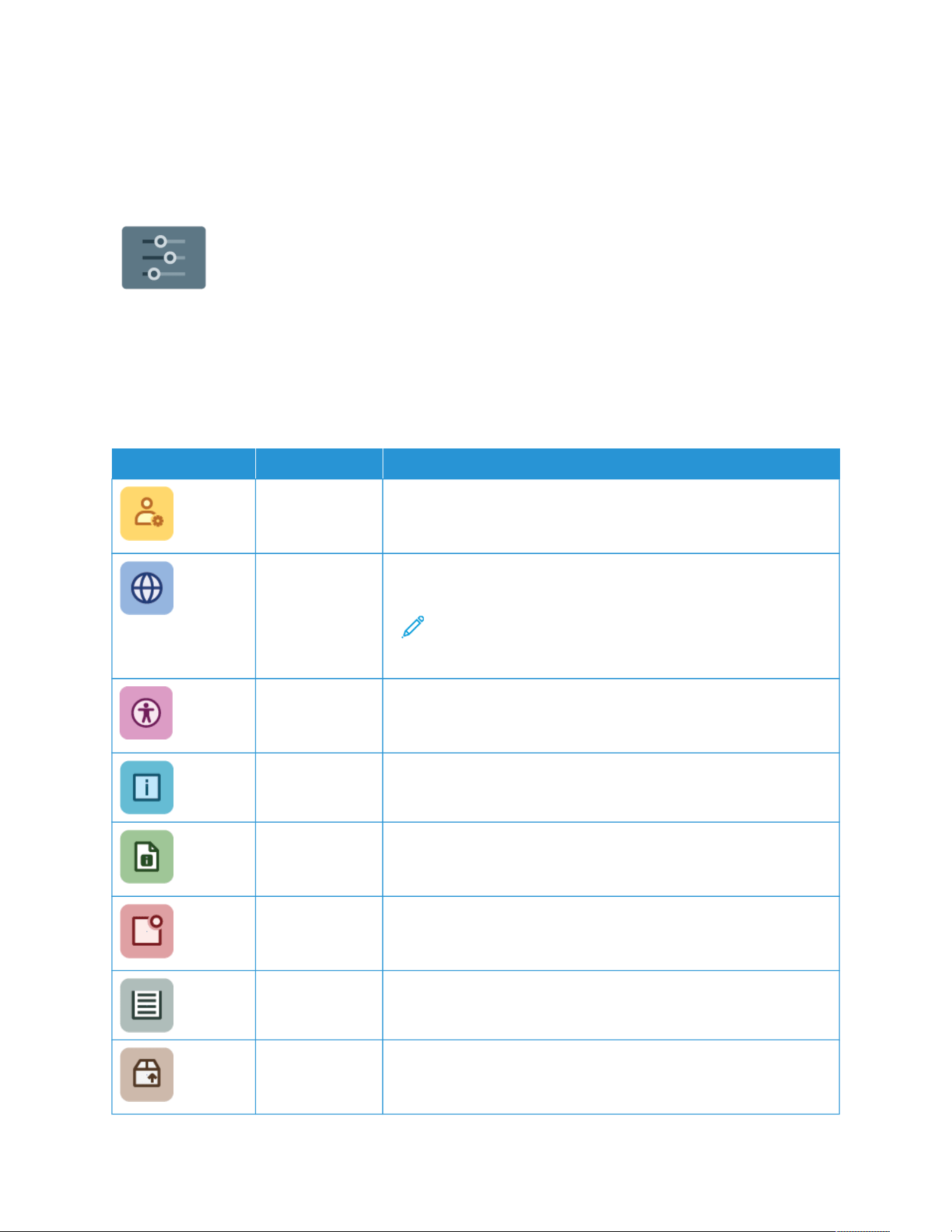
Device
DEVICE OVERVIEW
The Device App gives you access to information about your printer, including the serial number
and model. You can view the status of the paper trays, billing and supplies information, and
print information pages.
Many Device options can be configured to meet your individual needs. For details about configuring all of the
Device settings, refer to the System Administrator Guide at www.xerox.com/office/VLC415docs.
Device Options
The following device options are available:
OPTION DESCRIPTION
Admin
Personalization
Settings
For logged-in users, Personalization Settings provides access to the
Personalized Language and Manage Suggestions options. For
more information about Personalization settings, refer to Personalize.
Language Pressing the Language button allows you to set the language that
appears on the control panel touch screen.
Note: Sometimes this option is hidden from view. For details,
refer to System Administrator Guide at www.xerox.com/office/
VLC415docs.
Accessibility Pressing Accessibility allows you to access the Invert Display Color
and Speech Output features. For more information, refer to
Accessibility.
About The About option provides an overview of your device, the device
serial number, and information about current settings.
Information
Pages
Your printer has a set of information pages that you can print. These
pages include configuration and font information, demonstration
pages, and more.
Notifications Use the Notifications option to see details of any current alerts or
errors on the device. A Fault History option displays fault codes and
the date that they occurred on the device.
Paper Trays Use the Paper Trays option to see the paper size, type, and color set
for each paper tray and the tray-capacity status.
Supplies Use the Supplies section to monitor the status of the components you
can replace. The supply level and estimated number of impressions or
days that remain for each unit are displayed.
Xerox
®
VersaLink
®
C415 Color Multifunction Printer User Guide 101
Xerox
®
Apps
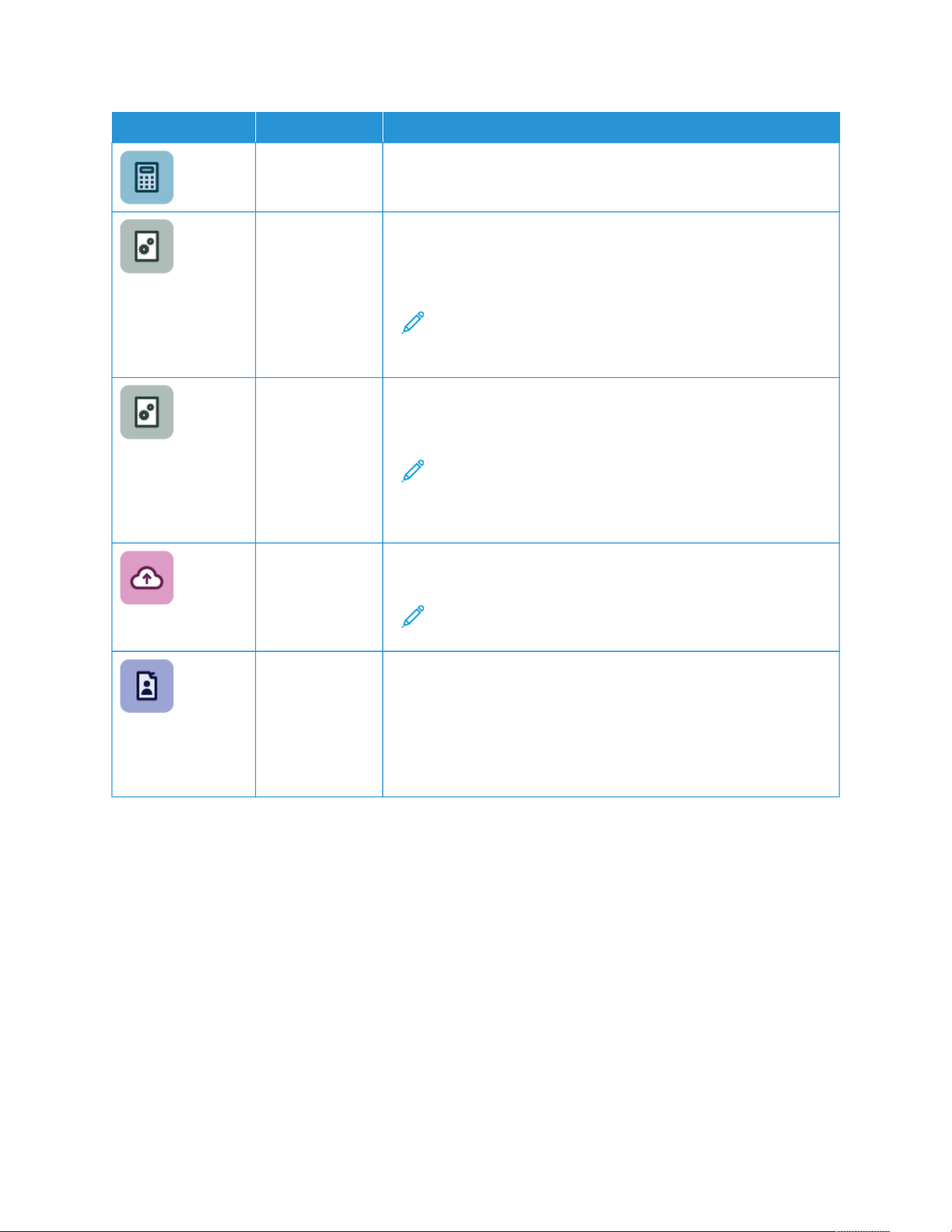
OPTION DESCRIPTION
Billing/Usage Use the Billing/Usage option to view the serial number and the total
number of impressions your device has made.
Tools Use the Tools option to customize settings, such as the power-save
modes, the date and time, and the control panel brightness. You can
configure settings using the device control panel or the Embedded
Web Server.
Note: For details on configuring the printer settings, refer to
System Administrator Guide at www.xerox.com/office/
VLC415docs.
Web-Based
Configuration
(Test Drive)
Use the Web-Based Configuration (Test Drive) tool to access device
capabilities and configuration options available on the Embedded
Web Server, at the device control panel.
Note: Some Embedded Web Server configuration options and
features are restricted. Examples of restricted options and
features are downloading and installing files, and accessing
links that redirect to external websites.
Remote Services Use the Remote Services option to send error and usage information
to the Xerox support team.
Note: Your System Administrator is required to enable this
feature using the Embedded Web Server.
Xerox Easy Assist
App
Use the Xerox Easy Assist app to access and configure the printer
from your smartphone. By installing the Xerox Easy Assist app on your
smartphone, you can setup your new printer easily, manage its
configuration, view alerts indicating supply requirements and order
them, and get live troubleshooting support for your printer.
For more information, refer to Xerox
®
Easy Assist (XEA) App.
For details on configuring the printer settings, refer to the System Administrator Guide at www.xerox.com/office/
VLC415docs.
ABOUT
The About option provides an overview of your device and its current settings and status. You can view the serial
number, model number, and software version.
INFORMATION PAGES
Your printer has a set of information pages that you can print. These pages include configuration and font
information, getting started pages, and more.
The following Information Pages are available:
102
Xerox
®
VersaLink
®
C415 Color Multifunction Printer User Guide
Xerox
®
Apps

NAME
DESCRIPTION
Basic Configuration Report The Basic Configuration Report provides printer
information, including the serial number, installed
options, network settings, port setup, tray information,
and more.
Detailed Configuration Report The Detailed Configuration Report provides
information about all of the printer settings, including
extensible services setup, security and authentication
server configuration, connectivity settings, and more.
Billing Summary The Billing Summary Report provides information
about the device and a detailed listing of the billing
meters and sheet counts.
Getting Started The Getting Started guide provides an overview of the
key features of the printer.
Troubleshooting Print Quality Page The Troubleshooting Print Quality Page provides a list
of common print-quality problems and tips to help
solve them.
Supplies Usage Page The Supplies Usage Page provides coverage
information and part numbers for reordering supplies.
Graphics Demo Page Print this page to check the quality of graphics.
PCL Font List The PCL Font List provides a printout of all PCL fonts
that are available on the printer.
PostScript Font List The PostScript Font List provides a printout of all
PostScript fonts that are available on the printer.
Printing Information Pages
1. At the printer control panel, press the Home button.
2. Touch Device > Information Pages.
3. To print an information page, touch the needed page, then touch Print.
The printer prints the selected information page.
4. To return to the Home screen, press the Home button.
SUPPLY STATUS
You can check the status and percentage of life remaining for your printer supplies at the control panel or from the
Embedded Web Server. When printer supplies near their replacement time, warning alerts appear on the control
panel. You can customize the alerts that appear on the control panel and configure email alert notifications.
To check the supplies status at the control panel:
1. To view status information for the printer supplies, touch Device > Supplies.
Xerox
®
VersaLink
®
C415 Color Multifunction Printer User Guide 103
Xerox
®
Apps

2. To view details about a specific toner cartridge, including the part number for reordering, touch Cyan,
Magenta, Yellow, or Black.
3. To view more details, touch Other Supplies. Scroll through the list, then select an option.
4. To print the Supplies Usage Page, touch Print Supplies Report.
5. To return to the Supplies screen, touch X.
6. To return to the Device screen, touch X.
7. To return to the Home screen, press the Home button.
To check the supplies status and set up alerts, use the Embedded Web Server. For details about configuring all
Device settings, refer to the System Administrator Guide at www.xerox.com/office/VLC415docs.
BILLING AND USAGE COUNTERS
The Billing/Usage menu displays the total number of impressions that the printer generated or printed during its
lifetime. You cannot reset the counters. A page is counted as one side of a sheet of paper. For example, a sheet of
paper that is printed on two sides counts as two impressions.
To view the Billing and Usage Counters:
1. At the printer control panel, press the Home button.
2. Touch Device > Billing/Usage.
The impression counts are displayed:
• Black Impressions: Total number of pages printed with no color specified.
• Color Impressions: Total number of pages printed that specify color.
• Total Impressions: Total number of color impressions and black impressions.
3. To view more details, touch Usage Counters, then select an option.
• Impression Counters: This option provides the number of impressions made by the printer. The number of
impressions cannot equal the number of sheets counted, depending on the printer setup. If your printer is
set up to count large sheets as large impressions or as multiple smaller impressions, the number of
impressions can differ.
• Sheet Counters: This option provides the number of impressions made by the printer. Impressions for 2-
Sided sheets are identified as a separate line from1-Sided sheets.
• Images Sent Counters: This option provides the number of images sent using the Fax, Email, or Scan
features.
• Fax Impressions Counters: This option provides the number of images sent using the Fax features. Each
fax feature is identified on a separate line.
• All Usage Counters: This option provides all printer usage information.
4. After viewing the usage readings, to return to the Home screen, press the Home button.
104
Xerox
®
VersaLink
®
C415 Color Multifunction Printer User Guide
Xerox
®
Apps

REMOTE SERVICES
You can use the Remote Services option to send error and usage information to the Xerox support team to help
them resolve problems quickly.
For information about enabling Remote Services and uploading information to Xerox, refer to the System
Administrator Guide at www.xerox.com/office/VLC415docs.
XEROX
®
EASY ASSIST (XEA) APP
Xerox Easy Assist app allows you to access and configure the printer from your smartphone. To access the printer
from your smartphone, download and install the Xerox Easy Assist app on your mobile device. By installing the
Xerox Easy Assist app on your smartphone, you can set up your new printer easily, manage its configuration, view
alerts indicating supply requirements and order them, and get live troubleshooting support for your printer.
To install the Xerox Easy Assist app on your smartphone, you need to scan a QR Code or search the app in the Apple
App Store or Google Play Store. There are two types of XEA QR Codes:
• QQRR CCooddee ttoo aaccqquuiirree tthhee XXEEAA aapppp: This QR Code is for the initial installation of the app. To install the Xerox
Easy Assist app for the first time, you are required to scan this QR Code using your smartphone camera. You can
find this QR Code on the packaging box or the Installation Guide that comes with the printer.
• QQRR CCooddee ttoo ccoonnnneecctt tthhee mmoobbiillee ddeevviiccee ttoo tthhee pprriinntteerr: This QR Code is to set up a wireless network
connection between the smartphone and the printer. For example, connection to Wi-Fi Direct. For the printers
with touchscreen User Interface, you can find this QR Code at the control panel of the printer within the device
Install Wizard. The QR Code provides all key information to connect your smartphone and the printer without
manually entering any technical information. To connect to the printer, scan this QR Code within the Xerox Easy
Assist app. For more information, refer to After Initial Installation: Connecting to the Xerox
®
Easy Assist App
from the Control Panel.
If the printer has Internet connection, then you can connect to the XEA app in your smartphone by typing the IP
address of the printer.
Primary features of Xerox Easy Assist app are:
SSeett UUpp aa NNeeww PPrriinntteerr
If you have the QR Code or IP Address available, you can set up a new Xerox printer with the help of Xerox Easy
Assist app. On My Printers screen in the app, touch the + icon, then touch Unbox a New Printer. Follow the
instructions from the app.
For more information, refer to Adding Multiple Printers to the Xerox Easy Assist App.
AAlleerrttss
The Xerox Easy Assist app can notify you of any errors or problems in the printer. To view the error statement,
touch the Bell icon.
PPrriinntteerr SSttaattuuss
The status displays the printer information, such as readiness of the printer, toner level, and paper tray status for
each tray. To view additional information regarding Printer Status, touch the (i) icon. When you have a
registered supplier, to reorder a new toner, select the Toner icon, then touch Reorder.
OOrrddeerr SSuupppplliieess
You can order parts and supplies through the Xerox Easy Assist app. If the toner level appears to be low, to order
Xerox
®
VersaLink
®
C415 Color Multifunction Printer User Guide 105
Xerox
®
Apps

a new toner, select Order Supplies. You can add your own supply provider and order supplies from them. When
you touch Order Supplies, if a custom supplier is not added in the app, then a prompt appears for you to set up
a supplier. From the prompt, touch Add Supplier, then follow the instructions. The instructions takes you to
Device Settings > Supplier Profile. In the Supplier Profile page, fill up the details of your supplier, such as
Name, Contact Information, Phone Number, and Website URL. After you complete setting up your custom
supply provider, touch Buy. It takes you to the web page of your supply provider.
Xerox Retail Store is your default option to order supplies directly from Xerox. Also, in the Order Supplies page,
you can view the Supplies Plan and Supplies Log of your printer.
SSccaann
Note: The Scan feature is applicable for Multifunction Printers only.
You can perform a scan job through the Xerox Easy Assist app. When you have your document placed on the
document glass or in the automatic document feeder of the printer, use the Xerox Easy Assist app to scan the
document and send it to your phone or email address, directly. In the app, select your printer, then touch Scan.
You can confirm the following scan settings according to your printer.
• For Output:
– File Name: You can change the default file name of your scanned document.
– Format: You can select the output format to be PDF or JPG.
– Resolution: You can choose a resolution setting as supported by your printer. The default is 300 dpi.
– Color: You can choose your scanned output to be in Color, Grey Scale, or Black and White according to
your printer.
• For Original Document:
– Scan Source: The XEA app can automatically detect the scan source as Document Feeder or Scanner
Glass, if not defined previously.
– 2-Sided Original: You can enable 2-Sided scanning for your document.
– Original Size: You can select the original size of your document and set it up before scanning. The
default size is A4 (210 x 297 mm).
After the scan settings are defined, touch Start Scanning. When scanning is complete, you can review your
scanned document on the Preview page of the app. From the Preview page, you can share the scanned
document according to the distribution options available in your phone.
PPrriinntt
You can perform a print job through the Xerox Easy Assist app. In the app, select your printer, then touch Print.
Select the document that you need to print from your mobile device, confirm the print settings, then touch
Print.
DDeevviiccee SSeettttiinnggss
You can view and edit your printer settings from the Device Settings tab. If you have not set up a password
during the initial setup, to view or edit existing printer settings, you need to set up the password. The Device
Settings tab includes the following:
• About
• Language
106
Xerox
®
VersaLink
®
C415 Color Multifunction Printer User Guide
Xerox
®
Apps

• Wi-Fi Setup
• Measurements
• Date & Time
• Sound
• Power Saver
• Supplier Profile
• Fax (if applicable)
• Admin Password
SSuuppppoorrtt CCeenntteerr
You can request support and find solutions for printer-related problems through the Xerox Easy Assist app.
Support Center includes the following services:
• Self Serve: To access this feature in the app, select your printer, then touch Support Center > Self Serve.
Self Serve option takes you to a new page for CareAR Instruct. You can download, learn, and search about
the printer through CareAR Instruct app.
• Chat: To access this feature in the app, select your printer, then touch Support Center > Chat. It connects
you to a Live Chatbot for Xerox’s Support Agent.
• Printer’s Website: To access this feature in the app, select your printer, then touch Support Center >
Printer’s Website. You are taken to a new page of Additional Printer Settings. You can view the complete
printer configuration and access the website of the printer. The Additional Printer Settings page also has an
option to Share Link. To have the Printer IP Address and other details sent to your registered Email, touch
Share Link.
• Set Up My Computer: To access this feature in the app, select your printer, then touch Support Center >
Set Up My Computer. You can download Print and Scan Drivers for your printer through Xerox Easy Assist
app. In the Email field, type your registered email address, then touch the + icon to add your email. To
download and install the Print and Scan Drivers, the app sends a Quick Link to your email address.
• Print Test Page: To access this feature in the app, select your printer, then touch Support Center > Print
Test Page. You can print a test page that has useful information about your printer, and confirm that all
settings are correct.
• Product Registration: To register your printer with Xerox, select your printer, then touch Support Center >
Product Registration. The Product Registration page opens. You can submit your registration and can also
access Warranty, Support, and Updates from this page.
• Sustainability: To access this feature in the app, select your printer, then touch Support Center >
Sustainability. You are taken to a new page for Xerox Sustainability Efforts. You can view the Waste
management information, Health & Safety data and Other Initiatives. You can access Xerox Sustainability
(Environmental Health & Sustainability - Xerox) web page in default browser on the mobile device.
RReemmoovvee aa PPrriinntteerr
You can remove a printer from the Xerox Easy Assist app. On your app, select a printer, then touch Remove
From My Printers.
Prior to Installing the Printer: Initial Set Up with the Xerox
®
Easy Assist App
To complete the initial setup and install the Xerox Easy Assist app for the first time, do the following:
Xerox
®
VersaLink
®
C415 Color Multifunction Printer User Guide 107
Xerox
®
Apps

1. For initial setup when the printer is powered on for the first time, the initial setup screens appears. On the
printer control panel, do the following:
a. Select your Language, then touch Next.
The Xerox Easy Assist Mobile App screen appears.
b. To use your mobile device to set up and manage your printer, touch Yes.
Get the App screen appears to confirm the type of your mobile device. Choose any one option:
• iOS: To install the Xerox Easy Assist app for your iPhone, select this option.
• Android: To install the Xerox Easy Assist app for your Android mobile device, select this option.
• I have the App: If you have installed Xerox Easy Assist app on your mobile device already, select this
option.
2. If you have selected iOS or Android option, a screen appears to help you download the app. On the control
panel, touch Show QR Code option.
A screen appears with the QR Code. To install the app, scan the QR Code using your smartphone camera.
3. Download and install the Xerox Easy Assist app on your smartphone:
• For Android phones: Go to Google Play Store, then search for Xerox Easy Assist app.
• For iOS or iPhones: Go to Apple App Store, then search for Xerox Easy Assist app.
4. When you install the app for the first time on your smartphone, for End-User License Agreement (EULA), touch
I Agree.
Note: The Xerox Easy Assist App has instructions that help you to unpack the printer from its packaging box.
To watch a helpful video on how to unpack your printer, scan the QR Code on the packaging box or the
Installation Guide that came with your printer, using your smartphone camera. Accept the End-User License
Agreement (EULA), then follow the instructions that appear on the app.
5. To set up a new printer from your smartphone XEA app, on the Add Printer screen, select Unbox a New
Printer. Follow the instructions that appear on the app.
Select Printer Model page appears.
6. Select your printer model from the list of valid printers.
A Welcome screen appears for Xerox Easy Assist.
7. Choose from the following options:
• Help Me Unpack My Printer: Select this option to view instructions that help you to unpack the printer
from its packaging box.
• I’ve Unpacked My Printer: Select this option to connect the XEA app to the printer.
8. In the app, touch I’ve Unpacked My Printer.
108
Xerox
®
VersaLink
®
C415 Color Multifunction Printer User Guide
Xerox
®
Apps

9. To connect with the printer, the following options appear in the app:
• Manual Connection:
• Scan QR Code: This option enables you to connect to the printer by scanning the QR Code. In the app,
touch Scan QR Code, then follow the instructions that appear on the app. On the printer control panel,
to connect to the app, touch Show QR Code option. The second or Connect-QR Code appears. Scan the
QR Code through the Xerox Easy Assist app. Follow the instructions that appear on the app.
When the connection is configured, your smartphone and the printer share the same Wireless network,
temporarily.
• Enter IP Address: This option enables you to connect to the printer by typing the IP Address of the
printer. Connect the printer to a network or Internet through an Ethernet cable. Follow the instructions
that appear on the app to find the IP Address of the printer. When you have located the IP Address,
touch Enter IP Address. Type the IP Address in the Add Printer field of the XEA app, then touch OK.
• Quick Connection-Search for Devices: When the printer is connected to Internet through Quick Connection,
XEA app searches for nearby printers.
10. With the support of Xerox Easy Assist app, complete the general settings and register the printer on the
network.
General settings include Admin Password, Connectivity, Measurements, Date and Time, Sound, Power Saver
settings, and more.
Note: Ensure that your smartphone is connected to the same Wireless or wired network as the printer and
they can communicate after the setup is complete.
11. To complete the initial setup in the app, type the necessary information for your printer, then touch Complete
Setup.
The Welcome screen appears.
When the initial setup is complete, with the Xerox Easy Assist app, you can perform the following:
• Setting up a new printer
• Checking the printer status
• Ordering supplies
• Downloading Print and Scan Drivers
• Printing
• Getting troubleshooting support
• Accessing the website of the printer
• Accessing Environment, Health, and Safety information
• Removing a printer from the XEA app My Printers list
For Xerox Easy Assist app features, refer to Xerox
®
Easy Assist (XEA) App.
After Initial Installation: Connecting to the Xerox
®
Easy Assist App from the Control Panel
To install and use the Xerox Easy Assist (XEA) app for a printer that is already installed and connected to your
network, you can find the QR Code on the control panel.
Xerox
®
VersaLink
®
C415 Color Multifunction Printer User Guide 109
Xerox
®
Apps

CCoonnnneeccttiinngg tthhrroouugghh QQRR CCooddee::
1. Download the Xerox Easy Assist (XEA) app from Apple App Store or Google Play Store.
2. At the Add Printer page, touch Connect to Existing Printer.
3. Select your printer model from the list of valid printers.
4. The app searches for printers on your network. You can skip this process. To connect through QR Code, touch
Skip, then touch Add a Printer.
5. From Connect to Existing Printer screen, touch Scan QR Code. Choose from the following options:
• Help Me Find the QR Code: Select this option and follow the instructions to find the QR Code in the printer
control panel.
• I’m Ready to Scan: Select this option when you have found the QR Code in the printer control panel and
ready to scan it through the app.
6. On the printer control panel, touch the status bar on top of the Home screen to access the Notification Center.
7. From the Notification Center, touch the QR Code icon for Connected to Network. A new window opens for
Connect to Xerox Easy Assist Mobile App that displays the Connect QR Code.
8. Scan the QR Code using the XEA app. This adds your printer to My Printers list in the XEA app.
CCoonnnneeccttiinngg tthhrroouugghh IIPP AAddddrreessss::
1. Download the Xerox Easy Assist (XEA) app from Apple App Store or Google Play Store.
2. At the Add Printer page, touch Connect to Existing Printer.
3. Select your printer model from the list of valid printers.
4. The app searches for printers on your network. You can skip this process. To connect through IP Address, touch
Skip, then touch Add a Printer.
5. From Connect to Existing Printer screen, touch Enter IP Address. Choose from the following options:
• Help Me Find the IP Address: Select this option and follow the instructions to find the IP Address of the
printer in the control panel.
• Enter IP Address: Select this option when you have found the IP Address of the printer and ready to type it
in the app.
6. On the printer control panel, refer to the IP Address in the status bar on top of the Home screen of the printer.
7. Type the IP Address in the Add Printer screen of the XEA app, then touch OK. This adds your printer to My
Printers list in the XEA app.
Adding Multiple Printers to the Xerox Easy Assist App
If your printer is already set up on your network and the initial setup is complete, through the XEA app, you can
include additional printers directly to the list of My Printers. You can see the printer status, get print drivers, and get
Chatbot support. To add printers that are on the network, open the XEA app Home page in your smartphone. On
the My Printers screen, touch the + icon or Add from the top of the screen. Refer to the following options:
110
Xerox
®
VersaLink
®
C415 Color Multifunction Printer User Guide
Xerox
®
Apps

• SSeettttiinngg UUpp aa NNeeww PPrriinntteerr: To set up a new printer from your smartphone XEA app, on the Add Printer screen,
select Unbox a New Printer. Follow the instructions that appear on the printer control panel and on your
mobile device.
• AAddddiinngg aann EExxiissttiinngg PPrriinntteerr: To add an existing printer that is already connected to the network, on the Add
Printer screen, select Connect to Existing Printer. Follow the instructions that appear on the printer control
panel and on your mobile device.
You can add a printer by following any one these methods:
• QR Code: To scan the printer QR Code with the XEA app scanner, touch QR Code. To find the QR Code of the
printer, refer to After Initial Installation: Connecting to the Xerox
®
Easy Assist App from the Control Panel.
• IP Address: To connect to the printer by typing the IP Address manually, touch IP Address. Type the IP Address
of the printer, then touch OK. For more information, refer to After Initial Installation: Connecting to the Xerox
®
Easy Assist App from the Control Panel.
• FFiinnddiinngg tthhee NNeeaarrbbyy NNeettwwoorrkk PPrriinntteerrss: When your smartphone is connected to the same wireless or wired
network as the printer, for Quick Connection, the app searches for nearby printers on your network.
– If the app finds the printer, you can select and add the printer directly.
– If the app is unable to find the printer you are looking for, then you can add the printer by typing its IP
address.
Note: If the printer and mobile device cannot communicate, ensure that they are on the same network.
Login Options Through the Xerox Easy Assist App
You can log in to the printer using your ID card or mobile phone.
The ID card and mobile phone options allow you to log in using the following methods:
• Local accounts, such as administrator account
• Network accounts, such as those connected through LDAP or Kerberos authentication
• Identity Provider (IdP) accounts, such as Microsoft Entra user account
To register and login using an ID card or mobile phone, you will be required to enter a valid user credential. The
registration will be complete after the user credential is authenticated successfully. However, they require you to
enter the credentials only once.
Subsequent logins use the registered credentials that are stored in the printer to authenticate and log you in. If
your password changes, you will be prompted to re-register at the printer.
You can register only one mobile phone or ID card per account. If you are using a Local Authentication and want
more than one administrator to log in with their mobile phone or ID card, create additional users with
administrative rights.
1. To log in to the printer using your ID card or mobile phone, configure the Additional Login Options in the
Embedded Web Server. For information about configuring the Login Options, refer to the System Administrator
Guide at www.xerox.com/office/VLC415docs.
2. At the control panel, touch Log In.
3. Select the login options, as needed.
Xerox
®
VersaLink
®
C415 Color Multifunction Printer User Guide 111
Xerox
®
Apps

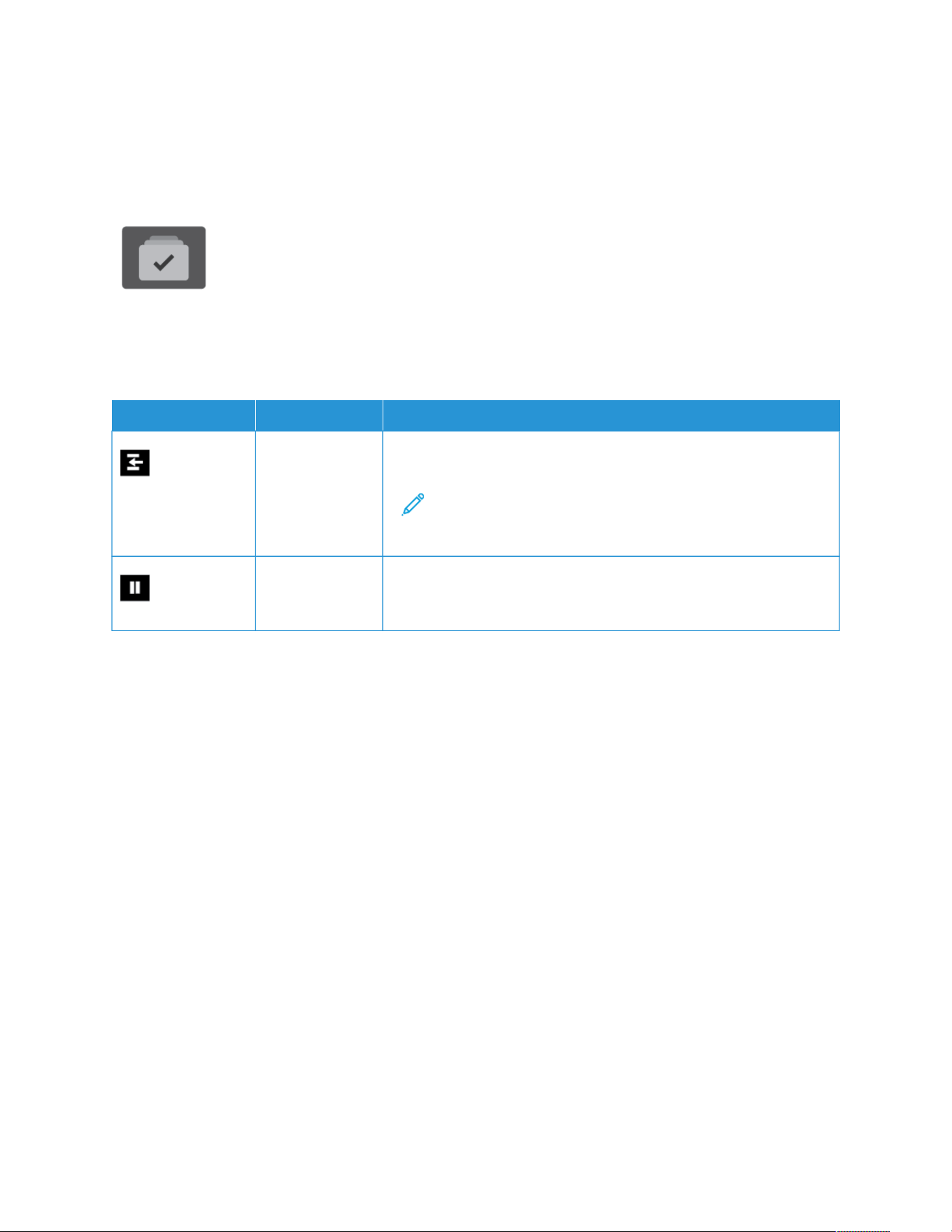
Jobs
JOBS OVERVIEW
You can use Jobs to view current jobs, print saved and secure jobs, and view details about
completed jobs. You can pause, delete, print, or view job progress or job details for a selected
job.
JOB OPTIONS
The following job options are available:
OPTION DESCRIPTION
Interrupt Button When enabled by the System Administrator, pressing the Interrupt
button allows you to pause the current job to run a more urgent job.
Note: Sometimes this option is hidden from view. To enable
the Interrupt function, refer to the System Administrator Guide
at www.xerox.com/office/VLC415docs.
Pause Button Pressing the Pause button allows you to temporarily pause an active
print job. The job pauses with the option to resume printing or to
delete the job.
MANAGING JOBS
From the control panel Jobs menu, you can view lists of active jobs, secure jobs, or completed jobs. You can
interrupt, pause, or delete jobs that are printing. You can also view job progress or job details for a selected job.
A print job can be held by the printer when it is unable to complete the job. For example, if the printer needs
attention, paper, or supplies. When the condition is resolved, the printer automatically resumes printing. When you
send a Secure Print job, the job is held until you release it by entering a passcode at the control panel. For more
details, refer to Managing Special Job Types.
From the Jobs window in the Embedded Web Server, you can view a list of active and saved print jobs. For more
details, refer to Managing Jobs using the Embedded Web Server.
Interrupting Printing
System Administrators can allow users to interrupt active print jobs. For details about Interrupt Printing
Enablement, refer to the System Administrator Guide at www.xerox.com/office/VLC415docs.
1. At the printer control panel, press the Home button.
2. Touch Jobs.
A list with active jobs, that are queued for the printer, appears.
Xerox
®
VersaLink
®
C415 Color Multifunction Printer User Guide 113
Xerox
®
Apps

3. At the control panel, touch the Interrupt button. The printer continues to print while it determines the best
place to pause the spooled print job.
4. Printing stops to allow the printer to complete another job.
5. To resume printing, touch the Interrupt button again.
Pausing or Deleting a Print Job
1. At the printer control panel, press the Home button.
2. Touch Jobs.
A list with active jobs, that are queued for the printer, appears.
3. To pause a job that is printing, touch the Pause button on the control panel.
4. Select a task.
• To resume the print job, touch Resume.
• To delete the print job, touch Delete. At the prompt, touch Delete.
5. To return to the Home screen, press the Home button.
Printing a Job Held for Resources
When a job is held for resources, a status message and a pop-up alert appear on the control panel, as default. From
the Embedded Web Server, the system administrator can configure whether only a status message appears or both
status message and a pop-up alert appear on the control panel.
1. If the pop-up alert is disabled by the system administrator, to view the held jobs, do the following:
a. At the printer control panel, press the Home button.
b. Touch Jobs.
A list with active jobs, that are queued for the printer, appears.
2. When the pop-up alert is enabled, if a job is held for resources, a pop-up alert appears on the control panel. On
the pop-up alert, touch View Active Jobs.
A list with active jobs, that are queued for the printer, appears.
3. From the jobs list, touch the held job name. The following options appear:
• Print On Alternate Paper: To choose an alternative paper source to enable the job to print, touch Print On
Alternate Paper. Select a paper tray, then touch OK.
• Delete: To delete the print job, touch Delete. At the prompt, touch Delete.
• Job Progress: To view the progress, touch Job Progress.
• Job Details: To view the details, touch Job Details. At the prompt, you can view the Job Settings and
Required Resources.
114
Xerox
®
VersaLink
®
C415 Color Multifunction Printer User Guide
Xerox
®
Apps

4. To print the job, replenish the resources required. The job resumes automatically when the required or alternate
resources are available.
Note: The Print On Alternate Paper option is enabled using the Embedded Web Server. For details about
the Print On Alternate Paper option, refer to the System Administrator Guide at www.xerox.com/office/
VLC415docs.
5. To return to the Home screen, press the Home button.
MANAGING SPECIAL JOB TYPES
Special job types allow you to send a print job from your computer, then print it from the printer control panel.
Select special job types in the print driver, Printing Options tab, under Job Type.
Saved Job
Saved Jobs are documents that are sent to the printer and stored there for future use. All users can print or delete a
Saved Job.
At the control panel, from the Print From menu, you can view and print saved jobs. In the Embedded Web Server, in
the Jobs window, you can view, print, and delete saved jobs, and you can manage where jobs are stored.
Printing using Saved Job
1. In your software application, access the print settings. For most software applications, press CTRL+P for
Windows or CMD+P for Macintosh.
2. Select your printer, then open the print driver.
• For Windows, click Printer Properties. Depending on your application, the title of the button can vary.
• For Macintosh, in the Print window, in the print options list, click Xerox Features.
3. For Job Type, select Saved Job.
a. Type a job name or select a name from the list.
b. Type a folder name or select a name from the list.
c. To add a passcode, click Private, type the passcode, then confirm the passcode.
d. Click OK.
4. Select other required printing options.
• For Windows, click OK, then click Print.
• For Macintosh, click Print.
Printing, Deleting, Moving, or Copying a Saved Job in the Embedded Web Server
1. At your computer, open a Web browser. In the address field, type the IP address of the printer, then press Enter
or Return.
2. In the Embedded Web Server, click Home.
3. Click Jobs.
4. Click the Saved Jobs tab.
Xerox
®
VersaLink
®
C415 Color Multifunction Printer User Guide 115
Xerox
®
Apps

5. For the job that you want to process, select the check box.
6. From the menu, select an option.
• Print Job: This option prints a job immediately.
• Delete Job: This option deletes the saved job.
• Move Job: Use this option to move the job to another folder location.
• Copy Job: Use this option to duplicate the job.
7. Click Go.
Secure Print
Use Secure Print to print sensitive or confidential information. After you send the job, it is held at the printer until
you enter your passcode at the printer control panel.
After a Secure Print job is printed, it is deleted automatically.
Printing using Secure Print
1. In your software application, access the print settings. For most software applications, press CTRL+P for
Windows or CMD+P for Macintosh.
2. Select your printer, then open the print driver.
• For Windows, click Printer Properties. Depending on your application, the title of the button varies.
• For Macintosh, in the Print window, click Preview, then select Xerox Features.
3. For Job Type, select Secure Print.
4. Type the passcode, confirm the passcode, then click OK.
5. Select any other required printing options.
• For Windows, click OK, then click Print.
• For Macintosh, click Print.
Releasing a Secure Print Job
1. At the printer control panel, press the Home button.
2. Touch Jobs.
3. To view Secure Print jobs, touch Secure Jobs.
4. Do one of the following:
• If you submitted a single Secure Print job, touch the folder, then touch the job. Enter the passcode number,
then touch OK. The job prints automatically.
• If you submitted multiple Secure Print jobs, touch the folder, enter the passcode number, then touch OK.
Select an option:
• To print a single Secure Print job, touch the job required.
• To print all the jobs in the folder, touch Print All.
• To delete a single Secure Print job, touch the Trash icon. At the prompt, touch Delete.
116
Xerox
®
VersaLink
®
C415 Color Multifunction Printer User Guide
Xerox
®
Apps

• To delete all the jobs in the folder, touch Delete All.
Note: After a Secure Print job prints, the printer deletes it automatically.
5. To return to the Home screen, press the Home button.
Note: You can send and release a secure print job through Universal Print. For more information, refer to the
System Administrator Guide at www.xerox.com/office/VLC415docs.
Sample Set
The Sample Set job type prints one copy of a multiple-copy print job before printing the remaining copies. After
reviewing the sample set, you can either print the remaining copies or delete them at the printer control panel.
Sample Set is a type of saved job with these features:
• A Sample Set job appears in a folder named after the user ID associated with the print job.
• A Sample Set job does not use a passcode.
• Any user can print or delete a Sample Set job.
• A Sample Set prints one copy of a job to allow you to proofread the job before printing any remaining copies.
After a Sample Set job is printed, it is deleted automatically.
To print a Sample Set, refer to Printing using Sample Set.
Printing using Sample Set
1. In your software application, access the print settings. For most software applications, press CTRL+P for
Windows or CMD+P for Macintosh.
2. Select your printer, then open the print driver.
• For Windows, click Printer Properties. Depending on your application, the title of the button varies.
• For Macintosh, in the Print window, click Preview, then select Xerox Features.
3. For Job Type, select Sample Set.
4. Select any other required printing options.
• For Windows, click OK, then click Print.
• For Macintosh, click Print.
Releasing a Sample Set
1. At the printer control panel, press the Home button.
2. To view available jobs, touch Jobs.
3. Touch the Sample Set job.
Note: The Sample Set file description shows the job as Held for Future Printing, and shows the number of
remaining copies of the job.
Xerox
®
VersaLink
®
C415 Color Multifunction Printer User Guide 117
Xerox
®
Apps

4. Select an option.
• To print the remaining copies of the job, touch Release.
• To delete the remaining copies of the job, touch Delete.
5. To return to the Home screen, press the Home button.
MANAGING JOBS USING THE EMBEDDED WEB SERVER
In the Embedded Web Server Active Jobs list, you can view a list of active jobs and delete print jobs. You can use
the Embedded Web Server to submit jobs for printing at the device. You can use the Job Submission feature to print
.ps, .pdf, and .pcl, files without installing a print driver. You can select jobs for printing from your local computer hard
drive, mass storage devices, or a network drive.
Saved jobs are documents sent to the printer and stored there for future use. Any saved jobs appear on the Saved
Jobs page. Use the Saved Jobs page to view, print, and delete saved jobs, and create and manage folders in which
they are stored.
To manage jobs using the Embedded Web Server:
1. At your computer, open a Web browser. In the address field, type the IP address of the printer, then press Enter
or Return.
2. In the Embedded Web Server, click Jobs.
3. Click the job name.
4. From the menu, select an option.
• To pause the print job, click Pause, then click Go.
• To delete the print job, click Delete, then click Go. At the prompt, click OK.
5. To return to the Home screen, click Home.
Submitting Jobs for Printing using the Embedded Web Server
1. At your computer, open a Web browser. In the address field, type the IP address of the printer, then press Enter
or Return.
2. In the Embedded Web Server, click Home.
3. Click Print.
4. For File Name, click Browse or Choose File, then do one of the following steps.
• Navigate to the file, then select it.
• Type the path to the file that you want to select.
5. In the Printing area, for Copies, select Auto, or enter the number of copies to print.
118
Xerox
®
VersaLink
®
C415 Color Multifunction Printer User Guide
Xerox
®
Apps

6. For Job Type, select an option:
• Normal Print: This option prints a job immediately.
• Secure Print: This option prints a job after you enter your passcode at the printer control panel.
• Sample Set or Proof Print: These options print one copy of a multiple-copy print job. The device holds the
remaining copies in memory until you release them for printing at the control panel.
• Save Job for Reprint: This option saves a print job in a folder on the print server for future printing. You can
specify a job name and folder.
• Delay Print: This option prints a job at a specified time up to 24 hours from the original job submission.
7. As needed, for Paper Selection, select paper size, color, type, and tray.
8. As needed, select job options.
• 2-Sided Printing
• Collate
• Orientation
• Output Destination
Note: The available options vary by device.
9. If Accounting is enabled, enter your User ID and Account ID.
10. Click Submit Job.
Reprinting Saved Jobs using the Embedded Web Server
1. At your computer, open a Web browser. In the address field, type the IP address of the printer, then press Enter
or Return.
2. In the Embedded Web Server, click Home.
3. Click Jobs.
4. Click the Saved Jobs tab.
5. For the job that you want to process, select the check box.
6. From the menu, select an option.
• Print Job: This option prints a job immediately.
• Delete Job This option deletes the saved job.
• Move Job: Use this option to move the job to another folder location.
• Copy Job: Use this option to duplicate the job.
7. Click Go.
Xerox
®
VersaLink
®
C415 Color Multifunction Printer User Guide 119
Xerox
®
Apps

Copy
COPY OVERVIEW
To make a copy, the device scans your original documents and temporarily stores the images.
It then prints the images based on the options that you selected. You can change settings for
individual jobs based on the original documents. You can save settings that you use for regular
jobs and retrieve them for later use.
For information about all the Copy App features and available settings, refer to Apps Features.
For details on configuring and customizing the Apps, refer to the System Administrator Guide at www.xerox.com/
office/VLC415docs.
If authentication or accounting is enabled on your device, to access features, enter your login details. For details
about Personalization for logged-in users, refer to Personalize.
MAKING A COPY
To make a copy:
120
Xerox
®
VersaLink
®
C415 Color Multifunction Printer User Guide
Xerox
®
Apps
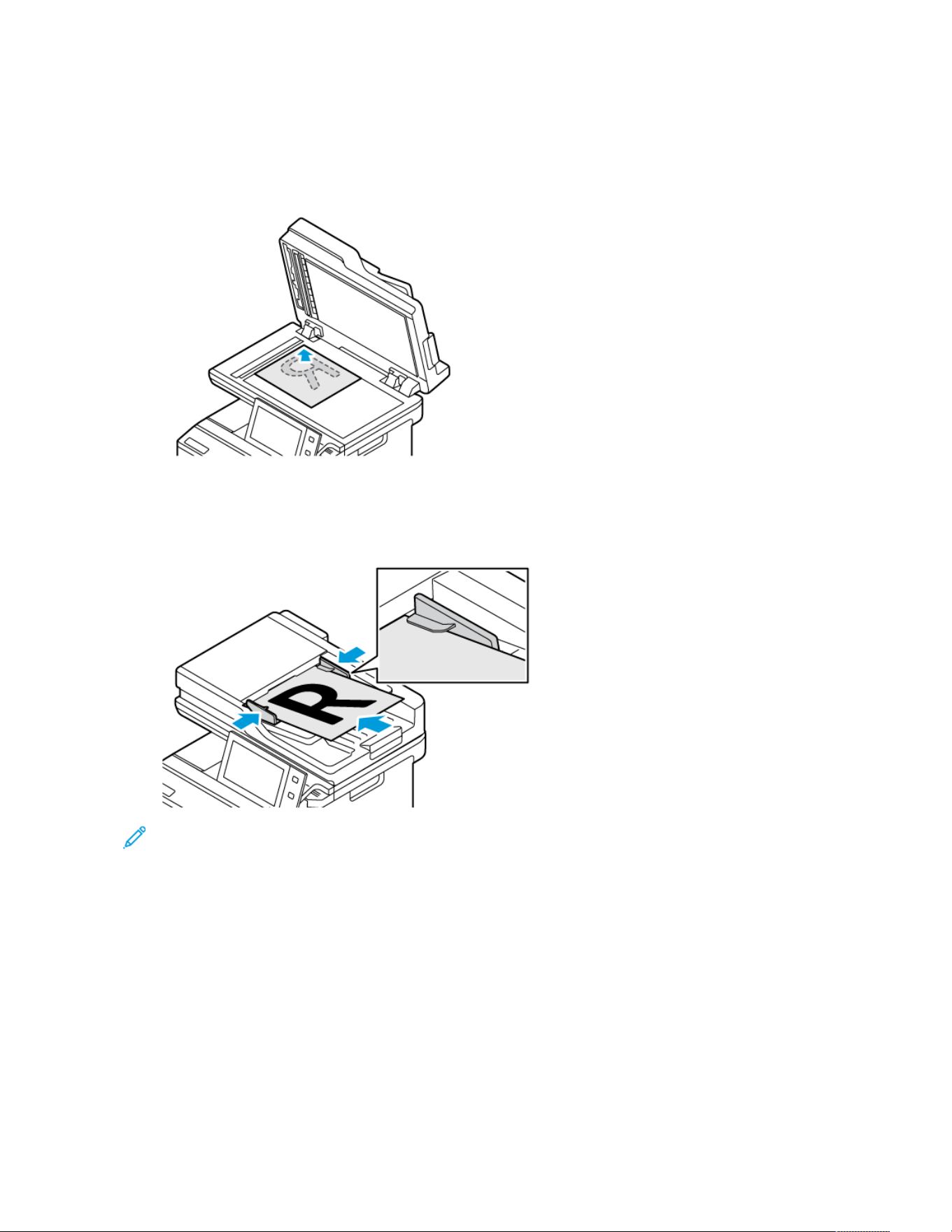
1. Load your original documents.
• For single pages or paper that cannot be fed using the duplex automatic document feeder, use the
document glass. Lift the duplex automatic document feeder, then place the original document face down in
the upper-left corner of the document glass.
• For multiple, single, or 2-sided pages, use the duplex automatic document feeder. Remove any staples and
paper clips from the pages. Insert the original documents face up in the duplex automatic document feeder
with the top of the page entering the feeder first. Adjust the paper guides so that they fit against the
original documents.
Note:
• When the original documents are detected, the automatic document feeder confirmation indicator LED
illuminates.
• If the Default Screen When Originals Are Detected feature is configured, when the original
documents are detected, the default app is launched automatically.
• If the Auto Start When Originals Are Detected feature is enabled, when the original documents are
detected, the job starts automatically and the countdown screen is displayed. To stop the countdown
and program the job manually, touch Cancel.
2. At the printer control panel, press the Home button.
Xerox
®
VersaLink
®
C415 Color Multifunction Printer User Guide 121
Xerox
®
Apps

3. Touch Copy.
Note: When the Color Preset Screen setting is enabled, a color preset screen appears each time you access
the Copy App. At the Make All My Copies screen, select a color printing option for your copy jobs.
4. To clear previous app settings, touch Reset.
5. To enter the number of copies needed, use the numeric keypad.
6. Adjust copy settings as needed. If you are scanning from 2-sided original documents, touch 2-Sided Copying,
then select an option.
For details about available features, refer to Apps Features.
7. Touch Start. If you placed documents in the feeder, scanning continues until the feeder is empty.
8. For logged-in users, if the Adaptive Learning feature is enabled for Personalization, a suggestion to create a 1-
Touch App can appear for repetitive or complex jobs. To create a personalized 1-Touch App, touch Create 1-
Touch App, then set up the app as required. To decline the suggestion, touch Cancel.
For more information about the Personalization feature, and 1-Touch App creation, refer to Personalize.
9. To return to the Home screen, press the Home button.
COPY WORKFLOWS
Some features are hidden from view when the Copy App is installed. For details on configuring and customizing the
Apps, refer to the System Administrator Guide at www.xerox.com/office/VLC415docs.
Adjusting Color Settings
Before you print a copy of a color original image, you can adjust the balance of the printing colors between cyan,
magenta, yellow, and black. You can adjust the color of the copy using preset color effects. For example, you can
adjust colors for brightness or coolness. Adjusting the saturation makes the image colors more vivid or pastel.
Note: When the Color Preset Screen setting is enabled, a color preset screen appears each time you access
the Copy App. At the Make All My Copies screen, select a color printing option for your copy jobs.
Select color or black and white output
1. At the printer control panel, press the Home button.
2. Touch Copy.
3. Touch Output Color.
4. For Output Color, touch an option.
• Auto Detect: The device detects the color content in the original document. If the original content is a
color document, the printer makes copies in full color. If the original content is a black and white document,
the printer makes copies in black only.
• Black & White: This option produces copies in black and white only. Colors in the original content are
converted to shades of gray.
• Color: This option copies in full color output using all four printing colors, cyan, magenta, yellow, and black.
5. Touch OK.
122
Xerox
®
VersaLink
®
C415 Color Multifunction Printer User Guide
Xerox
®
Apps

Adjusting the Color Balance
1. At the printer control panel, press the Home button.
2. Touch Copy.
3. Touch Color Balance.
Note: This feature is not available when Output Color is set to Black and White.
4. To adjust the density levels of all four colors:
a. On the Color Balance screen, touch Basic Color.
b. Move the sliders to adjust the level for each color.
5. To adjust the highlight, midtone, and shadow density levels by color:
a. On the Color Balance screen, touch Advanced Color.
b. Touch the color you want to adjust.
c. Move the sliders to adjust the levels for highlights, midtones, and shadows.
d. To adjust more colors, repeat the previous two steps.
6. Touch OK.
Adding Color Effects
1. At the printer control panel, press the HHoommee button.
2. Touch CCooppyy.
3. Touch CCoolloorr PPrreesseettss.
Note: This feature is not available when Output Color is set to Black and White.
4. On the Color Presets screen, touch the required preset color effect. The sample images show how the colors are
adjusted.
5. Touch OOKK.
Adjusting the Saturation
1. At the printer control panel, press the Home button.
2. Touch Copy.
3. Touch Saturation.
4. To adjust the saturation, move the slider.
5. Touch OK.
Erasing the Edges of Copies
You can erase content from the edges of your copies using the Edge Erase feature. You can specify the amount to
erase on the right, left, top, and bottom edges.
To erase the edges of copies:
1. At the printer control panel, press the Home button.
Xerox
®
VersaLink
®
C415 Color Multifunction Printer User Guide 123
Xerox
®
Apps

2. Touch Copy.
3. Touch Edge Erase.
4. Select one of the following options.
• All Edges: This option erases all four edges by the same amount. To adjust the amount to erase, move the
slider.
• Individual Edges: This option allows you to specify different amounts to erase from the edges. Touch the
required Top, Bottom, Left or Right field. To enter the amount to erase, use the numeric keypad, or touch
the arrows.
5. To mirror the same erase amount applied to Side 1 on Side 2, touch the Mirror Side 1 check box.
6. To select a pre-defined amount of erase, use the Presets option.
7. Touch OK.
Specifying the Size of the Original
Use the Original Size feature to set a standard or custom size for scanning, or for the printer to determine the
original size document automatically. You can use this feature to enable mixed-size original document scanning.
To specify the original size:
1. At the printer control panel, press the Home button.
2. Touch Copy.
3. Touch Original Size.
4. Select an option.
• Auto Detect: This option allows the printer to determine the size of the original document.
• Preset Scan Area: This option specifies the area to scan when it matches a standard paper size. In the
scrolling list, touch the desired paper size.
• Custom Scan Area: You can specify the width and length of the area to scan. To specify the original width
or length, touch the appropriate field. To enter the size, use the numeric keypad, or use the arrows.
• Mixed Size Originals: You can scan standard-size originals of varying sizes. To determine which original
sizes can be mixed in the same job, use the diagram on the screen.
5. Touch OK.
Shifting the Image
You can change the placement of an image on the copy page. This is useful if the image is smaller than the page
size. For image shift to work correctly, position original documents as follows.
• Document Feeder: Position original documents face up, long edge entering the feeder first.
• Document Glass: Position original documents face down, in the upper-left corner of the document glass, long
edge to the left.
To change the placement of the image:
1. At the printer control panel, press the Home button.
124
Xerox
®
VersaLink
®
C415 Color Multifunction Printer User Guide
Xerox
®
Apps

2. Touch Copy.
3. Touch Image Shift.
4. Select one of the following options.
• Off: This option is the default setting.
• Auto Center: This option centers the image on the page.
5. To enter a specific amount of image shift, touch More, then touch Margin Shift. Touch the required Up /
Down or Left / Right fields. To enter the amount of shift, use the numeric keypad, or touch the arrows.
6. To mirror the same image shift applied to Side 1 on Side 2, touch the Mirror Side 1 check box.
7. To select a pre-defined amount of shift, use the Presets option.
8. Touch OK.
Creating a Booklet
The Booklet Creation feature prints two pages on each side of the paper. The printer reorders and reorients the
pages so that they are in the correct order and orientation when folded. If more finishing options are available, the
pages can be stapled and folded to create a booklet.
To create a booklet:
Note: In this mode, the printer scans all the original documents before it prints the copies.
1. At the printer control panel, press the Home button.
2. Touch Copy.
3. Touch Booklet Creation.
4. Select one of the following options.
• Off: This option is the default setting.
• On: This option enables Booklet Creation.
Note: If Paper Supply is set to Auto Paper Select, the Paper Conflict screen appears. Select the required
paper tray, then touch OK.
5. To change the Original Input, Paper Supply or finishing options, touch More, then select an option.
• To scan 1 or 2-sided originals, touch Original Input, then select an option.
• To change the paper source for the booklet, touch Paper Supply, then select an option.
6. Touch OK.
Adding Covers
You can print the first and last pages of your copy job on different paper, such as colored or heavyweight paper.
The printer selects the paper from a different tray. The covers can be blank or printed.
To add covers to your copy job:
1. At the printer control panel, press the Home button.
Xerox
®
VersaLink
®
C415 Color Multifunction Printer User Guide 125
Xerox
®
Apps

2. Touch Copy.
3. Touch Special Pages > Covers.
Note: If Paper Supply is set to Auto Paper Select, the Paper Conflict screen appears. Select the required
paper tray, then touch OK.
4. For Covers Options, select an option.
• Front & Back Same: This option includes front and back covers from the same tray.
• Front & Back Different: This option includes a front and a back cover from different trays.
• Front Only: This option includes a front cover only.
• Back Only: This option includes a back cover only.
5. For Printing Options, select an option.
• Blank Cover: This option inserts a blank cover.
• Print on Side 1 Only: This option prints on the front side of the cover only. To rotate the image on side 2
by 180 degrees, touch Rotate Side 2.
• Print on Side 2 Only: This option prints on the back of the cover only. To rotate the image on side 2 by
180 degrees, touch Rotate Side 2.
• Print on Both Sides: This option prints on both sides of the cover.
• Rotate Side 2: If covers are 2-Sided, touch this option to rotate the image on side 2 by 180 degrees.
6. For Paper Supply, touch the required tray.
7. Touch OK. The options that you selected appear on the Special Pages screen.
8. To edit or delete a special page entry, touch the entry in the list. From the menu, touch the required option.
9. Touch OK.
Adding Inserts
You can insert blank pages or pre-printed sheets in specific locations in your copy job. To do this, you specify the
tray that contains the inserts.
To add inserts to a copy job:
1. At the printer control panel, press the Home button.
2. Touch Copy.
3. Touch Special PagesInserts.
Note: If Paper Supply is set to Auto Paper Select, the Paper Conflict screen appears. Select the required
paper tray, then touch OK.
4. To specify the number of sheets to insert, touch the Insert Quantity field. To enter the number of sheets, use
the numeric keypad, or use the arrows. Touch Enter.
5. To enter a location for the insert, touch the Insert After Page entry box. To enter a page number, use the
numeric keypad. Touch Enter.
6. To specify the paper tray to use for the insert:
126
Xerox
®
VersaLink
®
C415 Color Multifunction Printer User Guide
Xerox
®
Apps

a. Touch Paper Supply.
b. Touch the required paper tray.
c. Touch OK.
7. Touch Add. The insert appears in the list on the Inserts screen. To add more inserts, repeat the previous steps.
8. Touch X. The options that you selected appear on the Special Pages screen.
9. To edit or delete a special-page entry, touch the entry in the list. From the menu, touch the required option.
10. Touch OK.
Specifying Chapter Start Pagination
If you select 2-sided copies, you can set each chapter to start on the front or back of the page. If necessary, the
printer leaves one side of the paper blank so that the chapter starts on the specified side of the paper.
To specify chapter start pagination:
1. At the printer control panel, press the Home button.
2. Touch Copy.
3. Touch Special Pages > Chapter Starts.
4. To specify the chapter start page, touch Page Number. To enter the page number, use the numeric keypad.
Touch Enter.
5. For Start Chapter, select an option.
• On Right Page: This option specifies the front of the paper.
• On Left Page: This option specifies the back of the paper.
6. Touch Add. The page is added to the list on the right side of the screen.
7. To set other pages, repeat the previous steps.
8. Touch X. The options that you selected appear on the Special Pages screen.
9. To edit or delete a special-page entry, touch the entry in the list. From the menu, touch the required option.
10. Touch OK.
Specifying Exception Pages
You can specify exception pages to print on paper that is loaded in a different paper tray than the paper for the
rest of the document. Ensure that the paper you use for the exception pages is the same size as the paper that you
use for the rest of the document.
To specify the exception pages:
1. At the printer control panel, press the Home button.
2. Touch Copy.
3. Touch Special Pages > Exceptions.
Note: If Paper Supply is set to Auto Paper Select, the Paper Conflict screen appears. Select the required
paper tray, then touch OK.
Xerox
®
VersaLink
®
C415 Color Multifunction Printer User Guide 127
Xerox
®
Apps

4. To enter the range of pages to print on different paper:
• To enter the starting page number, touch the first Page Number field. To enter the starting page number,
use the numeric keypad. Touch Enter.
• To enter the ending page number, touch the second Page Number field. To enter the last page number,
use the numeric keypad. Touch Enter.
Note: To specify a single page as an exception, enter that page number as the start and end of the range.
5. To specify the paper to use for the exception pages:
a. Touch Paper Supply.
b. Touch the tray that contains paper to use for the exception pages.
c. Touch OK.
6. Touch Add. The page range is added to the list on the right side of the screen.
7. To set other pages, repeat the previous steps.
8. Touch X. The options that you selected appear on the Special Pages screen.
9. To edit or delete a special-page entry, touch the entry in the list. From the menu, touch the required option.
10. Touch OK.
Adding Annotations
You can automatically add annotations, such as page numbers and the date to your copies.
Note:
• You cannot add annotations to covers, inserts, or blank chapter-start pages.
• If Booklet Creation is selected, you cannot add annotations.
To add annotations:
1. At the printer control panel, press the Home button.
2. Touch Copy.
3. Touch Annotations.
4. To add page numbers:
a. Touch Page Number.
b. Touch On.
c. Touch the Starting Page Number entry box. To enter a page number, use the numeric keypad, then touch
Enter.
d. Touch Apply To, then select an option.
e. To position the page number, touch an arrow. The sample page shows the location of the page number.
f. Touch OK.
5. To insert a comment:
128
Xerox
®
VersaLink
®
C415 Color Multifunction Printer User Guide
Xerox
®
Apps

a. Touch Comment.
b. Touch On.
c. For Stored Comments, touch an option in the list.
• Touch an existing comment.
• To create a comment, touch Available option. To enter the annotation text, use the touch screen
keypad, then touch OK.
• To edit or delete a comment, use the buttons below the Stored Comments list.
d. Touch Apply To, then select an option.
e. To position the comment, touch an arrow. The sample page shows the location of the comment.
f. Touch OK.
6. To insert the current date:
a. Touch the desired current date location.
b. Touch Date.
c. Touch On, then touch the date format that you wish to use.
d. Touch Apply To, then select an option.
e. To position the date in the header or footer, touch an arrow. The sample page shows the location of the
date.
f. Touch OK.
7. To insert a Bates Stamp:
a. Touch Bates Stamp.
b. Touch On.
c. For Stored Prefixes, touch an option in the list.
• Touch an existing prefix.
• To create a prefix, touch Available option. To enter text, use the touch keypad, then touch OK.
• To edit or delete a prefix, use the buttons below the Stored Prefixes list.
d. Touch Starting Page Number. To enter the starting page number, use the alphanumeric keypad. You can
use leading zeros to indicate the number of digits required. Touch Enter.
e. Touch Apply To, then select an option.
f. To position the Bates Stamp in the header or footer, touch an arrow. The sample page shows the location
of the Bates Stamp.
g. Touch OK.
8. To change the text formatting, touch Format & Style, choose the required settings, then touch OK.
9. To remove all entered annotations, touch Delete All.
10. Touch OK.
Xerox
®
VersaLink
®
C415 Color Multifunction Printer User Guide 129
Xerox
®
Apps

Changing the Page Layout
You can use Page Layout to place a defined number of pages on one or both sides of the paper.
To change the page layout:
1. At the printer control panel, press the Home button.
2. Touch Copy.
3. Touch Page Layout.
4. Select one of the following options.
• Pages per Side: This option places a defined number of pages on one or both sides of the paper. Select the
required number of pages per side.
• Repeat Image: This option places a defined number of the same image on one or both sides of the paper.
Select the number of images required. Auto Repeat allows the printer to determine the maximum number
of images that can fit on the currently selected paper size.
5. To enter a specific number of rows and columns, touch Specify Rows & Columns. Touch the Rows or Columns
field. To enter the number of rows and columns, use the numeric keypad, or touch the arrows. To rotate the
paper, select the check box for Rotate Background.
6. To change the original orientation, touch Original Orientation. Select Portrait or Landscape.
7. Touch OK.
Printing a Sample Job
Sample Job allows you to print a test copy of a job to inspect before printing multiple copies. This feature is useful
for complex or high-volume jobs. After you print and inspect the test copy, you can choose to print or cancel the
remaining copies.
To print a sample copy of your job:
1. At the printer control panel, press the Home button.
2. Touch Copy.
3. Adjust the copy settings as needed.
4. Enter the number of copies needed.
5. Touch the Sample Job toggle button.
6. Touch the Start button. The sample job prints.
7. Inspect the sample job, then select one of the following options:
• If the copy is unsatisfactory, touch Delete. Touch Delete to confirm. The job is canceled and no more
copies are printed.
• If the copy is satisfactory, touch Print. The remaining copies are printed.
8. To return to the home screen, press the Home button.
130
Xerox
®
VersaLink
®
C415 Color Multifunction Printer User Guide
Xerox
®
Apps

Saving Current Copy Settings
To use a particular combination of copy settings for future copy jobs, you can save the settings with a name and
retrieve them for later use.
To save the current copy settings:
1. At the printer control panel, press the Home button.
2. Touch Copy.
3. Change the settings required.
4. Touch Save Current Settings.
5. To create a new saved setting, touch any option labeled <Available>.
6. Enter a name for the saved setting using the touch screen keyboard, then touch OK.
Retrieving Saved Copy Settings
You can retrieve and use any previously saved copy settings for current jobs.
Note: To save the copy settings with a name, refer to Saving Current Copy Settings.
To retrieve saved settings:
1. At the printer control panel, press the Home button.
2. Touch Copy.
3. Touch Retrieve Saved Settings.
4. Touch the saved setting required.
Note: To delete a saved setting, touch the setting, then touch Delete Settings. Touch Delete to confirm.
5. Touch OK. The saved settings are loaded for the current copy job.
Xerox
®
VersaLink
®
C415 Color Multifunction Printer User Guide 131
Xerox
®
Apps

ID Card Copy
ID CARD COPY OVERVIEW
You can use the ID Card Copy App to copy both sides of an ID card or small document onto
one side of paper. To copy the card properly, place each side in the upper-left corner of the
document glass. The printer stores both sides of the document, then prints them side by side
on the paper.
The ID Card Copy App is hidden from view on initial device setup. For details about configuring and customizing the
Apps, refer to the System Administrator Guide at www.xerox.com/office/VLC415docs.
For information about all the ID Card Copy App features and available settings, refer to Apps Features.
If authentication or accounting is enabled on your device, to access features, enter your login details. For details
about Personalization for logged-in users, refer to Personalize.
COPYING AN ID CARD
To copy an ID card:
1. Lift the document feeder, then place the original document in the upper-left corner of the document glass.
2. At the printer control panel, press the Home button.
3. Touch ID Card Copy.
4. To clear previous App settings, touch Reset.
5. Adjust the settings as required.
6. Touch Scan Front.
7. When scanning is finished, lift the document feeder. Place the second side of the original document in the
upper-left corner of the document glass.
8. To scan the second side of the original document and print the copies, touch Scan Back.
9. To return to the home screen, press the Home button.
132
Xerox
®
VersaLink
®
C415 Color Multifunction Printer User Guide
Xerox
®
Apps

Email
EMAIL OVERVIEW
You can use the Email App to scan images and attach them to emails. You can specify the file
name and format of the attachment, and include a subject heading and message for the
email.
Note: The system administrator must set up this feature before you can use it. For details, refer to the
System Administrator Guide at www.xerox.com/office/VLC415docs.
For information about all the Email App features and available settings, refer to Apps Features.
For details on configuring and customizing the Apps, refer to the System Administrator Guide at www.xerox.com/
office/VLC415docs.
If authentication or accounting is enabled on your device, to access features, enter your login details. For details
about Personalization for logged-in users, refer to Personalize.
SENDING A SCANNED IMAGE IN AN EMAIL
To send a scanned image in an email:
Xerox
®
VersaLink
®
C415 Color Multifunction Printer User Guide 133
Xerox
®
Apps
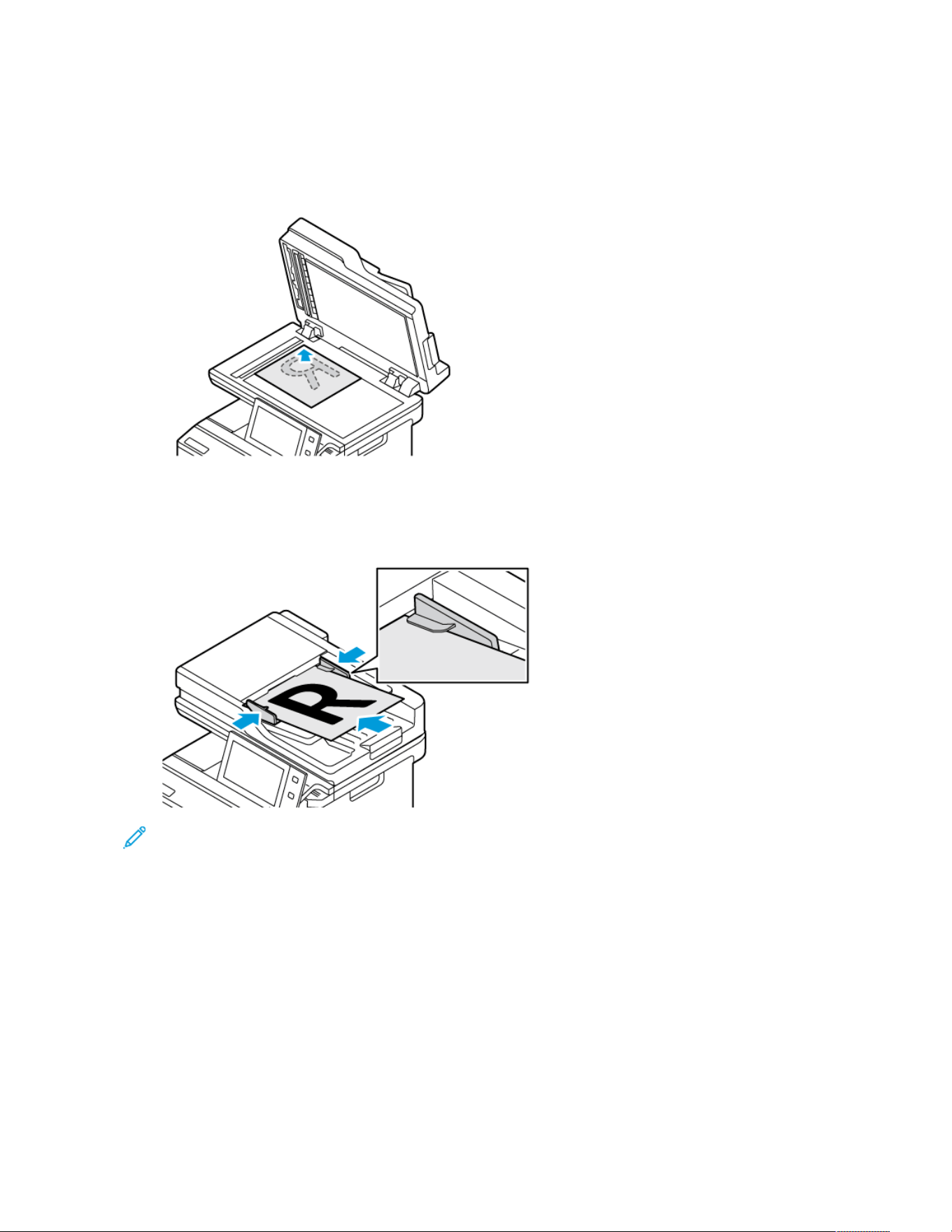
1. Load your original documents.
• For single pages or paper that cannot be fed using the duplex automatic document feeder, use the
document glass. Lift the duplex automatic document feeder, then place the original document face down in
the upper-left corner of the document glass.
• For multiple, single, or 2-sided pages, use the duplex automatic document feeder. Remove all staples and
paper clips from the pages. Insert the original documents face up in the duplex automatic document feeder
with the top of the page entering the feeder first. Adjust the paper guides so that they fit against the
original documents.
Note:
• When the original documents are detected, the automatic document feeder confirmation indicator LED
illuminates.
• If the Default Screen When Originals Are Detected feature is configured, when the original
documents are detected, the default app is launched automatically.
• If the Auto Start When Originals Are Detected feature is enabled, when the original documents are
detected, the job starts automatically and the countdown screen is displayed. To stop the countdown
and program the job manually, touch Cancel.
2. At the printer control panel, press the Home button.
3. Touch Email.
4. To clear previous app settings, touch Reset.
134
Xerox
®
VersaLink
®
C415 Color Multifunction Printer User Guide
Xerox
®
Apps

5. Enter recipients.
• If the entry screen appears, to enter a recipient, touch an option, or touch X.
• To select a contact or group from the Address Book, touch Device Address Book. Touch Favorites or
Contacts, then select a recipient. Touch OK.
• To select a contact from the Network Address Book, touch Network Address Book. Enter a name, touch
Search, then select a recipient. Touch OK.
• To enter the email address manually, touch Manual Entry. In the Enter Email Address field, enter the email
address, then touch Add.
• To add your own email address to the recipient list, touch Add Me. If necessary, enter your login details.
• To add more recipients, touch Add Recipient, then repeat the procedure.
Note: The choices available for adding recipients depend on system configuration.
6. To organize the recipients, touch one of the recipient names on the list. From the menu, select To:, Cc:, or Bcc:.
7. Adjust the email settings as needed.
• To change the subject, touch Subject, enter a new subject, then touch OK.
• To save the scanned document with a specific file name, touch the attachment file name, enter a new
name, then touch OK.
• To save the scanned document as a specific file format, touch the attachment file format, then select the
required format.
Note: To create a searchable file or to add password protection, from the File Format menu, select More.
Note: To create multiple files with a fixed number of pages, under File Options, select Choose Pages Per
File and set a number.
• To change the email message, touch Message, enter a new message, then touch OK.
• To scan more documents using the document glass or to change settings for different sections of the job,
touch Build Job.
• If you are scanning from 2-sided original documents, touch 2-Sided Scanning, then select an option.
For details about available features, refer to Apps Features.
8. To start the scan, touch Send.
9. If Build Job is enabled, touch Scan, then, when prompted, do these steps.
• To change settings, touch Program Next Segment.
• To scan another page, touch Scan Next Segment.
• To finish, touch Submit.
10. For logged-in users, if the Adaptive Learning feature is enabled for Personalization, a suggestion to create a 1-
Touch App can appear for repetitive or complex jobs. To create a personalized 1-Touch App, touch Create 1-
Touch App, then set up the app as required. To decline the suggestion, touch Cancel.
For more information about the Personalization feature, and 1-Touch App creation, refer to Personalize.
11. To return to the Home screen, press the Home button.
Xerox
®
VersaLink
®
C415 Color Multifunction Printer User Guide 135
Xerox
®
Apps

ADDING OR EDITING CONTACTS IN THE DEVICE ADDRESS BOOK FROM THE CONTROL PANEL
You can set up the Device Address Book using the Embedded Web Server. The Address Book can contain up to
5000 contacts that you can access when you enter recipients or destinations using apps.
To add or edit contacts in the Device Address Book from the control panel:
Note: Before you can use this feature, the system administrator must enable Create/Edit Contact from Touch
Screen for All Users.
1. Load your original documents.
2. At the printer control panel, press the Home button.
3. Touch Email.
4. To clear previous App settings, touch Reset.
5. Touch Manual Entry. To enter an email address, use the touch screen keypad.
6. To add the recipient to the Device Address Book, touch the Address Book icon.
7. Do one of the following steps.
• To create an entry, touch Create New Contact. To enter contact details, touch a field, then use the touch
screen keypad. Touch OK.
• To add to an existing entry, touch Add to Existing Contact. In the list, touch a contact. To find a contact,
touch Search.
8. To mark a recipient to appear as a favorite option, touch the Star icon.
9. Adjust the email settings as needed.
10. To start the scan, touch Send.
11. To return to the Home screen, press the Home button.
136
Xerox
®
VersaLink
®
C415 Color Multifunction Printer User Guide
Xerox
®
Apps

Workflow Scanning
WORKFLOW SCANNING OVERVIEW
The Workflow Scanning App allows you to scan an original document, distribute, and archive
the scanned image file. The Workflow Scanning feature simplifies the task of scanning many
multi-page documents and saving the scanned image files in one or more file locations.
Note: The system administrator must set up this feature before you can use it. For details, refer to the
System Administrator Guide at www.xerox.com/office/VLC415docs.
The Workflow Scanning App enables you to scan documents using pre-defined settings to a range of file
destinations quickly and easily. There are several workflow options:
• Distribution workflows enable you to scan documents to one or more file destinations. File destinations include
an FTP site, a website, and a network server. You can add fax destinations to workflows too.
• Scan to Mailbox enables you to scan documents to public or private mailbox folders on the printer.
• Scan to Home enables you to scan documents to a personal Home folder on your network.
• Scan to USB enables you to scan documents to a connected USB flash drive.
Note:
• To scan original documents to a file destination associated with a contact in the address book, refer to
Scan To.
• To scan original documents to an email address, refer to Email.
For information about all the Workflow Scanning App features and available settings, refer to Apps Features.
For details on configuring and customizing the Apps, refer to the System Administrator Guide at www.xerox.com/
office/VLC415docs.
If authentication or accounting is enabled on your device, to access features, enter your login details. For details
about Personalization for logged-in users, refer to Personalize.
USING WORKFLOW SCANNING
To scan an original document:
Xerox
®
VersaLink
®
C415 Color Multifunction Printer User Guide 137
Xerox
®
Apps
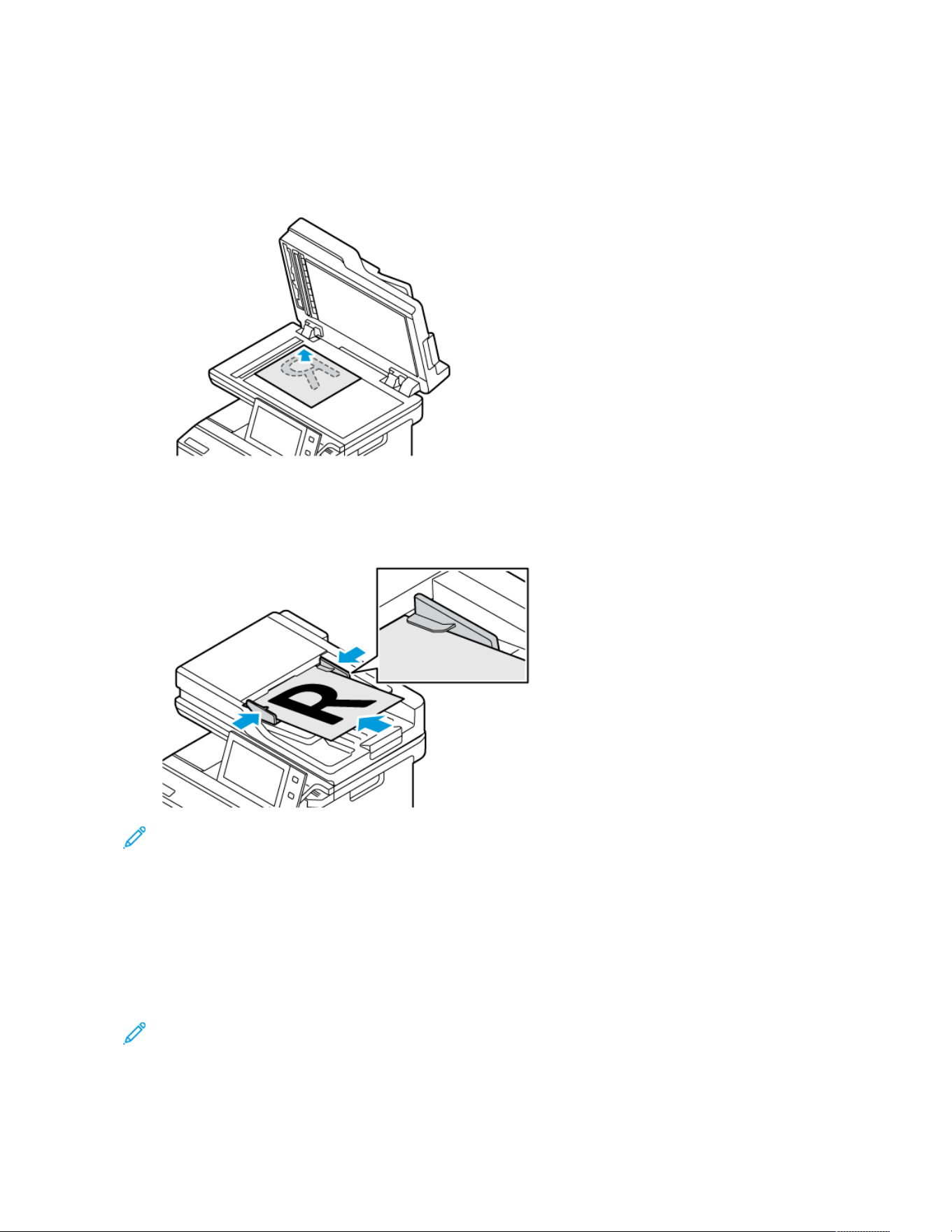
1. Load your original documents.
• For single pages or paper that cannot be fed using the duplex automatic document feeder, use the
document glass. Lift the duplex automatic document feeder, then place the original document face down in
the upper-left corner of the document glass.
• For multiple, single, or 2-sided pages, use the duplex automatic document feeder. Remove any staples and
paper clips from the pages. Insert the original documents face up in the duplex automatic document feeder
with the top of the page entering the feeder first. Adjust the paper guides so that they fit against the
original documents.
Note: When the original documents are detected, the automatic document feeder confirmation indicator
LED illuminates.
2. At the printer control panel, press the Home button.
3. Touch Workflow Scanning.
4. To clear previous app settings, touch Reset.
5. To select a workflow, from the Pick a Workflow screen, touch an option. If necessary, to refresh the workflow list,
touch Update.
Note: If the Pick a Workflow screen does not appear automatically, to display the screen, touch Change
Workflow.
6. If needed, enter recipients, workflow destination details, or browse to the location required for the scanned
documents.
138
Xerox
®
VersaLink
®
C415 Color Multifunction Printer User Guide
Xerox
®
Apps

7. To add a file destination, touch Add File Destinations. From the list, select a file destination.
Note: You can add file destinations to a workflow from the predefined list of file repository settings.
• In the Embedded Web Server, to create a new workflow, you can add file destinations from the
predefined list.
• In the Workflow Scanning App, for a selected workflow, you can add more file destinations from the
predefined list.
For details, refer to the System Administrator Guide at www.xerox.com/office/VLC415docs.
8. Adjust the workflow scanning settings as needed.
• To save the scanned document with a specific file name, touch the attachment file name, enter a new
name, then touch OK.
• To save the scanned document as a specific file format, touch the attachment file format, then select the
required format.
Note: To create multiple files with a fixed number of pages, under File Options, select Choose Pages Per
File and set a number.
• To define what action the device takes when the filename is used already, touch If File Already Exists.
Select an option, then touch OK.
Note: If the Add to pdf folder option is not available, access the Embedded Web Server, then enable the
Filing Option settings. For details, refer to the System Administrator Guide at www.xerox.com/office/
VLC415docs.
• If you are using the document glass, to combine pages into a single scan file, enable the Build Job feature.
To enable the feature, touch the toggle button for Build Job.
• If you are scanning from 2-sided original documents, touch 2-Sided Scanning, then select an option.
For details about available features, refer to Apps Features.
9. To start the scan, touch Scan.
10. If Build Job is enabled, when prompted, do these steps:
• To change settings, touch Program Next Segment.
• To scan another page, touch Scan Next Segment.
• To finish, touch Submit.
11. To return to the Home screen, press the Home button.
Note:
• For remote scanning, a network connection is required.
• For details about remote scanning, refer to the Help in the Embedded Web Server.
• Print, copy, and fax jobs can print while you are scanning original documents or downloading files from
the printer.
Xerox
®
VersaLink
®
C415 Color Multifunction Printer User Guide 139
Xerox
®
Apps

Distribution Workflows
Distribution Workflows are customized workflows used in the Workflow Scanning App. A workflow contains pre-
programmed settings for a scan job that specify how and where scanned documents are distributed. A workflow
can include one or more file destinations, as well as fax destinations. You can store customized scan settings in each
workflow.
Using the Embedded Web Server, you can create a workflow using one or more scan destinations. The following
options are available:
• Predefined scan destinations from the list of file repositories.
• New scan destinations such as an FTP site, a website, or an SMB server.
• Fax number destinations.
When you create a workflow, it appears in the list of workflows in the Pick a Workflow screen of the Workflow
Scanning App.
At the printer control panel, when you select a workflow, you can change the scan settings and add more scan
destinations from the predefined list.
Predefined Network File Repositories
A file repository is a predefined file destination that you can use in a workflow. You can use the printer control panel
to add a file repository to a workflow.
The system administrator configures the file repositories available as predefined scanned file destinations. At least
one repository must be set up for the Workflow Scanning feature to be available. For details, refer to the System
Administrator Guide at www.xerox.com/office/VLC415docs.
Note: On the Pick a Workflow screen, the DEFAULT workflow is associated with the default file repository.
Creating a New Workflow
1. At your computer, open a Web browser, in the address field, type the IP address of the printer, then press Enter
or Return.
Note: For details about obtaining the IP address of your printer, refer to Finding the IP Address of Your
Printer.
2. Click the Scan tab.
3. In the Display area, select Workflows, then select Create New Workflow.
4. For Add Destination to Workflow, select an option:
• To add an existing file destination to the workflow, select Select from a Predefined List.
• To add a file destination to the workflow, select Enter a Scan Destination.
• To add a fax destination to the workflow, select Enter a Server Fax Number.
5. For Select from a Predefined List, select a destination from the File Destination list, then click Add.
6. For Enter a Scan Destination, add these details:
a. Click the Friendly Name field, then enter a name for the scan destination.
140
Xerox
®
VersaLink
®
C415 Color Multifunction Printer User Guide
Xerox
®
Apps

b. For Protocol, select an option, then enter the destination address.
• For IP Address, enter the IP Address: Port number.
• For Host Name, enter the Host Name: Port number.
c. Enter the name of the destination folder as needed. In SMB, the destination folder is the shared folder.
d. In Document Path, enter the name of the subfolder within the destination folder. Select a Filing Policy.
e. Enter a valid login name and password.
Note: Use the login name for the computer that holds the destination folder. The login name can include
the domain name, such as domain name\login name.
7. Click Add.
8. To add another destination to the workflow:
• To add a file destination, for File Destinations, click Add.
• To add a fax destination, for Fax Destinations, click Add.
9. Set the scan settings for the workflow as required.
After a workflow is created in the Embedded Web Server, the workflow is added to the list in the Workflow Scanning
App.
Scanning to a Shared Network Folder
You can scan to a shared folder on a network using SMB. The folder can be on a server or computer running SMB
services.
To scan to a shared network folder, create a shared folder with read and write access privileges.
Sharing a Folder on a Windows Computer
1. Open Windows Explorer.
2. Right-click the folder you want to share, then select Properties.
3. Click the Sharing tab, then click Advanced Sharing.
4. Select Share this folder.
5. Click Permissions.
6. Select the Everyone group, then verify that all permissions are enabled.
7. Click OK.
Note: Remember the Share name for later use.
8. Click OK again.
9. Click Close.
Sharing a Folder in Macintosh OS X Version 10.7 and Later
1. From the Apple menu, select System Preferences.
2. From the System Preferences window, select Sharing, then select File Sharing.
Xerox
®
VersaLink
®
C415 Color Multifunction Printer User Guide 141
Xerox
®
Apps

3. Under Shared Folders, click the Plus icon (+). Browse to the folder that you want to share on the network, then
click Add.
4. To modify access rights for your folder, select the folder. The groups activate.
5. From the Users list, click Everyone, then use the arrows to select Read & Write.
6. Click Options, then select a share-folder option.
• To share the folder, select Share files and folders using SMB.
• To share the folder with specific users, next to the user name, select On.
7. Click Done.
8. Close the System Preferences window.
Note: When you open a shared folder, a Shared Folder banner appears in the Finder for the folder and
subfolders.
Scanning to a Mailbox Folder
Scanning to a folder is the simplest scanning method. This function allows users to scan files to mailboxes, which
are folders created on the printer. When you scan an image at the printer, the scan file is stored in a folder on the
printer. You can use the Embedded Web Server to retrieve the stored scan file to save to your computer.
The default settings create a 1-sided, color, portable document format ..ppddff file. You can change the default settings
using the printer control panel, or using the Embedded Web Server at your computer. Control panel selections
override the settings in the Embedded Web Server.
Scanning to the Public Mailbox Folder
The printer provides a public mailbox folder to store scanned images. You do not need a password to scan images
to the public mailbox folder, or to retrieve the scanned images. All users can view scanned documents in the public
mailbox folder. You can create a password-protected private mailbox folder. For details, refer to Creating a Private
Mailbox Folder.
To scan an image to the public mailbox folder:
1. Load your original documents.
2. At the printer control panel, press the Home button.
3. Touch Workflow Scanning.
4. To select a workflow, from the Pick a Workflow screen, touch Default Public Mailbox.
Note: If the Pick a Workflow screen is not automatically displayed, to display it, touch Change Workflow.
5. To add a file destination, touch Add File Destinations, then select a file destination from the list.
142
Xerox
®
VersaLink
®
C415 Color Multifunction Printer User Guide
Xerox
®
Apps

6. Adjust the workflow scanning settings as needed.
• To save the scanned document with a specific file name, touch the attachment file name, enter a new
name, then touch OK.
• To save the scanned document as a specific file format, touch the attachment file format, then select the
required format.
Note: To create multiple files with a fixed number of pages, under File Options, select Choose Pages Per
File and set a number.
• If you are using the document glass, to combine pages into a single scan file, enable Build Job.
• If you are scanning from 2-sided original documents, touch 2-Sided Scanning, then select an option.
For details about available features, refer to Apps Features.
7. To start the scan, touch Scan. The Job Progress screen appears, and the original document is scanned. The
printer stores the scanned image on the printer.
8. If Build Job is enabled, when prompted, do these steps.
• To change settings, touch Program Next Segment.
• To scan another page, touch Scan Next Segment.
• To finish, touch Submit.
9. To move the file to your computer, use the Embedded Web Server. For details, refer to Retrieving Scan Files
from a Mailbox Folder.
Scanning to a Private Mailbox Folder
This feature allows you to scan documents to a private mailbox folder. Private mailbox folders can require a
password.
You can use the Embedded Web Server to create your private mailbox folders. For details, refer to Creating a Private
Mailbox Folder.
To scan to a private mailbox folder:
1. Load your original documents.
2. At the printer control panel, press the Home button.
3. Touch Workflow Scanning.
4. To select a workflow, from the Pick a Workflow screen, select a private mailbox folder.
Note: If the Pick a Workflow screen is not automatically displayed, to display it, touch Change Workflow.
5. On the Mailbox Password screen, enter the password, then touch OK.
6. To add a file destination, touch Add File Destinations, then select a file destination from the list.
Xerox
®
VersaLink
®
C415 Color Multifunction Printer User Guide 143
Xerox
®
Apps

7. Adjust the workflow scanning settings as needed.
• To save the scanned document with a specific file name, touch the attachment file name, enter a new
name, then touch OK.
• To save the scanned document as a specific file format, touch the attachment file format, then select the
required format.
Note: To create multiple files with a fixed number of pages, under File Options, select Choose Pages Per
File and set a number.
• If you are using the document glass, to combine pages into a single scan file, enable Build Job.
• If you are scanning from 2-sided original documents, touch 2-Sided Scanning, then select an option.
For details about available features, refer to Apps Features.
8. To start the scan, touch Scan.
9. If Build Job is enabled, when prompted, do these steps:
• To change settings, touch Program Next Segment.
• To scan another page, touch Scan Next Segment.
• To finish, touch Submit.
10. To move the file to your computer, use the Embedded Web Server. For details, refer to Retrieving Scan Files
from a Mailbox Folder.
Creating a Private Mailbox Folder
If the scan policy to allow additional folders is enabled, you can create a private mailbox folder. The system
administrator can create a private mailbox folder at any time. For details, refer to the System Administrator Guide at
www.xerox.com/office/VLC415docs.
To create a private mailbox folder with a password:
1. At your computer, open a Web browser, in the address field, type the IP address of the printer, then press Enter
or Return.
Note: For details about obtaining the IP address of your printer, refer to Finding the IP Address of Your
Printer.
2. Click the Scan tab.
3. In the Display section, select Mailboxes.
Note: If the Display section does not appear, Scan to Mailbox is not enabled. For details, refer to the System
Administrator Guide at www.xerox.com/office/VLC415docs.
4. In the Scan to Mailbox section, click Create Folder.
5. Click the Folder Name: field, then type a name for the folder.
6. In the Folder Password field, type a password that adheres to the password rules.
7. In the Confirm Folder Password field, type the password again.
8. Click Apply.
144
Xerox
®
VersaLink
®
C415 Color Multifunction Printer User Guide
Xerox
®
Apps

Your private mailbox folder appears in the mailbox folder list in the Embedded Web Server and on the printer touch
screen under Pick a Workflow. The contents are stored on the printer.
Retrieving Scan Files from a Mailbox Folder
You can use the Embedded Web Server to retrieve scan files from a mailbox folder and copy the files to your
computer.
To retrieve your scan files:
1. At your computer, open a Web browser, in the address field, type the IP address of the printer, then press Enter
or Return.
Note: For details about obtaining the IP address of your printer, refer to Finding the IP Address of Your
Printer.
2. Click the Scan tab.
3. In the Display section, select Mailboxes.
4. In the Scan to Mailbox section, click the folder containing the scan.
Note:
• For a password protected private folder, click the Folder Password field, type the password, then click
OK.
• If your image file does not appear, click Update View.
Your scan file appears in the Folder Contents window.
5. Under Action, select an option, then click Go.
• Download saves a copy of the file to your computer. When prompted, click Save, then navigate to the
location on your computer to save the file. Open the file or close the dialog box.
• Reprint prints the file without saving a copy of the file to your computer.
• Delete removes the file from the mailbox. When prompted, click OK to delete the file or Cancel to cancel
the operation.
Note: You can also print a mailbox file using the Print From App. For details, refer to Print From.
Xerox
®
VersaLink
®
C415 Color Multifunction Printer User Guide 145
Xerox
®
Apps

Scanning to a User Home Folder
Scan to Home allows you to scan documents to a home directory on an external server. The home directory is
distinct for each authenticated user. The directory path is established through LDAP.
The Scan to Home feature is available as the Home workflow in the Workflow Scanning App.
To enable the Home workflow:
• Ensure that LDAP Network Authentication is configured.
• Ensure that Home folder locations are defined for each user in the LDAP directory.
Note: When a user logs in to the printer using network credentials, the Home workflow appears on the Pick a
Workflow screen.
To use the Home workflow:
1. Load your original documents.
2. To log in to the printer, touch Log In, then log in with your network credentials.
3. At the printer control panel, press the Home button.
4. Touch Workflow Scanning.
5. From the Pick a Workflow screen, touch the Home workflow.
Note:
• If the Pick a Workflow screen is not automatically displayed, to display it, touch Change Workflow.
• If the Home workflow is not displayed, check that you have logged in with the required credentials.
6. To add a file destination, touch Add File Destinations, then select a file destination from the list.
7. Adjust the workflow scanning settings as needed.
• To save the scanned document with a specific file name, touch the attachment file name, enter a new
name, then touch OK.
• To save the scanned document as a specific file format, touch the attachment file format, then select the
required format.
Note: To create multiple files with a fixed number of pages, under File Options, select Choose Pages Per
File and set a number.
• If you are using the document glass, to combine pages into a single scan file, enable Build Job.
• If you are scanning from 2-sided original documents, touch 2-Sided Scanning, then select an option.
For details about available features, refer to Apps Features.
8. To start the scan, touch Scan.
9. If Build Job is enabled, when prompted, do these steps.
• To change settings, touch Program Next Segment.
• To scan another page, touch Scan Next Segment.
• To finish, touch Submit.
146
Xerox
®
VersaLink
®
C415 Color Multifunction Printer User Guide
Xerox
®
Apps

10. To return to the Home screen, press the Home button.
Scanning to a USB Flash Drive
You can scan a document and store the scanned file on a USB Flash drive. The Scan to USB function produces scans
in .jpg, .pdf, .pdf (a), and .tiff file formats.
The Scan to USB feature is available as the USB workflow in the Workflow Scanning App.
Note: Only USB Flash drives formatted to FAT16, FAT32, and exFAT file systems are supported. exFAT support
is a licensed feature that requires a purchased FIK.
To scan to a USB Flash drive:
1. Load your original documents.
2. At the printer control panel, press the Home button.
3. Insert the USB Flash drive into the USB port.
Note: Ensure that at least one USB Type A Port is enabled.
4. At the USB Drive Detected screen, touch Scan to USB.
Note: If the USB Flash drive is inserted in the printer already, touch Workflow Scanning. Touch Change
Workflow, then touch USB.
5. To add a file destination, touch Add File Destinations, then select a file destination from the list.
6. Adjust the workflow scanning settings as needed.
• To save the scanned document as a specific file name, touch the attachment file name, enter a new name,
then touch OK.
• To save the scanned document as a specific file format, touch the attachment file format, then select the
required format.
Note: To create multiple files with a fixed number of pages, under File Options, select Choose Pages Per
File and set a number.
• If you are using the document glass, to combine pages into a single scan file, enable Build Job.
• If you are scanning from 2-sided original documents, touch 2-Sided Scanning, then select an option.
For details about available features, refer to Apps Features.
7. To start the scan, touch Scan.
8. If Build Job is enabled, when prompted, do the following:
• To change settings, touch Program Next Segment.
• To scan another page, touch Scan Next Segment.
• To finish, touch Submit.
CCaauuttiioonn:: Do not remove the USB Flash drive while the printer is processing the scan job. If you remove
the Flash drive before the transfer is complete, the file can become unusable and other files on the drive
can be damaged.
Xerox
®
VersaLink
®
C415 Color Multifunction Printer User Guide 147
Xerox
®
Apps

9. To return to the Home screen, press the Home button.
Single-Touch Apps
A Single-Touch App enables you to use a workflow without having to use the Workflow Scanning App. Single-Touch
Apps are displayed on the Home screen, and used with a single touch.
You can use the Embedded Web Server to design the app, associate it with a workflow, and assign user rights. For
details about creating Single-Touch Apps for workflow scanning destinations, refer to the System Administrator
Guide at www.xerox.com/office/VLC415docs.
148
Xerox
®
VersaLink
®
C415 Color Multifunction Printer User Guide
Xerox
®
Apps

Scan To
SCAN TO OVERVIEW
You can use the Scan To App to scan documents to multiple destinations and recipients in a
single scan. A Scan To destination can be an email address, a USB flash drive, an SMB network
location, or another remote destination. A Scan To recipient can be a contact in the device
address book or network address book, an email address, or the logged-in user.
The Scan To App supports the following scanning functions:
• Scan original documents to an email address. For details, refer to Scanning to an Email Address.
• Scan original documents to a USB flash drive. For details, refer to Scanning to a USB Flash Drive.
• Scan original documents to the email address associated with the logged-in user. For details, refer to Scanning
to the Logged-In User.
• Print the scanned original documents. For details, refer to Print Scanned Document.
• Scan original documents to remote destinations. For details, refer to Scanning to Remote Destinations.
• Metadata is any data associated with a scan file that can provide more information about the scan file. For
details, refer to Metadata.
To scan documents to one or more file destinations using customized workflows, refer to Workflow Scanning.
For information about all the Scan To App features and available settings, refer to Apps Features.
For details on configuring and customizing the Apps, refer to the System Administrator Guide at www.xerox.com/
office/VLC415docs.
If authentication or accounting is enabled on your device, to access features, enter your login details. For details
about Personalization for logged-in users, refer to Personalize.
SCANNING TO AN EMAIL ADDRESS
You can scan a document and send the scanned file to an email address. The Scan To App produces scans in ..jjppgg, ..
ppddff, ..ppddff ((aa)), and ..ttiiffff file formats.
Before you scan to an email address, ensure that you configure the printer with the email server information. For
details, refer to the System Administrator Guide at www.xerox.com/office/VLC415docs.
To scan an image and send it to an email address:
1. Load the original document on the document glass or into the automatic document feeder.
Note:
• When the original documents are detected, the automatic document feeder confirmation indicator LED
illuminates.
• If the Default Screen When Originals Are Detected feature is configured, when the original
documents are detected, the default app is launched automatically.
Xerox
®
VersaLink
®
C415 Color Multifunction Printer User Guide 149
Xerox
®
Apps

• If the Auto Start When Originals Are Detected feature is enabled, when the original documents are
detected, the job starts automatically and the countdown screen is displayed. To stop the countdown
and program the job manually, touch Cancel.
2. At the control panel, touch Home.
3. Touch Scan To.
4. If the Scan To destination window does not appear, touch Add Destination.
5. Add recipients.
• To enter the email address manually, touch Email. Enter an email address, then touch Add.
• To select a contact or group from the Device Address Book, touch Device Address Book. Touch Favorites
or Contacts, then select a recipient.
• To select a contact or group from the Network Address Book, touch Network Address Book. In the search
bar, type the name of the contact or group that you want to add, then touch Search. From the list of
results, select a recipient.
Note: For details about using the Address Book and managing and creating Favorites, refer to the System
Administrator Guide at www.xerox.com/office/VLC415docs.
6. To add another Scan To destination, touch Add Destination, then select the required destination.
7. To save the scanned document as a specific filename, touch the attachment filename, then enter a new name
using the touch screen keypad. Touch Enter.
8. To save the scanned document as a specific file format, touch the attachment file format, then select the
required format.
Note: To make scanned documents searchable, your system administrator can enable the Searchable
feature.
Note: To create multiple files with a fixed number of pages, under File Options, select Choose Pages Per
File and set a number.
9. Adjust scanning options as needed.
• To change the email subject line, touch Subject. Enter a new subject line using the touch screen keypad,
then touch Enter.
• To change the email body message, touch Message. Enter a new message, then touch OK.
• To scan multiple pages using the document glass, or to change settings for different sections of the job,
touch Build Job.
10. To begin the scan, touch Scan.
11. If Build Job is enabled, when prompted, do these steps.
• To change settings for the next segment of the document, touch Program Segment.
• To scan another page, load the new document onto the document glass, then touch Scan Segment.
• To finish, touch Submit.
150
Xerox
®
VersaLink
®
C415 Color Multifunction Printer User Guide
Xerox
®
Apps

12. For logged-in users, if the Adaptive Learning feature is enabled for Personalization, a suggestion to create a 1-
Touch App can appear for repetitive or complex jobs. To create a personalized 1-Touch App, touch Create 1-
Touch App, then set up the app as required. To decline the suggestion, touch Cancel.
For more information about the Personalization feature, and 1-Touch App creation, refer to Personalize.
13. To return to the Home screen, press the Home button.
SCANNING TO A USB FLASH DRIVE
You can scan a document and store the scanned file on a USB Flash drive. The Scan To App produces scans in ..jjppgg, ..
ppddff, ..ppddff ((aa)), and ..ttiiffff file formats.
Note: Only USB Flash drives formatted to FAT16, FAT32, and exFAT file systems are supported. exFAT support
is a licensed feature that requires a purchased FIK.
To scan to a USB Flash drive:
1. Load the original document on the document glass or in the automatic document feeder.
2. At the printer control panel, press the Home button.
3. Touch Scan To.
4. If the Scan To destination window does not appear, touch Add Destination.
5. Insert your USB Flash drive into the USB port on the front of the printer, then touch USB.
Note: Ensure that at least one USB Type A Port is enabled.
Note: If you select USB as the Scan To destination before inserting a USB Flash drive, you will be prompted
to insert it.
6. To add another Scan To destination, touch Add Destination, then select the required destination.
7. To save the scanned document as a specific file name, touch the attachment file name, then enter a new name
using the touch screen keypad. Touch Enter.
8. To save the scanned document as a specific file format, touch the attachment file format, then select the
required format.
Note: To create multiple files with a fixed number of pages, under File Options, select Choose Pages Per
File and set a number.
9. Adjust scanning features as needed.
10. To scan multiple pages using the document glass, or to change settings for different sections of the job, touch
Build Job.
11. To begin the scan, press Scan.
12. If Build Job is enabled, when prompted, do these steps.
• To change settings for the next segment of the document, touch Program Segment.
• To scan another page, load the new page onto the document glass, then touch Scan Segment.
• To finish, touch Submit.
The printer scans your images to the root folder of the USB Flash drive.
Xerox
®
VersaLink
®
C415 Color Multifunction Printer User Guide 151
Xerox
®
Apps

13. If you are scanning from the document glass, when prompted, to finish, touch Done or to scan another page,
touch Add Page.
Note: If you are scanning a document from the automatic document feeder, a prompt does not appear.
WWaarrnniinngg:: Do not remove the USB Flash drive while the device is scanning and processing the job. If you
remove the Flash drive before the transfer is complete, the file can become unusable and other files on the
drive can be damaged.
14. To return to the Home screen, press the Home button.
SCANNING TO THE LOGGED-IN USER
You can use the Add Me function to scan a document and send the scanned file to the email address associated
with a logged-in user.
Note: Only users authenticated through an LDAP server can have an associated email address.
Before scanning to a logged-in user, ensure that LDAP user authentication is configured. For details, refer to the
System Administrator Guide at www.xerox.com/office/VLC415docs.
The Scan To App produces scans in ..jjppgg, ..ppddff, ..ppddff ((aa)), and ..ttiiffff file formats.
To scan an image and send it to the email address of the logged-in user:
1. Load the original document on the document glass or into the automatic document feeder.
2. At the control panel, touch Home.
3. Touch Scan To.
4. If the Scan To destination window does not appear, touch Add Destination.
5. Touch Add Me.
6. If you are not logged in, a login screen appears. Enter your LDAP network user name and password, then touch
Done.
7. To add another Scan To destination, touch Add Destination, then select the required destination.
8. To save the scanned document with a specific file name, touch the attachment file name, then enter a new
name using the touch screen keypad. Touch Enter.
9. To save the scanned document as a specific file format, touch the attachment file format, then select the
required format.
Note: To make scanned documents searchable, your system administrator can enable the Searchable
feature.
Note: To create multiple files with a fixed number of pages, under File Options, select Choose Pages Per
File and set a number.
10. Adjust scanning options as needed.
11. To scan multiple pages using the document glass, or to change settings for different sections of the job, touch
Build Job.
12. To begin the scan, touch Scan.
152
Xerox
®
VersaLink
®
C415 Color Multifunction Printer User Guide
Xerox
®
Apps

13. If Build Job is enabled, when prompted, do these steps:
• To change settings for the next segment of the document, touch Program Segment.
• To scan another page, load the new document onto the document glass, then touch Scan Segment.
• To finish, touch Submit.
14. To return to the Home screen, press the Home button.
METADATA
Metadata is any data associated with a scan file that can provide more information about the scan file. Using
customizable metadata, workflows can be streamlined, and downstream processes can be automated for efficient
document management.
The System Administrator can create multiple customizable metadata collections using the multifunction printer's
EWS.
Once created, these metadata collections can then be accessed from the control panel in the Scan To app to
selectively apply information from the collections to a scan job.
The information will be applied as metadata to the scan files by the multifunction printer.
Subsequently, the metadata in the scan files can be inspected for streamlining document management by
downstream processes.
For instance, when a scan file with a very specific set of reaches a remote destination, an automatic email can be
sent to an authority to take some action. For more details, refer to System Administrator Guide.
1. Touch Scan To app.
A screen appears to select destinations.
2. Complete the process to enter a destination’s details.
3. If metadata feature is enabled and configured properly by the System Administrator, then a screen may
appear to make metadata selections.
4. If the instructions from the System Administrator Guide were followed successfully to download the template
to create a metadata collection, a metadata collection may be available for making job-specific selections.
Note: For details on creation of a collection from the template, refer to System Administrator Guide.
5. Continuing from the template example from the System Administrator Guide, choose the job-specific metadata
(TTeeaacchheerrss, GGrraaddee, SSuubbjjeecctt, and SSttuuddeenntt).
Note: Touch on the Metadata feature row if metadata selections screen does not appear.
6. Touch Done.
7. Touch the Metadata feature row if you want to review or edit the metadata.
Note: Predefined metadata could be private or visible for review, based on the collection’s security settings.
8. Touch Scan.
Xerox
®
VersaLink
®
C415 Color Multifunction Printer User Guide 153
Xerox
®
Apps

9. Metadata will be embedded in selected format for the collection, and you will receive the file to your selected
destination.
Note: Refer to the System Administrator Guide for details on the metadata format. Contact your System
Administrator to change the format for the collection, if required.
PRINT SCANNED DOCUMENT
The Print Scanned Document destination allows both printing the scanned documents and transferring the scanned
documents electronically to remote destinations at the same time.
To print the scanned documents,
1. Add Print Scanned Document as a destination.
2. Add additional electronic destinations, if required.
3. Adjust the print settings like 2-Sided Printing, Finishing, Quantity, Paper Supply, Output Color, and Image Scale
and Placement, if required.
Note: Output Color is not displayed on mono machines.
4. Touch Scan to print the scanned documents.
SCANNING TO REMOTE DESTINATIONS
You can scan to the following remote destinations:
• Cloud Services: Dropbox, Google Drive, and Microsoft OneDrive
• FTP and SFTP
• SMB
The Scan To Cloud service is a licensed feature. Access to the service requires a feature installation key. To enable
this option, on the Feature Installation page, provide a Scan to Cloud Licensing feature installation key. To purchase
a Scan to Cloud Licensing feature installation key for your device, contact your Xerox representative.
For more information on configuring the Scan To Remote Destination feature, refer to the System Administrator
Guide.
Scanning to Cloud Services
Before you scan to a cloud destination, ensure that you configure the printer with the cloud service information. For
details, refer to the System Administrator Guide. To scan a document and send it to a cloud service, do the
following:
1. Load the original document on the document glass or into the duplex automatic document feeder.
2. At the control panel, press the Home button.
3. Touch Scan To.
4. Touch Dropbox, Google Drive, or Microsoft Onedrive.
5. If prompted, type a valid user name and password in the login window of the cloud provider, then touch Enter.
154
Xerox
®
VersaLink
®
C415 Color Multifunction Printer User Guide
Xerox
®
Apps

6. Select a folder location for your scanned document, then touch OK.
7. To save the scanned document as a specific file name, touch the file name. Enter a new name using the touch
screen keypad, then touch Enter.
8. To save the scanned document as a specific file format, touch the file format, then select the required format.
Adjust scanning options as needed.
Note: To create multiple files with a fixed number of pages, under File Options, select Choose Pages Per
File and set a number.
9. To begin the scan, touch Scan.
The printer scans documents to the folder that you specified.
Scanning to FTP or SFTP Server
Before you scan to an FTP or SFTP server, ensure that you configure the printer with the server information. For
details, refer to the System Administrator Guide. To scan a document and send it to an FTP or SFTP server, do the
following:
1. Load the original document on the document glass or into the duplex automatic document feeder.
2. At the control panel, press the Home button.
3. Touch Scan To.
4. Touch FTP or SFTP, then enter the server address.
5. If prompted, enter a valid user name and password, then touch Enter.
6. Select a folder location for your scanned document, then touch OK.
7. To save the scanned document as a specific file name, touch the file name. Enter a new name using the touch
screen keypad, then touch Enter.
8. To save the scanned document as a specific file format, touch the file format, then select the required format.
Adjust scanning options as needed.
Note: To create multiple files with a fixed number of pages, under File Options, select Choose Pages Per
File and set a number.
9. To begin the scan, touch Scan.
The printer scans documents to the folder that you specified.
10. If you are scanning from the document glass, when prompted, to finish, touch Done, or to scan another page,
touch Add Page.
Note: If you are scanning a document from the automatic document feeder, a prompt does not appear.
11. To return to the Home screen, press the Home button.
Scanning to a Shared Folder on a Networked Computer
You can scan a document and save the scanned file to a folder on a networked computer. The Scan To App
produces scans in ..jjppgg, ..ppddff, ..ppddff ((aa)), and ..ttiiffff file formats.
Xerox
®
VersaLink
®
C415 Color Multifunction Printer User Guide 155
Xerox
®
Apps

Note: To scan to a user home folder, use the Workflow Scanning App. For details, refer to Adding a Scan To
Destination to an Address Book Entry.
Before You Begin
Before scanning to a folder on a networked computer, perform these steps:
• Create a shared folder on your computer:
– For Windows, refer to Sharing a Folder on a Windows Computer.
– For Macintosh, refer to Sharing a Folder in Macintosh OS X Version 10.7 and Later.
• Configure an SMB Folder. For details, refer to the System Administrator Guide, at www.xerox.com/office/
VLC415docs.
• Use the Embedded Web Server to associate a Scan To destination with a Device Address Book contact. For
details, refer to Adding a Scan To Destination to an Address Book Entry.
Note: Ensure that the Address Book contains at least one contact with a scan-to destination.
Scanning to a Shared Folder on a Networked Computer
1. Load the original document on the document glass or into the automatic document feeder.
2. At the printer control panel, press the Home button.
3. Touch Scan To.
4. To specify the destination of the scanned document, select one of the following options.
• To scan to an SMB folder on a networked computer, touch Network. Browse to the required folder, or enter
the network path name, then touch OK.
Note: For information on configuring SMB folders, refer to the System Administrator Guide at www.xerox.
com/office/VLC415docs.
• To scan to a folder associated with a contact in the address book, touch Device Address Book. Select the
required contact, then touch the Scan To location.
Note: For details on how to associate a networked folder with an address book contact, refer to Adding a
Scan To Destination to an Address Book Entry.
5. To add another Scan To destination, touch Add Destination, then select the required destination.
6. To save the scanned document as a specific filename, touch the filename. Enter a new name using the touch
screen keypad, then touch Enter.
7. To save the scanned document as a specific file format, touch the file format, then select the required format.
Note: To create multiple files with a fixed number of pages, under File Options, select Choose Pages Per
File and set a number.
8. Adjust scanning options as needed.
9. To scan multiple pages using the document glass, or to change settings for different sections of the job, touch
Build Job.
10. To begin the scan, press Scan.
156
Xerox
®
VersaLink
®
C415 Color Multifunction Printer User Guide
Xerox
®
Apps

11. If Build Job is enabled, when prompted, do these steps.
• To change settings for the next segment of the document, touch Program Segment.
• To scan another page, load the new document onto the document glass, then touch Scan Segment.
• To finish, touch Submit.
12. To return to the Home screen, press the Home button.
ADDING A SCAN TO DESTINATION TO AN ADDRESS BOOK ENTRY
You can create Address Book contacts using the Embedded Web Server. A contact is a user with an associated email
address, fax number, or scan to destination. If a contact has been set up to include a scan to destination, the
contact is available for selection in the Scan To App. Contacts can be marked as a Favorite.
To create an address book contact and add a scan to destination:
1. At your computer, open a Web browser. In the address field, type the IP address of the printer, then press Enter
or Return.
Note: For details about obtaining the IP address of your printer, refer to Finding the IP Address of Your
Printer.
2. Click Address Book.
3. To add or edit a contact in the address book:
• To add a contact, click Add, then enter the contact information.
• To edit a contact, select the contact, then click Edit.
Note: If the Add button is unavailable, the address book has reached its limit. The Device Address Book can
contain up to 5000 contacts.
4. To associate a scan destination with this contact, for Scan To Destination, click the Add Destination (+) button.
Enter the nickname that you want to appear in the Address Book.
5. Under Protocol, select an option, then enter the destination address:
• For FTP, SFTP, or SMB:
• For IP Address, enter the IP Address: Port number.
• For Host Name, enter the Host Name: Port number.
• For Netware, enter the Server Name, Server Volume, NDS Tree, and NDS Context.
6. For SMB, in the Share field, enter the name of the destination folder. For example, to save scanned files to a
shared folder named scans, type scans.
7. In Document Path, enter the name of the subfolder within the destination folder. For example, to save the
scanned files to a folder named colorscans inside the scans folder, type colorscans.
8. Enter a valid login name and password.
Note: Use the login name for the computer that holds the destination folder. For SMB, the login name is
your computer user name.
9. To confirm the validity of the destination details, click Destination Test.
Xerox
®
VersaLink
®
C415 Color Multifunction Printer User Guide 157
Xerox
®
Apps

10. Click Save, or select Add Another Contact After Saving, then click Save.
Note: To mark a contact as a Favorite for email, fax, or scan to destination, for the appropriate field, click the
Star icon. If you click the Star icon for Display Name, the contact becomes a Global Favorite.
158
Xerox
®
VersaLink
®
C415 Color Multifunction Printer User Guide
Xerox
®
Apps

Fax
FAX OVERVIEW
When you send a fax from the printer control panel, the document is scanned and transmitted
to a fax machine, using a dedicated telephone line. You can use the Fax App to fax documents
to a fax number, an individual contact, or to a group of contacts.
You can use the Fax App to do the following tasks:
• Delay the send of your fax job for up to 24 hours.
• Send a fax from your computer.
• Forward fax documents to an email address.
• Print a fax from a secure folder.
The fax function works best with an analog phone line. Voice-Over-Internet Protocols (VOIPs) such as Fiber Optic
Service (FIOS) and Digital Subscriber Line (DSL) are not supported. Before you use the Fax App, configure the Fax
Settings to ensure that they are compatible with your local connection and regulations. The Fax Settings include
optional features you can use to configure the printer for faxing.
Note: Not all options listed are supported on all printers. Some options apply only to a specific printer model,
configuration, operating system, or print driver type.
For information about all the Fax App features and available settings, refer to Apps Features.
For details on configuring and customizing the Apps, refer to the System Administrator Guide at www.xerox.com/
office/VLC415docs.
If authentication or accounting is enabled on your device, to access features, enter your login details. For details
about Personalization for logged-in users, refer to Personalize.
SENDING A FAX
To send a fax:
Xerox
®
VersaLink
®
C415 Color Multifunction Printer User Guide 159
Xerox
®
Apps
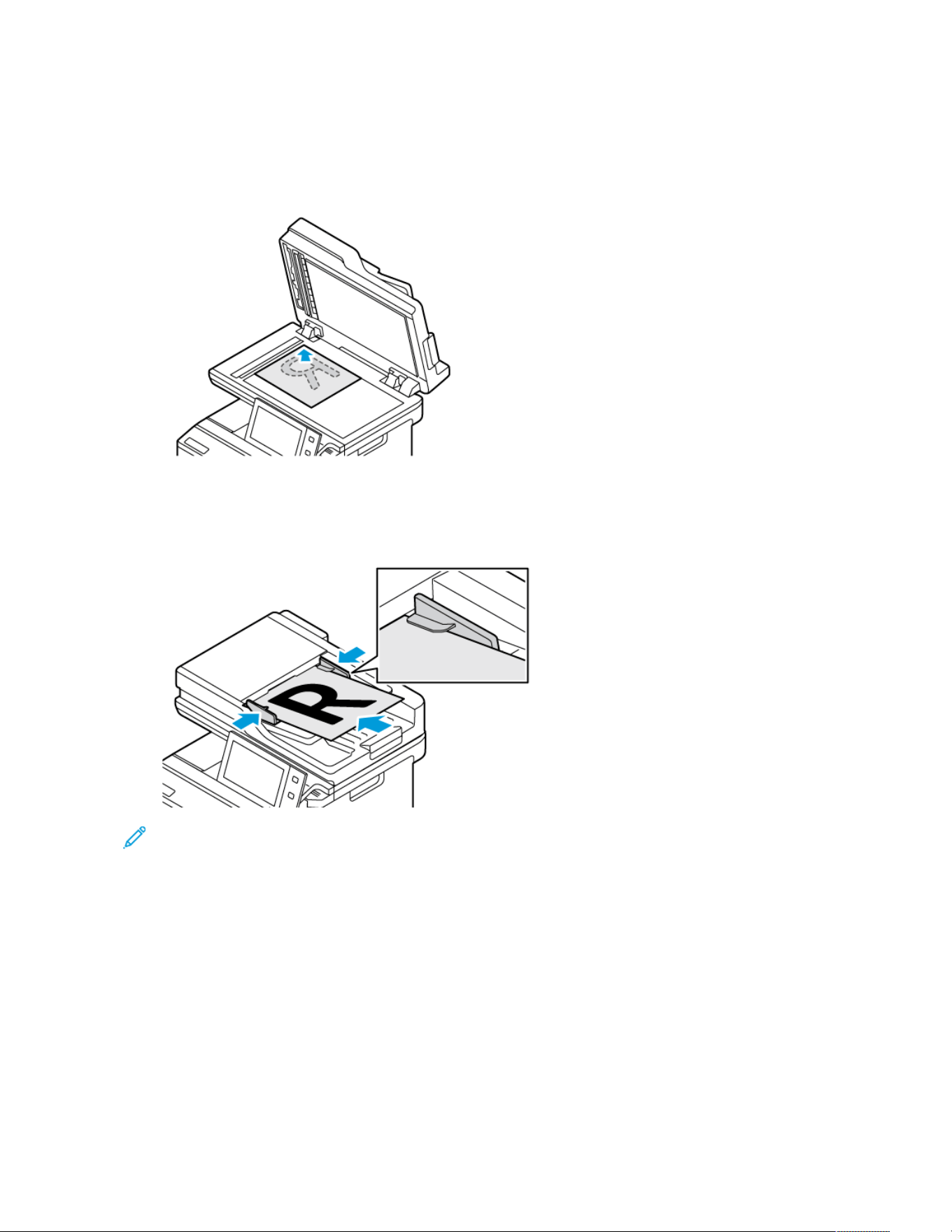
1. Load your original documents.
• For single pages or paper that cannot be fed using the duplex automatic document feeder, use the
document glass. Lift the duplex automatic document feeder, then place the original document face down in
the upper-left corner of the document glass.
• For multiple, single, or 2-sided pages, use the duplex automatic document feeder. Remove any staples and
paper clips from the pages. Insert the original documents face up in the duplex automatic document
feeder, with the top of the page entering the feeder first. Adjust the paper guides so that they fit against
the original documents.
Note:
• When the original documents are detected, the automatic document feeder confirmation indicator LED
illuminates.
• If the Default Screen When Originals Are Detected feature is configured, when the original
documents are detected, the default app is launched automatically.
• If the Auto Start When Originals Are Detected feature is enabled, when the original documents are
detected, the job starts automatically and the countdown screen is displayed. To stop the countdown
and program the job manually, touch Cancel.
2. At the printer control panel, press the Home button.
3. Touch Fax.
4. To clear previous app settings, touch Reset.
160
Xerox
®
VersaLink
®
C415 Color Multifunction Printer User Guide
Xerox
®
Apps

5. Enter recipients:
• If the entry screen appears, to enter a recipient, touch an option, or touch X.
• To select a contact or group from the Device Address Book, touch Device Address Book. Touch Favorites
or Contacts, then select a recipient.
• To enter the fax number manually, touch Manual Entry. In the Enter Fax Number field, enter the fax
number, then touch Add.
• To add more recipients, touch Add Recipient, then repeat the procedure.
Note: To insert a pause as needed, touch Dial Pause. To enter longer pauses, touch Dial Pause multiple
times.
6. Adjust the fax settings as needed.
• To scan more documents using the document glass or to change settings for different sections of the job,
touch Build Job.
• If you are scanning from 2-sided original documents, touch 2-Sided Scanning, then select an option.
For details about available features, refer to Apps Features.
7. Touch Send.
8. If Build Job is enabled, touch Scan, then, when prompted, do these steps:
• To change settings, touch Program Next Segment.
• To scan another page, touch Scan Next Segment.
• To finish, touch Submit.
9. To return to the Home screen, press the Home button.
FAX WORKFLOWS
Sending a Delayed Fax
You can set a time in the future for the printer to send your fax job. You can delay the sending of your fax job for up
to 24 hours.
Note: Before you use this feature, ensure that the printer is set to the current time. For details, refer to the
System Administrator Guide at www.xerox.com/office/VLC415docs.
To specify the time to send your fax:
1. Load your original documents.
2. At the printer control panel, press the Home button, then touch Fax.
3. Add fax recipients, then adjust fax settings as needed. For details, refer to Sending a Fax.
4. Touch Delay Send.
Xerox
®
VersaLink
®
C415 Color Multifunction Printer User Guide 161
Xerox
®
Apps

5. Touch Delay send, then set the time to send the fax.
• To set the hour, touch the Hour field, then use the numeric keypador touch the arrows.
• To set the minutes, touch the Minute field, then use the numeric keypad or touch the arrows.
• If your printer is set to display the 12-hour clock, touch AM or PM.
6. Touch OK.
7. Touch Send. The fax is scanned and saved, then sent at the specified time.
Adding a Cover Sheet
You can use the Cover Sheet option to add an introduction page to the beginning of your fax. You can add a short
comment to the cover sheet, as well as To and From details.
To include a cover sheet:
1. Load your original documents.
2. At the printer control panel, press the Home button, then touch Fax.
3. Add fax recipients, then adjust fax settings as needed. For details, refer to Sending a Fax.
4. Touch Cover Sheet > On.
5. To enter the name of the recipient, touch the To field, then use the touch screen keyboard. Touch OK.
6. To enter the name of the sender, touch the From field, then use the touch screen keyboard. Touch OK.
7. To add a comment, do one of the following steps.
• Touch an existing comment.
• Touch an <Available> comment, then touch the Edit icon. To type text, use the touch screen keypad. Touch
OK.
Note:
• To delete an existing comment, touch the comment, then touch X. To confirm the action, touch Delete.
• To edit an existing comment, touch the comment, then touch the Edit icon. To change the comment,
use the touch screen keypad. Touch OK.
8. Touch OK.
Printing a Secure Fax
When the Fax Secure Receive option is enabled, all faxes that the device receives are held in the Job list until you
enter a passcode. After you enter the passcode, the faxes are released and printed.
Note: Before you can receive a Secure Fax, ensure that the Secure Fax Receive feature is enabled. For details,
refer to the System Administrator Guide at www.xerox.com/office/VLC415docs.
To print a secure fax:
1. At the printer control panel, press the Home button.
2. Touch Jobs, then from the list, touch the secure fax job required.
162
Xerox
®
VersaLink
®
C415 Color Multifunction Printer User Guide
Xerox
®
Apps

3. Touch Print, then enter the passcode.
4. Touch Release All Fax Jobs.
All secure faxes print.
5. To return to the Home screen, press the Home button.
Deleting a Secure Fax
To delete a secure fax:
1. At the printer control panel, press the Home button.
2. Touch Jobs, then from the list, touch the secure fax job required.
3. Touch Delete, then enter the passcode.
4. Touch OK.
5. To return to the Home screen, press the Home button.
Adding or Editing Contacts in the Device Address Book from the Control Panel
You can set up the Device Address Book using the Embedded Web Server. The Address Book can contain up to
5000 contacts that you can access when you enter recipients or destinations using apps.
To add or edit contacts in the Device Address Book from the control panel:
Note: Before you can use this feature, the system administrator must enable Create/Edit Contact from Touch
Screen for All Users.
1. Load your original documents.
2. At the printer control panel, press the Home button.
3. Touch Fax.
4. To clear previous App settings, touch Reset.
5. Touch Manual Entry. To type the fax number, use the touch screen keypad.
6. To add the recipient to the Device Address Book, touch the Address Book icon.
7. Do one of the following steps.
• To create an entry, touch Create New Contact. Touch each field, then enter the contact details using the
touch screen keypad. Touch OK.
• To add to an existing entry, touch Add to Existing Contact. Touch a contact in the list, or use the Search
option to find a contact.
8. To mark a recipient to appear as a favorite option, touch the Star icon.
9. Adjust the fax settings as needed.
10. To start the scan, touch Send.
11. To return to the Home screen, press the Home button.
Xerox
®
VersaLink
®
C415 Color Multifunction Printer User Guide 163
Xerox
®
Apps

Sending a Fax From Your Computer
You can send a fax to the printer from an application on your computer.
Sending a Fax from Windows Applications
You can use the print driver to send a fax from Windows applications.
You can use the fax window to enter recipients, create a cover page with notes, and set options. You can send a
confirmation sheet, set the send speed, resolution, send time, and dialing options.
To send a fax from Windows applications:
1. With the desired document or image open in your application, open the Print dialog box. For most software
applications, click File > Print or press CTRL+P.
2. Select the required printer. To open the print driver dialog box, click Printer Properties.
3. On the Printing Options tab, from the Job Type list, select Fax.
4. In the Fax window, click the Recipients tab.
5. To add recipients manually:
a. Click the Add Recipient icon.
b. Type the recipient name and fax number, then add other information as required.
c. Click OK.
d. To add more recipients, repeat this procedure.
6. To add existing contacts from a phonebook:
a. Click the Add From Phonebook icon.
b. Select the required phonebook from the list.
c. Select names from the list, or search for a contact using the search bar.
d. To add the selected contacts to the Fax Recipients list, click the Down Arrow.
e. Click OK.
f. To add more recipients, repeat this procedure.
7. To include a cover sheet, click the Cover Sheet tab. From the Cover Sheet Options list, select Print a Cover
Sheet. Enter the details as needed, then click OK.
8. On the Options tab, select the required options, then click OK.
9. To save your settings and return to the main print dialog page, click OK.
10. Click Print. In the Fax Confirmation window, click OK.
Sending a Fax from Macintosh
®
Applications
You can use the print driver to send a fax from many Macintosh
®
applications. To install the print driver, refer to
Installing the Print Driver Software.
To send a fax from Macintosh
®
applications:
1. With the required document or image open in your application, open the Print dialog box. For most software
applications, click File > Print or press CMD+P.
164
Xerox
®
VersaLink
®
C415 Color Multifunction Printer User Guide
Xerox
®
Apps

2. Select the required printer.
3. In the Print window, in the print options list, click Xerox Features.
4. From the Paper/Output window, click Job Type, then click Fax.
5. To add a recipient, in the Fax window, click the Recipients tab, then click the Add Recipient icon. Type the
recipient name and fax number, add other information as required, then click OK. To add more recipients,
repeat this procedure.
6. To include a cover sheet, click the Cover Sheet tab. From the Cover Sheet list, select Print a Cover Sheet, then
enter the details as required.
7. To delay the fax send time, click the Options tab, click the Send Time menu, then click Send At. To enter the
send time, click the time entry field, then enter the time required.
8. To select additional fax options, from the Options window, select the fax settings required.
9. To save your settings and return to the main print dialog box, click OK.
10. To send the fax, click Print.
Xerox
®
VersaLink
®
C415 Color Multifunction Printer User Guide 165
Xerox
®
Apps

Server Fax
SERVER FAX OVERVIEW
Server Fax allows you to send a fax over a network to a fax server. The fax server then sends
the fax to a fax machine over a phone line. Before you can send a server fax, configure a fax
filing repository or filing location. The fax server retrieves the documents from the filing
location and transmits them over the telephone network.
For information about all the Server Fax App features and available settings, refer to Apps Features.
For details on configuring and customizing the Apps, refer to the System Administrator Guide at www.xerox.com/
office/VLC415docs.
If authentication or accounting is enabled on your device, to access features, enter your login details. For details
about Personalization for logged-in users, refer to Personalize.
SENDING A SERVER FAX
If a fax server is connected to the network, you can send a document to a fax machine without requiring a
dedicated telephone line.
When you use the server fax, a document is scanned and sent to a fax repository on the network. The fax server
sends the fax over a telephone line to a fax machine.
Before you can use the server fax, the system administrator is required to enable the server fax app and configure a
fax repository or filing location.
To send a server fax:
166
Xerox
®
VersaLink
®
C415 Color Multifunction Printer User Guide
Xerox
®
Apps
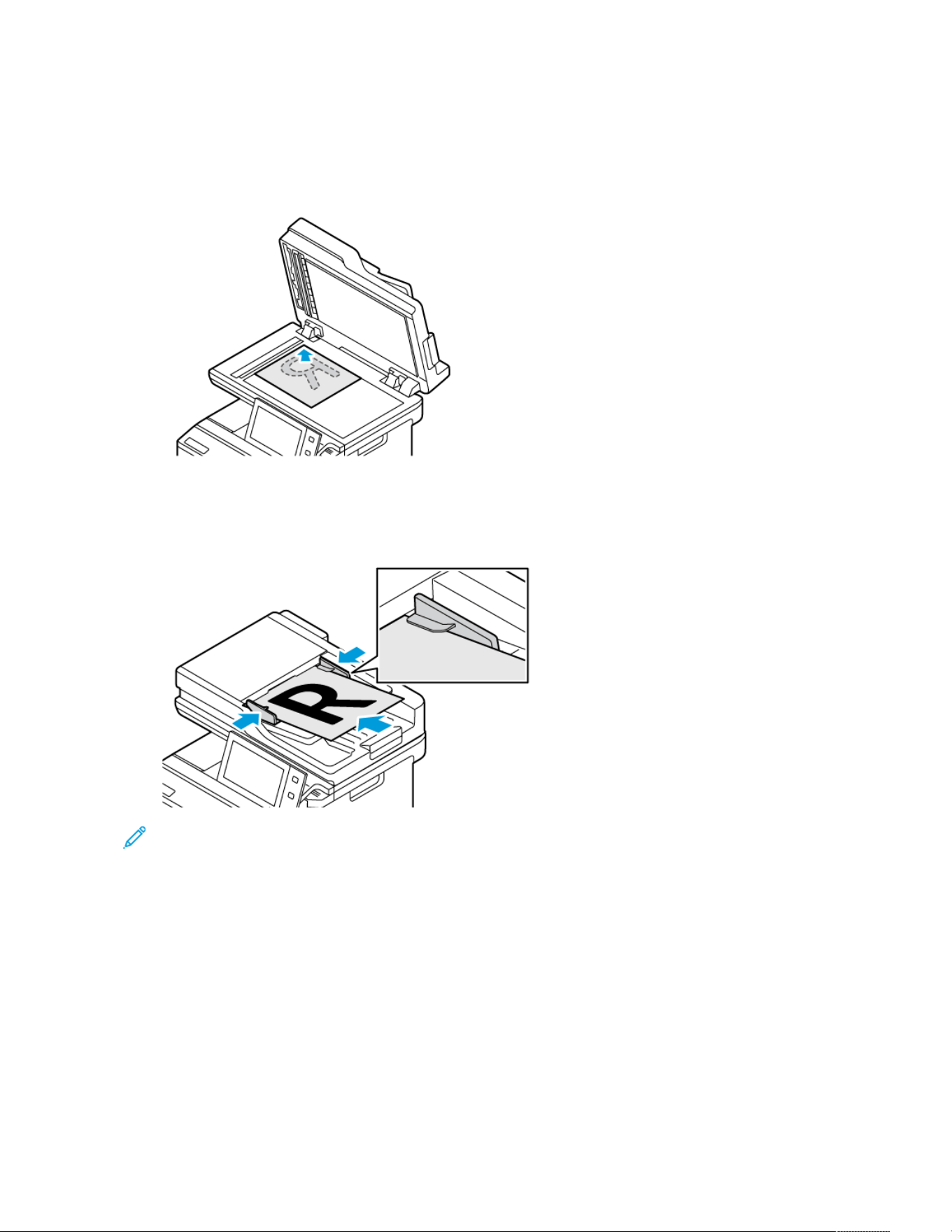
1. Load your original documents.
• For single pages or paper that cannot be fed using the duplex automatic document feeder, use the
document glass. Lift the duplex automatic document feeder, then place the original document face down in
the upper-left corner of the document glass.
• For multiple, single, or 2-sided pages, use the duplex automatic document feeder. Remove any staples and
paper clips from the pages. Insert the original documents face up in the duplex automatic document
feeder, with the top of the page entering the feeder first. Adjust the paper guides so that they fit against
the original documents.
Note: When the original documents are detected, the automatic document feeder confirmation indicator
LED illuminates.
2. At the device control panel, press the Home button.
3. Touch Server Fax.
4. To clear previous app settings, touch Reset.
Xerox
®
VersaLink
®
C415 Color Multifunction Printer User Guide 167
Xerox
®
Apps

5. Enter recipients.
• If the entry screen appears, touch an option, or touch X.
• To select a contact or group from the Device Address Book, touch Device Address Book, then select a
recipient.
• To enter the fax number manually, touch Manual Entry. In the Enter Fax Number field, enter the fax
number, then touch Add.
• To add more recipients, touch Add Recipient, then repeat the procedure.
Note: To insert a pause as needed, touch Dial Pause. To enter longer pauses, touch Dial Pause multiple
times.
6. Adjust server fax settings as needed.
• To scan more documents using the document glass or to change settings for different sections of the job,
touch Build Job.
• If you are scanning from 2-sided original documents, touch 2-Sided Scanning, then select an option.
For details about available features, refer to Apps Features.
7. Touch Send.
8. If Build Job is enabled, touch Scan, then, when prompted, do these steps;
• To change settings, touch Program Next Segment.
• To scan another page, touch Scan Next Segment.
• To finish, touch Submit.
9. To return to the Home screen, press the Home button.
SENDING A DELAYED SERVER FAX
You can set a time in the future for the printer to send your fax job. The delay can range from 15 minutes through
24 hours.
Note: Before you use this feature, set the printer to the current time.
To specify the time to send your server fax:
1. Load your original documents.
2. At the printer control panel, press the Home button.
3. Touch Server Fax.
4. Add server fax recipients, then adjust server fax settings as needed. For details, refer to Sending a Server Fax.
5. Touch Delay Send.
6. Touch Delay Send, then set the time to send the server fax:
• To set the hour, touch the Hour field, then use the numeric keypad or touch the arrows.
• To set the minutes, touch the Minute field, then use the numeric keypad or touch the arrows.
• If your printer is set to display the 12-hour clock, touch AM or PM.
168
Xerox
®
VersaLink
®
C415 Color Multifunction Printer User Guide
Xerox
®
Apps

7. Touch OK.
8. Touch Send. The fax is scanned and saved, then sent at the time you specified.
9. To return to the Home screen, press the Home button.
Xerox
®
VersaLink
®
C415 Color Multifunction Printer User Guide 169
Xerox
®
Apps
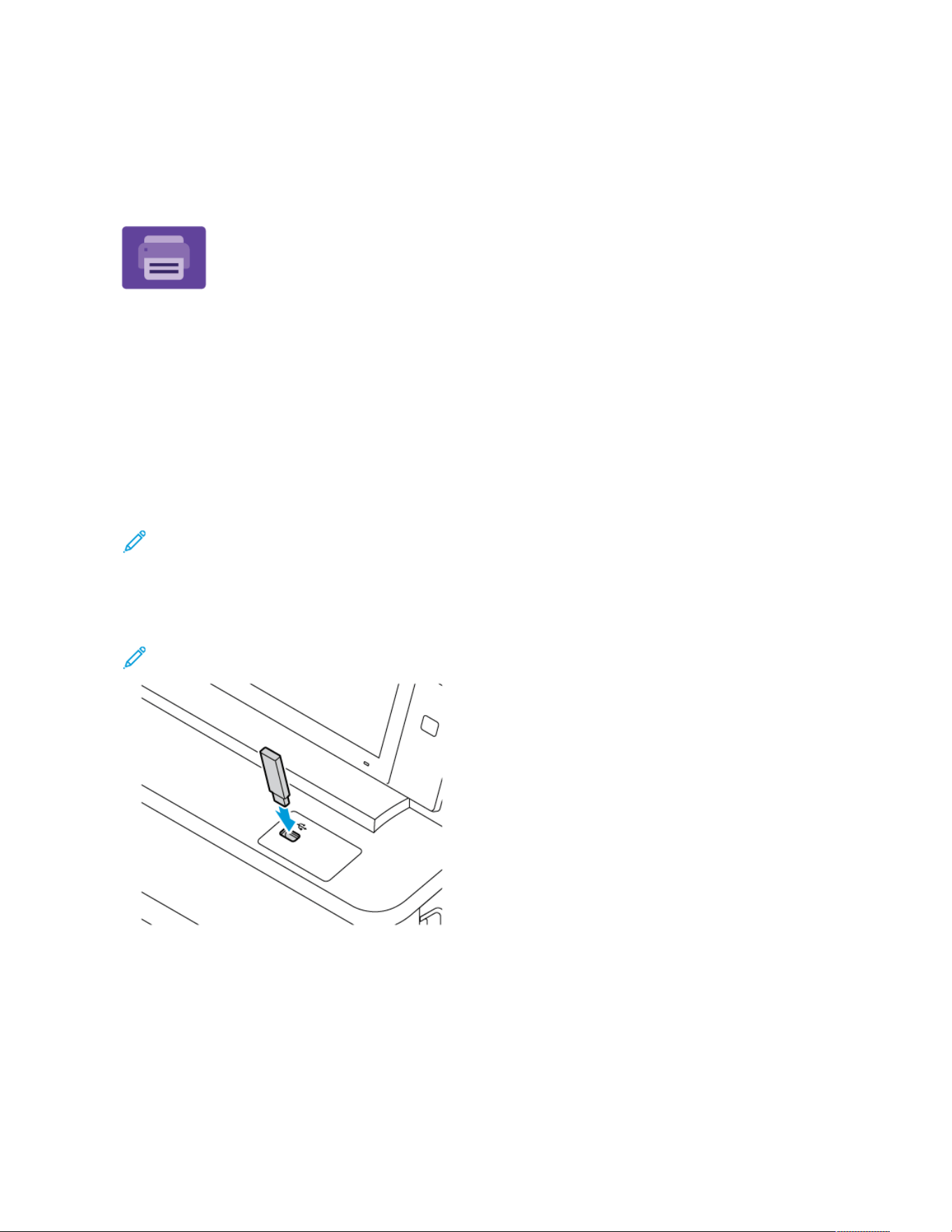
Print From
PRINT FROM OVERVIEW
You can use the Print From App to print jobs from various sources. You can print jobs stored in
a print-ready format from a USB stick. You can print saved jobs and jobs stored in a mailbox.
To create a print-ready file, when you print your documents from programs such as Microsoft
Word, select the print to file option. Check with your specific publishing application for options
to create print-ready files.
For details on configuring and customizing the Apps, refer to the System Administrator Guide at www.xerox.com/
office/VLC415docs.
If authentication or accounting is enabled on your device, to access features, enter your login details.
PRINTING FROM A USB FLASH DRIVE
You can print single or multiple files stored on a USB Flash drive. The USB port is on the front of the printer.
Note: Only USB Flash drives formatted to FAT16, FAT32, and exFAT file systems are supported. exFAT support
is a licensed feature that requires a purchased FIK.
To print from a USB Flash drive:
1. Insert the USB Flash drive into the USB port on the printer.
Note: Ensure that the USB port you want to use is enabled.
170 Xerox
®
VersaLink
®
C415 Color Multifunction Printer User Guide
Xerox
®
Apps
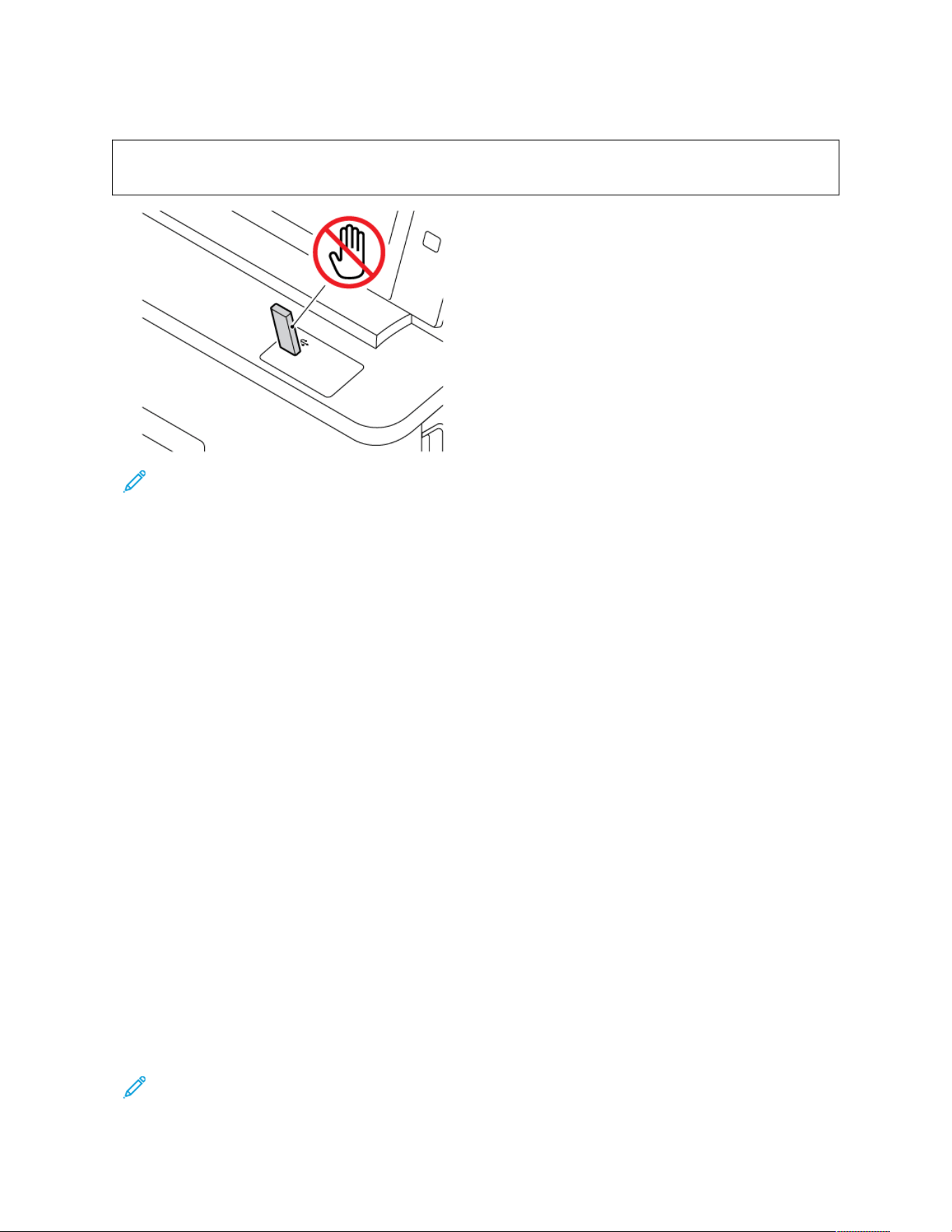
2. At the USB Drive Detected screen, touch Print from USB.
WWaarrnniinngg:: To avoid loss of data or printer malfunction, do not touch the flash drive or the printer in the
area shown while actively printing, reading, or writing from the memory device.
Note: If the Print from USB feature does not appear, enable the feature or contact your system
administrator. For details, refer to the System Administrator Guide at www.xerox.com/office/VLC415docs.
3. To select a file for printing, browse the file, then touch the check box. If multiple files require printing, browse
each file, then select the check box for each file.
4. Touch OK.
A list of files selected for printing appears.
5. To remove files from the printing list:
• To remove a single file, touch the file, then select Remove. To confirm removal, touch Remove.
• To remove all the files, touch a file, then select Remove All. To confirm removal, touch Remove All.
6. Adjust the feature settings as needed.
7. Touch Print.
8. When you are finished, remove the USB Flash drive.
9. To return to the Home screen, press the Home button.
PRINTING FROM SAVED JOBS
To print from saved jobs:
1. At the control panel, press the Home button, then touch Print From.
2. Touch Saved Jobs, then touch the name of the folder that contains the saved job.
3. Touch the name of the saved job that you want to print.
4. Select the options for paper supply, quantity, 2-Sided printing, and finishing.
5. Touch Print.
Note: To print a private saved job, at the Passcode Required screen, enter the passcode, then touch OK.
Xerox
®
VersaLink
®
C415 Color Multifunction Printer User Guide 171
Xerox
®
Apps

6. To print another saved job, touch the current job name, then touch Remove. Touch Add Document, touch
Saved Jobs, then navigate to the job required.
7. To return to the Home screen, press the Home button.
PRINTING FROM A MAILBOX
The print from mailbox feature allows you to print a file that is stored in a folder on the printer.
To print from a mailbox:
1. At the control panel, press the Home button, then touch Print From.
2. Select Mailboxes, then touch the name of the folder that contains the document.
Note: If Mailboxes does not appear, enable the feature or contact the system administrator. For details, refer
to the System Administrator Guide at www.xerox.com/office/VLC415docs.
3. Touch the name of the document that you want to print.
4. Select the options for paper supply, quantity, 2-Sided printing, and finishing.
5. Touch Print.
6. To select another job in the mailbox, touch the current job name, then touch Remove. Touch Add Document,
touch Mailboxes, then navigate to the job required.
7. To return to the Home screen, press the Home button.
172
Xerox
®
VersaLink
®
C415 Color Multifunction Printer User Guide
Xerox
®
Apps

@PrintByXerox
@PRINTBYXEROX OVERVIEW
You can use the Xerox
®
@PrintByXerox App to print email attachments and documents sent
to your printer from mobile devices.
When your Xerox device is connected to the Internet, the @PrintByXerox App works with
Xerox
®
Workplace Cloud for simple email-based printing.
Note: The @PrintByXerox App is free to use. For more advanced workflows, use Xerox
®
Workplace Cloud. The
Xerox
®
Workplace Cloud software requires a specific licence. For details, refer to the Xerox
®
@PrintByXerox
App Quick Start Guide available at www.xerox.com/XeroxAppGallery.
For details on configuring and customizing the Apps, refer to the System Administrator Guide at www.xerox.com/
office/VLC415docs.
If authentication or accounting is enabled on your device, to access features, enter your login details.
PRINTING WITH THE @PRINTBYXEROX APP
1. Send an email with an attachment that contains a supported file type to Print@printbyxerox.com.
First-time users receive a response email with a user ID and password.
2. At the Xerox device control panel, press the Home button.
3. Touch @PrintByXerox.
4. Enter your email address, then touch OK.
5. On the enter password screen, enter your password using the touch screen keypad, then touch OK.
6. Select the documents that you want to print.
7. To modify print settings, touch Print Settings, then touch OK.
8. To release your print jobs, touch Print.
• A Submitting Jobs to Print message and the conversion state appear.
• When the documents begin to print, a green check mark appears.
Xerox
®
VersaLink
®
C415 Color Multifunction Printer User Guide 173
Xerox
®
Apps

Xerox
®
Connect for XMPie
XEROX
®
CONNECT FOR XMPIE APP OVERVIEW
The Xerox
®
Connect for XMPie App, provides instant access to 50 or more templates. With
one touch, you can create personalized content from your printer.
Use the Xerox
®
Connect for XMPie App for free access to templates, with the ability to
personalize them for immediate printing.
To configure the Connect for XMPie App on your printer, contact your system administrator, or refer to the System
Administrator Guide at www.xerox.com/office/VLC415docs.
To use the Connect for XMPie App from the Home screen, touch Connect for XMPie, The main screen displays
Featured Products and Product Categories. You can browse the categories for the products that you want to create.
Follow the instructions on screen to create a job with customized fields. You can preview and print as needed. For
more information on XMPie, go to www.support.xerox.com and in the Search box, type XMPie.
If authentication or accounting is enabled on your device, to access features, enter your login details. For details
about Personalization for logged-in users, refer to Personalize.
174
Xerox
®
VersaLink
®
C415 Color Multifunction Printer User Guide
Xerox
®
Apps

Xerox
®
VersaLink
®
C415 Color Multifunction Printer User Guide 175
Printing
This chapter contains:
Printing Overview . . . . . . . . . . . . . . . . . . . . . . . . . . . . . . . . . . . . . . . . . . . . . . . . . . . . . . . . . . . . . . . . . . . . . . . . . . . . . . . . . . . . . . . . . . . . . . . . . . . . . . . . . . . . . . . . . . . . . . . . . . . . . . . 176
Selecting Printing Options. . . . . . . . . . . . . . . . . . . . . . . . . . . . . . . . . . . . . . . . . . . . . . . . . . . . . . . . . . . . . . . . . . . . . . . . . . . . . . . . . . . . . . . . . . . . . . . . . . . . . . . . . . . . . . . . . . . . 177
Print Jobs. . . . . . . . . . . . . . . . . . . . . . . . . . . . . . . . . . . . . . . . . . . . . . . . . . . . . . . . . . . . . . . . . . . . . . . . . . . . . . . . . . . . . . . . . . . . . . . . . . . . . . . . . . . . . . . . . . . . . . . . . . . . . . . . . . . . . . . . . . 186
Printing Features . . . . . . . . . . . . . . . . . . . . . . . . . . . . . . . . . . . . . . . . . . . . . . . . . . . . . . . . . . . . . . . . . . . . . . . . . . . . . . . . . . . . . . . . . . . . . . . . . . . . . . . . . . . . . . . . . . . . . . . . . . . . . . . . 191
Using Custom Paper Sizes. . . . . . . . . . . . . . . . . . . . . . . . . . . . . . . . . . . . . . . . . . . . . . . . . . . . . . . . . . . . . . . . . . . . . . . . . . . . . . . . . . . . . . . . . . . . . . . . . . . . . . . . . . . . . . . . . . . . 202
Print From. . . . . . . . . . . . . . . . . . . . . . . . . . . . . . . . . . . . . . . . . . . . . . . . . . . . . . . . . . . . . . . . . . . . . . . . . . . . . . . . . . . . . . . . . . . . . . . . . . . . . . . . . . . . . . . . . . . . . . . . . . . . . . . . . . . . . . . . . 205

Printing Overview
Before you print, ensure that your computer and the printer are plugged in, powered on, and connected to an active
network. Ensure that you have the correct print driver software installed on your computer. For details, refer to
Installing the Print Driver Software.
1. Select the appropriate paper.
2. Load paper in the appropriate tray. At the printer control panel, specify the paper size, color, and type.
3. Access the print settings in your software application. For most software applications, for Windows, press CTRL
+P, or for Macintosh, press CMD+P.
4. Select your printer.
5. To access the print driver settings, for Windows, select Printer Properties, Print Options, or Preferences. For
Macintosh, select Xerox Features. The name of the option can vary depending on your application.
6. Modify the print driver settings as necessary, then click OK.
7. To send the job to the printer, click Print.
8. If you selected a special job type, for example Secure Print or Sample Print, your job is held at the printer and
requires further action to print. To manage jobs at the printer, use the Jobs app.
For further information on managing print jobs, refer to Managing Jobs.
176
Xerox
®
VersaLink
®
C415 Color Multifunction Printer User Guide
Printing
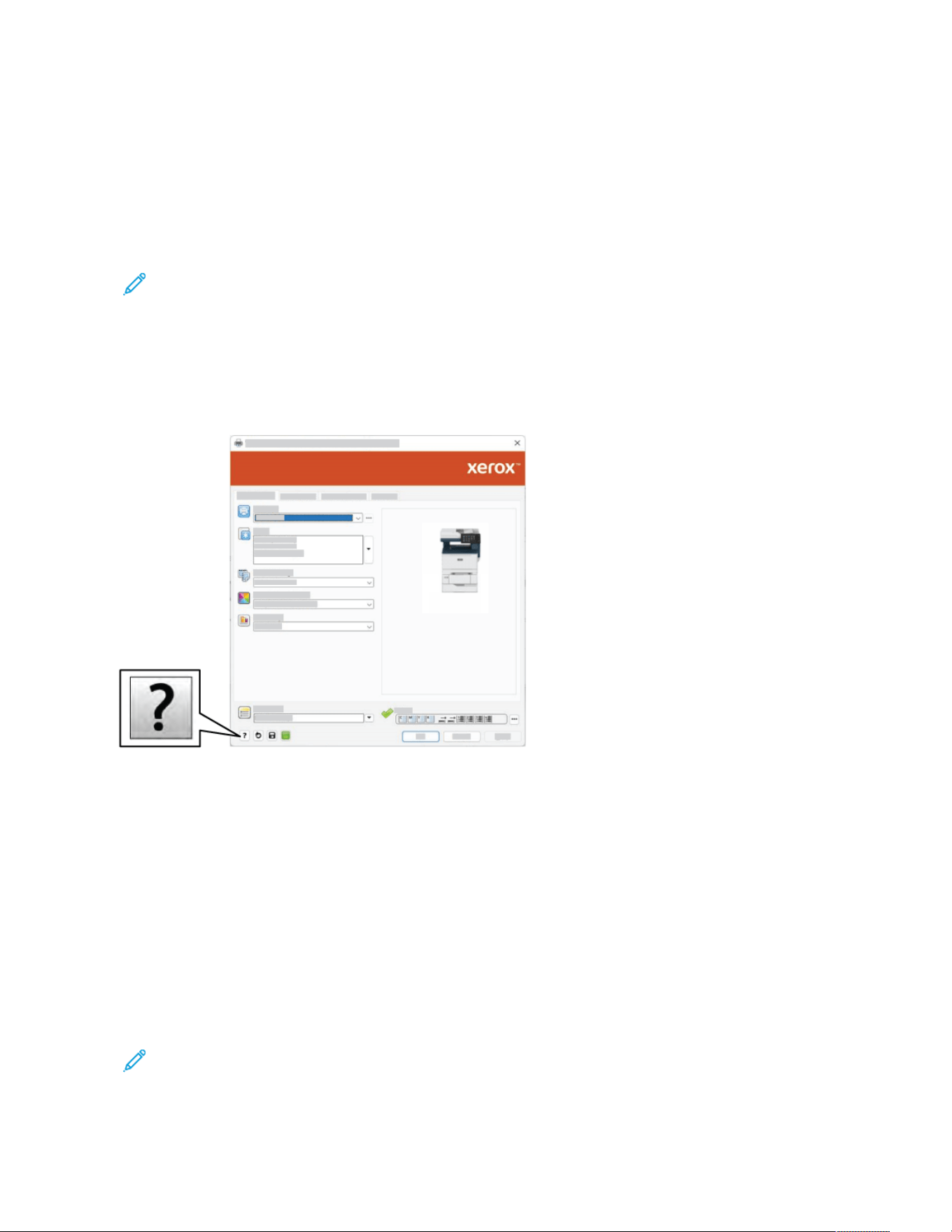
Selecting Printing Options
Printing options, also called print driver software options, are specified as Printing preferences in Windows and
Xerox
®
Features in Macintosh. Printing options include settings for 2-sided printing, page layout, and print quality.
Printing options that you set from Printing preferences within the Devices and Printers window become the default
setting. Printing options that you set within the software application are temporary. The application and the
computer do not save the settings after the application is closed.
Note: For Windows 10 and later, Printing options can be set from Printing preferences within the Printers &
scanners setting.
PRINT DRIVER HELP
Xerox
®
print driver software Help information is usually available from the Printing Preferences window. To see the
help, click the Help (?) button in the bottom-left corner of the Printing Preferences window.
Information about Printing Preferences appears in the Help window. From this window, you can select by topic or
use the search field. In the search field, enter the topic or function required.
WINDOWS PRINTING OPTIONS
Setting Default Printing Options for Windows
When you print from any software application, the printer uses the print job settings that are specified in the
Printing Preferences window. You can specify your most common printing option and save the option for reuse so
that you do not have to change the settings each time that you print.
For example, if you want to print on both sides of the paper for most jobs, specify 2-sided printing in Printing
Preferences.
Note: 2-Sided Print option is the default setting for 2-Sided Printing.
Xerox
®
VersaLink
®
C415 Color Multifunction Printer User Guide 177
Printing

1. On your computer, navigate to the list of printers:
• For Windows Server 2012 and later, click Start > Settings > Printers.
• For Windows 10, click Start > Settings > Devices > Printers & scanners.
• For Windows 11 and later, click Start > Settings > Bluetooth & devices > Printers & scanners.
Note: If you are using a custom Start menu application, the application can change the navigation path to
your list of printers.
2. For your printer, select Printing preferences:
• For Windows Server 2012 and later, right-click the icon for your printer, then click Printing preferences.
• For Windows 10, click the icon for your printer, then click Manage > Printing preferences.
• For Windows 11 and later, click the icon for your printer, then click Printing preferences.
3. In the Printing Preferences window, click a tab, then select the options. To save the settings, click OK.
Note: For more information about Windows print driver options, click the Help button (?) in the Printing
Preferences window.
Selecting Printing Options for an Individual Job for Windows
To use special printing options for a particular job, you can change the Printing Preferences before sending the job
to the printer.
1. With the document open in your software application, access the print settings. For most software applications,
click File > Print or press CTRL+P for Windows.
2. To open the Printing Preferences window, select your printer, then click the Printer Properties, Print Options,
or Preferences button. The title of the button can vary, depending on your application.
3. Click a tab in the Printing Preferences window, then make selections.
4. To save your selections and close the Printing Preferences window, click OK.
5. To send the job to the printer, click Print.
Selecting Printing Defaults in Windows for a Shared Network Printer
1. On your computer, navigate to the list of printers:
• For Windows Server 2012 and later, click Start > Settings > Printers.
• For Windows 10, click Start > Settings > Devices > Printers & scanners.
• For Windows 11 and later, click Start > Settings > Bluetooth & devices > Printers & scanners.
Note: If the Control Panel icon does not appear on the desktop, right-click the desktop, then select
Personalize. Select Control Panel Home > Devices and Printers.
2. For your printer, select Printer properties:
• For Windows Server 2012 and later, right-click the icon for your printer, then click Printing properties.
• For Windows 10, click the icon for your printer, then click Manage > Printer properties.
• For Windows 11 and later, click the icon for your printer, then click Printing preferences.
178
Xerox
®
VersaLink
®
C415 Color Multifunction Printer User Guide
Printing

3. In the printer Properties dialog box, click the Advanced tab.
4. On the Advanced tab, click Printing Defaults.
5. On the print driver tabs, make your selections as needed, then click Apply.
6. To save the settings, click OK.
Saving a Set of Commonly Used Printing Options for Windows
You can define and save a set of options, so that you can apply them to future print jobs. After you save a set of
print options, they are available for selection from the Saved Settings or Presets list, or the 1-Touch area, if available.
To save a set of printing options:
1. With the document open in your application, click File > Print.
2. To open the Printing Preferences window, select your printer, then click Properties or Preferences.
3. In the Printing Properties window, click the tabs, then select the required settings.
4. In the Printing Properties window, click Saved Settings or Presets, then click Save As.
5. Type a name for the saved setting or preset, then choose preset options, if available:
• Choose an icon for the preset.
• To enable the preset as 1-Touch, select 1-Touch Preset.
• To share the preset in all print drivers, select Show this Preset in All Drivers.
6. Click OK.
7. To print with these settings:
• From the Saved Settings or Presets list, select the name of the preset.
• For a 1-Touch preset, click 1-Touch, then click the required 1-Touch preset.
MACINTOSH PRINTING OPTIONS
Selecting Printing Options for Macintosh
To use specific printing options, change the settings before sending the job to the printer.
1. With the document open in your application, click File > Print.
2. Select your printer.
3. In the Print window, in the print options list, click Xerox Features.
Note: To see all printing options, click Show Details.
4. Select any other required printing options from the lists.
5. To send the job to the printer, click Print.
Xerox
®
VersaLink
®
C415 Color Multifunction Printer User Guide 179
Printing

Saving a Set of Commonly Used Printing Options for Macintosh
You can define and save a set of options, so that you can apply them to future print jobs.
To save a set of printing options:
1. With the document open in your application, click File > Print.
2. Select your printer from the Printers list.
3. Select the required printing options from the lists in the Print dialog box.
Note: To see all printing options, click Show Details.
4. Click Presets > Save Current Settings as Preset.
5. Type a name for the printing options. To save the set of options in the Presets list, click OK.
6. To print using these options, select the name from the Presets list.
UNIX, LINUX, AND AS/400 PRINTING
To provide printer spooling and network print server functionality, UNIX-based printing uses LPD/LPR port 515 or lp
to port 9100. Xerox printers can communicate using either protocol.
Xerox
®
Printer Manager
Xerox
®
Printer Manager is an application that allows you to manage and print to multiple printers in UNIX and
Linux environments.
Xerox
®
Printer Manager allows you to:
• Configure and check the status of network connected printers.
• Set up a printer on your network and monitor the operation of the printer once installed.
• Perform maintenance checks and view supplies status at any time.
• Provide a common look and feel across the many different suppliers of UNIX and Linux operating systems.
Installing Xerox
®
Printer Manager
Before you begin, ensure that you have root or superuser privileges to install Xerox
®
Printer Manager.
To install Xerox
®
Printer Manager:
180
Xerox
®
VersaLink
®
C415 Color Multifunction Printer User Guide
Printing

1. Download the appropriate package for your operating system. To locate print drivers for your printer, go to
www.xerox.com/office/VLC415drivers. The files available are:
• XeroxOSDPkg-AIXpowerpc-x.xx.xxx.xxxx.rpm for the IBM PowerPC family.
• XeroxOSDPkg-HPUXia64-x.xx.xxx.xxxx.depot.gz to support HP Itanium workstations.
• XeroxOfficev5Pkg-Linuxi686-x.xx.xxx.xxxx.rpm to support RPM-based 32-bit Linux environments.
• XeroxOfficev5Pkg-Linuxi686-x.xx.xxx.xxxx.deb to support Debian-based 32-bit Linux environments.
• XeroxOfficev5Pkg-Linuxx86_64-x.xx.xxx.xxxx.rpm to support RPM-based 64-bit Linux environments.
• XeroxOfficev5Pkg-Linuxx86_64-x.xx.xxx.xxxx.deb to support Debian-based 64-bit Linux environments.
• XeroxOSDPkg-SunOSi386-x.xx.xxx.xxxx.pkg.gz for Sun Solaris x86 systems.
• XeroxOSDPkg-SunOSsparc-x.xx.xxx.xxxx.pkg.gz for Sun Solaris SPARC systems.
2. To install the custom print driver, log in as root, then type the appropriate command for your system:
• AIX: rpm -U XeroxOSDPkg-AIXpowerpc-x.xx.xxx.xxxx.rpm
• HPUX: swinstall -s XeroxOSDPkg-HPUXia64-x.xx.xxx.xxxx.depot.gz \*
• Solaris, x86 based: pkgadd -d XeroxOSDPkg-SunOSi386-x.xx.xxx.xxxx.pkg
• Solaris, SPARC based: pkgadd -d XeroxOSDPkg-SunOSsparc-x.xx.xxx.xxxx.pkg
The installation creates a Xerox directory in /opt/Xerox/prtsys.
3. To install the Xerox
®
Office Standard Driver on Linux platform, log in as root, then type the appropriate
command for your system:
• Linux, RPM based: rpm -U XeroxOfficev5Pkg-Linuxi686-x.xx.xxx.xxxx.rpm
• Linux, Debian based: dpkg -i XeroxOfficev5Pkg-Linuxi686-x.xx.xxx.xxxx.deb
The installation creates a XeroxOffice directory in /opt/XeroxOffice/prtsys.
Launching Xerox
®
Printer Manager
To launch Xerox
®
Printer Manager:
1. From your computer, access a command window. At the command prompt, log in as root, then type
xeroxofficeprtmgr.
2. Press Enter or Return.
Printing from a Linux Workstation
To print from a Linux workstation, install either a Xerox
®
print driver for Linux or a CUPS (Common UNIX Printing
System) print driver. You do not need both drivers.
Xerox recommends that you install one of the full-featured custom print drivers for Linux. To locate drivers for your
printer, go to www.xerox.com/support/drivers.
If you use CUPS, ensure that CUPS is installed and running on your workstation. The instructions for installing and
building CUPS are contained in the CUPS Software Administrators Manual, written and copyrighted by Easy
Software Products. For complete information on CUPS printing capabilities, refer to the CUPS Software Users
Manual available from www.cups.org/documentation.php.
Xerox
®
VersaLink
®
C415 Color Multifunction Printer User Guide 181
Printing

Installing the PPD File on the Workstation
1. On the Xerox Support website, from the Drivers and Downloads page, download the Xerox
®
PPD for CUPS
(Common UNIX Printing System).
2. Copy the PPD file into the CUPS ppd/Xerox folder on your workstation. If you are unsure of the location of the
folder, use the FFiinndd command to locate the PPD files.
3. Follow the instructions that are included with the PPD file.
Adding the Printer
1. Verify that the CUPS (Common UNIX Printing System) daemon is running.
2. Open a Web browser, type http://localhost:631/admin, then press Enter or Return.
3. For User ID, type root. For password, type the root password.
4. Click Add Printer, then follow the onscreen prompts to add the printer to the CUPS printer list.
Printing with CUPS (Common UNIX Printing System)
CUPS supports the use of both the System V (lp) and Berkeley (lpr) printing commands.
1. To print to a specific printer in System V, type lp -dprinter filename, then press Enter.
2. To print to a specific printer in Berkeley, type lpr -Pprinter filename, then press Enter.
AS/400
Xerox provides Work Station Customization Object (WSCO) files to support IBM i V6R1 or later. A Work Station
Customization Object is a lookup table that the host print transform (HPT) uses to translate AS/400 commands to
the equivalent PCL code that is specific to a particular printer. A WSCO file can modify many print features,
including: paper input tray, 2-sided printing, characters per inch, lines per inch, orientation, fonts, and margins.
The XTOOLS library provides a source WSCO file for each supported Xerox
®
printer or device. The library and
installation instructions are available from www.support.xerox.com.
To install the XTOOLS library, select the downloadable files for the IBM AS/400 operating system, unzip the
downloaded XTOOLSxxxx.zip file, then follow the instructions to install the library. Download and install the
library only once.
Note:
• The host print transform works only on AFPDS and SCS files. To use the WSCO for printing, convert IPDS-
formatted printer files to AFPDS files.
• Administrator credentials with IOSYSCFG permissions are required to create a device description or a
remote queue.
• For details on AS/400, refer to the IBM AS/400 Printing V, (Red Book), available on the IBM website.
Installing the WSCO Library and Setting Up Print Queues
For detailed instructions on installing the WSCO library and setting up print queues, refer to the installation
instructions that are included with the library.
182
Xerox
®
VersaLink
®
C415 Color Multifunction Printer User Guide
Printing

MOBILE PRINTING OPTIONS
This printer can print from iOS and Android mobile devices.
Printing Using Wi-Fi Direct
To print a document from a Wi-Fi-enabled mobile device:
1. On the mobile device, open the document that you want to print.
2. In the device application, select the Print button.
3. If there is more than one printer in the area with Wi-Fi Direct enabled, select the required printer from the list.
4. Select the print settings required for the job.
5. Submit the job for printing.
A message appears on the mobile device.
6. Select Connect.
When the connection is made, a message appears on the printer.
7. At the printer control panel, touch OK.
The job prints.
Printing with AirPrint
You can print directly from your iPhone, iPad, iPod touch, or Mac using AirPrint
®
. To enable AirPrint
®
for your printer,
refer to Configuring AirPrint.
To print with AirPrint
®
:
1. Open the email, photograph, webpage, or document that you want to print.
2. Tap the Action icon.
3. Tap Print.
4. Select your printer, then set the printer options.
5. Tap Print.
For more information on configuring and using AirPrint
®
, refer to the System Administrator Guide at www.xerox.
com/office/VLC415docs.
Printing with Universal Print
Note: Microsoft Entra ID is the new name for Azure AD. The names Azure Active Directory, Azure AD, and
AAD are replaced with Microsoft Entra ID.
To allow users to access the device, the Entra ID or Azure
®
administrator needs to share the printer in the Microsoft
Entra ID portal. After the printer is shared, the Add Printer feature enables an authorized user to discover the
device in Windows 10 or later. The device appears as the cloud printer in the discovered printers list. To enable
Universal Print for your printer, refer to Configuring a Device for Universal Print.
Xerox
®
VersaLink
®
C415 Color Multifunction Printer User Guide 183
Printing

1. To add a printer in Windows
®
Operating System, do the following:
• For Windows 10, click Settings > Printers & scanners > Add a printer or scanner.
• For Windows 11 and later, click Settings > Bluetooth & devices > Printers & scanners > Add a printer or
scanner.
2. Select the cloud printer in the list of discovered printers, then click Add device.
Note: When a print job is submitted to Universal Print, it is queued in the cloud until the printer fetches the
job. The printer checks for jobs after the polling interval elapses, or when you initiate the Check For Jobs
Now function.
Setting Up Universal Print on macOS
Universal Print is supported in macOS Ventura 13.3 or later versions. Before you can find and use Universal Print
printers from macOS, ensure that you have an active Microsoft Entra ID account and at least one Universal Print
eligible license.
Note: Microsoft Entra ID is the new name for Azure AD. The names Azure Active Directory, Azure AD, and
AAD are replaced with Microsoft Entra ID.
1. Install the Universal Print app from the Mac App Store.
2. To open installed applications, click the Apple logo, then click System Settings.
3. Navigate to Universal Print in the left navigation menu. Sign in using your Microsoft Entra ID account
credentials.
4. Click Add Printer. Select your printer from the list of available printers. You can also search for a specific printer
by name or location.
5. Select your printer, then click Add. The printer is now available to use from any application on the device.
Note: Installed printers are displayed in the system print dialog for all users on the device. If you do not have
permission to use a printer, your print job fails.
6. From any application that supports printing, click Print or press CMD+P to open the system print dialog.
7. Select your printer that is registered with Universal Print.
8. Set the printing attributes, such as number of copies and pages, then click Print.
Printing from a Mopria-Enabled Mobile Device
Mopria is a software feature that enables users to print from mobile devices without requiring a print driver. You can
use Mopria to print from your mobile device to Mopria-enabled printers.
184
Xerox
®
VersaLink
®
C415 Color Multifunction Printer User Guide
Printing

Note:
• Mopria and all of its required protocols are enabled by default.
• Ensure that you have the latest version of the Mopria Print Service software installed on your mobile
device. You can obtain a free download of the software from the Google Play Store.
• To connect the printer to Wi-Fi or Wi-Fi Direct, purchase and install the Xerox Wireless Network Adapter.
For more information, refer to the Xerox
®
Dual Band Wireless Kit Hardware Install and Setup instructions
that are included with the kit.
• To use Wi-Fi Direct, in the Embedded Web Server, enable the Wi-Fi Direct feature. For details on
configuring Wi-Fi Direct, refer to the System Administrator Guide at www.xerox.com/office/VLC415docs.
• To configure the Wireless settings, ensure that devices are connected to the same wireless network as the
printer.
• The name and location of your printer appears in a list of Mopria-enabled printers on connected devices.
To print using Mopria, follow the directions that are provided with your mobile device.
Xerox
®
VersaLink
®
C415 Color Multifunction Printer User Guide 185
Printing

Print Jobs
MANAGING JOBS
From the control panel Jobs menu, you can view lists of active jobs, secure jobs, or completed jobs. You can pause,
delete, print, or view job progress or job details for a selected job. When you send a secure print job, the job is held
until you release it by typing a passcode at the control panel. For details, refer to Printing Special Job Types.
From the Jobs window in the Embedded Web Server, you can view a list of active and saved print jobs.
Pausing, Promoting, or Deleting a Job Waiting to Print
1. At the printer control panel, press the Home button.
2. Touch Jobs, then touch the name of the required print job.
3. Select a task.
Note: If you do not make a selection, the job automatically resumes after the set timeout period.
• To pause the print job, touch Hold. To resume the print job, touch Release.
• To delete the print job, touch Delete. At the prompt, touch Delete.
• To move the job to the top of the list, touch Promote.
• To view the status of the job, touch Job Progress.
• To view information about the job, touch Job Details, then touch Job Settings or Required Resources.
4. To return to the Home screen, press the Home button.
Note:
• The system administrator can restrict users from deleting jobs. If a system administrator restricts job
deletion, you can view the jobs, but you cannot delete them.
• Only the user that sent the job, or the system administrator, can delete a Secure Print job.
Printing a Job Held for Resources
When a job is held for resources, a status message and a pop-up alert appear on the control panel, as default. From
the Embedded Web Server, the system administrator can configure whether only a status message appears or both
status message and a pop-up alert appear on the control panel.
1. If the pop-up alert is disabled by the system administrator, to view the held jobs, do the following:
a. At the printer control panel, press the Home button.
b. Touch Jobs.
A list with active jobs, that are queued for the printer, appears.
2. When the pop-up alert is enabled, if a job is held for resources, a pop-up alert appears on the control panel. On
the pop-up alert, touch View Active Jobs.
A list with active jobs, that are queued for the printer, appears.
186
Xerox
®
VersaLink
®
C415 Color Multifunction Printer User Guide
Printing

3. From the jobs list, touch the held job name. The following options appear:
• Print On Alternate Paper: To choose an alternative paper source to enable the job to print, touch Print On
Alternate Paper. Select a paper tray, then touch OK.
• Delete: To delete the print job, touch Delete. At the prompt, touch Delete.
• Job Progress: To view the progress, touch Job Progress.
• Job Details: To view the details, touch Job Details. At the prompt, you can view the Job Settings and
Required Resources.
4. To print the job, replenish the resources required. The job resumes automatically when the required or alternate
resources are available.
Note: The Print On Alternate Paper option is enabled using the Embedded Web Server. For details about
the Print On Alternate Paper option, refer to the System Administrator Guide at www.xerox.com/office/
VLC415docs.
5. To return to the Home screen, press the Home button.
PRINTING SPECIAL JOB TYPES
Special job types allow you to send a print job from your computer, then print it from the printer control panel.
Select special job types in the print driver, Printing Options tab, under Job Type.
Saved Job
Saved Jobs are documents that are sent to the printer and stored there for future use. All users can print or delete a
Saved Job.
At the control panel, from the Print From menu, you can view and print saved jobs. In the Embedded Web Server, in
the Jobs window, you can view, print, and delete saved jobs, and you can manage where jobs are stored.
Printing using Saved Job
1. In your software application, access the print settings. For most software applications, press CTRL+P for
Windows or CMD+P for Macintosh.
2. Select your printer, then open the print driver.
• For Windows, click Printer Properties. Depending on your application, the title of the button can vary.
• For Macintosh, in the Print window, in the print options list, click Xerox Features.
3. For Job Type, select Saved Job.
a. Type a job name or select a name from the list.
b. Type a folder name or select a name from the list.
c. To add a passcode, click Private, type the passcode, then confirm the passcode.
d. Click OK.
4. Select other required printing options.
• For Windows, click OK, then click Print.
• For Macintosh, click Print.
Xerox
®
VersaLink
®
C415 Color Multifunction Printer User Guide 187
Printing

Print, Delete, Move, or Copy a Saved Job in the Embedded Web Server
1. At your computer, open a Web browser. In the address field, type the IP address of the printer, then press Enter
or Return.
2. In the Embedded Web Server, click Home.
3. Click Jobs.
4. Click the Saved Jobs tab.
5. For the job that you want to process, select the check box.
6. From the menu, select an option.
• Print Job: This option prints a job immediately.
• Delete Job: This option deletes the saved job.
• Move Job: Use this option to move the job to another folder location.
• Copy Job: Use this option to duplicate the job.
7. Click Go.
Secure Print
Use Secure Print to print sensitive or confidential information. After you send the job, it is held at the printer until
you enter your passcode at the printer control panel.
After a Secure Print job is printed, it is deleted automatically.
Printing using Secure Print
1. In your software application, access the print settings. For most software applications, press CTRL+P for
Windows or CMD+P for Macintosh.
2. Select your printer, then open the print driver.
• For Windows, click Printer Properties. Depending on your application, the title of the button varies.
• For Macintosh, in the Print window, click Preview, then select Xerox Features.
3. For Job Type, select Secure Print.
4. Type the passcode, confirm the passcode, then click OK.
5. Select any other required printing options.
• For Windows, click OK, then click Print.
• For Macintosh, click Print.
Releasing a Secure Print Job
1. At the printer control panel, press the Home button.
2. Touch Jobs.
3. To view Secure Print jobs, touch Secure Jobs.
188
Xerox
®
VersaLink
®
C415 Color Multifunction Printer User Guide
Printing

4. Do one of the following:
• If you submitted a single Secure Print job, touch the folder, then touch the job. Enter the passcode number,
then touch OK. The job prints automatically.
• If you submitted multiple Secure Print jobs, touch the folder, enter the passcode number, then touch OK.
Select an option:
• To print a single Secure Print job, touch the job required.
• To print all the jobs in the folder, touch Print All.
• To delete a single Secure Print job, touch the Trash icon. At the prompt, touch Delete.
• To delete all the jobs in the folder, touch Delete All.
Note: After a Secure Print job prints, the printer deletes it automatically.
5. To return to the Home screen, press the Home button.
Note: You can send and release a secure print job through Universal Print. For more information, refer to the
System Administrator Guide at www.xerox.com/office/VLC415docs.
Sample Set
The Sample Set job type prints one copy of a multiple-copy print job before printing the remaining copies. After
reviewing the sample set, you can either print the remaining copies or delete them at the printer control panel.
Sample Set is a type of saved job with these features:
• A Sample Set job appears in a folder named after the user ID associated with the print job.
• A Sample Set job does not use a passcode.
• Any user can print or delete a Sample Set job.
• A Sample Set prints one copy of a job to allow you to proofread the job before printing any remaining copies.
After a Sample Set job is printed, it is deleted automatically.
To print a Sample Set, refer to Printing using Sample Set.
Printing using Sample Set
1. In your software application, access the print settings. For most software applications, press CTRL+P for
Windows or CMD+P for Macintosh.
2. Select your printer, then open the print driver.
• For Windows, click Printer Properties. Depending on your application, the title of the button varies.
• For Macintosh, in the Print window, click Preview, then select Xerox Features.
3. For Job Type, select Sample Set.
4. Select any other required printing options.
• For Windows, click OK, then click Print.
• For Macintosh, click Print.
Xerox
®
VersaLink
®
C415 Color Multifunction Printer User Guide 189
Printing

Releasing a Sample Set
1. At the printer control panel, press the Home button.
2. To view available jobs, touch Jobs.
3. Touch the Sample Set job.
Note: The Sample Set file description shows the job as Held for Future Printing, and shows the number of
remaining copies of the job.
4. Select an option.
• To print the remaining copies of the job, touch Release.
• To delete the remaining copies of the job, touch Delete.
5. To return to the Home screen, press the Home button.
190
Xerox
®
VersaLink
®
C415 Color Multifunction Printer User Guide
Printing

Printing Features
SELECTING PAPER OPTIONS FOR PRINTING
There are two ways to select the paper for your print job. You can let the printer select which paper to use based on
the document size, paper type, and paper color you specify. You can also select a specific tray loaded with the
desired paper.
• To locate paper options in Windows, in the print driver, click the PPrriinnttiinngg OOppttiioonnss tab.
• To locate paper options on Macintosh, in the Print window, in the print options list, click XXeerrooxx FFeeaattuurreess. Within
Xerox Features, in the options list, click PPaappeerr//OOuuttppuutt.
Select By Tray
Use Select By Tray to print from a specific tray without specifying paper attributes in the print driver or at the printer
control panel. This option prints the job from the selected tray, even when more than one tray contains the correct
paper for the job.
The following options are available:
• Automatically Select: This option prints from any tray that is loaded with the size and type of paper that is
required for the print job.
• Tray X: This option prints from the selected tray.
• Bypass Tray: This option prints from the manual-feed tray. The printer prompts you to remove any other paper
from the tray and load the paper that is required for your job.
Note: To prevent paper jams, load the trays with the correct size and type of paper for the print job.
Scaling
Scaling reduces or enlarges the original document to match the selected output paper size.
• For Windows, the scale options are on the Printing Options tab, in the Paper field.
• For Macintosh, the scale options are in the Print window. To view more printing options, click Show Details.
Note: Not all options described are supported on all printers. Some options apply only to a specific printer
model, configuration, operating system, or print driver type.
The following scaling options are available:
• Fit to New Paper Size: This option scales the document to fit the new paper size.
• Change Document Size: Use this setting to match the paper size selected in your application. This option does
not change the size of the page image printed on the output paper.
• Automatically Scale: This option scales the document to fit the selected Output Paper Size. The scaling
amount appears in the percentage box below the sample image.
• No Scaling: This option does not change the size of the page image printed on the output paper, and 100%
appears in the percentage box. If the original document size is larger than the output size, the page image is
Xerox
®
VersaLink
®
C415 Color Multifunction Printer User Guide 191
Printing

cropped. If the original document size is smaller than the output size, extra space appears around the page
image.
• Manually Scale: This option scales the document by the amount entered in the percentage box below the
preview image.
PRINTING ON BOTH SIDES OF THE PAPER
Printing a 2-Sided Document
If your printer supports Automatic 2-Sided Printing, the options are specified in the print driver. The print driver uses
the settings for portrait or landscape orientation from the application for printing the document.
Note: Ensure that the paper size and weight are supported. For more information, refer to Supported Paper.
2-Sided Page Layout Options
You can specify the page layout for 2-Sided printing, which determines how the printed pages turn. These settings
override the application page orientation settings.
• 11--SSiiddeedd PPrriinntt: This option prints on one side of the media. Use this option when printing on envelopes, labels,
or other media that cannot be printed on both sides.
• 22--SSiiddeedd PPrriinntt: This option prints the job on both sides of the paper to allow binding on the long edge of the
paper. The following illustrations show the result for documents with portrait and landscape orientations,
respectively:
Note: 2-Sided Print option is the default setting for 2-Sided Printing.
• 22--SSiiddeedd PPrriinntt,, FFlliipp oonn SShhoorrtt EEddggee: This option prints on both sides of the paper. The images print to allow
binding on the short edge of the paper. The following illustrations show the result for documents with portrait
and landscape orientations, respectively:
Note: 2-Sided Printing is part of the Earth Smart settings.
To change your default print driver settings, refer to Selecting Printing Options.
XEROX BLACK AND WHITE
You can select printing in color or black and white.
192
Xerox
®
VersaLink
®
C415 Color Multifunction Printer User Guide
Printing

• OOffff ((uussee DDooccuummeenntt CCoolloorr)): Use this option to print in color.
• OOnn: Use this option to print in black and white.
PRINT QUALITY
The Windows PostScript (PS) print driver, PCL, and the Macintosh print drivers provide the highest print-quality
modes:
• High Resolution: 1200 x 1200 dpi, 1-bit depth. This mode provides the best overall image quality for detailed
line drawings, such as CAD files. High Resolution is recommended for printing vibrant, saturated, color prints, or
photos. Print jobs can take longer to process when printed using High-Resolution mode.
• Enhanced: 600 x 600 dpi, 8-bit depth. This mode is used for better print quality, and is the best mode to use for
business presentations.
IMAGE OPTIONS
Image options control the way the printer uses color to produce your document. The Windows PostScript (PS) print
driver and the Macintosh print drivers provide the widest range of color controls and corrections on the Image
Options tab.
• To locate color options in Windows, in the print driver, click the IImmaaggee OOppttiioonnss tab.
• To locate color options on Macintosh, in the Print window, in the print options list, click XXeerrooxx FFeeaattuurreess. Within
Xerox Features, in the options list, click CCoolloorr OOppttiioonnss.
Color Correction
Color Correction matches printer colors on PostScript jobs to colors on other devices, such as your computer screen
or a printing press.
Color Correction options:
• Xerox Black and White: This option converts all color in the document to black and white, or shades of gray.
• Xerox Automatic Color: This option applies the best color correction to text, graphics, and images. Xerox
recommends this setting.
There are more Color Correction options that include Vivid RGB.
Note: These options are not available in PCL print drivers.
Color Adjustments
Use Color Adjustments to adjust particular characteristics of the printed color. Characteristics include lightness,
contrast, saturation, and color cast.
Note: Not all options listed are supported on all printers. Some options apply only to a specific printer model,
configuration, operating system, or driver type.
The following options are available:
Xerox
®
VersaLink
®
C415 Color Multifunction Printer User Guide 193
Printing

• Lightness: The Lightness feature allows you to adjust the overall lightness or darkness of the text and images in
your printed job.
• Contrast: You can use the Contrast feature to adjust the variation between light and dark areas of the print job.
• Saturation: The Saturation feature allows you to adjust the color strength and the amount of gray in the color.
• Color Cast: Use the Color Cast settings to adjust the amount of a selected color in the print job and preserve
lightness. The following settings are available:
– The Cyan to Red slider allows you to adjust the color balance between cyan and red. For example, when you
increase the cyan levels, the red levels decrease.
– The Magenta to Green slider allows you to adjust the color balance between magenta and green. For
example, when you increase the magenta levels, the green levels decrease.
– The Yellow to Blue slider allows you to adjust the color balance between yellow and blue. For example, when
you increase the yellow levels, the blue levels decrease.
Note: These options are not available in PCL print drivers.
PRINTING MULTIPLE PAGES TO A SINGLE SHEET
When printing a multiple-page document, you can print more than one page on a single sheet of paper.
To print 1, 2, 4, 6, 9, or 16 pages per side, on the Page Layout tab, select PPaaggeess PPeerr SShheeeett.
• To locate Pages Per Sheet in Windows, on the Document Options tab, click PPaaggee LLaayyoouutt.
• To locate Pages Per Sheet on Macintosh, in the Print window, in the print options list, click LLaayyoouutt.
To print a border around each page, select PPaaggee BBoorrddeerrss.
PRINTING BOOKLET LAYOUT
With 2-sided printing, you can print a document in the form of a small booklet. You can create booklets from any
paper size that is supported for 2-sided printing.
The print driver automatically reduces each page image and prints four-page images per sheet of paper, two-page
images on each side. The pages are printed in the correct order so that you can fold and staple the pages to create
the booklet.
• To locate booklet creation in Windows, on the Document Options tab, click PPaaggee LLaayyoouutt.
• To locate booklet creation on Macintosh, in the Print window, in the print options list, click XXeerrooxx FFeeaattuurreess.
Within Xerox Features, in the options list, click BBooookklleett LLaayyoouutt.
When you print booklets using the Windows PostScript or Macintosh driver, you can specify the gutter and creep.
194
Xerox
®
VersaLink
®
C415 Color Multifunction Printer User Guide
Printing
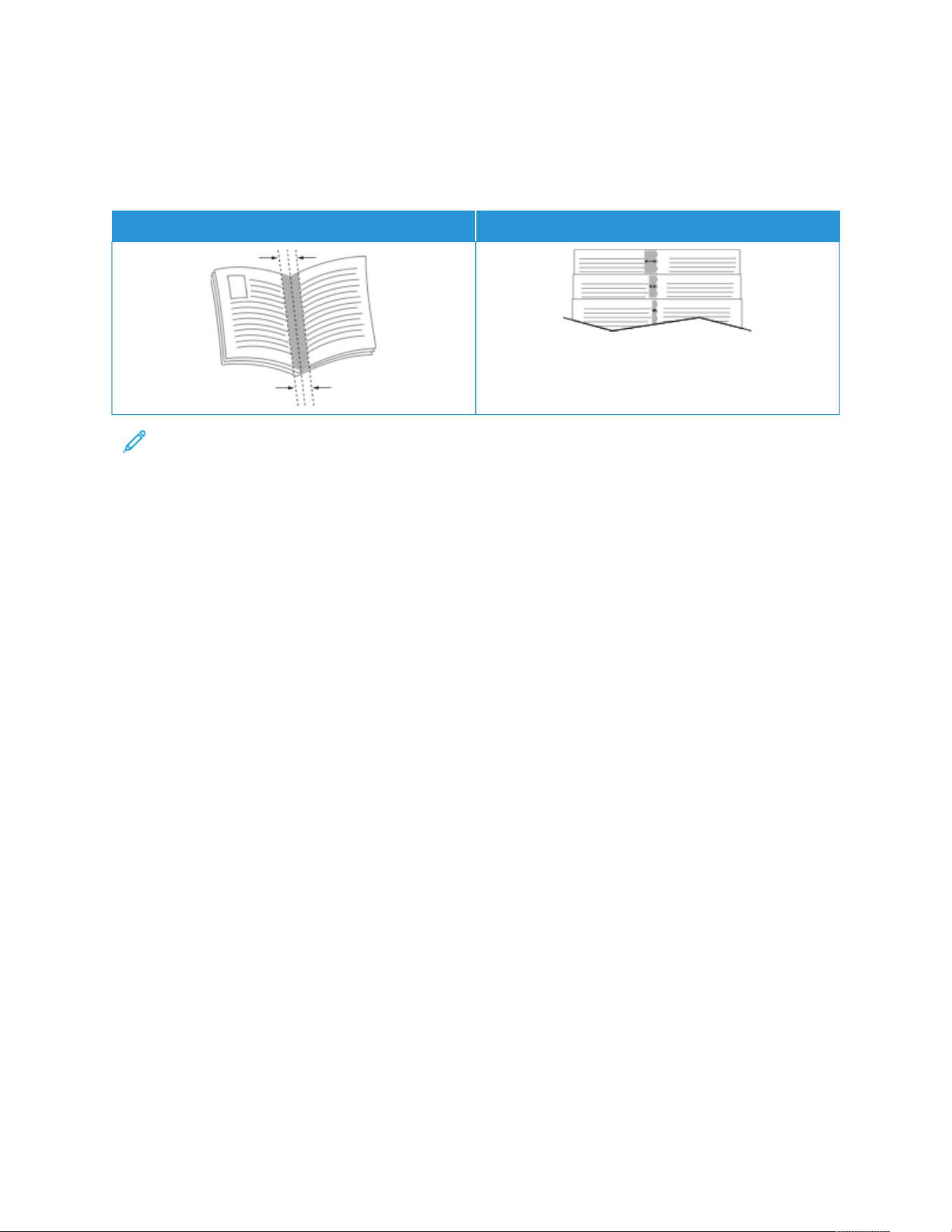
• GGuutttteerr: Specifies the horizontal distance in points between the page images. A point is 0.35 mm (1/72 in.).
• CCrreeeepp: Specifies how much the page images shift outward in tenths of a point. Shifting compensates for the
thickness of the folded paper, which can cause the page images to shift outward slightly when folded. You can
select a value from 0 to 1 point.
GUTTER CREEP
Note: To print a border around each page, select PPaaggee BBoorrddeerrss.
USING SPECIAL PAGES
The Special Pages options control how covers, inserts, and exception pages are added to your printed document.
• To locate Special Pages in Windows, on the Document Options tab, click SSppeecciiaall PPaaggeess.
• To locate Special Pages on Macintosh, in the Print window, in the print options list, click XXeerrooxx FFeeaattuurreess. Within
Xerox Features, in the options list, click SSppeecciiaall PPaaggeess.
Printing Cover Pages
A cover page is the first or last page of a document. You can select paper sources for the cover pages that are
different from the source used for the body of a document. For example, you can use your company letterhead for
the first page of a document. You can use heavyweight paper for the first and last pages of a report. You can use
any applicable paper tray as the source for printing cover pages.
In the Covers window, the following options are available:
• No Covers or Disabled: This option does not print cover pages. No cover pages are added to the document.
• Front Only: This option allows you to add a blank or printed front cover to your job.
• Back Only: This option allows you to add a blank or printed back cover to your job.
• Front and Back: Same: This option adds a front and back cover to your job, and applies the same printing and
paper settings for both covers.
• Front and Back: Different: This option adds a front and back cover to your job, and allows you to select
different printing and paper settings for each cover.
After you make a selection for printing the cover pages, you can select the paper for the front and back covers by
size, color, or type. You can use blank or pre-printed paper, and you can print side one, side two, or both sides of the
cover pages.
Xerox
®
VersaLink
®
C415 Color Multifunction Printer User Guide 195
Printing

Printing Insert Pages
You can add blank or pre-printed insert pages before page one of each document or after designated pages within
a document. The addition of an insert after designated pages within a document separates sections, or acts as a
marker or placeholder. Ensure that you specify the paper to use for the insert pages.
In the Inserts window, you can set the location, characteristics, and paper settings for the insert pages:
• Inserts: This option allows you to select where to place the insert.
• Quantity: Use this option to specify the number of pages to insert at each location.
• Pages: Use this option to specify where to place the inserts within the job. Separate individual pages or page
ranges with commas. Specify pages within a range with a hyphen. For example, to specify pages 1, 6, 9, 10, and
11, type 1,6,9-11.
• Paper Settings: This option allows you to select the paper size, color, and type to use for the insert pages. To
use the same paper size, color, or type as the main body of the job, select Use Job Setting.
Printing Exception Pages
Exception pages have different settings from the rest of the pages in the job. You can specify differences, such as
page size, page type, and page color. You can change the side of the paper on which to print as your job requires. A
print job can contain multiple exceptions.
For example, your print job contains 30 pages. You want five pages to print on only one side of a special paper, and
the remainder of the pages printed 2-sided on regular paper. You can use exception pages to print the job.
In the Exceptions window, you can set the location, characteristics, and paper settings for the exception pages:
• Pages: Specifies the page or range of pages that use the exception page characteristics. Separate individual
pages or page ranges with commas. Specify pages within a range with a hyphen. For example, to specify pages
1, 6, 9, 10, and 11, type 1,6,9-11.
• Paper Settings: Allows you to select the paper size, color, and type to use for the exception pages. To print
exception pages on the same paper size, color, or type as the main body of the job, select Use Job Setting.
• 2-Sided Printing: Allows you to select 2-sided printing options for the exception pages. Available options are:
– 1-Sided Print: Prints the exception pages on one side only.
– 2-Sided Print: Prints the exception pages on both sides of the paper and flips the pages on the long edge.
You can bind the job on the long edge of the pages.
– 2-Sided Print, Flip on Short Edge: Prints the exception pages on both sides of the paper and flips the
pages on the short edge. You can bind the job on the short edge of the pages.
– Use Job Setting: Prints the job using the same 2-Sided Printing setting that is selected for the main body
of the job.
Note: Some combinations of 2-sided printing with certain paper types and sizes can produce unexpected
results.
196
Xerox
®
VersaLink
®
C415 Color Multifunction Printer User Guide
Printing

PRINTING ANNOTATIONS FOR WINDOWS
An annotation is special-purpose text or an image that you can print across one or more pages. You can preview
annotations in the Annotations Preview pane.
The annotations setup for your print job appears in the Annotations summary list. From this list, you can select an
annotation to edit or delete.
Note:
• This feature is available only on a Windows computer printing to a network printer.
• Not all options listed are supported on all printers. Some options apply only to a specific printer model,
configuration, operating system, or print driver type.
To print an annotation:
1. In the print driver, click the Document Options tab.
2. Click the Annotations tab.
3. To add a text annotation, click Add Comment. Enter the text in the field, select the required settings, then click
OK.
4. For a date or time stamp, click Add Time Stamp. Specify the date and time option, select the required settings,
then click OK.
5. To add a picture annotation, click Add Picture. To locate the picture, click the Browse icon. Select the required
settings, then click OK.
6. For each annotation, the following options are available:
• To specify the font, click the Font button.
• For a picture annotation, select the scaling option that specifies the size of the picture in relation to the
original image. Use the arrows to scale the image in increments of 1%.
• To define the angle of the annotation on the page, specify the position option. Or, to rotate the annotation
left or right by increments of 1, use the arrows.
• To define the location of the annotation on the page, specify the position option. Or, to move the
annotation in each direction in increments of 1, use the arrows.
• To adjust the transparency of the annotation, move the slider. To increase transparency, move the slider to
the right, or to decrease transparency, move the slider to the left.
• For Layering, select an option:
– Print in Background: This option prints the annotation behind the text and graphics in the document.
– Print in Foreground: This option prints the annotation over the text and graphics in the document.
• For Pages, select the pages to print the annotation:
– Print on All Pages: This option prints the annotation on all pages of your document.
– Print on Page 1 Only: This option prints the annotation only on the first page of the document.
7. To save the annotation, click the Save Annotation icon.
8. To load a previously saved annotation, click the Load Annotation icon.
9. Click OK.
Xerox
®
VersaLink
®
C415 Color Multifunction Printer User Guide 197
Printing

PRINTING WATERMARKS FOR WINDOWS
A watermark is special purpose text that can be printed across one or more pages. For example, you can add a word
like Copy, Draft, or Confidential as a watermark instead of stamping it on a document before distribution.
Note:
• This feature is available only on a Windows computer printing to a network printer.
• Not all options listed are supported on all printers. Some options apply only to a specific printer model,
configuration, operating system, or print driver type.
• Watermarks are not supported for some print drivers when booklet is selected or when more than one
page is printed on a sheet of paper.
To print a watermark:
1. In the print driver, click the Document Options tab.
2. Click the Watermark tab.
3. From the Watermark menu, select the watermark. You can choose from preset watermarks, or create a
customized watermark. You can also manage watermarks from this menu.
4. Under Text, select an option:
• Text: Enter the text in the field, then specify the font.
• Time Stamp: Specify the date and time options, then specify the font.
• Picture: To locate the picture, click the Browse icon.
5. Specify the scaling angle and position of the watermark.
• Select the scaling option that specifies the size of the picture in relation to the original image. Use the
arrows to scale the image in increments of 1%.
• To define the angle of the image on the page, specify the position option, or to rotate the image left or
right by increments of 1, use the arrows.
• To define the location of the image on the page, specify the position option, or to move the image in each
direction in increments of 1, use the arrows.
6. Under Layering, select how to print the watermark.
• Print in Background prints the watermark behind the text and graphics in the document.
• Blend: This option combines the watermark with the text and graphics in the document. A blended
watermark is translucent, so you can see both the watermark and the document content.
• Print in Foreground prints the watermark over the text and graphics in the document.
7. Click Pages, then select the pages to print the watermark:
• Print on All Pages prints the watermark on all pages of your document.
• Print on Page 1 Only prints the watermark only on the first page of the document.
8. If you select a picture as a watermark, specify the lightness settings for the image.
9. Click OK.
198
Xerox
®
VersaLink
®
C415 Color Multifunction Printer User Guide
Printing

ORIENTATION
Orientation allows you to select the direction that the page prints.
• To locate orientation options in Windows, on the Document Options tab, click OOrriieennttaattiioonn.
Note: The orientation setting in your application print dialog box can override the orientation options in the
print driver.
• To locate orientation options on Macintosh, in the Print window, click SShhooww DDeettaaiillss.
The following options are available:
• PPoorrttrraaiitt: Orients the paper so that the text and images print across the short dimension of the paper.
• LLaannddssccaappee: Orients the paper so that the text and images print across the long dimension of the paper.
• RRoottaatteedd LLaannddssccaappee: Orients the paper so that the content is rotated 180 degrees and with the long bottom
side up.
Note: For Macintosh, to print portrait text and images in landscape orientation, clear the Auto Rotate check
box.
ADVANCED PRINTING OPTIONS
You can use the Advanced option or tab to set advanced printing options. Advanced printing selections apply to all
jobs that you print with the print driver.
Note: Not all options listed are supported on all printers. Some options apply only to a specific printer model,
configuration, operating system, or print driver type.
Job Identification
You can use the Job ID feature to change the job identification setting for your print job. You can print the job
identification on a separate banner page or on the pages of your document.
The following options are available:
• Disable Job ID: This option directs the printer not to print a banner page.
• Print ID on a Banner Page: This option prints the job identification on a banner page.
• Print ID in Margins - First Page Only: This option prints the job identification on the first page of the
document in the top-left margin.
• Print ID in Margins - All Pages: This option prints the job identification in the top-left margin on every page of
the document.
Xerox
®
VersaLink
®
C415 Color Multifunction Printer User Guide 199
Printing

Printing Mirror Images
If the PostScript driver is installed, you can print pages as a mirror image. Images mirror left to right when printed.
Job Notification for Windows
You can select to be notified when your job finishes printing. A message appears on your computer screen with the
name of the job and the name of the printer where it was printed.
Note: This feature is only available on a Windows computer that is printing to a network printer.
The following options are available:
• Notify for Completed Jobs: This option provides a notification when the job has completed.
• Notify for Completed, but Altered Jobs: This option provides a notification on all jobs that completed with
restrictions.
• Notify for Failed or Canceled Jobs: This option provides notification of all jobs that failed to print or were
canceled.
• Play Alert Tone: This option sounds an alert tone when a notification appears.
Document Encryption for Windows Print Jobs
You can select encryption for your print job. The print file is encrypted before it is transmitted to the printer. The
print file is decrypted before it is printed.
This feature is available only when Document Encryption is set to Manually Encrypt Documents in the printer
properties of the printer. For details, refer to Setting Encryption Defaults in Windows.
Note: This feature is available on a Windows computer that is printing to a network printer. It applies to the
PostScript and PCL print drivers.
Setting Encryption Defaults in Windows
1. Navigate to the list of printers on your computer:
• For Windows Server 2012 and later, click Start > Settings > Printers.
• For Windows 10, click the Windows Start > Settings > Devices > Printers & Scanners.
• For Windows 11 and later, click Start > Settings > Bluetooth & devices > Printers & scanners.
Note: If the Control Panel icon does not appear on the desktop, right-click the desktop, then select
Personalize. Select Control Panel Home > Devices and Printers.
2. For your printer, select Printing properties:
• For Windows Server 2012 and later, right-click the icon for your printer, then click Printer properties.
• For Windows 10, click the icon for your printer, then click Manage > Printer properties.
• For Windows 11 and later, click the icon for your printer, then click Printing preferences.
3. In the Printer Properties dialog box, click the Administration tab.
200
Xerox
®
VersaLink
®
C415 Color Multifunction Printer User Guide
Printing

4. For Configurations, click Document Encryption, then select an option:
• Disabled: This option disables encryption for all documents that you send to the printer.
• Encrypt All Documents: This option encrypts all documents that you send to the printer.
• Manually Encrypt Documents: This option allows you to set encryption for specific jobs that you send to
the printer.
Note: Manually Encrypt Documents is the default printer setting.
5. Click Apply.
6. To save the settings, click OK.
Xerox
®
VersaLink
®
C415 Color Multifunction Printer User Guide 201
Printing

Using Custom Paper Sizes
You can print on custom paper sizes that are within the minimum and maximum size range supported by the
printer. For details, refer to Supported Paper.
DEFINING CUSTOM PAPER SIZES
To print on custom paper sizes, define the custom width and length of the paper in the print driver software and on
the printer control panel. When setting the paper size, ensure that you specify the same size as the paper in the
tray. Setting the wrong size can cause a printer error. Print driver settings override control panel settings when you
print using the print driver software on your computer.
Creating and Saving Custom Paper Sizes in the Print Driver
Custom-size paper settings are saved in the print driver and are available for you to select in all your applications.
For details on supported paper sizes for each tray, refer to Supported Paper.
For further details about creating and saving custom paper sizes in the print driver, click the Help (?) button in the
bottom-left corner of the printer settings window.
Creating and Saving Custom Sizes for the Windows V3 Print Driver
1. In the print driver, click the Printing Options tab.
2. For Paper, click the arrow, then select Other Size > Advanced Paper Size > Output Paper Size > New.
3. In the New Custom Paper Size window, enter the height and width of the new size.
4. To specify the units of measurement, at the bottom of the window, click Measurements, then select Inches or
Millimeters.
5. To save, in the Name field, type a title for the new size, then click OK.
Creating and Saving Custom Sizes for the Windows V4 Print Driver
1. From Windows Control Panel, select Devices and Printers.
2. Select the printer, then click Print server properties.
3. On the Forms tab, for Create a new form, click the check box.
4. For Form name, type a name for the new paper size.
5. In the Form description (measurements) area, enter the settings:
• For Units, select Metric or English.
• For Paper size, enter measurements for Width and Height.
• For Printer area margins, enter measurements for Left, Right, Top, and Bottom.
Note: Ensure that the measurements that you specify are within the supported ranges for the device.
6. Click OK.
The new paper size is added to the paper size list.
202
Xerox
®
VersaLink
®
C415 Color Multifunction Printer User Guide
Printing

Creating and Saving Custom Sizes for Macintosh
1. In the application, click File > Print.
2. Click Paper Size, then select Manage Custom Sizes.
3. To add a new size, in the Manage Paper Sizes window, click the plus sign (+).
4. Double-click Untitled, then type a name for the new custom size.
5. Enter the height and width of the new custom size.
6. Click the arrow for the Non-Printable Area field, then select the printer from the list. Or, for User Defined
margins, set the top, bottom, right, and left margins.
7. To save the settings, click OK.
Defining a Custom Paper Size at the Control Panel
You can print custom-size paper from Trays 1–4 and Bypass Tray. If Trays 1–4 are set to Fully Adjustable mode, you
can print custom-size paper from Trays 1–4. The Bypass tray is always set to Adjustable mode. Custom-size paper
settings are saved in the print driver and are available for you to select in all your applications.
Note: To configure the tray settings for Fully Adjustable or Dedicated mode, refer to Configuring Paper Tray
Settings.
1. Open the paper tray, then load the custom-size paper.
2. Close the tray.
3. At the control panel, to define the new paper size, touch Size, then touch Custom.
4. In the Custom Paper Size window, enter the height and width of the new paper size, then touch OK.
5. To confirm the settings, touch Confirm.
PRINTING ON CUSTOM-SIZE PAPER
Note: Before you print on custom-size paper, define the custom width and length of the paper in the print
driver software and on the printer control panel. For more information, refer to Defining Custom Paper Sizes.
Printing on Custom-Size Paper from the Windows V3 Print Driver
Note: Before you print on custom-size paper, define the custom size in the Printer Properties. For details, refer
to Creating and Saving Custom Sizes for the Windows V3 Print Driver.
1. Load the custom-size paper in the tray.
2. In the application, click File > Print, then select your printer.
3. In the Print dialog box, click Printer Properties.
4. On the Printing Options tab, from the Paper list, select the required custom paper size and type.
5. Select any other required options, then click OK.
6. In the Print dialog box, click Print.
Xerox
®
VersaLink
®
C415 Color Multifunction Printer User Guide 203
Printing

Printing on Custom-Size Paper from the Windows V4 Print Driver
Note: Before you print on custom-size paper, define and save the custom paper size as a Form. For details,
refer to Creating and Saving Custom Sizes for the Windows V4 Print Driver.
1. Load the custom-size paper in the tray.
2. In the application, click File > Print, then select your printer.
3. In the Print dialog box, click Printer Properties.
4. On the Printing Options tab, from the Paper list, select Other Size.
5. To select a custom paper size, select Fit to New Paper Size, then select the custom paper size.
6. Select any other required options, then click OK.
7. In the Print dialog box, click Print.
Printing on Custom-Size Paper from Macintosh
1. Load the custom-size paper. For details, refer to Loading Paper.
2. In the application, click File > Print.
3. From the Paper Size list, select the custom paper size.
4. Click Print.
204
Xerox
®
VersaLink
®
C415 Color Multifunction Printer User Guide
Printing
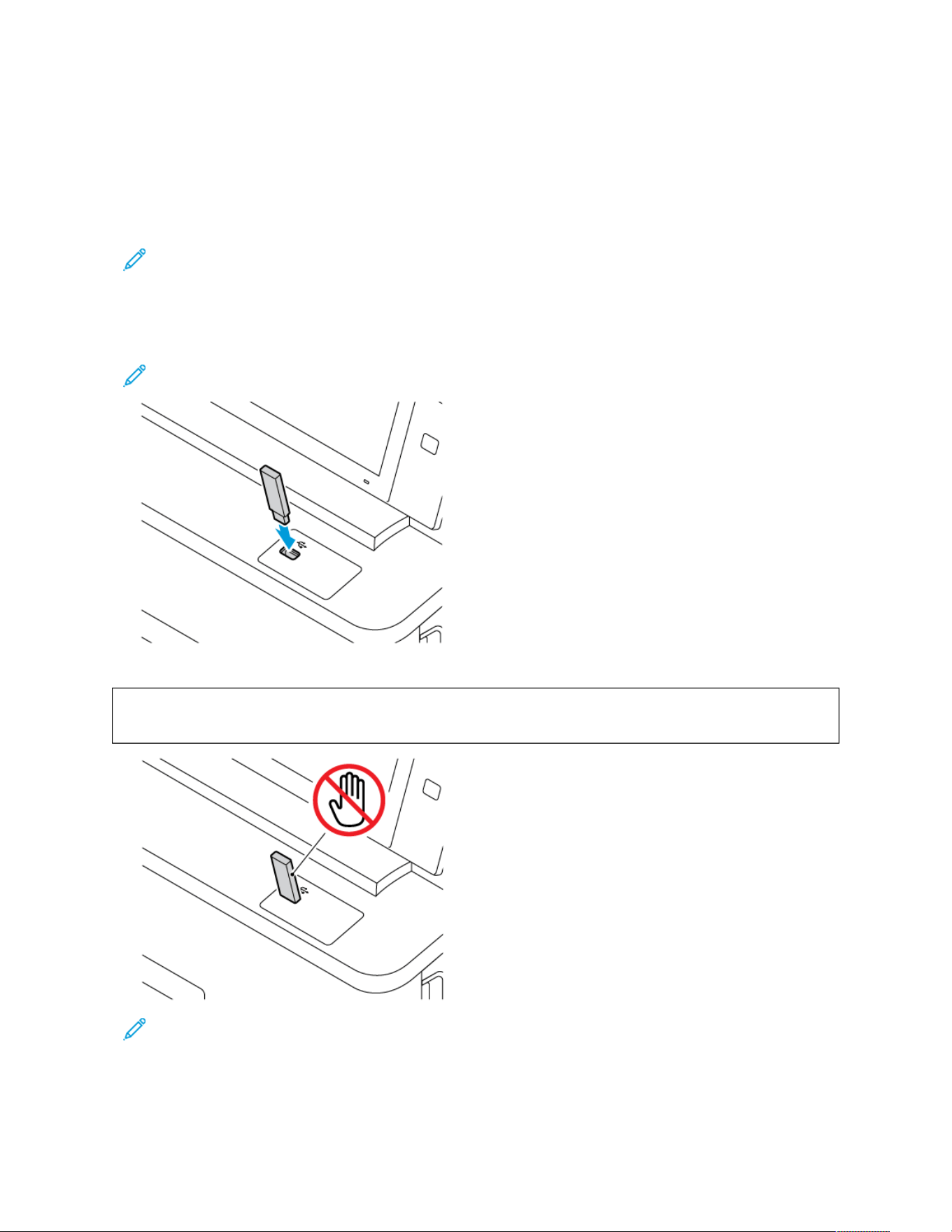
Print From
PRINTING FROM A USB FLASH DRIVE
You can print single or multiple files stored on a USB Flash drive. The USB port is on the front of the printer.
Note: Only USB Flash drives formatted to FAT16, FAT32, and exFAT file systems are supported. exFAT support
is a licensed feature that requires a purchased FIK.
To print from a USB Flash drive:
1. Insert the USB Flash drive into the USB port on the printer.
Note: Ensure that the USB port you want to use is enabled.
2. At the USB Drive Detected screen, touch Print from USB.
WWaarrnniinngg:: To avoid loss of data or printer malfunction, do not touch the flash drive or the printer in the
area shown while actively printing, reading, or writing from the memory device.
Note: If the Print from USB feature does not appear, enable the feature or contact your system
administrator. For details, refer to the System Administrator Guide at www.xerox.com/office/VLC415docs.
3. To select a file for printing, browse the file, then touch the check box. If multiple files require printing, browse
each file, then select the check box for each file.
Xerox
®
VersaLink
®
C415 Color Multifunction Printer User Guide 205
Printing

4. Touch OK.
A list of files selected for printing appears.
5. To remove files from the printing list:
• To remove a single file, touch the file, then select Remove. To confirm removal, touch Remove.
• To remove all the files, touch a file, then select Remove All. To confirm removal, touch Remove All.
6. Adjust the feature settings as needed.
7. Touch Print.
8. When you are finished, remove the USB Flash drive.
9. To return to the Home screen, press the Home button.
PRINTING FROM SAVED JOBS
To print from saved jobs:
1. At the control panel, press the Home button, then touch Print From.
2. Touch Saved Jobs, then touch the name of the folder that contains the saved job.
3. Touch the name of the saved job that you want to print.
4. Select the options for paper supply, quantity, 2-Sided printing, and finishing.
5. Touch Print.
Note: To print a private saved job, at the Passcode Required screen, enter the passcode, then touch OK.
6. To print another saved job, touch the current job name, then touch Remove. Touch Add Document, touch
Saved Jobs, then navigate to the job required.
7. To return to the Home screen, press the Home button.
PRINTING FROM A MAILBOX
The print from mailbox feature allows you to print a file that is stored in a folder on the printer.
To print from a mailbox:
1. At the control panel, press the Home button, then touch Print From.
2. Select Mailboxes, then touch the name of the folder that contains the document.
Note: If Mailboxes does not appear, enable the feature or contact the system administrator. For details, refer
to the System Administrator Guide at www.xerox.com/office/VLC415docs.
3. Touch the name of the document that you want to print.
4. Select the options for paper supply, quantity, 2-Sided printing, and finishing.
5. Touch Print.
6. To select another job in the mailbox, touch the current job name, then touch Remove. Touch Add Document,
touch Mailboxes, then navigate to the job required.
7. To return to the Home screen, press the Home button.
206
Xerox
®
VersaLink
®
C415 Color Multifunction Printer User Guide
Printing

PRINTING FROM THE EMBEDDED WEB SERVER
You can print various file types, such as .txt, .pdf, .ps, and .pcl files directly from the Embedded Web Server without
the need of another application or the print driver. You can store files on a local computer hard drive, mass storage
device, or network drive.
To print from the Embedded Web Server:
1. At your computer, open a Web browser. In the address field, type the IP address of the printer, then press Enter
or Return.
Note: For details about obtaining the IP address of your printer, refer to Finding the IP Address of Your
Printer.
2. In the Embedded Web Server, click the Print tab.
3. To select the file from a local network or remote location, for File Name, click Browse. Select the file, then click
Open.
4. For Printing, select the required options for the job.
• Normal Print prints a job immediately.
• Secure Print prints a job after you enter your passcode at the printer control panel.
• Sample Set, or proof print, prints one copy of a multiple-copy print job and holds the remaining copies at
the printer.
• Save Job for Reprint saves a print job in a folder on the print server for future printing. You can specify a
job name and folder.
• Delay Print prints a job at a specified time up to 24 hours from the original job submission.
5. If accounting is enabled, enter your User ID and account information.
6. Click Submit Job.
Note: To ensure that the job was sent to the queue, wait for the job submission confirmation message to
appear before you close this page.
Xerox
®
VersaLink
®
C415 Color Multifunction Printer User Guide 207
Printing

208 Xerox
®
VersaLink
®
C415 Color Multifunction Printer User Guide
Printing

Xerox
®
VersaLink
®
C415 Color Multifunction Printer User Guide 209
Paper and Media
This chapter contains:
Paper and Media Overview . . . . . . . . . . . . . . . . . . . . . . . . . . . . . . . . . . . . . . . . . . . . . . . . . . . . . . . . . . . . . . . . . . . . . . . . . . . . . . . . . . . . . . . . . . . . . . . . . . . . . . . . . . . . . . . . . . 210
Supported Paper . . . . . . . . . . . . . . . . . . . . . . . . . . . . . . . . . . . . . . . . . . . . . . . . . . . . . . . . . . . . . . . . . . . . . . . . . . . . . . . . . . . . . . . . . . . . . . . . . . . . . . . . . . . . . . . . . . . . . . . . . . . . . . . . 211
Configuring Paper Tray Settings . . . . . . . . . . . . . . . . . . . . . . . . . . . . . . . . . . . . . . . . . . . . . . . . . . . . . . . . . . . . . . . . . . . . . . . . . . . . . . . . . . . . . . . . . . . . . . . . . . . . . . . . . . . . 219
Loading Paper . . . . . . . . . . . . . . . . . . . . . . . . . . . . . . . . . . . . . . . . . . . . . . . . . . . . . . . . . . . . . . . . . . . . . . . . . . . . . . . . . . . . . . . . . . . . . . . . . . . . . . . . . . . . . . . . . . . . . . . . . . . . . . . . . . . 220
Printing on Special Paper . . . . . . . . . . . . . . . . . . . . . . . . . . . . . . . . . . . . . . . . . . . . . . . . . . . . . . . . . . . . . . . . . . . . . . . . . . . . . . . . . . . . . . . . . . . . . . . . . . . . . . . . . . . . . . . . . . . . . 228
Paper and Media Overview
The Xerox
®
VersaLink
®
C415 Color Multifunction Printer can have up to four paper trays:
• Tray 1: Standard 250-sheet Tray with a Manual Feeder. Tray 1 can be configured as dedicated or adjustable
paper tray for loading a range of paper sizes.
• Manual Feeder: It is a part of Tray 1 located in the front. Manual Feeder cannot be set to Dedicated mode. It is
an adjustable paper tray. You can load all types of media in Manual Feeder, but only one sheet at a time.
• Tray 2: Optional 550-sheet Tray with an integrated 100-sheet Bypass Tray or optional 550-sheet Tray.
• Trays 3 and 4: Optional 550-sheet Trays. For multiple optional 550-sheet tray configurations, Trays 2, 3, and 4
can be configured as dedicated or adjustable paper trays.
• Bypass Tray: The 100-sheet Bypass Tray is a part of optional Tray 2 located in the front. The Bypass Tray cannot
be set to Dedicated mode. You can load all types of media except Cardstock and Glossy Cardstock in Bypass
Tray, but in small amounts.
The printer can use various media types, such as plain paper, recycled paper, letterhead, pre-printed paper,
cardstock, labels, and envelopes. Ensure that you use the correct media for the tray that you are loading. Bypass
Tray is for loading small amounts of standard and custom paper. For details on supported paper types and weights,
refer to Supported Paper Types and Weights.
CCaauuttiioonn:: 2-Sided printing is not allowed for paper types, such as Envelopes, Labels, and Cardstock. It can
cause misfeeds and other print problems.
Note: When the machine is printing, do not open other trays to avoid paper Jams.
Note: To use the different Tray configurations and their capabilities efficiently, ensure that your printer is
updated to the latest software.
Labels inside each tray show the correct orientation for loading certain types of media. The MAX label shows the
maximum fill line for the tray.
210
Xerox
®
VersaLink
®
C415 Color Multifunction Printer User Guide
Paper and Media

Supported Paper
Your printer is designed to use various paper and other media types. To ensure the best print quality and to avoid
jams, follow the guidelines in this section.
For best results, use Xerox paper and media recommended for your printer.
RECOMMENDED MEDIA
A list of paper and media recommended for your printer is available at:
• www.xerox.com/rmlna Recommended Media List (United States)
• www.xerox.com/rmleu Recommended Media List (Europe)
ORDERING PAPER
To order paper and other media, contact your local reseller or go to www.xerox.com/office/supplies.
GENERAL PAPER LOADING GUIDELINES
• Do not overfill the paper trays. Do not load paper above the maximum fill line in the tray.
• Adjust the paper guides to fit the paper size.
• Fan paper before loading it in the paper tray.
• If excessive jams occur, use paper or other approved media from a new package.
• Do not print on label media once a label has been removed from a sheet.
• Use only paper envelopes. Print envelopes 1-sided only.
PAPER THAT CAN DAMAGE YOUR PRINTER
Some paper and other media types can cause poor output quality, increased paper jams, or damage your printer.
Do not use the following:
• Rough or porous paper
• Inkjet paper
• Non-laser glossy or coated paper
• Paper that has been photocopied
• Paper that has been folded or wrinkled
• Paper with cutouts or perforations
• Stapled paper
• Envelopes with windows, metal clasps, side seams, or adhesives with release strips
• Padded envelopes
• Plastic media
Xerox
®
VersaLink
®
C415 Color Multifunction Printer User Guide 211
Paper and Media

WWaarrnniinngg:: The Xerox Warranty or Service Agreement does not cover damage caused by using
unsupported paper or specialty media. For more information, contact your local Xerox representative.
PAPER STORAGE GUIDELINES
Storing your paper and other media properly contributes to optimum print quality.
• Store paper in dark, cool, relatively dry locations. Most paper is susceptible to damage from ultraviolet and
visible light. Ultraviolet light, from the sun and fluorescent bulbs, is particularly damaging to paper.
• Reduce the exposure of paper to strong lights for long periods of time.
• Maintain constant temperatures and relative humidity.
• Avoid storing paper in attics, kitchens, garages, or basements. These spaces are more likely to collect moisture.
• Store paper flat, either on pallets, cartons, shelves, or in cabinets.
• Avoid food or drinks in the area where paper is stored or handled.
• Do not open sealed packages of paper until you are ready to load them into the printer. Leave stored paper in
the original packaging. The paper wrapper protects the paper from moisture loss or gain.
• Some special media is packaged inside resealable plastic bags. Store the media inside the bag until you are
ready to use it. Keep unused media in the bag and reseal it for protection.
PAPER CHARACTERISTICS
The following paper characteristics affect print quality and reliability. Consider these factors before printing on
them.
Weight
Trays can feed paper of varying weights. Paper lighter than 60 g/m
2
(16 lb.) may not be stiff enough to feed
properly, and may cause jams.
Curl
Curl is the tendency for paper to curl at its edges. Excessive curl can cause paper feeding problems. Curl can occur
after the paper passes through the printer, where it is exposed to high temperatures. Storing paper unwrapped in
hot, humid, cold, or dry conditions can contribute to paper curling before printing and can cause feeding problems.
Smoothness
Paper smoothness directly affects print quality. If paper is too rough, toner cannot fuse to it properly. If paper is too
smooth, it can cause paper feeding or print quality issues. We recommend the use of paper with 50 Sheffield
points.
Moisture Content
The amount of moisture in paper affects both print quality and the printer ability to feed the paper correctly. Leave
paper in its original wrapper until you use it. Exposure of paper to moisture changes can degrade its performance.
212
Xerox
®
VersaLink
®
C415 Color Multifunction Printer User Guide
Paper and Media
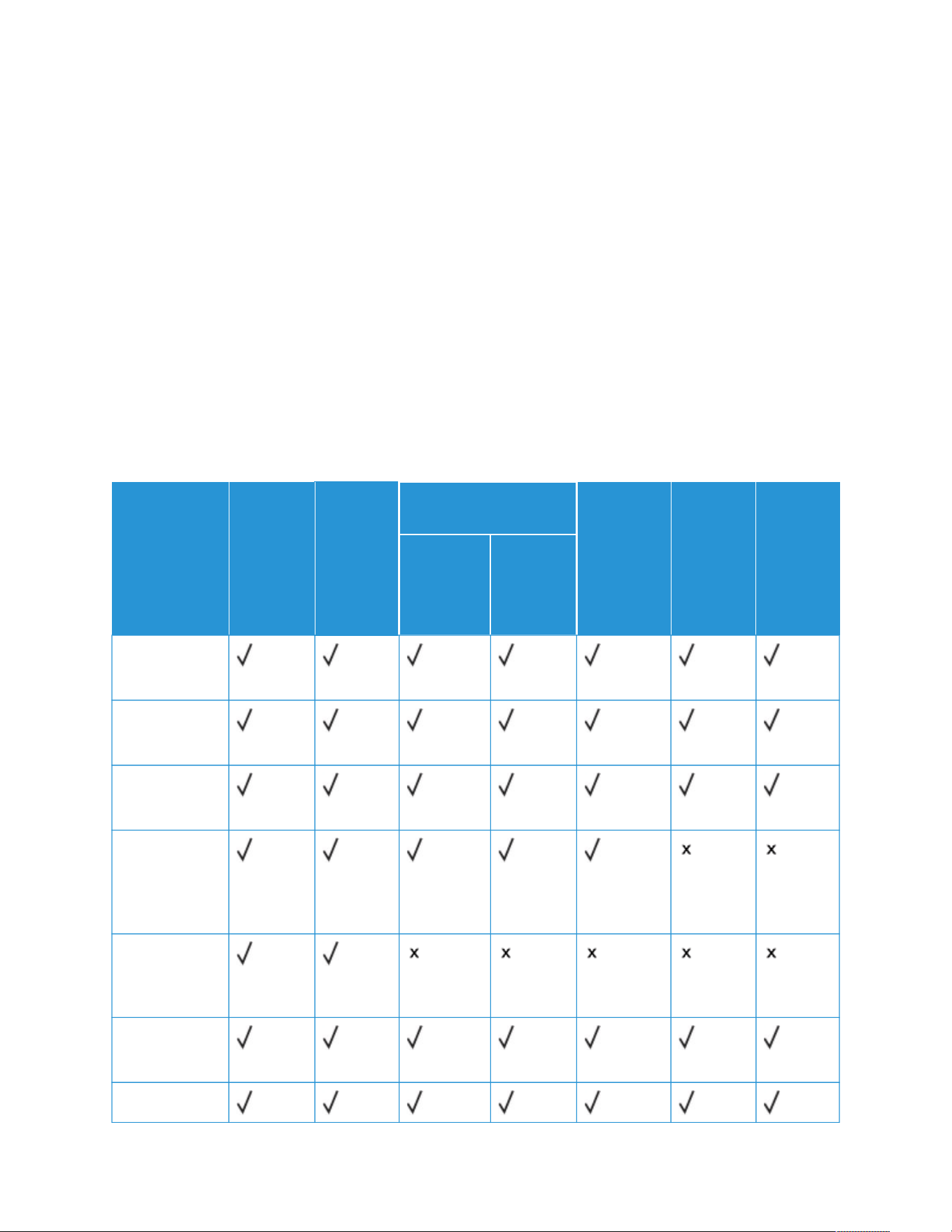
Before printing, store paper in its original wrapper in the same environment as the printer for 24–48 hours. The
environment in which the paper is stored must be the same as the printer. Extend the time by several days if the
storage or transportation environment is significantly different from printer environment. Thick paper may also
require a longer conditioning period.
Grain Direction
Grain refers to the alignment of the paper fibers in a sheet of paper. Grain is either grain long, running the length of
the paper, or grain short, running the width of the paper.
Fiber Content
Most high-quality xerographic paper is made from 100% chemically treated pulped wood. This content provides
the paper with a high degree of stability, resulting in fewer paper feeding problems and better print quality. Paper
containing fibers such as cotton can negatively affect paper handling.
SUPPORTED PAPER TYPES AND WEIGHTS
MEDIA TYPE
AND WEIGHT
STAND-
ARD 250-
SHEET
TRAY
(TRAY 1)
MANUAL
FEEDER
OPTIONAL 550+100
SHEET TRAY (TRAY 2)
OPTIONAL
550-SHEET
TRAY
(TRAY 2,
TRAY 3
AND TRAY
4)
2-SIDED
PRINT-
ING
DUPLEX
AUTO-
MATIC
DOCU-
MENT
FEEDER
(DADF)
550-SHEET
TRAY
BYPASS
TRAY
PPllaaiinn
(75–90 g/m
2
)
HHoollee--PPuunncchheedd
(75–90 g/m
2
)
LLeetttteerrhheeaadd
(75–105 g/m
2
)
LLiigghhttwweeiigghhtt
CCaarrddssttoocckk
(106–162 g/
m
2
)
CCaarrddssttoocckk
(163–216 g/
m
2
)
RReeccyycclleedd
(75–90 g/m
2
)
BBoonndd
Xerox
®
VersaLink
®
C415 Color Multifunction Printer User Guide 213
Paper and Media
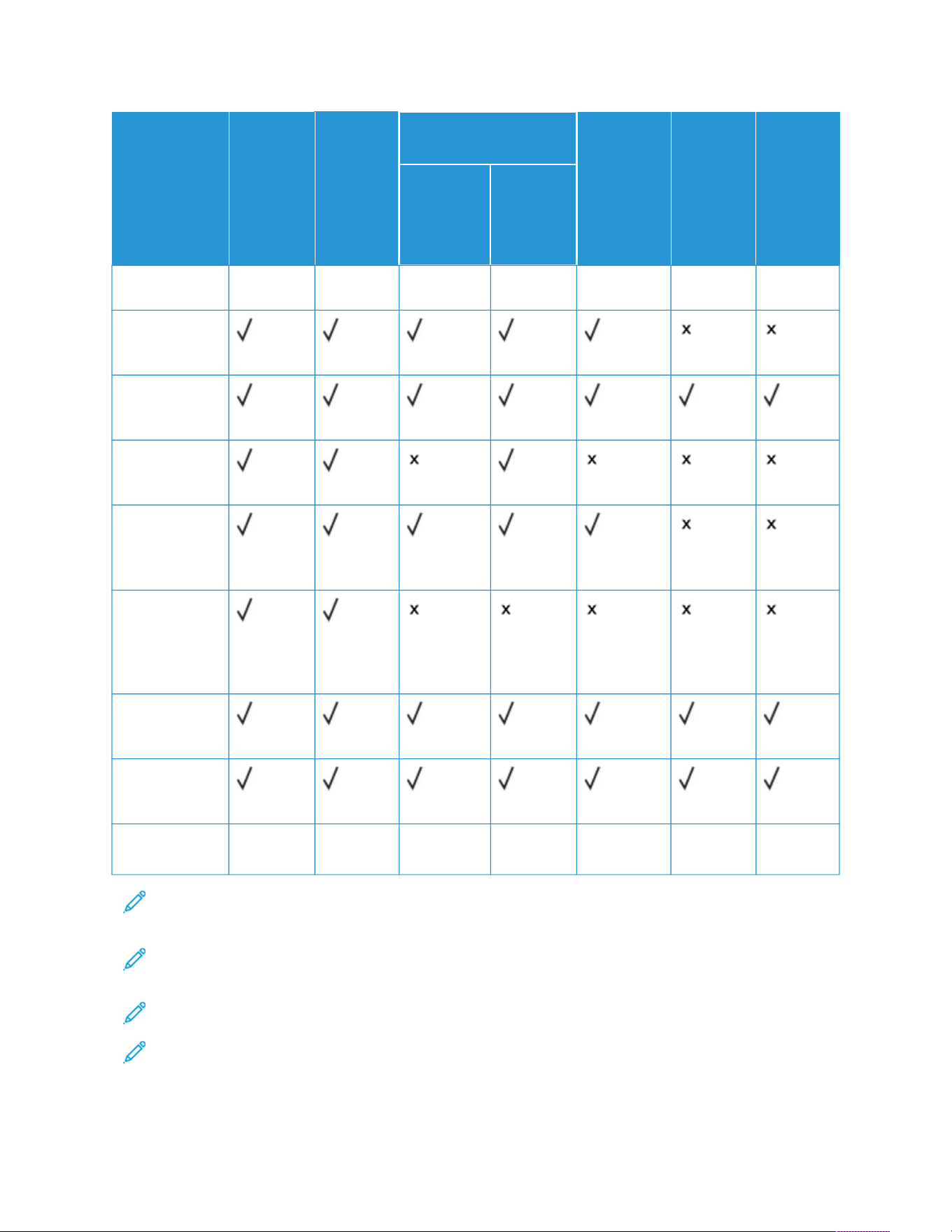
MEDIA TYPE
AND WEIGHT
STAND-
ARD 250-
SHEET
TRAY
(TRAY 1)
MANUAL
FEEDER
OPTIONAL 550+100
SHEET TRAY (TRAY 2)
OPTIONAL
550-SHEET
TRAY
(TRAY 2,
TRAY 3
AND TRAY
4)
2-SIDED
PRINT-
ING
DUPLEX
AUTO-
MATIC
DOCU-
MENT
FEEDER
(DADF)
550-SHEET
TRAY
BYPASS
TRAY
(75–105 g/m
2
)
LLaabbeellss
(75–131 g/m
2
)
PPrree--PPrriinntteedd
(75–90 g/m
2
)
EEnnvveellooppee
(60–105 g/m
2
)
LLiigghhtt GGlloossssyy
CCaarrddssttoocckk
(88–162 g/m
2
)
GGlloossssyy
CCaarrddssttoocckk
(163–176 g/
m
2
)
LLiigghhttwweeiigghhtt
(60–74 g/m
2
)
CCuussttoomm 11––77
(75–90 g/m
2
)
WWeeiigghhtt RRaannggee 60–216 g/
m
2
60–216 g/
m
2
60–176 g/
m
2
60–176 g/
m
2
60–176 g/
m
2
60–105 g/
m
2
52–120 g/
m
2
Note: Setting the correct media type for the loaded paper is important for the best image quality and proper
functionality of certain printer features.
Note: To use the different Tray configurations and their capabilities efficiently, ensure that your printer is
updated to the latest software.
Note: Do not use envelopes or labels for 2-Sided printing.
Note: Pre-cut tabs are not supported.
214
Xerox
®
VersaLink
®
C415 Color Multifunction Printer User Guide
Paper and Media
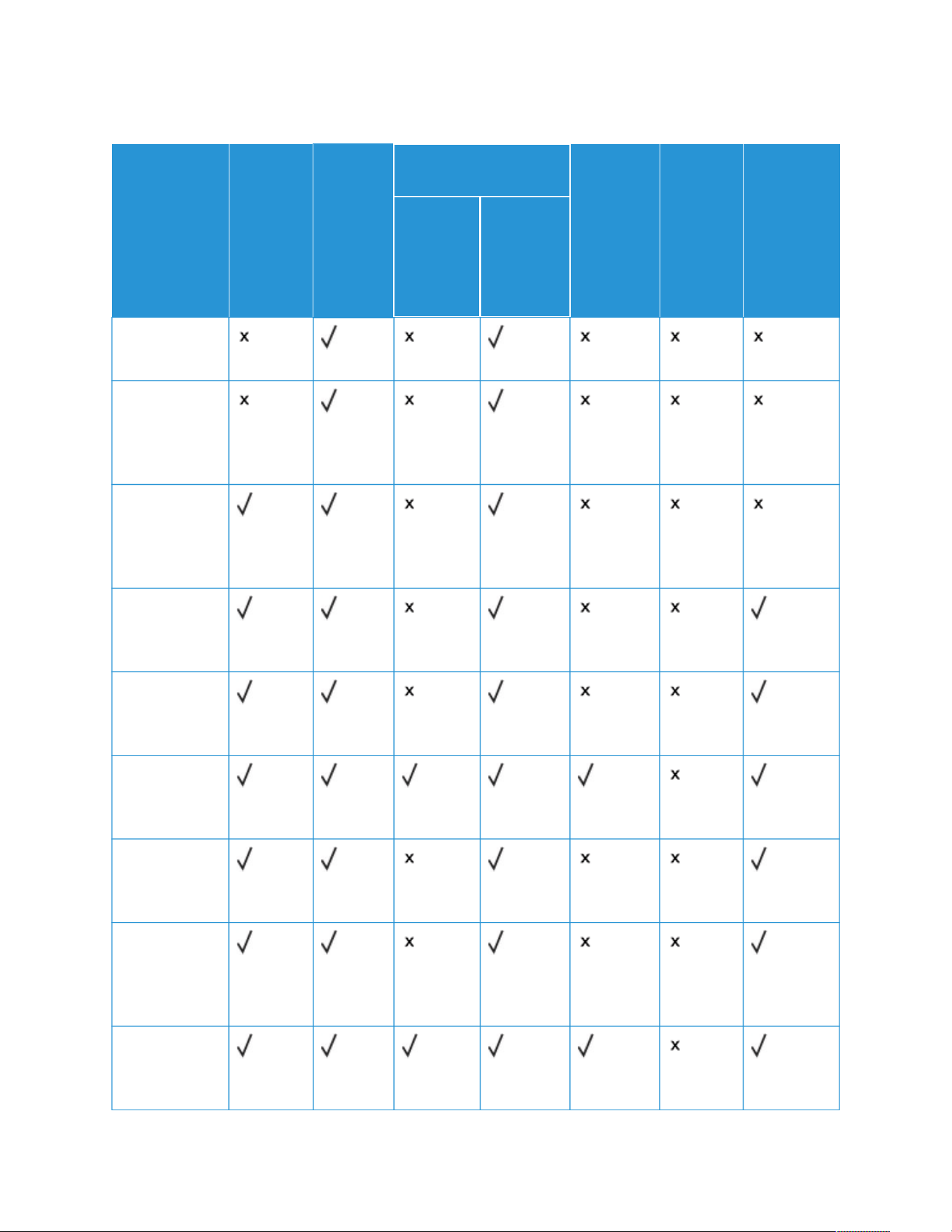
SUPPORTED STANDARD AND CUSTOM PAPER SIZES
MEDIA SIZE
AND
MEASURE-
MENTS
STAND-
ARD 250-
SHEET
TRAY
(TRAY 1)
MANUAL
FEEDER
OPTIONAL 550+100
SHEET TRAY (TRAY 2)
OPTIONAL
550-
SHEET
TRAY
(TRAY 2,
TRAY 3
AND TRAY
4)
2-SIDED
PRINT-
ING
DUPLEX
AUTOMAT-
IC
DOCU-
MENT
FEEDER
(DADF)
550-
SHEET
TRAY
BYPASS
TRAY
33 xx 55 iinn..
(76 x 127 mm)
PPoossttccaarrdd ((44..2255
xx 55..55 iinn..))
(108 x 138
mm)
PPoossttccaarrdd ((44 xx 66
iinn..))
(102 x 152
mm)
55 xx 77 iinn..
(127 x 178
mm)
AA66 ((110055 xx 114488
mmmm))
(4.1 x 5.8 in.)
AA55 ((114488 xx 221100
mmmm))
(5.8 x 8.3 in.)
AA55 ((221100 xx 114488
mmmm))
(8.3 x 5.8 in.)*
SSttaatteemmeenntt
((55..55 xx 88..55 iinn..))
(140 x 216
mm)
BB55 ((117766 xx 225500
mmmm))
(6.9 x 9.8 in.)
Xerox
®
VersaLink
®
C415 Color Multifunction Printer User Guide 215
Paper and Media
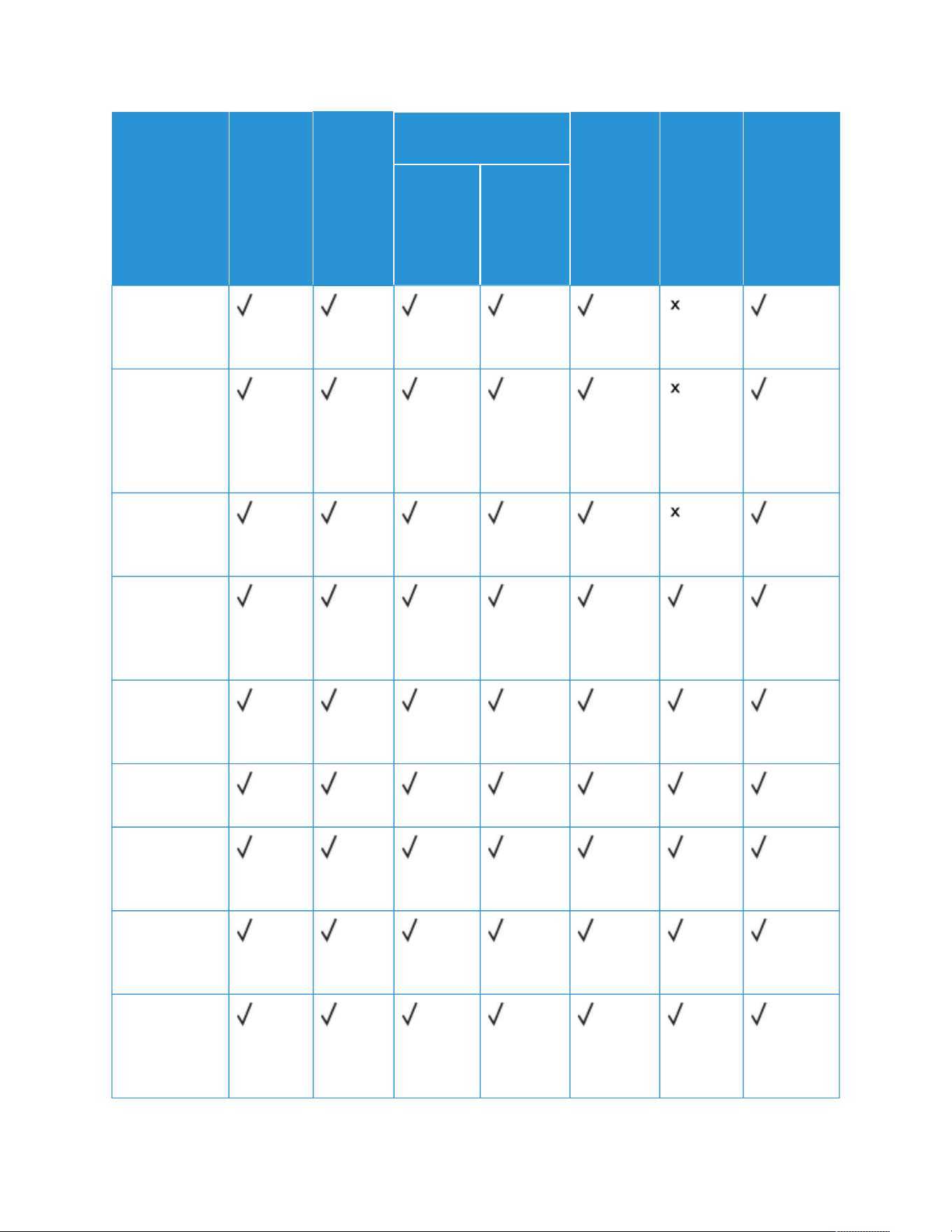
MEDIA SIZE
AND
MEASURE-
MENTS
STAND-
ARD 250-
SHEET
TRAY
(TRAY 1)
MANUAL
FEEDER
OPTIONAL 550+100
SHEET TRAY (TRAY 2)
OPTIONAL
550-
SHEET
TRAY
(TRAY 2,
TRAY 3
AND TRAY
4)
2-SIDED
PRINT-
ING
DUPLEX
AUTOMAT-
IC
DOCU-
MENT
FEEDER
(DADF)
550-
SHEET
TRAY
BYPASS
TRAY
JJIISS BB55 ((118822 xx
225577 mmmm))
(7.2 x 10.1 in.)
EExxeeccuuttiivvee
((77..2255 xx 1100..55
iinn..))
(184 x 267
mm)
88 xx 1100 iinn..
(203 x 254
mm)
LLeetttteerr ((88..55 xx
1111 iinn..))
(216 x 279
mm)
AA44 ((221100 xx 229977
mmmm))
(8.3 x 11.7 in.)
221155 xx 331155 mmmm
(8.5 x 12.4 in.)
88..55 xx 1133 iinn..
(216 x 330
mm)
88..55 xx 1133..44 iinn..
(216 x 340
mm)
LLeeggaall ((88..55 xx 1144
iinn..))
(216 x 356
mm)
216 Xerox
®
VersaLink
®
C415 Color Multifunction Printer User Guide
Paper and Media
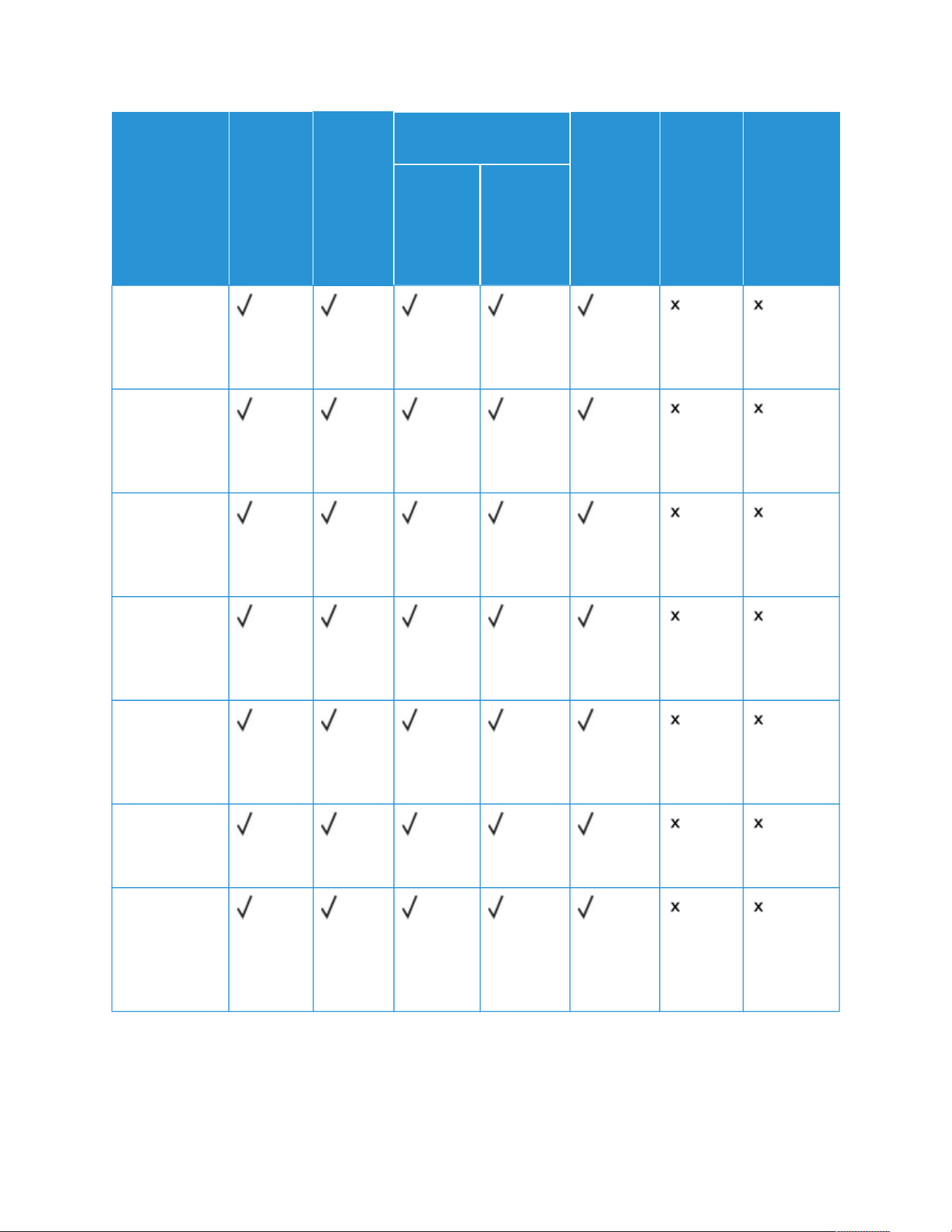
MEDIA SIZE
AND
MEASURE-
MENTS
STAND-
ARD 250-
SHEET
TRAY
(TRAY 1)
MANUAL
FEEDER
OPTIONAL 550+100
SHEET TRAY (TRAY 2)
OPTIONAL
550-
SHEET
TRAY
(TRAY 2,
TRAY 3
AND TRAY
4)
2-SIDED
PRINT-
ING
DUPLEX
AUTOMAT-
IC
DOCU-
MENT
FEEDER
(DADF)
550-
SHEET
TRAY
BYPASS
TRAY
CC55 EEnnvveellooppee
((116622 xx 222299
mmmm))
(6.4 x 9 in.)
CC66 EEnnvveellooppee
((111144 xx 116622
mmmm))
(4.5 x 6.4 in.)
DDLL EEnnvveellooppee
((111100 xx 222200
mmmm))
(4.3 x 8.6 in.)
EEnnvveellooppee ((66 xx
99 iinn..))
(152 x 228
mm)
MMoonnaarrcchh
EEnnvveellooppee ((33..99
xx 77..55 iinn..))
(98 x 190 mm)
NNoo.. 99 EEnnvveellooppee
((33..99 xx 88..99 iinn..))
(98 x 225 mm)
NNoo.. 1100
EEnnvveellooppee ((44..11
xx 99..55 iinn..))
(105 x 241
mm)
Xerox
®
VersaLink
®
C415 Color Multifunction Printer User Guide 217
Paper and Media

MEDIA SIZE
AND
MEASURE-
MENTS
STAND-
ARD 250-
SHEET
TRAY
(TRAY 1)
MANUAL
FEEDER
OPTIONAL 550+100
SHEET TRAY (TRAY 2)
OPTIONAL
550-
SHEET
TRAY
(TRAY 2,
TRAY 3
AND TRAY
4)
2-SIDED
PRINT-
ING
DUPLEX
AUTOMAT-
IC
DOCU-
MENT
FEEDER
(DADF)
550-
SHEET
TRAY
BYPASS
TRAY
CCuussttoomm 98–216 x
148–356
mm
(3.8–8.5 x
5.8–14 in.)
76–216 x
127–356
mm
(3–8.5 x
5–14 in.)
148–216 x
210–356
mm
(5.8–8.5 x
8.2–14 in.)
76–216 x
127–356
mm
(3.0–8.5 x
5.0–14 in.)
148–216 x
210–356
mm
(5.8–8.5 x
8.2–14 in.)
210–216
x 279–
356 mm
(8.2–8.5 x
11–14 in.)
105–216 x
148–356
mm
(4.1–8.5 x
5.8–14 in.)
Note: Setting the correct media type for the loaded paper is important for the best image quality and
proper functionality of certain printer features.
Note: To use the different Tray configurations and their capabilities efficiently, ensure that your printer is
updated to the latest software.
Note: An asterisk (*) next to a value indicates the Long Edge Feed. For A5, the recommended orientation
for loading the paper is Long Edge Feed (LEF).
218
Xerox
®
VersaLink
®
C415 Color Multifunction Printer User Guide
Paper and Media

Configuring Paper Tray Settings
CONFIGURING DEDICATED PAPER TRAYS
The system administrator can set trays to Fully Adjustable mode or Dedicated mode. When a paper tray is set to
Fully Adjustable mode, you can change paper settings each time you load the tray. When a paper tray is set to
Dedicated mode, the control panel prompts you to load a specific paper size, type, and color.
Your printer can have up to three optional standard paper trays that can be configured as Fully Adjustable or
Dedicated trays. The dedicated paper trays, Manual Feeder, and Bypass tray cannot be set as Dedicated.
Note: To configure tray settings, refer to the System Administrator Guide at www.xerox.com/office/
VLC415docs.
CHANGING PAPER SIZE, TYPE, AND COLOR
When a paper tray is set to Fully Adjustable mode, you can change paper settings each time that you load the tray.
When you close the tray, the control panel prompts you to set the paper size, type, and color of paper loaded.
When a paper tray is set to Dedicated mode, the control panel prompts you to load a specific paper size, type, and
color.
To configure the tray settings for Fully Adjustable or Dedicated mode, refer to Configuring Paper Tray Settings.
To set the paper size, type, or color when a tray is set to Fully Adjustable:
1. Open the paper tray, then load the required paper.
2. Close the tray.
3. At the control panel, select the correct paper size, type, and color:
• To select a new paper size, touch Size.
• To select a new paper type, touch Type.
• To select a new paper color, touch Color.
4. To confirm the settings, touch Confirm.
To set the paper size, type, or color when a tray is set to Dedicated, refer to Configuring Dedicated Paper Trays.
Xerox
®
VersaLink
®
C415 Color Multifunction Printer User Guide 219
Paper and Media
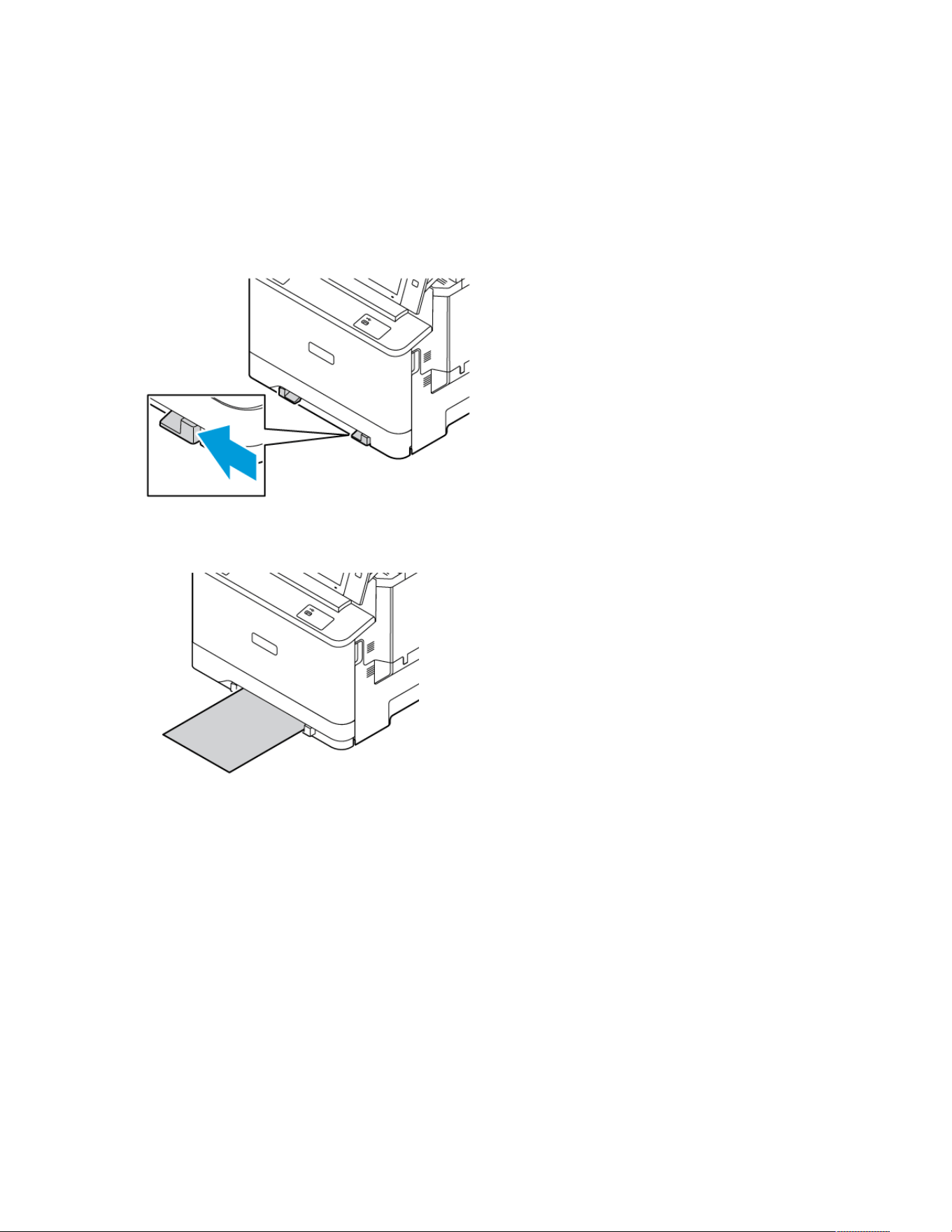
Loading Paper
LOADING PAPER IN MANUAL FEEDER
To load paper in the manual feeder, do the following:
1. Adjust the edge guides to match the width of the paper that you are loading.
2. Load the paper in the tray. Long-edge feed is the recommended orientation for A5 (148 x 210 mm, 5.8 x 8.3
in.) paper.
3. Feed the paper until its leading edge is pulled in.
220
Xerox
®
VersaLink
®
C415 Color Multifunction Printer User Guide
Paper and Media
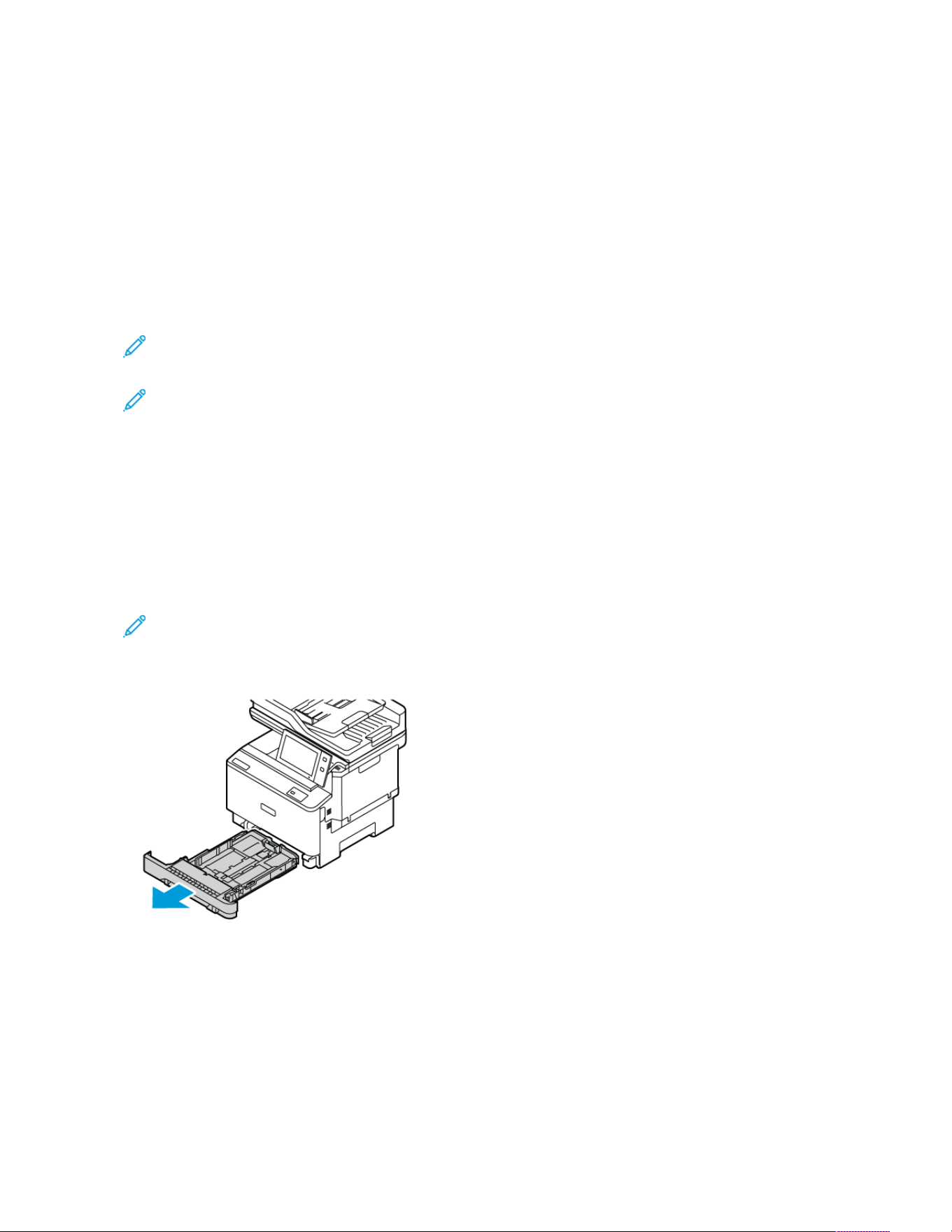
LOADING PAPER IN TRAYS 1–4
The system administrator can set Trays 1–4 to Fully Adjustable mode or Dedicated mode. Each time when a tray is
opened and closed, the paper settings appear on the control panel.
When a paper tray is set to Fully Adjustable mode, you can change paper settings each time that you load the tray.
When a paper tray is set to Dedicated mode, the control panel prompts you to load a specific paper size, type, and
color.
• When trays are configured as Fully Adjustable, you can confirm or change the media settings.
• When trays are configured as Dedicated, the control panel displays the media settings for the tray.
Note: Only the system administrator can change the media settings for a dedicated tray. For details on how
to configure tray settings, refer to Configuring Paper Tray Settings.
Note: Setting the correct media type for the loaded paper is important for the best image quality and proper
functionality of certain printer features.
When a tray is empty, a notification appears at the bottom of the control panel.
Do the following to load paper in Trays 1–4, where:
• Tray 1: Standard 250-sheet Tray
• Trays 2: Optional 550-sheet Tray with an integrated 100-sheet Bypass Tray or optional 550-sheet Tray. For more
information to load paper in the Bypass Tray, refer to Loading Paper in the Bypass Tray.
• Trays 3 and 4: Optional 550-sheet Tray
Note: To use the different Tray configurations and their capabilities efficiently, ensure that your printer is
updated to the latest software.
1. Pull out the tray until it stops.
2. Remove any paper that is a different size or type.
Xerox
®
VersaLink
®
C415 Color Multifunction Printer User Guide 221
Paper and Media
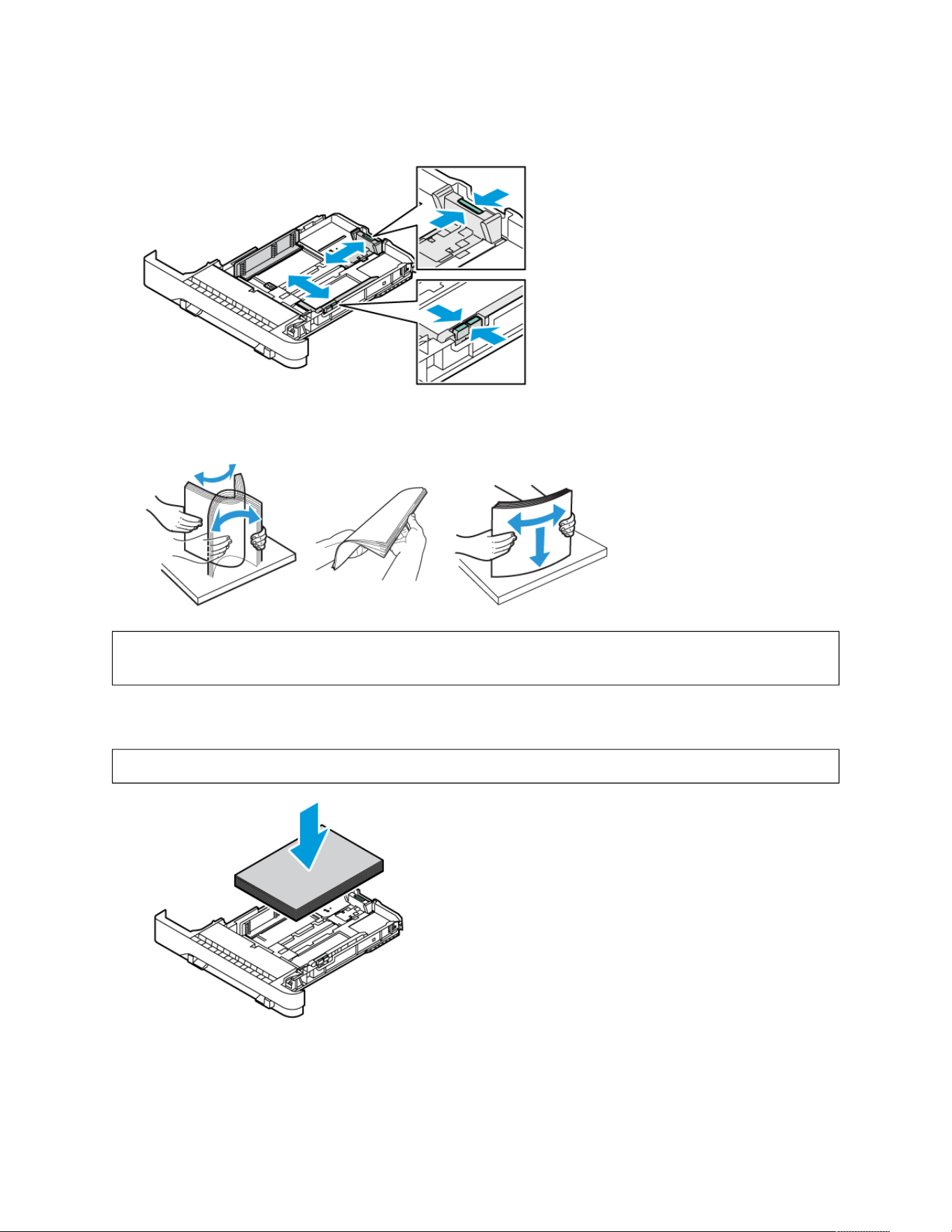
3. To move out the length or width paper guides, pinch the guide locks, then slide out the length or width paper
guides.
4. Flex the sheets back and forth and fan them, then align the edges of the stack on a level surface. Aligning the
edges of the stack of sheets.
WWaarrnniinngg:: To avoid jams and misfeeds, do not remove paper from its packaging until you are ready to
use it.
5. Load the paper in the tray. Long-edge feed is the recommended orientation for A5 (148 x 210 mm, 5.8 x 8.3
in.) paper.
WWaarrnniinngg:: Do not load the paper above the maximum fill line. Overfilling the tray can cause paper jams.
222 Xerox
®
VersaLink
®
C415 Color Multifunction Printer User Guide
Paper and Media
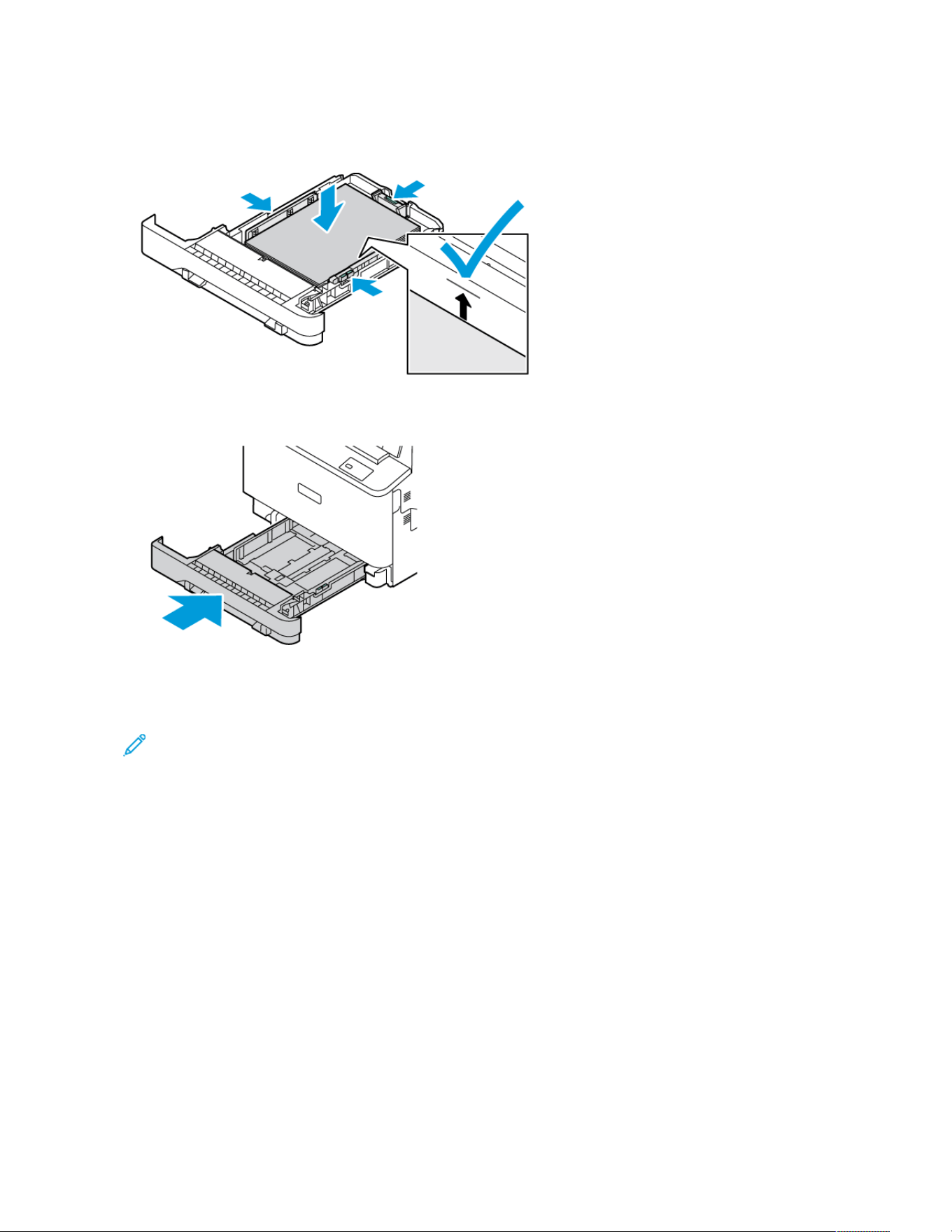
6. To fit the paper, adjust the length and width paper guides. Pinch the guide locks, then slide the paper guides in
until they touch the paper.
7. Slide the tray back into the printer.
8. At the control panel, select the correct paper size, type, and color.
9. To confirm the settings, touch Confirm.
Note: To change the paper settings when the tray is set to Dedicated mode, refer to Configuring Dedicated
Paper Trays.
LOADING PAPER IN THE BYPASS TRAY
The Bypass Tray supports the widest variety of media types. The tray is intended primarily for small-quantity jobs
that use special media. The Bypass Tray can load up to 100 sheets of paper.
To load paper in the Bypass Tray, do the following:
Xerox
®
VersaLink
®
C415 Color Multifunction Printer User Guide 223
Paper and Media
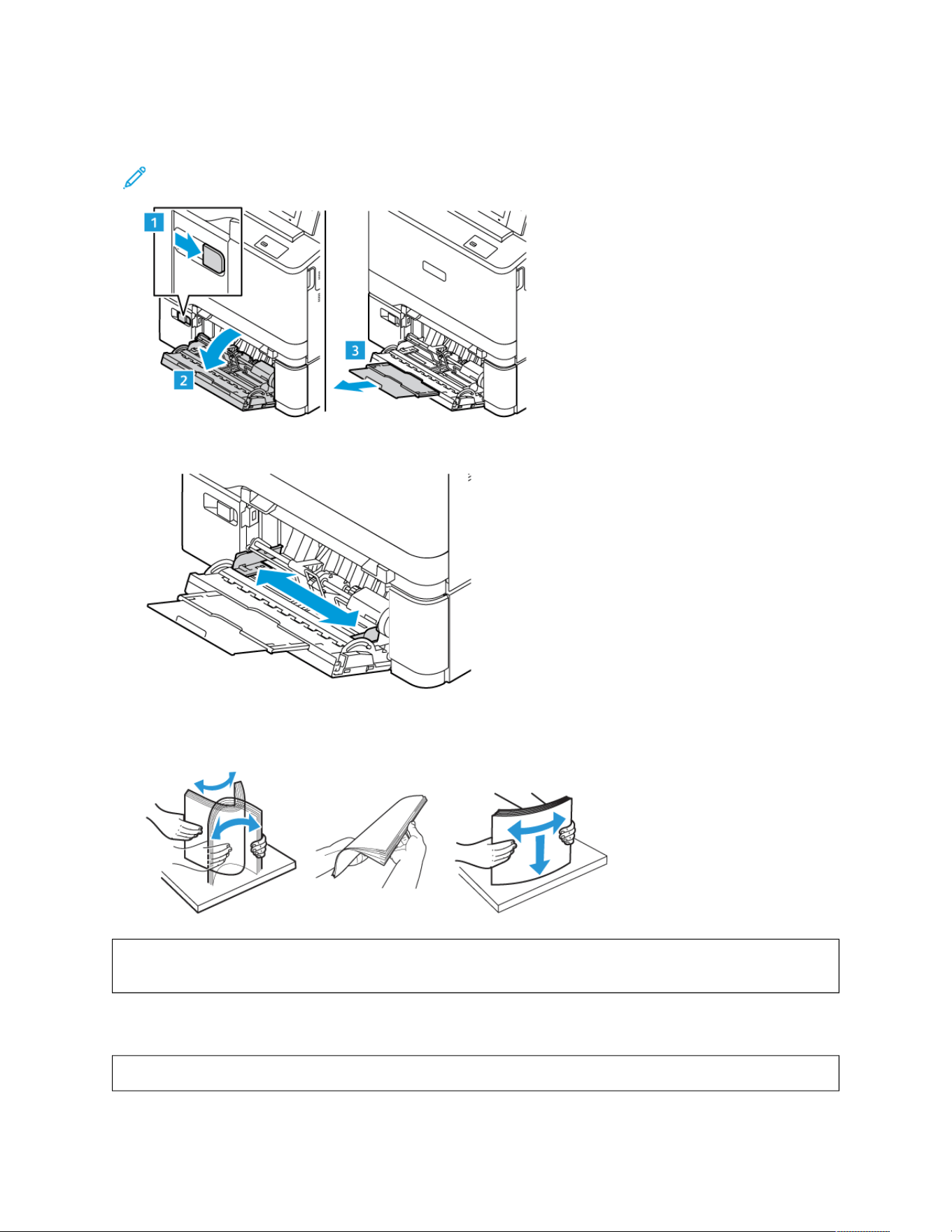
1. To open the Bypass Tray, push the release latch (1) at the front-left side of Tray 2. If the tray is loaded with
paper, remove any paper that is a different size or type.
Note: For larger paper sizes, pull out the extension tray.
2. Move the width guides to the edges of the tray.
3. Flex the sheets back and forth and fan them, then align the edges of the stack on a level surface. The
procedure separates any sheets that are stuck together and reduces the possibility of jams.
WWaarrnniinngg:: To avoid jams and misfeeds, do not remove paper from its packaging until you are ready to
use it.
4. Load the paper in the tray. Long-edge feed is the recommended orientation for A5 (148 x 210 mm, 5.8 x 8.3
in.)
WWaarrnniinngg:: Do not load paper above the maximum fill line. Overfilling can cause paper jams.
224
Xerox
®
VersaLink
®
C415 Color Multifunction Printer User Guide
Paper and Media
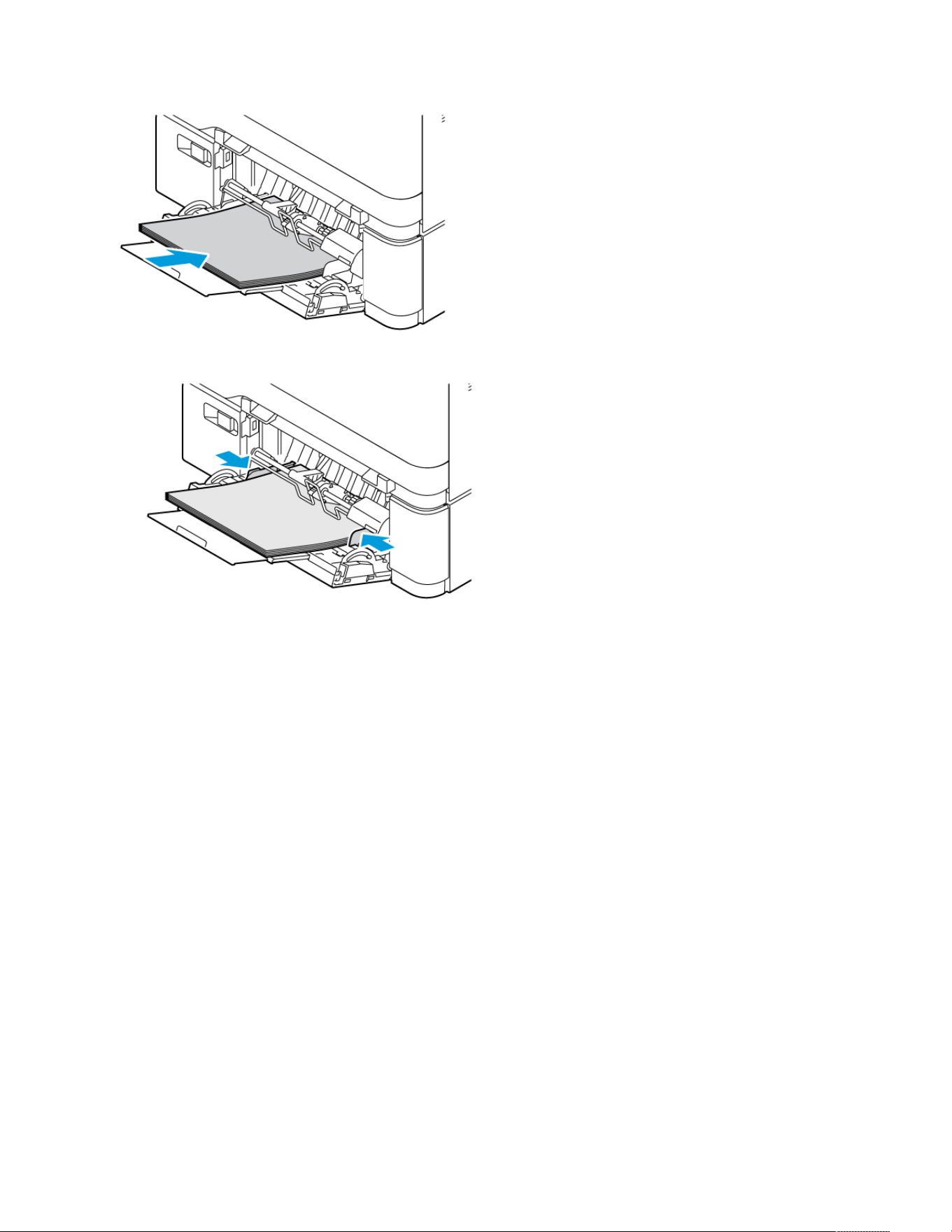
5. Adjust the width guides until they touch the edges of the paper.
6. At the control panel, select the correct paper size, type, and color.
7. To confirm the settings, touch Confirm.
Adjusting the Paper Guides in the Adjustable Trays
You can adjust the paper guides in Trays 1–4 to accommodate standard or custom paper sizes. The adjustable
Trays 1–4, consists of:
• Tray 1: 250-sheet Tray
• Tray 2: 550-sheet Tray or 550-sheet Tray with an integrated 100-sheet Bypass Tray
Xerox
®
VersaLink
®
C415 Color Multifunction Printer User Guide 225
Paper and Media
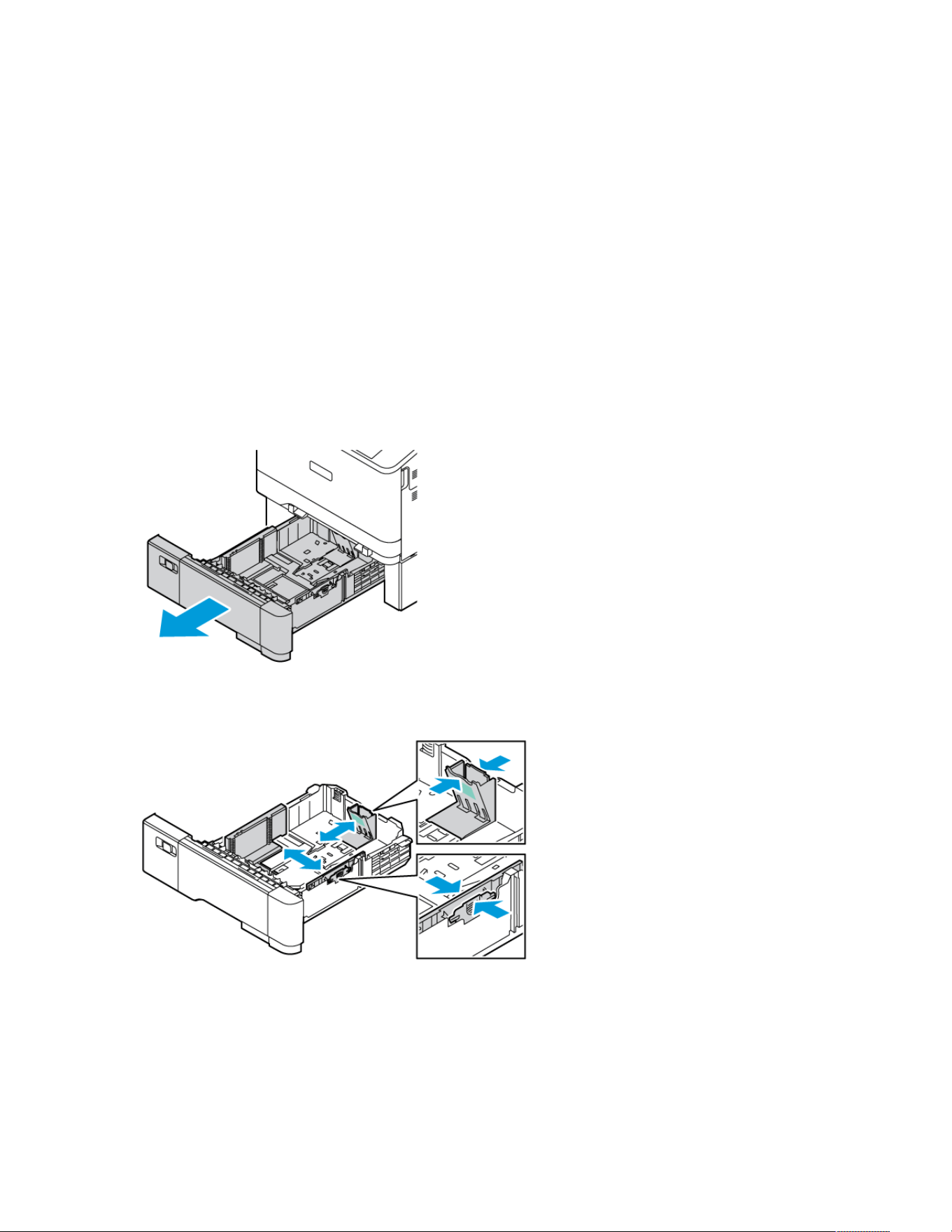
• Trays 3 and 4: 550-sheet Tray
In the standard position, the guides move into the supported standard paper settings. You can use the Paper Size
Preference feature to set the preferred paper size to inches or metric. Paper size options that use the selected units
setting appear at the top of the Paper Selection list on the Print tab and User Interface.
• Inches: This option sets the paper-size preference to display Imperial sizes first.
• Metric: This option sets the paper-size preference to display Metric sizes first.
The Measurement Units can be set to Inches or Metric. To set a custom size in the control panel, you can select
from the following options for different measurement units:
• 0.1 in., if the measurement unit is set to Inches or
• 1 mm, if the measurement unit is set to Metric
To move the paper guides from the standard to the custom paper-size position:
1. Pull out the tray until it stops.
2. Remove any paper from the tray. Pinch the guide levers, then move the length or width guides outward until
they stop.
226 Xerox
®
VersaLink
®
C415 Color Multifunction Printer User Guide
Paper and Media
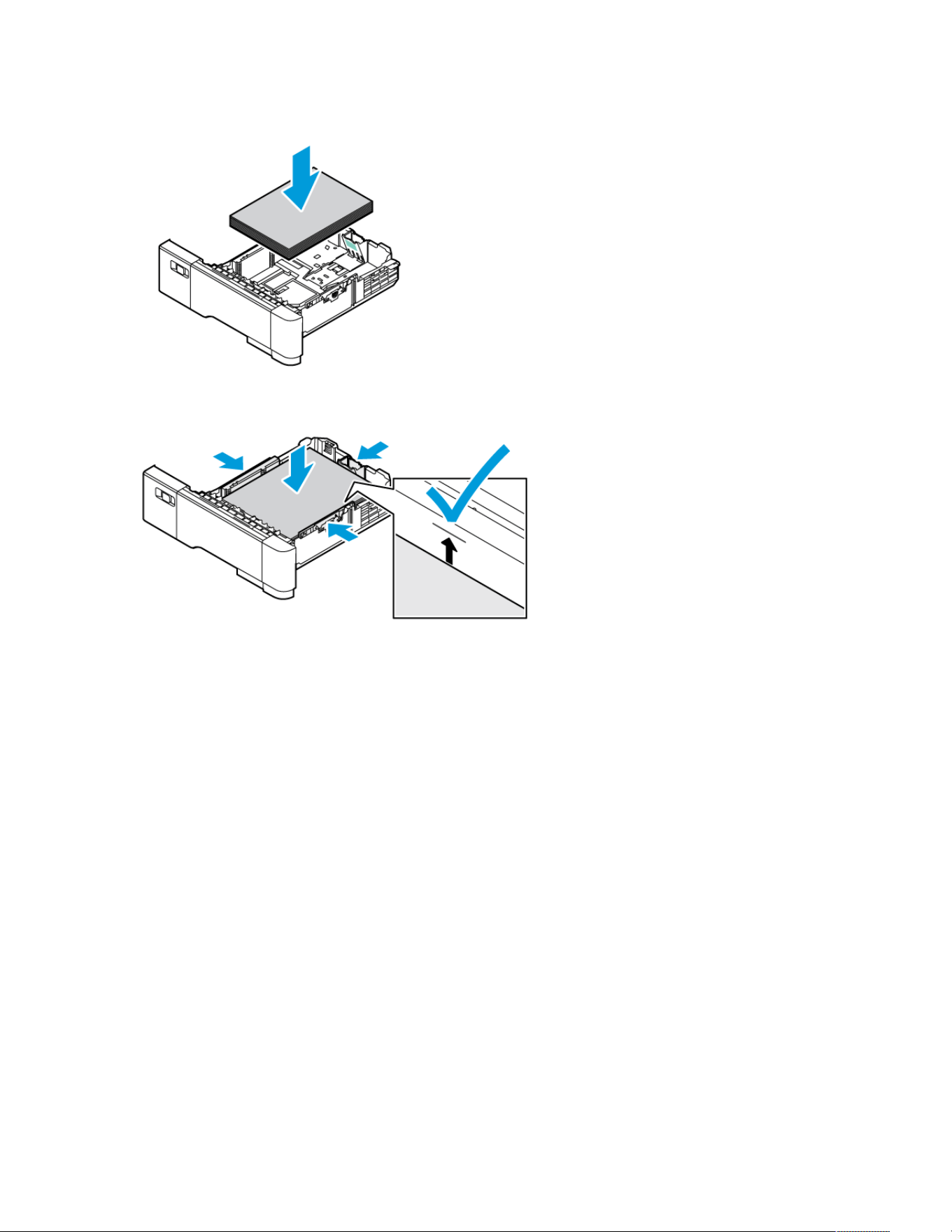
3. Load the custom-size paper in the tray.
4. To engage the fine-adjustment block, pinch the levers and slide the guides inward.
Xerox
®
VersaLink
®
C415 Color Multifunction Printer User Guide 227
Paper and Media

Printing on Special Paper
To order paper or other media, contact your local reseller or go to www.xerox.com/office/supplies.
For reference:
www.xerox.com/rmlna: Recommended Media List (United States)
www.xerox.com/rmleu: Recommended Media List (Europe)
LETTERHEAD, PRE-PRINTED, AND HOLE-PUNCHED MEDIA
You can print letterhead, pre-printed, and hole-punched paper from the following trays:
• Manual Feeder
• Trays 1–4
• Bypass Tray
Note: To use the different Tray configurations and their capabilities efficiently, ensure that your printer is
updated to the latest software.
228
Xerox
®
VersaLink
®
C415 Color Multifunction Printer User Guide
Paper and Media
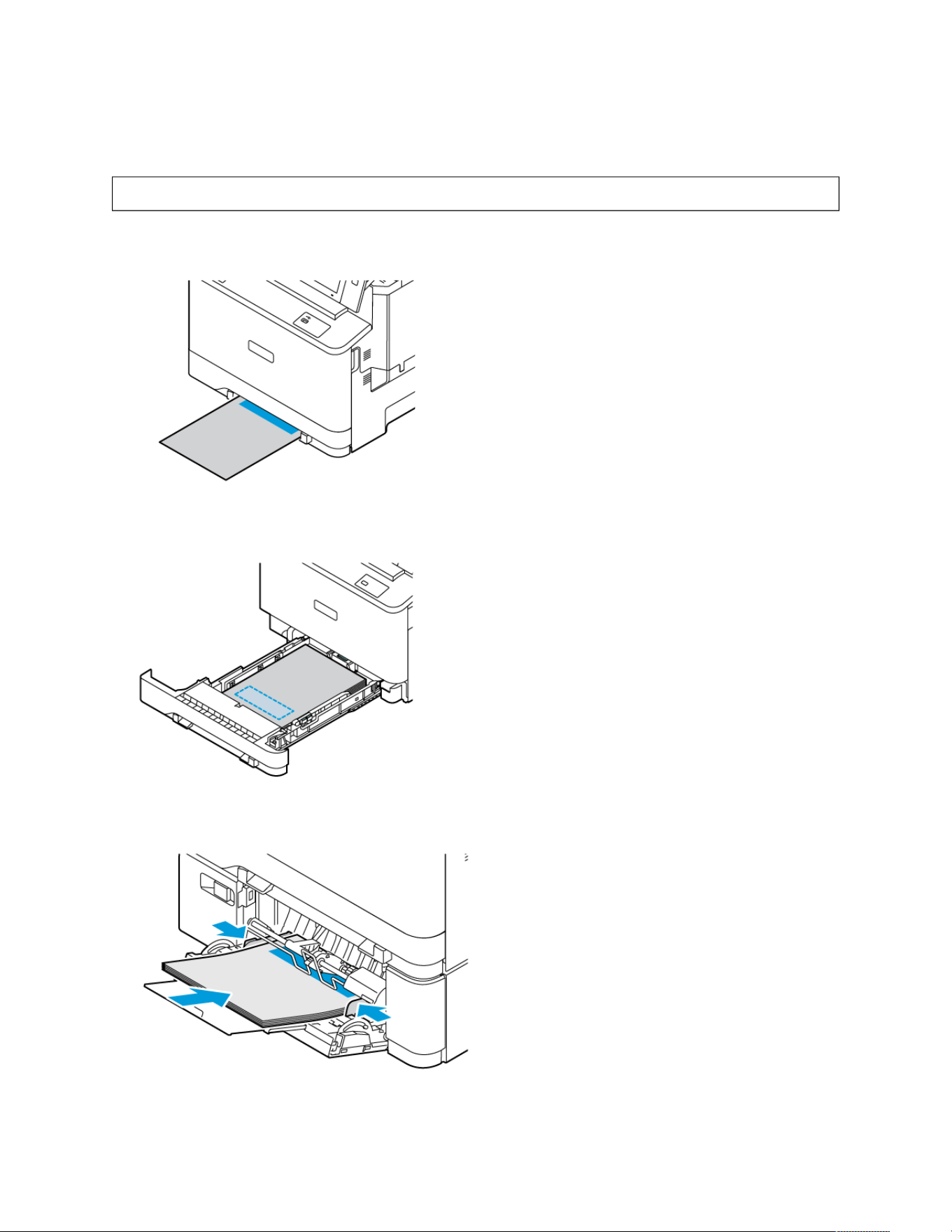
Loading Letterhead or Pre–Printed Media in Manual Feeder, Trays 1–4, and Bypass Tray
To load the letterhead or pre-printed paper in Manual Feeder, Trays 1–4, and Bypass Tray:
WWaarrnniinngg:: Do not load the paper above the maximum fill line. Overfilling the tray can cause paper jams.
• For short-edge feed printing, load letterhead or pre-printed paper face up with the top edge toward the feed
direction of the paper in the Manual Feeder.
• For short-edge feed, insert letterhead or pre-printed paper face down with the top edge toward the front in
Trays 1–4.
• For short-edge feed printing, load letterhead or pre-printed paper face up with the top edge toward the feed
direction of the paper in the Bypass Tray.
Xerox
®
VersaLink
®
C415 Color Multifunction Printer User Guide 229
Paper and Media
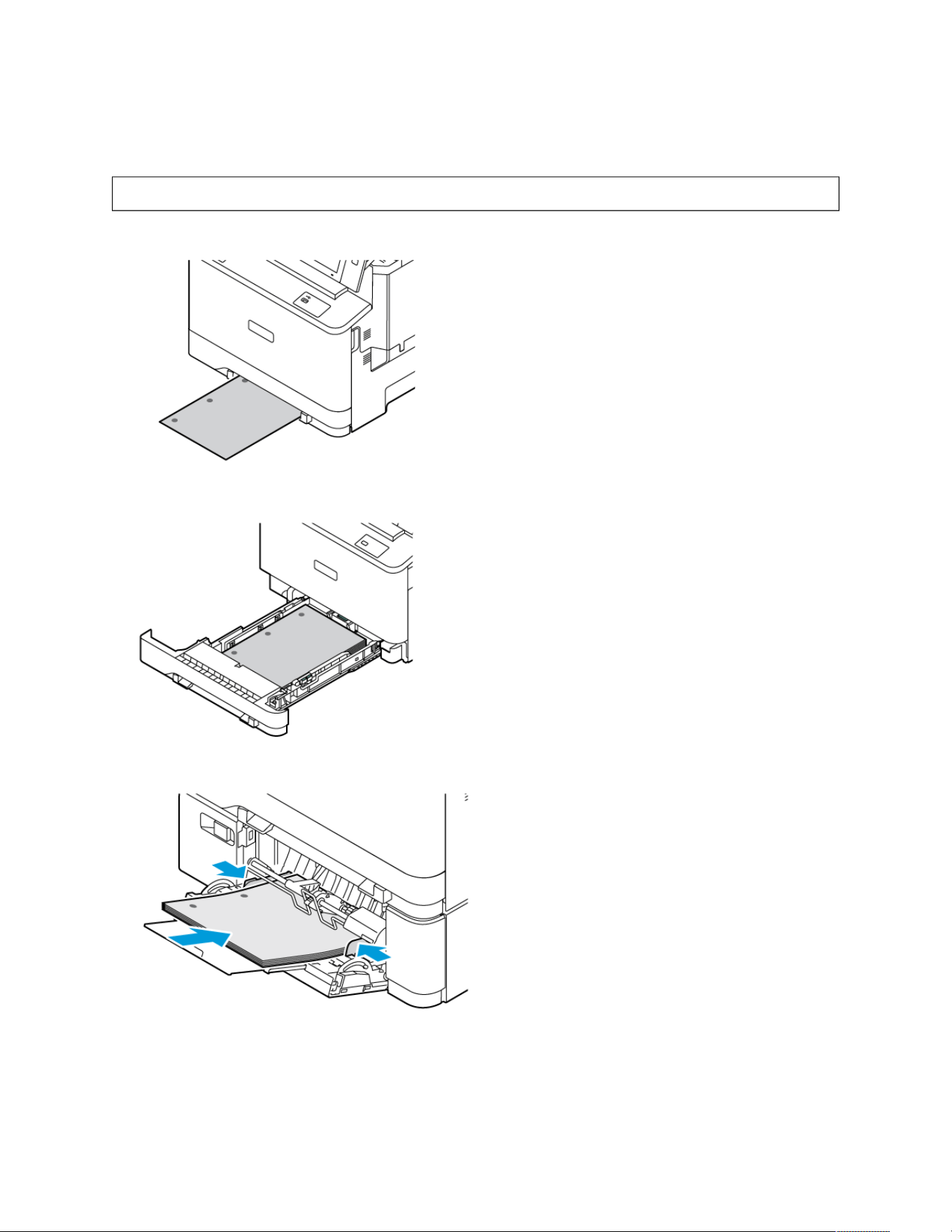
Loading Hole–Punched Media in Manual Feeder, Trays 1–4, and Bypass Tray
To load the hole-punched paper in Manual Feeder, Trays 1–4, and Bypass Tray:
WWaarrnniinngg:: Do not load the paper above the maximum fill line. Overfilling the tray can cause paper jams.
• For short-edge feed printing, load the paper with the holes at the left side of the paper in the Manual Feeder.
• For short-edge feed, load the paper with the holes at the left side of the paper in Trays 1–4.
• For short-edge feed printing, load the paper with the holes at the left side of the paper in the Bypass Tray.
ENVELOPES
You can print envelopes from the following trays:
230
Xerox
®
VersaLink
®
C415 Color Multifunction Printer User Guide
Paper and Media
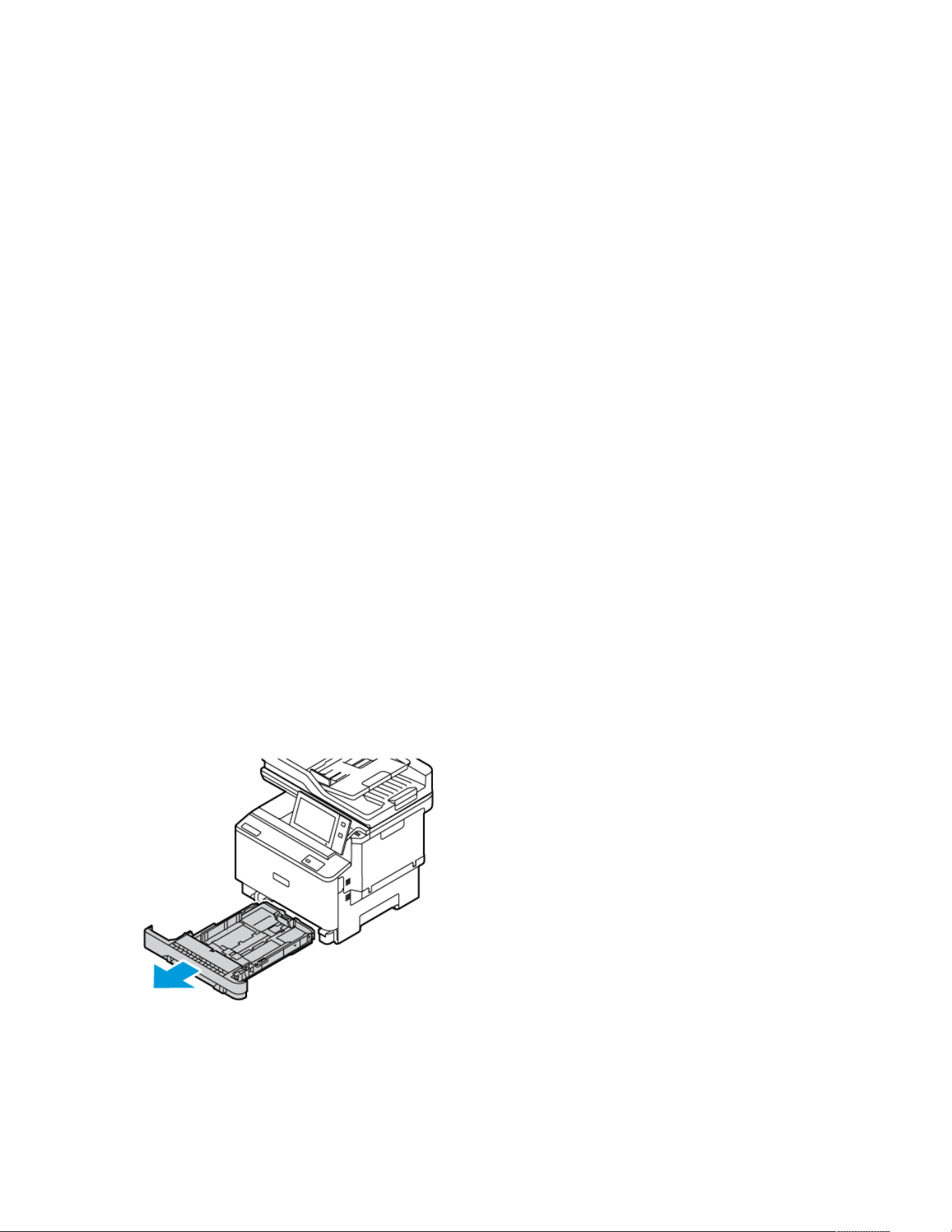
• Manual Feeder
• Tray 1
• Bypass Tray
Guidelines for Printing Envelopes
• Use only paper envelopes.
• Do not use envelopes with windows or metal clasps.
• Print quality depends on the quality and construction of the envelopes. If you do not get the desired results, try
another envelope brand.
• Maintain constant temperatures and relative humidity.
• Store unused envelopes in their packaging to avoid excess moisture and dryness which can affect print quality
and cause wrinkling. Excessive moisture can cause the envelopes to seal before or during printing.
• Remove air bubbles from the envelopes before loading them into the tray by setting a heavy book on top of the
envelopes.
• In the print driver software, select Envelope as the paper type.
• Do not use padded envelopes. Use envelopes that lie flat on a surface.
• Do not use envelopes with heat-activated glue.
• Do not use envelopes with press-and-seal flaps.
Loading Envelopes
For supported envelope sizes, refer to Supported Paper.
To load envelopes in Manual Feeder, Tray 1, and Bypass Tray, do the following:
1. Pull out the tray until it stops.
2. Remove any paper that is a different size or type.
Xerox
®
VersaLink
®
C415 Color Multifunction Printer User Guide 231
Paper and Media
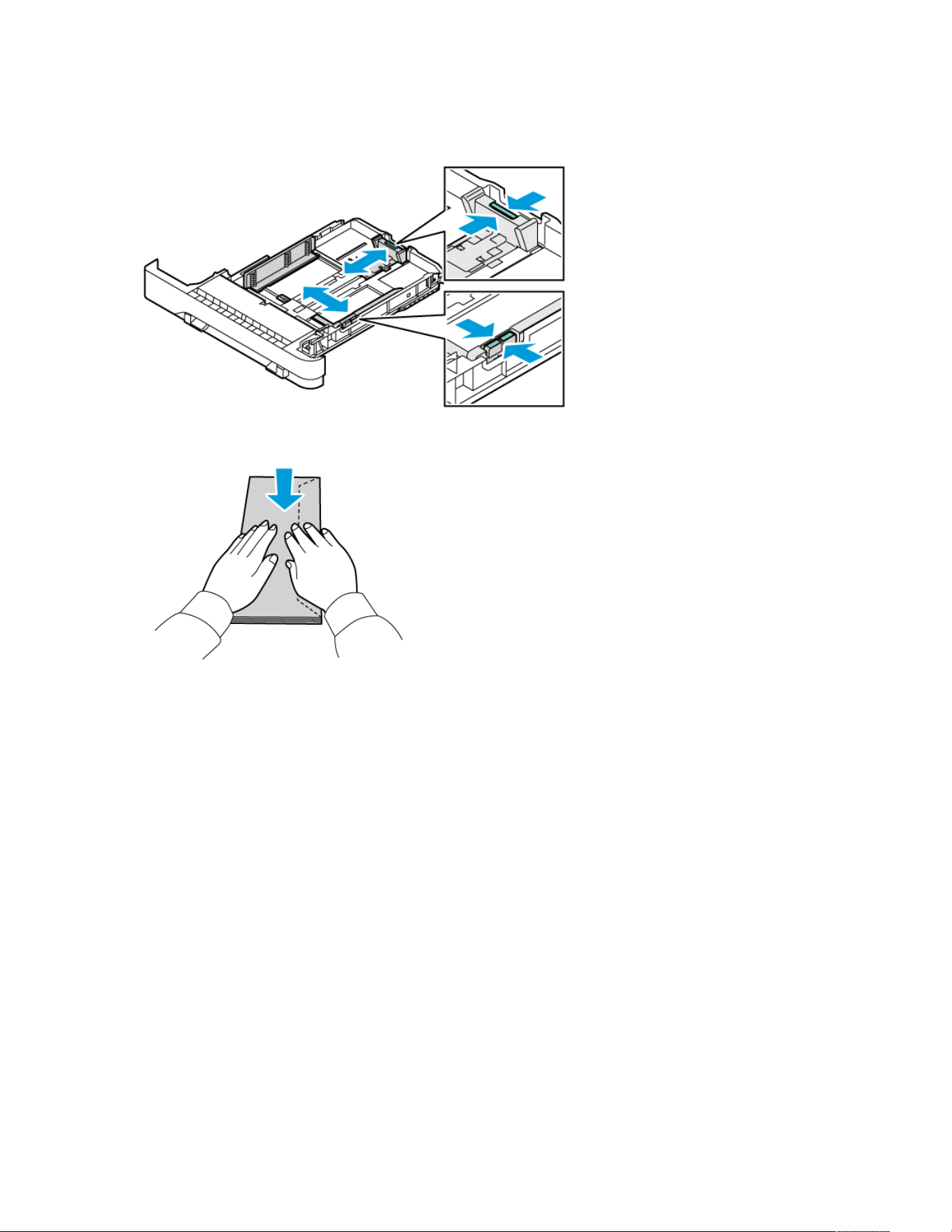
3. To move out the length or width paper guides, pinch the guide locks, then slide out the length or width paper
guides.
4. To avoid jams, flatten the envelopes.
232 Xerox
®
VersaLink
®
C415 Color Multifunction Printer User Guide
Paper and Media
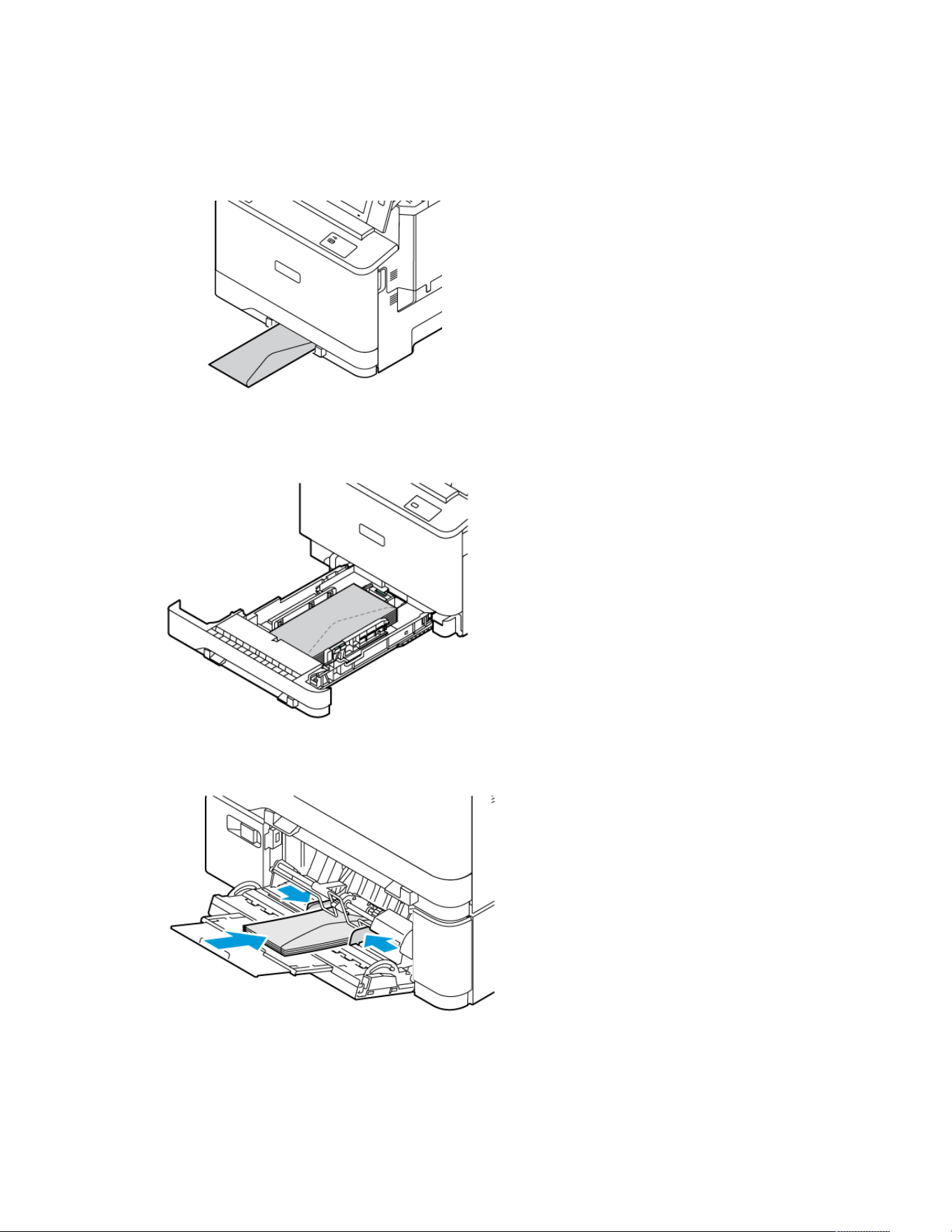
5. Load the envelopes in any of the trays.
• For envelopes with the flap on a long edge, load envelopes with the flaps face down and closed in Manual
Feeder. Keep the flaps toward the right.
• For envelopes with the flap on a long edge, load envelopes with the flaps face down and closed in Tray 1.
Keep the flaps toward the right.
• For envelopes with the flap on a long edge, load envelopes with the flaps face down and closed in Bypass
Tray. Keep the flaps toward the right.
6. Move the width paper guides from the edges of the tray to fit the envelops.
7. Slide the tray back into the printer.
Xerox
®
VersaLink
®
C415 Color Multifunction Printer User Guide 233
Paper and Media

8. At the control panel, select the correct paper size, type, and color. Ensure that the paper type is set to Envelope.
Note: To change the paper settings when the tray is set to Dedicated mode, refer to Configuring Dedicated
Paper Trays.
9. To confirm the settings, touch Confirm.
10. To return to the Home screen, press the Home button.
LABELS
You can print labels from the following trays:
• Trays 1–4
• Manual Feeder
• Bypass Tray
Note: To use the different Tray configurations and their capabilities efficiently, ensure that your printer is
updated to the latest software.
Guidelines for Printing Labels
• Use labels designed for laser printing.
• Do not use vinyl labels.
• Do not feed a sheet of labels through the printer more than once.
• Do not use dry gum labels.
• Print only on one side of the sheet of labels. Use full sheet labels only.
• Store unused labels flat in their original packaging. Leave the sheets of labels inside the original packaging until
ready to use. Return any unused sheets of labels to the original packaging and reseal it.
• Do not store labels in extremely dry or humid conditions or extremely hot or cold conditions. Storing them in
extreme conditions can cause print-quality problems or cause them to jam in the printer.
• Rotate stock frequently. Long periods of storage in extreme conditions can cause labels to curl and jam in the
printer.
• In the print driver software, select Label as the paper type.
• Before loading labels, remove all other paper from the tray.
WWaarrnniinngg:: Do not use any sheet where labels are missing, curled, or pulled away from the backing sheet.
It could damage the printer.
Loading Labels
To load labels in Trays 1–4 and Bypass Tray:
234
Xerox
®
VersaLink
®
C415 Color Multifunction Printer User Guide
Paper and Media
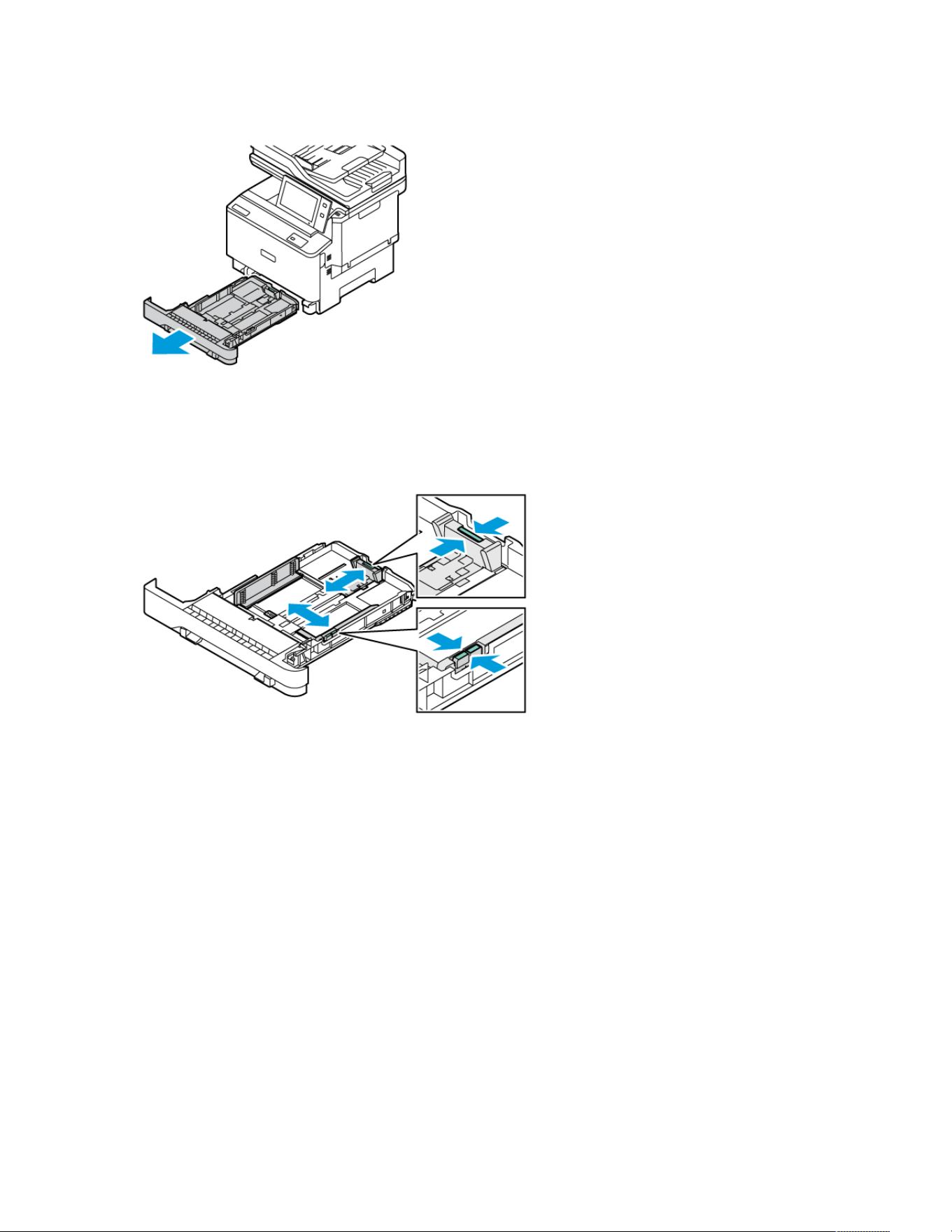
1. Pull out the tray until it stops.
2. Ensure that the paper guides are set in the correct position for the size of labels you are loading.
3. Remove any paper that is a different size or type.
4. To move out the length or width paper guide, release the guide lock, then slide out the length or width paper
guide.
Xerox
®
VersaLink
®
C415 Color Multifunction Printer User Guide 235
Paper and Media
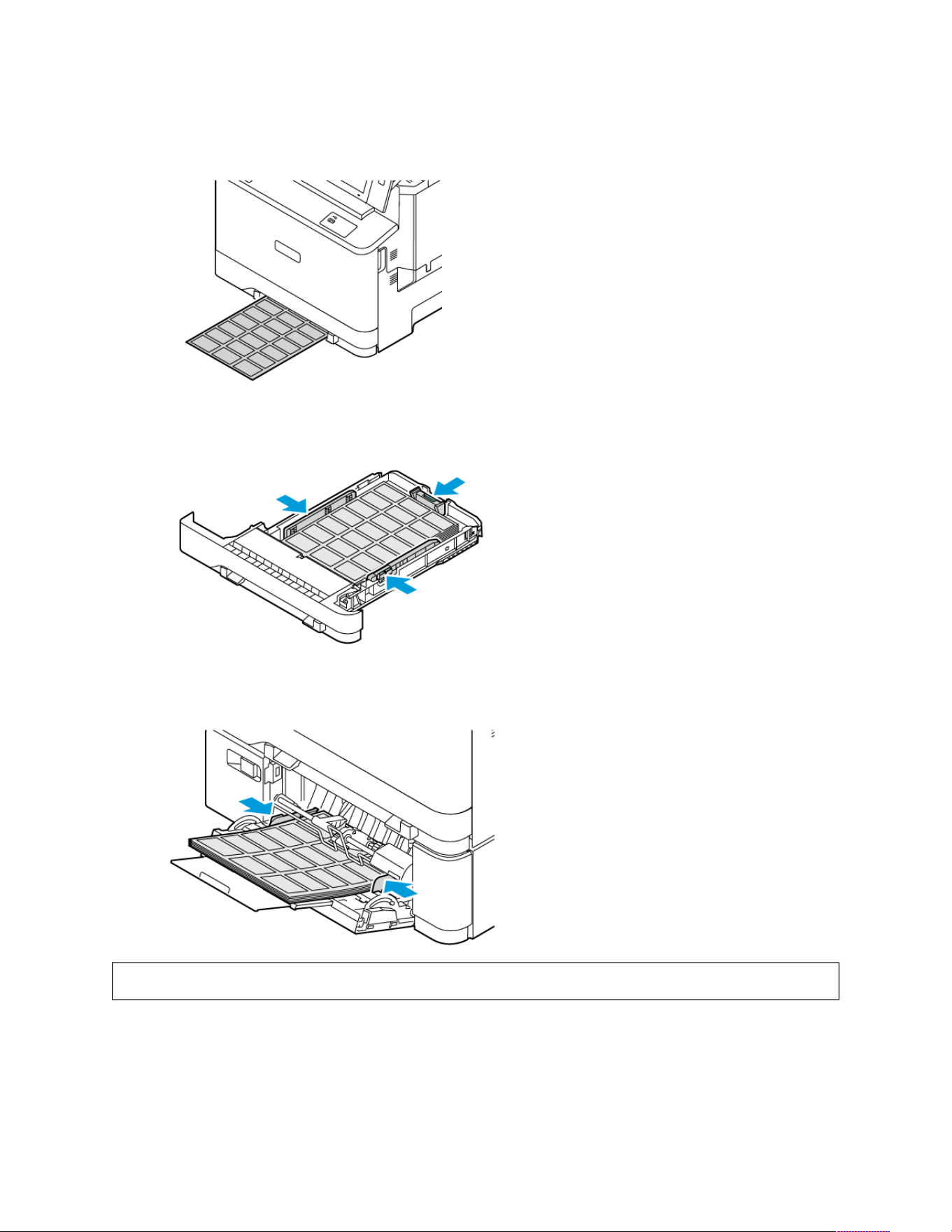
5. Load the labels in any of the trays:
• Load the labels face up in the Manual Feeder, then adjust the edge guides to match the width of the label.
• Load the labels face up in the Trays 1–4, then adjust the length and width paper guides to fit the labels.
• Load the labels face down in the Bypass Tray, then adjust the length and width paper guides to fit the
labels.
WWaarrnniinngg:: Do not load paper above the maximum fill line. Overfilling can cause paper jams.
236
Xerox
®
VersaLink
®
C415 Color Multifunction Printer User Guide
Paper and Media
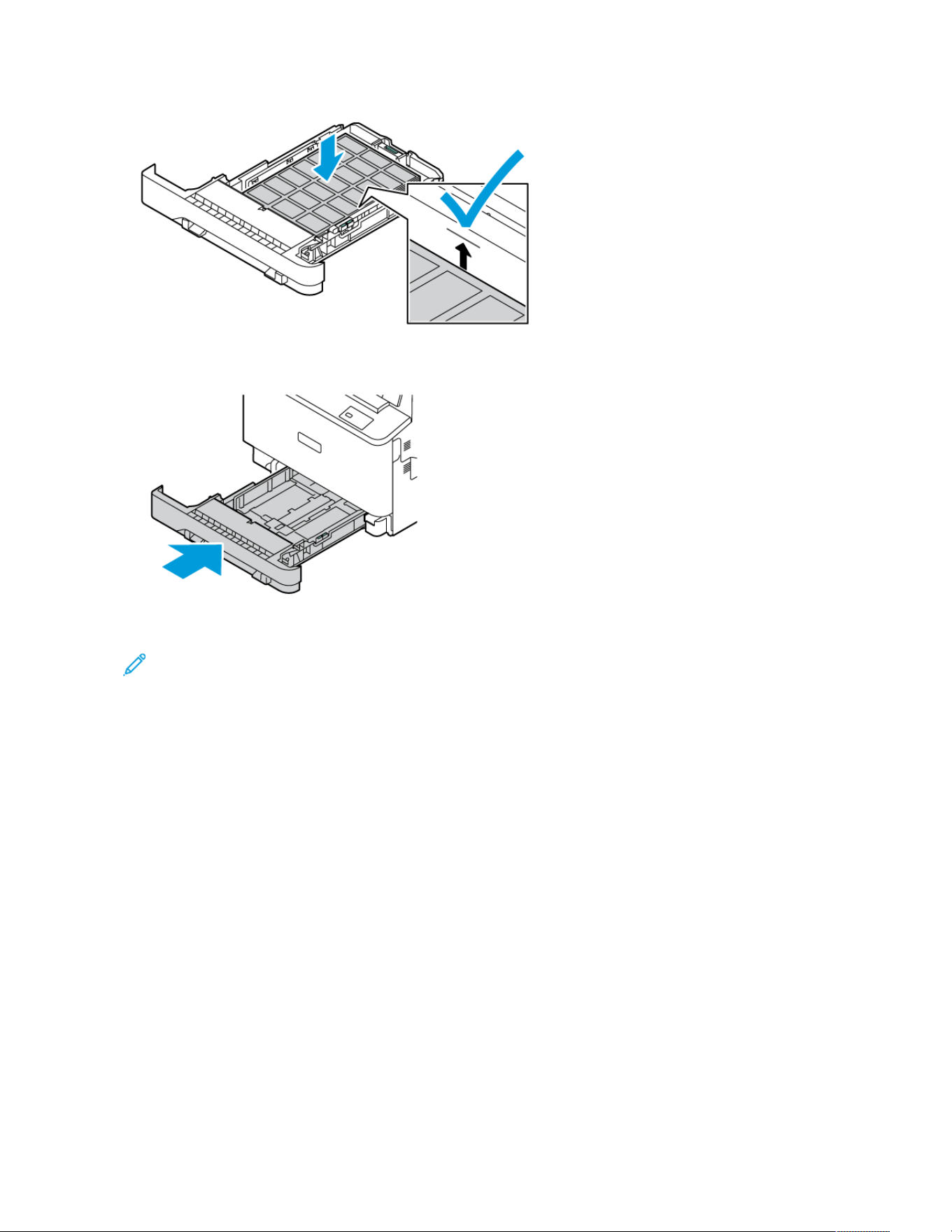
6. Slide the tray back into the printer.
7. At the control panel, select the correct paper size, type, and color. Ensure that the paper type is set to Labels.
Note: To change the paper settings when the tray is set to Dedicated mode, refer to Configuring Dedicated
Paper Trays.
8. To confirm the settings, touch Confirm.
9. To return to the Home screen, press the Home button.
GLOSSY MEDIA
You can print glossy paper up to 176 g/m
2
from the Manual Feeder and Tray 1, and up to 162 g/m
2
from Trays 2, 3,
and 4, including the Bypass Tray.
Guidelines for Printing on Glossy Paper
• Do not open sealed packages of glossy paper until you are ready to load them into the printer.
• Leave glossy paper in the original wrapper, and leave the packages in the shipping carton until ready to use.
• Remove all other paper from the tray before loading glossy paper.
• Load only the amount of glossy paper that you are planning to use. Do not leave glossy paper in the tray when
you are finished printing. Reinsert unused paper in the original wrapper and seal.
• Rotate paper frequently. Long periods of storage in extreme conditions can cause glossy paper to curl and jam
in the printer.
Xerox
®
VersaLink
®
C415 Color Multifunction Printer User Guide 237
Paper and Media

• In the print driver software, select the desired glossy paper type or select the tray loaded with the desired paper.
238
Xerox
®
VersaLink
®
C415 Color Multifunction Printer User Guide
Paper and Media

Xerox
®
VersaLink
®
C415 Color Multifunction Printer User Guide 239
Maintenance
This chapter contains:
General Precautions. . . . . . . . . . . . . . . . . . . . . . . . . . . . . . . . . . . . . . . . . . . . . . . . . . . . . . . . . . . . . . . . . . . . . . . . . . . . . . . . . . . . . . . . . . . . . . . . . . . . . . . . . . . . . . . . . . . . . . . . . . . . 240
Cleaning the Printer. . . . . . . . . . . . . . . . . . . . . . . . . . . . . . . . . . . . . . . . . . . . . . . . . . . . . . . . . . . . . . . . . . . . . . . . . . . . . . . . . . . . . . . . . . . . . . . . . . . . . . . . . . . . . . . . . . . . . . . . . . . . 241
Supplies . . . . . . . . . . . . . . . . . . . . . . . . . . . . . . . . . . . . . . . . . . . . . . . . . . . . . . . . . . . . . . . . . . . . . . . . . . . . . . . . . . . . . . . . . . . . . . . . . . . . . . . . . . . . . . . . . . . . . . . . . . . . . . . . . . . . . . . . . . . 246
Managing the Printer. . . . . . . . . . . . . . . . . . . . . . . . . . . . . . . . . . . . . . . . . . . . . . . . . . . . . . . . . . . . . . . . . . . . . . . . . . . . . . . . . . . . . . . . . . . . . . . . . . . . . . . . . . . . . . . . . . . . . . . . . . 261
Moving the Printer . . . . . . . . . . . . . . . . . . . . . . . . . . . . . . . . . . . . . . . . . . . . . . . . . . . . . . . . . . . . . . . . . . . . . . . . . . . . . . . . . . . . . . . . . . . . . . . . . . . . . . . . . . . . . . . . . . . . . . . . . . . . . 262

General Precautions
CCaauuttiioonn::
• Internal parts of the printer can be hot. Use caution when doors and covers are open.
• Keep all cleaning materials out of the reach of children.
• Do not use pressurized spray cleaning aids on or in the printer. Some pressurized sprays contain
explosive mixtures and are not suitable for use in electrical applications. Use of pressurized spray
cleaners increases the risk of fire and explosion.
• Do not remove the covers or guards that are fastened with screws. You cannot maintain or service any
parts that are behind these covers and guards. Do not attempt any maintenance procedure that is not
described in the documentation supplied with your printer.
WWaarrnniinngg::
• When cleaning your printer, do not use organic or strong chemical solvents or aerosol cleaners. Do not
pour fluids directly into any area. Use supplies and cleaning materials only as directed in this
documentation.
• Do not place anything on top of the printer.
• Do not leave the covers and doors open for any length of time, especially in well-lighted places.
• Do not open covers and doors during printing.
• Do not tilt the printer while it is in use.
• Do not touch the electrical contacts or gears. Doing so could damage the printer and cause the print
quality to deteriorate.
• Ensure that any parts removed during cleaning are replaced before you plug in the printer.
240
Xerox
®
VersaLink
®
C415 Color Multifunction Printer User Guide
Maintenance
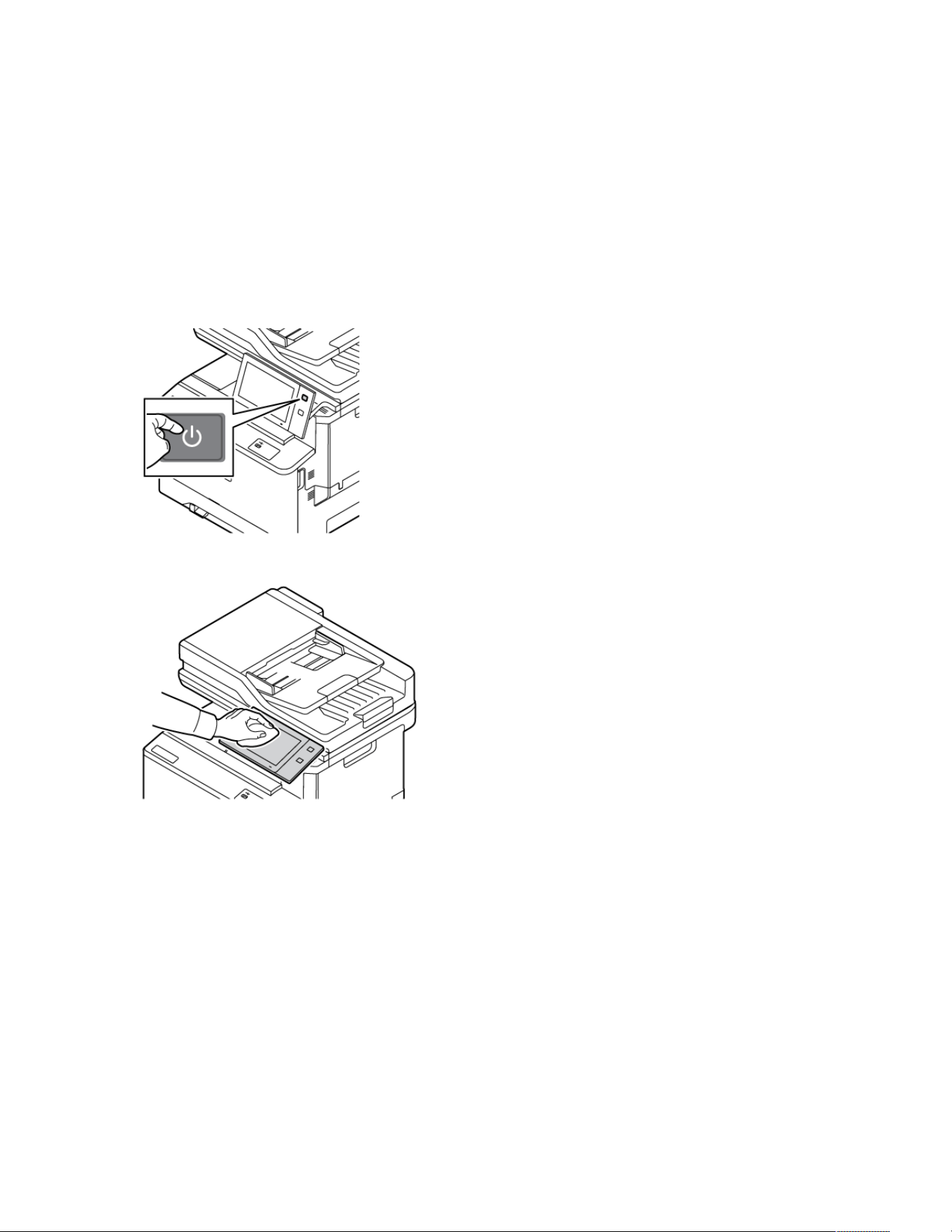
Cleaning the Printer
CLEANING THE PRINTER EXTERIOR
Regular cleaning keeps the touch screen, control panel, and exterior areas of the printer free from dust and dirt.
To clean the printer exterior:
1. To avoid activating buttons and menus when cleaning the printer, press the Power/Wake button, then touch
Sleep.
2. To remove fingerprints and smudges, clean the touch screen and control panel with a soft, lint-free cloth.
3. To return the printer to Ready mode, press the Power/Wake button.
Xerox
®
VersaLink
®
C415 Color Multifunction Printer User Guide 241
Maintenance
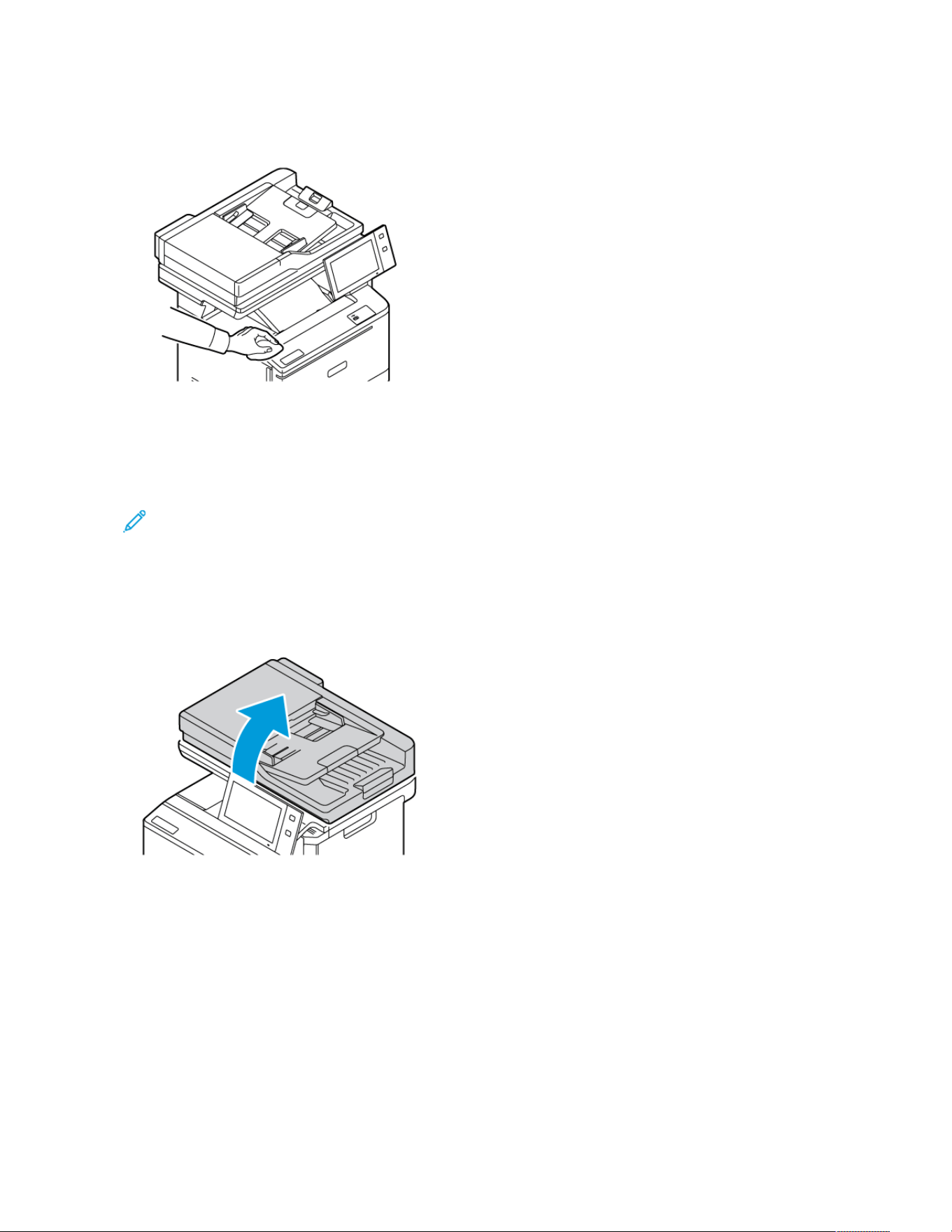
4. Use a soft, lint-free cloth to clean the outside of the output tray, paper trays, and other exterior areas of your
printer.
Cleaning the Scanner
To ensure optimum print quality, clean the document glass regularly. Cleaning helps avoid output with streaks,
smears, and other marks that transfer from the glass while scanning documents.
Note: For best results, use Xerox
®
Glass Cleaner to remove marks and streaks.
1. Slightly dampen a soft, lint-free cloth with water.
2. Remove any paper or other media from the output tray.
3. Open the document cover.
242 Xerox
®
VersaLink
®
C415 Color Multifunction Printer User Guide
Maintenance
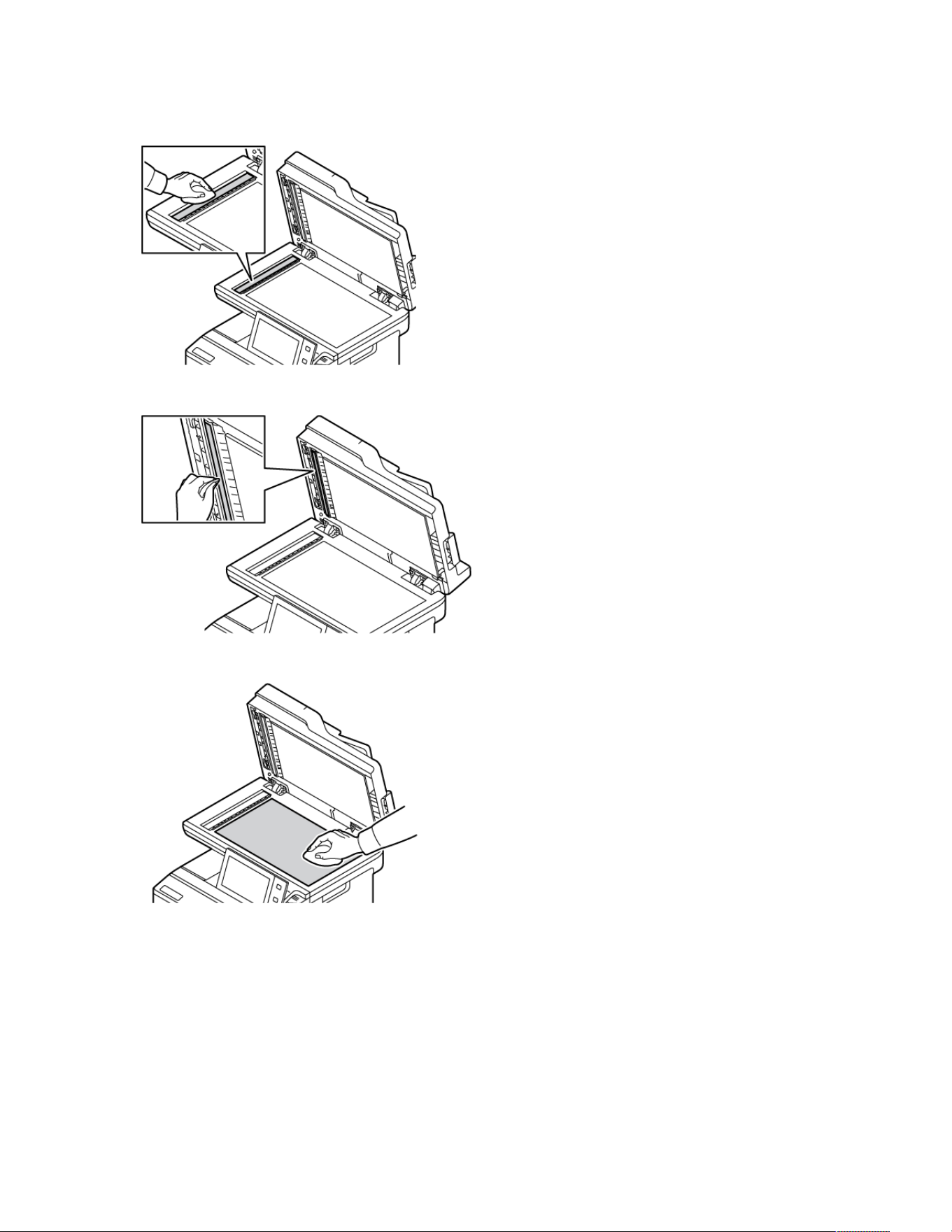
4. Wipe the entire area of ADF glass until it is clean and dry.
5. Wipe the entire area of ADF glass pad until it is clean and dry.
6. Wipe the surfaces of the document glass and CVT glass until the surfaces are clean and dry.
Xerox
®
VersaLink
®
C415 Color Multifunction Printer User Guide 243
Maintenance
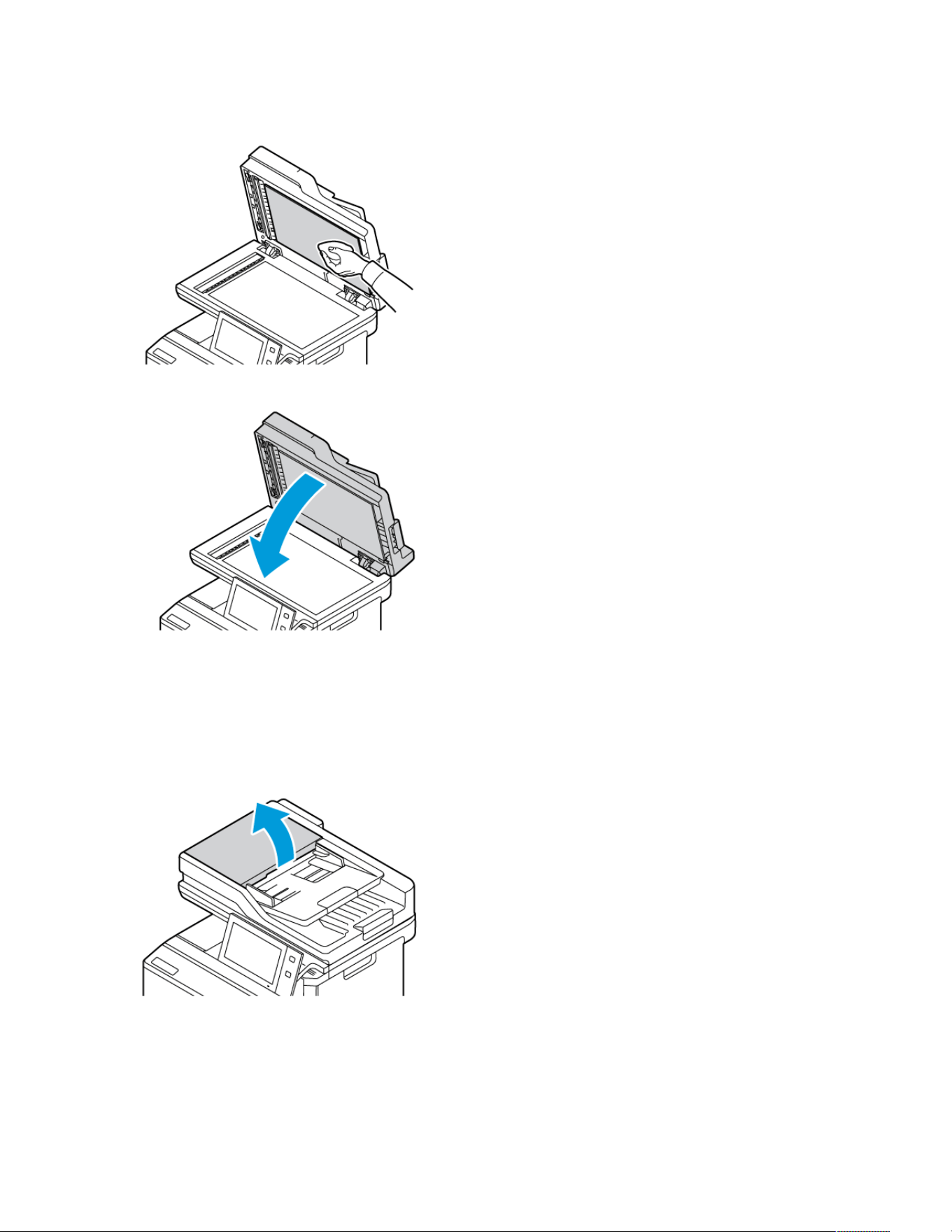
7. Wipe the white underside of the document cover until it is clean and dry.
8. Close the document cover.
Cleaning the Document Feeder Feed Rollers
Dirt on the document feeder feed rollers can cause paper jams or deteriorate print quality. For best performance,
clean the document feeder rollers once a month.
1. Open the top cover of the document feeder.
244 Xerox
®
VersaLink
®
C415 Color Multifunction Printer User Guide
Maintenance
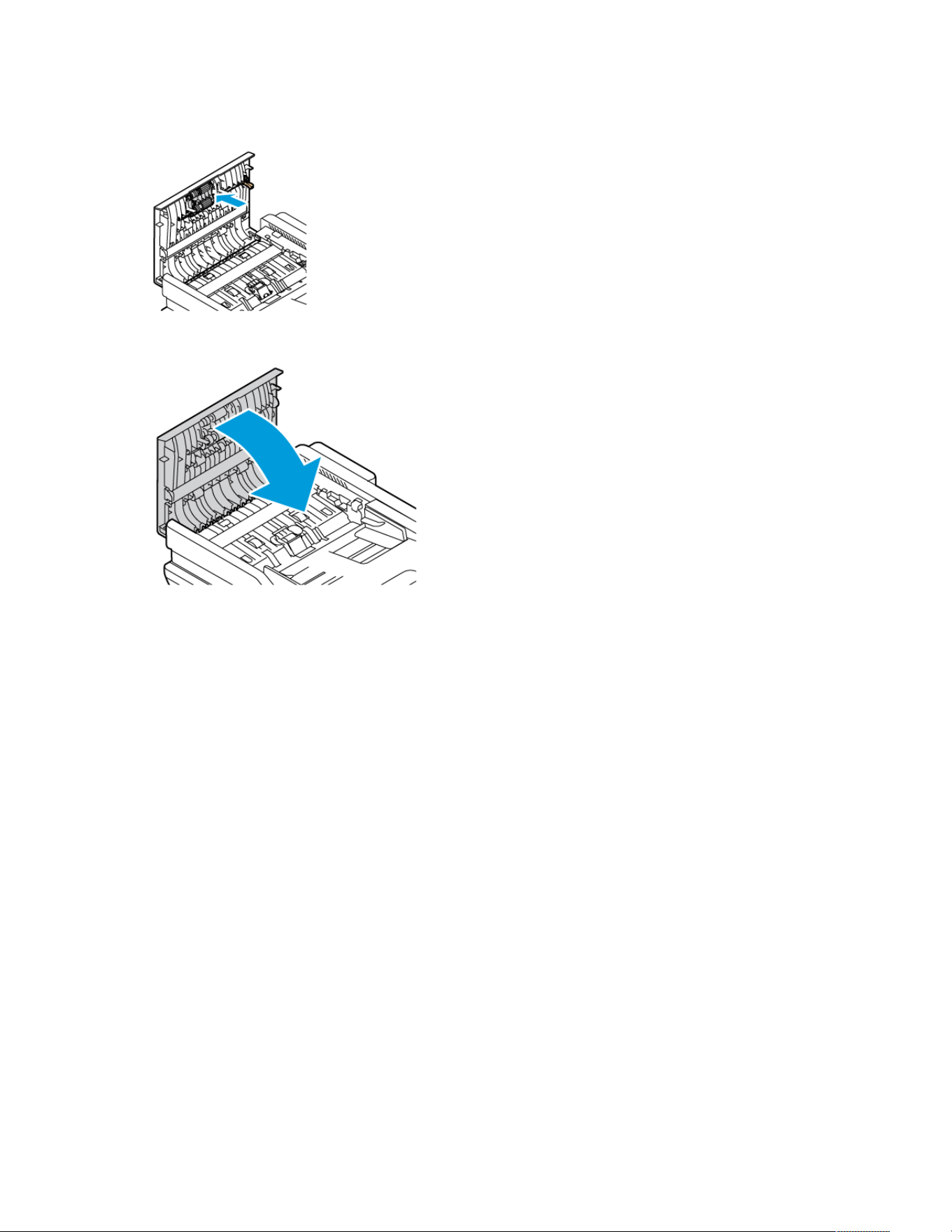
2. While turning the rollers, wipe the rollers with a clean, lint-free cloth moistened with water.
3. Close the top cover of the document feeder.
Xerox
®
VersaLink
®
C415 Color Multifunction Printer User Guide 245
Maintenance
Supplies
CONSUMABLES
Consumable supplies are printer supplies that become depleted during the operation of the printer. Consumable
supply for this printer includes Genuine Xerox
®
Toner Cartridges in Cyan, Magenta, Yellow, and Black.
Note:
• Each consumable includes installation instructions. To replace consumables, refer to the instructions
included with the consumable supply.
• Only install new toner cartridges in your printer. If a used toner cartridge is installed, then the toner
remaining amount displayed can be inaccurate.
• To ensure print quality, the toner cartridge is designed to cease functioning at a predetermined point.
• You can use Xerox Easy Assist (XEA) app to check the status of supplies and order them. For more
information, refer to Xerox
®
Easy Assist (XEA) App.
WWaarrnniinngg:: Use of toner other than genuine Xerox
®
Toner can affect print quality and printer reliability.
Xerox
®
Toner is the only toner designed and manufactured under strict quality controls by Xerox for
specific use with this printer.
ROUTINE MAINTENANCE ITEMS
Routine maintenance items are printer parts that have a limited life and require periodic replacement.
Replacements can be parts or kits. Routine maintenance items are typically customer-replaceable parts.
Note: Each routine maintenance item includes installation instructions.
Routine maintenance items for this printer include the following:
• Waste Toner Container
• Imaging Kit
• Standard Paper Tray Feed Roller Assembly
• Duplex Automatic Document Feeder (DADF) Roller Assembly
ORDERING SUPPLIES
When to Order Supplies
A warning appears on the control panel when supplies near the replacement time. Verify that you have
replacements on hand. To avoid interruptions to your printing, order these items when the messages first appear on
the control panel. An error message appears on the control panel when supplies require replacement.
Order supplies from your local reseller or go to www.xerox.com/office/supplies.
246
Xerox
®
VersaLink
®
C415 Color Multifunction Printer User Guide
Maintenance
WWaarrnniinngg:: Use of non-Xerox supplies is not recommended. The Xerox Warranty or Service Agreement do
not cover damage, malfunction, or degradation of performance caused by use of non-Xerox supplies, or
the use of Xerox supplies not specified for this printer.
Supply Status
You can check the status and percentage of life remaining for your printer supplies at the control panel or from the
Embedded Web Server. When printer supplies near their replacement time, warning alerts appear on the control
panel.
You can customize the alerts that appear on the control panel and configure email alert notifications using the
Embedded Web Server.
To check the supplies status and set up alerts using the Embedded Web Server, refer to the System Administrator
Guide at www.xerox.com/office/VLC415docs.
To check the supplies status at the control panel:
1. At the printer control panel, press the Home button.
2. To view status information for the printer supplies, touch Device > Supplies.
3. To view details about a specific toner cartridge, including the part number for reordering, touch Cyan,
Magenta, Yellow, or Black.
4. To return to the Supplies screen, touch X.
5. To view more details, touch Other Supplies. Scroll through the list, then select an option.
6. To return to the Supplies screen, touch X.
7. To print the Supplies Report, touch Print Supplies Report.
8. To return to the Device screen, touch X.
TONER CARTRIDGES
CCaauuttiioonn::
• When replacing a toner cartridge, be careful not to spill the toner. If any toner spills, avoid contact with
clothes, skin, eyes, and mouth. Do not inhale the toner dust.
• Keep toner cartridges out of the reach of children. If a child accidentally swallows toner, have the child
spit out the toner, and rinse out their mouth with water. Consult a physician immediately.
CCaauuttiioonn:: Use a damp cloth to wipe off spilled toner. Never use a vacuum cleaner to remove spills. Electric
sparks inside the vacuum cleaner can cause a fire or explosion. If you spill a large volume of toner, contact
your local Xerox representative.
CCaauuttiioonn:: Never throw a toner cartridge into an open flame. Remaining toner in the cartridge can catch
fire and cause burn injuries or an explosion.
Xerox
®
VersaLink
®
C415 Color Multifunction Printer User Guide 247
Maintenance
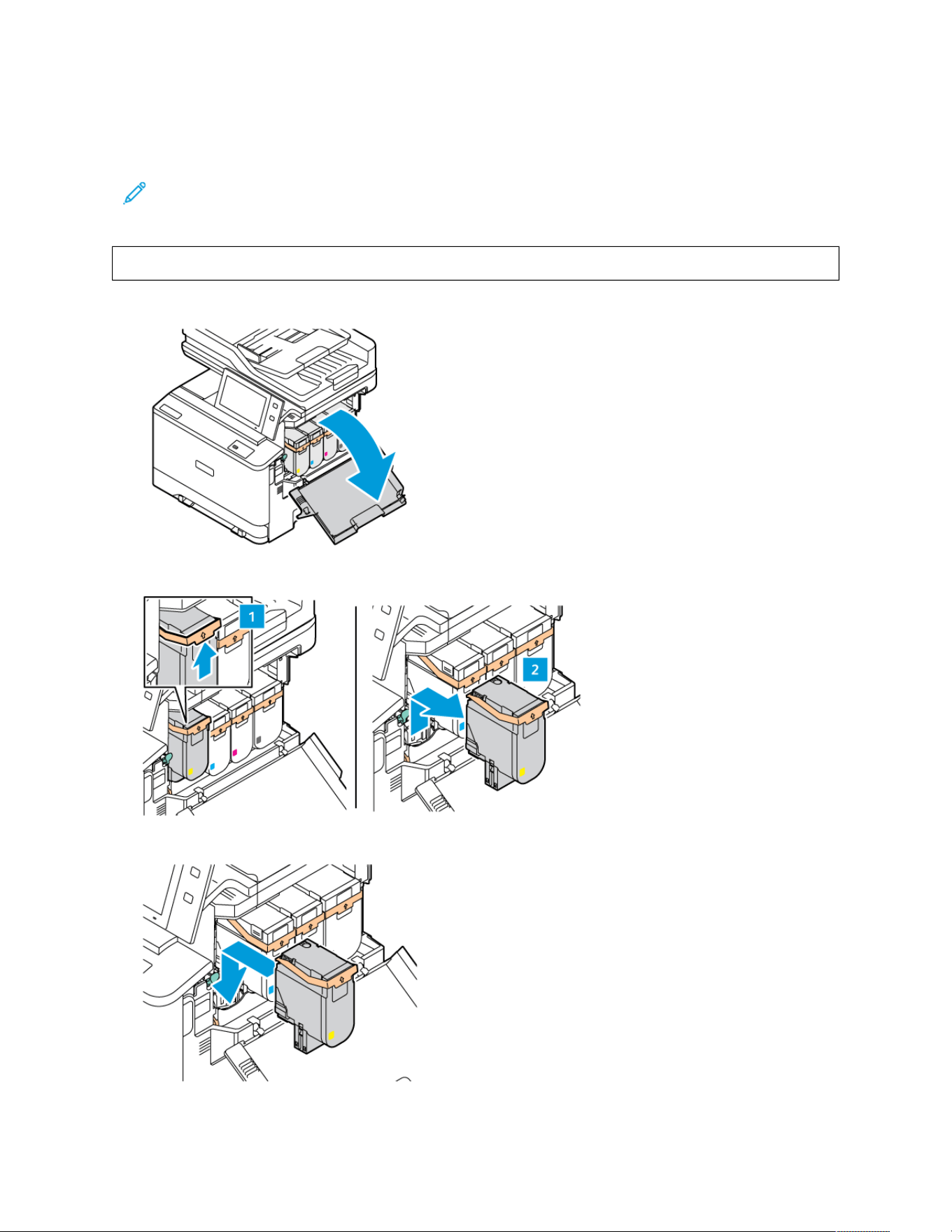
Replacing the Toner Cartridges
When it is time to replace a toner cartridge, the printer displays a message on the control panel.
Note: Each toner cartridge includes installation instructions.
To replace a toner cartridge:
WWaarrnniinngg:: Do not perform this procedure when the printer is copying or printing.
1. At the right-side of the printer, open Door B.
2. Pull up and remove the toner cartridge from the printer.
3. Unpack and insert the new toner cartridge.
248 Xerox
®
VersaLink
®
C415 Color Multifunction Printer User Guide
Maintenance
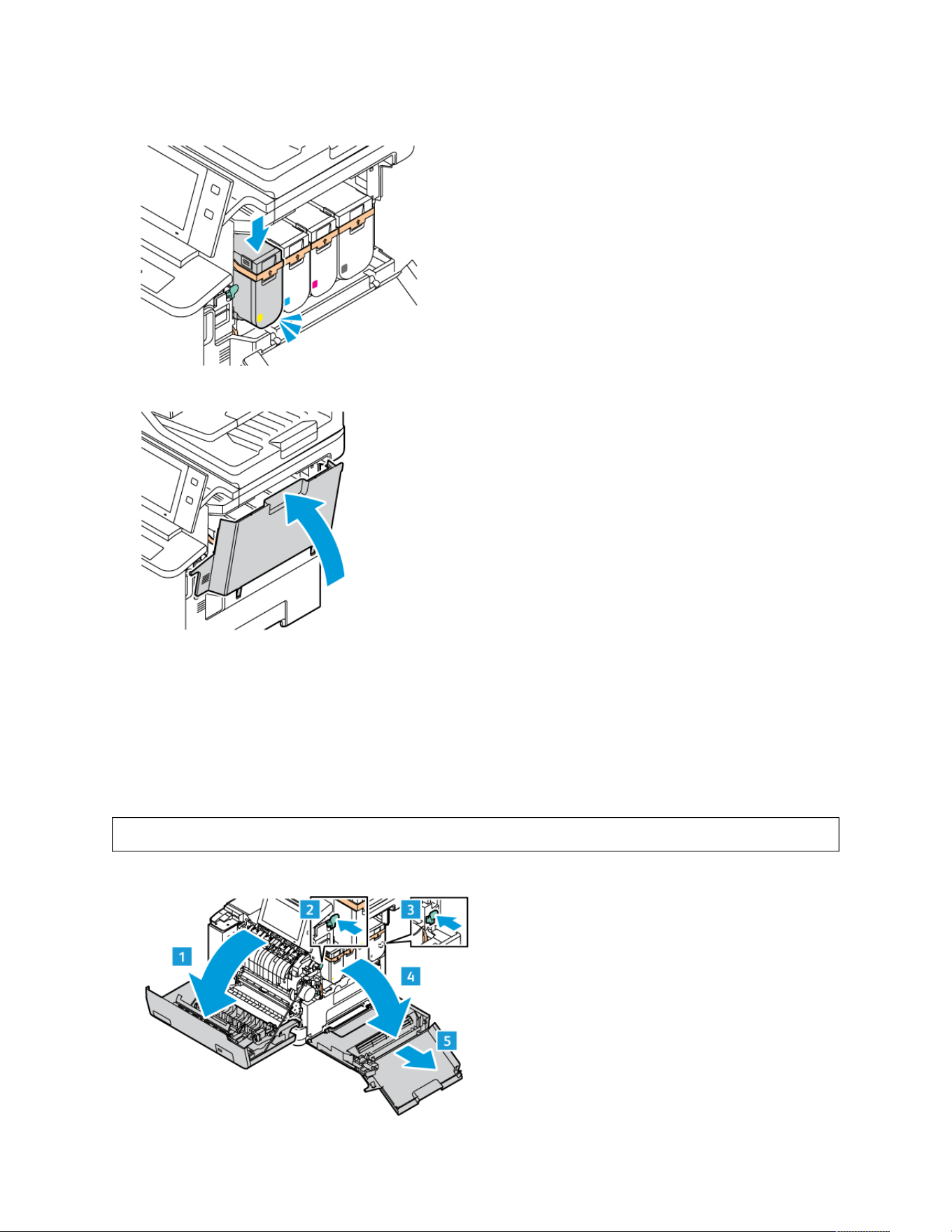
4. Push the new toner cartridge down until it clicks into a place.
5. Close Door B.
WASTE TONER CONTAINER
Replacing the Waste Toner Container
When it is time to replace the waste toner container, the printer message appears on the control panel.
To replace the waste toner container:
WWaarrnniinngg:: Do not perform this procedure when the printer is copying or printing.
1. At the front-side of the printer, open Door A. Then, open Door B at the right-side of the printer.
Xerox
®
VersaLink
®
C415 Color Multifunction Printer User Guide 249
Maintenance
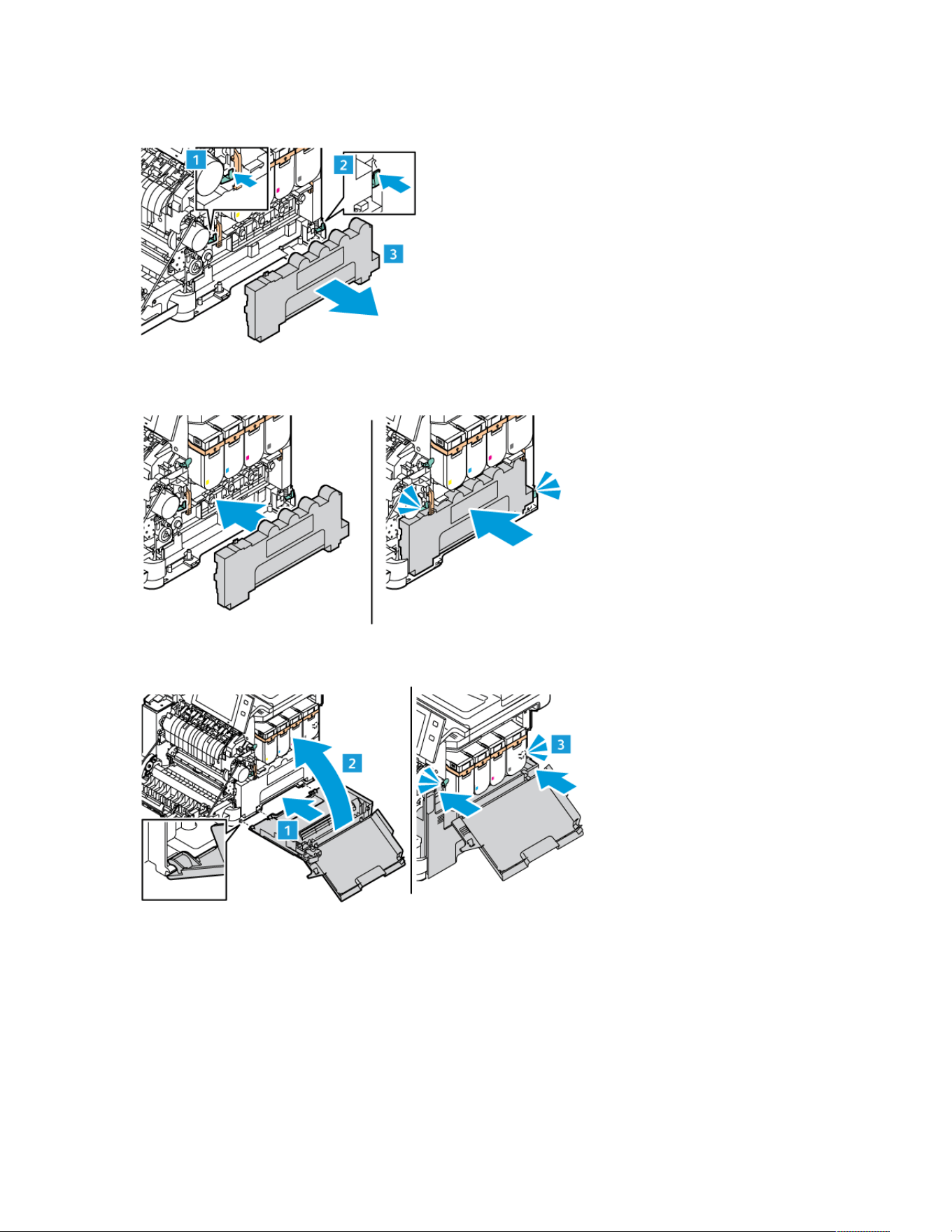
2. Unlock and remove the waste toner container from the printer.
3. Unpack and insert the new waste container.
4. Close Door B, as shown.
250 Xerox
®
VersaLink
®
C415 Color Multifunction Printer User Guide
Maintenance
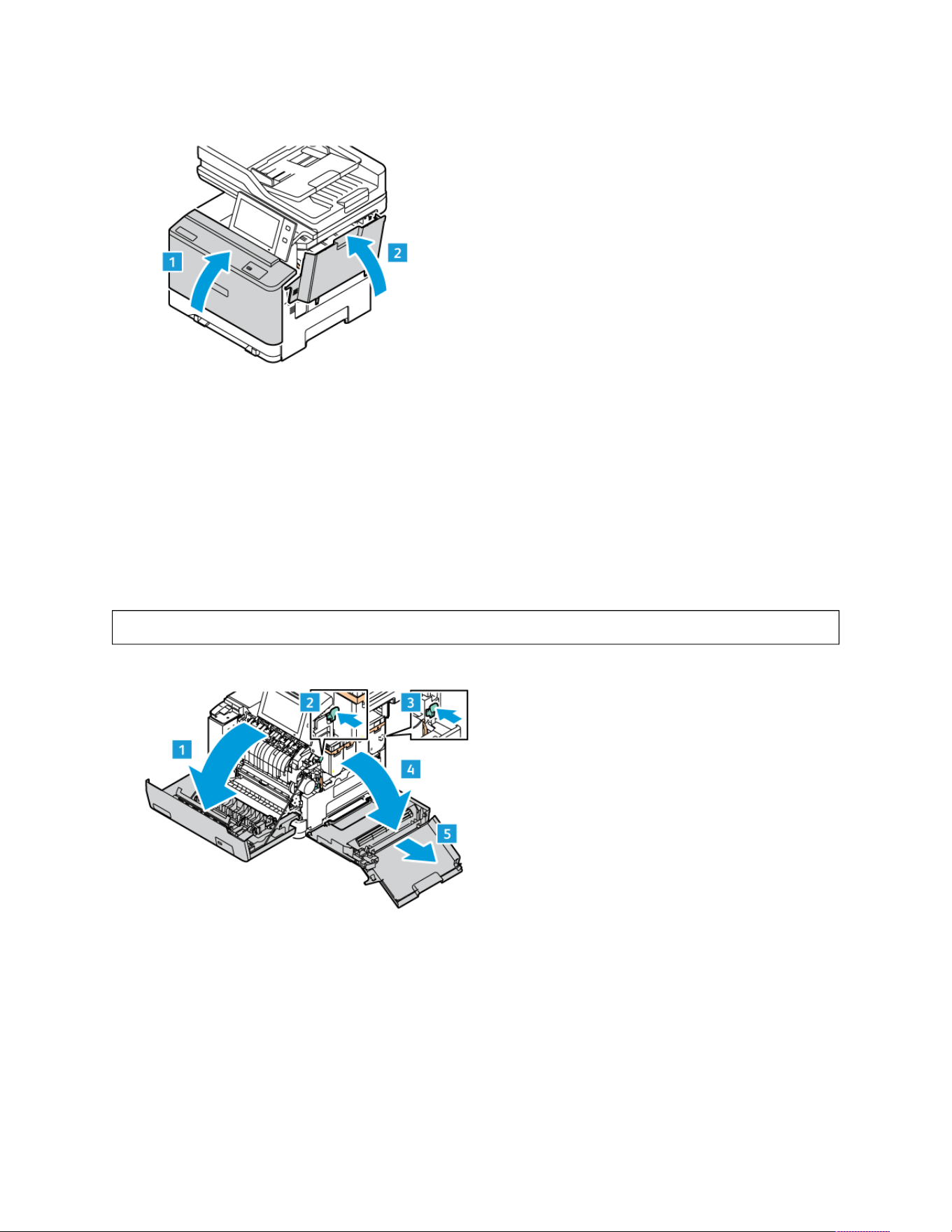
5. Close Door B and Door A completely.
IMAGING KIT
Replacing the Imaging Kit
When it is time to replace the imaging unit, the printer displays a message appears on the control panel.
Use Imaging Kit to replace the imaging unit. There are two types of Imaging Kits available for your printer:
• Black Imaging Kit
• Three-Color Imaging Kit for Cyan, Magenta, and Yellow
WWaarrnniinngg:: Do not perform this procedure when the printer is copying or printing.
1. At the front-side of the printer, open Door A. Then, open Door B at the right-side of the printer.
Xerox
®
VersaLink
®
C415 Color Multifunction Printer User Guide 251
Maintenance
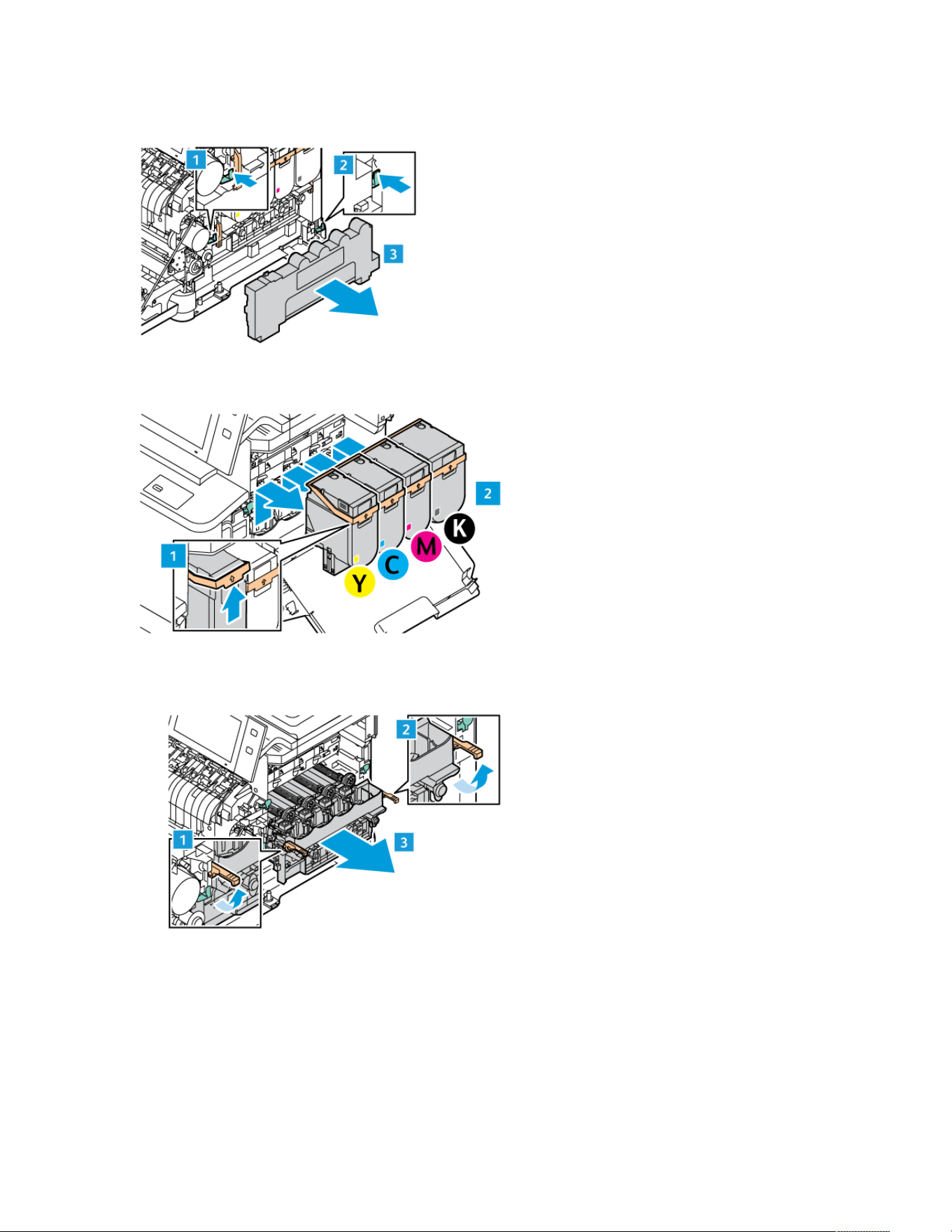
2. Unlock and remove the waste toner container from the printer.
3. Remove the toner cartridges from the printer. For example, Cyan, Magenta, Yellow, or Black.
4. Do the following to remove the existing Imaging Kit:
a. To unlock the Imaging Kit, pull up the lever.
252 Xerox
®
VersaLink
®
C415 Color Multifunction Printer User Guide
Maintenance
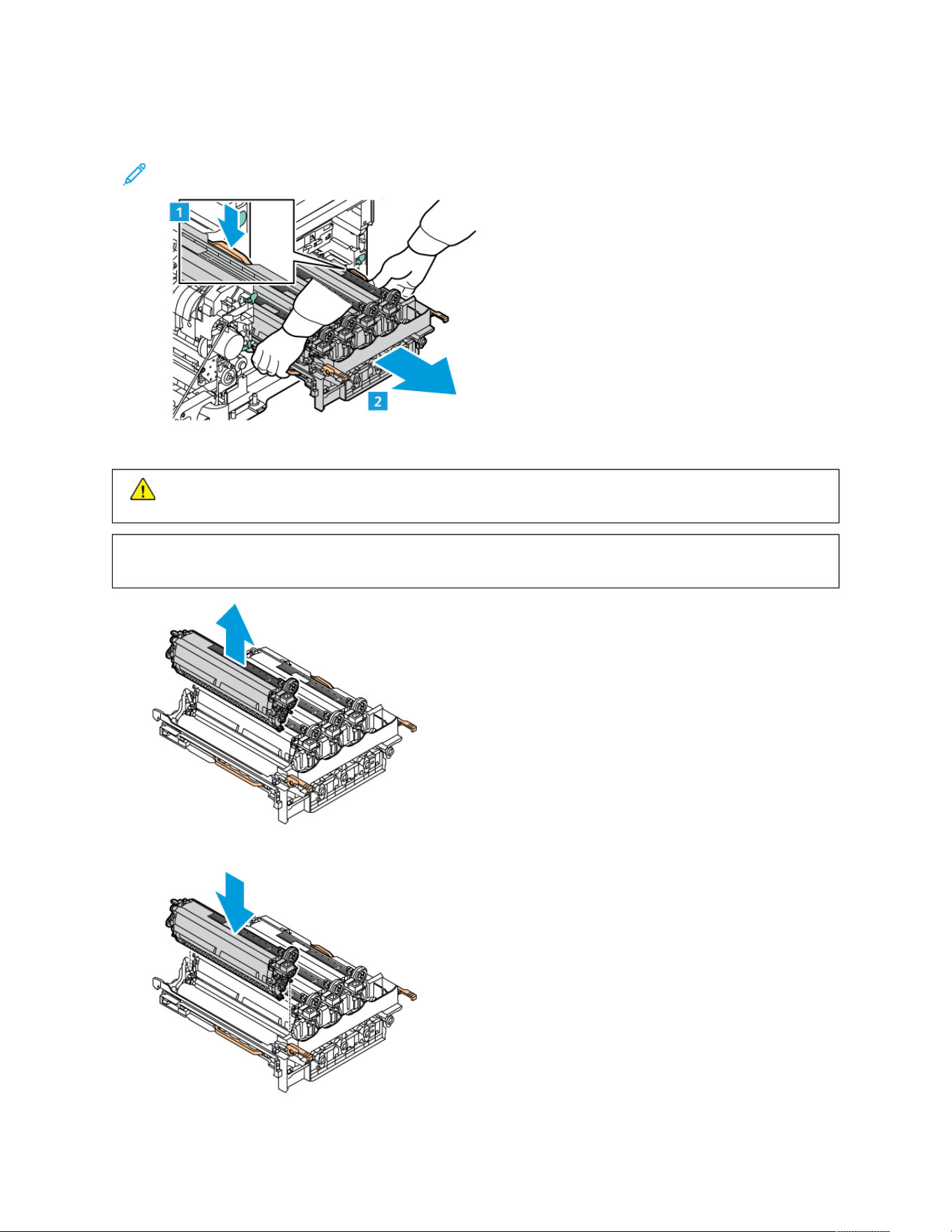
b. Pull the Imaging Kit out slowly from the printer and take out the Imaging Kit by holding the handles on
both sides.
Note: Refer to the installation instructions included in the Imaging Kit.
5. Remove the required imaging unit from the Imaging Kit.
CCaauuttiioonn:: Do not expose the photoconductor unit to direct light for more than 10 minutes. Extended
exposure to light may cause print quality problems.
WWaarrnniinngg:: Do not touch the shiny photoconductor drum under the imaging unit. Doing so may affect the
quality of future print jobs.
6. Unpack and insert the new imaging unit.
Xerox
®
VersaLink
®
C415 Color Multifunction Printer User Guide 253
Maintenance
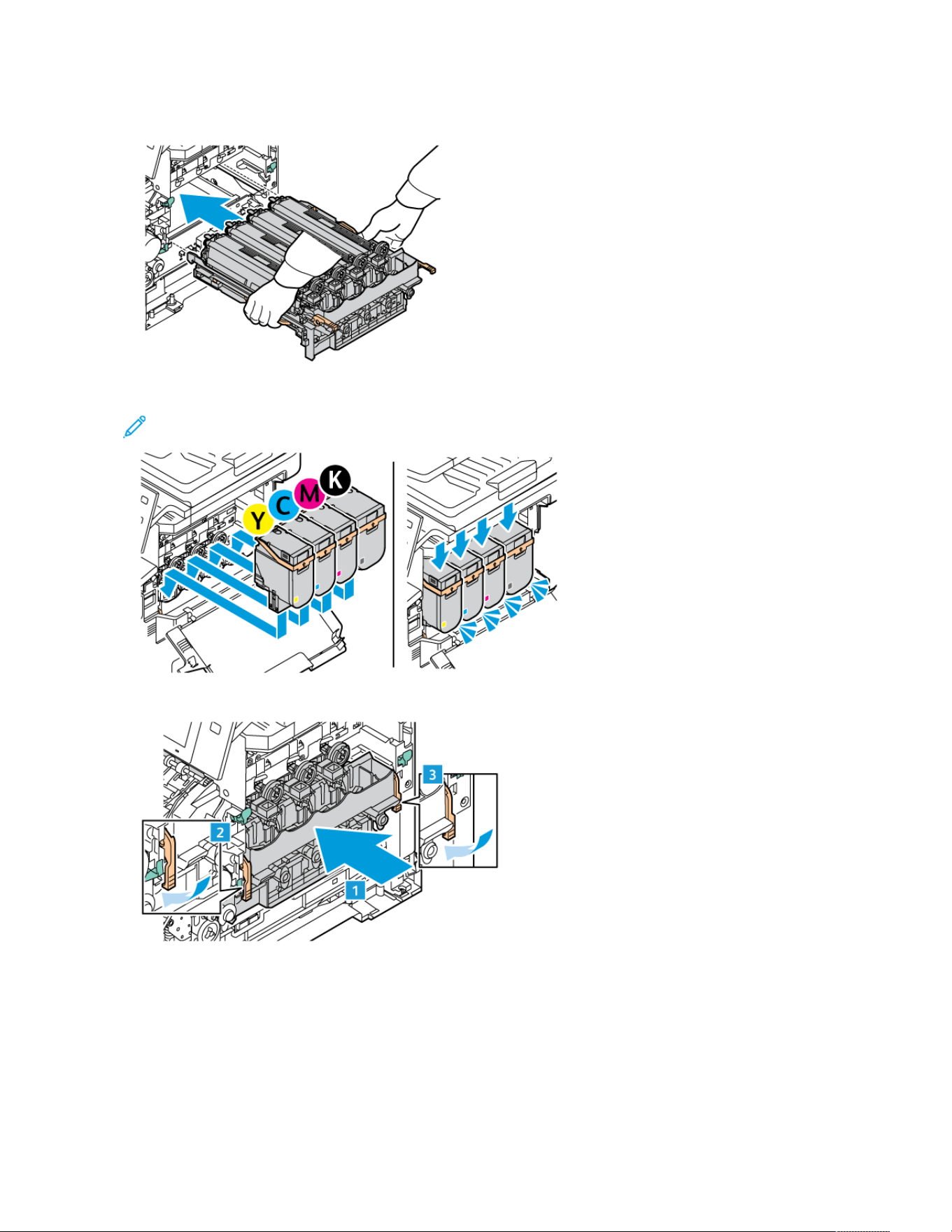
7. Hold the handles of the Imaging Kit and insert it back into the printer.
8. Insert the toner cartridges back into the printer.
Note: Refer to the installation instructions included in the Imaging Kit.
9. To lock the Imaging Kit, pull down the lever.
254 Xerox
®
VersaLink
®
C415 Color Multifunction Printer User Guide
Maintenance
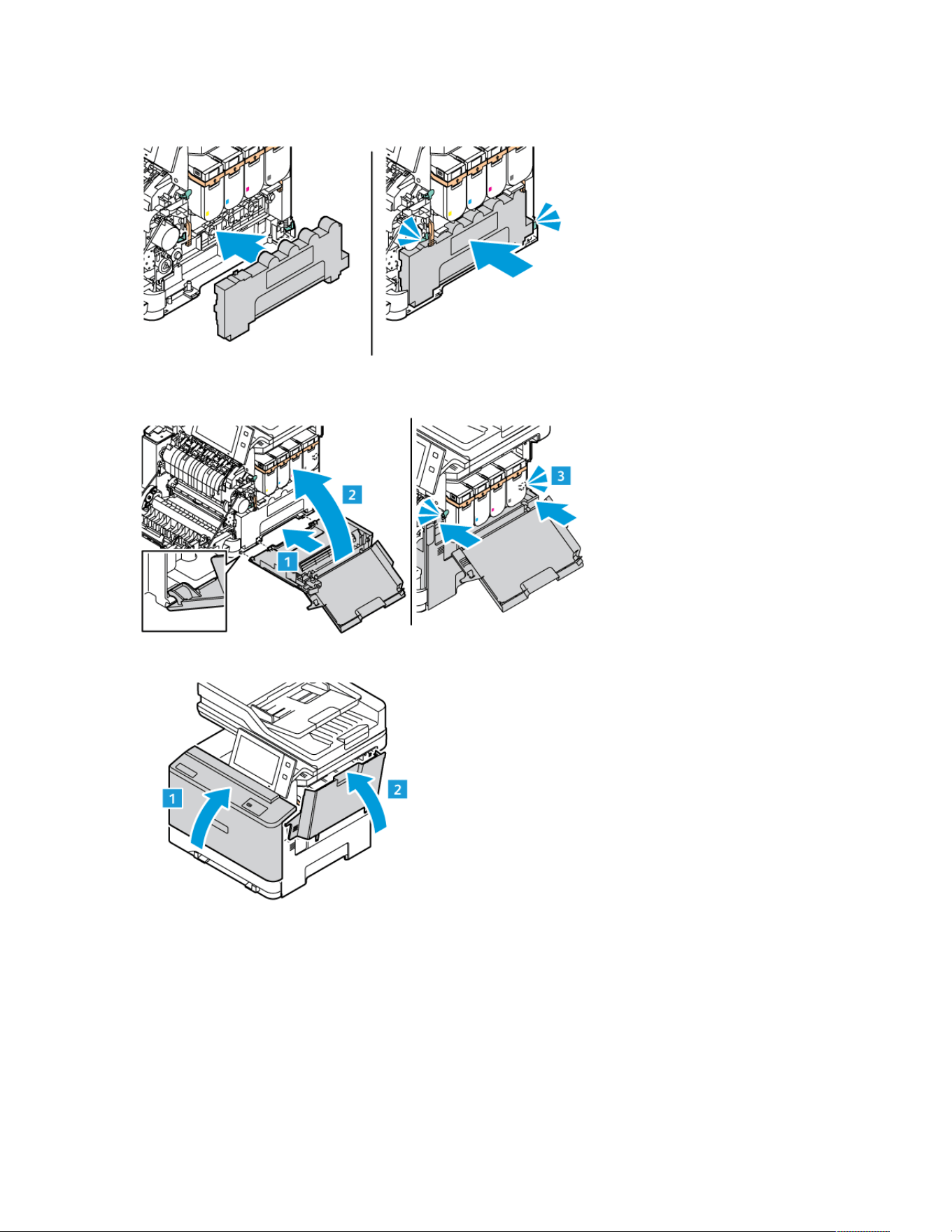
10. Insert the waste toner container back into the printer.
11. Close Door B, as shown.
12. Close Door B and Door A completely.
PAPER TRAY FEED ROLLER ASSEMBLY
Replacing the Tray 1 Feed Roller Tires
To replace the feed roller in the standard paper trays:
1. Turn off the printer, then unplug the power cord from the electrical outlet.
Xerox
®
VersaLink
®
C415 Color Multifunction Printer User Guide 255
Maintenance
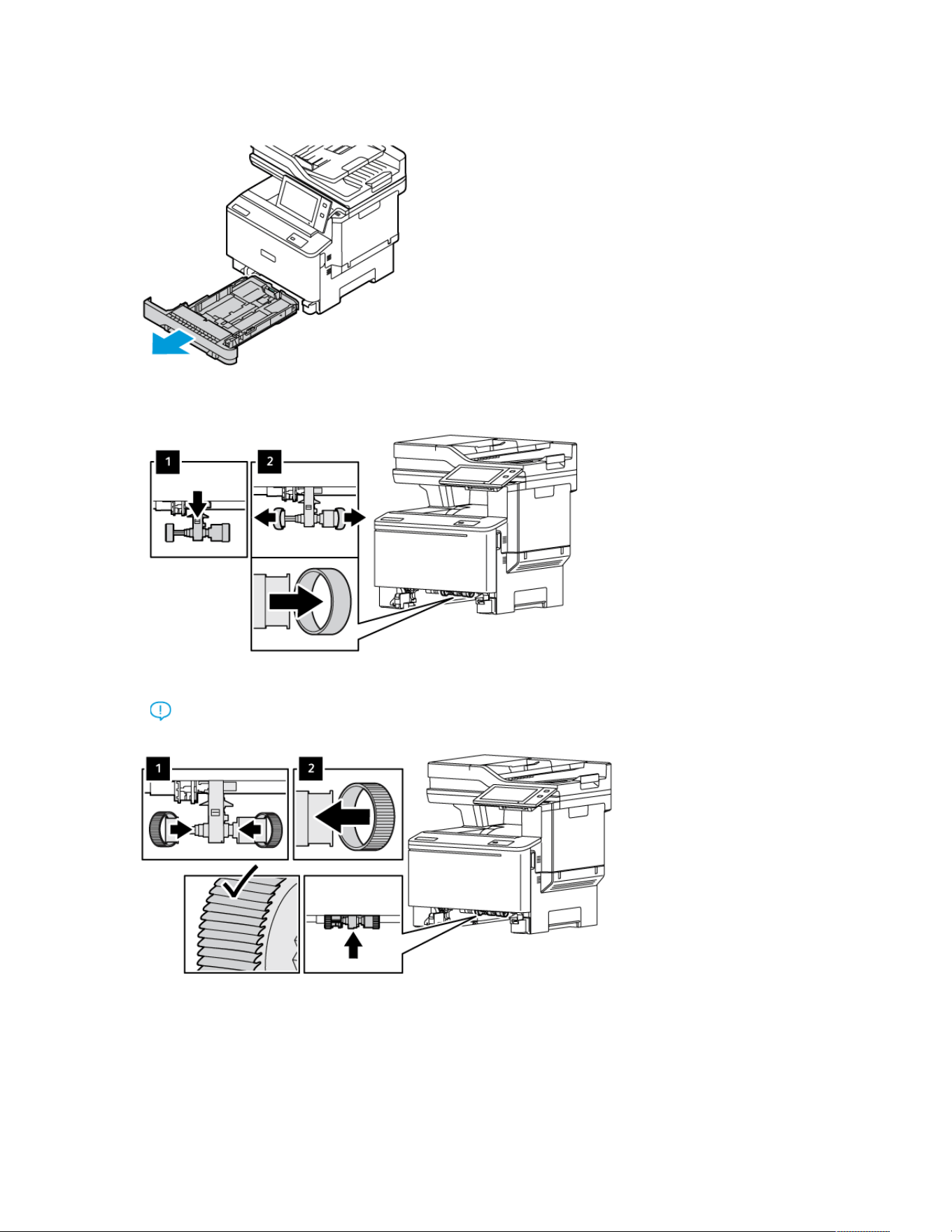
2. Remove Tray 1 from the printer.
3. To release the Tray 1 feed roller, press the center button as shown, then remove the tires from both ends of the
feed roller.
4. Unpack and insert the new feed roller tires for Tray 1.
Important: Ensure to install the new feed roller tires correctly, as shown. Incorrect installation of feed
rollers can result in paper jam.
256 Xerox
®
VersaLink
®
C415 Color Multifunction Printer User Guide
Maintenance
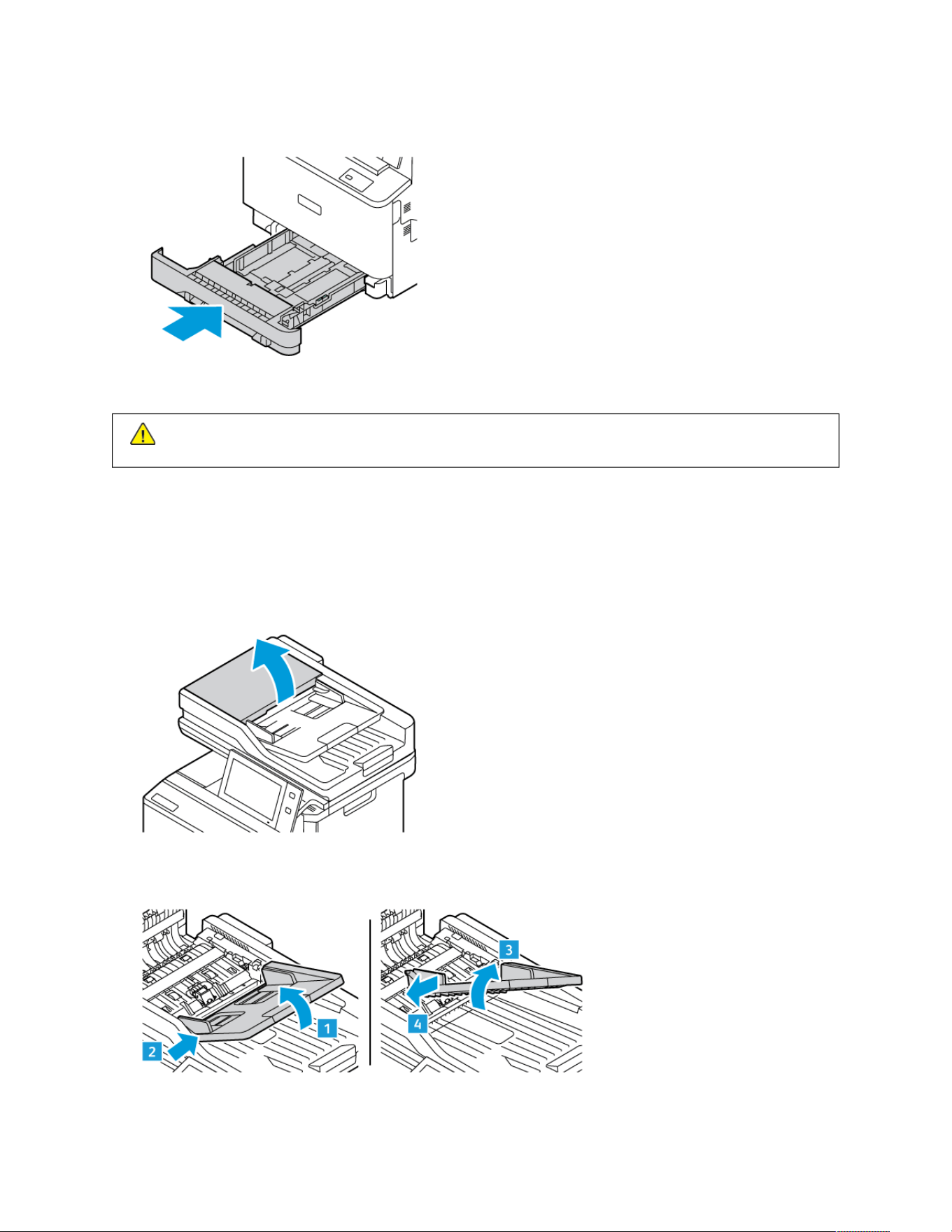
5. Insert Tray 1 back into the printer.
6. Connect the power cord to the electrical outlet, then turn on the printer.
CCaauuttiioonn:: To avoid the risk of fire or electrical shock, connect the power cord to an appropriately rated
and properly grounded electrical outlet that is near the product and easily accessible.
DUPLEX AUTOMATIC DOCUMENT FEEDER (DADF) ROLLER ASSEMBLY
Replacing the Document Feeder Tray
1. Open the top cover of the document feeder.
2. To remove the document feeder tray, lift the tray upward and tilt both the sides of the tray until it gets
removed.
Xerox
®
VersaLink
®
C415 Color Multifunction Printer User Guide 257
Maintenance
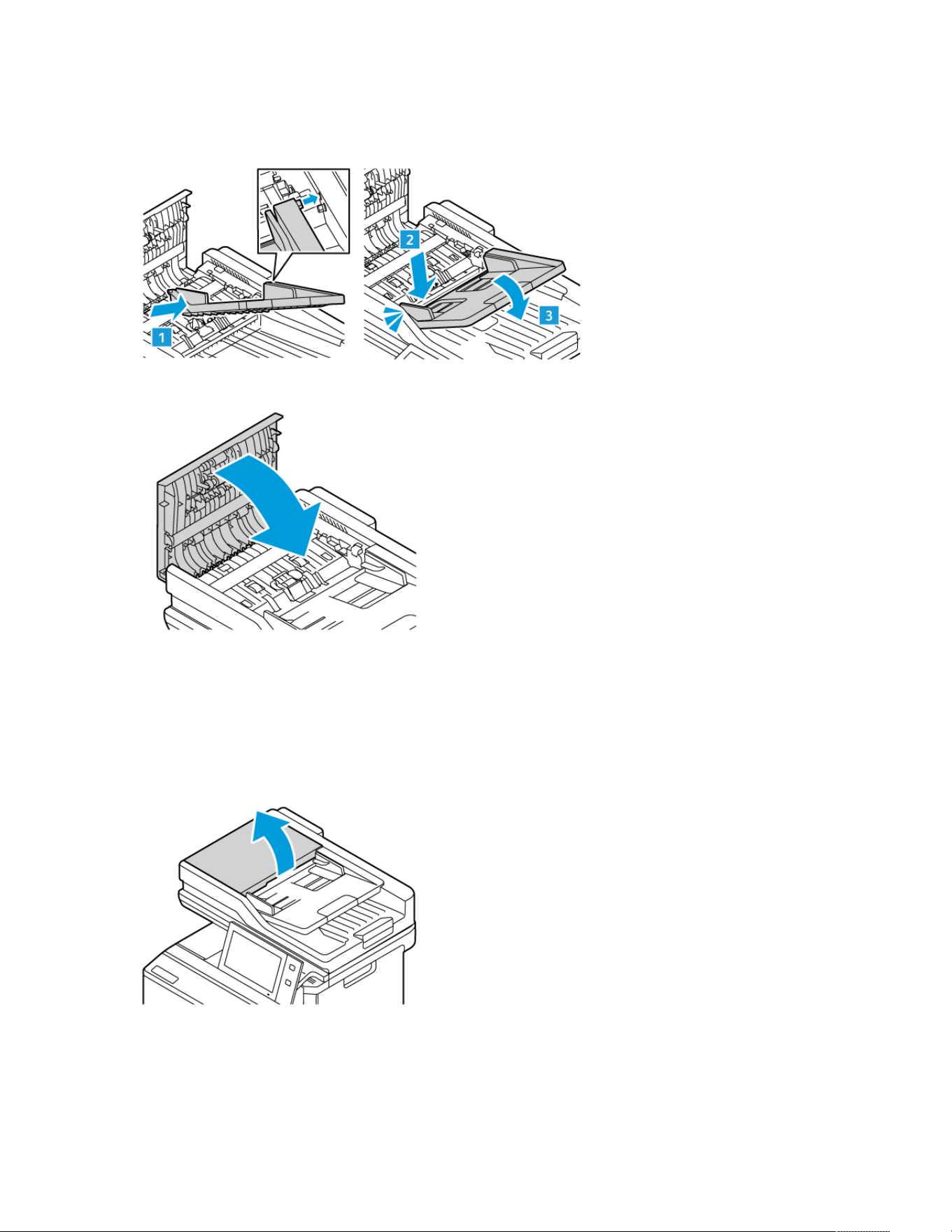
3. To insert the new document feeder tray, fix the one side of the tray and adjust the other side until it clicks into
place.
4. Close the top cover of the document feeder.
Replacing the Duplex Automatic Document Feeder (DADF) Feed Rollers
To replace the feed rollers in the document feeder:
1. Power off the printer.
2. Open the top cover of the document feeder.
258 Xerox
®
VersaLink
®
C415 Color Multifunction Printer User Guide
Maintenance
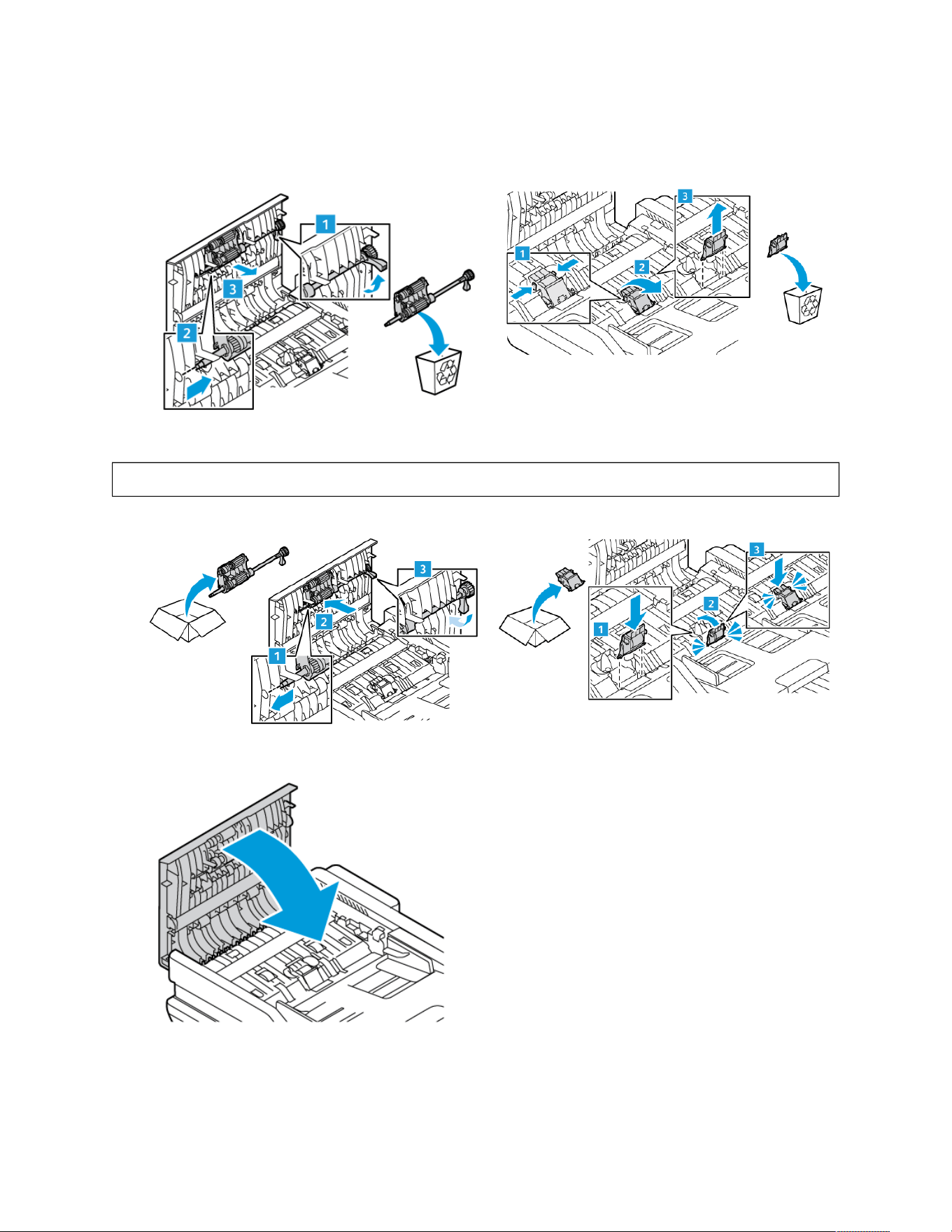
3. To remove the document feeder feed rollers, press its sides until it gets released, then take it out from the
printer.
4. Unpack and insert the new feed rollers for the document feeder.
WWaarrnniinngg:: To avoid damage and poor printer performance, handle this part with clean hands.
5. Close the top cover of the document feeder.
6. Power on the printer.
Xerox
®
VersaLink
®
C415 Color Multifunction Printer User Guide 259
Maintenance

RECYCLING SUPPLIES
For information on Xerox
®
supplies recycling programs, go to www.xerox.com/environment.
Supplies include a prepaid return label. Use it to return the used components in their original boxes for recycling.
RESETTING SUPPLY LIFE COUNTERS
You must reset the supply life counters when you replace some supplies.
1. At the printer control panel, press the Home button.
2. Touch the Log In button, enter the system administrator login information, then touch Done. For details, refer
to the System Administrator Guide at www.xerox.com/office/VLC415docs.
3. Touch Device > Tools > Device Settings > Supplies.
4. Touch Supply Counter Reset.
5. To select an item to reset, touch the supply item in the list, then touch Reset Counter.
6. On the confirmation screen, touch Reset.
7. To return to the Tools screen, touch X, then touch X again.
8. To return to the Home screen, press the Home button.
9. Touch the Log In button, then touch Logout.
260
Xerox
®
VersaLink
®
C415 Color Multifunction Printer User Guide
Maintenance

Managing the Printer
VIEWING THE METER READING
The Billing/Usage menu displays the total number of impressions that the printer generated or printed during its
lifetime. You cannot reset the counters. A page is counted as one side of a sheet of paper. For example, a sheet of
paper that is printed on two sides counts as two impressions.
Note: If you provide regular billing information for your device, you can use the Remote Services Upload
feature to simplify the process. You can enable Remote Services to send billing meter readings to Xerox
automatically so that you do not have to collect the readings manually. Refer to the System Administrator
Guide for further information.
To view the billing information for your printer:
1. At the printer control panel, press the Home button.
2. Touch Device > Billing/Usage.
3. To view more details, touch Usage Counters, then select an option.
4. After viewing the usage readings, to return to the Device screen touch X, then touch X again.
5. To return to the Home screen, press the Home button.
PRINTING THE BILLING SUMMARY REPORT
The Billing Summary Report provides information about the device and a detailed listing of the billing meters and
sheet counts.
To print the Billing Summary Report:
1. At the printer control panel, press the Home button.
2. Touch Device > Information Pages.
3. Touch Billing Summary, then touch Print.
4. To return to the Home screen, press the Home button.
Xerox
®
VersaLink
®
C415 Color Multifunction Printer User Guide 261
Maintenance
Moving the Printer
• Always power off the printer and wait for the printer to shut down. To power off the printer, verify that there are
no jobs in the queue, then press the secondary power switch. After the touch screen goes dark, wait 10 seconds,
then power off the main power switch. For details, refer to Power Options.
• Disconnect the power cord from the back of the printer.
• To avoid spilling toner, keep the printer level.
Note: When moving the printer over a long distance, remove the toner cartridges to prevent toner from
spilling. Package the printer into a box.
WWaarrnniinngg:: Failure to repackage the printer properly for shipment can result in damage not covered by the
Xerox
®
Warranty or Service Agreement. The Xerox
®
Warranty or Service Agreement do not cover damage
to the printer caused by improper moving.
262
Xerox
®
VersaLink
®
C415 Color Multifunction Printer User Guide
Maintenance

Xerox
®
VersaLink
®
C415 Color Multifunction Printer User Guide 263
Troubleshooting
This chapter contains:
General Troubleshooting . . . . . . . . . . . . . . . . . . . . . . . . . . . . . . . . . . . . . . . . . . . . . . . . . . . . . . . . . . . . . . . . . . . . . . . . . . . . . . . . . . . . . . . . . . . . . . . . . . . . . . . . . . . . . . . . . . . . . 264
Paper Jams . . . . . . . . . . . . . . . . . . . . . . . . . . . . . . . . . . . . . . . . . . . . . . . . . . . . . . . . . . . . . . . . . . . . . . . . . . . . . . . . . . . . . . . . . . . . . . . . . . . . . . . . . . . . . . . . . . . . . . . . . . . . . . . . . . . . . . . 272
Print, Copy, and Scan Problems. . . . . . . . . . . . . . . . . . . . . . . . . . . . . . . . . . . . . . . . . . . . . . . . . . . . . . . . . . . . . . . . . . . . . . . . . . . . . . . . . . . . . . . . . . . . . . . . . . . . . . . . . . . . . 285
Fax Problems. . . . . . . . . . . . . . . . . . . . . . . . . . . . . . . . . . . . . . . . . . . . . . . . . . . . . . . . . . . . . . . . . . . . . . . . . . . . . . . . . . . . . . . . . . . . . . . . . . . . . . . . . . . . . . . . . . . . . . . . . . . . . . . . . . . . . 294
Getting Help . . . . . . . . . . . . . . . . . . . . . . . . . . . . . . . . . . . . . . . . . . . . . . . . . . . . . . . . . . . . . . . . . . . . . . . . . . . . . . . . . . . . . . . . . . . . . . . . . . . . . . . . . . . . . . . . . . . . . . . . . . . . . . . . . . . . . 297
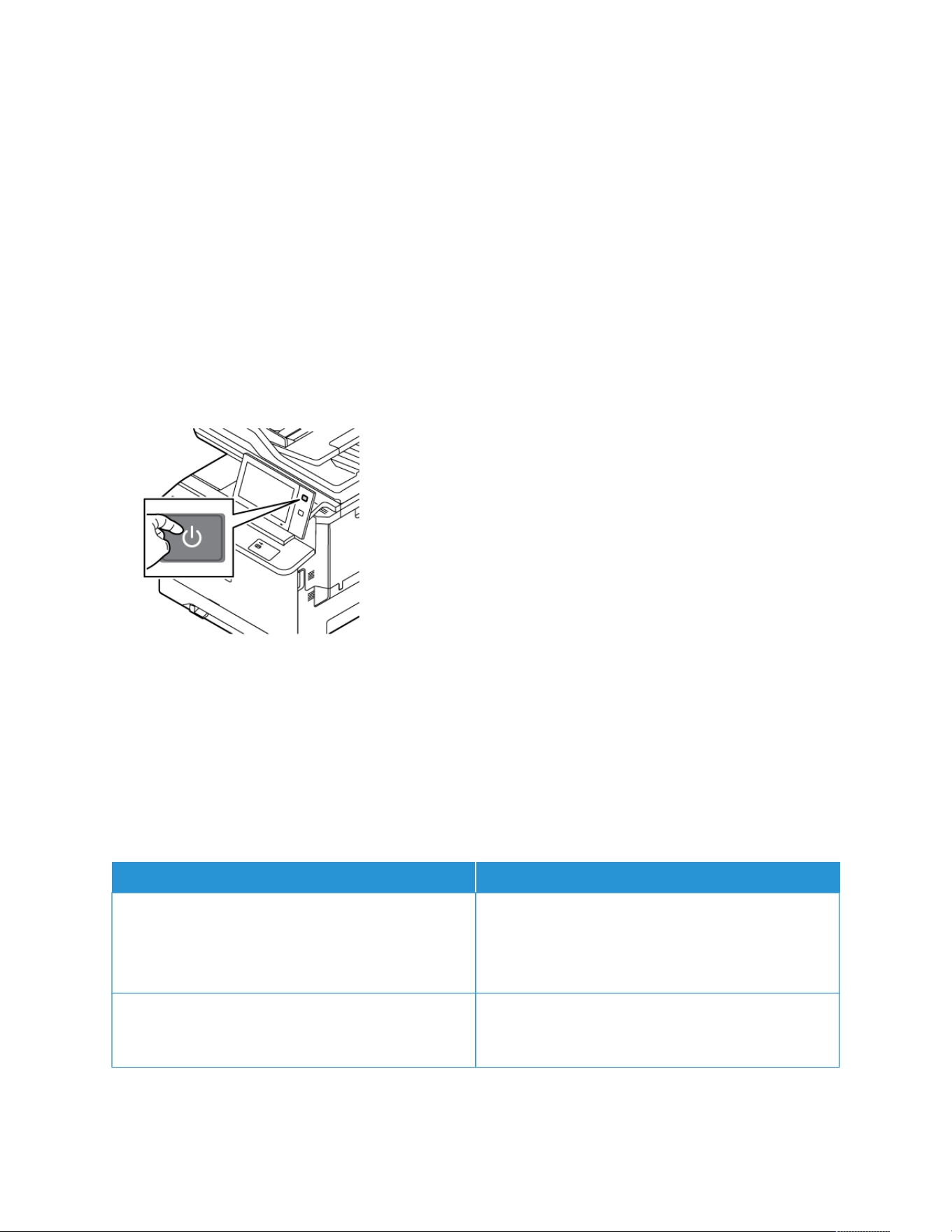
General Troubleshooting
This section contains procedures to help you locate and resolve problems. Resolve some problems by simply
restarting the printer.
RESTARTING THE PRINTER
The printer has one power switch. The power switch is the Power/Wake button on the control panel. The Power/
Wake button controls power to the printer electronic components, and when powered off, initiates a software-
controlled shutdown. The preferred method to power on and off the printer is to use the Power/Wake button.
To operate the printer, power on the switches:
1. Power on the main power switch that connects the printer to the power outlet.
2. At the control panel, press the Power/Wake button.
3. To restart the printer:
a. At the control panel, press the Power/Wake button, then touch Restart. A message appears on the control
panel that warns you that the printer is restarting.
b. If the printer does not restart after several minutes, power off the main power switch. To restart the printer,
power on the main switch, then press the Power/Wake button on the control panel.
If restarting the printer does not resolve the issue, see the table in this chapter that best describes the problem.
PRINTER DOES NOT POWER ON
PROBABLE CAUSES SOLUTIONS
The power switch is not switched on.
• Check that the printer is connected to a power
outlet.
• At the printer control panel, press the PPoowweerr//WWaakkee
button. For details, refer to Power Options.
The power cord is not plugged into the outlet correctly. Power off the printer, then plug the power cord into the
outlet securely. Use the bracket provided with the
printer to secure the power cord in place.
264
Xerox
®
VersaLink
®
C415 Color Multifunction Printer User Guide
Troubleshooting
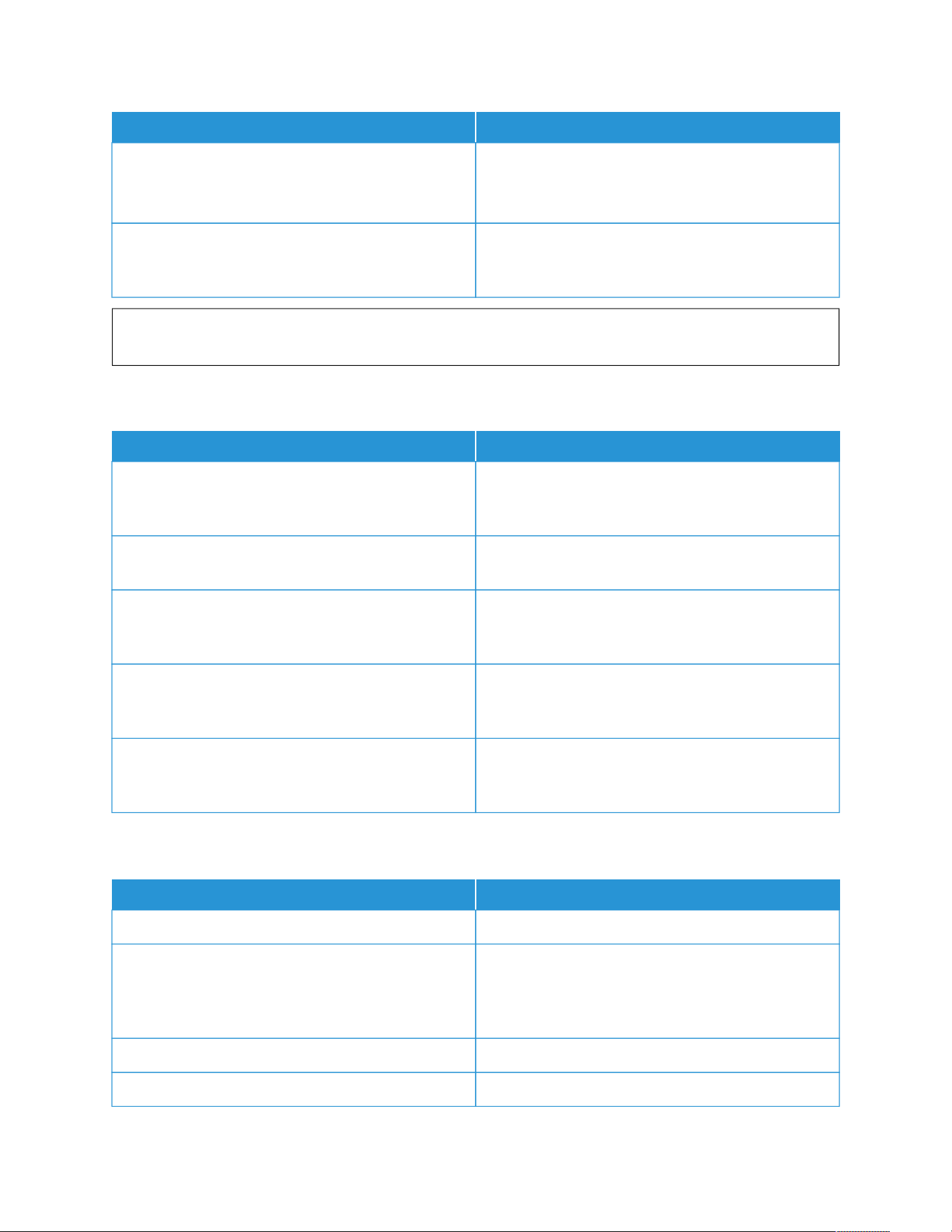
PROBABLE CAUSES SOLUTIONS
Something is wrong with the outlet connected to the
printer.
• Plug another electrical appliance into the outlet
and check if it operates properly.
• Try a different outlet.
The printer is connected to an outlet with a voltage or
frequency that does not match the printer
specifications.
Use a power source with the specifications listed in the
Electrical Specifications.
WWaarrnniinngg:: Plug the three-wire cord with grounding prong directly into a grounded AC outlet. Do not use a
power strip. If necessary, contact a licensed electrician to install a properly grounded outlet.
PRINTER RESETS OR POWERS OFF FREQUENTLY
PROBABLE CAUSES SOLUTIONS
The power cord is not plugged into the outlet correctly. Power off the printer. Confirm that the power cord is
plugged in correctly to the printer and the outlet, then
power on the printer.
A system error occurred. Power off the printer, then power on again. If the error
persists, contact your Xerox representative.
The printer is connected to an uninterruptible power
supply (UPS), extension cord, or power strip.
Only use an extension cord designed to handle the
electrical current capacity of the printer. For details,
refer to Electrical Specifications.
A network configuration problem exists. Unplug the network cable. If the problem is not
resolved, contact your system administrator to
reconfigure your network installation.
The printer is connected to an outlet with a voltage or
frequency that does not match the printer
specifications.
Use a power source with the specifications listed in
Electrical Specifications.
PRINTER DOES NOT PRINT
PROBABLE CAUSES SOLUTIONS
The printer is in Power Saver mode. On the control panel, press the Power/Wake button.
There is a printer error. If the Status LED is blinking amber, there is an error.To
clear the error, follow the instructions on the control
panel. If the error persists, contact your Xerox
representative.
The paper tray is empty. Load paper into the tray.
The printer toner cartridge is empty. Replace the toner cartridge.
Xerox
®
VersaLink
®
C415 Color Multifunction Printer User Guide 265
Troubleshooting

PROBABLE CAUSES SOLUTIONS
All control panel indicators are off. Power off the printer, confirm that the power cord is
plugged in correctly to the printer and the outlet, then
power on the printer. If the error persists, contact your
Xerox representative.
The printer is busy.
• If the Status LED is flashing blue, check if a previous
print job is the problem.
1 At your computer, use the printer properties to
delete all print jobs in the print queue.
2 At the control panel, touch Jobs, then delete all
pending print jobs.
• Load the paper in the tray.
• If the Status LED does not flash once after you
send a print job, check the connection between the
printer and the computer. Power off the printer,
then power on.
The printer cable is disconnected. If the Status LED does not flash once after you send a
print job, check the connection between the printer
and the computer.
There is a wireless or network connectivity issue. To test the printer, print an Information Page, such as
the Basic Configuration Report. If the page prints, there
could be a wireless or network connectivity issue.
Contact your system administrator or refer to the
System Administrator Guide at www.xerox.com/office/
VLC415docs.
Incorrect print driver. Check that you have the latest print driver installed. For
details, go to www.xerox.com/office/VLC415support.
PRINTING TAKES TOO LONG
PROBABLE CAUSES SOLUTIONS
The printer is set to print on a paper type that requires
slower printing.
Certain paper type, like heavyweight paper takes more
time to print. Ensure that the print driver and control
panel are set to the proper paper type.
The printer is in Power Saver mode. Wait. It takes time for printing to start after the printer
exits Power Saver mode.
266
Xerox
®
VersaLink
®
C415 Color Multifunction Printer User Guide
Troubleshooting

PROBABLE CAUSES SOLUTIONS
The way the printer was installed on the network could
be an issue.
• Determine if a print spooler or a computer sharing
the printer is buffering all print jobs, then spooling
them to the printer. Spooling can slow print speeds.
• To test the speed of the printer, print multiple
copies of an information page, such as a demo
page. If the page prints at the rated speed of the
printer, there could be a network or printer
installation issue. For additional help, contact the
system administrator.
The job is complex. Wait. No action needed.
Xerox
®
VersaLink
®
C415 Color Multifunction Printer User Guide 267
Troubleshooting

DOCUMENT FAILS TO PRINT
PROBABLE CAUSES SOLUTIONS
Selected tray has wrong paper size loaded, or paper
type or color is not available.
To view the Job Status for a failed print on the touch
screen:
1 At the printer control panel, press the Home
button.
2 Touch Jobs.
3 From the jobs list, touch the held job name. The
resources required for the job appear on the control
panel.
4 Do one of the following:
• To print the job, replenish the resources
required. The job resumes automatically when
the required resources are available. If the job
does not print automatically, touch Resume.
• To choose an alternative paper source to enable
the job to print, touch the name of held job,
then touch Print On Alternate Paper. Select a
paper tray, then touch OK.
• To delete the print job, touch Delete. At the
prompt, touch Delete.
Note: The Print On Alternate Paper
option is enabled using the Embedded
Web Server. For details about the Print On
Alternate Paper option, refer to the System
Administrator Guide at www.xerox.com/
office/VLC415docs.
5 To return to the Home screen, press the Home
button.
Incorrect network settings. To reset network settings, contact your system
administrator or refer to the System Administrator
Guide at www.xerox.com/office/VLC415docs.
The way the printer was installed on the network could
be an issue.
• Ensure that the printer is connected to the network.
• Determine if a print spooler or a computer sharing
the printer is buffering all print jobs, then spooling
them to the printer. Spooling can slow print speeds.
• To test the printer, print an information page, such
as the Basic Configuration Report. If the page
prints, there could be a network or printer
installation issue. For help, contact your system
administrator.
Application and print driver have conflicting tray
selections.
For details, refer to Document Prints from Wrong Tray.
268
Xerox
®
VersaLink
®
C415 Color Multifunction Printer User Guide
Troubleshooting
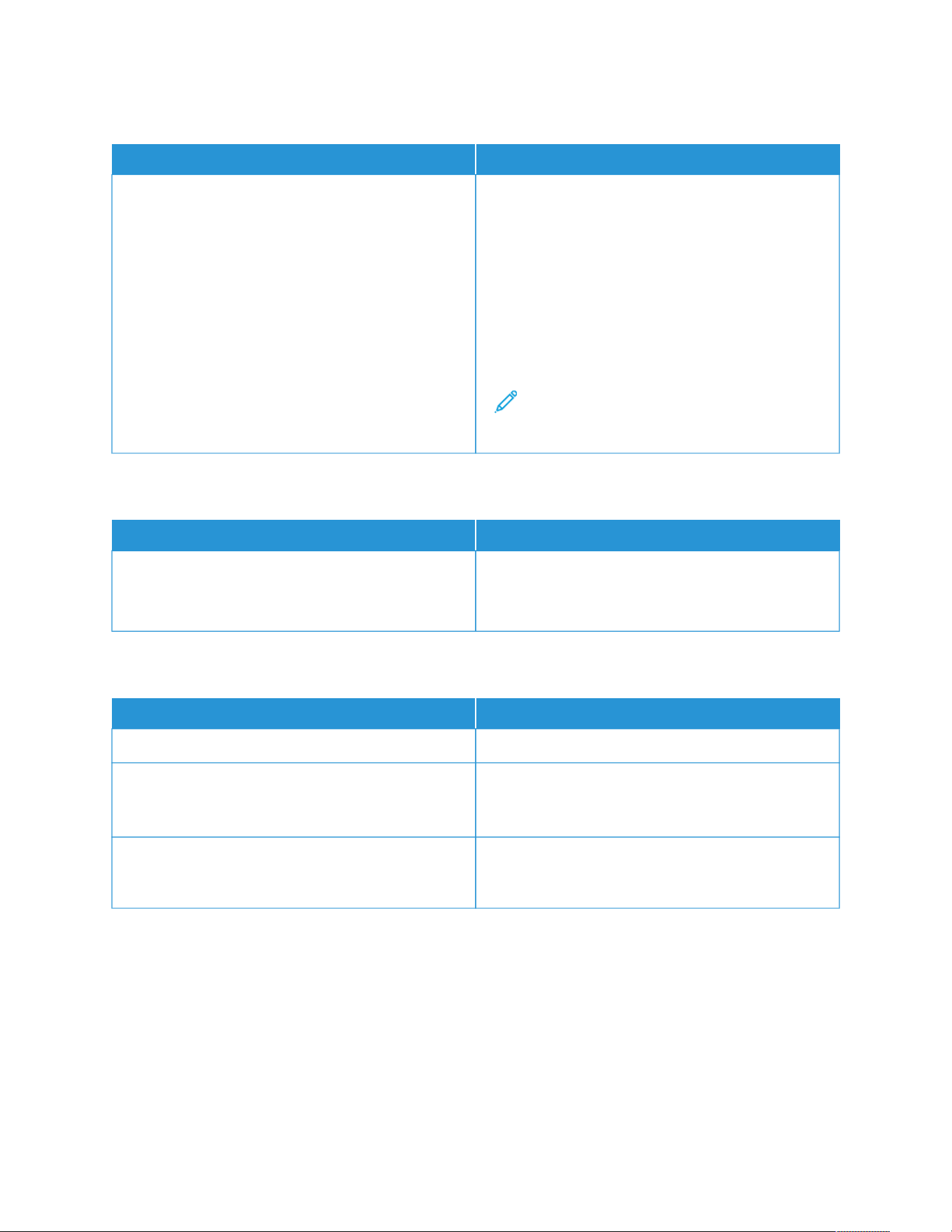
DOCUMENT PRINTS FROM WRONG TRAY
PROBABLE CAUSES SOLUTIONS
Application and print driver have conflicting tray
selections.
1 Check the tray selected in the print driver.
2 Access the page setup or printer settings of the
application from which you are printing.
3 Set the paper source to match the tray selected in
the print driver or set the paper source to
Automatically Select.
4 Check that you have the latest print driver installed.
For details, go to www.xerox.com/office/
VLC415support.
Note: To have the print driver select the tray, set
the tray used as the paper source to Auto
Selection Enabled.
EMPTY OR PARTIALLY PRINTED DOCUMENT
PROBABLE CAUSES SOLUTIONS
Packaging materials are not removed from the toner
cartridge.
1 Ensure to remove the packaging materials from the
toner cartridge.
2 Ensure that there is enough toner.
PRINTER IS MAKING UNUSUAL NOISES
PROBABLE CAUSES SOLUTIONS
One of the trays is not installed correctly. Open and close the tray from which you are printing.
There is an obstruction or debris inside the printer. Power off the printer and remove the obstruction or
debris. If you cannot remove the obstruction, contact
your Xerox
®
service representative.
The printer beeps at each touch on the control panel. Check the Alerts setting. For details, refer to the System
Administrator Guide at www.xerox.com/office/
VLC415docs.
Xerox
®
VersaLink
®
C415 Color Multifunction Printer User Guide 269
Troubleshooting

AUTOMATIC 2-SIDED PRINTING PROBLEMS
PROBABLE CAUSES SOLUTIONS
Unsupported or incorrect paper. Ensure that you are using the correct paper. Do not use
envelopes, or labels for automatic 2-sided printing. For
details, refer to Supported Paper.
Incorrect setting. On the print driver Printing Options tab, select 2-Sided
Print.
DATE AND TIME ARE INCORRECT
PROBABLE CAUSES SOLUTIONS
The Date and Time Setup is set to Manual (NTP
Disabled).
To change the Date and Time to Automatic, in the
Embedded Web Server, enable NTP. For details, refer to
the System Administrator Guide at www.xerox.com/
office/VLC415docs.
The time zone, date, or time is set incorrectly. Set the time zone, date, and time manually. For details,
refer to the System Administrator Guide at www.xerox.
com/office/VLC415docs.
SCANNER ERRORS
PROBABLE CAUSES SOLUTIONS
Scanner is not communicating. Power off the printer, and check the scanner cable.
Wait two minutes and power on the printer again.
If the problem is not resolved, contact your Xerox
®
service representative.
270
Xerox
®
VersaLink
®
C415 Color Multifunction Printer User Guide
Troubleshooting

WIRELESS NETWORK ADAPTER PROBLEMS
PROBABLE CAUSES SOLUTIONS
The device does not recognize the Wireless Network
Adapter.
• Ensure that the Wireless Network Adapter is
installed in an enabled USB port. For details, refer to
the System Administrator Guide at www.xerox.com/
office/VLC415docs.
• If extension cable is used, ensure that it is attached
to the Wireless Network Adapter correctly.
• Ensure that the correct Wireless Network Adapter is
installed. The compatibility of the Wireless Network
Adapter is dependent on the device model and
software version.
Degradation in performance has occurred. Check the wireless signal strength for the Wireless
Network Adapter. For details, refer to the System
Administrator Guide at www.xerox.com/office/
VLC415docs. If the wireless signal strength is low, do
the following:
• Place the wireless router or Access Point (AP) in a
centralized location.
• Position the Wireless Network Adapter closer to the
AP, and ensure that the wireless router or AP is
located away from walls or large metal objects.
• Remove any physical obstructions between the AP
and the Wireless Network Adapter, and ensure that
the adapter is positioned away from walls or large
metal objects.
• Position the Wireless Network Adapter on the Xerox
device in direct view of the wireless router or AP.
• If applicable, consider upgrading the wireless router
or AP to a high-gain antenna that transmits the
wireless signals in one direction only.
Xerox
®
VersaLink
®
C415 Color Multifunction Printer User Guide 271
Troubleshooting
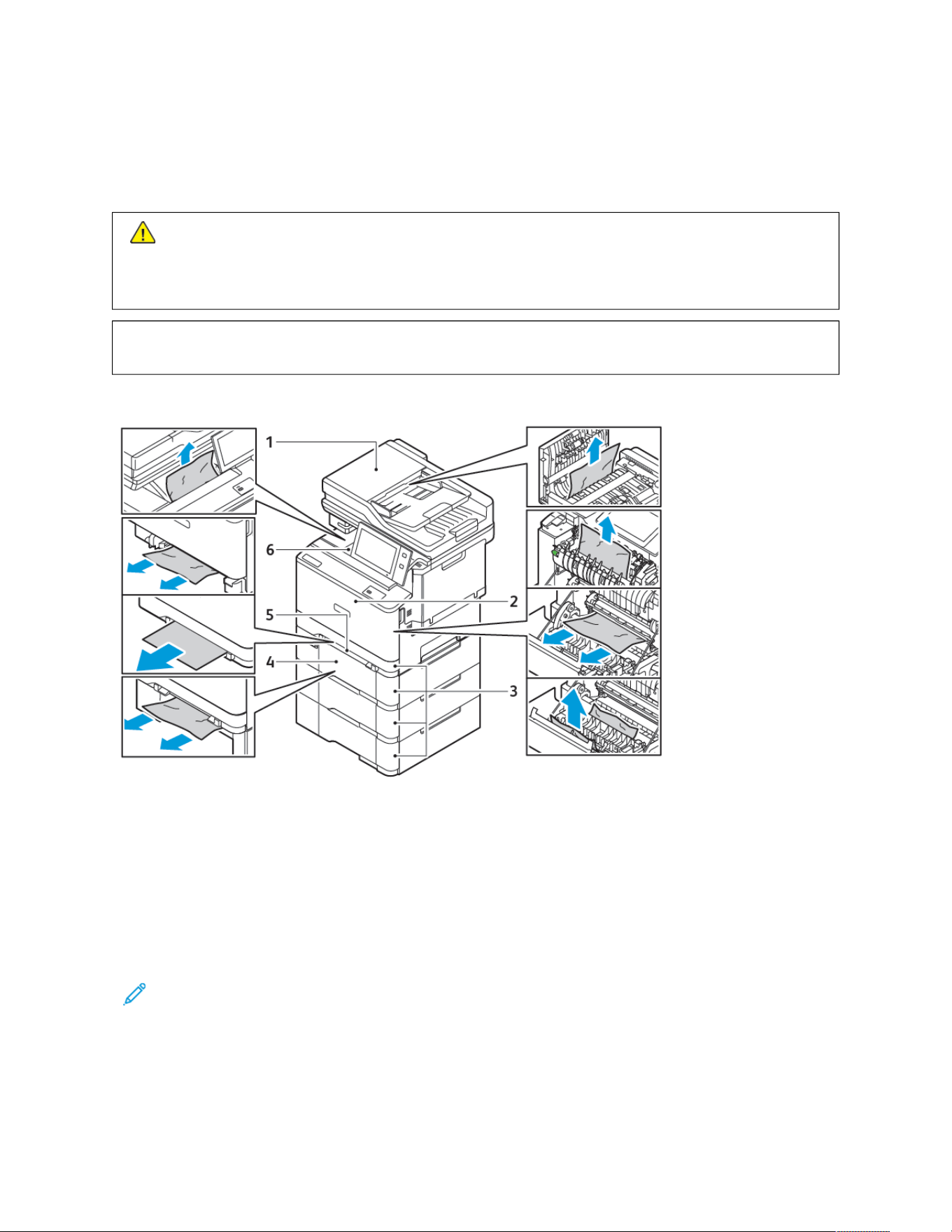
Paper Jams
LOCATING PAPER JAMS
CCaauuttiioonn:: Parts that are near the fuser are hot. To prevent personal injury, never touch an area that has a
Caution label. Power off the printer immediately, then wait 40 minutes for the fuser to cool. After the
printer has cooled, try to remove the jammed paper. If the error on the control panel remains, contact
your Xerox representative.
WWaarrnniinngg:: Do not attempt to clear any paper jams using tools or instruments. This action can damage
the printer permanently.
The following illustration shows where paper jams can occur along the paper path:
1. Duplex Automatic Document Feeder (DADF)
2. Door A, Front Door
3. Paper Trays 1–4
4. Optional 550-sheet Tray with an integrated 100-sheet Bypass Tray or Optional 550-sheet Tray
5. Manual Feeder
6. Standard Output Tray
Note: To use the different Tray configurations and their capabilities efficiently, ensure that your printer is
updated to the latest software.
272
Xerox
®
VersaLink
®
C415 Color Multifunction Printer User Guide
Troubleshooting

MINIMIZING PAPER JAMS
The printer is designed to function with minimal paper jams using Xerox supported paper. Other paper types can
cause jams. If supported paper is jamming frequently in one area, clean that area of the paper path. To avoid
damage, always remove jammed paper carefully without tearing it. Try to remove the paper in the same direction it
normally moves through the printer. Even a small piece of paper left in the printer can cause a jam. Do not reload
paper that has jammed.
The following can cause paper jams:
• Using damaged paper.
• Using unsupported paper.
• Loading paper incorrectly.
• Overfilling the tray.
• Adjusting the paper guides improperly.
Most jams can be prevented by following a simple set of rules:
• Use only supported paper. For details, refer to Supported Paper.
• Follow proper paper handling and loading techniques.
• Always use clean, undamaged paper.
• Avoid paper that is curled, torn, moist, creased, or folded.
• To separate the sheets before loading into the tray, fan the paper.
• Observe the paper tray fill line; never overfill the tray.
• Adjust the paper guides in all trays after inserting the paper. A guide that is not properly adjusted can cause
poor print quality, misfeeds, skewed prints, and printer damage.
• After loading the trays, select the correct paper type and size on the control panel.
• Store paper in a dry location.
• Use only Xerox paper designed for the printer.
Avoid the following:
• Polyester coated paper that is designed especially for inkjet printers.
• Highly glossy or coated paper, when they are not supported.
• Paper that is folded, wrinkled, or excessively curled.
• Loading more than one type, size, or weight of paper in a tray at the same time.
• Loading hole punched paper or paper with folded corners or staples in the document feeder.
• Overfilling the paper trays.
• Allowing the output tray to overfill.
Xerox
®
VersaLink
®
C415 Color Multifunction Printer User Guide 273
Troubleshooting
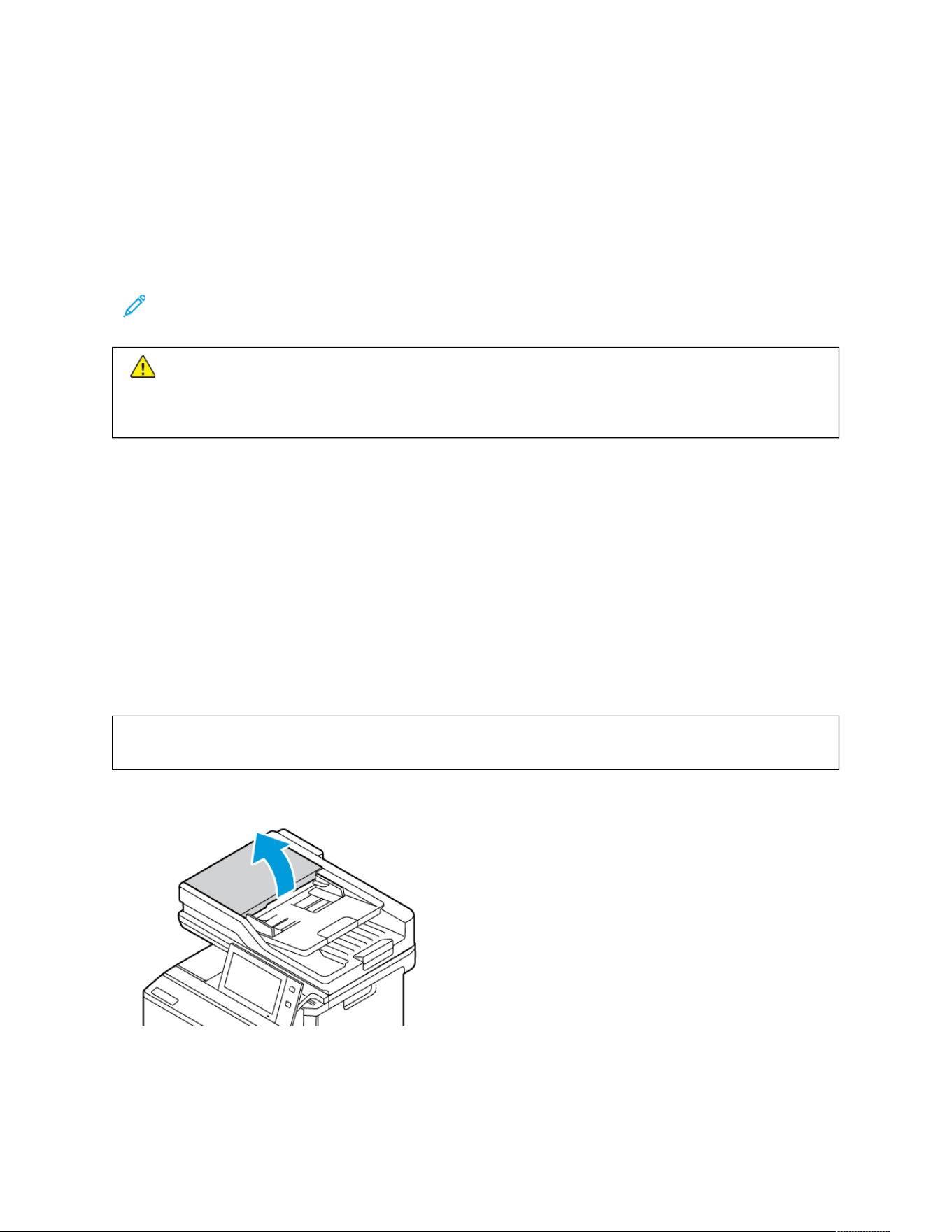
CLEARING PAPER JAMS
To clear jams, watch the video and follow the instructions on the control panel. To resolve the error that appears on
the control panel, remove all paper from the areas shown. If the error does not clear, check the jam areas again to
ensure that all paper has been removed. Ensure that all levers, covers, and doors have been closed correctly.
To avoid damage, always remove jammed paper carefully without tearing it. Try to remove the paper in the same
direction it normally moves through the printer. Even a small piece of paper left in the printer can cause a jam. Do
not reload paper that has jammed.
Note: Do not touch the printed side of the paper when removing it. The printed side of jammed pages could
smudge, and the toner could stick to your hands. Avoid spilling any toner inside the printer.
CCaauuttiioonn:: If you accidentally get toner on your clothes, lightly dust them off as best as you can. If some
toner remains on your clothes, use cool water, not hot, to rinse off the toner. If toner gets on your skin,
wash it off with cool water and a mild soap. If you get toner in your eyes, wash it out immediately with
cool water and consult a doctor.
Duplex Automatic Document Feeder Jams
If a jam occurs in the duplex automatic document feeder areas, a message appears to indicate the areas that
require clearing. To clear the jam, clear the areas indicated, then reload the jammed originals and the remaining
original documents in the document feeder input tray. Do not put the original documents, that are scanned
already, in the document feeder input tray.
If the original documents continue to jam, then for more information about the causes of document feeder jams
and potential solutions, refer to Jams in the Document Feeder.
Clearing Jams in the Document Feeder
To clear the paper jams in the document feeder:
WWaarrnniinngg:: Torn, wrinkled, or folded original documents can cause jams and damage the printer. To copy
torn, wrinkled, or folded original documents, use the document glass.
1. Open the top cover of the document feeder, Cover C.
274 Xerox
®
VersaLink
®
C415 Color Multifunction Printer User Guide
Troubleshooting
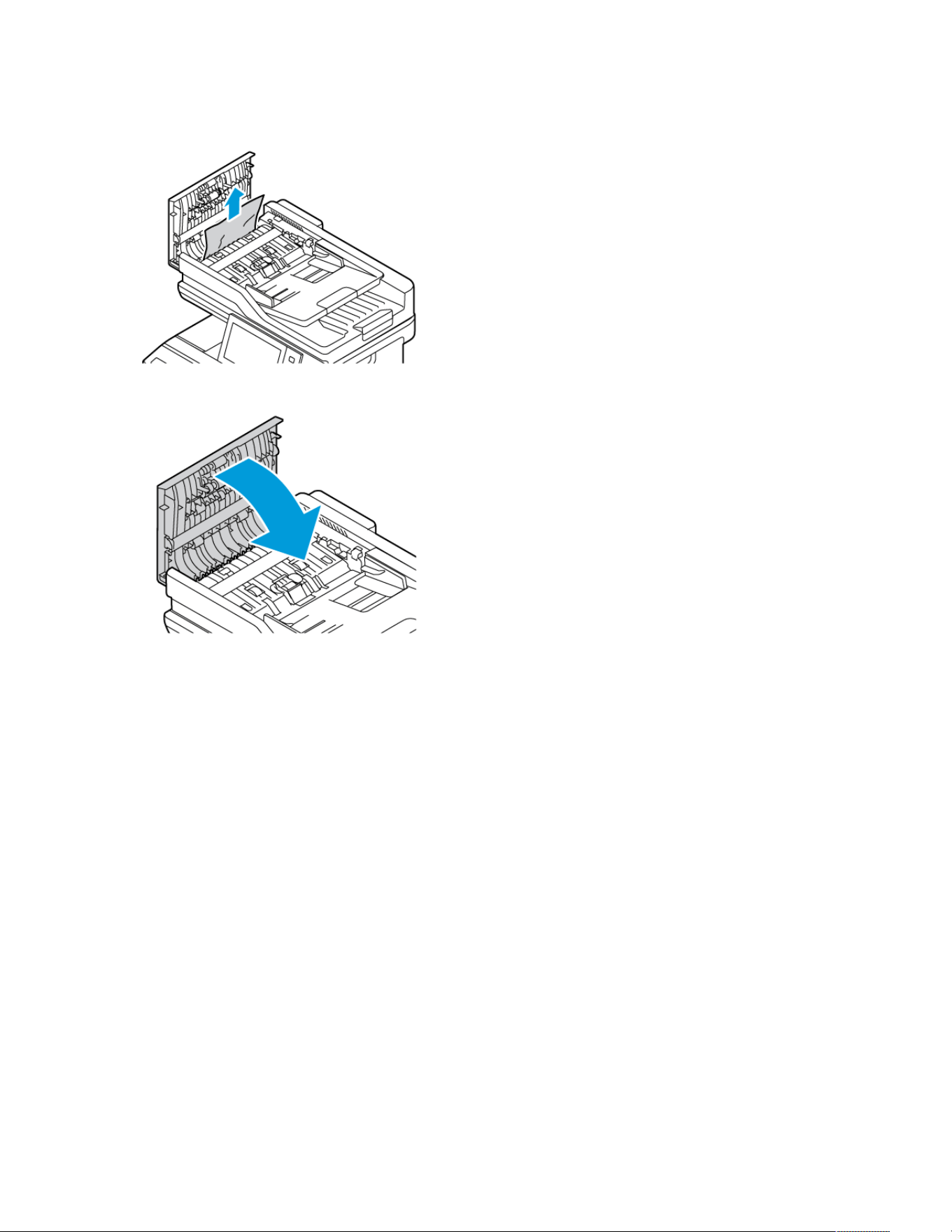
2. To remove the jammed paper, pull up the document in the upward direction.
3. Close the document feeder top cover, Cover C.
Paper Tray Jams
If a jam occurs in the paper tray areas, a message appears to indicate the areas or paper tray that requires clearing.
To clear the jam, follow the instructions on the touch screen to locate the jammed paper, then clear the jam. When
removing jammed paper from the device, remove the paper in the direction it was feeding, and take care not to
leave any remnants of paper in the device.
After the paper tray jam has been cleared, the device continues printing the job from where the job stopped.
If further paper tray jams are experienced, try to load fresh paper in the paper tray. The paper could have excessive
curl, excessive moisture, or be damaged.
For more information about paper jam causes and potential solutions, refer to Paper Misfeeds and Paper Size Jams.
Clearing Jams at Trays 1–4
To clear the paper jams at Trays 1–4:
Xerox
®
VersaLink
®
C415 Color Multifunction Printer User Guide 275
Troubleshooting
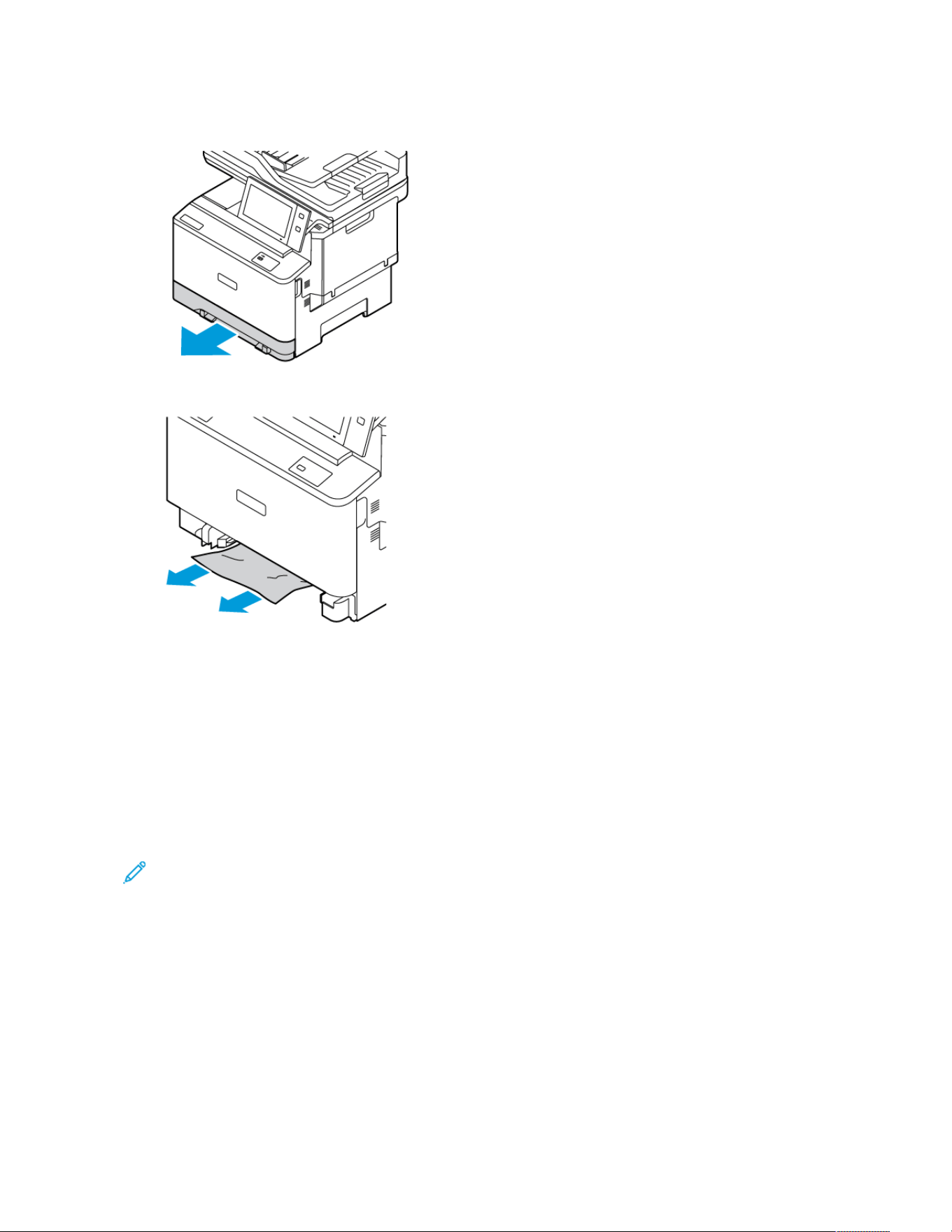
1. Pull out the tray until it stops.
2. Remove the jammed paper from the tray.
3. If the paper is torn, remove the tray completely, then check inside the printer for torn pieces of paper.
4. Reload the tray with undamaged paper, then push the tray in until it stops.
5. At the control panel, if a prompt appears, select correct size, type, and color of the paper:
• To select a new paper size, touch Size.
• To select a new paper type, touch Type.
• To select a new paper color, touch Color.
• To confirm the settings, touch Confirm.
Note: To configure settings when the prompt is displayed, update the Required Paper Policies in Embedded
Web Server. For details, refer to the System Administrator Guide at www.xerox.com/office/VLC415docs.
6. To return to the Home screen, press the Home button.
Clearing Jams at Bypass Tray
To clear the paper jams at Bypass Tray:
276
Xerox
®
VersaLink
®
C415 Color Multifunction Printer User Guide
Troubleshooting
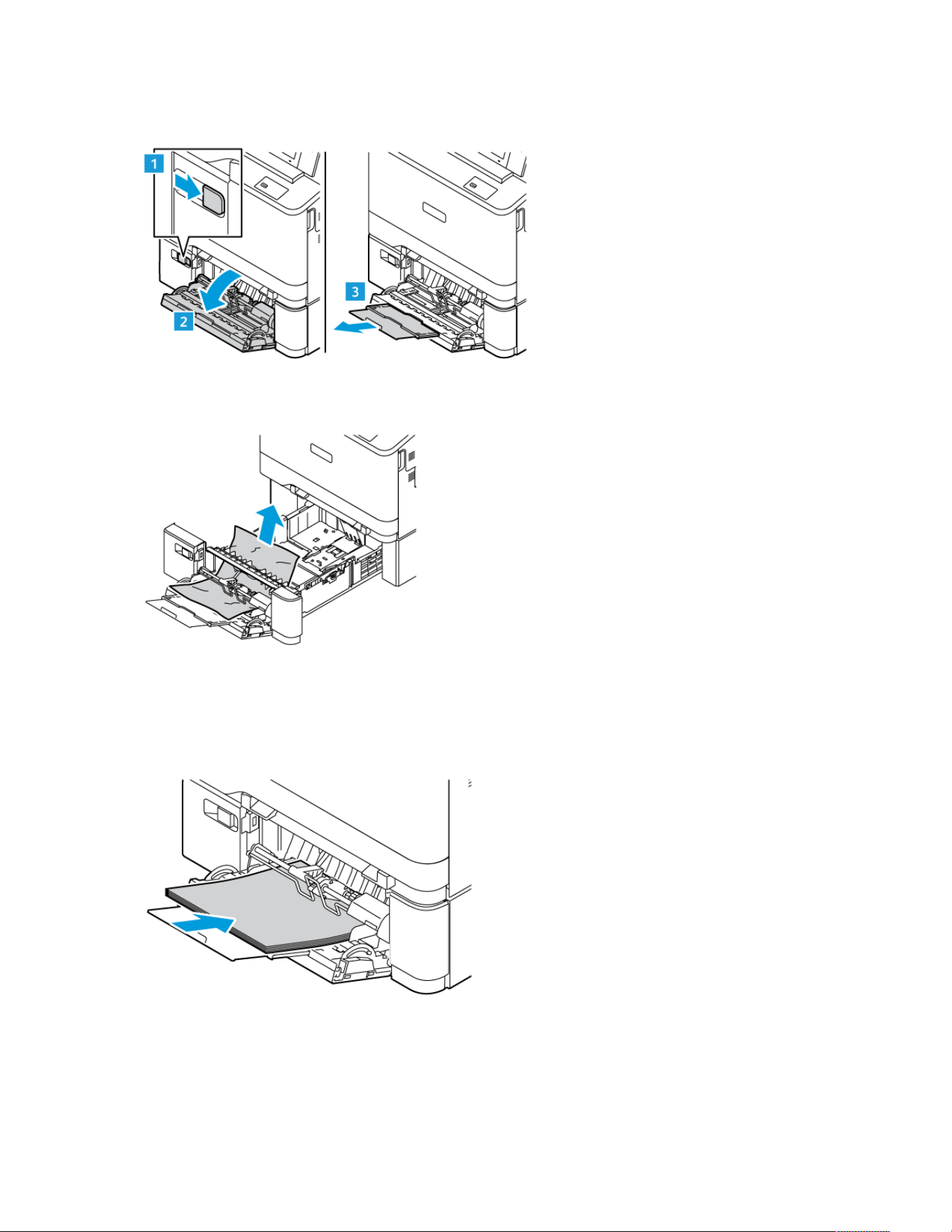
1. To open the Bypass Tray, push the release latch (1) at the front-left side of Tray 2.
2. Remove the jammed paper from the tray. Ensure that the paper feed entrance, where the tray connects to the
printer, is clear.
3. If the paper is torn, check inside the printer for torn pieces of paper.
4. Fan the paper that you removed from the tray and ensure that all four corners of the paper are well aligned.
5. Insert the paper into the Bypass Tray. Ensure that the leading edge of the paper touches the paper feed
entrance.
Xerox
®
VersaLink
®
C415 Color Multifunction Printer User Guide 277
Troubleshooting
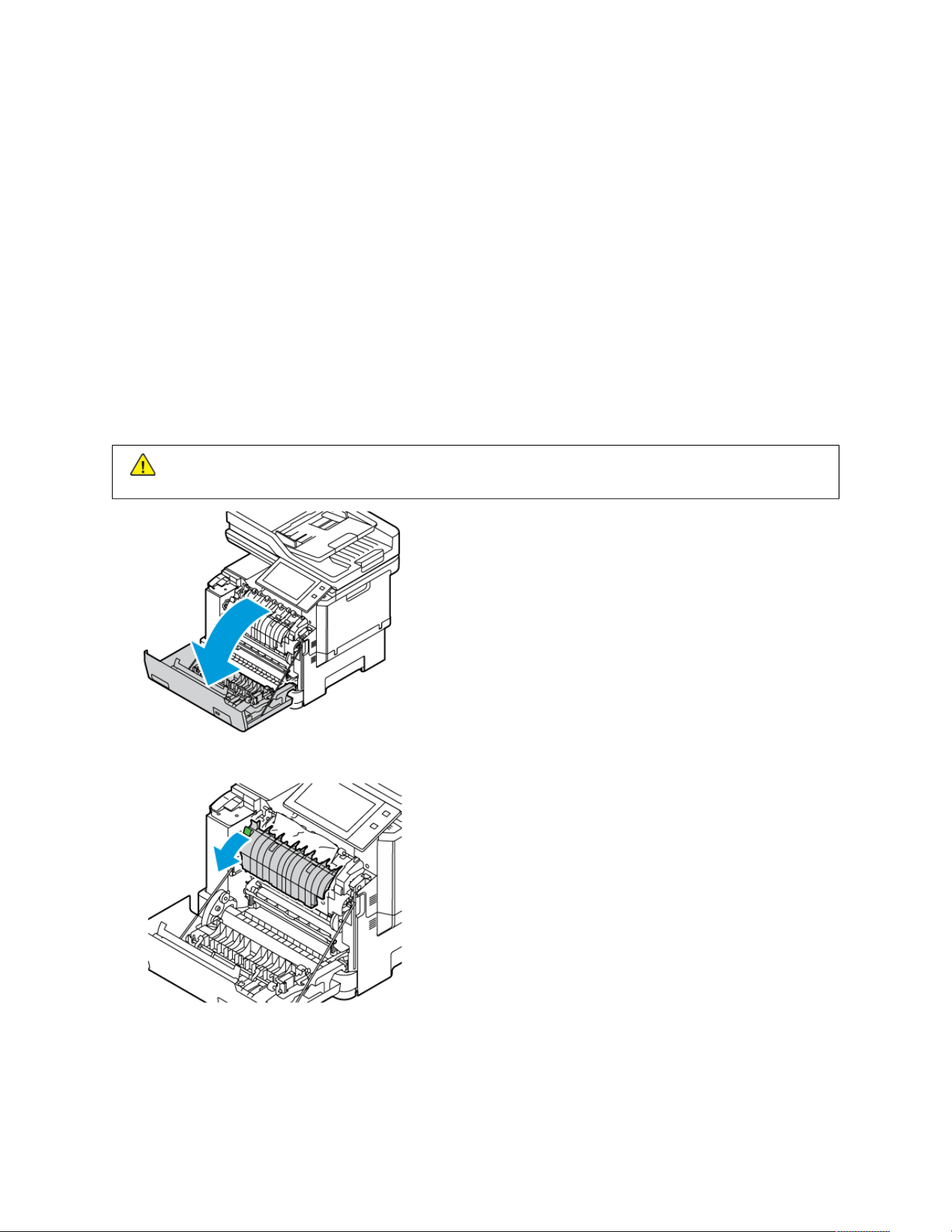
6. At the control panel, select correct size, type, and color of the paper.
• To select a new paper size, touch Size.
• To select a new paper type, touch Type.
• To select a new paper color, touch Color.
7. To confirm the settings, touch Confirm.
Clearing Jams at Door A
To clear paper jams from inside the printer front door, Door A, do the following.
Clearing Jams in the Fuser Unit
To clear the paper jams in the fuser unit:
1. Open Door A.
CCaauuttiioonn:: The inside of the printer might be hot. To reduce the risk of injury from a hot component, allow
the surface of the printer to cool down before touching.
2. Open the fuser access cover inside Door A.
278 Xerox
®
VersaLink
®
C415 Color Multifunction Printer User Guide
Troubleshooting
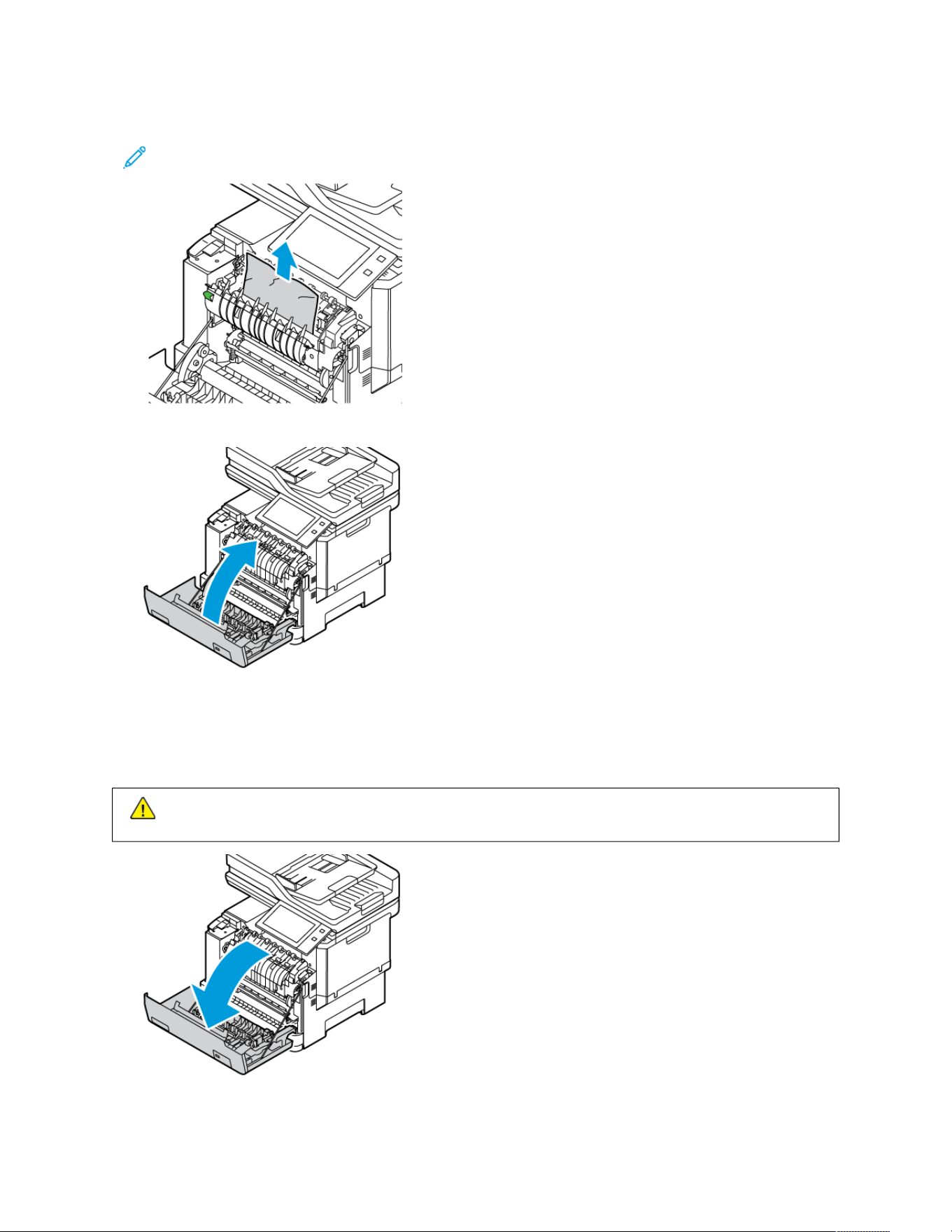
3. Remove the jammed paper from the fuser unit.
Note: Ensure that all paper fragments are removed.
4. Close Door A.
Clearing Jams from the Inner Cover of Door A
To clear the paper jams from the inner cover of Door A, do the following:
1. Open the printer front door, Door A.
CCaauuttiioonn:: The inside of the printer might be hot. To reduce the risk of injury from a hot component, allow
the surface of the printer to cool down before touching.
Xerox
®
VersaLink
®
C415 Color Multifunction Printer User Guide 279
Troubleshooting
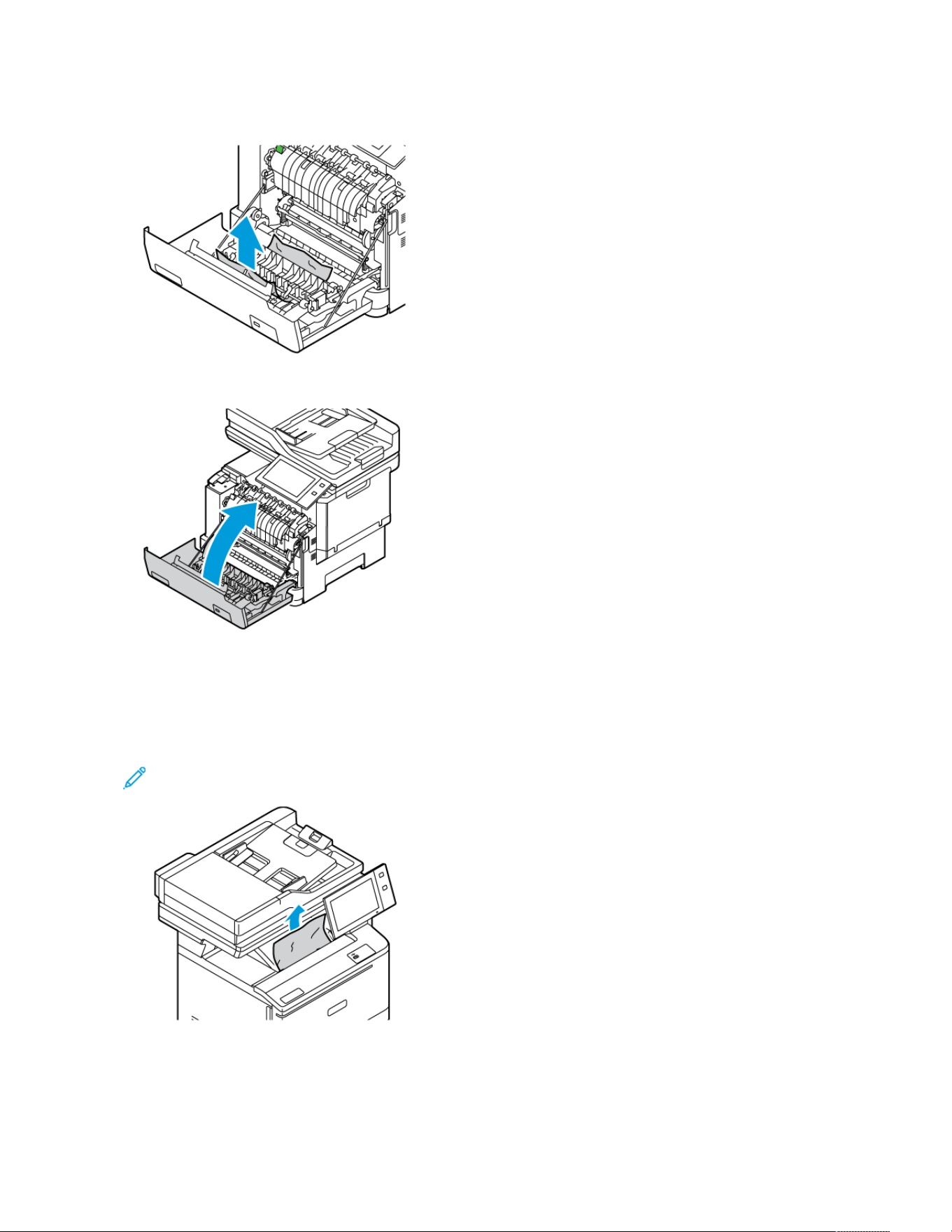
2. Open the inner cover of Door A, then remove the jammed paper.
3. Close Door A.
Clearing Jams at Output Tray
To clear the paper jams at the output tray:
1. At the output tray, remove the jammed paper.
Note: Ensure that all paper fragments are removed.
280 Xerox
®
VersaLink
®
C415 Color Multifunction Printer User Guide
Troubleshooting
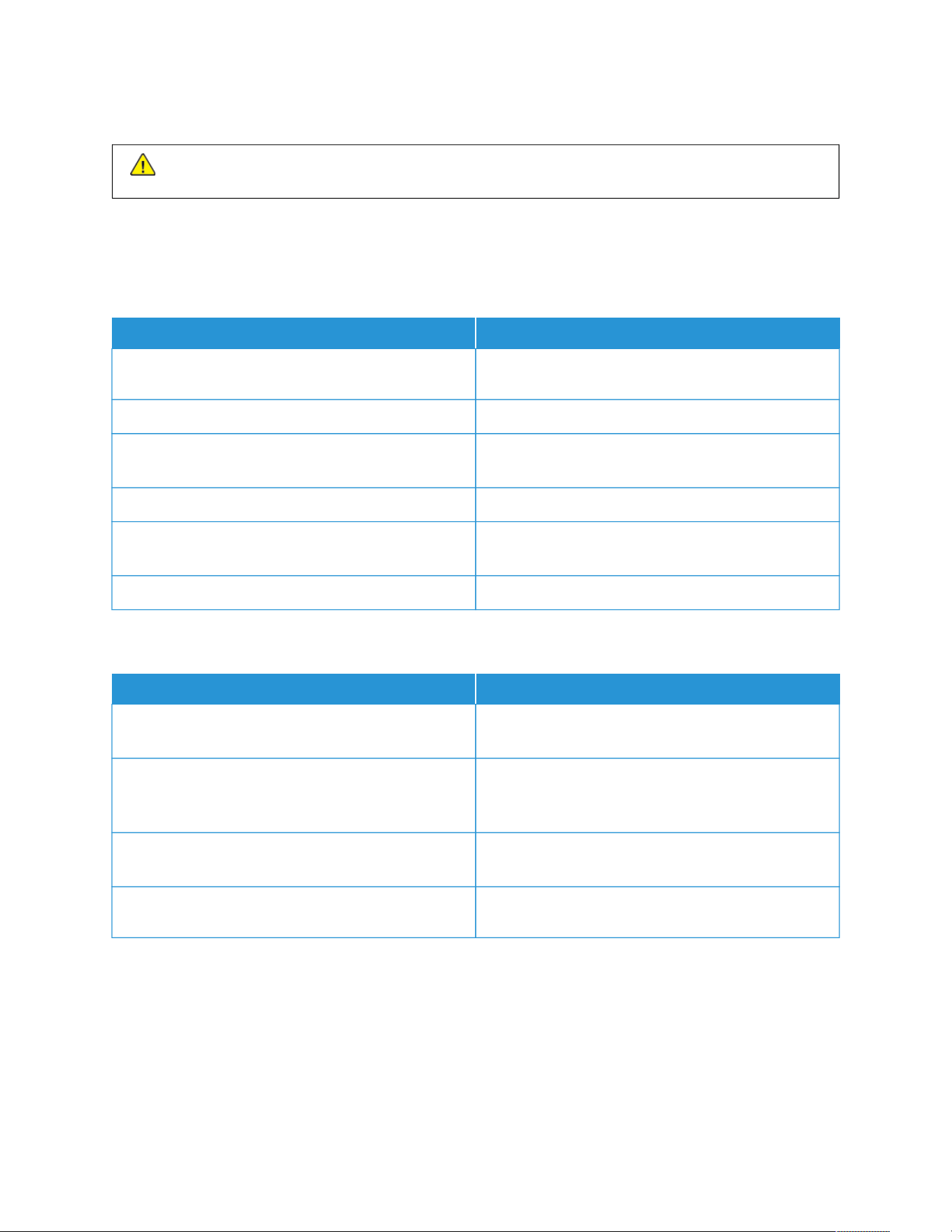
2. Open Door A and Cover A1, then remove any paper fragments.
CCaauuttiioonn:: The inside of the printer might be hot. To reduce the risk of injury from a hot component, allow
the surface of the printer to cool down before touching.
TROUBLESHOOTING PAPER JAMS
Multiple Sheets Pulled Together
PROBABLE CAUSES SOLUTIONS
The paper tray is too full. Remove some of the paper. Do not load paper past fill
line.
The edges of the paper are not even. Remove the paper, align the edges, then reload it.
The paper is moist from humidity. Remove the paper from the tray, and replace it with
new dry paper.
Too much static electricity is present. Try a new ream of paper.
Using unsupported paper. Use only Xerox approved paper. For details, refer to
Supported Paper.
Humidity is too high for coated paper. Feed paper one sheet at a time.
Jams in the Document Feeder
PROBABLE CAUSES SOLUTIONS
Unsupported paper of the wrong size, thickness, or
type.
Use only Xerox-approved paper. For details, refer to
Supported Paper.
Originals are torn, previously stapled, bent, or folded. Ensure that the originals are not torn, bent, or folded. If
previously stapled, remove all staples and separate the
sheets by fanning them.
The documents loaded in the document feeder exceed
the maximum capacity allowed.
Place fewer documents in the document feeder.
Improperly adjusted document feeder guides. Adjust the paper guides to fit snugly against the paper
loaded in the document feeder.
Xerox
®
VersaLink
®
C415 Color Multifunction Printer User Guide 281
Troubleshooting

Paper Misfeeds and Paper Size Jams
PROBABLE CAUSES SOLUTIONS
The paper is not correctly positioned in the tray.
• Remove the misfed paper and reposition it properly
in the tray.
• Adjust the paper guides in the tray to match the
size of the paper.
The paper tray is too full. Remove some of the paper. Do not load paper past the
fill line.
The paper guides are not correctly adjusted to the
paper size.
1 Remove the paper.
2 Adjust the paper guides in the tray to match the
size of the paper.
3 Replace the paper.
The tray contains warped or wrinkled paper. Remove the paper, smooth it out, and reload it. If it still
misfeeds, do not use that paper.
The paper is moist from humidity. Remove the moist paper and replace it with new, dry
paper.
Using paper of the wrong size, thickness, or type. Use only Xerox approved paper. For details, refer to
Supported Paper.
282
Xerox
®
VersaLink
®
C415 Color Multifunction Printer User Guide
Troubleshooting

Label and Envelope Misfeeds
PROBABLE CAUSES SOLUTIONS
The label sheet is facing the wrong way in the tray. Load label sheets according to the instructions from
the manufacturer.
Load labels face up with the bottom edge toward the
front of the Trays 1–4.
Load labels face down with the bottom edge leading
into the feeder in Bypass Tray.
For loading labels with correct orientation, refer to
Labels.
Envelopes are loaded incorrectly or in the wrong tray. Use Tray 1, Manual feeder, and Bypass Tray to print
envelopes.
For loading envelopes with correct orientation, refer to
Envelopes.
Envelopes are loaded incorrectly in Bypass Tray. To load envelopes in Bypass Tray:
• For envelopes with the flap on a long edge, load
envelopes with the flaps on the top and closed.
Keep the flaps toward the right.
• For envelopes with the flap on a short edge, load
envelopes with the flaps on the top and closed.
Insert the envelope with the flap toward the feed
direction.
• For the custom-size envelopes, when the flap is on
the short edge and the long edge is longer than
216 mm (8.5 in.), load envelopes with the flaps on
the top and closed. Insert the envelope with the
flap toward the feed direction. For custom-size
envelopes, define the custom size on the control
panel.
Note: Unless the long edge is longer than 216
mm (8.5 in.) or the short edge is less than the
minimum width of the feeder, the flap of the
envelop should always be to the right.
Paper Jam Message Stays On
PROBABLE CAUSES SOLUTIONS
Some paper remains jammed in the printer. Recheck the media path and ensure that you have
removed all of the jammed paper.
One of the printer door is open. Check the doors on the printer. Close any door that is
open.
Xerox
®
VersaLink
®
C415 Color Multifunction Printer User Guide 283
Troubleshooting

Note: Check for, and remove, torn pieces of paper in the paper path.
Jams During Automatic 2-Sided Printing
PROBABLE CAUSES SOLUTIONS
Using paper of the wrong size, thickness, or type. Use paper of the correct size, thickness, or type. For
details, refer to Supported Paper.
Paper type is set incorrectly in the print driver. Ensure that the paper type is set correctly in the driver
and that the paper is loaded in the correct tray. For
details, refer to Supported Paper.
Paper is loaded in the wrong tray. Ensure that paper is loaded into the correct tray. For
details, refer to Supported Paper.
Tray is loaded with mixed paper. Load the tray with only one type and size of paper.
284
Xerox
®
VersaLink
®
C415 Color Multifunction Printer User Guide
Troubleshooting
Print, Copy, and Scan Problems
IDENTIFYING PRINT, COPY, AND SCAN PROBLEMS
Problems with the output quality of your printer can be a print-related, copy-related, or scan-related problem. A
quick test can help you to identify where a problem exists.
To identify if a problem is print-related or scan-related, do the following:
1. Print the Getting Started guide:
a. At the printer control panel, press the Home button.
b. Touch Device, then touch Information Pages.
c. Touch Getting Started, then touch Print.
d. To return to the Home screen, press the Home button.
2. Check the quality of the printed output.
3. If the print quality appears poor, the problem is print-related. For possible solutions, refer to Print-Quality
Problems and Solutions.
Note: Ensure that the packaging materials are removed from the toner cartridge.
4. If the print quality meets your requirements, the problem is likely to be scanner-related.
a. Copy the Getting Started guide that you have printed.
b. Check the quality of the copy output.
c. For any symptom of poor scan quality, refer to Copy and Scan Problems.
PRINT-QUALITY PROBLEMS
Your printer is designed to produce consistently high-quality prints. If you observe print-quality problems, use the
information in this section to troubleshoot the problem. For more information, go to www.xerox.com/office/
VLC415support.
WWaarrnniinngg:: The Xerox Warranty or Service Agreement does not cover damage caused by using
unsupported paper or specialty media. For more information, contact your local Xerox representative.
Note:
• To ensure consistent print quality, the toner cartridges for many devices are designed to cease
functioning at a predetermined point.
• Grayscale images printed with the composite black setting increment the color pages counter, because
color consumables are used. Composite black is the default setting on most printers.
Xerox
®
VersaLink
®
C415 Color Multifunction Printer User Guide 285
Troubleshooting

Controlling Print Quality
Various factors can affect the quality of the output of your printer. For consistent and optimum print quality, use
paper designed for your printer, and correctly set the Print-Quality Mode and Color Adjustments. Follow the
guidelines in this section to maintain optimum print quality from your printer.
Temperature and humidity affect the quality of the printed output. For details, refer to Environmental
Specifications.
Paper and Media
Your printer is designed to use various paper and other media types. Follow the guidelines in this section for the best
print quality and to avoid jams:
• Use only Xerox approved paper. For details, refer to Supported Paper.
• Use only dry and undamaged paper.
WWaarrnniinngg:: Some paper and other media types can cause poor output quality, increased paper jams,
or damage your printer. Do not use the following:
• Rough or porous paper
• Inkjet paper
• Glossy or coated paper
• Paper that has been photocopied
• Paper that has been folded or wrinkled
• Paper with cutouts or perforations
• Stapled paper
• Envelopes with windows, metal clasps, side seams, or adhesives with release strips
• Padded envelopes
• Plastic media
• Iron-on transfer paper
• Ensure the paper type selected in your print driver matches the paper type on which you are printing.
• If you have the same size paper loaded in more than one tray, let the printer select the proper tray according to
media and tray priority.
• Do not load more than one type, size, or weight of paper in the tray at a time.
• Store your paper and other media properly for optimum print quality. For details, refer to Paper Storage
Guidelines.
Print-Quality Modes
Select the correct print-quality setting for your print job from the print driver. For instructions on setting the print
quality, refer to Printing. To control the print quality:
286
Xerox
®
VersaLink
®
C415 Color Multifunction Printer User Guide
Troubleshooting
• Use the print-quality settings in the print driver to control print quality. If the print quality is not suitable, adjust
the print-quality setting to an higher level.
• Use only Xerox approved paper. For details, refer to Supported Paper.
Color Corrections and Color Adjustments
For best printing results of mixed text, graphics, and images on a range of supported paper, set the Color Correction
feature to Xerox Automatic Color. For instructions on setting the Color Correction feature, refer to Image Options.
Follow these guidelines to control color corrections and color adjustments:
• For best results on most paper, ensure that the color correction option in the print driver is set to the
recommended setting Xerox Automatic Color.
• To produce more vivid results, select a mode of color correction. For example, when printing graphics in which
the sky does not look blue enough, for a more vibrant blue sky, select Vivid Color.
• To match the color output to another output device, select a custom Color Correction option.
• To apply different color corrections to text, graphics, and images, select Custom Automatic Color. The Custom
Automatic Color feature provides custom color corrections using color systems such as RGB color, CMYK color,
spot color, or CIE color.
• To adjust particular characteristics of the printed color, such as lightness, contrast, saturation, and color casts,
select Color Adjustments.
Solving Print-Quality Problems
Your printer is designed to produce high-quality prints consistently. If you observe print-quality problems, use the
information in this section to troubleshoot the problem. For more information, go to www.xerox.com/office/
VLC415support.
WWaarrnniinngg:: The Xerox Warranty or Service Agreement does not cover damage caused by using
unsupported paper or specialty media. For more information, contact your local Xerox representative.
Note: To enhance the print quality, the toner cartridges for many models are designed to cease functioning
at a predetermined point.
Printing the Troubleshooting Print-Quality Pages
1. At the printer control panel, press the Home button.
2. Touch Device.
3. Touch Information Pages.
4. To print procedures on resolving print-quality problems, touch Troubleshooting Print Quality Page, then
touch Print.
5. Compare your print-quality problems to the examples on the pages.
Eliminating the Paper or Media as the Problem
Damaged or unsupported paper or media can cause print-quality problems even when the printer, application, and
print driver are working perfectly. Use the following guidelines to eliminate the paper as the source of the print-
quality problem:
Xerox
®
VersaLink
®
C415 Color Multifunction Printer User Guide 287
Troubleshooting

• Ensure that the printer supports the paper or media.
• Ensure that the printer is loaded with undamaged, dry paper.
• If the condition of the paper or media is in doubt, replace it with new paper or media.
• Ensure that you have the proper tray selected in the print driver and from the control panel.
• Ensure that you have the correct paper type selected in the print driver and in the control panel of the printer.
Isolating the Problem to the Printer or to the Application
When you are sure that the paper is supported and in good condition, use the following steps to isolate the
problem:
1. From the control panel of the printer, print the pages for Diagnosing Print Quality. For details, refer to Printing
the Troubleshooting Print-Quality Pages.
• If the pages are printed properly, the printer is working properly and the print-quality problem is an
application, print driver, or print server problem.
• If the pages still have print-quality problems, the problem is in the printer.
2. If the pages are printed properly, refer to Troubleshooting Print-Quality Problems in the Application, Print Driver,
or Print Server.
3. If the pages still had print-quality issues, or did not print, refer to Troubleshooting Print-Quality Problems in the
Printer.
Troubleshooting Print-Quality Problems in the Application, Print Driver, or Print Server
If the printer is printing properly from the control panel but you still have print-quality problems, the application,
print driver, or print server could be the cause.
To isolate the problem:
1. Print a similar document from another application and look for the same print-quality problems.
2. If the document has the same print-quality problem, it is probably a print driver or print server problem. Check
the print driver used for the print job.
a. Navigate to the list of printers on your computer:
• For Windows Server 2012 and later, click Start > Settings > Printers.
• For Windows 10, click Start > Settings > Devices > Printers & scanners.
• For Windows 11 and later, click Start > Settings > Bluetooth & devices > Printers & scanners.
Note: If you are using a custom Start Menu application, it can change the navigation path to your list of
printers.
b. Click on the name of the printer, then select Printer properties:
• For Windows Server 2012 and later, right-click the icon for your printer, then click Printing properties.
• For Windows 10, click the icon for your printer, then click Manage > Printer properties.
• For Windows 11 and later, click the icon for your printer, then click Printing preferences.
288
Xerox
®
VersaLink
®
C415 Color Multifunction Printer User Guide
Troubleshooting

c. Verify the following for your printer:
• Ensure that the model name in the middle of the driver matches the model name of the printer.
• If the names do not match, install the proper print driver for the printer.
3. If the print driver is correct, to set the Print Quality Mode and Color Correction, refer to Printing Features.
• Set the Print-Quality mode to Standard or Enhanced.
• Set the Color Correction to Xerox
®
Automatic Color.
4. If the problem persists, delete and reinstall the print driver.
5. If the document printed without a print-quality problem, the application is probably the cause. Restart your
printer, restart the application, and print the document again. For more information, refer to Power Options.
6. If the problem still persists, ensure that you are not printing through a print server. If the problem persists, for
online support information, go to www.xerox.com/office/VLC415support.
Troubleshooting Print-Quality Problems in the Printer
If you have print-quality problems when printing a Graphics Demo Page or the Basic Configuration Report from the
control panel, the problem is in the printer.
To find the source of the problem:
1. At the control panel, print the Troubleshooting Print Quality Page. For details, refer to Printing the
Troubleshooting Print-Quality Pages.
2. If the prints are too light to see print details, verify the following:
• The printer is loaded with undamaged, dry supported paper.
• The toner of one or more of the toner cartridges shows a sufficient level
3. Compare the print-quality problems in your document to each of the examples on the Troubleshooting Print
Quality Page.
If you find a match on the Troubleshooting Print Quality Page, look in the Solutions column for the action to take to
resolve the problem.
If the problem persists, for online support information, go to www.xerox.com/office/VLC415support.
Xerox
®
VersaLink
®
C415 Color Multifunction Printer User Guide 289
Troubleshooting
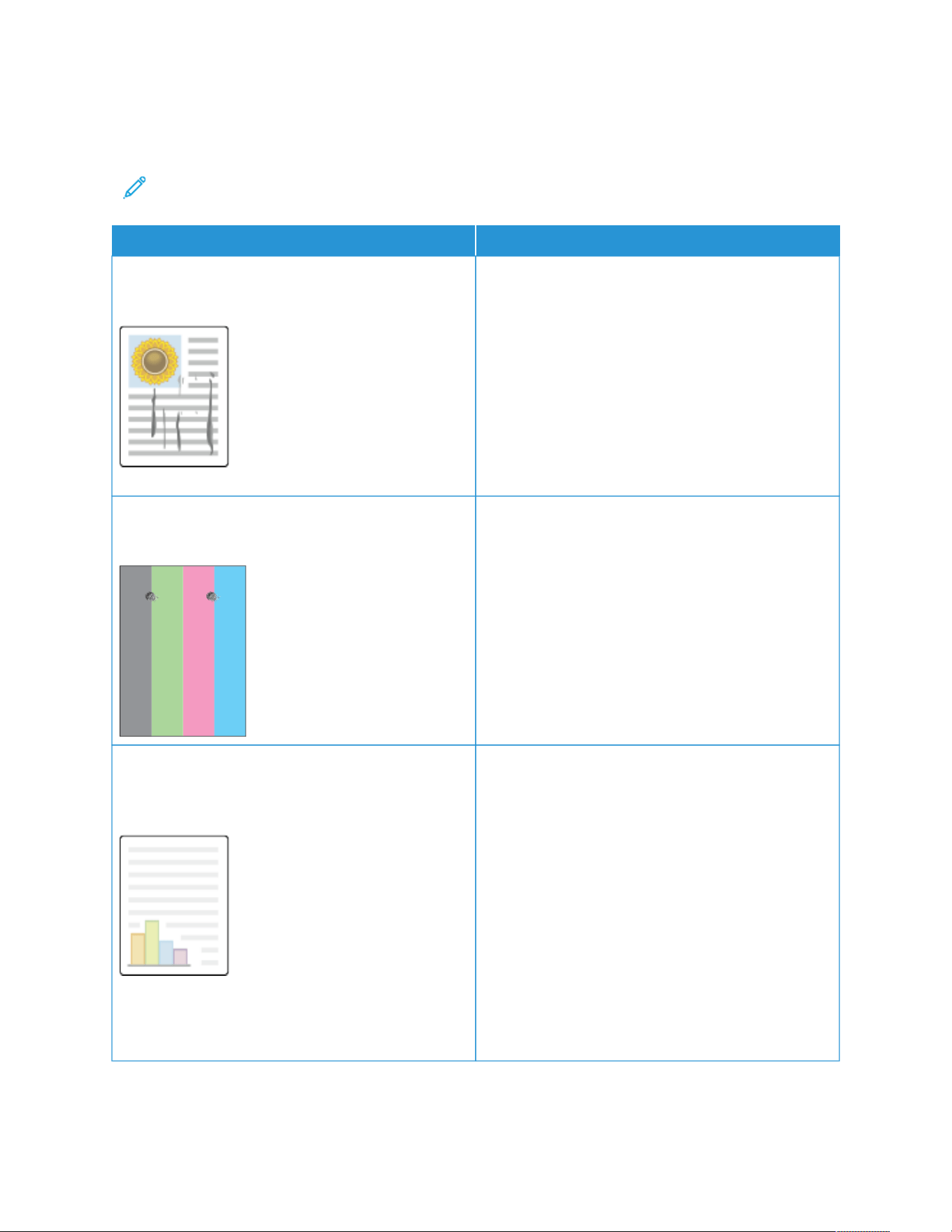
Print-Quality Problems and Solutions
Use the following table to find solutions to print-quality problems.
Note: At the printer control panel, press the Home button. Touch Device > Information Pages >
Troubleshooting Print Quality Page > Print.
PROBLEM SOLUTION
Smears, Smudges, and Streaks
Dark or light marks appear on your output.
Run a print job consisting of several blank pages
through the printer to remove toner accumulated on
the fuser.
If the problem persists, print the test pages to help
determine which component is causing the image-
quality problem.
• If the defect occurs in one color only, replace the
corresponding imaging unit.
• If the defect occurs in all colors and is visible on all
the test pages, replace the fuser.
Repeating Spots or Lines
Spot or lines appear at regular intervals on the prints.
1 To identify the part of the printer that is causing
the problem, print the Repeating Defects page. At
the control panel, press the HHoommee button, then
touch Device > Tools > Troubleshooting >
Support Pages > Repeating Defects Page >
Print.
2 To identify the part responsible for the repeating
spots or lines, follow the instructions on the
Repeating Defects page.
3 To correct the problem, replace the printer part
identified on the Repeating Defects page.
Colors Too Light or Too Dark
The print or color density is too light, missing, or the
background is foggy.
1 Verify that the paper you are using is the correct
type for the printer and is loaded properly. For
details, refer to Supported Paper.
2 Verify that the paper loaded in the tray matches
the paper type selected at the control panel and in
the print driver.
3 To print procedures on resolving print-quality
problems, at the control panel, press the Home
button. Touch Device > Information Pages >
Troubleshooting Print Quality Page > Print.
If the Color Reference page looks correct, the
printer is printing properly. Your application or
incorrect settings in the print driver can be causing
the print-quality problems.
290
Xerox
®
VersaLink
®
C415 Color Multifunction Printer User Guide
Troubleshooting
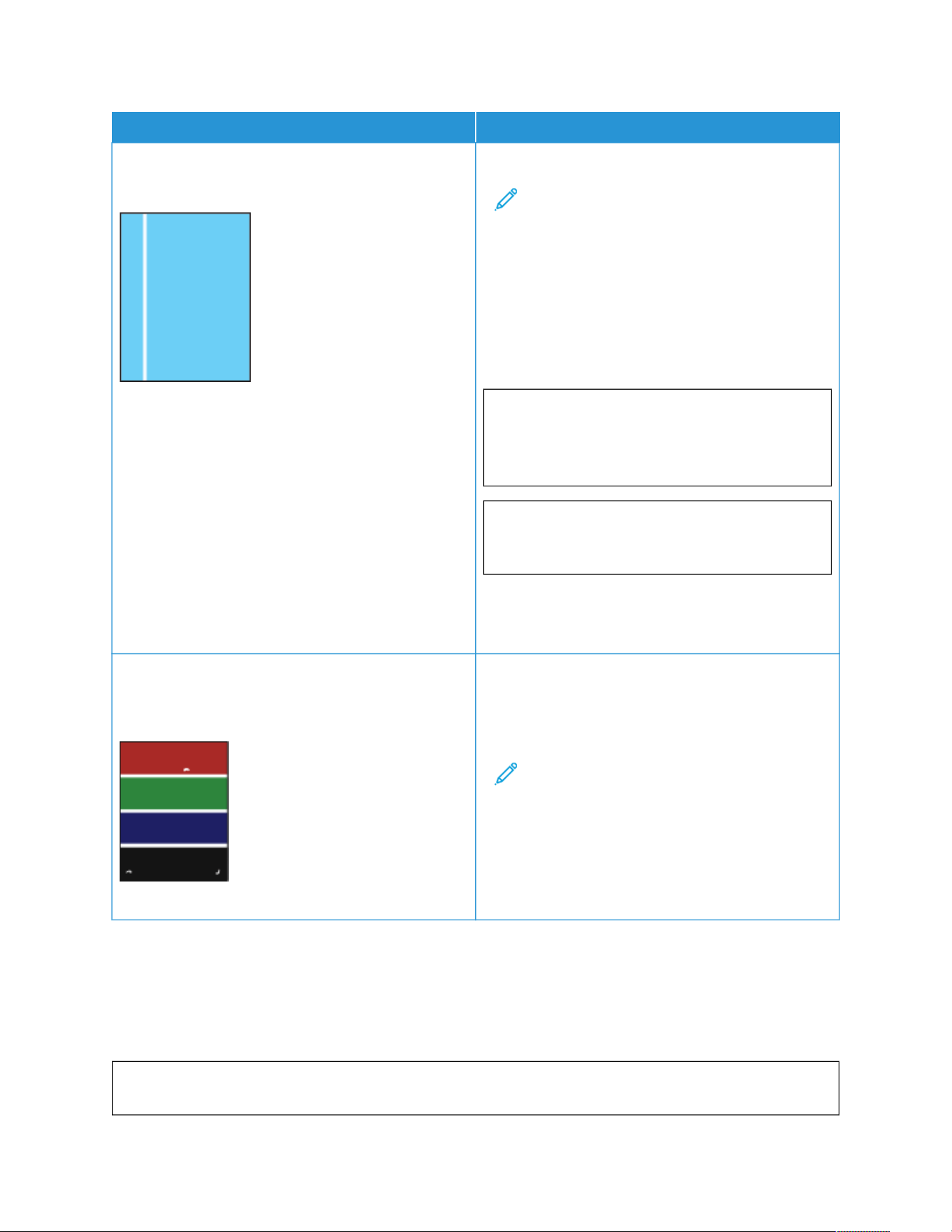
PROBLEM SOLUTION
Vertical White Lines or Streaks - One Color
Lines or streaks appear in one color of your output.
1 Print the test pages to identify the affected color.
Note: To print procedures on resolving
print-quality problems, at the control panel,
press the Home button, then touch Device
> Information Pages > Troubleshooting
Print Quality Page > Print.
2 To inspect for possible contamination causing the
process line streak, remove and reinsert the
imaging unit. For more information, refer to
Maintenance.
WWaarrnniinngg:: Do not expose the imaging
unit to direct light for more than 10
minutes. Extended exposure to light may
cause print quality problems.
WWaarrnniinngg:: Do not touch the
photoconductor drum. Doing so may
affect the quality of future print jobs.
3 If the problem persists, contact your local Xerox
representative. The imaging unit may need to be
replaced due to permanent damage.
Toner Missing or Easy to Rub Off
Toner appears to be missing from the print or is easy to
rub off.
1 Verify that the paper you are using is the correct
type for the printer and is loaded properly. For
details, refer to Supported Paper.
2 At the control panel, select a heavier paper.
Note: Papers from lightest to heaviest are:
• For uncoated paper: Plain, Lightweight
Cardstock, Cardstock, and Heavyweight
Cardstock
• For coated paper: Lightweight Glossy
Cardstock, Glossy Cardstock, and
Heavyweight Glossy Cardstock.
COPY AND SCAN PROBLEMS
Your printer is designed to produce consistently high-quality scans and copies. If you observe quality problems, use
the information in this section to troubleshoot the problem. For more information, go to www.xerox.com/office/
VLC415support.
WWaarrnniinngg:: The Xerox Warranty or Service Agreement does not cover damage caused by using
unsupported paper or specialty media. For more information, contact your local Xerox representative.
Xerox
®
VersaLink
®
C415 Color Multifunction Printer User Guide 291
Troubleshooting

Copy and Scan Problems and Solutions
If the copy or scan quality is poor, refer to the following table:
SYMPTOMS SOLUTIONS
Lines or streaks only present in copies made from the
document feeder.
There is debris on the document glass. When scanning,
the paper from the document feeder passes over the
debris, which creates lines or streaks. Clean all glass
surfaces with a lint-free cloth.
Spots present in copies made from the document glass. There is debris on the document glass. When scanning,
the debris creates a spot on the image. Clean all glass
surfaces with a lint-free cloth.
The reverse side of the original document shows on the
copy or scan.
Enable Background Suppression.
The image is too light or too dark. Adjust the Lighten/Darken or Contrast settings.
Colors are inaccurate. Copy: Adjust the Color Balance settings.
Scan: Verify that the correct Original Type is set.
Other print-quality problems related to toner and
calibration.
If automatic calibration is disabled, perform the Toner
Patch Sensor routine, periodically:
1 At the printer control panel, touch Device > Tools.
2 Touch Troubleshooting > Calibration > Toner
Patch Sensor.
3 At the Toner Sensor Calibration page, make
adjustments as required to the automatic
calibration Frequency.
4 To perform an immediate calibration, touch
Calibrate Now.
Unless disabled to save toner, the printer performs
Toner Patch Sensor calibration automatically.
Toner Darkness Control Perform the Toner Darkness Control routine:
1 At the printer control panel, touch Device > Tools.
2 Touch Device Settings > General > Toner
Darkness Control.
3 Select Normal or Dark mode as required.
If the problem persists, for online support information, go to www.xerox.com/office/VLC415support.
Performing Scanner Manual Registration
When the scanned output on physical or digital copies are not centered, perform Scanner Manual Registration.
292
Xerox
®
VersaLink
®
C415 Color Multifunction Printer User Guide
Troubleshooting

SYMPTOMS SOLUTIONS
Scanned output on physical or digital copies are not
centered
Contact your System Administrator to perform
Scanner Manual Registration:
1 Log in as System Administrator.
2 At the printer control panel, touch Device > Tools.
3 Touch Troubleshooting > Calibration > Scanner
Manual Registration, then make adjustments as
required.
Ensure the original documents that you are scanning,
are centered on the Document Glass or in the
Document Feeder.
For more information, refer to System Administrator
Guide at www.xerox.com/office/VLC415docs.
If the problem persists, for online support information, go to www.xerox.com/office/VLC415support.
Xerox
®
VersaLink
®
C415 Color Multifunction Printer User Guide 293
Troubleshooting

Fax Problems
If your printer cannot send and receive faxes, ensure that the printer is connected to an approved analog telephone
line. The fax machine cannot send or receive faxes when it is connected directly to a digital telephone line without
the use of an analog filter.
Note: If the fax connection is poor, transmit the fax at a lower rate. For the Starting Rate, select FFoorrcceedd
(4800 bps).
PROBLEMS SENDING FAXES
SYMPTOMS PROBABLE CAUSES SOLUTIONS
The document is not feeding
properly through the document
feeder.
The document is too thick, too thin,
or too small.
Use the document glass.
The document is scanned at an
angle.
The document feeder width guides
are not adjusted to fit the width of
the document.
Adjust the document feeder width
guides so that they fit against the
document.
The fax received by the recipient is
blurry.
The document is positioned
incorrectly.
Position the document correctly.
The document glass is dirty. Clean the document glass.
The text in the document is too
light.
Adjust the resolution. Adjust the
contrast.
There is a problem with the
telephone connection.
Verify that the telephone line is
working, then send the fax again.
There is a problem with one of the
fax machines.
Make a copy to verify that the
printer can make clean copies and
prints. If the copy prints correctly,
have the recipient verify that their
fax machine is operating correctly.
The fax received by the recipient is
blank.
The document was loaded
incorrectly.
If using the document feeder, place
the original document face up.
If using the document glass, place
the original document face down.
Fax was not transmitted. The fax number is wrong. Verify the fax number.
The telephone line is connected
incorrectly.
Verify the telephone line
connection. If the telephone line is
disconnected, connect it.
There is a problem with the fax
machine of the recipient.
Contact the recipient.
The fax feature is not installed or is Ensure that the fax feature is
294
Xerox
®
VersaLink
®
C415 Color Multifunction Printer User Guide
Troubleshooting
SYMPTOMS PROBABLE CAUSES SOLUTIONS
not enabled. installed and enabled.
Server fax is enabled. Ensure that server fax is disabled.
An access number is required to
connect to an outside line.
If the printer is connected to a PBX
system, it could be necessary to
enter a number to access the
outside telephone line.
The fax number needs a pause
between the prefix for an outside
line and the telephone number.
To insert a pause, touch the DDiiaall
PPaauussee button. A comma (,) appears
in the corresponding location.
If the problem persists, for online support information, go to www.xerox.com/office/VLC415support.
PROBLEMS RECEIVING FAXES
SYMPTOMS PROBABLE CAUSES SOLUTIONS
The fax received by the recipient is
blank.
There is a problem with the
telephone connection or with the
fax machine of the sender.
Verify that the printer can make
clean copies. If it can, have the
sender fax the document again.
The sender loaded the pages
incorrectly.
Contact the sender.
The printer answers the call but
does not print the fax.
The memory is full. To increase available memory,
delete stored jobs and wait for the
existing jobs to complete.
The received fax size is reduced in
size.
The paper supply in the printer does
not match the document size sent.
Confirm the original size of the
documents, then load the
appropriate paper size in the
printer.
Faxes are not received
automatically.
The printer is set to receive faxes
manually.
Set the printer to receive faxes
automatically.
The memory is full. If the printer is out of paper, faxes
and print jobs can deplete the
printer of memory. Load paper and
print the jobs stored in the memory.
The telephone line is connected
incorrectly.
Verify the telephone line
connection. If the telephone line is
disconnected, connect it.
Xerox
®
VersaLink
®
C415 Color Multifunction Printer User Guide 295
Troubleshooting

SYMPTOMS PROBABLE CAUSES SOLUTIONS
There is a problem with the fax
machine of the sender.
Make a copy to verify that the
printer can make clean copies and
prints. If the copy prints correctly,
have the recipient verify that their
fax machine is operating correctly.
If the problem persists, for online support information, go to www.xerox.com/office/VLC415support.
PRINTING FAX REPORTS
You can print the following fax reports from the printer control panel:
• Activity Report
• Protocol Report
• Fax Address Book Report
• Options Report
• Pending Jobs Report
For instructions on how to print fax reports, refer to the System Administrator Guide at www.xerox.com/office/
VLC415docs.
296
Xerox
®
VersaLink
®
C415 Color Multifunction Printer User Guide
Troubleshooting

Getting Help
Xerox provides several automatic diagnostic utilities to help you maintain productivity and print quality.
VIEWING ERROR AND ALERT MESSAGES ON THE CONTROL PANEL
When an error or warning condition occurs, the printer alerts you of the problem. A message appears on the control
panel and the LED status light on the control panel flashes amber or red. Alerts inform you about printer conditions,
such as low supplies or open doors that require your attention. Error messages warn you about printer conditions
that prevent the printer from printing or degrade printing performance. If more than one condition occurs, only one
appears on the control panel.
To view a complete list of active error and alert messages:
1. At the printer control panel, press the Home button.
2. Touch Device.
3. Touch Notifications.
4. Touch Faults & Alerts, Alerts, or Faults.
5. To view details, touch a fault or alert.
6. To exit the Notifications screen, touch X.
7. To return to the Home screen, press the Home button.
VIEWING THE ERROR HISTORY ON THE CONTROL PANEL
When errors occur on the device, they are logged into an error history file by date, time, and associated fault code.
You can use this list to identify trends and resolve problems.
To view the error history:
1. At the printer control panel, press the Home button.
2. Touch Device.
3. Touch Notifications.
4. Touch Fault History.
5. To exit, touch X.
6. To exit the Notifications screen, touch X.
7. To return to the Home screen, press the Home button.
SUPPORT LOGS
Use the Support Logs feature only if a Xerox service representative instructs you to do so.
Log files are text files of recent device activity that are created and stored in the device in an encrypted format. A
Xerox service representative can interpret the files to troubleshoot network problems.
Note: Support logs can include screenshots that are taken at the device control panel.
Xerox
®
VersaLink
®
C415 Color Multifunction Printer User Guide 297
Troubleshooting

To capture a screenshot at the control panel, press the Power button, then touch the lower-left corner of the screen.
After the screenshot is taken, the file name of the image appears on the screen. The file name includes the date,
time, and serial number of the device.
Note: The device can capture most screens. When pop-up windows are displayed, the device sometimes
captures the underlying screen only.
The screenshot images are stored with the log files. The device can store up to three screenshots for a maximum of
7 days. After 7 days, the files are deleted. If more than three screenshots are taken, the older files are deleted.
The Enhanced Logging feature enables the device to capture additional logs for specific functions or activities. A
Xerox service representative can use the additional logs to investigate non-repeatable or intermittent device issues.
Note: The device supports enhanced logging for a maximum of three features at a time and also supports
increased data analysis.
For information about configuring support log settings, refer to the System Administrator Guide at www.xerox.com/
office/VLC415docs.
THE EMBEDDED WEB SERVER
The Embedded Web Server is the administration and configuration software that is installed in the printer. It allows
System Administrators to modify network and system settings on the printer remotely using a Web browser.
You can check the status of the printer, monitor paper and supply levels, and submit and track print jobs. All these
functions can be accessed from the convenience of your computer.
The Embedded Web Server requires:
• A TCP/IP connection between the printer and the network in Windows, Macintosh, UNIX, or Linux environments.
• TCP/IP and HTTP enabled in the printer.
• A network-connected computer with a Web browser that supports JavaScript.
ONLINE SUPPORT ASSISTANT
The Online Support Assistant is a knowledge base that provides instructions and troubleshooting help to solve your
printer problems. You can find solutions for print-quality problems, paper jams, software installation issues, and
more.
To access the Online Support Assistant, go to www.xerox.com/office/VLC415support.
INFORMATION PAGES
Your printer has a set of information pages that you can print. These pages include configuration and font
information, getting started pages, and more.
The following Information Pages are available:
298
Xerox
®
VersaLink
®
C415 Color Multifunction Printer User Guide
Troubleshooting

NAME
DESCRIPTION
Basic Configuration Report The Basic Configuration Report provides printer
information, including the serial number, installed
options, network settings, port setup, tray information,
and more.
Detailed Configuration Report The Detailed Configuration Report provides
information about all of the printer settings, including
extensible services setup, security and authentication
server configuration, connectivity settings, and more.
Billing Summary The Billing Summary Report provides information
about the device and a detailed listing of the billing
meters and sheet counts.
Getting Started The Getting Started guide provides an overview of the
key features of the printer.
Troubleshooting Print Quality Page The Troubleshooting Print Quality Page provides a list
of common print-quality problems and tips to help
solve them.
Supplies Usage Page The Supplies Usage Page provides coverage
information and part numbers for reordering supplies.
Graphics Demo Page Print this page to check the quality of graphics.
PCL Font List The PCL Font List provides a printout of all PCL fonts
that are available on the printer.
PostScript Font List The PostScript Font List provides a printout of all
PostScript fonts that are available on the printer.
Printing Information Pages
1. At the printer control panel, press the Home button.
2. Touch Device > Information Pages.
3. To print an information page, touch the needed page, then touch Print.
The printer prints the selected information page.
4. To return to the Home screen, press the Home button.
MORE INFORMATION
You can obtain more information about your printer from these sources:
Xerox
®
VersaLink
®
C415 Color Multifunction Printer User Guide 299
Troubleshooting

RESOURCE LOCATION
Installation Guide Packaged with the printer.
Getting Started guide Print from the control panel. For details, refer to
Information Pages.
Other documentation for your printer www.xerox.com/office/VLC415docs
Recommended Media List United States: www.xerox.com/rmlna
European Union: www.xerox.com/rmleu
Technical support information for your printer,
including online technical support, Online Support
Assistant, and print driver downloads.
www.xerox.com/office/VLC415support
Information Pages Print from the control panel. For details, refer to
Information Pages.
Embedded Web Server information In the Embedded Web Server, click HHeellpp.
Order supplies for your printer www.xerox.com/office/supplies
A resource for tools and information, including
interactive tutorials, printing templates, helpful tips,
and customized features to meet your individual needs.
www.xerox.com/office/businessresourcecenter
Local sales and Technical Customer Support www.xerox.com/office/worldcontacts
Printer registration www.xerox.com/register
Xerox
®
Direct online store www.direct.xerox.com/
Locating the Serial Number
When you order supplies or contact Xerox for assistance, you need the serial number of your device. You can obtain
the serial number in several ways. To locate the serial number, print a configuration report, or view the serial number
on the control panel or on the Embedded Web Server home page. The serial number is printed on a label that is
affixed to the printer. To view the label, open Door A.
For details on how to print a configuration report, refer to Information Pages.
To view the serial number on the control panel:
1. At the printer control panel, press the Home button.
2. Touch Device > About.
The model, serial number, and software version is displayed.
3. To return to the Home screen, press the Home button.
300
Xerox
®
VersaLink
®
C415 Color Multifunction Printer User Guide
Troubleshooting

Xerox
®
VersaLink
®
C415 Color Multifunction Printer User Guide 301
Specifications
This appendix contains:
Printer Configurations and Options. . . . . . . . . . . . . . . . . . . . . . . . . . . . . . . . . . . . . . . . . . . . . . . . . . . . . . . . . . . . . . . . . . . . . . . . . . . . . . . . . . . . . . . . . . . . . . . . . . . . . . . . 302
Physical Specifications . . . . . . . . . . . . . . . . . . . . . . . . . . . . . . . . . . . . . . . . . . . . . . . . . . . . . . . . . . . . . . . . . . . . . . . . . . . . . . . . . . . . . . . . . . . . . . . . . . . . . . . . . . . . . . . . . . . . . . . . 305
Clearance Requirements. . . . . . . . . . . . . . . . . . . . . . . . . . . . . . . . . . . . . . . . . . . . . . . . . . . . . . . . . . . . . . . . . . . . . . . . . . . . . . . . . . . . . . . . . . . . . . . . . . . . . . . . . . . . . . . . . . . . . . 308
Environmental Specifications . . . . . . . . . . . . . . . . . . . . . . . . . . . . . . . . . . . . . . . . . . . . . . . . . . . . . . . . . . . . . . . . . . . . . . . . . . . . . . . . . . . . . . . . . . . . . . . . . . . . . . . . . . . . . . . 311
Electrical Specifications . . . . . . . . . . . . . . . . . . . . . . . . . . . . . . . . . . . . . . . . . . . . . . . . . . . . . . . . . . . . . . . . . . . . . . . . . . . . . . . . . . . . . . . . . . . . . . . . . . . . . . . . . . . . . . . . . . . . . . . 312
Performance Specifications . . . . . . . . . . . . . . . . . . . . . . . . . . . . . . . . . . . . . . . . . . . . . . . . . . . . . . . . . . . . . . . . . . . . . . . . . . . . . . . . . . . . . . . . . . . . . . . . . . . . . . . . . . . . . . . . . . 313
Environmental, Health and Safety Contact Information . . . . . . . . . . . . . . . . . . . . . . . . . . . . . . . . . . . . . . . . . . . . . . . . . . . . . . . . . . . . . . . . . . . . . . . . . . . . 314

Printer Configurations and Options
STANDARD FEATURES
The printer provides the following features:
• Copy, Print, Email, Scan, and Server Fax
• Scan to USB and Print from USB mass storage devices
• Workflow Scanning with Scan to Mailbox, Scan to Network, and Scan to Home
• 1-Touch Apps for Copy, Email, Scan To, Fax, Single Touch, and Scan
• Searchable PDF, Choose Pages Per File, Single or Multiple-page PDF, TIFF, Encrypted or Password-protected PDF,
and Linearized PDF or PDF/A file formats
• Print speed up to 40 ppm for A4 (210 x 297 mm) and 42 ppm for Letter (8.5 x 11 in.)
• 1200 x 1200 dpi imaging and copying quality
• Copy and Print document sizes up to Legal (215.9 x 355.6 mm, 8.5 x 14 in.)
• Automatic 2-Sided printing
• Duplex Automatic Document Feeder
• Color touch screen control panel
• Tray 1, Standard 250-sheet Tray with a Manual Feeder
• Trays 2, Optional 550-sheet Tray with an integrated 100-sheet Bypass Tray or Optional 550-sheet Tray
Note: To use the different Tray configurations and their capabilities efficiently, ensure that your printer
is updated to the latest software.
• Trays 3, Optional 550-sheet Tray
• Trays 4, Optional 550-sheet Tray
• 2-GByte DDR3 system memory
• Internal 32-GByte embedded d-Media Card (eMMC)
• Ethernet 10/100/1000Base-TX
• High-Speed USB 2.0 direct print
• Adobe
®
PostScript
®
and PCL
®
fonts and support
• Xerox
®
Global Print Driver and Xerox
®
Pull Print Driver support
• Automated supplies replenishment and management using Xerox
®
MeterAssistant
®
, Xerox
®
Supplies Assistant
®
,
and Maintenance Assistant
• Remote driver installation
• Remote Control, Backup and Restore, and Configuration Cloning
• Bonjour device discovery
• Xerox
®
Standard Accounting
302
Xerox
®
VersaLink
®
C415 Color Multifunction Printer User Guide
Specifications

• Encrypted Secure Print, Secure Fax, Secure Scan, and Secure Email
• Trellix
®
Data Security
Note: Trellix
®
Data Security formerly known as McAfee
®
Data Security.
• Xerox
®
Extensible Interface Platform
• Xerox
®
Earth Smart Driver settings
• Embedded Web Server
• Email alerts
• Support for mobile printing, mobile printing connectivity, and mobile apps
• Support for Xerox
®
Easy Assist App
• Support for Xerox
®
App Gallery
• Support for NFC printing
• Support for Mopria
• Support for AirPrint
OPTIONS AND UPGRADES
• Convenience Stapler
• Fax forward to Email or SMB software
• Xerox Secure Access Unified ID System
• CAC and PIV Card Reader Enablement Kit
• Xerox
®
Network Accounting Enablement
• Productivity Kit (500+ GB Hard Disk Drive)
• RFID Card Reader Kit
• SIPRNet Enablement Kit
• Software for Unicode print
• Xerox
®
Scan to PC Desktop
®
Professional software
• Wireless Network Adapter with Bluetooth, which provides wireless network connectivity, Wi-Fi Direct
connectivity, and iBeacon for AirPrint discovery
Note: For AirPrint
®
discovery, the connection is made through Bluetooth low energy beacon.
Xerox
®
VersaLink
®
C415 Color Multifunction Printer User Guide 303
Specifications

FINISHING OPTIONS
OUTPUT DEVICE CAPACITY SIZES WEIGHTS
FINISHING
OPTIONS
Center Tray 150 sheets All supported sizes
For information on
supported sizes,
refer to Supported
Paper.
All supported
weights
For information on
supported weights,
refer to Supported
Paper.
Not Applicable
Convenience Stapler 20 sheets Any supported size
For information on
supported sizes,
refer to Supported
Paper.
Any supported
weight
For information on
supported weights,
refer to Supported
Paper.
Maximum 20 sheets
for standard 20 lb.
paper
Note: Sheet quantities for tray capacities and finishing options are based on 75 g/m
2
. Quantities are
reduced for heavier media and must be within the specified weight range.
304
Xerox
®
VersaLink
®
C415 Color Multifunction Printer User Guide
Specifications
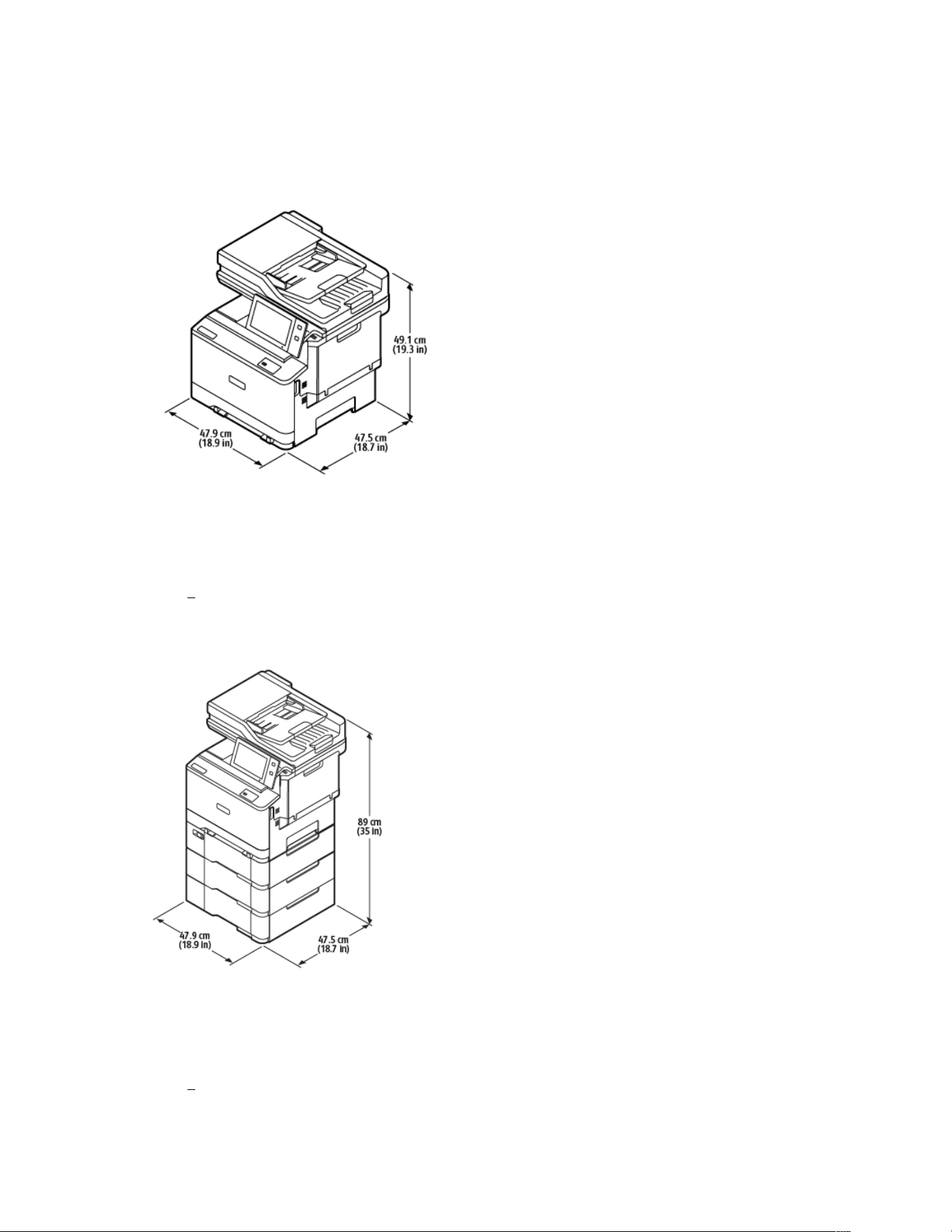
Physical Specifications
BASE CONFIGURATION
• Width: 47.9 cm (18.9 in.)
• Depth: 47.5 cm (18.7 in.)
• Height: 49.1 cm (19.3 in.)
• Weight: < 27.1 kg (59.5 lb.)
BASE CONFIGURATION WITH 3-OPTIONAL TRAY MODULES
• Width: 47.9 cm (18.9 in.)
• Depth: 47.5 cm (18.7 in.)
• Height: 89 cm (35 in.)
• Weight: < 39.7 kg (87.5 lb.)
Xerox
®
VersaLink
®
C415 Color Multifunction Printer User Guide 305
Specifications
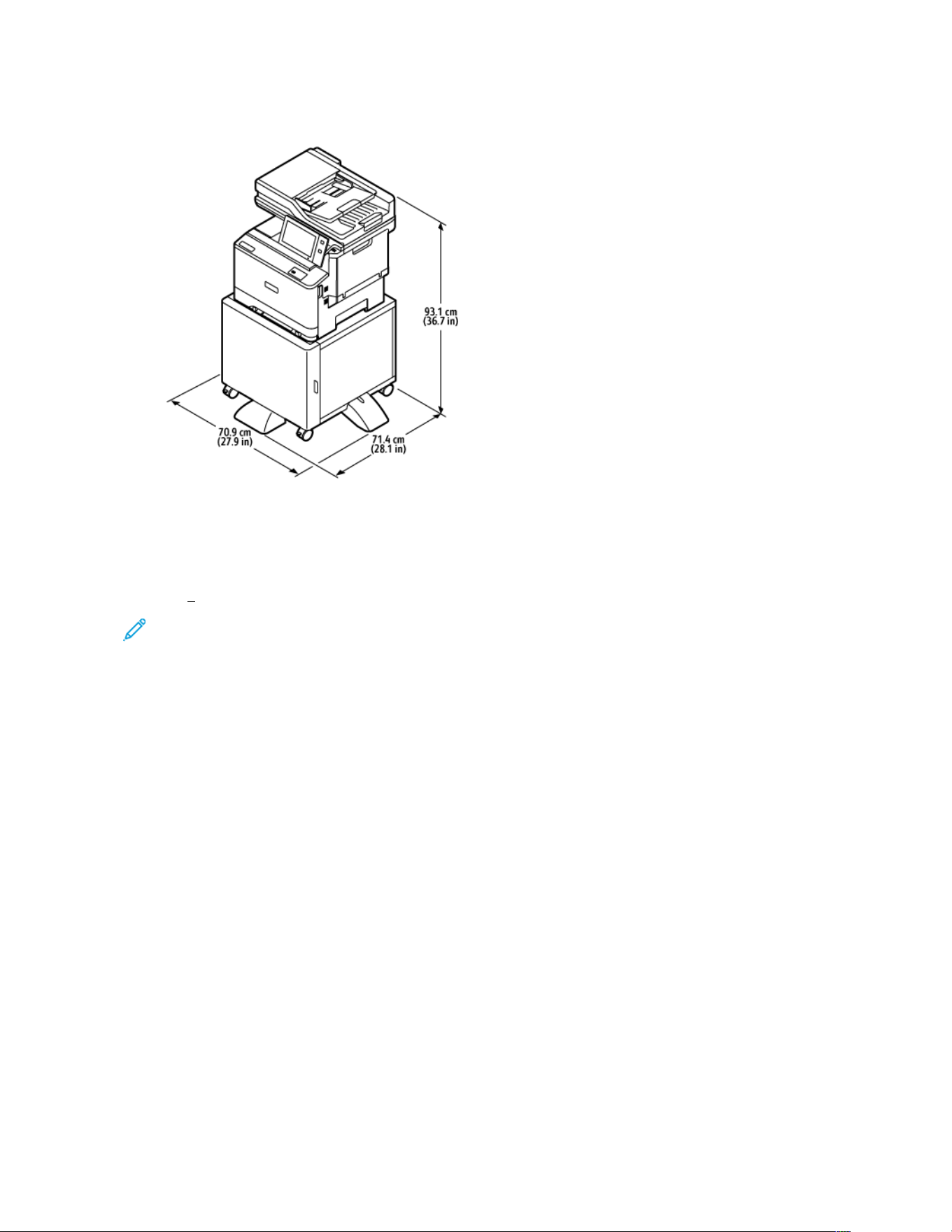
BASE CONFIGURATION WITH PRINTER STAND
• Width: 70.9 cm (27.9 in.)
• Depth: 71.4 cm (28.1 in.)
• Height: 93.1 cm (36.7 in.)
• Weight: < 41.9 kg (92.2 lb.)
Note: The weight of the printer stand is 14.8 kg (32.7 lb.).
306
Xerox
®
VersaLink
®
C415 Color Multifunction Printer User Guide
Specifications
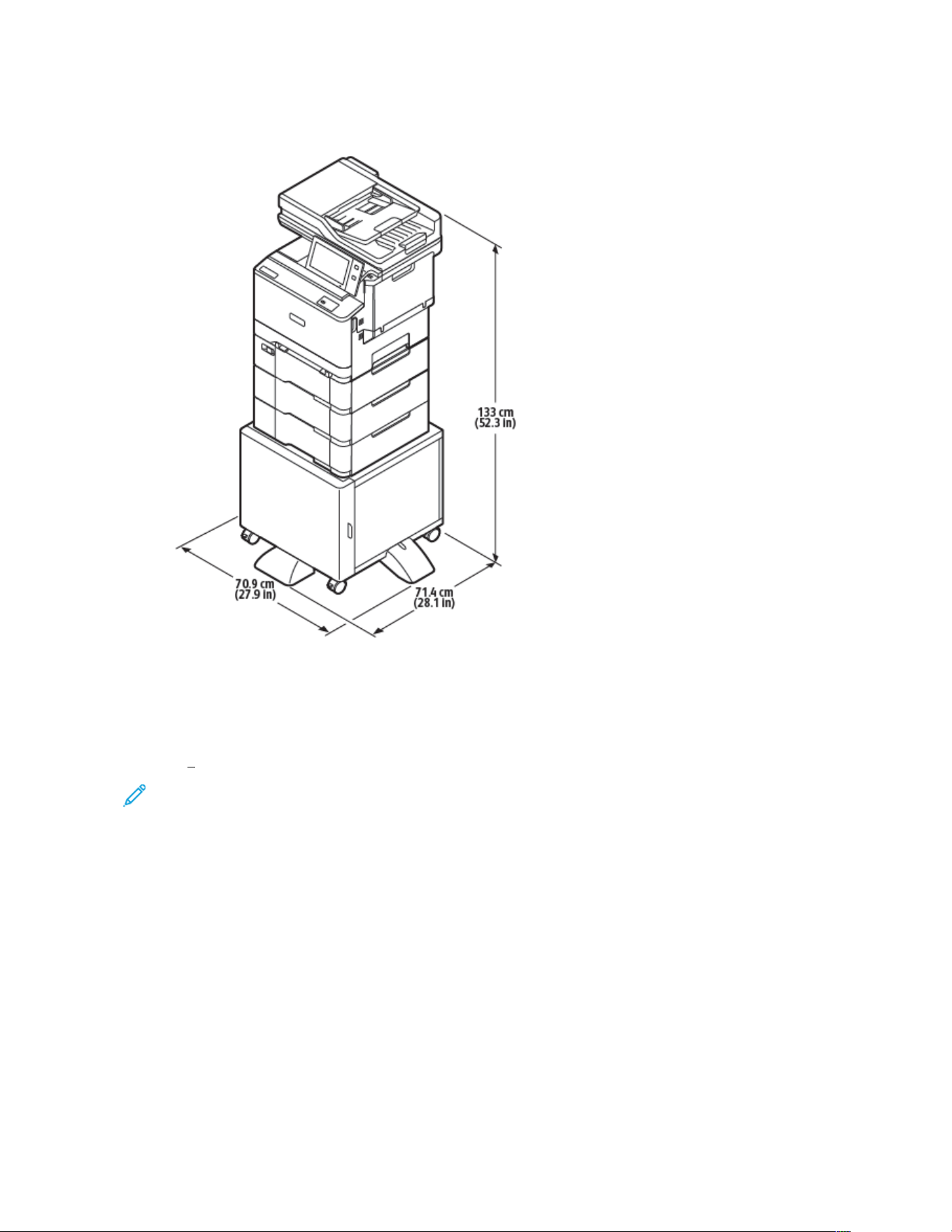
CONFIGURATION WITH OPTIONAL TRAYS AND PRINTER STAND
• Width: 70.9 cm (27.9 in.)
• Depth: 71.4 cm (28.1 in.)
• Height: 133 cm (52.3 in.)
• Weight: < 54.5 kg (120.2 lb.)
Note: The weight of the printer stand is 14.8 kg (32.7 lb.).
Xerox
®
VersaLink
®
C415 Color Multifunction Printer User Guide 307
Specifications
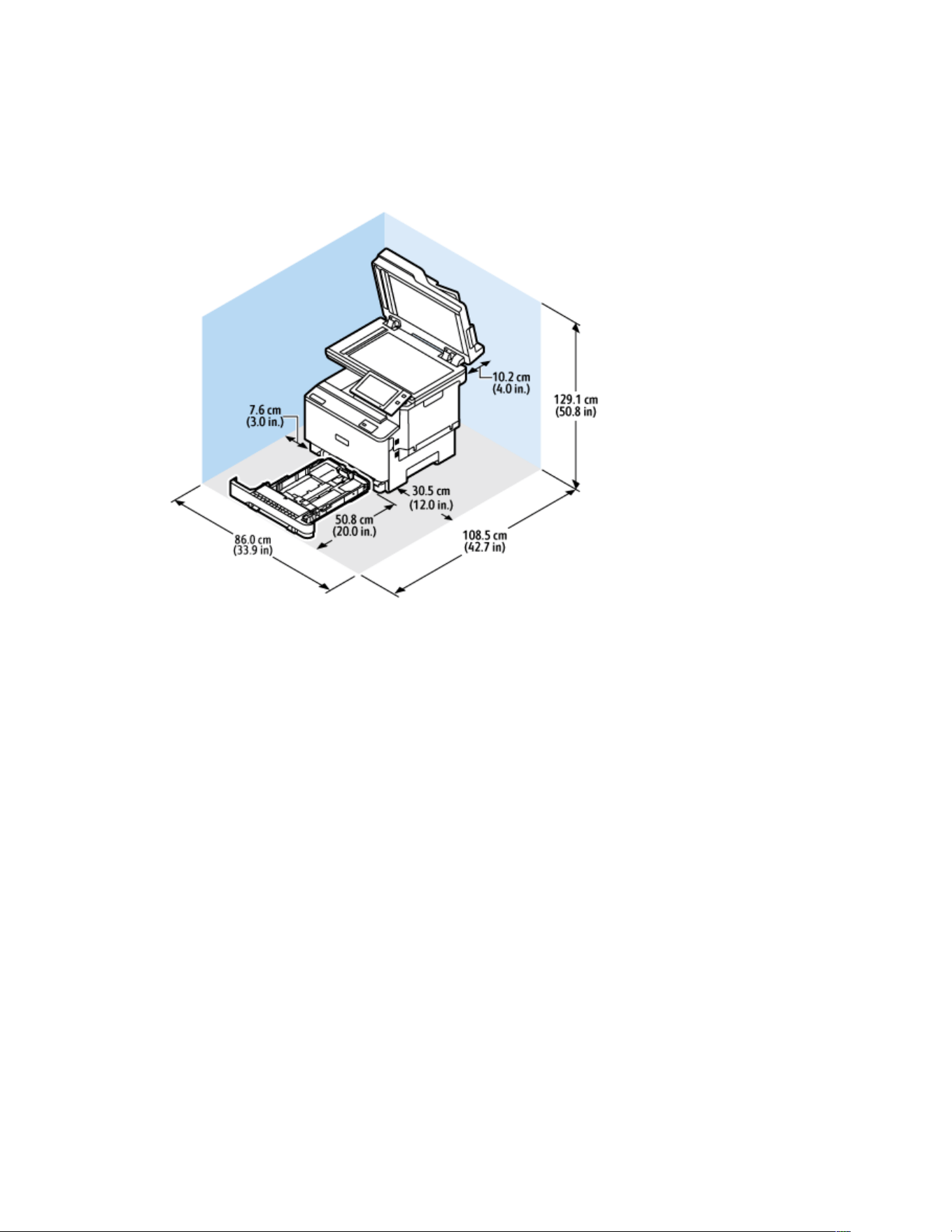
Clearance Requirements
BASE CONFIGURATION
Installation Space
• Width: 86.0 cm (33.9 in.)
• Depth: 108.5 cm (42.7 in.)
• Height: 129.1 cm (50.8 in.)
Clearance
• Front: 50.8 cm (20.0 in.)
• Rear: 10.2 cm (4.0 in.)
• Left: 7.6 cm (3.0 in.)
• Right: 30.5 cm (12.0 in.)
308
Xerox
®
VersaLink
®
C415 Color Multifunction Printer User Guide
Specifications
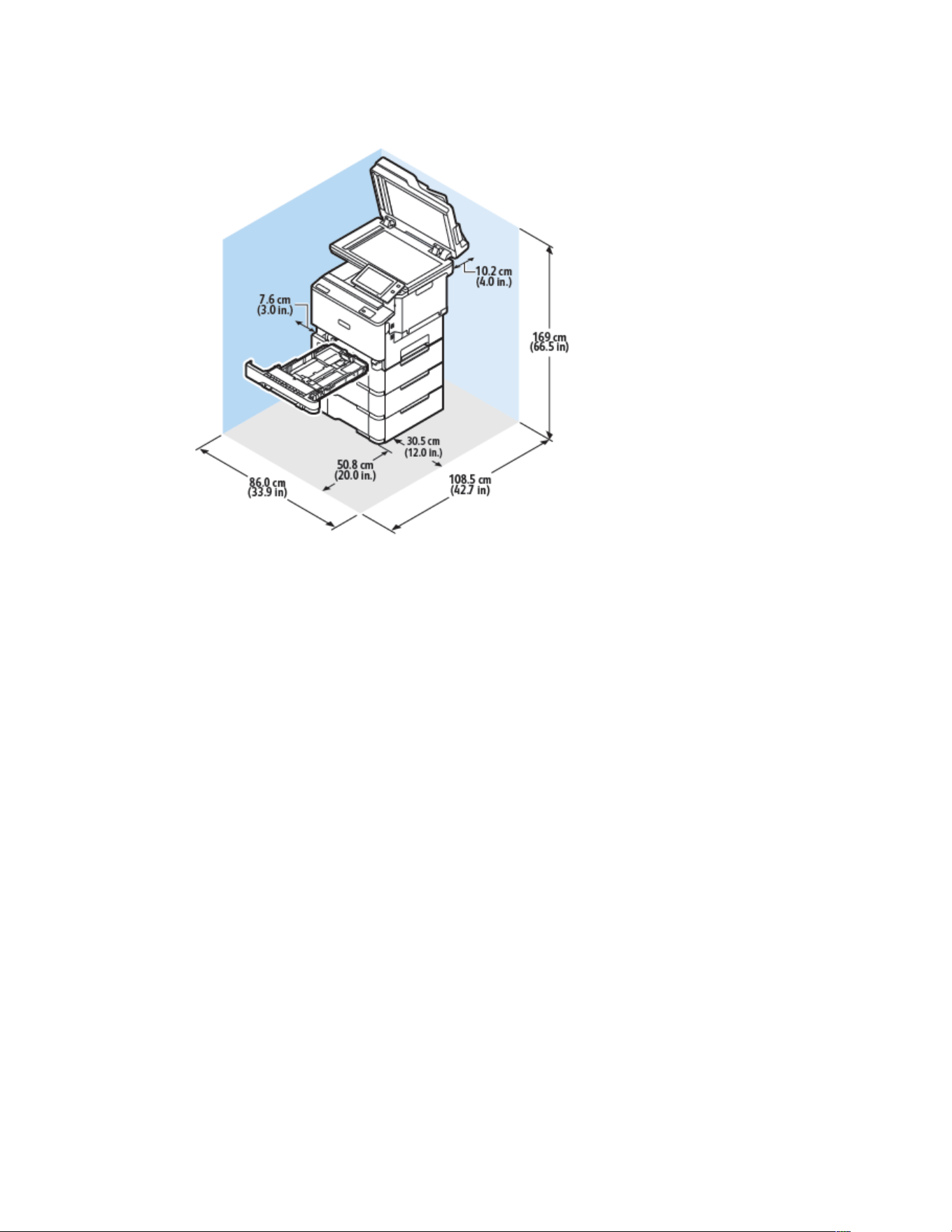
BASE CONFIGURATION WITH 3-OPTIONAL TRAY MODULES
Installation Space
• Width: 86.0 cm (33.9 in.)
• Depth: 108.5 cm (42.7 in.)
• Height: 169 cm (66.5 in.)
Clearance
• Front: 50.8 cm (20.0 in.)
• Rear: 10.2 cm (4.0 in.)
• Left: 7.6 cm (3.0 in.)
• Right: 30.5 cm (12.0 in.)
Xerox
®
VersaLink
®
C415 Color Multifunction Printer User Guide 309
Specifications
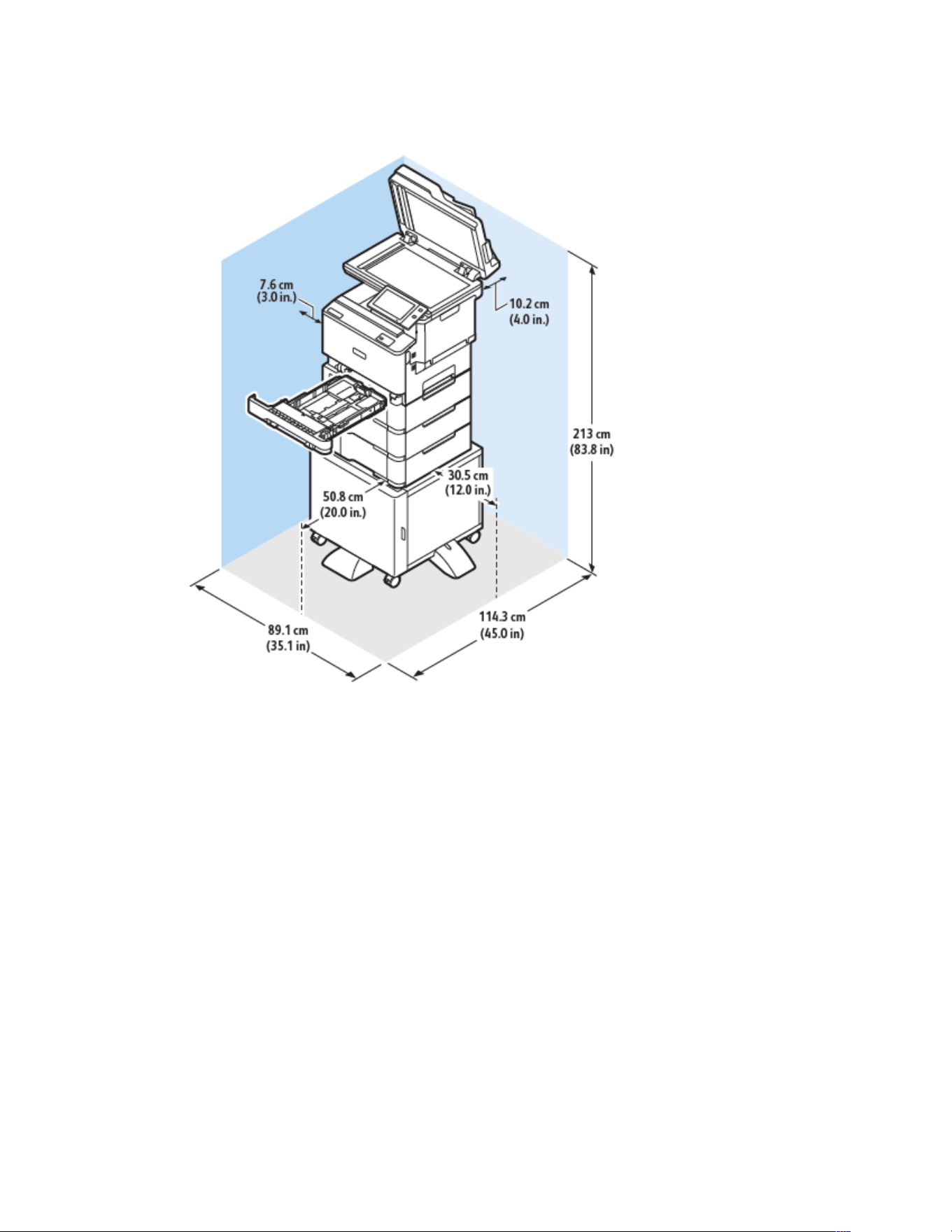
CONFIGURATION WITH OPTIONAL TRAYS AND PRINTER STAND
Installation Space
• Width: 89.1 cm (35.1 in.)
• Depth: 114.3 cm (45.0 in.)
• Height: 213 cm (83.8 in.)
Clearance
• Front: 50.8 cm (20.0 in.)
• Rear: 10.2 cm (4.0 in.)
• Left: 7.6 cm (3.0 in.)
• Right: 30.5 cm (12.0 in.)
310
Xerox
®
VersaLink
®
C415 Color Multifunction Printer User Guide
Specifications

Environmental Specifications
TEMPERATURE
Operating: 10–32° C (50–90° F)
RELATIVE HUMIDITY
Operating: 15–80% (non-condensing)
ELEVATION
For optimum performance, use the printer at elevations below 2896 m (9500 ft.).
Xerox
®
VersaLink
®
C415 Color Multifunction Printer User Guide 311
Specifications

Electrical Specifications
SPEED
POWER SUPPLY
VOLTAGE
FREQUENCY CURRENT REQUIRED
42 prints per minute 100–110 VAC +/- 10% 50 Hz +/- 3 Hz
60 Hz +/- 3 Hz
8.8 A
110–127 VAC +/- 10% 50 Hz +/- 3 Hz
60 Hz +/- 3 Hz
7.8 A
220–240 VAC +/- 10% 50 Hz +/- 3 Hz
60 Hz +/- 3 Hz
3.9 A
312
Xerox
®
VersaLink
®
C415 Color Multifunction Printer User Guide
Specifications

Performance Specifications
PRINTING RESOLUTION
Maximum Resolution: 1200 x 1200 dpi
PRINT SPEED
Xerox reports maximum speed for continuous printing using short-edge feed on 75 g/m
2
paper from any tray:
• 40 ppm for A4 (210 x 297 mm, 8.27 x 11.69 in.)
• 42 ppm for Letter (216 x 279 mm, 8.5 x 11 in.)
Several factors affect print speed:
• Paper orientation: Most paper sizes are loaded short-edge feed. For faster print speeds when using A5 (148 x
210 mm, 5.8 x 8.3 in.), load the paper long-edge feed.
• Paper size: Letter (8.5 x 11 in.) and A4 (210 x 297 mm) sizes share the faster print speeds.
• Paper weight: Lighter weight media prints faster than heavier paper, such as Cardstock and Labels.
• Paper type: Plain prints faster than Glossy.
You can achieve the rated print speed when you print on Plain, Letter, or A4 paper using short-edge feed. The print
speed can be slower when you print on narrow media that are less than 210 mm wide, such as envelopes.
Xerox
®
VersaLink
®
C415 Color Multifunction Printer User Guide 313
Specifications

Environmental, Health and Safety Contact Information
For more information on Environment, Health, and Safety in relation to this Xerox product and supplies, contact:
• United States and Canada, only: 1-800-ASK-XEROX (1-800-275-9376)
• Web address: Environmental Health & Sustainability - Xerox
• Email request (world-wide): [email protected]
For product safety information in the United States and Canada, go to www.xerox.com/environment.
314
Xerox
®
VersaLink
®
C415 Color Multifunction Printer User Guide
Specifications

Xerox
®
VersaLink
®
C415 Color Multifunction Printer User Guide 315
Regulatory Information
This appendix contains:
Basic Regulations . . . . . . . . . . . . . . . . . . . . . . . . . . . . . . . . . . . . . . . . . . . . . . . . . . . . . . . . . . . . . . . . . . . . . . . . . . . . . . . . . . . . . . . . . . . . . . . . . . . . . . . . . . . . . . . . . . . . . . . . . . . . . . . 316
Copy Regulations . . . . . . . . . . . . . . . . . . . . . . . . . . . . . . . . . . . . . . . . . . . . . . . . . . . . . . . . . . . . . . . . . . . . . . . . . . . . . . . . . . . . . . . . . . . . . . . . . . . . . . . . . . . . . . . . . . . . . . . . . . . . . . . 323
Fax Regulations . . . . . . . . . . . . . . . . . . . . . . . . . . . . . . . . . . . . . . . . . . . . . . . . . . . . . . . . . . . . . . . . . . . . . . . . . . . . . . . . . . . . . . . . . . . . . . . . . . . . . . . . . . . . . . . . . . . . . . . . . . . . . . . . . 326
Safety Certification. . . . . . . . . . . . . . . . . . . . . . . . . . . . . . . . . . . . . . . . . . . . . . . . . . . . . . . . . . . . . . . . . . . . . . . . . . . . . . . . . . . . . . . . . . . . . . . . . . . . . . . . . . . . . . . . . . . . . . . . . . . . . 329
Material Safety Data Sheets . . . . . . . . . . . . . . . . . . . . . . . . . . . . . . . . . . . . . . . . . . . . . . . . . . . . . . . . . . . . . . . . . . . . . . . . . . . . . . . . . . . . . . . . . . . . . . . . . . . . . . . . . . . . . . . . 330

Basic Regulations
Xerox has tested this printer to electromagnetic emission and immunity standards. These standards are designed to
mitigate interference caused or received by this printer in a typical office environment.
Changes or modifications to this device not specifically approved by Xerox
®
Corporation can void the authority of
the user to operate this equipment.
UNITED STATES FCC REGULATIONS
This equipment has been tested and found to comply with the limits for a Class A digital device, pursuant to Part 15
of the Federal Communications Commission (FCC) Rules. These limits are designed to provide reasonable protection
against harmful interference when the equipment is operated in a commercial environment. This equipment
generates, uses, and can radiate radio frequency energy. If the equipment is not installed and used in accordance
with the instruction manual, it may cause harmful interference to radio communications. Operation of this
equipment in a residential area is likely to cause harmful interference. Users are required to correct the interference
at their own expense.
Changes or modifications to this equipment not approved by Xerox can void the authority of the user to operate
this equipment.
To maintain compliance with FCC regulations, shielded cables must be used with this equipment. Operation with
non-approved equipment or unshielded cables is likely to result in interference to radio and TV reception.
WWaarrnniinngg:: To ensure compliance with Part 15 of the FCC rules, use shielded interface cables.
Xerox
®
VersaLink
®
C415 Color Multifunction Printers
Xerox
®
VersaLink
®
C415 Color Multifunction Printers comply with Part 15 of the FCC rules. Operation is subject to
the following two conditions:
• The devices are not used to cause harmful interference.
• The devices must accept any interference received, including any interference that can cause an undesired
operation.
Responsible Party: Xerox Corporation
Address: 800 Phillips Road, Webster, NY 14580
Internet contact information: www.xerox.com/en-us/about/ehs.
REGULATORY INFORMATION FOR 2.4-GHZ AND 5-GHZ WIRELESS NETWORK ADAPTERS
This product contains a 2.4-GHz and 5-GHz Wireless LAN radio transmitter module that complies with the
requirements specified in FCC Part 15, Industry Canada RSS-210, and European Council Directive 2014/53/EU.
Radio Frequency (RF) output power of this device will not exceed 20 dBm in either frequency band.
Operation of this device is subject to the following two conditions:
1. This device may not cause harmful interference, and
2. This device must accept any interference received, including interference that may cause undesired operation.
316
Xerox
®
VersaLink
®
C415 Color Multifunction Printer User Guide
Regulatory Information

Changes or modifications to this device not specifically approved by the Xerox Corporation can void the authority of
the user to operate this equipment.
LASER NOTICE
The printer is certified in the U.S. to conform to the requirements of DHHS 21 CFR, Chapter I, Subchapter J for Class
I (1) laser products, and elsewhere is certified as a Class I laser product conforming to the requirements of IEC
60825-1: 2014.
Class I laser products are not considered to be hazardous. The laser system and printer are designed so there is
never any human access to laser radiation above a Class I level during normal operation, user maintenance, or
prescribed service conditions. The printer has a non-serviceable printhead assembly that contains a laser with the
following specifications:
Class: IIIb (3b) AlGaAs
Nominal output power (milliwatts): 12
Wavelength (nanometers): 770–800
CANADA
This Class A digital apparatus complies with Canadian ICES-003 and ICES-001.
Cet appareil numérique de la classe A est conforme à la norme NMB-003 et NMB-001 du Canada.
This product contains a 2.4-GHz and 5-GHz Wireless LAN radio transmitter module that complies with the
requirements specified in Industry Canada RSS-210.
Ce produit contient un module émetteur radio LAN sans fil de 2.4 GHz et 5 GHz conforme aux exigences spécifiées
dans la réglementation Industrie du Canada RSS-210.
This device complies with Industry Canada’s licence-exempt RSSs. Operation is subject to the following two
conditions:
1. This device may not cause interference.
2. This device must accept any interference, including interference that may cause undesired operation of the
device.
Le présent appareil est conforme aux CNR d’Industrie Canada applicables aux appareils radio exempts de licence.
L’exploitation est autorisée aux deux conditions suivantes:
1. l’appareil ne doit pas produire de brouillage, et.
2. l’utilisateur de l’appareil doit accepter tout brouillage radioélectrique subi, même si le brouillage est susceptible
d’en compromettre le fonctionnement.
There are operational restrictions for License-Exempt Local Area Network (LE-LAN) devices: the device for operation
in the band 5150–5250 MHz is only for indoor use to reduce the potential for harmful interference to co-channel
mobile satellite systems.
Il y a des restrictions opérationnelles pour dispositifs de réseaux locaux exempts de licence (RL-EL): les dispositifs
fonctionnant dans la bande 5 150–5 250 MHz sont réservés uniquement pour une utilisation à l’intérieur afin de
réduire les risques de brouillage préjudiciable aux systèmes de satellites mobiles utilisant les mêmes canaux.
Xerox
®
VersaLink
®
C415 Color Multifunction Printer User Guide 317
Regulatory Information

This transmitter must not be co-located or operating in conjunction with any other antenna or transmitter. This
equipment should be installed and operated with a minimum distance of 20 centimeters between the radiator and
your body.
Cet émetteur ne doit pas être Co-placé ou ne fonctionnant en même temps qu’aucune autre antenne ou émetteur.
Cet équipement devrait être installé et actionné avec une distance minimum de 20 centimètres entre le radiateur et
votre corps.
EUROPEAN UNION AND EUROPEAN ECONOMIC AREA COMPLIANCE
The CE mark applied to this product indicates compliance to applicable EU Directives
The full text of the EU Declaration of Conformity is located at www.xerox.com/en-us/about/ehs.
This product contains a 2.4-GHz and 5-GHz Wireless LAN radio transmitter module.
Radio Frequency (RF) output power of this device will not exceed 20 dBm in either frequency band.
Hereby, Xerox declares that the radio equipment model VersaLink
®
C415 Color Multifunction Printers are in
compliance with Directive 2014/53/EU.
This printer, if used properly in accordance with the instructions, is not dangerous for the consumer or for the
environment.
WWaarrnniinngg::
• Changes or modifications to this equipment not specifically approved by the Xerox Corporation may
void the user's authority to operate this equipment.
• External radiation from Industrial, Scientific, and Medical (ISM) equipment can interfere with the
operation of this Xerox device. If external radiation from ISM equipment interferes with this device,
contact your Xerox representative for assistance.
• This is a class A product. In a domestic environment, this product can cause radio frequency
interference, in which case the user can be required to take adequate measures.
• To ensure compliance with European Union regulations, use shielded interface cables.
European Union Lot 4 Imaging Equipment Agreement
Xerox
®
has agreed to design criteria for energy efficiency and environmental performance of our products that are
in scope of the European Union (EU) Energy Related Products Directive, specifically the Lot 4 - Imaging Equipment.
In scope products include Household and Office equipment that meet the following criteria:
• Standard monochrome format products with a maximum speed less than 66 A4 images per minute.
• Standard color format products with a maximum speed less than 51 A4 images per minute.
318
Xerox
®
VersaLink
®
C415 Color Multifunction Printer User Guide
Regulatory Information
TO LEARN MORE ABOUT GO TO
• Power Consumption and Activation Times
• Default Energy Saver Settings
User Documentation or Systems Administrators Guide
www.xerox.com/office/VLC415docs
• Benefits of purchasing ENERGY STAR
®
qualified products
www.energystar.gov
• Environmental Benefits of Duplex Printing
• Benefits of using lighter paper weights (60
g/m
2
) and Recyclability
• Cartridge disposal and treatment
• Xerox participation in sustainability
initiatives
www.xerox.com/en-us/about/ehs
European Union Lot 19 Ecodesign Directive
Per European Commission Ecodesign Directive, the light source contained within this product or its components is
intended to be used for Image Capture or Image Projection only, and is not intended for use in other applications.
ENERGY STAR
The ENERGY STAR program is a voluntary scheme to promote the development and
purchase of energy-efficient models, which help to reduce environmental impact. Details on
the ENERGY STAR program and models qualified to ENERGY STAR can be found at the
following website: www.energystar.gov.
The ENERGY STAR and ENERGY STAR mark are registered United States trademarks.
The ENERGY STAR Imaging Equipment Program is a team effort between United States,
European Union, Japanese governments, and the office equipment industry to promote
energy-efficient copiers, printers, fax, multifunction printers, personal computers, and
monitors. Reducing product energy consumption helps combat smog, acid rain, and long-
term changes to the climate by decreasing the emissions that result from generating
electricity.
For more information on energy or other related topics, go to www.xerox.com/environment or www.xerox.com/
environment_europe.
Power Consumption and Activation Time
The amount of electricity that a device consumes depends on the way the device is used. This device is designed
and configured to enable you to reduce your electricity usage.
To reduce energy consumption, your device is configured to use Energy Saver modes. After the last print, the device
transitions to Ready mode. In Ready mode, the device can print again immediately. If the device is not used for a
specified period, the device transitions to Sleep mode. To reduce power consumption, only essential functions
remain active in Sleep mode. The device takes longer to produce the first print after it exits Sleep Mode, than it
Xerox
®
VersaLink
®
C415 Color Multifunction Printer User Guide 319
Regulatory Information

takes to print in Ready mode. This delay is the result of the printer that wakes up and is typical of most imaging
devices on the market.
To save power, you can configure Energy Saver modes. The following options are available:
• Job Activated: The device wakes when it detects activity. To set the delay before the device enters Sleep Mode,
enter the number of minutes.
• Sleep and wake up at scheduled times: The device wakes and sleeps according to a schedule that you
specify.
• Auto Power Off: To allow the device to power off after a period of time in Sleep Mode, select Auto Power Off.
To set the delay before the printer powers off from the Sleep Mode setting, enter the number of hours.
To change the Energy Saver mode settings, refer to the User Guide at www.xerox.com/office/VLC415docs. For
further assistance, contact your System Administrator or refer to the System Administrator Guide.
To enable Auto Power Off mode, contact your System Administrator. For details, refer to the System Administrator
Guide at www.xerox.com/office/VLC415docs.
To learn more about Xerox participation in sustainability initiatives, go to: www.xerox.com/environment or www.
xerox.com/environment_europe.
Note: Changing the default Energy Saver activation times can result in an overall higher energy consumption
of the device. Before you turn off Energy Saver modes or set a long activation time, consider the increase in
device power consumption.
Default Energy Saver Settings
This device is ENERGY STAR
®
-qualified under the ENERGY STAR Program Requirements for Imaging Equipment. The
transition time from Ready mode to Sleep mode can be set from 0–60 or 0–120 minutes, depending on the printer
model. The default value is set to 0 minutes. The maximum transition time from Ready mode to Sleep mode can
take up to 120 minutes, depending on the printer model and system configuration.
To change the Energy Saver settings, or enable Auto Standby capability, contact your system administrator or refer
to System Administrator Guide at www.xerox.com/office/VLC415docs.
EPEAT
This device is registered in the EPEAT directory for meeting the ecolabel properties. Included is the factory defaulted
Sleep mode enablement. In Sleep mode the printer uses less than 1 Watt of power.
To learn more about Xerox participation in sustainability initiatives, go to https://www.xerox.com/en-us/about/ehs or
www.xerox.co.uk/about-xerox/environment/engb.html.
Environmental Benefits of Duplex Printing
Most Xerox products have duplex printing, also known as 2-sided printing, capability. This enables you to print on
both sides of the paper automatically, and therefore helps to reduce the use of valuable resources by reducing your
paper consumption. The Lot 4 Imaging Equipment agreement requires that on models greater than or equal to 40
ppm color or greater than or equal to 45 ppm monochrome the duplex function has been auto enabled, during the
setup and driver installation. Some Xerox models below these speed bands may also be enabled with 2-sided
printing settings defaulted on at the time of install. Continuing to use the duplex function will reduce the
320
Xerox
®
VersaLink
®
C415 Color Multifunction Printer User Guide
Regulatory Information

environmental impact of your work. However, should you require simplex/1-sided printing, you may change the
print settings in the print driver.
Paper Types
This product can be used to print on both recycled and virgin paper, approved to an environmental stewardship
scheme, which complies with EN12281 or a similar quality standard. Lighter weight paper (60 g/m
2
), which contains
less raw material and thus saves resources per print, may be used in certain applications. We encourage you to
check if this is suitable for your printing needs.
EURASIAN ECONOMIC COMMUNITY CERTIFICATION
The EAC mark applied to this product indicates certification for use on the markets of the Member
States of the Customs Union.
GERMANY
Germany - Blue Angel
RAL, the German Institute for Quality Assurance and Labeling, has awarded the
following configuration of this device the Blue Angel Environmental Label:
Network printer with automatic 2-sided printing and USB or network connectivity.
This label distinguishes it as a device that satisfies Blue Angel criteria for
environmental acceptability in terms of device design, manufacture, and operation.
For more information, go to www.blauer-engel.de.
Blendschutz
Das Gerät ist nicht für die Benutzung im unmittelbaren Gesichtsfeld am Bildschirmarbeitsplatz vorgesehen. Um
störende Reflexionen am Bildschirmarbeitsplatz zu vermeiden, darf dieses Produkt nicht im unmittelbaren
Gesichtsfeld platziert werden.
Lärmemission
Maschinenlärminformations-Verordnung 3. GPSGV: Der höchste Schalldruckpegel beträgt 70 dB(A) oder weniger
gemäß EN ISO 7779.
Importeur
Xerox GmbH
Hellersbergstraße 2-4
41460 Neuss
Xerox
®
VersaLink
®
C415 Color Multifunction Printer User Guide 321
Regulatory Information

Deutschland
TURKEY ROHS REGULATION
In compliance with Article 7(d), we hereby certify “it is in compliance with the EEE regulation.”
“EEE yönetmeliğine uygundur.”
UKRAINE ROHS COMPLIANCE
Обладнання відповідаєвимогам Технічного регламенту щодо обмеження.
використання деяких небезпечних речовин в електричному та електронному.
обладнані, затвердженого постановою Кабінету Міністрів України від 3 грудня 2008 № 1057.
The equipment complies with requirements of the Technical Regulation, approved by the Resolution of Cabinet of
Ministry of Ukraine as of December 3, 2008, in terms of restrictions for the use of certain dangerous substances in
electrical and electronic equipment.
322
Xerox
®
VersaLink
®
C415 Color Multifunction Printer User Guide
Regulatory Information

Copy Regulations
UNITED STATES
Congress, by statute, has forbidden the reproduction of the following subjects under certain circumstances. Penalties
of fine or imprisonment may be imposed on those guilty of making such reproductions.
1. Obligations or Securities of the United States Government, such as:
• Certificates of Indebtedness.
• National Bank Currency.
• Coupons from Bonds.
• Federal Reserve Bank Notes.
• Silver Certificates.
• Gold Certificates.
• United States Bonds.
• Treasury Notes.
• Federal Reserve Notes.
• Fractional Notes.
• Certificates of Deposit.
• Paper Money.
• Bonds and Obligations of certain agencies of the government, such as FHA and so on.
• Bonds. United States Savings Bonds may be photographed only for publicity purposes in connection with
the campaign for the sale of such bonds.
• Internal Revenue Stamps. If it is necessary to reproduce a legal document on which there is a canceled
revenue stamp, this may be done provided the reproduction of the document is performed for lawful
purposes.
• Postage Stamps, canceled or uncanceled. For philatelic purposes, Postage Stamps may be photographed,
provided the reproduction is in black and white and is less than 75% or more than 150% of the linear
dimensions of the original.
• Postal Money Orders.
• Bills, Checks, or Drafts of money drawn by or upon authorized officers of the United States.
• Stamps and other representatives of value, of whatever denomination, which have been or may be issued
under any Act of Congress.
• Adjusted Compensation Certificates for Veterans of the World Wars.
2. Obligations or Securities of any Foreign Government, Bank, or Corporation.
3. Copyrighted materials, unless permission of the copyright owner has been obtained or the reproduction falls
within the “fair use” or library reproduction rights provisions of the copyright law. Further information of these
provisions may be obtained from the Copyright Office, Library of Congress, Washington, D.C. 20559. Ask for
Circular R21.
Xerox
®
VersaLink
®
C415 Color Multifunction Printer User Guide 323
Regulatory Information

4. Certificate of Citizenship or Naturalization. Foreign Naturalization Certificates may be photographed.
5. Passports. Foreign Passports may be photographed.
6. Immigration papers.
7. Draft Registration Cards.
8. Selective Service Induction papers that bear any of the following Registrant’s information:
• Earnings or Income.
• Court Record.
• Physical or mental condition.
• Dependency Status.
• Previous military service.
• Exception: United States military discharge certificates may be photographed.
9. Badges, Identification Cards, Passes, or Insignia carried by military personnel, or by members of the various
Federal Departments, such as FBI, Treasure, and so on (unless photograph is ordered by the head of such
department or bureau).
Reproducing the following is also prohibited in certain states:
• Automobile Licenses.
• Drivers’ Licenses.
• Automobile Certificates of Title.
The preceding list is not all inclusive, and no liability is assumed for its completeness or accuracy. In case of doubt,
consult your attorney.
For more information about these provisions contact the Copyright Office, Library of Congress, Washington, D.C.
20559. Ask for Circular R21.
CANADA
Parliament, by stature, has forbidden the reproduction of the following subjects under certain circumstances.
Penalties of fine or imprisonment may be imposed on those guilty of making such reproductions.
• Current bank notes or current paper money
• Obligations or securities of a government or bank
• Exchequer bill paper or revenue paper
• The public seal of Canada or of a province, or the seal of a public body or authority in Canada, or of a court of
law
• Proclamations, orders, regulations, or appointments, or notices thereof (with intent to falsely cause same to
purport to have been printed by the Queens Printer for Canada, or the equivalent printer for a province)
• Marks, brands, seals, wrappers, or designs used by or on behalf of the Government of Canada or of a province,
the government of a state other than Canada or a department, board, Commission, or agency established by
the Government of Canada or of a province or of a government of a state other than Canada
324
Xerox
®
VersaLink
®
C415 Color Multifunction Printer User Guide
Regulatory Information

• Impressed or adhesive stamps used for the purpose of revenue by the Government of Canada or of a province
or by the government of a state other than Canada
• Documents, registers, or records kept by public officials charged with the duty of making or issuing certified
copies thereof, where the copy falsely purports to be a certified copy thereof
• Copyrighted material or trademarks of any manner or kind without the consent of the copyright or trademark
owner
This list is provided for your convenience and assistance, but it is not all-inclusive, and no liability is assumed for its
completeness or accuracy. In case of doubt, consult your solicitor.
OTHER COUNTRIES
Copying certain documents may be illegal in your country. Penalties of fine or imprisonment may be imposed on
those found guilty of making such reproductions.
• Currency notes
• Bank notes and checks
• Bank and government bonds and securities
• Passports and identification cards
• Copyright material or trademarks without the consent of the owner
• Postage stamps and other negotiable instruments
This list is not inclusive and no liability is assumed for either its completeness or accuracy. In case of doubt, contact
your legal counsel.
Xerox
®
VersaLink
®
C415 Color Multifunction Printer User Guide 325
Regulatory Information

Fax Regulations
UNITED STATES
Fax Send Header Requirements
The Telephone Consumer Protection Act of 1991 makes it unlawful for any person to use a computer or other
electronic device, including a fax machine, to send any message unless such message clearly contains in a margin
at the top or bottom of each transmitted page or on the first page of the transmission, the date and time it is sent
and an identification of the business or other entity, or other individual sending the message and the telephone
number of the sending machine or such business, other entity, or individual. The telephone number provided may
not be a 900 number or any other number for which charges exceed local or long-distance transmission charges.
For instructions on programming the Fax Send Header information, refer to the section of the System Administrator
Guide on Setting Transmission Defaults.
Data Coupler Information
This equipment complies with Part 68 of the FCC rules and the requirements adopted by the Administrative Council
for Terminal Attachments (ACTA). On the cover of this equipment is a label that contains, among other information,
a product identifier in the format US:AAAEQ##TXXXX. If requested, this number must be provided to the Telephone
Company.
A plug and jack used to connect this equipment to the premises wiring and telephone network must comply with
the applicable FCC Part 68 rules and requirements adopted by the ACTA. A compliant telephone cord and modular
plug is provided with this product. It connects to a compatible modular jack that is also compliant. Refer to
installation instructions for details.
You can safely connect the printer to the following standard modular jack: USOC RJ-11C using the compliant
telephone line cord (with modular plugs) provided with the installation kit. Refer to installation instructions for
details.
The Ringer Equivalence Number (REN) is used to determine the number of devices that can be connected to a
telephone line. Excessive RENs on a telephone line could result in the devices not ringing in response to an incoming
call. In most but not all areas, the sum of RENs should not exceed five (5.0). To be certain of the number of devices
that can be connected to a line, as determined by the RENs, contact the local Telephone Company. For products
approved after July 23, 2001, the REN is part of the product identifier that has the format US:AAAEQ##TXXXX. The
digits represented by ## are the REN without a decimal point (for example, 03 is a REN of 0.3). For earlier products,
the REN is separately shown on the label.
To order the correct service from the local Telephone Company, you could also have to quote the codes in the
following list:
• Facility Interface Code (FIC) = 02LS2
• Service Order Code (SOC) = 9.0Y
WWaarrnniinngg:: Ask your local Telephone Company for the modular jack type installed on your line. Connecting
this machine to an unauthorized jack can damage telephone company equipment. You, not Xerox, assume
all responsibility and/or liability for any damage caused by the connection of this machine to an
unauthorized jack.
326
Xerox
®
VersaLink
®
C415 Color Multifunction Printer User Guide
Regulatory Information

If this Xerox
®
equipment causes harm to the telephone network, the Telephone Company could temporarily
discontinue service to the telephone line to which it is connected. If advance notice is not practical, the Telephone
Company notifies you of the disconnection as soon as possible. If the Telephone Company interrupts your service,
they can advise you of your right to file a complaint with the FCC if you believe that it is necessary.
The Telephone Company could change its facilities, equipment, operations, or procedures which could affect the
operation of the equipment. If the Telephone Company changes something that affects the operation of the
equipment, they should notify you in order for you to make necessary modifications to maintain uninterrupted
service.
If you experience trouble with this Xerox
®
equipment, contact the appropriate service center for repair or warranty
information. Contact information is contained in the Device app on the printer and in the back of the
Troubleshooting section of the User Guide. If the equipment is causing harm to the telephone network, the
Telephone Company may request you to disconnect the equipment until the problem is resolved.
Only a Xerox Service Representative or an authorized Xerox Service provider are authorized to make repairs to the
printer. This applies at any time during or after the service warranty period. If unauthorized repair is performed, the
remainder of the warranty period is null and void.
This equipment must not be used on party lines. Connection to party line service is subject to state tariffs. Contact
the state public utility commission, public service commission, or corporation commission for information.
Your office could have specially wired alarm equipment connected to the telephone line. Ensure that the installation
of this Xerox
®
equipment does not disable your alarm equipment.
If you have questions about what could disable alarm equipment, consult your Telephone Company or a qualified
installer.
CANADA
This product meets the applicable Innovation, Science and Economic Development Canada technical specifications.
A representative designated by the supplier should coordinate repairs to certified equipment. Repairs or alterations
made by the user to this device, or device malfunctions, could cause the telecommunications company to request
you to disconnect the equipment.
For user protection, ensure that the printer is properly grounded. The electrical ground connections of the power
utility, telephone lines, and internal metallic water pipe systems, if present, must be connected together. This
precaution could be vital in rural areas.
WWaarrnniinngg:: Do not attempt to make such connections yourself. Contact the appropriate electric inspection
authority, or electrician, to make the ground connection.
The Ringer Equivalence Number (REN) indicates the maximum number of devices allowed to be connected to a
telephone interface. The termination of an interface may consist of any combination of devices subject only to the
requirement that the sum of the RENs of all the devices not exceed five. For the Canadian REN value, refer to the
label on the equipment.
Canada CS-03 Issue 9
This product has been tested to and is compliant with CS–03 issue 9.
Xerox
®
VersaLink
®
C415 Color Multifunction Printer User Guide 327
Regulatory Information

EUROPEAN UNION
Radio Equipment and Telecommunications Terminal Equipment Directive
This device has been designed to work with the national public switched telephone networks and compatible PBX
devices of the following countries:
PAN-EUROPEAN ANALOG PSTN AND COMPATIBLE PBX CERTIFICATIONS
Austria Greece Netherlands
Belgium Hungary Norway
Bulgaria Iceland Poland
Cyprus Ireland Portugal
Czech Republic Italy Romania
Denmark Latvia Slovakia
Estonia Liechtenstein Slovenia
Finland Lithuania Spain
France Luxembourg Sweden
Germany Malta
If you have problems with your product, contact your local Xerox representative. This product can be configured to
be compatible with other country networks. Before reconnecting the device to a network in another country,
contact your Xerox representative for assistance.
Note:
• Although this product can use either loop disconnect (pulse) or DTMF tone signaling, Xerox recommends
that you use DTMF signaling. DTMF signaling provides reliable and faster call setup.
• Modification of this product, or connection to external control software or control apparatus not
authorized by Xerox, invalidates its certification.
SOUTH AFRICA
This modem must be used in conjunction with an approved surge-protection device.
328
Xerox
®
VersaLink
®
C415 Color Multifunction Printer User Guide
Regulatory Information

Safety Certification
This device is compliant with IEC and EN product safety standards certified by a National Regulatory Test
Laboratory (NRTL).
Xerox
®
VersaLink
®
C415 Color Multifunction Printer User Guide 329
Regulatory Information

Material Safety Data Sheets
For Material Safety Data information regarding your printer, go to:
• Web address: Xerox Safety Documents and Compliance Information
• United States and Canada, only: 1-800-ASK-XEROX (1-800-275-9376)
• Other markets, send an email request to: [email protected]
330
Xerox
®
VersaLink
®
C415 Color Multifunction Printer User Guide
Regulatory Information

Xerox
®
VersaLink
®
C415 Color Multifunction Printer User Guide 331
Recycling and Disposal
This appendix contains:
All Countries. . . . . . . . . . . . . . . . . . . . . . . . . . . . . . . . . . . . . . . . . . . . . . . . . . . . . . . . . . . . . . . . . . . . . . . . . . . . . . . . . . . . . . . . . . . . . . . . . . . . . . . . . . . . . . . . . . . . . . . . . . . . . . . . . . . . . . 332
North America. . . . . . . . . . . . . . . . . . . . . . . . . . . . . . . . . . . . . . . . . . . . . . . . . . . . . . . . . . . . . . . . . . . . . . . . . . . . . . . . . . . . . . . . . . . . . . . . . . . . . . . . . . . . . . . . . . . . . . . . . . . . . . . . . . . 333
European Union . . . . . . . . . . . . . . . . . . . . . . . . . . . . . . . . . . . . . . . . . . . . . . . . . . . . . . . . . . . . . . . . . . . . . . . . . . . . . . . . . . . . . . . . . . . . . . . . . . . . . . . . . . . . . . . . . . . . . . . . . . . . . . . . 334
Other Countries . . . . . . . . . . . . . . . . . . . . . . . . . . . . . . . . . . . . . . . . . . . . . . . . . . . . . . . . . . . . . . . . . . . . . . . . . . . . . . . . . . . . . . . . . . . . . . . . . . . . . . . . . . . . . . . . . . . . . . . . . . . . . . . . . 335

All Countries
If you are managing the disposal of your Xerox product, note that the printer may contain lead, mercury,
perchlorate, and other materials whose disposal may be regulated due to environmental considerations. The
presence of these materials is fully consistent with global regulations applicable at the time that the product was
placed on the market.
For recycling and disposal information, contact your local authorities.
Perchlorate Material: This product may contain one or more Perchlorate-containing devices, such as batteries.
Special handling may apply. For more information, go to www.dtsc.ca.gov/hazardouswaste/perchlorate.
BATTERY REMOVAL
Batteries should only be replaced by a manufacturer-approved service facility.
332
Xerox
®
VersaLink
®
C415 Color Multifunction Printer User Guide
Recycling and Disposal

North America
Xerox operates an equipment take-back and reuse/recycle program. Contact your Xerox representative (1-800-ASK-
XEROX) to determine if this Xerox product is part of the program.
For more information about Xerox environmental programs, visit www.xerox.com/environment.
For recycling and disposal information, contact your local authorities.
Xerox
®
VersaLink
®
C415 Color Multifunction Printer User Guide 333
Recycling and Disposal

European Union
These symbols indicate that this product is not to be disposed of with your household waste, according to the
Waste Electrical and Electronic Equipment (WEEE) Directive (2012/19/EU), the Battery Directive (2006/66/EC) and
national legislation implementing those Directives.
If a chemical symbol is printed beneath the symbol shown above, in accordance with the Battery Directive, this
indicates that a heavy metal (Hg = Mercury, Cd = Cadmium, Pb = Lead) is present in this battery or accumulator at
a concentration above an applicable threshold specified in the Battery Directive.
Some equipment may be used in both a domestic/household and a professional/business application. Private
households within European Union may return used electrical and electronic equipment to designated collection
facilities free of charge. For more information about collection and recycling of old products and batteries, contact
your local municipality, your waste disposal service or the point of sale where you purchased the items. In some
member states, when you purchase new equipment, your local retailer may be required to take back your old
equipment free of charge. For more information, contact your retailer.
Business Users in the European Union, in accordance with European legislation, end of life electrical and electronic
equipment subject to disposal must be managed within agreed procedures. If you wish to discard electrical and
electronic equipment, contact your dealer or supplier, local reseller or Xerox representative for end of life take-back
information prior to disposal.
Improper handling of this type of waste could have a possible impact on the environment and human health due
to potentially hazardous substances that are generally associated with EEE. Your cooperation in the correct disposal
of this product will contribute to the effective usage of natural resources.
DISPOSAL OUTSIDE OF THE EUROPEAN UNION
These symbols are only valid in the European Union. If you wish to discard these items, contact your local
authorities or dealer and ask for the correct method of disposal.
334
Xerox
®
VersaLink
®
C415 Color Multifunction Printer User Guide
Recycling and Disposal

Other Countries
Contact your local waste management authority to request disposal guidance.
Xerox
®
VersaLink
®
C415 Color Multifunction Printer User Guide 335
Recycling and Disposal

336 Xerox
®
VersaLink
®
C415 Color Multifunction Printer User Guide
Recycling and Disposal

Xerox
®
VersaLink
®
C415 Color Multifunction Printer User Guide 337
Apps Features
This appendix contains:
Apps Features. . . . . . . . . . . . . . . . . . . . . . . . . . . . . . . . . . . . . . . . . . . . . . . . . . . . . . . . . . . . . . . . . . . . . . . . . . . . . . . . . . . . . . . . . . . . . . . . . . . . . . . . . . . . . . . . . . . . . . . . . . . . . . . . . . . . 338

Apps Features
338 Xerox
®
VersaLink
®
C415 Color Multifunction Printer User Guide
Apps Features

Xerox
®
VersaLink
®
C415 Color Multifunction Printer User Guide 339
FEATURE DESCRIPTION COPY
EMAIL FAX
SERVER
FAX
SCAN TO
WORK-
FLOW
SCAN-
NING
ID CARD
COPY
Output
Color
Use Output Color to control the
color rendering of the output
image or print.
• • • • •
2-Sided
Copying
and 2-Sided
Scanning
You can use the 2-sided options
to set the device to scan one or
both sides of an original
document. For Copy jobs, you
can specify 1-sided or 2-sided
output.
• • • • • •
Paper
Supply
Use Paper Supply to specify the
size, type and color of the paper
required, or the paper tray to
use. If Auto is selected, the
printer chooses the paper tray
based on the original document
size and the selected settings.
• •
Collation You can collate multiple-page
copy jobs automatically. For
example, when you are making
three 1-sided copies of a
six-page document, the copies
are printed in this order:
•
Apps Features
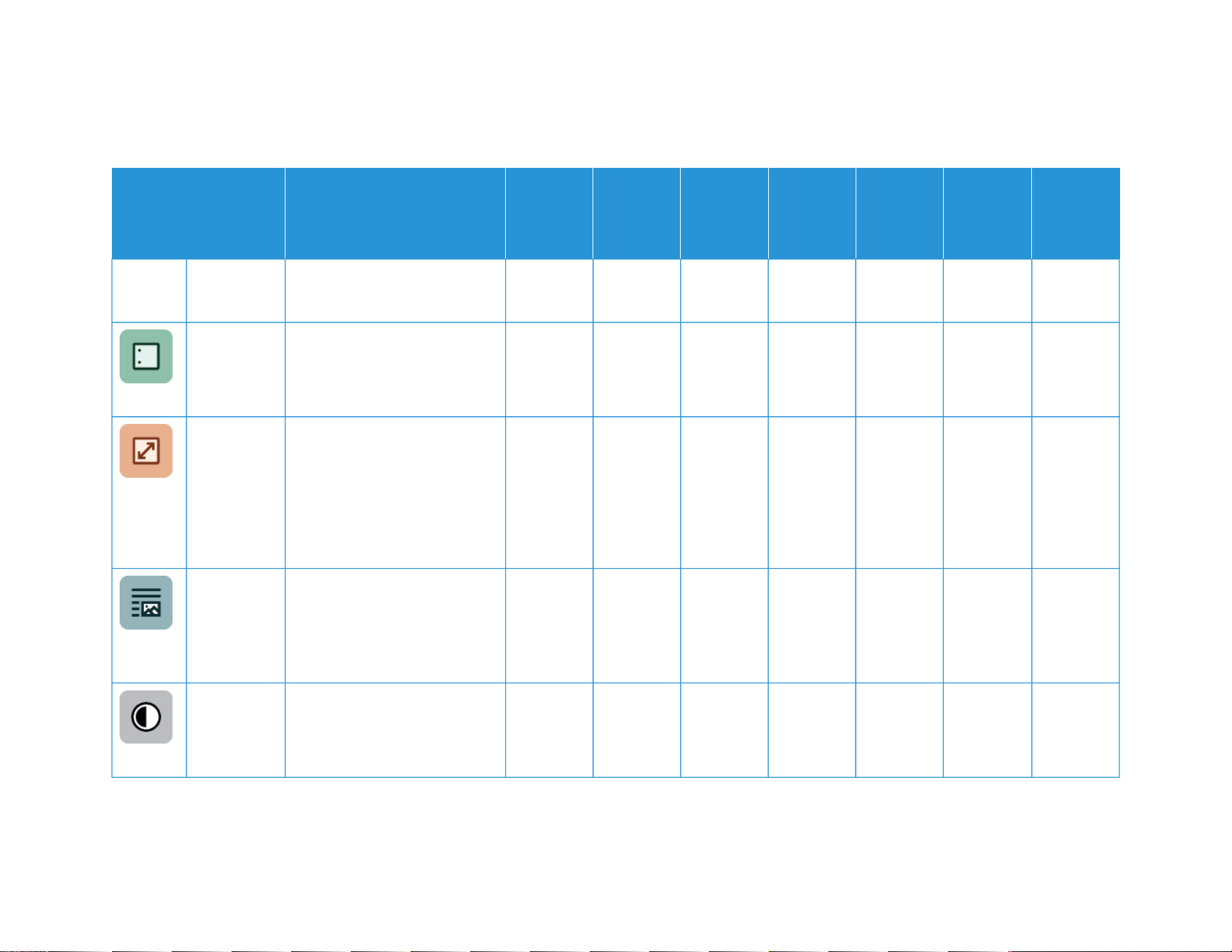
340 Xerox
®
VersaLink
®
C415 Color Multifunction Printer User Guide
FEATURE DESCRIPTION COPY
EMAIL FAX
SERVER
FAX
SCAN TO
WORK-
FLOW
SCAN-
NING
ID CARD
COPY
1, 2, 3, 4, 5, 6; 1, 2, 3, 4, 5, 6; 1,
2, 3, 4, 5, 6.
Finishing If finishing options are
available, use this option to
choose the finishing options
required for your printed output.
•
Reduce /
Enlarge
You can reduce the image to as
little as 25% of the original size
or enlarge it to as much as
400%. When you resize an
image, to maintain the original
proportions, select Proportional
%.
• •
Original
Type
The printer optimizes the image
quality of the copies based on
the type of images in the
original document and how the
original document was created.
• • • • •
Contrast You can use the Contrast
feature to adjust the variation
between light and dark areas of
the image.
• • • • • •
Apps Features
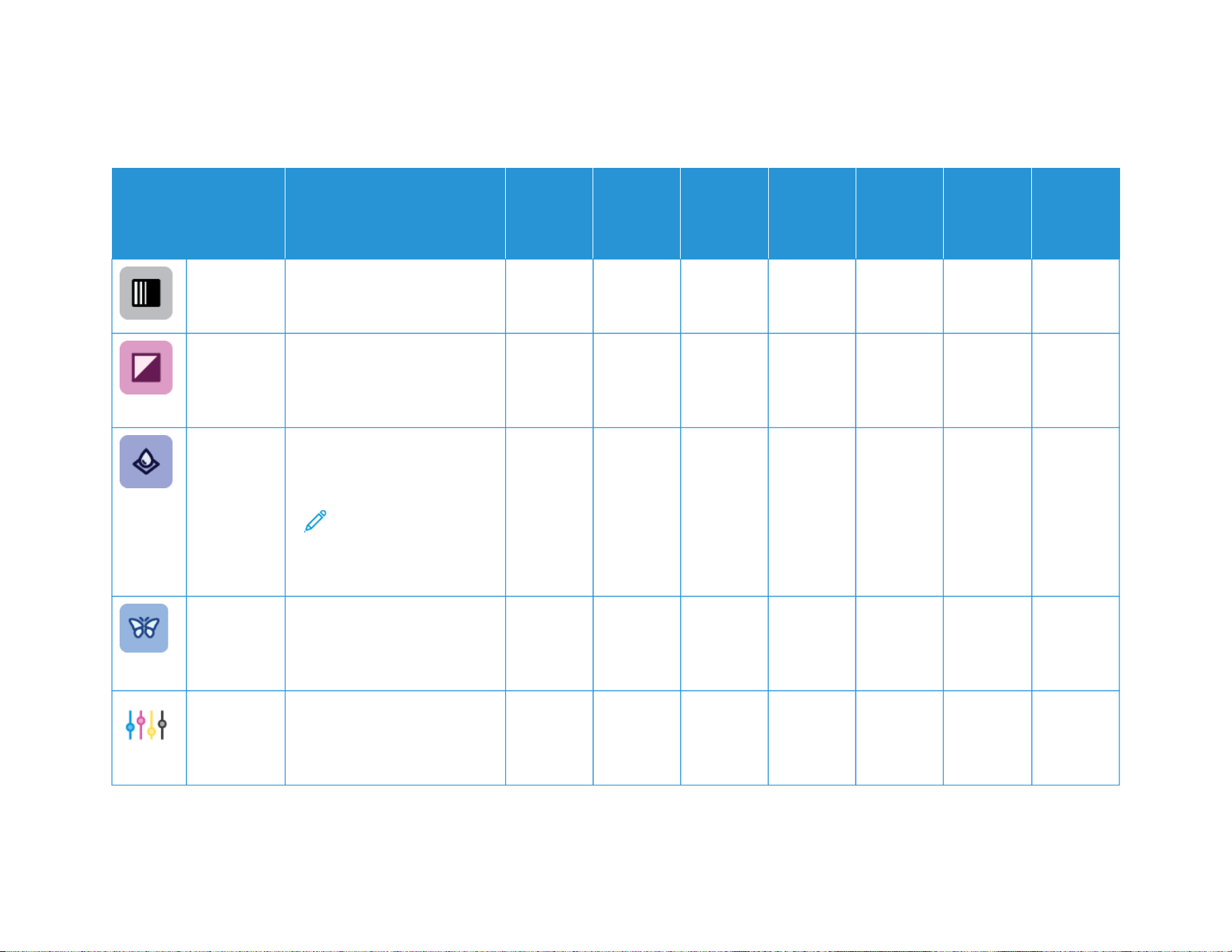
Xerox
®
VersaLink
®
C415 Color Multifunction Printer User Guide 341
FEATURE DESCRIPTION COPY
EMAIL FAX
SERVER
FAX
SCAN TO
WORK-
FLOW
SCAN-
NING
ID CARD
COPY
Lighten /
Darken
Use the Lighten/Darken slider to
make the output image or print
lighter or darker.
• • • • • • •
Sharpness Use this option to sharpen the
output image or print. For best
results, sharpen text images and
soften photos.
• • • • •
Saturation Saturation allows you to adjust
the color strength and the
amount of gray in the color.
Note: This feature is not
available when Output
Color is set to Black and
White or Grayscale.
• • • •
Color
Presets
You can adjust the color of the
copy using preset color effects.
For example, you can adjust
colors to be brighter or cooler.
•
Color
Balance
If you have a color original
image, you can adjust the
balance of the printing colors
between cyan, magenta, yellow,
•
Apps Features

342 Xerox
®
VersaLink
®
C415 Color Multifunction Printer User Guide
FEATURE DESCRIPTION COPY
EMAIL FAX
SERVER
FAX
SCAN TO
WORK-
FLOW
SCAN-
NING
ID CARD
COPY
and black before you print your
copy.
Original
Orientation
You can use the Original
Orientation option to specify
the layout of the original
images that you scan. The
printer uses the information to
determine whether images
require rotation to produce the
required output.
• • • • •
Image Shift Image Shift allows you to
modify the location of the
image on the page. You can
shift the printed image along
the X and Y axes of each sheet
of paper.
•
Auto
Background
Suppression
Use the Auto Background
Suppression setting to reduce
the sensitivity of the printer to
variations in light background
colors.
• • • • • • •
Apps Features

Xerox
®
VersaLink
®
C415 Color Multifunction Printer User Guide 343
FEATURE DESCRIPTION COPY
EMAIL FAX
SERVER
FAX
SCAN TO
WORK-
FLOW
SCAN-
NING
ID CARD
COPY
Edge Erase You can use the Edge Erase
feature to erase content from
the edges of your images. You
can specify the amount to erase
on the right, left, top, and
bottom edges.
• • • •
Original
Size
To ensure that you scan the
correct area of the documents,
specify the original document
size.
• • • • • •
Mirror
Image
Use Mirror Image to reverse the
image and text on the page.
•
Negative
Image
Negative Image reverses the
light and dark areas in your
document, and prints the image
as if it is a photo negative.
Printing a negative image is
useful for documents that have
a substantial amount of dark
background or light text and
images.
•
Apps Features

344 Xerox
®
VersaLink
®
C415 Color Multifunction Printer User Guide
FEATURE DESCRIPTION COPY
EMAIL FAX
SERVER
FAX
SCAN TO
WORK-
FLOW
SCAN-
NING
ID CARD
COPY
Special
Pages
Special Pages is used to add
covers and inserts to your job.
You can specify exception pages
to print on different paper than
the main body of the job.
Additionally, you can program
chapter start pages.
•
Annota-
tions
You can add annotations, such
as page numbers and the date,
to your copies.
•
Booklet
Creation
The Booklet Creation feature
prints two pages on each side of
the paper. The pages are
reordered so that they are in
numerical order when folded.
•
Page
Layout
You can print the selected
number of pages on one side of
a sheet of paper. Selecting
multiple pages per sheet saves
paper and provides a way to
review the layout of a
document.
•
Apps Features

Xerox
®
VersaLink
®
C415 Color Multifunction Printer User Guide 345
FEATURE DESCRIPTION COPY
EMAIL FAX
SERVER
FAX
SCAN TO
WORK-
FLOW
SCAN-
NING
ID CARD
COPY
Sample Job Sample Job allows you to print a
test copy of a job to inspect
before you print multiple copies.
This feature is useful for
complex or high-volume jobs.
After you print and inspect the
test copy, you can choose to
print or cancel the remaining
copies.
•
Auto Start
When
Originals
are
Detected
The Auto Start When Originals
are Detected option allows the
device to start a job
automatically when original
documents are detected in the
automatic document feeder.
• • • •
Build Job Use the Build Job option for jobs
that include a variety of original
documents that require
different settings, or to scan
multiple-page jobs from the
document glass. The job is
scanned in segments. After all
the segments are scanned, the
job is processed and completed.
• • • • •
Apps Features

346 Xerox
®
VersaLink
®
C415 Color Multifunction Printer User Guide
FEATURE DESCRIPTION COPY
EMAIL FAX
SERVER
FAX
SCAN TO
WORK-
FLOW
SCAN-
NING
ID CARD
COPY
Save
Current
Settings
To use a particular combination
of copy settings for future copy
jobs, you can save the settings
with a name and retrieve the
settings for later use.
•
Retrieve
Current
Settings
You can retrieve and use any
previously saved copy settings
for current jobs.
•
Quantity Use this option to enter the
number of required ID card
copies.
•
Resolution Resolution determines how fine
or grainy graphic images
appear. Image resolution is
measured in dots per inch (dpi).
• • • • •
Remove
Blank Pages
Remove Blank Pages configures
the printer to ignore blank
pages.
• • •
From Use the From option to specify
the originator of the email.
•
Apps Features

Xerox
®
VersaLink
®
C415 Color Multifunction Printer User Guide 347
FEATURE DESCRIPTION COPY
EMAIL FAX
SERVER
FAX
SCAN TO
WORK-
FLOW
SCAN-
NING
ID CARD
COPY
Note: The system
administrator can preset
this option to populate
automatically with your
user account details.
Reply To Use the Reply To option to
include an email address that
you want the recipient to reply
to. This option is useful if you
want the recipient to reply to
your email address, rather than
to the device.
Note: The system
administrator can preset
this option.
•
Message Use the Message option to
enter information to accompany
the email.
•
Quality/File
Size
The Quality/File Size option lets
you choose from three settings
that balance the quality of the
image and the size of the file.
• • •
Apps Features
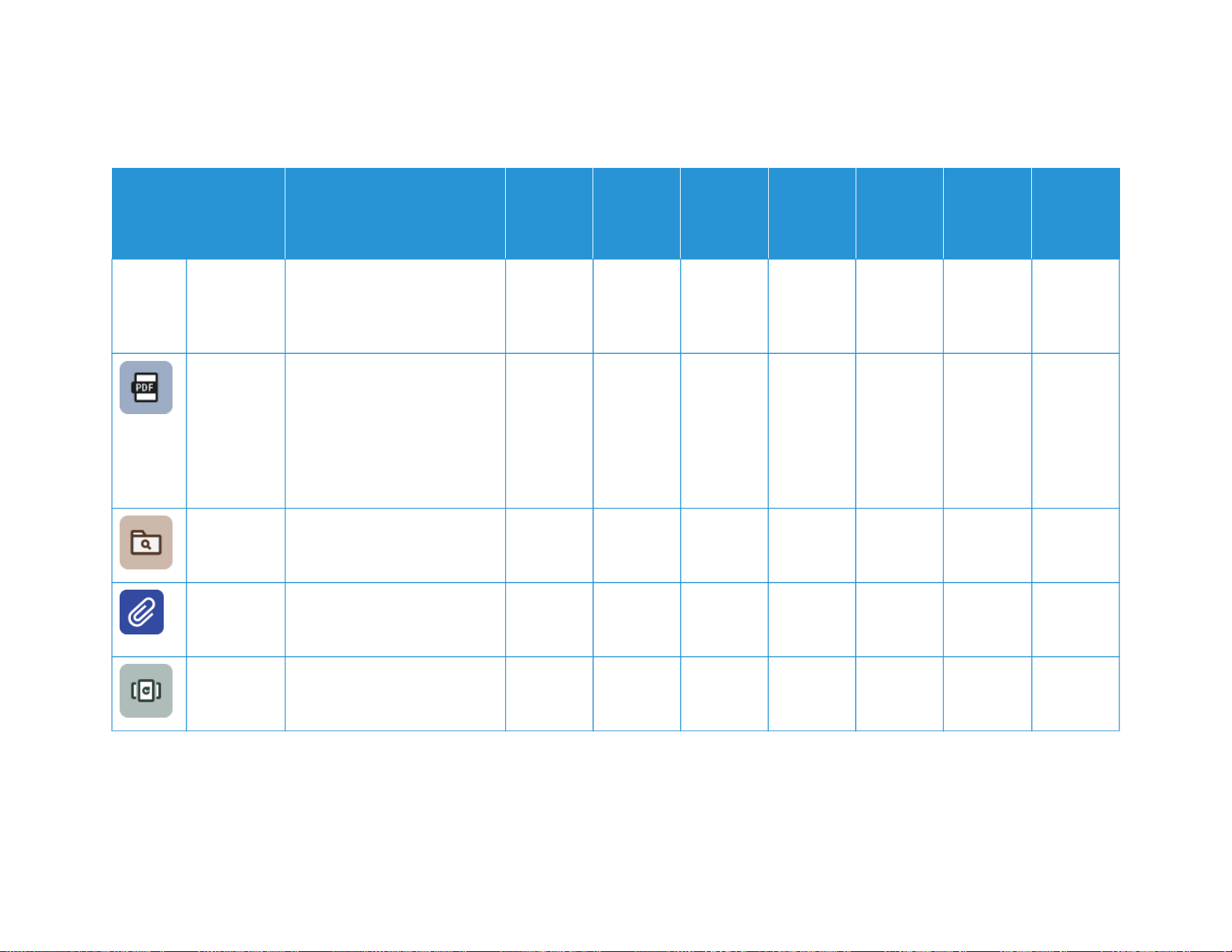
348 Xerox
®
VersaLink
®
C415 Color Multifunction Printer User Guide
FEATURE DESCRIPTION COPY
EMAIL FAX
SERVER
FAX
SCAN TO
WORK-
FLOW
SCAN-
NING
ID CARD
COPY
Higher-quality images result in
larger file sizes, which are not
ideal for sharing and
transmitting over the network.
File Format Use the File Format option to
specify the format of the saved
image or to define a searchable
image. You can add a password
to protect the image or choose
to combine multiple images into
a single file.
• • •
If File
Already
Exists
Use this option to define what
action the device takes when
the file name is used already.
• •
File and
Attachment
Use this option to specify a
name for the file that contains
the scanned images.
• • •
Update
Workflows
Use Update Workflows to
refresh the list of workflows that
appear at the control panel.
•
Apps Features

Xerox
®
VersaLink
®
C415 Color Multifunction Printer User Guide 349
FEATURE DESCRIPTION COPY
EMAIL FAX
SERVER
FAX
SCAN TO
WORK-
FLOW
SCAN-
NING
ID CARD
COPY
Add File
Destina-
tions
Use this option to choose more
destinations to file the scanned
images.
• •
Reduce/
Split
Use the Reduce/Split option to
specify how your faxed
document is printed on the
receiving fax machine. If the
image is too large to fit on the
paper size, you can reduce the
image to fit or split across
multiple pages.
•
Confirma-
tion Report
You can request a report to
confirm if your fax was received.
To receive a Confirmation
Report only if an error occurred
during transmission, choose
Print on Error Only.
•
Starting
Rate
Select the highest starting rate
for transmitting the fax, unless
the destination for the fax you
are sending has special
requirements. Forced (4800 bps)
is the recommended setting for
•
Apps Features
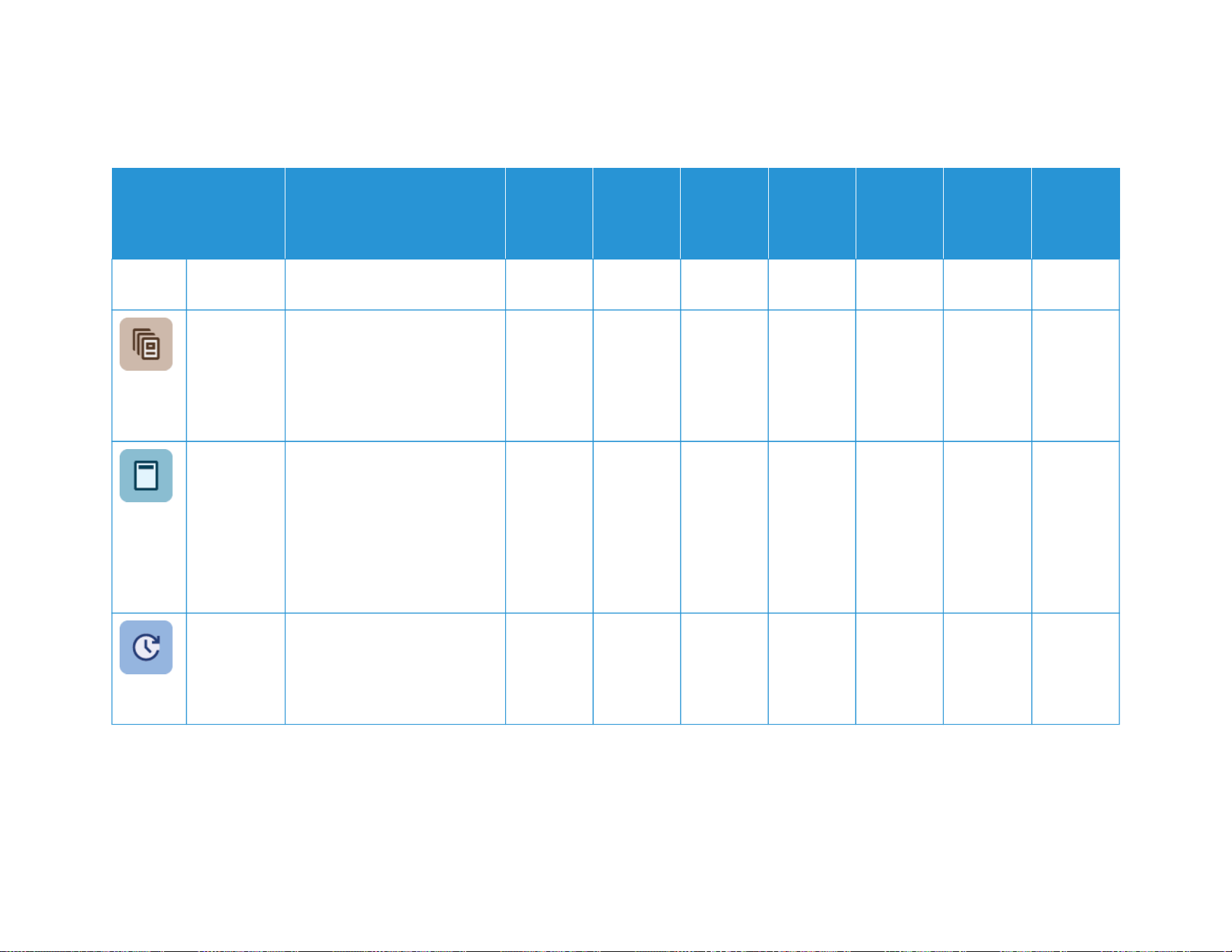
350 Xerox
®
VersaLink
®
C415 Color Multifunction Printer User Guide
FEATURE DESCRIPTION COPY
EMAIL FAX
SERVER
FAX
SCAN TO
WORK-
FLOW
SCAN-
NING
ID CARD
COPY
lines that can have transmission
interference.
Cover Sheet You can use the Cover Sheet
option to add an introduction
page to the beginning of your
fax. You can add a short
comment to the cover sheet,
and To and From details.
•
Send
Header Text
It is unlawful to send a message
from a fax machine without the
proper transmission header text.
Ensure that the name and
telephone number of the
sender, and the date and time
of the transmission are included
on all faxes.
•
Delay Send You can set a time in the future
for the printer to send your fax
job. You can delay the sending
of your fax job for up to 24
hours.
• •
Apps Features