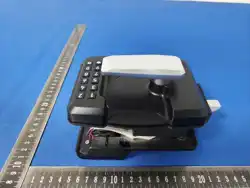
RV Lock Voice Version - Operation Manual
I. Functions and Features
Supports password, remote control, and Bluetooth unlocking.
Based on low-power Bluetooth technology, allows unlocking and user management via mobile app.
Supports virtual password to prevent password leakage from prying eyes.
Real-time battery level detection with low-battery warning.
II. Performance Parameters
Item Specification
Power supply 4 × AA alkaline batteries
Low-battery alarm < 4.75 V
Emergency power 5 V (Type-C USB)
Standby current Approx. 100 µA
Keypad Capacitive touch 12-key (0-9, *, #)
Keypad backlight White
Maximum user capacity 100
Virtual password Up to 30 digits
Operating temperature -20°C ~ 65°C
Operating humidity 10% ~ 90%, non-condensing
ESD immunity Contact discharge ±8 kV, air discharge ±15 kV
III. Product Functions and Operation
When no users are registered, any password with 6 or more digits can unlock the lock. After a password is registered, illegal
passwords will not unlock it. If no administrator has been registered in the smart lock, you can use the default administrator
password 123456 to enter the add mode. If an administrator has already been registered, you must first verify the
administrator before entering the add mode.
1. Installation Settings
Input the switch code to select language:
Chinese ( 7100# ), English ( 7101# )
2. Initialization Settings

Press and hold the initialization button for 10 seconds; the lock will restore to factory default state.
In the initial state, any fingerprint, password with 6 or more digits, or card can unlock the door.
The default administrator password is 123456 , which becomes invalid automatically after a user is added.
3. Adding Users
The first three added users are administrators; subsequent users are ordinary users.
The valid password length is 6–10 digits. Enter the same password twice to complete adding a user.
4. Deleting Users
The first administrator cannot be deleted.
5. Volume Settings
After entering the volume setting operation, only keys 1 , 2 , 3 , and 0 are valid; other keys have no effect.
6. Auto-Lock Settings
Enter 5 for 5 seconds, enter 1800 for 1800 seconds (30 minutes).
Enter 0 to disable auto-lock.
After disabling auto-lock, use the # key to lock the door manually.
7. Aging Mode
When the system is in the initial state, enter 9000# to activate aging mode.
After an administrator has been registered, aging mode cannot be entered.
In aging mode, the system cycles through the aging process; fingerprint, keypad, and card operations are all disabled.
Power the device off and on again to exit aging mode.
8. Physical Button Operation (Rear Handle Buttons)
SET button: Long press to restore factory settings and clear all data (10 short beeps followed by one long beep
indicates success).
DIP switch: Enables or disables the remote control function.
Pairing button: Long press for 1 second to start or stop remote control pairing (valid only when the DIP switch is in
the ON position).
9. Low-Voltage Warning and External Power
1. When the lock battery voltage is too low, the system announces “Please replace the battery” each time it is unlocked.
Please replace the battery as soon as possible.
2. If the battery is completely depleted and the lock cannot be operated, use a 5 V USB power supply on the outside for
emergency unlocking.
10. Incorrect Trial Alarm
After 5 consecutive incorrect user entries, the system locks for 120 seconds. During the lockout period, the system does not
respond to any operation.
11. Anti-Peeping Password
For example, if the password is 123456 , you can enter 96581234562875 – adding some extraneous digits before and after the
actual password – and then press # to confirm. The maximum total input length is 20 digits.
12. Mobile App Download and Connection
Download the “Tuya Smart” or “Smart Life” app from the app store, or scan the QR code below for download.
APP Registration
If you do not have an account, you can register or log in via SMS verification code. Tap “Create New Account” to enter the
registration page. Follow the prompts to obtain an SMS verification code and set a password. If you already have an account,
tap “Log in with existing account”. Login supports password, verification code, and social account login.
APP Interface
The image below shows the main interface of the app with various smart home devices configured. In the app main interface –
under the “My Home” tab, you can select a home, add devices, check the current home weather, launch scenes, and control
smart devices. Tapping a smart device under “All Devices” opens the device operation panel, which covers all functions
supported by the app for that device.
Note: The image mentioned above is not included in this text version. Please refer to the app after installation.
Adding via Bluetooth
1. Enter add mode and then enable Tuya pairing.
2. Open the mobile app; the phone will automatically search for the device. Tap to add it.
3. For Bluetooth-enabled locks, it is recommended to prioritize user setup through the mobile app.
4. After connecting via Bluetooth, the first administrator can only be added through the mobile app.
End of Operation Manual

FCC Warning
This device complies with Part 15 of the FCC Rules. Operation is subject to the following two conditions:
(1) This device may not cause harmful interference, and (2) this device must accept any interference received, including
interference that may cause undesired operation.
NOTE 1: This equipment has been tested and found to comply with the limits for a Class B digital device, pursuant to part 15 of
the FCC Rules. These limits are designed to provide reasonable protection against harmful interference in a residential
installation. This equipment generates, uses and can radiate radio frequency energy and, if not installed and used in accordance
with the instructions, may cause harmful interference to radio communications. However, there is no guarantee that
interference will not occur in a particular installation. If this equipment does cause harmful interference to radio or television
reception, which can be determined by turning the equipment off and on, the user is encouraged to try to correct the
interference by one or more of the following measures:
- Reorient or relocate the receiving antenna.
- Increase the separation between the equipment and receiver.
-Connect the equipment into an outlet on a circuit different from that to which the receiver is connected.
-Consult the dealer or an experienced radio/TV technician for help.
NOTE 2: Any changes or modifications to this unit not expressly approved by the party responsible for compliance could void the
user's authority to operate the equipment.
The device has been evaluated to meet general RF exposure requirement. The device can be used in portable exposure
condition without restriction.