85*65mm
05. Phone模式:兼容 IOS / Andriod 手机,在手机可用设备列表中搜索设备
名称“CYNOVA”,选择并完成配对连接。
配对操作说明:Insta360 / GoPro / Phone需要用户手动打遥控器配对设置。
*适用设备会持续更新,请访问 CYNOVA 无线遥控器购买详情页设备兼容列表。
物品清单
遥控器*1,表带*1,Type-C 数据线 * 1
产品材质: ABS+PC
电池容量: 3.7V / 250mAh
指示灯: 红 / 绿 / 蓝
产品净重(不含表带): 18.6g
输入: 5V / 230mA
充电接口: USB-C
版本: 5.4
遥控器尺寸: 34*40*18mm
按键数量: 3个
遥控距离: ≥20m
屏幕: 128x64 (0.96")
产品规格
2. 显示当前遥控器剩余电量。
1 2
3
4
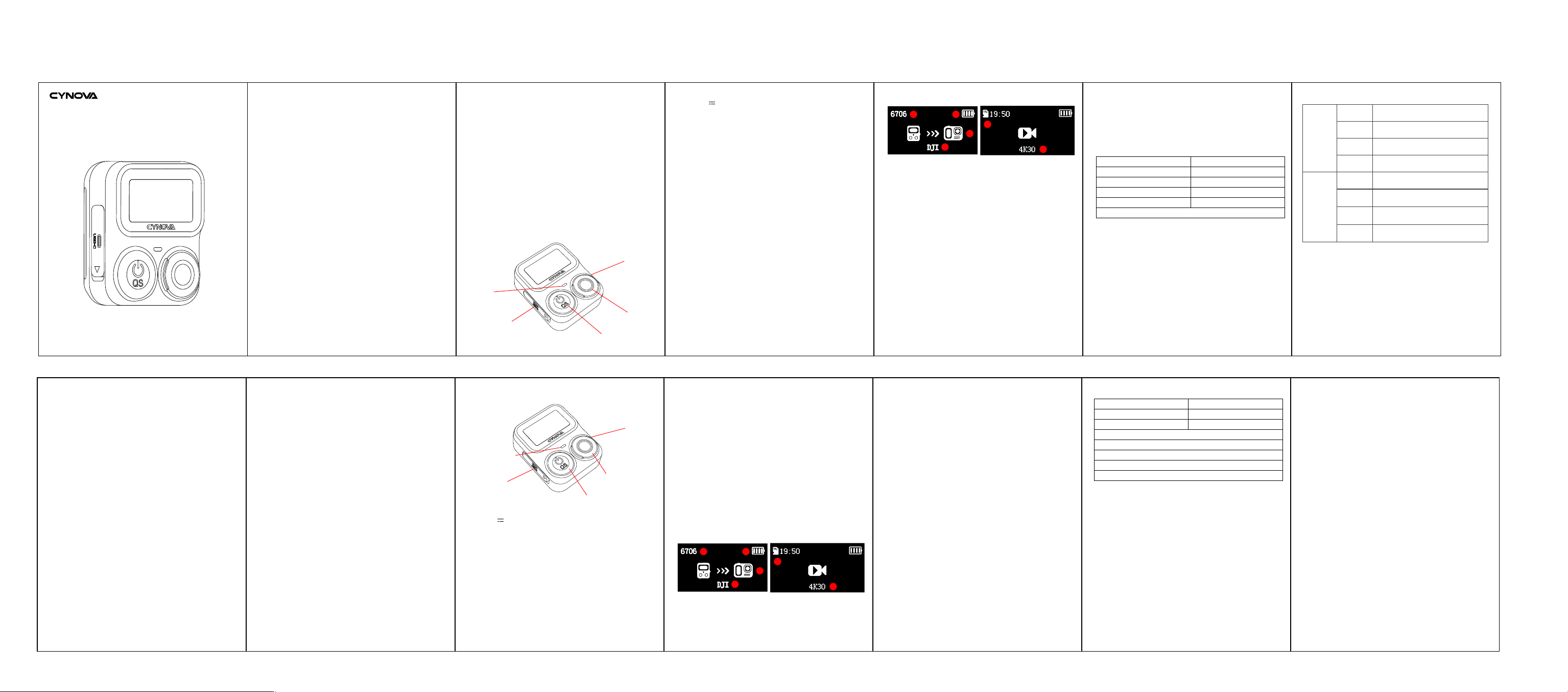
产品界面
1. 大疆相机验证码:显示遥控器与大疆相机连接的验证码。
当大疆相机搜索到遥控器时会显示验证码,在相机设备上点击“接受”即连接
成功。(备注:其他品牌相机设备无需验证码)
连接相机界面 相机控制界面
5
6
3. 配对状态:若未绑定过相机设备, 图标③此处为空,
若已经绑定过相机设备, 图标③此处会显示相机图标。
4. 当前配对模式:请短按配对按键,选择对应品牌设备DJI / Insta360
Insta360 Go Ultra / GoPro / Phone 。
5. 当相机连接成功后,将会显示当前相机SD卡可存储的照片数量
或可拍视频时长。
6. 将显示相机当前拍摄信息。
01. DJI:兼容大疆 Action 4 / Aciton 5PRO / Action 6,Osmo360
02. Insta360:兼容影石 Insta360 Ace Pro2,Insta360 X5
03. Insta360 Go Ultra模式:兼容影石 Insta360 GO Ultra(注意:Insta360
Go Ultra模式下,仅支持普通拍照和普通录像两种模式切换)
04. GoPro模式:兼容 GoPro 8/9/10/11/12/13
兼容性说明
USB-C充电口
请使用5V 500mA(或以上)电源适配器连接此口充电。
开关/模式切换按键
01. 长按:开启或关闭遥控器。
02. 短按:切换拍照模式。
*注意:若连接的是大疆设备,可在大疆设备上更改QS按键功能。
配对按键
01. 长按:进入配对新相机状态或回连接上一个历史设备。
*注意:Insta360/手机设备若出现无线遥控器无法断开当前相机,请在相机
设备手动断开与遥控器的连接或先关掉当前相机。
02. 短按:切换不同品牌设备。
(DJI / Insta360 / Insta360 Go Ultra / GoPro / Phone)
当遥控器已经配对A设备成功时,长按配对按键会取消链接A设备,
进入B新设备配对;若此时没有配对B新设备成功,再次长按配对按键可以
快速回连A设备。
拍照按键
01. 短按:开始或结束拍照/录像。
02. 长按:唤醒相机或让相机休眠。
*注意1:大疆使用唤醒相机功能需在相机上开启相关设置。
设置方法如下:从触摸屏主页顶部下滑,进入系统控制中心。
选择系统设置>无线遥控器,开启唤醒相机功能。
*注意2:相机在长时间没使用的情况下会进入低功耗模式,遥控器可能
存在无法唤醒相机的情况,需要手动打开相机之后,遥控器才能唤醒相机
或让相机休眠。
指示灯说明
01. 连接状态:蓝灯闪烁 02. 连接成功:绿灯常亮
03. 充电状态:红灯闪烁
3.使用提醒
01. 维修与改装声明:任何未经我司授权的拆卸、改装或维修行为,均视
为用户自行承担风险。因违规操作引发的电路故障、性能失效或硬件
永久性损伤,CYNOVA 概不承担相关法律责任。
03. 异常情况处理:如产品发出异常热量、烟雾或异味,或无法正常工作时,
请立即停止使用。
产品简介
CYNOVA无线遥控器是一款兼容大疆、影石、GoPro等主流
运动相机及IOS/Android智能手机的多功能无线遥控器。通过
无线连接,用户可远距离实现对设备的拍照、录像启停、休眠
唤醒及拍摄模式切换等操作,轻松应对自拍、合影、Vlog记录
及户外运动等多种拍摄场景。
拍照键
配对按钮
开关/模式切换键
USB-C 充电口
指示灯
02. 禁止机械撞击、碾压或抛掷产品。请勿在产品上放置重物。
功能说明
免责声明
请仔细阅读本声明,一旦使用本产品,即视为对本声明得全部
认可和接受。使用之前请仔细检查产品,若出现破损、变形,
请勿使用。使用产品时,意味您认可并同意,对使用本产品的
行为和可能产生的后果负全部责任。
注意事项
1.使用环境
01. 防水说明:本产品不支持水下使用(如游泳、潜水、跳水等)。
如需在水上环境使用,接触水(尤其是海水)后,请用软布将其充分擦干,
特别注意充电口位置,并自然风干。
02. 使用环境警告:本设备严禁靠近酒精、汽油等易燃蒸气或液体环境
操作,以免引发火灾或爆炸风险。
03. 温度限制:请在 0℃ 至 45℃ 的环境中使用本产品。请勿将产品放置
在阳光长期直射的地方(如长期放在窗台或汽车仪表盘)或靠近热源之处
(如火炉、加热器等)。极低或极高温度可能会暂时缩短电池寿命或导致
遥控器暂时无法正常工作。避免温度或湿度发生剧烈变化,以防产品表面
或内部产生凝露。
2.电池安全
01. 充电安全:充电时请勿用湿手操作插头或充电器。
02. 使用指定充电设备:请使用产品随附的充电线或符合规格(输出 5V)的
充电器进行充电。使用不匹配的充电设备可能损坏电池并引发火灾或漏液。
03. 长期存放:若长时间不使用(如2-3个月),电池电量可能耗尽,
请及时给产品充电。
使用手册
User Manual
Action Camera Wireless Remote
运动相机无线遥控器
Warranty Card / 保修卡
Product
Information
商品信息
User
Information
用户信息
Product Name
产品名称
Model No
产品型号
Product Price
产品价格
Order No.
订单号
User Name
用户姓名
Contact Number
联系电话
Delive Address
通讯地址
Postal Code
邮政编码
Material: ABS + PC
Batte Capacity: 3.7 V / 250 mAh
Indicator Lights: Red / Green / Blue
Net Weight (excluding wrist strap): 18.6 g
Input: 5V / 230mA
Charging Po: USB‑C
Version: 5.4
Remote Dimensions: 34 × 40 × 18 mm
Number of Buttons: 3
Remote Control Range: ≥20 m
Screen: 128 × 64 (0.96")
Product Specications
FCC Caution:
2. Displays the remaining batte level of the remote.
3. Pairing Status: If no camera has been bound, Item ③ will remain blank,
and the system will enter new device pairing mode.
If a camera has been bound, Item ③ will show the camera icon.
4. Current Pairing Mode: Sho press the Pairing Button to select the
corresponding device brand: DJI/Insta360/Insta360 Go Ultra/GoPro/Phone.
5. After successful camera connection, the available photo count or
remaining video recording time on the camera’s SD card will be displayed.
6. Displays the current shooting information of the camera.
01. DJI: Compatible with DJI Action 4 / Action 5 P ro / Action 6, Osmo360
02. Insta360: Compatible with Insta360 Ace Pro 2, Insta360 X5
05. Phone Mode: Compatible with iOS / Android smaphones. Search
fo he device name "CYNOVA" in your phone’s available device list,
then select it to complete pairing and connection.
Pairing Instructions: For Insta360 / GoPro / Phone devices, users need to
manually enable pairing settings on the remote control.
*Suppoed devices are updated continuously. Check the device
compatibility list on the CYNOVA Wireless Remote product detail page.
03. Insta360 Go Ultra Mode: Compatible with Insta360 GO Ultra
(Note: Under Insta360 Go Ultra mode, only switching between standard
photo and standard video modes is suppoed.)
04. GoPro Mode: Compatible with GoPro 8/9/10/11/12/13
Compatibility Statement
Remote Control*1、Wrist Strap*1、*1USB‑C Charging Cable
Packing List
1 2
3
4
Product Inteace
1. DJI Camera Verication Code: Displays the verication code for
connecting the remote to the DJI camera.
When the DJI camera detects the remote, a verication code will appear.
Tap "Accept" on the camera to complete the connection. (Note: Cameras of
other brands do not require a verication code.)
Camera Connection Inteace Camera Control Inteace
5
6
Pairing Button
01. Long press: Enter pairing mode for a new camera or reconnect to
the last paired device.
Indicator Light Descriptiont
01. Blinking blue: Connecting
03. Blinking red: Charging
When the remote is successfully paired with Device A, long-pressing
the Pairing Button will disconnect Device A and enter pairing mode for
a new Device B. If pairing with Device B fails, long-press the Pairing
Button again to quickly reconnect to Device A.
*Note: If the wireless remote fails to disconnect from the current
Insta360 camera or smaphone, manually disconnect the remote on
the camera/phone or power o the camera rst.
02. Sho press: Switch between dierent device brands
(DJI / Insta360 / Insta360 Go Ultra / GoPro / Phone).
Product Schematic Diagram
Shutter Button
Pairing Button
Power / Mode Button
USB‑C Charging Po
Indicator Light
USB‑C Charging Po
Use a 5V 500mA (or higher) power adapter to charge via this po.
Power / Mode Button
01. Long press: Power the remote on or o.
02. Sho press: Switch photo modes.
*Note: When paired with a DJI device, the QS button function can be
modied on the DJI device.
Shutter Button
01. Sho press: Sta or stop photo capture / video recording.
02. Long press: Wake up the camera or put it into sleep mode.
*Note 1: To use the camera wake-up function with DJI cameras, enable
the corresponding setting on the camera.
Setup steps: Swipe down from the top of the touchscreen home page to
open the system control center. Go to System Settings > Bluetooth Remote
and turn on Wake Camera.
02.Solid green: Connected successfully
3.Usage Reminders
01. Repair and Modication Statement: Any disassembly, modication or
repair not authorized by our company shall be deemed to be undeaken
at the user’s own risk. CYNOVA shall not bear any legal liability for circuit
faults, peormance failure or permanent hardware damage caused by
improper operations.
Product Introduction
CYNOVA Wireless Remote Control is a multi-functional
wireless remote compatible with mainstream action cameras
including DJI, Insta360 and GoPro, as well as IOS and Android
smaphones. Via wireless connection, users can remotely
operate the devices to take photos, sta/stop recording,
wake/sleep the camera and switch shooting modes. It is
suitable for various shooting scenarios such as seles, group
photos, Vlog recording and outdoor spos.
02. Do not subject the product to mechanical impact, crushing or
dropping. Do not place heavy objects on the product.
03. Handling of Abnormal Conditions: Immediately stop using the
product if it generates abnormal heat, smoke or strange odors, or fails
to function properly.
02. Use Specied Charging Equipment: Charge the product with the
included charging cable or a charger complying with specications
(5V output). Use of incompatible charging equipment may damage
the batte and cause re or liquid leakage.
03. Long-term Storage: If the product remains unused for an extended
period (e.g., 2–3 months), the batte may drain completely. Please
charge the product in a timely manner.
Disclaimer
Please read this statement carefully. By using this product,
you shall be deemed to fully acknowledge and accept all
terms herein. Inspect the product thoroughly before use.
Do not use it if it is damaged or deformed. When using the
product, you acknowledge and agree that you shall bear
full responsibility for your use of the product and any
consequences that may arise therefrom.
Notes
1.Operating Environment
01. Waterproof Statement: This product is not designed for underwater
use (such as swimming, diving, springboard diving, etc.). If used in a
waterside environment, thoroughly wipe it d with a soft cloth after
contact with water (especially seawater). Pay special attention to the
charging po and allow it to air-d naturally.
02. Operating Environment Warning: Do not operate this device near
ammable vapors or liquids such as alcohol and gasoline, to avoid risk
of re or explosion.
03. Temperature Limits: Use this product within an ambient temperature
range of 0℃ to 45℃. Do not leave the product under prolonged direct
sunlight (e.g., on window sills or car dashboards) or near heat sources
(such as stoves, heaters, etc.). Extremely low or high temperatures may
temporarily shoen batte life or cause the remote control to malfunction.
Avoid sudden drastic changes in temperature or humidity to prevent
condensation forming on or inside the product.
2.Batte Safety
01. Charging Safety: Do not handle the plug or charger with wet hands
while charging.
Any Changes or modications not expressly approved by the pay responsible
for compliance could void the user's authority to operate the equipment.
This device complies with pa 15 of the FCC Rules. Operation is subject to the
following two conditions: (1) This device may not cause harmful inteerence,
and (2) this device must accept any inteerence received, including inteerence
that may cause undesired operation.
IMPORTANT NOTE:
FCC Radiation Exposure Statement:
This equipment complies with FCC radiation exposure limits set foh for an
uncontrolled environment .
This transmitter must not be co-located or operating in conjunction with any
other antenna or transmitter.
Note: This equipment has been tested and found to comply with the limits for
a Class B digital device, pursuant to pa 15 of the FCC Rules. These limits are
designed to provide reasonable protection against harmful inteerence in a
residential installation. This equipment generates, uses and can radiate radio
frequency energy and, if not installed and used in accordance with the
instructions, may cause harmful inteerence to radio communications.
However, there is no guarantee that inteerence will not occur in a paicular
installation. If this equipment does cause harmful inteerence to radio or
television reception, which can be determined by turning the equipment o
and on, the user is encouraged to t to correct the inteerence by one or more
of the following measures:
—Reorient or relocate the receiving antenna.
—Increase the separation between the equipment and receiver.
—Connect the equipment into an outlet on a circuit dierent from that to
which the receiver is connected.
—Consult the dealer or an experienced radio/TV technician for help.