Fusion Gateway
Quick Installation Guide
Note: Fusion gateways are for enterprise installation and use. Fusion 2.5G is
used as an example throughout the guide. Images may dier from your actual
product.
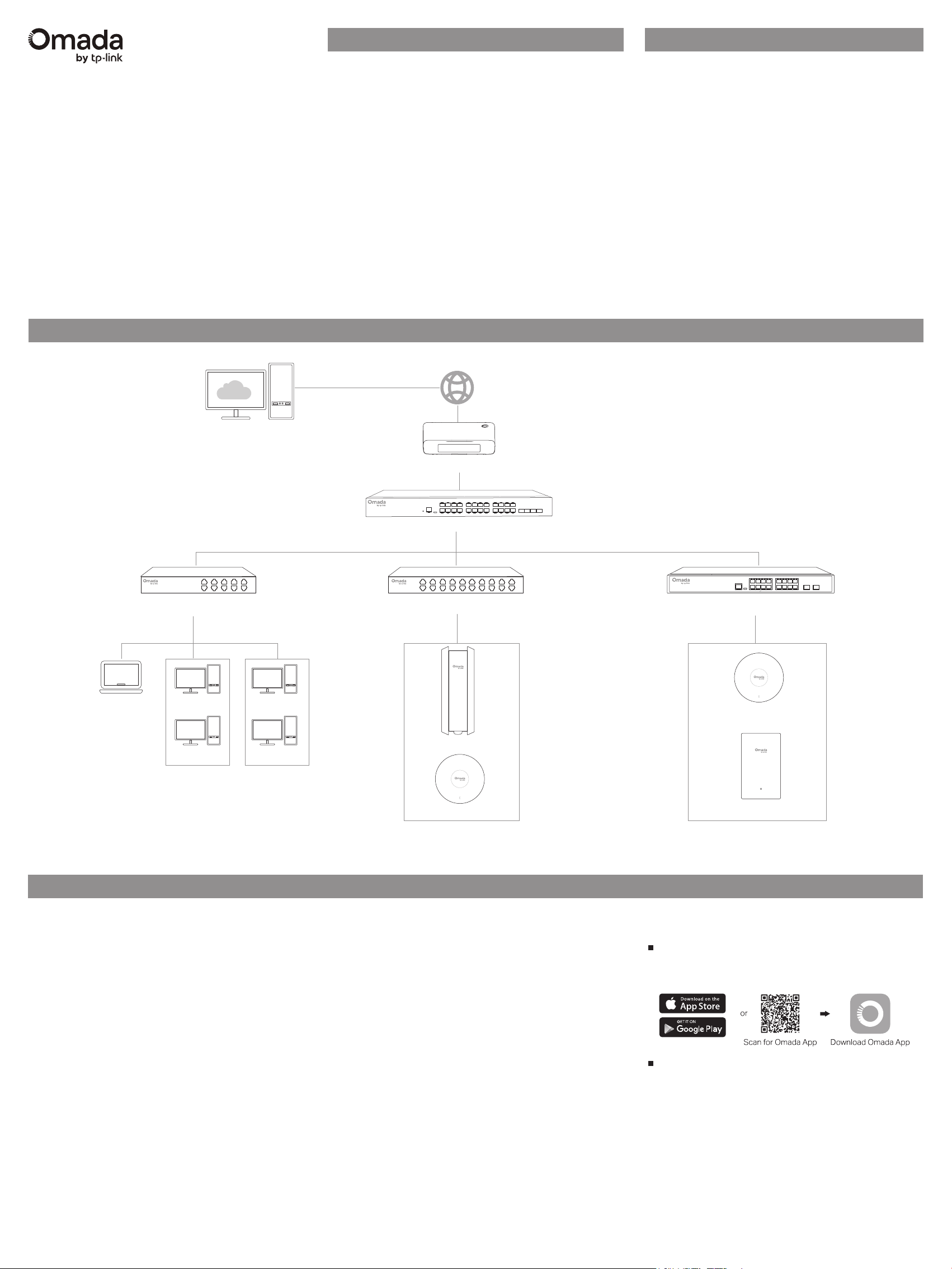
Fusion Gateway
2.5G PoE SwitchPoE Gigabit Switch
Wall Plate AP
Celling Mount AP
Outdoor AP
Management
PC
Managed Switch
Non-PoE Gigabit Switch
Oce Area, Meeting Room
Celling Mount AP
Oce Area, Meeting Room
PC
PC
PC
PC
Department
A
Department
B
Open a web browser and type the default
management address https://omada.local or
https://192.168.188.1 in the address field of the
browser, then press the Enter key.
4.
Make sure the management PC is configured to
Obtain an IP address automatically.
3.
Follow the setup wizard to configure the internet
settings, bind the gateway to your TP-Link ID, set
up the controller, and add devices.
5.
After the setup wizard is complete, you will be
directed to the management page. And you can
configure more settings and manage your network.
6.
For detailed information and conguration, refer to
the gateway's user guide. The guide can be found on
the Documents page of our ocial website:
https://support.omadanetworks.com/document/.
Initial Setup
The Fusion gateway delivers an all-in-one solution for
networking and centralized management on a single
device, featuring a built-in controller for the entire
Omada ecosystem. It is ideal for small businesses
across single or multiple sites.
This Quick Installation Guide is for qualied IT sta and
professional installers. It covers typical network
topology, basic software conguration, and
descriptions of enterprise-dedicated features. For
detailed instructions, refer to the user guide.
Enterprise Solution
Connect the Internet port (Port 1) of the gateway
to the internet using the provided Ethernet
cable.
1.
Connect the gateway to a grounded power
outlet using the provided power adapter. The
touchscreen on the front panel will light up.
2.
Via Omada Cloud Portal
a. Enable Cloud Access on the Settings page on the
gateway and bind a TP-Link ID to your gateway. If you
have configured this in the setup wizard, skip the step.
b. Launch a web browser and enter
https://omada.tplinkcloud.com in the address bar.
c. Enter your TP-Link ID and password to log in. A list of
Fusion gateways that have been bound with your
TP-Link ID will appear in the Fusion Systems page.
Then you can launch your device to further configure
the gateway.
With the TP-Link Omada app, you can access and
manage your Omada devices at a local site or remotely.
More Management Methods
Via Omada App
Typical Network Topology
Software Configuration
Safety PrecautionsPreface
©2026 TP-Link 7100003112 REV1.0.0
Internet
• Do not attempt to disassemble, repair, or modify
the device. If you need service, please contact
us.
• Do not use damaged charger or USB cable to
charge the device.
• Do not use any other chargers than those
recommended.
• Adapter shall be installed near the equipment
and shall be easily accessible.
• Keep the device away from water, re, humidity
or hot environments.
• For enterprise installation and use only.
Flip Over to Explore More

More Resources
Main Site https://www.omadanetworks.com/
https://support.omadanetworks.com/video/
https://support.omadanetworks.com/document/
https://support.omadanetworks.com/product/
https://support.omadanetworks.com/contact-support/
Video Center
Product Support
Documents
Technical Support
EU Declaration of Conformity
TP-Link hereby declares that the gateway is in compliance with the essential
requirements and other relevant provisions of directives (EU)2015/863,
2014/53/EU and 2011/65/EU.
The original EU declaration of conformity may be found at
https://www.tp-link.com/en/support/ce/.
UK Declaration of Conformity
TP-Link hereby declares that [product name] is in compliance with the
essential requirements and other relevant provisions of the Radio Equipment
Regulations 2017.
The original UK declaration of conformity may be found at
https://www.tp-link.com/support/ukca/
Frequently Asked Questions (FAQ)
Q1. Why were no APs or switches found during the initial setup?
A: During initial setup, only devices in factory mode can be detected.
Otherwise, they can only be detected and adopted after setup using
their original account and password.
Q2. How do I reset the Fusion gateway?
A: • Via the physical Reset button
With the device powered on, use a pin to press and hold the Reset
button on the front panel for about 5 seconds until a reset prompt
appears, then release. The device will restore to its factory default
settings.
• Via the web management page
Go to Settings > System Settings > OS Settings. In the Action
drop-down list, click Reset to reset the device to its factory default
settings.
Q3. How do I adopt APs and switches?
A: 1. Connect the APs/switches to the same network as the gateway.
2. Access the gateway's management page at https://omada.local
or https://192.168.188.1.
3. Go to Devices, you will find the devices displayed in the Device List.
4. Click Adopt and wait until the device’s STATU S changes to
CONNECTED.
*These features refer to functions supported by the switches adopted by the Fusion gateway and can be configured through it.
Appendix
Enterprise-Dedicated Features
Fusion gateways are FCC Class A certied products with various advanced software capabilities, primarily used in business, industrial, or oce environments.
■ Multi-Site Networking and Management: Features an enterprise-grade SD-WAN for multi-site networking in business scenarios (e.g., chain supermarkets and chain restaurants) and Cloud Portal for
managing multiple sites.
• Sites are interconnected via encrypted tunnels, forming a unied enterprise WAN and ensuring secure and reliable communication across geographically distributed locations. All network conguration,
site onboarding, and policy management are performed exclusively through a cloud management portal. Local or on-premises controllers are not supported. Branch devices support multiple WAN
connections. Link availability is determined through WAN online status detection, enabling basic link redundancy and failover when a WAN connection becomes unavailable.
• This feature is designed for enterprises with multiple branches or stores that require unied networking and centralized management. Cloud-based centralized operations signicantly simplify network
deployment and ongoing maintenance. This feature is focuses on manageability, scalability, and long-term network stability for business operations.
■ Centralized Management: Facilitates unified management of all network devices (including enterprise-grade L3 switches, APs, etc.) within the enterprise network.
• Unied Management Plane: Fusion devices run a built-in software platform that acts as the local management controller for all connected network devices within the site. Through this embedded
platform, installation technicians can onboard L3 switches and wireless access points in bulk upon initial deployment, without logging into each device individually.
In MSP large-scale deployment scenarios with numerous sites and a substantial number of devices per site, logging into each switch or AP individually for conguration is operationally infeasible. The
unied management plane allows installation technicians, upon deploying a Fusion device, to onboard local L3 switches and wireless access points in bulk. LAN, WLAN, ACL, and other policies can be
congured once and applied simultaneously across multiple devices. It also provides monitoring and dashboards for detecting alerts and anomalies across sites, addressing the operational requirements
of professional enterprise network personnel.
■ Enterprise Network Stability Assurance: Supports multi-WAN and failover functionality between multi-WANs.
• The device determines link availability by monitoring the online/oine status of each WAN interface. When the primary WAN connection becomes unavailable, trac is automatically and seamlessly
switched to an available backup WAN connection based on predened rules, without manual intervention. This provides reliable link redundancy and helps ensure uninterrupted network connectivity for
business operations.
• In enterprise environments, network connectivity serves as a foundational component for transactions, operational workows, and customer services. Business systems are expected to remain
continuously online, and even short term network failures can lead to service disruption, reduced eciency, or direct nancial loss. Therefore, multi-WAN support with automatic failover is an essential
capability for commercial deployments, enabling higher network resilience and stronger business continuity.
■ Enterprise-Grade Device Conguration: Supports professional Command Line Interface (CLI) conguration, batch port conguration across switches, and the SNMP management protocol.
• CLI Conguration: Supports editing device congurations and enabling advanced features via CLI commands, allowing network engineers to perform granular conguration beyond what the GUI
provides. In enterprise environments, CLI access is required for implementing complex network policies (e.g., advanced, policy-based routing, and protocol-level tuning) that are not fully displayed through
a graphical interface. It also enables scripted and repeatable conguration workows, which are necessary for maintaining consistency across large-scale deployments and for integration with enterprise
IT automation and management process optimization.
• Batch Port Management: Enterprise networks contain a large number of switches, each with numerous ports. The unied management plane provides a port/VLAN visualization panel with support for
batch conguration deployment by port group or VLAN, reducing the operational complexity of managing ports at scale.
• SNMP Protocol Support: Supports SNMPv1/v2c/v3 protocols, allowing third-party monitoring systems (e.g., Zabbix, PRTG, SolarWinds, etc.) to perform unied monitoring across multi-vendor devices
and automatically collect metrics, including device CPU load, memory utilization, and interface trac trends.
■ Enterprise-Grade Operation and Maintenance Management: Features enterprise-grade network packet capture for exporting various network traffic reports with audit logs.
• Network Packet Capture: A diagnostic tool for operations personnel, used for communication link analysis and network protocol-level anomaly troubleshooting.
• Network Trac Data Reports: Provides multi-site enterprises with periodic network data reports covering network status overview, trac trend analysis, application-layer trac distribution, and client
experience scoring, serving as a basis for network capacity planning and experience optimization. Supports report generation by site, time period, and device, with PDF/CSV exports.
• Audit Logs: Records operation history of the management system (including operator identity, timestamp, target object, and details), with support for periodic exporting and long-term archival. Required
for historical operation traceability during network anomaly investigation, organizational access control management, and security auditing.
• Firmware Management and Upgrade: Supports centralized device rmware management with batch upgrade and scheduling by site or device group. Upgrade scheduling avoids disruptions during peak
business hours, maintaining rmware version consistency across the network and timely application of security patches.
■ Commercial-Grade Access/Authentication Methods*: Offers external Portal/Voucher/RADIUS authentication, supports (Private Pre-Shared Key (PPSK), 802.1x/MAC-Based Authentication, and
professional enterprise-grade L3 layer network features.
• External Portal/Voucher Authentication: Addresses Captive Portal requirements in enterprise chain store Wi-Fi scenarios by redirecting unauthenticated clients to a Portal address for authentication.
Captive Portal supports advertisements, identity authentication and network authorization, endpoint data collection, network trac billing, and time-limited Voucher credential issuance. Supports
integration with third-party Portal servers to accommodate existing enterprise authentication infrastructure (e.g., AD, RADIUS, etc.).
• External RADIUS/802.1x Authentication: Enterprises need to dierentiate endpoint identities (e.g., full-time employees, temporary sta, and guests) and enforce dierentiated network authorization
based on identity. Relying on a single WPA2 pre-shared key means that a password compromise exposes the entire network.
• Private Pre-Shared Key (PPSK): Allows each device/user to use an independent static password (with VLAN binding support), addressing both dumb terminal compatibility and security isolation upon
password compromise. A single key compromise aects only the associated device, not the broader network. 802.1x combined with RADIUS enables per-user authentication with dynamic VLAN
assignment, which is a prerequisite for identity-based network access control in enterprise environments.
• MAC-Based Authentication: For terminals incapable of interactiveauthentication (e.g., printers, IP phones, and IoT sensors), MAC-based authentication identies device identity via MAC address and
authorizes network access, keeping all connected endpoints within the scope of management and control.
■ Management of Professional Enterprise-Grade L3 Network Features: Supports management of enterprise-grade L3 switches.
• VLAN Management: Supports VLAN creation, modication, deletion, and batch deployment on L3 switches through the unied management plane, enabling unied management of network segmenta-
tion policies across sites to meet enterprise requirements for network isolation by department, business function, and security classication.
• Static Routing and Route Management: Supports conguration and management of static routing tables on L3 switches, enabling Layer 3 routing and forwarding across VLANs and subnets, providing
exible routing policies for enterprise multi-subnet interconnection.
• ACL (Access Control Lists): Supports granular trac ltering rules based on source/destination IP, port, protocol, and other conditions, implementing east-west trac security control at the switch layer
to prevent unauthorized cross-segment access. In enterprise networks, dierent departments and business systems typically reside on separate network segments. ACLs enforce segmentation
boundaries at the infrastructure level, restricting lateral movement between segments and reducing the blast radius of potential security incidents.
• QoS (Quality of Service) Policies: Supports trac priority marking (DSCP/CoS), queue scheduling, and bandwidth rate limiting on L3 switches, allowing prioritized transmission of latency-sensitive trac,
such as voice and video, to maintain application performance. Enterprise environments commonly run mixed trac workloads (e.g., VoIP, video conferencing, POS transactions, and bulk data transfers)
over shared infrastructure. Without QoS, bandwidth contention during peak periods can degrade the performance of business-critical applications.
• DHCP Service Management: Supports DHCP Server/Relay conguration and management on L3 switches, enabling automatic IP address allocation and centralized management for each VLAN subnet,
reducing the operational overhead of manual IP assignment. In multi-VLAN enterprise networks, centralized DHCP management on L3 switches eliminates the need for dedicated DHCP servers per
subnet and provides a single point of control for IP address pool allocation, lease management, and subnet-level policy enforcement.
• STP/RSTP (Spanning Tree Protocol/Rapid Spanning Tree Protocol): Supports Spanning Tree Protocol conguration and state monitoring to prevent network loops caused by redundant links, maintaining
network topology stability. Enterprise networks typically deploy redundant uplinks and cross-connections for resilience. Without STP/RSTP, these redundant paths create broadcast storms and MAC table
instability that can bring down the entire Layer 2 domain.
For details on the warranty period, policy, and procedures, visit
https://support.omadanetworks.com/warranty-services/.
Warranty
Support
For technical support, user guides, and other information,
please visit https://support.omadanetworks.com/, or simply
scan the QR code.