JPL - Icon 200
User’s Manual
Wireless Headset
INTRODUCTION
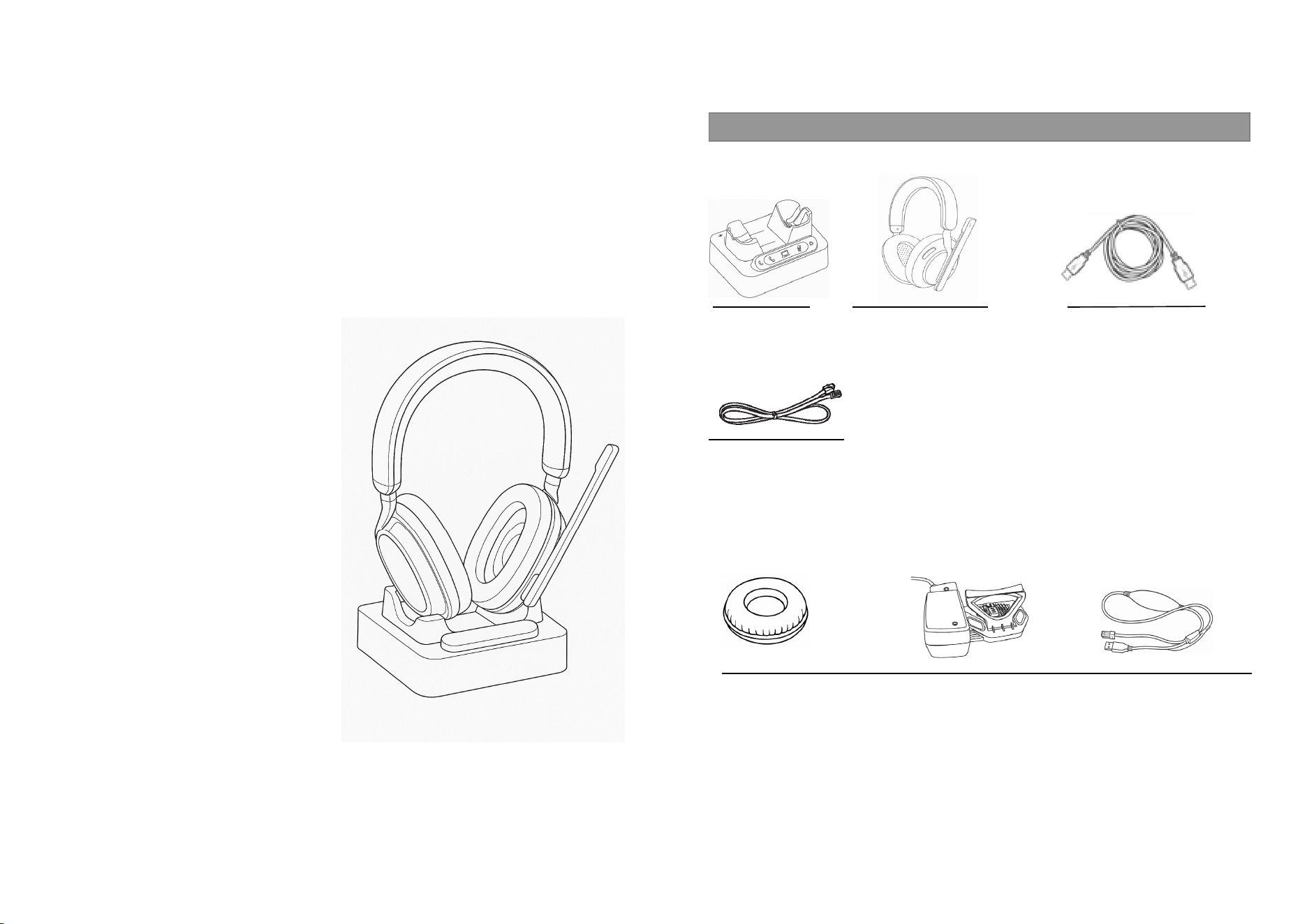
Base Station Headset USB-C Cord
Telephone Cord
Optional Accessories
Normal size DL-570 Lifter Electronic Hook
Ear Cushion Switch (EHS)
What’s included
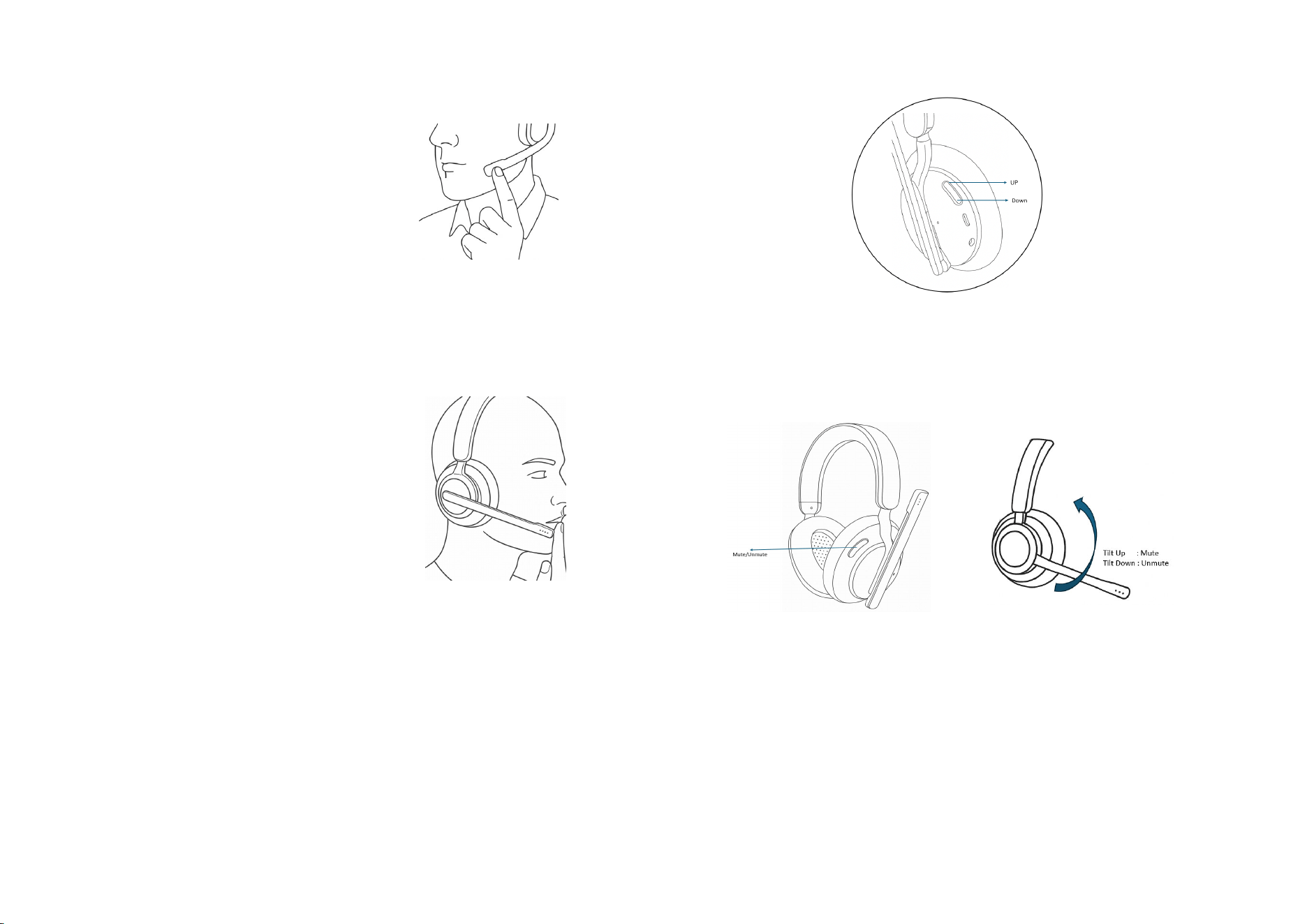
Positioning the Microphone
The headset’s microphone boom arm is flexible,
so you can gently bend the boom and position it
to suit the curve of your face.
The ideal placement for the microphone is usually
at the tip of your mouth, not in front of it,
and about an inch from your face.
Be sure that the side of the microphone is pointed
toward your mouth.
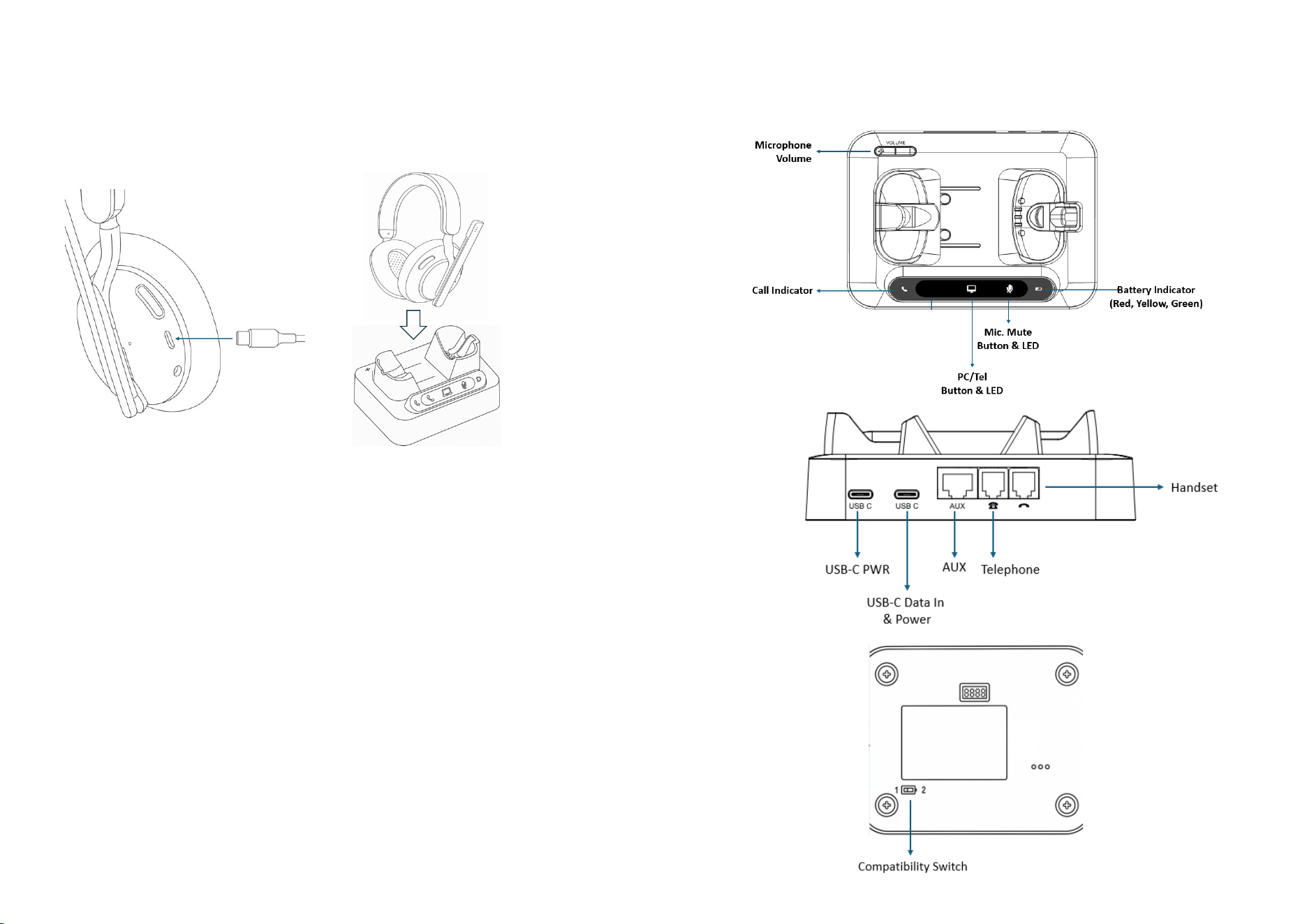
Adjusting earpiece speaker volume
To change the earpiece speaker volume: push the volume button up to ‘+’ icon for
increasing volume and push down to ‘ - ‘icon for decreasing volume.
Mute / Unmute microphone
There are two ways to mute and unmute. Push mute button or tilt up microphone boom
arm. When the mute is on, the Light indicator at the tip of boom arm turns to red color.
For unmute, the color will be changed to blue.
Charging headset
For charging headset, connect supplied USB-C cable to USB-C port of the headset
Or put the headset on the cradle of the base station. When the headset is on charging,
the battery level will be shown with different color LED.
Base Unit
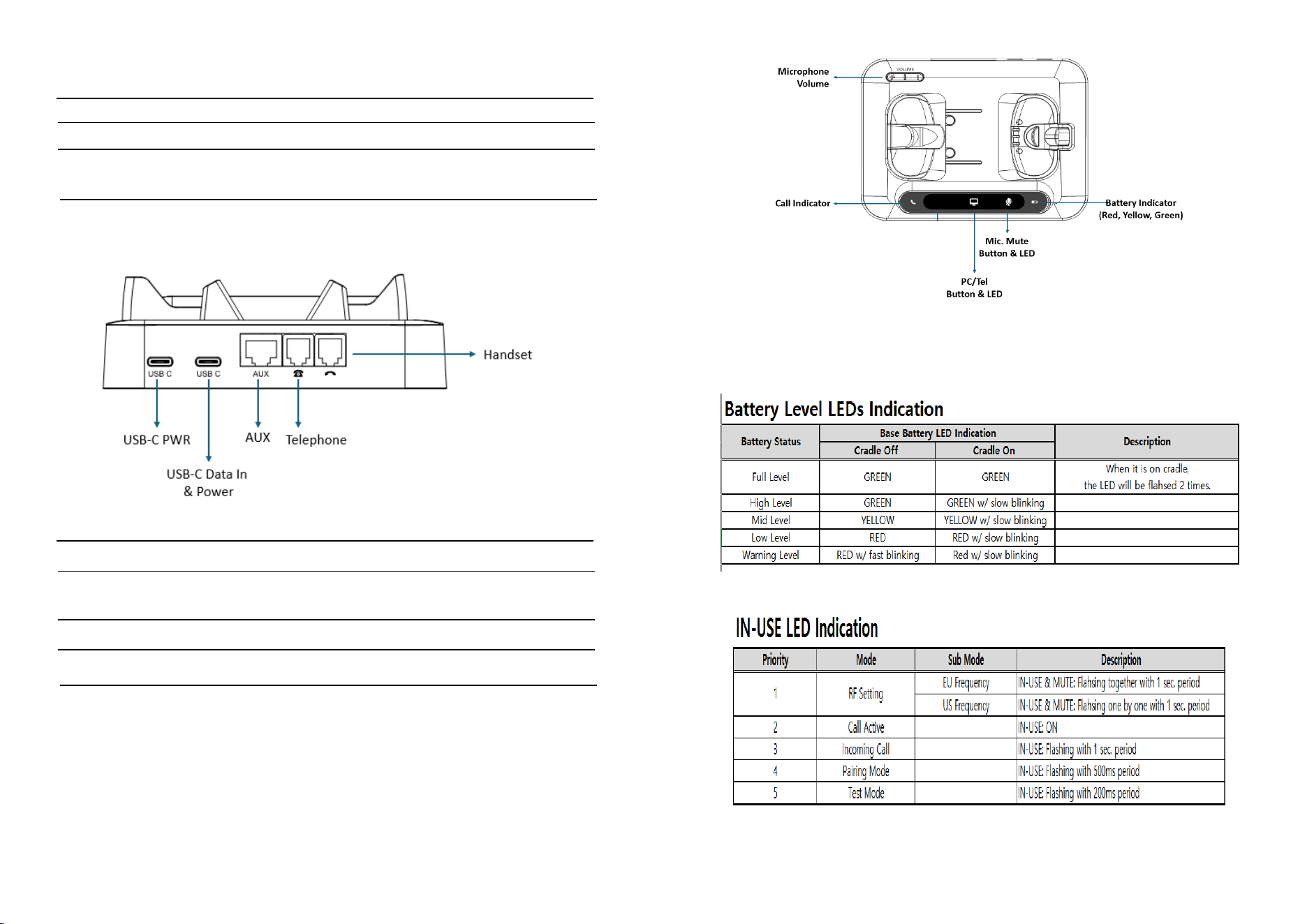
Bluetooth Button& LED This function works when the Bluetooth Option is added.
PC/TEL Button& LED This function works for the USB/Tel option model.
Mic. Mute Button& LED Touch to mute and unmute
Microphone Volume The Icon-200 headset has automatic audio configuration,
however, if required, you can adjust the volume level for
the microphone.
Compatibility Switch Select ‘1’ or’2’ until a dial tone is heard via the telephone
connection
USB-C Data in & Power Connect USB-C cable for Power and USB Data
AUX port Connection for Handset Lifter or EHS Adapter (optional)
Telephone Port Connect telephone cord to the headset port or handset port of
a telephone / base unit
Handset Port Plug Handset cord from the phone to Handset port
USB-C PWR For external USB-C power, it can be used.
Visual Indicator
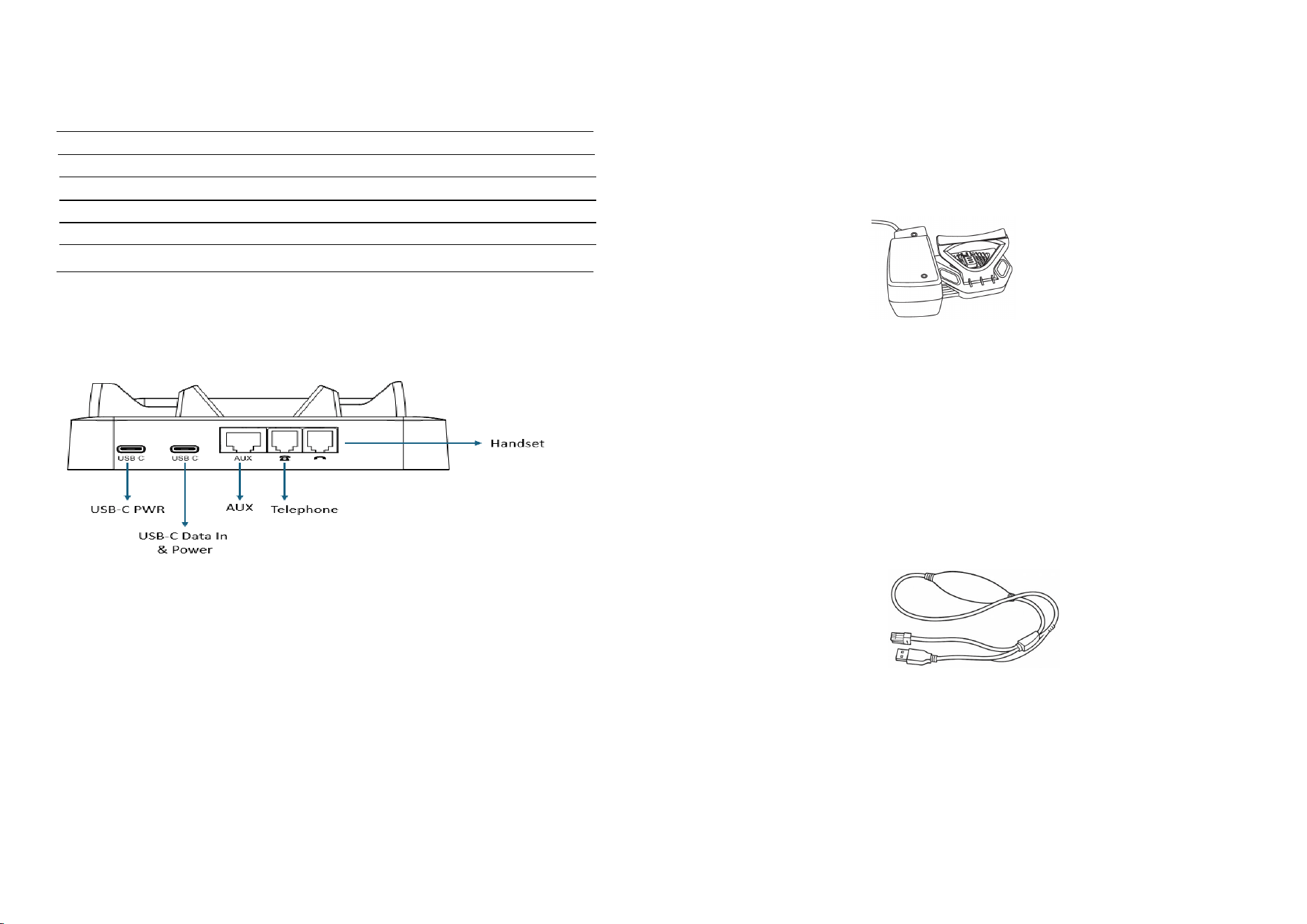
Audio Indicator
Event Sound Effect
Speaker /Microphone volume Beep
Max/Min Speaker volume Double beep
Max/Min microphone volume Double beep
Microphone mute/unmute
Mute reminder
Hook Off / On
Setting up the Base
Desk Phone with Headset Port
Plug the supplied telephone cord into the TEL port of the BASE Unit
Connect the telephone cord to the HEADSET port of the desk phone
Desk Phone without Headset Port
On the desk phone, unplug the handset cable from the phone
Plug the handset cable into the HANDSET port on the BASE
Plug the telephone cord into the TEL port on the BASE and plug the other end of the
telephone cord into the HANDSET port on the desk phone
Additional Accessories
DL-570 LIFTER
The DL-570 LIFTER remotely lifts the desk phone handset to make or answer a call.
Electronic Hook Switch (EHS) Adapter
EHS Adapter enables an incoming call to be answered or finishing call.
EHS is only compatible with certain telephone systems. In order to determine which
telephones are compatible with the EHS feature, please refer to EHS guide or
contact your local distributor. Please also refer to your telephone’s user manual for
clarification.

Operating Instructions
- Connect the USB-C cable to USB-C In port at base station. (See Note 1 below)
- Press the Hook On/Off button to make a call
- Select compatibility switch ‘1’ or ‘2’ position until you can hear the dial tone
- Adjust speaker and microphone volume for comfortable audio level.
- Press the Hook On/Off button to end a call
Note 1 : Pairing
Option 1.
- Place the headset on the cradle
- Plug USB-C cable to the base station (Pairing process is automatically proceeding):
Call indicator will be blinking.
Option 2.
- Touch the mute button for 3 seconds. And the call indicator will be blinking.
- Press the ‘mute button’ of the headset until LED of the headset is blinking.
- If pairing is completed, you can hear beep sound and LEDs of base and headset will
be off.
Trouble Shooting
1. Cannot hear a dial tone.
☞ Check the TEL/PC button. TEL Mote: PC/TEL indicator – ‘OFF’
☞ Please check the cable connection between Base station and Phone.
☞ Check that the USB-C cable is plugged in.
☞ Please check the compatibility switch. Adjust compatibility switch until you can
hear the dial tone.
2. Microphone volume (TX) is low / dead.
☞ Make sure that the microphone (TX) mute function is off.
☞ Check the position of the boom arm and make sure that the microphone is
placed as close as possible to your mouth (approx. 2 fingers distance).
☞ Adjust the microphone (TX) volume on the base station.
3. Buzzing sound on the headset
☞ Telephone may not be fully immune to the radio transmission between your
headset and base. To overcome this problem, move the base unit to at least 30
cm/12” away from the phone.
4. Headset echoes
☞ Adjust the telephone’s volume. If necessary, adjust your microphone volume on
the headset to a lower setting.
5. EHS doesn’t work with the telephone
☞ Make sure the telephone is compatible with the wireless headset. Refer to the
EHS guide.
6. Headset was working, but it has stopped.
☞ Headset may need pairing to the base again. Refer to the ‘Note 1’ on
‘Operating Instruction’
☞ Headset battery may be dead. Return the headset to the cradle on the base unit
for charging.

FCC Caution
This device complies with part 15 of the FCC Rules. Operation is subject to the following two conditions:
(1) This device may not cause harmful interference, and
(2) this device must accept any interference received, including interference that may cause undesired operation.
Any Changes or modifications not expressly approved by the party responsible for compliance could void the user's authority to operate the equipment.
Note: This equipment has been tested and found to comply with the limits for a Class B digital device, pursuant to part 15 of the FCC Rules. These limits are designed to provide
reasonable protection against harmful interference in a residential installation. This equipment generates uses and can radiate radio frequency energy and, if not installed and used in
accordance with the instructions, may cause harmful interference to radio communications. However, there is no guarantee that interference will not occur in a particular installation. If
this equipment does cause harmful interference to radio or television reception, which can be determined by turning the equipment off and on, the user is encouraged to try to correct
the interference by one or more of the following measures:
-Reorient or relocate the receiving antenna.
-Increase the separation between the equipment and receiver.
-Connect the equipment into an outlet on a circuit different from that to which the receiver is connected.
-Consult the dealer or an experienced radio/TV technician for help.
FCC Radiation Exposure Statement(Headset of DECT phone):
The device has been evaluated to meet general RF exposure requirement. The device can be used in portable exposure condition without restriction.
FCC Radiation Exposure Statement(Base Station of DECT phone):
This equipment complies with FCC radiation exposure limits set forth for an uncontrolled environment. This equipment should be installed and operated with minimum distance 20 cm
between the radiator & your body.