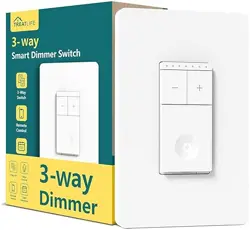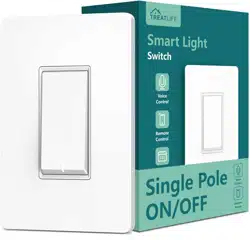
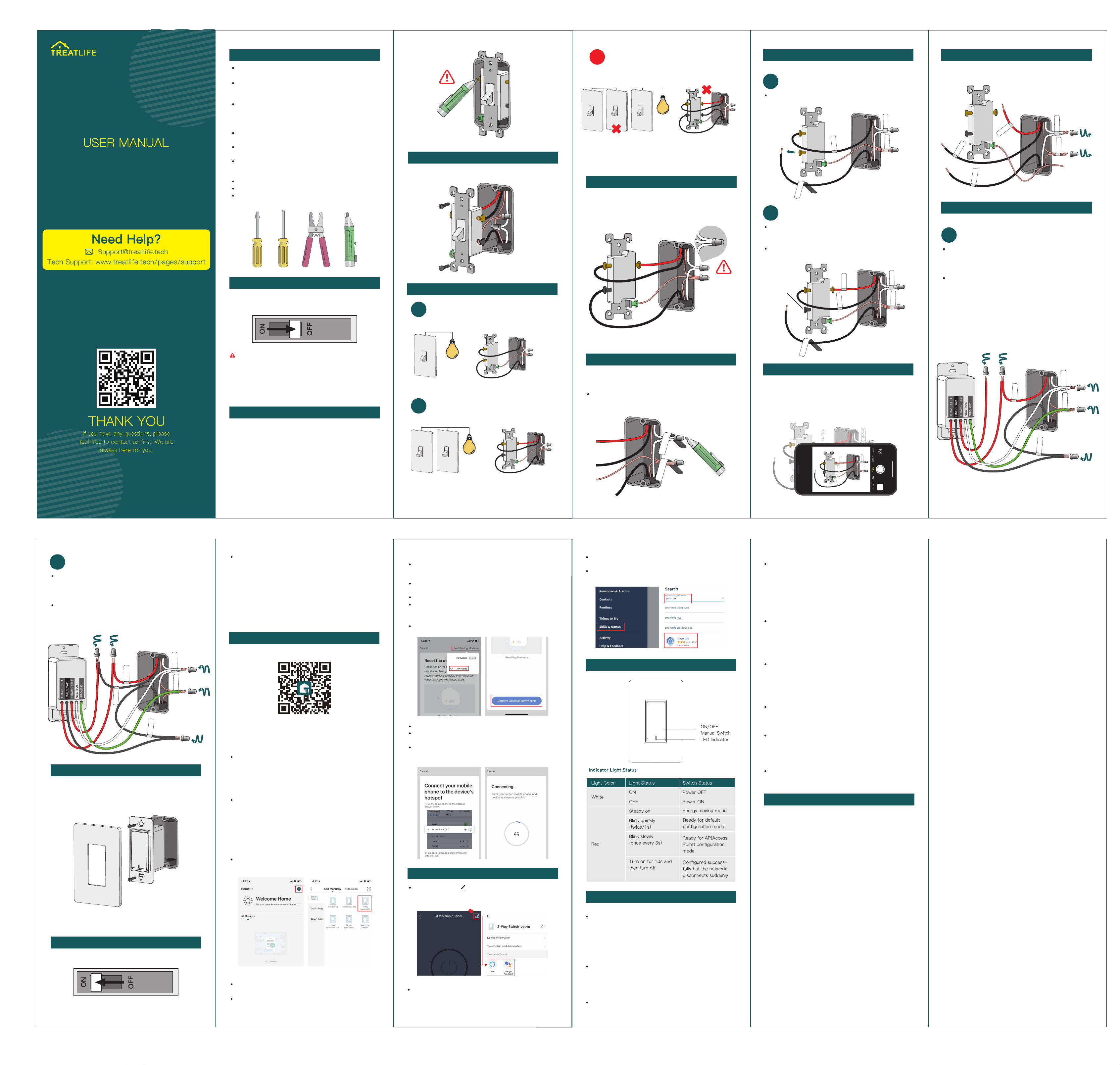
The Treatlife 3-way light switch can replace existing
3-way or single-pole light switches.
If you purchased a 3-way bundle, you only need to
install one of them per circuit. Feel free to install the
remaining 3-way switches in different locations.
Neutral wire is required to install the smart switch. If
your house was built or remodeled before mid-80's,
you may not have a neutral. Please try another location
or call an electrician for help.
Install your Treatlife where you have a strong Wi-Fi
signal.
Keep your mobile device close to the Treatlife
light switch until setup is complete.
The supported maximum wattage rating is: 1250W.
Screwdriver
Pliers
Electrical Tester
Press each light switch at the location you’re doing the
installation to confirm power is off.
If a light turns on, return the panel to turn off the correct
circuit. We recommend you to remove the faceplate from
the old switch and use electrical tester to test all wires
connected to the switch to ensure there is no voltage in
the circuit.
You may need to turn off more than one circuit breaker.
2
Verify Power Is Off
Label the NEUTRAL and GROUND wire in the wall
with the stickers in the package.
GROUND wires are usually BARE COPPER or GREEN.
ATTENTION
Locate your circuit breaker panel and turn off the power to
each switch you are replacing
Risk of shock.
Make sure the power to every switch you are replacing has
been turned off before installation.
Please call a professional electrician if you are not familiar
with electrical work.
Caution: Caution:
1
Turn Off Power
The Tools You'll Need
Note: Do not over tighten the screws, as it could restrict
the operation of the switch.
Note: Do not over tighten the screws, as it could restrict
the operation of the switch.
TROUBLESHOOTING
Can’t connect to the APP.
Please make sure the red indicator light is blinking when
you are attempting to connect to the APP.
Default Mode Paring: Red Indicator Blinking Fast;
AP mode Paring: Red Indicator Blinking Slow.
Please finish the pairing within 3 minutes of when the red
indicator starts blinking. (Refer to “Me-FAQ&Feedback"
in the APP)
If your router is 2.4Ghz & 5Ghz dual-band, the 2.4Ghz
band may not be turned on. Please enter the router
settings to turn on the 2.4Ghz band.
You can check the router's manual or contact the
router's official support for help.
Make sure you entered the correct WiFi password.
ADD DEVICES
1. Download the TreatLife APP
2. Registration or Log In
Tap “Register" to create an account. Enter your
phone number to get a verification code and create a
password. Or, choose “Log in" if you already have a
TreatLife account.
3. Configure the APP to the Switch
Note:
This switch only supports 2.4Ghz networks. If you
connected to a 5Ghz network before, please switch to the
2.4Ghz Network
Preparation: Ensure the switch is connected to power;
ensure your phone is connected to your WiFi router
and is able to connect to the internet.
Please scan the QR code or download the
TreatLife APP on the APP Store or Google Play.
3.1 Default Configuration Mode
Press and hold the manual switch for 5 seconds until the
red indicator light blinks rapidly.
Tap “Confirm indicator rapidly blink"; enter your WiFi
Enter your Wi-Fi Password.
Open WLAN settings; the Wi-Fi settings on your phone
and connect to the “SmartLife-xxx" network.
Go back to the APP and continue to add the device
then wait for the connection to complete.
Go to TreatLife > >More for instructions to link
Alexa/Google Assistant.
Note: Please log in with your TreatLife account.
Tap the icon “+" on the top right corner to Select Device
Type; tap “All" and choose “3-Way Switch(WiFi)".
Unscrew the old switch and pull it out of the wall. Do not
remove any wires.
3
Pull Out Old Switch
Take one or two pictures of the old switch and where each
wire is connected to it, in case you need guidance to repeat
the installation.
Note: Make sure all of the text on the labels in the
pictures is clearly displayed.
8
Take Pictures of the Wiring
Traveler
Neutral
Ground
Traveler
Line/Load
Traveler
Neutral
Ground
Traveler
Line/Load
6
Test NEUTRAL and GROUND Wires
Make sure there is no power on the neutral wires from a
neighboring circuit. If necessary, shut off additional circuits
until no voltage is found.
Neutral
Ground
7
Identify Line/Load Wire
Note: The wires may be different colors than shown.Note: The wires may be different colors than shown.
Neutral
Ground
Line/Load
Line/Load
Single Pole Only
A
Label the remaining two wires in the wall with the two
“Line/Load" stickers in the package.
Loosen the screw terminals and remove the old switch.
9
Remove Existing Switch
Connect NEUTRAL/GROUND Wires
Use wire nuts to connect the neutral and ground wires on
the Treatlife Light Switch to the labeled wires coming
from the wall in order.
Connect LINE/LOAD Wires
Use a wire nut to connect the LINE/LOAD wire from
Treatlife Light Switch to one of the labeled “Line/Load"
wires coming from the wall.
Use a wire nut to connect one of the TRAVELER wires
from Treatlife Light Switch to the LINE/LOAD wire
coming from the wall.
Cap off the remaining TRAVELER wire from the Switch
with a wire nut.
10
Wire the Smart Switch
Remove the sticker securing the wires on the new switch.
Single Pole Only
A
Label the LINE/LOAD wire (usually BLACK, attached
with a black screw, and may be labeled “common".) in
the wall with the “Line/Load” sticker.
Label the remaining two wires with the “Traveler"
stickers in the package.
Line/Load
Traveler
Neutral
Ground
Traveler
Black screw
3-Way Only
B
11
Install Light Switch Into the Wall
Hold the wire nuts and gently pull each wire to make sure
the wire nuts are secure. Carefully push the wires deep into
the switch box. Attach the Light Switch to the switch box
with the screws provided. Finally, snap on the faceplate.
Neutral
Ground
Line/Load
Traveler
Traveler
Neutral
Ground
Line
Load
5
Find the NEUTRAL Wires
A neutral is required to install the smart light switch.
Make sure there are NEUTRAL wires (most likely a bundle
of one or more white wires ) in the wall. Unless you are
replacing an existing smart switch, it’s probably not
connected to your old switch.
Note: If there is no neutral, please try another location or
call an electrician for help.
Note: If there is no neutral, please try another location or
call an electrician for help.
Two switches control the same light or the
same bundle of lights.
3-Way 3-Way
Single-pole -Green ground screw terminal x1
-Screw terminals x2
-Green ground screw terminal x1
-Screw terminals x3
4
Identify the Old Switch
Single-pole Switch
A
3-way Switch
B
Only one switch controls one light or a bundle of
lights.
If three switches control the same light or the
same bundle of lights, one of the switches is a 4-
way switch. The other two are 3-way switches.
4-Way Switch
3-Way 4-Way 3-Way -Green ground screw terminal x1
-Screw terminals x4
Screw the 4-way switch back to the wall, and unscrew
one of the other two 3-way switches on the circuit that
controls the same light.
C
Link TreatLife to Alexa/Google Assistant
Key Steps to Link the Alexa Skill
Sign in With Amazon, tap on “Skills & Games” in the Alexa
menu;
Circuit breaker panel
12
Turn on Power
Turn power back on at the circuit breaker.
RSS (Category I Equipment):
This device complies with Innovation, Science, and
Economic Deve�lopment Canada's licence-exempt RSS
standard(s). Operation is subject to the following two
conditions:
(1) this device may not cause interference, and
(2) this device must accept any interference, including
interference that may cause undesired operation of the
device.
Le présent appareil est conforme aux CNR d’ Innovation,
Sciences et Ddveloppement économique Canada
applicables aux appareils radio exempts de licence.
L’exploitation est autorisée aux deux conditions
suivantes :
(1) I’appareil nedoit pas produire de brouillage, et
(2) I’utilisateur de I’appareil doit accepter tout brouillage
radioélectri- que subi, même si le brouillage est suscepti-
ble d'en compromettre le fonctionnement.
The device is compliance with RF exposure guidelines,
users can obtain Canadian information on RF exposure
and compliance.The minimum distance from body to use
the device is 20cm.
Le présent appareil est conforme
Après examen de ce matériel aux conformit6 ou aux
limites d’inten- sité de champ RF,
les utilisateurs peuvent sur I’exposition aux radiof-
réquences et la conformité and compliance d'acquérir
les informations correspondantes. La distance minimale
du corps à utiliser le dispositif est de 20cm.
-Reorient or relocate the receiving antenna.
-Increase the separation between the equipment and
receiver. -Connect the equipment into an outlet on a
circuit different from that to which the receiver is
connected.
-Consult the dealer or an experienced radio/TV techni-
cian for help.
FCC Caution:
This device complies with part 15 of the FCC Rules.
Operation is subject to the following two conditions: (1)
This device may not cause harmful interference, and (2)
this device must accept any interference received,
including interference that may cause undesired opera-
tion.
Any Changes or modifications not expressly approved by
the party responsible for compliance could void the user's
authority to operate the equipment.
Note: This equipment has been tested and found to
comply with the limits for a Class B digital device,
pursuant to part 15 of the FCC Rules. These limits are
designed to provide reasonable protection against harmful
interference in a residential installation. This equipment
generates uses and can radiate radio frequency energy
and, if not installed and used in accordance with the
instructions, may cause harmful interference to radio
communications. However, there is no guarantee that
interference will not occur in a particular installation. If
this equipment does cause harmful interference to radio
or television reception, which can be determined by
turning the equipment off and on, the user is encouraged
to try to correct the interference by one or more of the
following measures:
Traveler
Neutral
Ground
Traveler
Line/Load
Press the on/off button to confirm whether the switch is
powered on/off normally. If the light fixture can not be
turned off/on, or sometimes the light switch can not be
turned on or off, the wiring maybe incorrect or the nuts are
loose. Please refer to the instructions in the manual or call
an electrician for help.
If you encounter any problems, please contact us via
email: [email protected]
(Please be sure to attach the wiring pictures of the
old switch in step 8 )
Password; wait for the switch to complete.
Repeat steps to add any additional smart switches.
3.2 AP Mode
If you cannot configure the switch successfully with the
default mode, please try to connect with AP Mode.
Tap “AP Mode" on the top right corner.
Press and hold the manual switch for 5 seconds, until the
red indicator light blinks rapidly. Then press and hold for
5 seconds again until the indicator light blinks slowly.
Tap “Confirm indicator slowly blink”.
Search for the “Smart Life”, and tap “Enable” to enable
the Skill.
Enter the “TreatLife” APP Account and Password, then tap
“Link Now” to enable the Skill.
The smart switch shows the wrong status in the APP.
The network may be delayed or the network signal is
weak.
Try to move the router closer to the switch or power off
the router and then power it on. If still doesn’t work, try
to replace the light bulb with a different model or brand
bulb.
Can’t connect to Alexa.
Check whether the Alexa APP is correctly comfigured
with the account of TreatLife APP. Refer to the manual
instruction or “Me--FAQ&Feedback--All-Third-party
control issues" in APP to reconnect to Alexa.
The Timing function doesn’t work properly.
Remove the switch from APP, and repair the switch to
APP again; you can also check Me-> FAQ & Feedback
information in the APP.
After turning off the light, the light bulb flickers or is
not completely turned off.
Replace the light bulb with a different make/model.
After using the switch for a period of time, manual
operation doesn’t work properly.
Turn off the circuit breaker or power off the switch for a
few minutes, then turn the power back on.
One of several Treatlife light switches doesn’t work
properly.
Replace this switch with one of the known good ones to
ensure everything is wired properly. If it still doesn't
work, contact our support.
Connect NEUTRAL, GROUND, LINE/LOAD Wires
Use wire nuts to connect these different wires from
Treatlife Light Switch to the labeled wires coming from
the wall.
Connect TRAVELER Wires
Use wire nuts to connect the RED wires from the Switch
to the TRAVELER wires coming from the wall.
3-Way Only
B
PRODUCT APPEARANCE
SS01