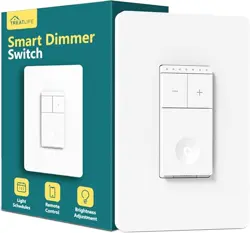

Struggling with Your Smart Dimmer Switch? Here's What to Do.
Having trouble connecting your dimmer switch to the app?
Follow these steps to troubleshoot the connection issue:
1. Ensure that your switch is connected to a 2.4GHz Wi-Fi network. Choose the 2.4GHz network,
even if it has a different name from the 5GHz network. Refer to your router's manual or contact the
manufacturer if you're uncertain. Avoid connecting to public Wi-Fi networks.
2. Use Wi-Fi details without special symbols ('=&<>"" {}).
3. Double-check the accuracy and remove any trailing spaces.
4. Keep the switch near your router the setup process.
Inability to Adjust Brightness via Alexa/Google Home - Limited to On/Off Functionality?
If you're having difficulty adjusting the brightness through Alexa or Google Home, it might be related
to a voice command issue. To address this, please consider the following steps:
1. Clarify Device Naming: Attempt to modify the name or type of the device. For example, change
from "plug" or "switch" to "light."
2. Refine Voice Commands: Experiment with using the voice commands commonly recommended by
the voice system.
If the aforementioned steps fail to resolve the issue:
1. Check Manual Brightness Adjustment: Verify if manual brightness adjustment is working. If it isn't,
there might be an underlying problem with the connected light. Consider replacing the existing light
with a dimmable alternative.
2. Troubleshoot TREATLIFE App: If manual adjustment functions as intended but encounters issues
within the TREATLIFE App, consider removing the device and then re-establishing its connection.
Dealing with Light Flickering and Switch Interference in Other Rooms.
Handle flickering and interference like a pro:
1. Bulb Compatibility Issue: Try using 1-2 dimmable light bulbs from different brands to resolve the
problem.
2. Alternate Dimming Mode: Experiment with the alternative dimming mode provided in the App.
3. Identify Interference: Detect potential sources of interference, such as dimmers or conflicting
devices. Try adjusting the placement of bulbs and switches.
Struggling to Reconnect After Disconnection?
Overcome re-connection issues by following these steps:
TREATLIFE
TREATLIFE
TREATLIFE
TREATLIFE
TREATLIFE
TREATLIFE
TREATLIFE
TREATLIFE
TREATLIFE
TREATLIFE
TREATLIFE
TREATLIFE
TREATLIFE
TREATLIFE
TREATLIFE
TREATLIFE
TREATLIFE
TREATLIFE
TREATLIFE
TREATLIFE
TREATLIFE
TREATLIFE
TREATLIFE
TREATLIFE
TREATLIFE
TREATLIFE
TREATLIFE
TREATLIFE
TREATLIFE
TREATLIFE
TREATLIFE
TREATLIFE
TREATLIFE
TREATLIFE
TREATLIFE
TREATLIFE
TREATLIFE
TREATLIFE
TREATLIFE
TREATLIFE
TREATLIFE
TREATLIFE
TREATLIFE
TREATLIFE
TREATLIFE
TREATLIFE
TREATLIFE
TREATLIFE
TREATLIFE
TREATLIFE
TREATLIFE
TREATLIFE
TREATLIFE
TREATLIFE
TREATLIFE
TREATLIFE
TREATLIFE
TREATLIFE
TREATLIFE
TREATLIFE
TREATLIFE
TREATLIFE
TREATLIFE
TREATLIFE
TREATLIFE
TREATLIFE
TREATLIFE
TREATLIFE
TREATLIFE
TREATLIFE
TREATLIFE
TREATLIFE
TREATLIFE
TREATLIFE
TREATLIFE
TREATLIFE
TREATLIFE
TREATLIFE
TREATLIFE
TREATLIFE
TREATLIFE
TREATLIFE
TREATLIFE
TREATLIFE
TREATLIFE
TREATLIFE
TREATLIFE
TREATLIFE
TREATLIFE
TREATLIFE
TREATLIFE
TREATLIFE
TREATLIFE
TREATLIFE
TREATLIFE
TREATLIFE
TREATLIFE
TREATLIFE
TREATLIFE
TREATLIFE
TREATLIFE
TREATLIFE
TREATLIFE
TREATLIFE
TREATLIFE OFFICIAL

1. Reboot Your Router
2. Attempt Mobile Hotspot Reconnection: If problems persist, reconnect using a mobile hotspot. This
step aids in diagnosing and achieving successful restoration.
Problems with Sunrise/Sunset, Automation, and Timer Functions.
Troubleshoot these issues with the following steps:
1. Incorrect Execution Times:
- Verify phone's time zone settings for accuracy.
- Delete the device and reconnect if past schedules remain active.
- Share the virtual ID with the support team if issues persist.
2. Unwanted Execution despite Deactivation:
-Uninstall the device, erase its data, and reconnect for resolution.
-Visual aids are available upon request.
3. Non-execution of Scheduled Functions:
- Confirm network stability.
- Check Effective Period Setting, ensure it's set to "All Day" for broader scope.
- Attempt device deletion and reconnection.
- Share the virtual ID with the support team if the problem persists.
TREATLIFE
TREATLIFE
TREATLIFE
TREATLIFE
TREATLIFE
TREATLIFE
TREATLIFE
TREATLIFE
TREATLIFE
TREATLIFE
TREATLIFE
TREATLIFE
TREATLIFE
TREATLIFE
TREATLIFE
TREATLIFE
TREATLIFE
TREATLIFE
TREATLIFE
TREATLIFE
TREATLIFE
TREATLIFE
TREATLIFE
TREATLIFE
TREATLIFE
TREATLIFE
TREATLIFE
TREATLIFE
TREATLIFE
TREATLIFE
TREATLIFE
TREATLIFE
TREATLIFE
TREATLIFE
TREATLIFE
TREATLIFE
TREATLIFE
TREATLIFE
TREATLIFE
TREATLIFE
TREATLIFE
TREATLIFE
TREATLIFE
TREATLIFE
TREATLIFE
TREATLIFE
TREATLIFE
TREATLIFE
TREATLIFE
TREATLIFE
TREATLIFE
TREATLIFE
TREATLIFE
TREATLIFE
TREATLIFE
TREATLIFE
TREATLIFE
TREATLIFE
TREATLIFE
TREATLIFE
TREATLIFE
TREATLIFE
TREATLIFE
TREATLIFE
TREATLIFE
TREATLIFE
TREATLIFE
TREATLIFE
TREATLIFE
TREATLIFE
TREATLIFE
TREATLIFE
TREATLIFE
TREATLIFE
TREATLIFE
TREATLIFE
TREATLIFE
TREATLIFE
TREATLIFE
TREATLIFE
TREATLIFE
TREATLIFE
TREATLIFE
TREATLIFE
TREATLIFE
TREATLIFE
TREATLIFE
TREATLIFE
TREATLIFE
TREATLIFE
TREATLIFE
TREATLIFE
TREATLIFE
TREATLIFE
TREATLIFE
TREATLIFE
TREATLIFE
TREATLIFE
TREATLIFE
TREATLIFE
TREATLIFE
TREATLIFE
TREATLIFE
TREATLIFE
TREATLIFE OFFICIAL
Don't allow dimmer switch issues to dampen your enthusiasm. Follow these steps to ensure a smooth
smart home experience. If the problem continues, feel free to contact our support team at
Support@treatlife.tech. We're dedicated to providing you with thorough assistance.