[EN/nelna pencil] User Guide
Nelna Pencil — crafted for refined design and detailed note-taking.
To help you use it more comfortably, hereʼs a quick user guide.
💚
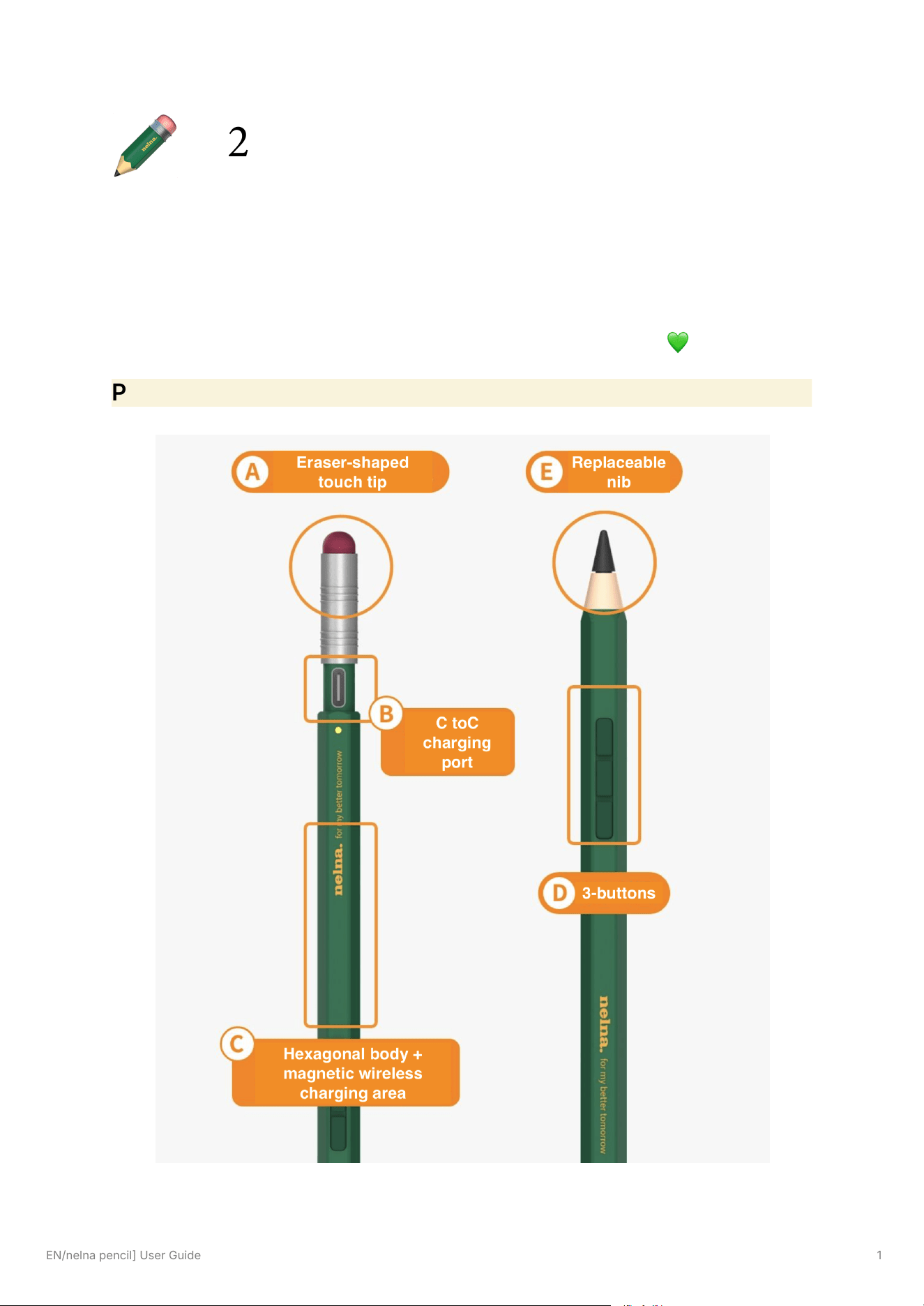
Product Overview
EN/nelna pencil] User Guide
1
2BUL4-NA-P01
FCC Information
FCC ID 2BUL4NAP01
This device complies with Part 15 of the FCC Results. Operation is subject
to the following two conditions:
1 This Device may not cause harmful interface, and
2 This Device must accept any interference received, including
interference that may cause undesired operation.
❗
Note This equipment has been tested and found to comply with the
limits for CLASS B digital
device, pursuant to Part 15 FCC Rules. These limits are designed to provide
reasonable protection against harmful interference when the equipment is
operated in a commercial environment. This equipment generates, uses
and can radiate radio frequency energy and, if not installed and used in
accordance with the instructions, may cause harmful interference to radio
communications.
However, there is no guarantee that interference will not occur in a
particular installation.
If this equipment does cause harmful interference to radio or television
reception, which can be
determined by turning the equipment off and on, the user is encouraged to
try correct the interference by one or more of the following measures ;
1.1. Reorient or relocate the receiving antenna.
1.2. Increase the separation between the equipment and receiver.
1.3. Connect the equipment into an outlet on a circuit different from that to
which receiver is connected.
1.4. Consult the dealer or experienced radio/TV technician for help.
WARNING
Changes or modifications not expressly approved by the manufacturer
could void the userʼs authority to operate the equipment.
How to Use
EN/nelna pencil] User Guide
2
✏
Before first use, please fully charge your Nelna Pencil.
❗
In this guide, click the ▶ arrow to expand and see more details.
👈
Click the arrow next to it.
It will expand like this, and youʼll be able to see the details!
😘
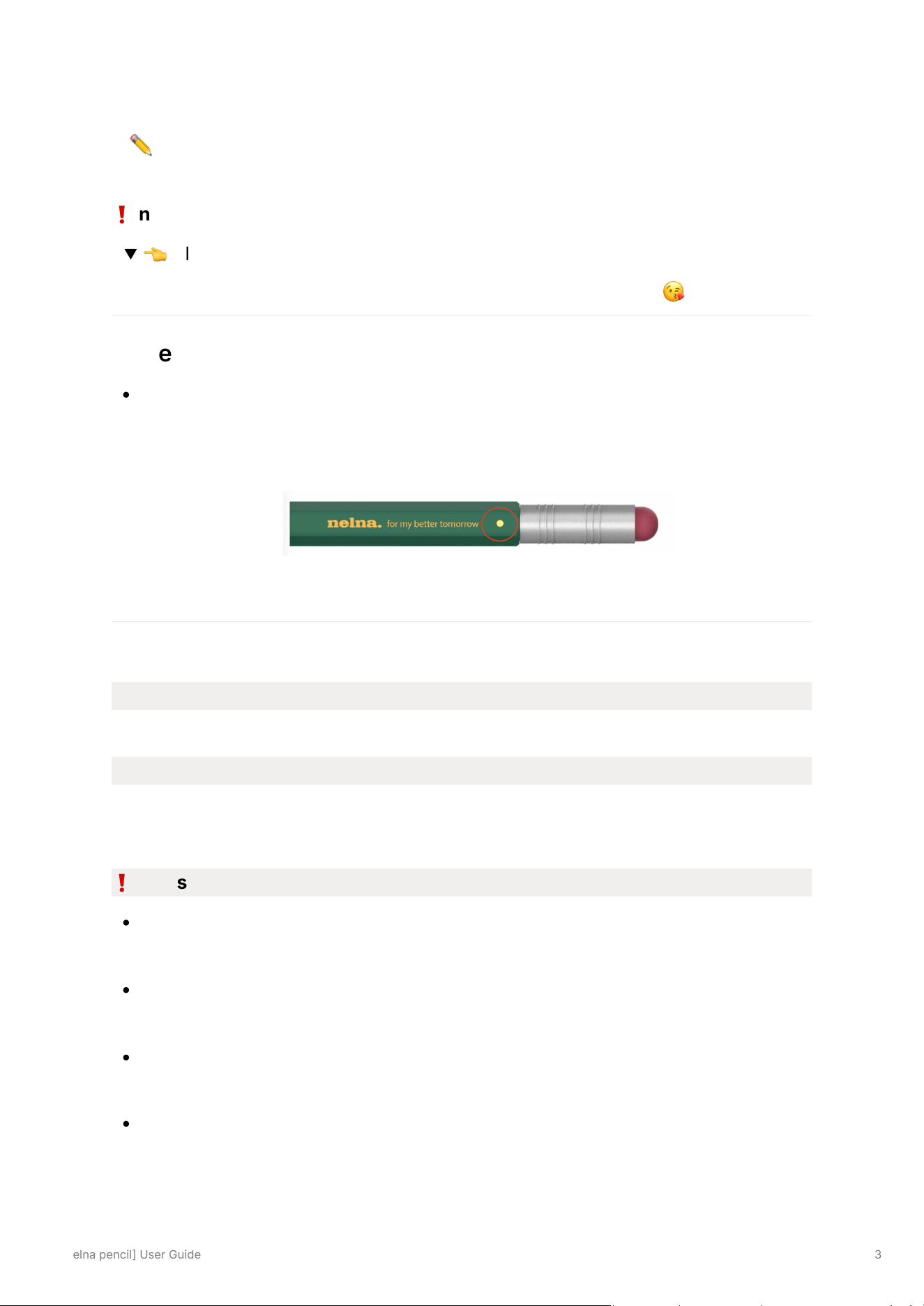
Power On / Power Off
Press and hold the middle (②) button among the three buttons. When the
light at the tip turns on, the Pencil is ON. Press and hold it again to turn it
OFF.
Pairing
If there is no stylus currently connected to your iPad (first-time pairing)
Settings Bluetooth Select nelna pencil Pairing complete
If another stylus is already connected to your iPad
Settings Bluetooth Tap Apple Pencil → Forget This Device →
Turn ON the Nelna Pencil Select nelna pencil Pairing complete
❗
Notes
If another stylus is paired, the Nelna Pencil may not pair. Please unpair the
existing stylus first. Only one stylus can be paired per device.)
Even if pairing is not completed, the Pencil may still work for
drawing/writing.
If you used the Nelna Pencil on Device A and want to pair it with Device B,
remove (forget) the Nelna Pencil from Device A first.
If pairing fails, make sure your iPad is running iOS 12.2 or later.
EN/nelna pencil] User Guide
3
If you experience disconnects or lag, update iOS and your note-taking app
to the latest version.
This product is for iPad only and is not compatible with other tablets (e.g.,
Galaxy Tab, Xiaomi Pad, etc.).
Charging
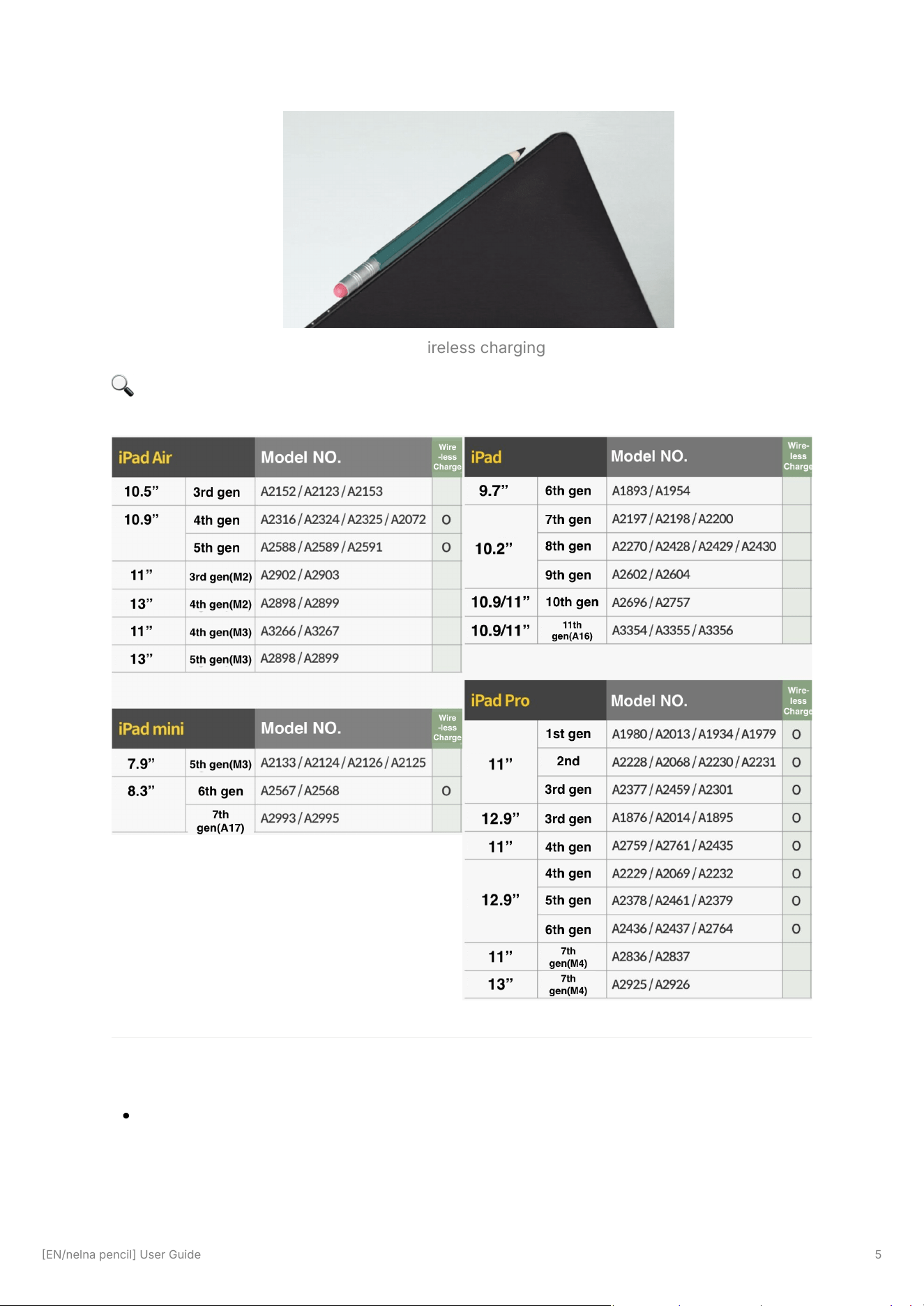
Nelna Pencil supports both wired and wireless charging.
However, wireless charging is only available on certain models, so please
make sure to check whether your model supports it.
Indicator light
Low battery The light flashes quickly.
Charging The light flashes slowly.
Fully charged The light stays ON for 30 seconds, then turns OFF.
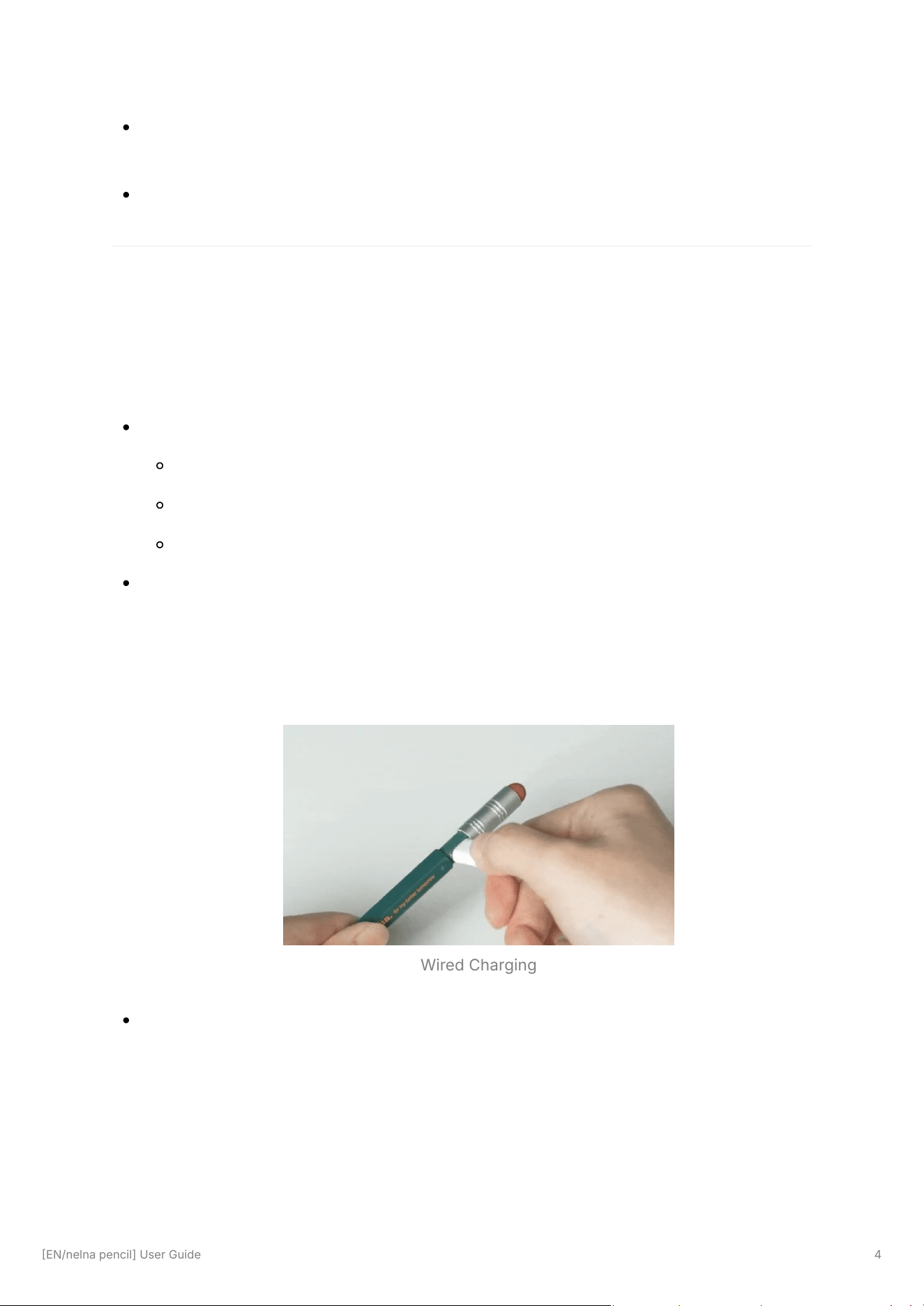
Wired charging
Gently pull up the ferrule part of the Nelna Pencil to reveal the USBC
charging port.
Connect the charging cable to charge the Pencil.
Wireless charging
Place the Pencil with the nelna logo facing up, then attach it to the
magnetic charging area.
Wired Charging
EN/nelna pencil] User Guide
4
🔍
Wireless Charging Compatible Models
Button Functions
Weʼve built in key features optimized for note-taking apps like GoodNotes
and Flexcil. The buttons work like keyboard shortcuts—they simply trigger
shortcut commands for you.
Wireless charging
EN/nelna pencil] User Guide
5
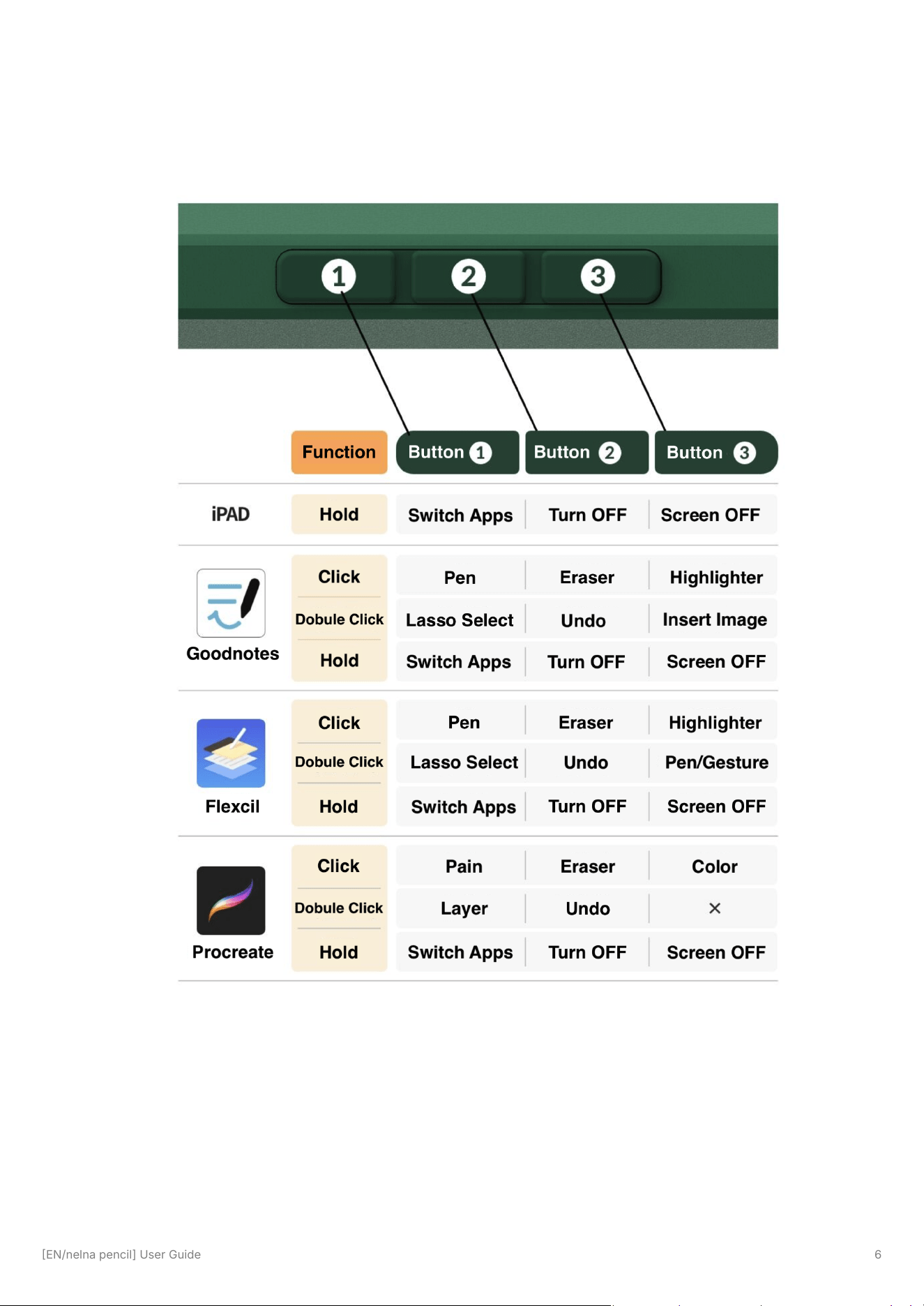
Because button behavior can vary by app, please check which button
functions are available in the app you use.
EN/nelna pencil] User Guide
6
📝
Other Apps
Compatible Apps: Noteful, Clip Studio Paint
1 Noteful
Middle button — single click: Select Eraser tool
Top button — single click: Select Hand tool (move/pan the screen)
Middle button — double click: Undo
2 Clip Studio Paint
Bottom button — single click: Select Pen tool
Middle button — single click: Select Eraser tool
Top button — single click: Select Color Switch Previous color
Transparent/eraser color)
Bottom button — double click: Select Pen tool
Middle button — double click: Undo
Top button — double click: Open the Reference Point Selection
window
Partially Compatible Apps: Notability, Margin Note, Noteshelf, iPhone
Notes, Nebo
In these apps, double-clicking the middle button only supports
undoing one stroke at a time.
Margin Note exception: Undo works by unit, not always by a single
stroke.
Example: If you write 1, 2, 3 separately and press Undo, it cancels
one number at a time.
If you write 123 continuously and press Undo, “123ˮ may be
recognized as one unit and deleted all at once.
Not Compatible: Note Plus, CollaNote, Free Notes
Show the On-Screen Keyboard
EN/nelna pencil] User Guide
7
Because Nelna Pencilʼs physical button shortcuts work on the same principle
as a Bluetooth keyboard, your iPad may recognize the Pencil as a keyboard—
so the on-screen keyboard may automatically disappear while youʼre using it.
When you need the keyboard in a text field, please use one of the methods
below:
Video 100 Use the Nelna Pencil to write by hand (handwriting input).
Video 1100 Enable the keyboard pop-up to bring back the on-screen
keyboard.
attachment:ea6ddba4-ab1945e2-b45d-c6a1efb08b9c:
낼나
펜
슬
_
키
보
드
.m
p4
Replacing the Nib
Nelna Pencil comes with a pre-installed nib (core tip), so you can use it
right away.
If the nib wears down, replace it with one of the spare nibs included in the
package. Compatible with all Nelna nibs.)
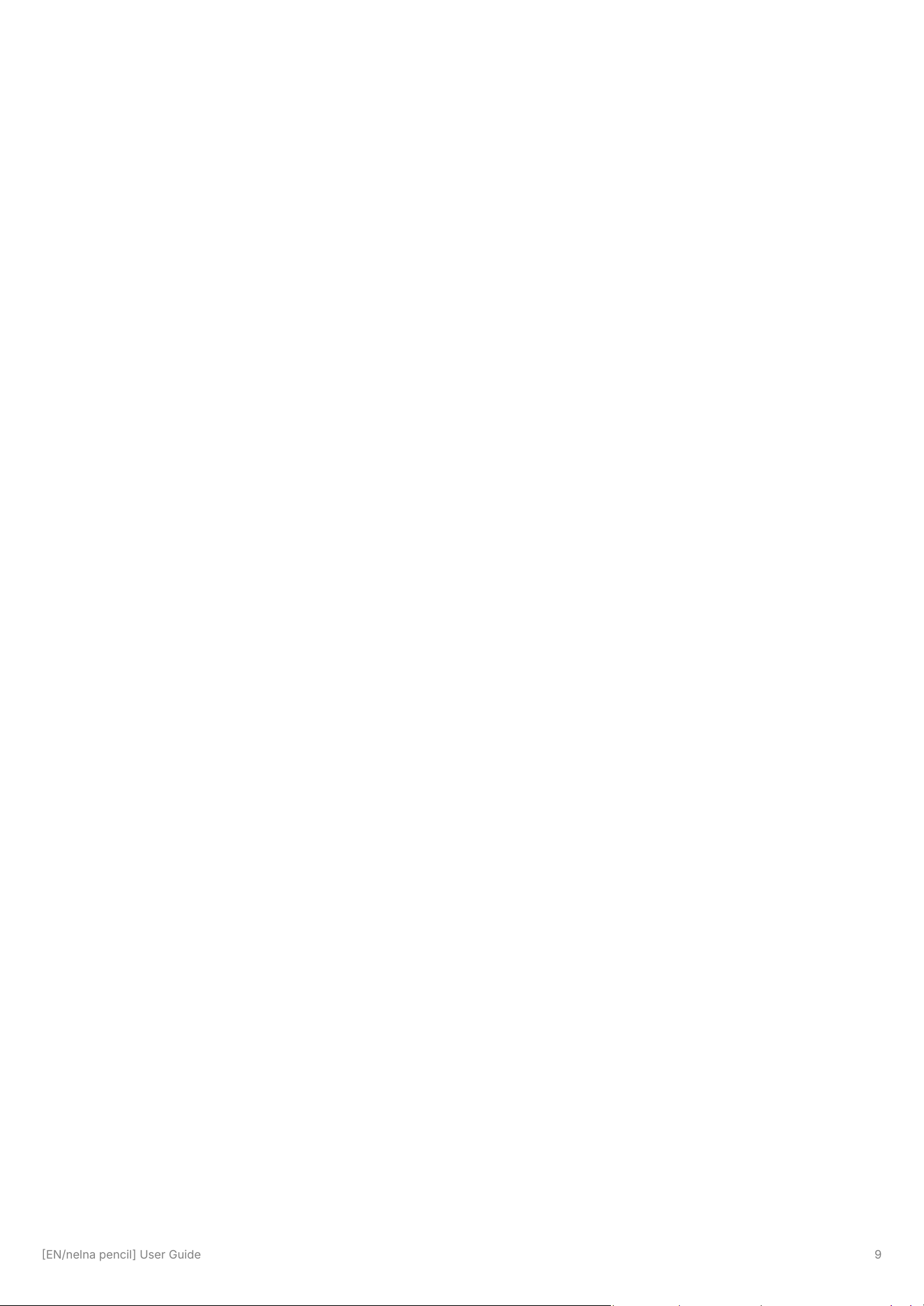
To replace the nib, twist to remove the old nib, then twist to install the new
one.
A small gap after installation is normal.)
How to remove the nib
How to install the nib
EN/nelna pencil] User Guide
8
FAQ
Q. Can I customize each button? A. The buttons on the Nelna Pencil act
as shortcuts that trigger preset
functions. Unfortunately, you canʼt turn
off all button functions system-wide,
nor can you assign different functions
to each button individually.
Since button behavior can vary
depending on the app you use (e.g.,
GoodNotes, Flexcil), please check the
app compatibility details listed on the
product page.
Q. Does it support pressure sensitivity
or hover?
A. Unfortunately, pressure sensitivity
and hover are Apple-exclusive
technologies, so they are not
supported on the Nelna Pencil.
Nelna Pencil focuses on essential
writing features—delivering a pencil-
like feel and an intuitive, comfortable
writing experience.
Q. Can I pair it with multiple devices
and use them at the same time?
A. The Nelna Pencil can be paired with
only one device at a time, so
simultaneous pairing and use across
multiple devices is not supported.
Even without pairing, your iPad may still
recognize the Pencil for
writing/drawing. However, button
functions wonʼt work unless itʼs
paired.
Q. What is the eraser for? A. The eraser on the Nelna Pencil is for
touch input only. It does not function
as an actual eraser in apps.
EN/nelna pencil] User Guide
9
📌
Precautions
Usage & Environment
Do not press or bend the Pencil with excessive force. This may deform the
nib or damage internal sensors.
Do not drop the Pencil or expose it to strong impacts. This may cause
malfunction.
Clean with a soft, dry cloth. Using alcohol wipes may cause the
coating/paint to peel off.
Do not disassemble or modify the Pencil. This may damage internal
components.
Do not use or store the Pencil in places with high humidity or dust, or in
extremely low/high temperatures.
Battery & Charging
Please charge the Pencil before the battery is completely depleted.
Do not use old or defective chargers.
Nib Care
All nibs are consumable parts and should be replaced when worn out.
When replacing the nib, do not use excessive force and follow the
recommended replacement method.
Warranty Period & After-Sales Service (A/S)
Warranty period: Up to 1 year from the delivery completion date
Due to its structural design, this product is a non-disassemblable, all-in-
one unit and cannot be repaired part by part.
If an issue occurs during use, A/S will be provided through full product
replacement rather than repair.
However, damage caused by customer fault or misuse may be subject to a
paid service or may not be eligible for replacement.)
EN/nelna pencil] User Guide
10
If you have any questions about using the product or need assistance, please
feel free to contact the Nelna Shop Customer Support Center anytime.
We know you put a lot of thought into your purchase, and weʼll be happy to help
—wholeheartedly—so you can use it with confidence!
EN/nelna pencil] User Guide
11