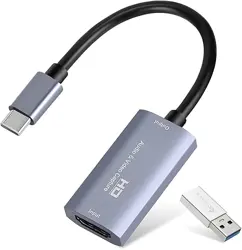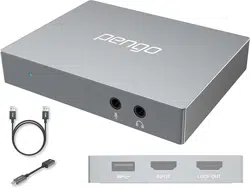
OBS Setting Guideline to fit Sanyipace Capture Card
----Settings about Audio----
1. The Audio Settings on Signal Source Output PC Side(for Window System)
-Win7: Go to the “control panel”→ Choose “Hardware and Sound”→Choose “Sound”→on the “Playback” Selection Window choose
“Monitor Audio” (as my below screenshot)
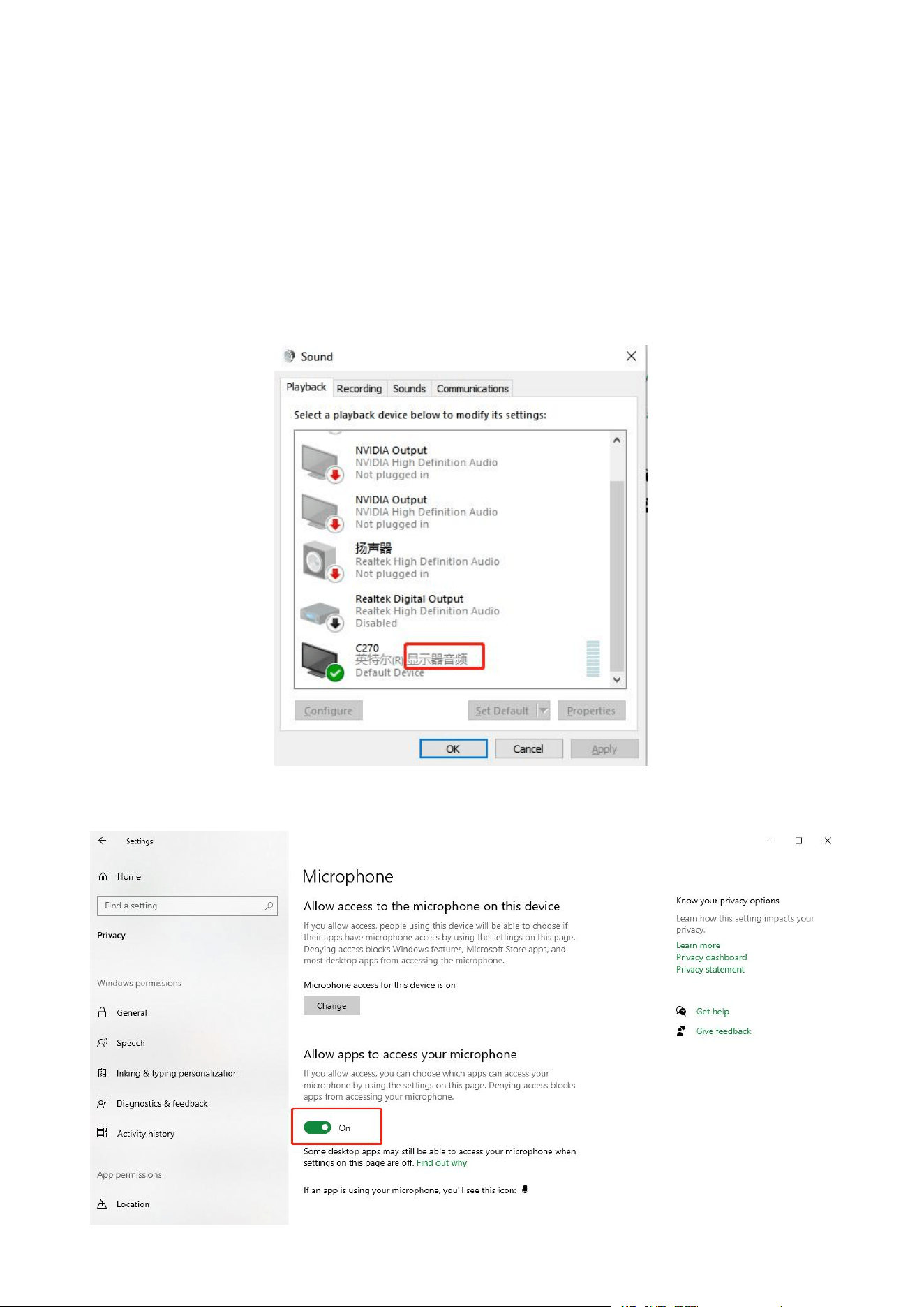
-Win10: Go to the Setting→Choose “Sound”→ Choose “Sound control panel”→on the “Playback” Selection Window choose “Monitor
Audio” (as my below screenshot)
-Win10: Go to the Setting→Choose “Sound”→Choose “Microphone Privacy Settings”→Turn on the “Allow APP to access Your
Microphone”
2. The Audio Settings on Signal Source Output PC Side (for Mac OS System)
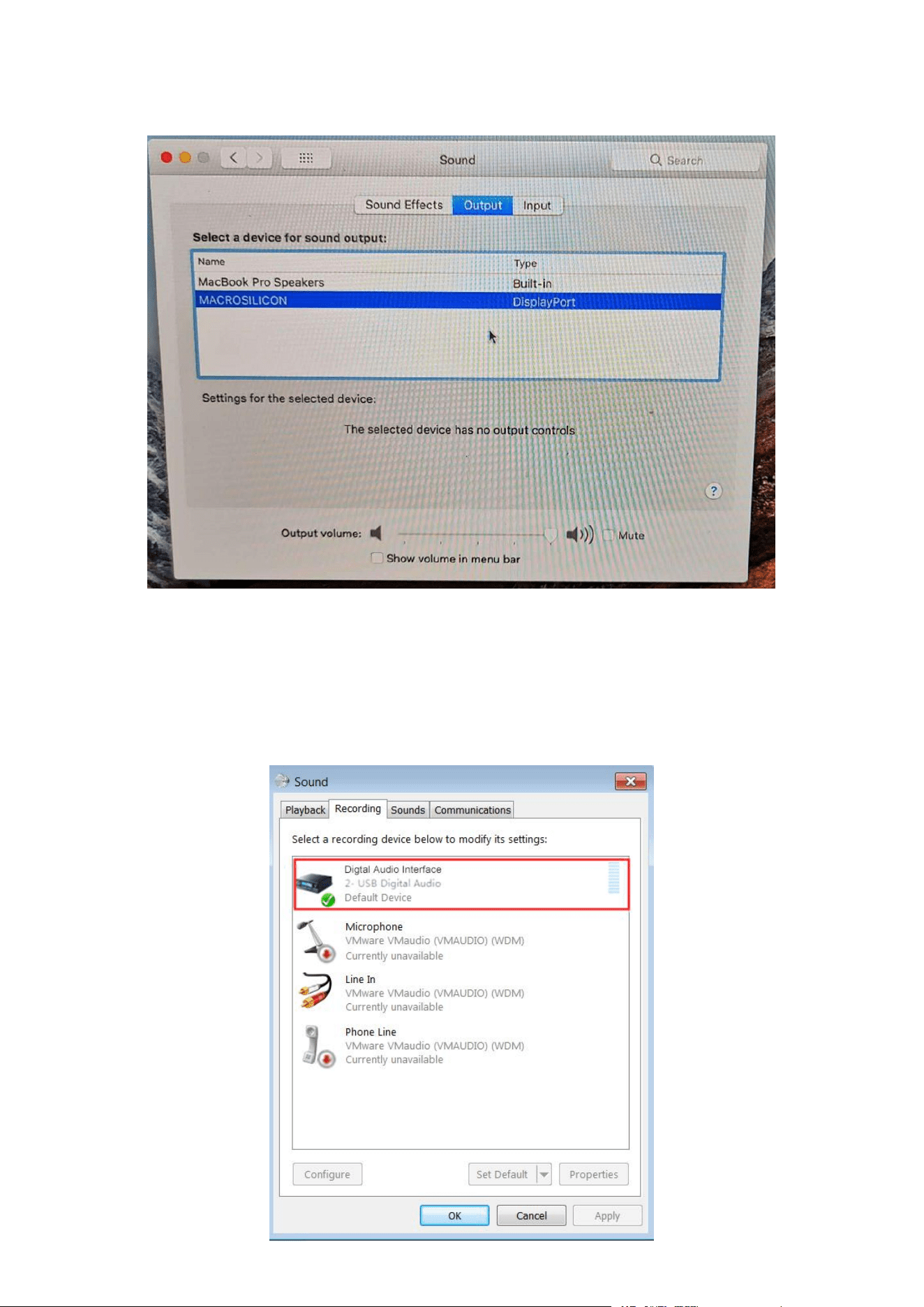
- Go to the Setting→Choose “Sound”→Choose “Output”→Choose “DisplayPort”
3. The Audio Settings on Signal Source Receiving Side (Capturing) PC (for Window System)
-Win7: Go to the “control panel”→Choose “Hardware and Sound”→Choose “Sound”→on the “Recording” Selection Window choose
“USB Digital Audio” → “ok”
-Win10: Go to the Setting→Choose “Sound”→ Choose “Sound control panel”→on the “Recording” Selection Window choose “USB
Digital Audio” → “ok”
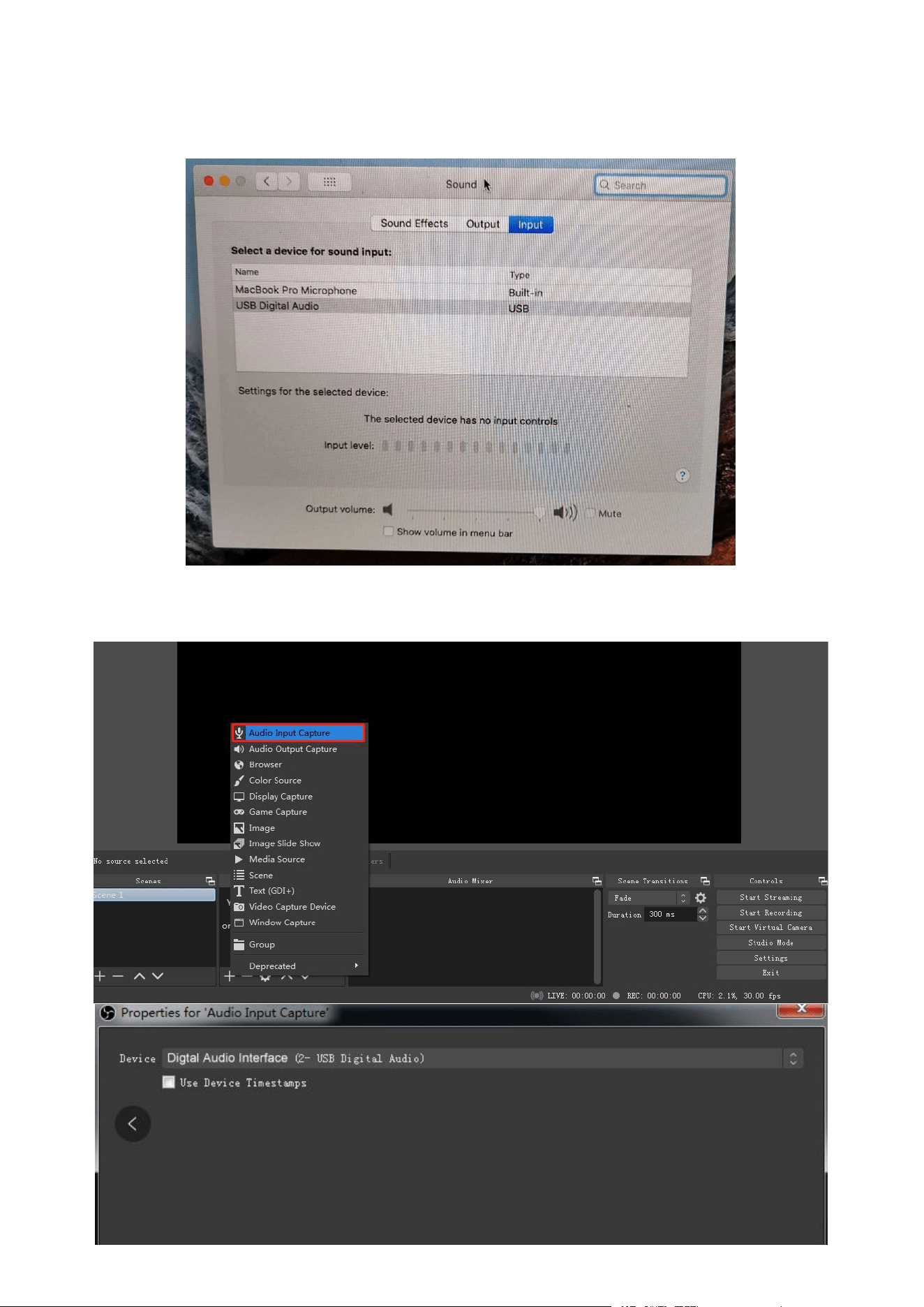
4. The Audio Settings on Signal Source Receiving Side (Capturing) PC (for MAC OS System)
- Go to the Setting→Choose “Sound”→Choose “Iutput”→Choose “USB Digital Audio”
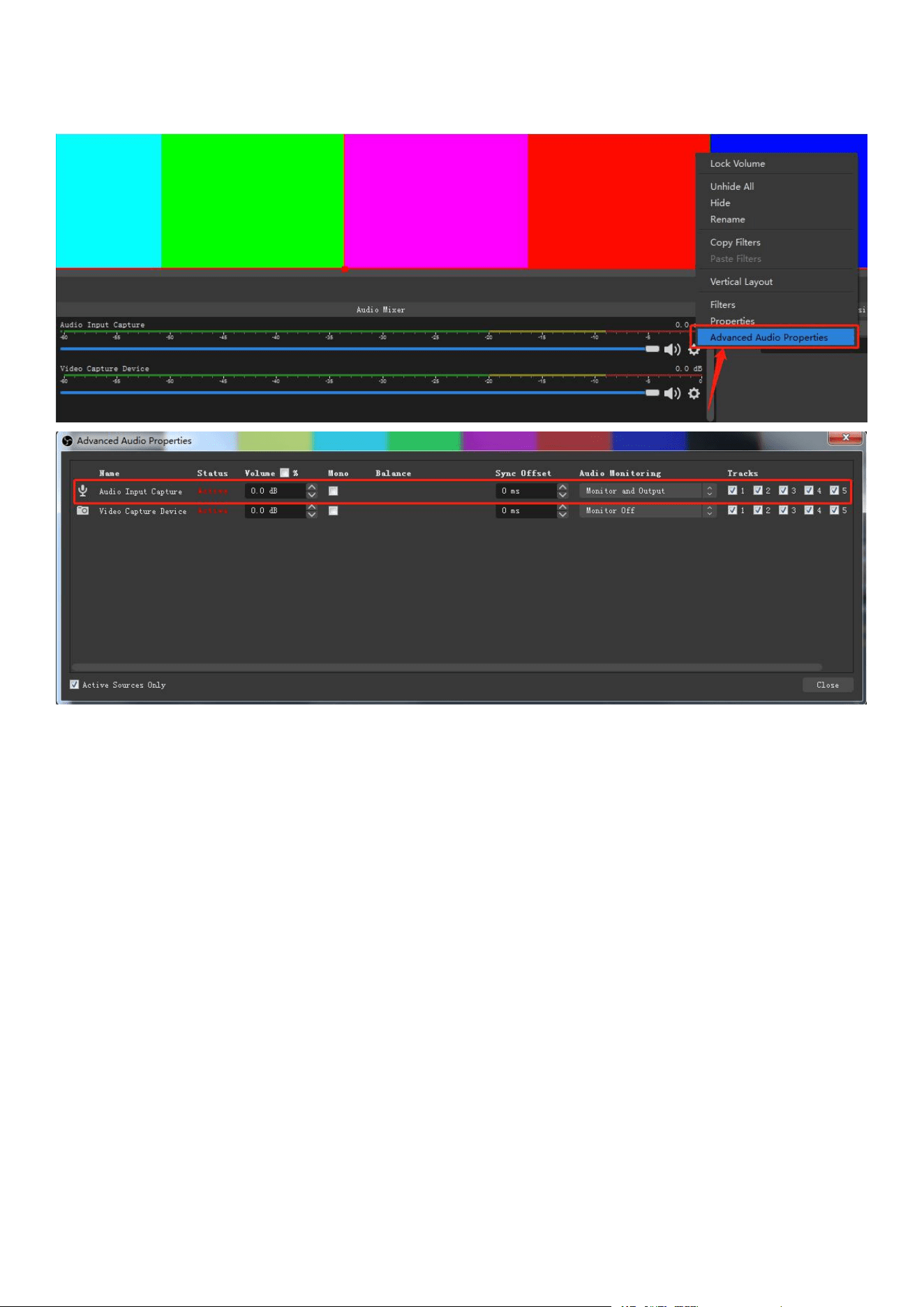
5. Audio Input Settings on OBS
“Sources”→Click “+” → Choose “Audio Input Capture” → Choose “USB Digital Audio” (as my below screenshot)
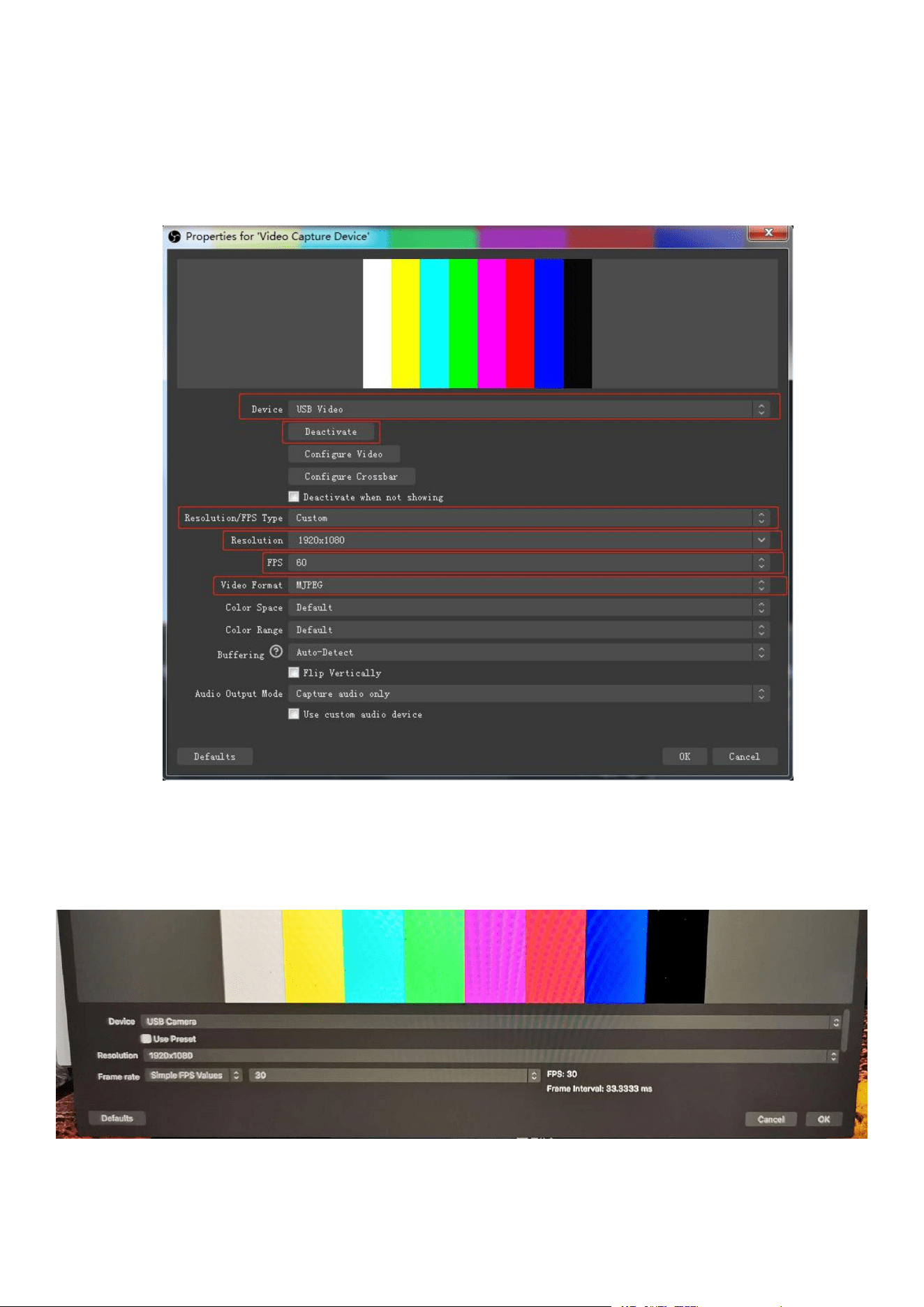
6. OBS Audio Monitor Setting (please ignore this setting if you don’t need audio monitor)
Find the "Audio Mixer"→right click on the “Audio Input Capture”go to the setting page→ Choose “advanced Audio Properties”
→choose the “Monitor and Output” on the “Audio Input Capture” column, “Audio Monitoring” row
----Settings about Video----
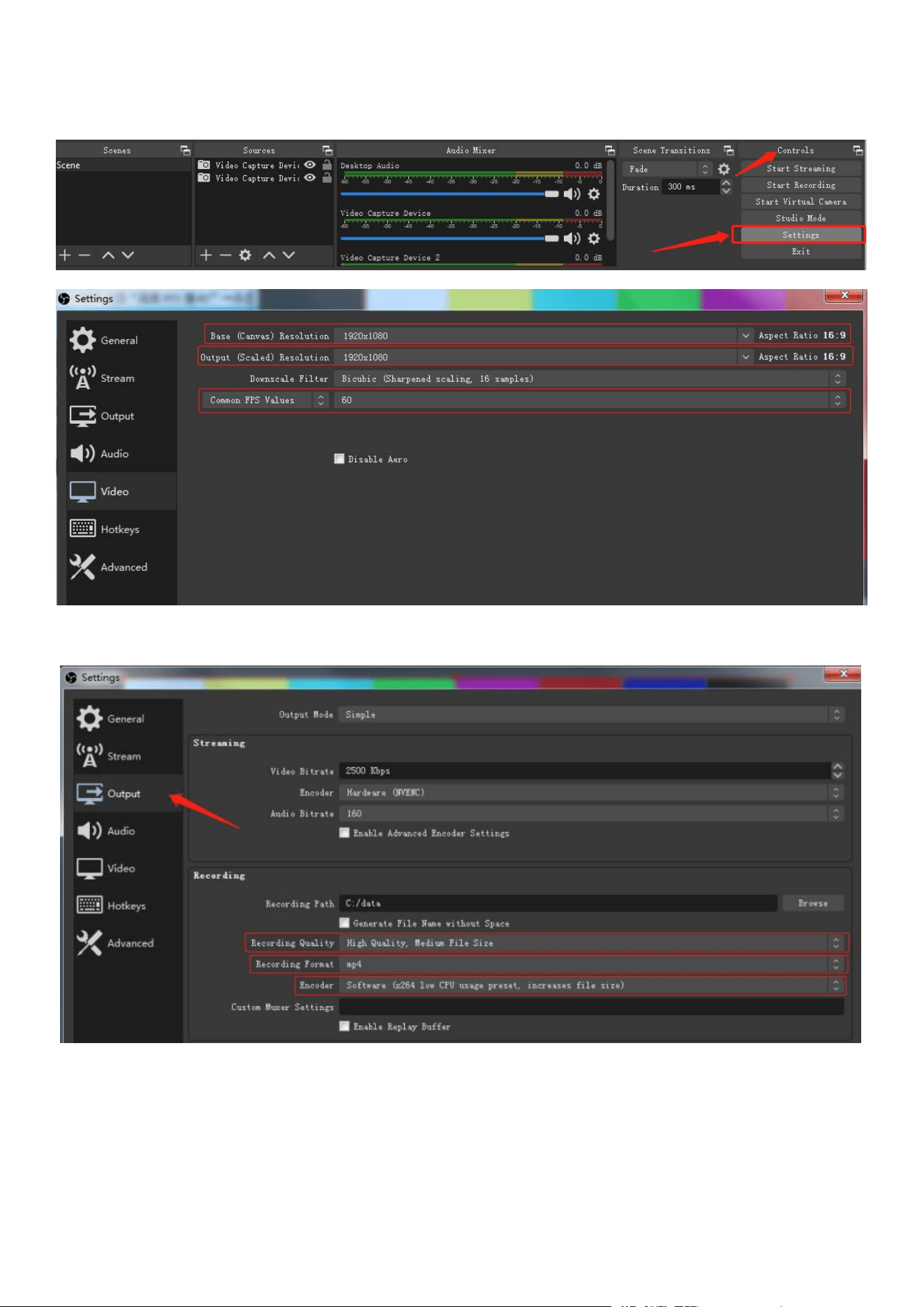
1. Video Signal Output Settings on OBS (for Window System)
Sources → Click “+”→ Find the“Video Capture Device”→ Click “ok”to turn to properties setting page→ Device Choose “USB
Video”→ Click “activate”→ Resolution/FPS choose “customize”→ Resolution select "1920x1080" → FPS choose “60”→ Video
format select "MJPEG" and Click “OK”(as my below screenshot)
2.Video Signal Output Settings on OBS (for Mac OS System)
Sources → Click “+”→ Find the“video capture device”→ Click “ok”to turn to properties setting page→ Device Choose “USB Video”→
Cancel“use preset”→ Resolution select "1920x1080" → FPS choose “60”→ Video format select "MJPEG" and Click “OK”(as my
below screenshot)
Warm Tips: If the you changed USB port during use the capture card, it's normal that device may capture nothing.
Please delete the video capture device and add the video capture device again.
3. Video Capturing Quality Setting on OBS
Find “Controls”on the right bottom position → click "setting"→ click "Video"→ Base(Canvas)resolutions choose "1920x1080" →
Output (Scaled) Resolutions choose “1920x1080" → Common FPS Values choose "60" → Click “ok” (as my below screenshot)
Click "Output" on the same page → recording quality choose "High quality" → record format choose “mp4" → encoder select
"software (x264 low CPU usage preset, increase file size) " → Click “OK”
Warm Tips: If the computer configuration is low level, or the picture freezes and is not smooth during recording,
please adjust the quality of the recorded video appropriately.