
1
USER MANUAL
CLOUDFORGE
ENVIRONMENTAL HUMIDIFIER


3
WELCOME
Thank you for choosing AC Infinity. We are committed to product quality and friendly customer service.
If you have any questions or suggestions, please don’t hesitate to contact us. Visit www.acinfinity.com
and click contact for our contact information.
EMAIL
support@acinfinity.com
WEB
www.acinfinity.com
LOCATION
Los Angeles, CA

4
MANUAL CODE CF2311X1
MODEL
AC-CFT3
AC-CFT5
AC-CFT7
AC-CFT9
PRODUCT
CLOUDFORGE T3
CLOUDFORGE T5
CLOUDFORGE T7
CLOUDFORGE T9
UPC-A
819137023611
819137023635
819137023628
819137023642

5
MANUAL INDEX
Manual Index .................................................................................
Product Warning ............................................................................
Key Features .................................................................................
Product Contents ...........................................................................
Installation .....................................................................................
Powering and Setup ......................................................................
UIS
TM
Platform ...............................................................................
Connecting to UIS™ Controllers ...................................................
Cleaning ........................................................................................
Programming .................................................................................
Other Settings ................................................................................
Other AC Infinity Products .............................................................
Warranty ........................................................................................
Page 5
Page 6
Page 7
Page 8
Page 9
Page 16
Page 20
Page 21
Page 22
Page 24
Page 35
Page 37
Page 38

6
Ensure your power source conforms to the electrical requirements of this product.
Read all instructions before installing and using this product.
Only use distilled water, and do not pour water into the central pipe. This will prevent your
humidifier from functioning properly.
Do not attempt to hardwire this product. Performing any retrofitting actions may result in
personal injury and/or electrical damage, and will void this product's warranty.
Be careful not to damage or cut the wire insulation (covering) during the installation. Do not
permit wires to come in contact with any sharp edges.
This product must not be used or placed in potentially hazardous locations such as flammable,
explosive, electrical, or chemical-laden atmospheres.
Do not cover any power cords with rugs or other fabric materials.
Safety precautions should be exercised during the installation, operation, and maintenance of
this product.
Do not block or tamper with this product in any manner while it is in operation as it may cause
electric shock, fire, or damage to this product.
Do not depend on the on/off programming as the sole means of shutting power from this
product. Unplug the power cord before installing, servicing, or moving this product.
Do not operate this product while its cord is damaged, or if it malfunctions, has been dropped,
or is damaged in any manner.
1.
2.
3.
4.
5.
6.
7.
8.
9.
10.
11.
PRODUCT WARNING
TO REDUCE THE RISK OF FIRE, ELECTRIC SHOCK, OR INJURY TO PERSONS,
OBSERVE THE FOLLOWING:
7
KEY FEATURES
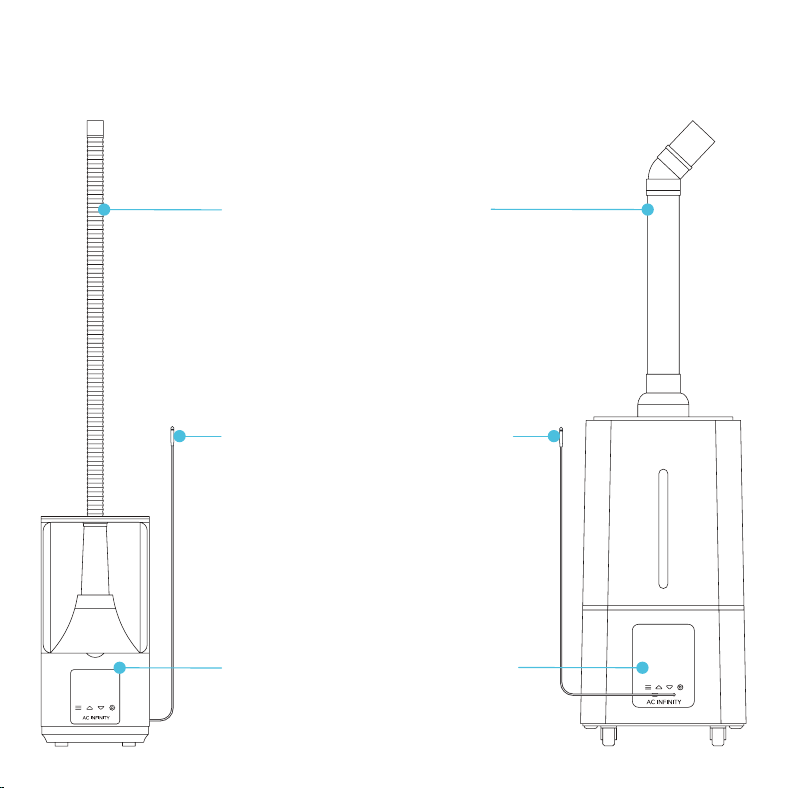
TARGETED ZONE
Includes a directional cap and
stretchable tube, or pipe and
nozzles, for various humidity
distribution methods in spaces like
grow tents, DIY grow rooms, living
spaces, and greenhouses.
SMART CONTROLLER
Onboard controller with LED touch
interface featuring humidity balance
programming. Pair with UIS controllers
to access intelligent programming and
app control with advance automation
and data charts.
PRECISION DETECTION
Swiss-made thermal alloy sensor
with a waterproof gasket made of
SAE grade-316 steel detects humidity
changes and provides up-to-the-
minute readings. Extension cord
enables detection in spot areas and
convenient humidifier placement.
8
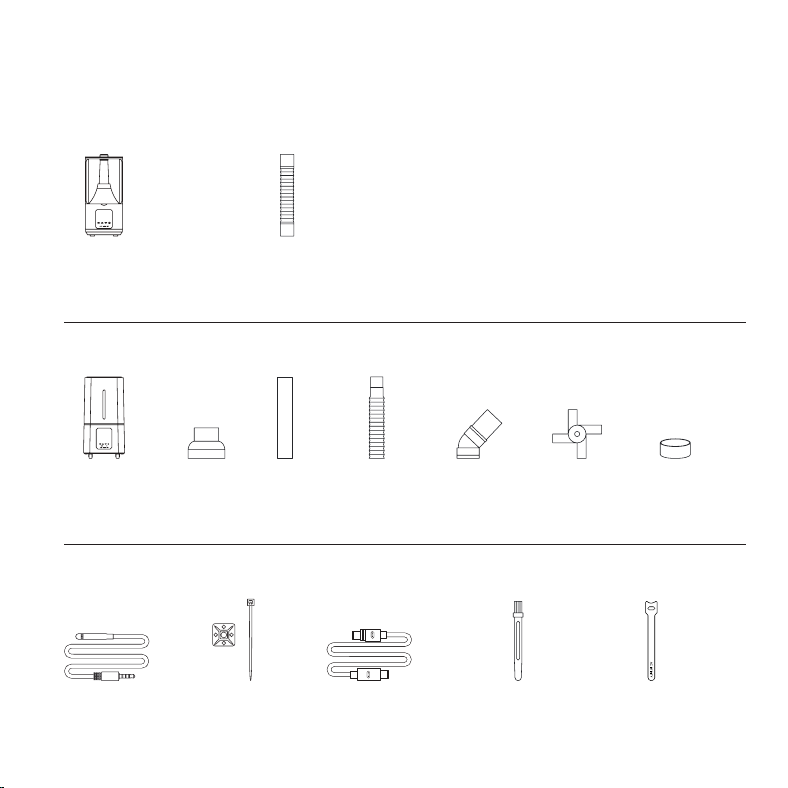
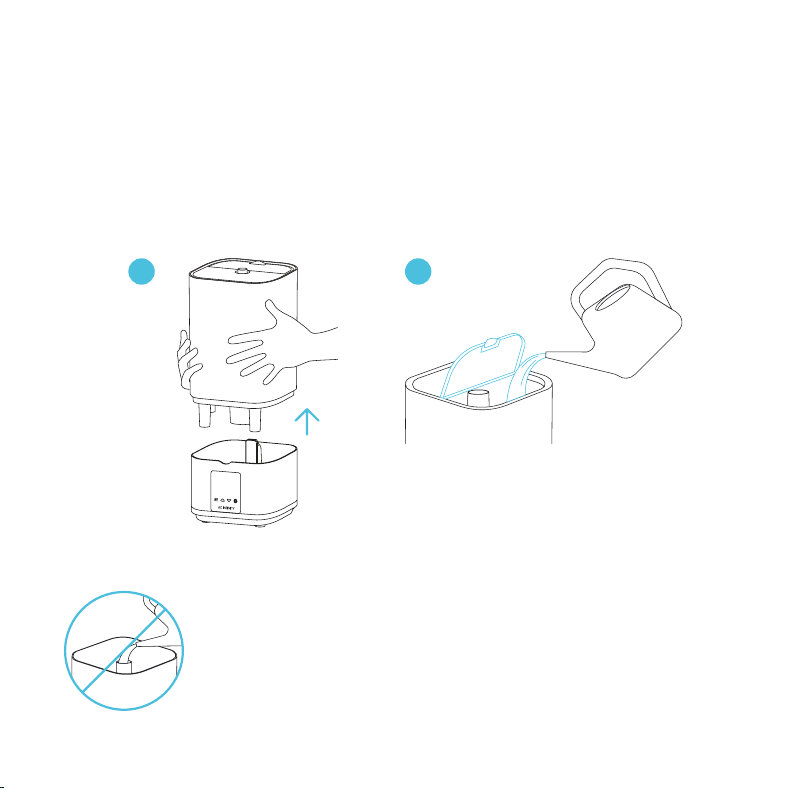
PRODUCT CONTENTS
CLOUDFORGE T3
4.5L
HUMIDIFIER
(x1)
FLEXIBLE
HOSE
(x1)
CLOUDFORGE T7
ALL MODELS
PROBE
MOUNT
(x1)
NEBULIZER
BRUSH
(x1)
HOOK AND
LOOP TIE
(x1)
UIS EXTENSION
CORD (M-M)
(x1)
SENSOR
PROBE
(x1)
15L
HUMIDIFIER
(x1)
5-WAY
NOZZLE
(x1)
ELBOW
NOZZLE
(x1)
PIPE
BASE
(x1)
PVC
PIPE
(x1)
FLEXIBLE
HOSE
(x1)
ELASTIC
BANDS
(x4)
9
INSTALLATION
CLOUDFORGE T3
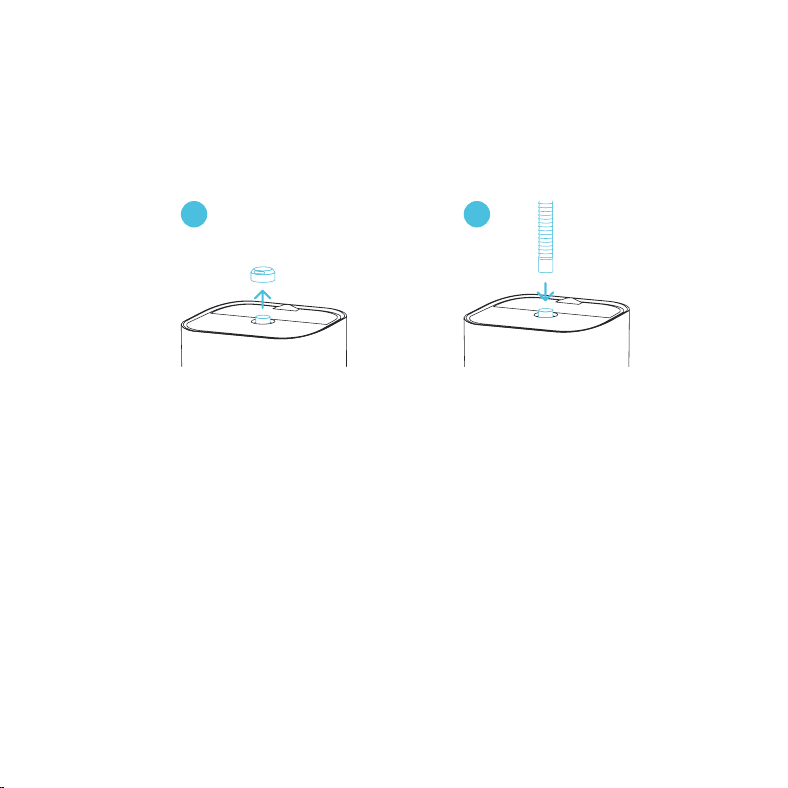
STEP 1
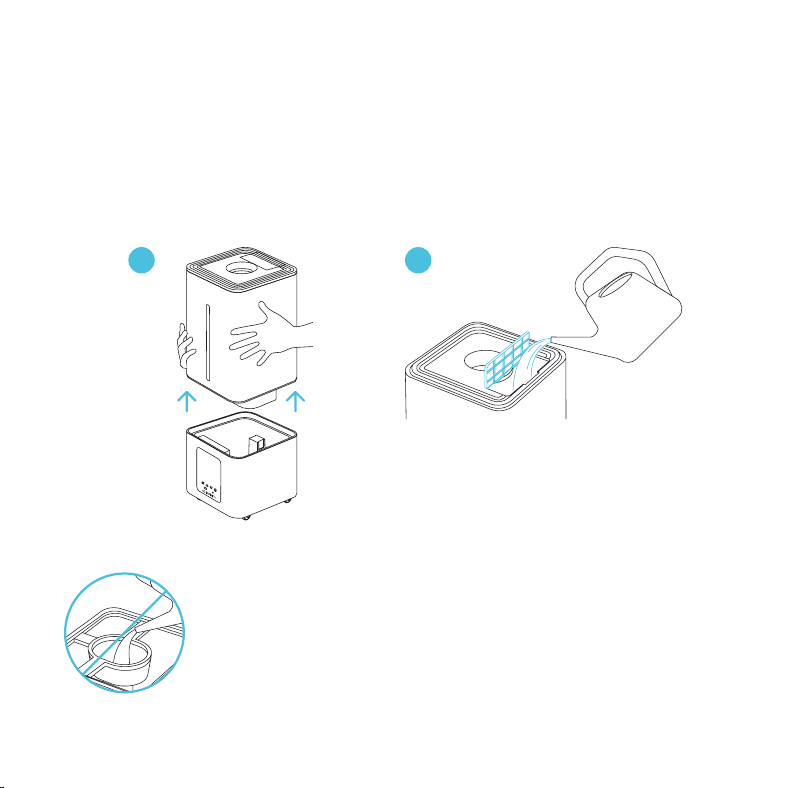
Add water into the tank. You may detach the tank to fill it with water.
We recommend using distilled water to reduce the amount of mineral build-up.
NOTE: Do NOT pour water into the central pipe. This will prevent your
humidifier from functioning properly.
1 2
10
INSTALLATION
CLOUDFORGE T3
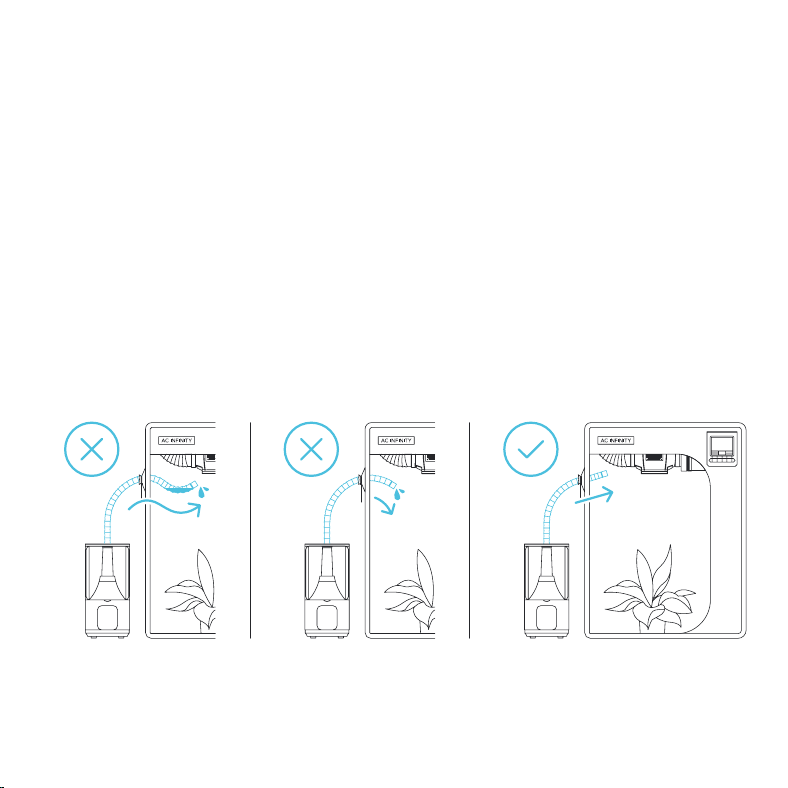
STEP 2
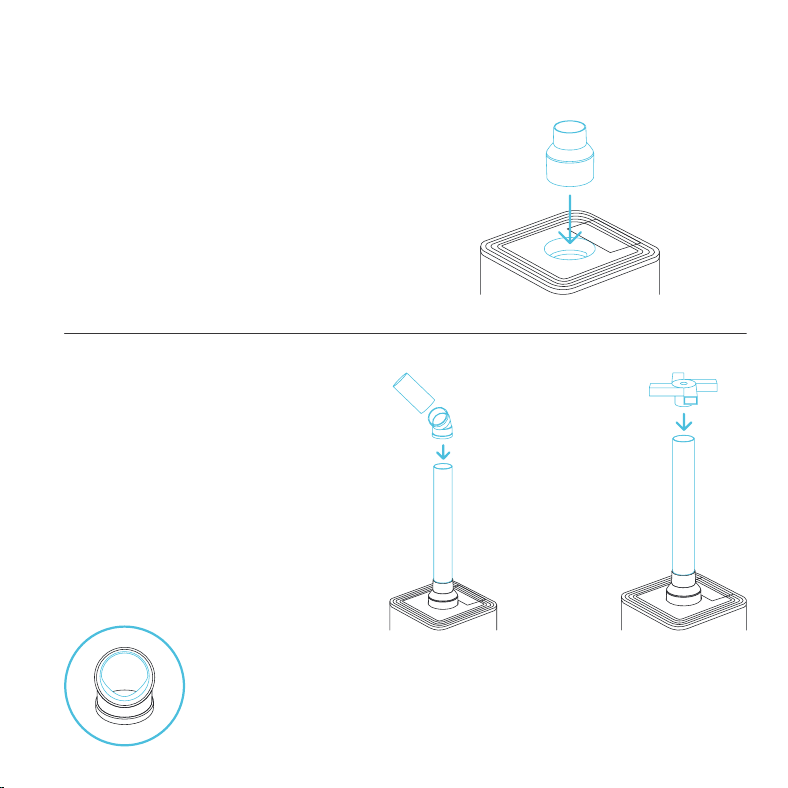
You may swap the directional flow cap with the included flexible hose for extended targeted flow.
1 2
11
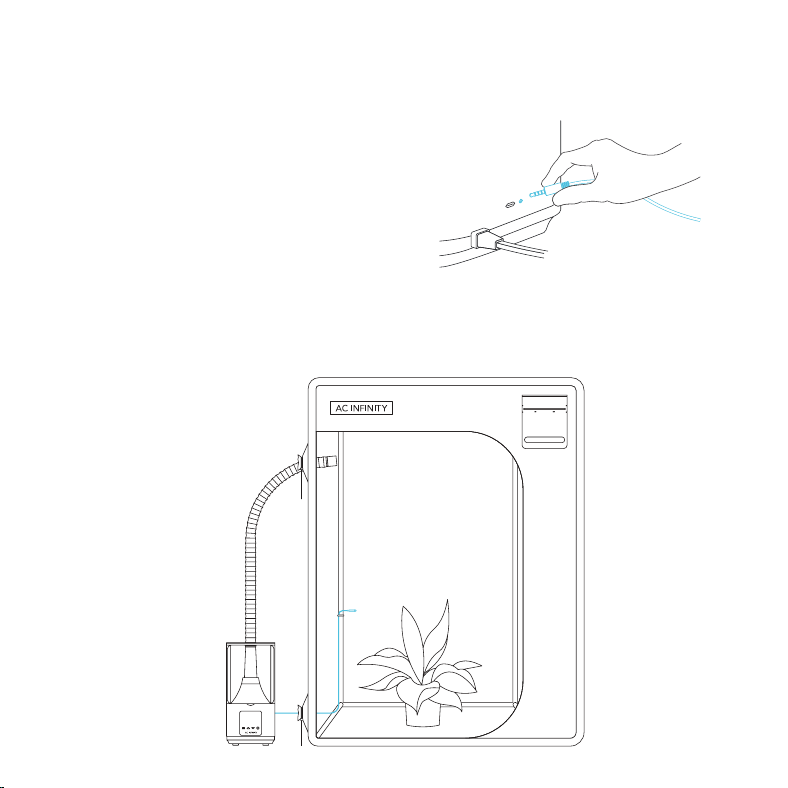
ROUTING THE HOSE
Do not bend the hose in a U-shape. Doing so will result in water pooling, which will spill into
puddles and block humidity from emitting. This will also result in water flowing back into the base,
which can overflow it and cause leakage.
In addition, make sure the hose is sloped upwards when routing it to your grow tent. Sloping the
hose downward will result in condensation building up in the hose. This may further result in water
dripping out and creating a puddle.
Dry the hose after each use.
INSTALLATION
CLOUDFORGE T3
12
INSTALLATION
CLOUDFORGE T7
STEP 1
Add water into the tank. You may detach the tank to fill it with water.
We recommend using distilled water to reduce the amount of mineral build-up.
1 2
NOTE: Do NOT pour water into the central pipe. This will prevent your
humidifier from functioning properly.
13
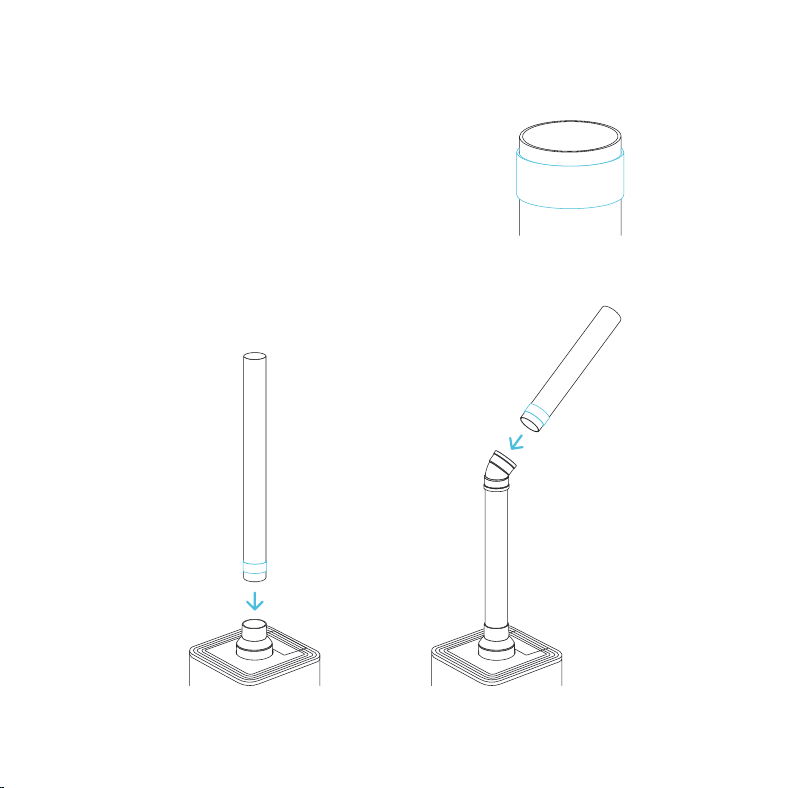
STEP 3 — PIPES
Attach the pipe into the base, followed
by your choice of nozzle:
• Elbow nozzle* for unidirectional flow
• 5-way nozzle for omnidirectional flow
*Make sure the elbow nozzle is placed over the pipe with the interior ridge
facing the ground.
OR
INSTALLATION
CLOUDFORGE T7
STEP 2
Top the center lid opening with the included base.
You may install either the included hose or pipe
to extend the reach of your humidifier.
14
INSTALLATION
CLOUDFORGE T7
USING YOUR OWN PIPES
You may use your own PVC pipes to extend the
reach of your humidifier.
Line the pipe with the included elastic band and
attach it to the base or elbow nozzle.
OR
15
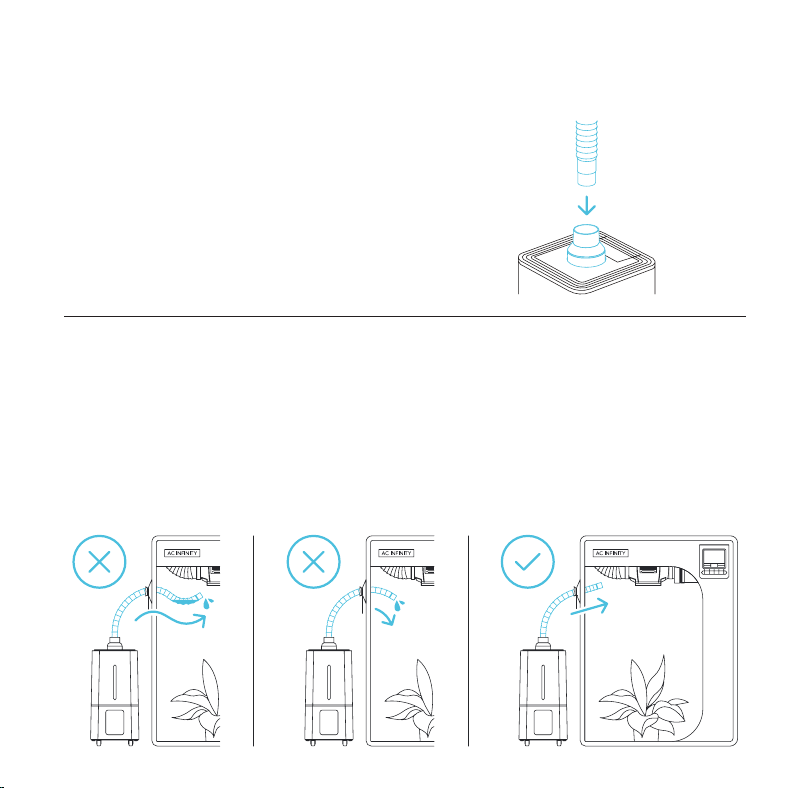
STEP 3 — HOSE
Attach the flexible hose to the base for targeted flow.
ROUTING THE HOSE
Do not bend the hose in a U-shape. Doing so will result in water pooling, which will spill into
puddles and block humidity from emitting. This will also result in water flowing back into the base,
which can overflow it and cause leakage.
Dry the hose after each use.
In addition, make sure the hose is sloped upwards when routing it to your grow tent. Sloping the
hose downward will result in condensation building up in the hose. This may further result in water
dripping out and creating a puddle.
INSTALLATION
CLOUDFORGE T7
16
POWERING AND SETUP
CLOUDFORGE T3
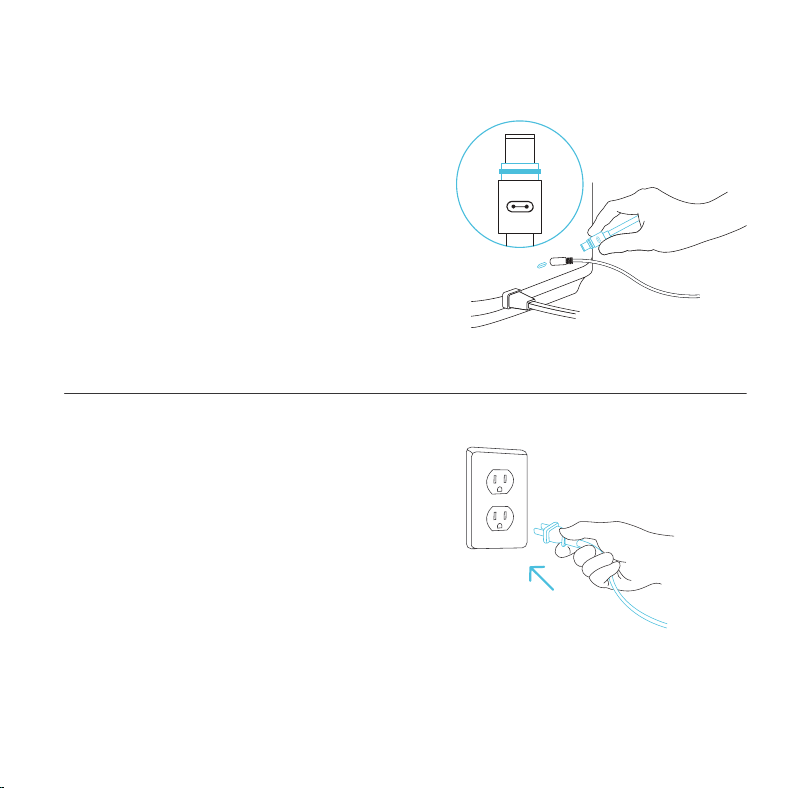
STEP 1
Plug the sensor connector with the gasket into
the 3.5mm jack located at the rear side.
The gasket is specially designed to protect
against liquids and dust.
Route the probe head to spot areas as needed.
17
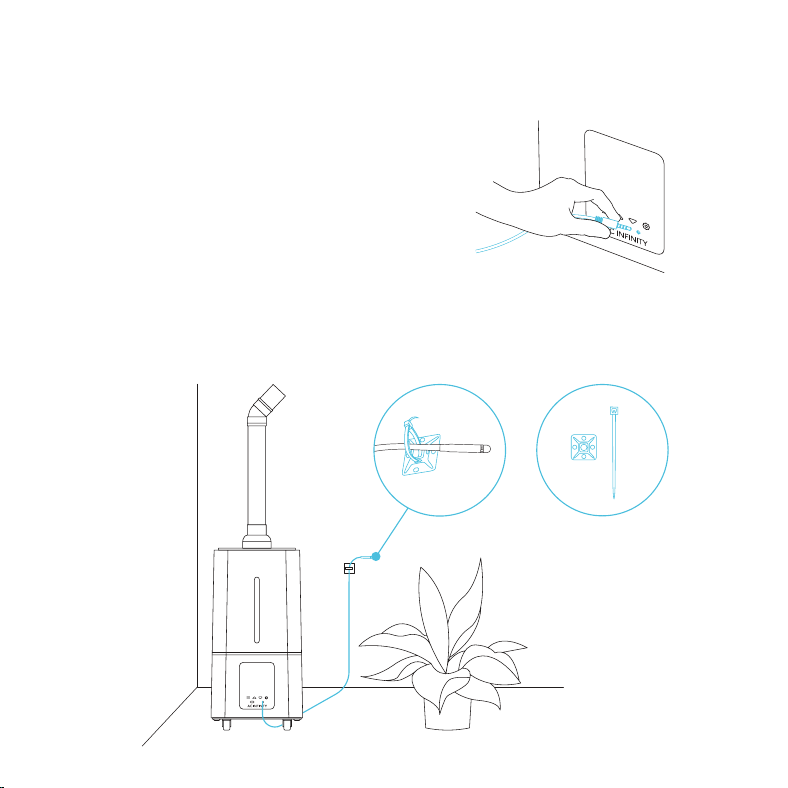
POWERING AND SETUP
CLOUDFORGE T3
STEP 2
You may plug the included UIS extension cord
into the rear side port to connect your humidifier
to your UIS controller.
Plug the UIS connector with the gasket end
into your humidifier. The gasket is specially
designed to protect against liquids and dust.
STEP 3
Plug your humidifier's power plug into an outlet
to power it.
18
POWERING AND SETUP
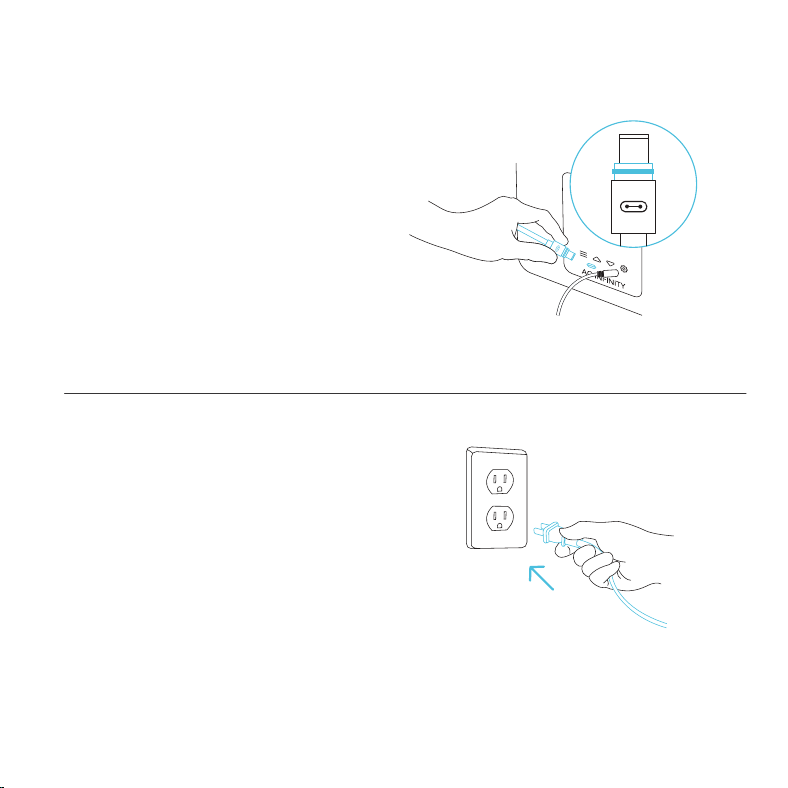
CLOUDFORGE T7
STEP 1
Plug the sensor connector with the gasket into
the 3.5mm jack located below the display screen.
The gasket is specially designed to protect
against liquids and dust.
Route the probe head to spot areas as needed.
You may also use the included probe mount to
cable manage the corded probe.
19
POWERING AND SETUP
CLOUDFORGE T7
STEP 3
Plug your humidifier's power plug into an outlet
to power it.
STEP 2
You may plug the included UIS extension
cord into the front side port to connect your
humidifier to your UIS controller.
Plug the UIS connector with the gasket end
into your humidifier. The gasket is specially
designed to protect against liquids and dust.
20
UIS
TM
PLATFORM
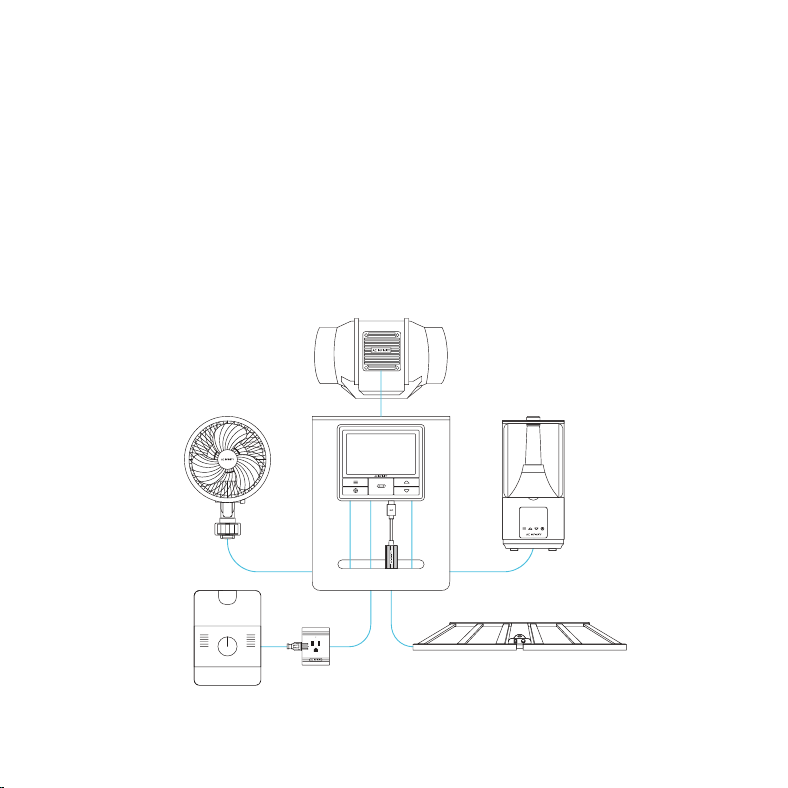
The UIS
TM
platform enables you to connect a single central controller with several grow devices
simultaneously. By creating this fully integrated system, you can power and program all your
devices together or separately for optimized grow tent management.
Your grow system can be regulated using your controller hub or remotely on the AC Infinity app
(paired with compatible controllers), where you will have access to automation programming and
climate data.
You can also connect your favorite grow light and outlet device to integrate them into the UIS
platform using our RJ11/12 adapter and control plug module.
Grow devices will be sold separately and may still be in development
at the time of your purchase of this product.
21
CONNECTING TO UIS
TM
EXTENSION CABLE
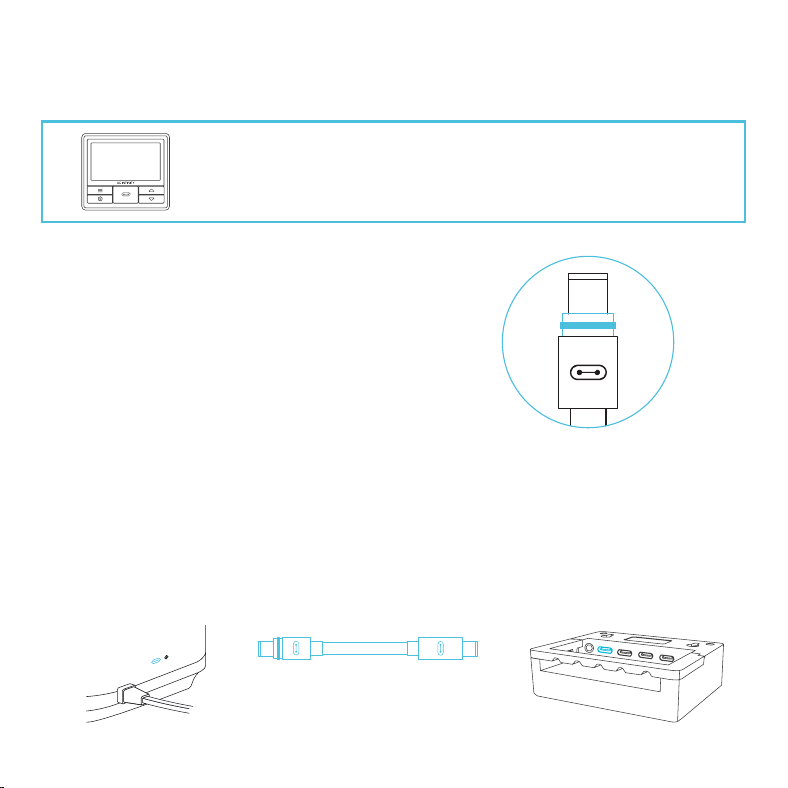
Use the included UIS M-M extension cord to connect
your humidifier to your CONTROLLER 69 PRO unit.
Plug the UIS connector with the gasket end into your
humidifier. The gasket is specially designed to protect
against liquids and dust.
Your CONTROLLER 69 PRO unit will override all on-
board settings, assume control (parameters must be
adjusted on CONTROLLER 69 PRO), and shut off
your humidifier's display and touch functions when
connected in this manner.
CLOUDFORGE humidifiers can connect with CONTROLLER 69 PRO
(sold separately) as part of an integrated system using the included
UIS extension cord.
22
CLEANING
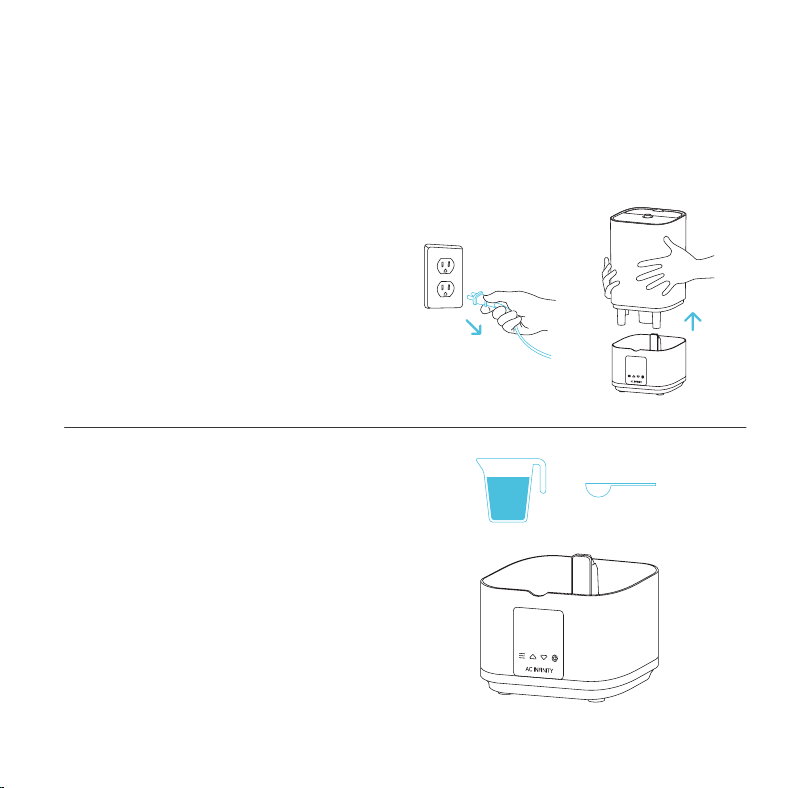
STEP 2
Pour out any water sitting in the base. Pour two
cups of distilled water and one tablespoon of
vinegar into the base. Let it sit for five minutes.
Exchange the water in the reservoir at least once every 4 days. Clean and maintain your humidifier
and its filter piece* at least once a week. The filter piece is used to catch any debris or particles that
may be in the water.
*CLOUDFORGE T3 ONLY
STEP 1
Unplug your humidifier and remove the tank
from the base.
+
2
VINEGAR
23
CLEANING
WATER FILTER — CLOUDFORGE T3 ONLY
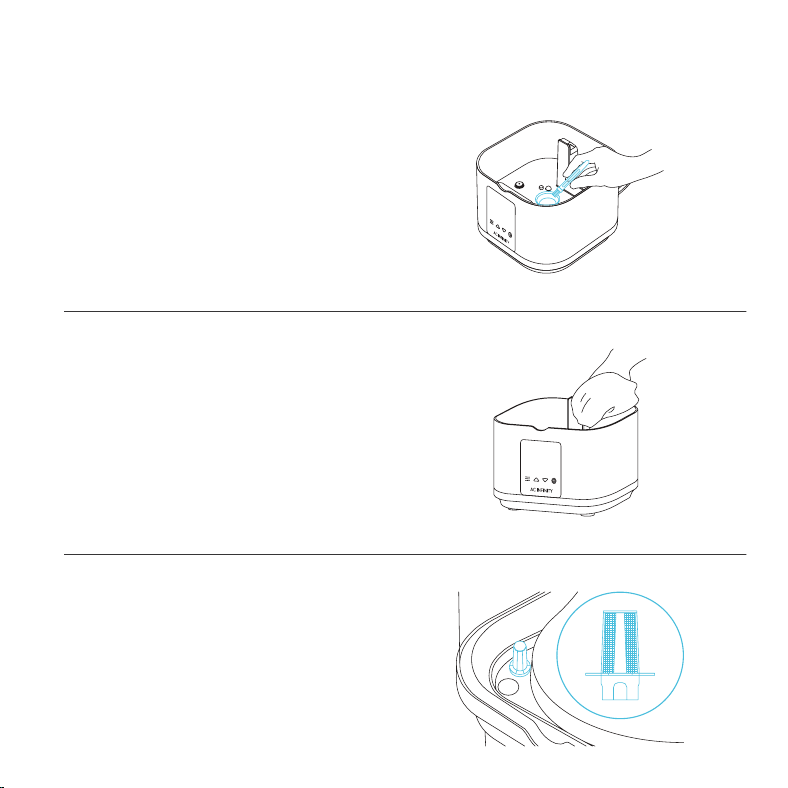
Remove the filter from the tank and soak it in
two cups of distilled water and one tablespoon of
vinegar for 5 minutes.
STEP 4
Pour out the vinegar water mixture and wipe the
base dry. Replace the tank to finish.
STEP 3
Use the included brush to remove any build-up
from the nebulizer(s).
24
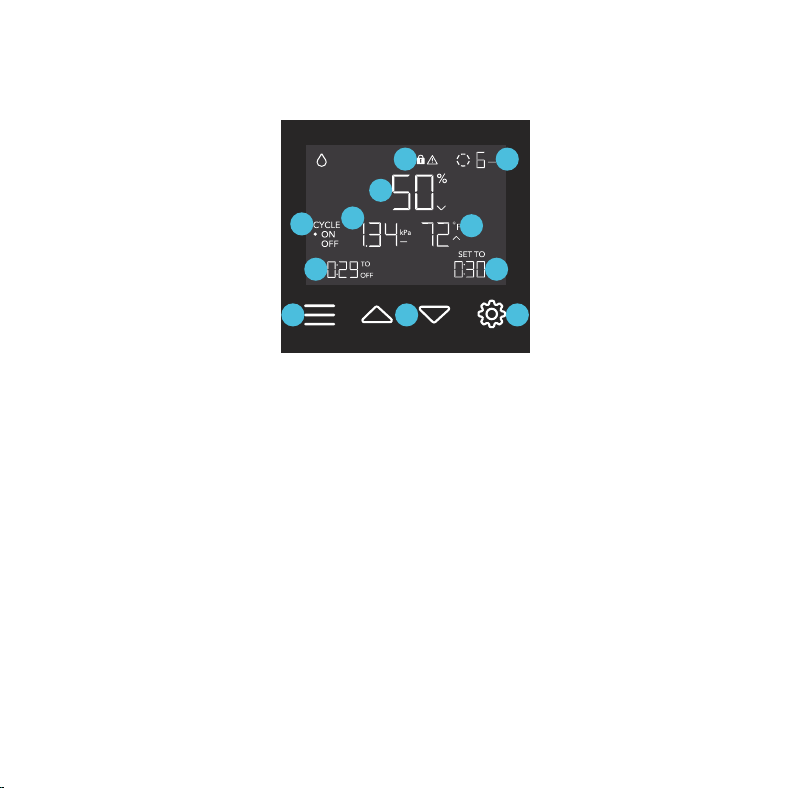
PROGRAMMING
3. SETTING BUTTON
Cycles through the controller’s
settings: °F / °C, CALIB. T° /
H% / kPa, and LEAF OFFSET.
1. MODE BUTTON
Cycles through the controller’s
modes: OFF, ON, AUTO (1
trigger), VPD (1 trigger), TIMER
(to OFF), CYCLE (ON and OFF).
4. PROBE TEMPERATURE
Displays the current temperature
that the probe is measuring. Shows
"--" if no probe is plugged in.
6. PROBE VPD
Displays the current VPD that
the probe is measuring. Shows
"--" if no probe is plugged in.
7. CURRENT MODE
Displays the controller's current
mode. Pressing the mode button
cycles through the available modes.
2. UP/DOWN BUTTONS
Adjusts the value of your current
mode. The up button increases
and down button decreases
the setting. Hold both to reset
values to OFF/Default.
5. PROBE HUMIDITY
Displays the current humidity that
the probe is measuring. Shows
"--" if no probe is plugged in.
8. CURRENT LEVEL
Displays your humidifier's current
moisture level.
11. ALERT ICONS
Displays alerts and statuses of
the onboard controller, including
the controller lock, CLIMATE
alert, and TIMER alert.
10. USER SETTING
Displays the value of your current
mode. Use the up or down
buttons to adjust the value.
9. COUNTDOWN
Displays the countdown of the
TIMER or CYCLE modes that
activates or deactivates your
humidifier. TO ON shows the
amount of time left before your
humidifier turns on. TO OFF
shows the amount of time left
before your humidifier turns off.
1
2 3
4
6
8
9
10
11
5
7
Screen shown: CLOUDFORGE T3
25
PROGRAMMING
HUMIDIFIER MODES
Tap the mode button will cycle through the controller’s available programming modes: OFF, ON, AUTO
(1 trigger), VPD (1 trigger), TIMER (ON and OFF), and CYCLE (ON and OFF).
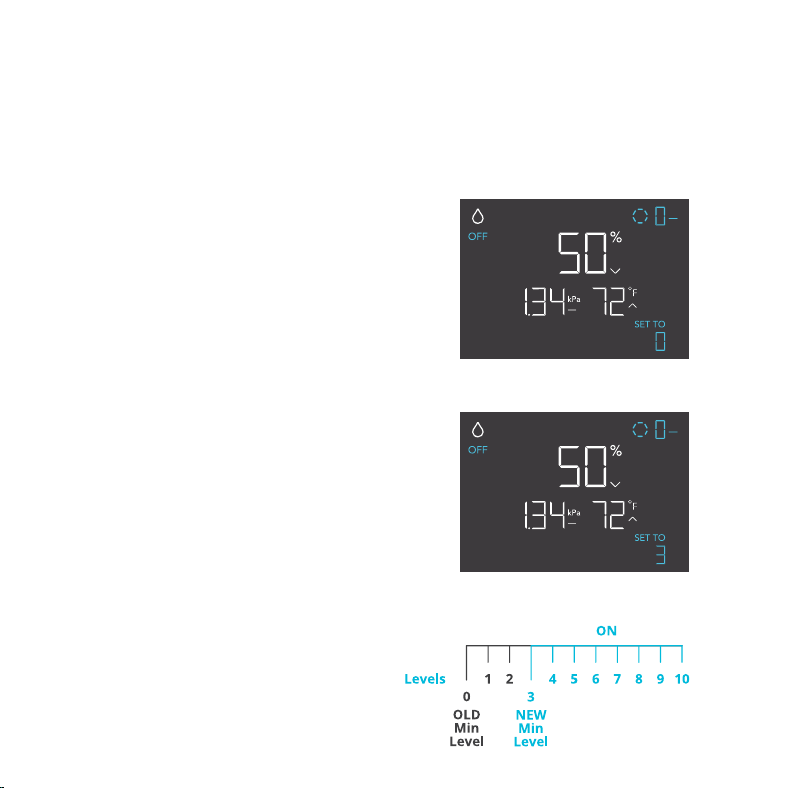
OFF MODE
Your humidifier will not run while in this mode.
The OFF Mode setting also serves as the
minimum level the other modes will run at
while triggered OFF.
MINIMUM LEVEL
Your humidifier will run at the level set in OFF
Mode, as the minimum level, when triggered to
turn OFF. These other modes include the AUTO
Mode, CYCLE Mode, and TIMER Mode.
It will run continuously until triggered ON, at
which point it will run at the level set in ON Mode.
If you want your humidifier to turn off completely
when it's triggered to be OFF, set the OFF Mode
level to zero.
Screen shown: CLOUDFORGE T3
Screen shown: CLOUDFORGE T3
26
PROGRAMMING
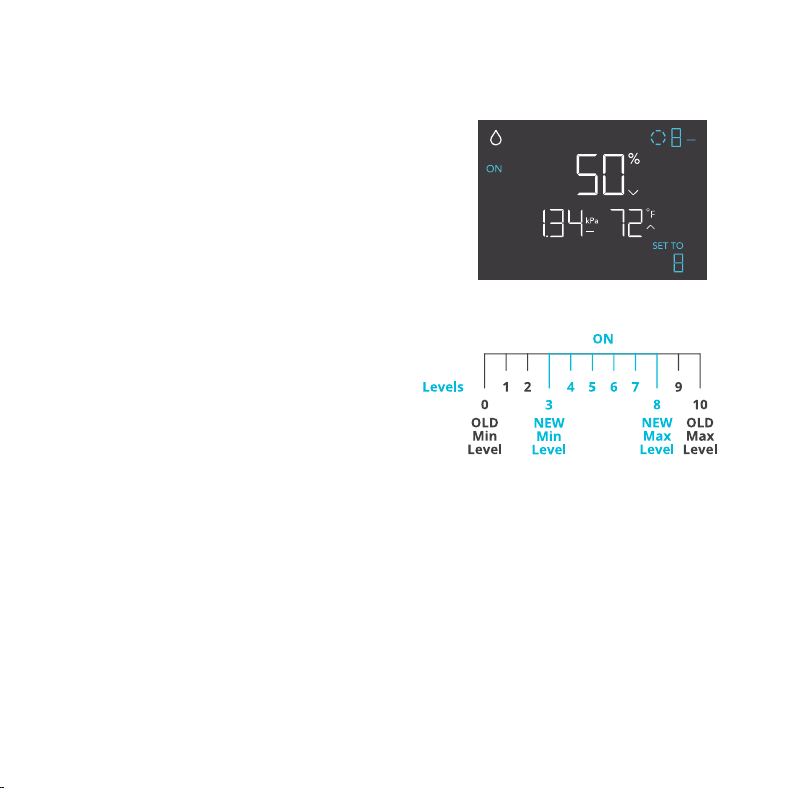
MAXIMUM LEVEL
Your humidifier will run at the level set in ON
Mode, as the maximum level, when triggered
ON, as well as in the AUTO Mode, CYCLE
Mode, and TIMER Mode.
Do not set the ON Mode figure to zero or your
humidifier will turn off when it’s triggered ON
in all modes.
ON MODE
Your humidifier will actively run at the level set
here, regardless of the probe’s reading. The ON
Mode setting also serves as the maximum level
the other modes will run at.
Screen shown: CLOUDFORGE T3
27
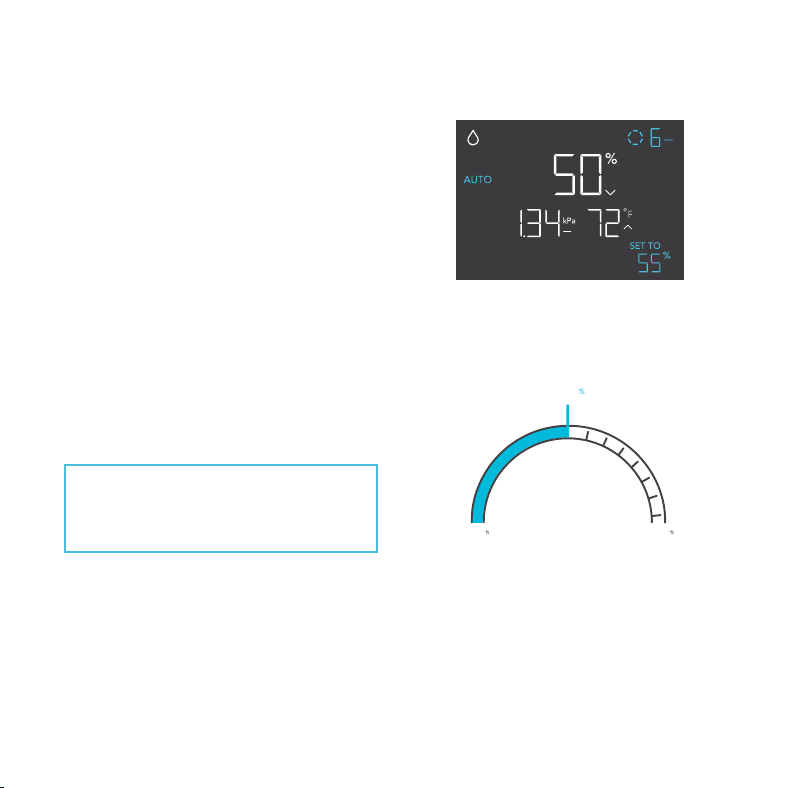
AUTO MODE (LOW HUMIDITY TRIGGER)
The AUTO Mode sets the low humidity trigger.
Your humidifier will activate if the probe’s
reading falls below this threshold.
Once triggered, your humidifier will ramp up to
the level set in ON Mode. If the probe’s reading
rises above this trigger point, your humidifier
will stop emitting vapors.
Leaving the AUTO Mode while it is active will
pause it until you return to this mode.
PROGRAMMING
LOW HUMIDITY
TRIGGER POINT
ON OFF
32 100
LESS HUMID MORE HUMID
55
If there is a level set in OFF Mode other
than zero, your humidier will run at
that level when triggered to turn o.
Screen shown: CLOUDFORGE T3
28
HIGH VPD
ONOFF
TRIGGER POINT
HIGH VPD
LOW VPD
0
kPa
9.9
kPa
1.1kPa
PROGRAMMING
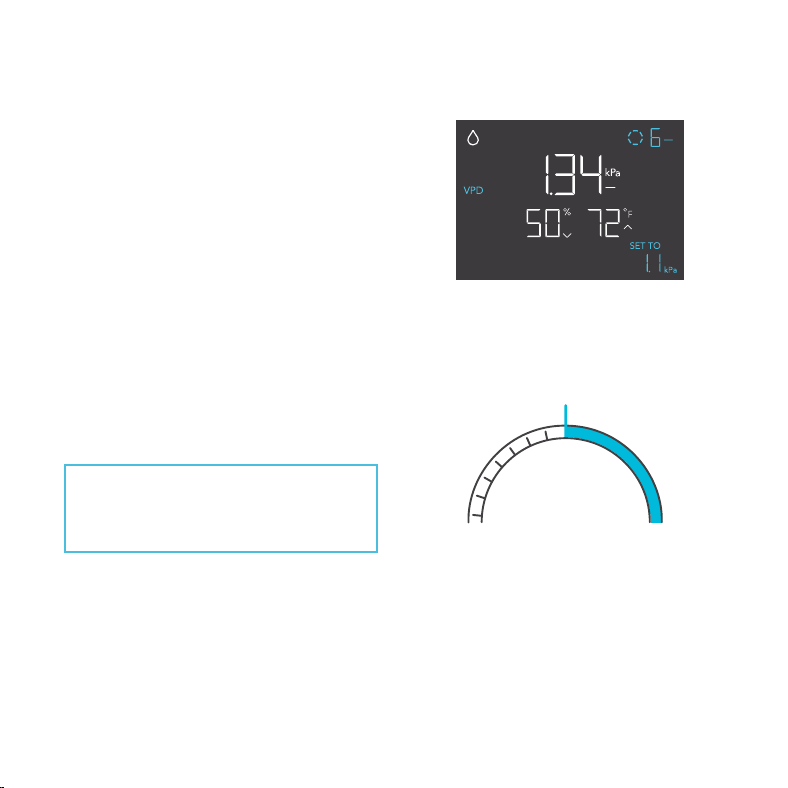
VPD MODE (HIGH VPD TRIGGER)
The VPD Mode sets the high VPD trigger. Your
humidifier will activate if the probe’s reading
meets or exceeds this threshold.
Once triggered, your humidifier will gradually
ramp up to the level set in ON Mode. If the
probe’s reading falls below this trigger point,
your humidifier will gradually slow down to a
stop or at the level set in OFF Mode.
Leaving the VPD Mode while it is active will
pause it until you return to this mode.
If there is a level set in OFF Mode other
than zero, your humidier will run at
that level when triggered to turn o.
Screen shown: CLOUDFORGE T3
29
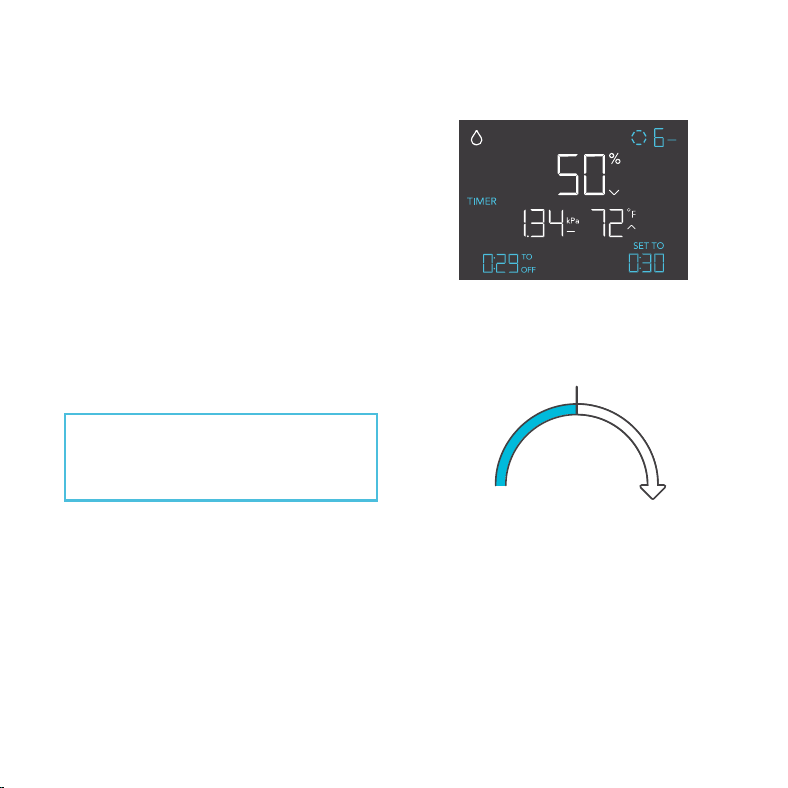
TIMER MODE (TO OFF)
The TIMER Mode sets a countdown time. Your
humidifier will run at the level set in ON Mode
until the countdown ends.
The countdown will begin if no buttons are
tapped for 3 seconds.
Leaving the TIMER Mode while the countdown is
running will pause it until you return to this mode.
PROGRAMMING
START
TIMER TO OFF
(COUNTDOWN END POINT)
0
m
i
n
.
t
o
O
F
F
D
e
v
i
c
e
O
F
F
3
If there is a level set in OFF Mode other
than zero, your humidier will run at
that level when triggered to turn o.
Screen shown: CLOUDFORGE T3
30
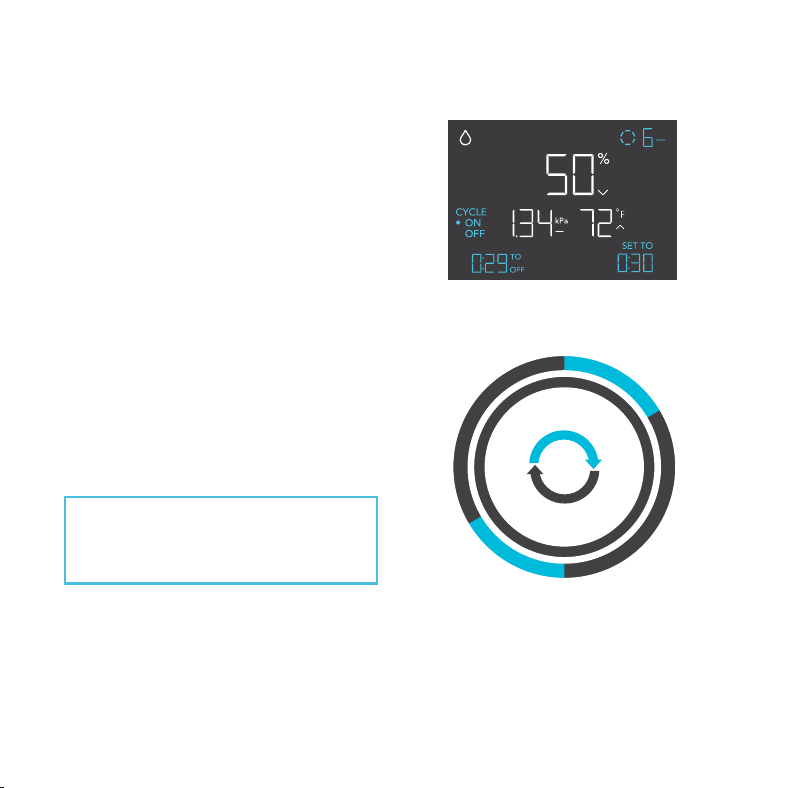
CYCLE MODE (ON AND OFF)
The CYCLE Mode sets an on duration
and an off duration for your humidifier to
cycle through continuously. Press the up or
down button to first set a duration for your
humidifier to activate. Then press the mode
button again and set a duration for your
humidifier to deactivate.
When your humidifier is activated, it will
run at the level set in ON Mode. When your
humidifier is deactivated, it will run at the level
set in OFF Mode.
The countdown will begin if no buttons are
pressed for 5 seconds. Leaving the CYCLE
Mode while the countdown is running will
pause it until you return to this mode.
PROGRAMMING
If there is a level set in OFF Mode other
than zero, your humidier will run at
that level when triggered to turn o.
30min.
1hr.
30min.
1hr.
O
F
F
O
N
O
N
O
F
F
Screen shown: CLOUDFORGE T3
31
PROGRAMMING
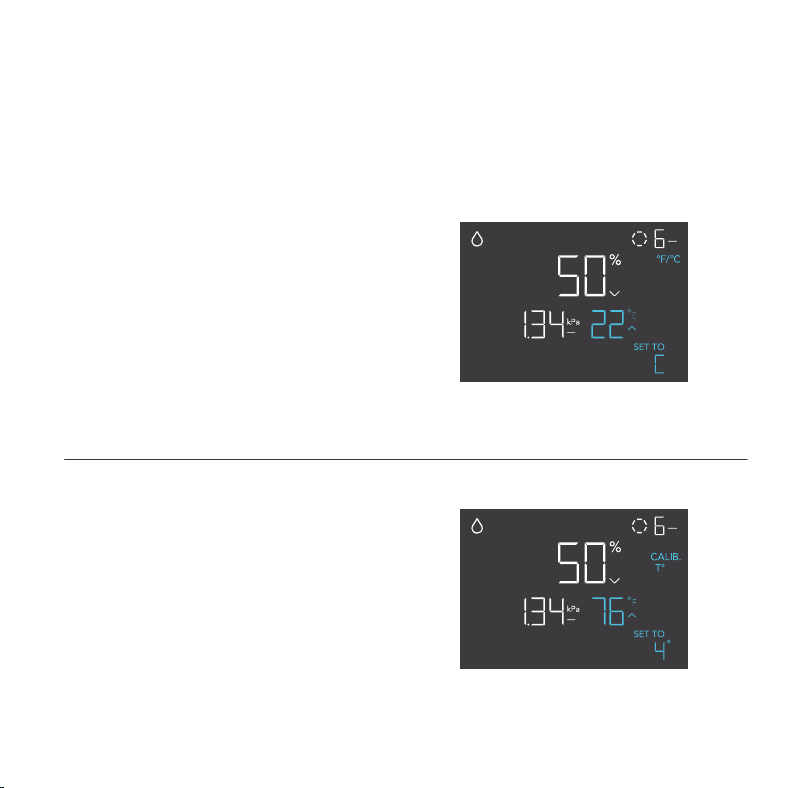
CONTROLLER SETTINGS
Pressing the setting button will cycle through the controller’s available settings: °F / °C, CALIB. T° / H% /
kPa, and LEAF OFFSET.
°F/°C SETTING
Changes the displayed units to Fahrenheit
or Celsius. Press the up or down button to
cycle through F and C. All displayed units will
automatically convert when adjusting this setting.
Screen shown: CLOUDFORGE T3
CALIBRATION TEMPERATURE SETTING
Adjusts the temperature reading the sensor
probe is measuring. Press the up or down button
to increase or decrease the data figure in 1°
increments. The calibration cycle ranges from
-20°F to 20°F (or -10°C to 10°C) and will be
applied to the sensor probe’s measurements.
Screen shown: CLOUDFORGE T3
32
PROGRAMMING
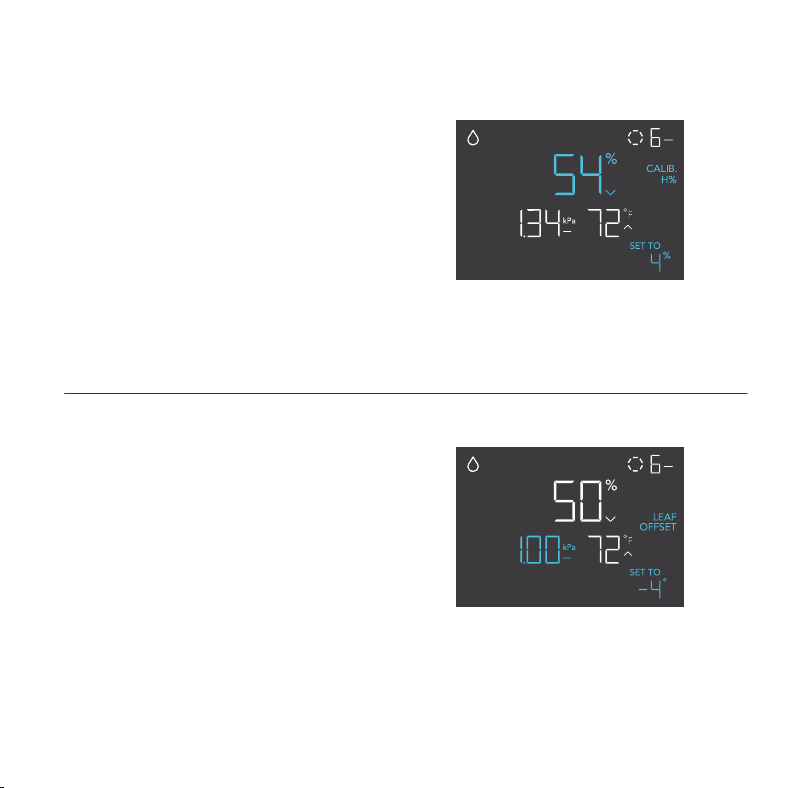
CALIBRATION HUMIDITY SETTING
Adjusts the relative humidity reading the sensor
probe is measuring. Press the up or down
button to increase or decrease the data figure
in 1% increments. The calibration cycle ranges
from -10% to 10% and will be applied to the
sensor probe’s measurements.
CALIBRATION LEAF OFFSET SETTING
Adjusts the VPD reading the sensor probe
is measuring. Press the up or down button
to increase or decrease the data figure in 1°
increments. The calibration cycle ranges from
-20°F to 20°F (or -10°C to 10°C) and will be
applied to the sensor probe’s measurements.
Screen shown: CLOUDFORGE T3
Screen shown: CLOUDFORGE T3
33
PROGRAMMING
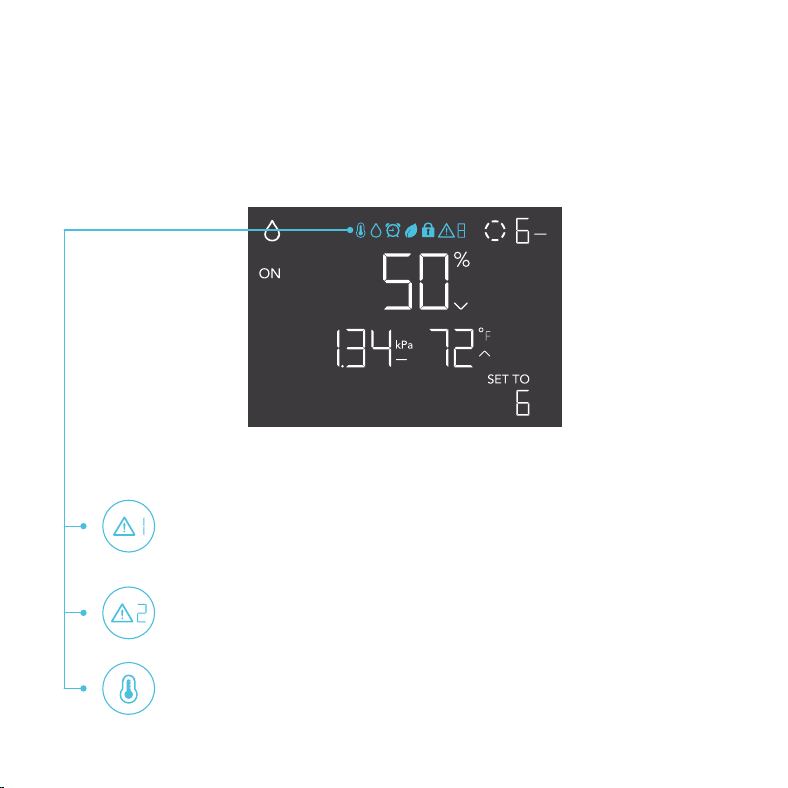
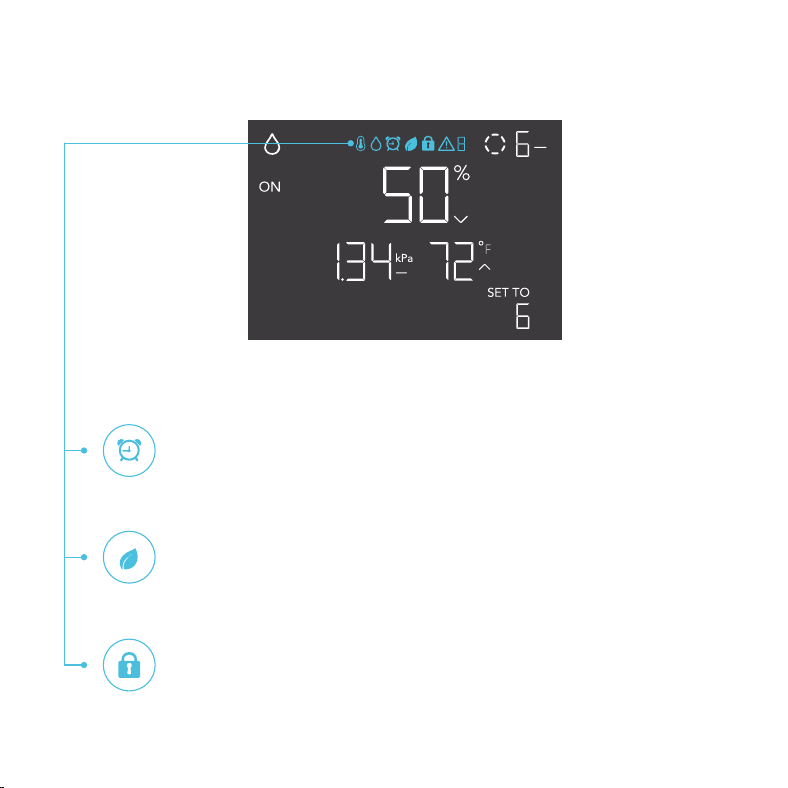
ALERT ICONS
The alert icons are displayed at the top of the screen and will flash when the controller signals an
alert, notifying you of any triggered functions or alarms.
AUTO MODE ALERT
Flashes whenever the AUTO Mode trigger activates your humidifier.
FAIL-SAFE
Displays whenever your humidifier falls or is tilted past a 20° angle. Your humidifier
will pause programming and its screen will flash until it is back to an upright position.
WATER LEVEL LOW
Displays whenever the water level is low. Your humidifier will pause programming
and its screen will flash until its tank is replenished. Please note lifting the tank will
also trigger this alert icon, disappearing when you put the tank back in place.
Screen shown: CLOUDFORGE T3
34
PROGRAMMING
DISPLAY LOCK ALERT
Displays when you lock the screen. The icon will flash and beep if you attempt to
adjust your humidifier while it is still locked.
VPD ALERT
Flashes whenever the VPD Mode trigger activates your humidifier.
TIMER ALERT
Flashes when a countdown has completed in the TIMER or CYCLE Mode.
Screen shown: CLOUDFORGE T3
35
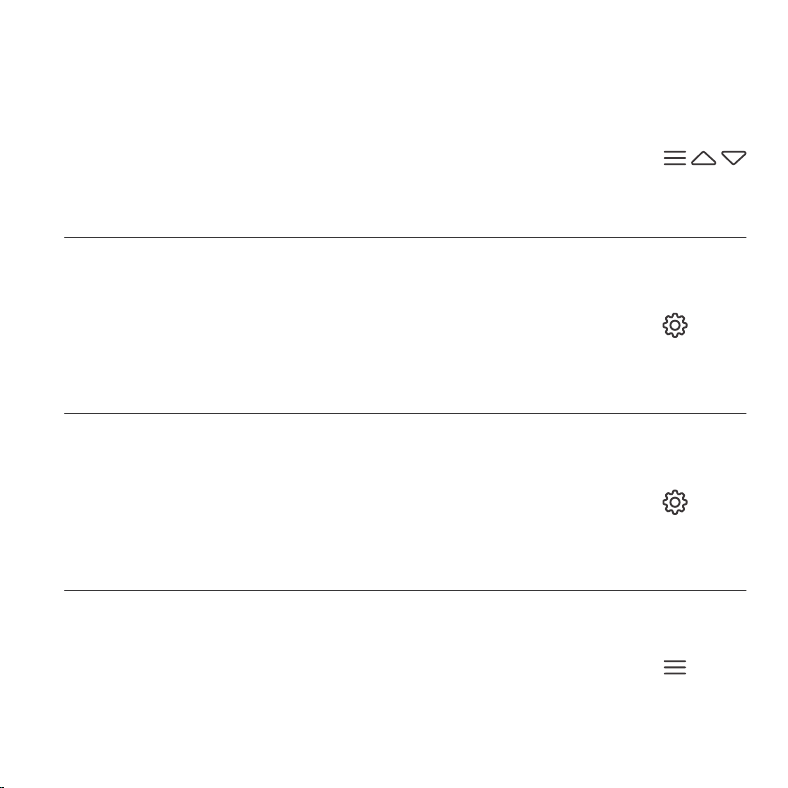
OTHER SETTINGS
HIDE SCREEN
Lock the humidifier so no settings can be adjusted. See above. Then
press the setting button to turn the display off. Pressing it again will turn
the display back on. Programs will still run in the background while the
LCD screen is off.
PRESS +
JUMP TO OFF MODE
Holding the mode button for 3 seconds while in any mode or setting
will automatically jump to OFF Mode. This function is disabled if the
humidifier is locked.
HOLD +
CONTROLLER LOCK
Holding the setting button will lock the humidifier in your current mode.
While your humidifier is locked, no parameters may be adjusted, nor will
you be able to switch modes. Holding the setting button again will unlock
the humidifier.
HOLD +
FACTORY RESET
Holding the mode, up, and down buttons together for 5 seconds will
reset your humidifier and restore factory settings. This clears all user
parameters in each mode and setting.
HOLD +

36
OTHER SETTINGS
DISABLE BEEPING
Holding the mode and up buttons for 3 seconds will turn off beeping
sounds. A single beep will indicate beeping sounds are disabled when
using the onboard controller. Holding the mode and up buttons again will
re-enable them.
HOLD +
AUTO INCREASING OR DECREASING
Holding the up or down button will increase or decrease the user setting
automatically until you release them.
HOLD +
RESET TO OFF/DEFAULT
Holding the up and down buttons together for 2 seconds will reset the
value of your current mode or setting to default. In AUTO and VPD Mode,
pressing either the up or down button will return to its previous value.
HOLD +
37
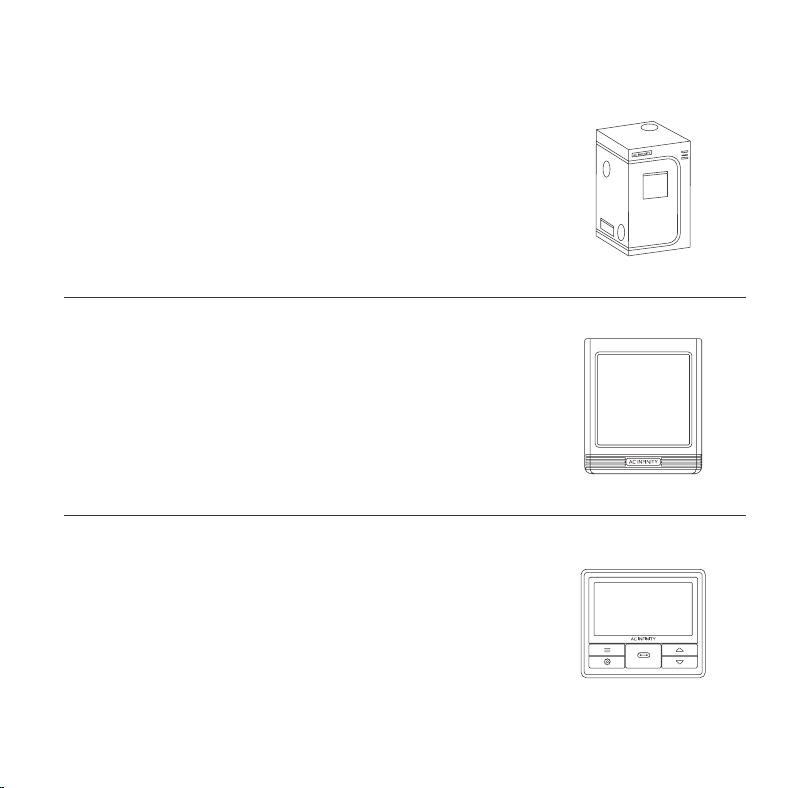
AC INFINITY PRODUCTS
Discover the latest innovations in environmental controls at acinfinity.com
Advance Grow Tents
The CLOUDLAB series is a line of grow tents designed to create
ideal growing conditions and facilitate indoor plant cultivation
year-round. Features 2000D thick oxford canvas lined with inner
diamond-patterned mylar that maximizes grow light luminosity, and
a reinforced frame with 150 lb. weight capacity. Includes a mounting
plate to install your AC Infinity controller onto.
Thermo-Hygrometers
The CLOUDCOM series is a line of smart thermo-hygrometers
designed to accurately detect and measure your space's temperature
and relative humidity. Features a bright backlit screen and desktop,
wall, or magnetic mounting options to place and display anywhere.
Select models include a corded, Swiss-made sensor probe by
Sensirion AG for spot detection.
CONTROLLER 69 PRO
The CONTROLLER 69 PRO is the centerpiece of the UIS platform,
able to connect with our smart devices including fans and LED grow
lights to create the optimal growing environment. Connects with up
to four devices to provide independent programming while capable
of dynamically adjusting fan speed and brightness intensity levels in
response to temperature, humidity, and VPD levels.

38
WARRANTY
This warranty program is our commitment to you, the product sold by AC Infinity will be free from
defects in manufacturing for a period of two years from the date of purchase. If a product is found
to have a defect in material or workmanship, we will take the appropriate actions defined in this
warranty to resolve any issues.
The warranty program applies to any order, purchase, receipt, or use of any products sold by AC
Infinity or our authorized dealerships. The program covers products that have become defective,
malfunctioned, or expressively if the product becomes unusable. The warranty program goes into
effect on the date of purchase. The program will expire two years from the date of purchase. If your
product becomes defective during that period, AC Infinity will replace your product with a new one
or issue you a full refund.
The warranty program does not cover abuse or misuse. This includes physical damage,
submersion of the product in water, incorrect Installation such as wrong voltage input, and misuse
for any reason other than intended purposes. AC Infinity is not responsible for consequential loss or
incidental damages of any nature caused by the product. We will not warrant damage from normal
wear such as scratches and dings.
Contact our dealers department at dealers@acinfinity.com or (626) 838-4656 for more
information about our dealers and distributors program. Contact our customer service department
at support@acinfinity.com or 626-923-6399 for product and warranty assistance. Our business
hours are Monday through Friday, 9:00 am to 5:00 pm PST.
If you have any issues with this product, contact us and
we’ll happily resolve your problem or issue a full refund!

COPYRIGHT © 2023 AC INFINITY INC. ALL RIGHTS RESERVED
No part of the materials including graphics or logos available in this booklet may be copied,
photocopied, reproduced, translated or reduced to any electronic medium or machine readable
form, in whole or in part, without specific permission from AC Infinity Inc.





www.acinnity.com