1
SPECIFICATION AND USER MANUAL
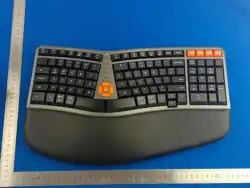
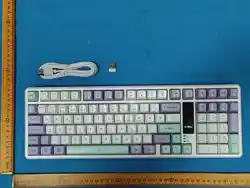
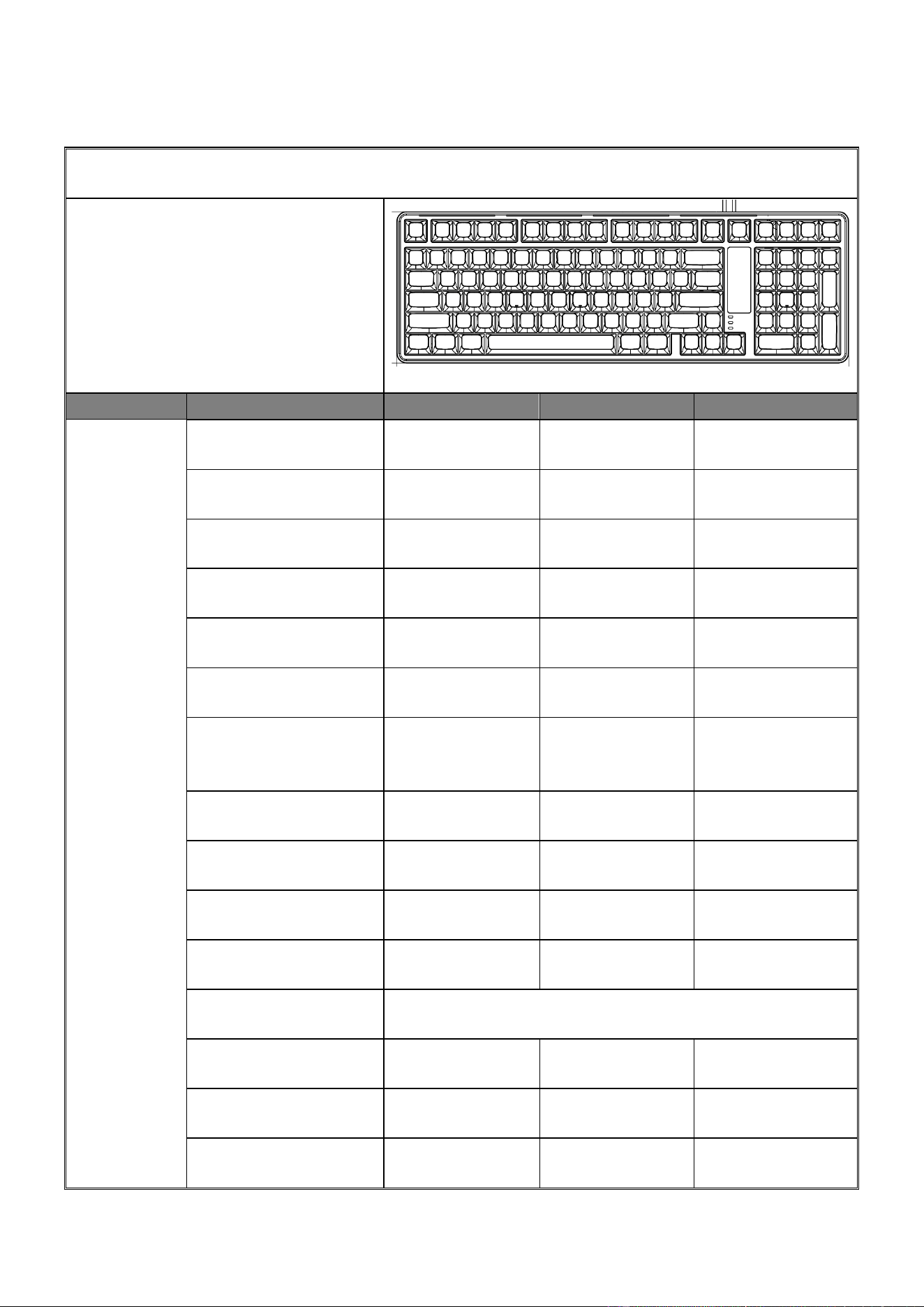
Model Name: 799Pro Keys:99 keys
Product Picture
Category
Details
Standard
Details
Standard
BASE
SPECIFICATION
Keyboard Type
Membrane
Keyboard
Layout Version
EN /US/UK/ES/TR
Interface Type
USB Detachable
Size (L * W * H)
405.2*135.5*41.4
mm ±1mm
Connection Mode
Wired/Bluetooth/2.
4G
N.W
820g
Multimedia Function Key
Support
Cable
Type C wired
Rechargeable
Working Voltage
DC 3.7V
Cable Color
Black or White
Key Material
ABS
Interface Compatibility
USB1.1port
Key Resilience
50 ± 10 g
System Compatibility
All Windows operating systems
WIN XP, WIN7,WIN8,WIN10,
Mac
Key Life
10 million times
Backlight Color
RGB
Backlight
Support
Backlit Breathing Light
Yes
Backlight Control Key
Yes
Wave Lighting
Yes
Battery Capacity
4000mAh
Return rates
125Hz
ESD Test
Passed
Editable Software
No
Ergonomic
Yes
Support Plug and Play
Support
Letter Printing
Laser print
IC core
Working Current
DC 5V/≦250mA
2
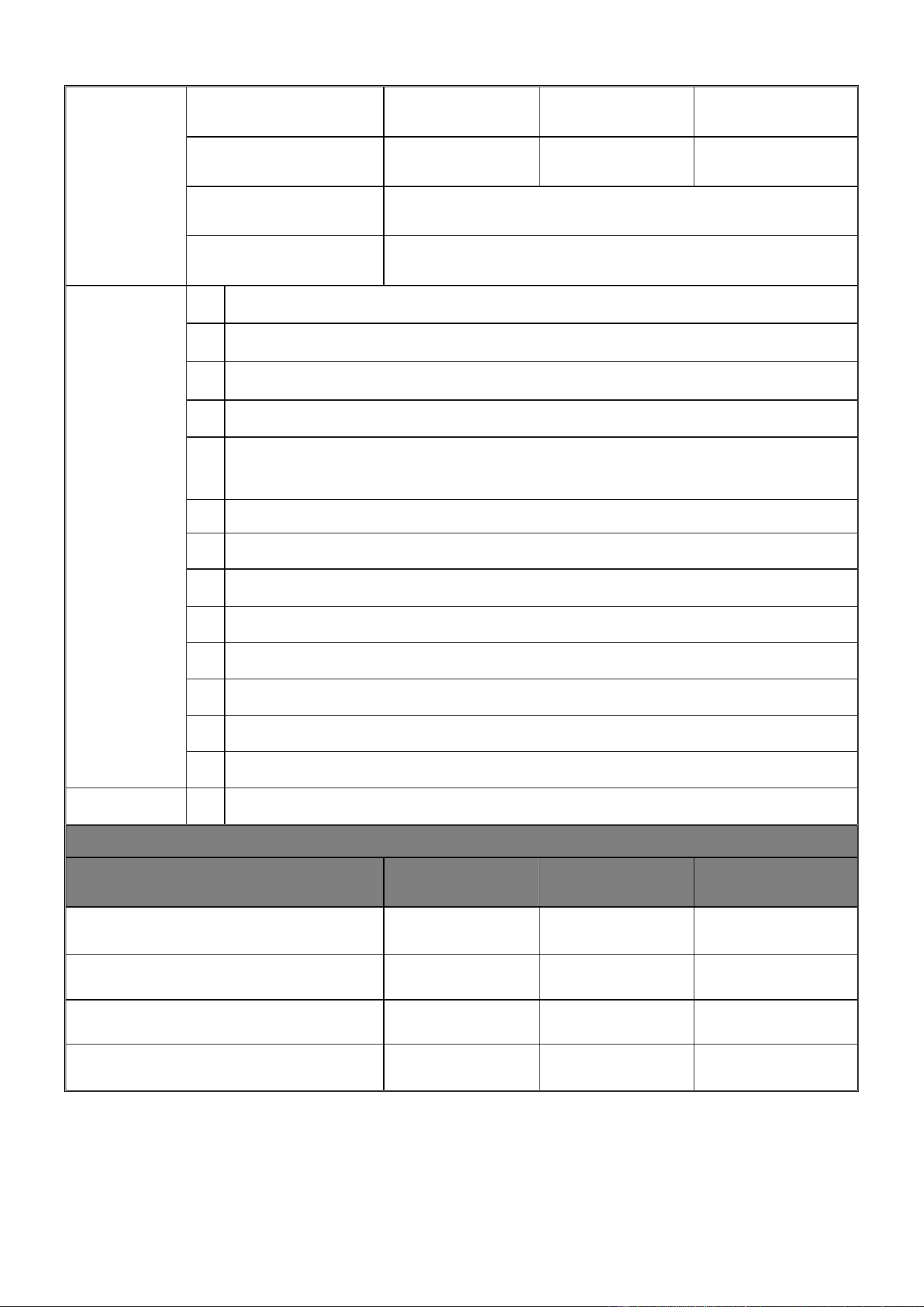
Working Humidity
10%~90%
RH 25℃
Storage Humidity
5%~95%
RH 25℃
Storage Temperature
-20℃~65℃
Working Temperature
5℃~50℃
Aesthetic Seam Test
Seam between the top cover and bottom cover: 0.2 ± 0.1 mm.
Keyboard Noise Test:
Measured at a distance of 420 ± 10 mm, noise level ≤ 90 dB.
Selling Points
1
No USB driver is required for plug and play
2
FN function
3
Comfortable & delicate touch feeling
4
Not greasy after long Use/Quite typing /Quick response
5
FN+↑↓←→ Control the light
6
Fashionable, designed colors
7
Abs materials ,not easy to break,super durable
8
Different layer key cap design,Ergonomic
9
19 keys Anti-ghosting
10
Mac system & Win system Switch
11
Color collision design
12
Hidden screw design
13
Gasket structure membrane keyboard
14
Screen display Keyboard battery level,BT1/BT2/2.4G Version
Material specification parameter
Spare Part
Color
Material
Surface
Treatment
Cover
ABS
-
Bottom
ABS
-
Key caps
ABS
-
Two-stage Adjustable Feet
ABS

3
Windows system Multimedia Shortcuts KEY COMBINATION
MAC system Multimedia Shortcuts KEY COMBINATION
FN+F1
Open the player
FN+F1
decrease Brightness of the LED Light
FN+F2
Volume-
FN+F2
Increase Brightness of the LED Light
FN+F3
Volume+
FN+F3
(CMD+ALT+↑)Show/Hide Dock
FN+F4
Mute
FN+F4
(CMD+SPACE) Open Launchpad
FN+F5
Stop
FN+F5
Previous song
FN+F6
Previous song
FN+F6
(CMD+SHIFT+4) Screen Shot
FN+F7
Play/Pause
FN+F7
Previous song
FN+F8
Next song
FN+F8
Play/Pause
FN+F9
Mail
FN+F9
Next song
FN+F10
Homepage
FN+F10
Mute
FN+F11
Lock PC
FN+F11
Volume-
FN+F12
My Computer
FN+F12
Volume+
FN+I
PRTSC
FN+I
PRTSC
FN+O
SCRLK
FN+O
SCRLK
FN+P
PAUSE
FN+P
PAUSE
FN+L
END
FN+L
END
FN+↑
Increase brightness (levels: 0% →
25% → 50% → 75% → 100%). When
set to maximum brightness, the
indicator flashes 3 times.
FN+←
Speed reduction (a total of 5 speed
adjustable, adjusted to the slowest when
indicator flashing 3 times)
FN+↓
Decrease brightness (levels: 100% →
75% → 50% → 25% → 0%). When
set to minimum brightness, the
indicator flashes 3 times.
FN+→
Speed increase (a total of 5 speed
adjustable,adjusted to the fastest when
indicator flashing 3 times)
FN+1
Bluetooth 1
FN+2
Bluetooth 2
FN+|
Switching the color of the light effect
(red - green - blue - purple - orange -
blue - white - rainbow)
FN+A
Switching Mac systems
FN+S
Switching Mac systems
FN+Enter
Switching 15 RGB light effects
FN+ESC
Reset to factory Default(The indicator
light will flash 3 times)
FN+Backspace
Turn the lights off/on
FN + Left Win
Lock or unlock the Left Win key or App key (only in Windows mode)
Remark:
1. FN + 1: For Bluetooth 1. Press and hold FN + 1 for 3 seconds. During broadcasting mode, the Number Lock red light will flash
quickly. Once reconnected or connected, the red light will stop.
2. FN + 2: For Bluetooth 2. Press and hold FN + 2 for 3 seconds. During broadcasting mode, the Caps Lock red light will flash
quickly. Once reconnected or connected, the red light will stop.
3. After switching to Mac/IOS mode, the Left Win and Left Alt keys will swap positions
19 keys Anti-Ghosting
Q、A、Z、W、S、 X、E、D、C、B、Space、↑、↓、←、→、Tab、Alt-L、Ctrl_L、Shift_L

4
No
No.
Name
Brightnes
s
Speed
Description
1
1
Always on
√
Backlit lighting always on
2
2
Breathing
√
√
Breathing light slowly changing from darkness to
brightness
3
3
Horse Running
√
√
4 different colors lighting run from right to left.
4
4
Rainbow Changing
√
√
Red-Orange-Green-Blue-Purple colors keep changing.
5
5
Flash Horse
Running
√
√
Waving lighting flows
6
6
Starry
√
√
Automatic light up and slowly off
7
7
River flowing
√
√
Waving lighting, flows from left to right
8
8
Flashy
√
√
Flashing and exchanging colors
9
9
Rainbow
√
√
Rainbow horse running
10
10
Come and Go
√
√
Lightening on from one direction, and full light up
then return back
11
11
Single way
√
√
4 different lights in single way lightening up and off
12
12
Two ways
√
√
Different lights in two ways lightening up and off
13
13
Run to the middle
√
√
Two become one horse running lighting effect.
14
14
Opposite way
√
√
Spread from middle orse running lighting
15
15
Snowy
√
√
Press any keys to light up the lighting.
Instructions:
1. Switch the power to ON mode. If the USB cable is not connected, the charging/pairing indicator will
flash slowly. Press and hold FN + 3# key for 3 seconds. The red charging indicator will flash quickly,
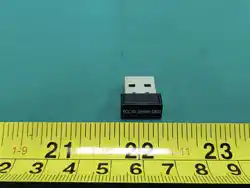
indicating the keyboard has entered pairing mode. Insert the receiver at this point, and the pairing
indicator will stop flashing. This confirms a successful 2.4G connection.
*Note: When connecting in 2.4G mode, ensure the keyboard starts searching before inserting the
receiver. The keyboard is pre-paired at the factory by default.
2. Switch the power to ON mode. If the USB cable is not connected, the keyboard will automatically
broadcast according to the Bluetooth version of the device. The
keyboard can connect to up to two Bluetooth devices. After a successful connection, it will display BT5.0
KB:
3. After turning on the keyboard, connecting the USB cable will switch the keyboard to wired mode and
start charging the lithium battery.
4. In Bluetooth/2.4G mode, the keyboard automatically enters power-saving mode after 6 minutes of
inactivity (light sleep after 6 minutes, deep sleep after 30 minutes).
Press any key to wake up the keyboard. Battery level can be checked on the computer when connected
via Bluetooth.
5. The Type-C connection ensures more reliable connectivity, better stability, and faster charging.
6. This version clarifies the steps, making it easier to follow during testing while maintaining accuracy.
7.Bluetooth Mode (Device Name: “BT5.0 KB”): Compatible with Windows 7 and earlier systems.
Bluetooth Mode (Device Name: “BT5.0 KB”): Compatible with Windows 8, Windows 10, and later
systems.

5
8. Bluetooth Mode: Compatible with MAC computers, Android phones or tablets, and IOS phones or
tablets equipped with Bluetooth BLE 4.0, BLE 5.0, or higher hardware
Working Environment:
1. Rated Voltage: DC 3.7V (When the battery voltage drops below 3.3V, the indicator
light will flash as a warning. During charging, the charging indicator will remain
steadily lit. The device will automatically shut down when the battery voltage drops
below 3.0V. After shutdown, buttons will be unresponsive, and the low battery
indicator will light up to prompt charging).
2. Charging Voltage/Current: DC 5V / ≤250mA, with a charging time of approximately
10-12 hours (fast charging is not supported).
FCC Statement
This equipment has been tested and found to comply with the limits for a Class B digital dev
ice, pursuant to part 15 of the FCC Rules. These limits are designed to provide reasonable pr
otection against harmful interference in a residential installation. This equipment generates
, uses and can radiate radio frequency energy and, if not installed and used in accordance wi
th the instructions, may cause harmful interference to radio communications. However, the
re is no guarantee that interference will not occur in a particular installation. If this equipm
ent does cause harmful interference to radio or television reception, which can be determin
ed by turning the equipment off and on, the user is encouraged to try to correct the interfer
ence by one or more of the following measures:
•Reorient or relocate the receiving antenna.
•Increase the separation between the equipment and receiver.
•Connect the equipment into an outlet on a circuit different from that to which the receiver i
s connected.
•Consult the dealer or an experienced radio/TV technician for help.
Caution: Any changes or modifications to this device not explicitly approved by manufactur
er could void your authority to operate this equipment.
This device complies with part 15 of the FCC Rules. Operation is subject to the following tw
o conditions: (1) This device may not cause harmful interference, and (2) this device must a
ccept any interference received, including interference that may cause undesired operation.
RF Exposure Information
The device has been evaluated to meet general RF exposure requirement. The device can be
used in portable exposure condition without restriction.