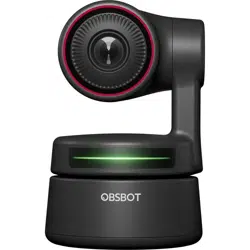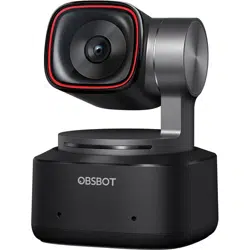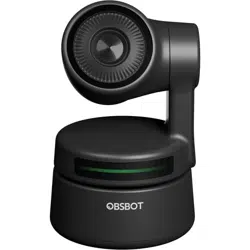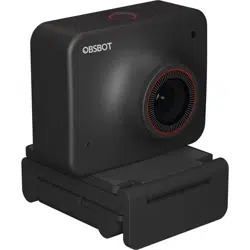
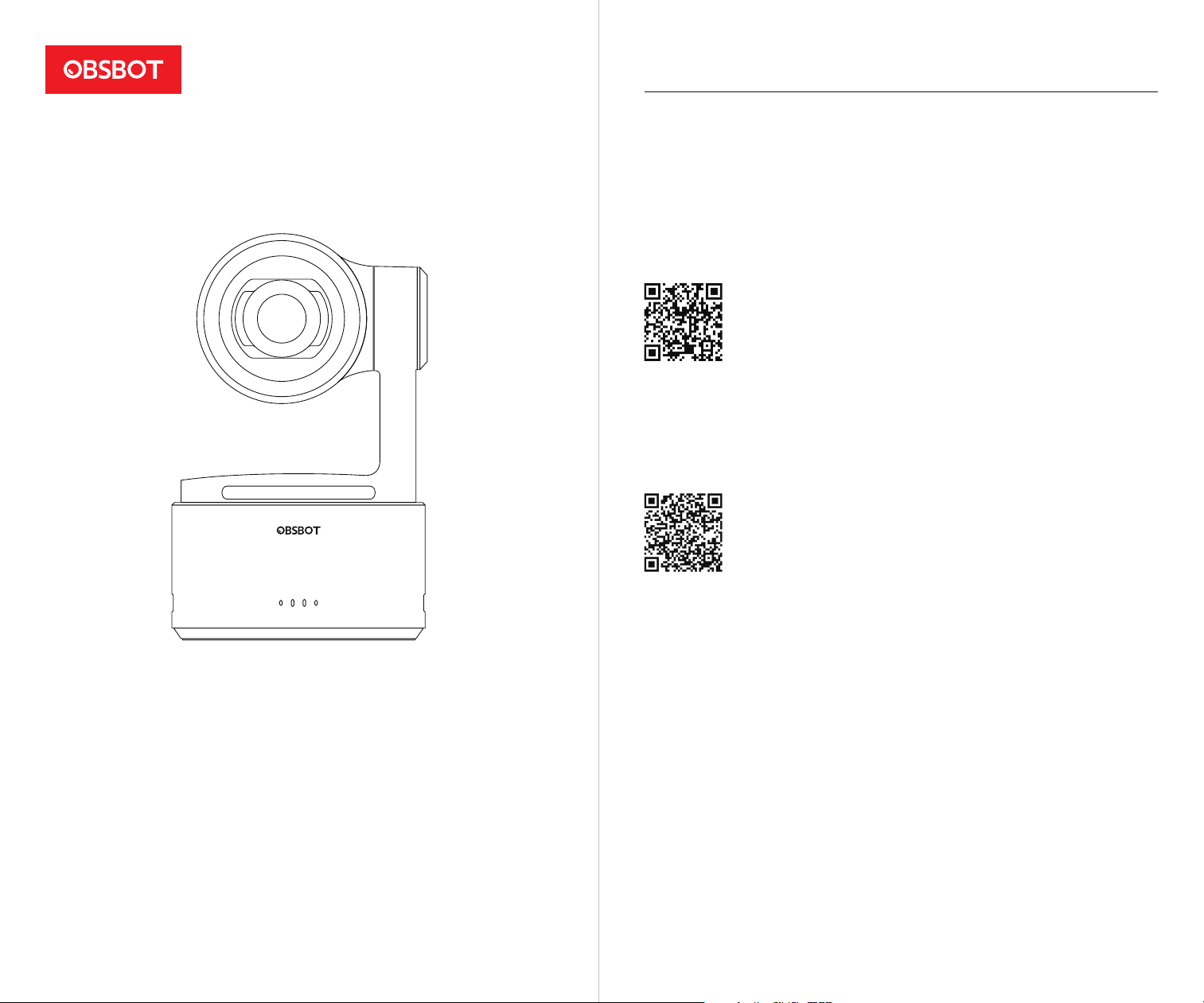
User Manual
English
v1.0
Note
⚠ Important consideration
Recommendation
We recommend that users watch instructional videos and read the user manual first to
understand the usage process.
https://www.obsbot.com/download
Reading Guide
Tutorial Video
Users could access and watch tutorial videos through the following link to use the product
correctly.
https://www.obsbot.com/explore/obsbot-tail-2
2

Reading Guide
2
2
Note
Recommendation
Tutorial Video
Contents
43
Download the App/Software
5
2
OBSBOT Tail 2 Overview
6
6
About Tail 2
Parts Info
6
2
Web UI
21
21
Access Web UI
Web UI Interface
22
Firmware Upgrade
28
28
Firmware Upgrade Overview
Upgrade via Obsbot Start App
Upgrade via OBSBOT Center
Using Micro SD Card to Upgrade
28
28
28
Setting Up Tail 2
7
7
Placement Instructions
Gimbal
Power On/Off
Inserting the Micro SD Card
Gesture Control
Charging Instructions
Battery Indicator
Tally Light
Status Indicator
Buzzer
Connect Microphone
Control Protocol
7
9
8
13
13
14
15
16
11
8
9
10
11
7
7
10
18
20
Specifications
29
Obsbot Start App
13
Software Overview
Connect Obsbot Start App
Shooting View
Camera Settings
More Settings
AI Settings
Recording & Live Streaming Configuration
6
⚠ System Requirements
iOS 11.0 or later
Android 10.0 or later
About Tail 2
Equipped with an advanced 12-piece optics system and a 1/1.5'' CMOS sensor, the OBSBOT Tail 2
supports 12x hybrid zoom, delivering exceptional image quality. Its innovative PTZR lens design
enables seamless switching between landscape and portrait modes. Combined with the
upgraded AI Tracking 2.0 technology, it achieves long-range precise tracking and supports various
AI customization settings, unlocking endless creative possibilities. Additionally, comprehensive
interfaces and multi-protocol compatibility provide robust support for professional production,
meeting diverse shooting requirements.
5
Download the App/Software OBSBOT Tail 2 Overview
https://www.obsbot.com/support/obsbot-tail-2
1. Scan the QR code or search for the 'Obsbot Start' App in the App store to download the
Obsbot Start App.
2. Power on your Tail 2.
3. Turn on Bluetooth and Wi-Fi on your phone.
4. Open the App and tap on your camera (the default name is "Tail 2_XXXXXX"), then follow the
App instructions to connect your Tail 2.
The OBSBOT Tail 2 also offers advanced users on Windows and Mac a control software called
OBSBOT Center.
It can be downloaded from https://www.obsbot.com/download.
Obsbot Start
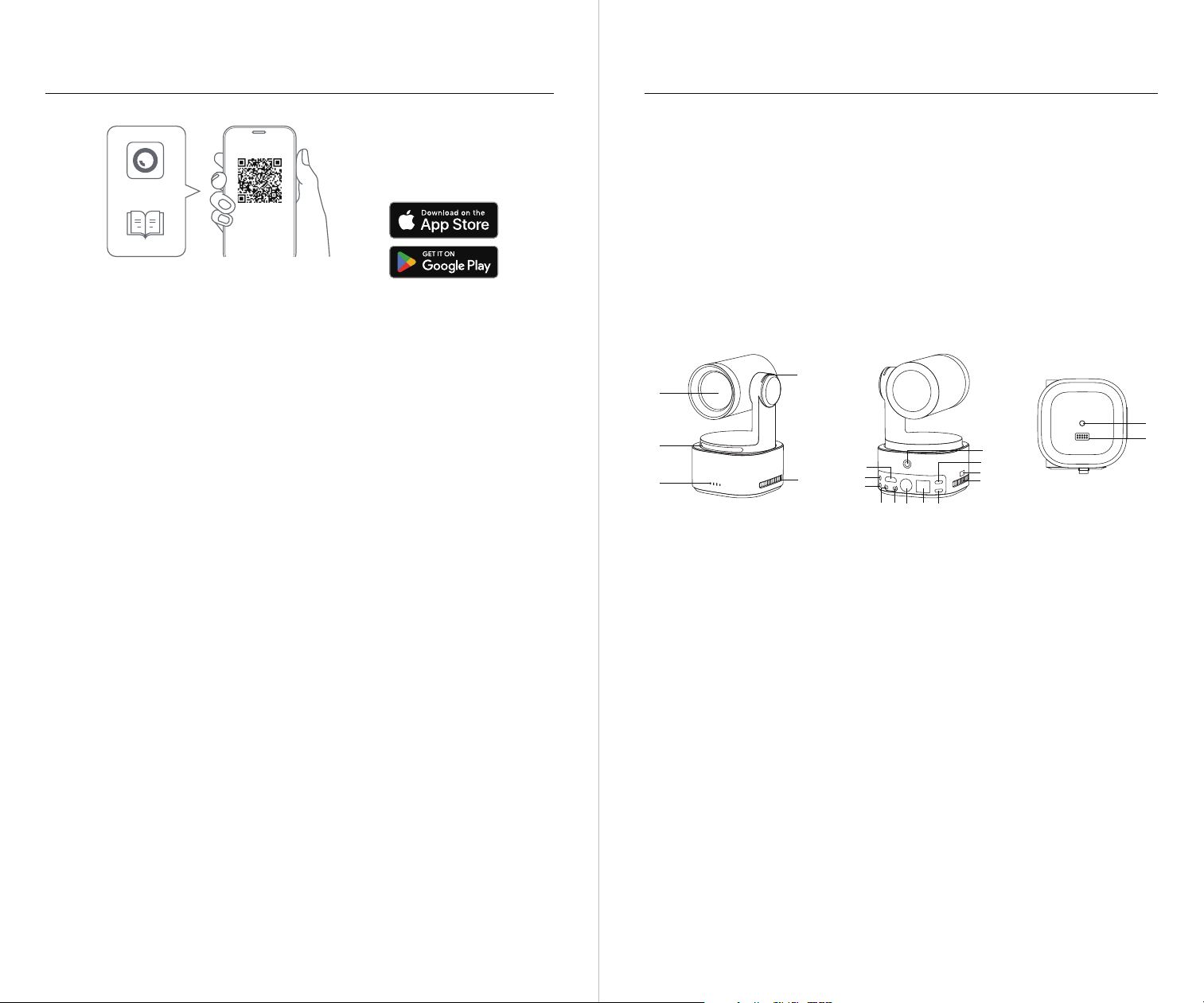
Parts Info
01. Camera Lens
02. Tally Light
03. Status Indicator
04. Battery Indicator
05. Cooling Inlet
06. HDMI Port
07. MIC IN Port
08. LINE IN Port
09. RS232 IN Port
10. RS232 OUT Port
11. Power Button
12. 3G-SDI Port
13. LAN/PoE+ Port
14. USB-C Port
15. Power Input Port
16. Micro SD Card Slot
17. Cooling Outlet
18. UNC 1/4-20 Interface
19. Extension Pin Interface
18
19
06
17
16
14
11
07
08
09 10
13
12
15
01
03
02
05
04
8
Placement Instructions
OBSBOT Tail 2 is equipped with a standard UNC 1/4-20 nut connector on the base for mounting
the camera to a tripod or direct placement on a flat surface.
Gimbal
OBSBOT Tail 2 is equipped with a 3-axis brushless motor gimbal. The controllable rotation range
for the pan is ±160°, for the tilt is -65° to 32°, and for the roll is ±120°.
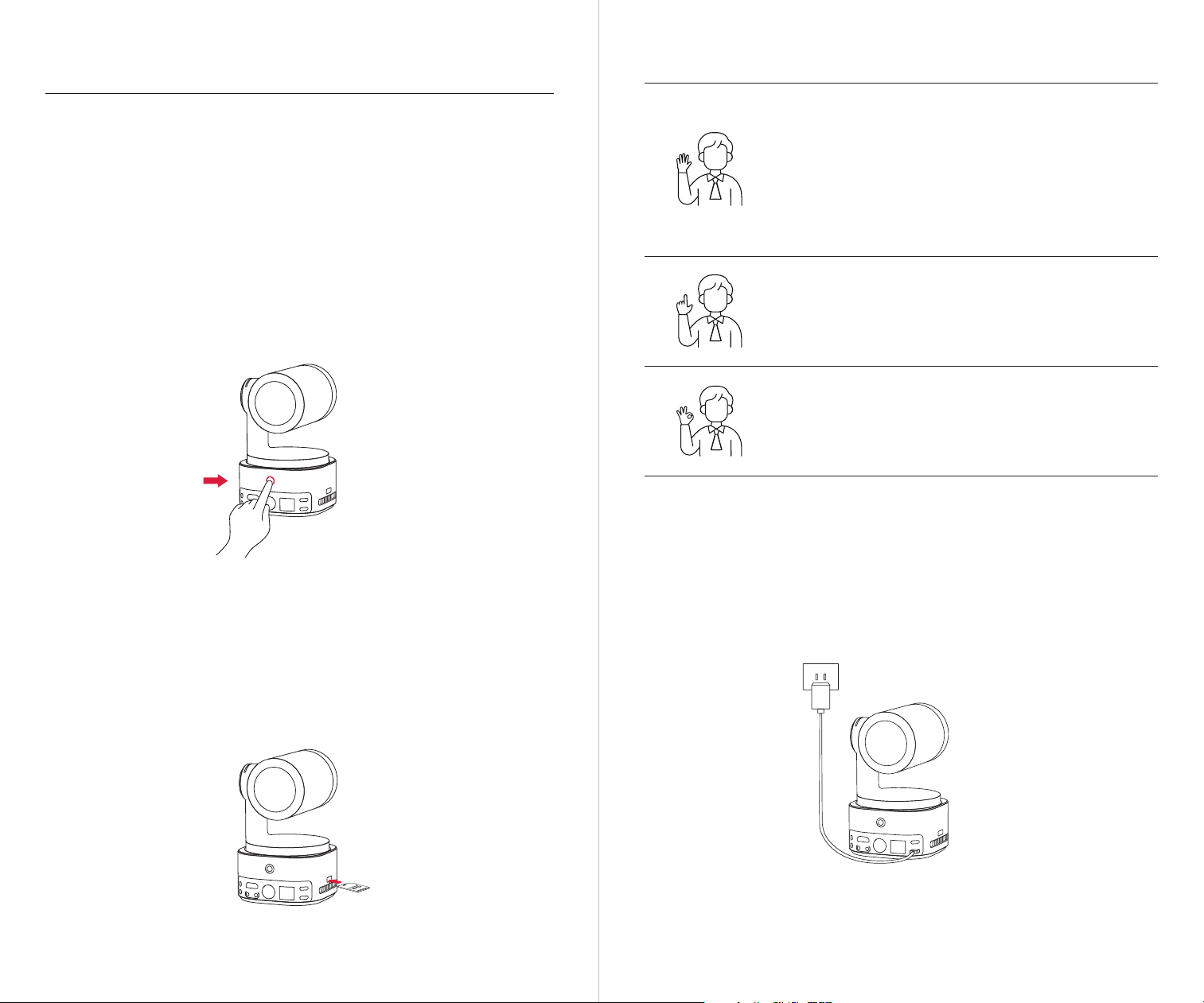
Power On/Off
Press and hold the power button until the indicator light flashes blue in a cycle to power on/off.
Inserting the Micro SD Card
Insert the Micro SD card into the Micro SD card slot as shown in the diagram below. To remove
the Micro SD card, gently push it inward to slightly eject it.
After shooting, you can export the media files to your computer or quickly export them to your
phone via the Obsbot Start App.
7
Setting Up Tail 2
⚠ If the product is in working condition for a long time, the bottom of the product will heat up,
which is normal situation.
⚠ The Micro SD card supports a maximum capacity of 1TB. It is recommended to use a Micro SD
card with a UHS Speed Grade 3 rating for optimal performance (sold separately).
Gesture Control
Turn On/Off Human Tracking
To enter human tracking mode, perform the gesture shown in the
figure. The current status indicator light will flash twice and then turn
to a steady blue state, indicating that you have successfully entered
human tracking mode.
To exit human tracking mode, perform the same gesture again. The
blue status indicator light will flash twice and then turn green or
purple, indicating that you have successfully exited human tracking
mode.
Zoom to 2x (default)/Cancel
Perform the gesture control shown in the figure. The status indicator
light will flash twice to indicate that the zoom in/out has been
performed.
Start/Stop Recording
Perform the gesture control shown in the figure. The status indicator
light will flash twice to indicate that the video recording has started
or stopped.
⚠ Please be careful not to cover your face with your hands and keep your fingers open for gesture
control.
⚠ Please go to the link below to find the tutorial video for gesture control.
https://www.obsbot.com/explore/obsbot-tail-2
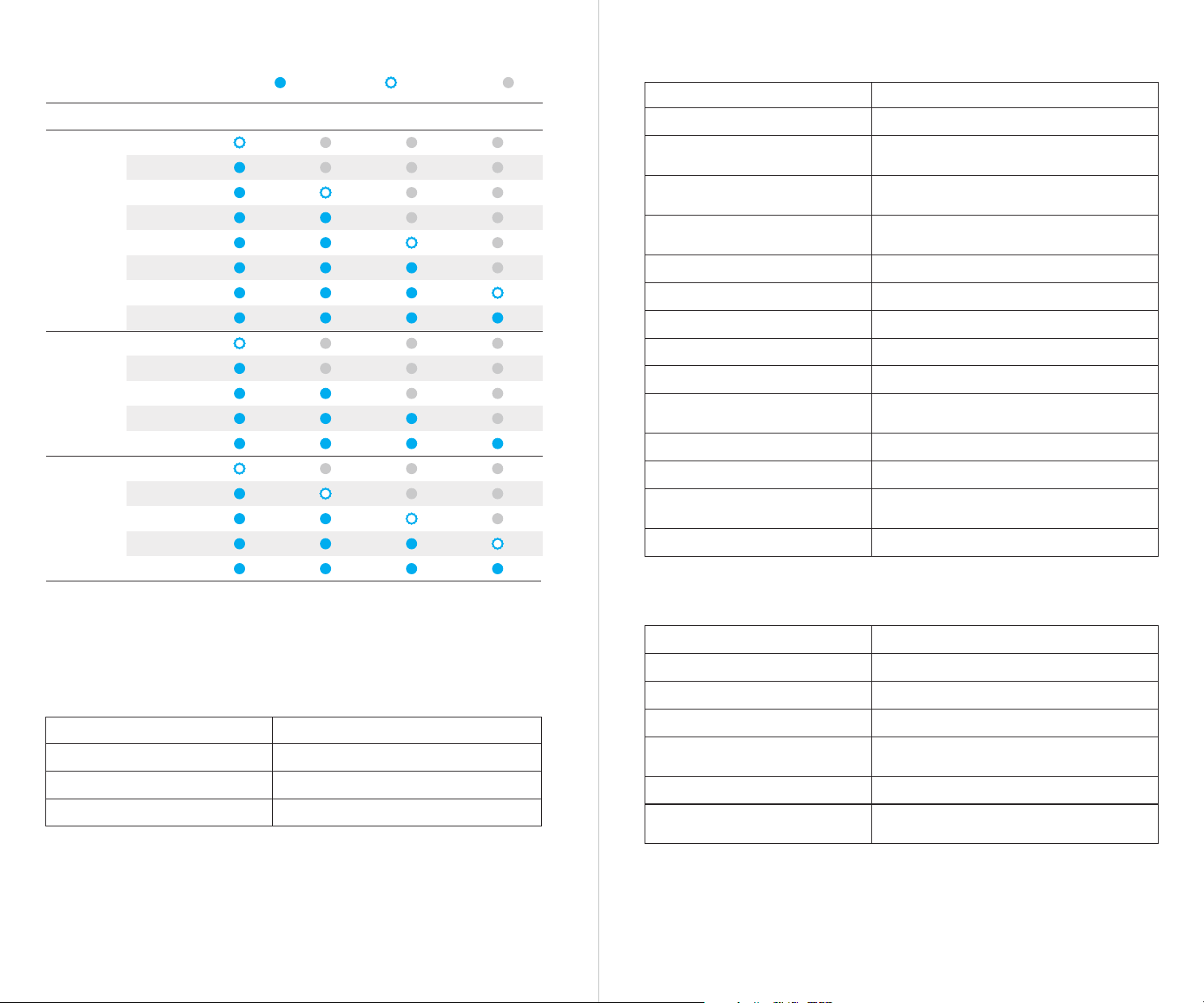
When using the camera for the first time, please charge it using the included USB-C power cable
to ensure proper functionality.
⚠ It is recommended to use an FCC/CE certified adapter that supports the USB PD3.0 protocol
and has a power output of at least 25W.
Charging Instructions
109
⚠ Charging will stop when the battery temperature exceeds 45°C.
For example, when connected to an external power supply, if the battery temperature exceeds
45°C, the camera will stop charging and will be powered directly from the external power supply.
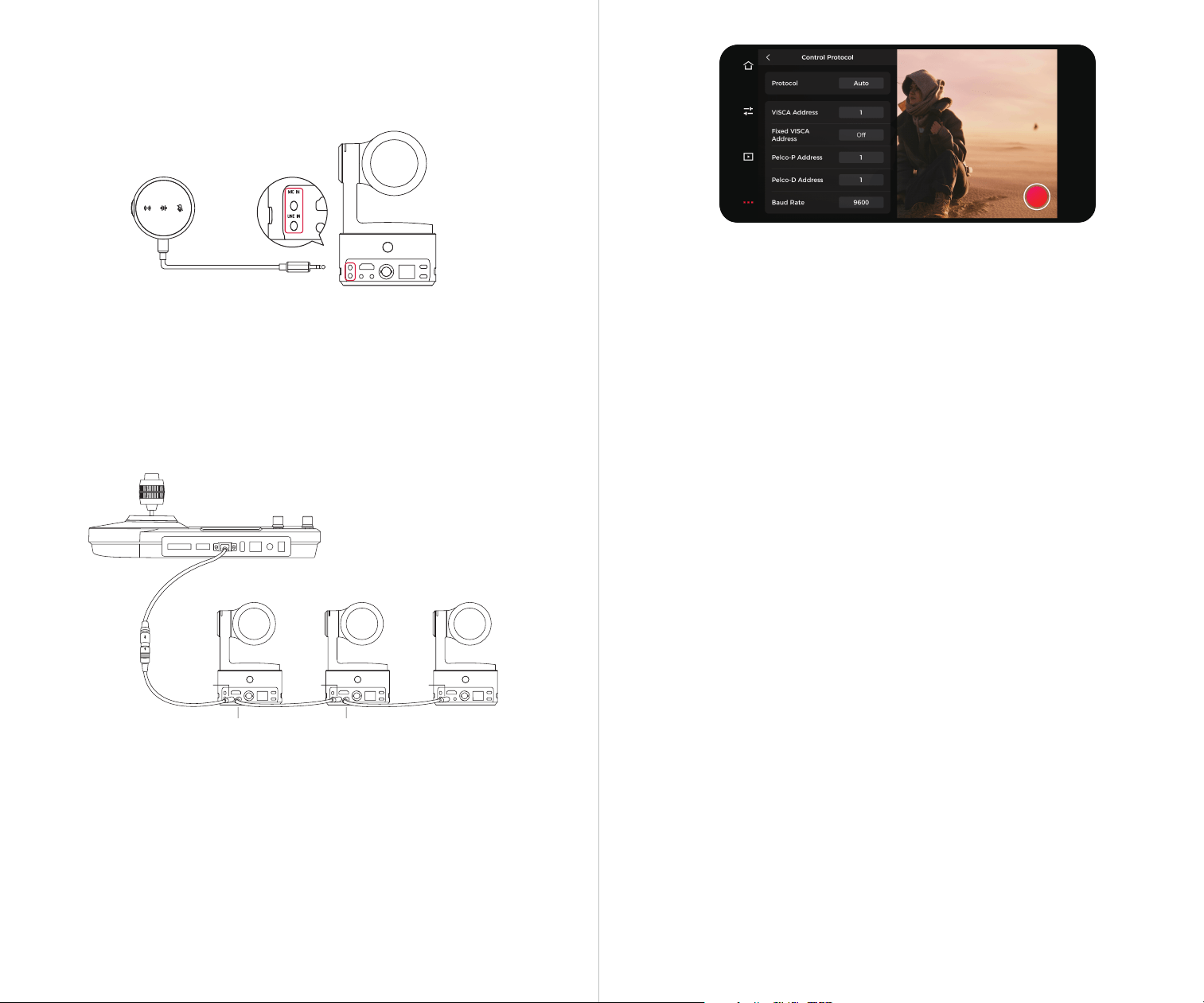
Battery Indicator
Tally Light
NDI Video Stream Status Indicator Statuses
Program Solid red light
Light Off
Preview
Not in Use
Solid green light
Status Indicator
Equipment Status Indicator Statuses
Powering on and initializing Blue lights flash circularly
Breathe in green light
Breathe in blue light
Flash in yellow light
Solid green light
Solid purple light
Solid blue light
Solid yellow light
Breathe in yellow light
The lights flash once in their current color
Solid red light
Breathe in red light
The lights flash in yellow and blue alternatively
Executing gesture control features
Streaming or recording - Tracking
target unselected
The lights flash in their current color twice together
means your gesture is recognized successfully
Streaming or recording - Tracking
target selected
STA mode - Tracking target unselected
AP mode - Tracking target unselected
STA/AP mode - Tracking target selected
STA/AP mode - Tracking target losing
Streaming or recording - Tracking
target losing
Taking a picture
Camera/AI/Gimbal Error
Camera errors, including SD card full or
update failures, and so on
Upgrading the firmware
Streaming failed and retrying
D
DDD
D···D···D···
DDDDDD
Starting to Stream & Record
Battery level is low and camera is about
to power off
Upgrading the firmware
Camera errors, including SD card full or
update failures, and so on
Buzzer
Tweet Mode
DDD
D
Explanation
Powering on or off
Taking a picture
LED 4LED 1 LED 2 LED 3CapacityType
Steady Blue
OFF
11%-25%
31%-45%
0%-10%
26%-30%
61%-75%
96%-100%
46%-60%
11%-25%
46%-75%
0%-10%
26%-45%
76%-100%
76%-95%
Battery
Detection
Upon
Pressing
the Power
Button
Discharging
Flashing Blue
26%-45%
76%-95%
0%-25%
46%-75%
96%-100%
Charging
1211
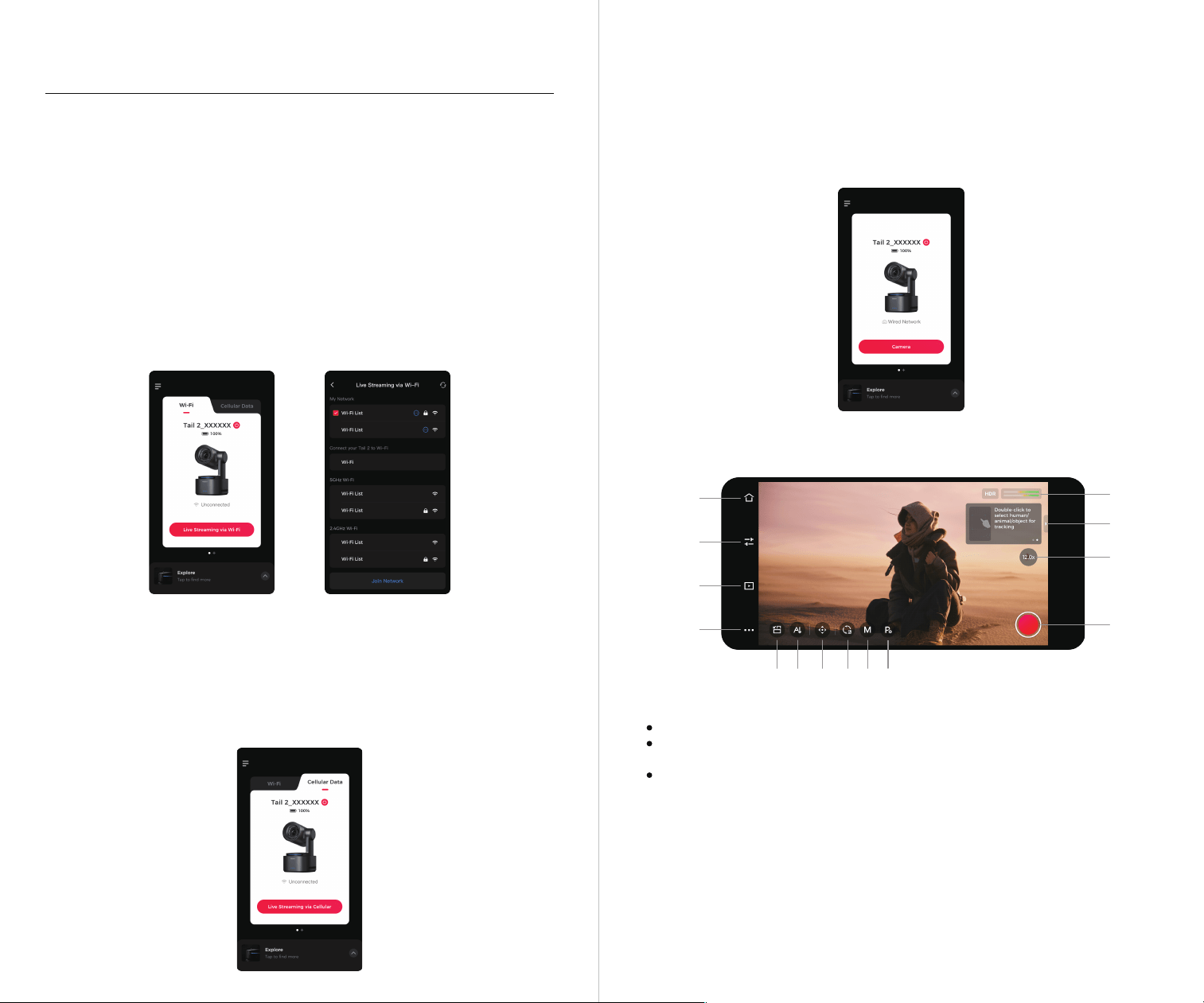
Connect Microphone
The Tail 2 features two 3.5mm audio interfaces: MIC IN and LINE IN, for connecting audio devices.
It supports microphones with a TRS interface type operating in unbalanced stereo mode.
2. VISCA over IP
VISCA over IP control is supported for the camera, and it is necessary to ensure that the Tail 2 and
the control device are on the same network.
The feature list for VISCA over IP can be viewed and downloaded at
https://www.obsbot.com/explore/obsbot-tail-air/visca-over-ip.
The feature list for the VISCA protocol can be viewed and downloaded at
https://www.obsbot.com/explore/obsbot-tail-air/visca-over-ip.
The feature list for the Pelco-D/Pelco-P protocols can be viewed and downloaded at
https://www.obsbot.com/explore/obsbot-tail-2/pelco-d-pelco-p.
⚠ Please connect a microphone without power to the MIC IN interface, and a microphone with
power to the LINE IN interface.
Control Protocol
1. RS232 Serial Port Protocol
The RS232 interface of the Tail 2 supports three serial protocols: VISCA/Pelco-D/Pelco-P. It
supports controlling the camera gimbal, switching preset positions, and adjusting focus through
the protocol.
Connect the control device to the RS232 IN interface of the camera, and select the
corresponding control protocol to control the camera.
When connecting multiple cameras, connect the RS232 OUT interface of Camera 1 to the RS232
IN interface of Camera 2, connect the RS232 OUT interface of Camera 2 to the RS232 IN interface
of Camera 3, and so on, linking the cameras in sequence to enable control of multiple cameras.
The protocol address, baud rate, and other settings can be configured in the
"Obsbot Start App -> More Settings -> Control Protocol".
RS232 IN
RS232 OUT
RS232 IN
RS232 OUT
RS232 IN
1413
Software Overview
Shooting View
The Tail 2, when paired with the Obsbot Start App, enables camera control and image parameter
adjustments on mobile devices. It also supports quick live streaming setup and one-click
landscape/portrait switching, offering a seamless and convenient live streaming experience.
Connect Obsbot Start App
1. Press and hold the power button on Tail 2 to turn it on.
2. Enable Bluetooth and Wi-Fi on your mobile device.
3. Launch the Obsbot Start App and select the corresponding Tail 2.
4. Tail 2 supports three connection methods: Wi-Fi connection, cellular data connection, and
wired network connection.
(1) Wi-Fi Connection
(2) Cellular Data Connection
If you do not have a local Wi-Fi network, you can connect to the Tail 2's hotspot and stream over
your mobile device's network.
(3) Wired Network Connection
Connect the Tail 2 to the router or switch using an Ethernet cable. Once your mobile device is on
the same local network, you can establish the connection.
1. 【Home Button】 Tap to return to the home screen.
2. 【Camera Settings】 Tap to enter the camera settings. For details, please refer to the "Camera
Settings" section.
3. 【Album】 Tap to enter the album to manage captured videos and photos. Supports playback,
deletion, download and upload of media files.
Obsbot Start App
➀ Tap "Wi-Fi";
➁ Tap "Live Streaming via Wi-Fi", select the Wi-Fi network you want to use and enter the password
to connect. (The Wi-Fi list includes two frequency bands: 5GHz and 2.4GHz. It is recommended to
use 5GHz.);
➂ Once connected, it will automatically enter the shooting view.
➀ Tap "Cellular Data";
➁ Tap "Live Streaming via Cellular", and connect to the Tail 2 hotspot;
➂ Once connected, it will automatically enter the shooting view.
⚠ The live streaming quality may not be as reliable as Wi-Fi connection.
The shooting view supports multiple convenient operations:
Hold and drag on the screen to control the gimbal.
Double-click to select human/animal/object for tracking, and double-click again to deselect
tracking.
Draw a box around the target object to precisely select it for tracking, and double-click to cancel
tracking.
01
11
12
13
14
02
03
04
05 06 07 08 09 10
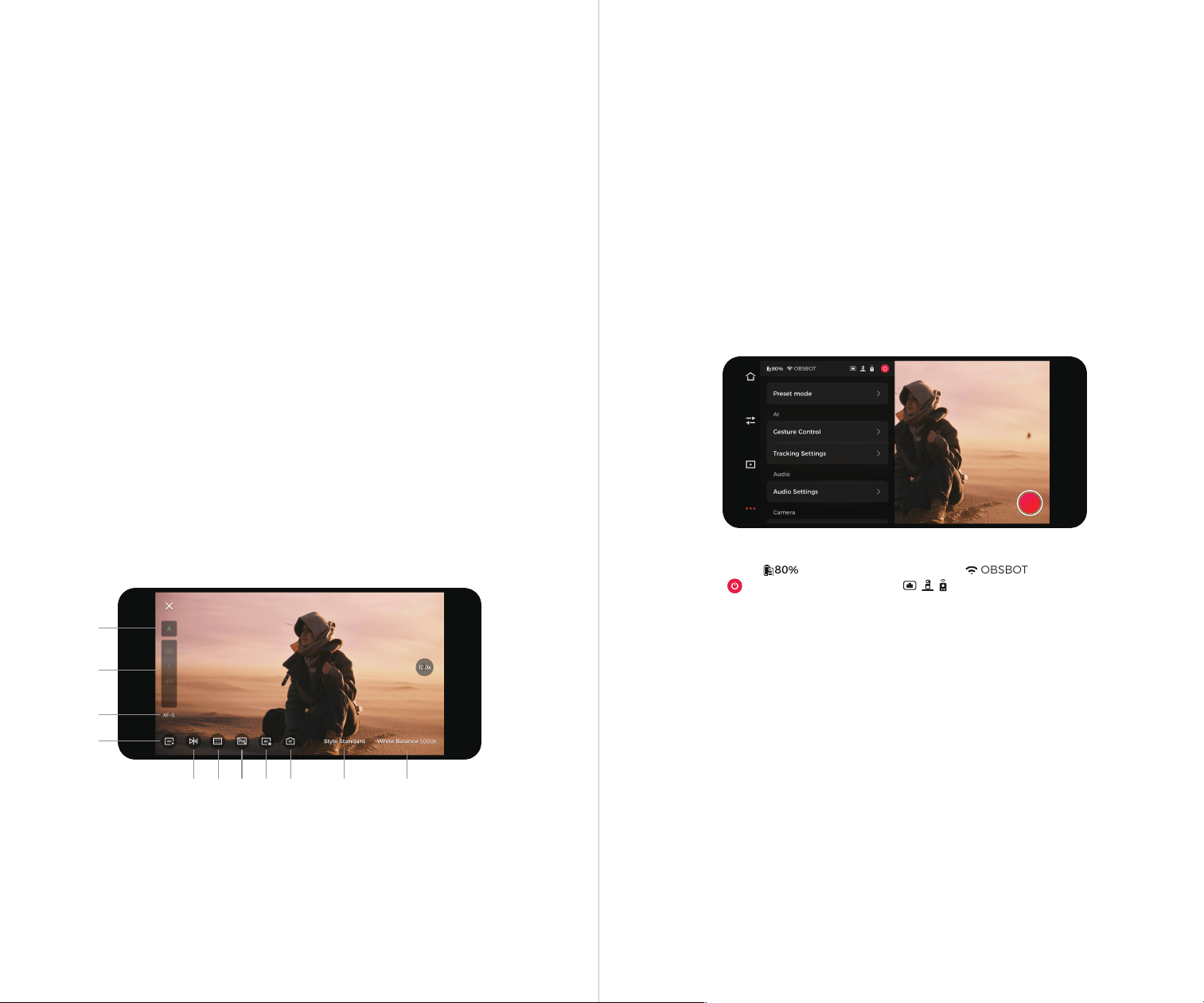
1. 【Device Status Bar】 : Displays camera battery level, : Displays current
network status, : Allows for camera power-off, : Display the connection status of
relevant accessories.
2. 【Preset Mode】
It supports users to configure camera parameters and save them as a separate
mode. Non-members are limited to one preset mode, while members can set multiple modes.
3. 【Gesture Control】 Supports three types of gesture control: ➀ Turn on/off Human Tracking;
➁ Start/Stop Recording; ➂ Execute Zoom in/out.
4. 【Tracking Settings】 Supports locking the pan axis/tilt axis.
5. 【Audio Settings】 Supports linear input/mic input. After connecting an external audio input
device, you can adjust audio parameters such as volume, noise reduction, and gain.
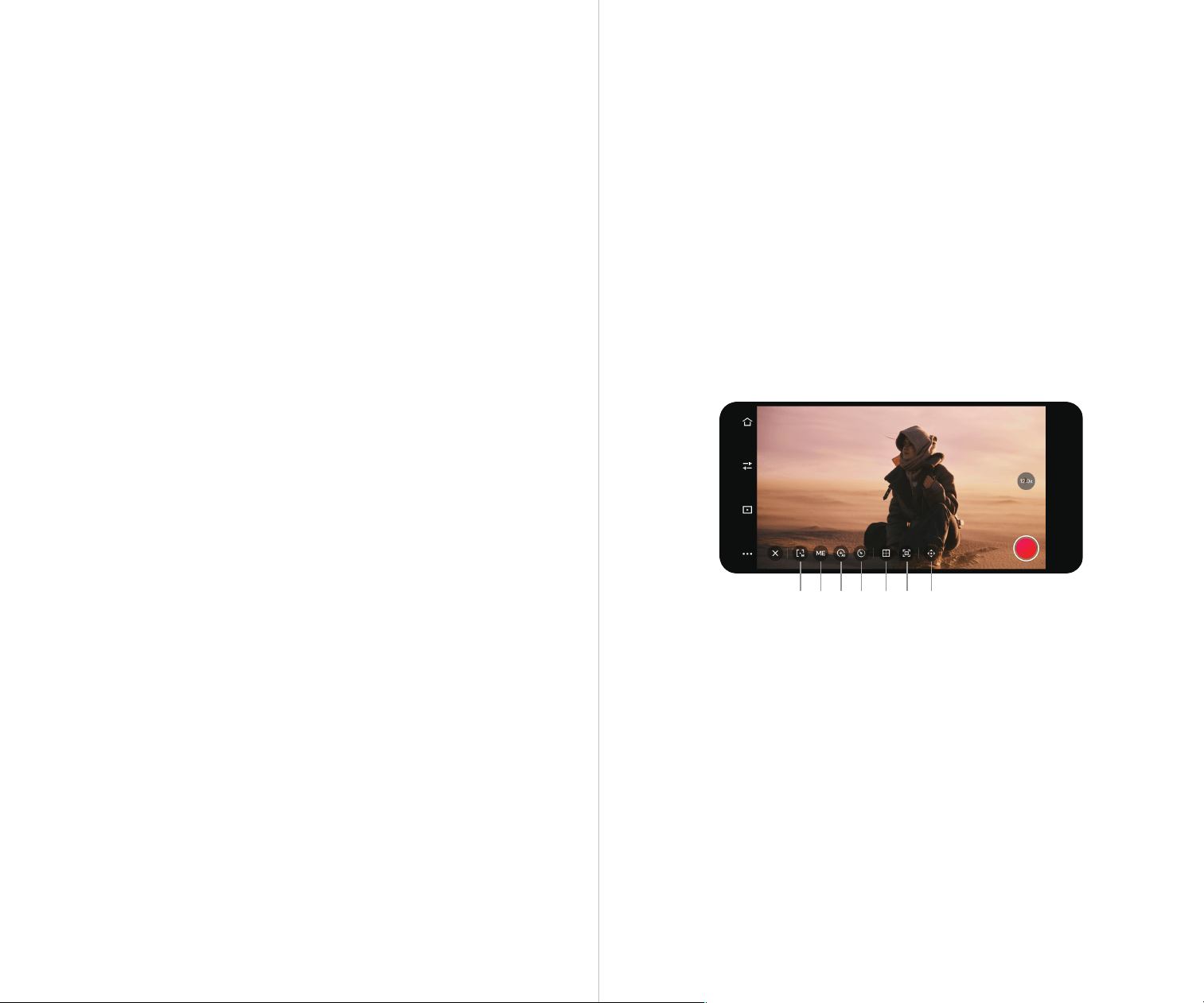
6. 【Night View Mode】 Enabling Night View Mode will enhance the shooting performance in
low-light environments.
7. 【Auto Focus】 Global Focus/Face Focus/Foreground Focus (When Foreground Focus is enabled,
it will prioritize focusing on nearby objects).
8. 【Face Auto Exposure】 Turn off (global exposure)/Turn on (face auto exposure).
9. 【ISO Upper and Lower Limits】 Adjust ISO upper and lower limits, range: 100~6400 (ISO Upper
Limit > ISO Lower Limit).
5. 【Mirror】 Tap to horizontally flip the image.
6. 【Grids】 Tap to enable grid lines to assist in framing.
7. 【HDR】 Disable (default)/Enable.
8. 【AE Lock】 Disable (default)/Enable.
9. 【AF】 Global Focus/Face Focus (default)/Foreground Focus.
10. 【Style】 Switch image styles, Standard(default)/Outdoor/Pastel/Custom (adjustable sharpness,
contrast, saturation, hue, brightness).
11. 【White Balance】 Adjust white balance parameters, Auto (default)/Daylight/Fluorescent/
Tungsten/Cloudy/Custom (adjustable color temperature).
1615
Camera Settings
More Settings
1. 【Exposure Mode】 Tap to switch exposure modes between A (Automatic mode) and M (Manual
mode).
2. 【Exposure Parameters】 Adjustable ISO, Shutter Speed and EV.
3. 【Focus Mode】 AF-S (Single Autofocus) / AF-C (Continuous Autofocus) / MF (Manual Focus).
4. 【Anti-Flicker】 Off (default)/50Hz/60Hz. Set the anti-flicker frequency to reduce flickering
caused by fluorescent lights or TV screens when shooting indoors.
4. 【More Settings】 Tap to bring up the settings panel. It allows you to configure the camera's
general functions. For details, please refer to the "More Settings" section.
5. 【Landscape/Portrait Mode Switch】 Tap to switch between landscape and portrait mode.
6. 【AI Settings】 Tap to bring up the settings list. For details, please refer to the "AI Settings" section.
7. 【Gimbal and View】 Tap to bring up the gimbal control and zoom panel, enabling manual
control of the gimbal and zoom.
8. 【Reset/Initial Position】 Tap to reset Tail 2 to its initial position. Long press to set the initial
position.
9. 【Preset Mode】 Tap to apply the corresponding camera parameters from the preset mode.
10. 【Preset Positions】 Tap to add a preset position, supporting up to three preset positions: P1, P2,
and P3. Long press the button to update/delete after adding.
11. 【Status Display】 Real-time display of the camera's current HDR, Night View Mode, and Audio
Status.
12. 【Tracking Guide】 ➀ Double-click to select human/animal/object for tracking; ➁ Box-select the
object for tracking (suitable for precisely selecting the target object).
13. 【Zoom Quick Access】 Displays the current zoom level in real time. Long press to bring up the
zoom dial, then slide the dial or click the up and down arrows to adjust the zoom level.
14. 【Recording/Live Streaming】 For the first use, tap to enter the recording/live configuration. After
configuration, you can tap to quickly start recording or live streaming. See "Recording & Live
Streaming Configuration" for details.
01
02
03
04
05 06 07 08 09 10 11
OBSBOT
80%
1817
AI Settings
1. 【Tracking Mode】 In human tracking, it supports single mode and group mode.
2. 【Only Me】 Disable (default)/Enable. When enabled, it will only track the currently selected
portrait target.
3. 【Auto Zoom】 Human tracking supports eight levels of adjustment: Off (default)/3/5/7/9/10/16/24,
The camera will perform automatic zooming based on the selected portrait frame size. Animal
Tracking/Object Tracking supports: Off (default)/Close-up.
4. 【Tracking Speed】 Super Lazy/Lazy/Slow/Fast (default)/Crazy/Custom. In custom mode, you can
individually adjust the speed of the pan axis and tilt axis.
5. 【Composition Lines】 Adjust the positioning of the target in the frame. In human tracking, it
supports Face Framing. When enabled, it will automatically adjust the horizontal composition
based on the direction of the face.
6. 【Tracking Range】 Tap to enter the tracking range settings interface, and configure the tracking
range supported in human tracking.
01 02 03 04 05 06 07
10. 【Output】 Can enable UVC/NDI/RTSP/SRT modes, default is Disabled.
UVC Mode: After enabling UVC mode, NDI/Recording/Live Streaming/RTSP/SRT will not be
available.
NDI Mode: After enabling NDI mode, UVC/RTSP/SRT/Live Streaming will not be available.
⚠ NDI mode needs to be activated manually, and the NDI License Key must be purchased
separately at http://www.obsbot.com.
RTSP Mode: After enabling RTSP mode, UVC/NDI/SRT/Live Streaming will not be available.
SRT Mode: After enabling SRT mode, UVC/RTSP/NDI/Live Streaming will not be available.
SRT Settings: Supports Caller/Listener modes. Before enabling SRT, the corresponding
configuration must be completed.
Media Settings: Adjust parameters such as resolution, frame rate, encoding format, and bitrate for
recording, NDI (RTSP/SRT), and live streaming.
3G-SDI Output: Supports both Level-A and Level-B formats.
11. 【Roll Axis Fine Adjustment】 Supports adjusting the roll axis angle from -10° to 10°.
12. 【Tail 2 Settings】 Set camera functions.
Power-on Recording: Default disable. When enabled, the camera will start recording
automatically when it powers on.
Power-on Live Streaming: Default disable. When enabled, the camera will start live streaming
automatically upon powering on (requires configuring live streaming information).
Auto Power Off: Tap to set Tail 2's duration. If there is no operation on the camera within the set
duration, the camera will automatically power off.
Timed Power Off: Default disable. When enabled, you can set the scheduled power-off time and
date.
Timed Power On: Default disable. When enabled, you can set the scheduled power-on time and
date.
Status Light: Default enable, adjustable status light brightness. The device status corresponding to
the indicator light can be viewed in the "Status Indicator" table.
Battery Light: Default enable, the battery status corresponding to the indicator light can be
viewed in the "Battery Indicator" table.
Tally Light: Default enable, adjustable status light brightness. The NDI video stream status
corresponding to the indicator light can be viewed in the "Tally Light" table.
Buzzer: Default enable, audible prompts help determine the camera's status. The corresponding
status indications can be viewed in the "Buzzer" table.
Plug/Unplug to Power On/Off: Default disable, when enabled, the camera will automatically
power on when powered, and power off when disconnected.
13. 【Live Broadcast Settings】 Set the default streaming method (used when the selected output
platform and RTMP configuration are duplicated).
14. 【Customize Buttons】 Set the function of the custom button on the remote control, which
requires the use of the OBSBOT Smart Remote Controller.
Click: None (default), On/Off Status Light, On/Off Tally Light, On/Off Buzzer, Zoom to 1.0x, Trigger
Initial Position (long press to update initial position).
Double-click: None, Switch the Human Tracking Mode, Landscape/Portrait Mode Switch (default),
Find Tail 2.
⚠ OBSBOT Smart Remote Controller need to be purchased separately on http://www.obsbot.com.
15. 【Preset Position Switching Speed】 Supports adjusting the gimbal speed when switching to
preset positions P1/P2/P3.
16. 【SD Card】 View the total capacity and current remaining memory of the SD card, and format
the SD card.
17. 【Video Segmentation】 4G / 8G / 16G / 32G (default) / 64G.
⚠ Only exFAT-formatted SD cards support this function.
18. 【Control Protocol】 Supports three serial protocols: VISCA/Pelco-D/Pelco-P. You can set the
corresponding address and baud rate for each protocol.
The feature list for the VISCA protocol can be viewed and downloaded at
https://www.obsbot.com/explore/obsbot-tail-air/visca-over-ip.
The feature list for the Pelco-D/Pelco-P protocols can be viewed and downloaded at
https://www.obsbot.com/explore/obsbot-tail-2/pelco-d-pelco-p.
19. 【Reset All Connections】 Clears all connection records for the camera.
20. 【Restore Factory Settings】 Tap to restore the camera to its original factory settings. This will
delete all the current settings, and the camera will be restored to the original factory settings and
restart.
21. 【Feedback】 Enter user descriptions to submit feedback to the backend.
22. 【About Device】 Display camera information, including device name, device model, serial
number, Wi-Fi/Bluetooth/Wired MAC address, RTSP information, network configuration, firmware
version, etc.
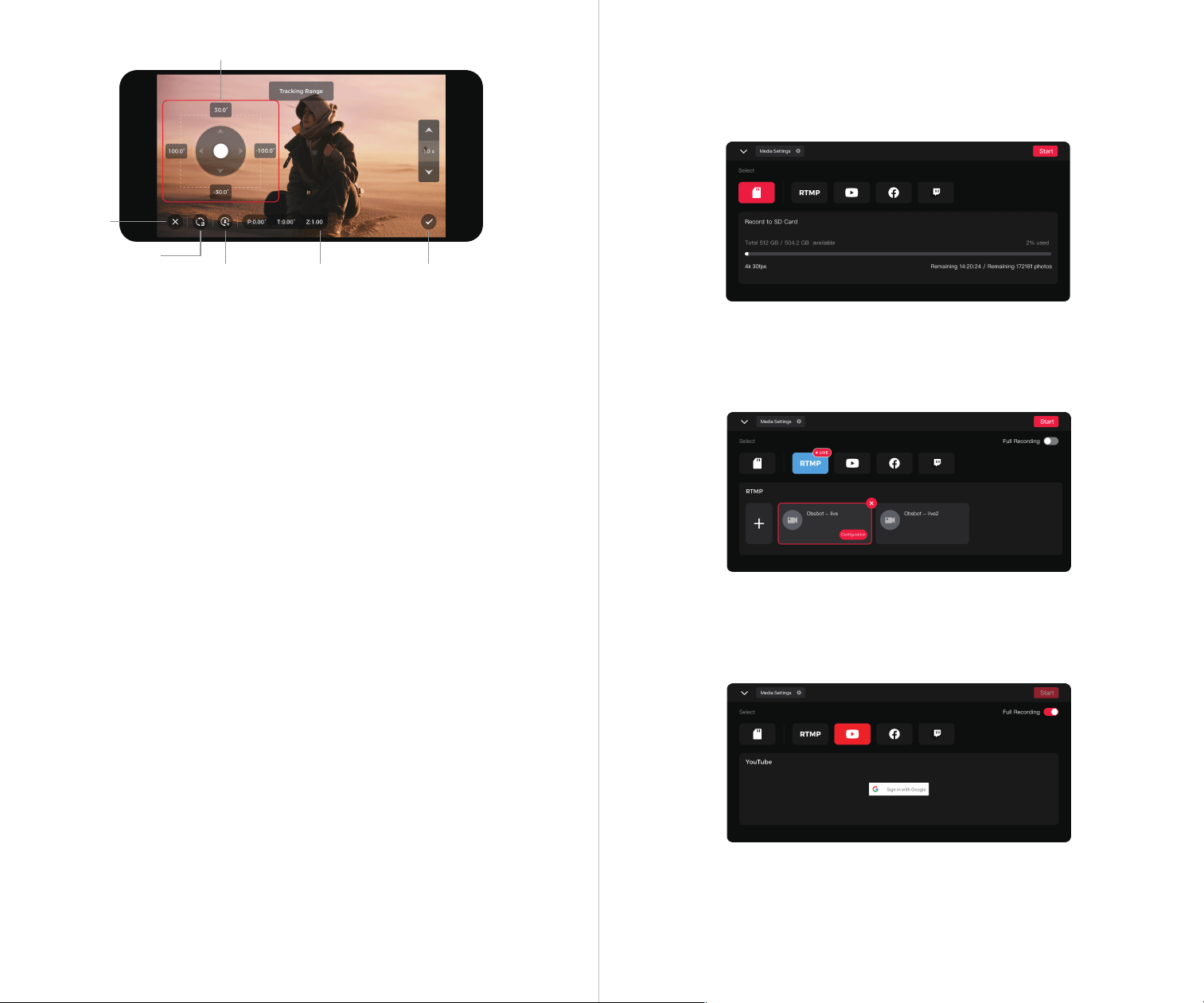
Tracking range boundaries: Set the upper/lower/left/right boundaries to ensure tracking only
works within the defined range.
Reset/Initial Position: Tap to reset Tail 2 to its initial position. Long press to set the initial position.
Automatically track new person: Disable (default)/Enable.
When off, after the original portrait target leaves the tracking range:
a) When the original person appears within the tracking range, automatically track the original
person;
b) When a new person appears within the tracking range, tracking will not be activated.
When on, after the original portrait target leaves the tracking range:
a) When the original person appears within the tracking range, automatically track the original
person;
b) When a new person appears within the tracking range, automatically track the new person.
Gimbal preset position: When the tracking target exceeds the tracking range, the gimbal will
return to the preset position.
7. 【Gimbal and View】 Tap to bring up the gimbal control and zoom panel, enabling manual
control of the gimbal and zoom.
2019
Recording & Live Streaming Configuration
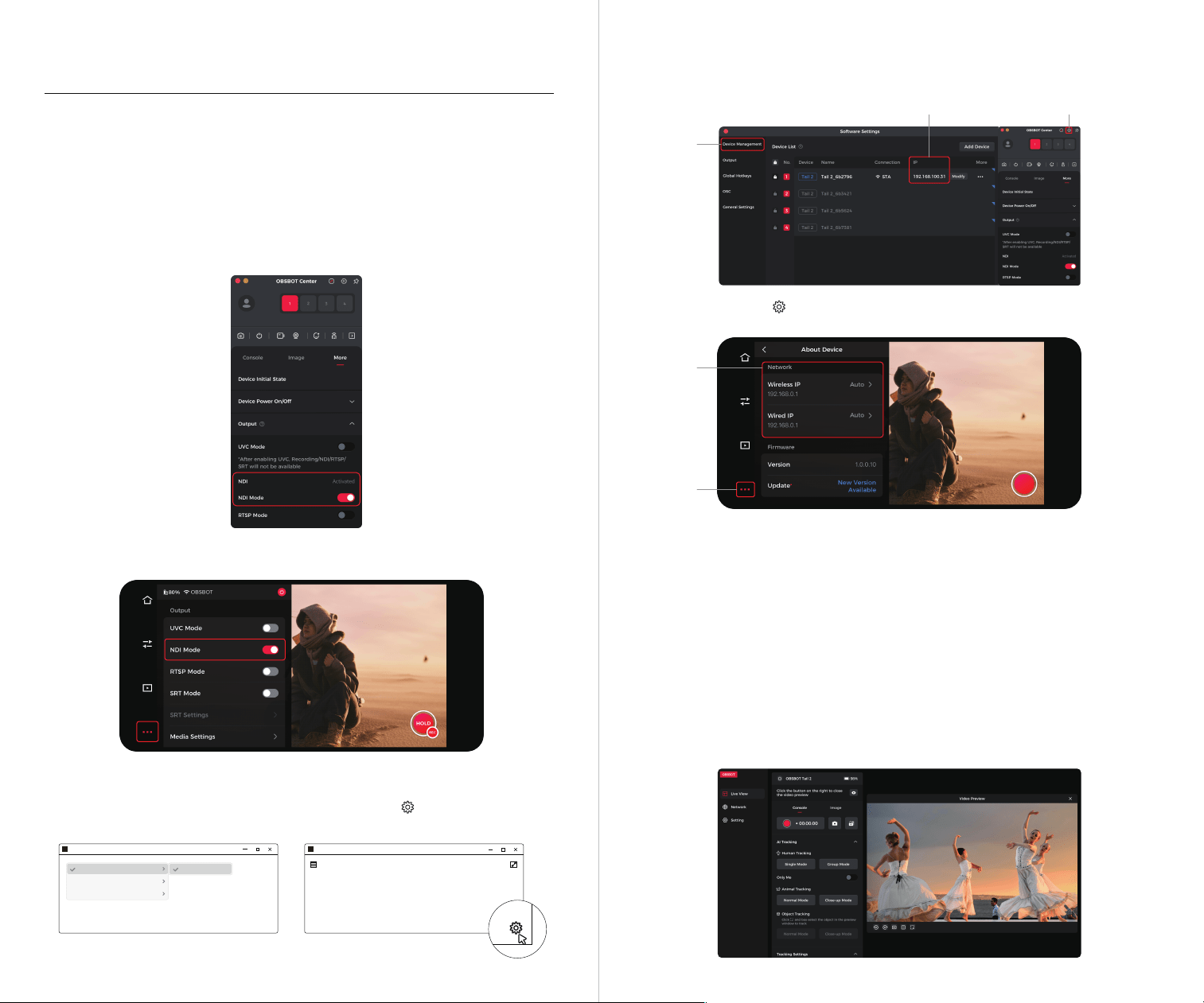
1. Recording
Selecting recording displays SD card information. Tap the "Start" button in the upper right
corner to start video recording.
2. RTMP
Selecting RTMP requires manually entering RTMP information, including RTMP name, RTMP
URL, and stream key (optional). After successful creation, tap "Start" in the upper right corner to
start live streaming.
3. Live Streaming Platform
When selecting third-party live platforms (including Facebook, YouTube, and Twitch, log in to the
respective platform account and configure live streaming information. After successful setup, tap
"Start" in the upper right corner to start live streaming.
⚠ When choosing RTMP or a third-party live platform, you can enable continuous recording
throughout the entire process. When enabled, recording will synchronize with live streaming,
and you can manually stop recording during the live broadcast.
Tracking range boundaries
Exit
Reset/Initial Position
Automatically
track new person
Gimbal preset
position
Save
➂ In "NDI Studio Monitor" , select the NDI source, click on the icon " " in the lower right
corner, and you can directly access the Web UI.
1. Through the "NDI Studio Monitor" Program
➀ Ensure that the computer and the Tail 2 are in the same local network and install NDI tools.
(NDI Tools download link: https://ndi.video/type/ndi-tools )
➁ Open Tail 2 NDI mode through Obsbot Start or OBSBOT Center.
Access Web UI
Users can also access the Tail 2 Web UI to preview the live feed and control the camera. Three
access methods are supported.
* OBSBOT Center -> More -> Output -> NDI Mode On
2221
2. Through Tail 2's IP Address
➀ Ensure that the computer and the Tail 2 are in the same local network.
➁ You can check the current device's IP address through Obsbot Start or OBSBOT Center.
3. Through Tail 2 Default Device Name (Tail_2_XXXXXX)
➀ Ensure that the computer and the Tail 2 are in the same local network.
➁ Enter "http://device default name.local" in the browser to access the Web UI. The default device
name is "Tail_2_XXXXXX" (the space between "Tail" and "2" in the name seen on Obsbot
Start/Obsbot Live/OBSBOT Center should be replaced with "_").
Web UI Interface
The Web UI includes three functional pages: "Live View" "Network" and "Settings". You can switch
between these pages for operation via the navigation bar on the left side.
* Obsbot Start -> More Settings -> About Device -> Network -> Corresponding IP address
➂ Enter "http://Tail 2 IP address" in the browser to access the Web UI.
* Obsbot Start -> More Settings -> Output -> NDI Mode On
Web UI
* OBSBOT Center -> Set -> Device Management -> Corresponding device IP address
NDI-TAIL 2_6B2760(OBSBOT)(2160/30P)
TAIL 2_6B2760
OBSBOT
TAIL 2_3C5437
TAIL 2_2F7654
NDI-TAIL 2_6B2760(OBSBOT)(2160/30P)
➀➂
➁
➁
➀
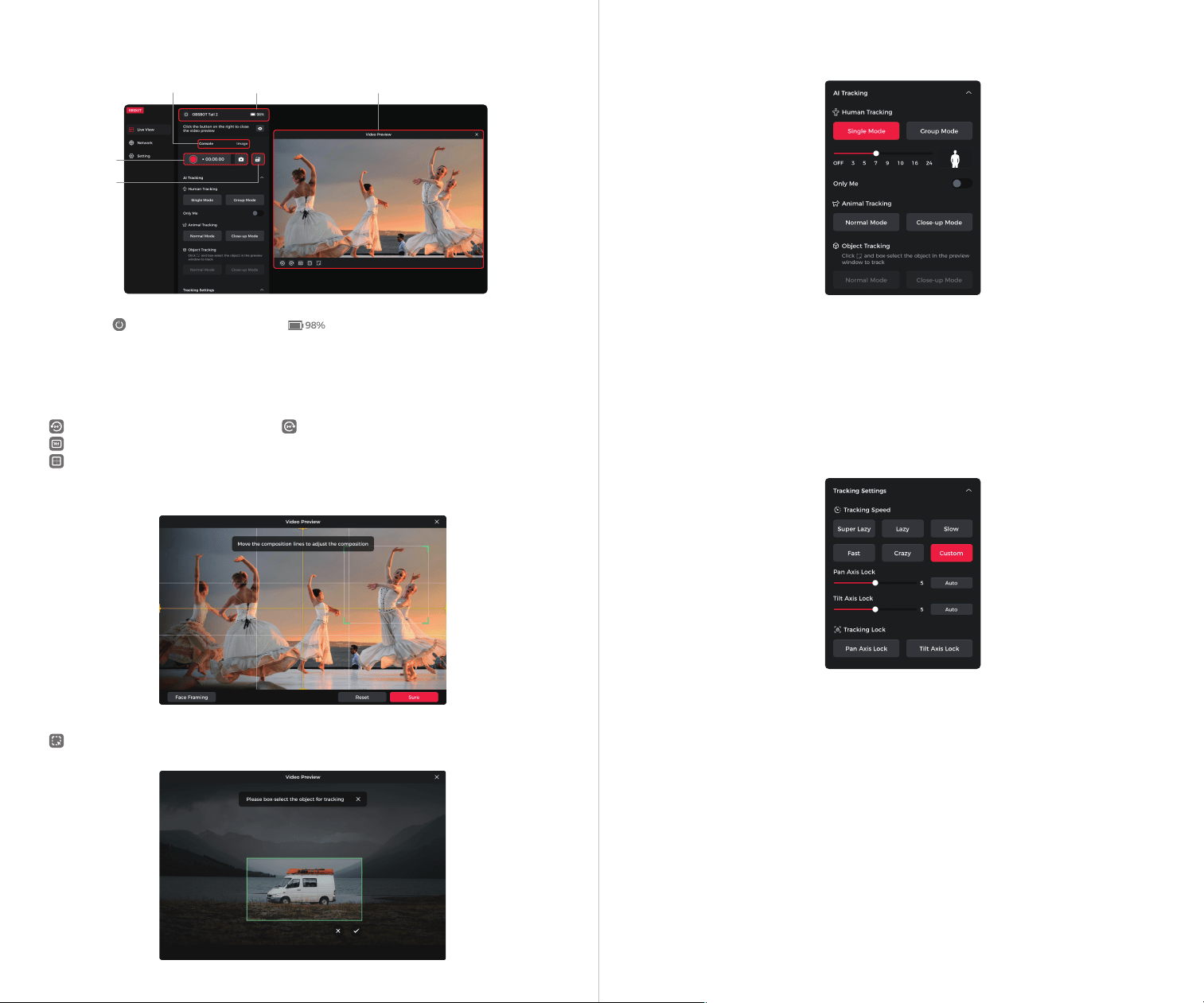
【Status bar】 : Allows for camera power-off : displays camera battery level.
【Record/Photo】 Click the record button to start recording; the recording duration will be
displayed in real time. Click the photo button to take a snapshot.
【Landscape/Portrait Mode Switch】 Click to switch between landscape and portrait mode.
【Video Preview Window】 The video preview window allows users to view the current camera feed
in real time.
: Click to rotate the image 90° to the left : Click to rotate the image 90° to the right
: Click to switch the aspect ratio between 16:9 or 9:16.
: Click to enter the composition line settings interface, adjust the positioning of the target in
the frame. In human tracking, it supports face framing. When enabled, it will automatically adjust
the horizontal composition based on the direction of the face.
1. Live View – Video preview
2. Live View – Console
2423
【Human Tracking】 Human tracking supports two tracking modes: Single mode/Group mode.
【Auto Zoom】 Human tracking supports eight levels of adjustment: Off (default)/3/5/7/9/10/16/24,
The camera will perform automatic zooming based on the selected portrait frame size.
【Only Me】 When enabled, it will only track the currently selected portrait target. (This feature is
only supported under human tracking)
【Animal Tracking】 Animal tracking supports two tracking modes: Normal Mode/Close-up Mode.
【Object Tracking】 Object Tracking supports two tracking modes: Normal Mode/Close-up Mode.
You need to box-select the object in the preview window to track.
【Tracking Speed】 Click to switch tracking speed: Super Lazy/Lazy/Slow/Fast (default)/Crazy/
Custom. In custom mode, you can individually adjust the speed of the pan axis and tilt axis.
【Tracking Lock】 Supports Pan Axis Lock/Tilt Axis Lock.
Status bar Video Preview WindowConsole and Image
Record/Photo
Landscape/
Portrait Mode
Switch
98%
: Click to enter the object selection interface, then draw a box around the target object to
track it.
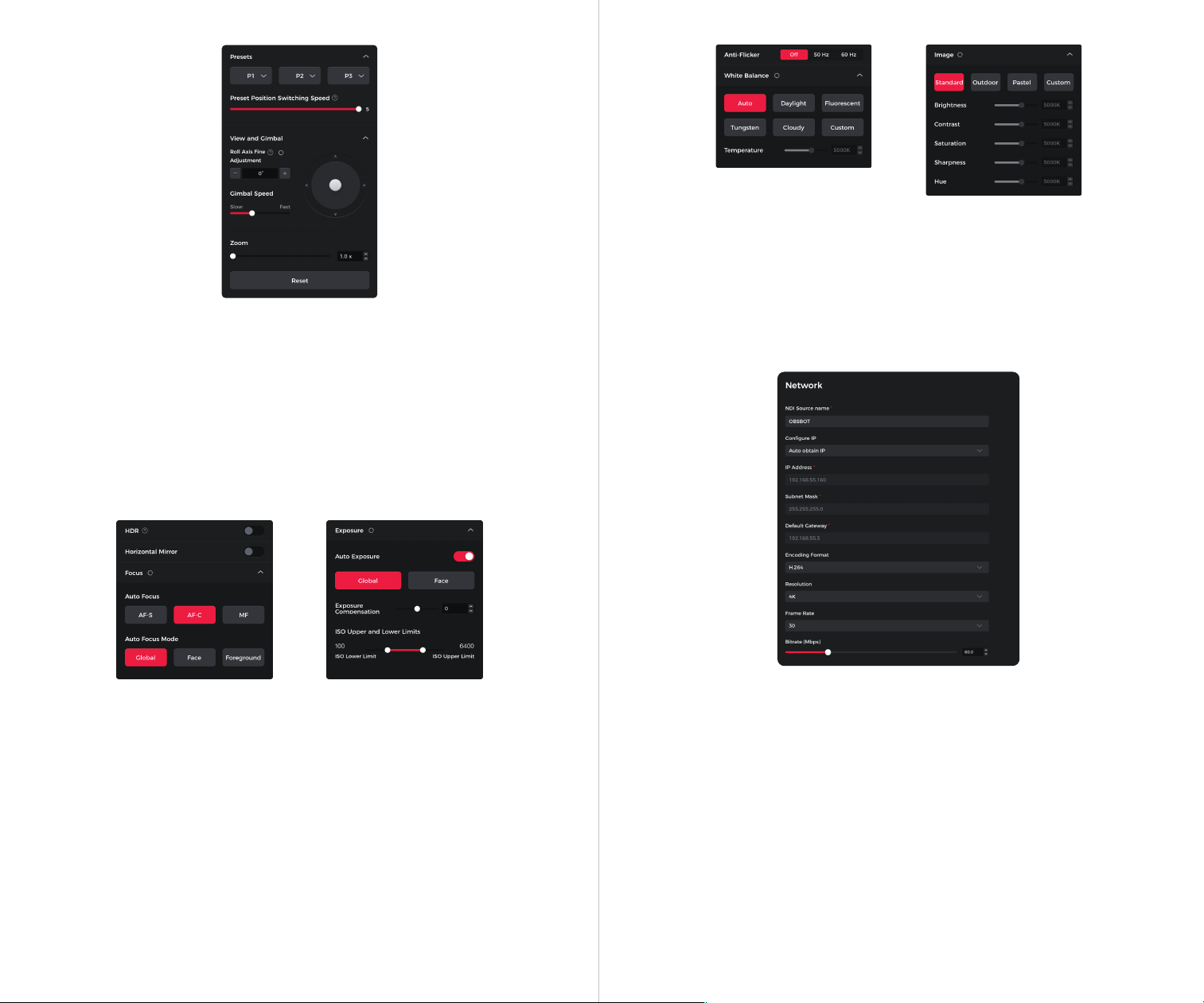
【Presets】 Click to add a preset position, supporting up to three preset positions: P1, P2, and P3.
The dropdown options support: Update PTZ/Set as Initial State/Delete/Rename.
【Preset Position Switching Speed】 Supports adjusting the gimbal speed when switching to
preset positions P1/P2/P3.
【Roll Axis Fine Adjustment】 Supports adjusting the roll axis angle from -10° to 10°.
【Gimbal Control】 You can control the movement of the gimbal.
【Gimbal Speed】 You can adjust the speed of the gimbal movement.
【Zoom】 Supports adjusting the zoom range from 1x to 12x.
【Reset】 Click to reset, and the gimbal will return to the default position.
【HDR】 Disable (default)/Enable.
【ImageFlip】 When enabled, the image will be horizontally flipped (mirrored).
【Auto Focus】 AF-S (Single Autofocus)/AF-C (Continuous Autofocus)/MF (Manual Focus).
【Auto Focus Mode】 Global/Face (default)/Foreground.
【Exposure】 Supports both auto exposure and manual exposure.
【Auto Exposure】 Supports adjusting exposure compensation and ISO upper and lower limit.
【Manual Exposure】 Supports adjusting shutter speed and ISO value.
【Anti-Flicker】 Off (default)/50Hz/60Hz. Set the anti-flicker frequency to reduce flickering caused by
fluorescent lights or TV screens when shooting indoors.
【White Balance】 Adjust white balance parameters, Auto (default)/Daylight/Fluorescent/Tungsten/
Cloudy/Custom (adjustable color temperature).
【Image】 Switch image styles, Standard (default)/Outdoor/Pastel/Custom (adjustable sharpness,
contrast, saturation, hue, brightness).
【NDI Source name】 Supports changing the name of the device's NDI source.
【Configure lP】 Supports both auto obtain IP and manual configuration.
Auto obtain IP: Displays the device's current IP address, subnet mask, and default gateway.
Manual IP Configuration: Supports manually setting the device's IP address, subnet mask, and
default gateway.
【NDI Media Settings】 Supports setting the NDI source's encoding format, resolution, frame rate,
and bitrate.
3.Live View – Image
4. Network
2625
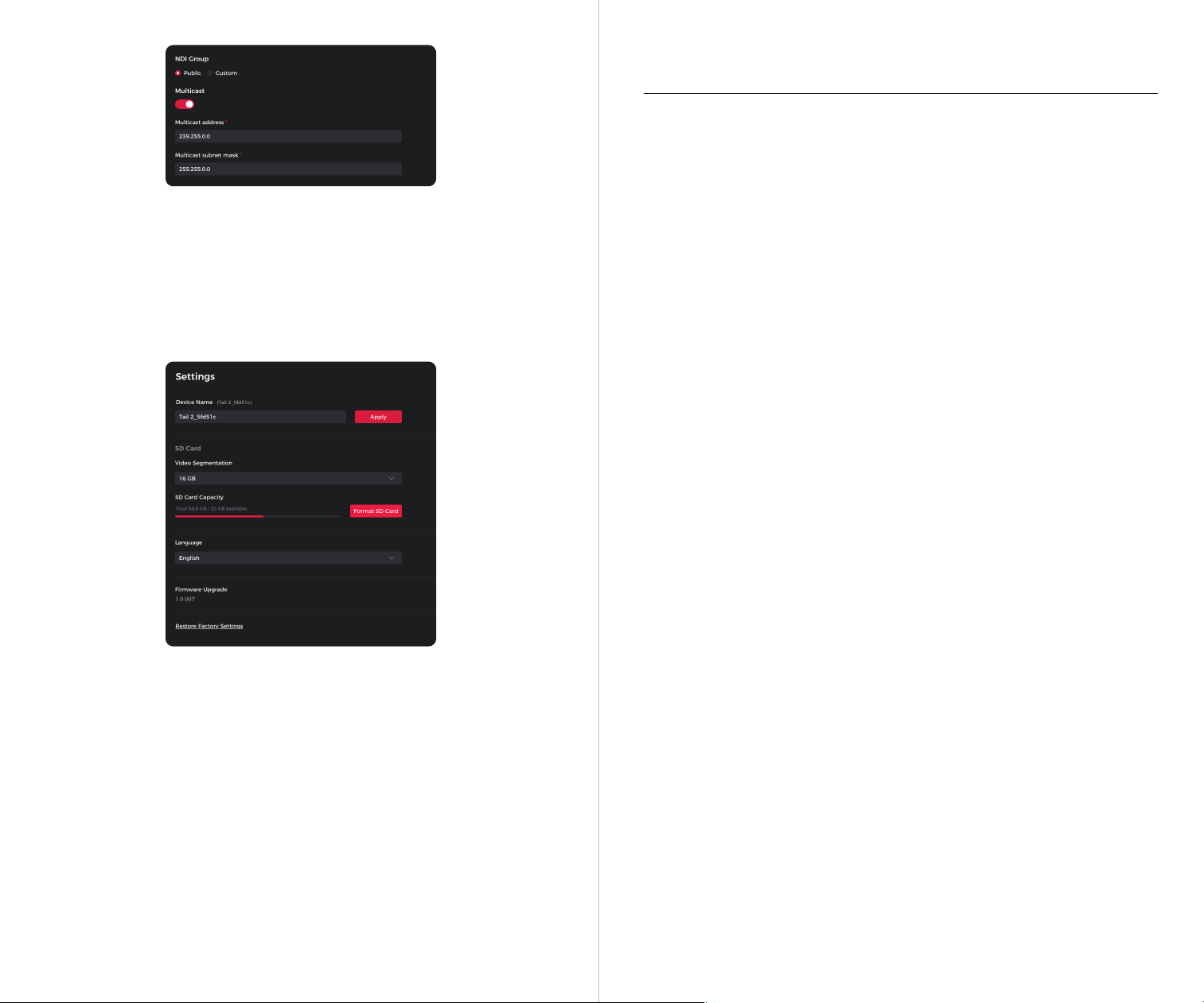
2827
【Device Name】 Displays the current device name, with support for manual modification by the
user.
【Video Segmentation】 4G/8G/16G/32G (default)/64G.
⚠ Only exFAT-formatted SD cards support this function.
【SD card capacity】 View the total capacity and current remaining memory of the SD card, and
format the SD card.
【Language】 Supports switching between Simplified Chinese, Traditional Chinese, English,
Korean, Japanese, German, French, and Spanish.
【Firmware Upgrade】 Displays the current device's firmware version number.
【Restore Factory Settings】 Tap to restore the camera to its original factory settings. This will
delete all the current settings, and the camera will be restored to the original factory settings and
restart.
【NDI group】 Supports setting the NDI group to either public or custom. In custom mode,
multiple groups can be set, separated by commas.
【Multicast】 When multicast is enabled, the camera video stream can be sent to multiple
receiving devices simultaneously.
You need to enter the corresponding multicast address and multicast subnet mask. The
multicast address supports the format: 224.0.0.0~255.255.255.255.
5. Settings
Firmware Upgrade Overview
➀ During the upgrade, the yellow and blue lights will flash alternately.
➁ After a successful upgrade, the status indicator light changes to normal operating mode.
You can connect to the App to check the upgrade results.
➂ If the upgrade fails, the light will turn red, and the camera will emit a beeping sound.
Upgrade via Obsbot Start App
Connect the OBSBOT Tail 2 to your phone via Obsbot Start App. The App will give you an upgrade
notice when you are due an upgrade. Then follow the App instructions to upgrade.
Upgrade via OBSBOT Center
Connect the OBSBOT Tail 2 to OBSBOT Center. If a firmware update is available, you will receive a
prompt. Please follow the instructions to proceed with the update.
Using Micro SD Card to Upgrade
Please download the latest upgrade package on OBSBOT's ocial website. Unzip the upgrade
package and copy the .bin file to the Micro SD card root directory. Insert the Micro SD card into
your Tail 2. Once Tail 2 reads the Micro SD card, it will restart and upgrade.
⚠ Before upgrading, make sure the camera battery is at 15% or higher.
⚠ After completing the upgrade, you can check the result through the .txt file in the Micro SD
card root directory.
Firmware Upgrade
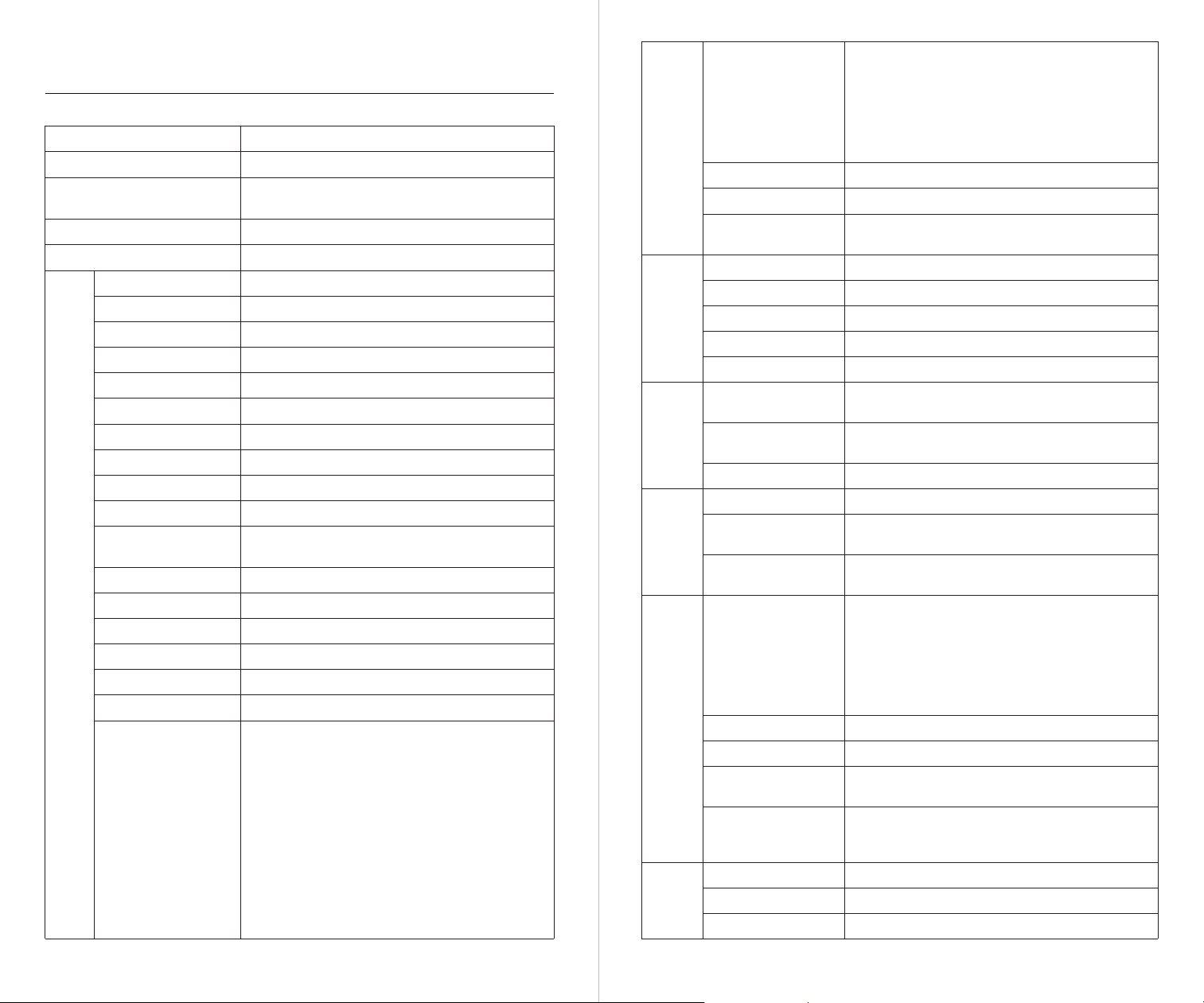
Specifications
3029
Product
Model
Size
Weight
Image sensor
Pixel Size
Effective Pixels
Effective Pixel Resolution
Lens System
Zoom Range
Aperture
Focus
Effective Focal Length
Equivalent Focal Length
Max Video Storage Bitrate
Video Format
Supported File System
H.264: 160Mbps, H.265: 160Mbps
MJPEG 、H.264、H.265
2.4 G/5.8 GHz
Wi-Fi Operating
Frequency
Field of View
Resolution and
Frame Rate
Recording
4K:
3840*2160@60/59.94/50/48/30/29.97/25/23.98 fps
1080p:
1920*1080@120/60/59.94/50/48/30/29.97/25/23.98 fps
720p:
1280*720@120/60/59.94/50/48/30/29.97/25/23.98 fps
HDMI
4K: 3840*2160@60/59.94/50/30/29.97/25/24 fps
1080p: 1920*1080@60/59.94/50/30/29.97/25/24 fps
1080i: 1920*1080i@60/59.94/50 fps
720p: 1280*720@60/50 fps
1/1.5'' CMOS
2.0μm*2.0μm
50 million
8192x6144
12x Optical Lenses
12x Hybrid Zoom (include 5x Optical Zoom)
f/1.8- f/3.0
Auto Focus/Manual Focus
4.6mm-23mm
22mm-110mm
ISO Range
Exposure Value
Electronic Shutter Speed
White Balance
Gyroscope
Photo Resolution
100~6400
±3 EV
1/8000s to the limit of frames per second
2000K-10000K
6-axis Gyroscope
4K, 1080P, 720P
Tail 2
OAB-2305-CW
Working State: 97.5*103.5*155mm
Off State: 97.5*103.5*172mm
FAT32、exFAT
*Only exFAT supports segmented video storage.
W (1x) : FOV (D): 89°; FOV (H): 81°
T (5x) : FOV (D): 21°; FOV (H): 18°
1.066kg
AI chip
Camera
3-axis
gimbal
Wi-Fi
Bluetooth
I/O
Interface
Battery
Integrated AI chip, Trillions of calculations per second
SDI
1080p: 1920*1080@60/59.94/50/30/29.97/25/24 fps
NDI/RTSP/SRT
4K: 3840*2160@60/59.94/50/48/30/29.97/25/23.98 fps
1080p: 1920*1080@60/59.94/50/48/30/29.97/25/23.98 fps
720p: 1280*720@60/59.94/50/48/30/29.97/25/23.98 fps
2.4G 140m; 5.8G 80m
802.11 a/b/g/n/ac/ax
Wi-Fi Signal Transmission
Range
Wi-Fi Protocol
BLE 5.4Bluetooth Protocol
1* HDMI 2.0、1* 3G-SDI、1* USB-C 3.0
Video Interface
Power Input
2.400 GHz to 2.4835 GHz
USB-C: Default 5V/2A, supports USB PD3.0 fast charging
protocol standard
Maximum input voltage 20V, maximum input current 2A
(Recommended to use a charger that supports USB
PD3.0 standard to ensure proper charging)
PoE+: IEEE 802.3 af/at, maximum supported input power
30W
Bluetooth Operation
Frequency Range
< 14 dBm
Bluetooth Transmitter
Power (EIRP)
Gimbal installation
Controllable Range
Mechanical Range
Max Controllable Speed
Angle Jitter
Battery Type
Battery Capacity
Battery Energy
Lithium Polymer (Li-po)
5000mAh
38Wh
Non-removable
Pan: ±160°; Tilt: -60°~32°; Roll: -120°~120°
Pan: ±175°; Tilt: ±90°; Roll: -135°~135°
120°/s
±0.003°
1* RJ45 10/100/1000Mbps Ethernet port (with PoE+)Network Interface
1* MIC IN 【3.5mm TRS Connector (AUX)】, 1* LINE IN
【3.5mm TRS Connector (AUX)】
Audio Interface
1* 2.5mm RS232 input, Protocol: VISCA/Pelco-D/Pelco-P
1* 2.5mm RS232 output, Protocol: VISCA/Pelco-D/Pelco-P
1* USB-C 3.0, Protocol: UVC
Control Interface
3231
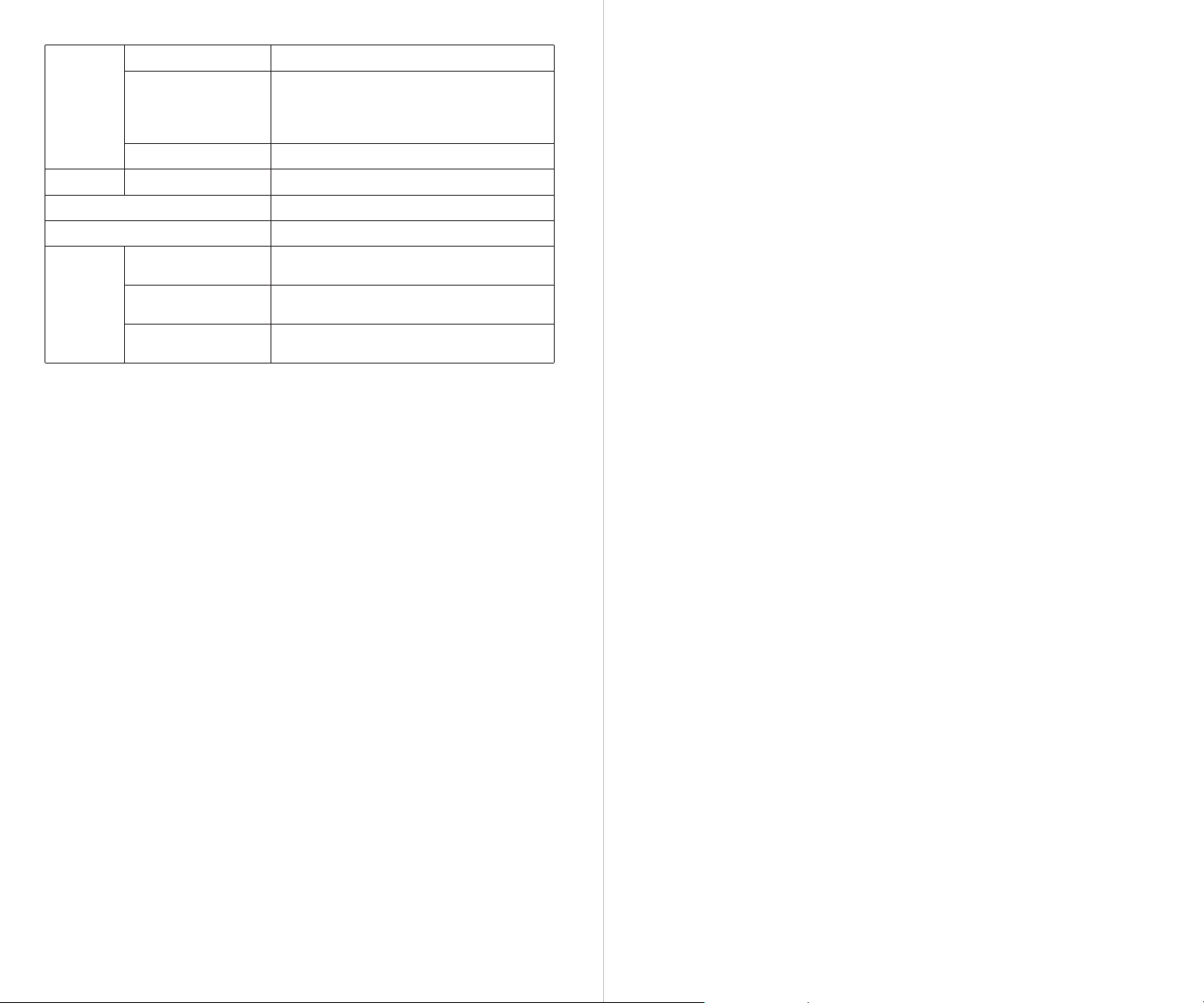
Battery
Please note that the content may be updated without prior notice. To access the most recent
version of the manual book, please download it from:
https://www.obsbot.com
Operating Time
Camera working
environment temperature
-10°C~40°C
343 minutes
*Measured during continuous 1080p/30fps video
recording under laboratory conditions, values are
for reference only
Charging Time 150 Mins (When powered off)
TypeMemory card
Operating
environment
Micro SD (Maximum Support: 1TB)
Auxiliary Functions Gesture Control
Battery charging ambient
temperature
-10°C~40°C
Battery operating
ambient temperature
-10°C~40°C
Auxiliary Software Obsbot Start | OBSBOT Center | Obsbot Live
Battery Voltage
7.6V