
1
WSG-Y16 (V1 and V2) Quick Setup Guide
Registration
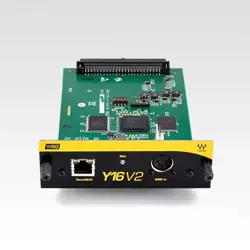
You must register your WSG-Y16 card to obtain the software, the drivers, and any licenses needed.
To register your device, log into your Waves account at www.waves.com.
Software Download
Go to Waves.com > Downloads > Hardware Drivers, and select Yamaha.
Download the latest version for Mac or PC, as needed.
Run the installer and follow the onscreen instructions.
Connections
Insert the WSG-Y16 to your Yamaha console.
Connect the WSG-Y16 card to your computer.
If you are using just one WSG-Y16 card, connect it directly to your computer’s Gigabit Ethernet port
using the supplied cable.
If you are using several WSG-Y16 cards and/or multiple SoundGrid interfaces, computers, etc., connect
them all to a SoundGrid-compatible switch and connect the switch to your computer’s Ethernet port.
See http://www.waves.com/hardware/soundgrid-swi tches for a list of approved switches.
2
Recording/Playback
Your Waves SoundGrid application (SoundGrid Studio or MultiRack SoundGrid) must be open at all times
to configure the driver.
After installation, the Waves SoundGrid driver will appear as available in your DAW even before you
launch the Waves SoundGrid application.
1. Recording/Playback with the SoundGrid Studio Application
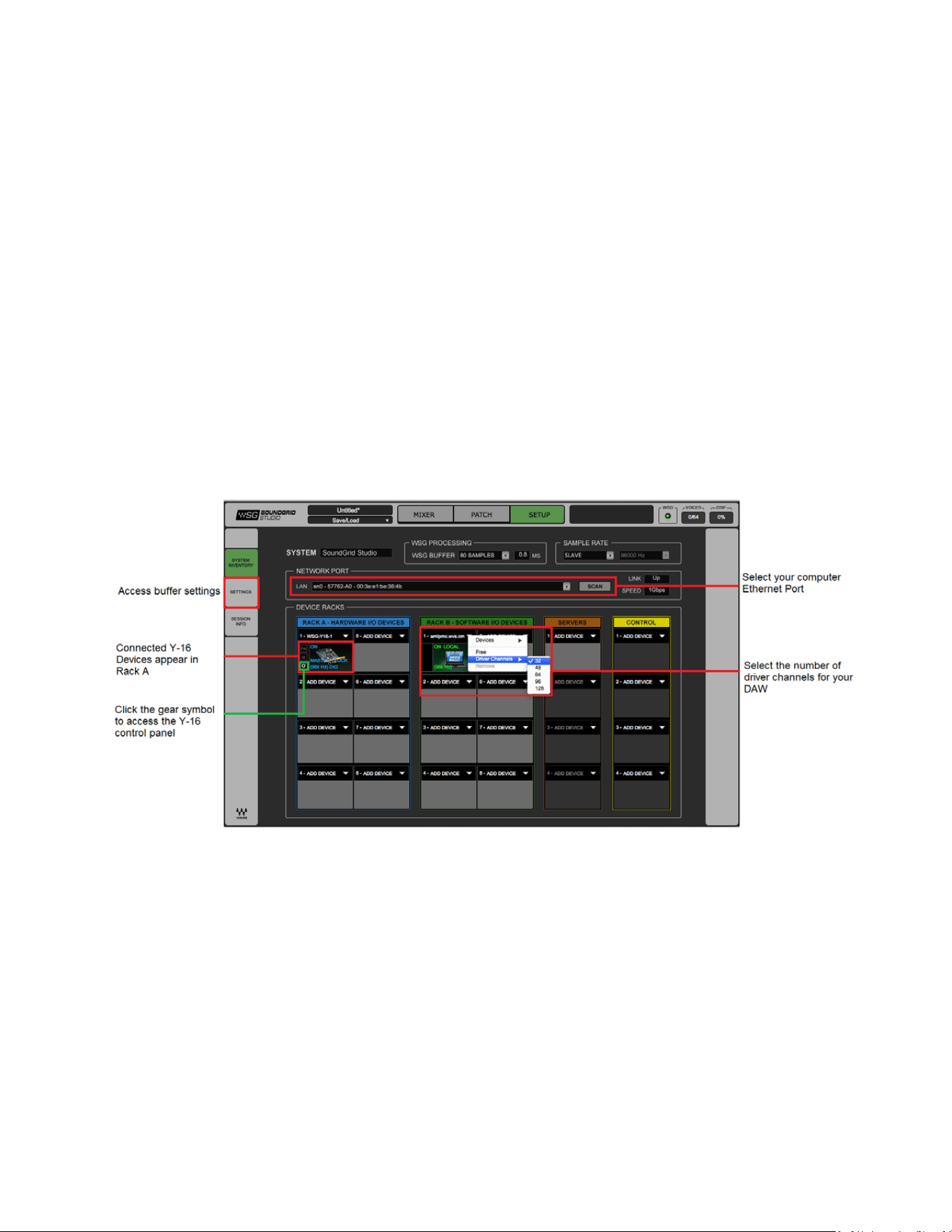
If you choose to use the SoundGrid Studio Application as your setup application, refer to the following
images for configuration.
The first time you run and configure your WSG-Y16 card, you may be prompted to update the firmware
of your device. Follow the onscreen instructions.
3
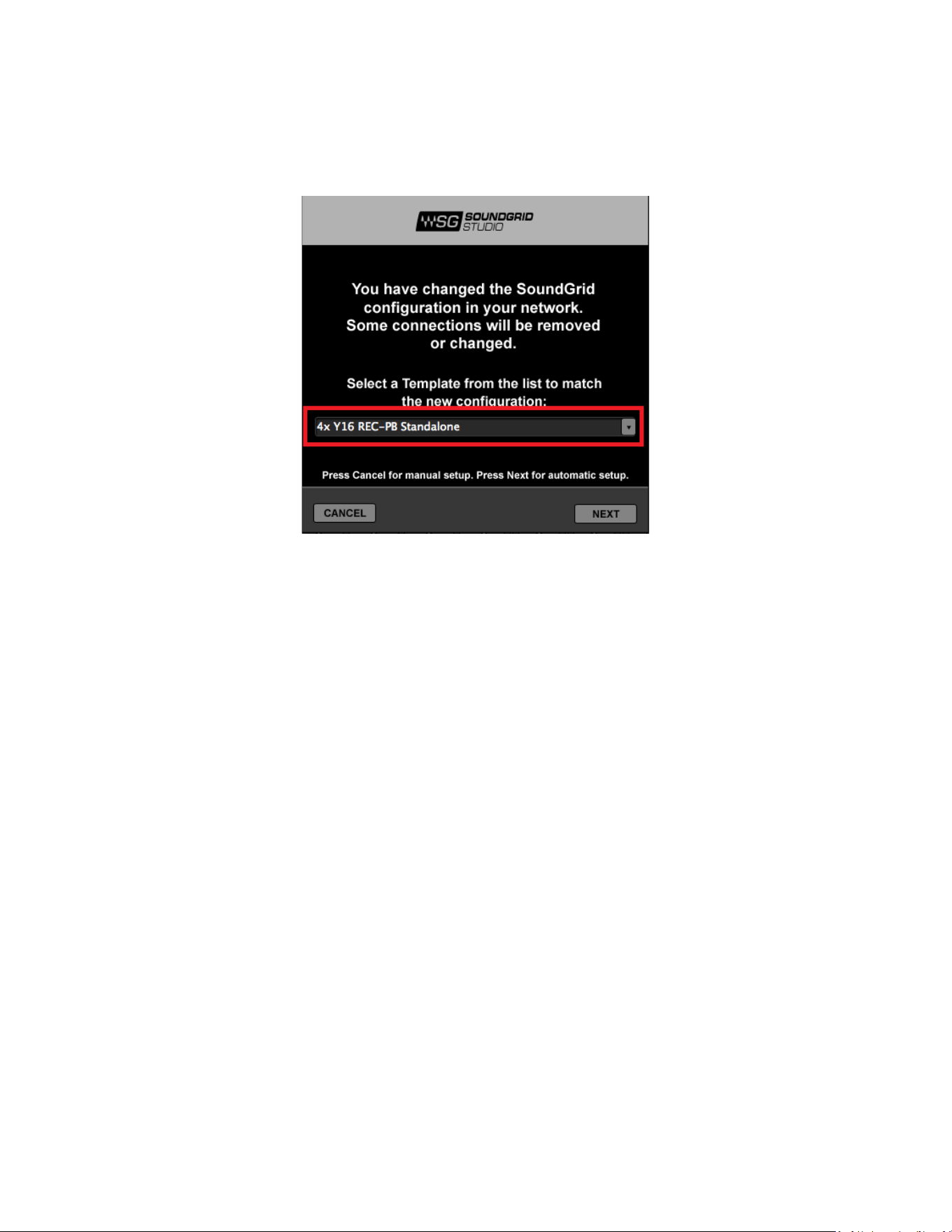
There are also built-in templates to assist you with configuration. Select the template that best meets
your setup. For recording and playback, select 4x Y16 REC-PB Standalone.
Finally, check in the PATCH tab that your WSG-Y16 card is patched to the driver. If you’ve selected one
of the preset templates, this should be all done. If you’ve adjusted the number of driver channels, you
may need to patch additional channels.
4
2. Recording/Playback with MultiRack SoundGrid
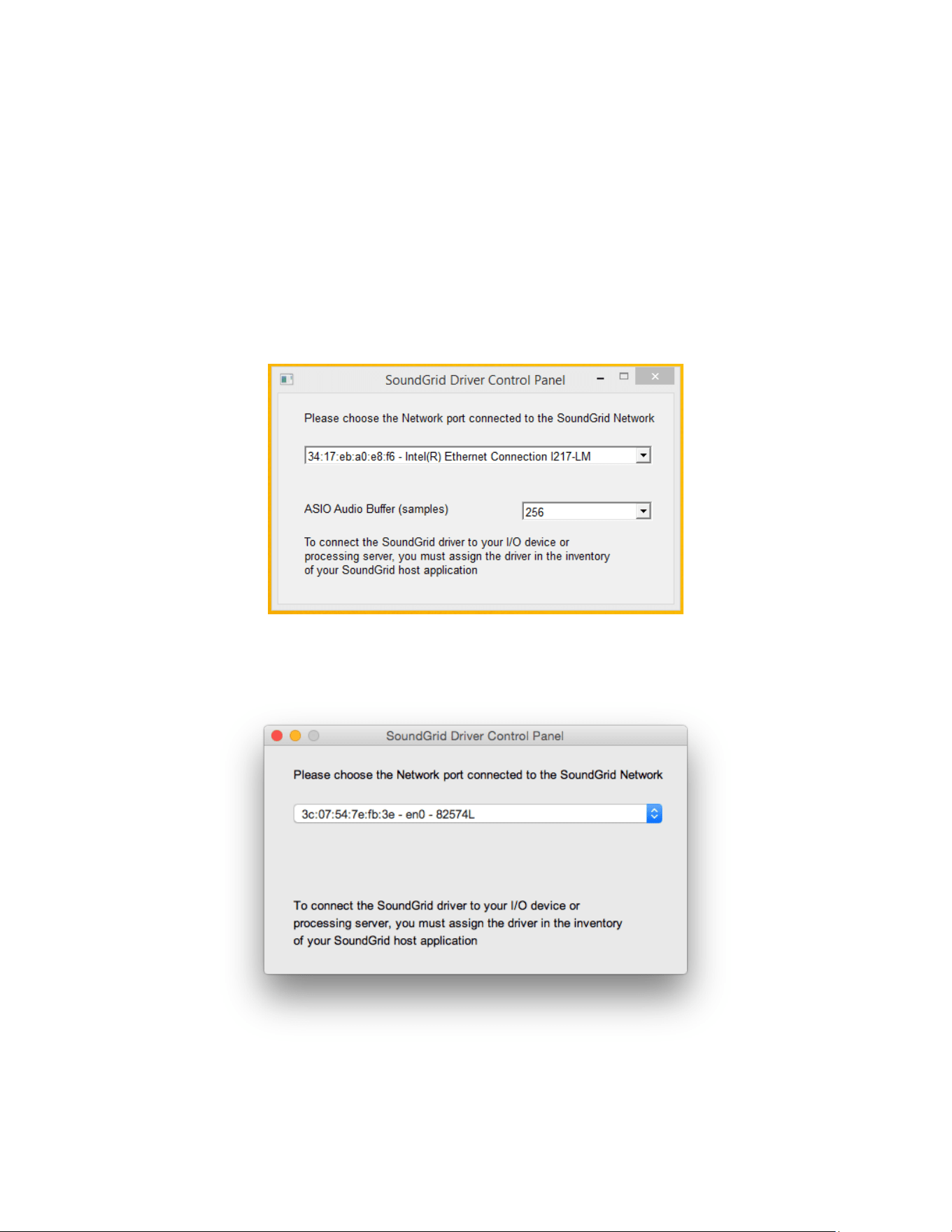
(a) Open the SoundGrid Driver control panel here:
Mac: System HD /Applications /Waves /SoundGrid
Windows: C:\Program Files\WavesSoundGridDriver
(b) Select the computer network port that is connected to the SoundGrid network.
Windows users – this is also where you can change the ASIO buffer size.
Windows – SoundGrid ASIO Driver Control Panel
Mac – SoundGrid Core Audio Driver Control Panel
5
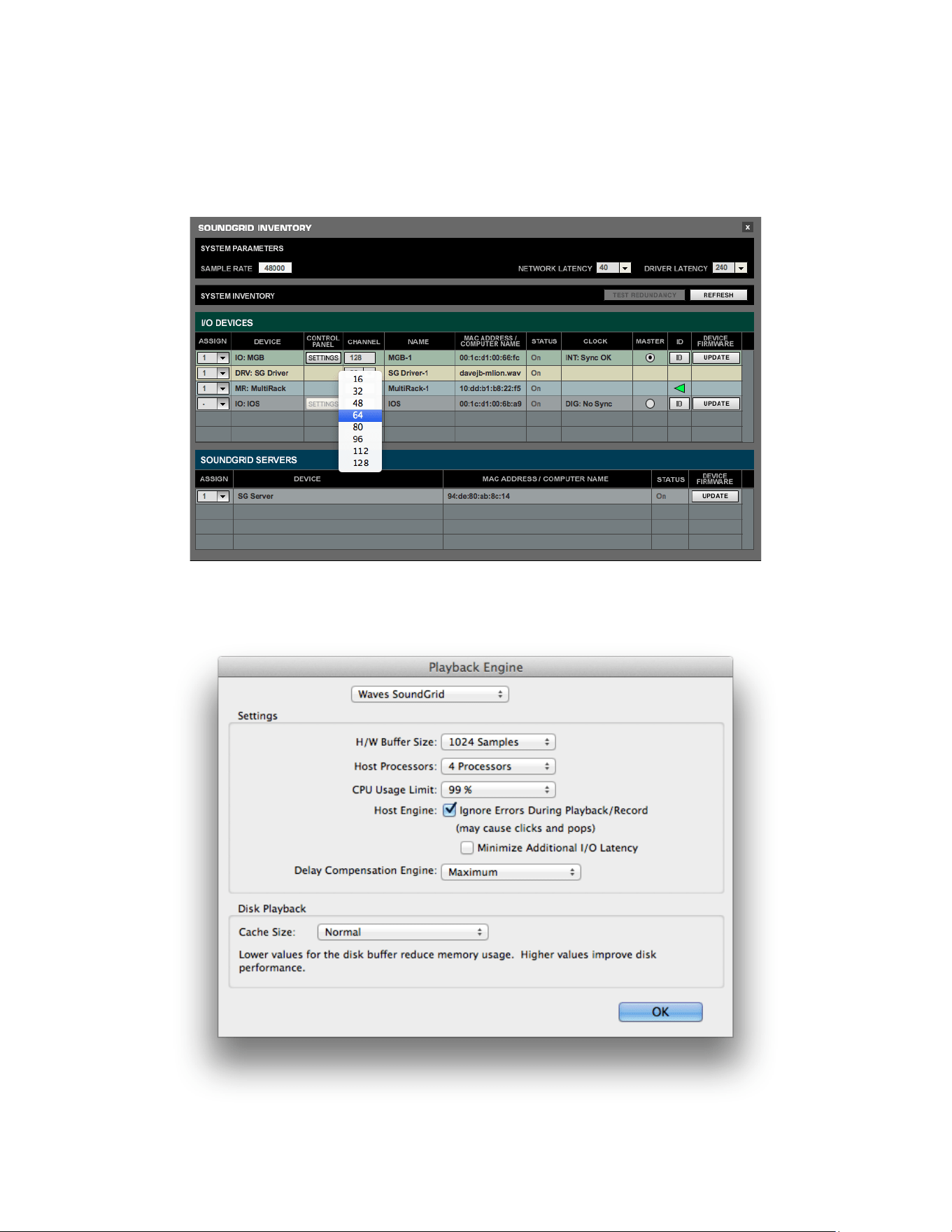
(c) Launch MultiRack SoundGrid.
(d) Open the SOUNDGRID INVENTORY window (press F2 or open from the Audio > SoundGrid Inventory
menu).
(e) Launch your DAW and set audio device to Waves SoundGrid Driver.