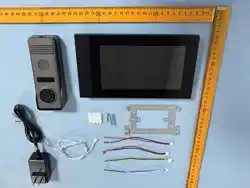

Connect Video door phone intercom to App
Step 1. Connect your phone to the same Wi-Fi as the Indoor Monitor.
Download Tuya Smart or Smart Life - Smart Living from Google Play or
App Store, then register or log in to your account.
Step 2. Open the mobile app and tap Add Device, then scan code, The
app will automatically search and connect to your Indoor Monitor.
Step 3. Click on Smart Face to connect WiFi and to bind App.
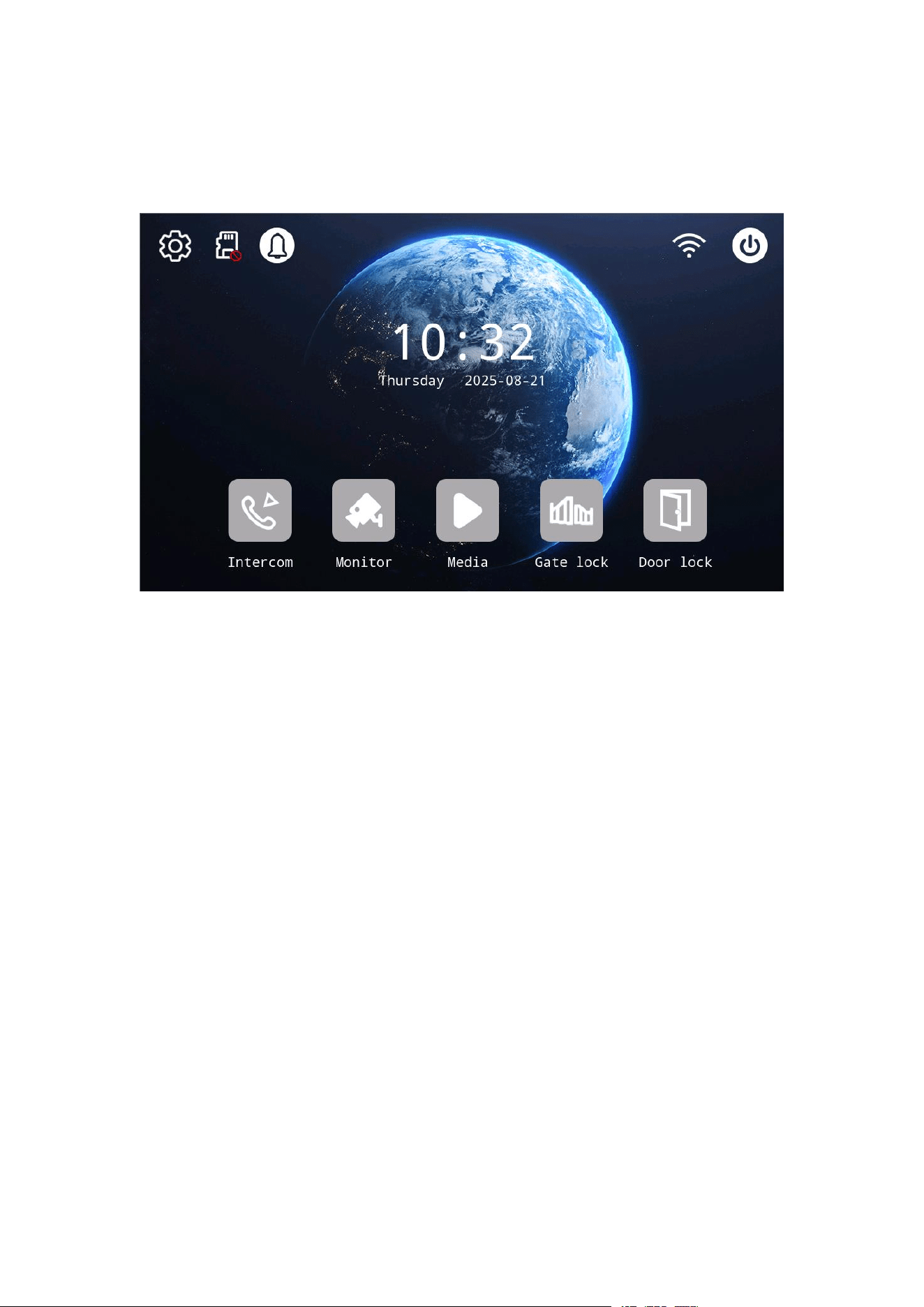
1. Home Page
1.1. Silent Mode
In right top corner, tap this icon to turn ON/OFF silent mode.
1.2. Settings
Tap the icon to enter settings.
1.3. Turn off
Touch to turn off the screen.
1.4. Gate Lock
Tap the icon, and choose the door to unlock.
1.5. Media
View videos and photos of call records.
1.6. Intercom
Tap and choose a monitor to call.
1.7. Monitor
Tap to view the live video of outdoor call panel.
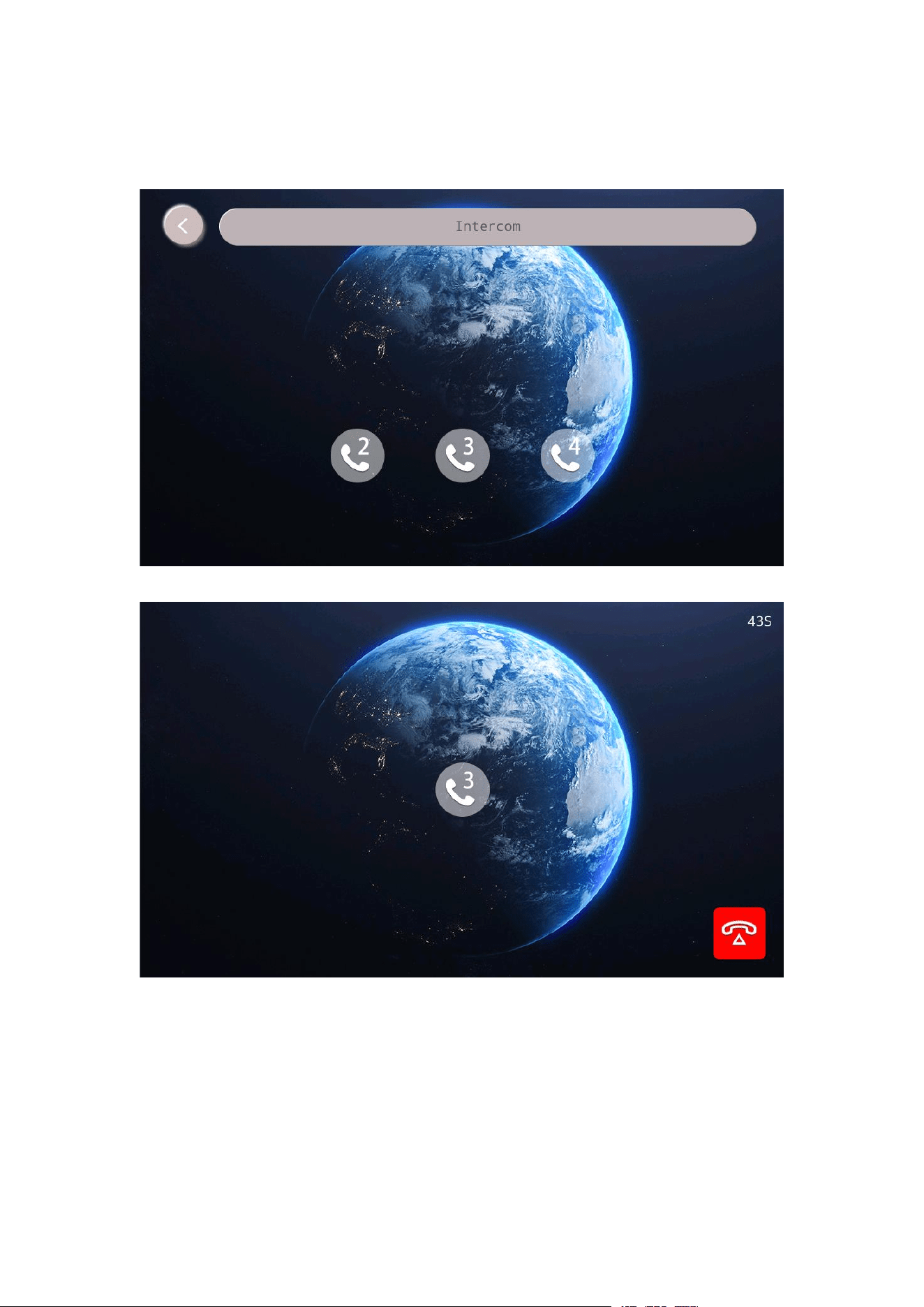
2. Intercom
Tap to call Monitor 2, 3 or 4, if connected.
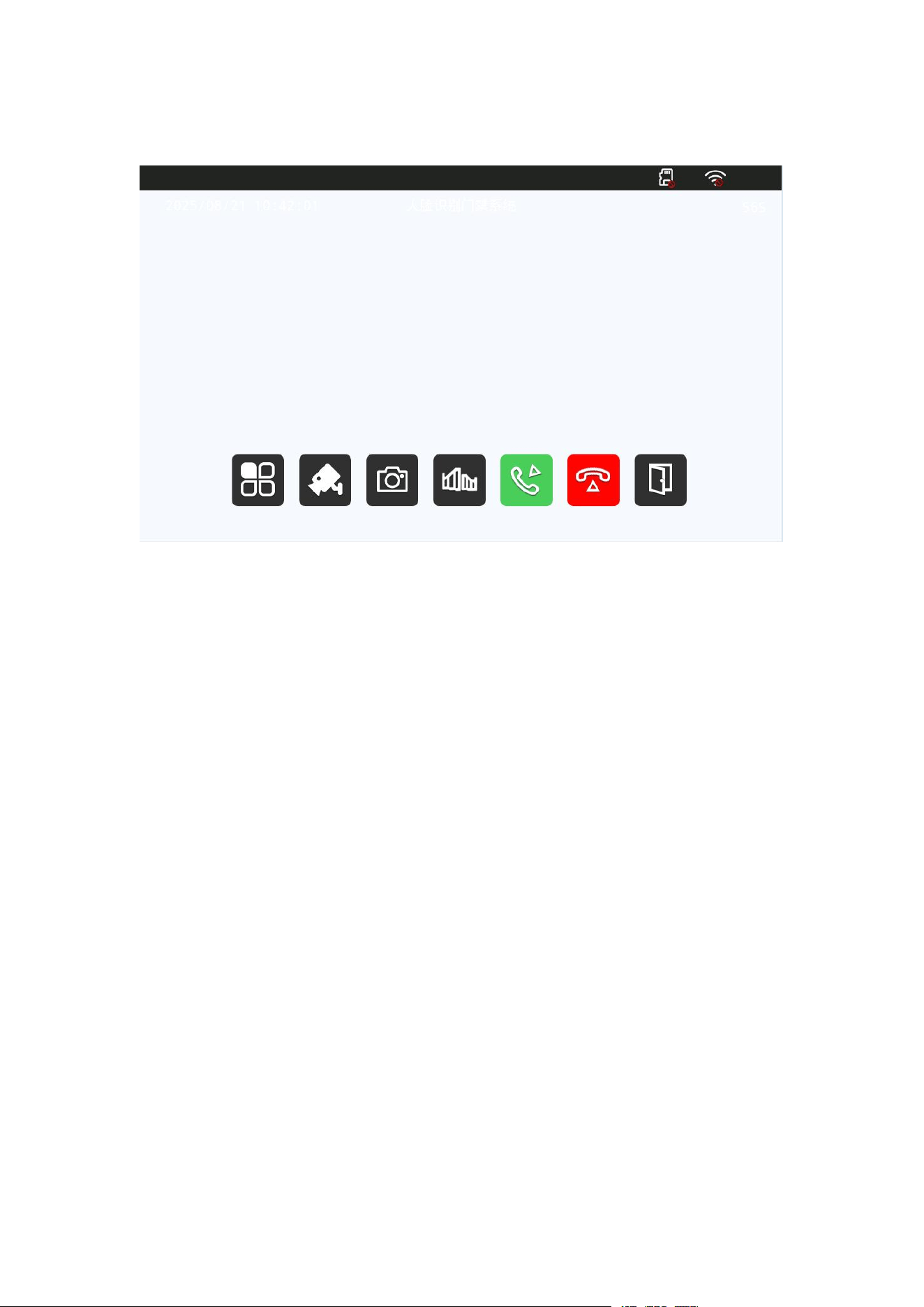
3. Monitor
3.1. Menu
Tap to adjust brightness and volume.
3.2. Video
Tap to start recording a video, and then one more touch to stop.
3.3. Photo
Tap to take a photo.
3.4. Door lock
Tap to open door lock.
3.5. Answer
Tap to start conversation.
3.6. Hang up
Tap to hang up the monitor.
3.7. Gate lock
Tap to open gate lock.
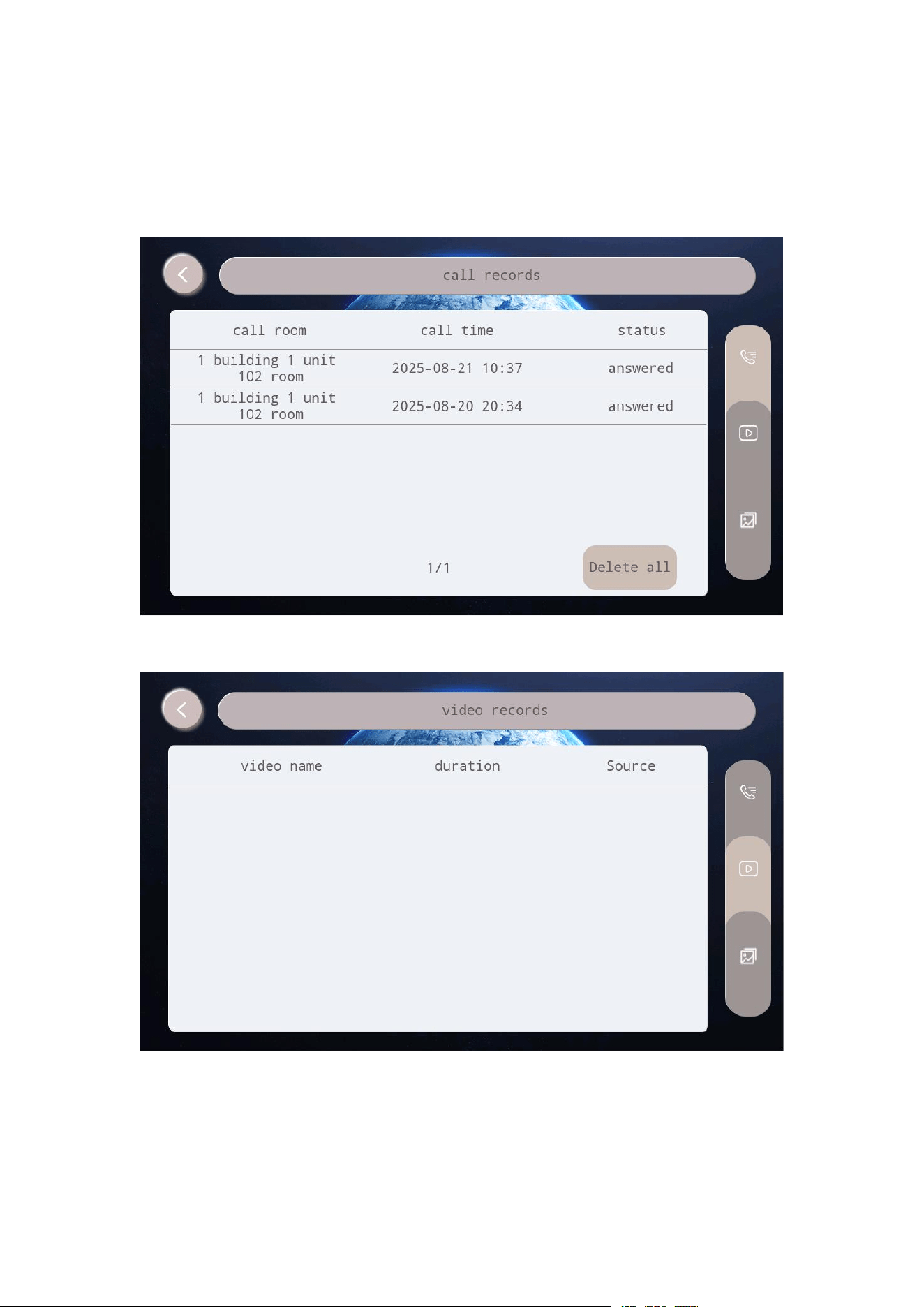
4. Media
View call records, videos and photos.
4.1. Call records
View call records. Tap delete all to delete all call records.
4.2. Video
View video records. Tap Delete all to delete all videos.
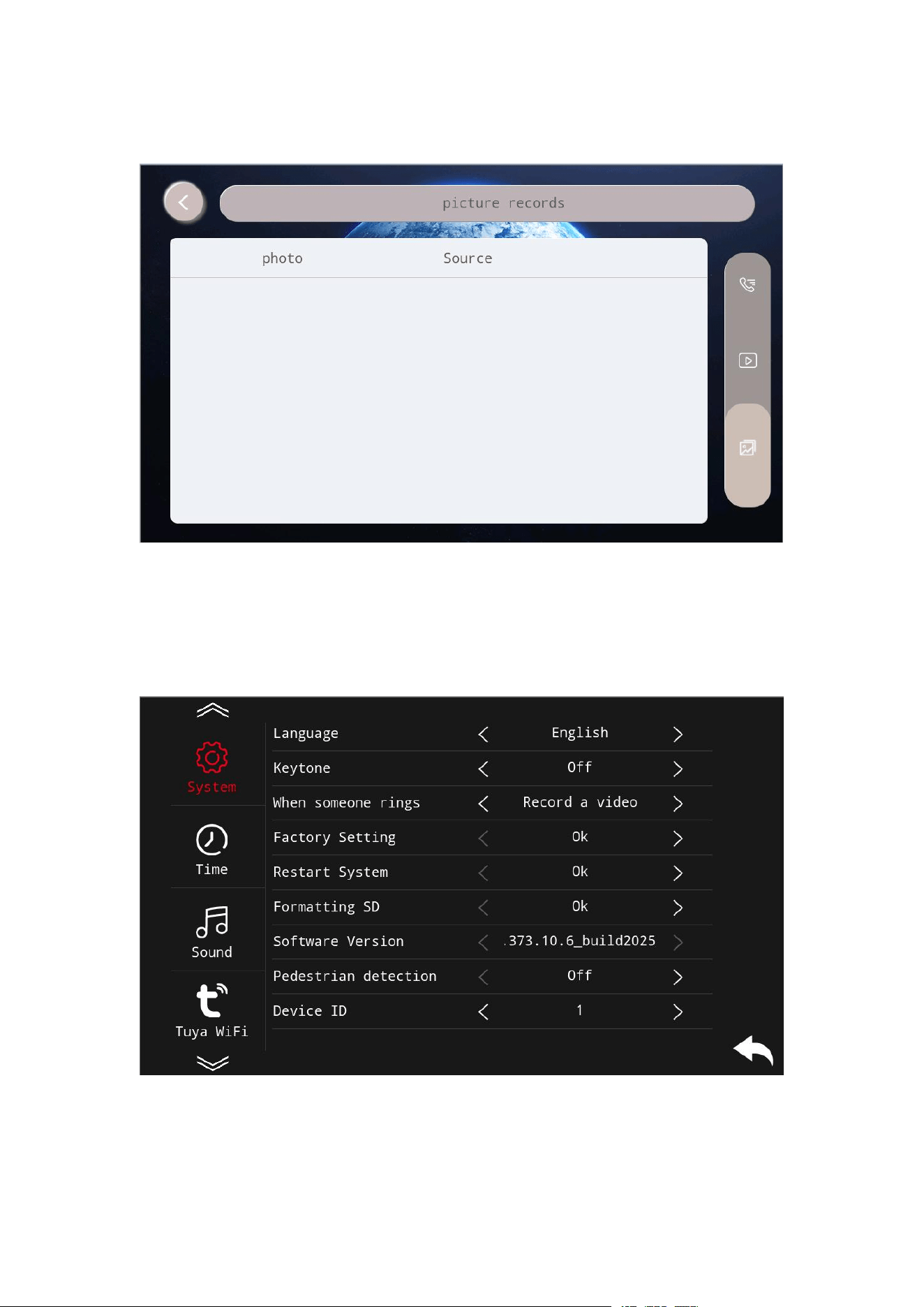
4.3. Photo
View photo records. Tap Delete all to delete all photos.
5. Settings
5.1. System
Set language, keytone, video or photo record, factory setting, restart system,
formatting SD, pedestrian detection and device ID.
5.2. Time
Set time and date.
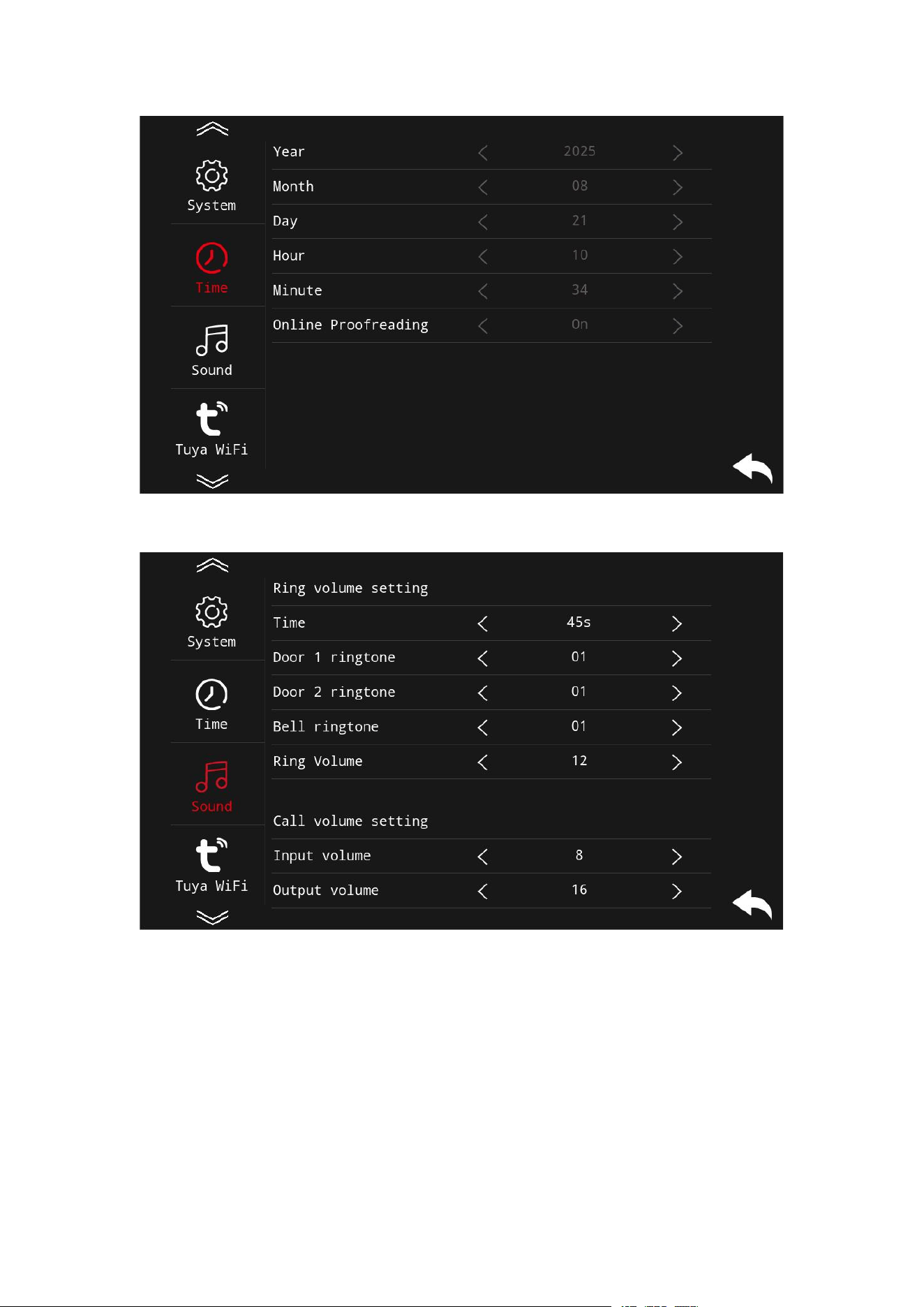
5.3. Sound
Set ringtone, ring volume and call volume.
5.4. Tuya WiFi
WiFi connection state. Tap reset to unbind with App.
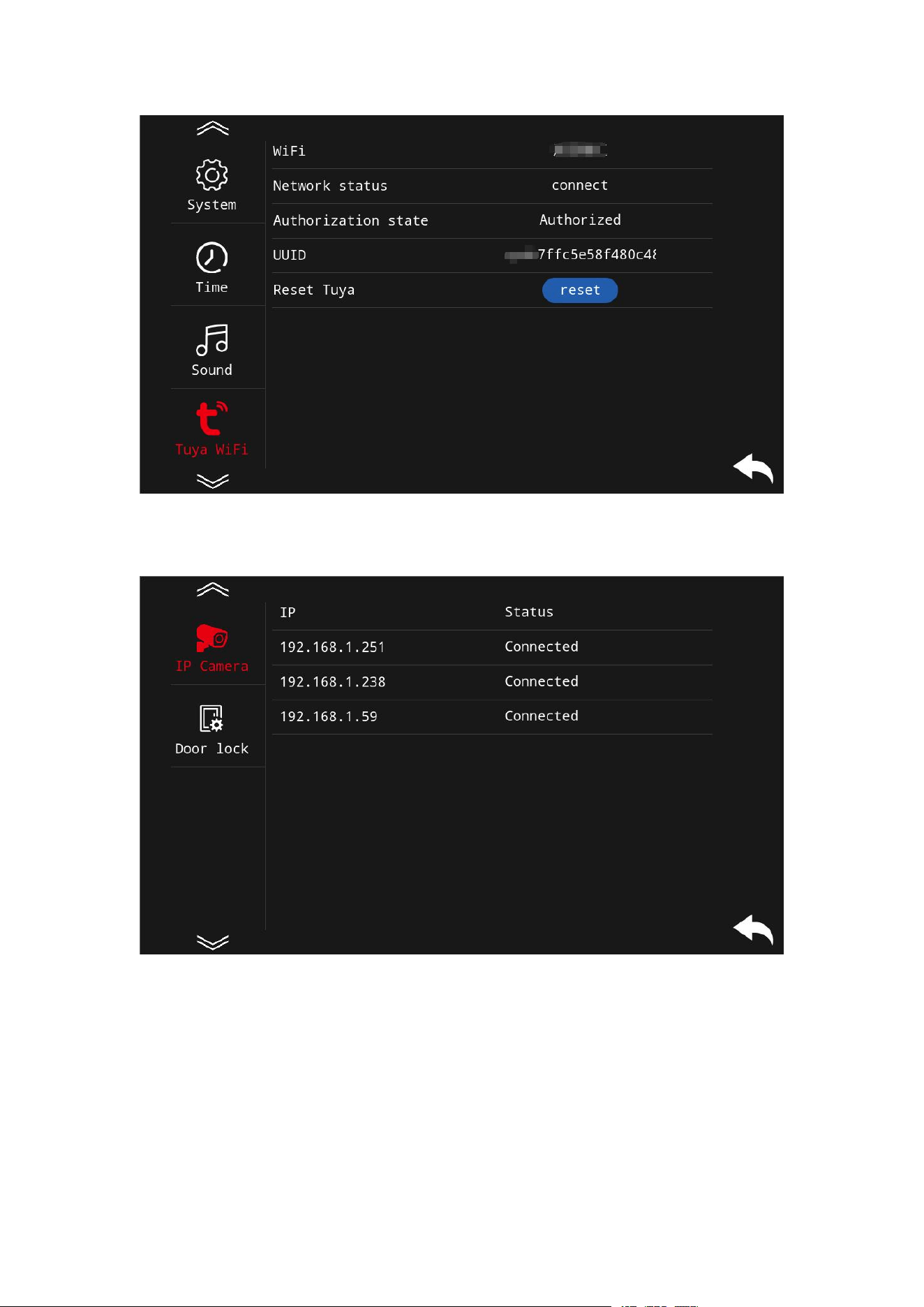
5.5. IPC
Connect IP cameras.
1. In System Settings - Security Management-System Services, Enable Onvif
service.
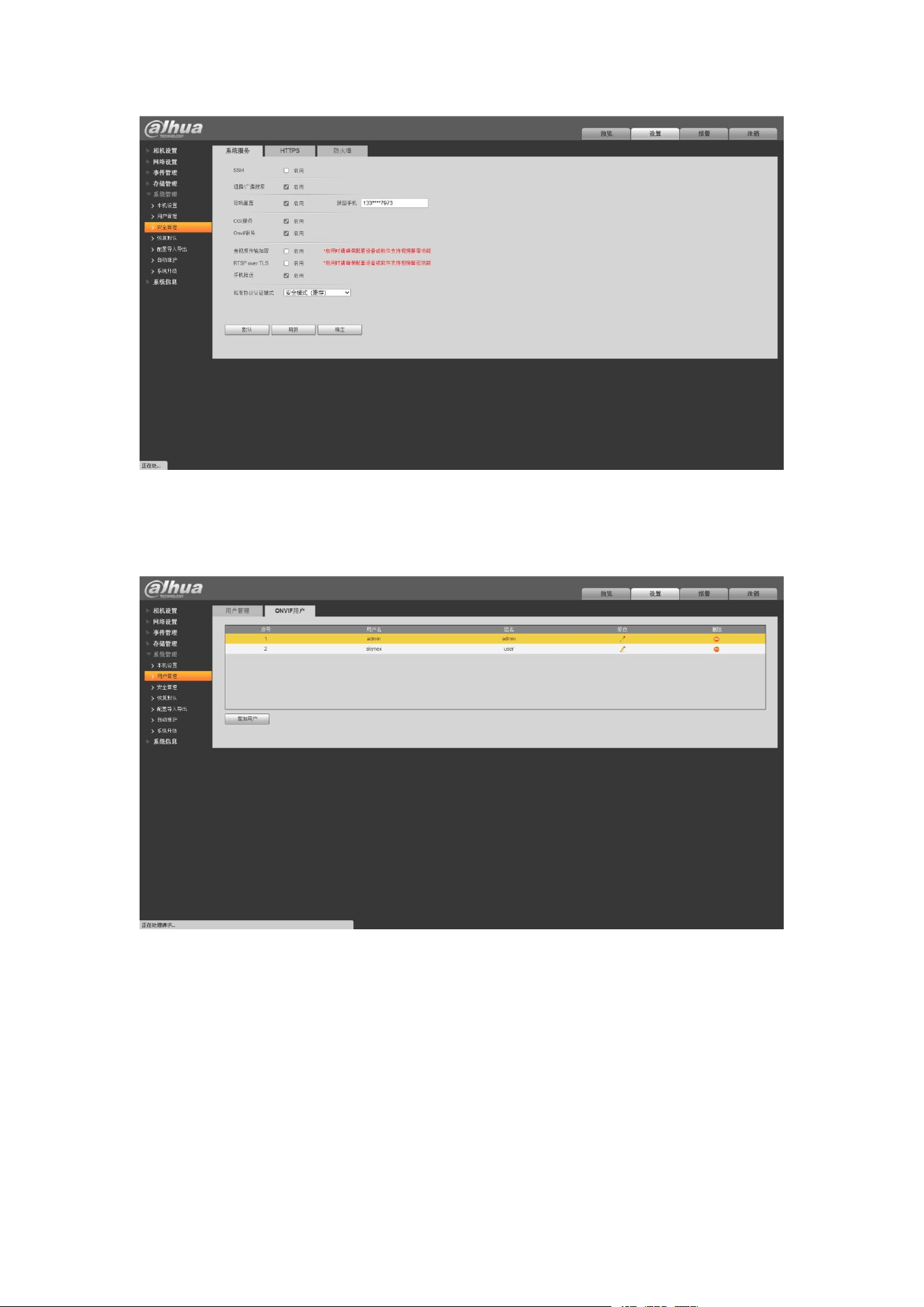
2. In Settings - System Management - User Management - ONVIF User, click
Add User, enter the new user name and new password (used to add a camera to the
intercom device ) , select user for the user group, and click OK.(We need this ONVIF
user name and password).
3. In IPC settings, click the IP address of camera. And then, input the ONVIF
username and password. After that, Enable and Save.
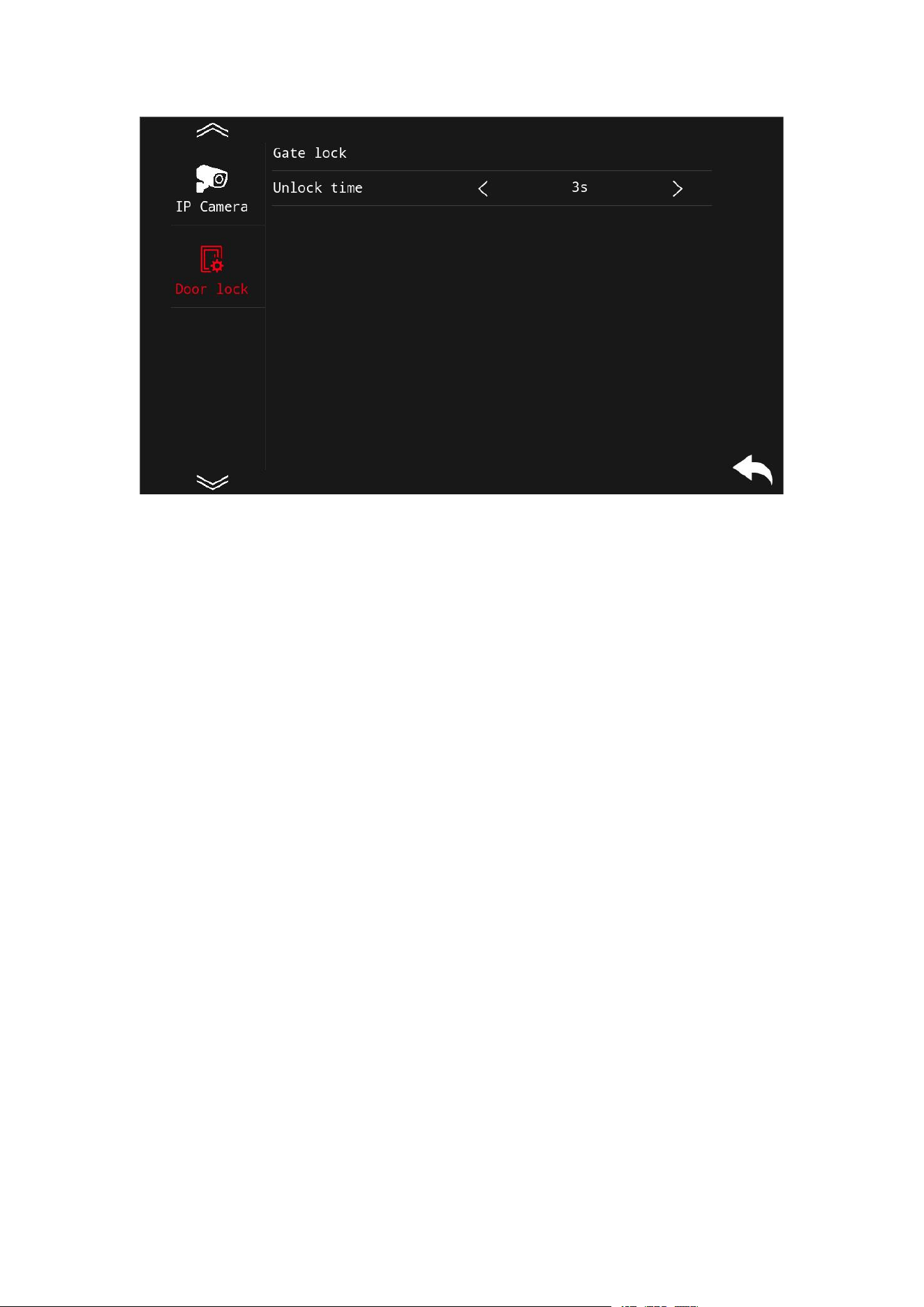
5.6. Door lock
Set unlock duration.

FCC Statement
This device complies with part 15 of the FCC Rules. Operation is subject to the following two
conditions: (1) This device may not cause harmful interference, and (2) this device must accept
any interference received, including interference that may cause undesired operation.
Note: This equipment has been tested and found to comply with the limits for a Class B digital
device, pursuant to part 15 of the FCC Rules. These limits are designed to provide reasonable
protection against harmful interference in a residential installation. This equipment generates,
uses and can radiate radio frequency energy and, if not installed and used in accordance with the
instructions, may cause harmful interference to radio communications. However, there is no
guarantee that interference will not occur in a particular installation. If this equipment does
cause harmful interference to radio or television reception, which can be determined by turning
the equipment off and on, the user is encouraged to try to correct the interference by one or
more of the following measures:
—Reorient or relocate the receiving antenna.
—Increase the separation between the equipment and receiver.
—Connect the equipment into an outlet on a circuit different from that to which the receiver is
connected.
—Consult the dealer or an experienced radio/TV technician for help.
Note: The Grantee is not responsible for any changes or modifications not expressly approved by
the party responsible for compliance. such modifications could void the user's authority to
operate the equipment.
The device has been evaluated to meet general RF exposure requirement.
To maintain compliance with FCC's RF exposure guidelines, the distance must be at least 20 cm
between the radiator and your body, and fully supported by the operating and installation
configurations of the transmitter and its antenna(s).