1
JM21 Complete User Manual
(Please update JM21 to latest firmware version first.)
All the pictures below are for illustrations only. Specifics are
subject to the actual product.

2
Foreword
Thank you so much for purchasing FiiO's portable high resolution
lossless music player JM21. We have prepared this complete user
manual for you. We hope this manual can help you get the hang of
the JM21 and unleash its full potential.

3
Buttons and ports..........................................................................................................................5
1. Pictorial guide to buttons and ports........................................................................... 5
2. Instructions for buttons and ports ...............................................................................5
Status bar and display page....................................................................................................... 7
Instructions for entry-level functions...................................................................................... 8
1. Five working modes......................................................................................................... 8
2. How to connect the JM21 to a computer................................................................10
3. How to upgrade firmware?.......................................................................................... 11
4. How to install third-party apps?................................................................................. 12
5. How to change the language?.................................................................................... 12
6. How to enable the USB DAC function?.................................................................... 13
7. How to use the JM21 as a Bluetooth transmitter?................................................14
8. What power supply adapter is suggested to charge the JM21?...................... 15
Introduction to Settings menu................................................................................................ 16
WiFi.................................................................................................................................................. 16
Bluetooth........................................................................................................................................17
Bluetooth transmitting.......................................................................................................17
Bluetooth receiving............................................................................................................. 19
Audio............................................................................................................................................... 20
Gain..........................................................................................................................................21
Lowpass filter mode............................................................................................................21
Bluetooth Audio Encoder.................................................................................................. 22
Balance....................................................................................................................................22
All To DSD.............................................................................................................................. 22
Adjustable volume at LO................................................................................................... 23
Display.............................................................................................................................................23
Global.............................................................................................................................................. 25
Double tap to wakeup........................................................................................................26
System.............................................................................................................................................27
Languages & input..............................................................................................................27
Reset options........................................................................................................................ 28
FiiO Music APP............................................................................................................................. 29
Instructions for commonly-used functions..........................................................................36
1. Screenshot.........................................................................................................................36
2. USB Audio digital output..............................................................................................36
3. FiiO Link Bluetooth control.......................................................................................... 36
4. FiiO Link Wifi control......................................................................................................37
5.How to use the DLNA function?.................................................................................. 37

4
6.How to use the coaxial function of JM21?................................................................38
7. What can be done if I forget my password? How to enter recovery mode? 38
Firmware upgrade, factory data reset and technical support ........................................ 39
1.How to upgrade firmware?........................................................................................... 39
2.Force to reboot................................................................................................................. 40
3.Factory data reset.............................................................................................................41
4.Technical support ............................................................................................................. 41
5
Buttons and ports
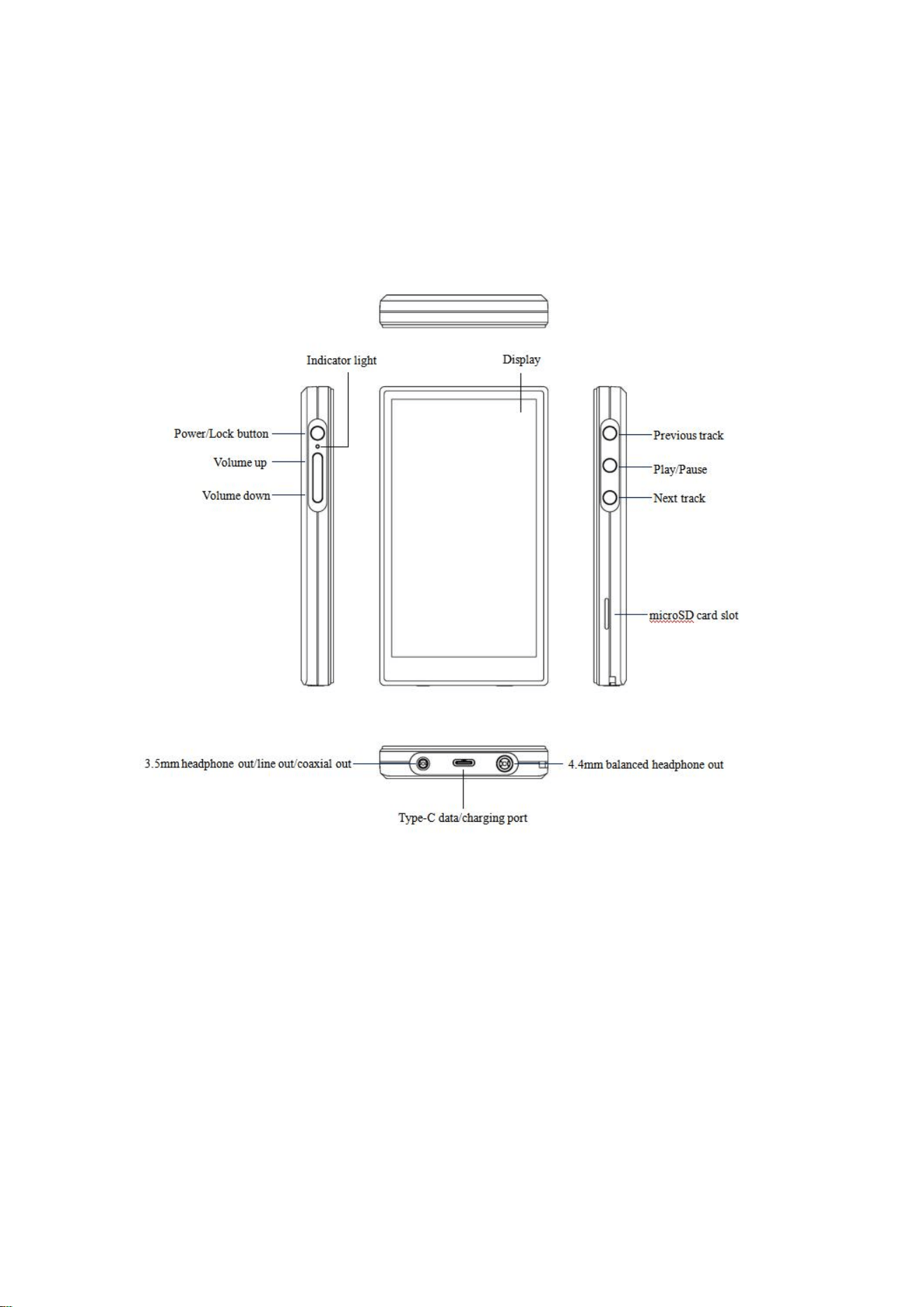
1. Pictorial guide to buttons and ports
(Pictures are for reference only)
2. Instructions for buttons and ports
1) Power/Lockscreen: Hold the Power/Lock button to turn on the JM21.
On its first startup, tap the preferred language onscreen to enter the
main UI. Hold the Power/Lock button while the JM21 is on and a
shutdown dialogue will pop up. You can select to turn off or reboot the
player.
2) Previous track: short press to play the previous track; long press to
rewind.

6
3) Play/Pause: short press it when music is playing to pause the music;
short press it when music is paused to resume the playback.
4) Next track: short press to play the next track; long press to
fastforward.
5) microSD card slot: supports one TF card (micro SD card),
theoretically up to 2TB expansion.
6) Volume up/down: press the volume up button to increase the
volume, press the volume down button to decrease the volume.
7)
USB Type C transfer/charging port: used for charging, data
transmission and USB Audio.
8) 4.4mm balanced output: supports 4.4mm balanced headphone
output.
9) 3.5mm headphone/line-out/SPDIF output: shared outputs of line-
out, spdif out and PO
The priority of the JM21 output port
1. When the 3.5mm and 4.4mm earphones are inserted at the same
time at the same time, the output will be given priority in the order of
insertion
2. According to the Android system's own processing method,
Bluetooth transmission and analog output (including SPDIF) will follow
the principle of post-access priority.
7
Status bar and display page
The status bar on the top screen shows the working states of the JM21.
8
Instructions for entry-level functions
1. Five working modes
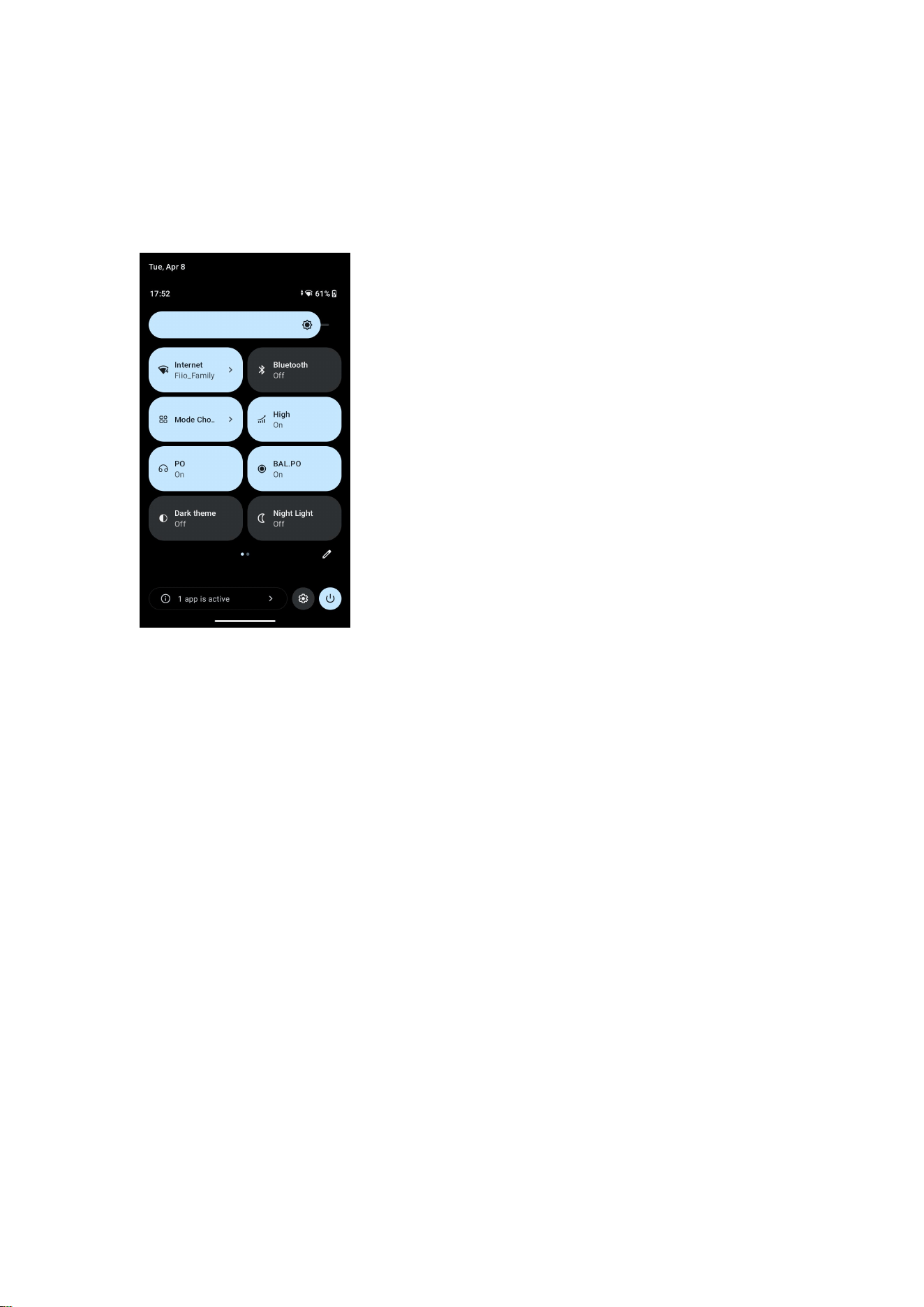
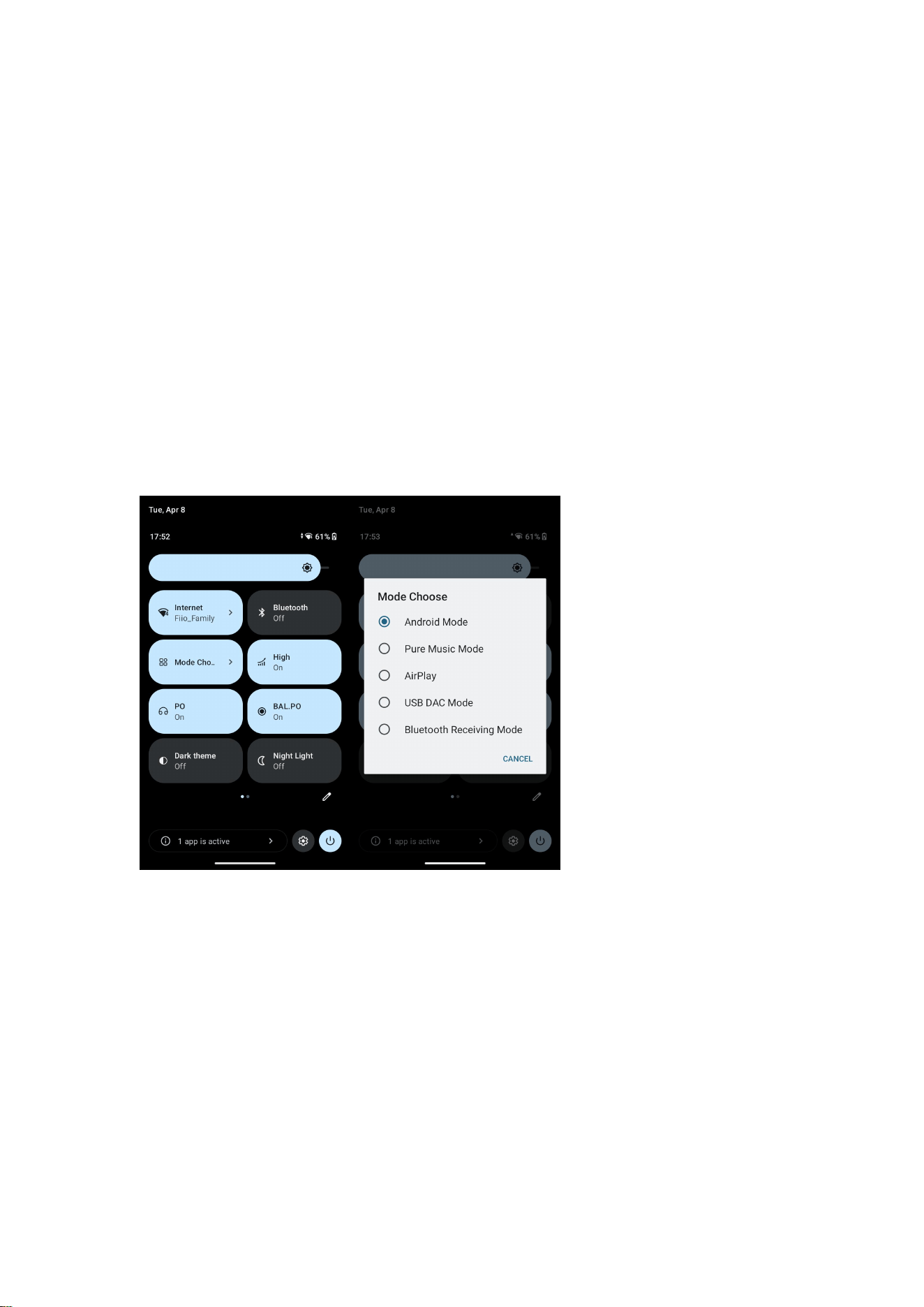
The JM21 supports five working modes, including Android mode, Pure
Music mode, AirPlay, USB DAC mode and Bluetooth Receiving mode. It
is defaulted to be Android mode when the device is powered on for the
first time, which can be switched to other modes on the drop-down or
settings menu.
Android mode
Third party applications will be available at will. It can be switched to
other modes on the drop-down or settings menu.
Pure Music mode

9
Third party applications will be automatically disabled while FiiO Music
app will be auto-enabled. It can be switched to other modes on the
drop-down or settings menu.
AirPlay
The JM21 can be connected to Apple devices, receiving audio signals
transmitted from them.
USB DAC mode
In USB DAC mode, the JM21 can be connected to other devices like a
computer, working as a USB DAC/Amp. It can be switched to other
modes on the drop-down or settings menu.
Notes: when the JM21 is going to work in the USB DAC mode for the
first time, FiiO's exclusive USB DAC driver is required. Please download
it on our website and follow relevant instructions to install it.
Bluetooth Receiving mode
The JM21 can be connected to Bluetooth transmitting devices like a
mobile phone, working as a Bluetooth DAC/Amp. It can be switched to
other modes on the drop-down or settings menu.

10
2. How to connect the JM21 to a computer
For Windows systems, the JM21 runs driver-free. Connect the JM21 to
the computer through the included USB cable, the required driver will
be automatically installed. After it is finished, the FiiO JM21 disk can be
directly seen on the computer.
For Mac systems, a driver is needed.
1) After connecting the JM21 to the Mac computer, click the "NO
NAME" folder emerging on the desktop->double click Mac->Mac/MAC
OS MTP Client->Android File Transfer.dmg. Drag the "Android File
Transfer.dmg" to the desktop of the computer.
2) Drag the "Android File Transfer" file to the "Applications" folder and
wait for the completion of the copy.
3) Enter "Applications", and double click the "Android File Transfer".
Then
you can manage the files stored in the internal storage of the JM21 or
the Micro SD card.
Notes: The JM21 folder will directly pop up the next time it is being
connected to the same computer.

11
3. How to upgrade firmware?
The JM21 supports online upgrade and local upgrade.
1) Online upgrade
If a new firmware is available and can be detected (with the JM21
connected to an available internet), an upgrade notification will show
up in the notification center. Tap on it to enter the update menu for the
online upgrade. If there's no upgrade notification showing up, you can
go to the "Technical Support->Firmware Upgrade" menu, and tap the
"Check for updates" icon to check manually.
2) Local upgrade
Also, the JM21 can be upgraded locally by a firmware package.
Download the firmware package file from FiiO.com, and copy it to the
internal storage of the JM21 or an SD card. Go to the "Technical
Support->Firmware Upgrade->Local Upgrade" menu, and find the
firmware package file to start the upgrade.
Notes:
1) Do not unzip the firmware package file.
2) Before the upgrade, ensure the power of the device is adequate
(>30%) so to avoid upgrade failure.

12
3) If the device goes to factory mode which cannot detect the firmware,
the reason may be that the firmware file is damaged. At this time, press
the power button to reboot the device. Re-download the firmware file
and restart the upgrade.
4. How to install third-party apps?
There are two ways that are similar to mobile phones' to install
applications.
1) Method 1: After connecting the device to a valid WiFi, go to FiiO
market, Google Play or other app markets to download and install the
app directly.
2) Method 2 (Local installation): copy the APK file to the JM21. Go to
the file management menu to find the file and install it.
5. How to change the language?
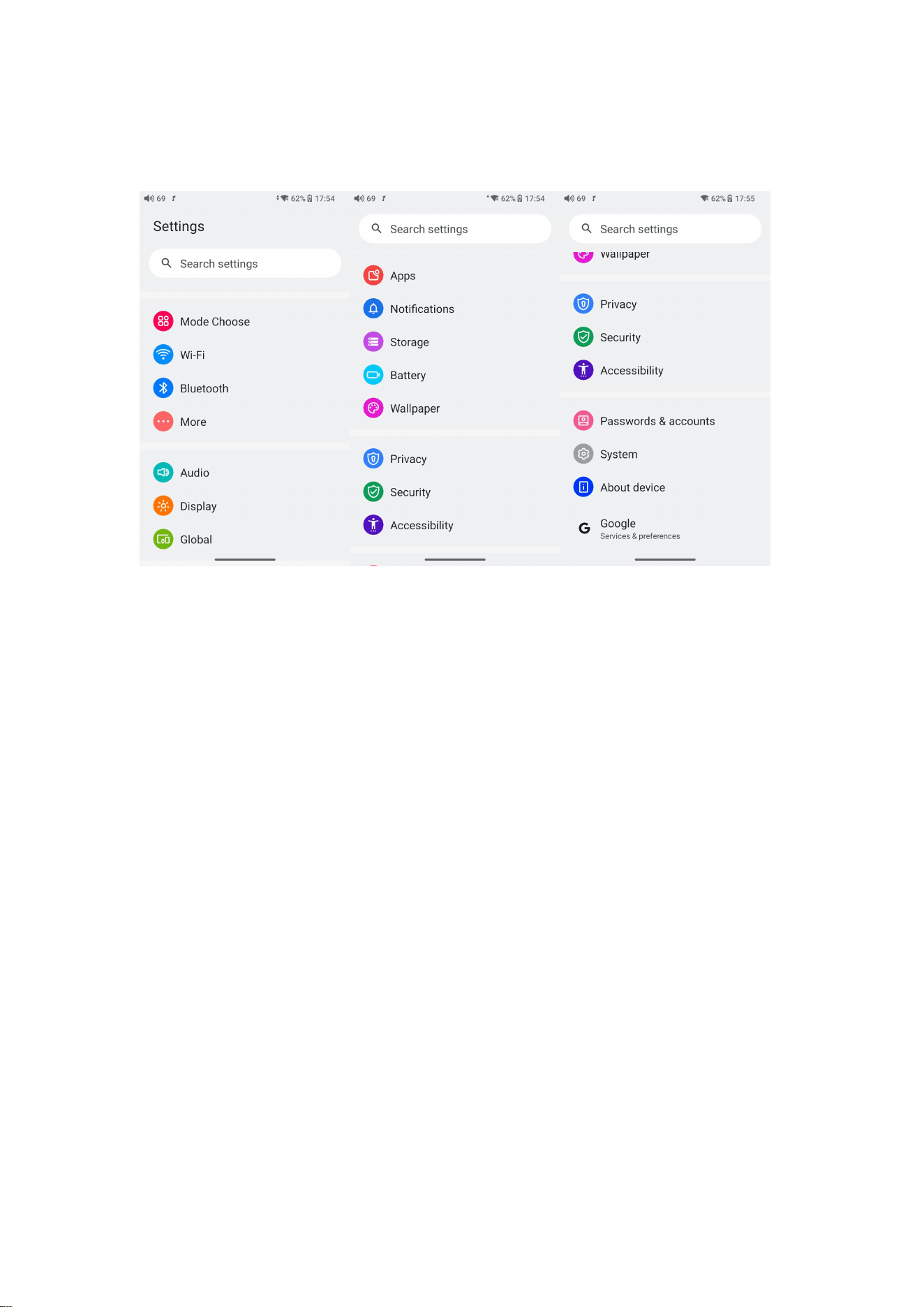
Go to Settings->System->Languages and input->Languages->Add a
language to choose the intended language. Press the "=" icon on the
right side and drag it to the first line to select the language successfully.

13
The language of the FiiO Music app defaults to follow the system's. You
can also go to FiiO Music app-> Settings->Languages to choose the
language independently.
6. How to enable the USB DAC function?
For Mac computers, the JM21 runs driver-free.
For Windows computers, please make the settings as the followed
steps.
1) Install the FiiO DAC driver in the computer first.
2) Switch the working mode of the JM21 to USB DAC mode on the
drop-down menu or go to Settings->Mode choose menu to enter the
USB DAC mode.
3) Connect the JM21 to the computer by the USB port. Select the JM21
as the audio input both in the computer and the music app, so it can
work.
Notes:
When in the USB DAC mode, the JM21 does not support Bluetooth
transmitting.

14
7. How to use the JM21 as a Bluetooth transmitter?
It is similar to mobile phone's. Here are the instructions.
1) Go to the Settings->Bluetooth menu to turn on the Bluetooth
function.
2) Make the Bluetooth receiving device, such as Bluetooth earphones,
enter the pairing state. (Please refer to the user manual of the
Bluetooth receiving device about how to enter the pairing state.)
3) Go to the Bluetooth device list of the JM21->Pair new device to
complete the connection.
What can be done if the JM21 fails to connect to Bluetooth
earphones?
If it fails to connect to Bluetooth earphones for the first time, please
make sure the earphones are in the pairing state (the connection will
fail if the earphones are in reconnecting state for the first-time
connection). Go to the Bluetooth menu of the JM21 to start the
connection.
What Bluetooth codecs does the JM21 support? And how to switch
the Bluetooth codecs?
The JM21 supports LDAC, aptX-HD, aptX, AAC and SBC which can be
switched on Settings->Audio->Wireless playback quality menu. Note

15
that it needs to be disconnected and reconnected to enable the new
codec after changing it.
What can be done if the volume is too low when the JM21 is
connected to AirPods?
1. Go to System Settings-Audio and find the Bluetooth volume
adjustment mode.
2. Switch the volume adjustment mode to Sync Bluetooth volume.
3. Disconnect and reconnect the Bluetooth device.
8. What power supply adapter is suggested to
charge the JM21?
The JM21 doesn't support fast charging.It is recommended to use a
5V2A charger for charging.
Battery capacity: 2400mAh
Battery life: 12 hours (3.5mm standard headphone out)
16
Introduction to Settings menu
WiFi
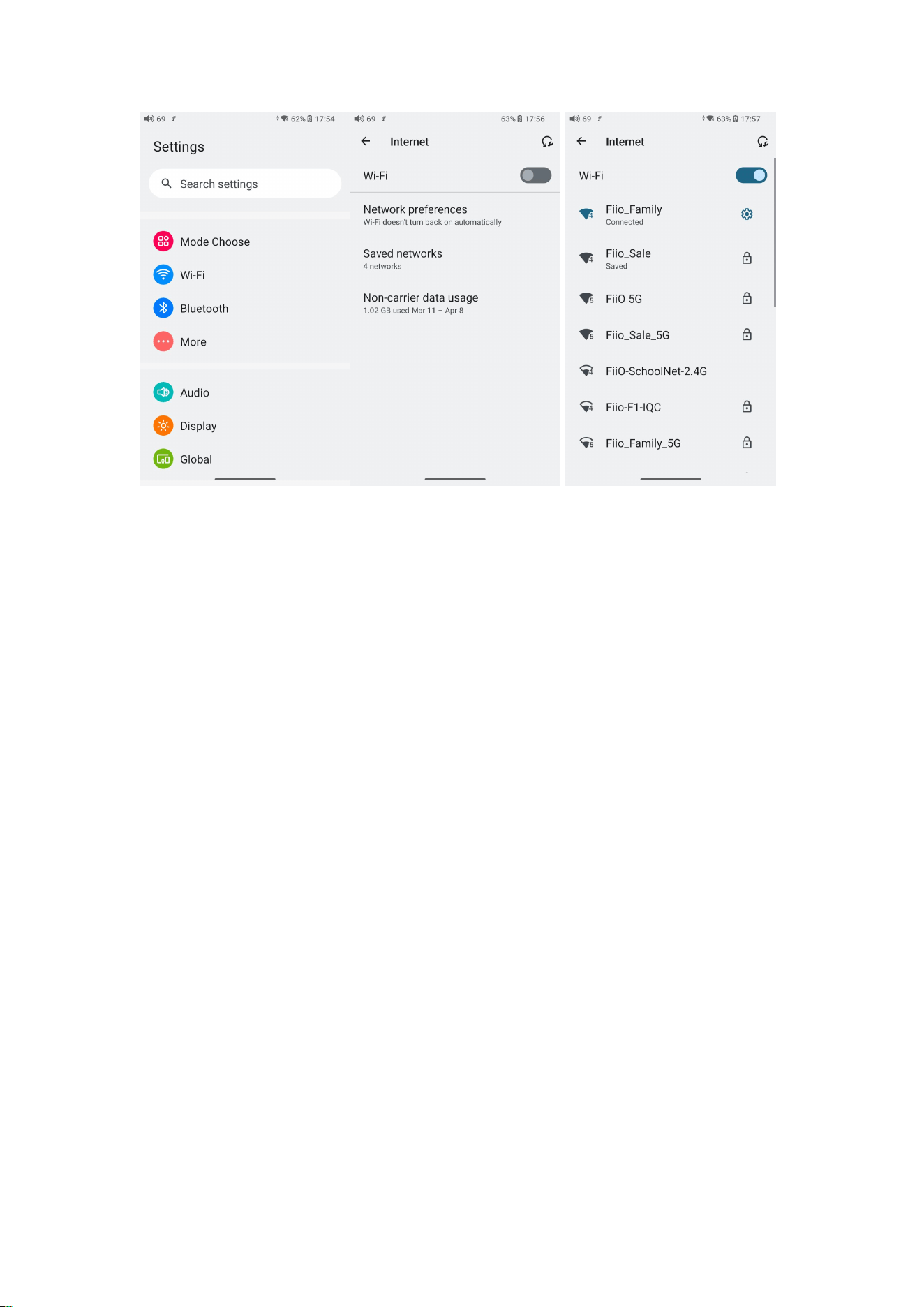
The JM21 supports a WiFi connection of 2.4/5G dual-band for music
resources access. Here are the steps to connect the JM21 to a new WiFi
device.
1) In the settings menu of the JM21, tap "WiFi".
2) Turn it on. The JM21 will automatically search for and list available
WiFi devices nearby.
3) Tap the intended WiFi device and connect them.
17
Bluetooth
The JM21 supports lots of Bluetooth codecs for both transmission and
reception, allowing for rich wireless connections.
Bluetooth transmitting
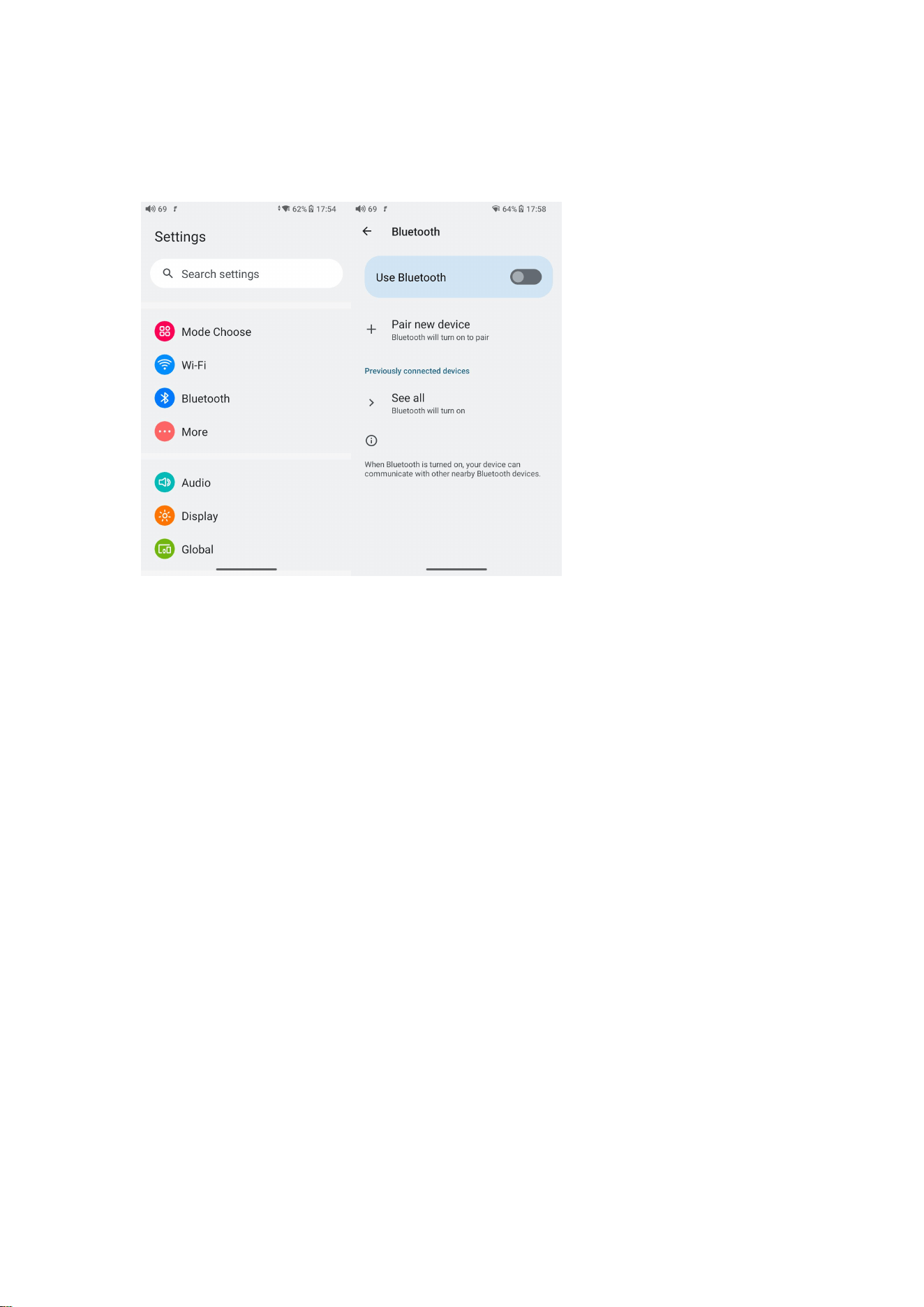
When being a Bluetooth transmitter connecting to new Bluetooth
devices (such as Bluetooth headphones, Bluetooth speakers), the JM21
needs to pair with the Bluetooth device first. Here are the steps.
1. Go to the Settings->Bluetooth menu to turn on the Bluetooth
function.
2.Make the Bluetooth receiving device, such as Bluetooth earphones,
enter the pairing state. (Please refer to the user manual of the
Bluetooth receiving device about how to enter pairing state.)
18
3.Go to the Bluetooth device list of the JM21->Pair new device to
complete the connection.
What can be done if the JM21 fails to connect to Bluetooth
earphones?
If it fails to connect to Bluetooth earphones for the first time, please
make sure the earphones are under pairing state (the connection will
fail if the earphones are under reconnecting state for the first-time
connection). Go to the Bluetooth menu of the JM21 to start the
connection.
What Bluetooth codecs does the JM21 support? And how to switch
the Bluetooth codecs?
The JM21 supports LHDC, LDAC, aptX-HD, aptX, AAC and SBC which
can be switched on Settings->Audio->Wireless playback quality menu.
Note that it needs to be disconnected and reconnected to enable the
new codec after changing it.
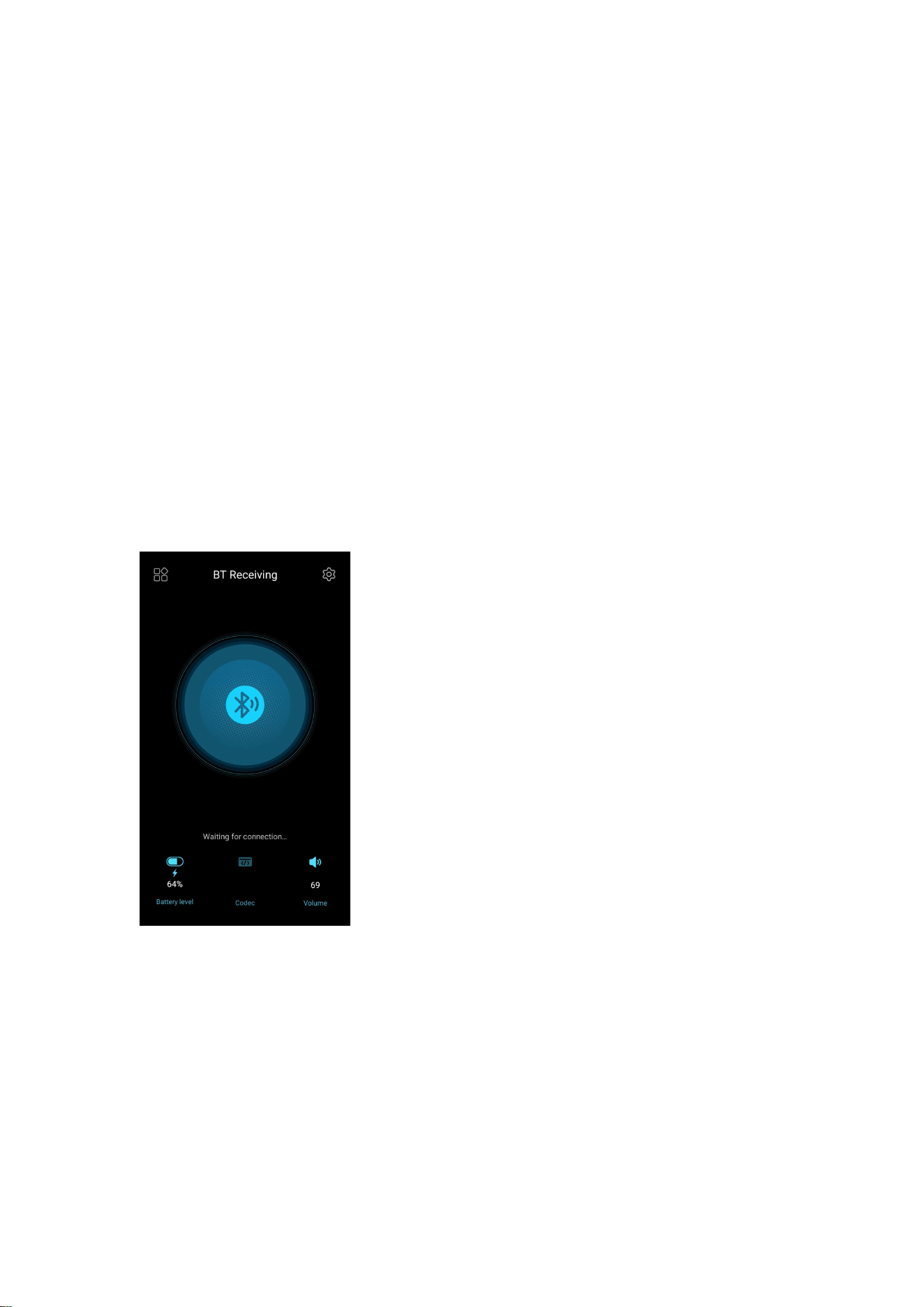
What can be done if the volume is too low when the JM21 is
connected to AirPods?
1. Go to System Settings-Audio and find the Bluetooth volume
adjustment mode.
19
2. Switch the volume adjustment mode to Sync Bluetooth volume.
3. Disconnect and reconnect the Bluetooth device.
Note: When the Bluetooth is enabled, the JM21 will preferentially
connect to the last-connected available Bluetooth devices.
Bluetooth receiving
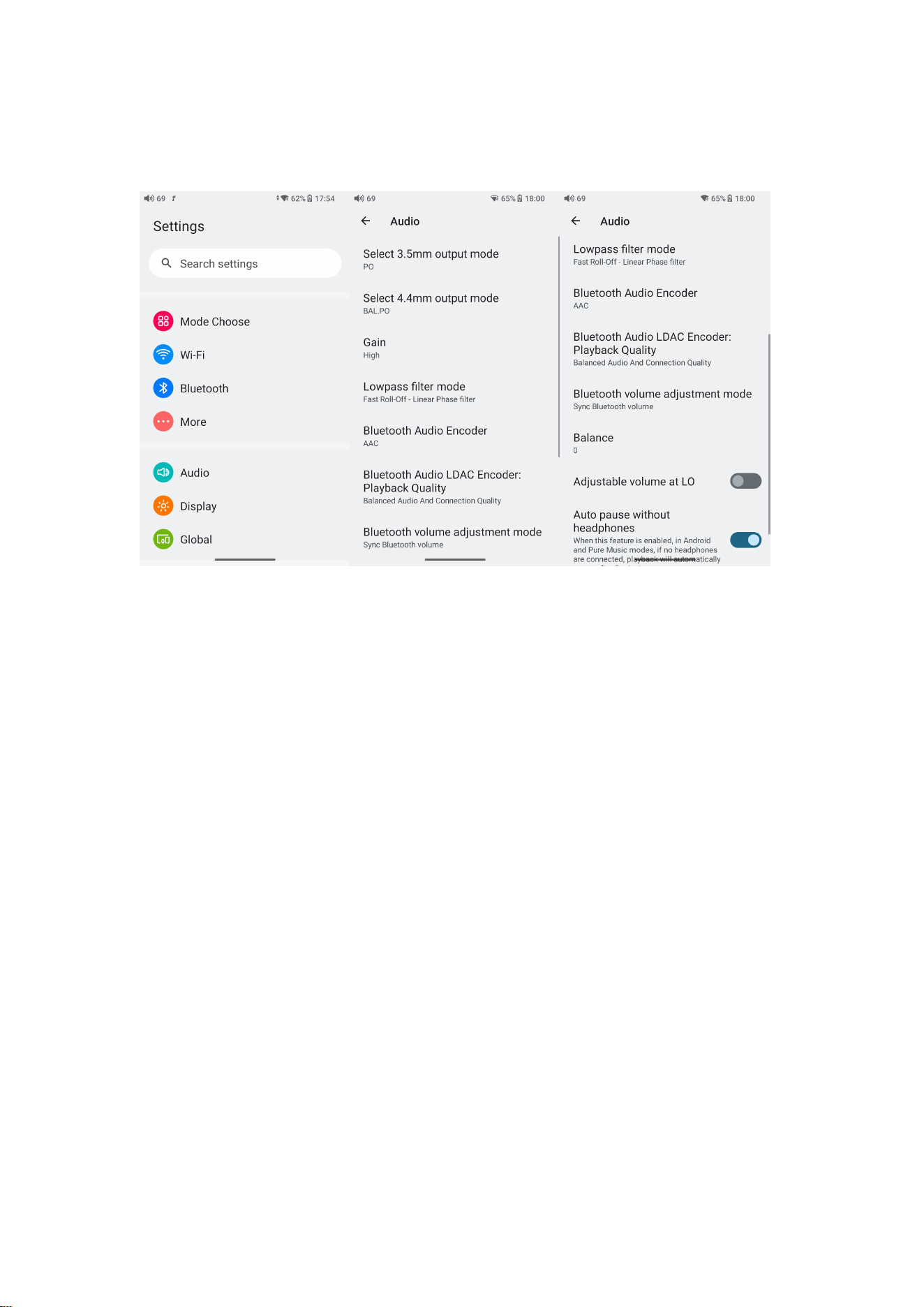
When the JM21 is working as a Bluetooth receiver to connect to a new
Bluetooth device, such as a mobile phone, turn on the Bluetooth, go to
the Settings menu-> Mode choose, and select Bluetooth Receiving
Mode. When it is enabled, the JM21 will automatically enter the BT
Receiving UI.
20
Audio
Output selection
3.5Output selection
PO (Power output), generally used when connecting to earphones and
speakers
LO (Line out), generally used when connecting to power amplifiers
SPDIF (Coaxial out), generally used when connecting to DACs
4.4Output selection
BAL.PO and BAL.LO available
SPDIF out (it only needs to be set in this way when the coaxial
output is used)
D2P mode: when playing PCM signals, it will output raw PCM signals;

21
when playing DSD signals, it will first convert DSD to PCM and output
PCM signals.
DoP mode: PCM will be output as PCM signals while DSD will be output
as raw DSD signals.
Notes:
Select DoP first. For some devices that are not supportive of DoP, please
select D2P.
Gain
There are 3 levels, High, Medium and Low, corresponding to 3 levels of
output voltages. You can select different Gains according to the
earphones used.
Lowpass filter mode
There are 7 different filters (internal configuration of the ES9038Q2M)
built in the JM21 for your preference.
Filters are the sound effects born with the chip, which only has slight
adjustments for the sound. Here are some introductions to different
filters. These are only for reference since actual listening also has
something to do with the matched device.
1) fast roll-off,linear phase filter: Most Common filter with clean
suppression and high rejection, best for music with high transients.
Provides crisp clean highs
2) slow roll-off,linear phase filter: coherent and clear sounds, positioned
near the middle. It is suitable for classical music.
3) fast roll-off, minimum phase filter: Minimal Pre- Ringing, preferred for
Imaging and soundstage. No aliasing in frequency domain. Stronger
bass than Linear Phase,clean highs

22
4) slow roll-off, minimum phase filter: Non-Symetrical filter designed to
minimize pre-ringing. Strong punchy bass with good transient attacks
5) apodizing fast roll-off,linear phase filter: Version of Linear phase fast
roll-off filter optimized to improve pre-ringing.
6) hybrid fast roll-off, minimum phase filter: Combination of Linear-
phase and Minimum-phase. Fast transient attack, strong punchy bass,
crisp highs.
7) brickwall filter: On of the earliest designs, intended for highest
suppression possible,with high delay and pre-ringing.
Bluetooth Audio Encoder
The Bluetooth transmission takes the highest codec by default. You can
choose the highest codec supported for the Bluetooth connection by
this option.
Balance
If there is any imbalance between the left and right channels when
playing music, you can adjust the channel balance here. It has up to 10
levels available.
All To DSD
When the All To DSD function is turned on, the PCM signals will be
converted to DSD for output with sound quality further improved.
【Principle】All To DSD is mainly about switching digital signals from
PCM to DSD format. So when making digital-to-analog conversion, it
can use DSD format, enriching music styles with clearer and natural
sound quality. In addition, since the lowest format of the DSD is DSD64,
i.e. 4 times of the 44.1k/16bit (just looking at the data size), the All To
DSD function is upsampling the 44.1k/16bit audio signals. Third-party
apps also support All To DSD.
23
Notice: the All To DSD mode will heat up the device more seriously, and
the battery life will be relatively shortened.
Adjustable volume at LO
When it is selected, the volume is adjustable at LO output. Otherwise, it
is fixed at the maximum volume.
Auto pause without headphones
When this feature is enabled, in Android and Pure music modes, if no
headphones are connected, playback will automatically pause after 2
minutes.
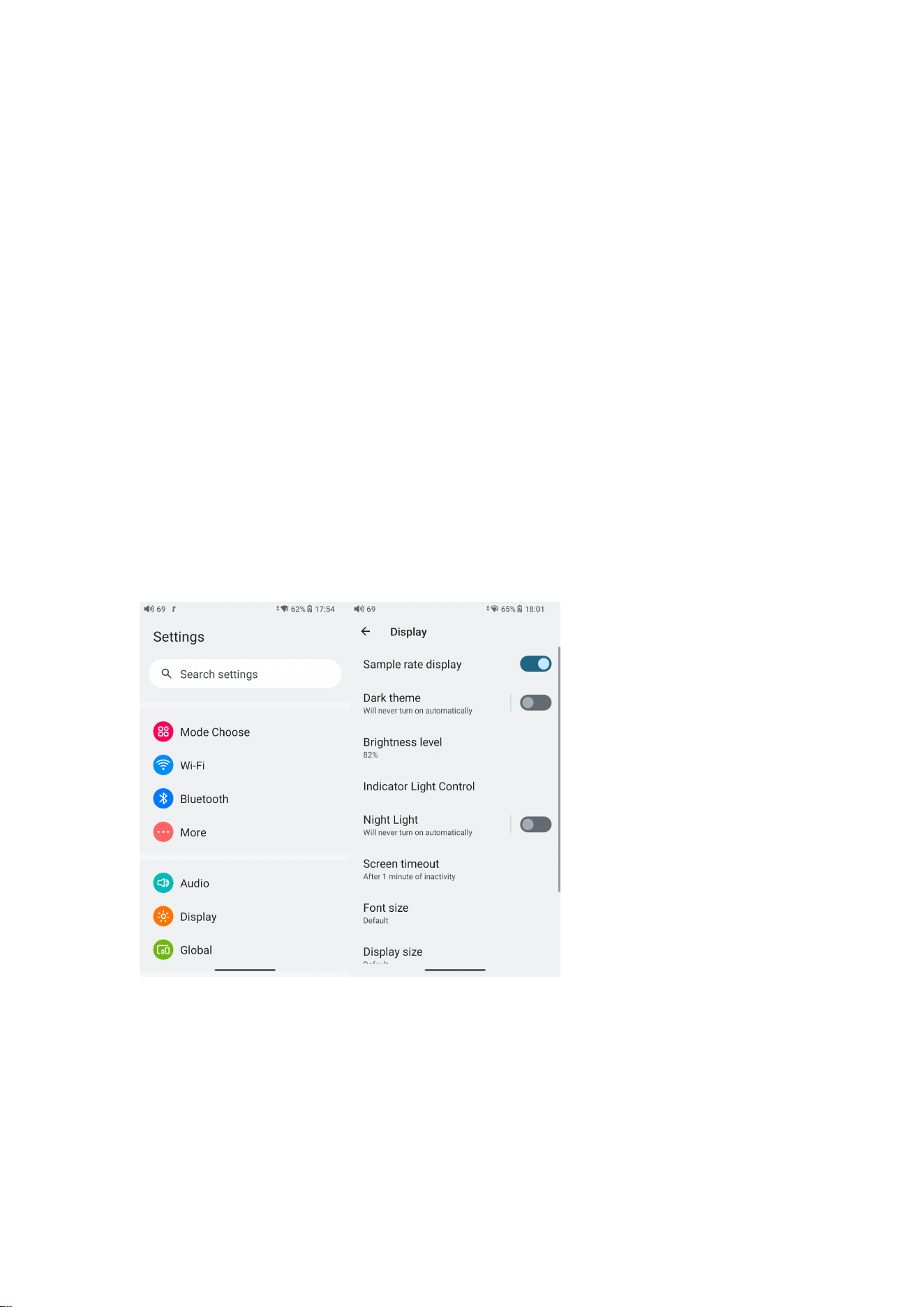
Display
The display settings consist of Sample rate display, Dark theme,
Brightness level,Indicator light control, Night light, Screen timeout,
Font size, Display size, Screen saver and lock screen display. The
following are detailed descriptions of some common item.
Sample rate display
24
With it turned on, the sample rate of the currently playing song will be
displayed.
Dark theme
With it turned on, the theme will switch from the default white theme to
a dark theme.
Brightness level
Adjusting the brightness of the JM21.
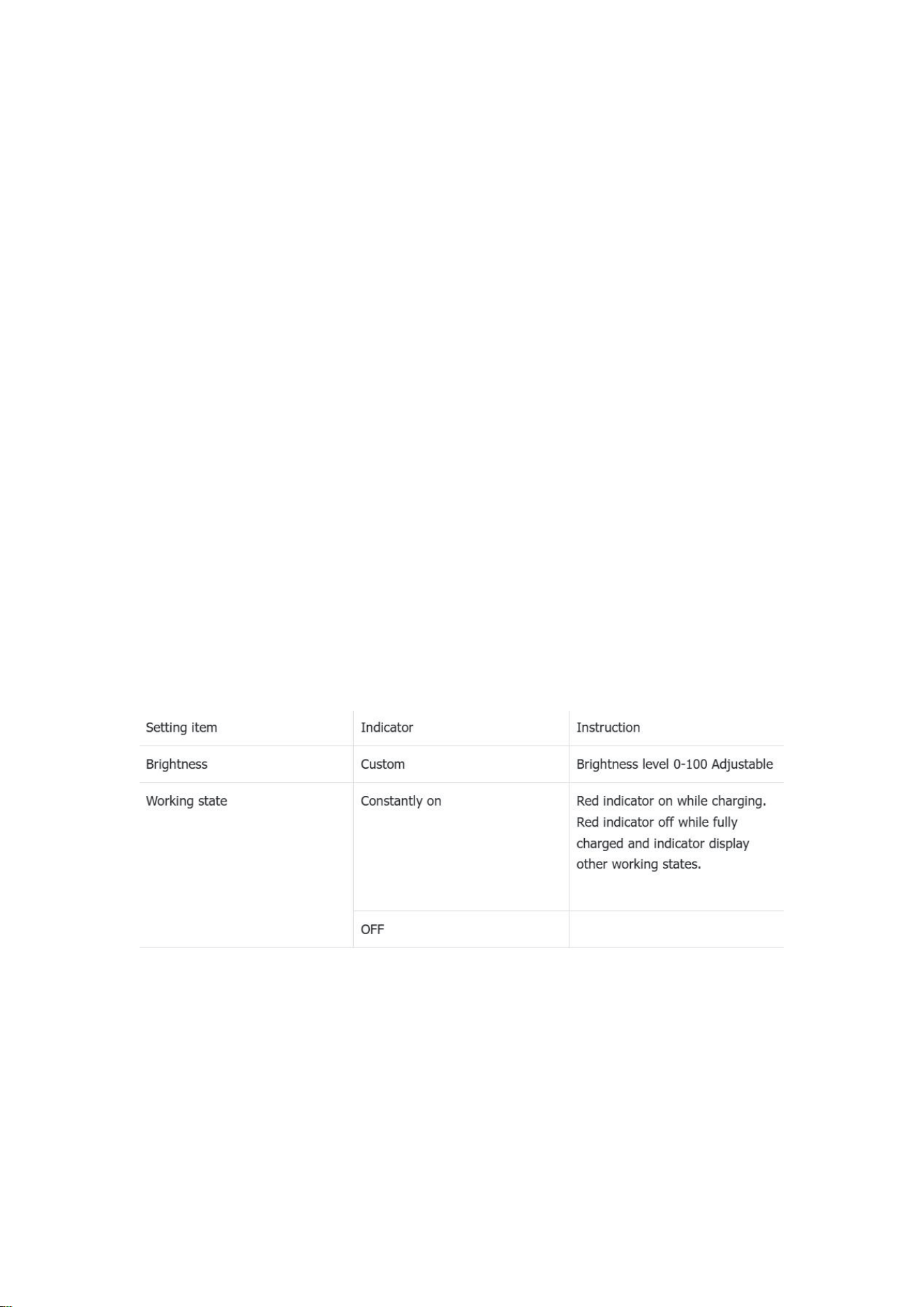
Indicator light control
Working: while working, two states can be set: constantly on and off
On/off with the display: After enabling it, the indicator will on on off
synchronously with the screen
Indicator colour setting instruction:
Night light
The color of the display screen will be adjusted in amber under Night
light mode. You could enable the Night light mode at a custom time , or
from sunset to sunrise.
Screen timeout
25
Consistent with the screen saver time. Adding this option to make it
easier for users to adjust the time.
Font size
Customize the font size according to your preference.
Display size
Make the items on your screen smaller or larger according to your
preference.
Screen saver
You can choose our customized screen saver or system screen saver for
JM21.
Lock screen
Setting the content to be displayed when the screen is locked
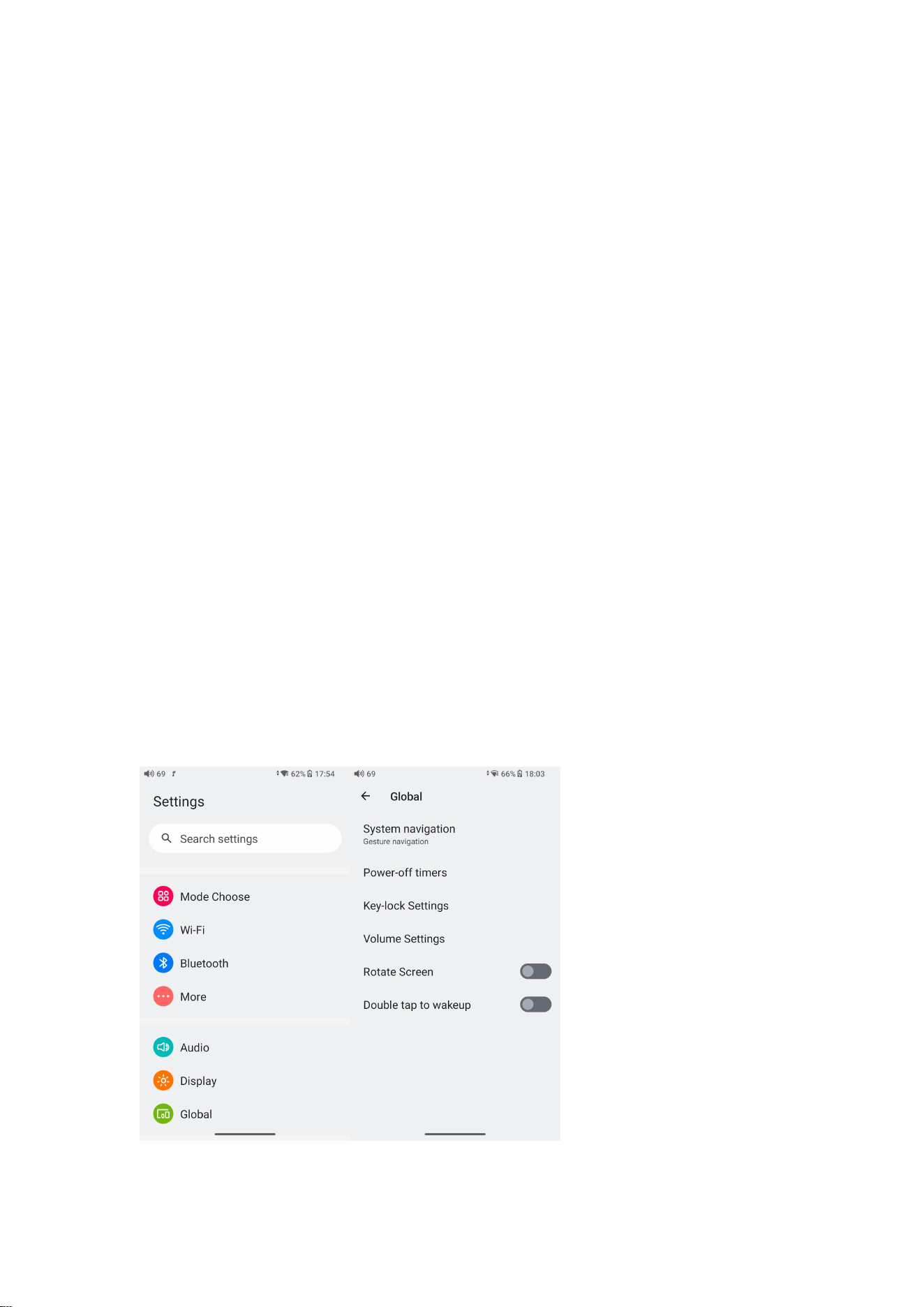
Global

26
System navigation
Gesture, 2-button and 3-button navigation are available.
Power-off timers
There are two types of the timer, Sleep and Idle poweroff.
Sleep
when the set time is up, the JM21 will turn off automatically. The sleep
time can be set as any integer values between 0 and 120.
Idle poweroff
the JM21 will automatically turn off when the timer reaches the set time
for idle poweroff when there is no operation or playback. During this
process, the timer will restart if there is any operation or playback. The
idle poweroff time can be set as any integer values between 0 and 24h.
(Note that this function will be disabled when it is set to OFF.)
Key-lock settings
Choose the buttons/knob you want to be available when screen off.
Volume setting
a.System Maximum volume setting: all other volumes will be lower than
this volume after setting it.
b.Power-up default setting:set the volume of the system when the
device is turned on.
Rotate screen
The display page will rotate 180° if it is enabled.
Double tap to wakeup
If the Double tap to wakeup function is enabled, the sleep device can be
wake up by double-tapping the screen.
27
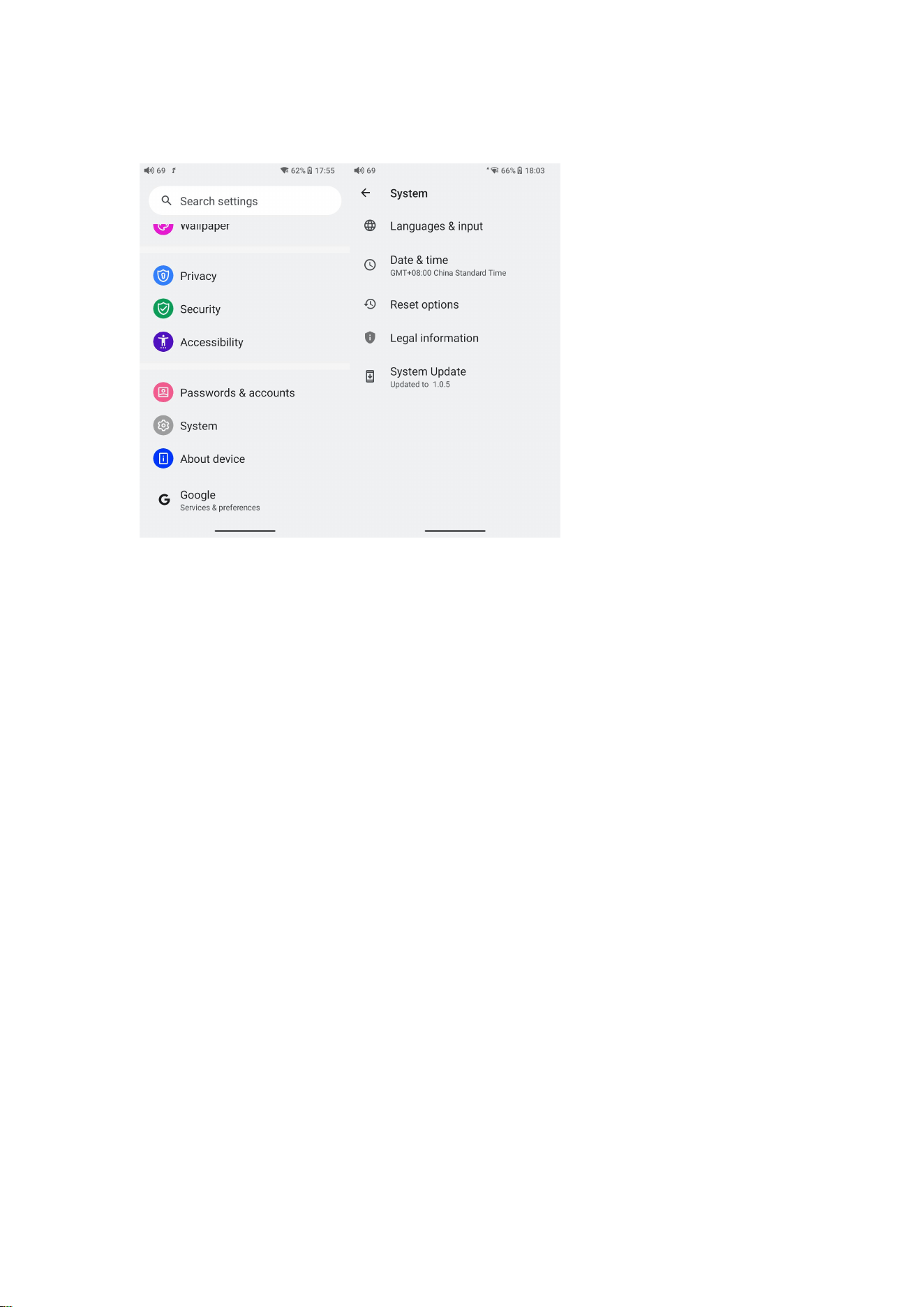
System
Languages & input
The first time the device starts up, you can choose an appropriate
language from the prompt.
If you want to choose other languages, you can go to the Settings
menu. Here are the instructions.
1) Go to the menu of Settings-> System-> Languages & input->
Languages;
2) In the Languages page, tap Add a language;
3) Select a language;
4) After selecting the language, hold the “=” icon on the right side of
the target language and drag it to the top, so to successfully select the
language.

28
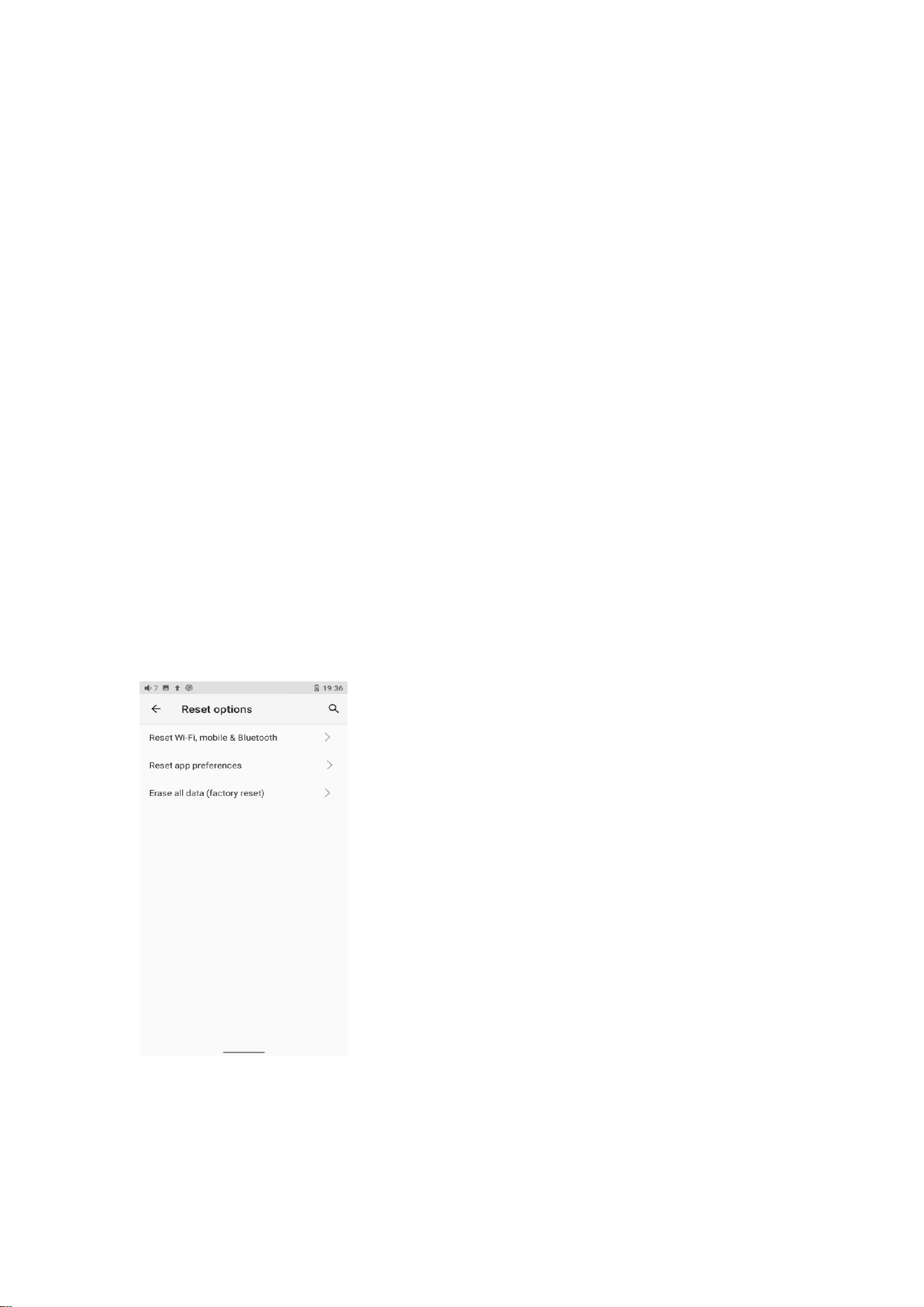
Reset options
"Reset WiFi, mobile & Bluetooth" will reset all network settings,
including WiFi and Bluetooth.
"Reset app preferences" will reset all preferences including the items
shown in the following picture.
"Erase all data", i.e. factory reset, will erase all data from your device's
internal storage, and all settings will be reset to default. Please back up
your important data before resetting.
29
FiiO Music APP
The JM21 has built in the FiiO Music app, a professional audio playing
application specially developing for Android-based system and
flagship-grade music players.
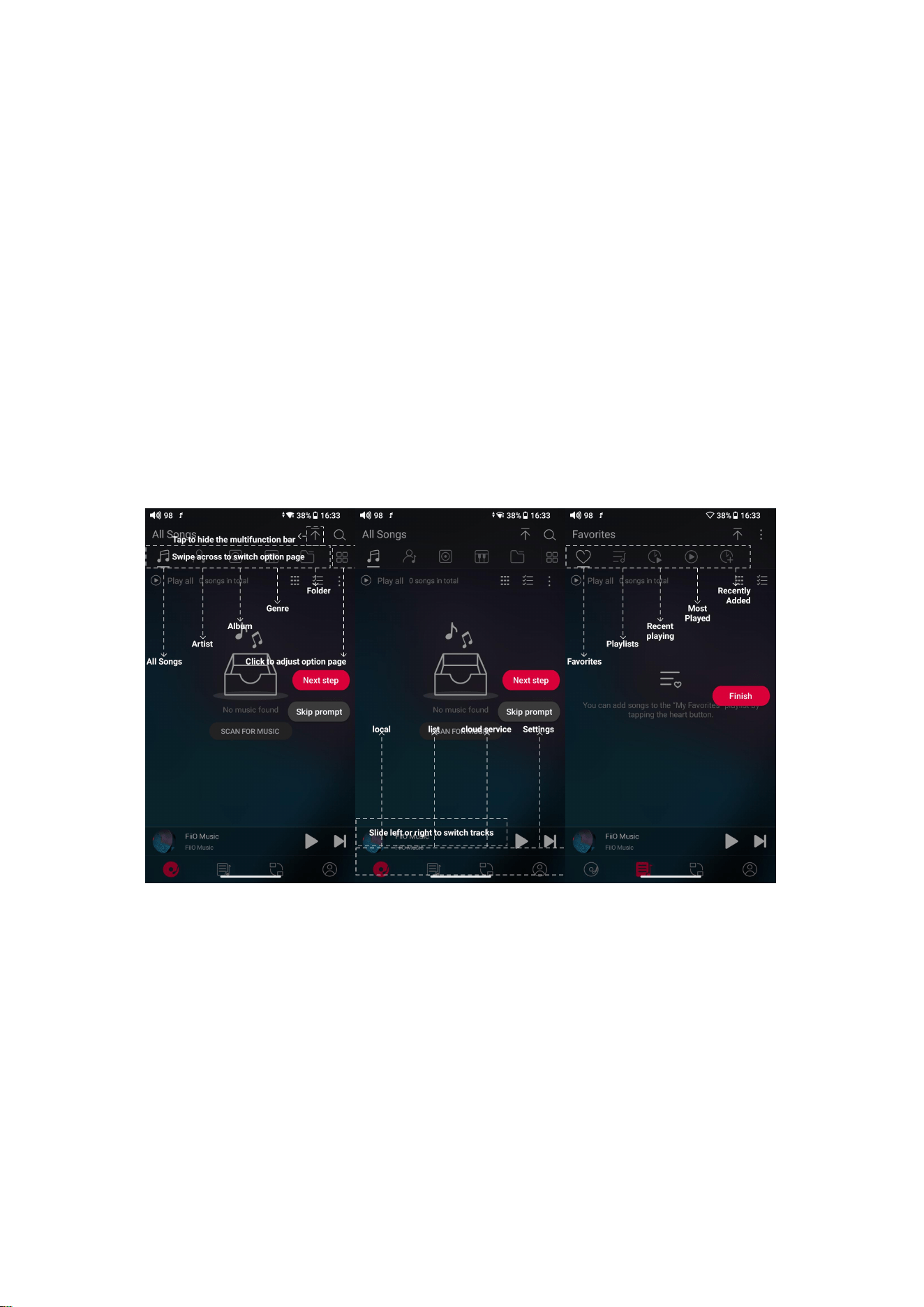
Homepage
FiiO Music APP will enter the homepage once it starts up as shown
below.
FiiO Music will enter the homepage once it starts up as shown below.
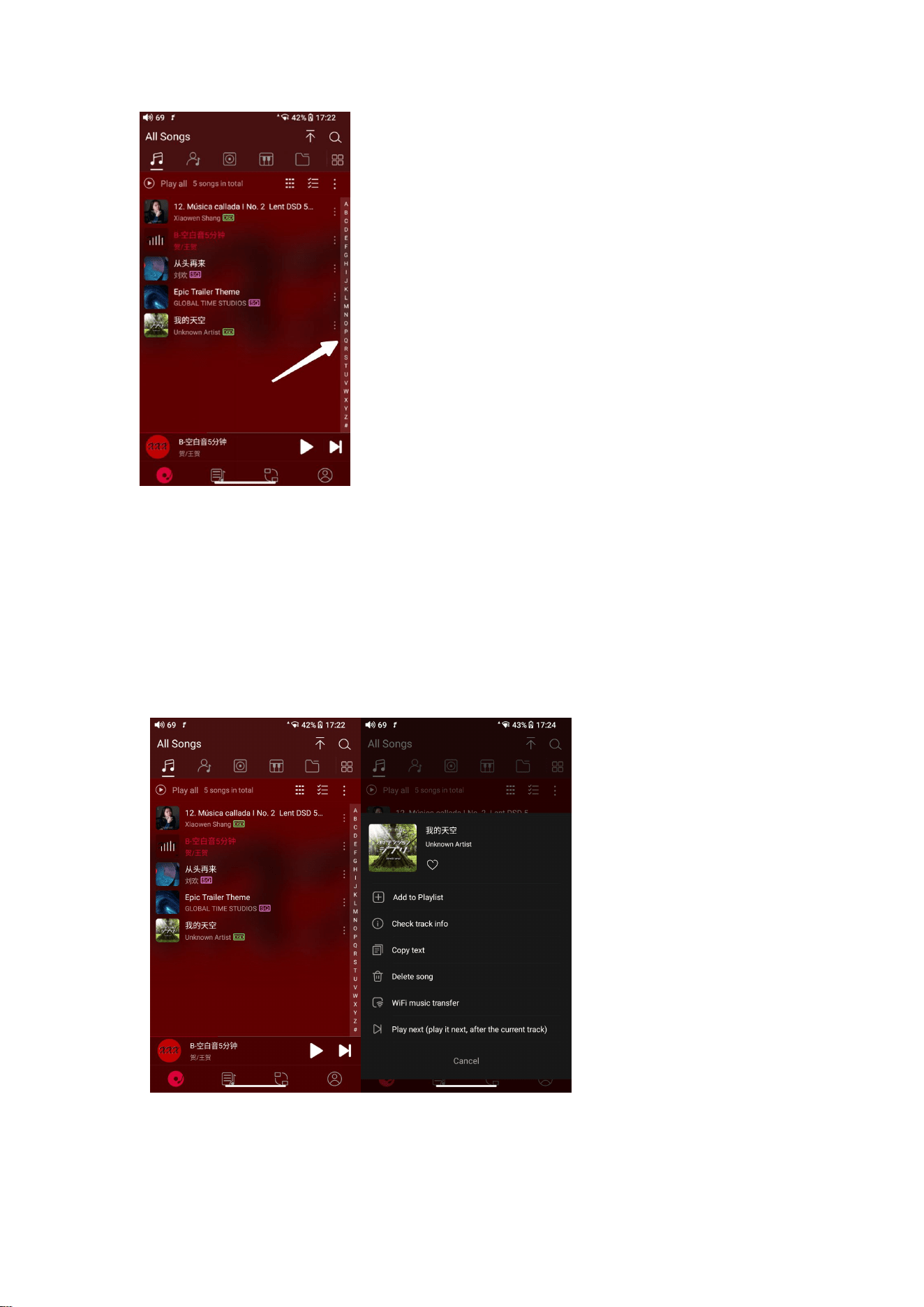
Quickly locate all songs
Slide the screen with your finger on the letter bar at the right side. A
quick search icon will show up in the middle of the screen. Sliding to
corresponding initials and relieving your finger, it will directly jump to
the songs starting with the initial you have chosen.
30
Hidden menu
Tap the ┇ icon at the right corner of each track to wake up the hidden
menu. Then tap the icon in the menu to perform corresponding
operations.
Sort songs
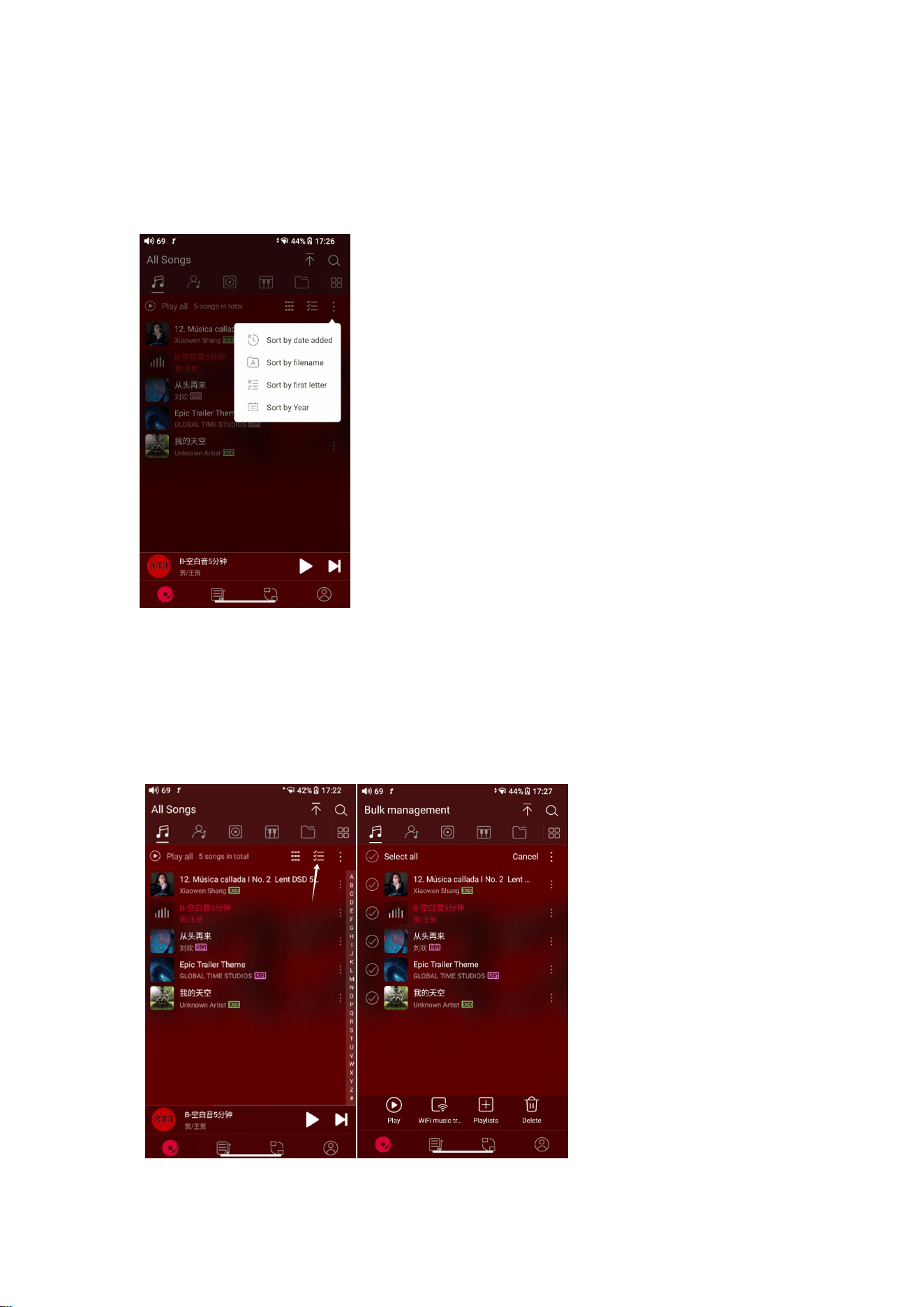
31
Tapping the hidden menu on the upper right corner of the screen, you
can decide the way of songs sorted as Sort by date added, Sort by
filename, Sort by the first letter and Sort by year.
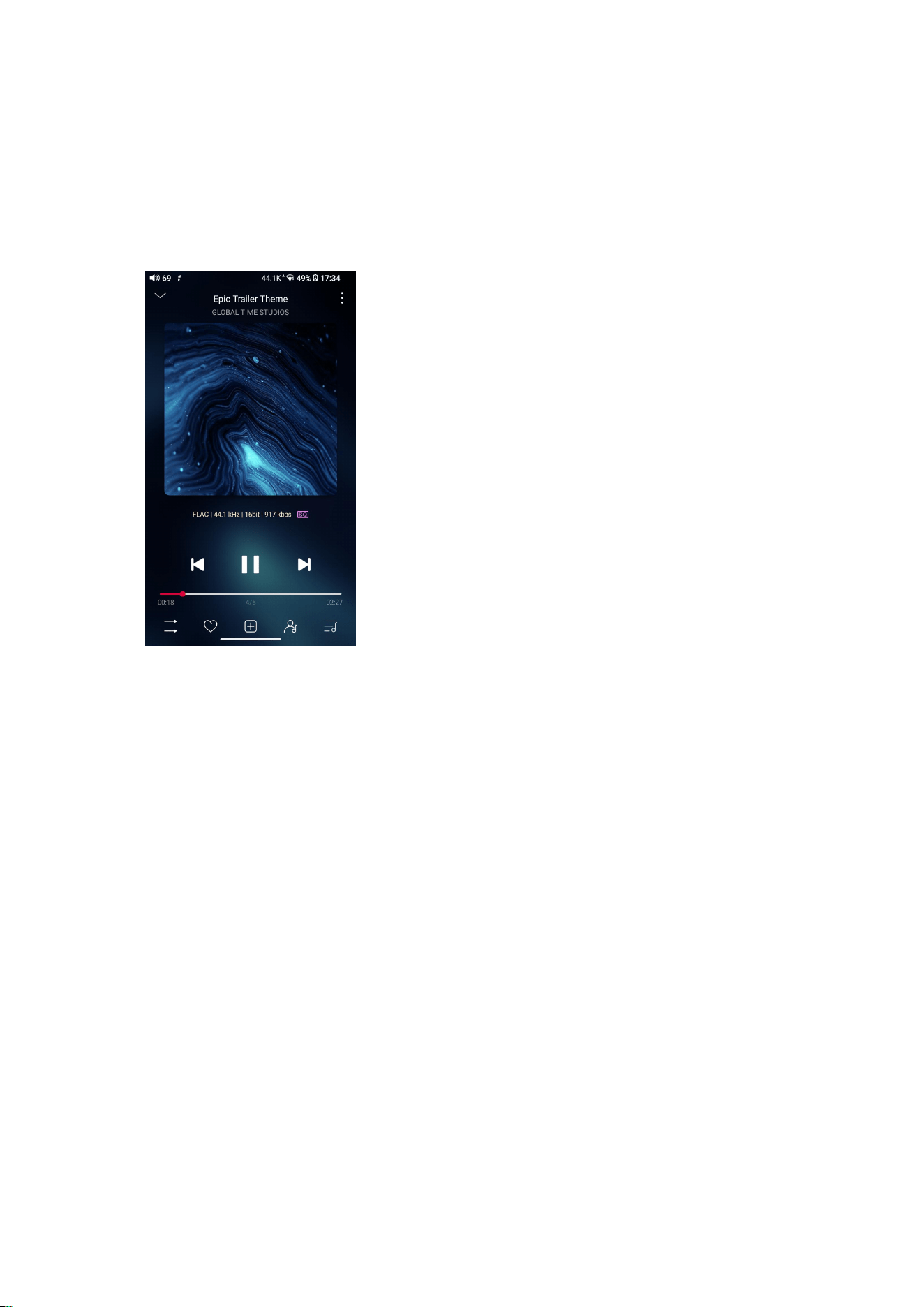
Bulk management
Play music, WiFi music transfer, Add to my favorites, Add to playlists,
Delete selected, and Exit bulk management.
32
Playing page
Tap the album cover in the bottom left corner to enter now playing
page.
Switch page
By tapping the middle of the album cover, it will switch pages between
album cover and lyrics circularly. Swipe left and right to switch songs.
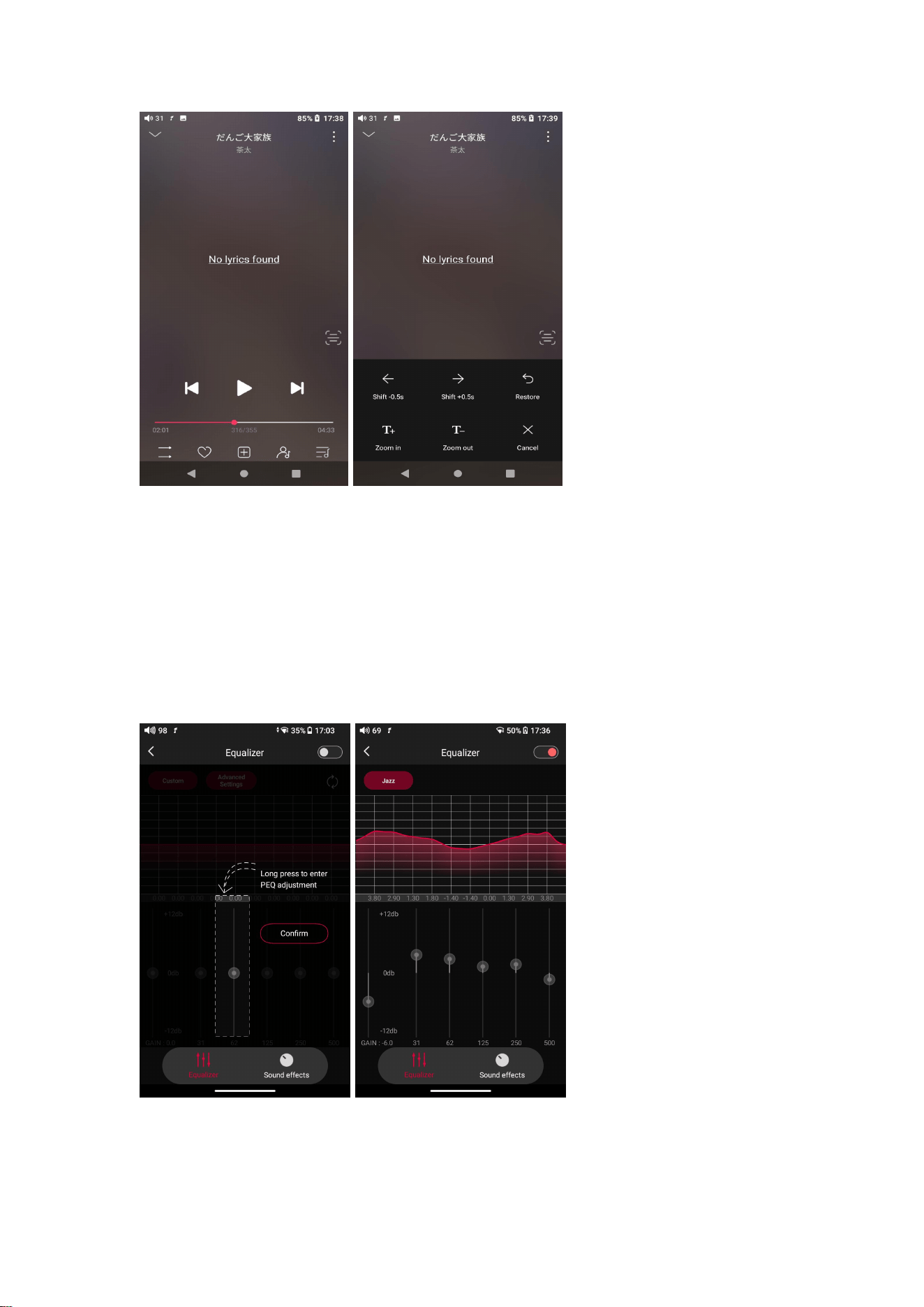
Playing progress
Slide left and right on the progress bar below the album cover to
quickly adjust the progress of the now playing song.
Notes: on the lyrics display page, you can adjust the song progress,
lyrics timeline and font size.
33
Equalizer
FiiO Music has a built-in equalizer, on which you can straightly choose
the preset EQ for listening, or adjust it through the 10 frequency bands
within 20Hz~20kHz from -12 to +12 dB, fully meeting personal music
tastes.
34
Choose preset EQ: swipe left or right on the bottom of the screen to
switch equalizer.
Customized EQ: drag the corresponding frequency band up and down
to slightly adjust the EQ curve (on the bands page, switch left and right
to change the option). Successively adjusting the EQ in need, it will
immediately take effect.
Reset EQ: Tap the Reset button at the upper right corner to reset the
present EQ.
Notes: if the system is reset to factory mode, all EQ settings will be
reset to default.
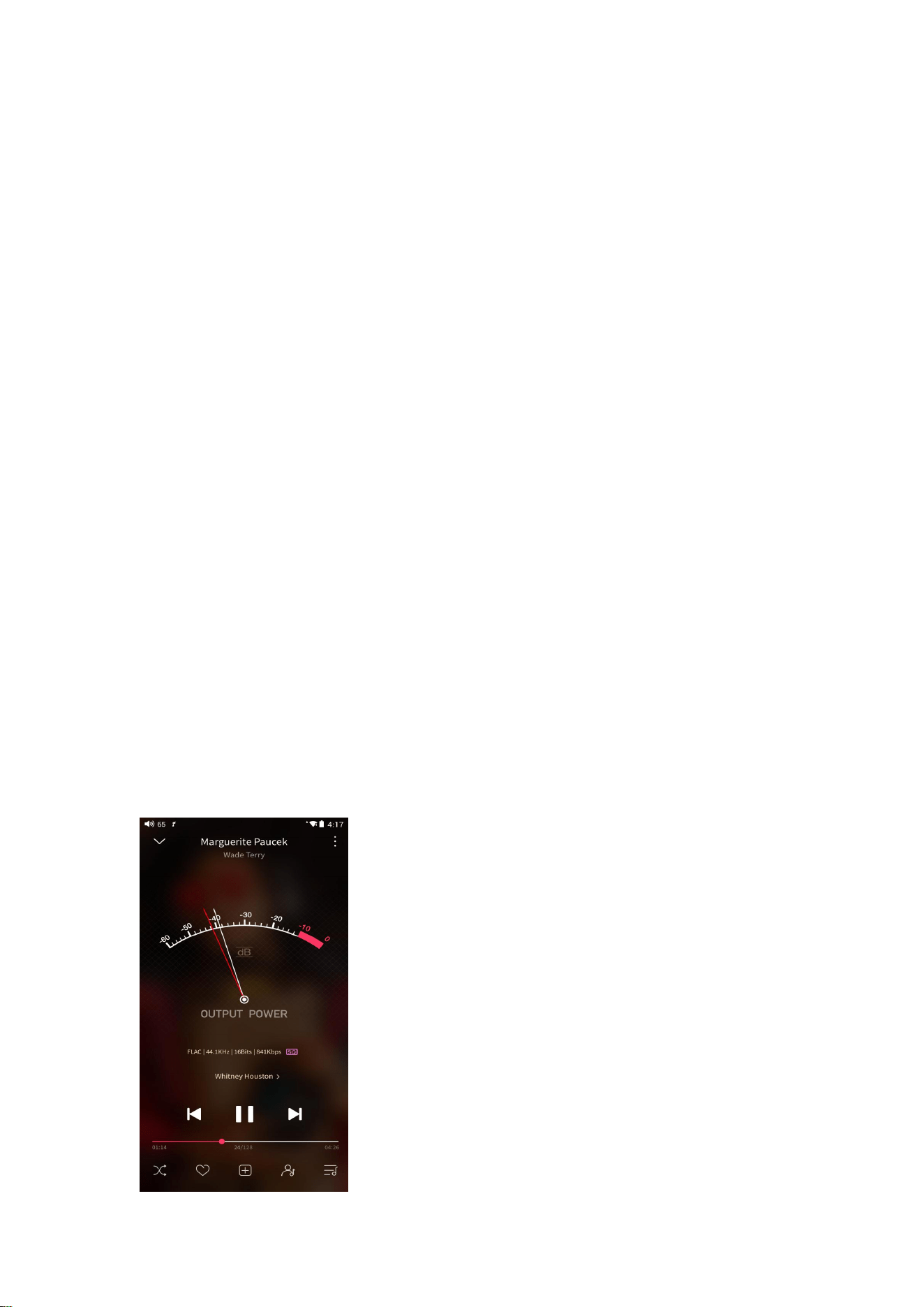
UV meter
There is a newly added UV meter (audio meter) with a dB threshold and
dynamic pointer displayed. Closing to the red threshold of 0dB means
audio distortion.
How to enable it: tap the song cover on the now playing page to enter
the UV meter displaying page.
35
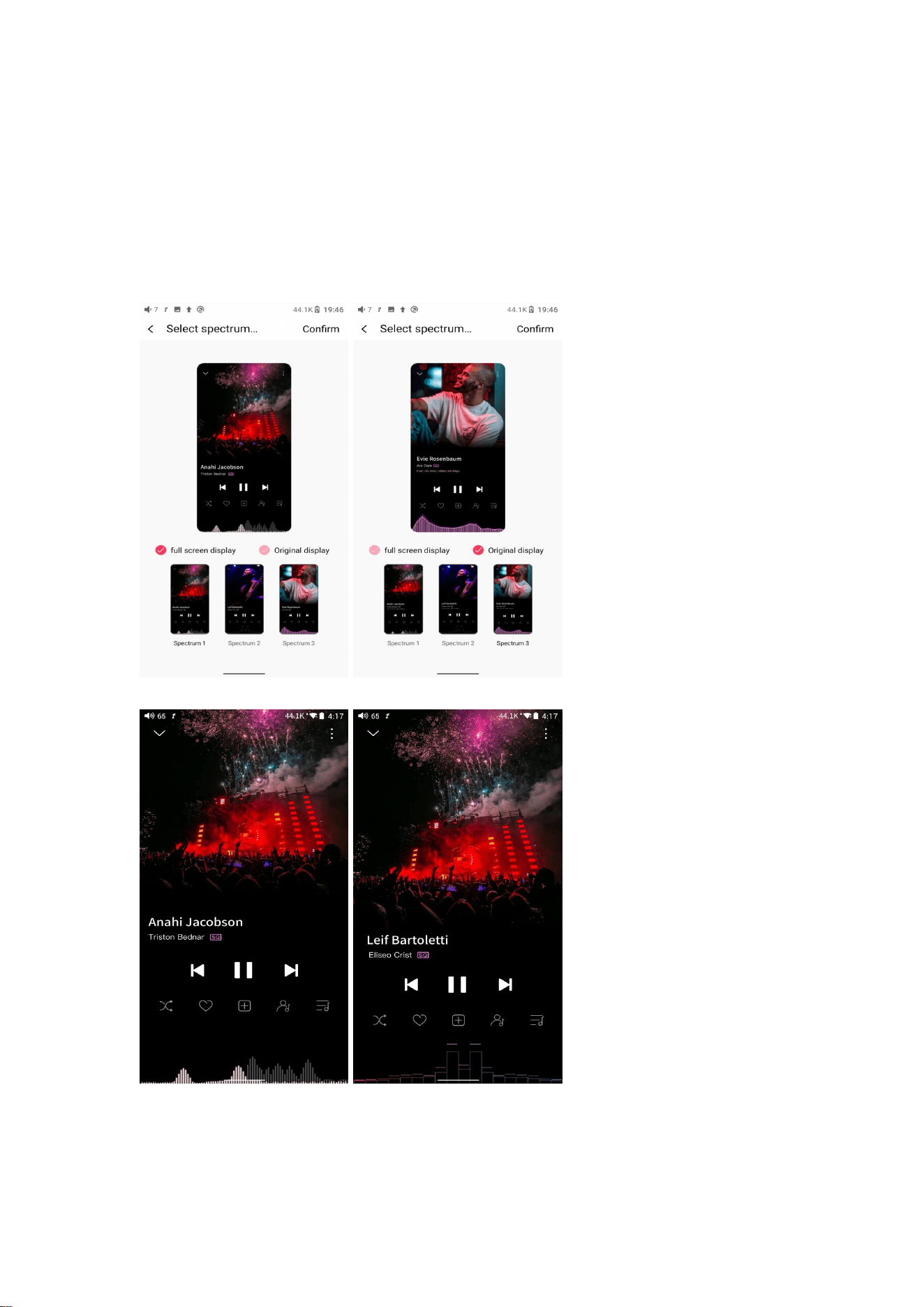
Frequency spectrum playing page
There is a newly added frequency spectrum mode in the now playing
page, which has 3 built-in spectrum effects available. Besides, users can
self-define Full screen display or Original display for the spectrum mode.
How to enable it: go to the Settings menu in FiiO Music app->Theme-
>Now playing page. Choose Spectrum display.
Square cover and large cover:
FiiO Music app keeps upgrading and maintaining.

36
Instructions for commonly-used
functions
1. Screenshot
Use 3 fingers to swipe down the screen. Or hold the power button and
volume- button together to get a screenshot.
Where does the screenshot store: FiiO JM21\Files\Internal
storage\Pictures\Screenshots
2. USB Audio digital output
The JM21 supports USB audio. The setting steps are as follows.
1. Enable ""USB output"" in FiiO Music app of the JM21.
2.Use an OTG cable to connect the JM21 and the external decoder.
3.Open FiiO Music app or other music applications to use the JM21 as a
USB digital output device.
It supports most of the decoding devices on the market. For those
unsupported, you can turn off the USB output in FiiO Music app, or
unplug and re-plug the USB device after quitting the FiiO Music app. If
it does not work, please contact us by sending an email to
support@fiio.com for further help.
3. FiiO Link Bluetooth control
There are mainly 3 steps.
1) On the FiiO Music app of the JM21, Settings->FiiO Link->┆ (on the
upper right corner of the display), choose Bluetooth as the Server.
2) Connect the JM21 to the mobile phone through Bluetooth.
3) On the FiiO Music app of the mobile phone, Settings->FiiO Link->┆
(on the upper right corner of the display), choose Bluetooth as the
Client.

37
Notes: iPhones only support FiiO Link WiFi control but not Bluetooth.
4. FiiO Link Wifi control
There are mainly 3 steps.
1.Make sure the JM21 and your mobile phone are connected to the
same WiFi network.
2.On the FiiO Music app of the JM21, Settings->FiiO Link->┆ (on the
upper right corner of the display), choosing WiFi as the Server. Now an
IP address will show up.
3. On the FiiO Music app of the mobile phone, Settings->FiiO Link->┆
(on the upper right corner of the display), choosing WiFi as the Client.
Input the IP address in the pop-up dialog and complete the connection.
Notes: iPhones only support FiiO Link WiFi control but not Bluetooth.
5.How to use the DLNA function?
The DLNA function means the JM21 can read and receive music files
stored on the device (name it Device A) which supports DLNA function
through WiFi.
1. Make sure the JM21 and Device A are connected to the same WiFi
network.
2.On the FiiO Music app of the JM21, tap DLNA on the main menu and

38
search for Device A to play music of it.
Notes: If there are any devices that cannot use the DLNA function,
please give us feedback for further analysis. FiiO Music app does not
support music transmission at present but only music reception. We will
consider adding the transmission function later.
6.How to use the coaxial function of JM21?
1. Player Settings - Audio - 3.5mm output selection, set to SPDIF.
2. Connect one section of coaxial cable to the 3.5mm audio port of
JM21, and connect the other end to the coaxial decoding device.
3.Play music on JM21 player software to output coaxial signal.
Note: At this time, the coaxial signal is decoded in the third-party
decoding equipment, JM21 to realize the turntable function.
7. What can be done if I forget my password? How to enter recovery
mode?
The device could to be reset to factory data mode in recovery mode if JM21
password is forgotten or JM21 freezes or JM21 no reaction during update.
Turn off the device first. Hold the volume down button and plug a USB cable in for
power supply. It will enter recovery mode after turning on. On the display, choose
"Wipe data/factory reset->Yes until it finishes. Then choose "Reboot system now"
to start the device.
Notes:
Switch menu: short press the volume +/- buttons or previous/next track button
Confirm: short press the power button
39
Firmware upgrade, factory data reset
and technical support
1.How to upgrade firmware?
The JM21 supports online upgrade and local upgrade.
Online upgrade
If a new firmware is available and can be detected (with the JM21
connected to an available internet), an upgrade notification will show
up in the notification center. Tap on it to enter the update menu for the
online upgrade. If there's no upgrade notification showing up, you can
go to the "Technical Support->Firmware Upgrade" menu, and tap the

40
"Check for updates" icon to check manually.
Local upgrade
Also, the JM21 can be upgraded locally by a firmware package.
Download the firmware package file from FiiO website, and copy it to
the internal storage of the JM21 or an SD card. Go to the "Technical
Support->Firmware Upgrade->Local Upgrade" menu, and find the
firmware package file to start the upgrade.
Notes:
1.Do not unzip the firmware package file.
2.Before the upgrade, ensure the power of the device is adequate
(>30%) so to avoid upgrade failure.
3.If the device goes to factory mode which cannot detect the firmware,
the reason may be that the firmware file is damaged. At this time, press
the power button to reboot the device. Re-download the firmware file
and restart the upgrade.
2.Force to reboot
41
Please hold the power button for around 10 seconds until the
"FiiO"logo shows up.
3.Factory data reset
If there are some problems happened to the device, perform the factory
data reset would help (In the menu of Settings->System->Reset
options).
Notes: The "Factory data reset" will erase all data from the internal
storage and reset the device to defaults. Please backup corresponding
files in advance.
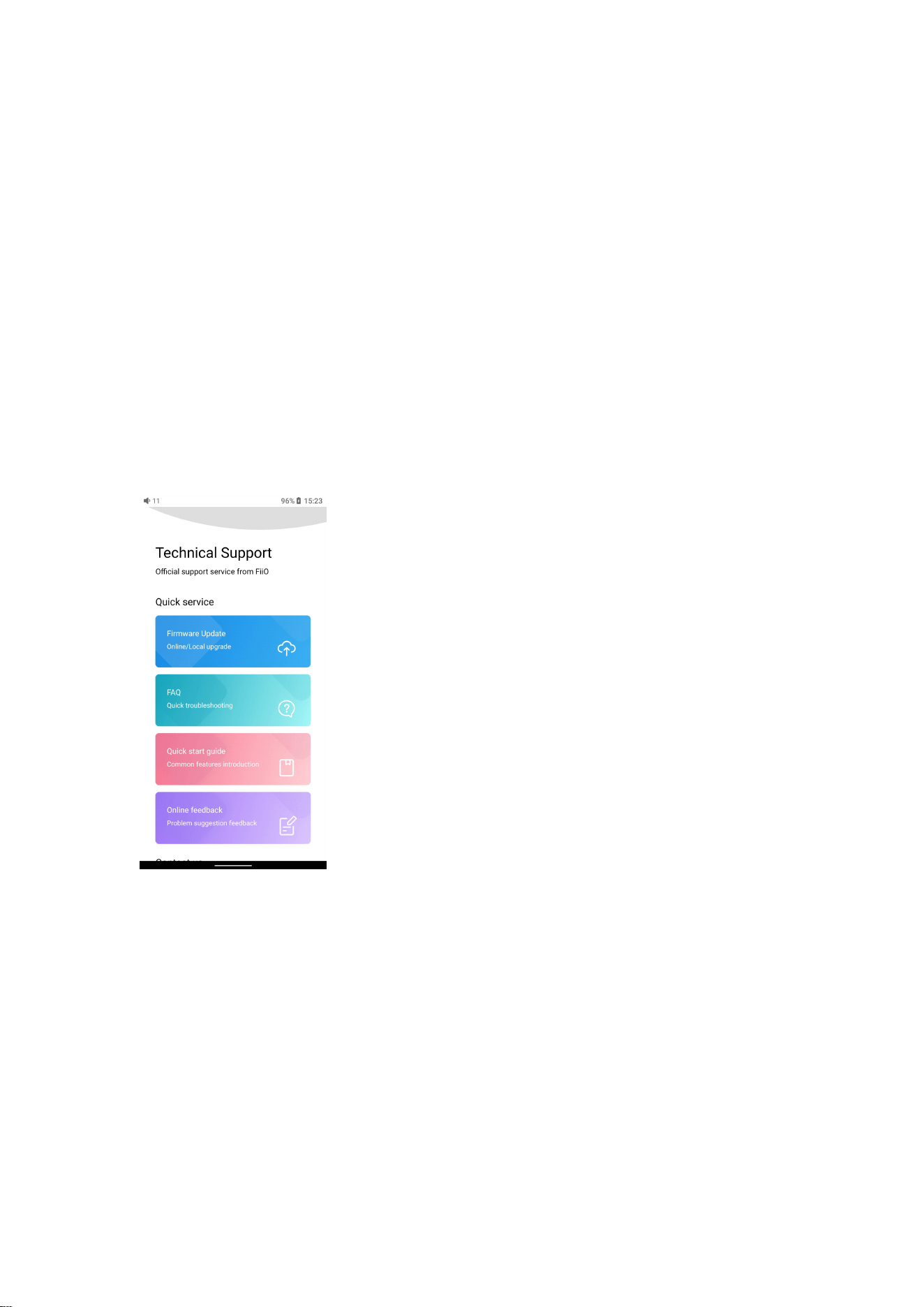
4.Technical support
42
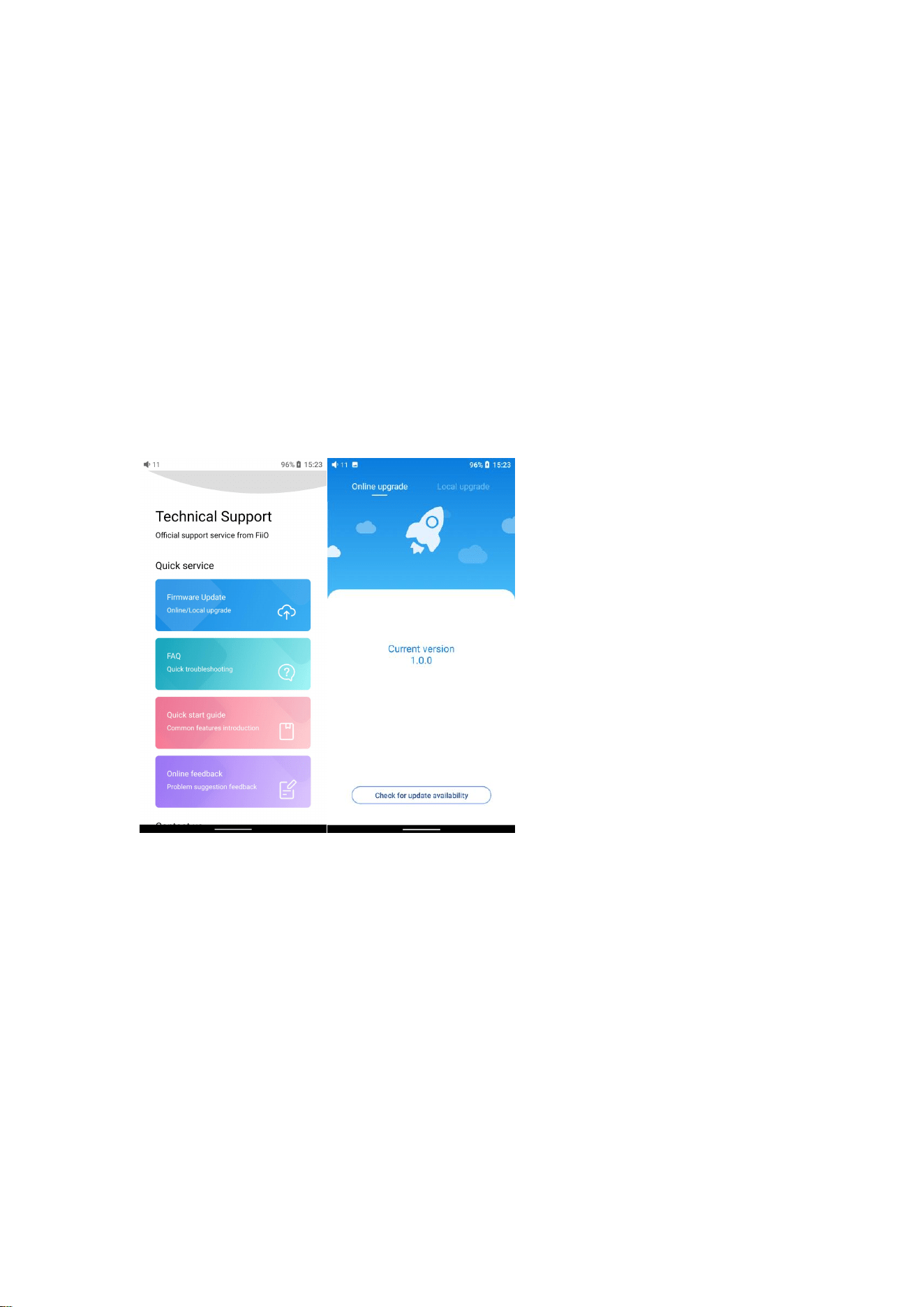
1) On the homepage, tap Technical Support to enter the menu. Here are
several commonly-used functions and our contacts.
2) Firmware update: online and local upgrade are available.
FAQ (frequently asked questions): parts of frequently asked questions
and corresponding measures are listed.
3) Quick start guide: tap to check out the internal quick start guide of
the JM21.
4) Contact us: here shows our email address, Facebook, Twitter, etc.