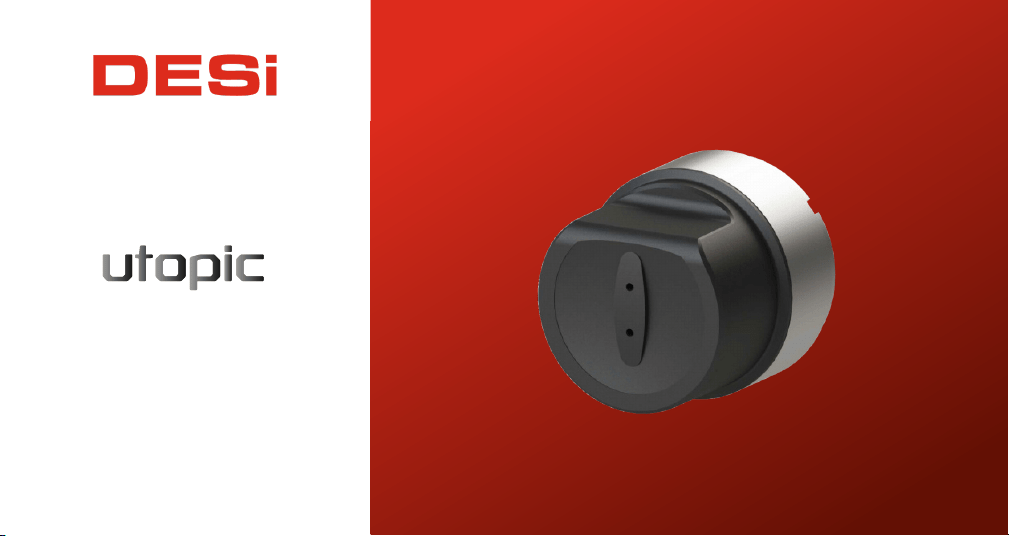
USER MANUAL
08/08/2025 updated.
Utopic RX & Desi Smart App
!
GENERAL INFORMATION and WARNINGS
- Before using your smart lock, Locking way (right or left handed door) and Number of turns should be adjusted
properly. Otherwise, the smart lock will not work in the correct way and maybe broken.
-
-
For emergency conditions, we recommend you to put the keys in an accessible place (like car, bag etc.)
If there is any problem with the door or the locking mechanism, first of all, those problems have to be solved. The
door's mechanical parts and locking mechanism have to work properly.
- If there is a problem with the device, first look to the troubleshooting part of this manual. If you cannot solve the
problem, contact your dealer.
-
-
-
All the system needs to be protected from water, direct sunlight and shocks.
Auto-rotating parts oft he device can cause injuries during installation. BE CAREFUL!
If you are leaving your home for an extended period of time, first fully charge your smart lock and take your
mechanical key with you. If you would leave more than 2 months, after charging your smart lock, either shift the smart
lock to childlock mode. Otherwise, the batteries of your product would die due to deep discharge.
- The electronic knob is not suitable for manual rotation. If it is try to turned by force, the buttons and electronic
system may be damaged. You can rotate the lock manually with the handle on the knob.
IMPORTANT WARNING: IF THE CHARGING PROCESS ENDS LESS THAN
15 MINUTES EVEN SMART LOCK HAS LOW BATTERY LEVEL, DO NOT
ATTEMPT CHARGING AGAIN AND CALL SERVICE IMMEDIATELY.
2

POTENTIALLY EXPLOSIVE ATMOSPHERES
Areas with a potentially explosive atmosphere are often, but not always marked clearly. Potential areas may include:
fueling areas (such as gasoline stations); below deck on boats; fuel or chemical transfer or storage facilities; areas using
liquefi ed petroleum gas (such as propane or butane); areas where the air contains chemicals or particles (such as grain,
dust, or metal powders); and any other area where it would normally be advisable not to install the Utopic.
SAFETY INFORMATIONS ABOUT BATTERIES
1.Dispose of the used battery according to the instructions provided with the battery.
2.Do not drop, puncture, disassemble, mutilate, or incinerate the battery.
3.Touching both terminals of a battery with a metal object will short circuit the battery.
4.Do not carry batteries loosely if the contacts may touch coins, keys, and other metal objects.
5.Do not heat the batteries.
6.Please use smart lock in operating ranges.
7.We advise to not change battery by yourself.
8.Do not mix different batteries and install inside the Utopic.
9.Do not mix used and new batteries.
10.Charging period of your device is around 3 hours. We recommend you to charge it under supervision. We recommend
to charge your device once in two months even if the batteries are not empty. Do not leave charger on the smart lock
after fully charge operation.
11.With your own risk, you can use any 5 V DC USB chargers or a powerbank. Use high quality chargers (super chargers
are not supported), cables and powerbanks only.
3

12.If you are leaving your home for an extended period of time, first fully charge your motorized cylinder and take your
mechanical key with you.
DISPOSAL OF WASTE BATTERIES
The symbol (crossed out wheeled-bin) on your battery indicates that the battery shall not be disposed with other
unsorted waste, but shall be collected separately and handed over to your local community waste collection point or
other available collection points for the recycling, at the end of its use. If a chemical symbol is printed under the
symbol it indicates that chemical substances (Hg = mercury, Cd = cadmium or Pb = lead) are contained in the
battery.
Inappropriate waste handling could possibly have a negative eff ect on the environment and human health due to
potential hazardous substances. With your cooperation in the correct disposal of this battery, you contribute to
reuse, recycle and recover the batteries and our environment will be protected.
For more information, please contact the Government Waste-Disposal department in your country or the shop
where the battery was purchased.
WARRANTY
DESi products are covered by a limited manufacturer warranty. DESi warranty is limited to the warranty rules and
legislation present in each country. The warranty only covers manufacturing faults. The warranty does not cover
misuse, wrong installation or damage due to a faulty installation or wrong maintenance. The invoice act as the proof
of warranty, so please keep it as reference for any warranty complaints.
4
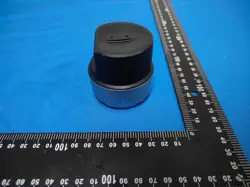
1. DEVICE FEATURES
Structure
ABS Plastic - Zamak
Dimensions
60mm Diameter - 58mm Length
Batteries and Usage Time
Lithium-ion rechargeable batteries are used.
In tests conducted by DESi, with 10 full 2-turn
open-close operations per day, the usage time
is 120 days.
Connection
Low Energy Near Connection
1.2. KUTU İÇERİĞİ
(May vary based on model)
1 x Smart Lock
1 x Type-C USB Charging Cable
1 x Special Adhesive for Door
1 x Mounting Adapters for Thumbturn
2 x Allen Key
1 x Key Adapter Plastic
5
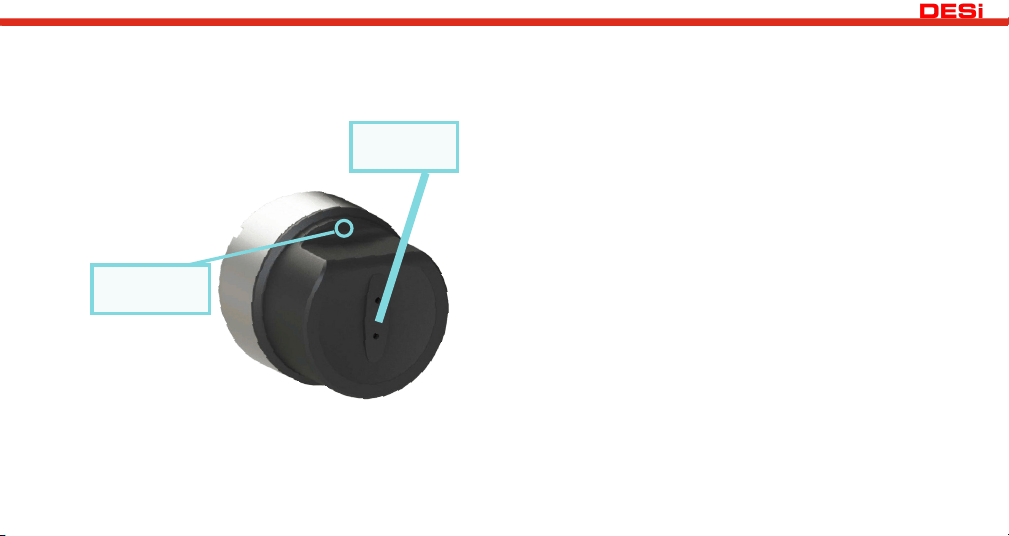
3. DEVICE PARTS AND COMPATIBLE ACCESSORIES
Control Options and Compatible
Accessories
Fingerprint
Reader
Keypad
Automatic Locking Module
Home Automation Interface Remote
Controllers Smart Bridge
*all sold separately.
Charge Port
Button
6
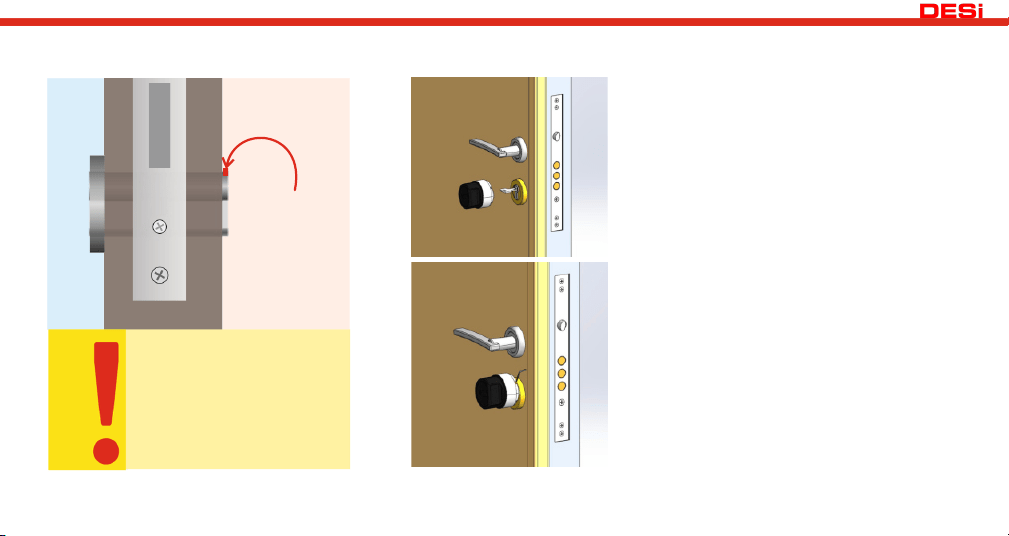
4. DEVICE INSTALLATION (IF THE CYLINDER EXTENDS FROM THE DOOR SURFACE)
Min.
2 mm
OUTSIDE
The existing cylinder
needs to extend at
least 2mm beyond the
surface to properly fit
the smart lock.
IMPORTANT
1. Insert the key into your existing lock
and leave it in a fixed position.
2. Place the Utopic RX smart lock in the
correct position, ensuring it fits perfectly
onto the cylinder.
3. Align the smart lock carefully with the
lock cylinder and mount it securely.
4. Tighten the 4 setscrew bolts on the
Utopic RX using a screwdriver until fully
secure. This ensures the lock is firmly
attached.
7
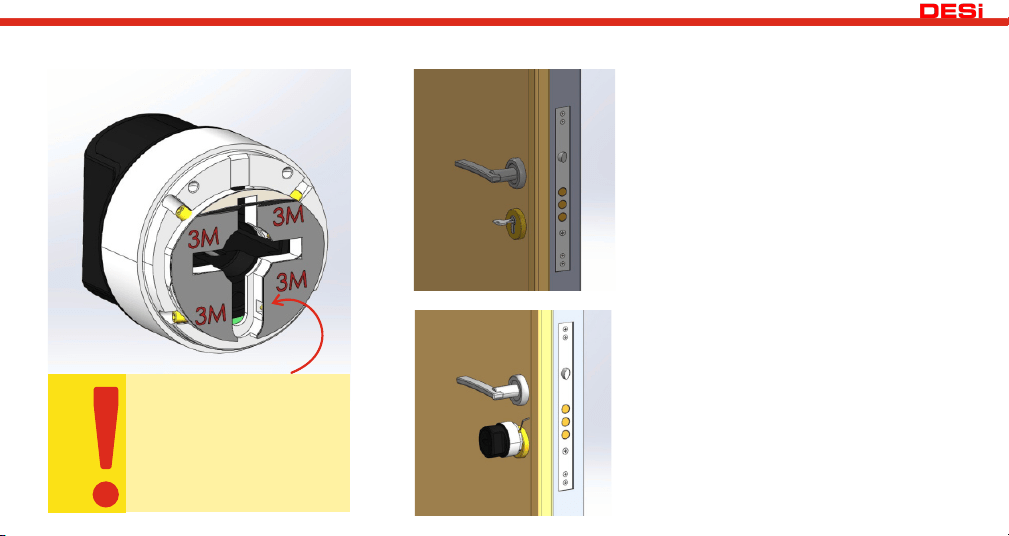
4.1. DEVICE INSTALLATION (IF THE CYLINDER IS FLUSH WITH THE DOOR SURFACE)
If the cylinder is flush
with the door surface,
the special adhesive
tape included in the
package must be used.
IMPORTANT
1. Attach the special adhesive tape from
the box to the smart lock as shown in the
left image.
2. Clean the surface to be adhered with a
damp cloth and dry it thoroughly.
3. Insert the key into your existing lock and
leave it in a fixed position.
4. Place the Utopic RX smart lock in the
correct position to fit perfectly onto the
cylinder and attach it firmly.
5. Apply pressure for 1-2 minutes to ensure
it adheres well to the door or escutcheon
surface.
8
4
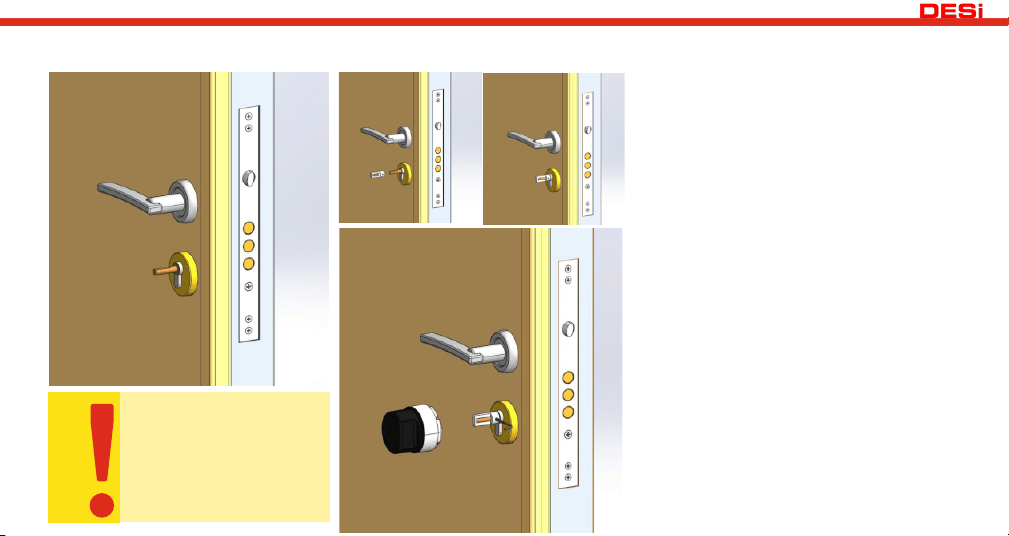
4.2. DEVICE INSTALLATION (WITH THUMBTURN CYLINDERS)
1
2
3
You need to remove
the thumbturn of
the cylinder.
IMPORTANT
1.Remove the thumbturn.
2.Attach the thumbturn plastic provided in
the box.
3.Tighten the thumbturn plastic using an
Allen key.
4.If the cylinder extends beyond the door
surface, position the Utopic RX smart lock
correctly so it fits perfectly onto the cylinder,
and tighten the setscrews.
5.If the cylinder does not extend beyond the
door surface, position the Utopic RX smart
lock correctly so it fits perfectly onto the
cylinder, and adhere it.
9
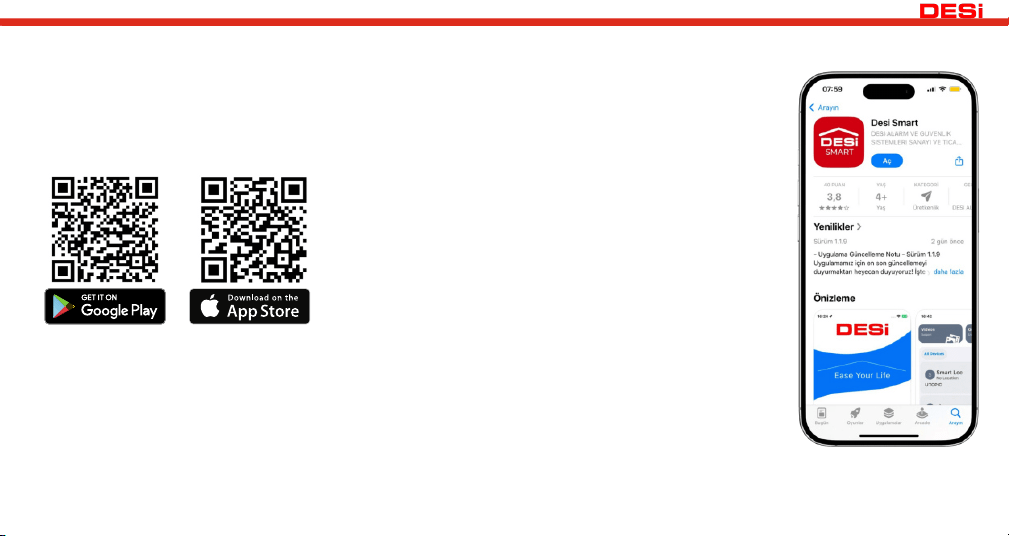
DESi SMART APP
In this section, you can find details about using the application. First, download the DESi Smart
application using the QR codes provided below. Then, register and log in to the application.
Before using your smart lock, you must properly configure the lock it will work with.
10
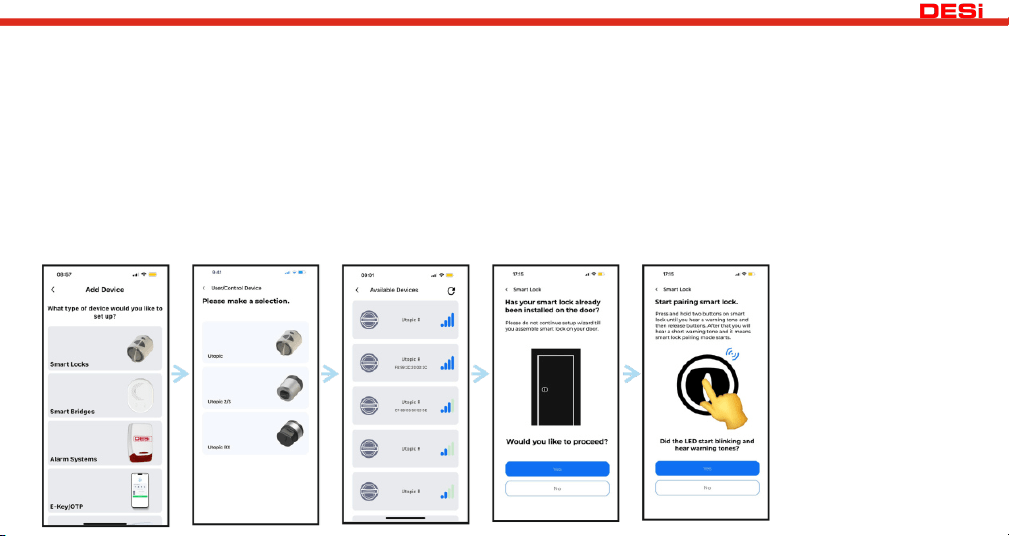
5. PAIRING
NOTE: When installing the app and pairing the smart lock on iOS or Android devices, the app will request certain
permissions, including location access. Make sure to allow all requested permissions. If any are denied, the app may not
work correctly.
Entering Pairing Mode:
Press and hold the touch
button on the smart lock for
3 seconds till you hear
warning tone and release
your finger.
When the LEDs on the smart
lock start flashing rapidly,
the pairing mode will be
activated.
1. Log in to the app after completing the registration.
2. Tap the "+" icon located at the bottom right.
3.Select "Smart Locks", then tap "Utopic RX" and follow the steps provided.
4. The easy setup wizard will guide you through configuring all settings after the lock pairing is
complete.
11
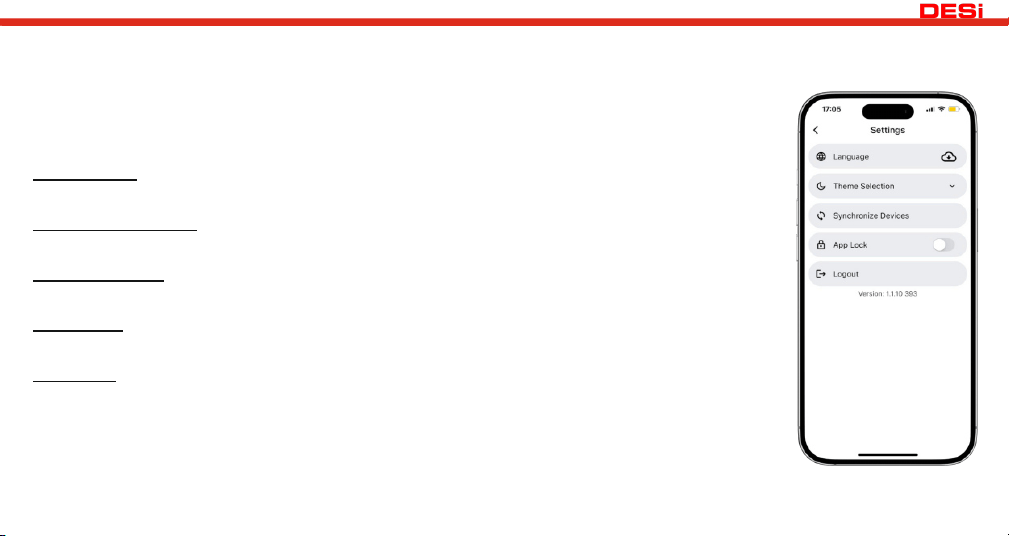
5.1. APPLICATION SETTINGS
When not connected to the smart lock, tapping the menu button in the top-right corner will take you to the
application's settings menu.
The relevant menu items are as follows:
LANGUAGE: Allows you to change the application's language.
THEME SELECTION: View and select themes designed in different colors.
SYNC DEVICES: Automatically stores registered devices in the cloud system.
APP LOCK: Enables login verification using FACE ID or fingerprint.
LOG OUT: Logs you out of the application without deleting your registered devices.
12
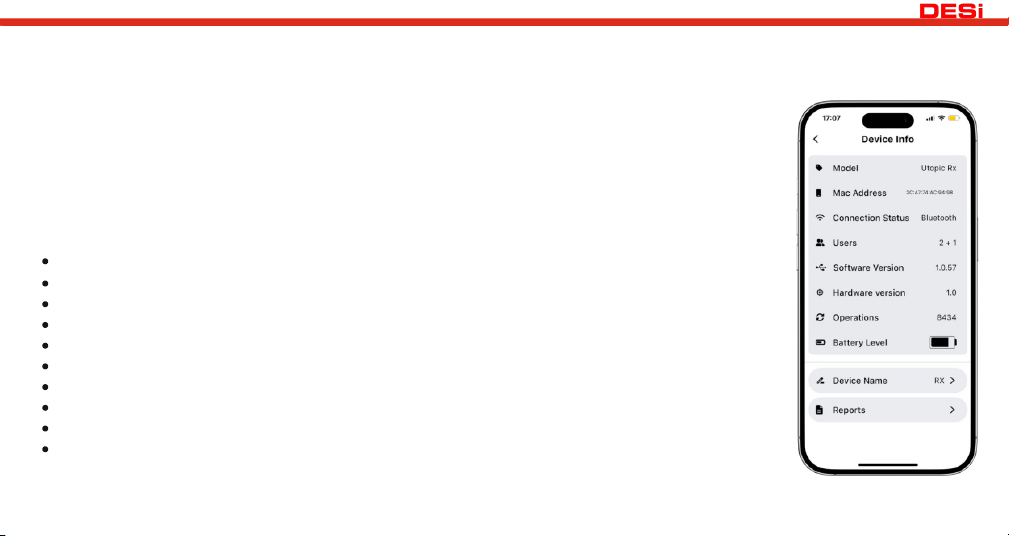
5.3. DEVICE INFORMATION TAB
In this tab, you can view the following information:
Model
MAC Address
Connection Status
Number of Users
Software Version
Hardware Version
Operations
Battery Level
Device Name
Reports
5.2. SMART LOCK SETTINGS / ACCESSING THE MANAGEMENT MENU
As the master user, after connecting to your smart lock, you can access the 'SETTINGS' menu
to configure all your settings.These menus are visible and editable only by the master user.
Before starting to use the product, you must configure the locking direction of your
cylinder and the number of lock turns. Failure to do so may result in improper functioning
of the product and could cause damage.
13
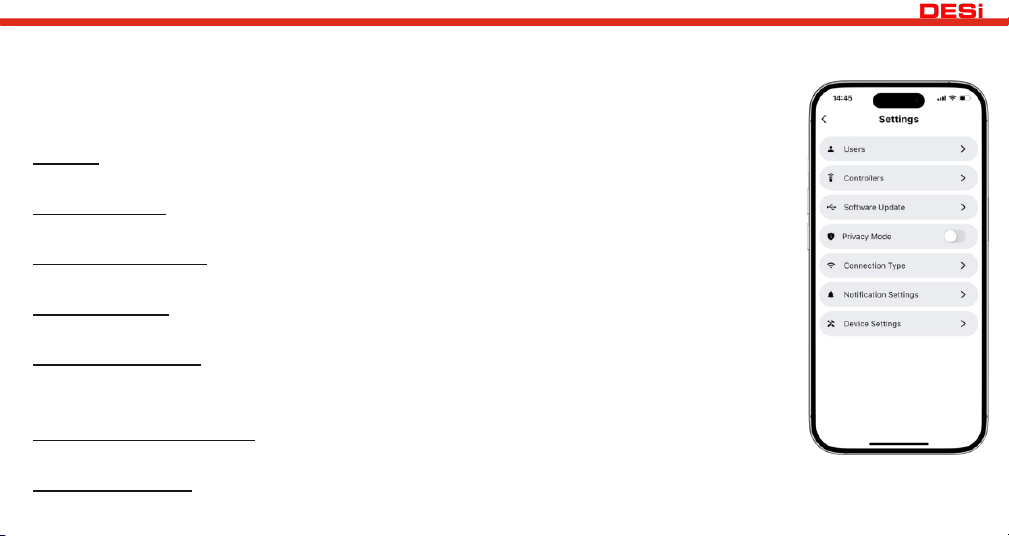
5.3.1. SETTINGS TAB USERS:
All user-related actions, such as adding, deleting, or assigning time-based access to users, can be
performed here. You can also add or remove accessories like fingerprint readers, keypads, or
remotes from this menu.
USERS: All user operations such as adding new users, deleting them, or defining time access for
users are done here.
CONTROLLERS: You can add control devices such as fingerprint scanners, keypads, remote
controls, etc., to your smart lock, as well as edit or delete the ones already added.
SOFTWARE UPDATE: If a newer version is available for your smart lock, you can update it
through this menu.
PRIVACY MODE: When activated, the smart lock can only be used by the master user. Other
users or control devices cannot unlock or lock the smart lock.
CONNECTION TYPE: This option appears only after the DESi Smart Bridge - Hub
product is added. Here, you can select whether your smart lock should always connect via WiFi
or near connection by phone.
NOTIFICATION SETTINGS: This option appears only after the DESi Smart Bridge - Hub product is
added. You can select what types of notifications you would like to receive from your smart lock.
DEVICE SETTINGS: You can configure all settings of your smart lock from this menu.
14
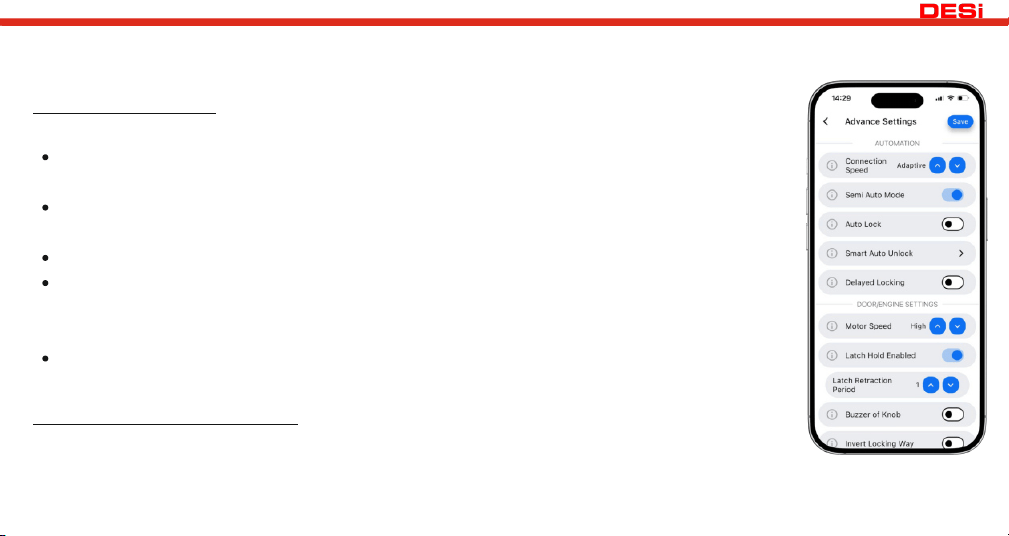
5.3.2. DEVICE SETTINGS
In this tab, you can view and configure the following settings:
CONNECTION SPEED: You can use the following modes to optimize the connection speed
and energy consumption of your smart lock.
Fast: Provides a fast connection with your device in approximately 3 seconds, ideal for
daily use.
Balanced: Connects in about 6 seconds and saves 10% battery. It strikes a balance
between speed and energy consumption.
Slow: Connects in about 10 seconds and saves 20% battery.
Adaptive: The device automatically determines when to deactivate and when to be ready
for connection based on your usage habits. If not used for 3 days, it switches to balanced
mode, and if unused for 8 days, it switches to energy-saving mode.
Saving: The device only wakes up and establishes a connection when the door is knocked
3-4 times. This mode significantly extends battery life.
SEMI-AUTOMATIC LOCKING: Your device will continue the process automatically by
detecting the direction of manual rotation. From this menu, you can enable or disable the
semi-automatic mode.
15
5.3.2. DEVICE SETTINGS
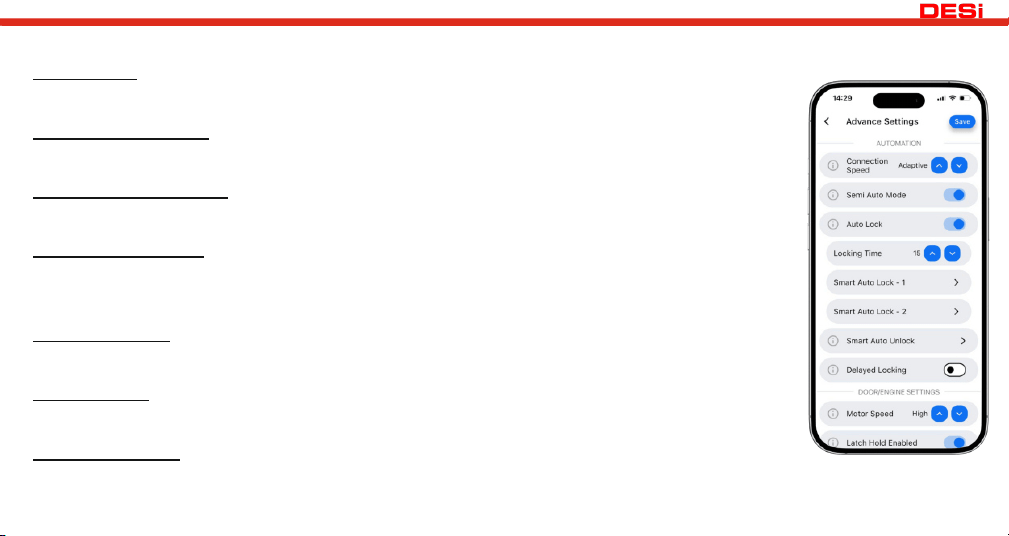
AUTO LOCK: If you enable this feature, you can ensure that your door is always locked. You can
disable or enable it from this menu, and also choose a time between 15-240 seconds.
SMART AUTO LOCK: You can set specific time intervals during which your smart lock will
automatically lock.
SMART AUTO UNLOCK: You can set your lock to open automatically at the specified days and
times without retracting the latch.
DELAYED LOCKING: The smart lock will automatically lock 15, 30, 45, or 60 seconds after
pressing the button. If this feature is enabled, you only need to press the button and close the door
when leaving, and the door will lock automatically after the selected time.
MOTOR SPEED: You can adjust the motor's power and speed at different levels. Choosing the
lowest option, where locking and unlocking happen smoothly, will extend the battery life.
LATCH HOLD: You can adjust whether the smart lock pulls the latch and how long it will
stay engaged inside. The latch pulling time can be configured with 3 different options.
BUZZER OF KNOB: You can turn the sounds from the smart lock on or off.
16
5.3.2. DEVICE SETTINGS
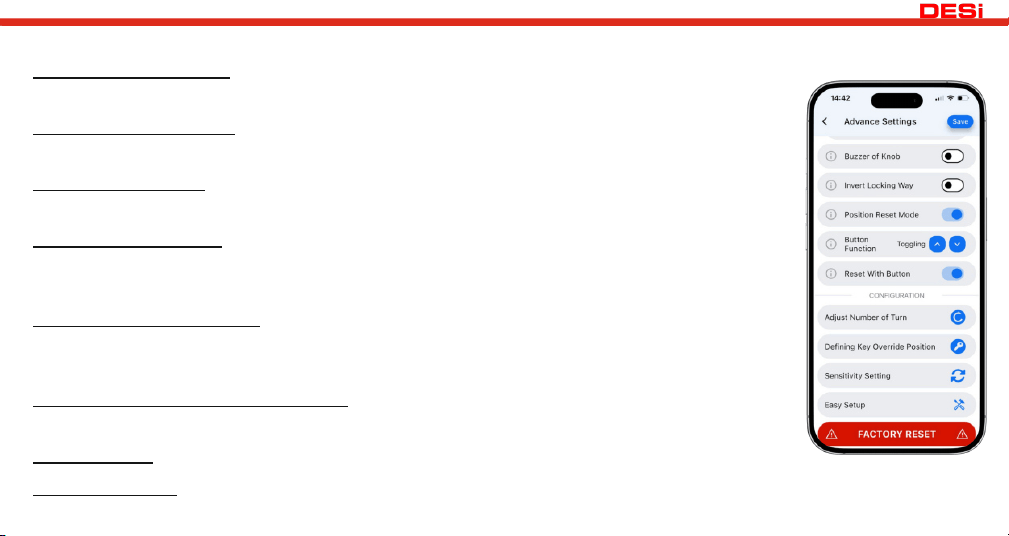
INVERT LOCKING WAY: You may need to change the direction of the smart lock depending on the
door you are using it with. From this menu, you can reverse the lock direction.
POSITION RESET MODE: When the knob is manually turned from the inside, it automatically
returns to the key removal position within 10 seconds.
BUTTON FUNCTION: You can configure the function that will be performed when the button on
the smart lock is pressed.
RESET WITH BUTTON: When this feature is turned off, the reset process cannot be performed
with the button and can only be done through the app. You can find more details about the reset
process on the last page.
ADJUST NUMBER OF TURN: The device automatically detects how many turns your door's locking
mechanism has and adjusts accordingly. This feature ensures the device works in perfect harmony
with your door.
DEFINING KEY OVERRIDE POSITION: If there are issues with key entry from the outside,
adjustments can be made from this menu.
SENSITIVITY: Allows fine-tuning the key position if external key access is not possible.
FACTORY RESET: This will disconnect the smart lock from your phone and reset the smart lock.
17
18
5.3.3. ADDING NEW CONTROLLER
Only next-generation control devices can be used with the Utopic RX. The product name of the controllers must
include the (B) label.
1.To add a controller, use the blue + icon (add new device) located at the bottom right of the main screen.
2.To add an accessory via the app, you should continue by selecting it under the 'Other Products' tab.
3. Once the pairing process is complete, you can see the accessory on the main screen and tap on it to complete
the pairing with Utopic RX.
4.By clicking on the paired device, you can perform the pairing process with the Utopic RX. (For this process, you
can pair with the Utopic RX by tapping the blue + icon on the screen that appears.)
NOTE: For detailed steps on adding accessories, we recommend reviewing the manual for each accessory.
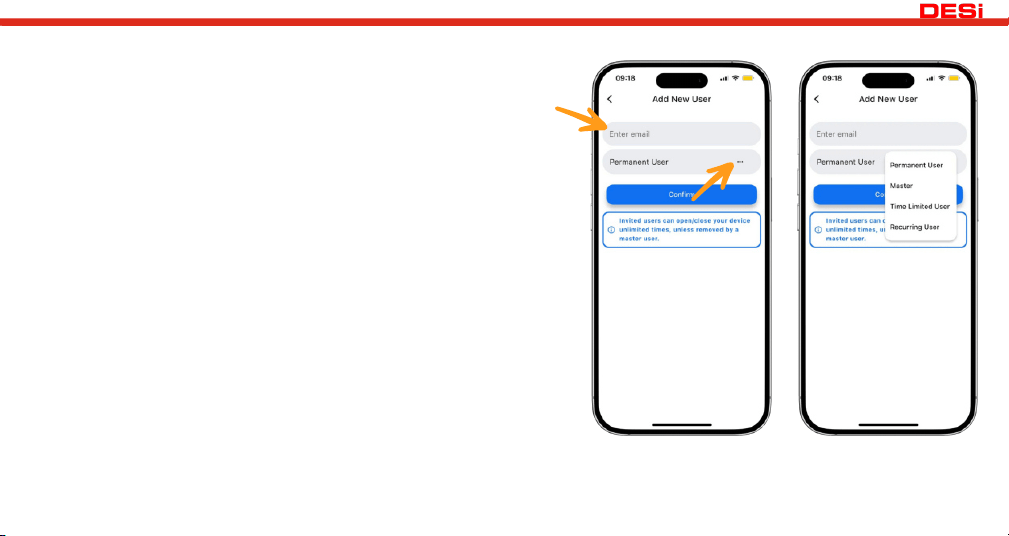
5.3.3.1. ADDING A NEW USER
1.After entering the Users section, tap the + icon in the bottom
right corner.
2.Enter the email address of the person to be added. You can
select the user type from the options: Admin, User, or Time-
limited User.
3.The invited user must download the app and complete registration
process to accept the invitation. Once this is done, the user will be
added to the smart lock. During this process, the master user does
not need to be near the smart lock.
NOTE: If the smart lock is paired with a smart bridge for remote
access, the added user is automatically granted remote access.
If you wish to revoke this permission, you can do so by clicking
the ‘EDIT’ button next to the user’s name in the Users tab, and
then deactivating the ‘Remote Access Ability’ button on the
screen that appears.
19
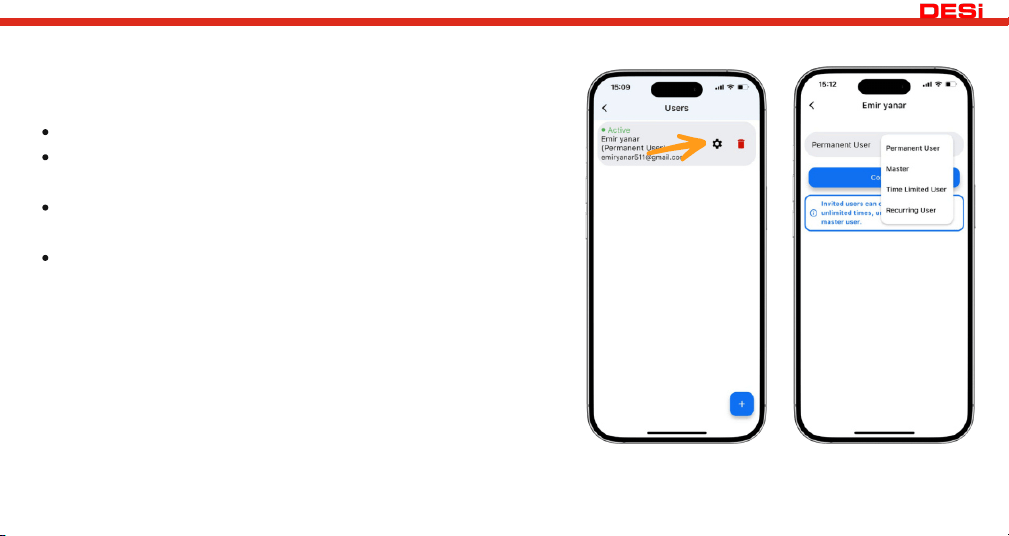
5.3.3.2. DEFINING A USER AS A MASTER
You can designate two different users of your smart lock as master
users.
To do this, you need to go to the ‘USERS’ tab.
Tap the ‘EDIT’ icon next to the name of the user you want to
authorize, then select ‘CHANGE RESTRICTIONS’.
On the screen that appears, tap ... to set the user as ‘Master’, or
revert them back to a ‘Permanent User’ user at any time.
There is no hierarchy among authorized users—each authorized
user can delete another or change their status back to a
standard user.
5.3.3.2.a RESTRICTING USERS' USAGE
Through the same menu, you can restrict any user's usage or
allow access only on specific days and/or times.To perform this
action, you must be an master user.
20
21
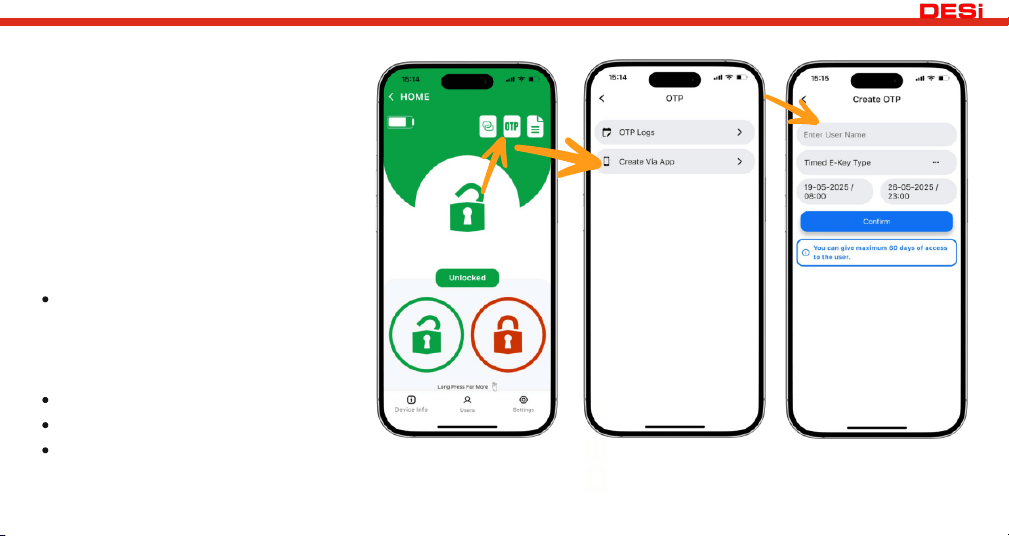
5.3.3.3. CREATING E-KEYs
Even if you are not connected to your smart
lock, you can create electronic keys for your
guests and allow them to unlock your door
within the time period you specify.
You can delete these e-keys or modify
their access times at any time. (This
process requires either a nearby connection
or a smart bridge for remote access.)
To create an e-key, enter the control
screen of the lock you wish to manage.
(A nearby or smart bridge connection is
not required for this step.)
Tap the OTP-Key icon.
Tap the Create via App section.
Enter the guest’s name, complete the
time and date selections, and confirm.
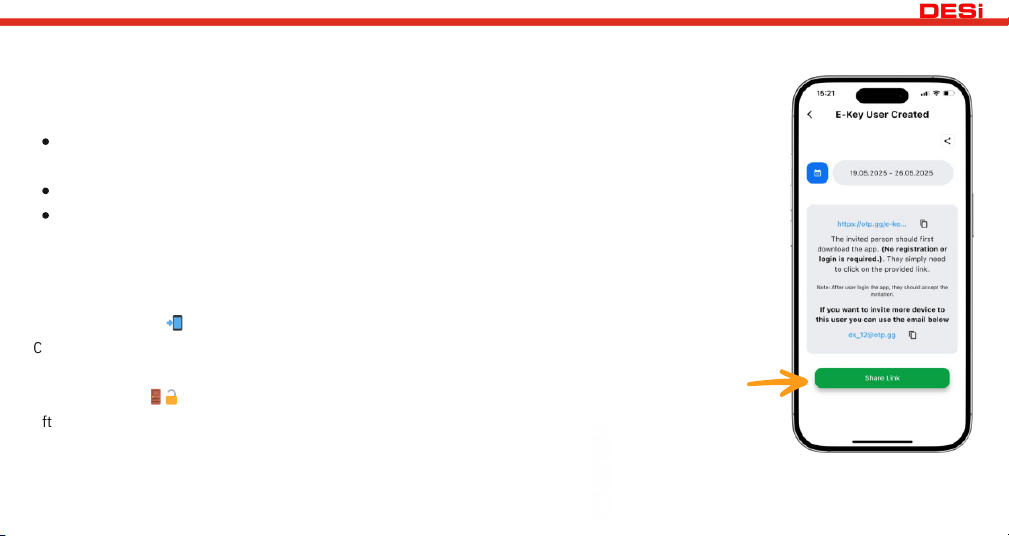
At this step, you can tap ‘Share Link’ to send your guest message containing login and usage
details.
How to use the e-key?
First, your guest must download the app (tapping the shared link will automatically redirect
them to the iOS App Store or Google Play Store). No registration or login is required.
Once at the door, they should tap the link in the shared message again.
On the main screen, they must accept the invitation and follow the app’s guidance to complete
the process.
After this step, your guest will be able to unlock or lock your door
Automatically Generated Message Example
Download & Install
📲
Click the link below to download and install our app:
https://otp.gg/e-key/1/ds68392d-f812-4637-8c05-d557f3b2d60c (automatically created by App)
Access & Unlock
🚪🔓
After installing the app, tap the same link again and accept the invitation on the main screen when you reach the
door.
5.3.3.3. CREATING E-KEYs
22
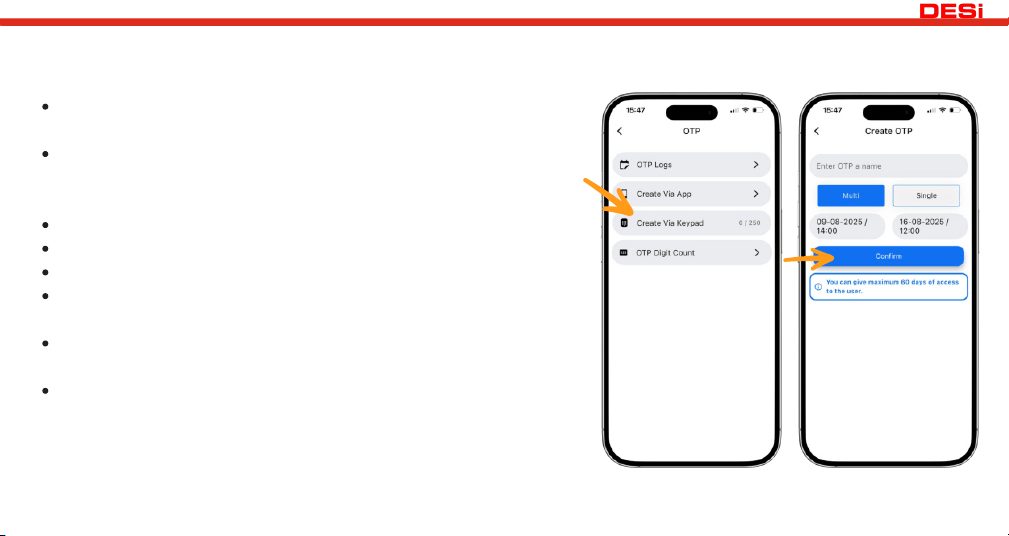
Open the app and select your smart lock from the main
screen.
Tap the OTP-Key button in the top right corner, then select
the 'Create via Keypad'. (Alternatively, you can long-press
your lock on the main screen to access the OTP menu.)
Give a name to OTP.
Decide whether the access type will be single-use or multiple.
Set the start and end date for the generated code.
Tap the 'Confirm' button to create a code with the specified
settings.
Use the Share option to easily send the code via SMS, Email,
or WhatsApp.
To unlock the smart lock, first press the confirm button on the
keypad, then enter the shared password, and press the
confirm button again.
NOTE: This process requires direct/near connection to the
smart lock.
5.3.4. E-Key / OTP - Generating a Temporary Access Code (For Keypad Entry)
1st Method (Smart Lock and Keypad V3 / Fingerprint + Keypad V3 Required)
23
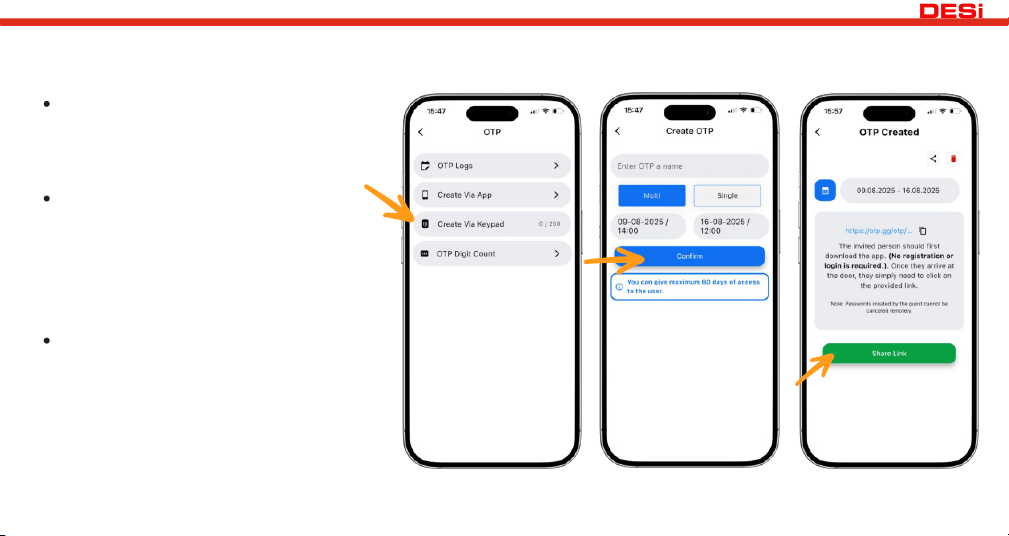
5.3.4. E-Key / OTP - Generating a Temporary Access Code (For Keypad Entry)
2nd Method (Smart Lock and Keypad V3 / Fingerprint + Keypad V3 Required)
Click the OTP / E-Key option on the
smart lock screen to create an entry
link for their guest, active for the
specified date and time range.
The guest, after downloading the app
(no login or registration required),
can tap the same link upon arrival at
the door to activate unique code that
even the master cannot see (no
internet connection needed).
To unlock the smart lock, first press
the confirm button on the keypad,
then enter the shared password, and
press the confirm button again.
Password Cancellation Method: Master
user can delete the codes via a direct/near
connection.
24
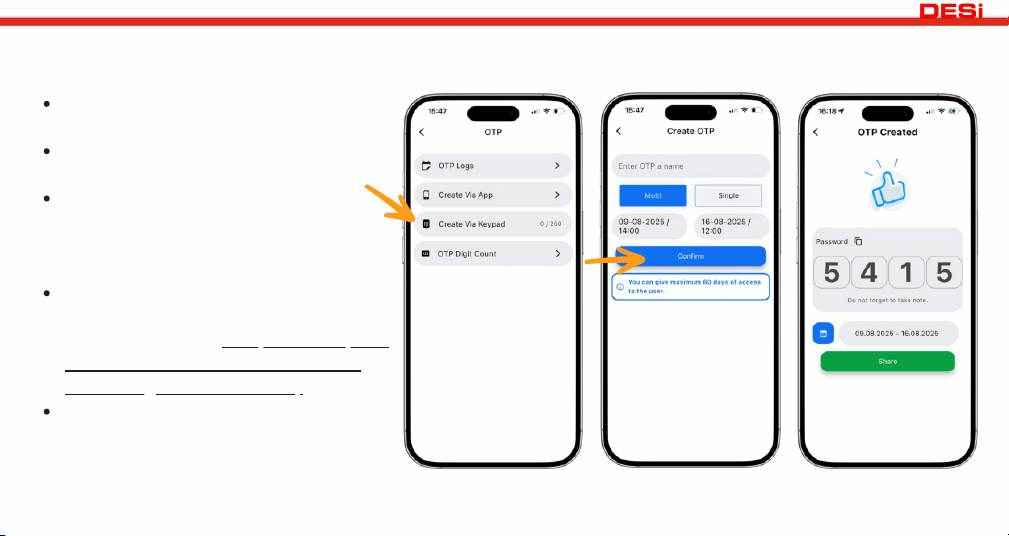
Password Cancellation Method: The master can delete any
password or all generated passwords via the smart bridge.
5.3.4. E-Key / OTP - Generating a Temporary Access Code (For Keypad Entry)
3rd Method (Smart Lock, Smart Bridge, and Keypad V3 / Fingerprint + Keypad V3 Required)
Click on the OTP / E-Key option on the
smart lock screen.
Select date and time range and usage
type for the guest.
Example: A password set for 05.01.2025
- 10.01.2025 / 12:00 - 14:00 will become
active on 05.01.2025 at 12:00 and
remain valid until 10.01.2025 at 14:00.
Press ‘Create Password’ (no need for
close proximity to the smart lock) to
create a password. (This process requires
the smart lock to be connected via the
smart bridge and the internet.)
To unlock the smart lock, first press the
confirm button on the keypad, then enter
the shared password, and press the
confirm button again.
25
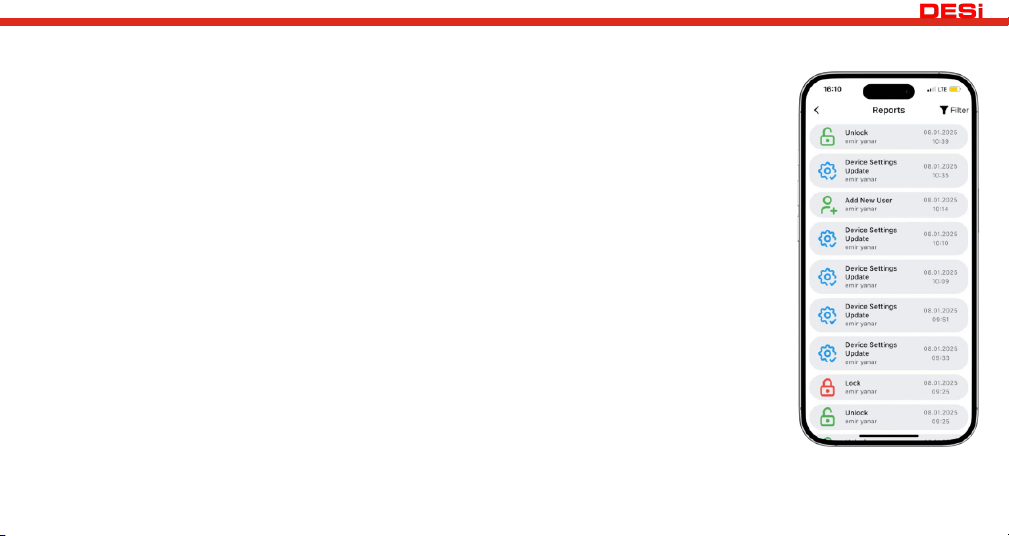
5.3.5. REPORTS
In this tab, you can view which user unlocked or locked the door, the change history of device
settings, and all activities. You can also see the date and time details for users accessing via
fingerprint reader, remote control, keypad, etc. Additionally, you can quickly perform a desired
search using the 'filter' button located in the top right corner.
5.4. USAGE
Before using the smart lock, you must configure the "locking direction" and "number of lock
turns" according to the lock in use. You can perform this setup using the setup wizard.
5.4.1. UNLOCKING
Open the app, connect to the smart lock, and press the UNLOCK button. The smart lock will
unlock the door. You can also unlock the door from the inside by turning the body of the smart
lock. In case of emergencies, the key can be used to unlock the door.
5.4.2. LOCKING
Open the app, connect to the smart lock, and press the LOCK button. Your smart lock will
perform the locking operation. You can also lock the door from the inside by turning the body
of the smart lock. In case of emergencies, the key can also be used to lock the door.
26
5.5. MAINTENANCE
The external surfaces of the device can be wiped with a clean and soft cloth. Never use water or abrasive chemicals for
cleaning.
5.5.1. CHARGING THE SMART LOCK
If you hear a triple warning tone after any operation (locking/unlocking) or if the smart lock turns very slowly, you need to
recharge it.
IMPORTANT:Your smart lock can only perform one turn unlocking operations during charging to prevent damage to
the USB cable and charging port.
CAUTION !
The device fully charges in approximately 3 hours. Even if the batteries are not empty, we recommend charging
your device every two months. We advise charging under supervision.
It should be charged with good quality 5V DC Type-C USB chargers or power banks.
Turbo or super fast chargers are not supported.
The risk of charging with low-quality products is the responsibility of the user.
If you will be away from your home for an extended period, we recommend fully charging the device and ensuring
you take your keys with you. If the device is left uncharged for a long time, the batteries may become unusable.
27
6. IMPORTANT NOTES AND INFORMATION ABOUT THE DEVICE
Battery Level 100% to 20%: The device can perform locking and unlocking functions normally.
Battery Level 10% to 20%: A low battery warning (audible and visual) is given regardless of the sound settings. The
device switches to balanced mode. In this mode, the device can only fully perform single-turn locking and unlocking
functions. This status is displayed on the app until the device is charged.
Battery Level 0% to 10%: The device switches to energy-saving mode. In this mode, the device cannot perform the
locking function but can fully perform the unlocking function. The low battery warning (audible and visual) continues to
be given. This status is displayed on the app until the device is charged.
Touch Button and Lock Functions:
Factory Reset Functionality: The factory reset feature of the device can be enabled or disabled via the touch button.
Locking with Short Press: A short press on the device’s touch button locks the door. You can change the button
functions in the button function menu. If the delayed locking feature is active, delayed locking is initiated after a short
warning tone.
Connection Speed When ‘Energy Save Mode’ Is Selected:
If smart bridge, fingerprint, or other accessories are used, none can connect in this mode. The smart lock wakes up and
connects to accessories after the door is knocked 3-4 times.
Update Process:
If the update process is not completed, the device may remain in update mode. The update process must be restarted.
Otherwise, the device may become non-functional.
28
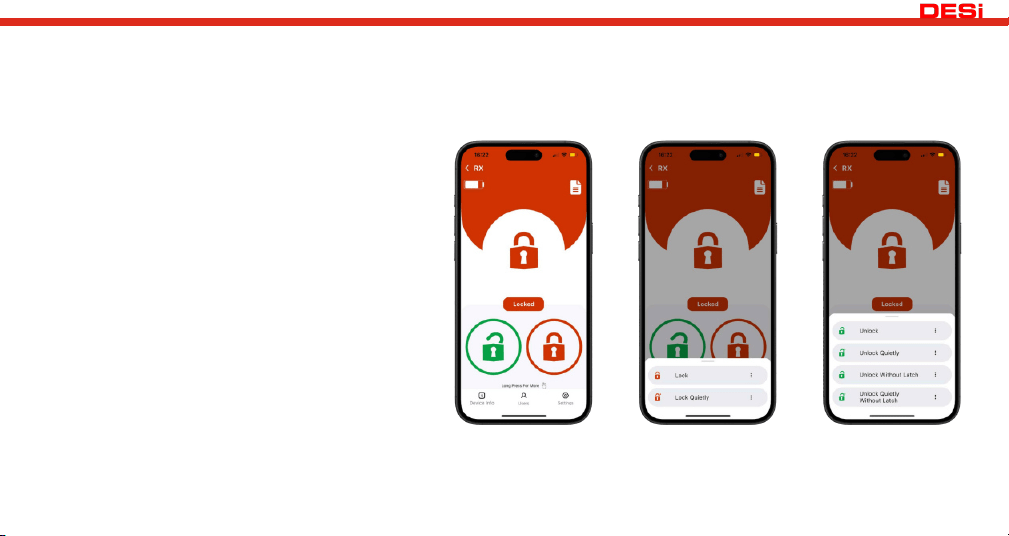
6.1. USAGE OF THE SMART LOCK
After connecting to the smart lock, you can control your door using the 'LOCK' and 'UNLOCK' buttons.
By pressing and holding the 'LOCK' and 'UNLOCK' buttons, you can control your door with different options.
Lock: Locks the door normally.
Lock Quietly: The smart lock operates at the
slowest speed and locks the door in this mode for
a single instance.
Unlock: Unlocks the door normally.
Unlock Quietly: The smart lock operates at the
slowest speed and unlocks the door in this mode
for a single instance.
Unlock Without Latch: The lock bars are
disengaged, but the latch remains stationary.
Opening the door requires a handle movement.
Unlock Quietly Without Latch : The smart lock
operates at the slowest speed, disengages the
lock bars, but leaves the latch stationary.
Opening the door requires a handle movement.
29
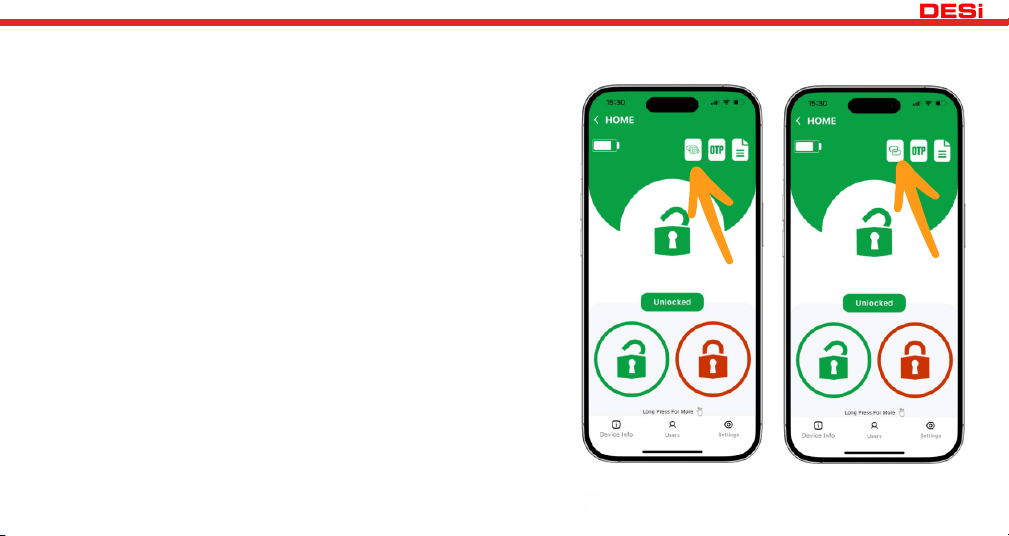
6.1.1. USAGE OF THE SMART LOCK (With WiFi Bridge - Hub)
When using the smart bridge over the internet, you can access all features just as you would with a nearby connection.
After pairing the smart bridge with the smart lock, a globe icon or
a nearby connection icon will appear on the control screen.
1. The **globe icon** shown in the image indicates that you are
connected to your lock via the smart bridge, i.e., over the internet.
2. The **overlapping rectangles** icon in the image indicates a
nearby connection.
You can switch between these options by tapping on the icons.
30
6.2. UNLOCK WITH KEYS
Standard Cylinder Usage
When the smart lock is opened from the outside using a key, the key that was inserted inside gets pushed outwards.
Therefore, to reuse the lock, follow these steps:
1.Remove the key from the outside.
2.Using the key-pushing tool provided in the box, push the internal key back into place through the two holes on
the smart lock.
3.Manually check if the smart lock functions properly.
4.Rotate the lock once in the unlocking direction or unlock it using the mobile app.
Double Clutch - Emergency Cylinder Usage
This type of cylinder allows unlocking from the outside even when a key is inserted from the inside. Therefore, after
using your key externally, no additional action is required on the device.
Thumbturn Cylinder Usage
This type of cylinder allows unlocking from the outside even when a key is inserted from the inside. Therefore, after
using your key externally, no additional action is required on the device.
31
6.3. RESETTING THE SMART LOCK
Connect the USB charger provided in the box to a power and position it so that it can be connected to the smart
lock (do not plug the USB connector into the smart lock at this step).
Press and hold the button on the smart lock until you hear two warning tones. When the lights start blinking, plug
the USB charging cable into the device. You have approximately 60 seconds to complete this step.
If you fail, repeat the same steps.
If the reset process is successful, you should hear a sequence of short warning tones.
After the reset process, the smart lock will enter sleep mode.
To exit sleep mode and switch to recognition/pairing mode, press the button on the smart lock until you hear a
warning tone. Release your fingers immediately upon hearing the warning tone.
32

www.desi.com.tr
DESi Alarm Ve Güvenlik Sistemleri A.Ş.

FCC Warnning:
This equipment has been tested and found to comply with the limits for a Class B digital device,
pursuant to part 15 of the FCC Rules. These limits are designed to provide
reasonable
protection againstharmful interference in a residential installation. This equipment generates,
uses and can radiateradio
frequency
energy
and,
if
not
installed
and
used
in
accordance
with
the
instructions,
maycause
harmful
interference
to
radio
communications.
However,
there
is
no
guarantee
thatinterference
will
not
occur
in
a
particular
installation.
If
this
equipment
does
cause
harmfulinterference to radio or television reception, which can be
determined by turning the equipmentoff
and
on,
the
user
is
encouraged
to
try
to
correct
the
interference
by
one
or
more
of
thefollowing measures:
•
Reorient or relocate the receiving antenna.
•
Increase the separation between the equipment and receiver.
•
Connect the equipment into an outlet on a circuit different from that to which the receiver is
connected.
• Consult the dealer or an experienced radio/TV technician for help.
Caution:
Any
changes
or
modifications
to
this
device
not
explicitly
approved
by
manufacturer
could void your authority to operate this equipment.
This
device
complies
with
part
15
of
the
FCC
Rules.
Operation
is
subject
to
the
following
two
conditions:
(1)This
device
may
not
cause
harmful
interference,
and
(2)
this
device
must
accept
any
interference received, including interference that may cause undesired operation.
This
equipment
complies
with
FCC
radiation
exposure
limits
set
forth
for
an
uncontrolled
environment.
This
equipment
should
be
installed
and
operated
with
minimum
distance
0cm
between the radiator and your body.