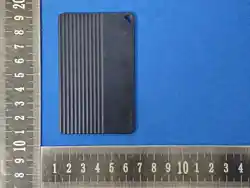
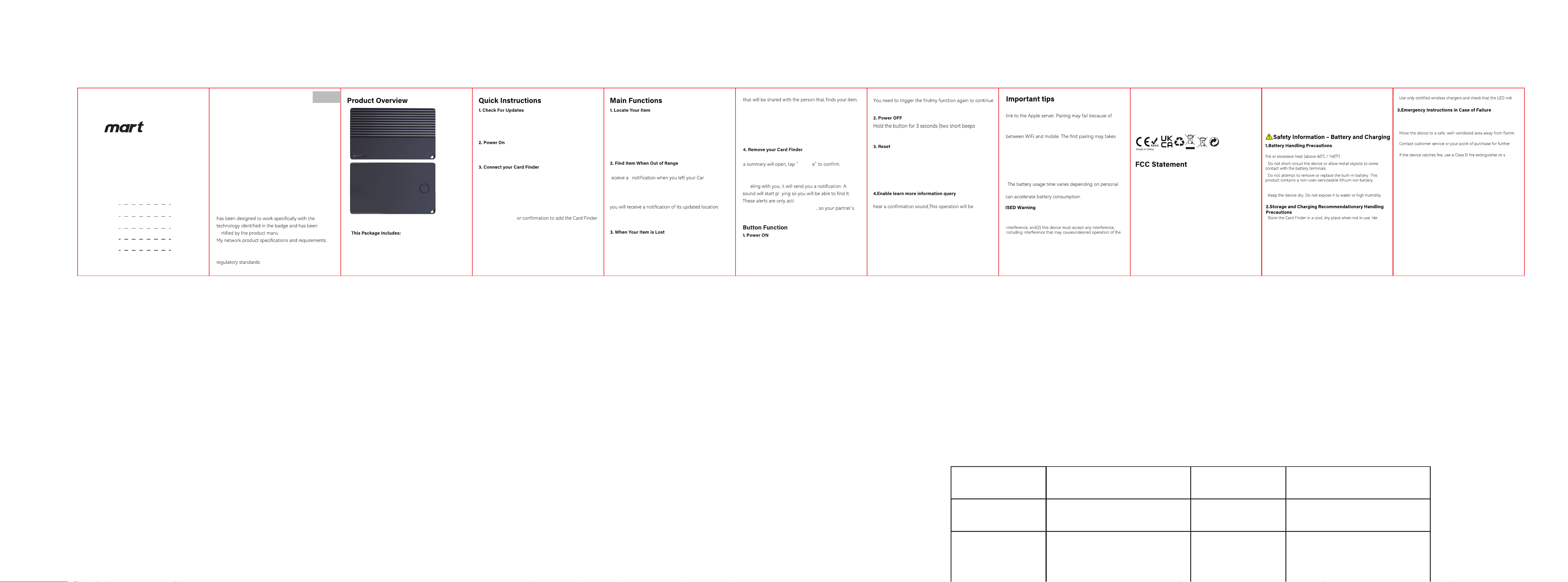
1、尺寸:100X70(mm)
2、材质:80g书写纸
3. 印刷:双面印刷 风琴对折
说明书
• and—
never use water.
•
assistance.
•
able
materials.
• Do not attempt to charge or power on the device again.
• If the Card Finder becomes excessively hot, emits smoke, swells,
leaks, or emits an unusual odor, immediately stop using the device.
•
cator
functions as described.
• Do not leave the device on the charger for extended periods after it
is fully charged.
• Charge the Card Finder in an environment between 0°C and 45°C
(32°F – 113°F).
• Avoid leaving the device in direct sunlight, hot vehicles, or near heat
sources.
•
al
storage temperature: 15°C – 25°C (59°F – 77°F).
•
environments unless the product is rated for water resistance.
• Only use wireless chargers and adapters recommended by the
manufacturer.
•
Wireless Charging Card Finder
User Manual
English
Deutsch
Italiano
Français
Español
01-08
09-17
18-26
27-35
36-44
The Apple® Find My® network provides an easy, secure
way to locate compatible personal items using the Find
My app on your iPhone®, iPad®, Mac®, or the Find Items
app on Apple Watch®.
To use the Apple Find My app to locate this item, the
latest version of iOS®, iPadOS®, or macOS® is recommend-
ed. The Find Items app on Apple Watch requires the
latest version of watchOS®.
Use of the Works with Apple badge means that a product
ce facturer to meet Apple Find
Apple is not responsible for the operation of this device
or use of this product or its compliance with safety and
To use the Apple Find My app to locate your Card Finder,
the latest version of iOS, iPad OS, or macOS is
recommended.
• Find the device when it is Nearby. Tap “Play Sound” to
make your Card Finder beep when it is nearby.
• Find your Card Finder’s last known location.
Your Card Finder’s last known location will appear on
the map as emoji you choose during set up, tap
“Directions” to navigate to the last known location.
:
• When pairing a device with Find My app, the phone will
• into
• Do not disassemble, crush, puncture, or expose the Card Finder to
network problems. The following action is recommended:
1.
Change the phone’s network, such as switching
a long time, please wait patiently.
2. Reset your item.
3. Repair with Findmy APP.
• When “Lost Mode” is enable, DO NOT REMOVE ITEM in the
APP. Your Card Finder will be locked and cannot be
paired to a new device.
•
usage habits. Frequent use of the call function
Unwanted Tracking Detection
If your iPhone detects that an unknown Card Finder is
trav
a
vated when an Card Finder is
not connected to its owner’s phone
Card Finder will not trigger a sound if they are with you.
Press the power button once to turn it on, it should beep
indicating it is powered on. If the product is not paired, it
will be closed automatically within 10 minutes.
pairing.
will sound).
Press the power button for 4 times rapidly and then
hold it for the 5th time until you hear a beep sound.
A reset operation is required to enable the device to
enter the pairing state again (synchronization of Findmy
also requires simultaneous unbinding) and rebind the
new Apple ID account.
Press the power button for 2 times rapidly and you will
displayed on the Find My app to guide the person who
gets the device to obtain the device information, such
as the owner's contact information (if the item is set to
the lost mode on the app), and the serial number of the
device.
Ensure “Lost Mode” is disabled, tap “Remove Item” tab,
Remov
• Enable the “Notify When Left Behind” toggle, you will
r
d Finder
behind and it is no longer in range of your device.
• Enable the “Notify when Found” toggle, when your
Card Finder is seen by another Find My enabled device,
Note: “Notify When Found” can only be activated when
your Card Finder is out of range.
• When Your Item Lost Under “Lost Mode”, tap the “Enable”
tab, a detailed page showing the Lost Mode will pop up,
tab “Continue”. You can enter your phone number or
email address and tap “Next”. You may enter a message
Tap “Activate” to enable “Lost Mode”.
Note: When “Lost Mode” is enabled, “Notify When
Found” is automatically enabled.
Note: When “Lost Mode” is enabled, your Card Finder
is locked and cannot be paired to a new device.
Press and release the power button on the card to turn
it on - it should beep indicating it is powered on.
• Open the Apple Find My App.
• Tap “+” and then “Add Other Item”.
• Make sure your Card Finder is close to your phone.
Wait until you see the device name then tap “Connect”.
• Choose a recognizable name and emoji for your Card
Finder and tap“Continue”.
• Find My will ask f
for your Apple ID - tap “Continue”.
• Tap “Finish” and the Card Finder will be set up and
ready to be connected to whatever items you wish to
locate, e.g., your wallet, luggage, etc.
• Card Finder *1pcs
• User Manual *1pcs
• Quick User Guide *1pcs
01 02 03 04 05 06 07 100908
English
S
Tracker
This device complies with Innovation, Science, and Economic
DevelopmentCanada licence-exempt RSS standard(s). Operation is
subject to the following twoconditions:(1) this device may not cause
device.Le présent appareil est conforme aux CNRd' Innovation,
Sciences etDéveloppement économique Canadaapplicables aux
appareils radio exempts delicence.L'exploitation est autorisée aux
deux conditions suivantes :(1)'appareil nedoit pas produire de
brouillage, et(2)l'utilisateur de l'appareil doit accepter tout brouillage
radioélectrique subi,même si le brouillage est susceptible d'en
compromettre le fonctionnement.The device is compliance with RF
exposure guidelines, users can obtain Canadianinformation on RF
exposure and compliance.Le présent appareil est conforme Après
examen de ce matériel aux conformité ouaux limites d'intensité de
champ RF, les utilisateurs peuvent sur l'exposition auxradiofréquences
et la conformité and compliance d acquérir les
informations correspondantes.
• This device complies with Part 15 of the FCC Rules. Operation is subject to
the following two conditions:
• (1) This device may not cause harmful interference, and (2) this device must
accept any interference received, including interference that may cause
undesired operation.
• NOTE 1: This equipment has been tested and found to comply with the
limits for a Class B digital device, pursuant to part 15 of the FCC Rules. These
limits are designed to provide reasonable protection against harmful
interference in a residential installation. This equipment generates, uses and
can radiate radio frequency energy and, if not installed and used in
accordance with the instructions, may cause harmful interference to radio
communications. However, there is no guarantee that interference will not
occur in a particular installation. If this equipment does cause harmful
interference to radio or television reception, which can be determined by
turning the equipment off and on, the user is encouraged to try to correct the
interference by one or more of the following measures:
• - Reorient or relocate the receiving antenna.
• - Increase the separation between the equipment and receiver.
• -Connect the equipment into an outlet on a circuit different from that to
which the receiver is connected.
•
·-Consult the dealer or an experienced radio/TV technician for help.
·NOTE 2: Any changes or modifications to this unit not expressly approved by
the party responsible for compliance could void the user's authority to operate
the equipment. The device has been evaluated to meet general RF exposure
requirement. The device can be used in portable exposure condition without
restriction.

