CGS | AEGIS-C-UM-EN-V1.0
CORE SERIES
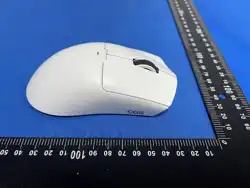
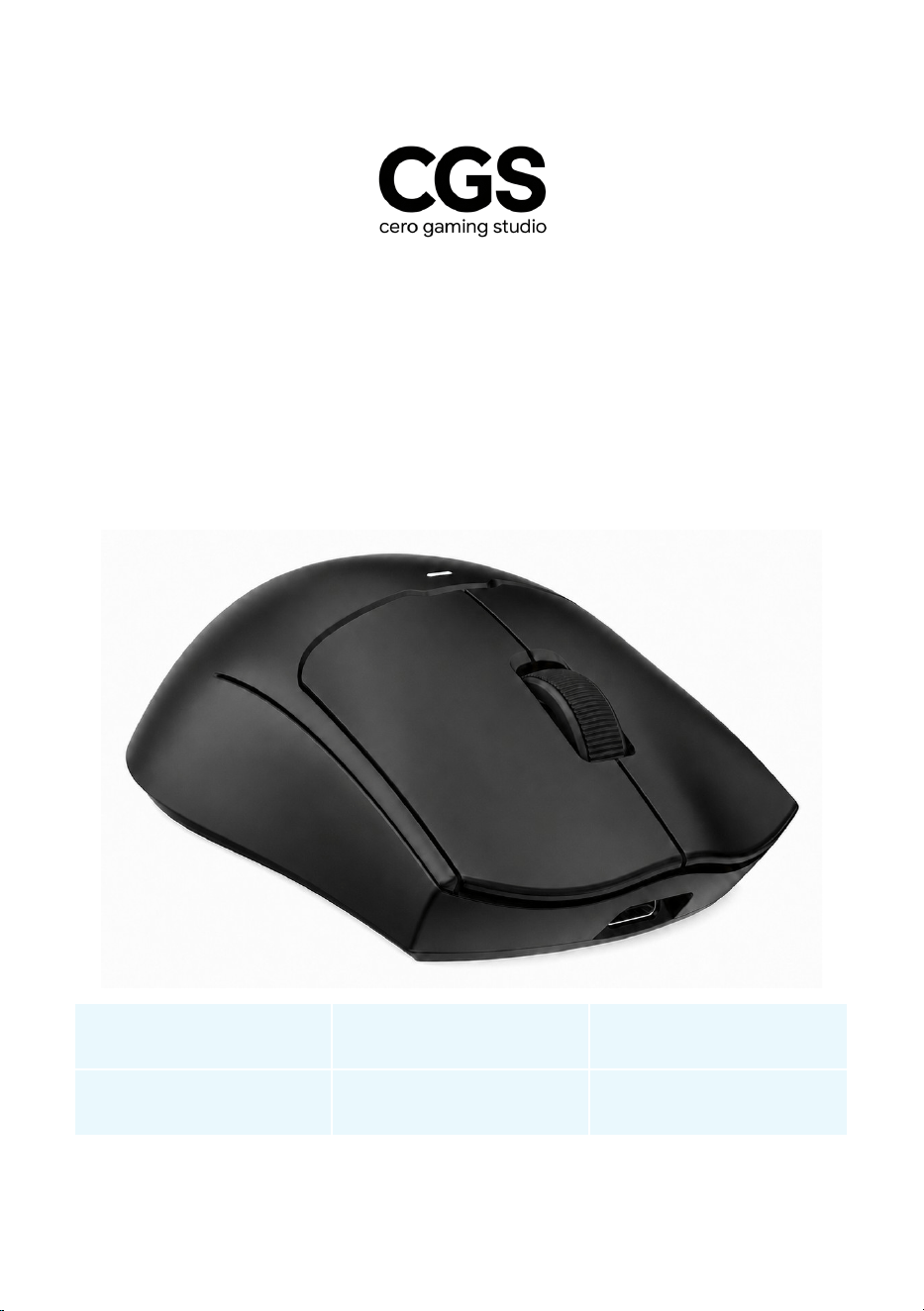
AEGIS-C
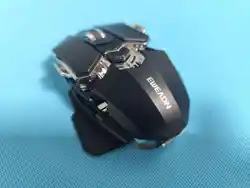
TRI-MODE WIRELESS GAMING MOUSE
Built for the essentials. Tuned for play.
59 g
LIGHTWEIGHT
PAW3311
OPTICAL SENSOR
12,000
MAX DPI
1000 Hz
POLLING RATE
500 mAh
BATTERY
3-MODE
USB-C / 2.4G / BT
USER MANUAL | ENGLISH
Read this manual before use and keep it for future reference.
AEGIS-C USER MANUAL
CGS | CORE SERIES PAGE 2
Product at a glance
Identify the controls before connecting the mouse.
In the box
AEGIS-C mouse 2.4 GHz USB receiver
1.8 m USB-C data / charging cable English user manual
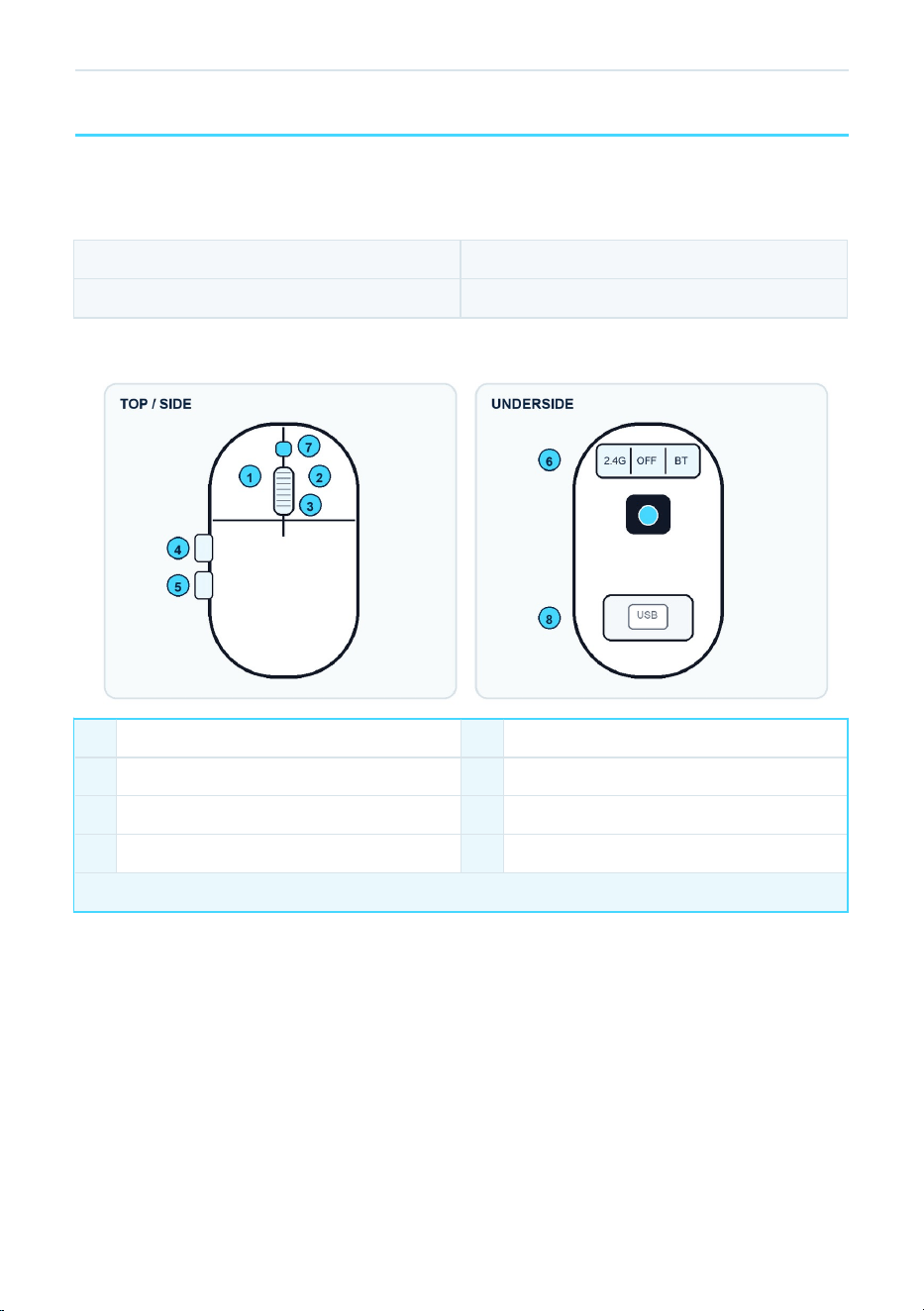
Controls
1 Left button 5 Backward button
2 Right button 6 2.4G / OFF / BT switch
3 Scroll wheel / middle button 7 DPI button
4 Forward button 8 Receiver compartment
MODE SWITCH Position 1 = 2.4G, position 2 = OFF, position 3 = Bluetooth.
AEGIS-C USER MANUAL
CGS | CORE SERIES PAGE 3
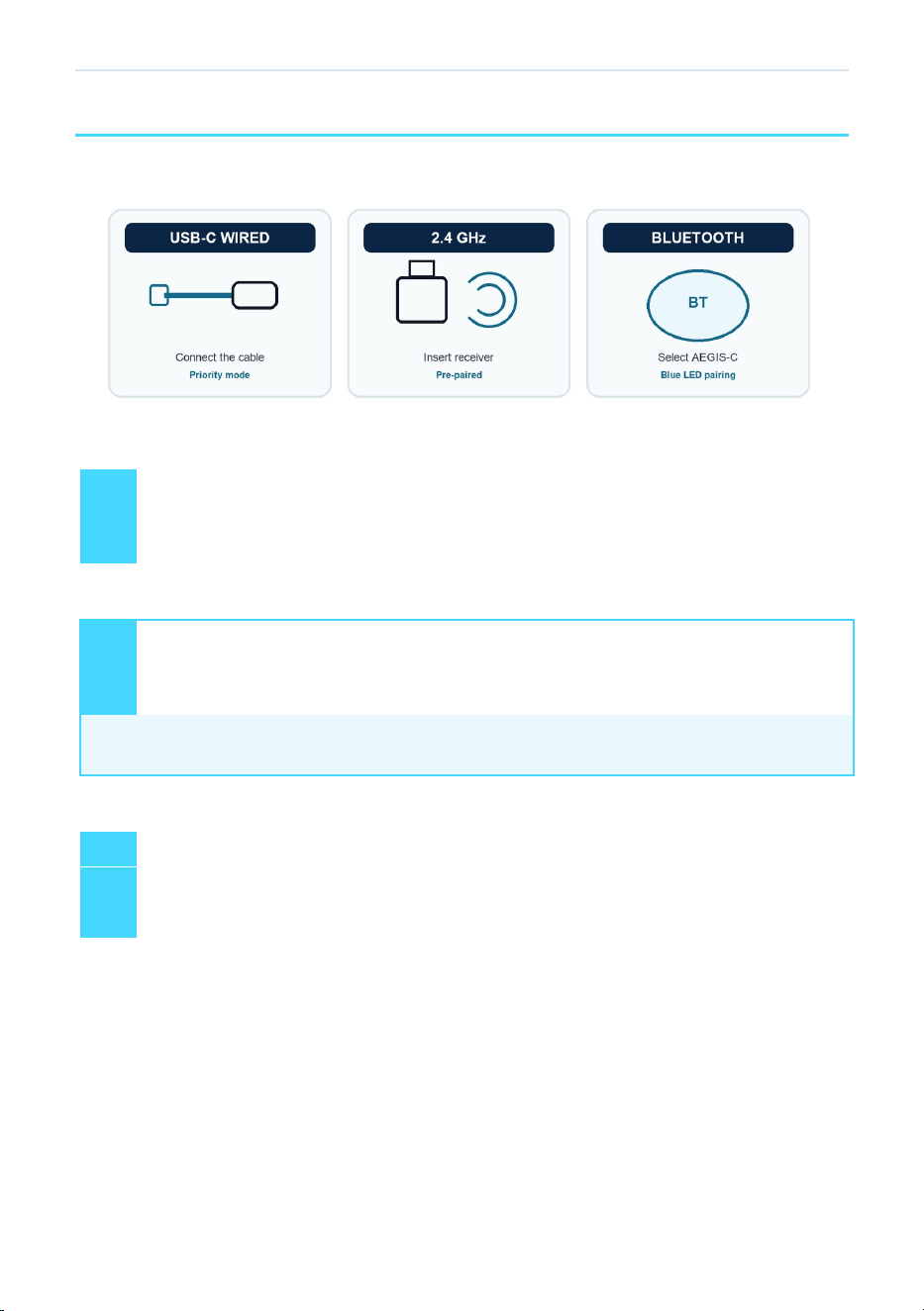
Connect your way
Wired mode takes priority whenever the USB-C cable is connected to a computer.
USB-C wired mode
1 Connect the USB-C end of the included cable to the mouse.
2
Connect the USB end to the computer. Wired operation starts automatically and the
battery charges.
2.4 GHz wireless mode
1 Move the underside switch to 2.4G.
2
Insert the stored USB receiver into the computer. The receiver is paired at the
factory.
RE-PAIR IF NEEDED In 2.4G mode, hold Left + Right + Scroll for 3 seconds until the green
LED flashes. Insert the receiver within 30 seconds. A steady green LED confirms pairing.
Bluetooth mode
1 Move the underside switch to BT.
2 Hold Left + Right + Scroll for 3 seconds until the blue LED flashes.
3 Open Bluetooth settings on the host device and select AEGIS-C.
AEGIS-C USER MANUAL
CGS | CORE SERIES PAGE 4
Tune your response
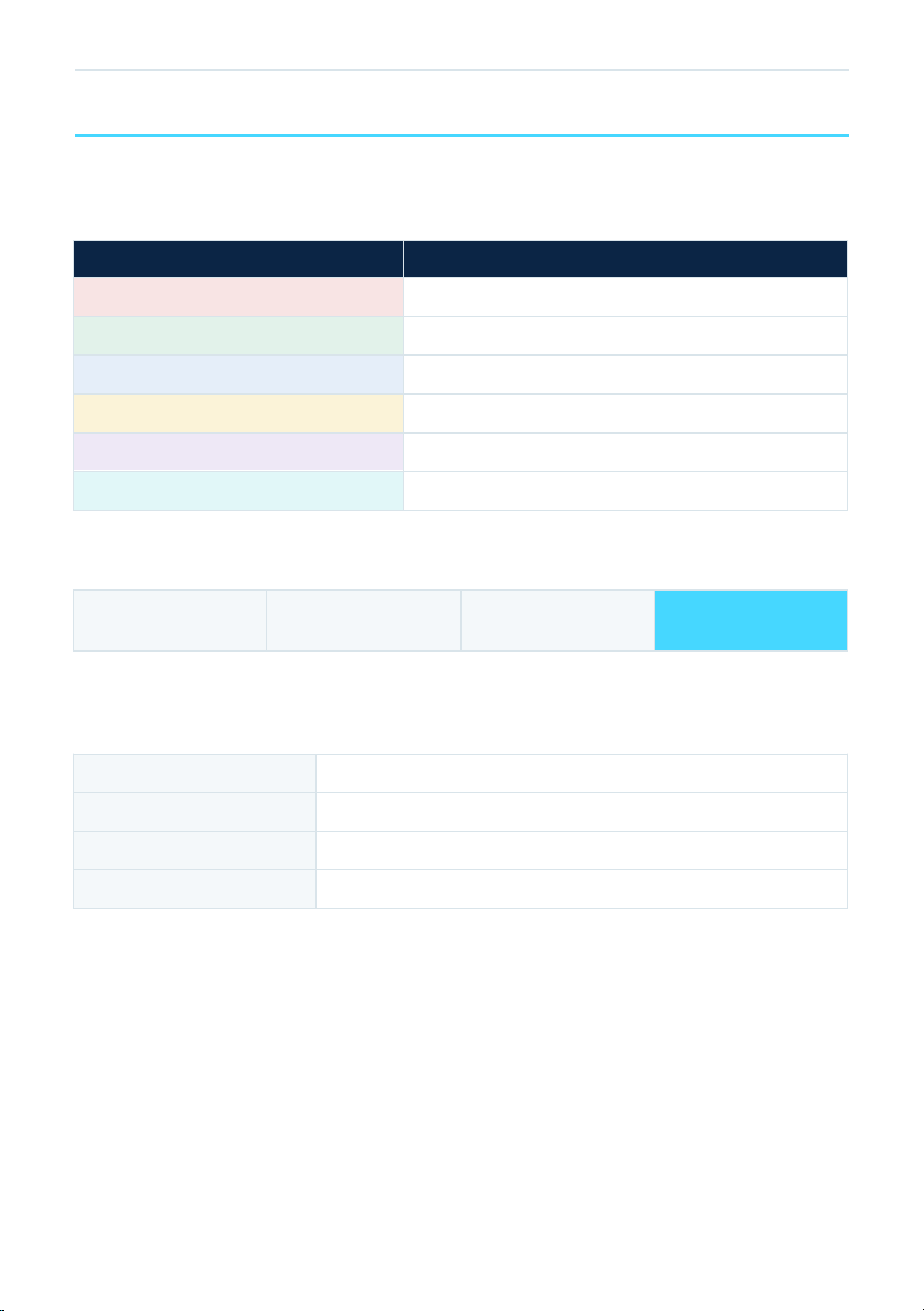
Use the DPI button for on-the-fly sensitivity changes. The last DPI level is stored in memory.
DPI levels
INDICATOR COLOR DPI LEVEL
RED 800 DPI
GREEN 1200 DPI
BLUE 1600 DPI
YELLOW 2400 DPI
PURPLE 5000 DPI
CYAN 12000 DPI
Press the DPI button once to move to the next level. The indicator color shows the active setting.
Polling rate
125 Hz 250 Hz 500 Hz
1000 Hz
DEFAULT
Supported rates are 125, 250, 500, and 1000 Hz. The factory default is 1000 Hz. Use compatible
CGS configuration software, where available, to change the polling rate.
Indicator behavior
Green flashing 2.4 GHz receiver pairing is active.
Blue flashing Bluetooth pairing is active.
Red: 3 flashes Low battery warning, repeated every 5 minutes below 3.6 V.
DPI color: 3 flashes Wired power-on self-test, then the current lighting effect resumes.

AEGIS-C USER MANUAL
CGS | CORE SERIES PAGE 5
Battery and power
Recharge through USB-C and use the underside switch to prevent unintended battery drain during
transport.
Rechargeable battery 3.7 V lithium battery, 500 mAh / 1.85 Wh
Rated input 5 V DC, 330 mA max.
Charge / data port USB-C
Low-battery warning Below 3.6 V: red LED flashes 3 times every 5 minutes
Protective shutdown Below 3.4 V: the mouse powers off; recharge before use
Charge and use
1 Connect the supplied USB-C cable to a 5 V USB port.
2 The mouse can be used in wired mode while charging.
3 Disconnect the cable after charging and select 2.4G or BT for wireless use.
Sleep and wake
After 60 seconds Light sleep. Move the mouse to wake it.
After 600 seconds Deep sleep. Press any button to wake it.
Wired connection Sleep is disabled while the USB cable is connected.
BATTERY CARE Use a standard 5 V USB source. Do not charge a damaged, swollen, leaking,
or unusually hot product.

AEGIS-C USER MANUAL
CGS | CORE SERIES PAGE 6
Technical specifications
Specifications apply to model AEGIS-C.
Product Wireless Mouse
Brand / model CGS / AEGIS-C
Connectivity USB-C wired, 2.4 GHz wireless, Bluetooth
Sensor PixArt PAW3311
Resolution 800 / 1200 / 1600 / 2400 / 5000 / 12000 DPI
Tracking speed 300 IPS
Acceleration 35 G
Polling rate 125 / 250 / 500 / 1000 Hz; default 1000 Hz
Buttons 6: left, right, scroll/middle, forward, backward, DPI
Main switch rating 20 million clicks
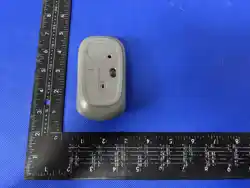
Dimensions 127 x 63.9 x 40 mm
Weight Approx. 59 g, excluding receiver
Battery 3.7 V, 500 mAh rechargeable lithium battery
Cable USB-C data / charging cable, 1.8 m
Compatible hosts
Windows / macOS / Android; feature and software support
varies
Operating environment 0 to 40 deg C; 0 to 90% RH, non-condensing
Hardware / firmware VER1.0 / VER5552 certification configuration
Specifications may change without notice. The product label and approved technical documentation take
precedence.

AEGIS-C USER MANUAL
CGS | CORE SERIES PAGE 7
Troubleshooting
Start with power, mode selection, and connection distance before re-pairing.
Mouse does not respond
Charge the battery, verify the mode switch, and reconnect the
cable or receiver to another USB port.
2.4 GHz will not connect
Move the receiver closer, avoid USB 3.0 interference, then use
the re-pair procedure on page 3.
Bluetooth device not found
Select BT, re-enter pairing mode, remove any old AEGIS-C
entry from the host, and search again.
Cursor skips or drifts
Clean the sensor window, use a suitable mouse surface,
reduce wireless interference, and check DPI.
Buttons or DPI behave
oddly
Reconnect the mouse. If configuration software is supplied,
restore factory settings there.
Mouse wakes but will not
move
Press a button to exit deep sleep, then confirm the selected
connection mode.
Care and storage
1 Turn the switch to OFF before transport or long-term storage.
2 Clean with a soft, dry cloth. Do not use solvents or allow liquid into openings.
3 Keep the sensor window, USB-C port, and receiver compartment free of dust.
4 Store in a cool, dry place. Recharge periodically during long storage.
TIP The USB receiver fits inside the underside compartment. Store it there whenever it is not
connected.

AEGIS-C USER MANUAL
CGS | CORE SERIES PAGE 8
Safety and compliance
Keep these instructions with the product.
Important safety information
Battery
Do not disassemble, crush, puncture, short-circuit, burn, or expose the
product to excessive heat.
Charging Use only a compliant 5 V USB power source and an undamaged cable.
Damage
Stop use if the product is swollen, leaking, unusually hot, or physically
damaged.
Moisture
Keep the mouse and receiver dry. Disconnect immediately if liquid enters
the product.
Small parts Keep the USB receiver away from young children and pets.
Service
The built-in battery is not user-serviceable. Repairs must be performed by
qualified personnel.
FCC notice - United States
This device complies with part 15 of the FCC Rules. Operation is subject to the following two conditions:
(1) This device may not cause harmful interference, and (2) this device must accept any interference
received, including interference that may cause undesired operation.
Changes or modifications not expressly approved by the party responsible for compliance could void the
user's authority to operate the equipment.
Disposal and recycling
Do not dispose of this product or its built-in battery with unsorted household waste. Use an approved
electronics and battery collection service in accordance with local requirements.
Brand owner and support
Dongying Cero Technology Co., Ltd.
Room 401, Unit 2, Building 21, No. 3 Songhuajiang Road, Xianhe Town, Dongying Port Economic
Development Zone, Dongying, Shandong Province, P.R. China
Made in China | AEGIS-C-UM-EN-V1.0

FCC Warnning:
This equipment has been tested and found to comply with the limits for a Class B digital device,
pursuant to part 15 of the FCC Rules. These limits are designed to provide
reasonable
protection against harmful interference in a residential installation. This equipment generates,
uses and can radiate radio
frequency
energy
and,
if
not
installed
and
used
in
accordance
with
the
instructions,
may cause
harmful
interference
to
radio
communications.
However,
there
is
no
guarantee
that interference
will
not
occur
in
a
particular
installation.
If
this
equipment
does
cause
harmful interference to radio or television reception, which can be
determined by turning the equipment off
and
on,
the
user
is
encouraged
to
try
to
correct
the interference
by
one
or
more
of
the following measures:
•
Reorient or relocate the receiving antenna.
•
Increase the separation between the equipment and receiver.
•
Connect the equipment into an outlet on a circuit different from that to which the receiver is
connected.
• Consult the dealer or an experienced radio/TV technician for help.
Caution:
Any
changes
or
modifications
to
this
device
not
explicitly
approved
by
manufacturer
could void your authority to operate this equipment.
This
device
complies
with
part
15
of
the
FCC
Rules.
Operation
is
subject
to
the
following
two
conditions:
(1)This
device
may
not
cause
harmful
interference,
and
(2)
this
device
must
accept
any
interference received, including interference that may cause undesired operation.
This
equipment
complies
with
FCC
radiation
exposure
limits
set
forth
for
an
uncontrolled
environment.
This
equipment
should
be
installed
and
operated
with
minimum
distance
0cm
between the radiator and your body.