1
Use the specification sheet
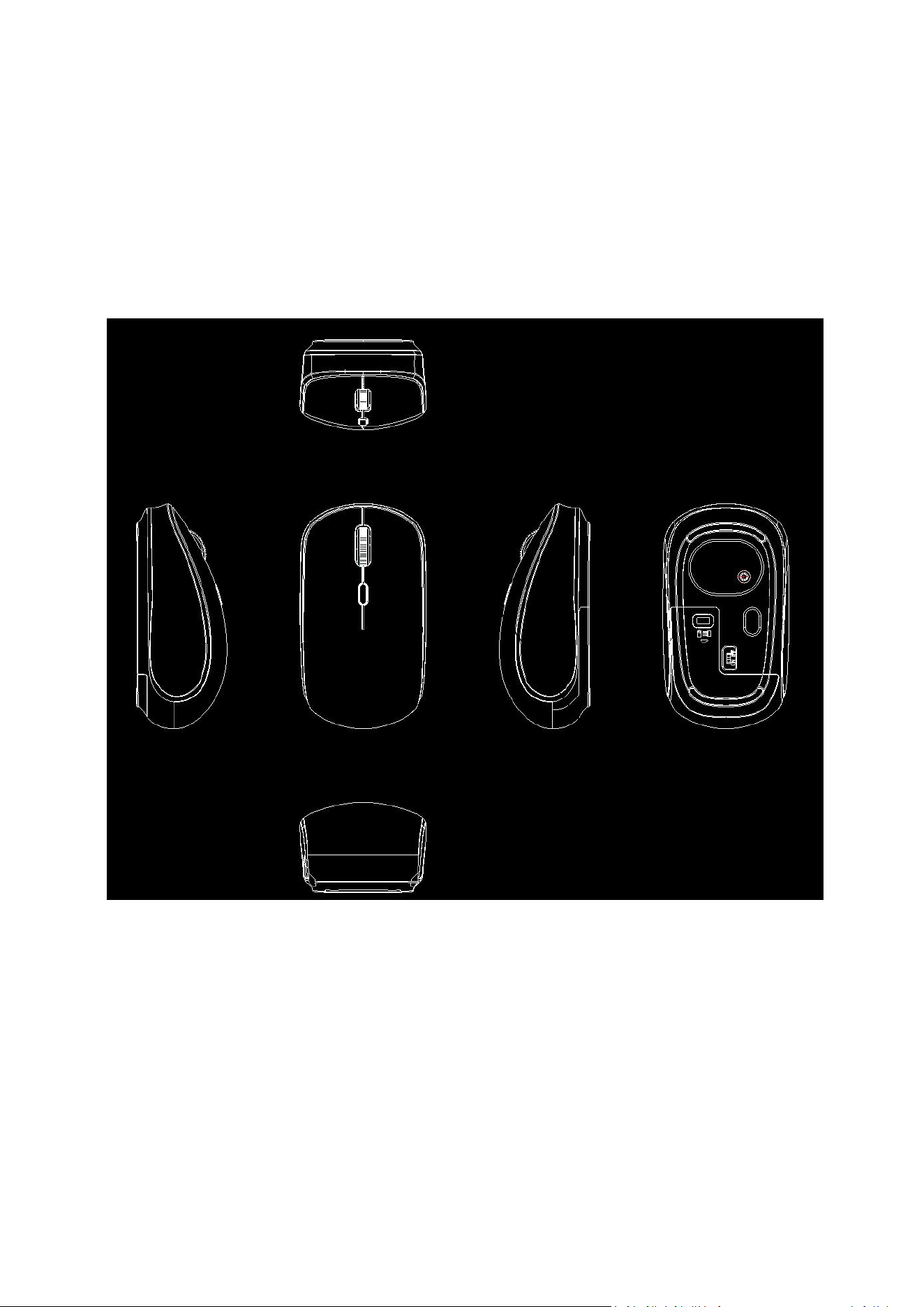
I. Product Display
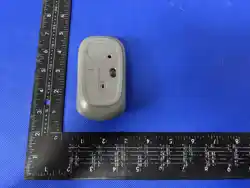
1) Mouse Display
Model:PJT-DMS2339
II. Product Specifications
1) Electrical Specifications
Connection Type: 2.4GHz Wireless Connection
Main IC: YiChip YC1011-T
Sensor: Sigma MX8650A
Tracking Light: Red LED
DPI: 800-1200 (default)-1600

2
Report Rate: Windows-125Hz
Number of Buttons: 4
Left/Right Buttons: Microswitch
Operating Voltage: 1.5V
Operating Current:
≤
20mA
Product Dimensions: 100×55×40mm
Product Weight: 55g
Supported OS: Mac OS/Windows 7/Windows 8/Windows 10/iOS/Android; A customized
version is required for Mac OS support.
Wireless Operating Range: >8m [Note: Actual wireless range may vary depending on usage,
settings, and environmental conditions.]
2) Dongle Specifications
Interface Type: USB
USB Protocol: USB 2.0
Voltage: DC=5V
Current: <20mA
3) Battery and Charging Specifications
Battery Type: 1×AA Battery
Rechargeable: No
Reference Battery Life: 90 days
Note: Battery life may vary depending on individual usage environment and conditions.
III. Product Functions
The mouse features 4 buttons, powered by the YiChip YC1011-T + Sigma MX8650A
sensor solution. It operates on a 1.5V power system with a low-power consumption design to
ensure sufficient battery life.

3
2.4G Mode (Factory Default): Insert the battery, plug the receiver into the PC, and switch
the bottom power switch to the ON position. The red LED on the bottom of the mouse will
illuminate, indicating a successful connection, and the mouse is ready to use.
1) Left/Right Button Functions
(1). Left Click: Select icon
(2). Double Left Click: Open window
(3). Right Click: Pop up the shortcut menu (includes common functions for quick settings
and editing; or context-related commands).
2) Scroll Wheel Button Functions
(1). Scroll Wheel: Browse page up/down
(2). Ctrl + Scroll Wheel: Zoom in/out of window display
3) DPI Button Function
The mouse offers DPI settings of 800-1200-1600, with a default value of 1200. Click the
DPI button to switch between DPI values.
IV. Product Sleep Mode
1. After 10 seconds of inactivity with no cursor movement, the mouse enters Level 1 sleep
mode. After 1 minute of inactivity with no cursor movement, it enters Level 2 sleep mode. After
10 minutes of inactivity with no cursor movement, it enters deep sleep mode and the red LED
turns off; a button press is required to wake the mouse. Wake-up method: Button press (lightly
press the left, middle, or right button).
V. Environmental Conditions:
A. Operating: -5 ~ 50℃
B. Storage: -20 ~ 60℃
Relative Humidity:
A. Operating: 10% ~ 85% RH 25℃
B. Storage: 10% ~ 95% RH 25℃

4
FCC Caution.
This device complies with part 15 of the FCC Rules. Operation is subject to the following two conditions:
(1) This device may not cause harmful interference, and
(2) this device must accept any interference received, including interference that may cause undesired
operation.
Any Changes or modifications not expressly approved by the party responsible for compliance could void the
user's authority to operate the equipment.
Note: This equipment has been tested and found to comply with the limits for a Class B digital device,
pursuant to part 15 of the FCC Rules. These limits are designed to provide reasonable protection against
harmful interference in a residential installation. This equipment generates uses and can radiate radio
frequency energy and, if not installed and used in accordance with the instructions, may cause harmful
interference to radio communications. However, there is no guarantee that interference will not occur in a
particular installation. If this equipment does cause harmful interference to radio or television reception,
which can be determined by turning the equipment off and on, the user is encouraged to try to correct the
interference by one or more of the following measures:
-Reorient or relocate the receiving antenna.
-Increase the separation between the equipment and receiver.
-Connect the equipment into an outlet on a circuit different from that to which the receiver is connected.
-Consult the dealer or an experienced radio/TV technician for help.
The device has been evaluated to meet general RF exposure requirement. The device can be
used in portable exposure condition without restriction.