USER MANUAL
Working voltage
Low power alarm
Standby current
The key strength of
The charging interface
The charging time
Matching code
~
~
Working current
Continuous
working hours
Battery capacity
The battery life
The connection
distance
Charging Current
≥
≤
≤
~
≤
/
The standby time
<
Wake-up time
Number of keys
Working temperature
℃℃
Button life
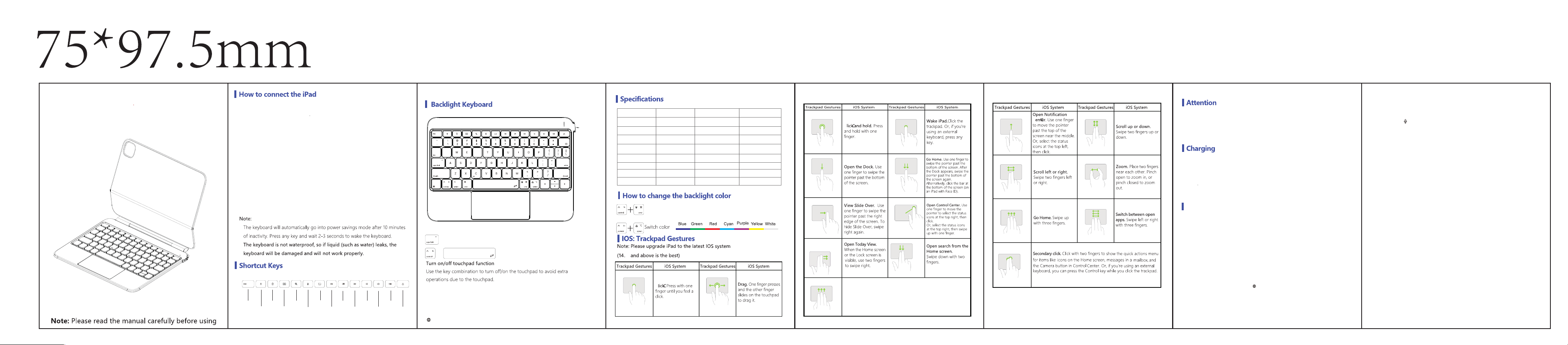
Bluetooth Keyboard FAQ.
5
esc
Brightness-
Brightness+
Multitasking
window
Search
Activate Siri
Screenshot
Previous Track
Play/Pause
Next song
Mute
Volume-
Volume+
Lock Screen
Bluetooth pairing / charging indicator hole
Q
R
+
Pressing Caps Lock causes a steady white light to illuminate.
By default, the Magic Keyboard displays the English keyboard layout upon
first use. (If you selected a multi-language version with additional engravings-
such as Arabic, Spanish, Portuguese, French, etc.)-please complete this setup
before using the keyboard:
Open your iPad Settings > General > Keyboard > (Physical Keyboards) > Add the
desired language. Ater successful addition, press the globe key on the keyboard
to switch to your preferred language. The corresponding characters will then input
normally.
If you encounter keyboard malfunction during use, please try the following
steps to restore normal use:
1. Turn off the keyboard power;
2. Turn off the Bluetooth function of the device;
3. Restart the keyboard and device Bluetooth, and complete the pairing
connection
~
~秒
≥小时
年
≤米
≤
~
≤
<天
小时
按键
℃℃
百万次
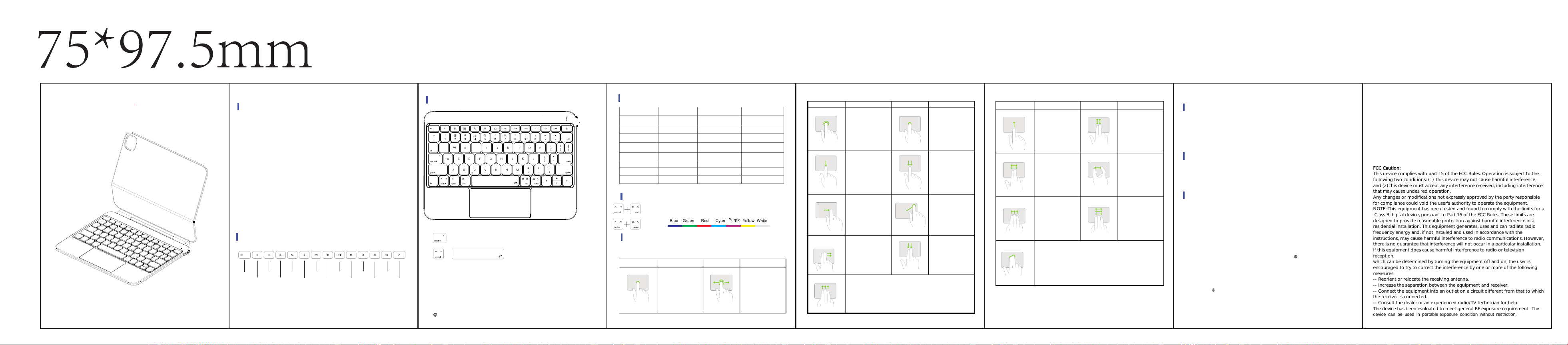
1. 打开平板电脑支撑板,将 iPad 吸附到支撑板上(只有兼容的型号才能磁吸),
然后调整平板的角度,以便轻松找到合适的观看角度。
如何连接平板
2.本键盘采用霍尔感应技术,当您打开键盘上盖,内置传感器自动检测到开启状态,键盘
背光随即亮起,当您合上上盖,背光将自动关闭,以节省电量。
3.注意首次打开键盘,键盘将自动进入蓝牙配对模式,你只需要打开iPad上的蓝牙功能进
行搜索配对即可使用,(仅针对首次连接)
4.针对首次连接断开后,再次使用蓝牙连接操作方法:请同时按住键盘上的Fn+C按钮进入
蓝牙配对状态,蓝牙指示灯将闪烁蓝光,然后打开iPad上的蓝牙功能,搜索键盘名称
(HL Keyboard)点击配对,连接成功,蓝牙指示灯停止闪烁。
注意
键盘将在 10 分钟不活动后自动进入省电模式。
按任意键并等待 2-3 秒即可唤醒键盘。
键盘不防水,因此如果液体(如水)渗漏,键盘将受损并无法正常工作。
快捷键说明
esc
亮度减
亮度加
多任务窗口
搜索
唤出siri
截屏
上一曲
播放/暂停
下一曲
静音
音量减小
音量增大
锁屏
充电接口
蓝牙配对/充电指示灯孔
打开/关闭触摸板功能
使用组合键来关闭/打开触摸板,以避免因触摸板引起的额外操作。
背光键盘
工作电压
连续工作时间
待机电流
电源容量
按键寿命
连接距离
充电电流
唤醒时间
随机密码
无
按键数量
工作电流
低电量报警
待机时间
电池寿命
按键力度
充电接口
充电时长
工作温度
主要参数
如何更改背光颜色
背光调节与关闭,低亮度 → 中亮度 → 高亮度 → 背光关闭。
继续按键,则从“低亮度”开始新的循环。
切换颜色
触控板手势
注:请将 iPad 升级到最新的 IOS 系统(最好是 14.5 及以上版本)。
注意事项
长时间不使用时,建议关闭键盘,以延长电池寿命。
为了延长电池寿命,请在键盘使用前充电,充电时间最好超过 2 小时。
在使用过程中,如遇到键盘无法正常工作时,请尝试以下步骤恢复正常使用:
1.关闭键盘电源;
2.关闭设备蓝牙功能;
3.重新开启键盘与设备蓝牙,并完成配对连接。
电池电量不足时,意味着需要为键盘充电。请使用 Type-C口的充电线为键盘充电。
充电时,充电指示灯一直常亮红灯,充电完成时绿灯常亮
如果您有任何困惑,请随时联系我们,我们将为您提供技术支持。
充电注意事项
注意:使用前请仔细阅读手册
蓝牙键盘常见问题解答:
1.大小写切换无效解决方法:设置-----通用------键盘------实体键盘-------使用大写锁定
键切换语言(开关关闭)
2.设置光标移动速度+光标大小+光标颜色:
光标移动速度:设置------通用-----触控板------跟踪速度
光标大小+光标颜色:打开设置-------辅助功能------指针控制
3.如何关闭屏幕虚拟键盘:设置----辅助功能----触控----辅助触控----显示屏幕键盘(开关
关闭)
默认妙控键盘首次输入为英文,(如您选择了加刻的多语言版本阿拉伯语,西班牙语葡萄
牙语,法语等等)在使用键盘前请进行此步骤操作:请打开您的iPad平板设置-通用-
键盘-(实体键盘)-添加您需要的语言,添加成功之后按键盘上的地球键切换您所需要的语
言,相对应的字符就可以正常输入
因系统版本升级,或APP程序特别定制功能,个别快捷按键的功能差异不同
无法使用是正常情况,请以产品详情功能介绍为准,或咨询商家客服。屏幕键盘(开关关
闭)
触控板手势
iOS系统
触控板手势 iOS系统
点按。
用单指按下直至有点按感。
拖移。
点按住项目,然后用手指
在触控板上滑动以移动它。
点按住。用单指按住。
唤醒 iPad。
点按触控板。或者如果您
正在使用外接键盘,请按
下任一按键。
打开程序坞。
用单指将指针轻扫过屏
幕底部
前往主屏幕。
用单指将指针轻扫过屏幕
底部。程序坞出现后,
再次将指针轻扫过屏幕底
部。或者点按屏幕底部的
横条(在配备面容ID 的
iPad 上)。
显示侧拉。
用单指将指针轻扫过屏幕
右侧边缘。若要隐藏侧拉,
请再次向右轻扫。
打开“控制中心”。
用单指移动指针以选择右
上方的状态图标,然后点
按。或者选择右上方的状
态图标,然后单指向上轻
扫。
打开“今天”视图。
在主屏幕或锁定屏幕可见
时,用双指向右轻扫。
从主屏幕打开搜索。
双指向下轻扫。
辅助点按。
双指点按主屏幕上的图标、邮箱中的邮件以及“控制中心”中的“相机”按
钮等项目,以显示其快速操作菜单。或者如果使用的是外接键盘,您可
以按住 Control 键并点按触控板。
打开 APP 切换器。
三指向上轻扫 向上,暂停,然后抬起手指。或四指捏住,暂停,然
后抬起手指
打开“通知中心”。
用单指将指针移过屏幕顶
部中间附近。或者选择左
上方的状态图标,然后点
按。
向上或向下滚动。
双指向上或向下轻扫。
缩放。双指靠近放置。
张开以放大,或者捏合
以缩小。
返回主界面。
向上轻扫用三个手指
在打开的 App 之间切换。
三指向左或向右轻扫。
向左或向右滚动。
双指向左或向右轻扫。
触控板手势 iOS系统 触控板手势 iOS系统
触控板手势
iOS系统
触控板手势 iOS系统
4.输入法切换?怎么关闭开启触控功能:输入法切换:直接按 。
开启关闭触控按键:fn+空格键组合打开/关闭触控功能。
5.Option 按键有什么作用:
Option 按键+其他按键会得到特殊符号。
6.语音识别设置:
只需要按一下 按键开关此功能。
Shift组合使用可以输出特殊字符
Option组合使用可以输出特殊字符
切换输入法语言
注:配对指示灯闪烁蓝光是在等待蓝牙连接,连接成功后配对指示灯熄灭。
Q
R
+
用户手册
按下Caps Lock长亮白光
FCC Caution:
This device complies with part 15 of the FCC Rules. Operation is subject to the
following two conditions: (1) This device may not cause harmful interference,
and (2) this device must accept any interference received, including interference
that may cause undesired operation.
Any changes or modifications not expressly approved by the party responsible
for compliance could void the user's authority to operate the equipment.
NOTE: This equipment has been tested and found to comply with the limits for a
Class B digital device, pursuant to Part 15 of the FCC Rules. These limits are
designed to provide reasonable protection against harmful interference in a
residential installation. This equipment generates, uses and can radiate radio
frequency energy and, if not installed and used in accordance with the
instructions, may cause harmful interference to radio communications. However,
there is no guarantee that interference will not occur in a particular installation.
If this equipment does cause harmful interference to radio or television
reception,
which can be determined by turning the equipment off and on, the user is
encouraged to try to correct the interference by one or more of the following
measures:
-- Reorient or relocate the receiving antenna.
-- Increase the separation between the equipment and receiver.
-- Connect the equipment into an outlet on a circuit different from that to which
the receiver is connected.
-- Consult the dealer or an experienced radio/TV technician for help.
The device has been evaluated to meet general RF exposure requirement. The
device can be used in portable exposure condition without restriction.