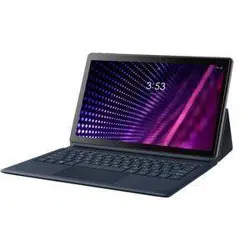
11.6" 4G + WIFI PRO TABLET WITH KEYBOARD CASE
AV-11NT510

1
CONTENTS
1. Safety
.....................................................................................................................................................................
2
2
. Important Information
..........................................................................................................................................
3
3. Technical Specifications
........................................................................................................................................
3
4. Appearance of the Tablet
......................................................................................................................................
4
5. Before Use
.............................................................................................................................................................
5
6
. Buttons
...................................................................................................................................................................
6
7
. Using the Touch Screen
.........................................................................................................................................
8
8. Using the Keyboard Case
.......................................................................................................................................
8
9. Computer Connection
...........................................................................................................................................
9
10. Applications
.......................................................................................................................................................
10
11. Using the SIM Cards
..........................................................................................................................................
10
12. Adding Contacts
.................................................................................................................................................
11
13. Communication
.................................................................................................................................................
11
14. Setting
................................................................................................................................................................
12
15. About Tablet
......................................................................................................................................................
20
16. Safe Use of the Battery
......................................................................................................................................
21
17. Maintenance of the Device
...............................................................................................................................
21
18. Surroundings Security
.......................................................................................................................................
21
19. The Use of the Manual
......................................................................................................................................
22

2
1. Safety
Read these guidelines carefully. Not following them may be dangerous or illegal.
—DO NOT RISK—
All wireless devices may cause interferences, which could affect the performance of
other devices. Do not switch on the device when the use of mobile phones is
prohibited or if it might cause interference or danger.
—RESTRICTED AREAS—
Switch OFF the device on an airplane since it may disturb the operation of other
equipment located therein. The device may interfere with operation of the medical
equipment in hospitals and health protection entities. Abide by any kinds of
prohibitions, regulations and warnings conveyed by the medical staff.
—PETROL STATIONS—
Always turn off the device while refuelling your car at a petrol station. Do not use
your device close to chemicals.
—WI-FI (WLAN)—
A WLAN network may be used indoors without any restrictions.
—ROAD SAFETY—
Do not use this device while driving any kind of vehicle.
—QUALIFIED SERVICE—
Only qualified personnel or an authorised service centre may install or repair this
product. Repairing by an unauthorised or unqualified service provider may cause
device damage and warranty loss.
—USE BY CHILDREN—
This device should not be operated by people (including children) with limited
physical or mental abilities, as well as by people with no earlier experience in
operation of electronic equipment. They may use the device only under supervision of
people responsible for their safety. This device is not a toy. Memory cards and SIM
cards are small enough to be swallowed by a child and cause choking. Keep the device
and its accessories out of reach of children.
—WATER AND OTHER LIQUIDS—
Protect the device from water and other liquids. It can influence the life span of the
electronic components. Avoid using the device in environments with high humidity
like kitchens, bathrooms or during rainy weather. Presence of moisture in the device
may have a negative impact on the workings of the electronic components.
—BATTERY AND ACCESSORIES—
Avoid exposing the battery to very high/low temperatures (below 0°C and over 40°C).
Extreme temperatures may influence capacity and battery life. Avoid contact with
liquids and metal objects as it may cause partial or complete battery damage. The
battery should be used according to its purpose. Do not destroy, impair or throw the
battery into flames - it is dangerous and may cause a fire. Worn-out or impaired
batteries should be placed in a dedicated container. Excessive charging of the battery
3
can cause damage. Installing an incorrect battery type can cause an explosion. Never
open the battery. Please dispose of the battery according to the instructions.
Disconnect an unused adapter from power supply. If the charging cable is damaged, it
should not be repaired but replaced with a new one. Use the original manufacturer’s
accessories only.
—HEARING—
To avoid hearing damage, do not use the device at high volume levels for
a long period of time. Do not put the operating device directly to your
ear.
—OPERATING ENVIRONMENT—
Do not use or store the unit in very high temperatures or in direct sunlight. Do not use
or store near heaters, stovetops or similar devices that produce heat.
2. Important Information
The majority of applications which can be installed on the device are mobile apps. The
operation of these apps may be different from their counterparts installed on a
personal computer. Apps installed on the device may vary depending on country,
region, and hardware specifications. The manufacturer is not liable for problems
caused by third party software. The manufacturer is not responsible for anomalies
that may occur when editing the registry settings and modifying the operating system
software. Attempts to modify the operating system can cause malfunctions and
problems with applications. It may cause a loss of warranty.
3. Technical Specifications
Android System
This tablet uses the Android
TM
10.0 operating system and comes with all the original
Google applications. You can also download your favourite apps from Google Play™.
Google Play
In addition to the installed apps, you may download or purchase additional apps from
Google play. To do this you should register an individual Google
TM
account providing
e-mail and password. After registration and acceptance of the rules you can use paid
and free applications listed in Google Play.
3.1 Package Content
•
Tablet
•
Mains adapter + USB charging cable (Type-C USB tip)
•
User manual
•
Warranty card
• Keyboard Case
4
3.2 Specifications
OS
Android 10.0
CPU
Octa Core Spreadtrum SC9863, 1.6GHz
Display
11.6”, 1920 x 1080 FHD Display
RAM Memory
2GB DDR
Memory
64 GB (Total built-in)
Speaker
1 W
Web Camera
Front: 8MP; Back 13MP
Ports
Type-C USB (OTG supports up to 32GB), Headphone Jack, SIM
Card & Micro SD (supports up to 128 GB) Slot
Wi-Fi
802.11 b/g/n
4G Calling
FDD B1/B3/B5/B7/B8/B20
TDD B28A/B40
Battery
6000mAh
Others
Bluetooth / GPS / FM
Adaptor
DC 5V, 2A
If any of the above items are missing or damaged, please contact us.
It is recommended to keep the packaging in case of any complaints. Keep the packaging
out of reach of children.
Dispose of the packaging in accordance with local regulations when it is no longer
needed.
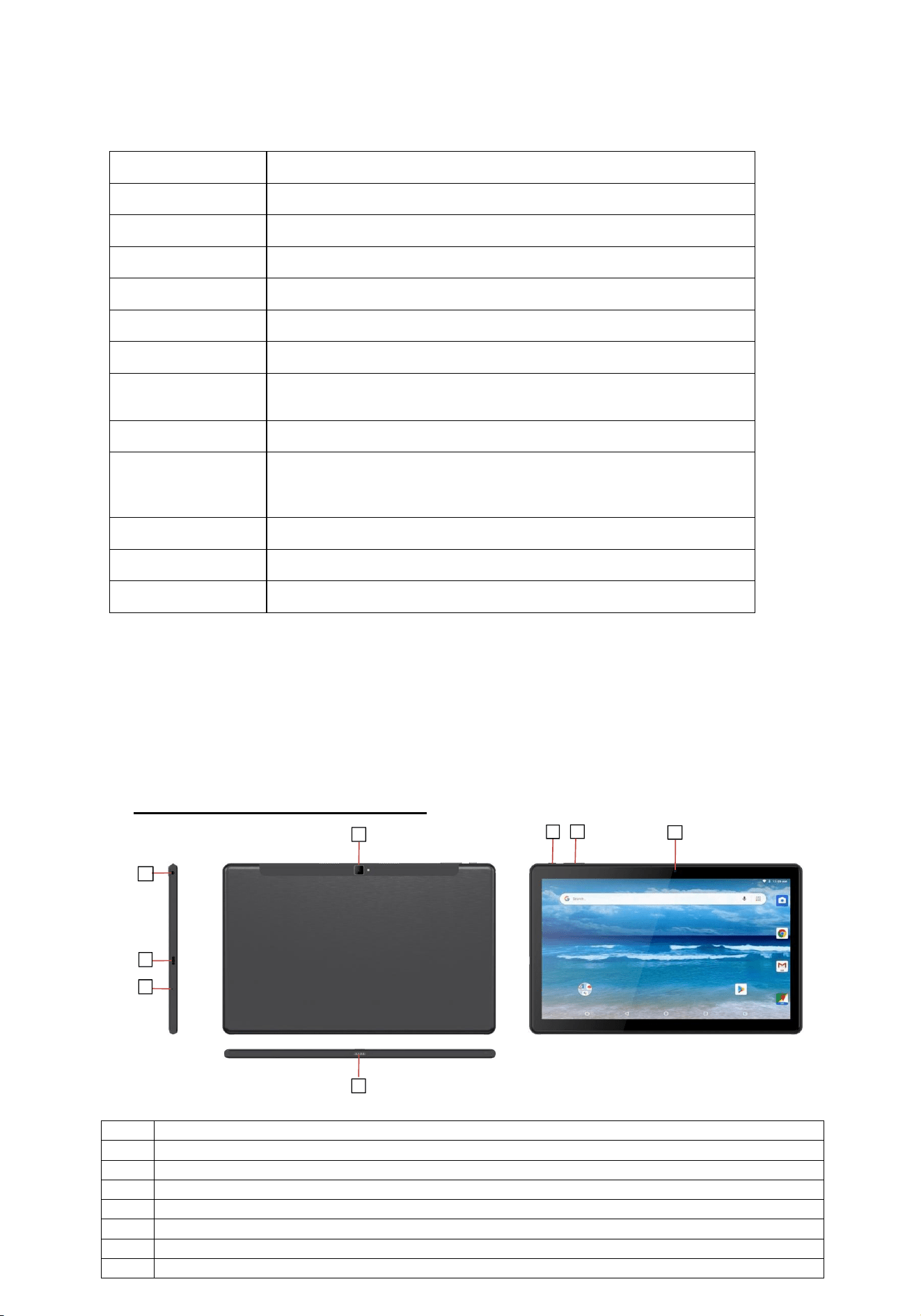
4.Appearance of the Tablet
1
Power on/off
2
Volume+/-
3
Type-C USB Port (for charging and data)
4
Earphone Jack
5
1 x SIM card slot, 1 x SIM card/microSD card slot
6
Front camera
7
Back camera with flash
8
Socket for connecting keyboard
4
1
2
3
5
7
6
8
5
5.Before Use
5.1 Inserting the SIM cards
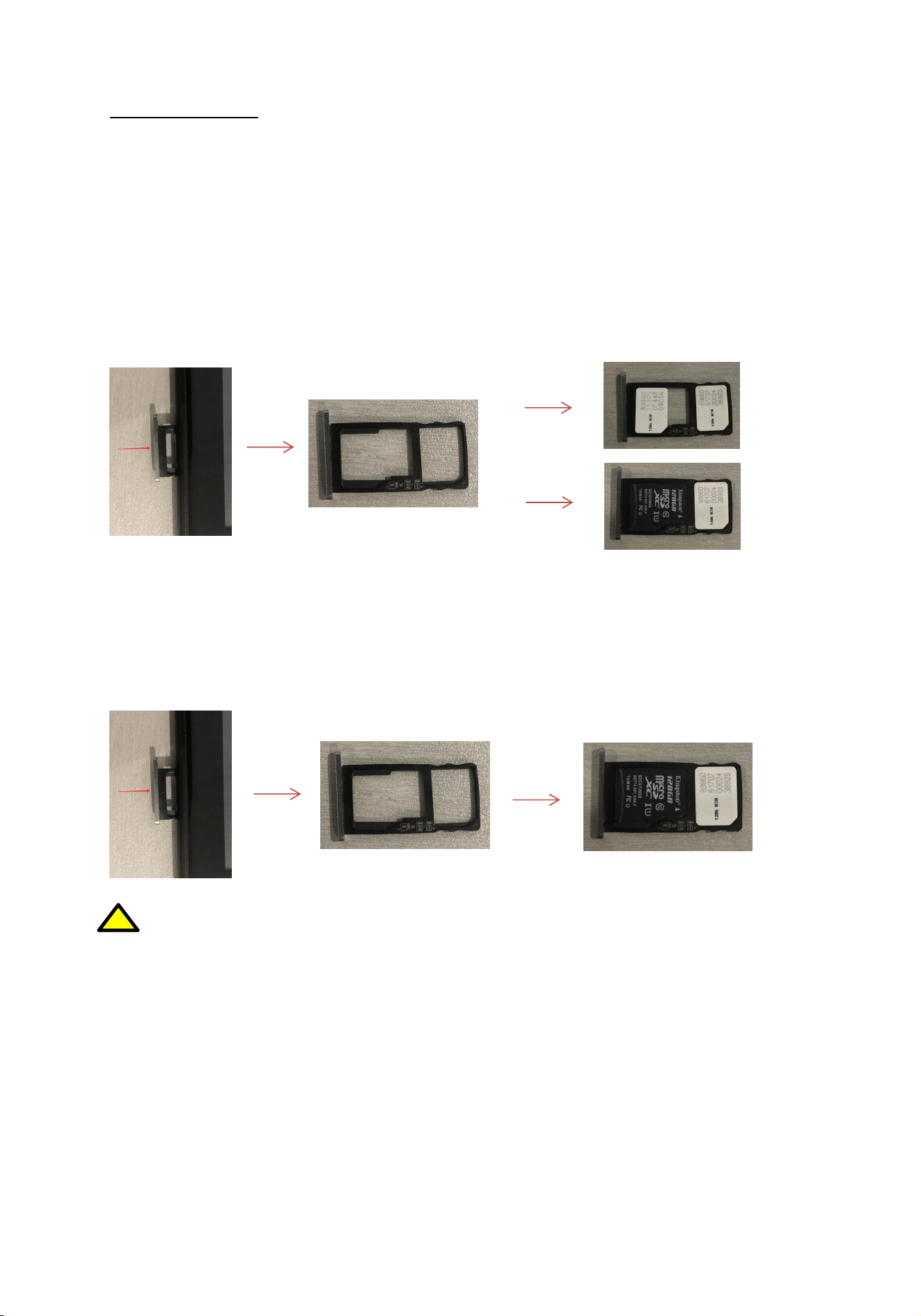
This tablet has dual SIM technology allowing the use of two mobile networks
simultaneously. It has two slots - one is a dedicated SIM card slot and the other is a
SIM card/microSD card slot.
To insert the SIM card(s), first turn off the tablet. Use a needle or similar object to
press the hole on the side of the SIM card tray. The tray will pop out, gently take it
out and place the SIM card(s) onto the slot as shown in the illustrations next to the
slots. Then push the SIM card tray back into position.
5.2 Inserting the microSD memory card
To insert the microSD card, first turn off the tablet. Use a needle or similar object to
press the hole on the side of the SIM card tray. The tray will pop out, gently take it
out and place the microSD card onto the slot as shown in the illustrations next to the
slots. Then push the SIM card tray back into position.
Supports up to 128GB microSD card with FAT32 format.
! Use only memory cards recommended by the manufacturer. Pay attention to the
selection of the proper format - micro SD card, capacity and type / class. Incompatible
memory cards may damage the device and cause the stored data to be destroyed as
well. Incompatibility of the memory card can be caused, among others, by incorrect
card format (required format micro SD) or unsupported card capacity - above the
value recommended by the manufacturer.
5.3 Charging the Battery
Charge the battery before first use. The battery should be charged using the adapter
included with the device or another adapter intended for this type of equipment (if in
doubt contact the seller or authorised service agent). Use only adapters and cables
recommended by the manufacturer. Using incompatible adapters or cables can cause
explosion of the battery or damage to your device. When the battery is near a
complete discharge, you will be notified of low battery charge. To continue use of the
device, charge the battery.

6
If the battery is completely discharged the device cannot be switched on even when
the loading process is ongoing. Before the device can be turned on again, the battery
has to be charged for at least a few minutes. In case of any problems with the battery
contact Customer Service. To charge the battery, connect the Type-C USB end of the
charging cable to the Charging Port on the tablet and the USB end to the adapter.
Incorrect charger connection can cause damage to the AC adapter or the device.
Use the Type-C USB charging cable provided, or similar Type-C USB cables. Do not
use any other type of cable. The damages resulting from improper handling are
not covered by the warranty.
Plug the adapter into the wall socket. Once charging begins, the battery icon situated
in the upper right hand corner will change to an animated symbol of lightning. If the
device is turned off an animation depicting the level of the battery charge should
appear.
The device can heat up during charging. This is normal and should not affect the
stability or performance of the device.
When the charge reaches 100% it means that the battery is fully charged. Unplug the
adapter from the wall socket and from the device.
If the device does not charge properly, contact Customer Service for advice.
6. Buttons
Multifunction On/Off button
• One quick press locks/unlocks the screen.
• If the device is off and you press the button for about 2 seconds, the device will
switch on.
If the device is on and you press the button for about 2 seconds a menu will be
displayed allowing you to shut down, restart, take screenshots, or make
emergency phone calls.
•
You can also reset by pressing and holding the button until the device resets.
Volume Increase and Decrease buttons
• If you press these buttons during a voice call, you will increase or decrease the
audio connection volume.
• If you press these buttons during an incoming call, you will mute the ringtone.
•
If you press these buttons when no calls are active, you will decrease or increase
the volume of the ringtone or change the sound profile to "vibration only" or
"alarms only".
• If you press these buttons in any other app, you will control the volume level of
the music, spoken instructions or other sounds.
7
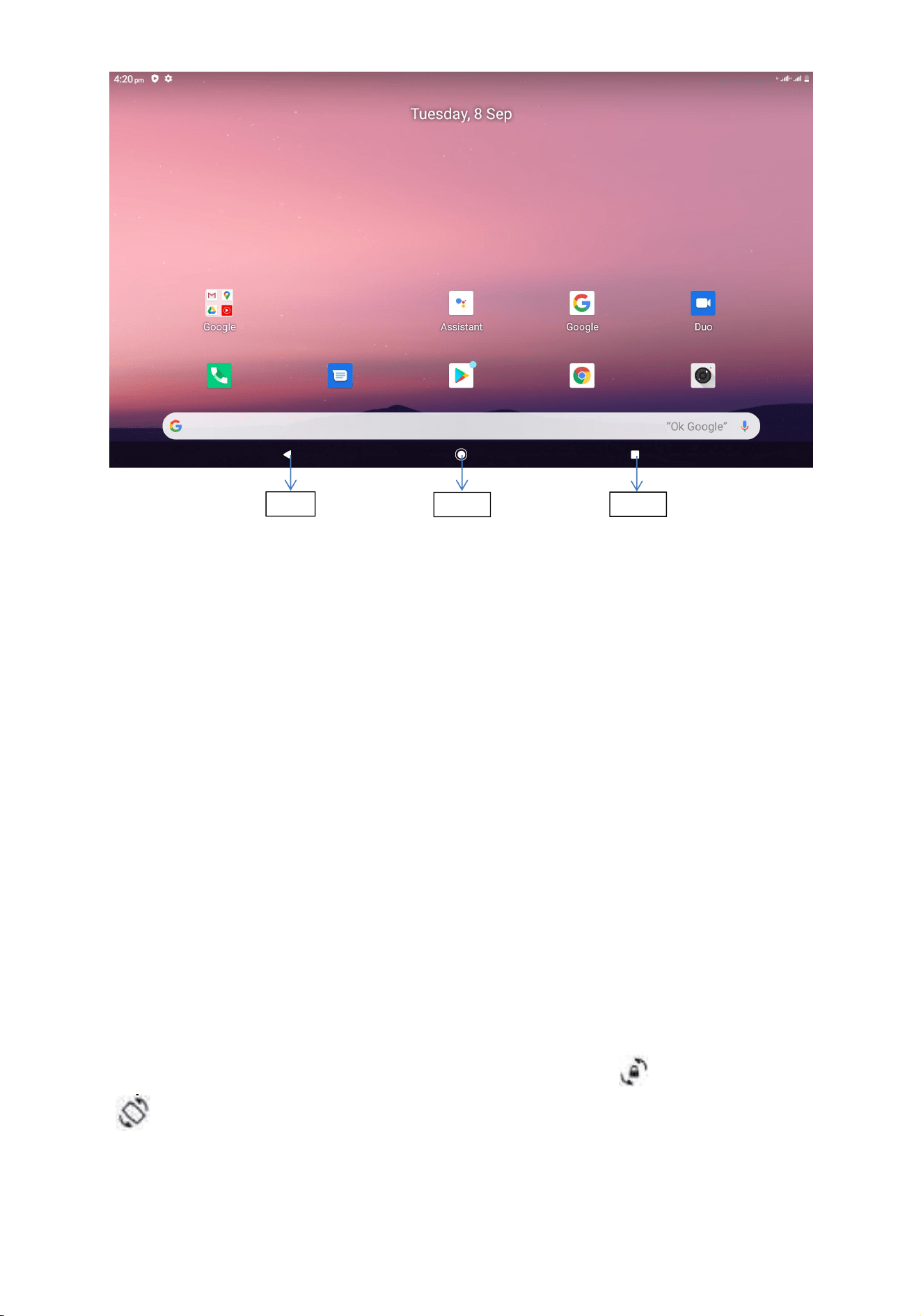
Menu
•
Pressing the Menu button will cause the list of open apps to appear, where you
can switch between the apps or turn them off.
• If you press the Menu button twice, you will open the previously used
application.
Home
• One quick press takes you to the device desktop.
• Press and hold to turn on the Google search engine and access Google Now™
function.
Back
•
Press <Back> to exit from the application / return to the previous screen.
Change the View of the Tablet
The Auto-rotate feature allows you to change the view of the device. For landscape
view, hold the tablet horizontally. For portrait view, hold the tablet vertically.
To change the Auto-rotate setting, swipe down from the top of the screen to display
notifications, and then touch the screen rotation icon to lock or unlock
the screen rotation.
Menu
Home
Back

8
7.Using the Touch Screen
The touch screen of the device lets you easily select items or perform operations.
The touch screen can be controlled by the following actions:
7.1. Touch
Touch to start options, apps, menu, etc.
7.2 Swipe
Quickly swipe up, down, to the left or to the
right to scroll through the lists or the screen.
7.3 Triple click
Quickly tap the screen three times to start
zooming (only if this option is enabled in your
device settings).
7.4 Hold and swipe
Touch an element (an icon perhaps) and hold it
for about 1 second then swipe it to delete or
uninstall.
7.5 Slide in and out
Touch the screen with two fingers and slide
them together or apart to zoom in or out of a
photo or a map.
The touch screen will be turned off after some time of inactivity. To turn off the
screen press the Multifunction On/Off button.
To set how long to wait before turning off the screen, select [Settings] > [Display] >
[Sleep].
8.Using the Keyboard
To connect the keyboard, simply hold the tablet over the keyboard as shown with the
Pins on the keyboard aligning with the Socket on the tablet. Gently push the tablet
into position so that it connects to the keyboard. Now you can start using the
keyboard and touchpad.
9
9.Computer Connection
To connect to a PC computer with Microsoft Windows XP/Vista/7/8/10 using the USB
cable, plug the Type-C USB end of the provided charging cable into the Type-C USB
port on the tablet. Plug the other end of the cable into the socket of your computer.
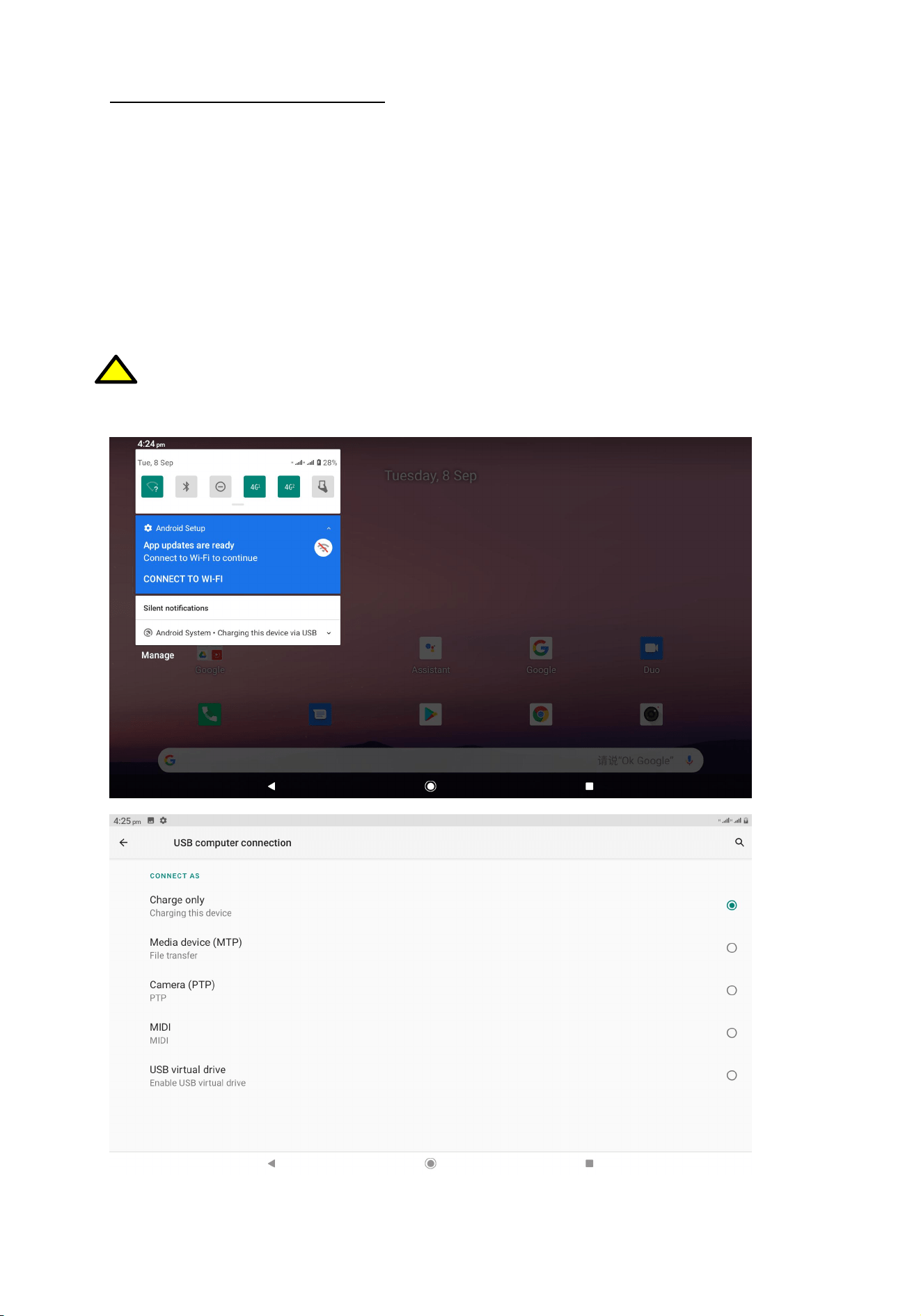
When the device is plugged in, a screen will appear on your tablet with the fingerprint
of the computer, here you will choose “Always allow from this computer” “OK”.
Next you need to connect the tablet to computer in Setting-Connected devices-USB.
The default option is “charging the device via USB”, choose “MTP ” if you wish to do
so.
The Steps are shown below.
! If the OS does not see device memory, check if the installed driver operating the
device is correct. Search the driver list manually and choose "MTP”.
10
10.Applications
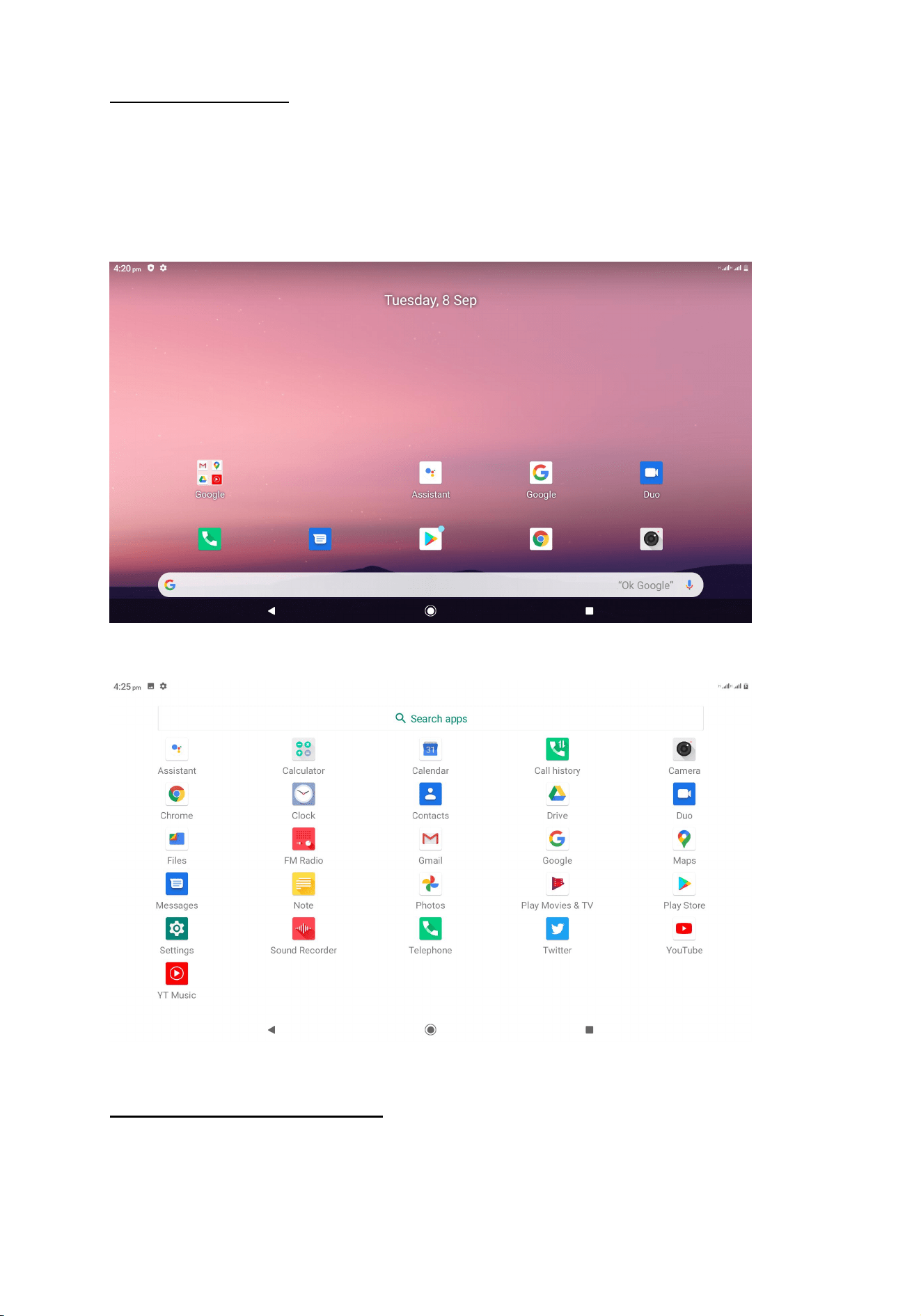
On the desktop screen, tap the icon [Application menu] to gain access to installed
applications. To add a shortcut to an application on the desktop screen, press the
application icon in the application menu and hold it, then when you change the view
to the desktop view, select the place where you wish to create a shortcut and "drop"
it in there.
11. Using the SIM Cards
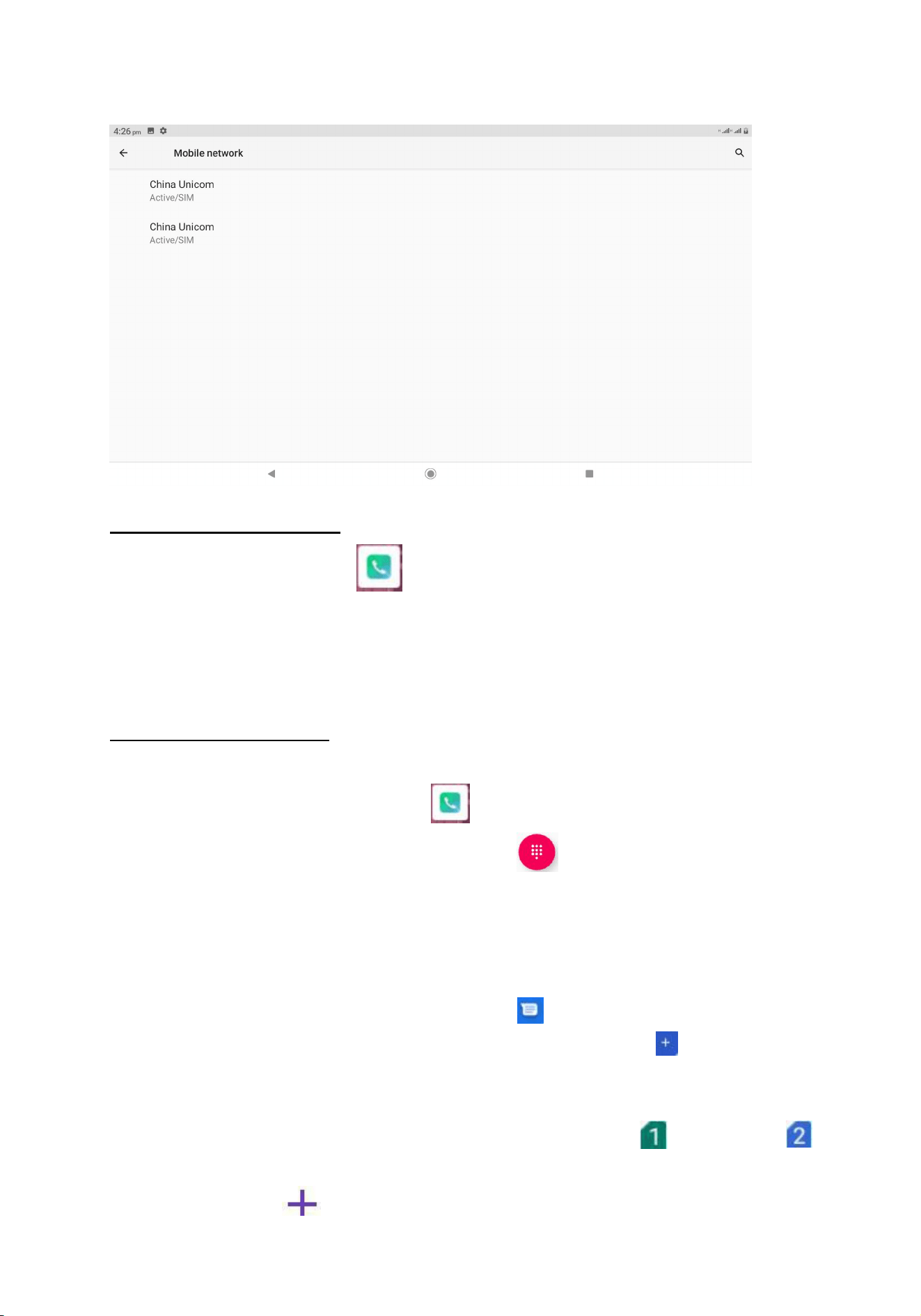
When you turn on the tablet after inserting the SIM cards, the tablet automatically
identifies the SIM cards and you can see the signal information on the top bar. To
change the SIM card settings, go to Settings Network & Internet Mobile network.
11
Here you can choose one of the SIM cards as the preferred SIM for mobile data, calls
and messages.
12. Adding Contacts
Enter the [Phone] application and type the number you wish to
add then press "Contact”. A menu will appear containing, among others: Name and
surname, Phone number, Second phone number, E-mail.
Fill in the fields as required and press √ to save changes.
13.Communication
13.1 Making calls
To make a call, touch the "Phone" icon on the main screen or in Android
Applications menu and choose the keyboard icon . Insert the phone number you
wish to call. Press "Handset" on the bottom of the screen and select which SIM card
you wish to use.
13.2 SMS - Messages
You can manage messages using the [Messaging] application on the
home screen or in the device menu. Run an application and touch icon and insert
the phone number and name. When you have chosen the contact a screen will appear
where you can type the message.
To send a message, press the icon with the SIM card designation (for SIM 1) or
(for SIM 2). Before you send a text message you can transform it into a multimedia
message by pressing symbol situated on the left hand side of the screen and
adding a file (picture, video, music etc.)
12
14.Setting

13
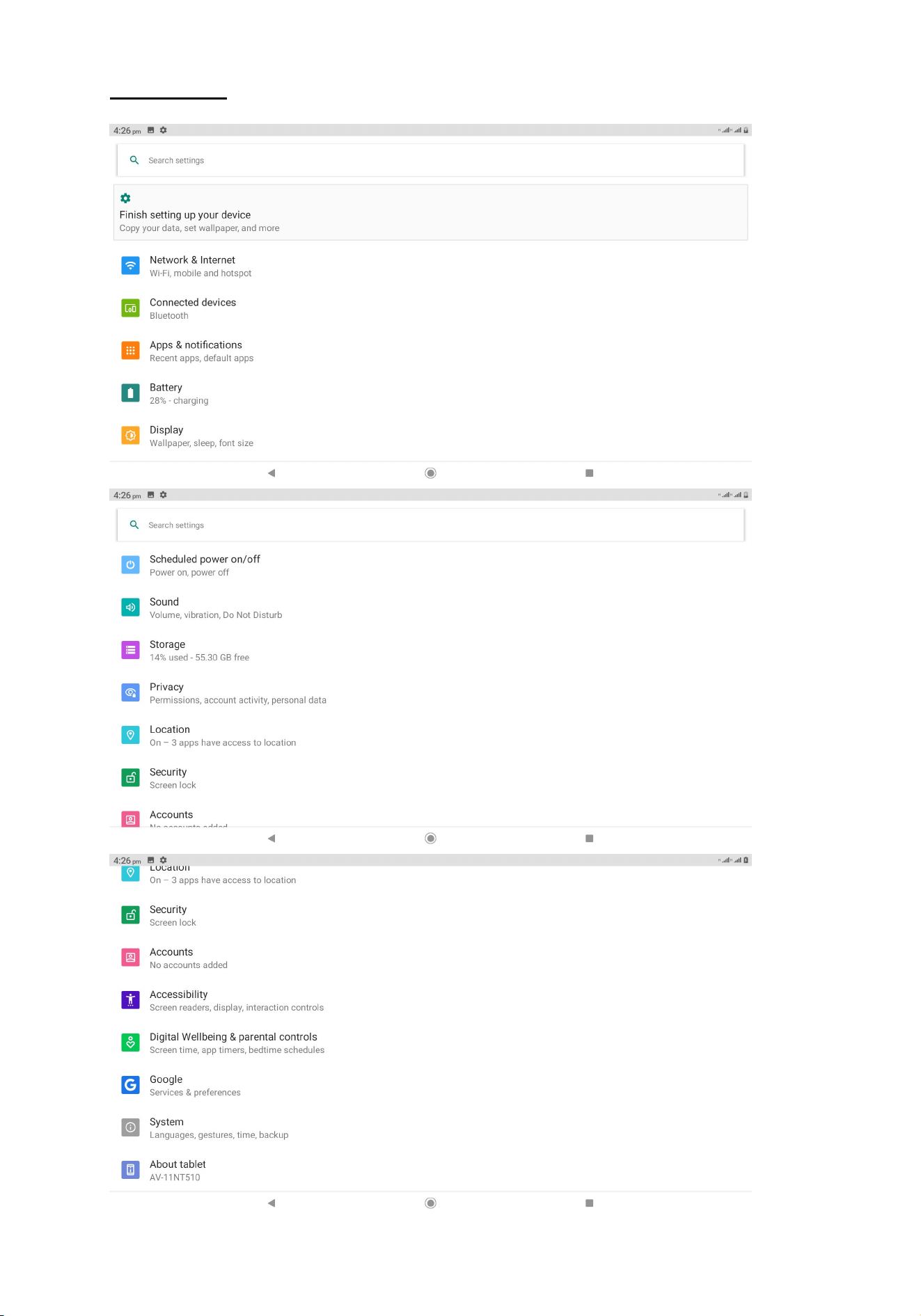
14.1 Network & Internet
Set up WIFI connection, Mobile network, Data usage, Hotspot & Tethering, SIM cards,
VPN and Airplane mode.
14.2 Connected Devices
Set up Bluetooth, Printing and connect the tablet to a computer using a USB cable.
14
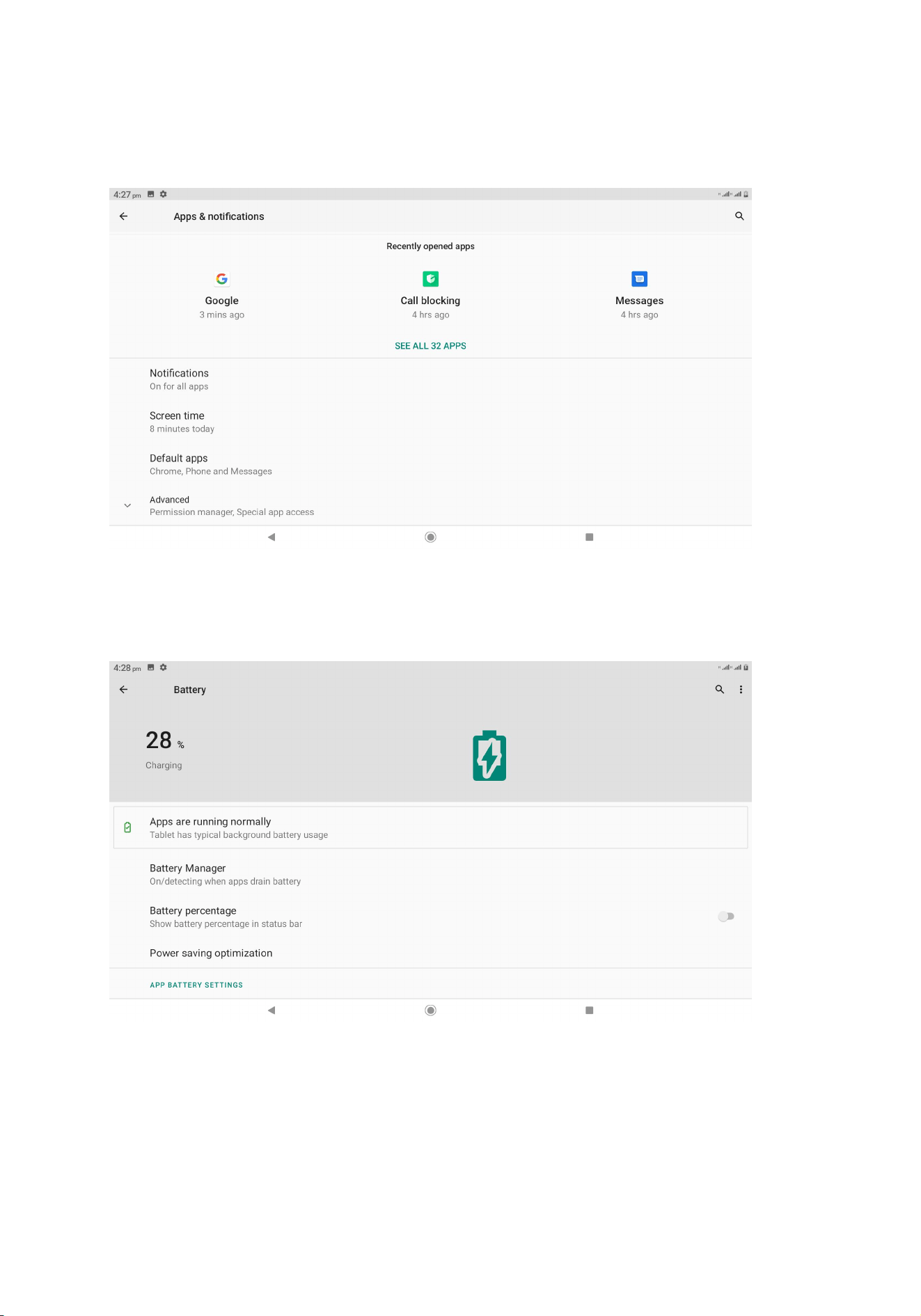
14.3 Apps & Notifications
Check All APP information, Notifications, APP permissions and Advanced for default
and some special app access.
14.4 Battery
Provides battery usage data.
15
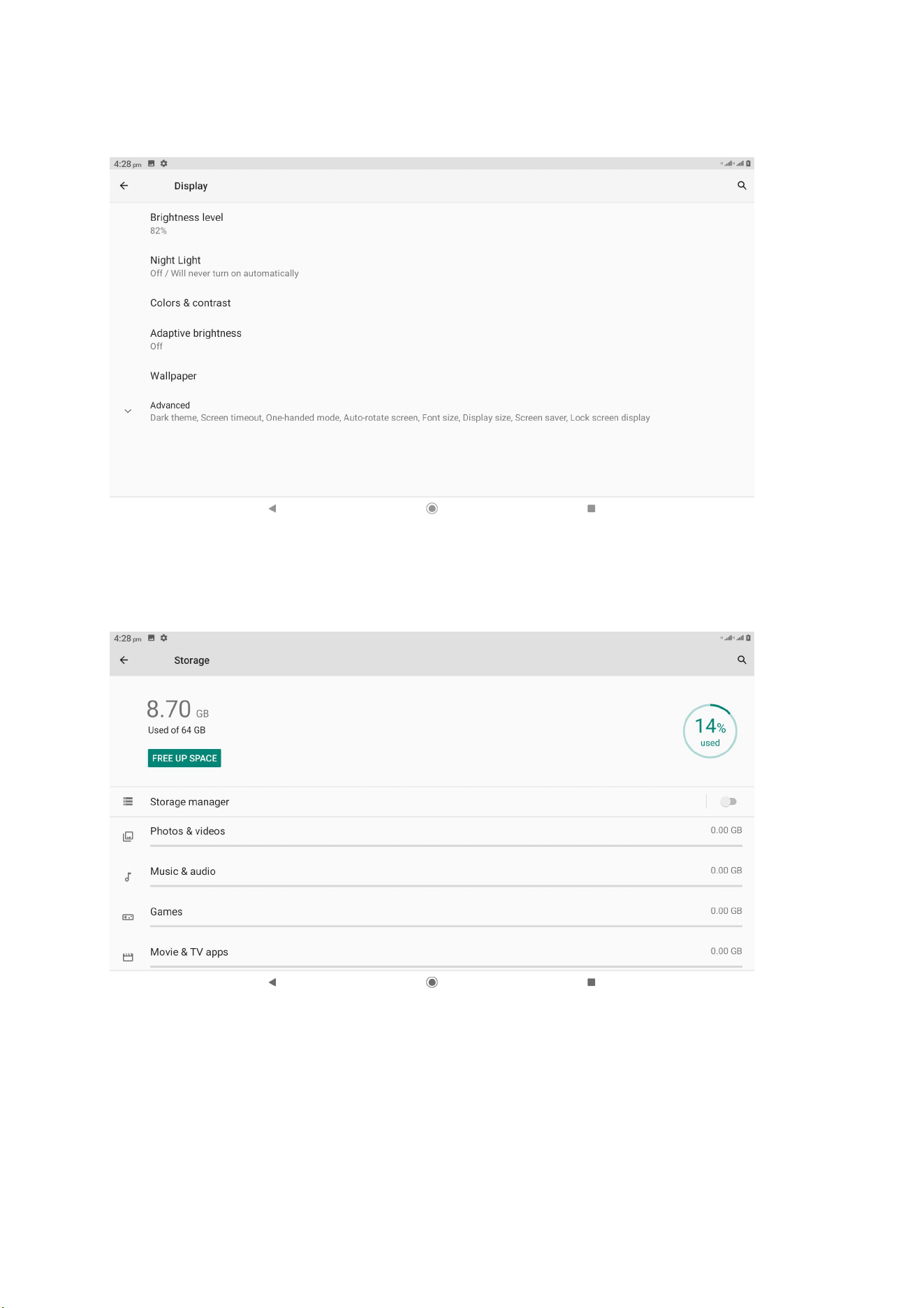
14.5 Display
Adjust brightness, change your wallpaper, turn on/off screen rotation, sleep settings
and font size.
14.6 Storage
Check all storage details.
16
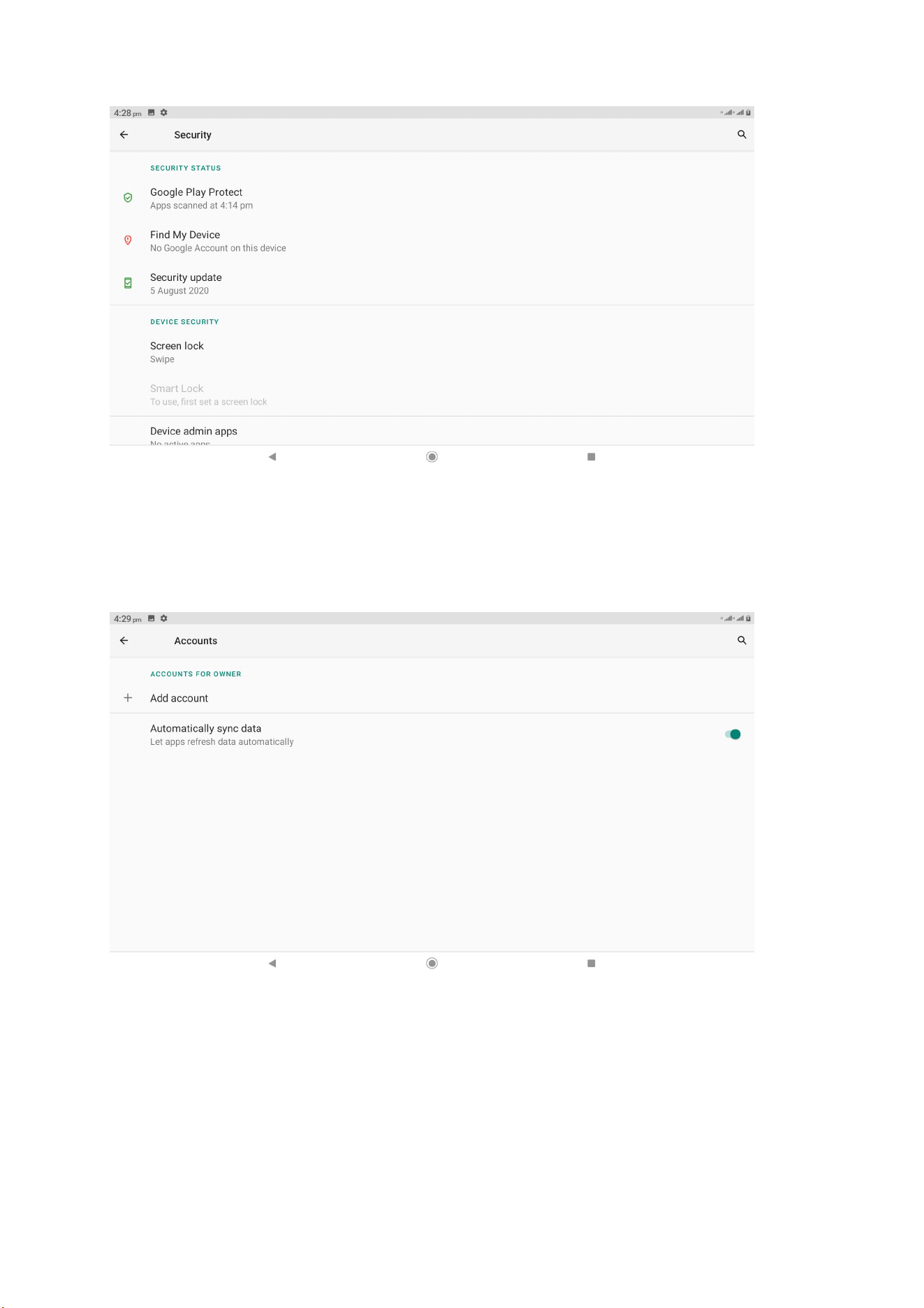
14.7 Security
Set the security of the device and privacy.
14.8 Accounts
Tap to add or remove accounts such as Google, Outlook, Hotmail , Yahoo , etc. can be
added to the device.
17
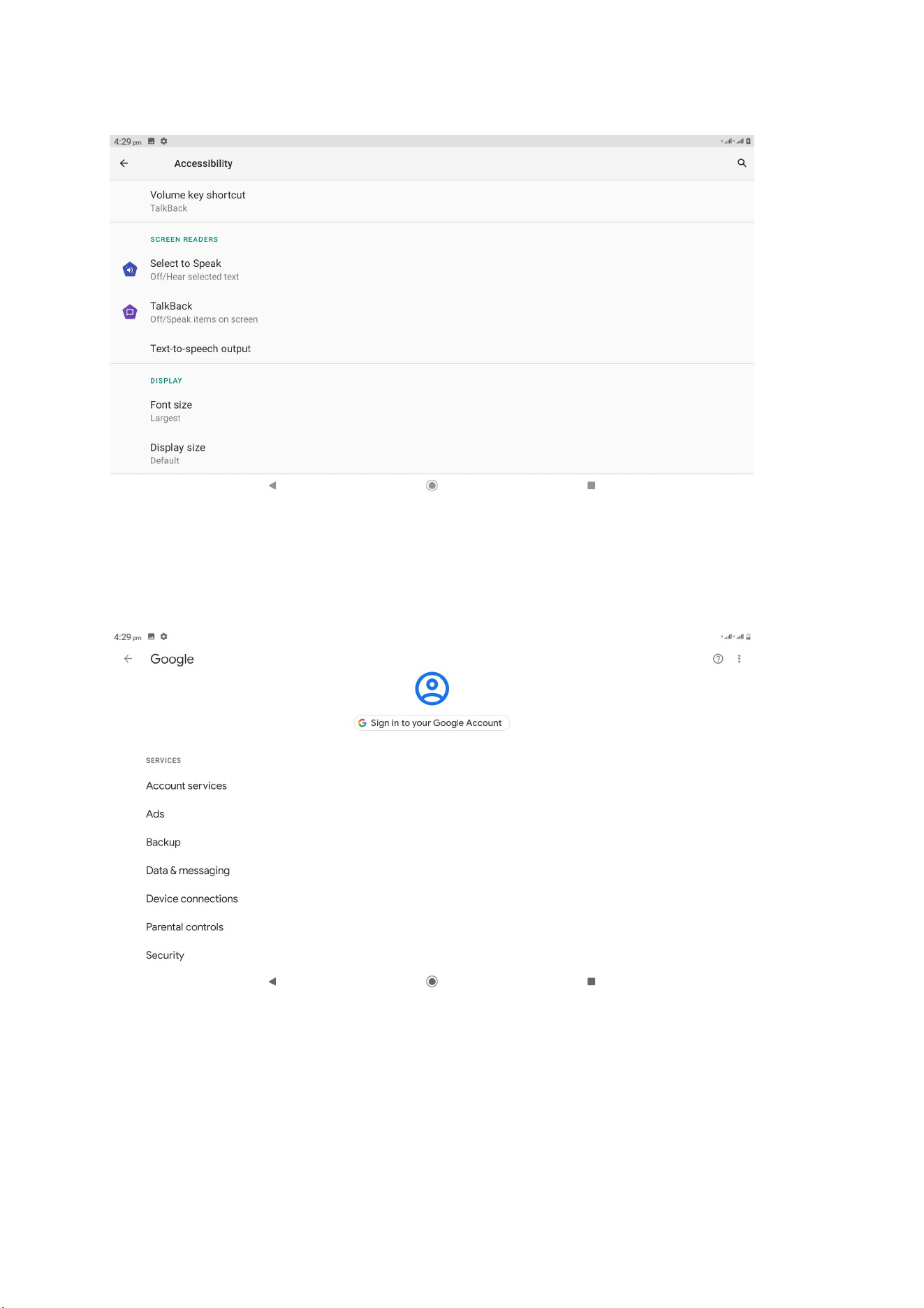
14.9 Accessibility
Adjust settings for users with poor vision.
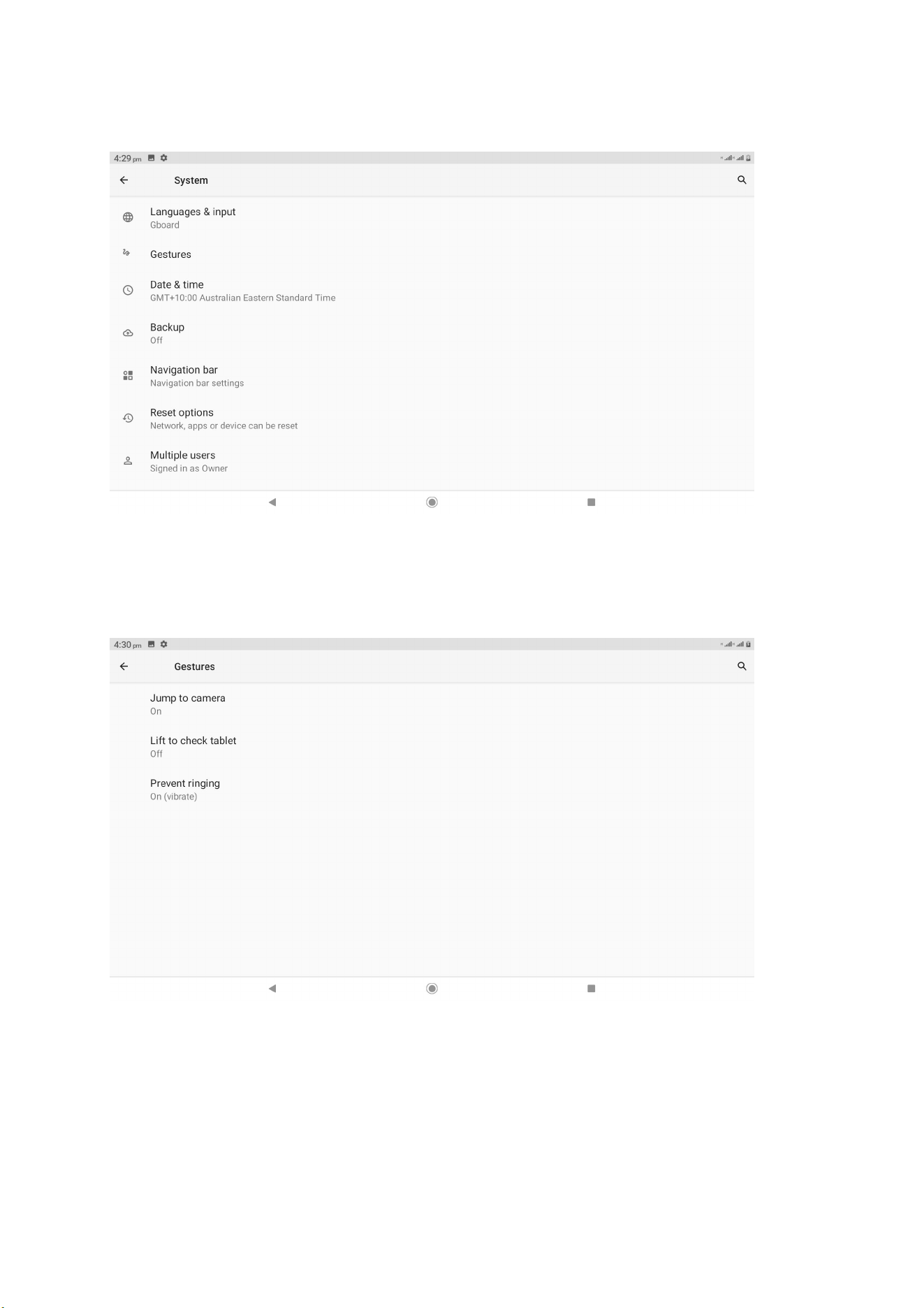
14.10 Google
Set Android Auto App, Cast Media Controls, Nearby Location, Restore Contacts,
Security, Or set up Nearby Device. You can also set up work profile under this setting.
18
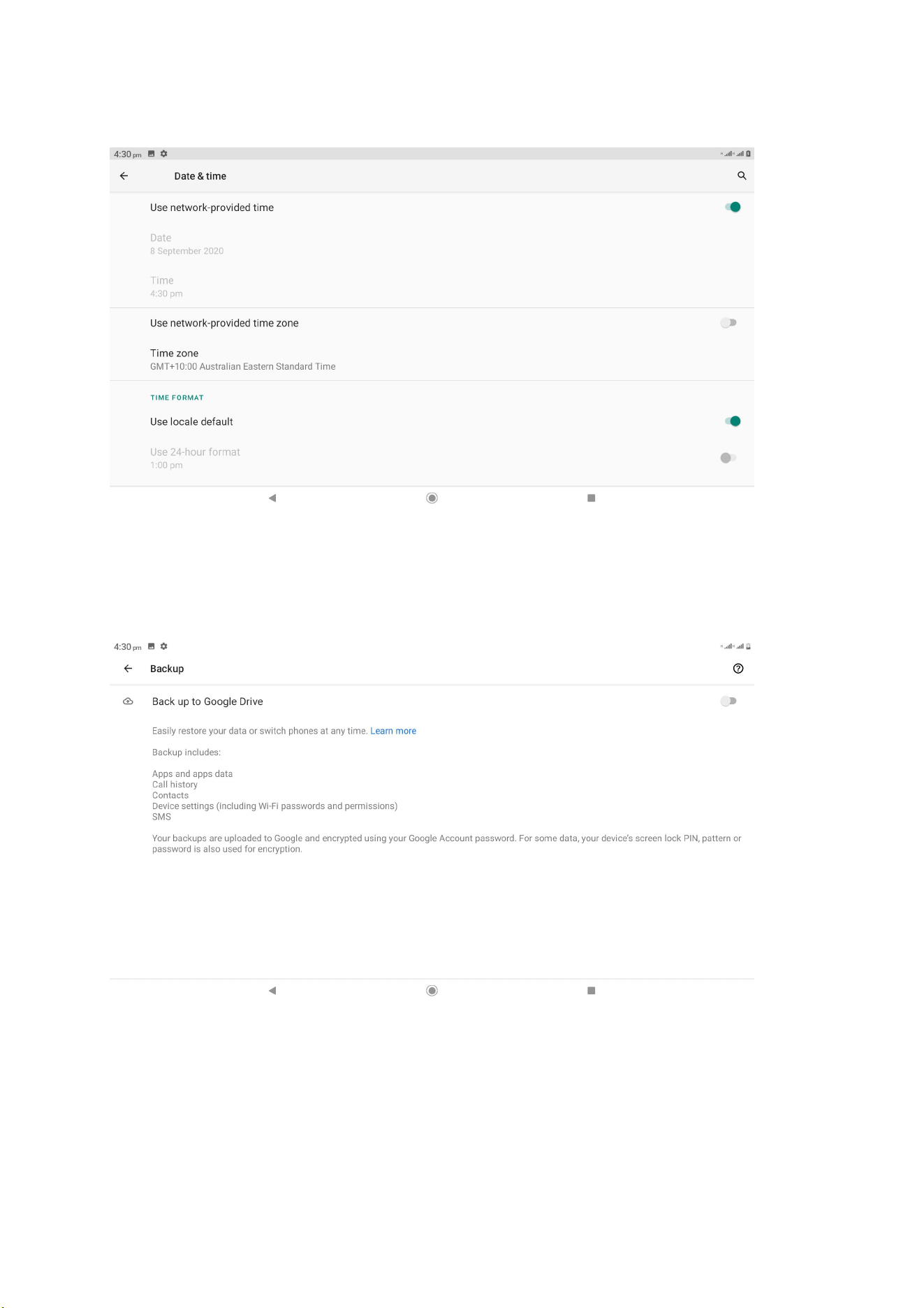
14.11System
14.11.1 Languages & Input
Set language, spelling correction, keyboard and voice settings.
14.11.2 Gesture
Set Jump to camera.
19
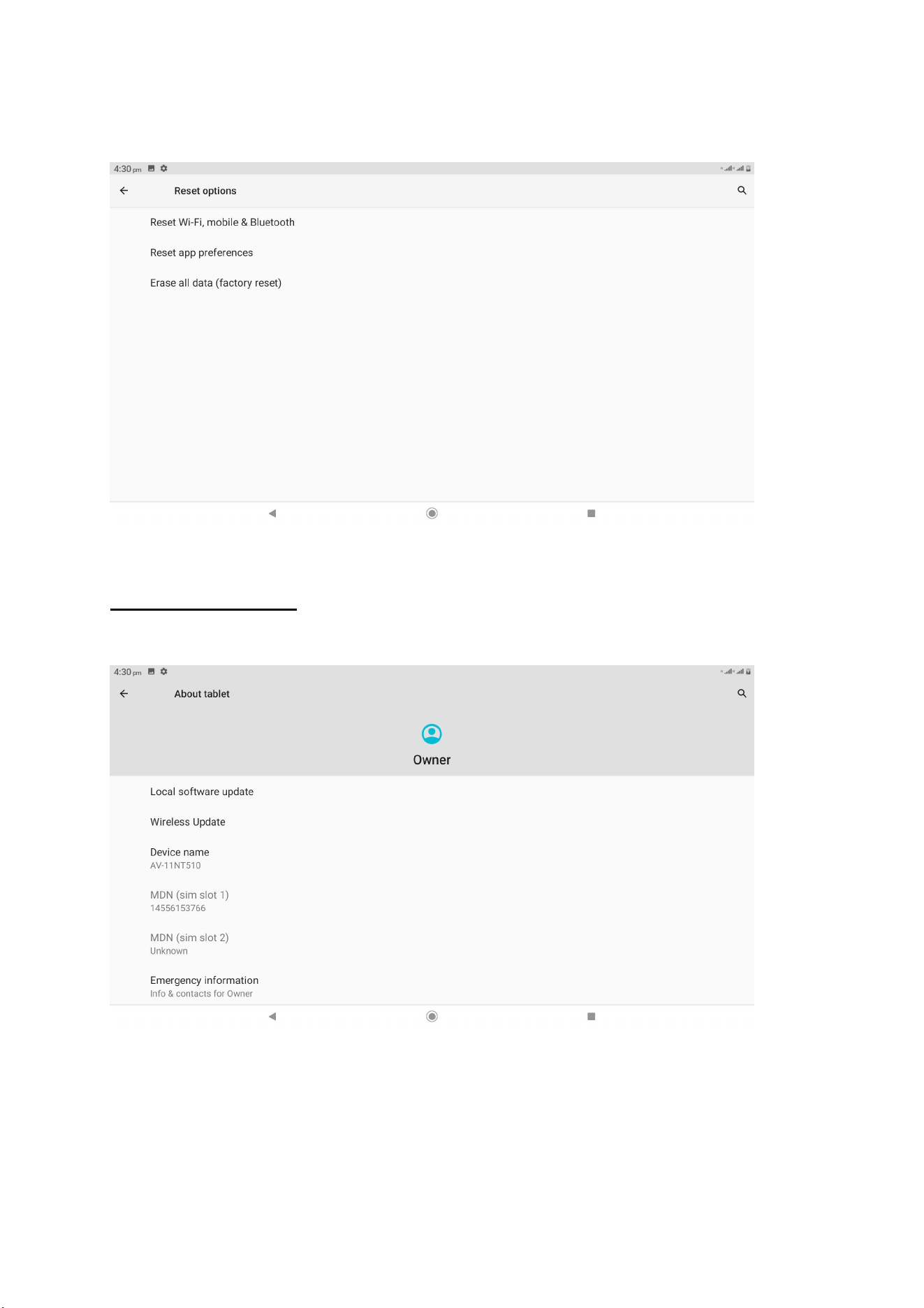
14.11.3 Date & Time
Set the date, time and time zone.
14.11.4 Backup
Backup data.
20
14.11.5 Reset options
Reset your tablet.
Important: Please note that doing a factory reset will delete all your apps and data.
15.About Tablet
Model number and general tablet information.
21
16. Safe Use of the Battery
The battery may be charged using the USB port of a computer or laptop. Nevertheless,
it is not a recommended form of charging an operating device due to the low
charging current offered by the USB. Even though the device is connected to a power
source, the battery can still get discharged. If you wish to charge your device this way,
turn off the device. If the battery level is low, recharge it to continue the use of the
device. If you wish to prolong the battery life span, discharge the battery beneath
20% of the battery capacity and charge it back to 100%. If not used, unplug the
adapter from the device. Excessive charging might cause shortened battery life. The
temperature of the battery has an impact on its charging cycle. Prior to the charging
process, cool the battery or raise its temperature so that it is similar to the room
temperature. If the battery temperature exceeds 40°C the battery must not be
charged! Do not use a damaged battery! The battery life span can be shortened, if it
has been exposed to very low or very high temperatures - this causes interference to
the device, even when the battery has been properly charged.
17.Maintenance of the Device
When using any electrical appliance, basic precautions should always be followed,
including the following:
•
Keep the device and its accessories out of reach of children.
•
Avoid contact with liquids; it can cause damage to electronic components of the
device.
•
Avoid very high temperatures for it can shorten the life of the tablet, electronic
components, melt the plastic parts and destroy the battery.
• Do not try to disassemble the device. Tampering with the device in an
unprofessional manner may cause serious damage to the device or destroy it
completely.
• For cleaning use only a dry cloth. Never use any cleaning agent with a high
concentration of acids or alkalis.
•
Use the original accessories only. Violation of this rule may result in an
invalidation of the warranty.
The packaging of the device can be recycled in accordance with local regulations.
18. Surroundings Security
Turn off the device in areas where its use is forbidden or when it may cause
interference or danger. The use of any devices that radiate radio waves may cause
interference with medical devices (i.e. cardiac pacemaker), if they are not properly
secured (if in doubt, consult your doctor or medical device manufacturer).
Attention
Statement
The manufacturer is not responsible for any damages or
consequences caused by improper use of the tablet.
The software version can be upgraded without
earlier notice

22
19.The Use of the Manual
19.1 Consents
Without prior written consent of the manufacturer, no part of this manual may be
photocopied, reproduced, translated or transmitted in any form or by any means,
electronic or mechanical, including photocopying, recording or storing in any
systems of storing and sharing information.
19.2 Appearance
The device and screen shots contained in this manual may differ from the actual
product. Accessories attached to the set may differ from the illustrations included
in the manual.Options described in the manual are found in the Android system.
Those descriptions may differ, depending on the version of the operating system
and applications installed on the device.
19.3 Trademarks
• Android is a trademark of Google LLC.
•
Wi-Fi
®
Wi-Fi logo are registered trademarks Wi-Fi Alliance association.
•
All other trademarks and copyrights belong to their respective owners.
The Android robot is reproduced or modified from work created and shared
by Google and used according to the terms described in the Creative
Commons 3.0 Attribution License

Register your product at jvctv.com.au/warranty-registration