TM
QUICK START GUIDE
EDL6-1001-BLK
0824 v1.1
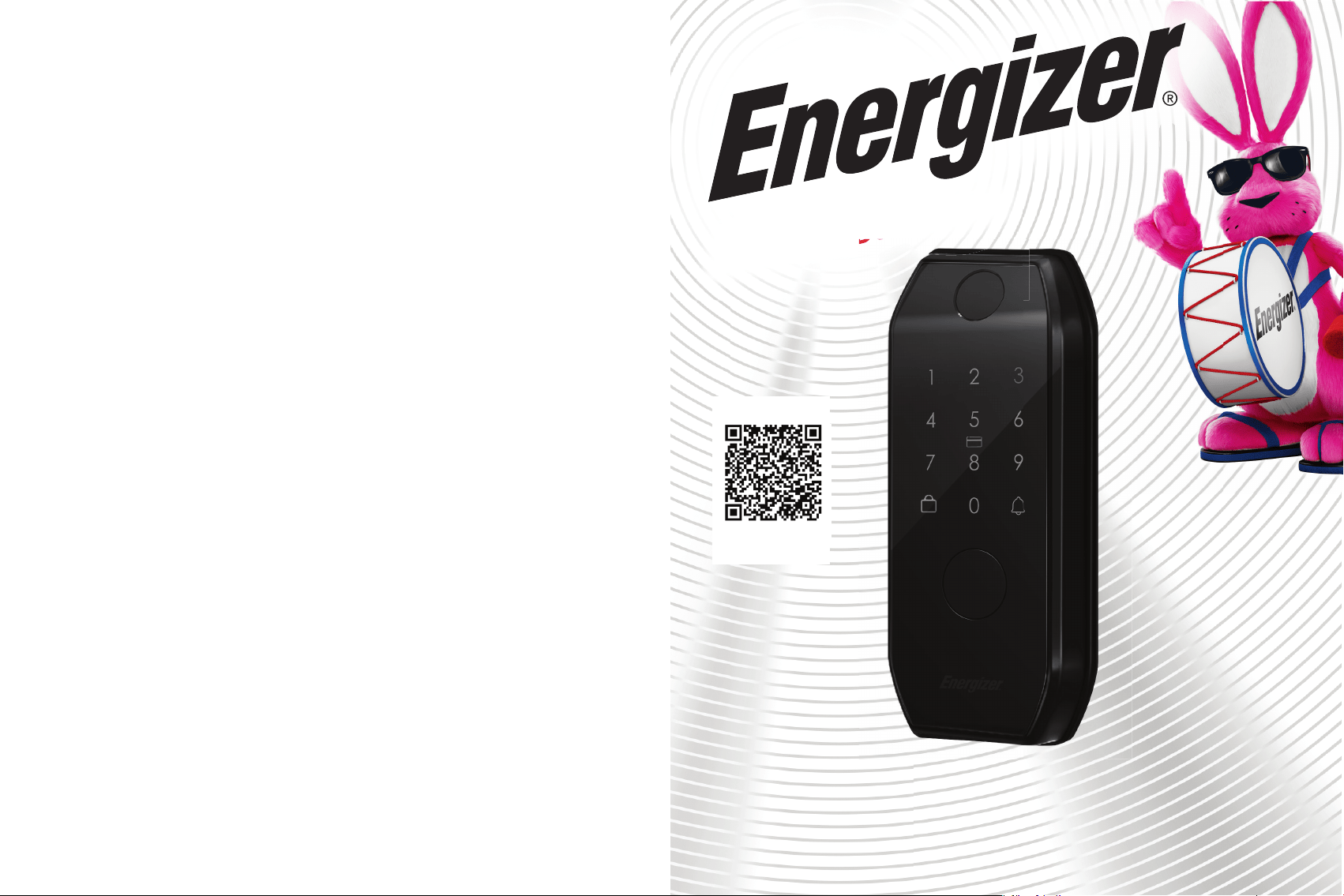
SMART
DEADBOLT DOOR LOCK
DEADBOLT DOOR LOCK
Scan the QR code to
upgrade your warranty
From 1 Year to 2 Year
Limited Warranty
Item#EDL6-1001-BLK

TABLE OF CONTENTS
Components Overview .................................. ��
Specifications ............................................... ��
Connect the Device On App.............................. ��
Add Device .................................................... ��
Lock Body Overview ...................................... ��
Installation Guide ........................................... ��
Deadbolt Installation ..................................... ��
Lock Body Installation ................................... ��-��
FAQ ................................................ ��-��
Operating Instructions ...................................... ��
Family Management ...................................... ��
Add Command .............................................. ��
Safe Mode & Alarm Mode .............................. ��
Operation Log .................................................
��
Restore Factory Settings ................................
��
We provide a ��-day money-back guarantee from the date of purchase. Please ensure that the first
return or replacement request is made within �� days from the date of purchase. Energize® Connect
reserves the right to reject any requests that do not meet the stated criteria. Once again, we sincerely
thank you for your trust and wish you a joyful life.
Return Policy
FCC Statement
Your positive feedback and comments regarding our products are highly appreciated. In the event
that our products fall short and result in an unsatisfactory experience, we kindly request that you
reach out to us first at . Rest assured, we will make every effort to
address and resolve any issues you encounter.
WEBSITE:www.energizerconnect.com
HOTLINE:1-888-693-4189
(Mon.-Thu. 10am-6pm EST) (Fri. 9am-3:30pm EST) (Sat.-Sun. Closed)
AFTER-SALES SERVICE:
www.energizerconnect.com
www.energizerconnect.com
This product may undergo minor functional modifications in different versions. Therefore, the
manual serves as a reference only. For the most accurate information, please refer to the actual
product and the latest official updates. If you notice any damage to the lock or encounter any
operational issues, please do not hesitate to contact our customer service for further assistance.
⸺ We are here to assist you!
This equipment has been tested and found to comply with the limits for a Class B digital
device, pursuant to Part �� of the FCC Rules. These limits are designed to provide reasonable
protection against harmful interference in a residential installation. This equipment generates
uses and can radiate radio frequency energy and, if not installed and used in accordance with
the instructions, may cause harmful interference to radio communications. However, there is
no guarantee that interference will not occur in a particular installation. If this equipment does
cause harmful interference to radio or television reception, which can be determined by
turning the equipment off and on, the user is encouraged to try to correct the interference by
one or more of the following measures:
-- Reorient or relocate the receiving antenna.
-- Increase the separation between the equipment and receiver.
-- Connect the equipment into an outlet on a circuit different from that to which the receiver is
connected.
-- Consult the dealer or an experienced radio/TV technician for help.
This device complies with part �� of the FCC Rules. Operation is subject to the following two
conditions:
(�) This device may not cause harmful interference, and (�) This device must accept any
interference received, including interference that may cause undesired operation.
Changes or modifications not expressly approved by the party responsible for compliance could
void the user's authority to operate the equipment.
RF Exposure Statement
To satisfy FCC’s RF exposure requirements, a separation distance of �� cm or more should be
maintained between the antenna of this device and persons during device operation. To ensure
compliance, operations at closer than this distance is not recommended.
01 02
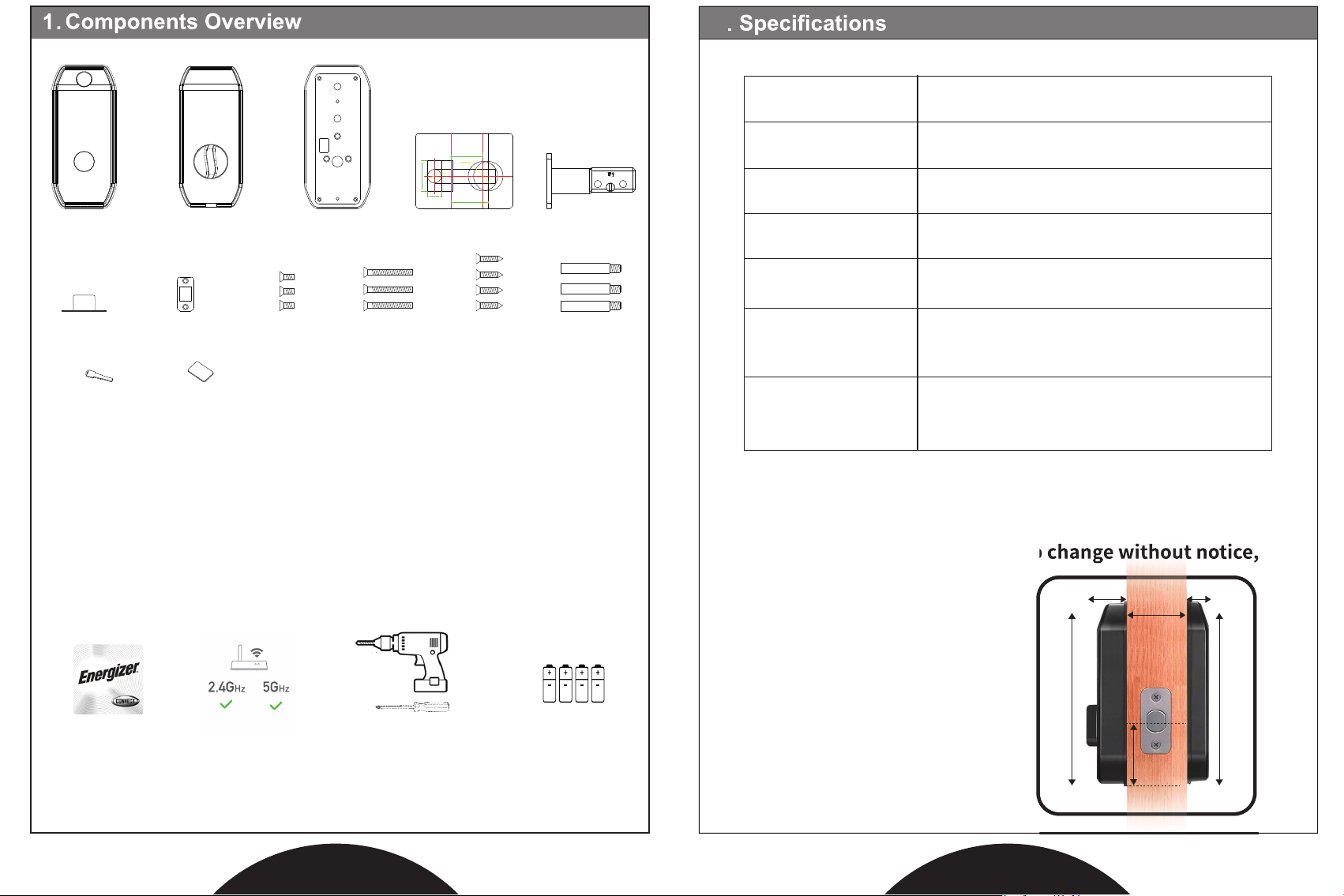
Cross bolt x�
Mechanical key x� Key FOB x�
M�x��mm x�M�x�mm x� M�x��mm x�Strike Box x� Strike Plate x�
Mounting plate x� Drilling template x� Deadbolt x�
2
�. Please check the status of the accessories. If you find any items missing or
damaged during transportation, contact us as soon as possible to reissue
them for you.
�. To power on the lock, four NEW alkaline AA batteries(not included)
are required.
Non-alkaline and/or rechargeable batteries ARE NOT RECOMMENDED.
Ø29.59mm
Ø13.72mm
60mm
57.5mm
26mm
70mm
Front Body x� Back Body x�
Door thickness
Compatibility
��mm-��mm
�~��digits
��%~��%(no condensation)
-�F~���°F
�v(�Pcs AA Alkaline Batteries not included)
Fingerprint , Key FOB, Numerical Code,
Bluetooth, Mechanical key
Fingerprint (��) / Card (��) / Password (��)
Temporary Password (��)
Working Humidity
Power Supply
Code length
Working Temperature
Unlocking Methods
User Capacity
All specifications are subject to change without notice,
and all right are reserved.
All specifications are subject to change without notice,
1.38” - 2.08”
(35 - 53mm)
2.24”
(57mm)
5.98” (152mm)
5.98” (152mm)
0.98” (25mm)
0.75” (19mm)
Screwdriver & Drill
(Optional)
4x AA Baמּeries
App
2.4GHz or 5GHz
What You Need:
0403
5. Connect The Doorlock To App
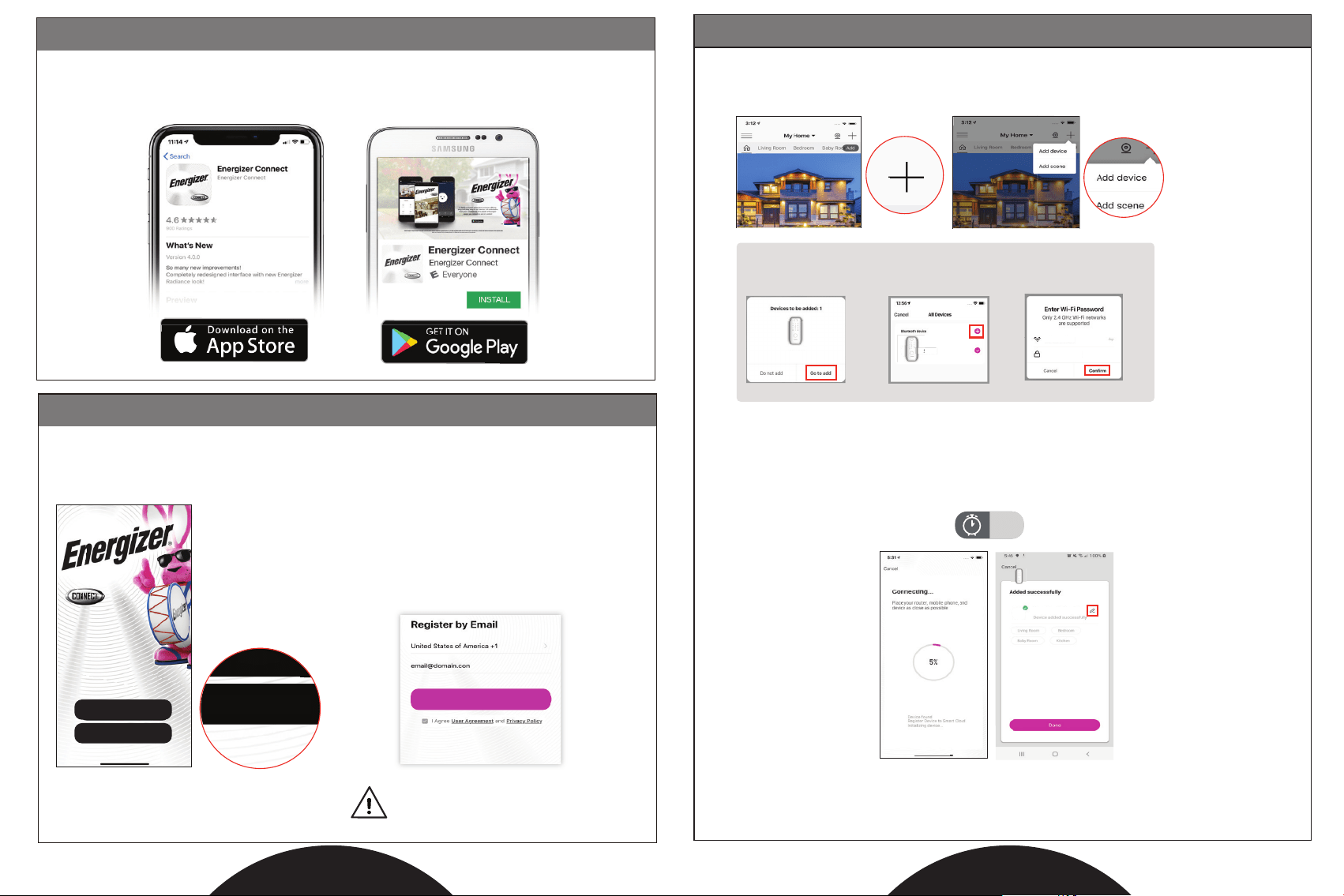
3. Download The App
4. Create Account
Download the free Energizer
®
Connect app from the App Store (for iPhones)
or Google Play Store (for Android phones).
Create Account
Open the app and click “Create Account” by following the on-screen instructions.
Get Verication Code
After your initial sign in, your app will remember
your password and log you in automatically.
You can also choose to manually log out under
Settings in the Main menu.
Login
Create Account
You may need to check your Spam
folder for the verification code
Click
Create Account
Create Account
It is recommended to pair the Doorlock with your app before hardware installation.
Make sure your Bluetooth® is enabled.
After logging in, click “+” on the top right of the screen and select "Add device".
The app will detect the
WIFI+BLE enabled device and
ask if you if you want to add it
Make sure your 2.4GHz network
is selected, input the password
and press confirm
Make sure the check is makred
next to the device you want to
add, click the + buמּon
Click
Select
Home
*********
Smart Door Lock
Smart Door Lock
Your Smart Device will now be connected to your account. Confirm the settings for your
device and then Click “Done”.
Note: The Doorlock will not be connected to your wi and is only accessible via the mobile when you are
within Bluetooth range (30ft) with your mobile phone's Bluetooth turned on.
1-2
minutes
PROCESSING TIME
Energizer Smart Door Lock
Your Energizer
®
Smart Device is now ready to use. We hope you enjoy using your Energizer
®
Smart
Device. For frequently asked questions and instruction videos, please visit our website at
www.energizerconnect.com.
Smart Door Lock
05
UP
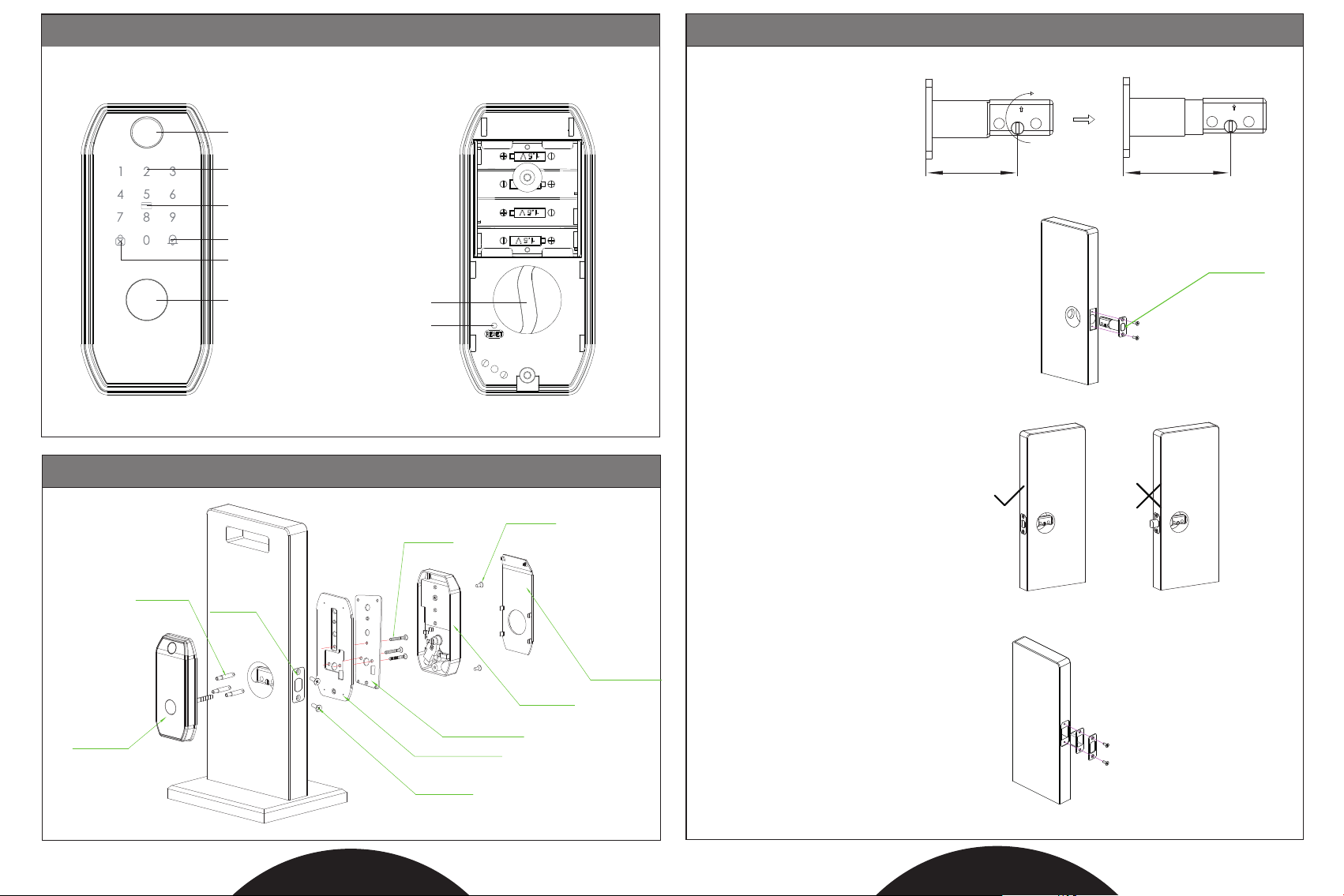
The deadbolt has TWO length
options:2
3
/4 or 2
3
/8 inches. Please adjust
it by yourself (if needed).
These instructions assume you already
have a deadbolt hole and strike box
area cut into your door.
NOTE:
�.NOTE: Keep the bolt in retracted (unlocked) position during installation.
�. Fix the strike box and strike plate on door Frame with two M�x��mm screws.
���°
��mm
UP
Deadbolt
��mm
�. Adjust the length of the bolt if it is required
by twisting the deadbolt setup into the
appropriate position.
�. Install the deadbolt with two M�x��mm screws.
Cross bolt
Deadbolt
Front body
Mounting plate
Mounting pad
Back body
Battery cover
M�x��mm
M�x��mm
M�x�mm
Fingerprint Sensor
Key FOB
Keypad
Unlocked or Door Bell
Manual Lock
Key Hole
With Cover
Thumb Turn
Reset
Please note: the "UP(↑)" on the deadbolt
must be facing up.
06
6. Lock Design Overview
With Battery Cover Off
7. Installation Guide
8. Deadbolt Installation
Front Side Back Side
07
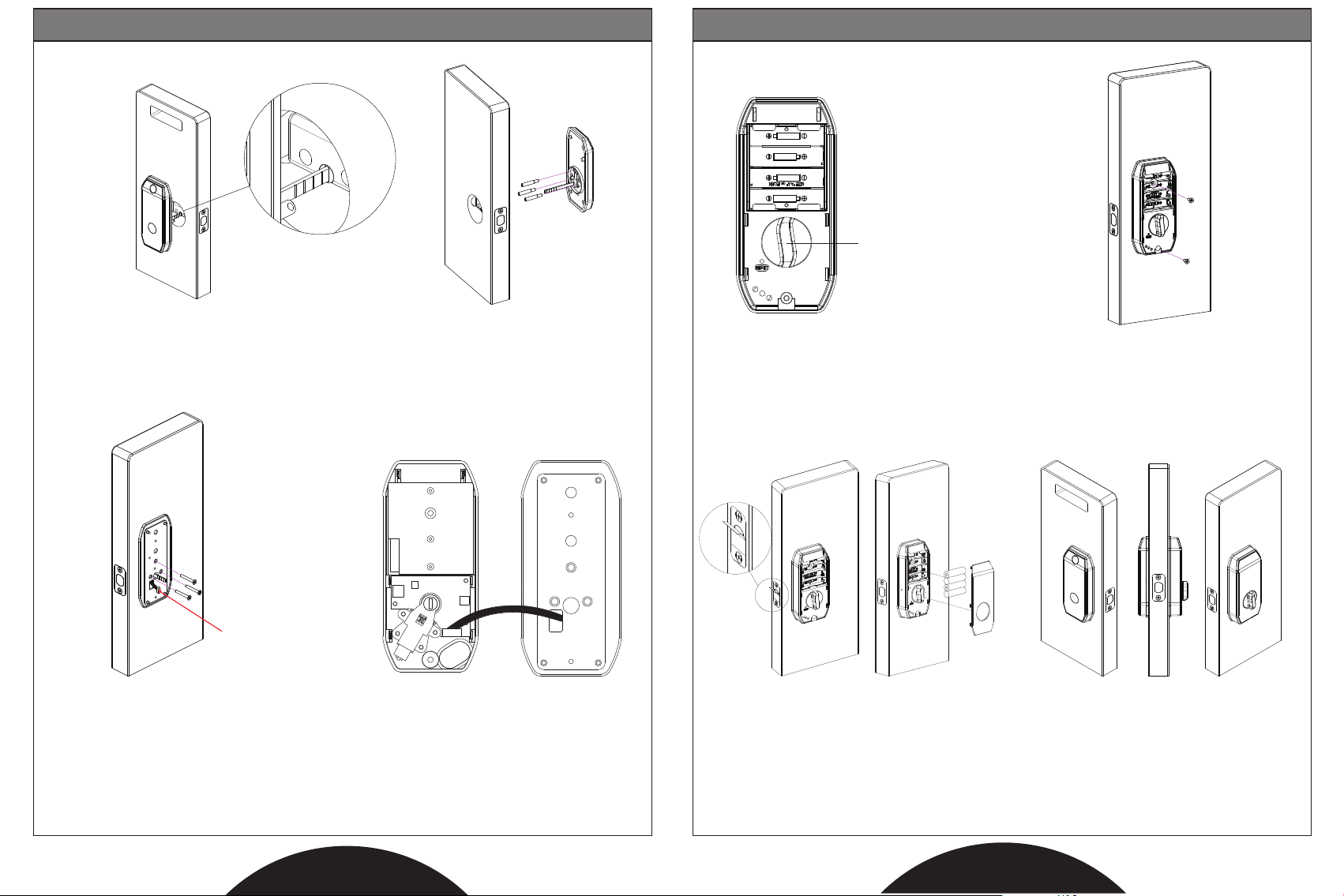
�. Tear off the sticker on the deadbolt.
Install � AA batteries and make sure
the direction of the batteries is correct
(For best performance, use � new
identical brand batteries).
�. Once powered on, the lock will
automatically detect the door opening
direction, after hearing "welcome",
you can start to use the lock.
�. After connecting the cable, make sure
the thumb knob is vertical, then hold
the back body onto the mounting plate.
KEEP VERTICAL
�. Screw the three cross bolts into the
corresponding holes of the front body.
�. Connect the black cable to the
connector of the back body.
NOTE: The cable must be passed below
the bolt to ensure the deadbolt will
not be hindered.
�.
Insert the metal key nail piece
VERTICALLY
into the cross hole of the deadbolt.
black cable
�b. Install the mounting pad first.
�c. Install the mounting plate over pad.
�. Run the black cable through the
rectangular slot on the mounting plate
(make sure rectangular slot is on the
left side). Fix the plate with three
M�x��mm screws.
�. Fix the back body to the mounting
plate with two M�x�mm screws.
08
9. Lock Body Installation 10. Lock Body Installation (cont.)
09
Operating Instructions
1. Quick Notes
�. Outside the door: Use fingerprint, password, APP, or key fob to unlock. Press key
to lock.
�. Inside the door: Use the thumb turn to lock/unlock.
�. If you need to automatically lock the door after closing, please set the auto lock on
the app.
10
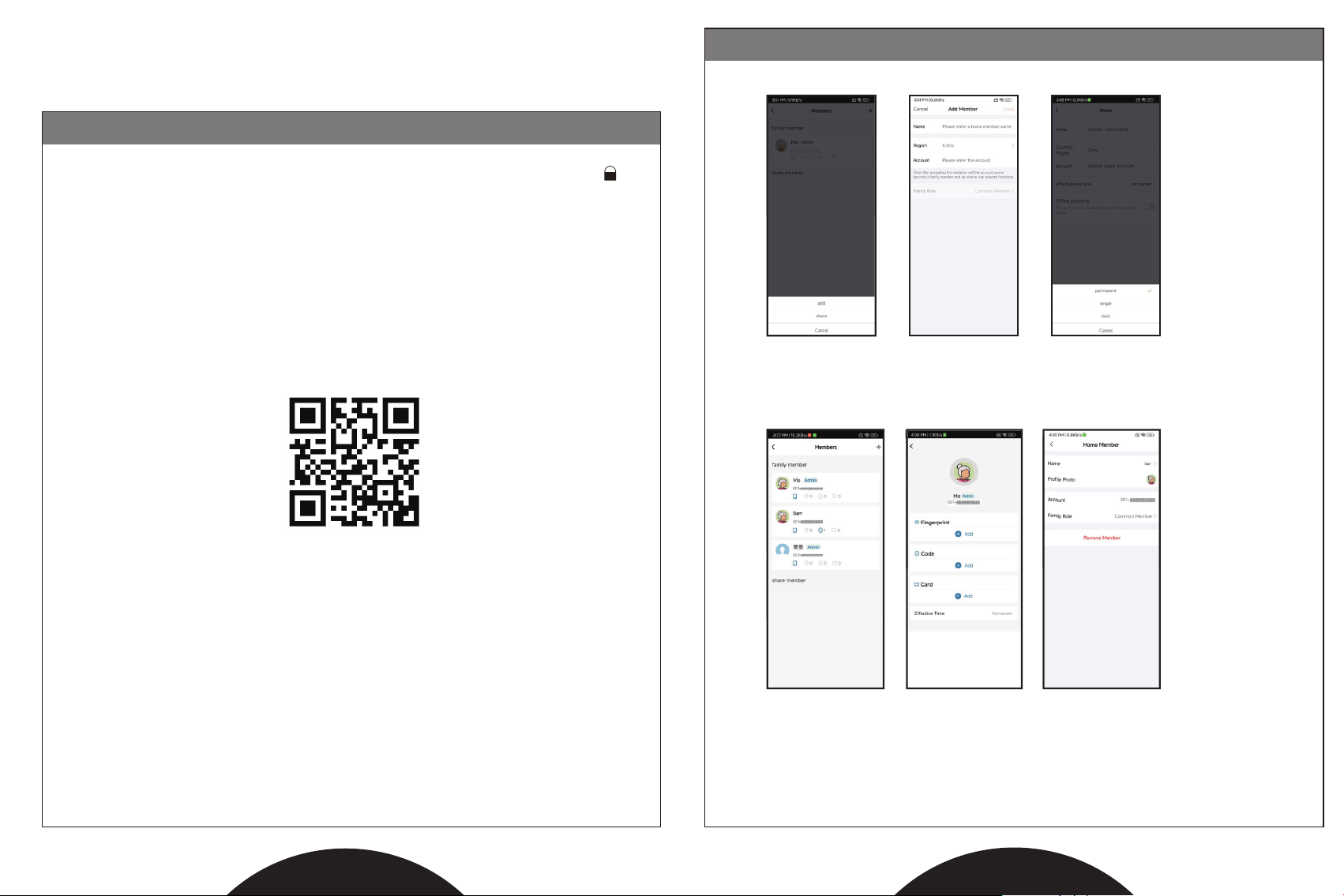
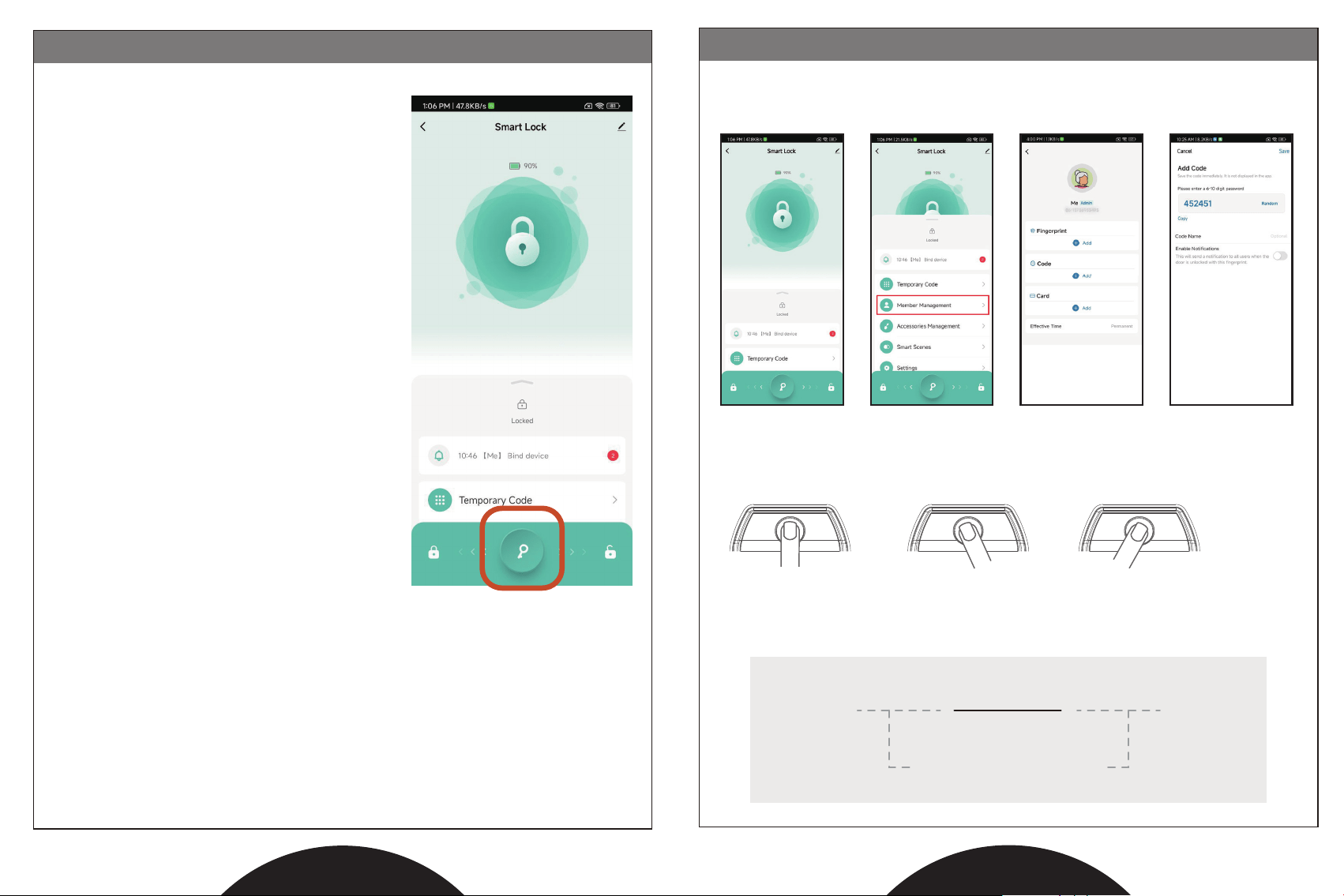
�. To add/modify a member, select “Member Management” from the device main screen.
Click the “+” and “Add” to add a new member. You can adjust the name or to assign
them as full administrative add this on our Energizer
®
Connect account username.
NOTE:
Only the owner who paired the lock has permission to manage membership.
Other administrators can adjust device settings, browse operation logs, etc.,
while ordinary users can only unlock/lock the device.
2. Family Management
Sam
Sam
Sam
Sam
For operational help setting up users and unlocking
options, please see our website
www.energizerconnect.com/doorlock_info
11
3. Unlock Door via App
For details, please consult:
https://energizerconnect.com/doorlock_info/
12
To unlock the lock, slide this
icon to the right.
To lock the lock, slide this
icon to the left.
In this interface:
By phone bluetooth
The connection distance of Bluetooth is about
��m(��ft). Within this distance, the lock can be
controlled through the app. To ensure safety, a
lock can only be connected to one mobile phone
at a time.
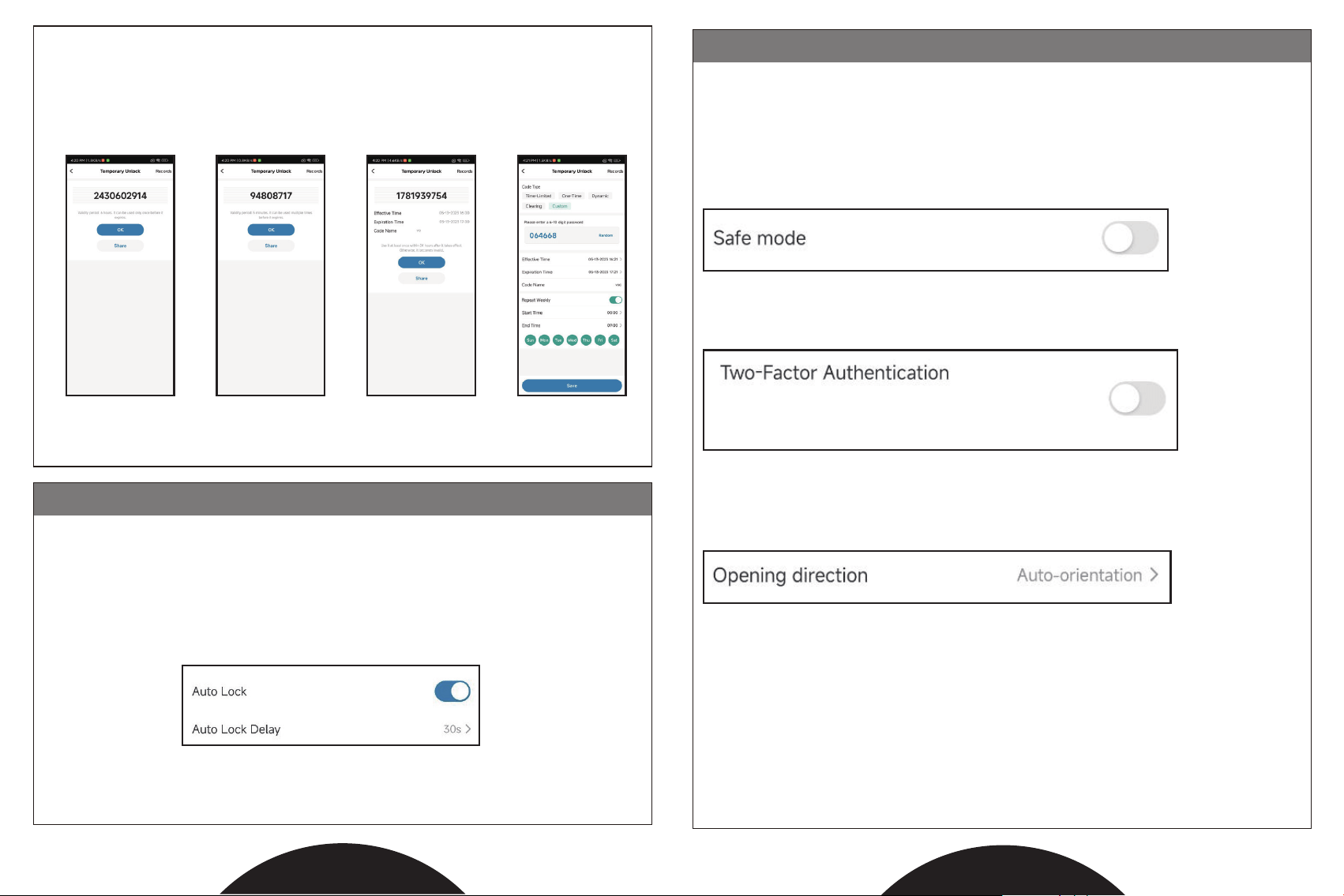
4. User Management Notes
�. In the " ", select a member, and follow the prompts to add
fingerprints, passwords, or cards.
�. When adding fingerprints, please enter them from different angles, as this will
be more sensitive when verifying.
�. Anti-peeping Password: User can prevent passcode exposure from strangers by
entering random digits before or after your true passcode.
MEMBER MANAGEMENT
�������� ��
password
Random digits,total �� digits
13
14
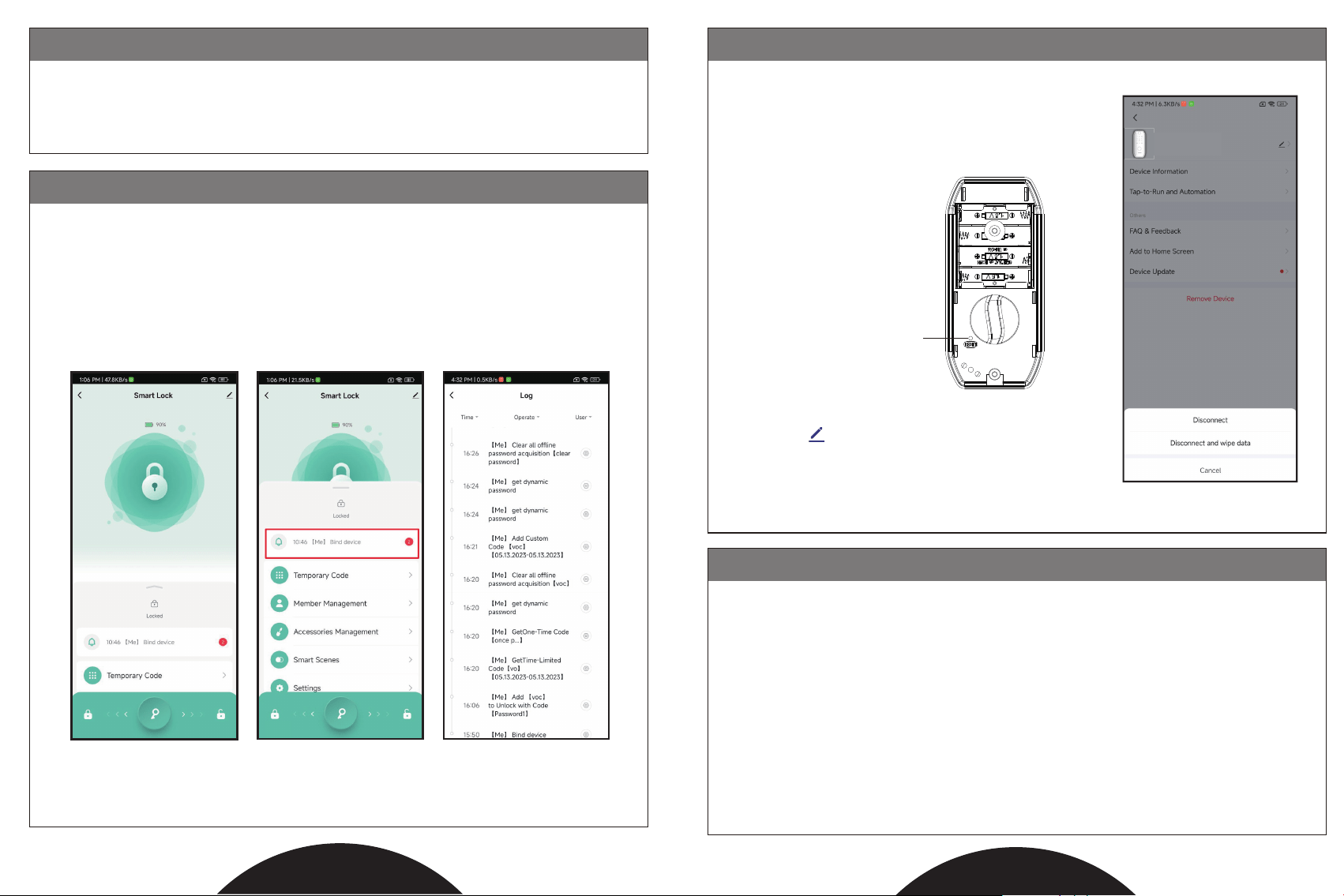
5 Auto Lock
�. The administrator can set a " " for visitors to open the door.
According to the actual situation, you can set a one-time password, dynamic password,
time-limited password or custom password. You can also view and delete the temporary
password already in the record in the upper right corner at any time.
On the APP interface, in the "SETTING" options, turn on the "Auto Lock". Then set
the delay time (��s-���s). When the time after unlocking reaches the delay time
setting, the lock will be automatically lock.
TEMPORARY PASSWORD
Dynamic
password
Time limited
password
Custom passwordOne time
password
6. Other Settings
Safe Mode
Two-Factor Authentication
Opening direction
In safe mode, only the administrator's fingerprint, password and key fob can unlock
the lock. Normal users' instructions and temporary password unlocking will be
intercepted.
Click this button to automatically adjust the rotation direction of the deadlock.
Once enabled, you must complete verification
of the two unlock methods to unclock the door.
15
16
7 Alarm Mode
8. Operations Log
In the APP device interface information center, you can view all log information of
this device. You can also filter the time range, operation type and member you want
to view.
It saves the opening records, alarm records, and operation actions . After the
expiration of six months, the newest record automatically overwrites the old
record.
If the wrong door opening information is entered �� times in a row, the system will be
locked for ��� seconds and a warning tone will sound.
For continued use, please wait ��� seconds or remove the battery to re-power.
9. Restore Factory Settings
FAQ
Q: After entering the password, the bolt does not rotate and lock.
➂ Ensure that the bolt is in the retracted position during the whole
installation process;
➃ Check whether the black cable is over the deadbolt and impedes
its operation.
A:
�. Check whether the bolt can be rotated manually by using the thumb knob.
�. If not, ➀ Check whether the bolt is installed correctly (UP);
➁ Use a screwdriver to check whether the bolt can be ejected and retracted
normally;
There are two ways to reset the lock.
�. After removing the battery cover use a pin to long press
the reset button on the back panel, the cover and the
motherboard will reset to the factory settings after hearing
the sound of successful operation.
�.Select the " " in the upper right corner to remove
the device. After the device is "DISCONNECT" from
the APP, the motherboard will automatically reset to
factory settings.
Reset
Smart Deadbolt Door Lock

16
Q: Is there a low battery indicator? How long will the battery last? If the
battery runs out, how to unlock it in an emergency?
If you encounter any issues with the app's functionality, please feel free to reach
out to Energizer® Connect customer service for further assistance.
A:
�. When within Bluetooth® range, you can view the real-time battery level in the
main interface of the app
�. Low Battery Alert when the batteries power is low: the lock will issue a voice prompt,
reminding you to change the batteries. At this point, it can still be unlocked
about ��� times.
�. Under normal installation conditions, the lock can be opened at least ���� times
without changing the battery.
�. When the batteries are exhausted, you can choose to open it with mechanical key, or
connect the emergency power supply with a Type-C plug. Insert the Type-C plug into the
emergency power supply hole under the lock to unlock, and replace with new
batteries immediately.
�. If the thumb knob can rotate normally, but the mechanical key does not work,
it may be that the key does not match the lock. Please contact us.
Q: What do I do if I cannot setup the doorlock to the app?
A:
�. When adding the device for the first time, please touch any key on the keyboard to
wake up the Bluetooth of the door lock.
�. If the device cannot be found on the first try, please long press the reset button on
the rear panel until you hear the chime sound, letting you know it has been
successfully reset, and try again.
�. Please note: After the lock is bound to the main mobile phone, other members need
to be invited to join the family on the main device account, and then other members
can connect to the device.
WEBSITE:www.energizerconnect.com
HOTLINE:1-888-693-4189
(Mon.-Thu. 10am-6pm EST)
(Fri. 9am-3:30pm EST)
(Sat.-Sun. Closed)