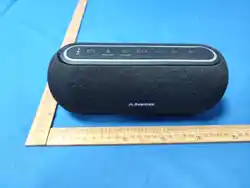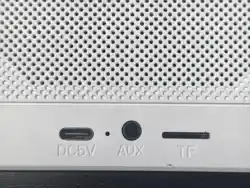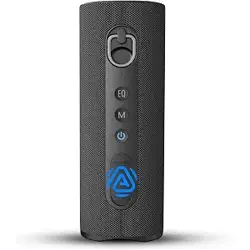
Avantree BTSP-009 Harmony A1 Solo Bluetooth Speaker with Auracast Expansion

Product's Documents

Below are documents related to this product, you can read online or download:
BTSP-009 photo

User Manual

This is the main product document for model BTSP-009.

The file format is pdf, 24 pages, you can download this manual here .

background
Harmony A1 Solo
Auracast Speaker With
Bluetooth
Version 2.4.5
Interactive UserGuide
Keep Speakers
Always On
Start SetupStart Setup
background
Next
< Back
Main Menu
1. Before You Start
4. Switching to Bluetooth
5. Battery & Charging
6. Keep Always Speaker On
3. Listening with Auracast
2. Power up Speaker
9. Buttons & Indicators
10. Troubleshooting
8. Customize & Manage (Optional)
Rename Your Speaker
Make It Private
Rate This Guide
11. Register & Support
7. Firmware Update

background
1. Before You Start
Auracast speaker with Bluetooth
for easy expansion
Next
< Back
Menu
Join Auracast broadcasts for
shared listening
Use Bluetooth when listening on
your own
Power Behavior
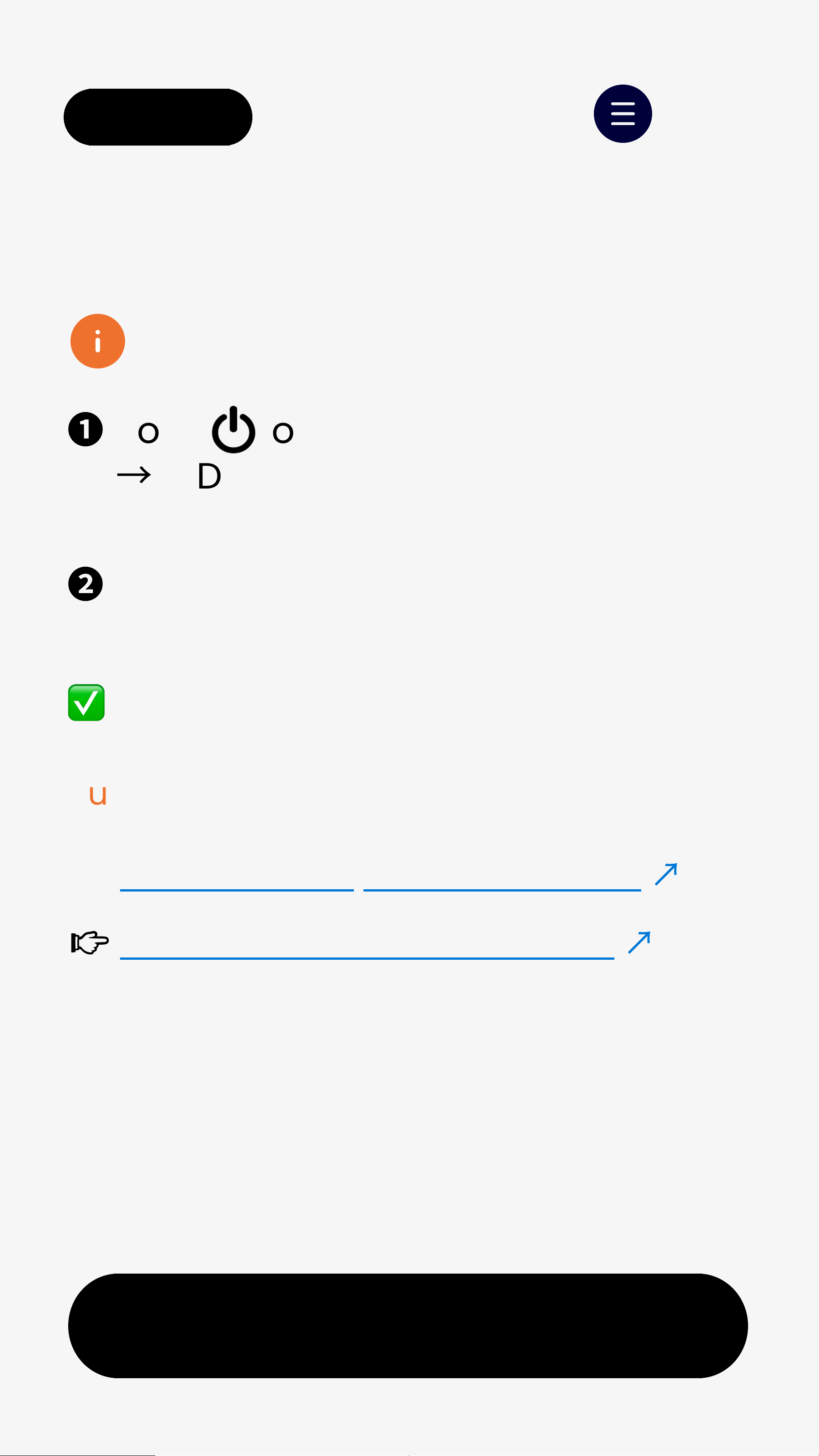
Turns off after 60 mins withoutaudio
even when plugged in.
Update firmware to Keep it ON.
↗
background
2. Power Up Speaker
Next
< Back Menu
Power On & Start Listening
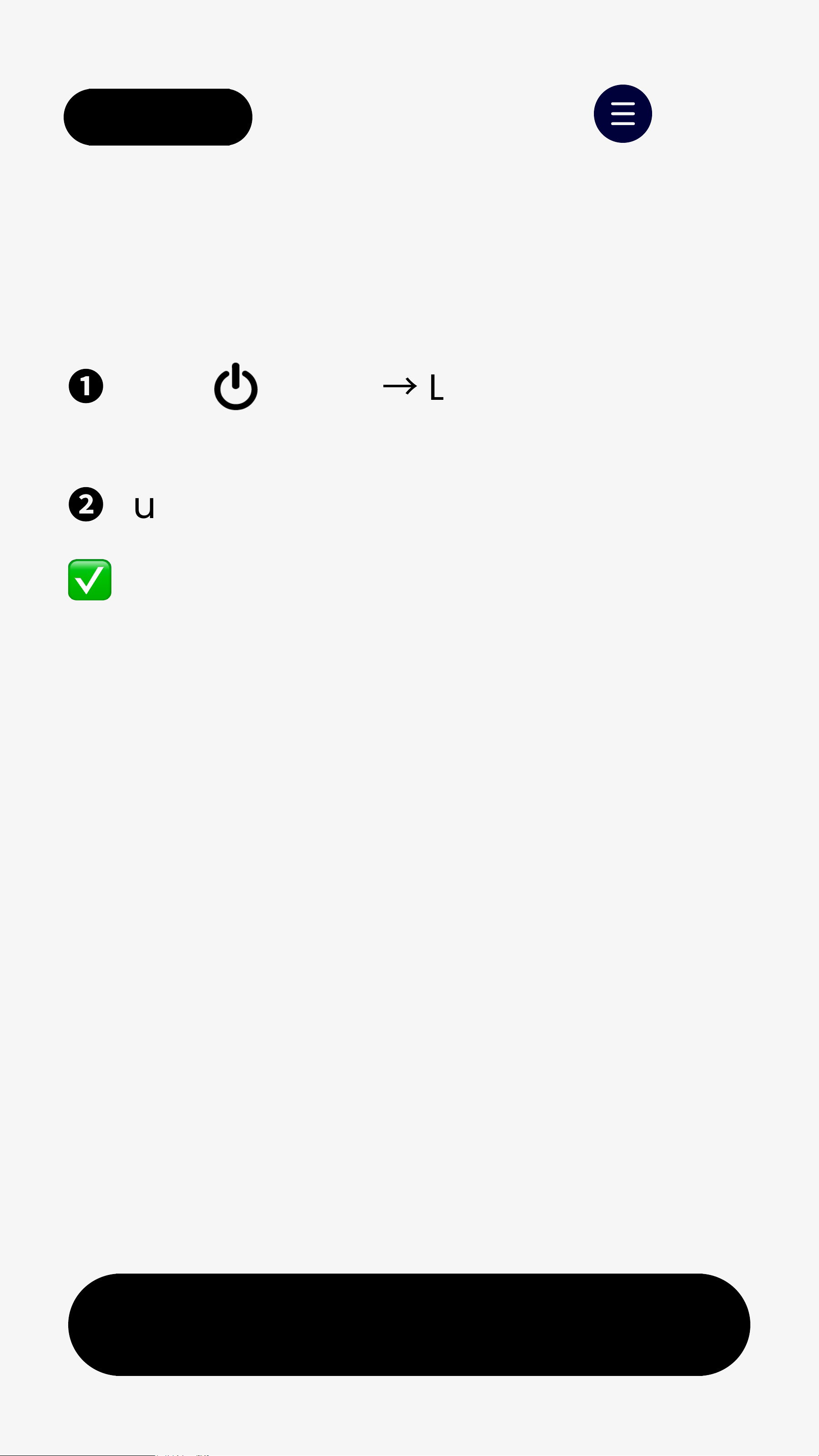
Press and hold  for 3s
→
Speaker powers on
The speaker scans and joins the
nearest Auracast broadcasts
    Joined:   LED turns solid orange.
You're all set. No pairing required.
background
3. Listening with Auracast
Auracast lets one audio source
broadcast to multiple listeners at
the same time.
Perfect for:
TV listening
Classrooms
Public or shared spaces
Group listening without pairing
Next
< Back Menu
3.1 What Is Auracast
background
< Back Menu
3.2 Choose Audio Source
Choose how you want to join:
Join
Avantree Transmitter
A
Join Other
Open Broadcast
B
Join
Secured Broadcast
C
background
< Back Menu
3.2 Choose Audio Source
Choose how you want to join:
Join
Avantree Transmitter
A
Join Other
Open Broadcast
B
Join
Secured Broadcast
C
background
< Back
A.1 Set Up Avantree Transmitter
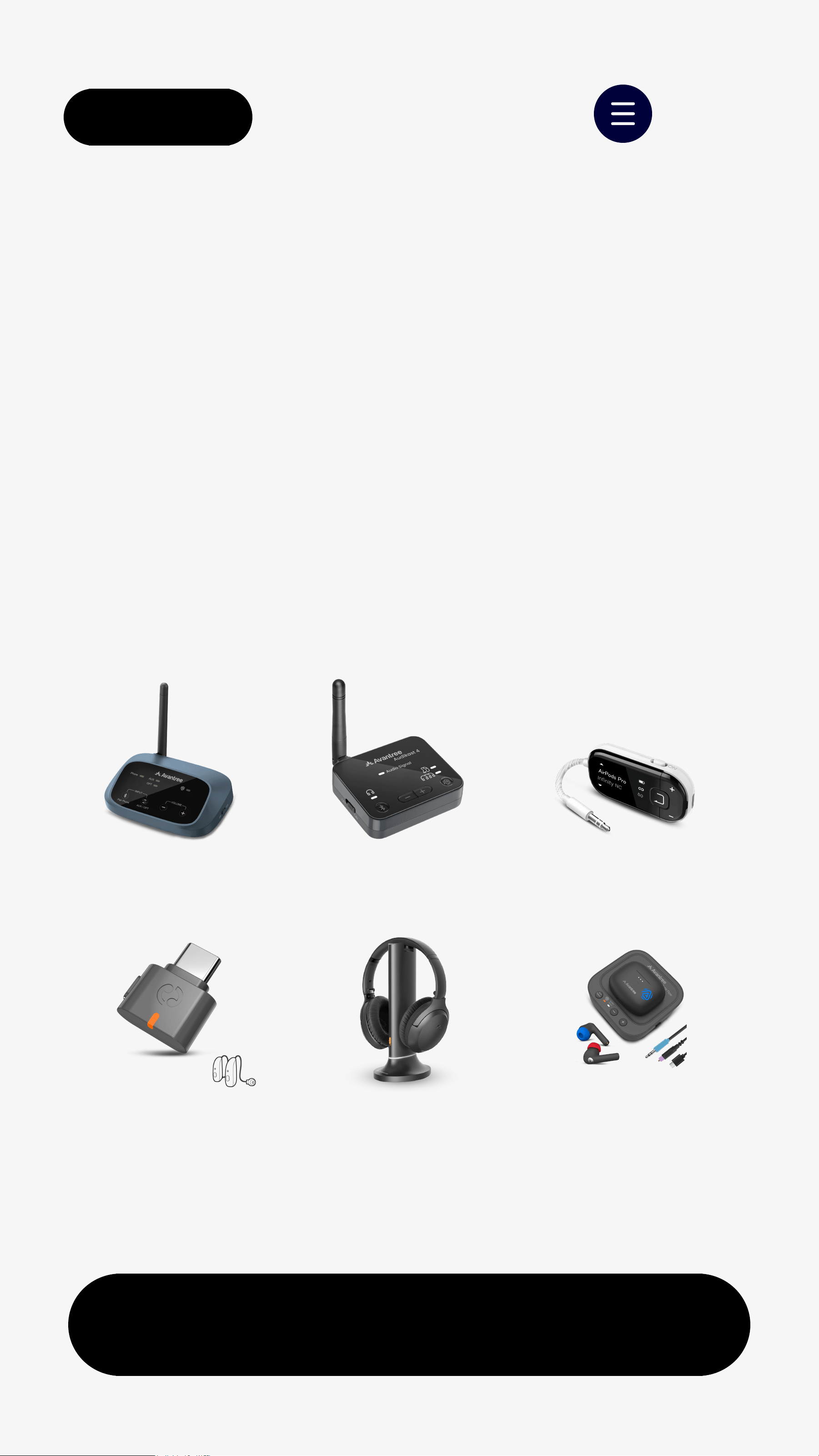
Supported Avantree transmitters:
C82 Aura
Oasis Aura Audikast 4 Voyager
Opera Aura Aura Focus
Make sure your Avantree transmitter is
powered on and broadcasting audio.
Note: For detailed setup instructions,
see the user guide for your Avantree
transmitter.
Menu
Next
background
< Back
A.2 Join Broadcasting
Menu
Next
On your speaker:
❶
Hold  for 3s
→
LED blinks orange.
  (Ready to join Auracast)
❷
Put it nearby the transmitter.
  Joined: LEDturns solid orange.
You'llhear audio through the speaker.
background
< Back
B. Join Other Open Broadcast
Menu
Next
👉 Join Auracast phone broadcast
↗
👉 Check more Auracast devices
↗
Supported Auracast broadcasting devices:
Available only when a nearby
Auracast broadcast is active.
❶
Hold  of the speaker for 3s.
  
→
LED blinks orange.
  (Ready to join Auracast)
❷
The speaker will auto-join nearby
  open broadcast.
  Joined:LED turns solid orange.
background
< Back
B.1 Join Auracast Phone Broadcast
Menu
Next
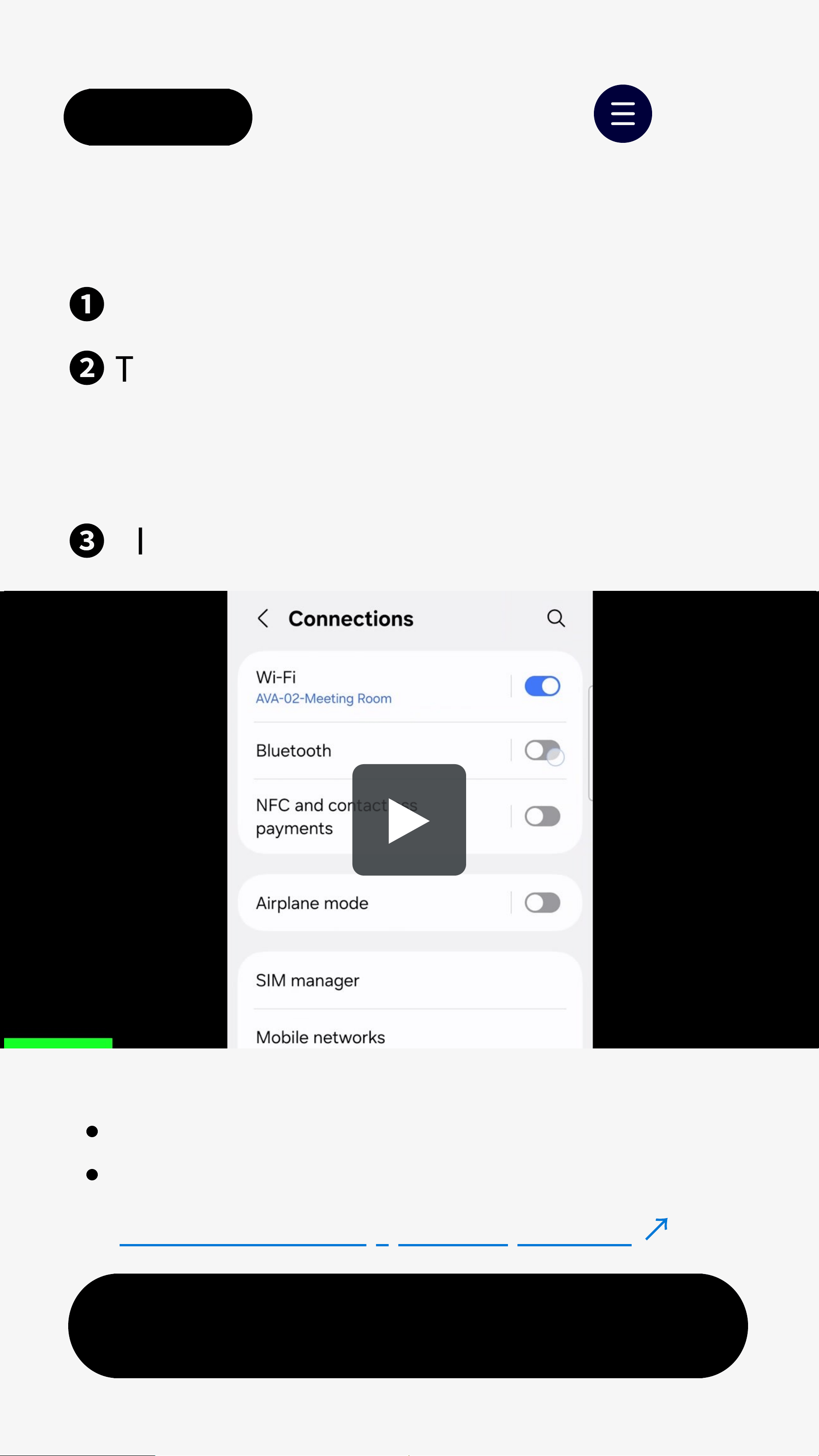
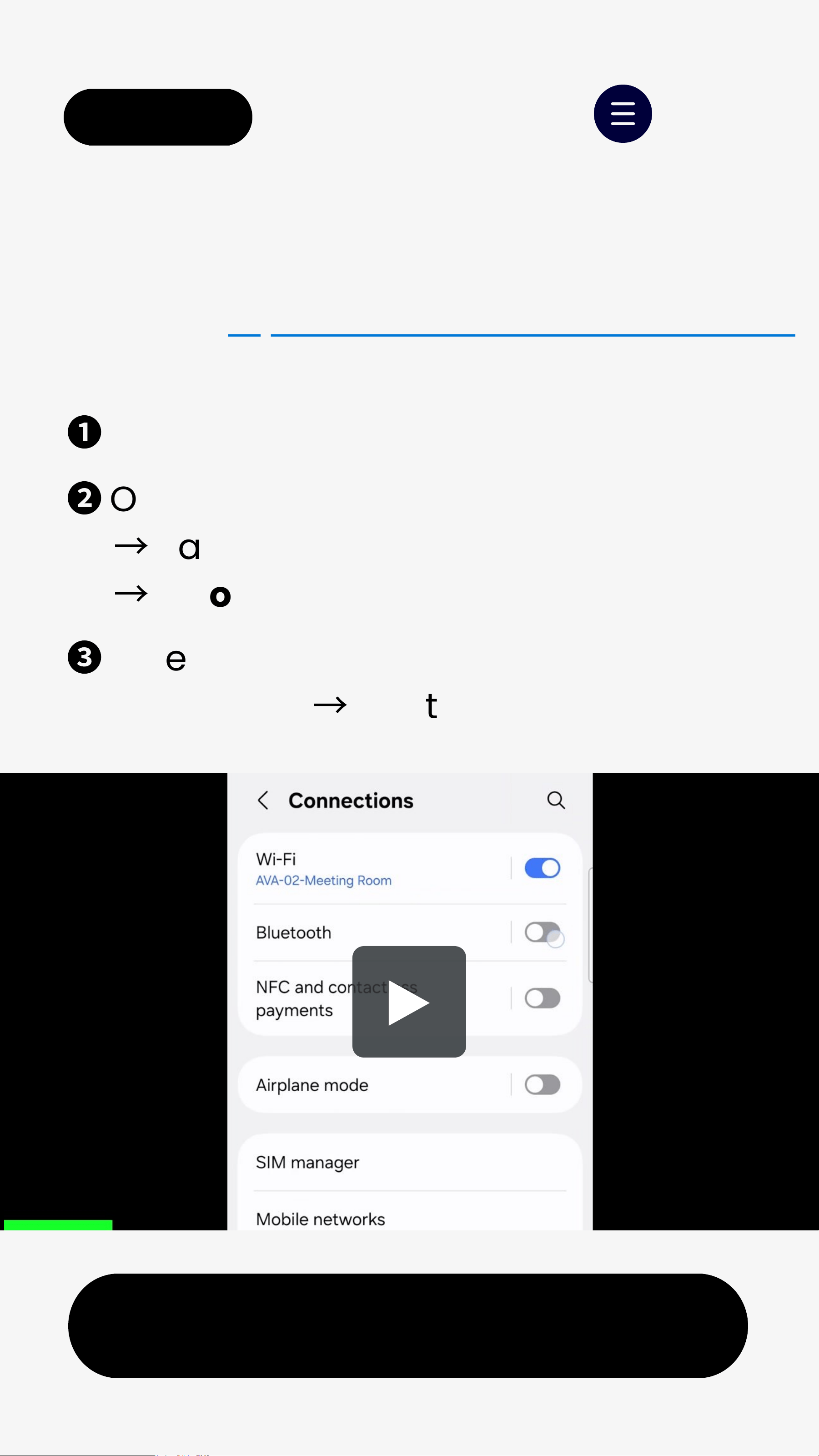
❶
Open Bluetooth settings on phone.
❷
Tap "Broadcast sound using         
   Auracast" > "Start broadcast".
Note: Menus may vary by phone model.
❸
Play audio on your phone.
Supported models:
Samsung Galaxy S23 and newer
Google Pixel 8/9 series
👉Check more supported phones
↗
background
< Back
C. Join Secured Broadcast
Menu
Next
Requires a phone with Auracast Assistant
(e.g. Samsung S23 or newer).
❶
Pair speaker with phone via Bluetooth.
❷
On your phone: Enable LE Audio      
  
→
Tap Listen to Auracast broadcast 
  
→
Choose thebroadcast.
❸
Enter the password.Playback will  
  auto-start.
→
LED turns solid orange.
background
Next
< Back
4. Switching to Bluetooth
Use Bluetooth when listening on your
own:
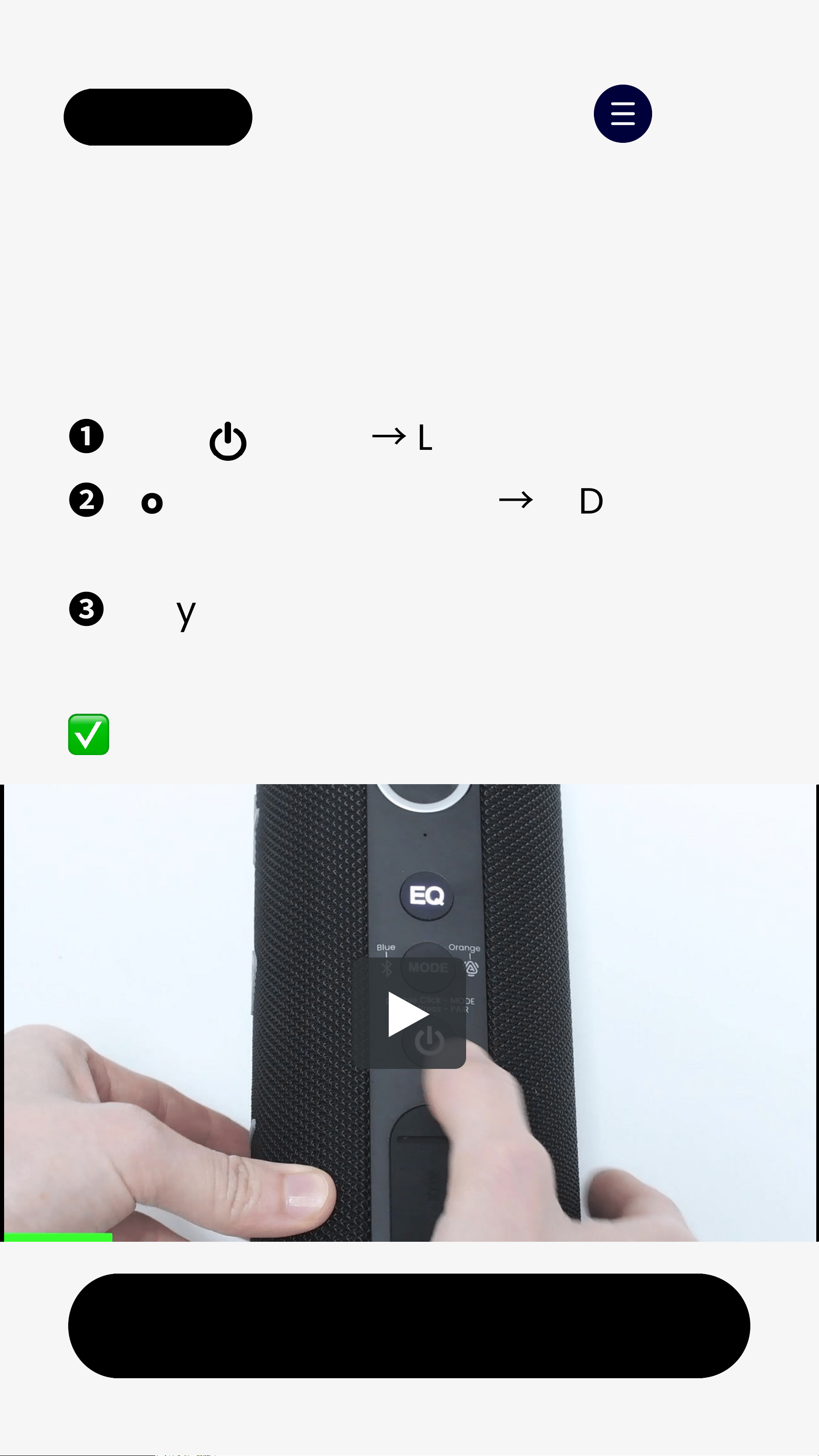
❶
Hold   for 3s
→
LED blinks orange.
❷
Double-press MODE
→
LED blinks   
  red&blue (Bluetooth pairing mode).
❸
On your device, turn on Bluetooth   
  and select"Avantree HarmonyA1".
  Connected: LED turns solidblue.
Menu
background
5. Battery & Charging
Next
< Back Menu
USB-C input: 5V / 3A
Charging: LED solid red
Fully charged: LED off (~ 4 hrs)
Playtime: Up to 8 hrs
(varies by volume)
Auto off after 60 mins with no
audio playback
(even if a broadcast is joined)
Update firmware to Keep it ON.
↗
background
Next
< Back Menu
6. Keep Speakers Always On
Default Behavior
Auto power off after 60 mins with
no audio
Applies even when a broadcast is
joined
After DFU Update
Speaker stays ON while plugged in
No auto power off without audio
Update firmware to keep it ON
↗
background
< Back Menu
7. Firmware Update
Latest Firmware
V0.9.3
Update
Takes about 1 minute
Keep Your Speaker Up To Date
Synchronize Broadcast &
Password changes
Get Future Update Alerts
Compatibility improvements
New features
No promotions. Ever.
Notify Me
→
View full version history
background
< Back
Menu
Download & Update
What you need
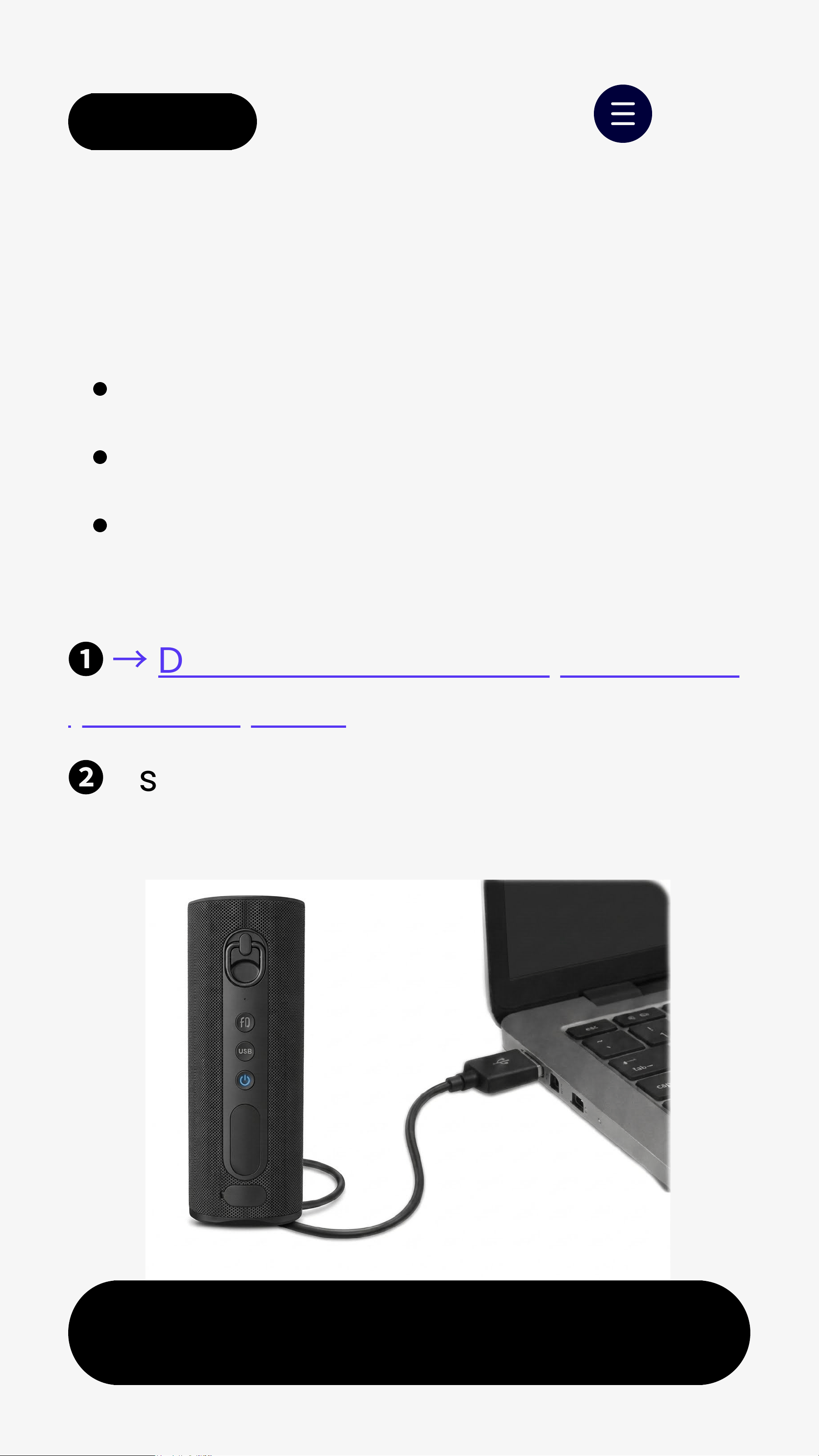
A Windows PC or Mac
Your Speaker
The included USB data cable
How to update:
❶
→
Download Avantree Updater on
your computer.
❷
Use the included USB data cableto
connect Speaker toyour computer.
Next
background
< Back
Menu
Download & Update
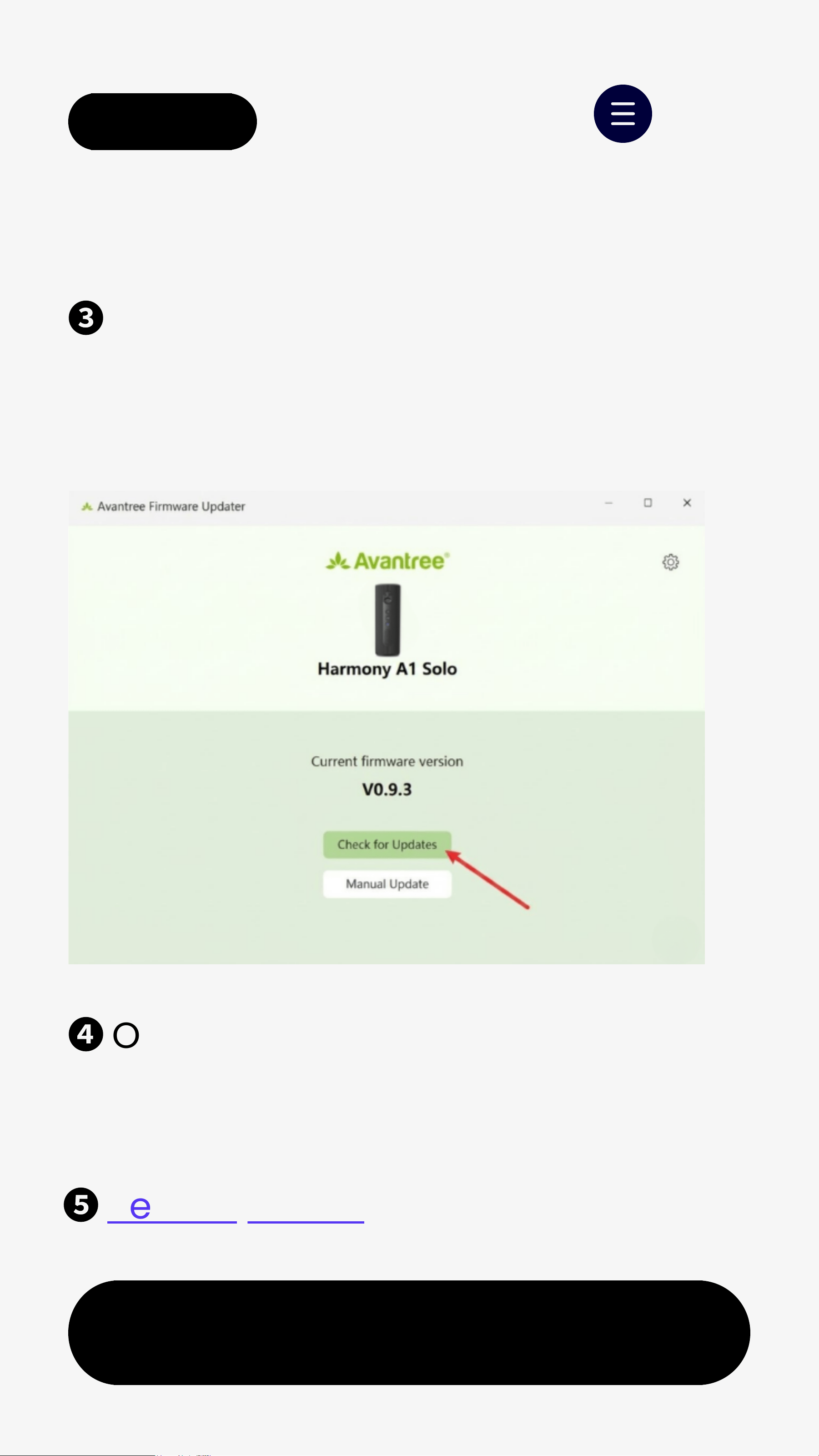
❸
Open the Avantree Updater appand
click "Check for Updates" > "Install"
next to the latest version.
❹
Once the update completes,
disconnect Speaker from your
computer.
❺
ResetSpeaker
Next
background
< Back
Next
Menu< Back Menu
8. Customize & Manage
8.1 Rename Your Speaker
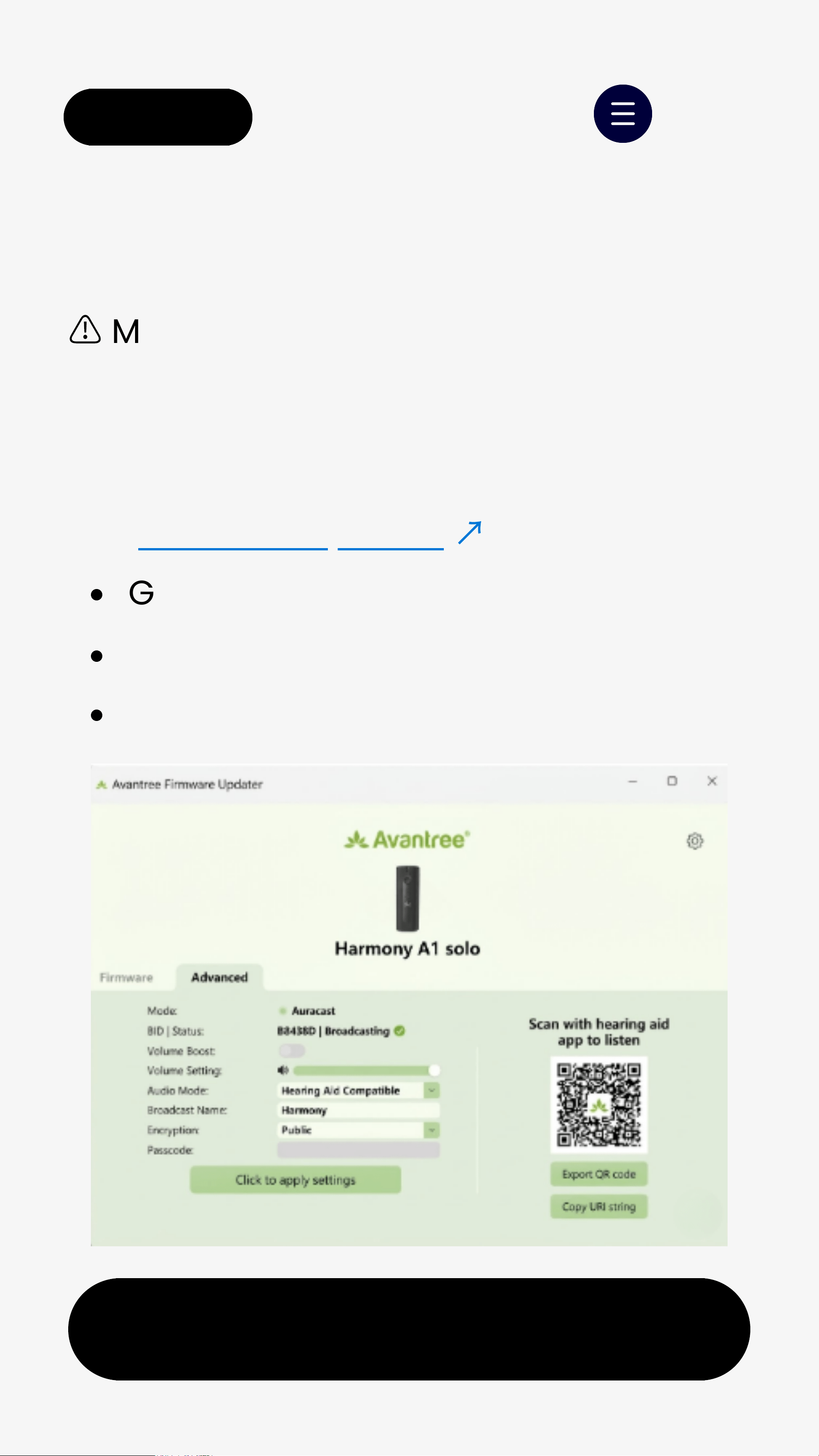
Use Firmware Updater
↗
Go to "Advanced"
Edit "Broadcast Name"
Click "Apply settings"
(Optional)
⚠
Make sure both thetransmitter and 
   Firmware Updater are up to date.
background
< Back
Next
Menu< Back Menu
8.2 Make It Private
Set a passcode to control who can join
your broadcast.
Use Firmware Updater
Go to "Advanced"
Set "Encryption" to Encrypted
Set a passcode
Click "Apply settings"
background
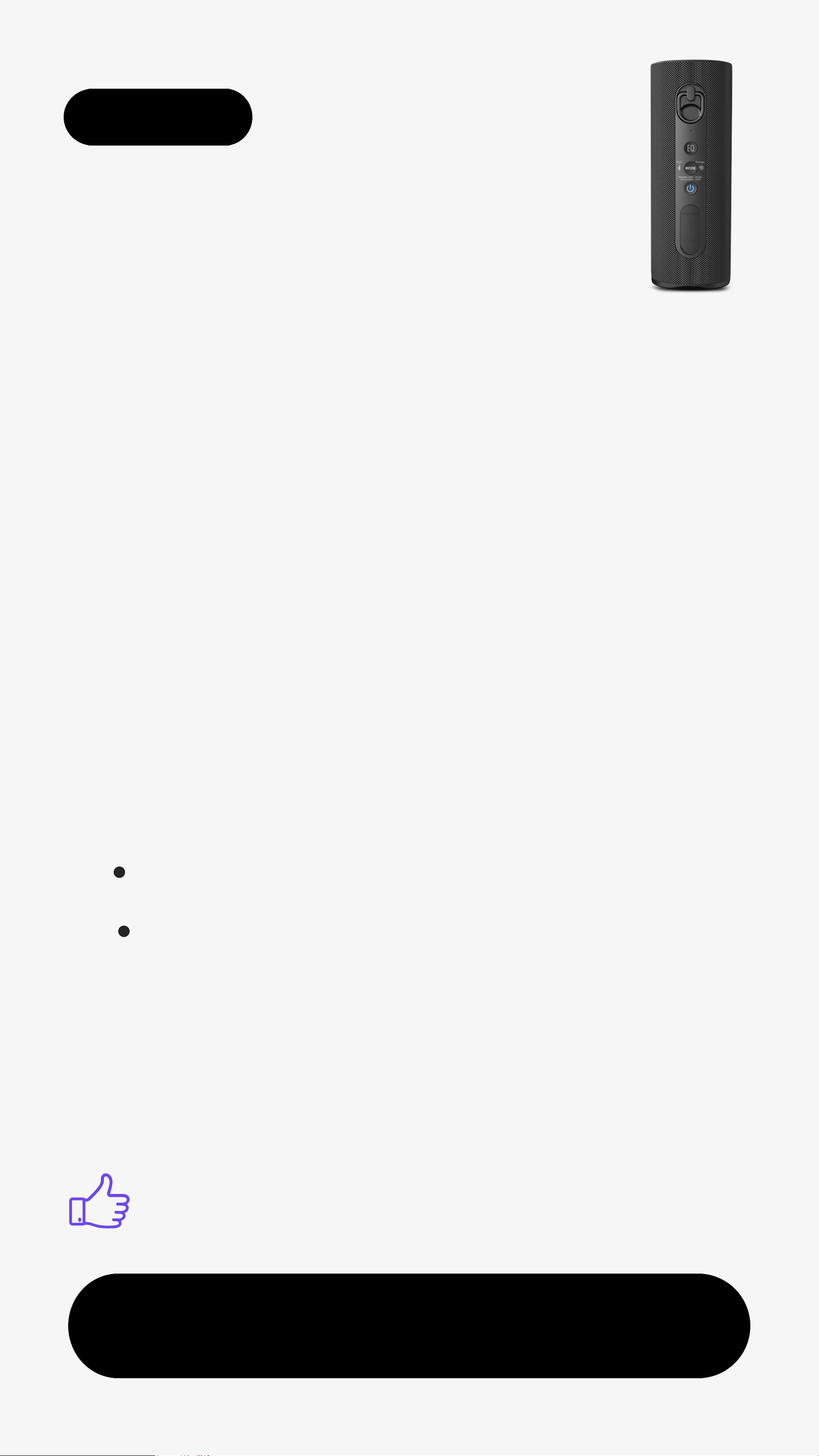
9. Buttons & Indicators
Next
Menu
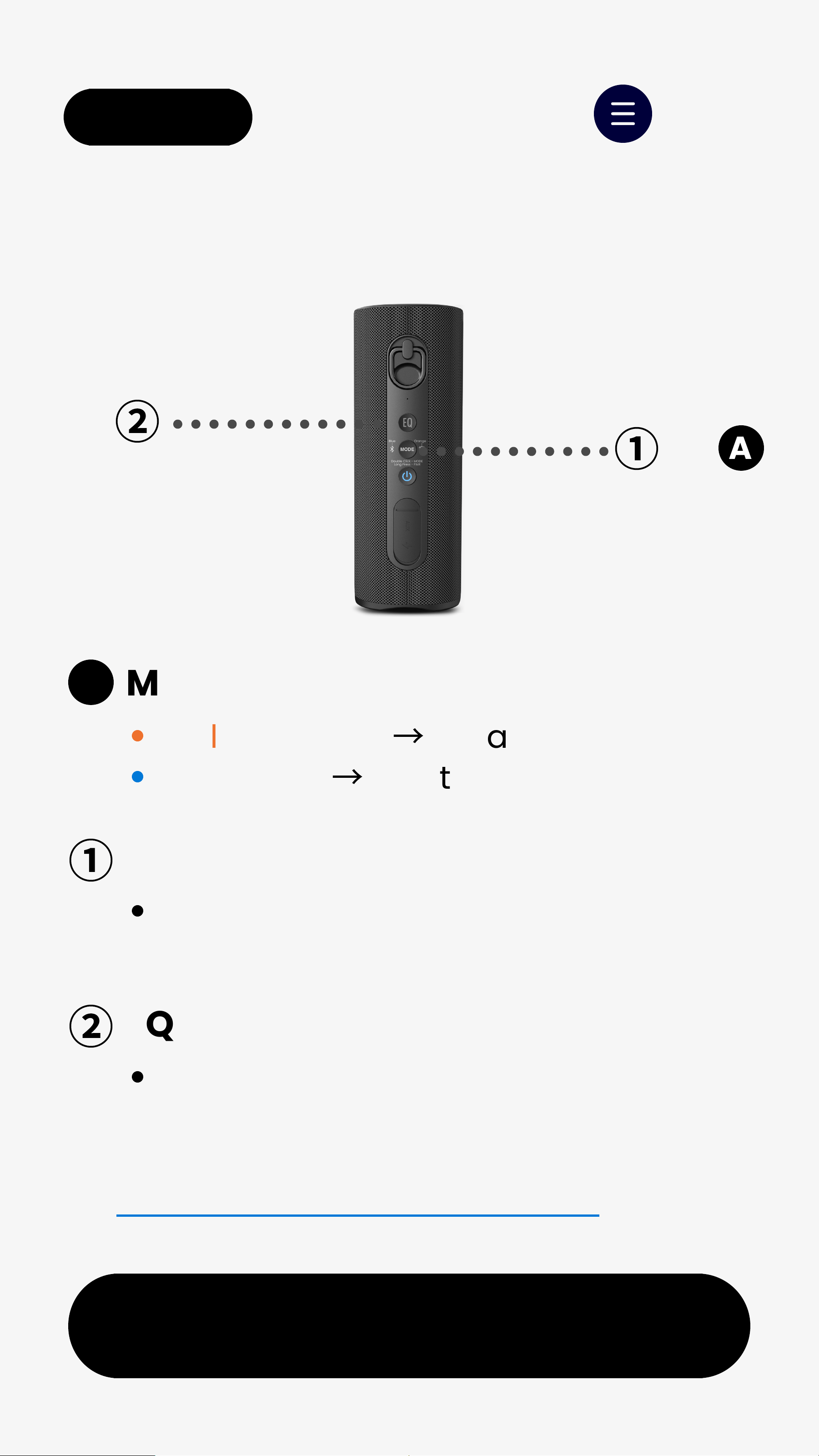
A
①
MODE LED
👉 Full Buttons & Indicators Guide
MODE Button
②
EQ Button
①
&
②
A
Solid Orange
→
Auracastjoined
Solid Blue
→
Bluetooth connected
Mode switching
Auracast <->Bluetooth
Sound mode switching:
Vocal (white); Pop(green);Bass (blue)
< Back
background
10. Troubleshooting
Next
Here are some common questions:
👉 More Troubleshooting & FAQs
↗
How to Reset (Classic Bluetooth)
↗
Menu
Can't pair?
↗
Can't join Auracast?
↗
Update firmware to keep speaker on
when plugged in
↗
< Back
background
< Back Menu
11. Register & Support
Register Your Product
Need help? Contact Us
Extended warranty & get updates.
Call
Get 24M Warranty
USA (Toll Free)
+1 800 232 2078
Next
Other Regions
>
>
Email
>
Chat
background
< Back Menu
Thank you for helping us improve.
Helpful lt's OK Need Help
Did this guide help you?
Your feedback goes directly toour team.
It helps us improve future guides and
products.
Takes less than 10 seconds.

Specifications

Indexed Terms: Bluetooth Speaker

Avantree BTSP-009 Questions and Answers

Questions and Answers

Related Products

Product NiZoNi INV01062 image
Bluetooth Speaker
2026-05-20 2 docs