CANON INC.
30-2 Shimomaruko 3-chome, Ohta-ku, Tokyo 146-8501, Japan
Europe, Africa & Middle East
CANON EUROPA N.V.
PO Box 2262, 1180 EG Amstelveen, The Netherlands
For your local Canon office, please refer to your warranty card or to www.canon-europe.com/Support
The product and associated warranty are provided in European countries by Canon Europa N.V.
CEL-ST7VA212 © CANON INC. 2013 PRINTED IN THE EU
The lenses and accessories mentioned in this Instruction Manual are current as of
August 2013. For information on the camera’s compatibility with any lenses and
accessories introduced after this date, contact any Canon Service Center.
INSTRUCTION
MANUAL
ENGLISH
This manual is for the EOS-1D C installed with firmware version
1.3.0 or later.
Read this manual together with the EOS-1D X Instruction
Manual (firmware version 1.2.0 or later) and EOS-1D X Wired
LAN Instruction Manual.
The “Software Start Guide” is included at the end of this manual.

2
Based on the top-of-the-line EOS-1D X, the EOS-1D C is a digital SLR
camera with enhanced movie shooting functions.
Its advanced movie shooting functions include a full-frame (approx. 36 x
24 mm) CMOS sensor with approx. 18.1 effective megapixels to create
beautiful and impressive background blur effects, high ISO speeds for
low-light shooting, 4K (4096 x 2160 pixels) movie recording, Full HD
60p/50p, Super 35mm Crop, Canon Log gamma, and uncompressed
movie output via HDMI.
Other diverse features include a wide range of shooting functions
optimized for professional shooting, a compact and lightweight body for
highly mobile movie making, high reliability even in harsh environments, a
highly expandable camera system, and adaptability to diverse workflows.
Refer to This Manual while Using the Camera to Further
Familiarize Yourself with the Camera
With a digital camera, you can immediately view the image you have
captured. While reading this manual, take a few test shots and see how
they come out. You can then better understand the camera.
To avoid botched pictures and accidents, first read the “Safety
Warnings” (p.88-90) and “Handling Precautions” (p.8, 9).
Testing the Camera Before Use and Liability
After shooting, play images back and check whether they have been
properly recorded. If the camera or memory card is faulty and the
images cannot be recorded or downloaded to a computer, Canon
cannot be held liable for any loss or inconvenience caused.
Copyrights
Copyright laws in your country may prohibit the use of your recorded
images of people and certain subjects for anything but private
enjoyment. Also be aware that certain public performances, exhibitions,
etc., may prohibit photography even for private enjoyment.
CF Card
In this manual, “card” refers to a CF card. The CF card (for recording
images) is not included. Please purchase it separately.
Introduction
3
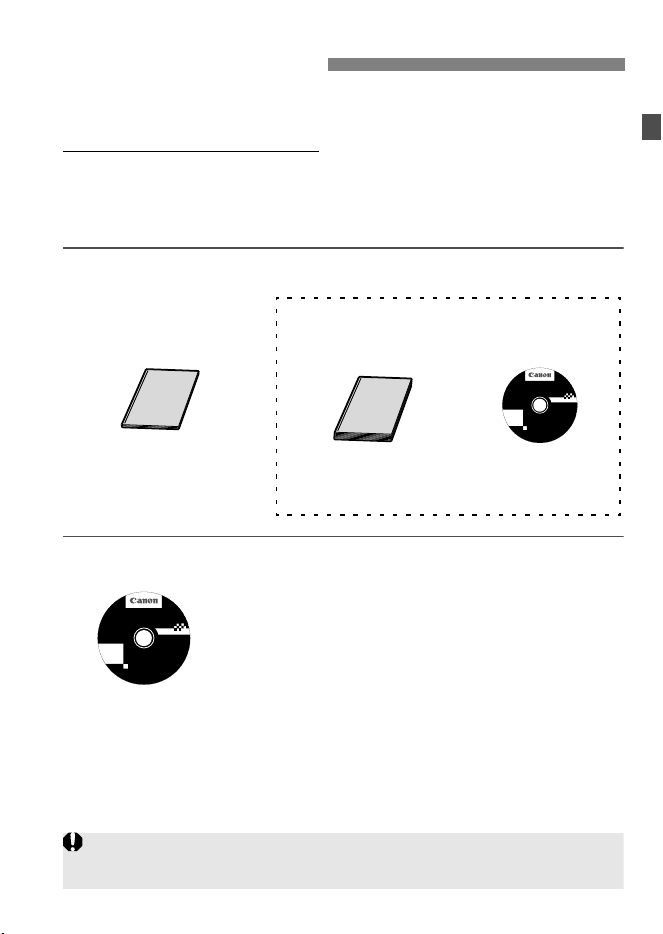
The EOS-1D C comes with two manuals: 1. EOS-1D C Instruction
Manual (this booklet), and 2. EOS-1D X Instruction Manual.
For movie shooting, refer to 1.
For basic operations, still photo
shooting, playback functions, wired LAN functions, and other
information not in 1, see manual 2 or the EOS Camera Instruction
Manuals Disk as many features are common with those of the
EOS-1D X.
Camera and Wired LAN Instruction Manuals
Software Instruction Manual
The Software Instruction Manuals are included on
the CD-ROM as PDF files.
See pages 93 to 97 for an overview of the software
programs, installation procedure on a personal
computer, and how to view the EOS Camera
Instruction Manuals Disk.
Instruction Manuals
1. EOS-1D C Instruction
Manual (this booklet)
(Firmware version 1.3.0 or later)
Movie shooting
Basic operations, still
photo shooting, playback
functions, etc.
Wired LAN
functions
+
+
Windows XXX XXX
EOS Camera Instruction Manuals Disk XXX
Mac OS X XXX XXX
XXXXX
XXXXX
XXXXX
XXXXX
XXXXX
CEL-XXX XXX
©
C
A
N
O
N
I
N
C
.
2
0
X
X
.
M
a
d
e
i
n
t
h
e
E
U
.
2. EOS-1D X
Instruction Manual
(Firmware version 1.2.0 or later)
3. EOS-1D X
Wired LAN
Instruction Manual
EOS Camera
Instruction
Manuals Disk
(Software)
Windows XXX XXX
EOS Camera Instruction Manuals Disk XXX
Mac OS X XXX XXX
XXXXX
XXXXX
XXXXX
XXXXX
XXXXX
CEL-XXX XXX
©
C
A
N
O
N
I
N
C
.
2
0
X
X
.
M
a
d
e
i
n
t
h
e
E
U
.
The software that comes with the EOS-1D C differs from that of the EOS-1D X.
See “Software Start Guide” on pages 93 to 97.
4
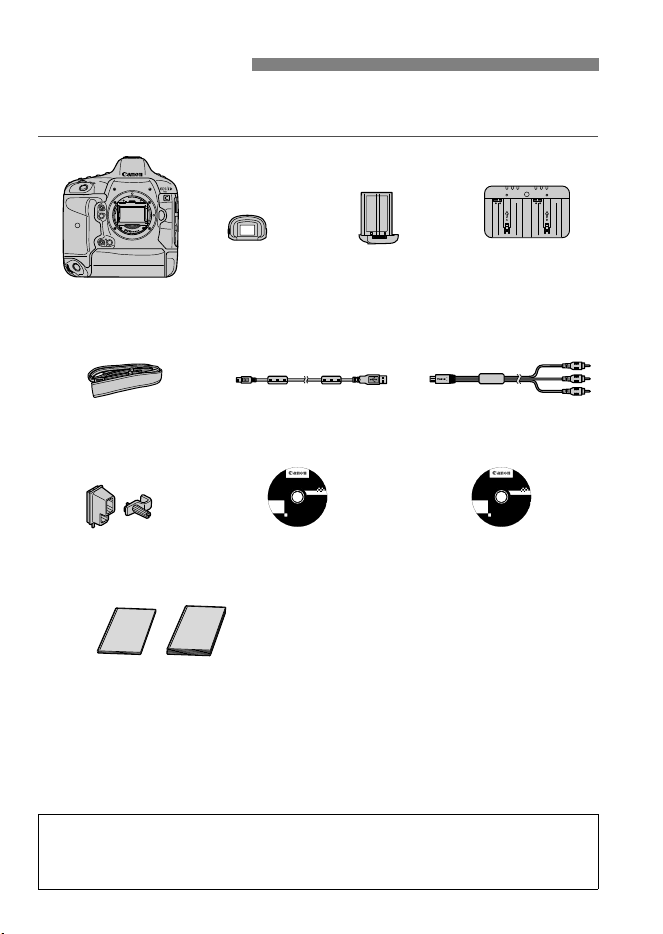
Before starting, check that all the following items have been included
with your camera. If anything is missing, contact your dealer.
* Attach Eyecup Eg to the viewfinder eyepiece.
* Be careful not to lose any of the above items.
Item Check List
Battery Pack
LP-E4N
(with protective cover)
Battery Charger
LC-E4N
(with protective covers)
Interface Cable
IFC-200U
Stereo AV Cable
AVC-D
C400ST
EOS Solution Disk
(Software)
EOS Camera Instruction
Manuals Disk
(1) EOS-1D C Instruction Manual (this booklet)
(2) EOS-1D X Instruction Manual
Camera
(with body cap and
battery compartment cap)
Windows XXX XXX
EOS Camera Instruction Manuals Disk XXX
Mac OS X XXX XXX
XXXXX
XXXXX
XXXXX
XXXXX
XXXXX
CEL-XXX XXX
©
C
A
N
O
N
I
N
C
.
2
0
X
X
.
M
a
d
e
i
n
t
h
e
E
U
.
EOS Solution Disk XXX
CEL-XXX XXX
©
C
A
N
O
N
I
N
C
.
2
0
X
X
.
M
a
d
e
i
n
t
h
e
E
U
.
Windows XXX XXX
Mac OS X XXX XXX
XXXXX
XXXXX
XXXXX
XXXXX
XXXXX
(1)
Wide Strap L7
Eyecup Eg
Cable Protector
and Clamp
(2)
Wired LAN
To set up a wired LAN using the Ethernet RJ-45 terminal, refer to the separate
“Wired LAN Instruction Manual” on the EOS Camera Instruction Manuals Disk.
5
Icons in this Manual
<6> : Indicates the Main Dial.
<5> : Indicates the Quick Control Dial.
<9> : Indicates the Multi-controller.
<0> : Indicates the Setting button.
0, 9, 7, 8 : Indicates that the corresponding function remains
active for 4 sec., 6 sec., 10 sec., or 16 sec.
respectively after you let go of the button.
* In this manual, the icons and markings indicating the camera’s buttons, dials,
and settings correspond to the icons and markings on the camera and on the
LCD monitor.
3 : Indicates a function that can be changed by pressing the
<M> button and changing the setting.
(p.**) : Reference page number for more information in this
manual.
(zp.**) : Reference page number in the EOS-1D X Instruction
Manual.
: Warning to prevent shooting problems.
: Supplemental information.
: Tips or advice for better shooting.
: Problem-solving advice.
Basic Assumptions
It is assumed that an EF lens is used with the camera.
All operations explained in this manual assume that the power switch
is already set to <1>.
It is assumed that all the menu settings and Custom Functions are
set to their defaults.
The illustrations in this manual show the camera attached with the
EF 50mm f/1.4 USM lens as an example.
Conventions Used in this Manual
For cautions regarding the use of EF Cinema (CN-E) lenses, see pages 17
and 29.

6
1
Introduction 2
Instruction Manuals .......................................................................... 3
Item Check List................................................................................. 4
Conventions Used in this Manual..................................................... 5
Handling Precautions ....................................................................... 8
Nomenclature ................................................................................. 10
Using the Cable Protector and Clamp ......................................... 14
Shooting and Playing Movies 15
k Preparing to Shoot Movies....................................................... 16
k Shooting Movies....................................................................... 18
Autoexposure Shooting ............................................................... 18
Shutter-priority AE ....................................................................... 19
Aperture-priority AE ..................................................................... 20
Manual Exposure Shooting.......................................................... 23
Shooting Still Photos.................................................................... 31
Shooting Function Settings ............................................................ 33
Setting the Movie-recording Size ................................................... 34
Setting the Sound Recording ......................................................... 39
Silent Control.................................................................................. 42
Setting the Canon Log Gamma...................................................... 43
Setting the Time Code.................................................................... 47
3 Menu Function Settings........................................................ 51
k Playing Movies ......................................................................... 57
B: Shooting Information Display................................................ 60
Contents

7
Contents
2
3
Reference 61
Differences with the EOS-1D X Instruction Manual ........................62
System Map ....................................................................................66
Menu Settings.................................................................................68
Troubleshooting Guide....................................................................70
Specifications..................................................................................76
Safety Warnings..............................................................................88
Software Start Guide 93
Software Start Guide.......................................................................94
Index ...............................................................................................97

8
Camera Care
This camera is a precision instrument. Do not drop it or subject it to physical
shock.
The camera is not waterproof and cannot be used underwater. If you
accidentally drop the camera into water, promptly consult your nearest
Canon Service Center. Wipe off any water droplets with a dry cloth. If the
camera has been exposed to salty air, wipe it with a well-wrung wet cloth.
Never leave the camera near anything having a strong magnetic field such
as a magnet or electric motor. Also avoid using or leaving the camera near
anything emitting strong radio waves such as a large antenna. Strong
magnetic fields can cause camera misoperation or destroy image data.
Do not leave the camera in excessive heat such as in a car in direct sunlight.
High temperatures can cause the camera to malfunction.
The camera contains precision electronic circuitry. Never attempt to
disassemble the camera yourself.
Do not block the mirror operation with your finger, etc. Doing so may cause a
malfunction.
Use a blower to blow away dust on the lens, viewfinder, reflex mirror, and
focusing screen. Do not use cleaners that contain organic solvents to clean
the camera body or lens. For stubborn dirt, take the camera to the nearest
Canon Service Center.
Do not touch the camera’s electrical contacts with your fingers. This is to
prevent the contacts from corroding. Corroded contacts can cause camera
misoperation.
If the camera is suddenly brought in from the cold into a warm room,
condensation may form on the camera and internal parts. To prevent
condensation, first put the camera in a sealed plastic bag and let it adjust to
the warmer temperature before taking it out of the bag.
If condensation forms on the camera, do not use the camera. This is to avoid
damaging the camera. If there is condensation, remove the lens, card and
battery from the camera, and wait until the condensation has evaporated
before using the camera.
If the camera will not be used for an extended period, remove the battery
and store the camera in a cool, dry, well-ventilated location. Even while the
camera is in storage, press the shutter button a few times once in a while to
check that the camera is still working.
Avoid storing the camera where there are corrosive chemicals such as a
darkroom or chemical lab.
If the camera has not been used for an extended period, test all its functions
before using it. If you have not used the camera for some time or if there is
an important shoot coming up, have the camera checked by your Canon
dealer or check the camera yourself and make sure it is working properly.
Handling Precautions
9
Handling Precautions
LCD Panel and LCD Monitor
Although the LCD monitor is manufactured with very high precision
technology with over 99.99% effective pixels, there may be a few dead pixels
among the remaining 0.01% or less pixels. Dead pixels displaying only black
or red, etc., are not a malfunction. They do not affect the images recorded.
If the LCD monitor is left on for a prolonged period, screen burn-in may occur
where you see remnants of what was displayed. However, this is only
temporary and will disappear when the camera is left unused for a few days.
The LCD monitor display may seem slow in low temperatures, or look black
in high temperatures. It will return to normal at room temperature.
Cards
To protect the card and its recorded data, note the following:
Do not drop, bend, or wet the card. Do not subject it to excessive force,
physical shock, or vibration.
Do not store or use the card near anything having a strong magnetic field
such as a TV set, speakers, or magnet. Also avoid places prone to having
static electricity.
Do not leave the card in direct sunlight or near a heat source.
Store the card in a case.
Do not store the card in hot, dusty, or humid locations.
Lens
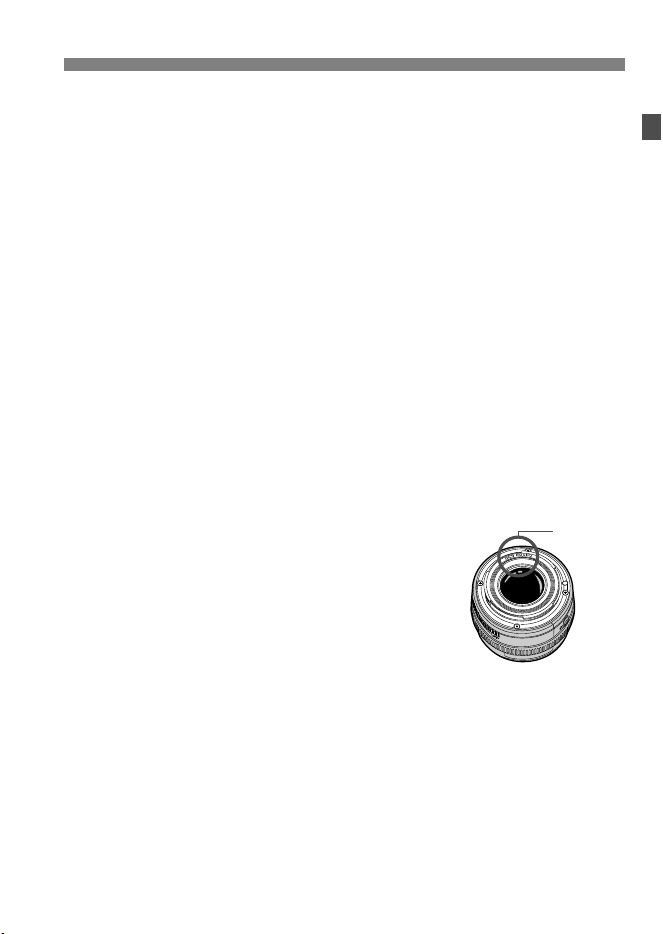
After detaching the lens from the camera, put down the
lens with the rear end up and attach the lens caps to
avoid scratching the lens surface and electrical contacts.
Cautions During Prolonged Use
If you use continuous shooting, Live View shooting, or movie shooting for a
prolonged period, the camera may become hot. Although this is not a
malfunction, holding the hot camera for a long period can cause slight skin
burns.
Contacts
10
Nomenclature
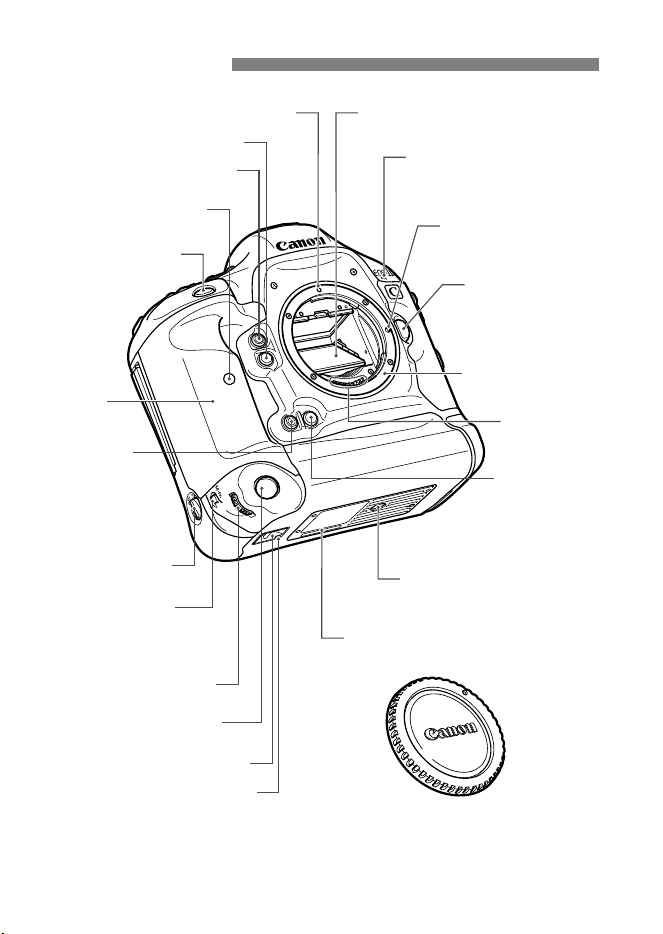
Self-timer lamp
Contacts
Lens mount
(EF mount)
Lens lock pin
Grip
Vertical-grip Main Dial
(p.19)
Vertical-grip
Multi-function
button 2
Vertical-grip shutter button
(p.18)
Depth-of-field preview button
Vertical-grip
depth-of-field
preview button
Lens release
button
Lens mount index Mirror
Movie microphone
(p.39)
Hand strap mount
Accessory alignment hole
Body number
Tripod socket
<B> Vertical-grip
A
F area selection mode/
Multi-function/
Multi-spot metering button
Vertical-grip
on/off
switch
Shutter button (p.18)
Multi-function button 2
Body cap
11
Nomenclature
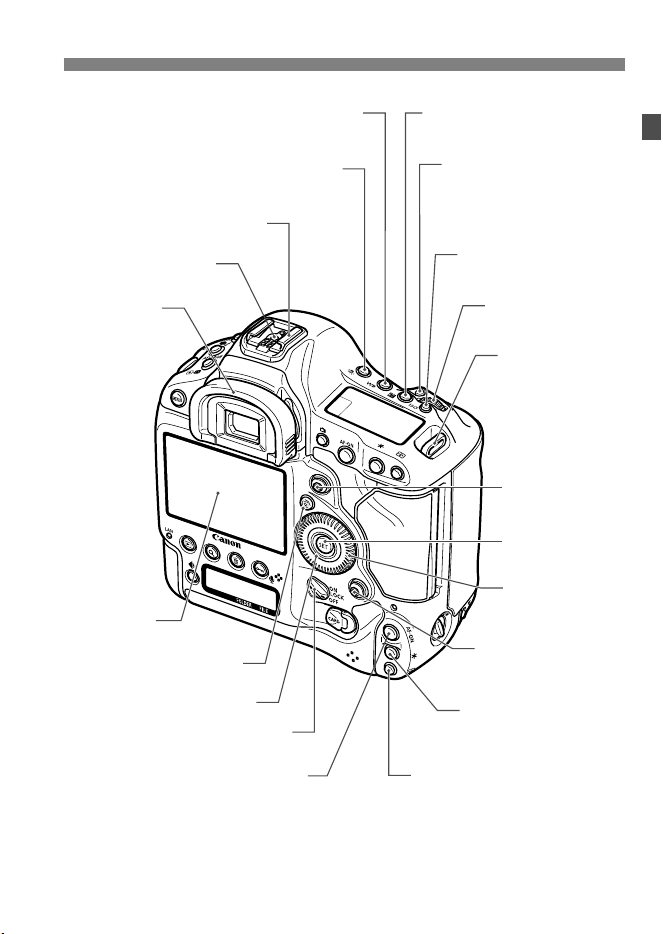
* Parts without reference page numbers are explained in the EOS-1D X
Instruction Manual.
Flash-sync contacts
Hot shoe
<6> Main Dial
<O> Exposure compensation/
Aperture button
<B> White balance selection button
<U> LCD panel illumination button
<i> ISO speed
setting button (p.23)
Strap mount
Power/Multi function lock switch
Touch pad (p.42)
<5> Quick
Control Dial
(p.18)
<9>
Multi-controller
<9> Vertical-grip
Multi-controller
<p> Vertical-grip AF start button
(p.28)
<S> Vertical-grip
AF point selection button
<A> Vertical-grip
AE lock button
(p.22, 25)
<0> Setting
button
Eyecup
LCD monitor
<Q> Quick Control button
<B> AF area selection
mode/Multi-function/
Multi-spot metering button
12
Nomenclature
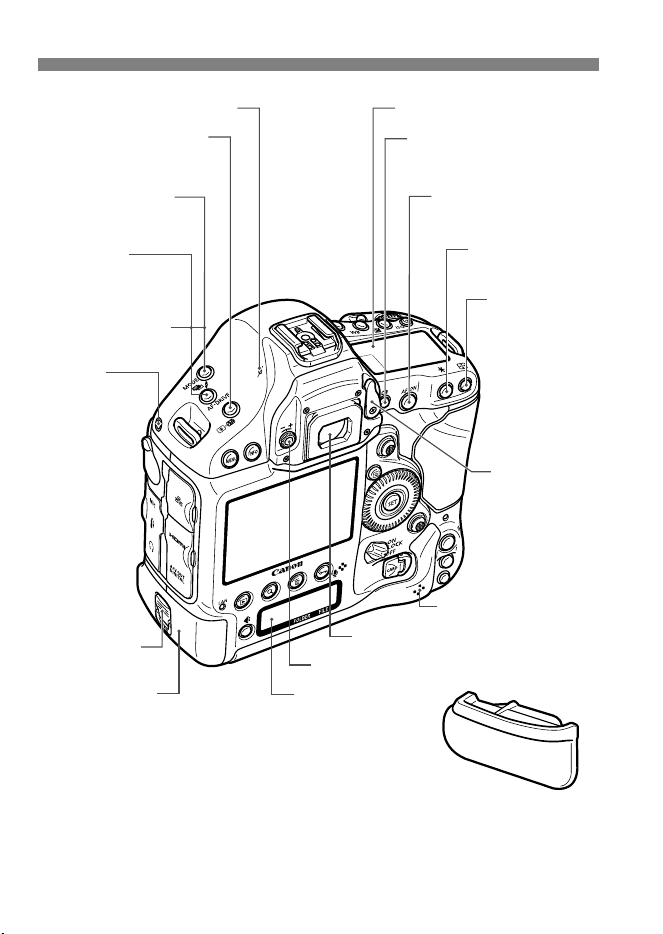
* For the nomenclature of the top LCD panel, rear LCD panel, Battery Pack LP-
E4N, and Battery Charger LC-E4N, see
zpages 24 to 28.
<Q> Metering mode
selection/Flash exposure
compensation button
<W> Shooting
mode selection button
(p.18)
<
o>
AF mode selection/
Drive mode selection
button
<h> AEB setting
button
Battery release
handle
Battery
Speaker (p.58)
<V> Focal plane mark
Top LCD panel
<A> Live View shooting/
Movie shooting button
(p.16)
<p>
AF start button
(p.28)
<A> AE lock
button (p.22, 25)
<S> AF point
selection button
Eyepiece
shutter lever
Viewfinder eyepiece
Dioptric adjustment knob
System
extension
mounting hole
Battery compartment cap
Rear LCD panel
13
Nomenclature
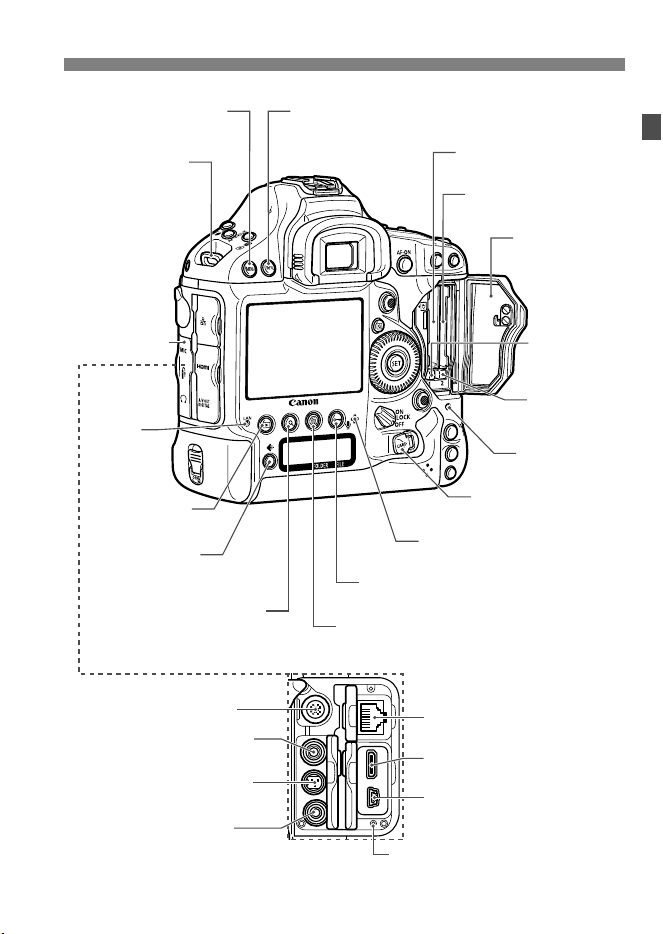
Strap mount
<M> Menu button
Terminal cover
<x> Playback
button (p.57)
<H> Card/
Image size selection
button
<Y>
Network
lamp
<L> Erase button
<B> Info button (p.53, 57)
Card slot 2
Card slot 1
Card slot cover
Card 1 eject
button
Card 2 eject
button
Access lamp
Card slot cover
release handle
<J/K> Protect/Voice memo button
Voice memo microphone
Cable clamp screw hole
(
p.14
)
<F> Remote control terminal
(N3 type)
<n> Headphone terminal
(p.41)
<Y> External microphone
IN/Line input terminal (p.39)
<q/C>
Audio/video OUT/
Digital terminal
<
Z
> HDMI mini OUT
terminal (p.49, 53, 54)
<F> Ethernet RJ-45 terminal
<u> Index/Magnify/
Reduce button
System extension terminal
14
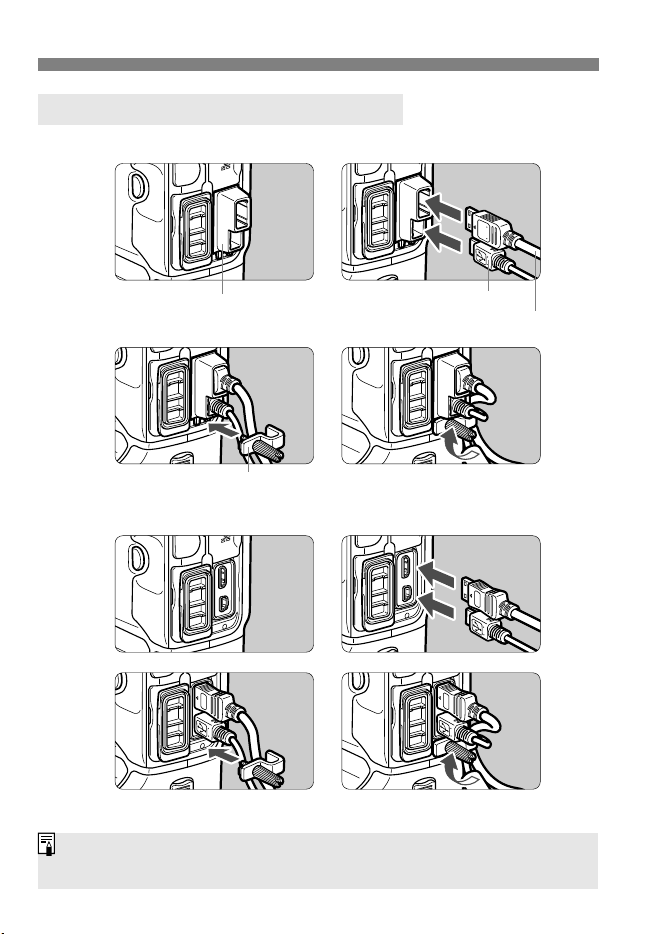
With a Canon HDMI cable (sold separately):
With a third party HDMI cable (commercially available):
Using the Cable Protector and Clamp
1
Cable protector
2
HDMI cable (sold separately)
Interface cable
Cable clamp
3
4
1
2
3
4
If the plug of a third-party HDMI cable can fit into the Cable protector, using
the Cable protector is recommended.
15
1
Shooting and Playing
Movies
The live image displayed on the camera’s LCD monitor
can be recorded as a movie to the card. The movie
recording format will be MOV.
This chapter assumes that an EF lens is used with the camera.
If you use an EF Cinema (CN-E) lens, see the cautions on
pages 17 and 29, and start movie shooting.
16
Set the camera so it can record the live image displayed on the LCD
monitor as a movie. To shoot still photos, see page 31.
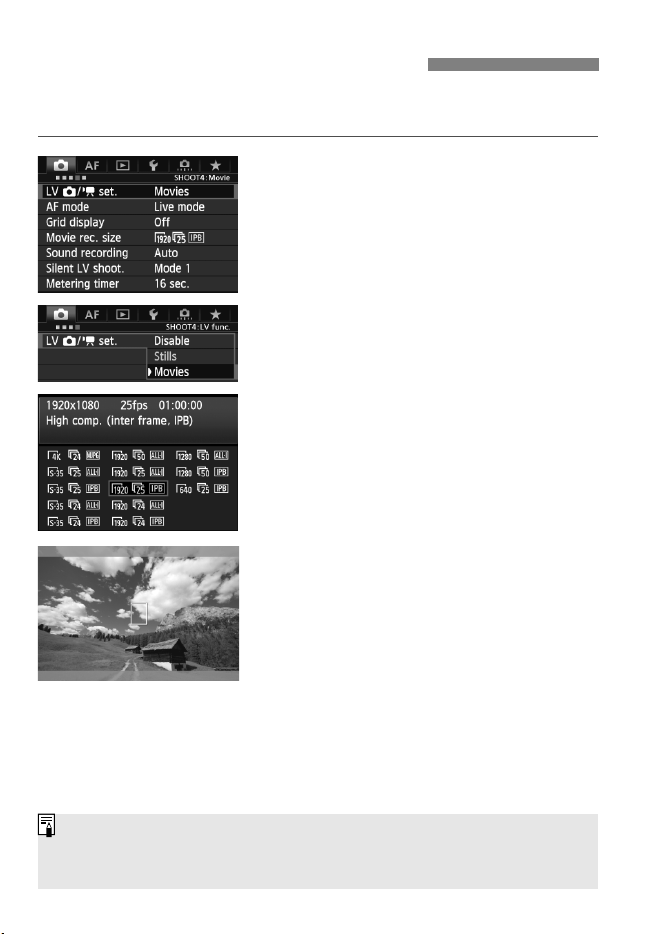
1
Check the [Movies] setting.
Select the [z4] tab and check that
[LV z/k set.] is set to [Movies].
If it is set to [Disable] or [Stills],
select [Movies], then press <0>.
“LV” stands for Live View.
2
Set [Movie rec. size].
For details on [Movie rec. size], see
page 34.
3
Display the image.
Press the <A> button.
X The image will appear on the LCD
monitor.
In the <a> shooting mode, turn the
<6> or <5> dial to adjust the
brightness.
A semi-transparent or black mask will
appear on the top/bottom or left/right.
The image area surrounded by the
masking will be recorded as the movie.
k Preparing to Shoot Movies
Notes on Movie Shooting are on page 27.
For information related to card operation confirmation, refer to Canon
website, etc.
17
k Preparing to Shoot Movies
With EF Cinema single focal length lenses, you can shoot at all movie-
recording quality settings. If you use an EF Cinema zoom lens, you can
shoot movies only with I Super 35mm Crop. (Since the image circle
is small, the image periphery will be dark if you shoot a movie in H A
B C quality or still photo.)
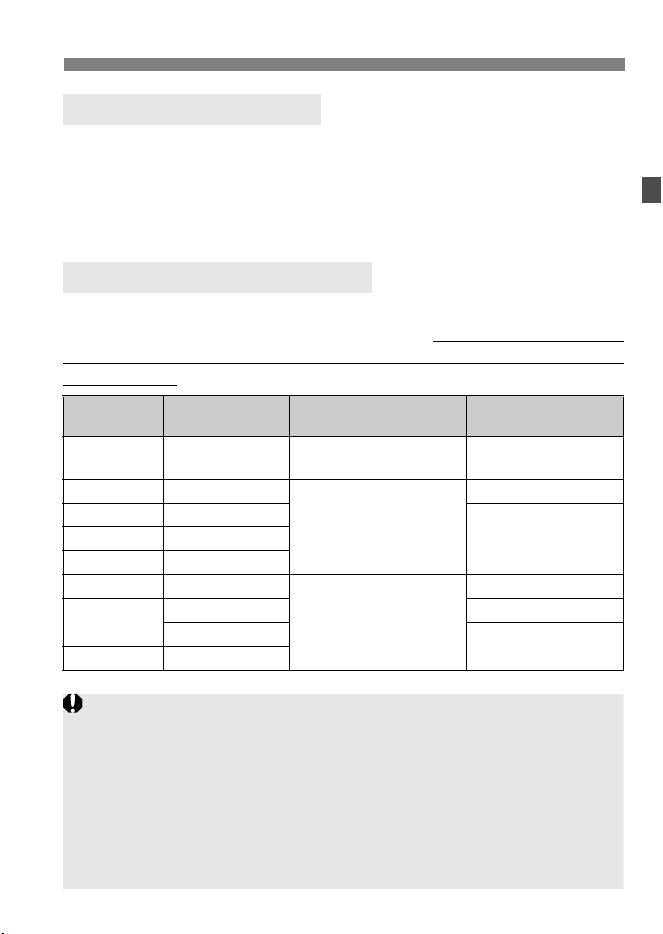
Use a large-capacity card with a fast writing/reading speed (required
card performance) as shown in the table. First, shoot a few test movies
to see if movies can be recorded accurately with a movie-recording size
you set (p.34).
EF Cinema (CN-E) Lenses
Cards that Can Record Movies
Image Size Frame Rate
Movie Recording/
Compression Method
Required Card
Performance
H5/4
JMotion JPEG
UDMA7
100 MB/sec. or faster
I6/5/4
X
MPEG-4 AVC/H.264
20 MB/sec. or faster
A6/5/4
10 MB/sec. or faster
B8/7
C6/5
I6/5/4
W
MPEG-4 AVC/H.264
30 MB/sec. or faster
A
8/7
60 MB/sec. or faster
6/5/4
30 MB/sec. or faster
B8/7
If you use a slow-writing card when shooting movies, the movie may not
be recorded properly. Also, if you play back a movie on a card with a
slow reading speed, the movie may not play back properly.
If you want to shoot still photos while shooting a movie, you will need an
even faster card.
To check the card’s writing/reading speed, refer to the card
manufacturer’s website.
To optimize the card’s performance, format the card before shooting
movies. For card-formatting cautions, see zpage 55.
18
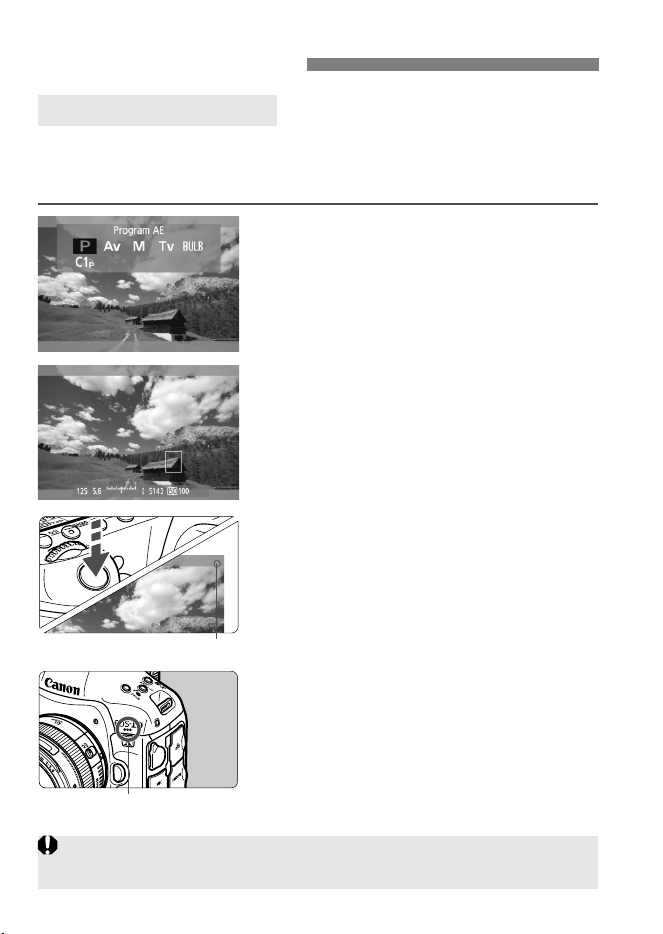
When the shooting mode is set to <d> or <BULB>, autoexposure
control will take effect to suit the scene’s current brightness.
Autoexposure control will be the same for <d> and <BULB>.
1
Set the shooting mode to <d/
BULB>.
Press the <W> button and turn
the <6> or <5> dial to select <d>
or <BULB>.
2
Focus the subject.
Before shooting a movie, focus with AF
or manual focus (
zp.213 to 220).
When you press the shutter button
halfway, the camera will focus with
the current AF mode.
3
Shoot the movie.
Press the shutter button completely
(or press the <B> button) to start
shooting a movie.
X While the movie is being shot, the
“o” mark will be displayed on the
upper right of the screen.
Press the shutter button completely
(or press the <B> button) again to
stop shooting the movie.
k Shooting Movies
Autoexposure Shooting
Movie microphone
Recording movie
If Canon Log gamma is set, AF is not possible. If H, I, or A:8/7 is
set, AF is not possible in the f mode.
19
k Shooting Movies
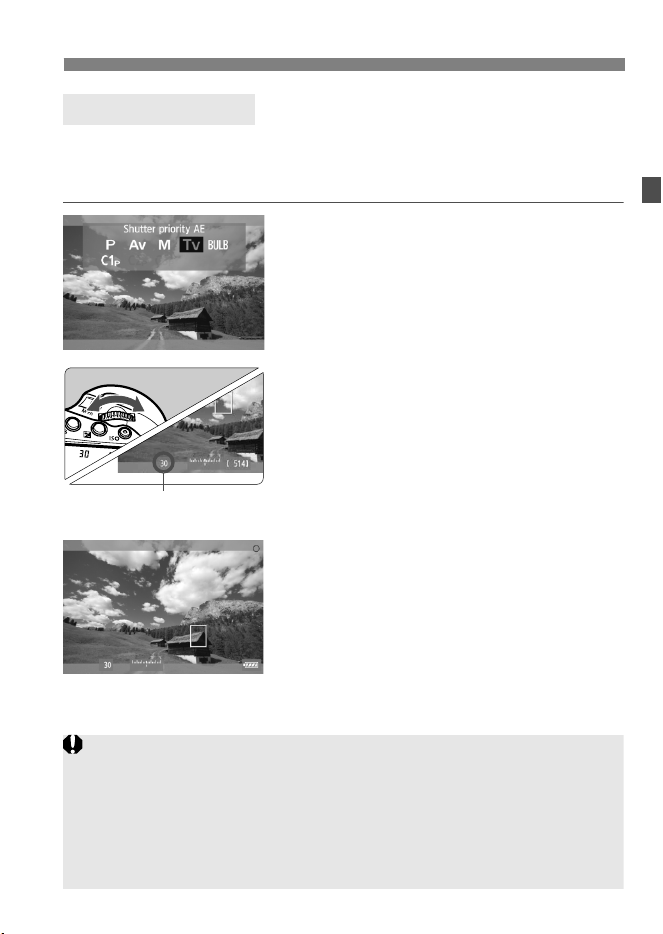
When the shooting mode is <s>, you can manually set the shutter
speed for movie shooting. The ISO speed and aperture will be set
automatically to suit the brightness and obtain a standard exposure.
1
Set the shooting mode to <s>.
Press the <W> button and turn
the <6> or <5> dial to select
<s>.
2
Set the desired shutter speed.
While looking at the LCD monitor,
turn the <6> dial. The settable
shutter speeds depend on the frame
rate <9>.
• 6 5 4 : 1/4000 sec. - 1/30 sec.
• 8 7 : 1/4000 sec. - 1/60 sec.
3
Focus and shoot the movie.
The procedure is the same as steps 2
and 3 for “Autoexposure Shooting”
(p.18).
Shutter-priority AE
Shutter speed
Changing the shutter speed during movie shooting is not recommended
since the changes in the exposure will be recorded.
When shooting a movie of a moving subject, a shutter speed of 1/30 sec.
to 1/125 sec. is recommended. The faster the shutter speed, the less
smooth the subject’s movement will look.
If you change the shutter speed while shooting under fluorescent or LED
lighting, image flicker may be recorded.
20
k Shooting Movies
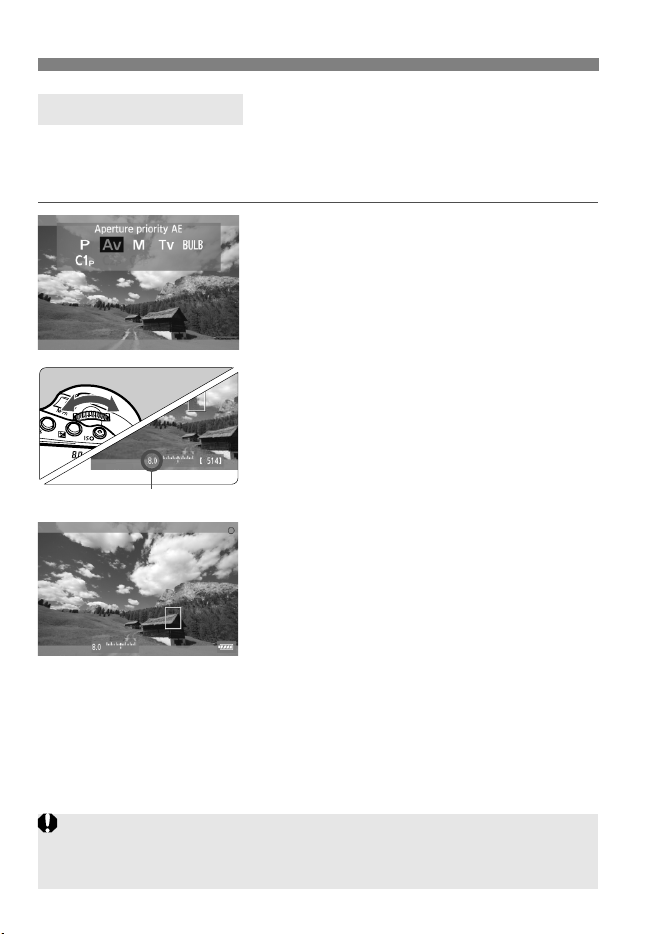
When the shooting mode is <f>, you can manually set the aperture
for movie shooting. The ISO speed and shutter speed will be set
automatically to suit the brightness and obtain a standard exposure.
1
Set the shooting mode to <f>.
Press the <W> button and turn
the <6> or <5> dial to select
<f>.
2
Set the desired aperture.
While looking at the LCD monitor,
turn the <6> dial.
3
Focus and shoot the movie.
The procedure is the same as steps 2
and 3 for “Autoexposure Shooting”
(p.18).
Aperture-priority AE
Aperture
Changing the aperture during movie shooting is not recommended since
changes in the exposure, due to the drive of the lens aperture, will be
recorded.

21
k Shooting Movies
ISO speed in the d, s, f, and BULB modes
The ISO speed will be set automatically within ISO 100 - 25600.
Under [z2: ISO speed settings], if [ISO speed range]’s
[Maximum] setting (zp.130) is set to [51200/H] in the d, s, and
BULB modes, the automatic ISO speed setting range’s maximum
will be expanded to H (equivalent to ISO 51200). Note that even if
you set [Maximum] to [51200], the maximum will remain at ISO
25600 and will not be expanded.
If [z2: Highlight tone priority] is set to [Enable] (zp.154), the
ISO speed will be ISO 200 - 25600.
Under [z2: ISO speed settings], [Auto ISO range] and [Min.
shutter spd.] cannot be set (zp.131, 132) for movie shooting.
Also, [ISO speed range] cannot be set in the s mode.
If [
ISO speed range
]’s [
Minimum
] is set to [
L (50)
] and you switch from still
photo shooting to movie shooting, the automatic ISO speed setting range’s
minimum for movie shooting will be ISO 100. It cannot be expanded to ISO 50.

22
k Shooting Movies
Notes for Autoexposure, Shutter-priority AE, and Aperture-priority AE
This camera is compatible with the function turning on the LED light
automatically in low-light conditions during movie shooting in d, s,
f or BULB mode. For details, refer to the Speedlite’s instruction
manual.
Using an EX-series Speedlite (Sold Separately) Equipped
with an LED Light
You can lock the exposure (AE lock) by pressing the <A> button
(zp.181). After applying AE lock during movie shooting, you can
cancel it by pressing the <S> button. (AE lock setting is retained until
you press <S>.)
If you set the power switch to <1> and turn the <5> dial, you can set
the exposure compensation.
Pressing the shutter button halfway displays the ISO speed and shutter
speed on the screen’s bottom. This is the exposure setting for taking a
still photo (p.26). The exposure setting for movie shooting is not
displayed. Note that the exposure setting for movie shooting may differ
from that for still photo shooting.
23
k Shooting Movies
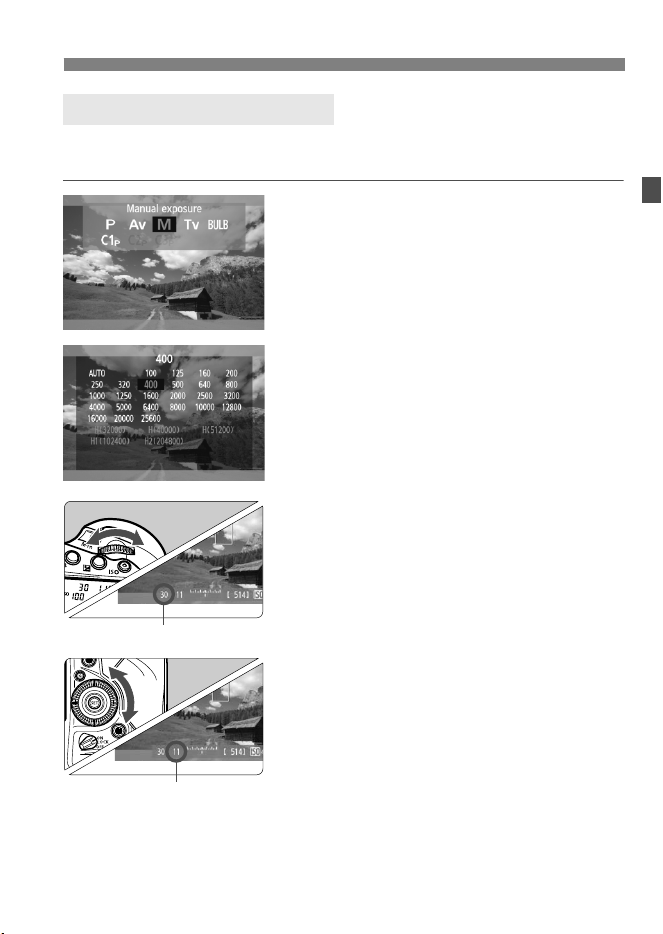
You can manually set the shutter speed, aperture, and ISO speed for
movie shooting.
1
Set the shooting mode to <a>.
Press the <
W
> button and turn the
<
6
> or <
5
> dial to select <
a
>.
2
Set the ISO speed.
Press the <i> button.
X The ISO speed setting screen will
appear on the LCD monitor.
Turn the <6>
or <
5
>
dial to set the
ISO speed.
For details on the ISO speed, see the
next page.
3
Set the shutter speed and aperture.
Press the shutter button halfway and
check the exposure level indicator.
To set the shutter speed, turn the
<
6
> dial. The settable shutter speeds
depend on the frame rate <
9
>.
• 6 5 4 : 1/4000 sec. - 1/30 sec.
• 8 7 : 1/4000 sec. - 1/60 sec.
To set the aperture, turn the <
5
> dial.
If you cannot set the shutter speed or
aperture, set the power switch to
<1>, then turn the <6> or <5>
dial.
4
Focus and shoot the movie.
The procedure is the same as steps 2
and 3 for “Autoexposure Shooting”
(p.18).
Manual Exposure Shooting
Shutter speed
Aperture

24
k Shooting Movies
ISO speed during manual-exposure shooting
ISO 400 is set by default.
You can set the ISO speed manually within ISO 100 - 25600 in 1/3-
stop increments. Under [z2: ISO speed settings], if [ISO speed
range]’s [Maximum] is set to [51200/H], the manual ISO speed
setting range’s maximum will be expanded to H (equivalent to ISO
51200). Note that even if you set [Maximum] to [51200], the
maximum will remain at ISO 25600 and not be expanded. Setting
[Maximum] to [H1 (102400)] or [H2 (204800)] will enable the setting
range to be expanded up to ISO 102400/204800.
With [Auto] (A), the ISO speed will be set automatically within
ISO 100 - 25600.
If [z2: Highlight tone priority] is set to [Enable] (zp.154), you
can set the ISO speed within ISO 200 - 25600 (depending on the
[ISO speed range] setting).
Under [z2: ISO speed settings], [Auto ISO range] and [Min.
shutter spd.] cannot be set (zp.131, 132) for movie shooting.
25
k Shooting Movies
Since shooting a movie at ISO 32000/40000/51200 may result in
substantial noise, these speeds are designated as expanded ISO
speeds (displayed as [H]).
If [ISO speed range]’s [Minimum] is set to [L (50)] and you switch from
still photo shooting to movie shooting, the manual ISO speed setting
range’s minimum for movie shooting will be ISO 100. It cannot be
expanded to ISO 50.
Changing the shutter speed or aperture, or zooming the lens during
movie shooting, is not recommended since the changes in the exposure,
or noise at high ISO speeds, may be recorded.
When shooting a movie of a moving subject, a shutter speed of 1/30 sec.
to 1/125 sec. is recommended. The faster the shutter speed, the less
smooth the subject’s movement will look.
If you change the shutter speed while shooting under fluorescent or LED
lighting, image flicker may be recorded.
If ISO Auto is set, you can press the <A> button to lock the ISO speed.
When you press the <A> button and then recompose the picture, you
can see the exposure level difference on the exposure level indicator
(p.26) compared to when you first pressed the <A> button.
By pressing the <B> button, you can display the histogram.
26
k Shooting Movies
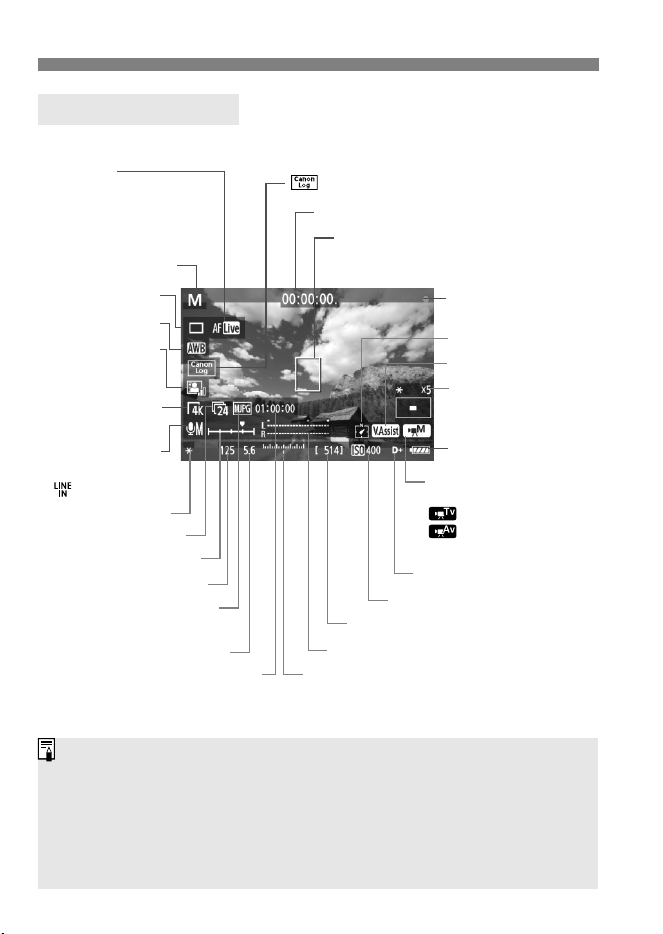
Each time you press the <
B
> button, the information display will change.
* Applies to a single movie clip.
Information Display
Recording movie
AF point (Live mode)
ISO speed
Exposure level
Aperture
Shutter speed
White balance
Auto Lighting
Optimizer
Shooting mode
Movie recording
size
AE lock
Canon Log gamma/Picture Style
AF mode
•d: Live mode
•c : Face detection
Live mode
•f:Quick mode
Possible shots
Battery check
Frame rate
Movie shooting remaining time*/
Elapsed time
Highlight tone priority
Shooting mode
L:Autoexposure
:
Shutter-priority AE
:
Aperture-priority AE
K:
Manual exposure
Sound recording
•N : Manual
• : Line input
Sound-recording level meter
Drive mode
Time code
Movie recording/
compression method
Magnification/
Magnifying position
View Assist
Digital compass
Sound-recording level
You can display the electronic level by pressing the <
B
> button (
z
p.62).
If the AF mode is set to [u Live mode
] or if the camera is connected to a
TV set with an HDMI cable (
z
p.273), the electronic level is not displayed.
If there is no card in the camera, the movie shooting remaining time will
be displayed in red.
When movie shooting starts, the movie shooting remaining time will
change to the elapsed time.

27
k Shooting Movies
Notes on Movie Shooting
The camera cannot autofocus continuously like a camcorder.
If you use AF during movie shooting, the focus may become greatly
blurred momentarily and the exposure may change.
If you use a USM lens and perform AF while shooting a movie in low
light, horizontal noise stripes may be recorded. With certain lenses
having an electronic focusing ring, horizontal noise stripes may be
recorded even when you focus manually (MF).
Zooming the lens during movie shooting is not recommended. Zooming
the lens can cause changes in the exposure regardless of whether the
lens’ maximum aperture changes or not. Exposure changes may be
recorded as a result.
Do not point the camera toward an intense light source, such as the sun
on a sunny day or an intense artificial light source. Doing so may
damage the image sensor or the camera’s internal components.
Under [51: Record func+card/folder sel.], even if [Record func.] is set
to [Rec. to multiple] (zp.118), the movie cannot be recorded to both
Card 1 <f> and Card 2 <g>. If [Rec. separately] or [Rec. to
multiple] is set, the movie will be recorded to the card which is set for
[Playback].
If <Q> is set and the ISO speed or aperture changes during movie
shooting, the white balance may also change.
If you shoot a movie under fluorescent or LED lighting, the movie may
flicker.
When you shoot at high ISO speeds, color tone may be changed
depending on the movie-recording size settings.
When you press the <u> button, the “x5” or “x10” figure displayed on
the screen’s bottom right indicates the magnification based on 35mm
full-frame sensor size.
Cautions for movie shooting are on pages 55 and 56.
If necessary, also see “Live View Shooting Cautions” on pages 221
and 222 in the EOS-1D X Instruction Manual.

28
k Shooting Movies
Notes on Movie Shooting
Movie-related settings are under the [z4] and [z5] tabs (p.51).
A movie file is recorded each time you shoot a movie. If the file size
exceeds 4 GB for a single movie shoot (single clip), a new file will be
created.
The movie image’s field of view is approx. 100% (with movie recording
size set to [A]).
You can also focus the image by pressing the <p> button.
To focus during movie shooting, press the <p> button. You cannot
focus by pressing the shutter button.
Sizes of AF points and a magnification frame displayed in information
display (p.26) depend on the movie-recording size setting (p.34).
Monaural sound is recorded by the camera’s built-in microphone (p.18).
By connecting a stereo microphone (commercially available) equipped
with a 3.5 mm mini plug to the camera’s external microphone IN terminal,
stereo sound recording is possible (p.13, 40). You can also feed sound
through Line input (p.39).
By connecting stereo headphones (commercially available) equipped
with a 3.5 mm mini plug to the camera’s headphone terminal (p.13), you
can listen to the sound during movie shooting.
The focus preset function is possible for movie shooting when using a
(super) telephoto lens equipped with the focus preset mode marketed
since the second half of 2011.
With a fully-charged Battery Pack LP-E4N, the total movie shooting time
(with H shooting) will be as follows: approx. 1 hr. 25 min. at room
temperature (23°C/73°F), and approx. 1 hr. 15 min. at low temperature
(0°C/32°F).
29
k Shooting Movies
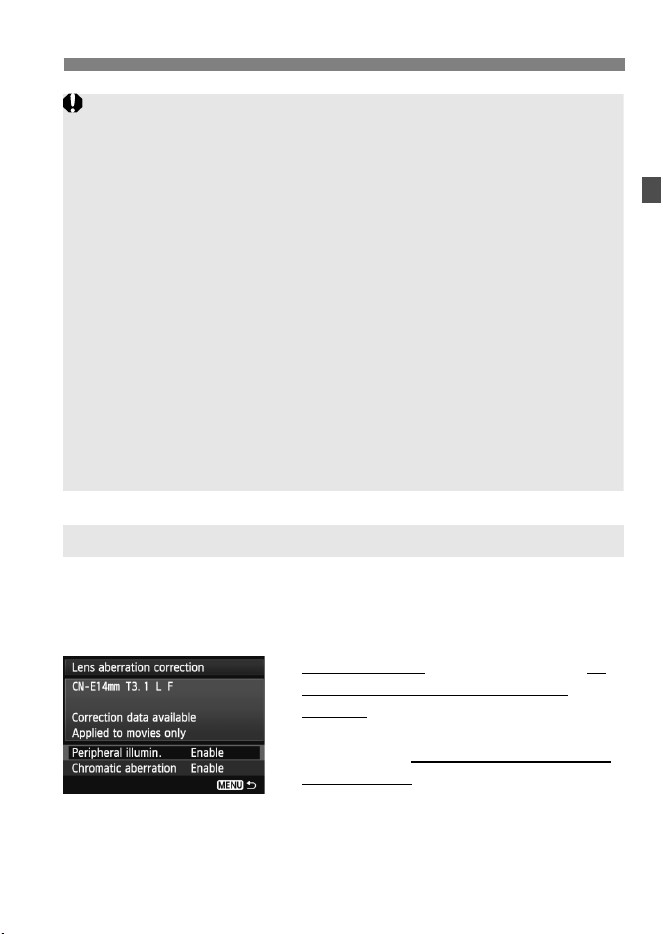
With the EOS-1D C’s firmware Ver. 1.3.0 or higher, lens aberration
correction (peripheral illumination correction and chromatic aberration
correction) with EF Cinema lenses (those that can communicate with
the camera) is possible.
Use EOS Utility
(provided software) to
register the correction data to the
camera. If EOS Utility’s correction data
registration screen does not show the EF
Cinema lens, update EOS Utility to the
latest version.
The setting procedure is on zpages
155-157.
Lens Aberration Correction with EF Cinema (CN-E) Lenses
Cautions for Using EF Cinema (CN-E) Lenses
EF Cinema lenses with PL mount are not supported.
EF Cinema lenses require the aperture to be adjusted manually.
Therefore, they are not suitable for autoexposure shooting (p.18) and
shutter-priority AE shooting (p.19) for which the aperture is set
automatically to suit the brightness.
If the EF Cinema lens is not fitted with a function for sending information
to the camera, the aperture will be indicated as “00.” Also, the lens name
and other information will not be recorded in the Exif information.
If the EF Cinema lens can send information to the camera, the aperture
will be displayed as the f/number (not as the TNo.).
The color tone of movies shot with EF lenses and EF Cinema lenses is
different. Compared to EF lenses, EF Cinema lenses tend to make
movies look slightly more yellow.
When you shoot a still photo using an EF Cinema lens, lens aberration
correction (peripheral illumination correction and chromatic aberration
correction) is not applied. Correction is applied only for movie shooting.
Additional cautions regarding the use of EF Cinema lenses may be
announced on the Canon website, etc.

30
k Shooting Movies
The final image simulation is a function that allows you to see the
effects of the Picture Style, white balance, etc., on the image.
During movie shooting, the image displayed will automatically reflect
the effects of the settings listed below.
Final image simulation for movies
Picture Style
* All settings such as sharpness, contrast, color saturation, and color tone will
be reflected.
Canon Log gamma (without View Assist)
* Sharpness, saturation, and hue will be reflected.
White balance
White balance correction
Exposure
Depth of field
Auto Lighting Optimizer
Peripheral illumination correction
Chromatic aberration correction
Highlight tone priority
Final Image Simulation
Even when Canon Log gamma (p. 43) is set, function settings other than the
Picture Style will be reflected in the final image simulation.
31
k Shooting Movies
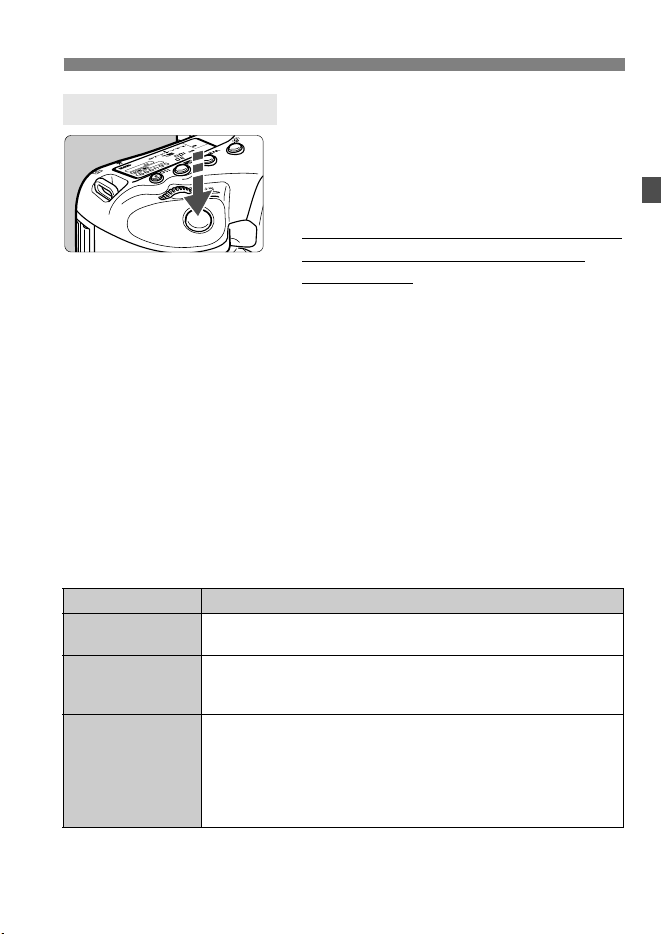
Set [z5: Movie shoot. btn] to [o]
(p.52) and press the shutter button
completely. You can then shoot still
photos while shooting the movie.
Note that you cannot shoot still photos if
H, I, A:8/7, or Canon Log
gamma is set.
Taking still photos during movie shooting
If you take a still photo during movie shooting, the movie will record
a still moment lasting approx. 1 sec.
The movie and still photo will be recorded as separate files on the card.
The captured still photo will be recorded to the card, and the movie
shooting will resume automatically when the image is displayed.
If [Record func.] (zp.118) is set to [Standard] or [Auto switch
card], the movies and still photos will be recorded to the same card.
If [Rec. separately] or [Rec. to multiple] is set, the movies will be
recorded to the card set for [Playback]. The still photos will be
recorded at the image-recording quality set for the respective card.
Functions particular to still photo shooting are shown below. Other
functions will be the same as for movie shooting.
*
If highlight tone priority is set, the ISO speed range will start from ISO 200.
Shooting Still Photos
Function Settings
Image-Recording
Quality
As set in [z2: Img type/size] and [z2: JPEG quality].
ISO Speed*
•<d/s/f/BULB>: ISO 100 - 25600
•<a>: See “ISO speed during manual-exposure shooting”
on page 24.
Exposure Setting
•<d/BULB>: Automatically set shutter speed and aperture.
•<s> : Manually set shutter speed and automatically set
aperture.
•<f>: Manually set aperture and automatically set
shutter speed.
•<a> : Manually set shutter speed and aperture.
32
k Shooting Movies
If [z5: Movie shoot. btn] is set to [V/o], still photo shooting is not
possible.
Since the image circle of EF Cinema zoom lenses does not support the
image size of 35mm full-frame size image sensor, still photo shooting is
not possible. (The image periphery will look dark.)
AEB cannot be used.
Even if an external Speedlite is used, it will not fire.
Continuous still photo shooting is possible during movie shooting.
However, the captured images will not be displayed on the monitor.
Depending on the still photo’s image-recording quality, number of shots
during continuous shooting, card performance, etc., the movie shooting
may stop automatically.
If you plan to shoot still photos continuously during movie shooting, it is
recommended that you use a card with a higher performance than those
specified by “Required Card Performance” on page 17. Setting a smaller
image size for still photos and shooting fewer continuous still photos are
also recommended.
You can shoot still photos in all drive modes.
The self-timer can be used before you start shooting a movie. If used
during movie shooting, the self-timer will switch to single shooting.

33
If you press the <W>, <o>, <S>, <i>, <O>, or
<B> button while the image is displayed on the LCD monitor, the
setting screen will appear on the LCD monitor and you can turn the
<6> or <5> dial to set the respective function.
When f is set, you can press the <S> button to select the AF area
selection mode and AF point. The procedure is the same as with
viewfinder shooting. During manual-exposure shooting (p.23), you can
press the <i> button to set the ISO speed.
Note that the <q> metering mode and <y> flash exposure
compensation cannot be set.
If you press the <Q> button while the image is displayed on the LCD
monitor, you can set the following: AF mode, drive mode, white balance,
Picture Style, Auto Lighting Optimizer, movie-recording size, and
sound-recording level (with [Sound recording: Manual/Line input]
set).
1 Press the <Q> button.
X The settable functions will be displayed.
2 Select a function and set it.
Use <9> to select a function.
X The setting of the selected function is displayed at the bottom.
Turn the <5> or <6> dial to set it.
Shooting Function Settings
W / f / R / S / i / O / B Settings
Q Quick Control
If [Canon Log] is set to [On], Picture Style and Auto Lighting Optimizer
cannot be set.
During movie shooting, you can set the following: shutter speed, aperture,
ISO speed, exposure compensation, and sound-recording level. (Settable
functions may differ depending on the shooting mode and [Sound
recording] setting.)
34
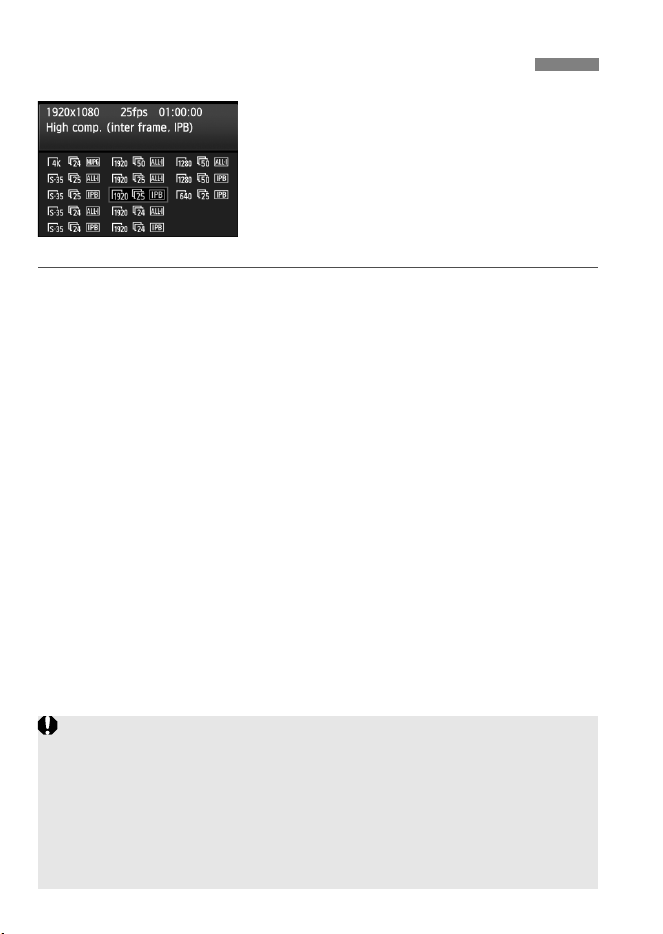
The menu option [z4: Movie rec. size]
enables you to set the movie’s image
size, frame rate per second, and movie
recording/compression method. The
frame rate switches automatically
depending on the [53: Video system]
setting.
Image size
H [4096x2160] : The image at the center of the image sensor is
recorded in 4K resolution. The effective angle
of view is approx. 1.3 times the lens focal
length.
I [1920x1080] : The image at the center of the image sensor is
recorded with the size equivalent to Super
35mm film in Full HD resolution (Super 35mm
Crop). The aspect ratio will be 16:9. The
effective angle of view is approx. 1.6 times the
lens focal length.
A [1920x1080] : Full High-Definition (Full HD) recording quality.
The aspect ratio will be 16:9.
B [1280x720] : High-Definition (HD) recording quality.
The aspect ratio will be 16:9.
C [640x480] : Standard-definition (SD) recording quality.
The aspect ratio will be 4:3.
3 Setting the Movie-recording Size
If you use an EF Cinema (CN-E) zoom lens, set the movie-recording size
to I. If you shoot with a setting other than I, the image periphery
will look dark.
If H is set, chromatic aberration correction (zp.156) cannot be set
(not applied).
If you shoot a low-contrast subject with [Live mode] or [u Live mode]
when H or I is set, focus may not be achieved with AF. Manual
focusing is recommended.
35
3 Setting the Movie-recording Size
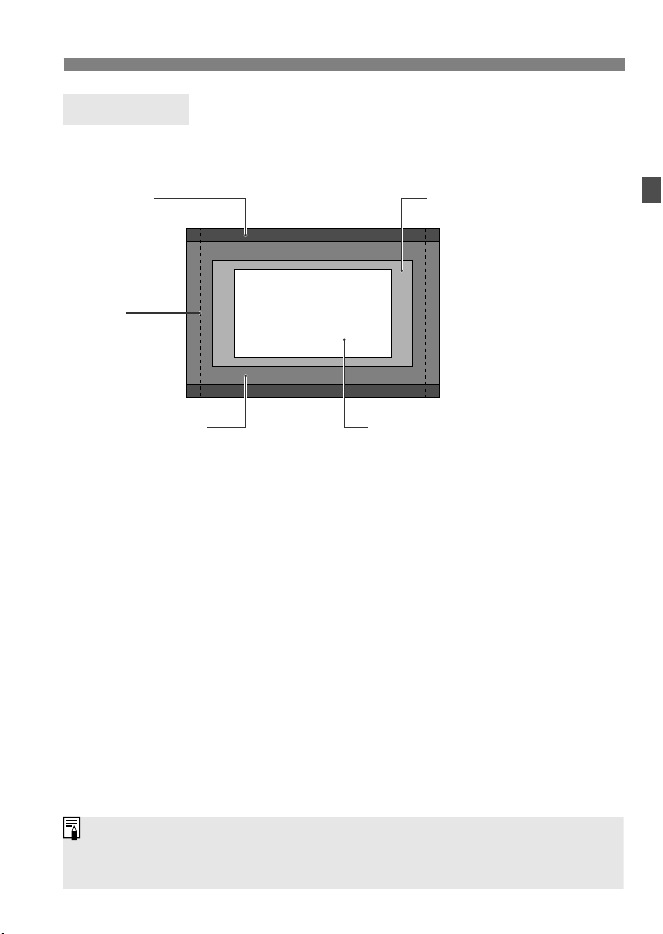
When H, I, A, or B is set, the respective image sensor area
below is used to record the movie.
Image Area
Still photos
H
4K
I
Super 35mm Crop
C
SD
A
Full HD/
B
HD
When I or A is set, the movie will be recorded in 1920x1080 resolution.
When B is set, the movie will be recorded in 1280x720 resolution. When
C is set, the movie will be recorded in 640x480 resolution.

36
3 Setting the Movie-recording Size
Frame rate (fps: frames per second)
8/6 : For areas where the TV format is NTSC (North America,
Japan, Korea, Mexico, etc.).
7/5 : For areas where the TV format is PAL (Europe, Russia,
China, Australia, etc.).
4 : Mainly for motion pictures.
Movie recording method and compression method
J MJPG : When shooting in H, Motion JPEG is used to
compress the movie recorded. Each frame is
compressed separately and recorded without
compression between frames. The
compression rate is therefore low. Since the
image size is large, the file size will also be
large.
X IPB : Efficiently compresses multiple frames at a
time for recording. Since the file size will be
smaller than with ALL-I, you can shoot longer.
W ALL-I (I-only) : Compresses one frame at a time for recording.
Although the file size will be bigger than with
IPB, the movie will be more suited for editing.
Still photo shooting (p.31) is not possible if H, I, or A:8/7 is set.
While I, A:8/7, A:6/5 movie-recording sizes all record at
Full HD resolution, the recorded image may look slightly different
between each setting.
The 8/7 and 6/5 frame rate will switch automatically in accordance
with the [53: Video system] setting. H: 5 will be displayed when
[53: Video system] is set to [PAL].
The color sampling will be recorded as follows: H: YCbCr 4:2:2 (8 bit),
I A BC: YCbCr 4:2:0 (8 bit). The color matrix will be recorded as
follows: HC: Rec. ITU-R BT.601, I A B: Rec. ITU-R BT.709.
37
3 Setting the Movie-recording Size
About movies exceeding 4 GB
Even if you shoot a movie exceeding 4 GB for a single movie shoot
(single clip), you can keep shooting without interruption.
During movie shooting, approx. 30 sec. before the movie reaches
the 4 GB file size, the elapsed shooting time or time code displayed
in the movie-shooting screen will start blinking. If you keep shooting
until the movie file size exceeds 4 GB, a new movie file will be
created automatically and the elapsed shooting time or time code
will stop blinking.
When you play the movie with the camera, you have to play the
movie files individually. Movie files cannot play back consecutively
automatically. After the movie playback ends, select the next movie
to be played.
Movie shooting time limit
The maximum shooting time of one movie clip is 12 hours. The
movie shooting will stop automatically if the card becomes full or if
the maximum shooting time elapses. If the card is not full, you can
press the shutter button completely (or press the <B> button) to
shoot a movie again. (It will be recorded as a new file.)
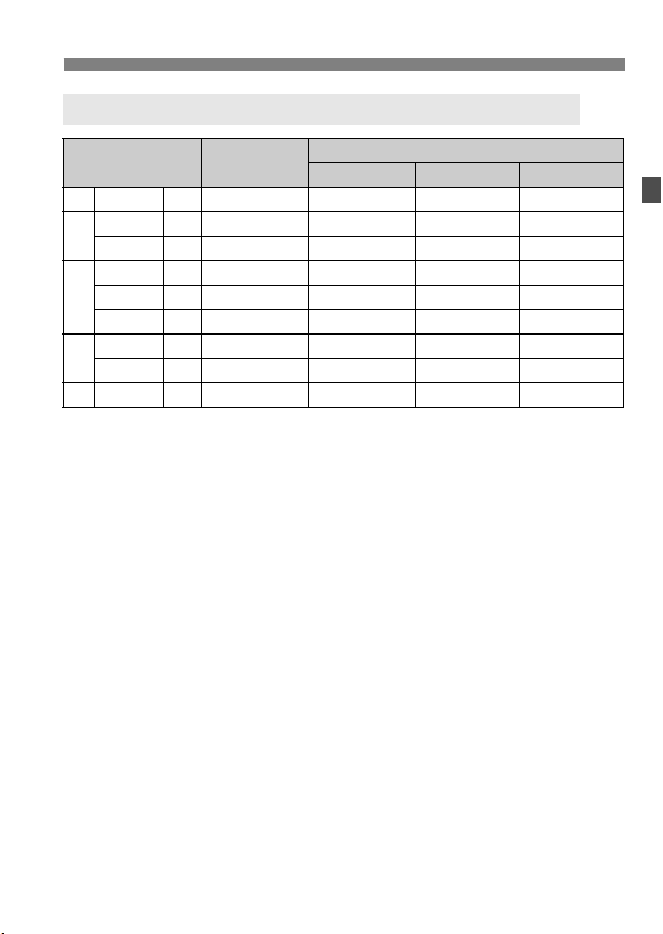
Total Movie Recording Time and File Size Per Minute
Movie-Recording
Size
File Size
(approx.)
Total Recording Time (approx.)
4 GB Card 32 GB Card 128 GB Card
H 54 J 3.76 GB/min. 55 sec. 8 min. 32 min.
I
654 X 385 MB/min. 9 min. 30 sec. 1 hr. 19 min. 5 hr. 16 min.
654 W 685 MB/min. 5 min. 44 min. 2 hr. 57 min.
A
87 W 1.36 GB/min. 2 min. 30 sec. 22 min. 1 hr. 29 min.
654 X 235 MB/min. 16 min. 2 hr. 9 min. 8 hr. 37 min.
654 W 685 MB/min. 5 min. 44 min. 2 hr. 57 min.
B
87 X 205 MB/min. 18 min. 2 hr. 28 min. 9 hr. 52 min.
87 W 610 MB/min. 6 min. 49 min. 3 hr. 19 min.
C65 X 78 MB/min. 48 min. 6 hr. 28 min. 25 hr. 55 min.
38
3 Setting the Movie-recording Size
An increase of the camera’s internal temperature may cause movie
shooting to stop before the maximum recording time shown on the
preceding page (p.55).
Even if [Record func.] is set to [Auto switch card], the card cannot be
switched automatically during movie shooting.
If you delete part of the multiple movie files created from one successive
shooting whose file size exceeds 4 GB for a single movie shoot (single
clip), playing them back consecutively or saving them as a single movie
file with EOS MOVIE Utility (p.94) is not possible.
EOS MOVIE Utility can automatically combine individual 4 GB movie files
and save them as a single movie file.
About Full HD 1080
Full HD 1080 indicates compatibility with High-Definition
featuring 1080 vertical pixels (scanning lines).
39
You can shoot movies while recording
sound with the built-in monaural
microphone, with a commercially-
available stereo microphone, or with Line
input. You can also freely adjust the
sound-recording level.
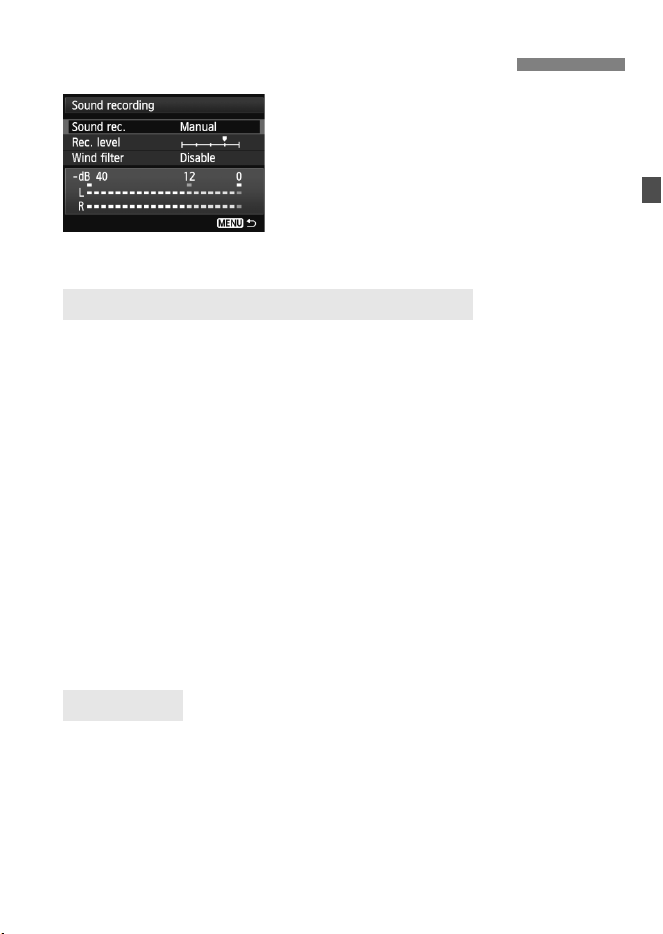
Set the sound recording with [z4:
Sound recording].
[Auto] : The sound-recording level is adjusted automatically. Auto
level control will operate automatically in response to the
sound level.
[Manual] : You can adjust the sound-recording level to one of 64
levels. Select [Rec. level] and look at the level meter
while turning the <5> dial to adjust the sound-recording
level. While looking at the peak hold indicator (approx. 3
sec.), adjust so that the level meter sometimes lights up
the “12” (-12 dB) mark on the right for the loudest sounds.
If it exceeds “0”, the sound will be distorted.
[Line input]: You can input sound through Line input. The sound is
then recorded together with the movie. You can adjust the
sound-recording level to one of 64 levels. The adjustment
procedure is the same as with [Manual].
[Disable] : Sound will not be recorded.
When set to [Enable], it reduces wind noise when there is wind
outdoors. This feature takes effect only with the built-in microphone.
Note that [Enable] will also reduce low bass sounds, so set this function
to [Disable] when there is no wind. It will record a more natural sound
than with [Enable].
3 Setting the Sound Recording
Sound Recording/Sound-Recording Level
Wind Filter

40
3 Setting the Sound Recording
Using the microphone
The built-in microphone records monaural sound. Stereo sound
recording is possible by connecting an external stereo microphone
(commercially-available) equipped with a miniature stereo plug (3.5
mm) to the camera’s external microphone IN terminal (p.13). When
an external microphone is connected, sound recording will switch
automatically to the external microphone.
Line input
Stereo sound from a sound mixer, etc., can be directly input to the
camera. With a mini plug (3.5mm dia.) connected to the Line input
terminal (p.13), the sound will be recorded to the movie in stereo.
The standard input level is -8 dBV. Adjust the sound-recording level
to suit the Line output level.
The sound volume balance between L (left) and R (right) cannot be
adjusted.
The camera’s built-in microphone will also pick up camera operation
noise. Using a commercially-available external microphone can prevent
(or reduce) these noises from being recorded.
When using Line input, an audio signal of up to +6 dBV can be input, but
the distortion ratio may increase if the signal exceeds the standard input
level (-8 dBV). It is recommended to shoot a few test movies before the
actual shooting.
For Line input, be sure to set [Sound rec.] to [Line input]. If you try to
use Line input without setting [Line input] first, it may cause a
malfunction.
When [Line input] is set, the sound will not be recorded with the built-in
microphone. Also, [Wind filter] cannot be set (disabled).
Do not switch between [Manual] and [Line input] while listening with
headphones. It can hurt your ears.
Both L and R record audio at a 48 kHz/16-bit sampling rate.
If [z5: Silent Control] is set to [Enable h] (p.42), you can adjust the
sound-recording level with the <
h> touch pad to reduce the operation
noise during movie shooting.

41
3 Setting the Sound Recording
Using headphones
By connecting stereo headphones (commercially available)
equipped with a 3.5 mm mini plug to the camera’s headphone
terminal (p.13), you can listen to the sound during movie shooting. If
you are using an external stereo microphone, you can listen to the
sound in stereo.
To adjust the headphone’s sound volume, press the <Q> button,
then hold down the <J> button and tilt the <9> up or down. The
sound volume level is not displayed on the screen. Adjust while
listening to the headphones.
You can also use headphones during movie playback.
The audio output to the headphones will not have noise reduction applied. It
will therefore be different from the sound recorded with the movie.
42
This function is convenient when you want to change the ISO speed,
sound-recording level, etc., silently while shooting a movie.
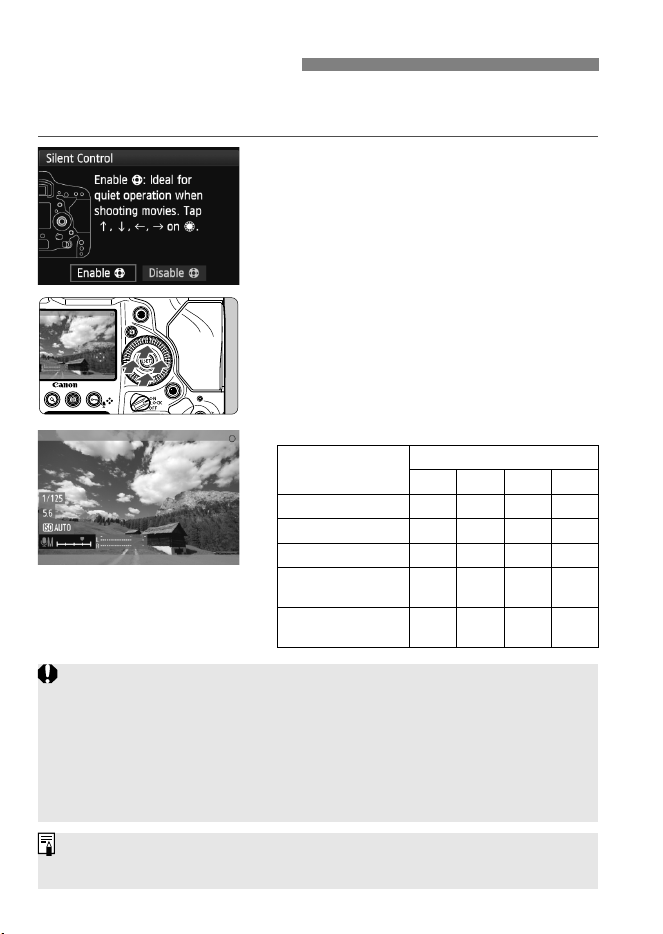
When [z5: Silent Control] is set to
[Enable h], you can use the touch pad
<h> on the inner ring of the Quick
Control Dial.
You can operate the camera silently just
by touching the top, bottom, left, or right
of <h>.
During movie shooting, you can press
<Q> to display the Quick Control screen
and change the settings below with
<h>.
3 Silent Control
Settable
Functions
Shooting Mode
d/B sfa
1. Shutter speed – k – k
2. Aperture – – kk
3. ISO speed – – – k
4. Exposure
compensation
kkk –
5. Sound-
recording level
kkkk
If [z5: Silent Control] is set to [Enable h], you cannot adjust the
sound-recording level with the <5> Quick Control dial during movie
shooting.
Even if you change the aperture silently with <h>, the movie will still
record the lens aperture-driving sound.
If there is water or dirt on <h>, the touch operation may not work. In
such a case, use a clean cloth to clean <h>. If it still does not work, wait
a while and try again.
Before shooting a movie, you can use <h> to adjust the sound-recording
level in the Quick Control and [Rec. level] screens.
43
Canon Log gamma is gamma correction for post-production. It is
geared to maximize the image sensor’s characteristics and attain a
wide dynamic range. It minimizes loss of shadow and highlight details,
and tonal information from the shadows to highlights can be
incorporated in the movie.
A movie shot with Canon Log gamma can be applied with a lookup
table (LUT) during post-production. Download the LUT data from the
Canon website.
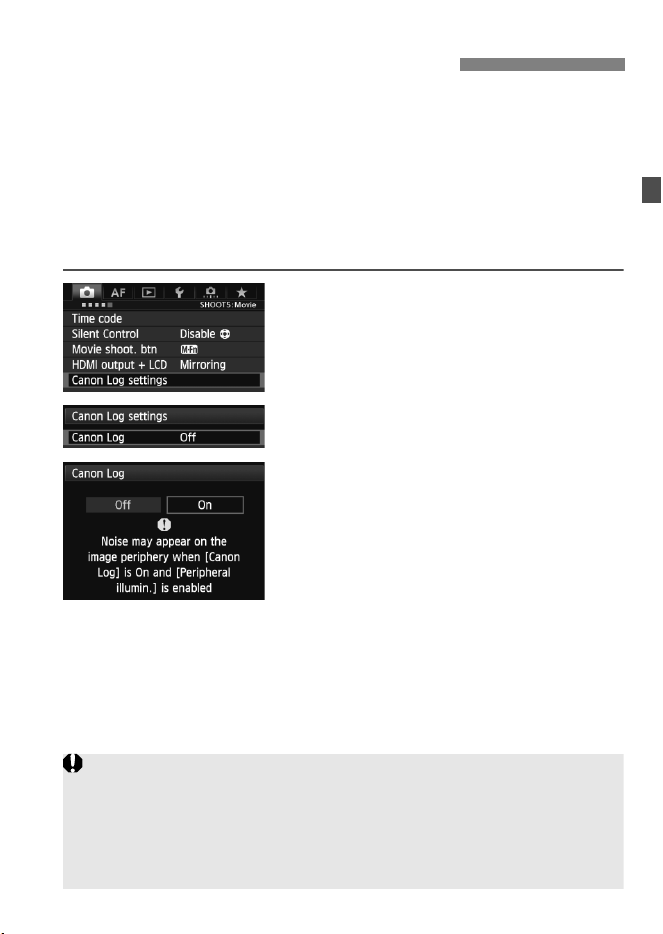
1
Select [Canon Log settings].
Under the [z5] tab, select [Canon
Log settings], then press <0>.
2
Select [Canon Log].
Press <0>.
3
Select [On].
Turn the <5> dial to select [On],
then press <0>.
X Canon Log gamma will be set.
Setting the Canon Log Gamma
If [
Canon Log
] is [
On
] for movie shooting, the following restrictions will apply:
• The shooting mode will be set automatically to <a> (Manual exposure).
(Shooting is not possible in the d/BULB, s, and f modes.)
• AF is not possible. Focus manually.
• ISO Auto will not work. Set the ISO speed manually.
(ISO speed is set to ISO 400 when ISO Auto is set.)
44
Setting the Canon Log Gamma
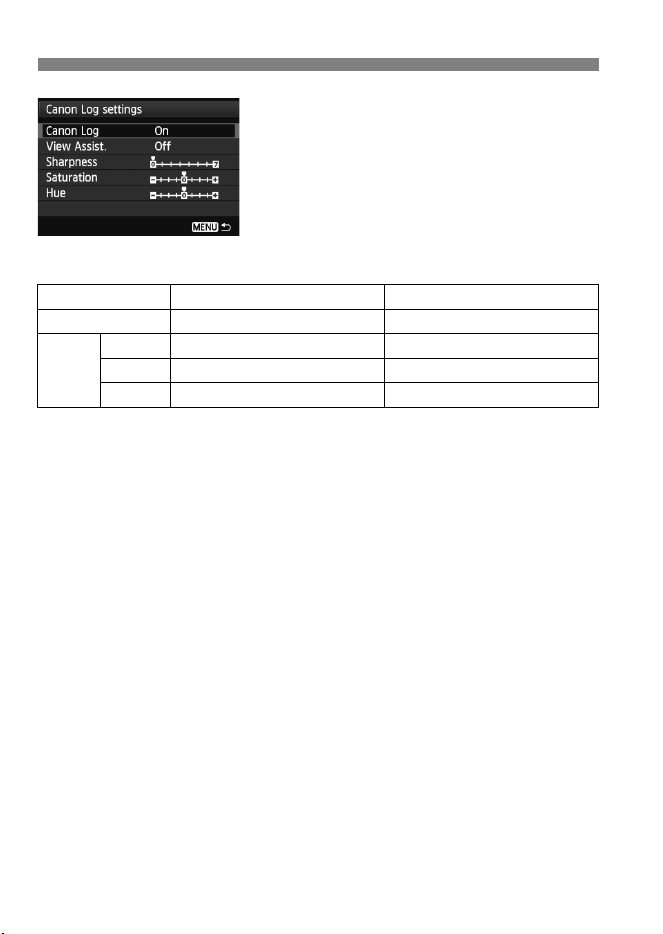
4
Adjust the Canon Log gamma.
Adjust as necessary.
Turn the <5> dial to select a
parameter ([Sharpness],
[Saturation], [Hue]), then press
<0>.
Turn the <5> dial to set the
parameter, then press <0>.
* Red, green, and blue cannot be adjusted individually.
Image Quality when Canon Log gamma is set
When Canon Log gamma is set, vertical noise stripes may appear in
movies depending on subject or shooting conditions. It is
recommended to shoot a few test movies and check before the
actual shooting.
Vertical noise stripes tend to appear when the subject is dark and flat
or [Peripheral illumin.] is set to [Enable]. This noise may also
appear when ISO speed is relatively low, such as at ISO 400.
Additionally, the noise may become more noticeable when
A:8/7 is set compared to when other movie-recording sizes are
selected.
When the noise is noticeable, it is recommended to set [Peripheral
illumin.] to [Disable], shoot in brighter exposure, and perform
brightness adjustment during color grading. Also, noise may be
decreased when you shoot at ISO speed lower than ISO 320 (even
though the dynamic range will be narrowed).
Sharpness 0: Outline sharpening: Weak 7: Outline sharpening: Strong
Saturation -4: Low +4: High
Hue*
Red -4: Magenta-biased +4: Yellow-biased
Green -4: Yellow-biased +4: Cyan-biased
Blue -4: Cyan-biased +4: Magenta-biased
45
Setting the Canon Log Gamma
Canon Log gamma is a movie characteristic to attain wide dynamic
range. As a result, the image displayed on the LCD monitor has low
contrast and is somewhat dark compared to when a Picture Style is set.
With View Assist, the movie image will be displayed on the LCD monitor
with a conspicuous characteristic. This makes it easier to check the
angle of view, details, etc.
Note that even if View Assist is set, it will not affect the movie recorded
to the card. (The movie will be recorded to the card with Canon Log
gamma.)
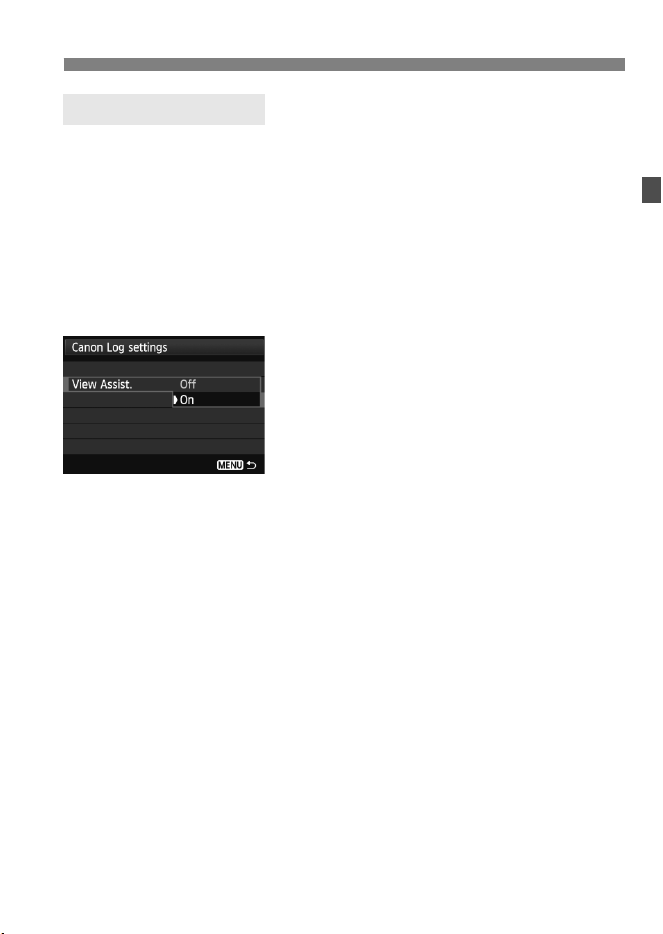
Select [View Assist.].
Turn the <5> dial to select [View
Assist.], then press <0>.
Turn the <5> dial to select [On],
then press <0>.
X The View Assist display will appear
when you shoot a movie.
View Assist display with HDMI output
If [View Assist.] is set to [On] and you shoot a movie in H, the
View Assist will also apply to the HDMI output (p.53 to 54) image.
Note that View Assist will not work with a movie-recording quality
other than H.
Setting View Assist
46
Setting the Canon Log Gamma
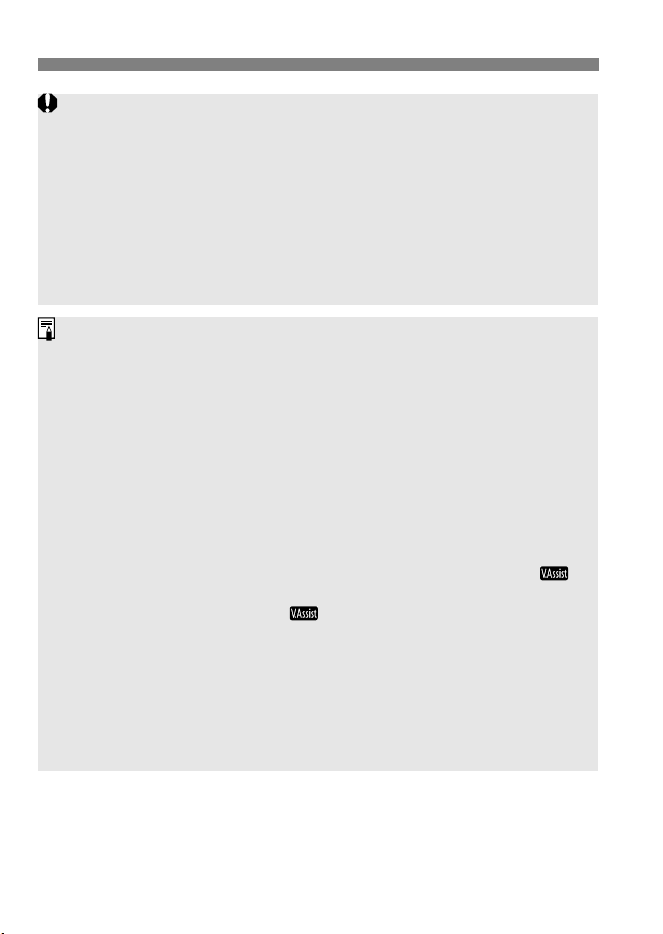
When [Peripheral illumin.] is set to [Enable], Canon Log gamma icon
on the information display screen (p.26) blinks, since noise may appear
in the movie image periphery.
If you set Canon Log gamma, Picture Style, Auto Lighting Optimizer, and
highlight tone priority cannot be set (not applied) for movie shooting.
Also, still photo shooting during movie shooting is not possible.
If you set Canon Log gamma, although AF is not possible, AF point
(p.26) is displayed (when the lens focus mode switch is set to <AF>).
Even if you switch [Canon Log] to [Off], you cannot revert to the original
settings for shooting mode, AF mode, and ISO speed. Set them again if
necessary.
When Canon Log gamma is set, dynamic range will be approx. 800 % at
ISO 320 or higher.
If you use HDMI output and the movie-recording quality is other than H,
the movie will be output without View Assist, regardless of the [View
Assist.] setting. This makes it possible to record the HDMI movie to an
external recording device with the Canon Log gamma without
information (p.53 to 54).
If H is set for the HDMI output, it will be output in Full HD (1080 60i/50i)
with masking for indicating image area (4K output is not possible). Since
the HDMI movie shot in H is mainly used for proxy editing or movie
checking, the movie will be output with View Assist if [View Assist.] is
set to [On].
When the LCD monitor displays a movie output with View Assist,
(p.26) will be displayed on the shooting information display screen. If
View Assist cannot be used, will be dimmed even if [View Assist.]
is set to [On].
If [View Assist.] is set to [On] for H movie shooting, the A/V OUT
(video OUT) movie will also have View Assist.
View Assist is not displayed during movie playback.
Canon Log gamma is applied to movies. Picture Style will be applied to
the still photos shot with the viewfinder, regardless of the Canon Log
gamma setting.
47
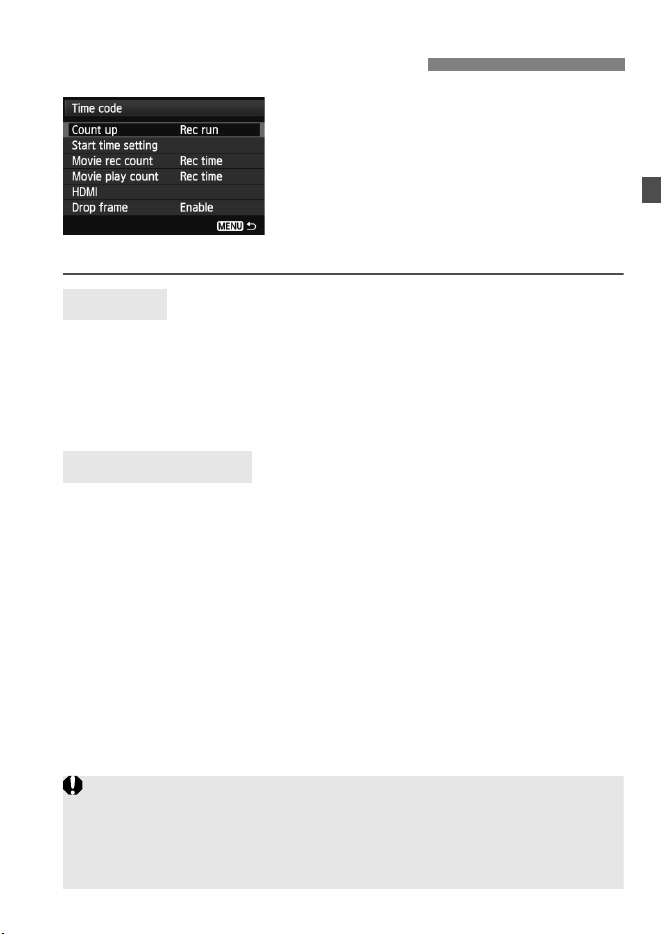
The time code is a time reference
recorded automatically to synchronize
the video and audio during movie
shooting. It is recorded at all times in the
following units: hours, minutes, seconds,
and frames. It is mainly used during
movie editing.
Set the time code with
[z5: Time code].
[Rec run] : The time code counts up only while you are shooting
a movie. The time code will be continuous across
sequential movie files.
[Free run] : The time code counts up whether you are shooting or
not.
You can set the time code’s start time.
[Manual input setting] : You can freely set the hour, minute, second,
and frame.
[Reset] : The time set with [Manual input setting] and
[Set to camera time] is reset to 00:00:00. or
00:00:00: (p.50).
[Set to camera time] : Sets hours, minutes, and seconds to match
the camera’s internal clock. “Frames” will be
set to 00.
3 Setting the Time Code
Count Up
Start Time Setting
If [Free run] is set and you change the time, zone, or daylight saving
time (zp.40), the time code will be affected.
“Regenerate” function is not available, that reads the last time code
recorded in the old card and resumes the count in the new card when
you replace or switch the card.
48
3 Setting the Time Code
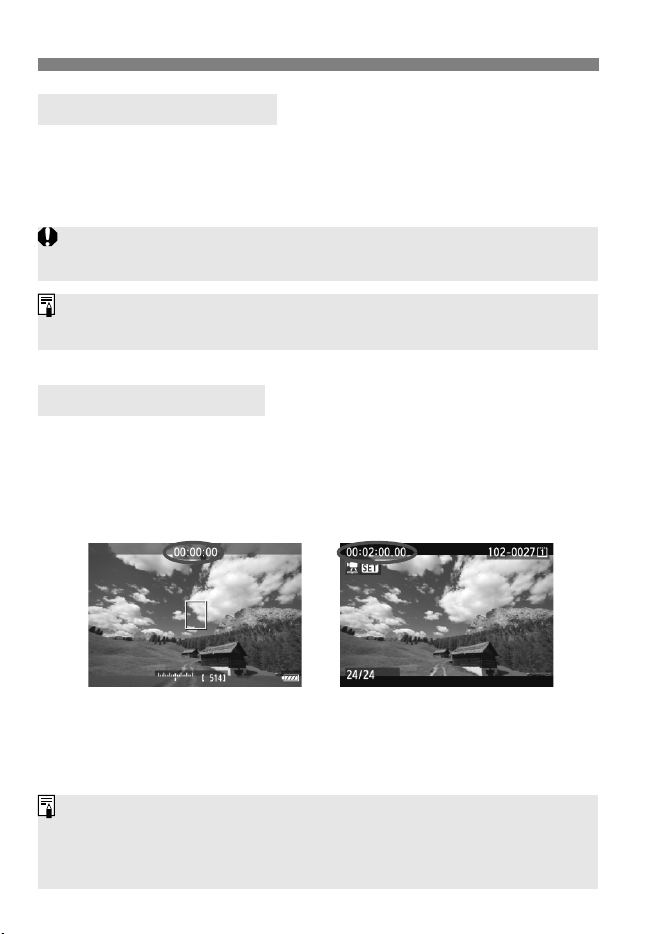
You can select what to display on the movie-shooting screen.
[Rec time] : Indicates the elapsed time from the start of the movie
shooting.
[Time code] : Indicates the time code during movie shooting.
You can select what to display on the movie playback screen.
[Rec time] : Displays the recording time and playback time during
movie playback.
[Time code] : Displays the time code during movie playback.
Movie Recording Count
Movie Playback Count
Shooting still photos during movie shooting will cause a discrepancy
between the actual time and time code.
Regardless of the [Movie rec count] setting, the time code will always be
recorded to the movie file.
During movie shooting During movie playback
With [Time code] set:
If you change the setting for either [Movie play count] in [z5 (movie):
Time code] or for [x3: Movie play count], the other setting will also
change automatically.
“Frames” are not displayed during movie shooting and movie playback.

49
3 Setting the Time Code
Time code
You can append the time code to a movie that was output from
HDMI. This is convenient for proxy editing after the movie output
from HDMI is recorded to an external recording device (p.54).
[On]: Time code is appended to the HDMI output image.
[Off]: Time code is not appended to the HDMI output image.
Recording command
When you record a movie that is output from HDMI to an external
recording device, you can synchronize the camera’s movie shooting
start/stop with the external recording device’s recording operation.
[On]: Synchronize external recording device’s recording start/stop
with camera’s movie shooting start/stop.
[Off]: Control external device’s recording start/stop from external
recording device.
HDMI
If the movie-recording quality’s frame rate (p.36) and HDMI output frame
rate are set manually to NTSC and PAL frame rates in a combination that
does not function properly, the time code will not be appended to the HDMI
output image.

50
3 Setting the Time Code
If the frame rate setting is 6(29.97 fps) or 8(59.94 fps), the time
code’s frame count causes a discrepancy between the actual time and
time code. This discrepancy can be corrected automatically. This
correction function is called drop frame.
[Enable] : The discrepancy is corrected automatically by skipping
time code numbers (DF: Drop frame).
[Disable] : The discrepancy is not corrected (NDF: Non-drop frame).
The time code will be displayed as follows:
[Enable] (DF) : 00:00:00. (During playback: 00:00:00.00)
[Disable] (NDF) : 00:00:00: (During playback: 00:00:00:00)
Drop Frame
When the frame rate is 4 (23.98 fps), 5 (25.00 fps), or 7 (50.00 fps),
there will be no dropped frames. (If 4 is set or [53: Video system] is set to
[PAL], [Drop frame] option will not be displayed.)
51
[z4] Menu
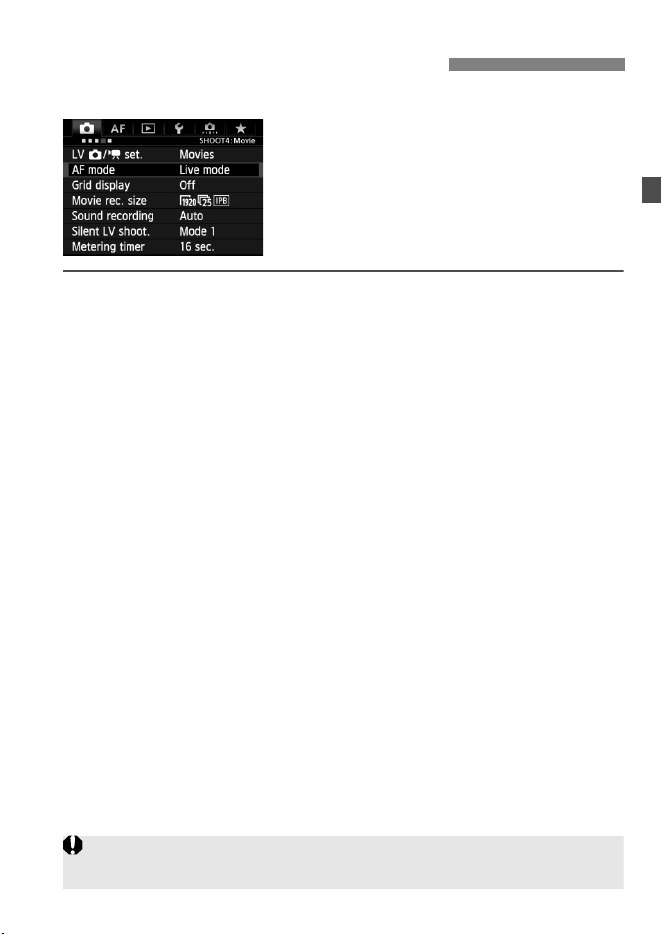
When you select [Movies] under [z4:
LV z/k set.], the [z4] [z5] tabs for
movie shooting will appear. The menu
options are as follows.
AF mode
The AF modes are the same as described on zpages 213 to 219.
You can select [Live mode], [u Live mode], or [Quick mode]. Note
that continuous focusing of a moving subject is not possible.
Even if the AF mode is set to [Quick mode], it will switch to [Live
mode] during movie shooting.
Grid display
With [3x3 l] or [6x4 m], you can display grid lines to help you
level the camera vertically or horizontally. Also, with [3x3+diag n],
the grid is displayed together with diagonal lines to help you align the
intersections over the subject for better balance in the composition.
Movie recording size
You can set the movie recording size (image size, frame rate, and
movie recording/compression method). For details, see pages 34 to
38.
Sound recording
You can set sound recording settings. For details, see pages 39 and
40. Regarding headphones, see page 41.
3 Menu Function Settings
If Canon Log gamma is set, AF is not possible. If H, I, or A:8/7 is
set, AF is not possible in the f mode.
52
3 Menu Function Settings
Silent LV shooting
This function applies to still photo shooting. For details, see
zpage 212.
Metering timer
You can change how long the exposure settings are displayed (AE
lock time).
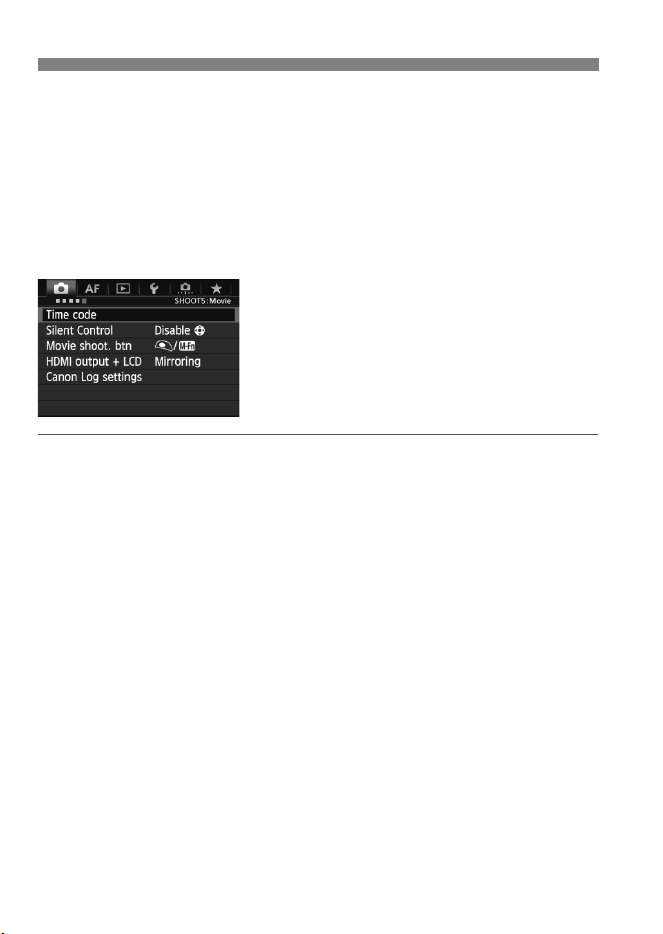
[z5] Menu
Time code
You can set the time code. For details, see pages 47 to 50.
Silent Control
When [Enable h] is set, you can use the touch pad <h> and
Quick Control screen to change settings silently during movie
shooting. For details, see page 42.
Movie shooting button
The default setting is [V/o]. You can thereby start and stop the
movie shooting not only with the <B> button, but also by
pressing the shutter button completely or using Remote Switch RS-
80N3 or Timer Remote Controller TC-80N3 (both sold separately).
(zp.183)
Note that when [V/o] is set, still photo shooting (p.31) is not
possible. The [o] setting will enable still photo shooting during
movie shooting.

53
3 Menu Function Settings
HDMI output + LCD
Movies displayed on the LCD monitor as they are being recorded
can also be displayed from the HDMI output. The default setting is
[Mirroring]. Note that the video from the HDMI output will be
displayed without the shooting information or masking for indicating
image area (output without information overlay: through display).
This makes it convenient to record the HDMI output image to a
commercially-available external recording device.
If [No mirroring] is set, the movie will be displayed on the LCD
monitor, but if there is HDMI output, the LCD monitor will turn off.
With this setting, the movie from the HDMI output will show the
shooting information and masking for indicating image area.
However, by pressing the <B> button, you can eliminate the
information from the output.
If the HDMI movie is output without information, the card’s remaining
capacity, battery level, internal temperature increase (p.55) and other
indicators will not appear on the HDMI output screen. Be aware of this if
[No mirroring] is set. If [Mirroring] is set, you can check these
indicators on the LCD monitor.
When you are not shooting movies, the power will turn off automatically
in accordance with the auto power off time. If you are recording the HDMI
output image to an external recording device, setting [52: Auto power
off] to [Disable] (zp.57) is recommended.
Audio is not output during HDMI output.
Even if [
Mirroring
] is set, no image will be displayed through the HDMI
output when a movie is played back or menu is displayed.
Even if [z4: Movie recording size] is set to H
, the HDMI movie will be
output in Full HD (1080 60i/50i) with masking for indicating image area.
When you stop movie shooting, the HDMI output image will pause (frame
stop) while the movie is being recorded to the card. After the recording is
completed, the image will be displayed normally.
Simultaneous output from both HDMI and A/V OUT is not possible. The
movie will be output to the cable that was connected to the terminal last.
During A/V OUT output, nothing will be displayed on the LCD monitor.
The brightness of a movie shot by the camera and that of a recorded
HDMI output image on the external recording device may differ
depending on the viewing environment.
54
3 Menu Function Settings
Canon Log settings
This is a gamma for attaining wide dynamic range in post-
production. For details, see pages 43 to 46.
[53] Menu
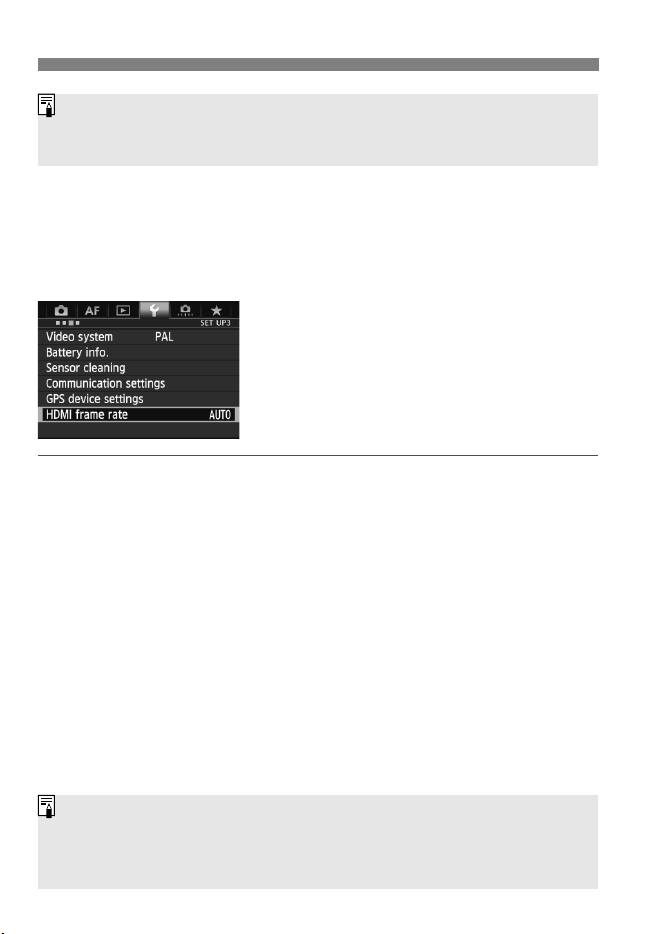
HDMI frame rate
You can set the HDMI output frame rate to [Auto], [24p], or [60i/50i].
When you record movie from the HDMI output to a commercially-
available external recording device, set the frame rate to match the
external recording device’s frame rate.
By pressing the <B> button, you can change the information
displayed on the screen.
You can append a time code to the HDMI output image (p.49).
If the frame rate set manually is not compatible with the external
recording device, the frame rate will be set automatically.
If [Movie recording size] is set to frame rate 4 when [HDMI frame
rate: 60i] is set, “2-3 pulldown” will be performed.

55
Movie Shooting Cautions
White <s> and Red <E>
Internal Temperature Warning Icons
If the camera’s internal temperature increases due to prolonged movie
shooting or under a high ambient temperature, a white icon <s> will
appear. Even if you shoot a movie while this icon is displayed, the
movie’s image quality will hardly be affected. However, if you shoot still
photos, the image quality of the still photos may deteriorate. It is
recommended to stop still photo shooting for a while and allow the
camera to cool down.
If the camera’s internal temperature further increases while the white
icon <s> is displayed, a red icon <E> will start blinking. This blinking
icon indicates that movie shooting will soon stop automatically. If this
happens, you will not be able to shoot again until the camera’s internal
temperature decreases. Turn off the power and let the camera rest for a
while.
Shooting a movie at a high temperature for a prolonged period will cause
the <s> and <E> icons to appear earlier. When you are not shooting,
turn off the camera.
Recording and Image Quality
If the attached lens has an Image Stabilizer, the Image Stabilizer will
operate at all times even if you do not press the shutter button halfway.
The Image Stabilizer consumes battery power and may shorten the total
movie shooting time or decrease the number of possible shots. If you
use a tripod or if the Image Stabilizer is not necessary, it is recommended
to set the IS switch to <2>.
If there is a very bright light source in the picture, the bright area may
appear black on the LCD monitor. In movies, the bright areas will be
recorded in almost the same way you see it on the LCD monitor.
In low light, noise or irregular colors may appear in the image. In movies,
the bright areas will be recorded in almost the same way you see it on
the LCD monitor.

56
Movie Shooting Cautions
Recording and Image Quality
If you use a card with a slow writing speed, a five-level
indicator may appear on the right of the screen during movie
shooting. It indicates how much data has not yet been
written to the card (remaining capacity of the internal buffer
memory). The slower the card, the faster the indicator will
climb upward. If the indicator becomes full, movie shooting
will stop automatically.
If the card has a fast writing speed, the indicator will either
not appear or the level (if displayed) will hardly go upward.
First, shoot a few test movies to see if the card can write fast enough.
Still Photo Shooting During Movie Shooting
Regarding the image quality of still photos, see “Image Quality” on
zpage 221.
Playback and TV Connection
In autoexposure shooting, shutter-priority AE, or aperture-priority AE
modes, if the brightness changes during movie shooting, the movie may
freeze temporarily. In such cases, shoot movies with manual exposure.
If you shoot a movie in H resolution with ISO speed set to H2 (ISO
204800), the movie may look momentarily still when you play back the
movie on the camera.
If you connect the camera to a TV set and shoot a movie (zp.273,
276), the TV will not output any sound during the shooting. However, the
sound will be properly recorded.
Indicator
57
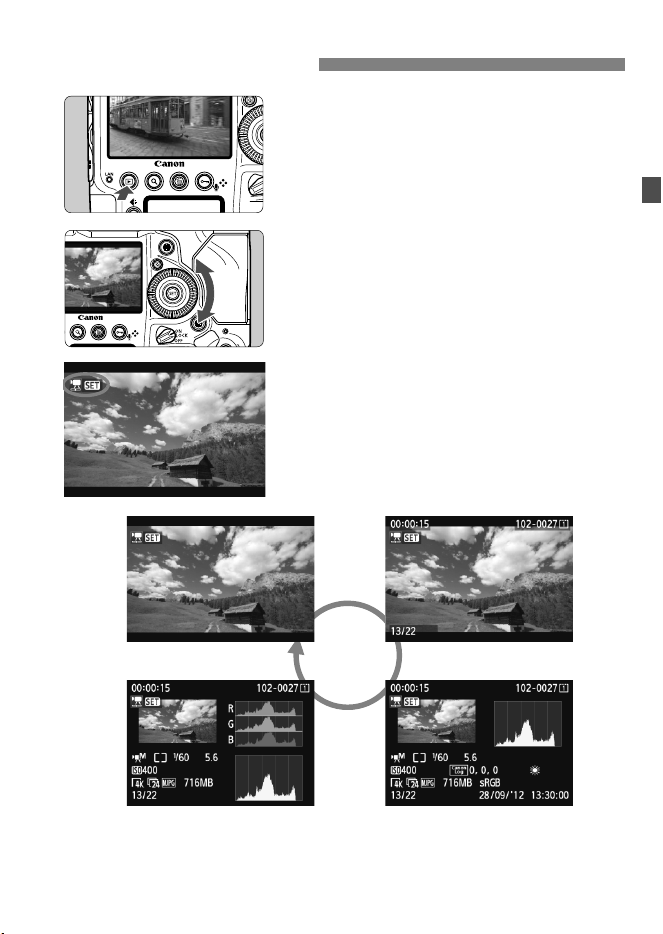
1
Play back the image.
Press the <x> button.
X The last captured image or last image
viewed will appear.
2
Select a movie.
To play back images starting with the
last image, turn the <5> dial
counterclockwise. To play back
images starting with the first captured
image, turn the dial clockwise.
With the single-image display, the
<1s> icon displayed on the
upper left indicates a movie.
Each time you press the <B>
button, the display format will change.
k Playing Movies
No information
Histogram
Basic information
Shooting information display
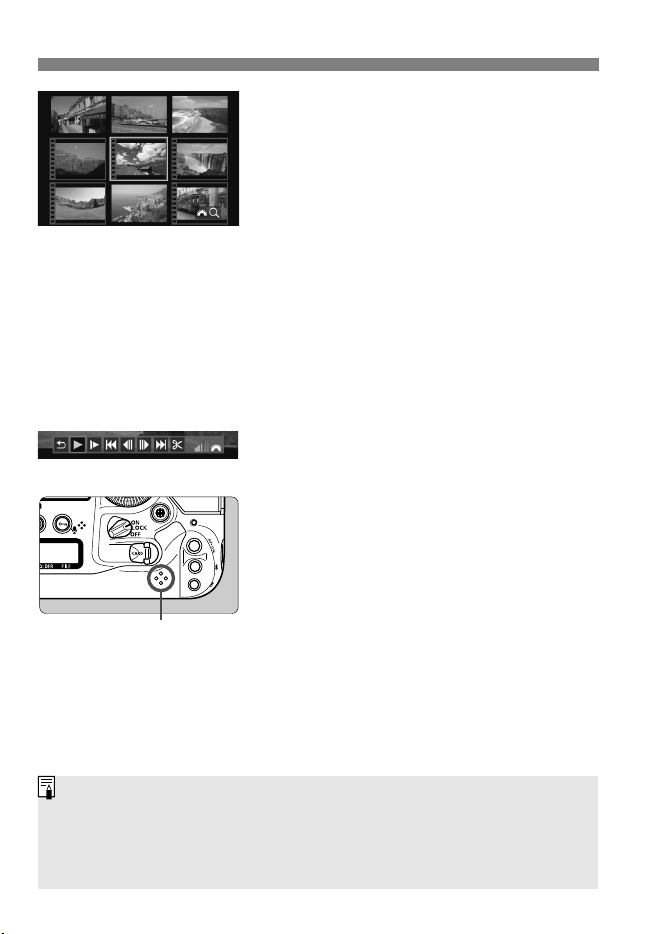
58
k Playing Movies
Index display
Press the <u> button and turn the
<6> dial counterclockwise to
display the index.
In the index display, perforations at
the left edge of a thumbnail indicate a
movie. As movies cannot be played
on the index display, press <0>
to switch to the single-image
display.
3
In the single-image display, press
<0>.
X The movie playback panel will appear
at the bottom of the screen.
4
Play back the movie.
Turn the <5> dial to select [7]
(Play), then press <0>.
X The movie will start playing.
You can pause the movie playback by
pressing <0>.
During movie playback, you can turn
the <6> dial to adjust the sound
volume.
For more details on the playback
procedure, see the next page.
Press the <M> button to exit the
image playback and return to
shooting-ready state.
Speaker
When you edit out the first scene or last scene of a movie file which is one of
multiple 4 GB movie files created by one successive shooting (zp.268)
and overwrite it, information for combining the files may be lost. In such a
case, you may not be able to combine the file with other files into a single
movie file and save it, using software such as EOS MOVIE Utility (p.94).
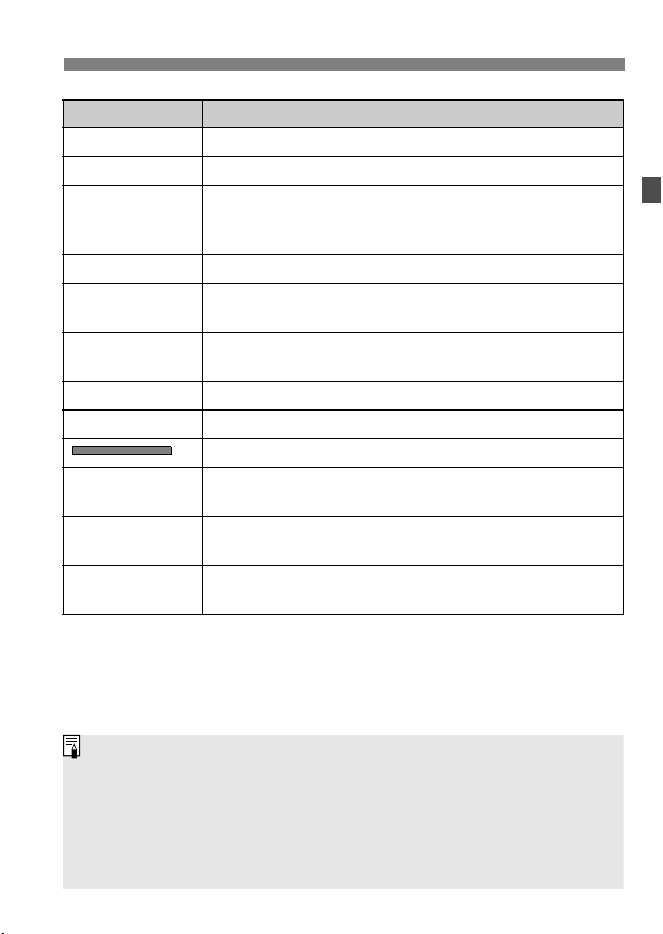
59
k Playing Movies
Function Playback Description
2 Exit Returns to the single-image display.
7 Play Pressing <0> toggles between play and stop.
8 Slow motion
Adjust the slow motion speed by turning the <5> dial. The
slow-motion speed is indicated at the upper right of the
screen.
5 First frame Displays the movie’s first frame.
3 Previous
frame
Each time you press <0>, the previous frame is displayed.
If you hold down <0>, it will rewind the movie.
6 Next frame
Each time you press <0>, the movie will play frame-by-
frame. If you hold down <0>, it will fast forward the movie.
4 Last frame Displays the movie’s last frame.
X Edit Displays the editing screen (zp.268).
Playback position
hh:mm:ss
Playback time (minutes:seconds with [Movie play count:
Rec time] set)
hh:mm:ss.ff (DF)
hh:mm:ss:ff (NDF)
Time code (hours:minutes:seconds:frames with [Movie play
count: Time code] set)
9 Volume
Turn the <6> dial to adjust the volume of the built-in
speaker (p.58) or headphones.
With a fully-charged Battery Pack LP-E4N, the continuous playback time
at 23°C/73°F will be as follows: approx. 3 hr. 45 min.
If you connect the camera to a TV set (zp.273, 276) to play back a
movie, adjust the sound volume with the TV set. (Turning the <6> dial
will not adjust the sound volume.)
If you took a still photo while you shot the movie, the movie image
displayed will look still for approx. 1 sec. during movie playback.
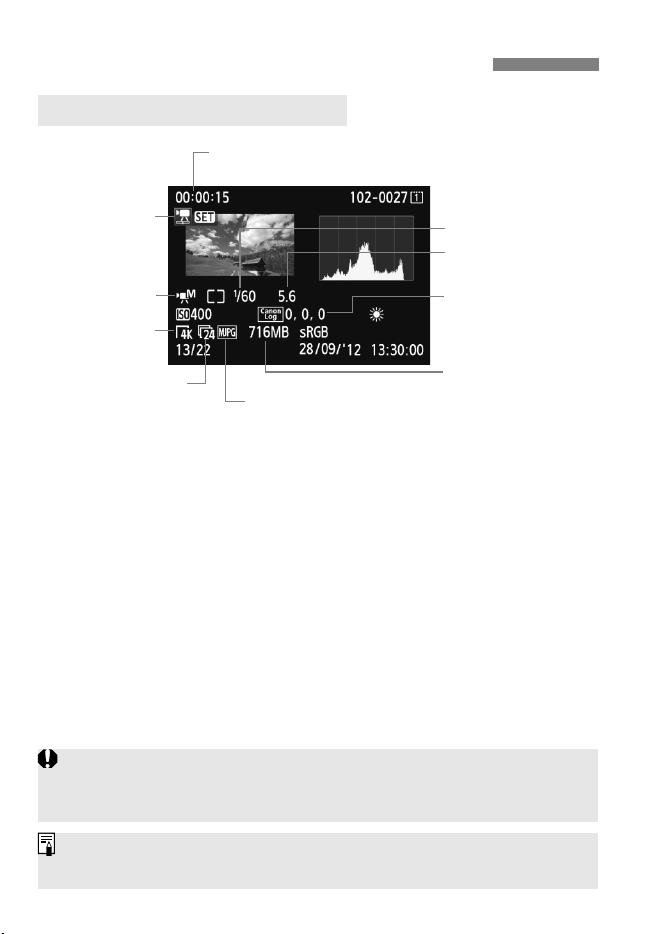
60
B: Shooting Information Display
Sample Information for Movies
Shooting mode
File size
Movie recording
size
Shutter speed
Movie recording/compression method
Frame rate
Shooting time, Playback time/
Time code
Playback
Aperture
Canon Log gamma/
Picture Style
If you use HDMI output to play a H movie, it will be played in Full HD (1080
60i/50i). However, using EOS MOVIE Utility (p.94) enables you to play the
movie in H quality.
For information not shown on this page, see “Sample Information for Still
Photos” on zpage 252.
61
2
Reference
This chapter covers other differences with the
EOS-1D X’s Instruction Manual, system accessories,
and an FAQ.
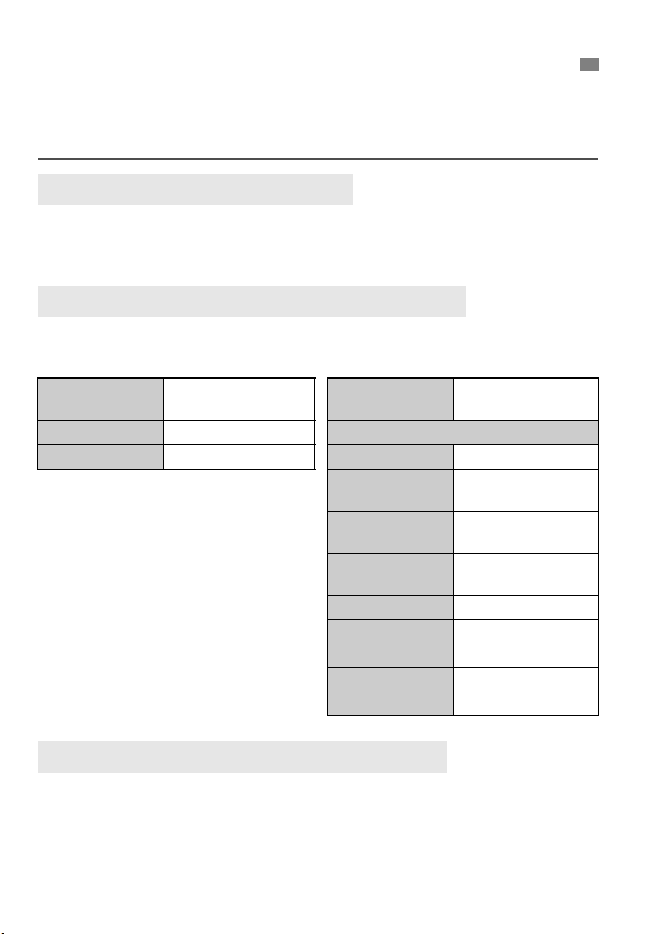
62
As explained on page 3, the EOS-1D C Instruction Manual centers on
movie shooting. Other differences between this manual and the EOS-1D
X Instruction Manual (Firmware version 1.2.0 or later) are outlined below.
The EOS-1D C’s rear LCD panel does not display the movie-recording
size.
The EOS-1D C’s default settings are as follows:
With the EOS-1D C, the following functions are added and saved.
[z5 (Movie)]
HDMI output + LCD, and Canon Log settings
[53]
HDMI frame rate
Differences with the EOS-1D X Instruction Manual
Nomenclature: Rear LCD panel
(zp.26)
Reverting the Camera to the Default Settings
(zp.58 to 60)
Shooting Settings Movie Shooting Settings
Shooting mode
a
(Manual exposure)
LV z/k
setting
Movie
ISO speed 400 Time code
White balance Daylight HDMI Unchanged
Movie shooting
button
V/B button
HDMI output +
LCD
Mirroring
Canon Log
settings
Off
View Assist. Off
Sharpness/
Saturation/Hue
0
HDMI frame
rate
AUTO
3
Saving and Loading Camera Settings
(zp.351 to 353)
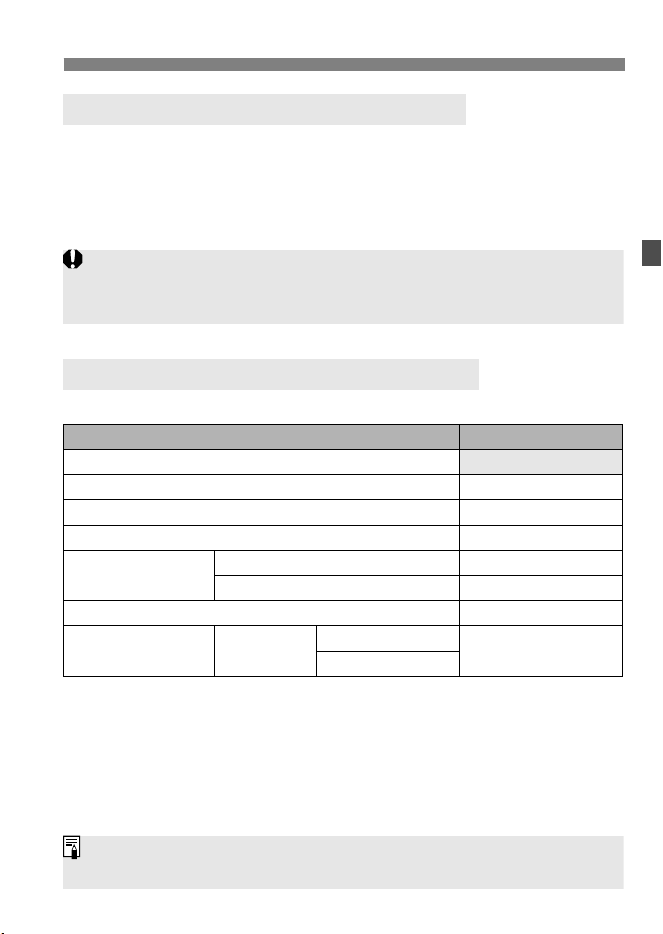
63
Differences with the EOS-1D X Instruction Manual
With the EOS-1D C, the following functions are added and registered.
[z5 (Movie)]
HDMI output + LCD, and Canon Log settings
[53]
HDMI frame rate
Differences with EOS-1D X are outlined below.
*4: If H, I, or A: 8/7 is set, still photo shooting is not possible during
movie shooting.
*5: Not available when Canon Log gamma is set.
*6: With an EF Cinema lens, the lens aberration correction is applied only during
movie shooting. (Not applied during still photo shooting.)
*7: Disabled when H is set.
*8: Cannot perform AF when Canon Log gamma is set.
w: Registering Custom Shooting Modes
(zp.354 to 356)
Function Availability Table According to Shooting Mode
(zp.358, 359)
Function k Movie Shooting
Still photo: All image quality settings selectable
(Still photo)*
4
Picture Style
k
*
5
Canon Log gamma
k
Auto Lighting Optimizer
k
*
5
Lens aberration
correction *
6
Peripheral illumination correction
k
Chromatic aberration correction
k
*
7
Highlight tone priority
k
*
5
AF
AF mode
One-Shot AF
d / c / f*
8
AI Servo AF
When [
Canon Log
] is set to [
On
] and Custom shooting mode <
w1
>, <
w2
>, or
<
w3
> is set, the shooting mode will also be switched to <
a
>. Be aware that the
shooting mode may be updated when [
Auto update set.
] is set to [
Enable
].
Functions whose differences with the EOS-1D X are not specified are
generally the same as the EOS-1D X’s.
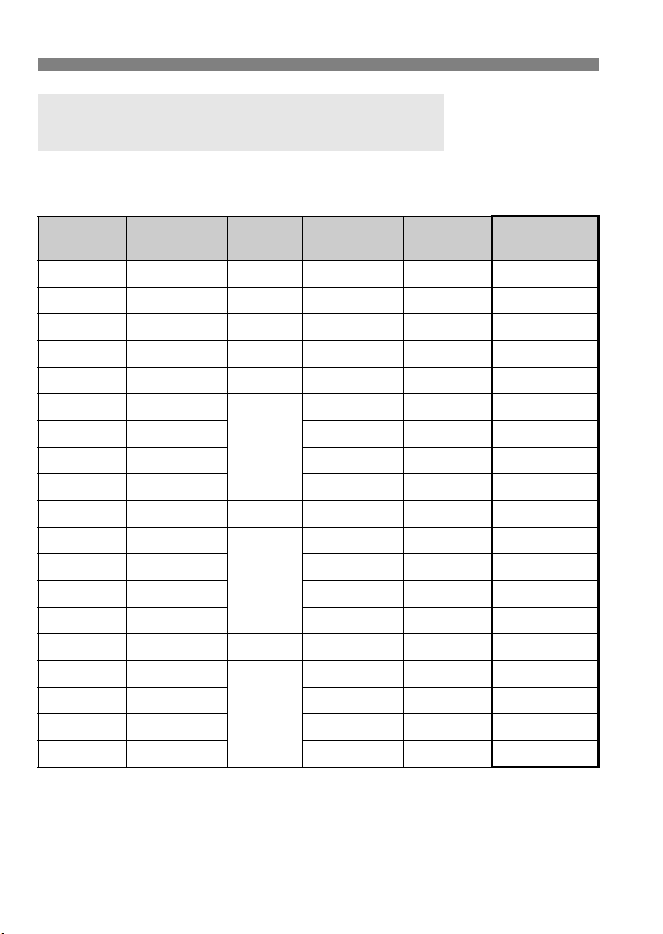
64
Differences with the EOS-1D X Instruction Manual
Only the “Maximum Burst” numerals in bold frame are different from
those of EOS-1D X.
Setting the Image-Recording Quality:
Guide to Image Size Settings (Approx.)
(zp.124)
Image
Size
Pixels Recorded
(megapixels)
Printing
Size
File Size
(MB)
Possible
Shots
Maximum
Burst
3 18M
Around A2
6.0 1200 100 (160)
H 14M
A3 or larger
4.8 1470 150 (280)
5 8.0M
Around A3
3.3 2170 290 (860)
6 4.5M
Around A4
2.1 3290 1190 (6310)
1 18M
Around A2
23.2 280 27 (29)
1+3 18M+18M
–
23.2+6.0 230 17 (17)
1+H 18M+14M 23.2+4.8 240 17 (17)
1+5 18M+8.0M 23.2+3.3 250 17 (17)
1+6 18M+4.5M 23.2+2.1 260 17 (17)
41 10M
Around A3
18.3 350 25 (27)
41+3 10M+18M
–
18.3+6.0 270 18 (18)
41+H 10M+14M 18.3+4.8 280 18 (18)
41+5 10M+8.0M 18.3+3.3 300 18 (18)
41+6 10M+4.5M 18.3+2.1 320 19 (19)
61 4.5M
Around A4
13.0 490 38 (40)
61+3 4.5M+18M
–
13.0+6.0 340 18 (18)
61+H 4.5M+14M 13.0+4.8 360 18 (18)
61+5 4.5M+8.0M 13.0+3.3 400 19 (19)
61+6 4.5M+4.5M 13.0+2.1 420 19 (19)

65
Differences with the EOS-1D X Instruction Manual
The file size, possible shots, and maximum burst during continuous shooting
are based on Canon’s 8 GB testing card and Canon’s testing standards (JPEG
quality 8, ISO 100, and Standard Picture Style). These figures will vary
depending on the subject, card brand, ISO speed, Picture Style, Custom
Functions, and other settings.
The maximum burst applies to <o> high-speed continuous shooting.
Figures in parentheses apply to an Ultra DMA (UDMA) mode 7, 128 GB card
based on Canon’s testing standards.
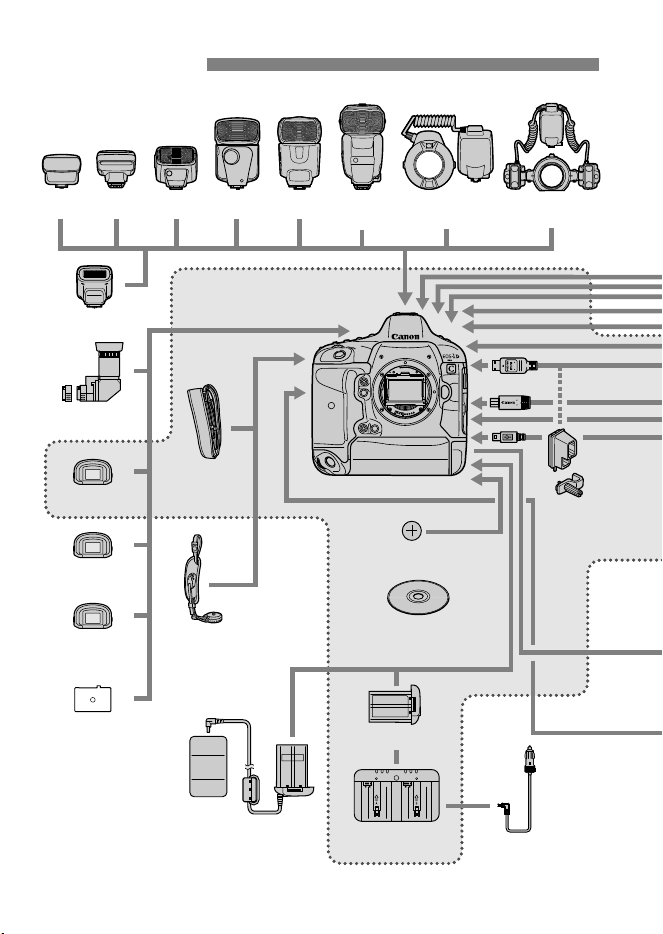
66
System Map
ST-E2
270EX II
90EX
320EX 600EX-RT/
600EX
430EX II
ST-E3-RT
Macro Ring Lite
MR-14EX
Macro Twin Lite
MT-24EX
Eyecup Eg
Anti-Fog
Eyepiece Eg
Dioptric Adjustment
Lenses Eg
Angle
Finder C
Bundled
Accessories
Wide Strap
L7
Focusing
Screen Ec series
CR2025 lithium battery
Battery Pack LP-E4N
Battery Charger
LC-E4N
AC Adapter Kit
ACK-E4
Car Battery Cable
CB-570
EOS
Solution Disk
Cable
Protector
and Clamp
Hand Strap
E2
* Battery Pack LP-E4 and Battery Charger LC-E4 are also compatible.
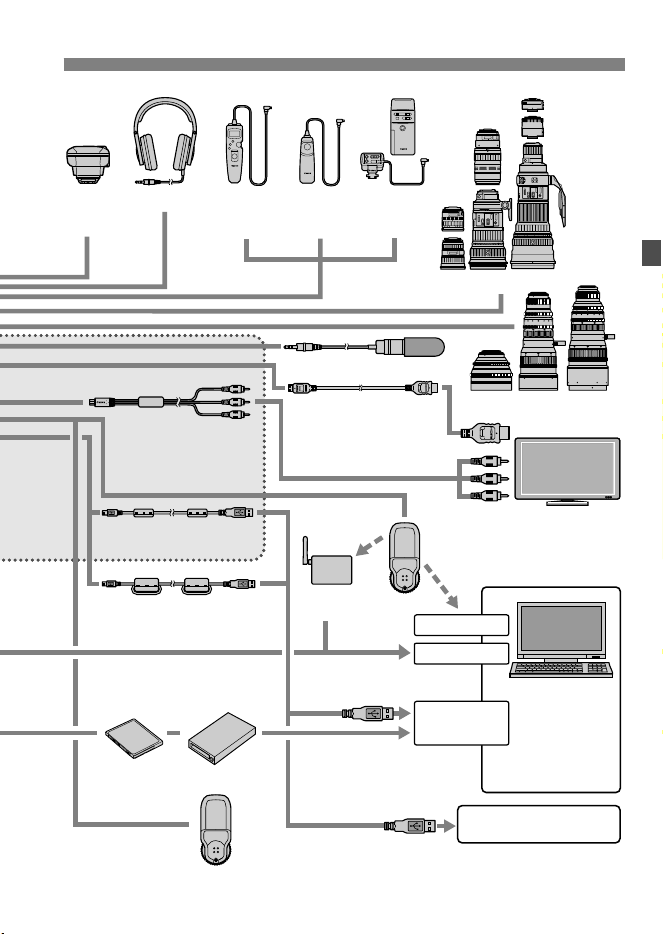
67
System Map
GPS
Receiver
GP-E2
Headphone
Timer Remote
Controller
TC-80N3
Wireless
Controller
LC-5
Remote
Switch
RS-80N3
EF lenses
EF Cinema (CN-E) lenses
CF card Card reader
GPS Receiver GP-E1
LAN cable
(commercially available)
Ethernet port
USB port
Wireless LAN adapter
PictBridge-compatible printer
TV/Video
Wireless LAN
access point
External microphone/
Line output device
HDMI Cable
HTC-100 (2.9 m/9.5 ft.)
Interface Cable
IFC-200U (1.9 m/6.2 ft.)
Interface Cable
IFC-500U (4.7 m/15.4 ft.)
Windows 8
Windows 7
Windows Vista
Windows XP
Mac OS X
Computer
Wireless File
Transmitter
WFT-E6
Stereo AV Cable
AVC-DC400ST
(1.3 m/4.3 ft.)
* The length of all cables is approx. **m/**ft.
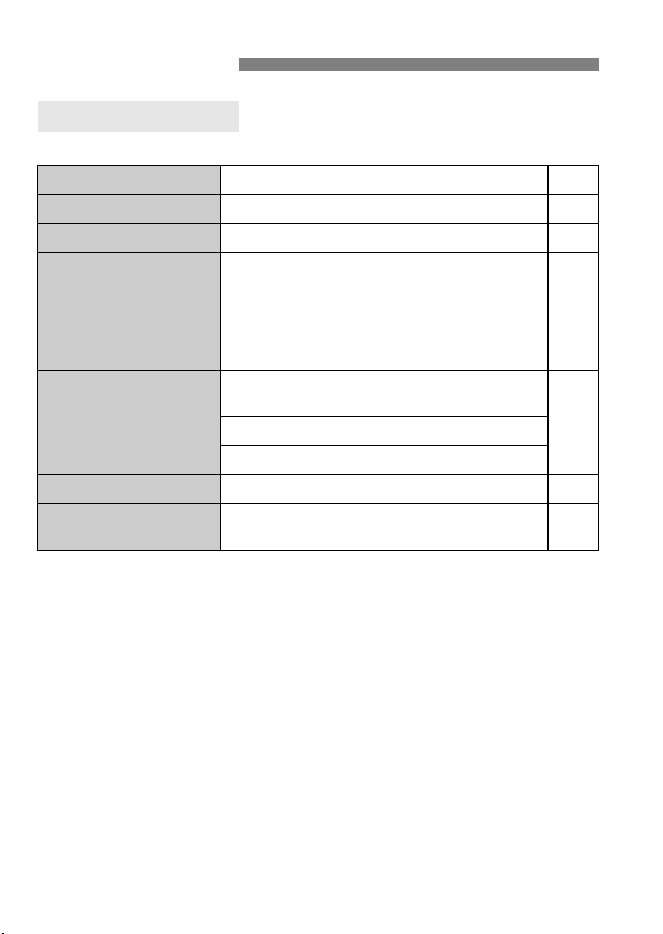
68
z: Shooting 4 (Movie) (Red) Page
Menu Settings
For Movie Shooting
LV z/k setting Disable / Stills / Movies 16
AF mode Live mode / u Live mode / Quick mode 51
Grid display Off / 3x3 l / 6x4 m / 3x3+diag n 51
Movie recording size
H:4096x2160 (5 / 4) (J)
I
:1920x1080 (6 / 5 / 4) (W / X)
1920x1080 (8 / 7) (W)
1920x1080 (6 / 5 / 4) (W / X)
1280x720 (8 / 7) (W / X)
640x480 (6 / 5) (X)
34
Sound recording
Sound recording: Auto / Manual / Line input /
Disable
39
Recording level
Wind filter: Disable / Enable
Silent LV shooting Mode 1 / Mode 2 / Disable 52
Metering timer
4 sec. / 16 sec. / 30 sec. / 1 min. / 10 min. /
30 min.
52
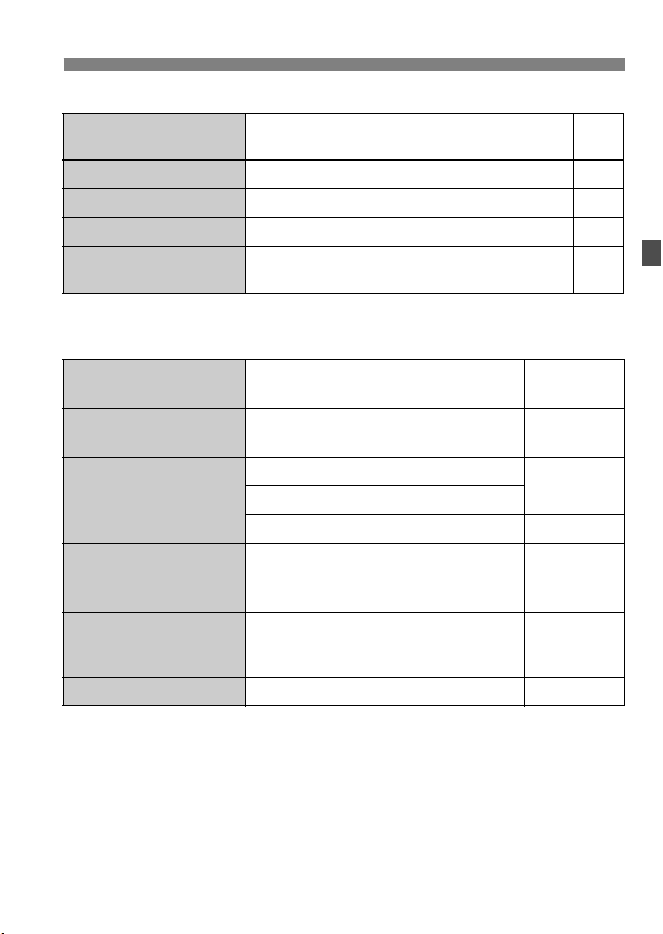
69
Menu Settings
z: Shooting 5 (Movie) (Red) Page
* The setting is linked to [Movie play count] under the [x3] tab (zp.372).
5: Set-up 3 (Yellow)
Time code
Count up / Start time setting / Movie rec count /
Movie play count* / HDMI / Drop frame
47
Silent Control Enable h / Disable h 42
Movie shooting button o / V/o 52
HDMI output + LCD Mirroring / No mirroring 53
Canon Log settings
Canon Log / View Assist. / Sharpness /
Saturation / Hue
43
Video system NTSC / PAL
z237
z276
Battery info.
Power source / Remaining capacity /
Shutter count / Recharge performance
z364
Sensor cleaning
Auto cleaning: Enable / Disable
z298
Clean now
Clean manually
z301
Communication
settings
Settings for wired LAN* and wireless
LAN via WFT-E6 (sold separately)
* Wired LAN
Instruction
Manual
GPS device settings
Settings available when the GPS
Receiver GP-E1/GP-E2 (sold
separately) is attached
–
HDMI frame rate Auto / 24p / 60i or 50i 54

70
This indicates that the camera’s internal temperature is high. If the
white < > icon is displayed, still photo image quality may deteriorate.
If the red <E> icon is displayed, movie shooting will soon stop
automatically (p. 55).
If the card’s writing speed is slow, movie shooting may stop
automatically. See page 17 for the writing/reading speed required
(Required Card Performance) for the respective movie-recording
quality. To find out the card’s writing/reading speed, refer to the card
manufacturer’s website.
Shoot a few test movies to see if movies can be recorded accurately
with a movie-recording size you set (p.34) on the card.
If the shooting mode is <d/s/f/BULB>, the ISO speed will be set
automatically. In the <a> mode, you can freely set the ISO speed
(p.24).
Under [z2: ISO speed settings], if [ISO speed range]’s [Maximum]
is set to [51200/H] or higher, the manual setting range’s maximum will
be expanded to enable ISO 32000/40000/51200 to be set. However,
since movie shooting at ISO 32000/40000/51200 may result in
substantial noise, the expanded ISO speed (“H” displayed) will be
used.
Troubleshooting Guide
A white icon or red E icon is displayed.
Movie shooting stops by itself.
The ISO speed cannot be set.
ISO 32000/40000/51200 cannot be set.

71
Troubleshooting Guide
If you shoot a movie when [Maximum: 51200] is set with [ISO speed
range] and ISO speed is set to ISO 32000/40000/51200, the ISO
speed will switch to ISO 25600 (during movie shooting with manual
exposure). Even if you switch back to still photo shooting, the ISO
speed will not revert to the original setting.
If you shoot a movie when L (ISO 50) is set, the ISO speed setting will
switch to ISO 100 (during movie shooting with manual exposure).
Even if you switch back to still photo shooting, the ISO speed will not
revert to the original setting.
If you use an EF Cinema zoom lens, set I. Any setting other than
I will cause the movie image periphery to be dark.
If you change the shutter speed or aperture during movie shooting, the
changes in the exposure may be recorded.
Zooming the lens during movie shooting can cause changes in the
exposure regardless of whether the lens’ maximum aperture changes
or not. Changes in the exposure may be recorded as a result.
If you move the camera to the left or right quickly (high-speed panning)
or shoot a moving subject, the image may look distorted.
Flickering, horizontal stripes (noise), or irregular exposures can be caused by
fluorescent light, LED bulbs, or other light sources during movie shooting.
Also, changes in the exposure (brightness) or color tone may also be
recorded. In the <
a
> mode, a slow shutter speed may solve the problem.
The manually set ISO speed changes when switching to
movie shooting.
The movie image periphery looks dark.
The exposure changes during movie shooting.
The subject looks distorted.
The screen flickers or horizontal stripes appear.

72
Troubleshooting Guide
To shoot still photos during movie shooting, using a card with a higher
performance than the “Required Card Performance” on page 17 is
recommended.
Setting a smaller image size for the still photos and shooting fewer
continuous shots may resolve the problem.
Set [z5: Movie shoot. btn] to [o].
You cannot shoot still photos during movie shooting if any of the
following is set: Canon Log gamma, H, I, A:8/7.
Since the image circle of EF Cinema zoom lenses does not support
the image size of 35mm full-frame size image sensor, still photo
shooting is not possible. (The image periphery will look dark.)
If you want to apply lens aberration correction when using an EF
Cinema lens (p.29), use EOS Utility (provided software) to register the
correction data to the camera. If EOS Utility’s correction data
registration screen does not show the EF Cinema lens, update EOS
Utility to the latest version.
Check that the [
Lens aberration correction
] menu is set to
[
Correction data available
]. If [
Correction data not available
] is
displayed, use the provided EOS Utility software to register the lens’
correction data to the camera (
z
p.155-157).
When you shoot a still photo using an EF Cinema lens, lens aberration
correction is not applied. The lens aberration correction is applied only
during movie shooting. Peripheral illumination correction, distortion
correction, or chromatic aberration correction of RAW images shot
with an EF Cinema lens will not be possible when the RAW image is
processed (zp.290).
When I shoot still photos during movie shooting, the movie
shooting stops.
I cannot shoot still photos during movie shooting.
Lens aberration correction is not applied.

73
Troubleshooting Guide
Shooting still photos during movie shooting will cause a discrepancy
between actual time and time code. When you want to edit a movie
using the time code, it is recommended not to shoot still photos during
movie shooting.
When Canon Log gamma is set, shooting mode will be automatically
switched to manual exposure. If ISO Auto is set, it will be automatically
switched to manual ISO speed setting (p.43).
When Canon Log gamma is set, vertical noise stripes may appear in
movies depending on subject or shooting conditions. For details, see
page 44.
When Canon Log gamma is set, Picture Style, Auto Lighting Optimizer,
and Highlight tone priority cannot be set (not applied) for movie
shooting.
If H is set, chromatic aberration correction cannot be set (disabled).
Canon Log gamma has been set. If necessary, set View Assist (p.43
and 45).
View Assist will not be displayed with the HDMI output if a movie-
recording quality other than H is set. (The movie will be output with
Canon Log gamma.)
View Assist is not displayed during movie playback.
The time code is off.
Shooting mode is automatically set to <a> or cannot
shoot with ISO Auto.
Vertical noise stripes appear.
Highlight tone priority and other settings cannot be set.
The movie looks dark or the contrast is low.
View Assist is not displayed.

74
Troubleshooting Guide
When Canon Log gamma is set and [Peripheral illumin.] is set to
[Enable], Canon Log gamma icon on the information display screen
blinks, since noise may appear in the movie image periphery.
AF is not possible when Canon Log gamma is set.
If H, I or A:8/7 is set, AF is not possible in the f mode.
Even if the AF mode is set to f, it will switch to d during movie
shooting.
If the movie-recording quality’s frame rate setting is set to a value that
does not function properly in combination with the NTSC/PAL frame
rate, the time code will not be appended to the HDMI output image.
When the movie shooting ends, the HDMI output image pauses (frame
stop). When writing to the card is completed, the movie is output
normally.
If you connect or disconnect the HDMI cable during movie shooting,
the movie shooting will stop. If you shoot movies while using HDMI
output, you should use the provided Cable protector and clamp to
prevent the cable from disconnecting accidentally.
Canon Log gamma icon blinks.
AF is not possible.
The time code cannot be appended during HDMI output.
The HDMI output image has a temporary frame stop.
Movie shooting stops if I connect or disconnect the
HDMI cable.

75
Troubleshooting Guide
Movies edited with a personal computer cannot be played back with
the camera.
Movies shot with Canon Log gamma or shot in H, A:8/7 cannot
be played back by another EOS camera.
If you operate the camera’s dials or lens during movie shooting, the
operation noise will also be recorded. Using an external microphone
(commercially available) is recommended (p.40).
During autoexposure movie shooting, if there is a drastic change in the
exposure level, the recording will stop momentarily until the brightness
stabilizes. If this happens, shoot in the <a> mode (p.23).
Use the stereo AV cable that came with the camera (zp.276).
Make sure the stereo AV cable or HDMI cable’s plug is inserted all the
way in (zp.273, 276).
Set the video OUT system (NTSC/PAL) to the same video system as
the TV set (zp.276).
Even if you play back an image when [z5: HDMI output + LCD] is
set to [Mirroring], the image will not appear on the TV specified as
HDMI output.
If the movie file size reaches 4 GB for a single movie shoot (single
clip), another movie file will be created automatically (p.37).
Movie Playback Problems
The movie cannot be played back.
When the movie is played back, camera operation
noise can be heard.
The movie has still moments.
No image appears on the TV screen.
There are multiple movie files for a single movie shoot.

76
•Type
Type: Digital, single-lens reflex, AF/AE camera
Recording media: Type I or II CF card, UDMA mode 7-compatible
* Dual CF card slots
Image sensor size: Approx. 36.0 x 24.0 mm
Compatible lenses:
1. Canon EF lenses (except EF-S and EF-M lenses)
2. Canon Cinema (CN-E) lenses (EF mount)
* The effective angle of view is equivalent to the lens
focal length.
* Canon EF Cinema zoom lenses are compatible only
with Super 35mm Crop movies. (Not compatible with
still photo shooting, 4K, Full HD, HD, and SD movies.)
Lens mount: Canon EF mount
• Image Sensor
Type: CMOS sensor
Effective pixels: Approx. 18.10 megapixels
Aspect ratio: 3:2
Dust delete feature: Auto, Manual, Dust Delete Data appending
• Recording System
Recording format: Design rule for Camera File System (DCF) 2.0
Image type: JPEG, RAW (14-bit Canon original), RAW+JPEG
simultaneous recording enabled
Recorded pixels: L (Large) : Approx. 17.90 megapixels (5184 x 3456)
M1 (Medium 1)
: Approx. 14.20 megapixels (4608 x 3072)
M2 (Medium 2)
: Approx. 8.00 megapixels (3456 x 2304)
S (Small) : Approx. 4.50 megapixels (2592 x 1728)
RAW : Approx. 17.90 megapixels (5184 x 3456)
M-RAW : Approx. 10.10 megapixels (3888 x 2592)
S-RAW : Approx. 4.50 megapixels (2592 x 1728)
JPEG quality: 10 levels
Recording function: Standard, Auto switch card, Record separately, Record
to multiple
Create/select a folder: Possible
File name: Preset code, User setting 1, User setting 2
File numbering: Continuous, Auto reset, Manual reset
Specifications

77
Specifications
• Image Processing During Shooting
Picture Style: Auto, Standard, Portrait, Landscape, Neutral, Faithful,
Monochrome, User Def. 1 - 3
White balance: Auto, Preset (Daylight, Shade, Cloudy, Tungsten light,
White fluorescent light, Flash), Custom, Color
temperature setting (Approx. 2500-10000K), Personal
white balance (5 settings), White balance correction, and
White balance bracketing possible
*
Flash color temperature information transmission enabled
Noise reduction: Applicable to long exposures and high ISO speed shots
Automatic image
brightness correction: Auto Lighting Optimizer
Highlight tone priority: Provided
Lens aberration correction:
Peripheral illumination correction, Chromatic aberration
correction
• Viewfinder
Type: Eye-level pentaprism
Coverage: Vertical/Horizontal approx. 100% (with Eye point approx.
20 mm)
Magnification: Approx. 0.76x (-1 m
-1
with 50 mm lens at infinity)
Eye point: Approx. 20 mm (from eyepiece lens center at -1 m
-1
)
Built-in dioptric adjustment:
Approx. -3.0 - +1.0 m
-1
(dpt)
Eyepiece shutter: Built-in
Focusing screen: Ec-C V provided, interchangeable
AF status indicator: Provided
Grid display: Provided
Electronic level: Horizontal: 1° increments, ±6°
Vertical: 1° increments, ±4°
* During horizontal shooting
Mirror: Quick-return type
Depth-of-field preview: Provided
• Autofocus
Type: TTL secondary image-registration, phase detection
AF points: 61 points (Up to 41 cross-type points)
* Number of available AF points and cross-type points
vary depending on the lens.
Focusing brightness range:
EV -2 - 18 (with center f/2.8 AF point, at 23°C/73°F, ISO 100)
Focus modes: One-Shot AF, AI Servo AF, Manual focusing (MF)

78
Specifications
AF area selection modes:
Single-point Spot AF (manual selection), Single-point AF
(manual selection), AF point expansion (manual
selection: up, down, left, and right), AF point expansion
(manual selection: surround), Zone AF (manual
selection), 61-point automatic selection AF
AF point automatic
selection conditions: Depending on EOS iTR AF setting (AF using color and
face detection information possible)
* iTR: Intelligent Tracking and Recognition
AF Configuration tool: Case 1 - 6
AI Servo characteristics: Tracking sensitivity, Acceleration/deceleration tracking,
AF point auto switching
AF fine adjustment: AF Microadjustment (All lenses by same amount or
Adjust by lens)
AF-assist beam: Emitted by the EOS-dedicated external Speedlite
• Exposure Control
Metering modes:
Approx. 100,000-pixel RGB metering sensor and 252-zone
TTL metering at max. aperture
EOS iSA (Intelligent Subject Analysis) system
• Evaluative metering (linked to all AF points)
• Partial metering (approx. 6.5% of viewfinder at center)
• Spot metering (approx. 2.5% of viewfinder at center)
• Center-weighted average metering
Metering brightness EV 0 - 20 (at 23°C/73°F, ISO 100)
range:
*
Spot metering: EV 2 - 20
Exposure control: Program AE, Shutter-priority AE, Aperture-priority AE,
Manual exposure, Bulb exposure
ISO speed: Auto ISO, manually settable within ISO 100 - 51200
(Recommended (1/3-stop or whole-stop increments), and expandable to L
exposure index) (Equivalent to ISO 50), H1 (Equivalent to ISO 102400),
H2 (Equivalent to ISO 204800)
ISO speed settings: ISO speed range, Auto ISO range, and Auto ISO
minimum shutter speed settable
Exposure compensation:
Manual : ±5 stops in 1/3- or 1/2-stop increments
AEB :
±3 stops in 1/3- or 1/2-stop increments (Can be
combined with manual exposure compensation)
AE lock: Auto : Applied in One-Shot AF mode with evaluative
metering when focus is achieved
Manual : By AE lock button

79
Specifications
Standard exposure level
adjustment: AE Microadjustment possible
• Multiple Exposures
Shooting method: Function/control priority, Continuous shooting priority
Number of multiple exposures:
2 to 9 exposures
Multiple-exposure control:
Additive, Average, Bright, Dark
•Shutter
Type: Electronically-controlled, focal-plane shutter
Shutter speeds: 1/8000 sec. to 30 sec., Bulb (Total shutter speed range.
Available range varies by shooting mode.), X-sync at 1/250 sec.
• Drive System
Drive modes: Single, High-speed continuous, Low-speed continuous,
10-sec. self-timer, 2-sec. self-timer, Silent single
shooting, Super high-speed continuous
Continuous shooting
Super high-speed continuous shooting: Max. approx. 14 shots/sec.
speed:
High-speed continuous shooting: Max. approx. 12 shots/sec.
Low-speed continuous shooting: Max. approx. 3 shots/sec.
*
At ISO 32000 or higher (or ISO 20000 or higher if the
camera’s internal temperature is low), the maximum high-
speed continuous shooting speed will be approx. 10 fps.
Max. burst: JPEG Large: Approx. 100 shots (approx. 160 shots)
RAW: Approx. 27 shots (approx. 29 shots)
RAW+JPEG Large: Approx. 17 shots (approx. 17 shots)
* During high-speed continuous shooting
* Figures are based on Canon’s testing standards (ISO
100 and Standard Picture Style) and an 8 GB card.
* Figures in parentheses apply to an UDMA mode 7, 128
GB card based on Canon’s testing standards.
• External Speedlite
Compatible Speedlites: EX-series Speedlites
Flash metering: E-TTL II autoflash
Flash exposure
compensation: ±3 stops in 1/3- or 1/2-stop increments
FE lock: Provided
Standard flash exposure
level adjustment: FE Microadjustment possible
External Speedlite control:
Provided
* Compatible with radio wireless flash photography.

80
Specifications
• Live View Shooting
Focus modes:
Live mode, Face detection Live mode (contrast
detection), Quick mode (phase-difference detection),
Manual focusing (approx. 5x / 10x magnification possible)
Focusing brightness range:
EV 1 - 20 (with contrast detection, at 23°C/73°F, ISO 100)
Metering modes: Evaluative metering with the image sensor
Metering brightness EV 0 - 20 (at 23°C/73°F, ISO 100)
range:
Silent shooting: Provided (Mode 1 and 2)
Grid display: Three types
• Movie Shooting
Recording format: MOV
Movie: 4K: Motion JPEG
Super 35mm Crop, Full HD, HD, SD: MPEG-4 AVC/
H.264, variable (average) bit rate, IPB, ALL-I (I-only)
Audio: Linear PCM
Recording size
and frame rate: 4K: 4096 x 2160 25p/24p
Super 35mm Crop: 1920 x 1080 30p/25p/24p
Full HD: 1920 x 1080 60p/50p/30p/25p/24p
HD: 1280 x 720 60p/50p
SD: 640 x 480 30p/25p
* 60p: 59.94 fps, 50p: 50.00 fps, 30p: 29.97 fps,
25p: 25.00 fps, 24p: 23.98 fps
* The lens crop factor for 4K and Super 35mm Crop is
respectively approx. 1.3x and approx. 1.6x the lens
focal length.
File size: 4K (25p/24p) : Approx. 3.76 GB/min.
Super 35mm Crop (30p/25p/24p) / IPB
:
Approx. 385 MB/min.
Super 35mm Crop (30p/25p/24p) / ALL-I
:
Approx. 685 MB/min.
Full HD (60p or 50p) / ALL-I : Approx. 1.36 GB/min.
Full HD (30p/25p/24p) / IPB : Approx. 235 MB/min.
Full HD (30p/25p/24p) / ALL-I
: Approx. 685 MB/min.
HD (60p/50p) / IPB : Approx. 205 MB/min.
HD (60p/50p) / ALL-I : Approx. 610 MB/min.
SD (30p/25p) / IPB : Approx. 78 MB/min.
Color sampling: YCbCr 4:2:2 (8 bit): 4K
YCbCr 4:2:0 (8 bit): Super 35mm Crop, Full HD, HD, SD

81
Specifications
Color matrix: Rec. ITU-R BT.601: 4K, SD
Rec. ITU-R BT.709: Super 35mm Crop, Full HD, HD
Pixel range: 8 bit, 0 to 255 (with Canon Log Gamma: 8 bit, 16 to 254)
Movie characteristic: 1. Canon Log gamma, 2. Picture Style selectable
* If Canon Log gamma is set, View Assist is possible.
Required card 4K: UDMA7 100 MB/sec. or higher
performance: Full HD 60p/50p: 60 MB/sec. or higher
(Writing/reading speed) Super 35mm Crop/IPB: 20 MB/sec. or higher
Other than the above: IPB: 10 MB/sec. or higher, ALL-I:
30 MB/sec. or higher
Focus modes: Same as focusing modes with Live View shooting
* With Canon Log gamma: AF is not possible
* With 4K, Super 35mm Crop, or Full HD 60p/50p: AF
with Quick mode is not possible
Metering modes: Center-weighted average and Evaluative metering with
the image sensor
* Automatically set by the focusing mode.
Metering brightness EV 0 - 20 (at 23°C/73°F, ISO 100)
range:
Exposure control: 1. Autoexposure, 2. Shutter-priority AE, 3. Aperture-
priority AE, 4. Manual exposure
*
With 1, 2, and 3, exposure compensation and AE lock are possible.
Exposure compensation:
1/3-stop increments, ±3 stops (±5 stops for still photos)
ISO speed: P, Av, and BULB:
(Recommended
ISO 100 - 25600 set automatically, or ISO expansion to
exposure index) H (equivalent to ISO 51200), H1 (equivalent to ISO
102400), H2 (equivalent to ISO 204800)
Tv :
ISO 100 - 25600 set automatically
M : Auto ISO (ISO 100 - 25600 set automatically), ISO
100 - 25600 set manually (in 1/3- or whole-stop
increments), or ISO expansion to H (equivalent to
ISO 32000/40000/51200), H1 (equivalent to ISO
102400), H2 (equivalent to ISO 204800)
Time code: Supported
Drop frames: Compatible with 60p/30p
Sound recording: Built-in monaural microphone, external stereo
microphone, and Line input provided
Sound recording level adjustable, wind filter provided
Headphones: Headphone terminal provided
Grid display: Three types

82
Specifications
Still photo shooting: Possible
*
If Canon Log gamma is set or 4K, Super 35mm Crop, or
Full HD 60p/50p is set, still photo shooting is not possible.
Two-screen display: Simultaneous display of LCD monitor and HDMI output
image is possible.
HDMI output: Image without information display can be output.
* Selectable from Auto, 24p, 60i, and 50i.
Accessory attachment: Camera bottom provides an alignment hole to prevent
rotation.
•LCD Monitor
Type: TFT color, liquid-crystal monitor
Monitor size and dots: Wide, 8.1 cm (3.2-in.) (3:2) with approx. 1.04 million dots
Brightness adjustment: Manual (7 levels)
Electronic level: Provided
Interface languages: 25
Feature guide: Displayable
Camera system status display
: Provided
•Playback
Image display formats: Single-image display, Single-image + Info display (Basic
info, shooting info, histogram), 4-image index, 9-image
index display
Highlight alert: Overexposed highlights blink
AF point display: Possible
Grid display: Three types
Zoom magnification: Approx. 1.5x - 10x, starting magnification and position
settable
Image browsing methods:
Single image, jump by 10 or 100 images, by shooting
date, by folder, by movies, by stills, by rating
Image rotate: Possible
Ratings: Provided
Movie playback: Enabled (LCD monitor, video/audio OUT, HDMI OUT)
Built-in speaker
Slide show: All images, by date, by folder, movies, stills, or by rating
Image protect: Possible
Voice memo: Recording/playback possible
Copying images: Possible

83
Specifications
• Post-Processing of Images
In-camera RAW image
processing: Brightness correction, White balance, Picture Style, Auto
Lighting Optimizer, High ISO speed noise reduction,
JPEG image-recording quality, Color space, Peripheral
illumination correction, Distortion correction, and
Chromatic aberration correction
Resize: Possible
• Direct Printing
Compatible printers: PictBridge-compatible printers
Printable images: JPEG and RAW images
Print ordering: DPOF Version 1.1 compatible
• Wired LAN
Ethernet: 10BASE-T, 100BASE-TX, 1000BASE-T
FTP transfer: Automatic transfer upon shooting, Image selection/
transfer, Transfer with SET button, Transfer with caption
EOS Utility: EOS Utility’s remote control works with wired LAN
WFT server: Camera control, simple control, basic shooting, image
viewing, and downloading
Media server: DLNA-compatible
Multi camera time Master camera can synchronize time with up to 10 slave
sync function: cameras
Time error of approx. ±0.05 sec. between master and
slave cameras
• Image Transfer
Transferrable images: Still photos (JPEG, RAW, RAW+JPEG images), Movies
• Custom Functions
Custom Functions: 31
Save camera settings: Up to ten sets can be registered in a card
Custom shooting modes:
Register under C1/C2/C3
My Menu registration: Possible
Copyright information: Entry and inclusion enabled

84
Specifications
• Interface
Audio/video OUT/
Analog video (Compatible with NTSC/PAL)/stereo audio output
Digital terminal: Personal computer communication, Direct printing (Hi-
Speed USB or equivalent), GPS Receiver GP-E2 connection
HDMI mini OUT terminal:
Type C (Auto switching of resolution), CEC-compatible
External microphone
IN/Line input terminal: 3.5 mm diameter stereo mini-jack
Headphone terminal: 3.5 mm diameter stereo mini-jack
Remote control terminal:
Compatible with N3-type remote controller
Ethernet terminal: RJ-45 terminal, gigabit Ethernet compatible
System extension terminal:
For Wireless File Transmitter WFT-E6 and GPS Receiver
GP-E1
•Power
Battery: Battery Pack LP-E4N/LP-E4 (Quantity 1)
* AC power can be supplied via AC Adapter Kit ACK-E4
Battery information: Remaining capacity, Shutter count, and Recharge
performance displayed
Battery life: With viewfinder shooting:
(Based on CIPA
Approx. 1120 shots at 23°C/73°F, approx. 860 shots at 0°C/32°F
testing standards) With Live View shooting:
Approx. 290 shots at 23°C/73°F, approx. 250 shots at 0°C/32°F
Movie shooting time: Approx. 1 hr. 25 min. at 23
°
C/73
°
F
Approx. 1 hr. 15 min. at 0
°
C/32
°
F
* With a fully-charged Battery Pack LP-E4N and 4K shooting.
Date/Time battery: CR2025 lithium battery (Quantity 1)
• Dimensions and Weight
Dimensions (W x H x D):
Approx. 158.0 x 163.6 x 82.7 mm / 6.2 x 6.4 x 3.3 in.
Weight: Approx. 1545 g / 54.5 oz. (CIPA Guidelines), Approx.
1355 g / 47.8 oz. (Body only)
• Operation Environment
Working temperature range:
0
°
C - 45
°
C / 32
°
F - 113
°
F
Working humidity: 85% or less

85
Specifications
• Battery Pack LP-E4N
Type: Rechargeable lithium-ion battery
Rated voltage: 11.1 V DC
Battery capacity: 2450 mAh
Dimensions (W x H x D):
Approx. 68.4 x 34.2 x 92.8 mm / 2.7 x 1.3 x 3.7 in.
Weight: Approx. 185 g / 6.5 oz. (excluding protective cover)
• Battery Charger LC-E4N
Compatible battery packs:
Battery Pack LP-E4N, LP-E4
Recharging time: LP-E4N: Approx. 130 min. (for 1 pack), LP-E4: Approx.
120 min. (for 1 pack)
Rated input: 100 - 240 V AC (50/60 Hz)
12 V / 24 V DC
Rated output: 12.6 V DC, 1.55 A
Power cord length: Approx. 2 m / 6.6 ft.
Working temperature range:
0
°
C - 40
°
C / 32
°
F - 104
°
F
Working humidity: 85% or less
Dimensions (W x H x D):
Approx. 155 x 52.8 x 95 mm / 6.2 x 2.1 x 3.7 in.
Weight: Approx. 350 g / 12.3 oz. (excluding power cord and
protective covers)
All the data above is based on Canon’s testing standards and CIPA (Camera &
Imaging Products Association) testing standards and guidelines.
Dimensions, maximum diameter, length and weight listed above are based on
CIPA Guidelines (except weight for camera body only).
Product specifications and the exterior are subject to change without notice.
If a problem occurs with a non-Canon lens attached to the camera, consult the
respective lens maker.

86
Trademarks
Adobe is a trademark of Adobe Systems Incorporated.
Windows is a trademark or registered trademark of Microsoft Corporation in the
United States and other countries.
Macintosh and Mac OS are trademarks or registered trademarks of Apple Inc.
in the United States and other countries.
CompactFlash is a trademark of SanDisk Corporation.
HDMI, HDMI logo, and High-Definition Multimedia Interface are trademarks or
registered trademarks of HDMI Licensing LLC.
All other corporate and product names and trademarks mentioned in this
manual are the property of their respective owners.
About MPEG-4 Licensing
“This product is licensed under AT&T patents for the MPEG-4 standard and may be
used for encoding MPEG-4 compliant video and/or decoding MPEG-4 compliant video
that was encoded only (1) for a personal and non-commercial purpose or (2) by a
video provider licensed under the AT&T patents to provide MPEG-4 compliant video.
No license is granted or implied for any other use for MPEG-4 standard.”
* Notice displayed in English as required.
87
Use of genuine Canon accessories is recommended
This product is designed to achieve excellent performance when used with
genuine Canon accessories. Canon shall not be liable for any damage to this
product and/or accidents such as fire, etc., caused by the malfunction of non-
genuine Canon accessories (e.g., a leakage and/or explosion of a battery
pack). Please note that this warranty does not apply to repairs arising out of the
malfunction of non-genuine Canon accessories, although you may request
such repairs on a chargeable basis.
Battery Pack LP-E4N is designed for Canon products only. Using it with an
incompatible battery charger or product may result in malfunction or
accidents for which Canon cannot be held liable.
Only for European Union and EEA (Norway, Iceland
and Liechtenstein)
These symbols indicate that this product is not to be
disposed of with your household waste, according to
the WEEE Directive (2012/19/EU), the Battery Directive
(2006/66/EC) and/or national legislation implementing
those Directives.
If a chemical symbol is printed beneath the symbol
shown above, in accordance with the Battery Directive, this indicates that a
heavy metal (Hg = Mercury, Cd = Cadmium, Pb = Lead) is present in this battery
or accumulator at a concentration above an applicable threshold specified in the
Battery Directive.
This product should be handed over to a designated collection point, e.g., on an
authorized one-for-one basis when you buy a new similar product or to an
authorized collection site for recycling waste electrical and electronic equipment
(EEE) and batteries and accumulators. Improper handling of this type of waste
could have a possible impact on the environment and human health due to
potentially hazardous substances that are generally associated with EEE. Your
cooperation in the correct disposal of this product will contribute to the effective
usage of natural resources.
For more information about the recycling of this product, please contact your
local city office, waste authority, approved scheme or your household waste
disposal service or visit www.canon-europe.com/weee
, or
www.canon-europe.com/battery
.

88
Safety Warnings
Follow these safeguards and use the equipment properly to prevent injury, death,
and material damage.
Preventing Serious Injury or Death
• To prevent fire, excessive heat, chemical leakage, and explosions, follow the
safeguards below:
- Do not use any batteries, power sources, and accessories not specified in this
booklet. Do not use any home-made or modified batteries.
- Do not short-circuit, disassemble, or modify the battery pack or back-up battery. Do
not apply heat or apply solder to the battery pack or back-up battery. Do not expose
the battery pack or back-up battery to fire or water. And do not subject the battery
pack or back-up battery to strong physical shock.
- Do not install the battery pack or back-up battery in reversed polarity (+ –). Do not
mix new and old or different types of batteries.
- Do not recharge the battery pack outside the allowable ambient temperature range
of 0°C - 40°C (32°F - 104°F). Also, do not exceed the recharging time.
- Do not insert any foreign metallic objects into the electrical contacts of the camera,
accessories, connecting cables, etc.
• Keep the back-up battery away from children. If a child swallows the battery, consult a
physician immediately. (Battery chemicals may harm the stomach and intestines.)
• When disposing of a battery pack or back-up battery, insulate the electrical contacts
with tape to prevent contact with other metallic objects or batteries. This is to prevent
fire or an explosion.
• If excessive heat, smoke, or fumes are emitted during battery pack recharging,
immediately unplug the battery charger from the power outlet to stop the recharging
and prevent a fire.
• If the battery pack or back-up battery leaks, changes color, deforms, or emits smoke or
fumes, remove it immediately. Be careful not to get burned in the process.
• Prevent any battery leakage from contacting your eyes, skin, and clothing. It can
cause blindness or skin problems. If the battery leakage contacts your eyes, skin, or
clothing, flush the affected area with lots of clean water without rubbing it. See a
physician immediately.
• During the recharging, keep the equipment away from the reach of children. The cord
can accidentally choke the child or give an electrical shock.
• Do not leave any cords near a heat source. It can deform the cord or melt the
insulation and cause a fire or electrical shock.
• Do not hold the camera in the same position for long periods of time. Even if the
camera does not feel too hot, prolonged contact with the same body part may cause
skin redness, blistering or low-temperature contact burns. The use of a tripod is
recommended for people with circulation problems or very sensitive skin, or when
using the camera in very hot places.
• Do not fire the flash at someone driving a car. It may cause an accident.
• Do not fire the flash near a person’s eyes. It may impair the person’s vision. When
using flash to photograph an infant, keep at least 1 meter/3.3 feet away.
89
• Before storing the camera or accessory when not in use, remove the battery pack and
disconnect the power plug. This is to prevent electrical shock, heat generation, and
fire.
• Do not use the equipment where there is flammable gas. This is to prevent an
explosion or fire.
• If you drop the equipment and the casing breaks open to expose the internal parts, do
not touch the internal parts due to the possibility of electrical shock.
• Do not disassemble or modify the equipment. High-voltage internal parts can cause
electrical shock.
• Do not look at the sun or an extremely bright light source through the camera or lens.
Doing so may damage your vision.
• Keep the camera from the reach of small children. The neck strap can accidentally
choke the child.
• Do not store the equipment in dusty or humid places. This is to prevent fire and
electrical shock.
• Before using the camera inside an airplane or hospital, check if it is allowed.
Electromagnetic waves emitted by the camera may interfere with the plane’s
instruments or the hospital’s medical equipment.
• To prevent fire and electrical shock, follow the safeguards below:
- Always insert the power plug all the way in.
- Do not handle a power plug with wet hands.
- When unplugging a power plug, grasp and pull the plug instead of the cord.
- Do not scratch, cut, or excessively bend the cord or put a heavy object on the cord.
Also do not twist or tie the cords.
- Do not connect too many power plugs to the same power outlet.
- Do not use a cord whose insulation has been damaged.
• Occasionally unplug the power plug and use a dry cloth to clean off the dust around
the power outlet. If the surrounding is dusty, humid, or oily, the dust on the power outlet
may become moist and short-circuit the outlet to cause a fire.

90
Preventing Injury or Equipment Damage
• Do not leave equipment inside a car under the hot sun or near a heat source. The
equipment may become hot and cause skin burns.
• Do not carry the camera around while it is attached to a tripod. Doing so may cause
injury. Also make sure the tripod is sturdy enough to support the camera and lens.
• Do not leave a lens or lens-attached camera under the sun without the lens cap
attached. Otherwise, the lens may concentrate the sun’s rays and cause a fire.
• Do not cover or wrap the battery-recharging apparatus with a cloth. Doing so may trap
heat within and cause the casing to deform or catch fire.
• If you drop the camera in water or if water or metal fragments enter inside the camera,
promptly remove the battery pack and back-up battery. This is to prevent fire and
electrical shock.
• Do not use or leave the battery pack or back-up battery in a hot environment. Doing so
may cause battery leakage or a shorter battery life. The battery pack or back-up
battery can also become hot and cause skin burns.
• Do not use paint thinner, benzene, or other organic solvents to clean the equipment.
Doing so may cause fire or a health hazard.
If the product does not work properly or requires repair, contact
your dealer or your nearest Canon Service Center.

91

92
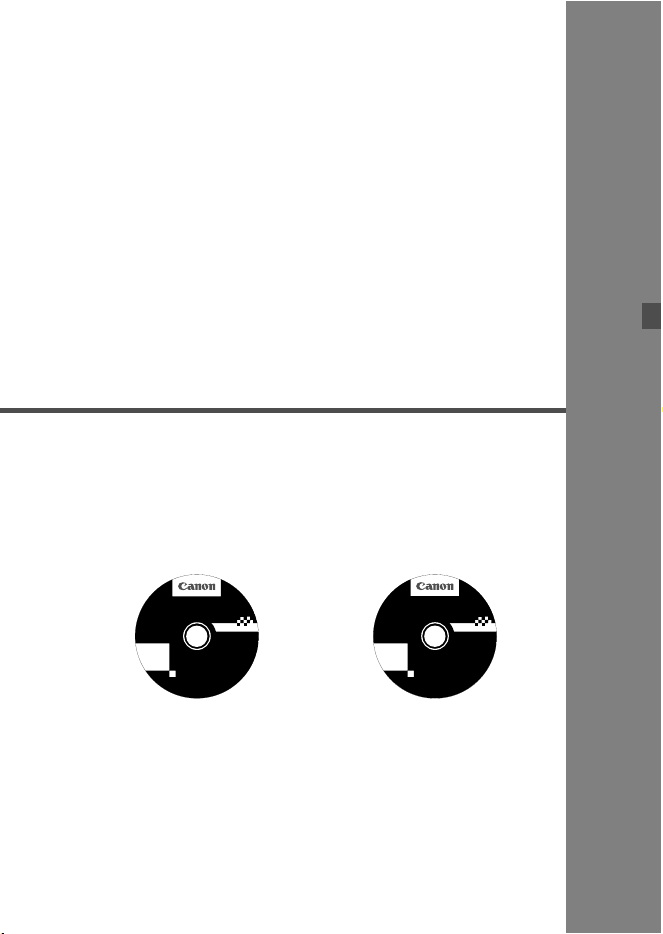
93
3
Software Start Guide
This chapter gives an overview of the software on the
EOS Solution Disk (CD-ROM) provided with the camera
and explains how to install the software on a personal
computer. It also explains how to view the PDF files on
the EOS Camera Instruction Manuals Disk (CD-ROM).
EOS Solution Disk
(Software)
EOS Camera Instruction
Manuals Disk
Windows XXX XXX
EOS Camera Instruction Manuals Disk XXX
Mac OS X XXX XXX
XXXXX
XXXXX
XXXXX
XXXXX
XXXXX
CEL-XXX XXX
©
C
A
N
O
N
I
N
C
.
2
0
X
X
.
M
a
d
e
i
n
t
h
e
E
U
.
EOS Solution Disk XXX
CEL-XXX XXX
©
C
A
N
O
N
I
N
C
.
2
0
X
X
.
M
a
d
e
i
n
t
h
e
E
U
.
Windows XXX XXX
Mac OS X XXX XXX
XXXXX
XXXXX
XXXXX
XXXXX
XXXXX

94
Software Start Guide
EOS Solution Disk
This disk contains various software for EOS cameras.
Communication Software for the Camera and Computer
You can download images (still photos/movies) you have shot with the
camera to your computer.
You can set the various settings of the camera from your computer.
You can shoot photos remotely by connecting the camera to your computer.
* When the EOS-1D C is connected to the personal computer, you can create
optimum Picture Style files with Picture Style Editor while confirming their effects
on the Remote Live View screen.
Image Viewing and Editing Software
You can view, edit and print shot images on your computer at high-speed.
You can edit images with originals remaining unchanged.
Can be used by a wide range of users from amateurs to professionals.
It is especially recommended for users who mainly shoot RAW images.
Picture Style File Creating Software
This software is aimed at advanced users who are experienced in
processing images.
You can edit Picture Style to your unique image characteristics and
create/save an original Picture Style file.
Downloading from Canon website
The following software can be downloaded from Canon website.
[On Windows]
You can play back movies you shot, consecutively play back separate movie
files, and save them as a single movie file with this software. Exporting still
photos from movies is also possible.
[On Macintosh]
You can save separate movie files as a single movie file with this software.
a EOS Utility
b Digital Photo Professional
c Picture Style Editor
EOS MOVIE Utility for EOS-1D C
EOS Solution Disk XXX
CEL-XXX XXX
©
C
A
N
O
N
I
N
C
.
2
0
X
X
.
M
a
d
e
i
n
t
h
e
E
U
.
Windows XXX XXX
Mac OS X XXX XXX
XXXXX
XXXXX
XXXXX
XXXXX
XXXXX
If you want to apply lens aberration correction when using an EF Cinema lens, update
EOS Utility to the latest version and register the correction data to the camera.
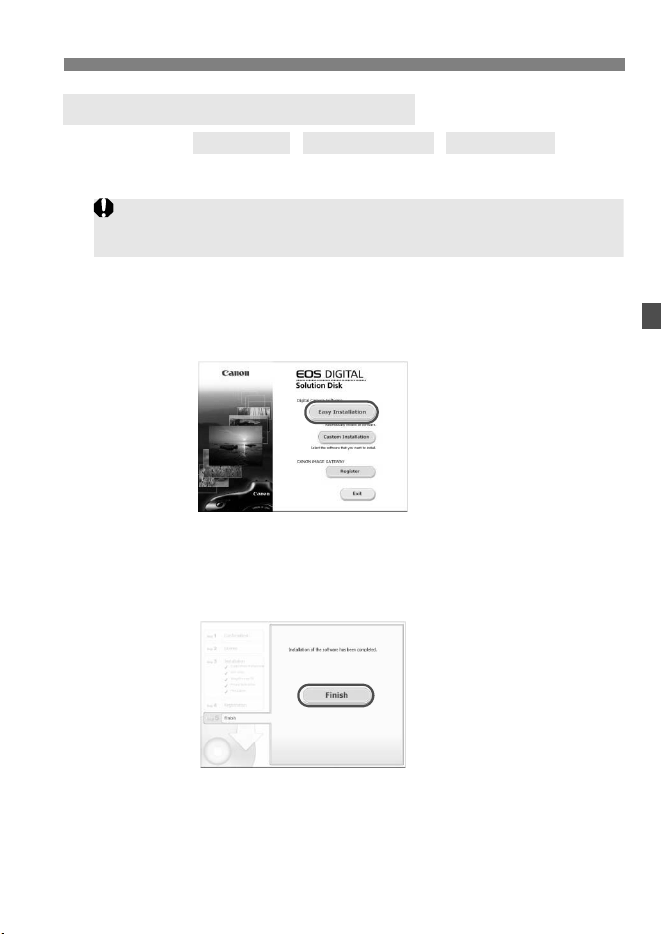
95
Software Start Guide
Compatible OS
1
Check that the camera is not connected to your computer.
2 Insert the EOS Solution Disk (CD).
3 Select your geographic area, country and language.
4 Click [Easy Installation] to start installation.
Follow the on-screen instructions to complete the installation
procedure.
If prompted, install Microsoft Silverlight.
5 Click [Finish] when the installation has completed.
6 Remove the CD.
Installing the Software on Windows
Never connect the camera to your computer before you install the
software. The software will not be installed correctly.
Windows 7
Windows Vista Windows XP
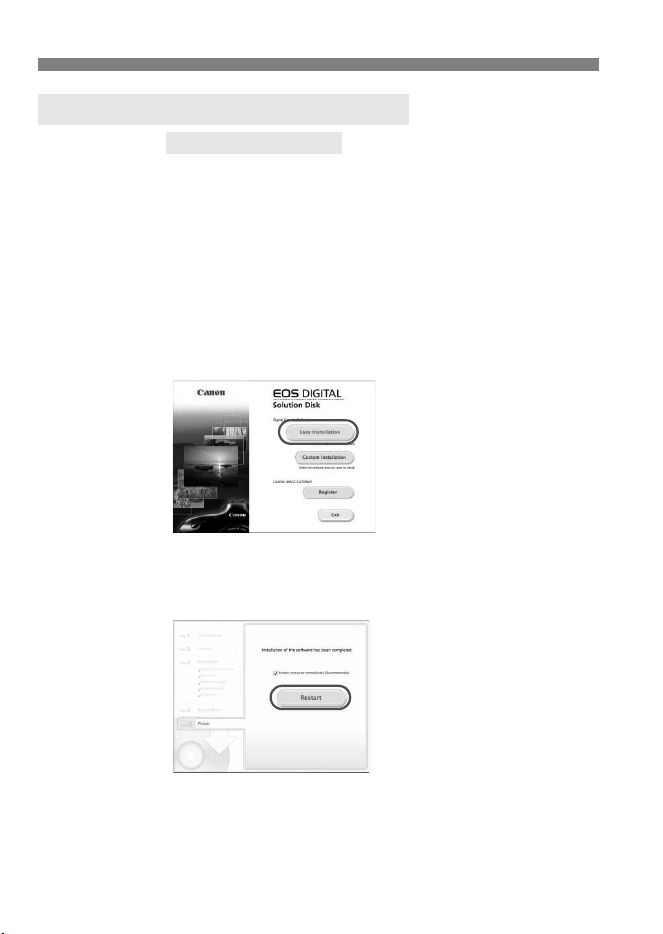
96
Software Start Guide
Compatible OS
1
Check that the camera is not connected to your computer.
2 Insert the EOS Solution Disk (CD).
On your computer’s desktop, double-click and open the CD-ROM
icon, and then double-click [Canon EOS Digital Installer].
3 Select your geographic area, country and language.
4 Click [Easy Installation] to start installation.
Follow the on-screen instructions to complete the installation
procedure.
5 Click [Restart] when the installation has completed.
6 Once the computer has restarted, remove the CD.
Installing the Software on Macintosh
MAC OS X 10.6 - 10.7
97
Software Start Guide
[WINDOWS]
EOS Camera Instruction Manuals Disk
Copy the PDF Instruction Manuals contained on the disk to your computer.
1 Insert the EOS Camera Instruction Manuals Disk (CD) into the
CD-ROM drive of your computer.
2 Open the disk.
Double-click [My Computer] on the desktop and then double-click
the CD-ROM drive into which you have inserted the disk.
Select your language and operating system. The index of the
Instruction Manuals is displayed.
[MACINTOSH]
EOS Camera Instruction Manuals Disk
Copy the PDF Instruction Manuals contained on the disk to your Macintosh.
1 Insert the EOS Camera Instruction Manuals Disk (CD) into the
CD-ROM drive of your Macintosh.
2 Open the disk.
Double-click on the disk icon.
3 Double-click the START.html file.
Select your language and operating system. The index of the
Instruction Manuals is displayed.
Adobe Reader (latest version recommended) must be installed to view the Instruction
Manual files (PDF format). Install Adobe Reader if it is not already installed on your
computer.
To save the PDF manual to your computer, use the ‘Save’ function of your Adobe
Reader.
Adobe Reader (latest version recommended) must be installed to view the Instruction
Manual files (PDF format). Install Adobe Reader if it is not already installed on your
Macintosh.
To save the PDF manual to your computer, use the ‘Save’ function of your Adobe
Reader.
Windows XXX XXX
EOS Camera Instruction Manuals Disk XXX
Mac OS X XXX XXX
XXXXX
XXXXX
XXXXX
XXXXX
XXXXX
CEL-XXX XXX
©
C
A
N
O
N
I
N
C
.
2
0
X
X
.
M
a
d
e
i
n
t
h
e
E
U
.
Windows XXX XXX
EOS Camera Instruction Manuals Disk XXX
Mac OS X XXX XXX
XXXXX
XXXXX
XXXXX
XXXXX
XXXXX
CEL-XXX XXX
©
C
A
N
O
N
I
N
C
.
2
0
X
X
.
M
a
d
e
i
n
t
h
e
E
U
.

98
Index
Numerics
B (1280x720) ...............................34
A (1920x1080) .............................34
I (1920x1080) ............................34
H (4096x2160) .............................34
C (640x480) ................................34
A
AE lock............................................22
AF mode .........................................51
ALL-I (I-only) ...................................36
Aperture-priority AE ........................20
Audio/video OUT ............................13
Av (Aperture-priority AE).................20
C
Cable .......................................... 4, 66
Cable protector and clamp.............. 14
Canon Log gamma .........................43
Card ..................................................9
Chromatic aberration correction .....29
Color sampling................................ 36
Compression method...................... 36
Contrast .......................................... 30
Count ..............................................48
Crop ................................................35
D
Digital terminal ................................13
E
EF Cinema (CN-E) lenses ..............17
Electronic level................................26
F
File size...........................................37
Final image simulation ....................30
Frame rate ...................................... 36
Free run ..........................................47
Full HD ..................................... 34, 38
Full High-Definition (Full HD) ......... 34
G
Grid display .................................... 51
H
HD .................................................. 34
HDMI .................................. 14, 49, 54
Headphones................................... 41
High-Definition (HD) ....................... 34
I
Image Area..................................... 35
Image size................................ 17, 34
Index display .................................. 58
INFO. button............................. 26, 57
IPB ................................................. 36
ISO speed ................................ 21, 24
L
LCD monitor ............................... 9, 11
Lens aberration correction ............ 29
Line input................................. 13, 39
M
M (Manual exposure) ..................... 23
Malfunction..................................... 70
Manual exposure............................ 23
3 icon......................................... 5
Metering timer ................................ 52
M-Fn......................................... 18, 52
Microphone .............................. 18, 40
Motion JPEG .................................. 36
Movie.............................................. 15
AE lock....................................... 22
AF mode .............................. 33, 51
Aperture-priority AE ................... 20
Autoexposure shooting .............. 18
Compression method................. 36

99
Index
Count ..........................................48
Drop frame..................................50
External microphone...................40
File size ......................................37
Frame rate ..................................36
Grid display.................................51
Information display .....................26
Manual exposure shooting .........23
Metering timer.............................52
Microphone.................................18
Movie recording size...................34
Playback .....................................57
Quick Control..............................33
Recording command ..................49
Recording time ...........................37
Shutter-priority AE ......................19
Silent control...............................42
Sound recording .........................39
Still photos ..................................31
Time code...................................47
Wind filter....................................39
Movie recording method .................36
Movie shooting button.....................52
Multi-function.............................10, 11
N
Nomenclature..................................10
NTSC ........................................36, 69
P
P (Program AE)...............................18
PAL ...........................................36, 69
Peripheral illumination correction ...29
Playback .........................................57
Q
Q ...................................................33
Quick Control ..................................33
R
Rec command.................................49
Rec run ...........................................47
Recording level............................... 39
Required Card Performance .......... 17
S
Safety warnings.............................. 88
Shooting information ...................... 60
Shooting mode ............................... 18
Av (Aperture-priority AE) ............ 20
BULB.......................................... 18
M (Manual exposure) ................. 23
P (Program AE).......................... 18
Tv (Shutter-priority AE) .............. 19
Shooting time ................................. 37
Shutter button........................... 18, 52
Shutter-priority AE .......................... 19
Silent LV shooting........................... 52
Software ......................................... 93
Speaker .......................................... 58
Still photos...................................... 31
Super high speed continuous
shooting.......................................... 52
System map ................................... 66
T
Temperature warning...................... 55
Time code....................................... 47
Touch pad....................................... 42
Tv (Shutter-priority AE)................... 19
U
USB (Digital) terminal..................... 13
V
V.Assist........................................... 45
Video system............................ 34, 69
View Assist ..................................... 45
Volume (Movie playback) ............... 59
W
Wind filter ....................................... 39
CANON INC.
30-2 Shimomaruko 3-chome, Ohta-ku, Tokyo 146-8501, Japan
Europe, Africa & Middle East
CANON EUROPA N.V.
PO Box 2262, 1180 EG Amstelveen, The Netherlands
For your local Canon office, please refer to your warranty card or to www.canon-europe.com/Support
The product and associated warranty are provided in European countries by Canon Europa N.V.
CEL-ST7VA212 © CANON INC. 2013 PRINTED IN THE EU
The lenses and accessories mentioned in this Instruction Manual are current as of
August 2013. For information on the camera’s compatibility with any lenses and
accessories introduced after this date, contact any Canon Service Center.
INSTRUCTION
MANUAL
ENGLISH
This manual is for the EOS-1D C installed with firmware version
1.3.0 or later.
Read this manual together with the EOS-1D X Instruction
Manual (firmware version 1.2.0 or later) and EOS-1D X Wired
LAN Instruction Manual.
The “Software Start Guide” is included at the end of this manual.


