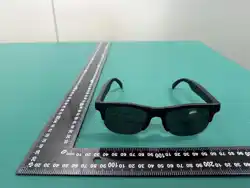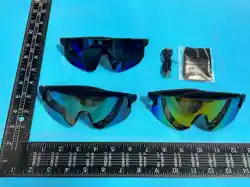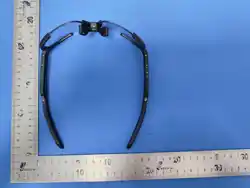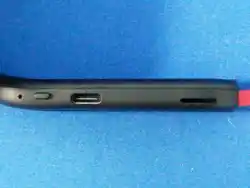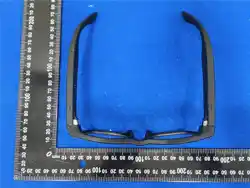
一个格子尺寸140mmx50mm
Function Instructions
Note:① When switching connected devices, delete the device in the
① High-Denition Shooting
Sho press the right button of AI sma glasses. A "click" prompt
tone indicates the photo is taken successfully; After shooting,
photos can be synced, viewed and shared in the WAKEOK App;
Note: Please keep the device steady while shooting to ensure clear images.
② HD Video Recording
Double-click the right button of the AI sma glasses. A "beep" prompt
tone means video recording has staed.Sho press the right button of
③ Audio Recording
Triple tap the right button of the AI sma glasses. A "beep" sound indicates
the AI sma glasses again. A "beep" prompt tone means recording has stopped.
After recording, videos can be synced, viewed and shared in the “ WAKEOK ” APP
Note: Keep the device stable during recording to guarantee clear footage.
④ AI Intelligent Image Recognition
Sho press the left button of the AI sma glasses to wake up the AI voice
assistant, or say "Hi, Fans" to wake it up via voice command;
Ask questions (Example: What's in front of me?);
A "click" prompt sound signals the photo capture is complete, then the AI
voice assistant will analyze the image and answer your question;
⑦ AI Sma Translation
One-click Translation: Open the“ WAKEOK ” APP, tap One-click Translation,
select the source language and target language. Long press the voice input
icon to record audio, then release it once you nish speaking.
The AI sma glasses will automatically broadcast the translation result;
Simultaneous Interpretation: Open the“ WAKEOK ” APP, tap One-click
Translation, select the source and target languages, then tap Sta Recording.
The AI sma glasses will automatically broadcast the translated results.
⑤ AI Voice Assistant
Sho press the left button of the AI sma glasses to activate the AI
voice assistant, or wake it up by voice command "Hi, Fans";
Ask your question, and the AI voice assistant will analyze and respond
to you;
⑥ AI Schedule Management
Wake up the AI voice assistant via button press or voice command to set
schedule reminders (e.g., Remind me to have a meeting in one hour);
Alternatively, open the“ WAKEOK ” APP tap Schedule Reminder, and click
the "+" icon on the page to create schedules.
recording has staed. Sho press the right button of the AI sma glasses once
more. A "beep" prompt tone means audio recording is nished.After audio
recording, audio les can be synced, viewed and shared in the“ WAKEOK ” APP.
Note:This device suppos photo taking, video recording and audio recording, yet
these functions consume relatively high power during use.When the batte level
drops below 20%, the device will disable photo, video and audio recording functions.
“ WAKEOK ” and forget the device in the system Bluetooth list.
② If your WiFi name cannot be found when connecting WiFi,
you may manually enter it at the top to connect.
Download & Connect
Indicator Light / Fill Light Instructions
① Please download and install the “ WAKEOK ” APP
Search “ WAKEOK ” in major app markets to download it;
Scan the QR code below to jump to the download link
(works with browsers and WeChat scanner);
② Connect AI Sma Glasses
Turn on your phone's Bluetooth and keep it ready for connection;
Press and hold the right button of the AI sma glasses for 3 seconds.
③ Connect WiFi for AI Sma Glasses
Tap System Settings, then tap Wi-Fi Settings;
Select the WiFi network you want to connect to or set it manually,
then enter the password;
Release it after hearing the power-on prompt tone, which means the
glasses are powered on.
Open the “ WAKEOK ” APP,quickly register and log in to your
account, then grant necessa operating permissions.
Tap the "+" icon in the upper right corner, select Manual Add,
choose Sma Glasses, nd your glasses device (e.g. D8), then tap to
connect.
Button Operation Instructions
Left Button
Right Button
Left Button +
Right Button
Single Click
Single Click
Wake up AI voice assistant
(powered on)
Interrupt voice broadcast
(during AI voice broadcasting)
Double click
Single Click
Double click
Triple click
Long press
for 3 seconds
Long press
for 6 seconds
Play / Pause Music
Take photos / Stop video recording /
Stop recording / Answer calls / Hang up calls
Sta video recording / Decline incoming calls
Power on / Power o
Restore facto settings
Hard reset hole
Press with eject
pin for 1 second
Reset and resta
Recording
Blue light
Power on
Device
connection
Fully charged
OTA upgrade
Blue light ashes twice
Blue light ashes quickly three times then turns o
Blue light stays on and turns o after completion
Blue light stays on
Red light
Power o
Low batte
Charging
Restore
facto settings
Red light ashes twice
Red light ashes ve times
Red light ashes continuously then turns o
Red light ashes continuously
Fill light
Take photo
Video
Press once, ash once
Flash once eve 5 seconds
Impoant Notes
①Please avoid using this product in environments with high temperatures, high
humidity, or strong magnetic elds, as these conditions may inteere with the
glasses’ electronic components, aect their normal operation, and damage the
batte and internal pas. Avoid such environments when using or storing the
glasses;
⑤Do not charge the glasses in a damp or wet environment, and make sure that
the charging area of the glasses and the suace of the charger are clean and in full
contact;
⑥Keep the lenses clean while using them. Gently wipe them with a clean, soft
cloth, and avoid using chemical solvents or abrasive materials to clean the lenses;
⑦Regularly check for and update the rmware of your AI sma glasses to access
new features, improve peormance, and x vulnerabilities. During the update
process, ensure the batte is suciently charged (at least 60%) and that you have
a stable internet connection to prevent device malfunctions caused by interrupted
updates;
⑧Some features may be subject to adjustments or changes in the corresponding
software versions; this is normal.
⑨The Company resees the right to modify the contents of this manual as
necessa without prior notice.
②This product is a precision electronic device and must not be subjected to
strong impacts, pressure, or drops, as this may damage internal components
and aect normal operation. Therefore, please handle the glasses with care
and avoid strong collisions with hard objects;
③When not in use, glasses should be stored in a d, well-ventilated place
away from direct sunlight. You can use a glasses case or protective sleeve to
store them, which will help prevent them from being bumped, crushed, or
scratched, thereby reducing the risk of damage;
④Please use the original charger to charge the glasses and avoid using
low-quality chargers to prevent safety issues caused by improper charging,
such as overheating or re; avoid overcharging and over-discharging; when
the batte level falls below 20%, charge it promptly, and unplug the charger
as soon as it is fully charged; peorm a charge-discharge cycle on the
batte periodically to maintain its peormance;
This product suppos photo and video recording functions. The use of this
product for cove photography or similar activities is strictly prohibited.
Please strictly comply with local laws and regulations and use this product in
accordance with the law.
Common Problems and Solutions
Basic Parameters
Product Name: AI Glasses
Body Material: Plastic
Bluetooth: Classic Bluetooth / BLE Low Power Consumption Bluetooth
Device Requirements: A cell phone connected to a standard network
Hard Reset Hole
Press the thimble for 1 second
Unable to Power On
Check the batte level and charge it
Unable to Charge
Check if the charging cable is working properly
Unable to connect
to the phone
Check to see if the glasses are turned on and in
connection mode
Unable to connect
to Wi-Fi
Disconnect the device.
Please reconnect and t it again
No sound for music or
announcements
Open the app to check if the volume is set correctly
Slow Photo/Video
Impo
Check to see if your Wi-Fi is working properly
Photo/Video
Impo Failed
Check to see if your phone and the device are
connected to the same Wi-Fi network.
Charging Instructions:
This device suppos only chargers rated at 5V/1A or lower!
Product Button Instructions
Function List
Function
HD Shooting
HD Recording
Function Description
One-Click Photo & Video Capture
One-Click HD Recording
AI Intelligent
Image Recognition
AI Assistant, Real-time Shooting & Image Content Analysis
AI Voice
Assistant
AI Large Model Voice Dialogue
AI Schedule
Management
Voice Schedule Setting & Intelligent Reminder
AI Intelligent
Translation
One-click translation, simultaneous interpretation, face-to-face translation
(suppos over 140 global languages)
AI Meeting
Assistant
Real-time recording & translation of meeting content, AI-generated meeting minutes
(suppos over 60 global languages)
Real-time
Communication
Real-time translation for voice/video calls
(suppos over 140 global languages)
Intelligent
Navigation
Real-time voice navigation with route broadcast
Music player Local / Bluetooth / Cloud Multiple Modes
Bluetooth Call Answer/reject calls via Bluetooth
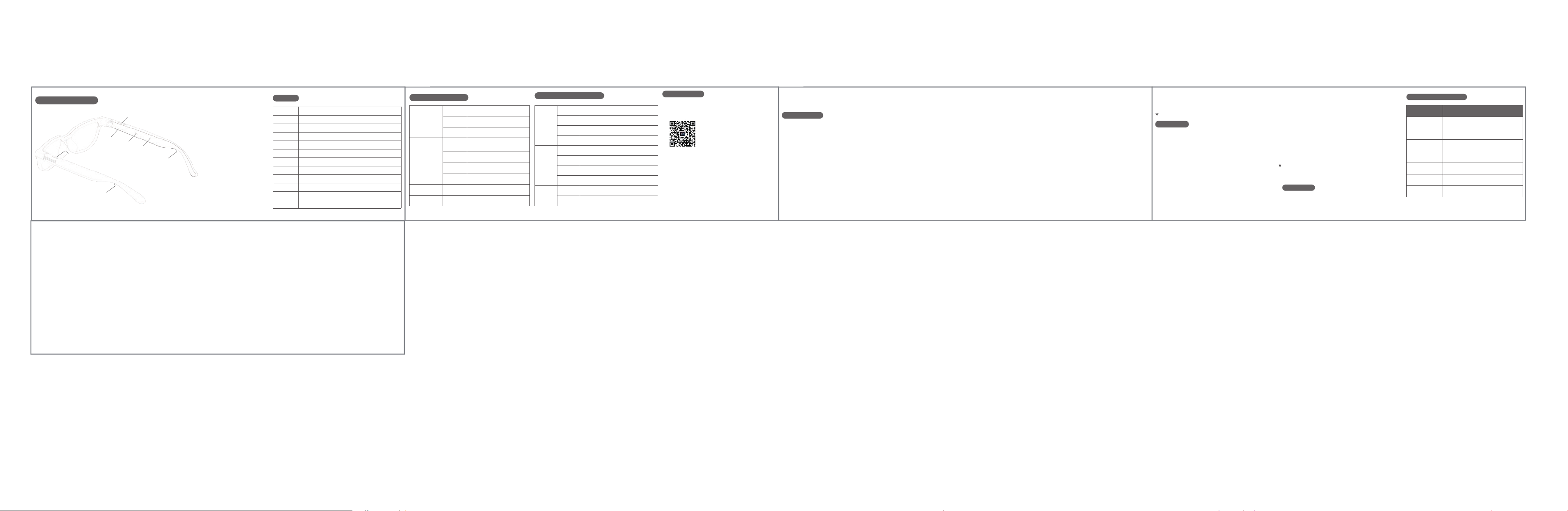
Left Button
Left Speaker
Right Button
Indicator Light
Charging Po
Hard Reset Hole
Right Speaker
AI Sma Glasses
User Manual
Real-time Communication: Open the“ WakeOK ” APP, tap Real-time
Communication, select video call or voice call, choose your language
and the counterpa's language, then tap Invite Call. Copy and share the
link with the other pay, who can join the call by clicking the link.
⑪Answering Calls
After connecting your smaphone, the AI sma glasses will automatically
play a ringtone reminder when a call comes in;Press the right button once to
answer the call, and press it again to end the call;Double-press the right
button to reject the call;
Face-to-Face Translation: Open the“ WAKEOK ” APP, tap Face-to-Face
Translation, select your language and the other pay's language. Hold
the corresponding button while speaking, and your voice will be
translated into the target language.
⑧ AI Meeting Assistant
Open the“ WAKEOK ” APP, tap AI Meeting Assistant, enter meeting
information and click Sta.Tap Stop Recording, and AI meeting minutes will
be generated automatically.
⑨ AI Sma Navigation
Wake up the AI voice assistant via button press or voice command, then
state your navigation request (e.g., Navigate to Shenzhen Noh
Station). Alternatively, open the WAKEOK App, tap Sma Navigation,
enter your destination, select a navigation mode and tap Sta.
⑩ Music Playback & Download
Music Playback: The AI sma glasses come with 1 built-in song.
Sho tap the right touch area to play or pause music;
Music Download: Open the WAKEOK App, tap Music, then select Add
Music.Download your desired music;
FCC Warnning:
This equipment has been tested and found to comply with the limits for a Class B digital device,
pursuant to part 15 of the FCC Rules. These limits are designed to provide reasonable
protection against harmful interference in a residential installation. This equipment generates,
uses and can radiate radio frequency energy and, if not installed and used in accordance with
the instructions, may cause harmful interference to radio communications. However, there
is no guarantee that interference will not occur in a particular installation. If this
equipment does cause harmful interference to radio or television reception, which can be
determined by turning the equipment off and on, the user is encouraged to try to correct
the interference by one or more of the following measures:
• Reorient or relocate the receiving antenna.
• Increase the separation between the equipment and receiver.
• Connect the equipment into an outlet on a circuit different from that to which the receiver is
connected.
• Consult the dealer or an experienced radio/TV technician for help.
Caution: Any changes or modifications to this device not explicitly approved by manufacturer
could void your authority to operate this equipment.
This device complies with part 15 of the FCC Rules. Operation is subject to the following two
conditions:
(1)This device may not cause harmful interference, and (2) this device must accept any
interference received, including interference that may cause undesired operation.
This equipment complies with FCC radiation exposure limits set forth for an uncontrolled
environment. This equipment should be installed and operated with minimum distance 0cm
between the radiator and your body.