ErgoDock
USER MANUAL
Product Name: ErgoDock
Model: ED01EN
Input: 29VDC
Manufacturer: Keeson Technology Corporation Limited
Manufacturing country: China
1. Introduction
Thank you for choosing the Ergo Dock Smart Bedside Controller. The Ergo Dock is an innovative bedside
device designed to enhance your sleep experience through intelligent bed control, wireless charging,
offline voice recognition, and anti-snore functionality.
The Ergo Dock integrates the following core features:
Wireless Charging: Wireless charging pad for Qi-compatible smartphones and devices
Bluetooth: Bluetooth connectivity for smart home app integration
Offline Voice Control: Offline voice recognition with wake words "Hello Ergo" and "Hello Bed" — no
cloud connection required, all processing is local
Anti-Snore Function: Adjustable anti-snore detection with three sensitivity levels
Bed Control: Full bed position control including head/foot adjustment, massage, presets, and
lumbar/tilt control
Wired Charging: Wired USB charging port (5V/1A) as an alternative to wireless charging
This device is designed for indoor use in residential environments.
2. Product Overview
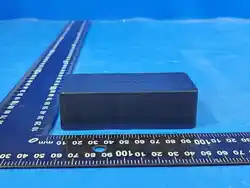
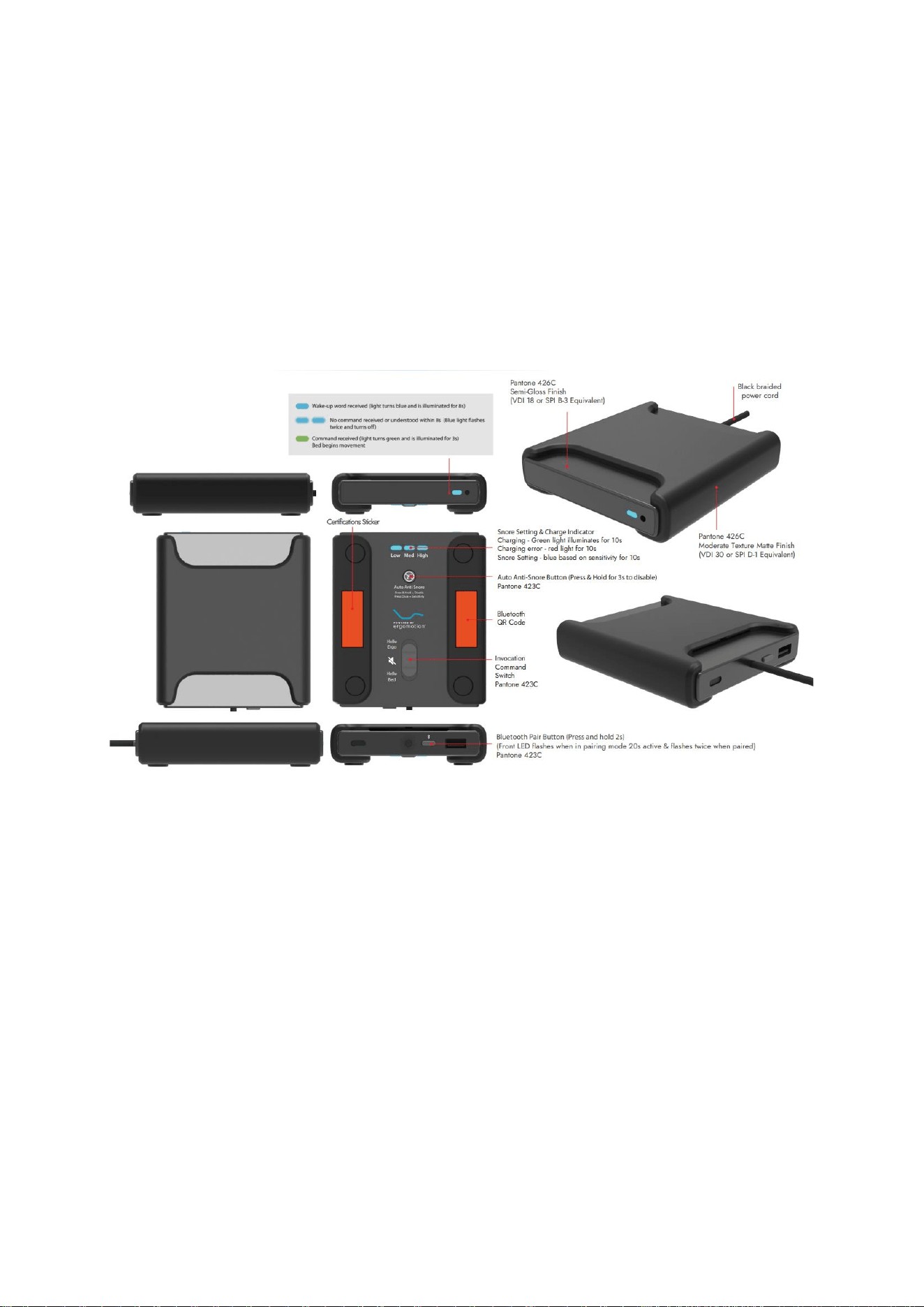
The Ergo Dock features a sleek, minimalist design with a matte black finish (Pantone 426C) complemented
by semi-gloss accents (Pantone 423C). The device is designed to sit on a bedside table and serve as the
central control hub for your adjustable bed.
2.1 Key Features
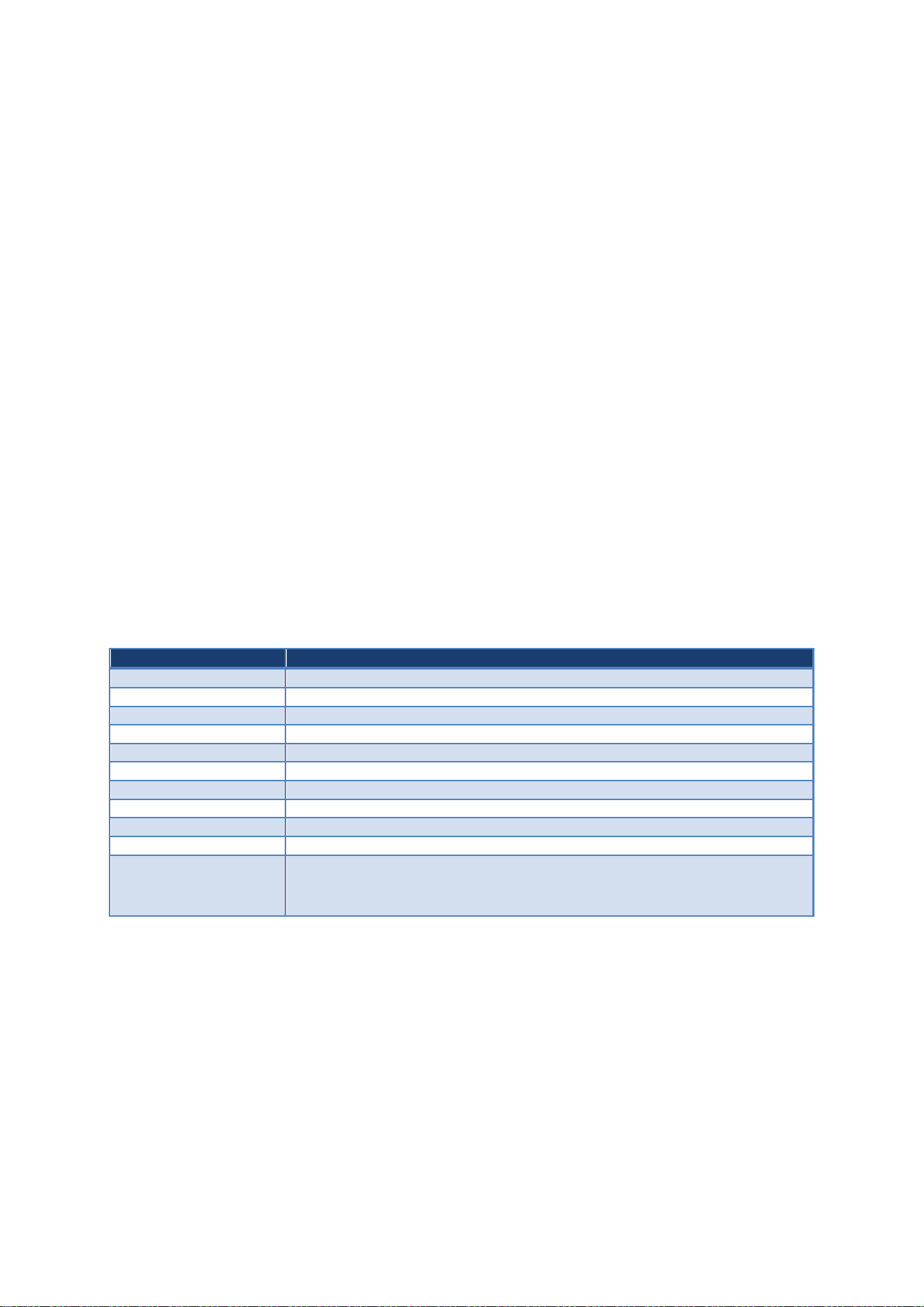
Feature
Description
Wireless Charging
Qi-compatible wireless charging pad with foreign object detection (FOD)
Voice Control
Offline voice recognition — no internet required, privacy-protected
Wake Words
"Hello Ergo" and "Hello Bed" — say the wake word followed by a command
Bed Position Control
Head/foot raise/lower, preset positions (Zero G, Flat, Favorite, TV)
Massage Control
Head/neck massage with adjustable intensity (On/Up/Down/Off)
Anti-Snore
Automatic snore detection with three sensitivity levels (Low/Med/High)
Lumbar & Tilt
Independent lumbar and tilt adjustment controls
Bed Light
Voice-controlled under-bed lighting (On/Off)
Bluetooth
Bluetooth pairing for mobile app connectivity
LED Indicators
Multi-color LED indicators for charging, snore sensitivity, and Bluetooth status
Wired Charging
When only one port is loaded, the maximum output power is 7.5 W (5 V, 1.5
A). If both ports operate at the same time, the aggregate output power is
capped at 10 W (5 V, 2 A).
3. Controls and Indicators
3.1 Physical Controls
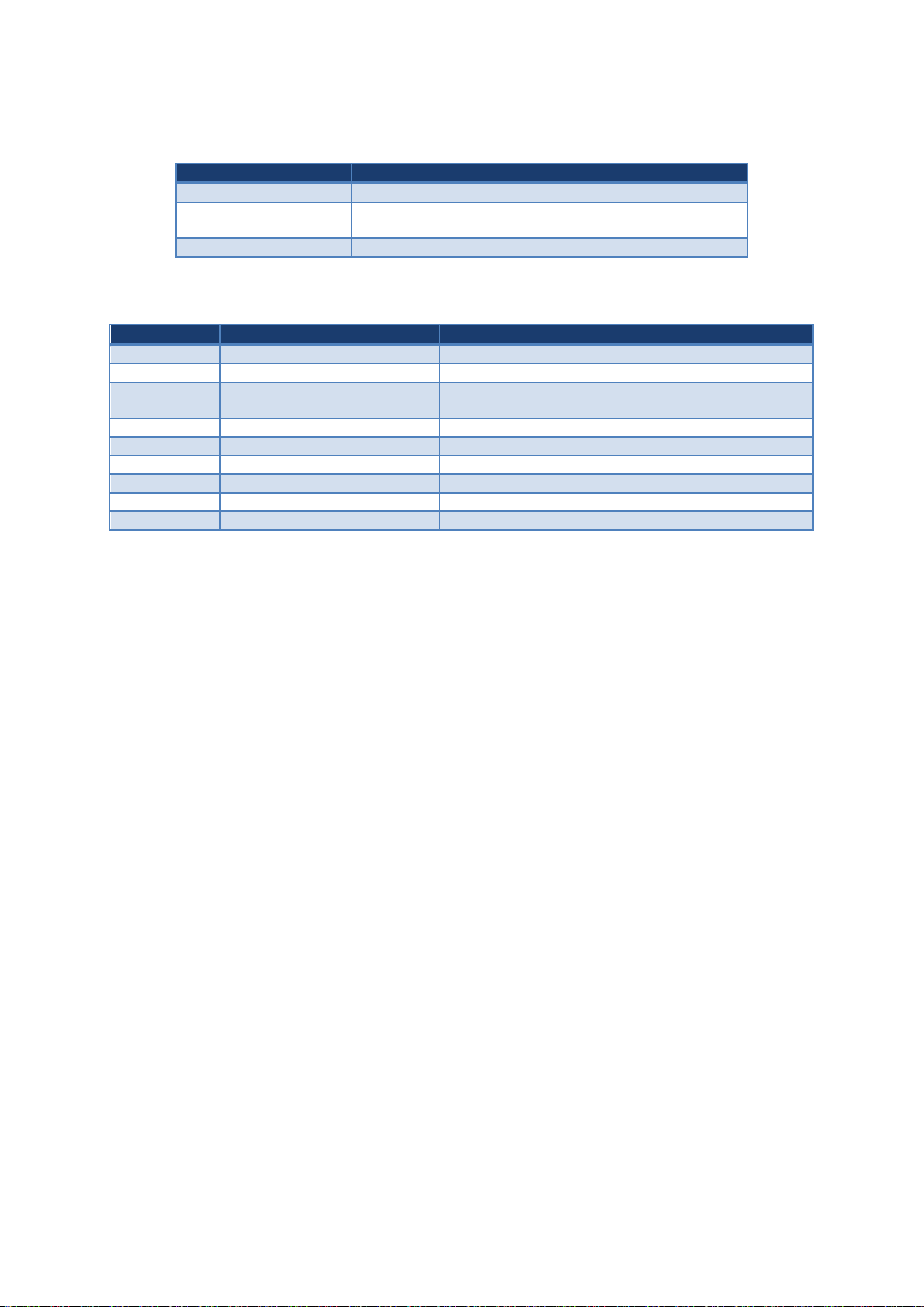
Control
Function
Bluetooth Pair Button
Press and hold 2 seconds to enter Bluetooth pairing mode
Anti-Snore Button
Short press: cycle sensitivity (Low > Med > High)
Press and hold 3 seconds: disable anti-snore function
Voice Control Switch
Toggle ON/OFF to enable or disable offline voice recognition
3.2 LED Indicators
LED Color
Pattern
Meaning
Green
Illuminates for 10 seconds
Wireless charging active — device charging normally
Red*3
Illuminates for 10 seconds
Charging error or foreign object detected on charging pad
Blue
Illuminates for 10 seconds
(intensity varies)
Anti-snore sensitivity setting indicator (Low/Med/High)
Blue
Flashes 2 times
Anti-snore function disabled
Blue
Flashing for 20 seconds
Bluetooth pairing mode active
Blue
Flashes twice
Bluetooth pairing successful
Blue
Flashing for 30 seconds then stops
Bluetooth pairing timeout — no device found
Green
Illuminates for 3 seconds
Voice command received, listening for 8 seconds
Green
Flashes 2 times
Voice listening timeout (8 seconds elapsed)

4. Wireless Charging
The Ergo Dock features a built-in Qi-compatible wireless charging pad on its top surface. Simply place your
Qi-enabled smartphone or device on the charging area to begin charging.
4.1 How to Charge Wirelessly
Place your Qi-compatible device directly on the charging pad area of the Ergo Dock.
The green LED indicator will illuminate for 10 seconds to confirm charging has started.
Remove your device from the pad when charging is complete.
4.2 Charging Error Indication
If a charging error occurs (e.g., foreign object on the pad, incompatible device, or device misalignment):
The LED indicator will turn red and illuminate for 10 seconds.
The red LED will flash 3 times, then turn off after 30 seconds.
Remove any foreign objects and reposition your device on the pad.
4.3 Wired Charging Alternative
The Ergo Dock also provides a wired USB charging port (5V/1A) for devices that do not support wireless
charging or when faster wired charging is preferred.

5. Bluetooth Pairing
The Ergo Dock supports Bluetooth connectivity for integration with the companion mobile app, enabling
remote control, firmware updates, and advanced settings.
5.1 Pairing Procedure
Press and hold the Bluetooth Pair Button on the front panel for 2 seconds.
The front LED will begin flashing, indicating the device is in pairing mode (active for 20 seconds).
Open the companion app on your smartphone and scan for available devices.
Alternatively, scan the QR code on the device to initiate pairing.
Select "Ergo Dock" from the list of available devices.
Once paired successfully, the LED will flash twice.
5.2 Pairing Timeout
If no device is paired within 30 seconds, the pairing mode will automatically exit. The LED will stop flashing,
and you will need to repeat the pairing procedure.
5.3 Turning Bluetooth On/Off
Press and hold the Bluetooth Pair Button for 3 seconds to toggle Bluetooth on or off.
When Bluetooth is turned on, the LED will flash to indicate pairing mode is active.
Press and hold for 3 seconds again to turn Bluetooth off.
6. Voice Control
The Ergo Dock features a built-in offline voice recognition system. All voice processing occurs locally on
the device — no audio is transmitted to the cloud, ensuring complete privacy.
6.1 Wake Words
The device responds to two wake words:
"Hello Ergo" — Primary wake word
"Hello Bed" — Alternative wake word
After speaking the wake word, the green LED will illuminate for 3 seconds, and the device will listen for
your command for 8 seconds.
6.2 Voice Command Timeout
If no command is spoken within 8 seconds after the wake word, the LED will flash 2 times and the device
will return to standby mode.
6.3 Enabling/Disabling Voice Control
Use the Voice Control Switch to turn voice recognition ON or OFF.
When OFF, the device will not respond to any wake words or voice commands.
6.4 Available Voice Commands
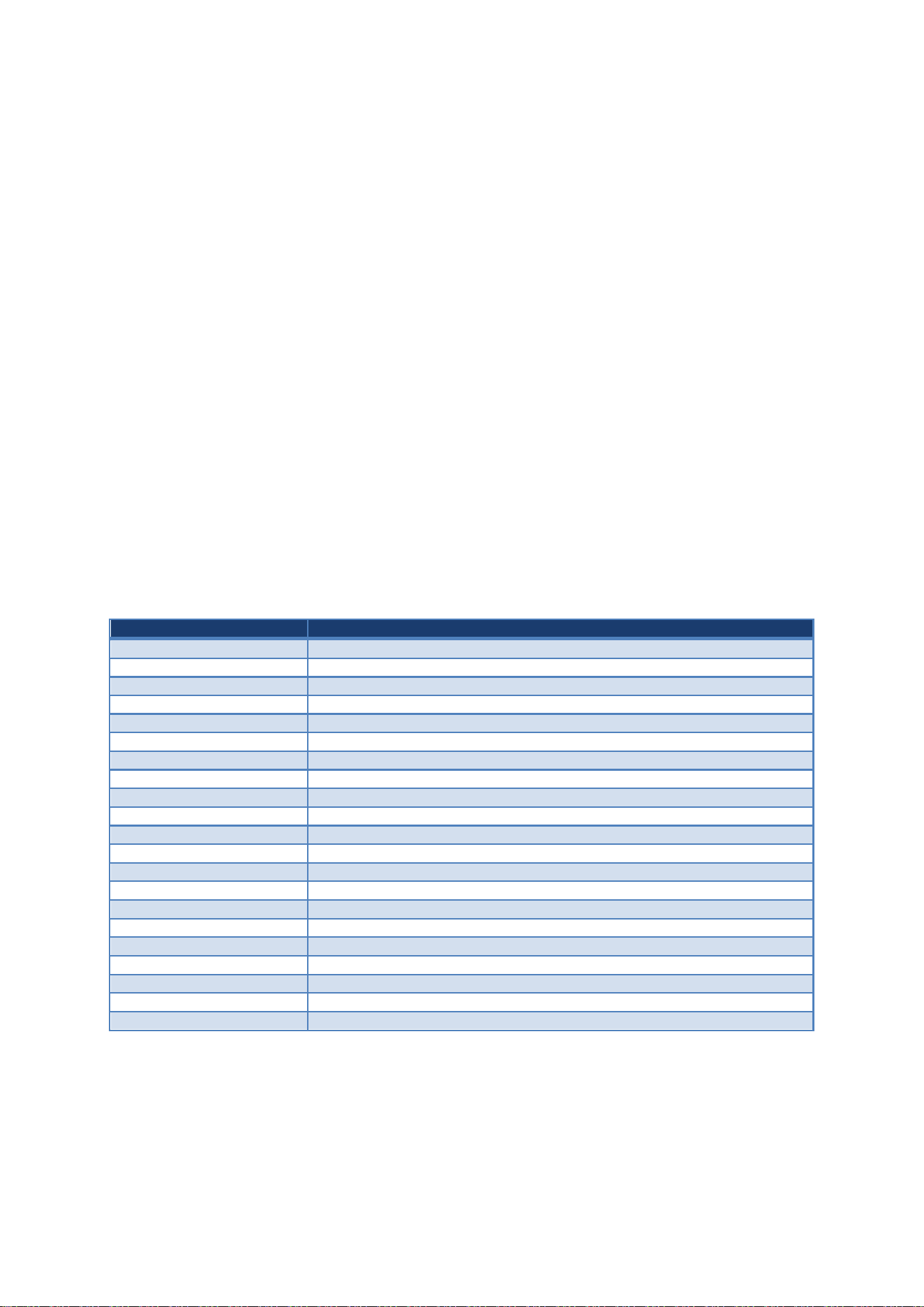
After speaking a wake word, say one of the following commands:
Voice Command
Action
All Up
Raise both head and foot sections simultaneously for 3 seconds
STOP
Stop all running bed movements immediately
Zero G
Move bed to Zero Gravity preset position
Flat Preset
Move bed to flat position
Favorite Preset
Move bed to your saved favorite position
TV Preset
Move bed to TV viewing preset position
Raise-head
Raise the head section for 3 seconds
Lower-head
Lower the head section for 3 seconds
Raise-foot
Raise the foot section for 3 seconds
Lower foot
Lower the foot section for 3 seconds
Massage On
Turn on head/neck massage
Massage Up
Increase massage intensity
Massage Down
Decrease massage intensity
Massage Off
Turn off massage function
LIGHT ON
Turn on under-bed lighting
LIGHT OFF
Turn off under-bed lighting
ANTI-SNORE
Activate anti-snore detection with preset position
RAISE LUMBAR
Raise lumbar support for 3 seconds
LOWER LUMBAR
Lower lumbar support for 3 seconds
RAISE TILT
Raise tilt for 3 seconds
LOWER TILT
Lower tilt for 3 seconds
Note: Each bed movement command (Raise/Lower) operates for 3 seconds per invocation. For continuous movement,
repeat the command.

7. Anti-Snore Function
The Ergo Dock includes an intelligent anti-snore detection system that monitors snoring patterns and
automatically adjusts the bed position to help reduce snoring.
7.1 How It Works
When the anti-snore function is enabled, the device uses its built-in microphone to detect snoring sounds.
Upon detecting snoring, the bed automatically adjusts to a preset anti-snore position (slight head
elevation) to help open the airway and reduce snoring.
7.2 Sensitivity Levels
The anti-snore function offers three sensitivity levels:
Sensitivity
Description
Low
Least sensitive — triggers only with frequent snoring
Medium
Balanced sensitivity for typical use
High
Most sensitive — triggers with light snoring
7.3 Adjusting Sensitivity
Short press the Anti-Snore Button to cycle through sensitivity levels: Low > Medium > High > Low...
The blue LED indicator will illuminate for 10 seconds, with brightness corresponding to the selected
sensitivity level.
7.4 Enabling/Disabling Anti-Snore
Press and hold the Anti-Snore Button for 3 seconds to disable the function.
The blue LED indicator will flash 2 times to confirm the function is disabled.
To re-enable, press and hold the Anti-Snore Button for 3 seconds again.
7.5 Anti-Snore Process
When snoring is detected (based on the selected sensitivity threshold):
The bed automatically adjusts to the anti-snore preset position.
The bed will remain in the adjusted position until you manually change it.
To cancel the anti-snore adjustment, use the "STOP" voice command or manually adjust the bed.
8. Bed Control Commands
The Ergo Dock provides comprehensive control over your adjustable bed. Commands can be issued via
voice control (see Section 8) or through the companion app via Bluetooth.
8.1 Preset Positions
Preset
Description
Zero G
Zero Gravity position — distributes weight evenly for pressure relief
Flat
Completely flat position
Favorite
Your custom saved position (set via app)
TV
TV viewing position — slight head elevation for comfortable viewing
Anti-Snore
Slight head elevation to reduce snoring
8.2 Manual Adjustments
Function
Commands
Duration per Command
Head Section
Raise-head / Lower-head
3 seconds per command
Foot Section
Raise-foot / Lower-foot
3 seconds per command
Lumbar Support
RAISE LUMBAR / LOWER LUMBAR
3 seconds per command
Tilt
RAISE TILT / LOWER TILT
3 seconds per command
Massage
Massage On / Up / Down / Off
Toggle / continuous
Bed Light
LIGHT ON / LIGHT OFF
Toggle
Stop All
STOP
Immediate stop
FCC Caution:
This device complies with part 15 of the FCC Rules. Operation is subject to the following two
conditions: (1) this device may not cause harmful interference, and (2) this device must accept any
interference received, including interference that may cause undesired operation.
Any changes or modifications not expressly approved by the party responsible for compliance could
void the user's authority to operate the equipment.
NOTE: This equipment has been tested and found to comply with the limits for a Class B digital device,
pursuant to Part 15 of the FCC Rules. These limits are designed to provide reasonable protection
against harmful interference in a residential installation. This equipment generates, uses and can
radiate radio frequency energy and, if not installed and used in accordance with the instructions, may
cause harmful interference to radio communications. However, there is no guarantee that
interference will not occur in a particular installation.
If this equipment does cause harmful interference to radio or television reception, which can be
determined by turning the equipment off and on, the user is encouraged to try to correct the
interference by one or more of the following measures:
-- Reorient or relocate the receiving antenna.
-- Increase the separation between the equipment and receiver.
-- Connect the equipment into an outlet on a circuit different
from that to which the receiver is connected.
-- Consult the dealer or an experienced radio/TV technician for help.

To maintain compliance with FCC’s RF Exposure guidelines, This equipment should be installed and
operated with minimum distance between 20cm the radiator and your body: Use only the supplied
antenna.
This equipment complies with FCC radiation exposure limits set forth for an uncontrolled environment.
This equipment should be installed and operated with a minimum distance of 20 cm between the radiator
and your body.
IC Caution:
RSS-Gen Issue 5 "&" RSS-Gen numéro 5
- English:
This device contains licence-exempt transmitter(s)/receiver(s) that comply with Innovation, Science and
Economic Development Canada’s licence-exempt RSS(s). Operation is subject to the following two
conditions:
(1) This device may not cause interference.
(2) This device must accept any interference, including interference that may cause undesired operation
of the device.
Any changes or modifications not expressly approved by the party responsible for compliance could void
the user's authority to operate the equipment.
RF exposure statement:
The equipment complies with IC Radiation exposure limit set forth for uncontrolled environment. This
equipment should be installed and operated with minimum distance 20cm between the radiator and your
body.
- French:
Cet appareil contient des émetteurs / récepteurs exemptés de licence conformes aux RSS (RSS)
d'Innovation, Sciences et Développement économique Canada. Le fonctionnement est soumis aux deux
conditions suivantes:
(1) Cet appareil ne doit pas causer d'interférences.
(2) Cet appareil doit accepter toutes les interférences, y compris celles susceptibles de provoquer un
fonctionnement indésirable de l'appareil.
Tout changement ou modification non expressément approuvé par la partie responsable de la conformité
pourrait annuler l'autorité de l'utilisateur à utiliser l'équipement.
Déclaration d'exposition RF:
L'équipement est conforme à la limite d'exposition aux radiations de la IC établie pour un environnement
non contrôlé. Cet équipement doit être installé et utilisé avec une distance minimale de 20 cm entre le
radiateur et votre corps.