
1
User's Guide
Contents
Getting Started ......................................................... 3
Turning On Wi-Fi............................................................ 8
Connecting to a Wi-Fi Network....................................... 9
Checking the Wi-Fi Network Status ................................ 9
USB tethering & portable hotspot ....................................9
Making the Most of Multimedia .............................1
Key Explainrd ..................................................................4
Starting up ...................................................................... 5
Disconnect the USB cable to power it off. .......................6
Getting Around Your Tablet............................................ 6
Touch Input Settings....................................................... 8
Getting Connected to the Internet .......................... 8
Adding a New Network Connection ....................... 8
0
Camera .........................................................................10
Playing Music ................................................................10
Sund Recorder ..............................................................11
Sorting out Your tablet Settings ........................... 11

2
Bluetooth.......................................................................11
Setting Date and Time.................................................. 12
Display Settings ............................................................ 12
Sound Settings ............................................................. 12
Language Settings........................................................ 12
Security Settings ...........................................................13
Managing Your Device Memory....................................13
Reset to Factory Settings..............................................13
Calculator......................................................................14
Screen record ............................................................... 14
For Your Safety ...................................................... 14
General Safety ..............................................................14
Distraction.....................................................................15
Product Handling .......................................................... 16
Electrical Safety ............................................................ 18
Interference...................................................................19
Explosive Environments................................................21
System update ..............................................................21
Common fault diagnosis............................................... 21
3
Getting Started
Overview
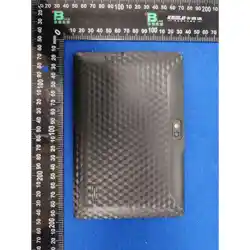
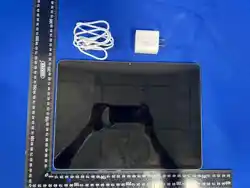
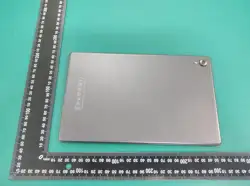
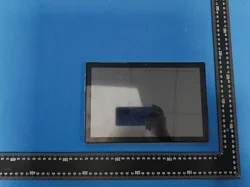
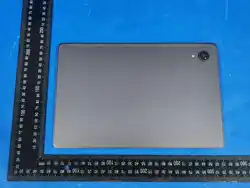
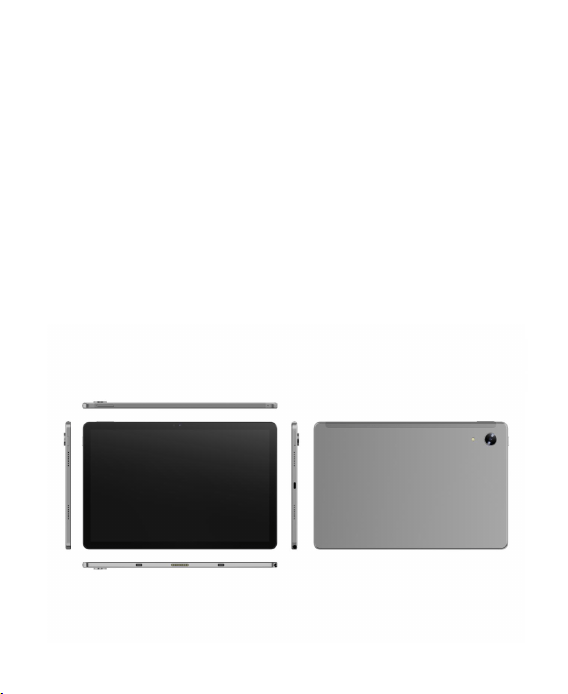
Productname: Tablet PC
Model: L1109
Manufacturer:ShenzhenPretechIndustrialCo.,Ltd
808, 8F, Qiancheng Commercial center, 5 Haicheng Road, Bao'an District
, Shenzhen, China
4
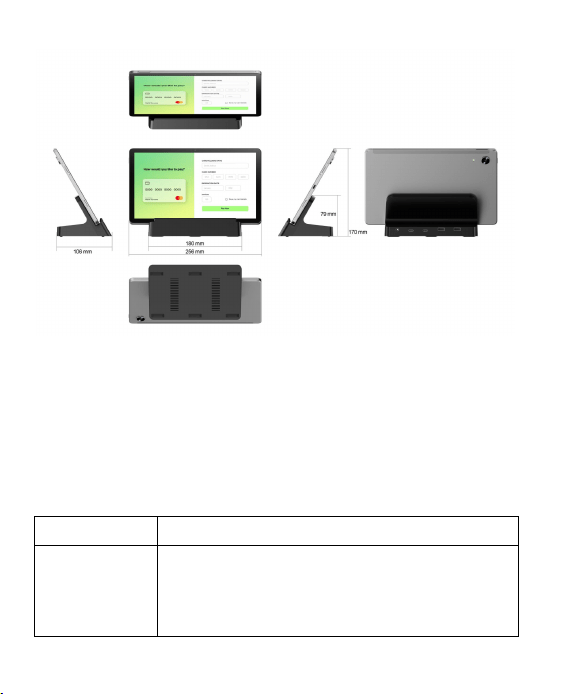
The dock powers the tablet when connected, supplied with a 12V
adapter. The two Type-A ports on the dock are for peripheral
device recognition, while the two Type-C ports support external
power output.
Key Explainrd
Key
Function
Power Key
Press to turn on or off
Press to restart your tablet
Press to Screenshot
Press to Emergency
5
Key
Function
Home Key
Press to return to the Home Screen from any
application or screen.
Menu Key
Hold to see recently used applications.
Back Key
Press to go to the previous screen.
Volume Keys
Press or hold to turn the volume up or down.
Starting up
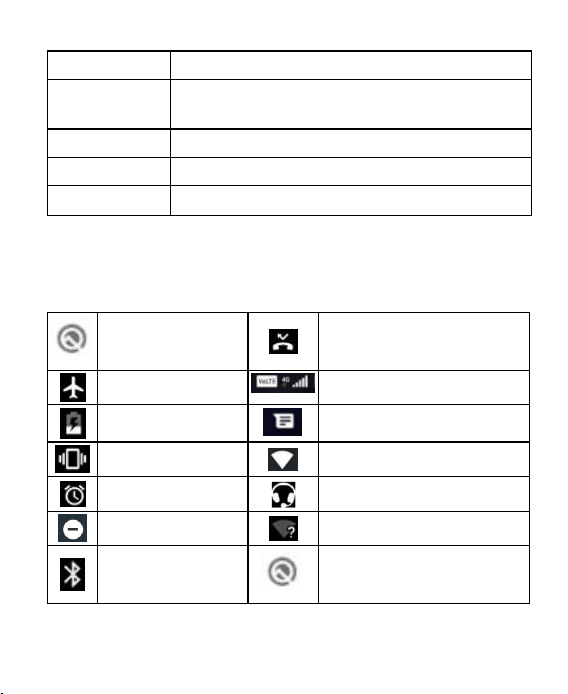
Status and Notification lcons
Your tablet will tell you exactly what’s going on by showing you simple
icons. Here’s what they mean
USB connected
Missed call
Airplane mode
Signal strength
Battery charge
New message
Meeting mode
Wi-Fi network
Alarm set
Earphone insert
Silent mode
New Wi-Fi network detected
Bluetooth icon
USB debugging connected

6
When you first power on your tablet after you purchase it or reset it to
factory settings (see chapter Sorting out Your Settings – Privacy: Reset to
Factory Settings), you need to do some settings before using it.
Switching to Sleep Mod
Setting Up Your tablet for the First Time
e
To save battery power, Sleep Mode suspends your device to a
low-power-consumption state while the display is off. Your device also goes
into Sleep Mode by itself when the display is automatically turned off after a
certain period of time. You can start sleep mode by the following method.
Press Power Key to switch to Sleep Mode.
Waking Up Your Tablet
Press Power Key to activate your screen display.
Drag to the up.
NOTE: If you have set an unlock pattern, PIN or password for your
tablet (see chapter Sorting out Your Settings – Security Settings) you’ll
need to draw the pattern or enter the PIN/password to unlock your screen.
Getting Around Your Tablet
Touch Control
You can use finger gestures to control your tablet. The controls on your
touch-screen change dynamically depending on the tasks you’re
performing.

7
Tap the buttons, icons, or applications to select items or to open
applications.
Flick the screen to scroll up, down, left or right.
Point, drag and drop to move particular items across the screen.
Double-tap the screen to zoom in/out an image.
NOTE: You can view the tablet screen in portrait or landscape
orientation simply by holding it upright or turning it on its side. Not all
screens are viewable in landscape.
Home Screen
In the Home screen, besides the shortcut icon is displayed, you can
also set your own wallpaper, add the widgets or application shortcuts you
need, or remove them as you like.
Choosing Your Wallpaper
Long Press desktop to select the wallpapers 、widgets、home settings
Adding/Removing items to Your Home Screen
Enter the Application Program Interface
In the list of applications, touch and hold the icon until the main screen
appears, move the application icon to the idle position, release the finger.
Press Home Key to return to the Home Screen.
Tap and hold the item you want to delete until the remove icon appears on
the top of the screen.
Drag the item to the remove icon and release your finger when the item
turns red.

8
Touch Input Settings
Choose the touch input settings by press Home key> tap
>settings>Language & input from Home Screen.
In the Keyboard&input methods section, you can choose the
settings that you need.
Getting Connected to the Internet
Your tablet’s impressive networking capabilities allow you to access
the Internet or your corporate network with ease.
You can use default connection settings to connect to the Internet via
your mobile network, or Wi-Fi.
The network connection can be enabled /disabled manually.
Tap >Settings>Network and internet>Mobile data to choose SIM to
use for cellular data.
Adding a New Network Connection
To get connected via your mobile network you need a data plan with
your service provider. Also if the networks settings are not pre-configured
on your tablet, please contact your provider to get the necessary
information.
You can view settings by tapping>Settings>Network and
internet>Moble network >advabced>Access Point Names to add a nework
connection
Turning On Wi-Fi
Wi-Fi provides wireless Internet access over distances of up to about
300 feet.

9
Connecting to a Wi-Fi Network
Tap >Settings>Wi-Fi.
Click next to the Wi-Fi menu to turn it on, click you can turn off
the Wi-Fifunction.Tap an access point to connect to it.
NOTE: If security features are implemented, you’ll need to enter a
password.
Also you can Place the QR code in the middle position below to
connect to WIFI
Checking the Wi-Fi Network Status
You can check the Wi-Fi network by looking at the icon in the status
bar.
USB tethering & portable hotspot
Share your tablet’s data connection via USB or as a portable Wi-Fi hotspot.
Enabling USB tethering
TIPS: The PC accesses the Internet via the tablet’s mobile network.
Therefore, set up the networks connection correctly before you try to use
the tablet as a modem.
Disabling USB tethering
Tap >Settings>Network and internet>Hotspot and tethering >USB
thehering and USB PC internet share and clear the USB tethering
check box.
You can also just pull out the USB cable.
10
Enabling the Wi-Fi Hotspot
You can use the tablet as a portable WLAN router, to share your tablet’s
internet connection with one or more PC or other devices.
NOTE:
When the portable Wi-Fi hotspot function is enabled, you can’t use your
tablet’s applications to access the internet via its Wi-Fi connection.
You can configure the Wi-Fi hotspot as follows:
Tap >Settings>Network and internet click next to the Wi-Fi
hotspot to turn it on.
Tap Set up Wi-Fi hotspot to set up portable Wi-Fi hotspot. Now youcan
find the hotspot on other devices and connect to.
Disabling the Wi-Fi Hotspot
Tap >Settings>Network and internet click and click next to
the Wi-Fi hotspot to turn it off.
Making the Most of Multimedia
Camera
Your tablet has camera function. Tap >Camera. Tap to take a
picture. To view it, just tap the picture icon in the left corner of the screen,
and slide left or right to select the function you want
Playing Music
You can play digital audio files from your tablet’s memory card in Music.
Before playing music, you need to copy music files to memory card
location.
11
Tap > Music to open the Music Screen.
Click the Music category label > music files to start playing.
Adjust the volume with Volume Keys.
Sund Recorder
Sound Recorder enables you to record your voice memos.
Tap >Sound Recorder.
Tap to start recording.
Tap to stop recording.
Tap to play back the voice recording.
Save the voice recording after stop, or tap Discard to delete the recording.
Sorting out Your tablet Settings
Bluetooth
Bluetooth is a short-range wireless communication technology. Tablets
or other devices with Bluetooth capabilities can exchange information
wirelessly within a distance of about 10 meters. The Bluetooth devices
must be paired before the communication is performed.
Tap >Settings>Connected devices-Bluetooth
Click next to the Bluetooth menu to turn it on. When Bluetooth is on,
the icon will appear in the status bar.
Tap Bluetooth. Your tablet will show all visible Bluetooth devices in range.
Tap the device you want to pair with and operate according to the message

12
prompt. When both devices to be paired accept the connection, the
pairing is completed.
TIPS: Tap your device name to make your tablet discoverable if other
devices try to pair with your tablet.
Setting Date and Time
Tap >Settings> system-.
Tap Automatic Date & time and select Off if you want to set the time and
date by yourself.
Set date, time and change the other options.
Display Settings
Tap >Settings>Display, you can adjust the display settings as you like:
Wallpaper: Set the wallpaper of the tablet.
Brightness: Adjust brightness of the screen.
Adaptive brightness: Rotate the screen display as you rotate the tablet.
Sleep: Set the delay for the screen to automatically turn off.
Sound Settings
Tap >Settings>Audio profiles-the sound settings, such as ringtones,
volume and vibrate.
Language Settings
You can change the language of your tablet system in two simple
steps.

13
Tap >Settings>Language & input> Language.
Select a language from the list given.
Security Settings
Here’s how to protect your tablet and SIM card from unauthorized use.
Tap >Settings>Security>Screen lock .You can select the screen lock.
When power on your tablet or unlock touch screen devices you will be
required to input pattern/PIN/password/voice, and etc. The following is
the introduction function:
None
Disable thescreen
lock
PIN
Use the PIN to
unlock
Swipe
Select the swipe to
unlock
Password
Use the password
lock screen
Pattern
Creating Your
Screen Unlock
Pattern
Managing Your Device Memory
Tap > tap >Settings>Storage.
You can view the space information of the SD card and the tablet
storage.
Reset to Factory Settings
Tap >Settings >Backup & reset>Factory data reset>Reset
tablet>Erase everything.
WARNING: All your personal information and downloaded applications on
14
your tablet will be erased after the resetting.
Calculator
You can use the tablet directly perform simple mathematical
calculations.
1. Tap Calculator.
2. Click the button corresponding with the calculator display, perform basic
arithmetic.
TIPS: Tap Menu Key > Advanced panel to use scientific calculation.
Screen record
Pull down the bar and tap the screen record, can record it
For Your Safety
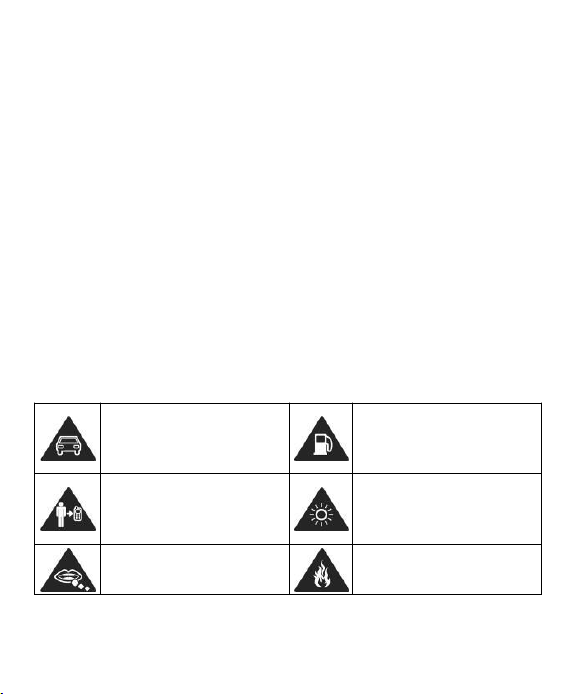
General Safety
Don’t make or receive
handheld calls while driving.
And never text while driving.
Don’t use at petrol stations.
Keep your tablet at least 15
mm away from your ear or
body while making calls.
Your tablet may produce a
bright or flashing light.
Small parts may cause a
choking.
Don’t dispose of your tablet
in fire.
15
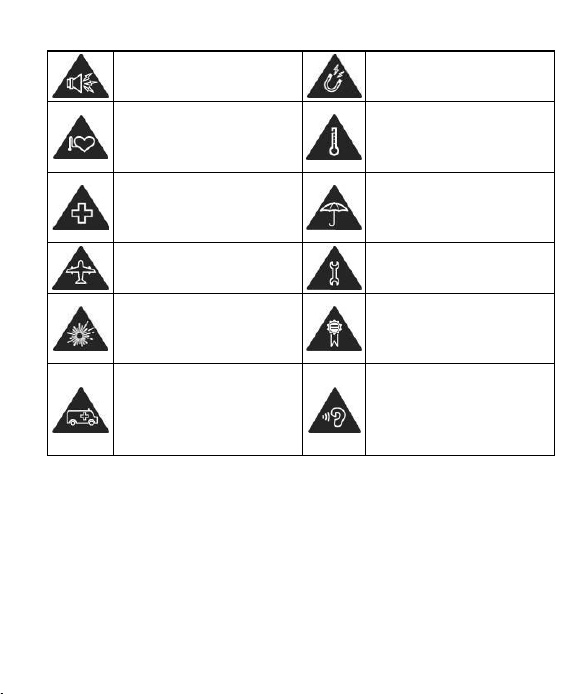
Your tablet can produce a
loud sound.
Avoid contacting with
anything magnetic.
Keep away from
pacemakers and other
electronic medical devices.
Avoid extreme
temperatures.
Switch off when asked to in
hospitals and medical
facilities.
Avoid contacting with
liquids. Keep your tablet dry.
Switch off when told to in
aircrafts and airports.
Don’t take your tablet apart.
Switch off when near
explosive materials or
liquids.
Only use approved
accessories.
Don’t rely on your tablet for
emergency
communications.
To prevent possible hearing
damage, do not listen at
high volume levels for long
periods.
Distraction
Driving
Full attention must be given to driving at all times in order to reduce the
risk of an accident. Using a tablet while driving (even with a hands free kit)
can cause distraction and lead to an accident. You must comply with local
laws and regulations restricting the use of wireless devices while driving.

16
Operating Machinery
Full attention must be given to operating the machinery in order to
reduce the risk of an accident.
Product Handling
General Statement on Handling and Use
You alone are responsible for how you use your tablet and any
consequences of its use.
You must always switch off your tablet wherever the use of a tablet is
prohibited. Use of your tablet is subject to safety measures designed to
protect users and their environment.
Always treat your tablet and its accessories with care and keep it in a clean
and dust-free place.
Do not expose your tablet or its accessories to open flames or lit tobacco
products.
Do not expose your tablet or its accessories to liquid, moisture or high
humidity.
Do not drop, throw or try to bend your tablet or its accessories.
Do not use harsh chemicals, cleaning solvents, or aerosols to clean the
device or its accessories.
Do not paint your tablet or its accessories.
Do not attempt to disassemble your tablet or its accessories, only
authorized personnel can do so.

17
Do not expose your tablet or its accessories to extreme temperatures,
minimum - [5] and maximum + [50] degrees Celsius.
Please check local regulations for disposal of electronic products.
Do not carry your tablet in your back pocket as it could break when you sit
down.
Small Children
Do not leave your tablet and its accessories within the reach of small
children or allow them to play with it.
They could hurt themselves or others, or could accidentally damage
the tablet.
Your tablet contains small parts with sharp edges that may cause an
injury or may become detached and create a choking hazard.
Demagnetization
To avoid the risk of demagnetization, do not allow electronic devices or
magnetic media close to your tablet for a long time.
Electrostatic Discharge (ESD)
Do not touch the SIM card’s metal connectors.
Antenna
Do not touch the antenna unnecessarily.
Normal Use Position
When placing or receiving a phone call, hold your tablet to your ear,
with the bottom towards your mouth.

18
Air Bags
Do not place a tablet in the area over an air bag or in the air bag
deployment area.
Store the tablet safely before driving your vehicle.
Seizures/ Blackouts
The tablet can produce a bright or flashing light.
Repetitive Motion Injuries
To minimize the risk of RSI when texting or playing games with your
tablet:
Do not grip the tablet too tightly.
Press the buttons lightly.
Use the special features which are designed to minimize the times of
pressing buttons, such as Message Templates and Predictive Text.
Take lots of breaks to stretch and relax.
Loud Noise
This tablet is capable of producing loud noises, which may damage
your hearing. Turn down the volume before using headphones, Bluetooth
stereo headsets or other audio devices.
Tablet
Heating
Your tablet may become warm during charging and during normal use.
Electrical Safety
Accessories
Use only approved accessories.

19
Do not connect with incompatible products or accessories.
Take care not to touch or allow metal objects, such as coins or key
rings, to contact or short-circuit in the battery terminals.
Connection to a Car
Seek professional advice when connecting a tablet interface to the
vehicle electrical system.
Faulty and Damaged Products
Do not attempt to disassemble the tablet or its accessory.
Only qualified personnel can service or repair the tablet or its
accessory.
If your tablet or its accessory has been submerged in water, punctured,
or subjected to a severe fall, do not use it until you have taken it to be
checked at an authorized service centre.
Interference
General Statement on Interface
Care must be taken when using the tablet in close proximity to
personal medical devices, such as pacemakers and hearing aids.
Pacemakers
Pacemaker manufacturers recommend that a minimum separation of
15 cm be maintained between a mobile tablet and a pacemaker to avoid
potential interference with the pacemaker. To achieve this, use the tablet on
the opposite ear to your pacemaker and do not carry it in a breast pocket.
Hearing Aids
People with hearing aids or other cochlear implants may experience

20
interfering noises when using wireless devices or when one is nearby.
The level of interference will depend on the type of hearing device and
the distance from the interference source, increasing the separation
between them may reduce the interference. You may also consult your
hearing aid manufacturer to discuss alternatives.
Medical Devices
Please consult your doctor and the device manufacturer to determine if
operation of your tablet may interfere with the operation of your medical
device.
Hospitals
Switch off your wireless device when requested to do so in hospitals,
clinics or health care facilities. These requests are designed to prevent
possible interference with sensitive medical equipment.
Aircraft
Switch off your wireless device whenever you are instructed to do so
by airport or airline staff.
Consult the airline staff about the use of wireless devices on board the
aircraft. If your device offers a ‘flight mode’, this must be enabled prior to
boarding an aircraft.
Interference in Cars
Please note that because of possible interference to electronic
equipment, some vehicle manufacturers forbid the use of mobile
phones/tablet in their vehicles unless a hands-free kit with an external
antenna is included in the installation.
21
Explosive Environments
Petrol Stations and Explosive Atmospheres
In locations with potentially explosive atmospheres, obey all posted
signs to turn off wireless devices such as your tablet or other radio
equipment.
Areas with potentially explosive atmospheres include fuelling areas,
below decks on boats, fuel or chemical transfer or storage facilities, areas
where the air contains chemicals or particles, such as grain, dust, or metal
powders.
Blasting Caps and Areas
Power off your tablet or wireless device when in a blasting area or in
areas posted power off “two-way radios” or “electronic devices” to avoid
interfering with blasting operations.
System update
System supports firmware upgrade only from official website or server.
If user uses 3rd party ROM image and/or any other root method to upgrade
firmware,it will cause tablet unstable and raise further security risk and
pitfalls. Please be noted user should take all responsibility for all these
behaviors.
Common fault diagnosis
The faults
possible reasons
Can’t turn on
1、Whether there is electricity in the battery;
2、Battery is correct.
Bad signal
Check the signal display in the stutas bar.
22
Can’t charge
May be the battery discharge. Need to wait
for a few minutes.
Taking pictures
is not clear
Please make sure that both sides of the
camera lens cleaning.
Warning: Risk of hearing damage
Operating ambient temperature: 35°C

Federal Communication Commission Interference Statement
FCC ID: 2A2J4-L1109
This device complies with Part 15 of the FCC Rules. Operation is subject to the
following two conditions: (1) This device may not cause harmful interference, and
(2) this device must accept any interference received, including interference that
may cause undesired operation.
This equipment has been tested and found to comply with the limits for a Class B
digital device, pursuant to Part 15 of the FCC Rules. These limits are designed
to provide reasonable protection against harmful interference in a residential
installation. This equipment generates, uses and can radiate radio frequency
energy and, if not installed and used in accordance with the instructions, may
cause harmful interference to radio communications. However, there is no
guarantee that interference will not occur in a particular installation. If this
equipment does cause harmful interference to radio or television reception,
which can be determined by turning the equipment off and on, the user is
encouraged to try to correct the interference by one of the following measures:
-Reorient or relocate the receiving antenna.
-Increase the separation between the equipment and receiver.
-Connect the equipment into an outlet on a circuit different from that to which
the receiver is connected.
-Consult the dealer or an experienced radio/TV technician for help.
FCC Caution: Any changes or modifications not expressly approved by the party
responsible for compliance could void the user's authority to operate this
equipment.
Radiation Exposure Statement:
This device meets the government’s requirements for exposure to radio waves.
This device is designed and manufactured not to exceed the emission limits for
exposure to radio frequency (RF) energy set by the Federal Communications
Commission of the U.S. Government.
The exposure standard for wireless device employs a unit of measurement
known as the Specific Absorption Rate, or SAR. The SAR limit set by the FCC is
1.6W/kg. Tests for SAR are conducted using standard operating positions (0mm)
accepted by the FCC with the device transmitting at its highest certified power
level in all tested frequency bands.